
Selenium Locators There are 8 locators in selenium
MY
Published · 46 slides · 0 views
1 / 1

Description
Selenium Locators There are 8 locators in selenium by using these locators we can find exact element In HTML web page. Id ClassName Name TagName LinkText PartialLinkText cssSelector xpath In HTML page if we want to find any element by using
Related Topics
Share
Embed code
Download this presentation From Below
"Selenium Locators There are 8 locators in selenium" is the property of its rightful owner. Permission is granted to download and print the materials on this website for personal, non-commercial use only, and to display it on your personal computer provided you do not modify the materials and that you retain all copyright notices contained in the materials. By downloading content from our website, you accept the terms of this agreement.
Presentation Transcript
01
Selenium Locators There are 8 locators in selenium by using these locators we can find exact element In HTML web page.<br>
02
Id
ClassName
Name
TagName
LinkText
PartialLinkText
cssSelector
xpath<br>
ClassName
Name
TagName
LinkText
PartialLinkText
cssSelector
xpath<br>
03
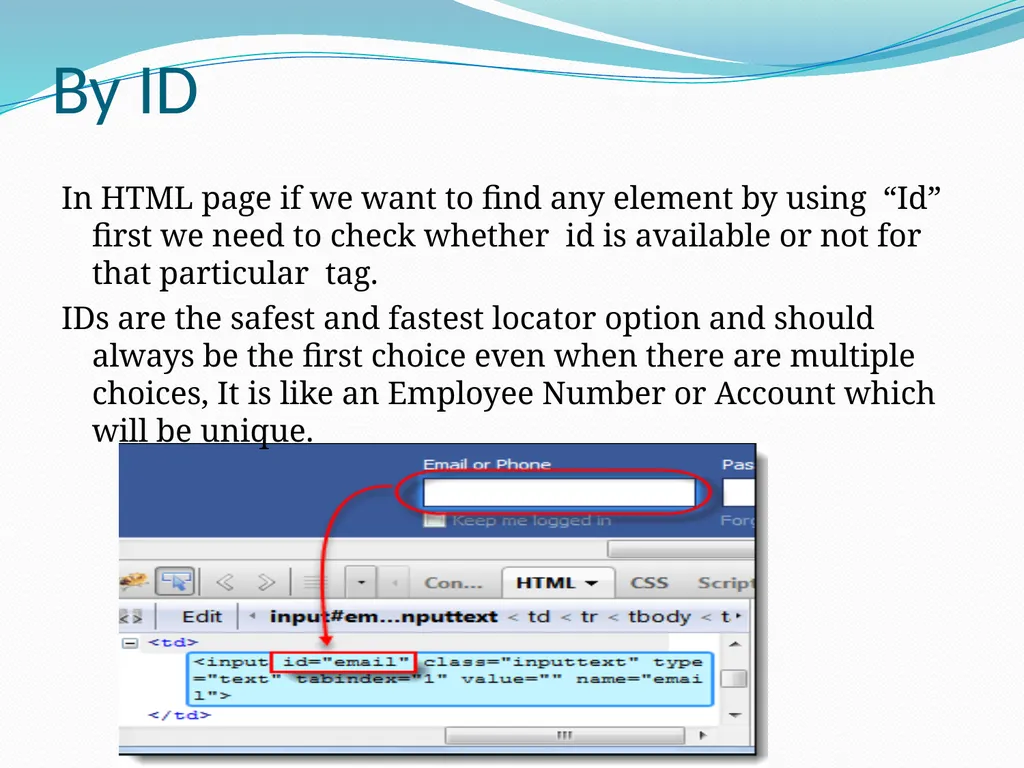
In HTML page if we want to find any element by using “Id” first we need to check whether id is available or not for that particular tag.
IDs are the safest and fastest locator option and should always be the first choice even when there are multiple choices, It is like an Employee Number or Account which will be unique. By ID<br>
IDs are the safest and fastest locator option and should always be the first choice even when there are multiple choices, It is like an Employee Number or Account which will be unique. By ID<br>
04
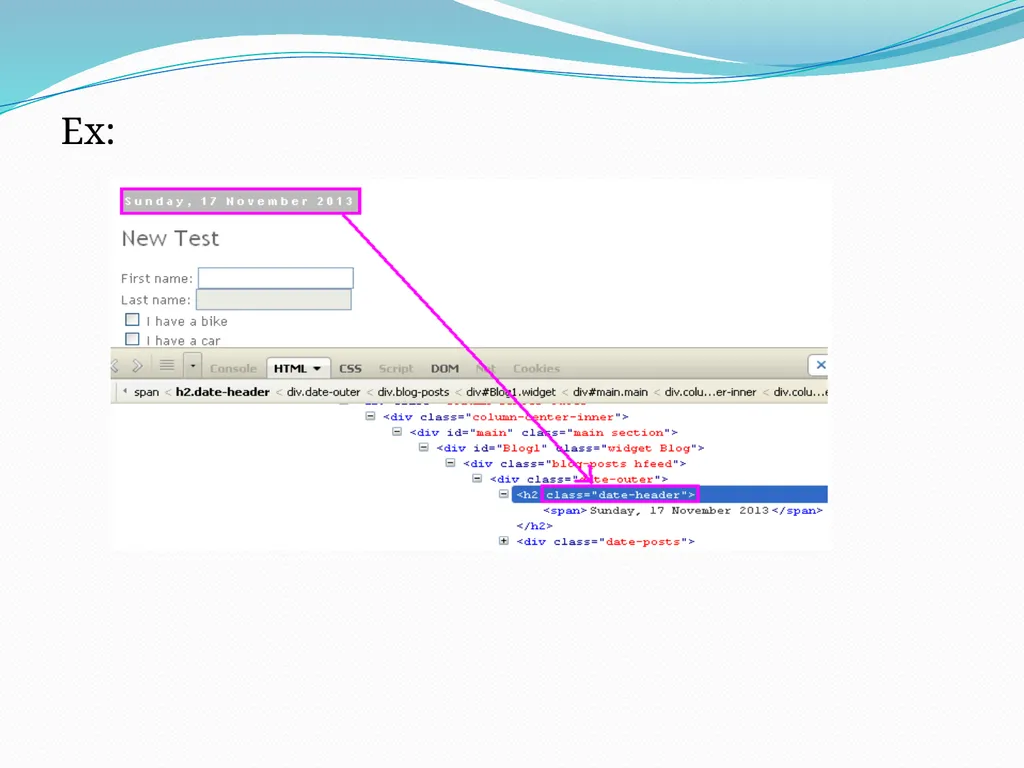
By ClassName There may be multiple elements with the same name, if we just use findElementByClassName,m make sure it is only one. If not the you need to extend using the classname and its sub elements.
Ex:
WebElement classtest =driver.findElement(By.className(“sample”));<br>
Ex:
WebElement classtest =driver.findElement(By.className(“sample”));<br>
05
Ex:<br>
06
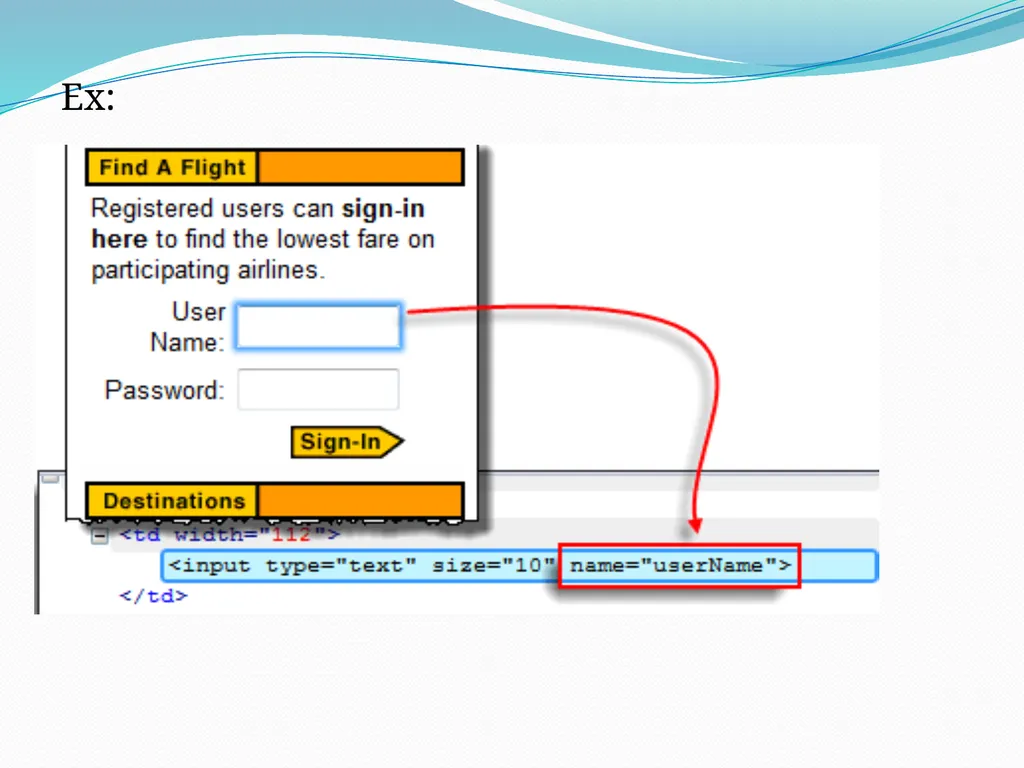
By Name When there is no Id to use, the next worth seeing if the desired element has a name attribute. But make sure there the name cannot be unique all the times. If there are multiple names, Selenium will always perform action on the first matching element.
Ex:
<input name="register" class="required" type="text"/> WebElement register= driver.findElement(By.name("register"));<br>
Ex:
<input name="register" class="required" type="text"/> WebElement register= driver.findElement(By.name("register"));<br>
07
Ex:<br>
08
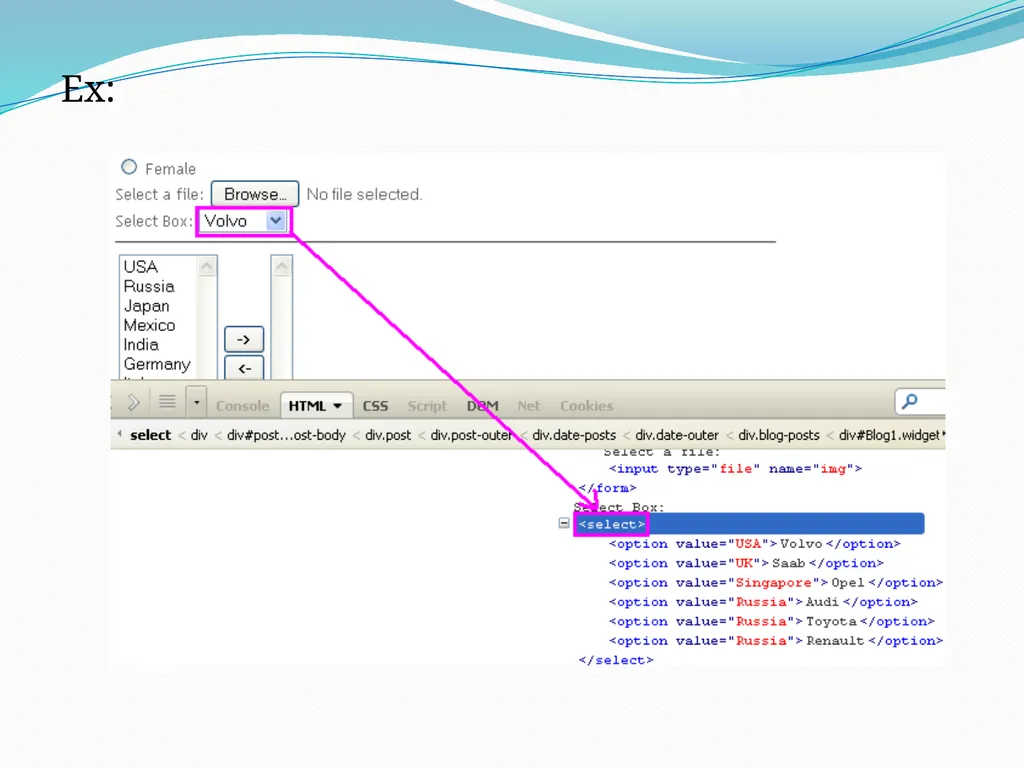
By tagName Locating Element By Tag Name is not too much popular because in most of cases, we will have other alternatives of element locators. But yes if there is not any alternative then you can use element's DOM Tag Name to locate that element in webdriver.
Ex: Here you can select the tagname as a locator like
//Locating element by tagName and store its text in variable dropdown. String dropdown = driver.findElement(By.tagName("select")).getText();<br>
Ex: Here you can select the tagname as a locator like
//Locating element by tagName and store its text in variable dropdown. String dropdown = driver.findElement(By.tagName("select")).getText();<br>
09
Ex:<br>
10
By LinkText Finding an element with link text is very simple. But make sure, there is only one unique link on the web page. If there are multiple links with the same link text (such as repeated header and footer menu links), in such cases Selenium will perform action on the first matching element with link.
Ex: <a href="http://www.seleniumhq.org">Downloads</a> WebElemen download = driver.findElement(By.linkText("Downloads"));<br>
Ex: <a href="http://www.seleniumhq.org">Downloads</a> WebElemen download = driver.findElement(By.linkText("Downloads"));<br>
11
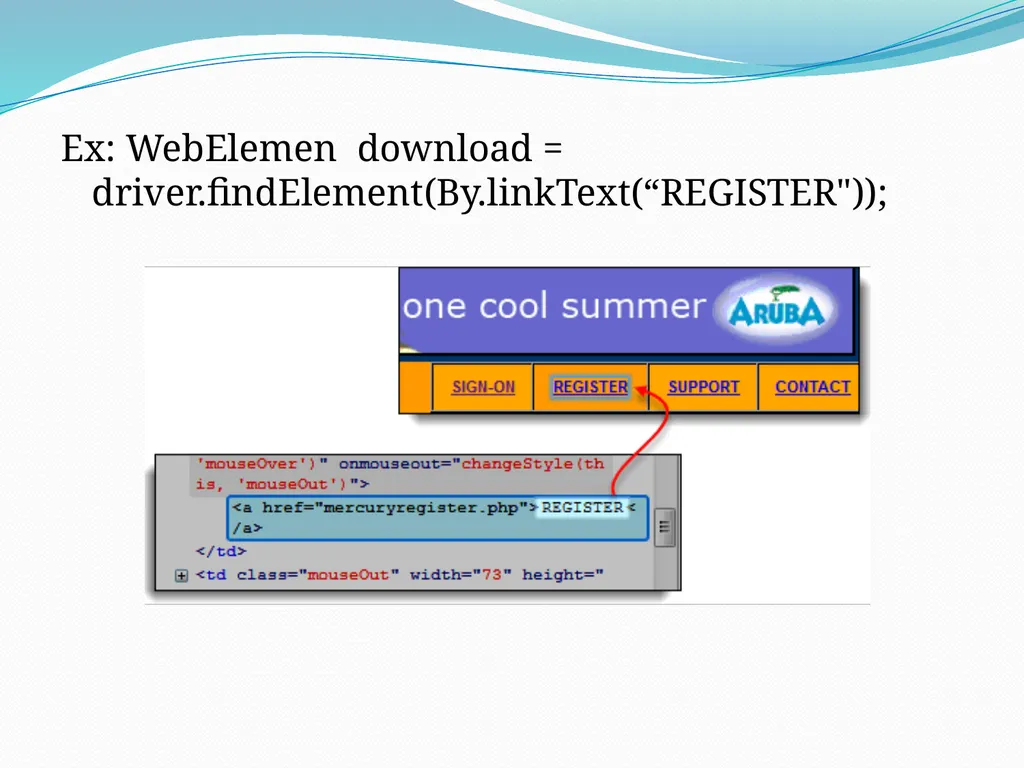
Ex: WebElemen download = driver.findElement(By.linkText(“REGISTER"));<br>
12
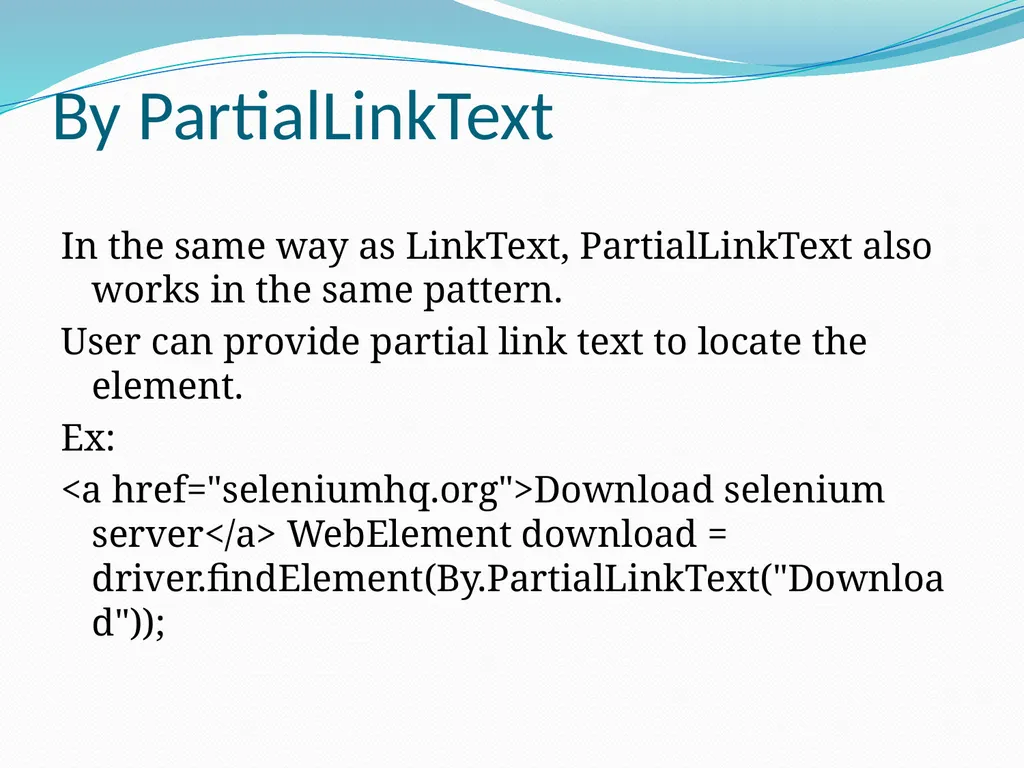
By PartialLinkText In the same way as LinkText, PartialLinkText also works in the same pattern.
User can provide partial link text to locate the element.
Ex:
<a href="seleniumhq.org">Download selenium server</a> WebElement download = driver.findElement(By.PartialLinkText("Download"));<br>
User can provide partial link text to locate the element.
Ex:
<a href="seleniumhq.org">Download selenium server</a> WebElement download = driver.findElement(By.PartialLinkText("Download"));<br>
13
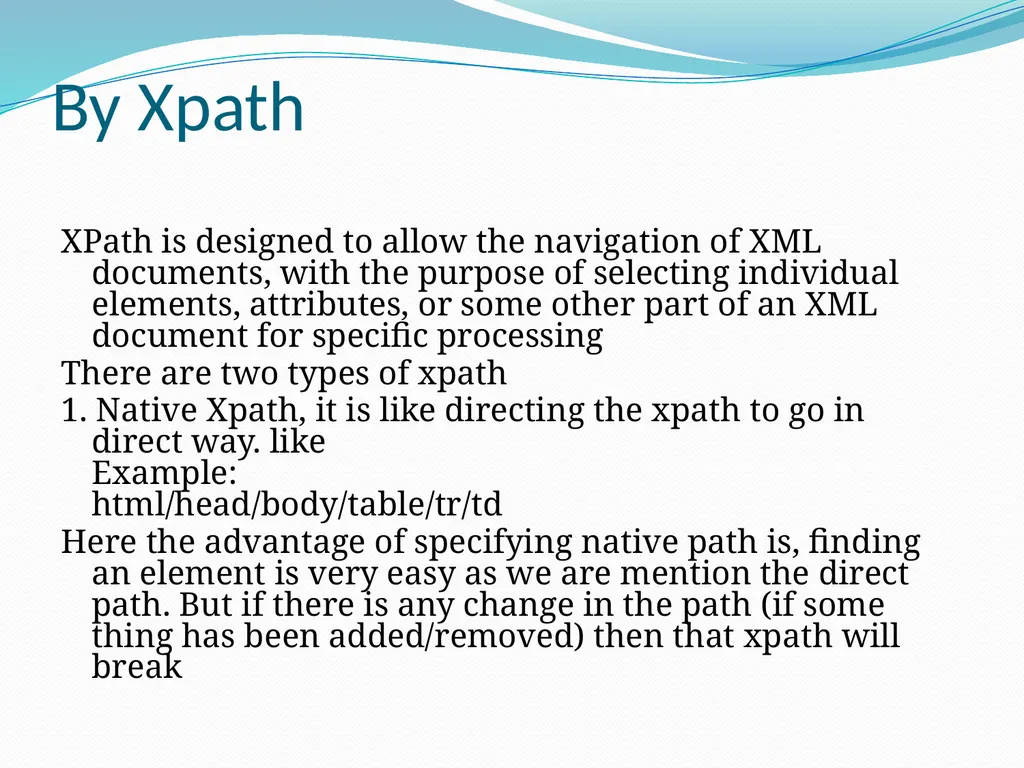
By Xpath XPath is designed to allow the navigation of XML documents, with the purpose of selecting individual elements, attributes, or some other part of an XML document for specific processing
There are two types of xpath
1. Native Xpath, it is like directing the xpath to go in direct way. like Example: html/head/body/table/tr/td
Here the advantage of specifying native path is, finding an element is very easy as we are mention the direct path. But if there is any change in the path (if some thing has been added/removed) then that xpath will break<br>
There are two types of xpath
1. Native Xpath, it is like directing the xpath to go in direct way. like Example: html/head/body/table/tr/td
Here the advantage of specifying native path is, finding an element is very easy as we are mention the direct path. But if there is any change in the path (if some thing has been added/removed) then that xpath will break<br>
14
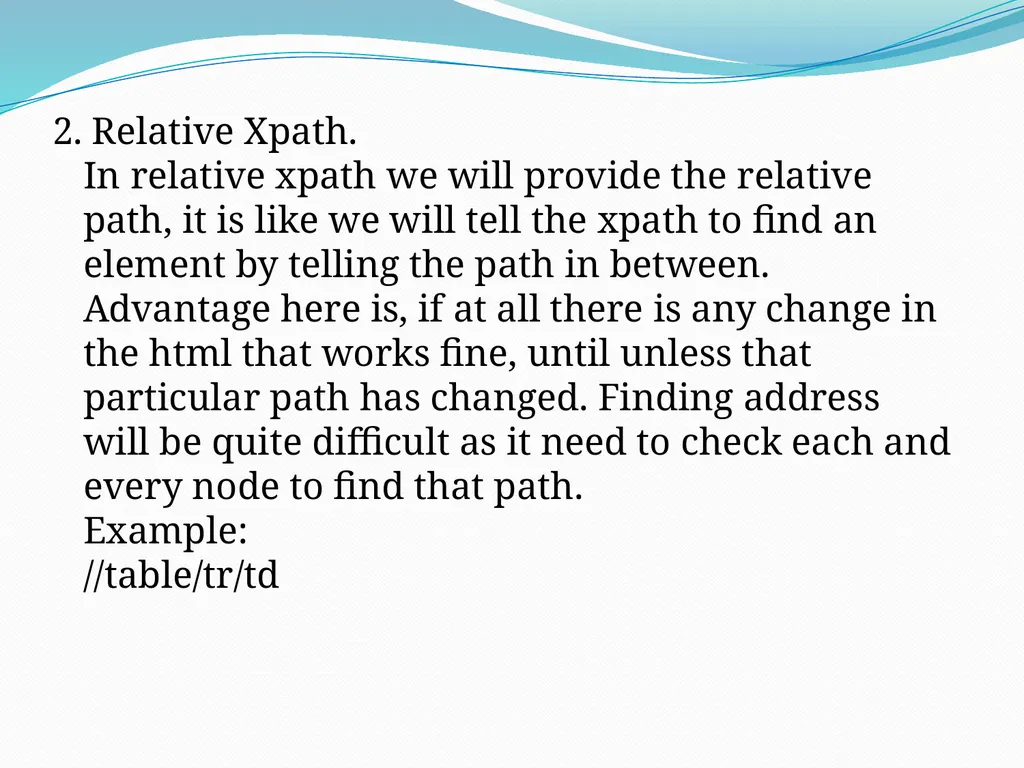
2. Relative Xpath.
In relative xpath we will provide the relative path, it is like we will tell the xpath to find an element by telling the path in between.
Advantage here is, if at all there is any change in the html that works fine, until unless that particular path has changed. Finding address will be quite difficult as it need to check each and every node to find that path.
Example:
//table/tr/td<br>
15
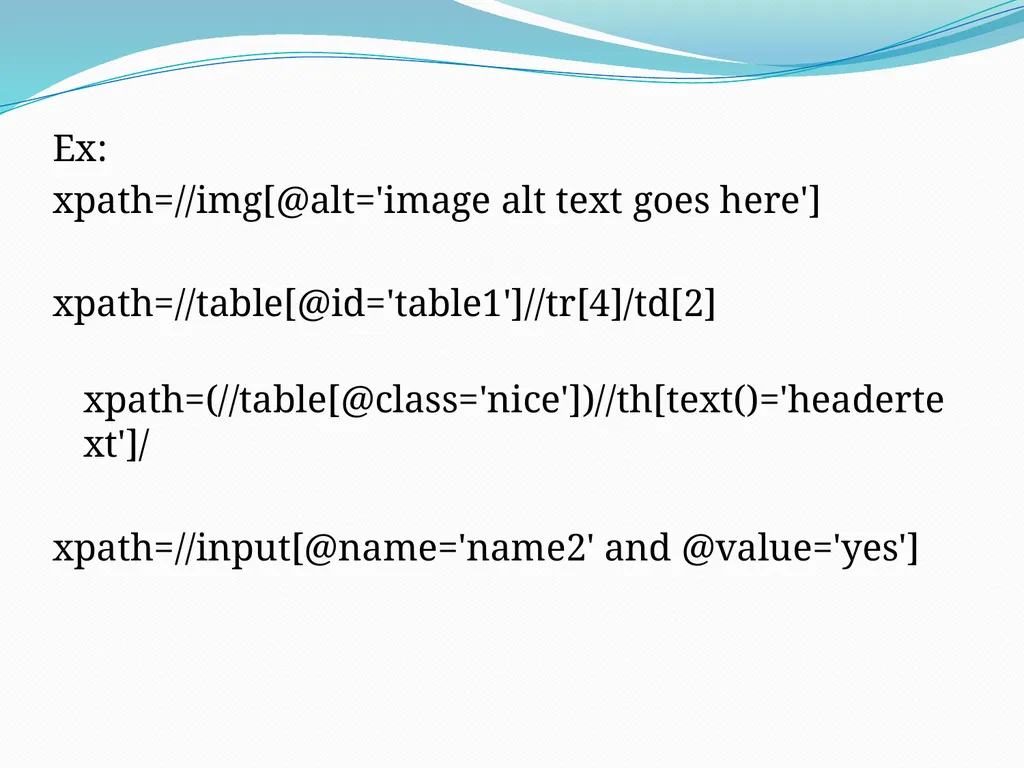
Ex:
xpath=//img[@alt='image alt text goes here']
xpath=//table[@id='table1']//tr[4]/td[2]
xpath=(//table[@class='nice'])//th[text()='headertext']/
xpath=//input[@name='name2' and @value='yes']<br>
xpath=//img[@alt='image alt text goes here']
xpath=//table[@id='table1']//tr[4]/td[2]
xpath=(//table[@class='nice'])//th[text()='headertext']/
xpath=//input[@name='name2' and @value='yes']<br>
16
By CssSelector CSS mainly used to provide style rules for the web pages and we can use for identifying one or more elements in the web page using css.
If you start using css selectors to identify elements, you will love the speed when compared with Xpath.
We can you use Css Selectors to make sure scripts run with the same speed in IE browser. CSS selector is always the best possible way to locate complex elements in the page.<br>
We can you use Css Selectors to make sure scripts run with the same speed in IE browser. CSS selector is always the best possible way to locate complex elements in the page.<br>
17
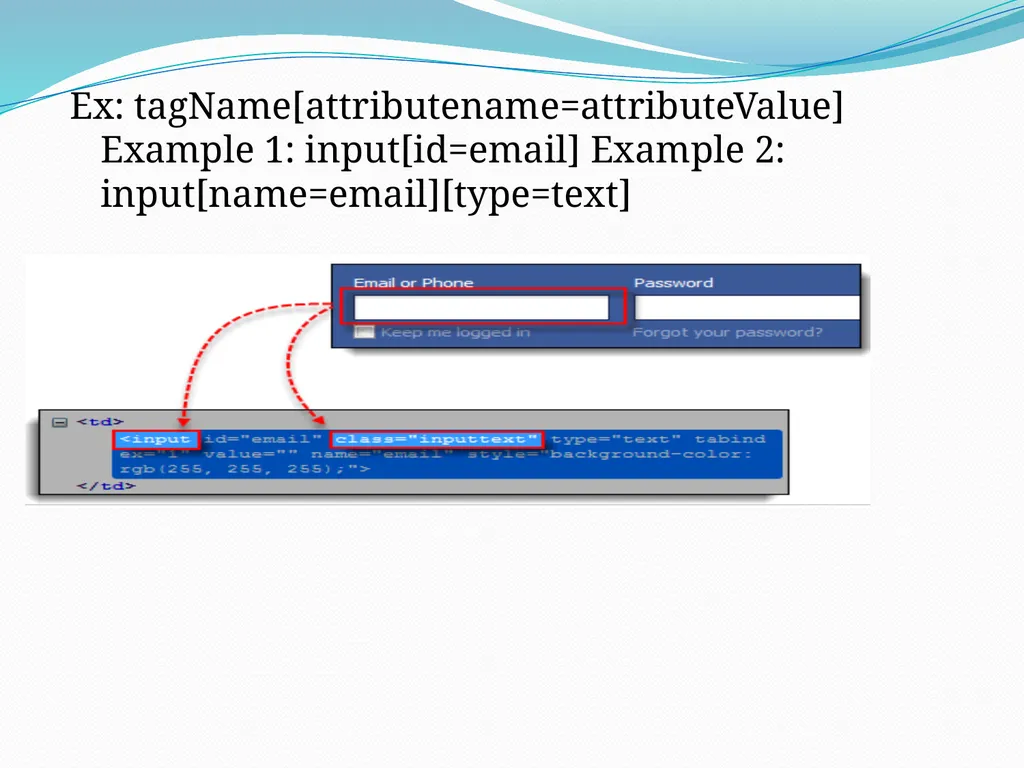
Ex: tagName[attributename=attributeValue] Example 1: input[id=email] Example 2: input[name=email][type=text]<br>
18
Dynamic Xpath and cssSelectors Dynamic Xpath:
XPath is defined as XML path. It is a syntax or language for finding any element on the web page using XML path expression. XPath is used to find the location of any element on a webpage using HTML DOM structure. The basic format of XPath is explained below with screen shot.<br>
XPath is defined as XML path. It is a syntax or language for finding any element on the web page using XML path expression. XPath is used to find the location of any element on a webpage using HTML DOM structure. The basic format of XPath is explained below with screen shot.<br>
19
Ex:<br>
20
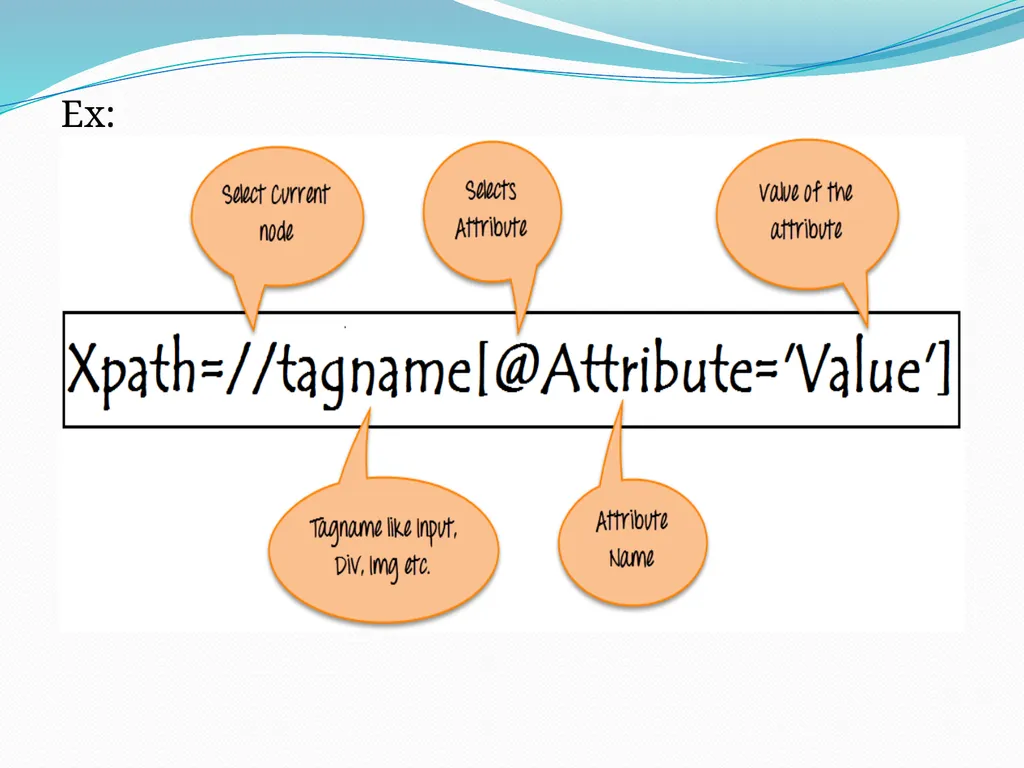
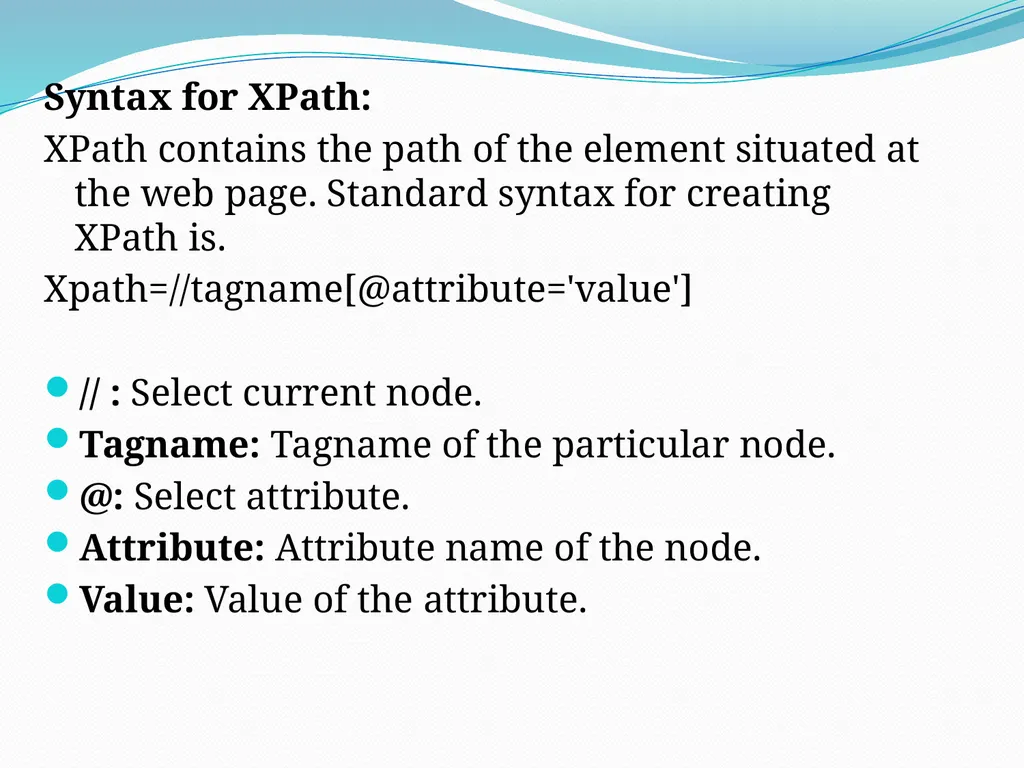
Syntax for XPath:
XPath contains the path of the element situated at the web page. Standard syntax for creating XPath is.
Xpath=//tagname[@attribute='value']
// : Select current node.
Tagname: Tagname of the particular node.
@: Select attribute.
Attribute: Attribute name of the node.
Value: Value of the attribute.<br>
XPath contains the path of the element situated at the web page. Standard syntax for creating XPath is.
Xpath=//tagname[@attribute='value']
// : Select current node.
Tagname: Tagname of the particular node.
@: Select attribute.
Attribute: Attribute name of the node.
Value: Value of the attribute.<br>
21
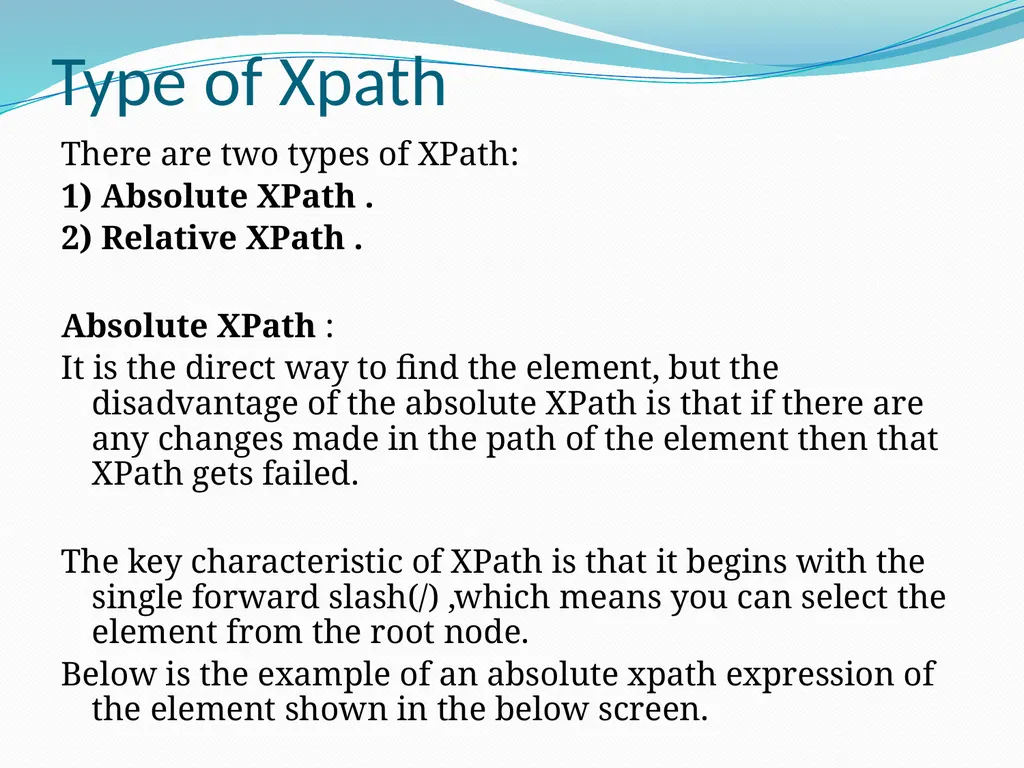
Type of Xpath There are two types of XPath:
1) Absolute XPath .
2) Relative XPath .
Absolute XPath :
It is the direct way to find the element, but the disadvantage of the absolute XPath is that if there are any changes made in the path of the element then that XPath gets failed.
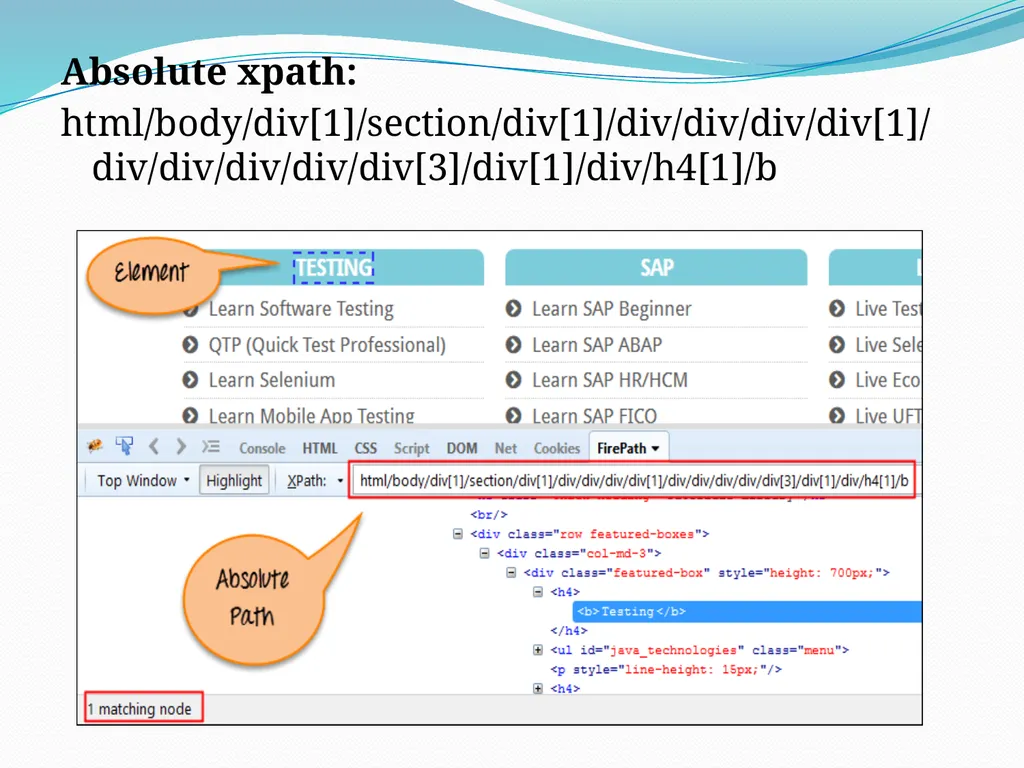
The key characteristic of XPath is that it begins with the single forward slash(/) ,which means you can select the element from the root node.
Below is the example of an absolute xpath expression of the element shown in the below screen.<br>
1) Absolute XPath .
2) Relative XPath .
Absolute XPath :
It is the direct way to find the element, but the disadvantage of the absolute XPath is that if there are any changes made in the path of the element then that XPath gets failed.
The key characteristic of XPath is that it begins with the single forward slash(/) ,which means you can select the element from the root node.
Below is the example of an absolute xpath expression of the element shown in the below screen.<br>
22
Absolute xpath:
html/body/div[1]/section/div[1]/div/div/div/div[1]/div/div/div/div/div[3]/div[1]/div/h4[1]/b<br>
html/body/div[1]/section/div[1]/div/div/div/div[1]/div/div/div/div/div[3]/div[1]/div/h4[1]/b<br>
23
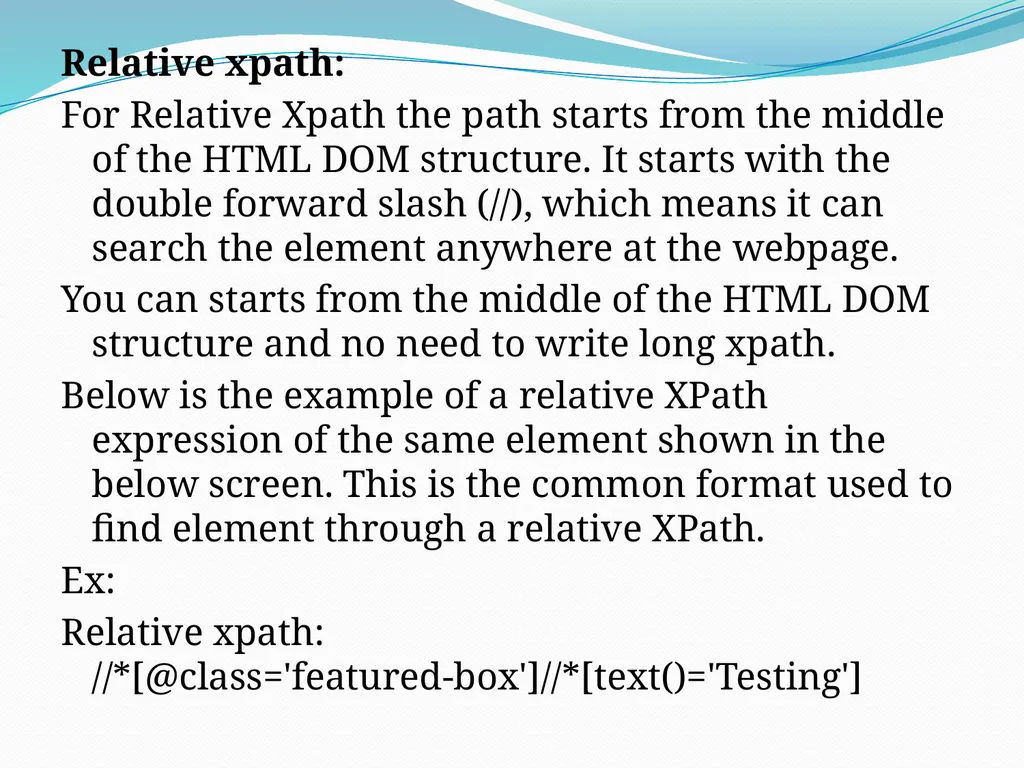
Relative xpath:
For Relative Xpath the path starts from the middle of the HTML DOM structure. It starts with the double forward slash (//), which means it can search the element anywhere at the webpage.
You can starts from the middle of the HTML DOM structure and no need to write long xpath.
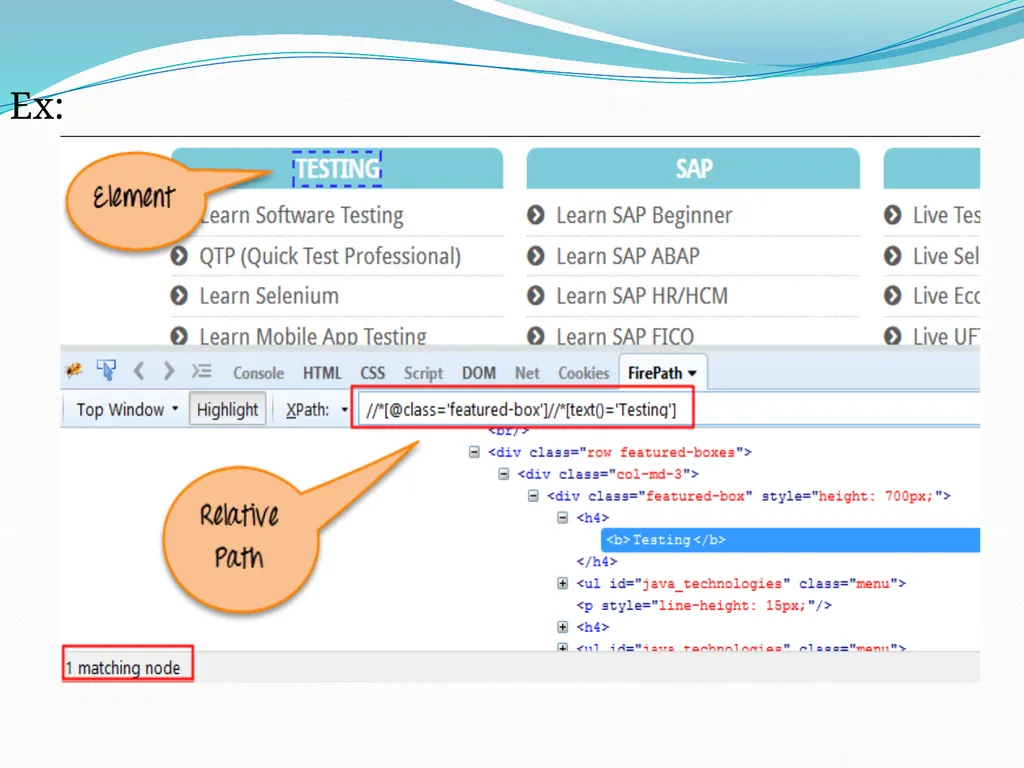
Below is the example of a relative XPath expression of the same element shown in the below screen. This is the common format used to find element through a relative XPath.
Ex:
Relative xpath: //*[@class='featured-box']//*[text()='Testing']<br>
For Relative Xpath the path starts from the middle of the HTML DOM structure. It starts with the double forward slash (//), which means it can search the element anywhere at the webpage.
You can starts from the middle of the HTML DOM structure and no need to write long xpath.
Below is the example of a relative XPath expression of the same element shown in the below screen. This is the common format used to find element through a relative XPath.
Ex:
Relative xpath: //*[@class='featured-box']//*[text()='Testing']<br>
24
Ex:<br>
25
Xpath types Basic Xpath:
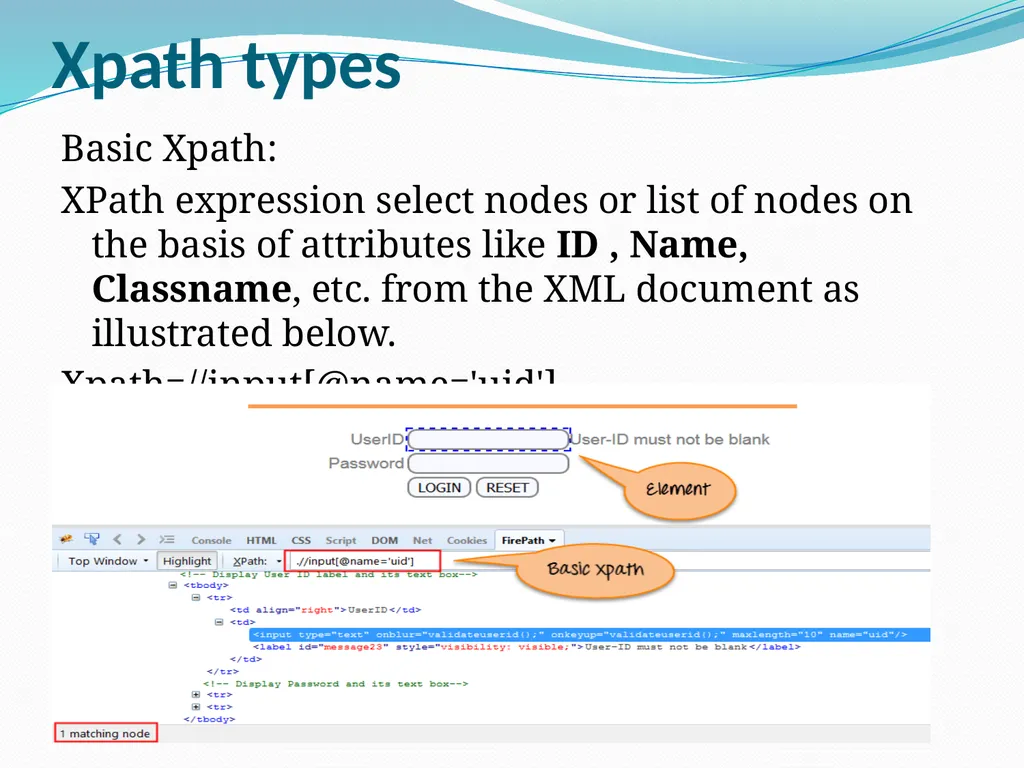
XPath expression select nodes or list of nodes on the basis of attributes like ID , Name, Classname, etc. from the XML document as illustrated below.
Xpath=//input[@name='uid']<br>
XPath expression select nodes or list of nodes on the basis of attributes like ID , Name, Classname, etc. from the XML document as illustrated below.
Xpath=//input[@name='uid']<br>
26
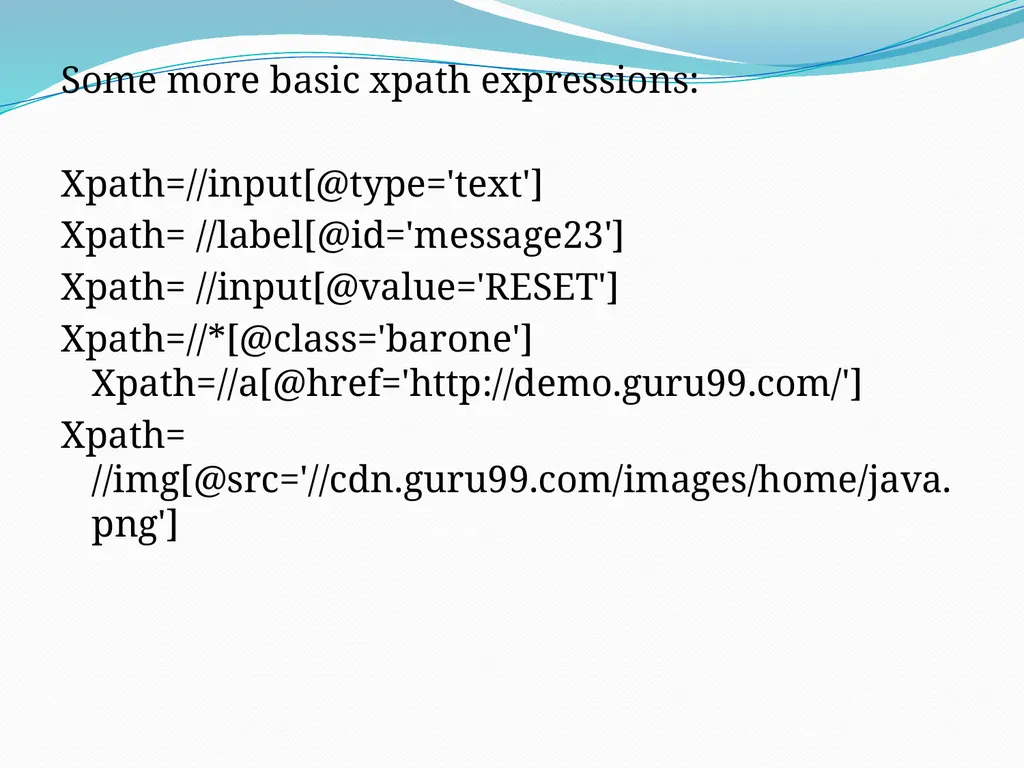
Some more basic xpath expressions:
Xpath=//input[@type='text']
Xpath= //label[@id='message23']
Xpath= //input[@value='RESET']
Xpath=//*[@class='barone'] Xpath=//a[@href='http://demo.guru99.com/']
Xpath= //img[@src='//cdn.guru99.com/images/home/java.png']<br>
Xpath=//input[@type='text']
Xpath= //label[@id='message23']
Xpath= //input[@value='RESET']
Xpath=//*[@class='barone'] Xpath=//a[@href='http://demo.guru99.com/']
Xpath= //img[@src='//cdn.guru99.com/images/home/java.png']<br>
27
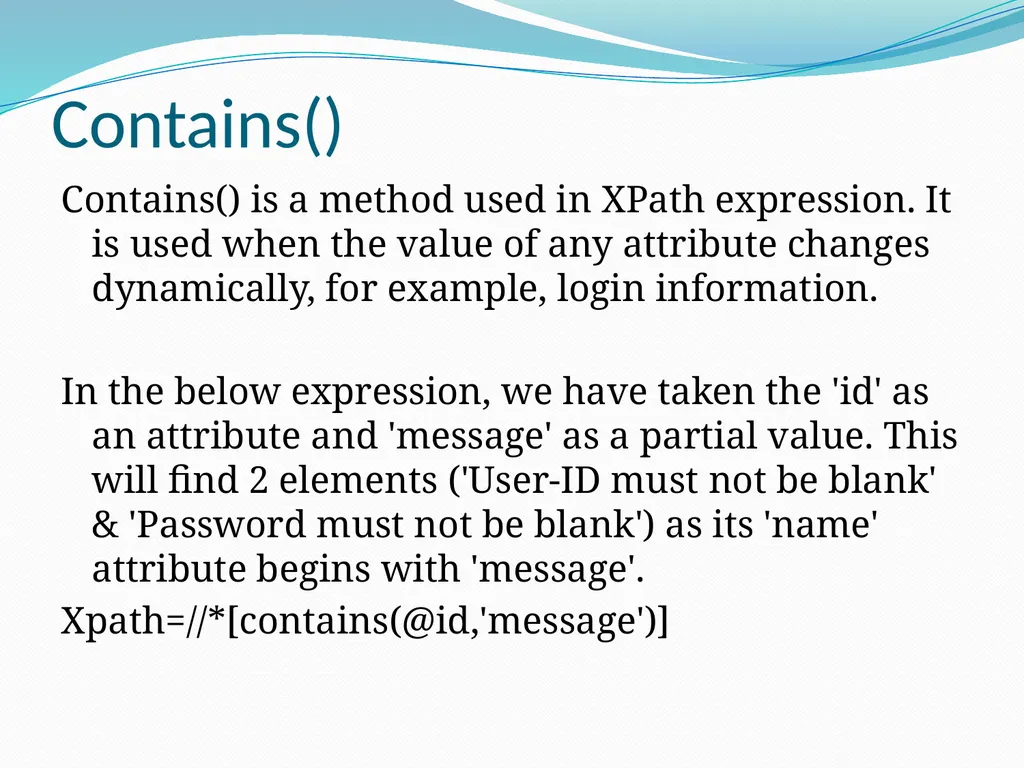
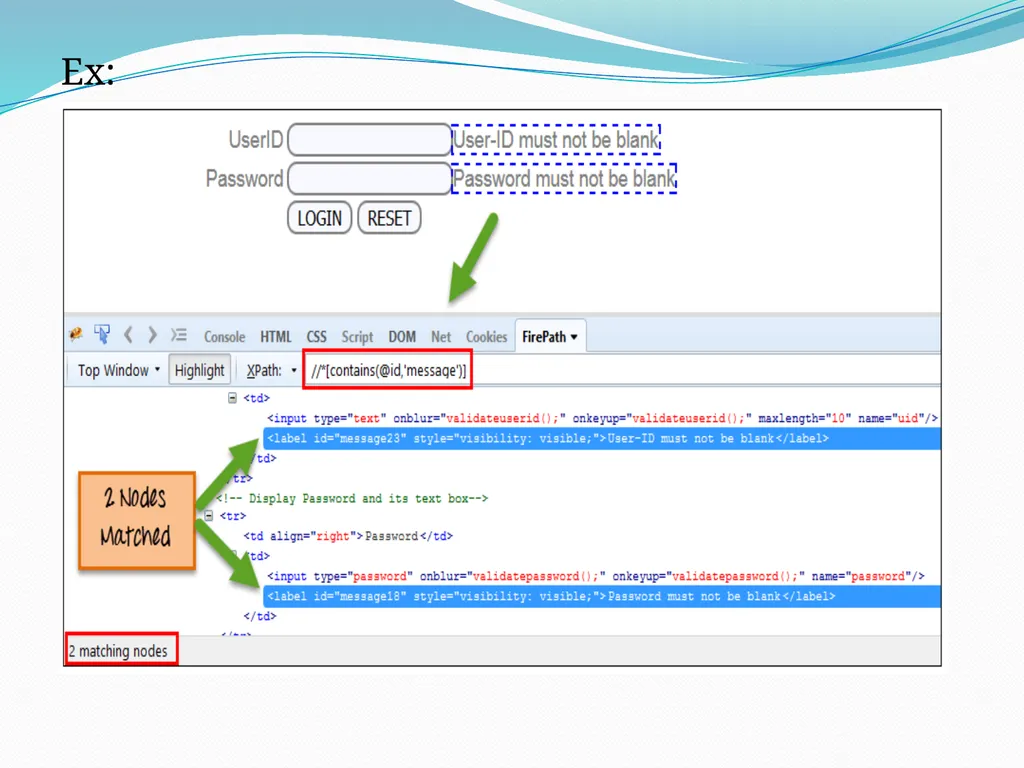
Contains() Contains() is a method used in XPath expression. It is used when the value of any attribute changes dynamically, for example, login information.
In the below expression, we have taken the 'id' as an attribute and 'message' as a partial value. This will find 2 elements ('User-ID must not be blank' & 'Password must not be blank') as its 'name' attribute begins with 'message'.
Xpath=//*[contains(@id,'message')]<br>
In the below expression, we have taken the 'id' as an attribute and 'message' as a partial value. This will find 2 elements ('User-ID must not be blank' & 'Password must not be blank') as its 'name' attribute begins with 'message'.
Xpath=//*[contains(@id,'message')]<br>
28
Ex:
Xpath=//*[contains(text(),'here')] Xpath=//*[contains(@href,'guru99.com')]<br>
Xpath=//*[contains(text(),'here')] Xpath=//*[contains(@href,'guru99.com')]<br>
29
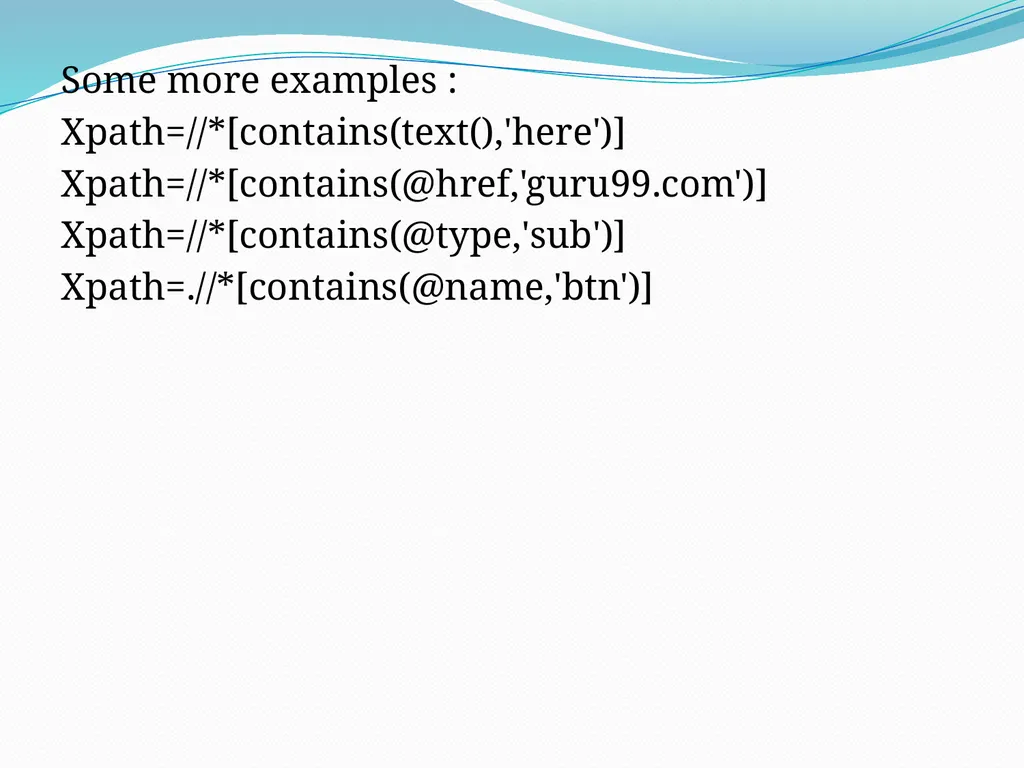
Some more examples :
Xpath=//*[contains(text(),'here')]
Xpath=//*[contains(@href,'guru99.com')]
Xpath=//*[contains(@type,'sub')]
Xpath=.//*[contains(@name,'btn')]<br>
Xpath=//*[contains(text(),'here')]
Xpath=//*[contains(@href,'guru99.com')]
Xpath=//*[contains(@type,'sub')]
Xpath=.//*[contains(@name,'btn')]<br>
30
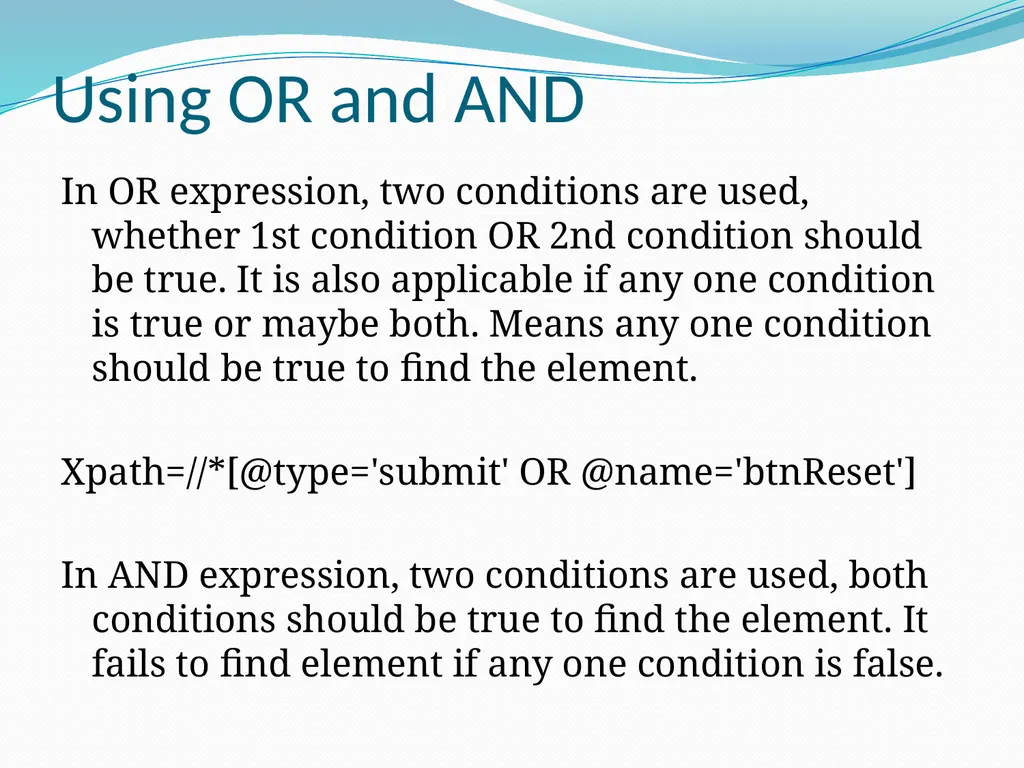
Using OR and AND In OR expression, two conditions are used, whether 1st condition OR 2nd condition should be true. It is also applicable if any one condition is true or maybe both. Means any one condition should be true to find the element.
Xpath=//*[@type='submit' OR @name='btnReset']
In AND expression, two conditions are used, both conditions should be true to find the element. It fails to find element if any one condition is false.<br>
Xpath=//*[@type='submit' OR @name='btnReset']
In AND expression, two conditions are used, both conditions should be true to find the element. It fails to find element if any one condition is false.<br>
31
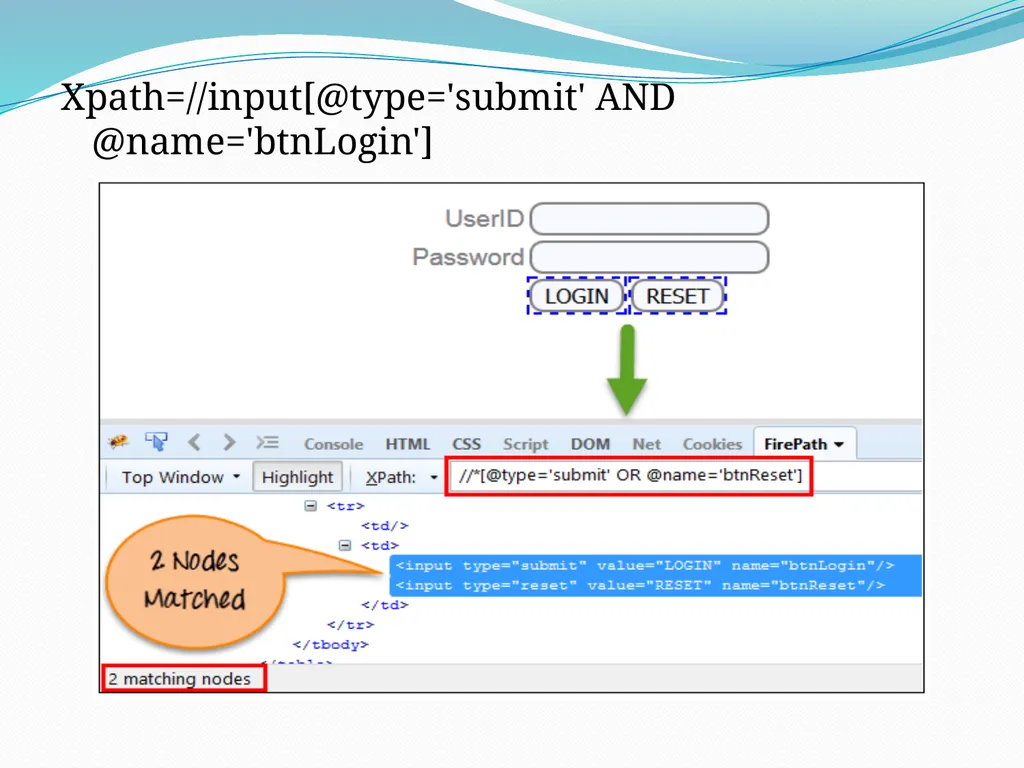
Xpath=//input[@type='submit' AND @name='btnLogin']<br>
32
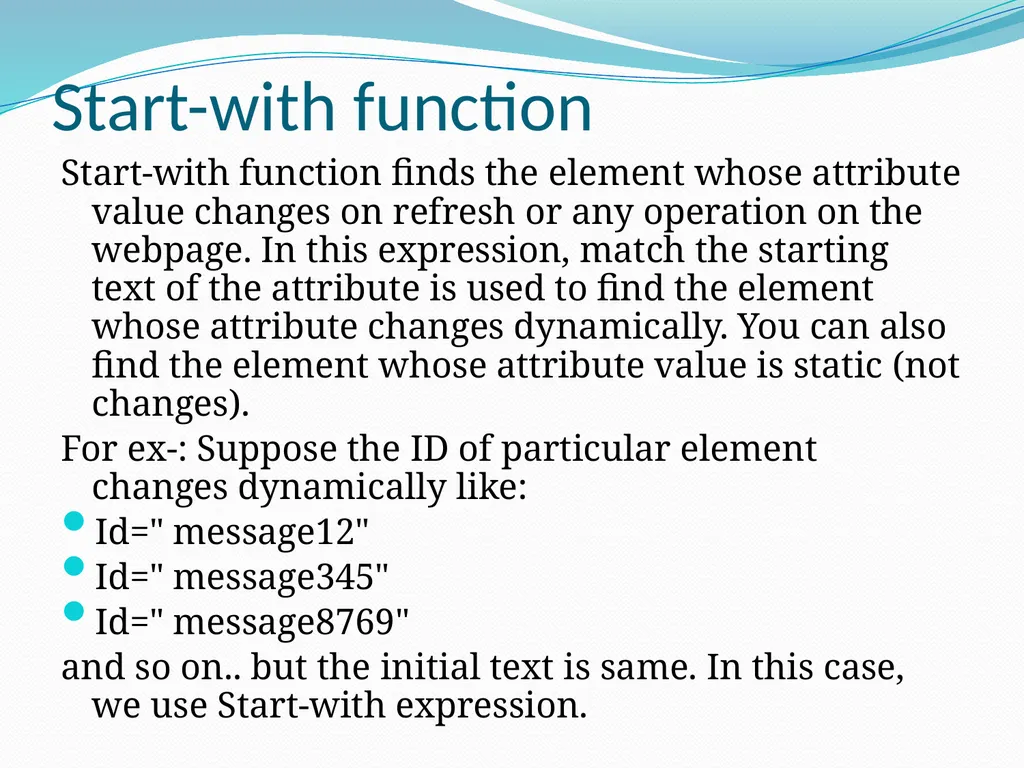
Start-with function Start-with function finds the element whose attribute value changes on refresh or any operation on the webpage. In this expression, match the starting text of the attribute is used to find the element whose attribute changes dynamically. You can also find the element whose attribute value is static (not changes).
For ex-: Suppose the ID of particular element changes dynamically like:
Id=" message12"
Id=" message345"
Id=" message8769"
and so on.. but the initial text is same. In this case, we use Start-with expression.<br>
For ex-: Suppose the ID of particular element changes dynamically like:
Id=" message12"
Id=" message345"
Id=" message8769"
and so on.. but the initial text is same. In this case, we use Start-with expression.<br>
33
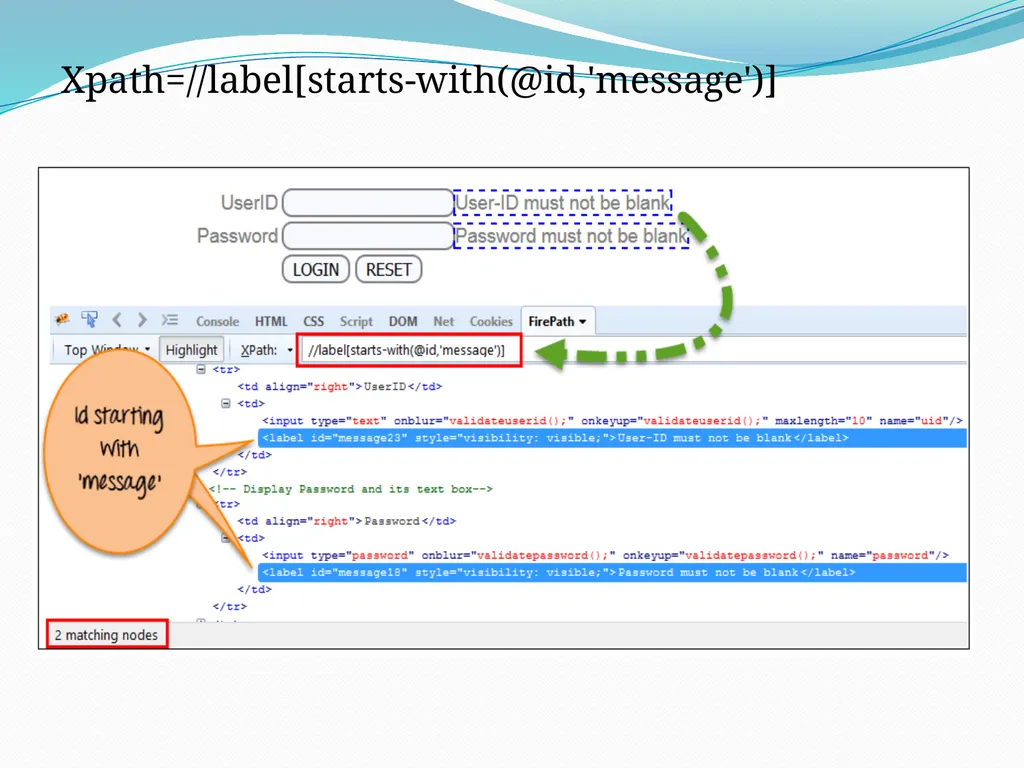
Xpath=//label[starts-with(@id,'message')]<br>
34
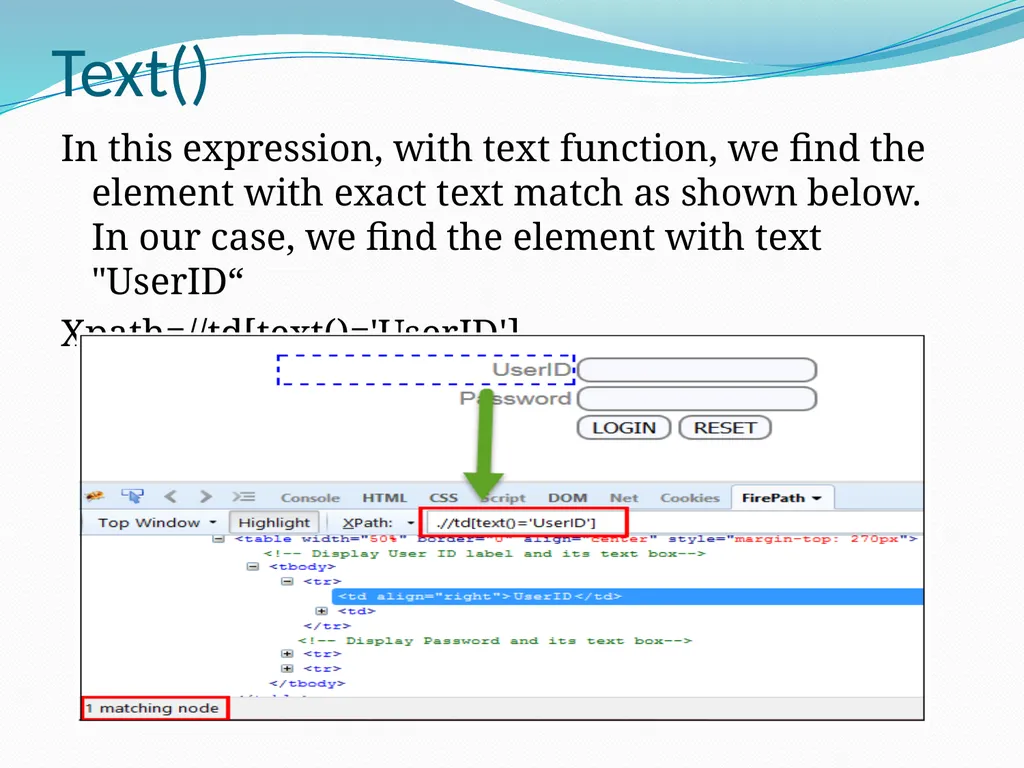
Text() In this expression, with text function, we find the element with exact text match as shown below. In our case, we find the element with text "UserID“
Xpath=//td[text()='UserID']<br>
Xpath=//td[text()='UserID']<br>
35
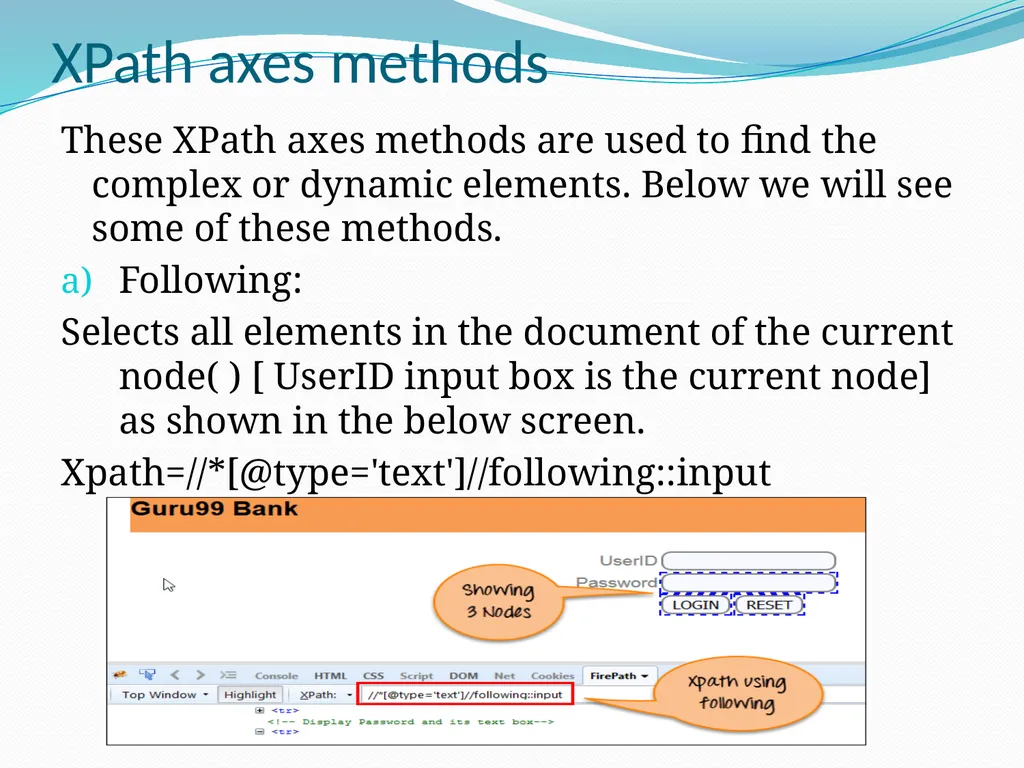
XPath axes methods These XPath axes methods are used to find the complex or dynamic elements. Below we will see some of these methods.
Following:
Selects all elements in the document of the current node( ) [ UserID input box is the current node] as shown in the below screen.
Xpath=//*[@type='text']//following::input<br>
Following:
Selects all elements in the document of the current node( ) [ UserID input box is the current node] as shown in the below screen.
Xpath=//*[@type='text']//following::input<br>
36
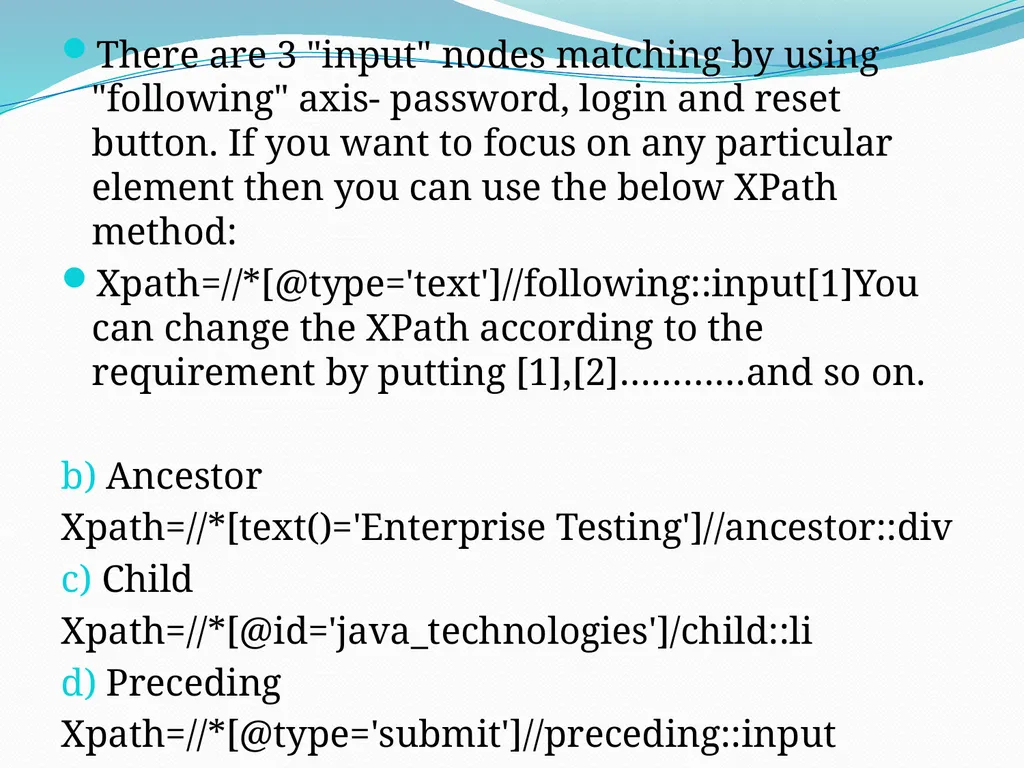
There are 3 "input" nodes matching by using "following" axis- password, login and reset button. If you want to focus on any particular element then you can use the below XPath method:
Xpath=//*[@type='text']//following::input[1]You can change the XPath according to the requirement by putting [1],[2]…………and so on.
b) Ancestor
Xpath=//*[text()='Enterprise Testing']//ancestor::div
c) Child
Xpath=//*[@id='java_technologies']/child::li
d) Preceding
Xpath=//*[@type='submit']//preceding::input<br>
Xpath=//*[@type='text']//following::input[1]You can change the XPath according to the requirement by putting [1],[2]…………and so on.
b) Ancestor
Xpath=//*[text()='Enterprise Testing']//ancestor::div
c) Child
Xpath=//*[@id='java_technologies']/child::li
d) Preceding
Xpath=//*[@type='submit']//preceding::input<br>
37
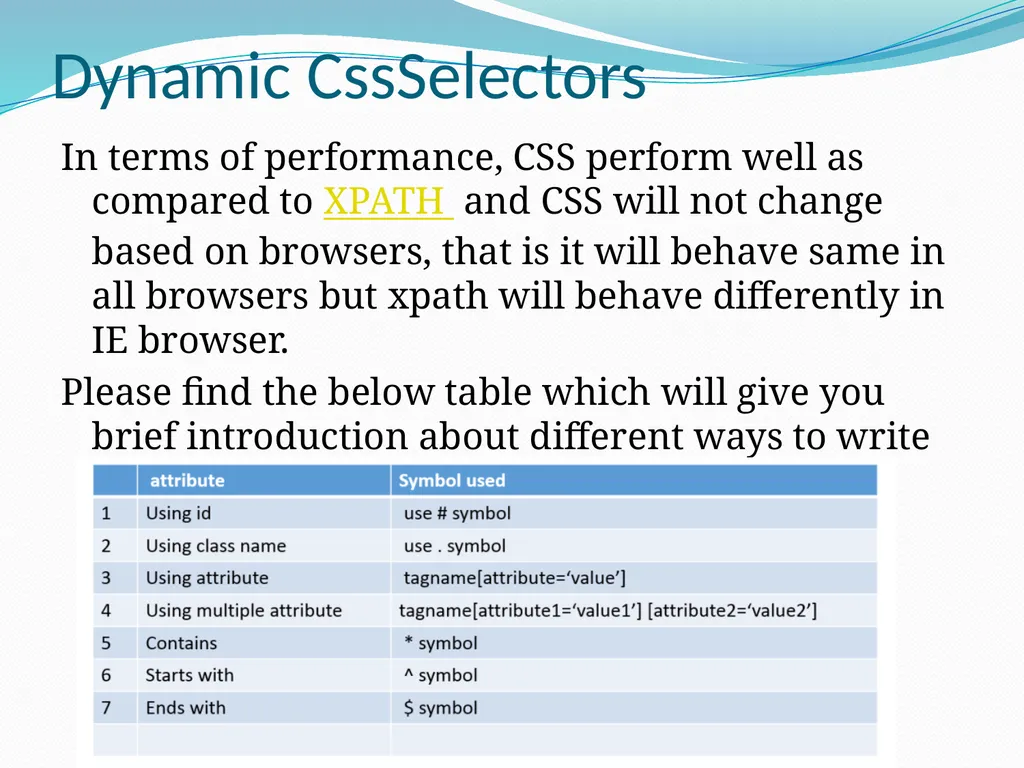
Dynamic CssSelectors In terms of performance, CSS perform well as compared to XPATH and CSS will not change based on browsers, that is it will behave same in all browsers but xpath will behave differently in IE browser.
Please find the below table which will give you brief introduction about different ways to write CSS in Selenium.<br>
Please find the below table which will give you brief introduction about different ways to write CSS in Selenium.<br>
38
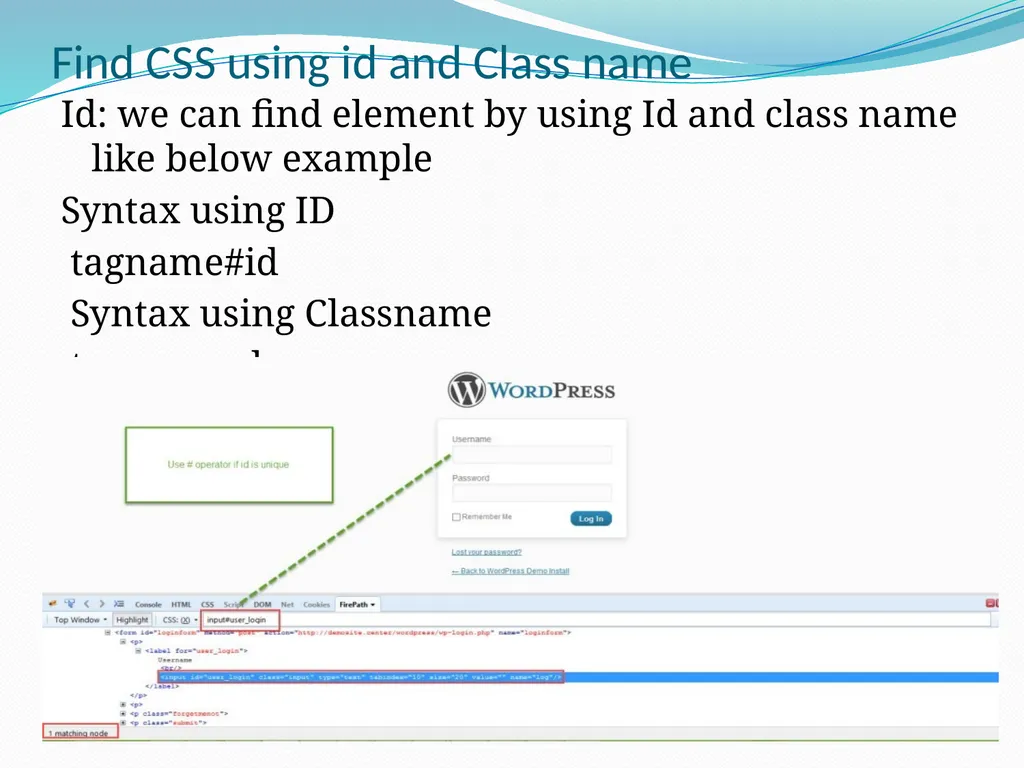
Find CSS using id and Class name Id: we can find element by using Id and class name like below example
Syntax using ID
tagname#id
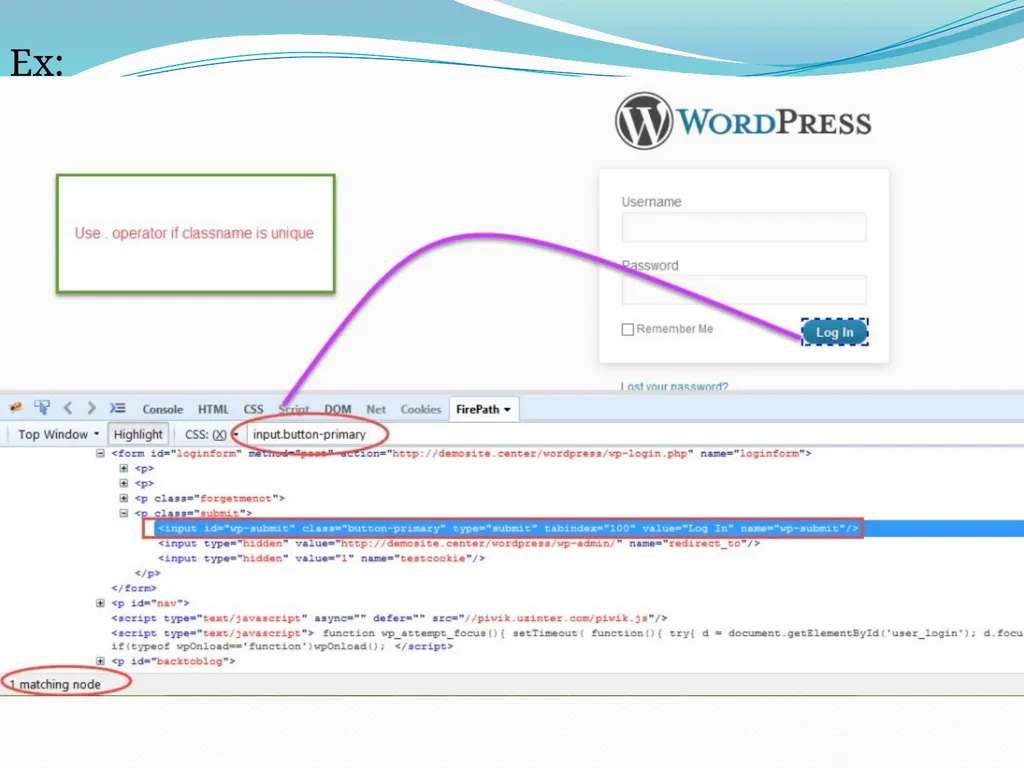
Syntax using Classname
tagname.classname<br>
Syntax using ID
tagname#id
Syntax using Classname
tagname.classname<br>
39
Ex:<br>
40
Find CSS using contains In CSS we will use * symbol to check particular attribute contains that value or not
Syntax-
tagname[attribute*='value']
Ex:
Input[id*=‘button’]<br>
Syntax-
tagname[attribute*='value']
Ex:
Input[id*=‘button’]<br>
41
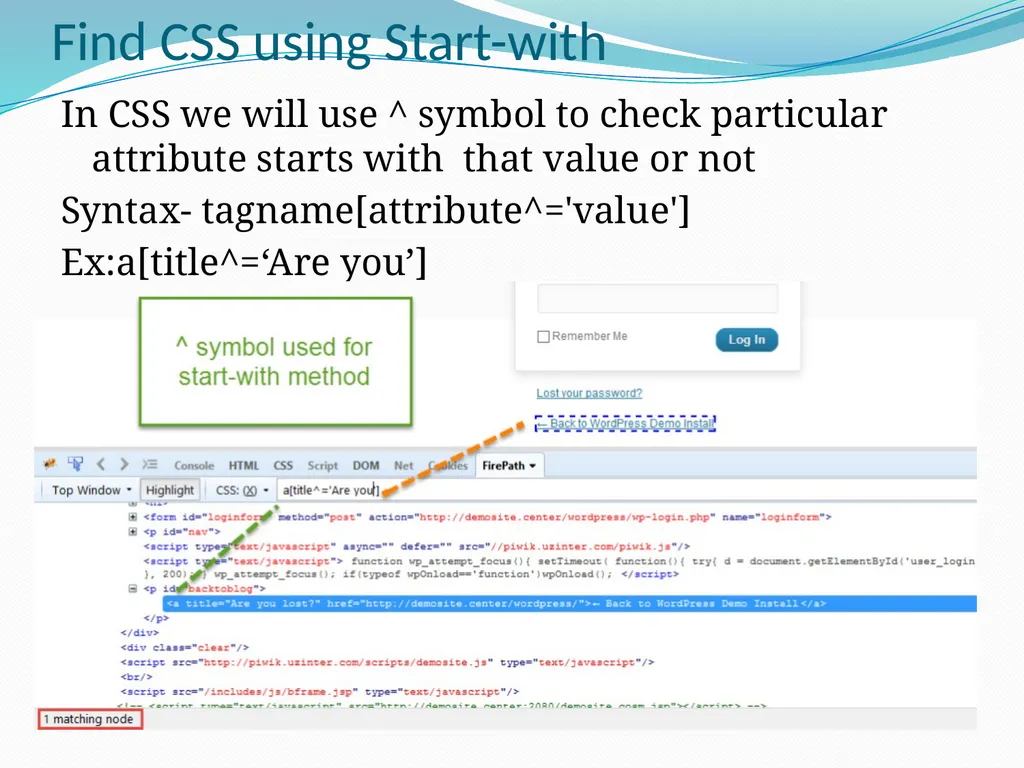
Find CSS using Start-with In CSS we will use ^ symbol to check particular attribute starts with that value or not
Syntax- tagname[attribute^='value']
Ex:a[title^=‘Are you’]<br>
Syntax- tagname[attribute^='value']
Ex:a[title^=‘Are you’]<br>
42
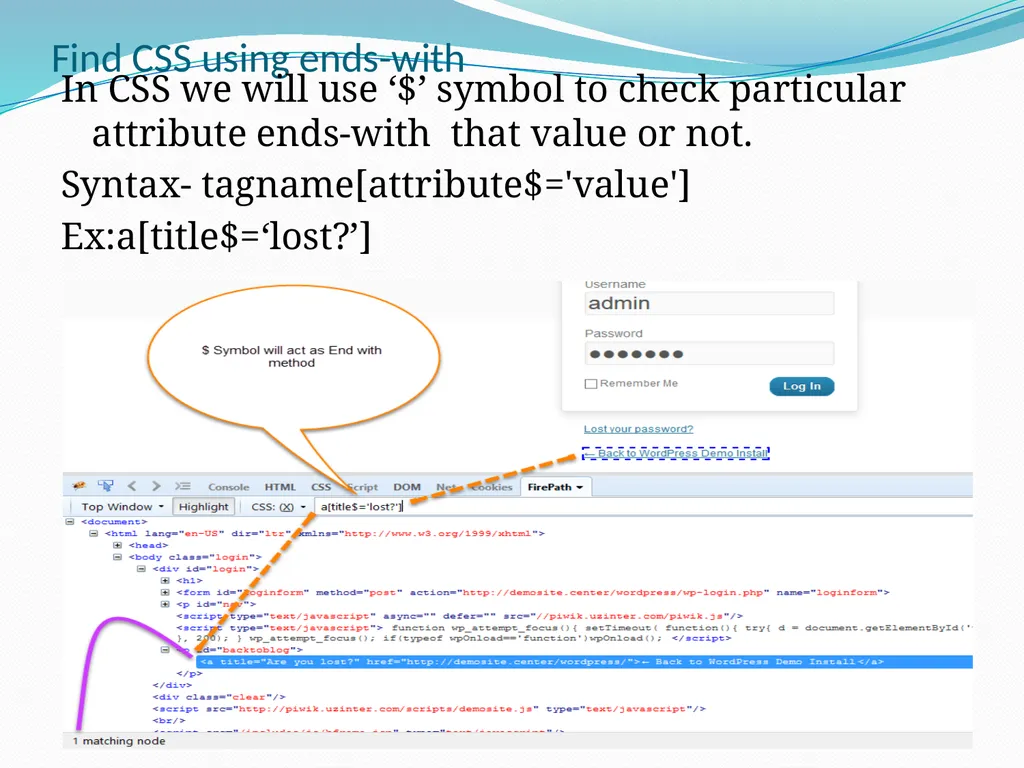
Find CSS using ends-with In CSS we will use ‘$’ symbol to check particular attribute ends-with that value or not.
Syntax- tagname[attribute$='value']
Ex:a[title$=‘lost?’]<br>
Syntax- tagname[attribute$='value']
Ex:a[title$=‘lost?’]<br>
43
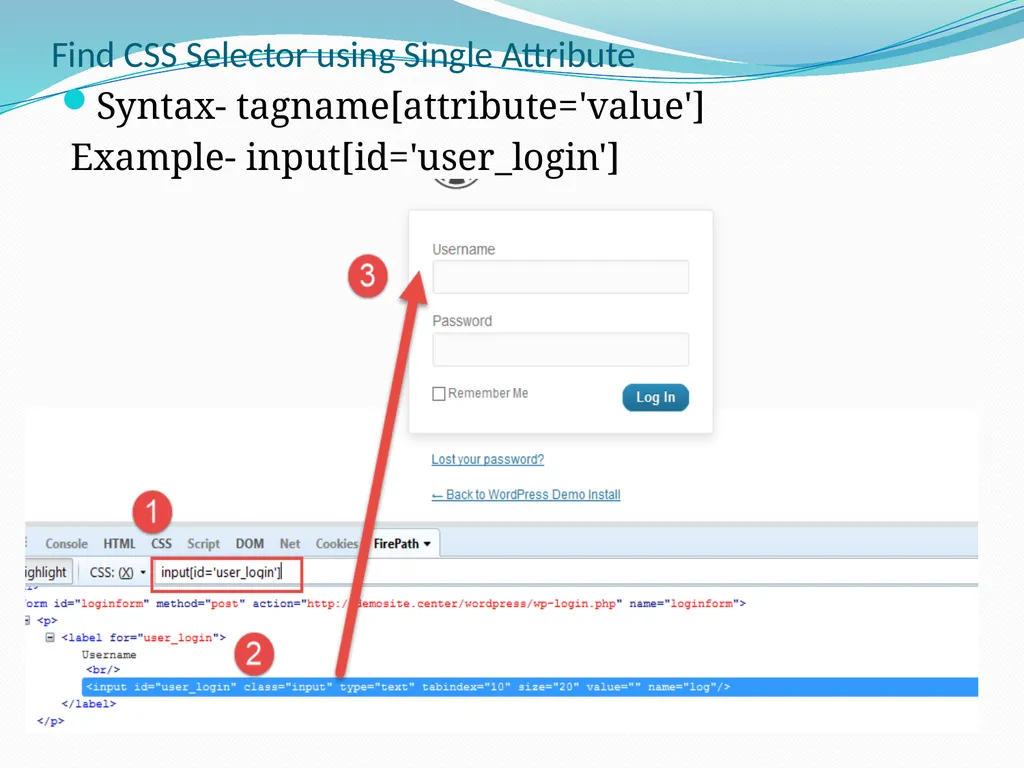
Find CSS Selector using Single Attribute Syntax- tagname[attribute='value']
Example- input[id='user_login']<br>
Example- input[id='user_login']<br>
44
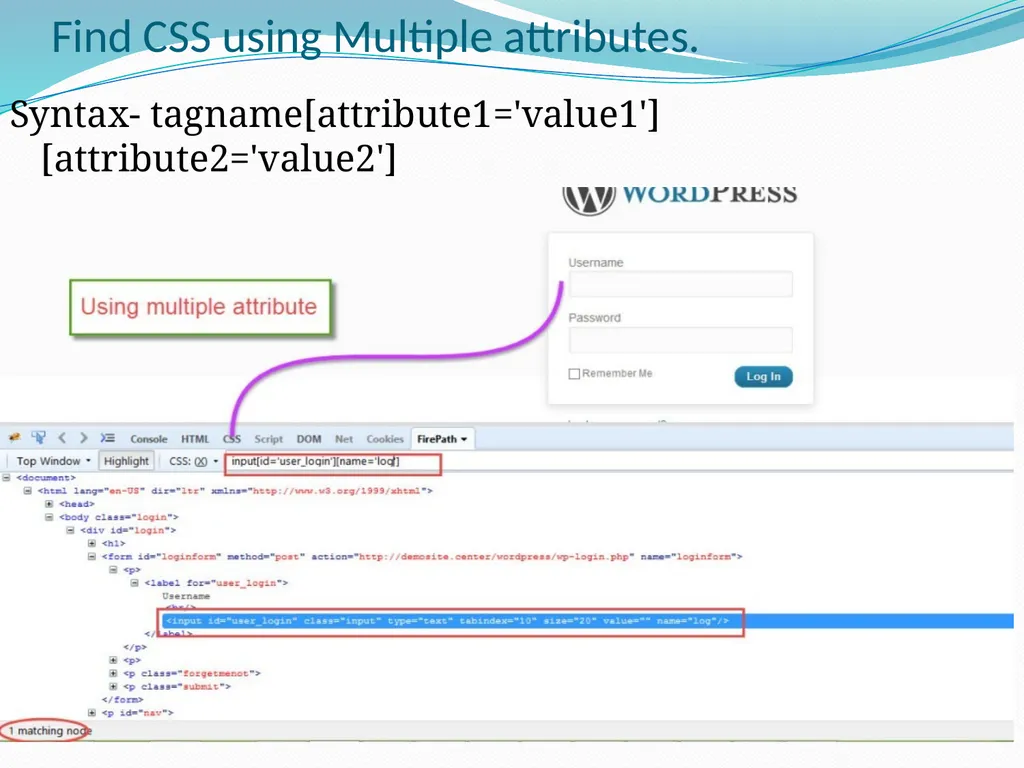
Find CSS using Multiple attributes. Syntax- tagname[attribute1='value1'][attribute2='value2']
Ex: input[id=‘user_login][name=‘log’]<br>
Ex: input[id=‘user_login][name=‘log’]<br>
45
Assignment Login to :https://www.makemytrip.com/
By using 8 locators find as many elements as you can. At least 80 elements find out.
Ex: By id – find 10 elements (id='signIn')
By name-10 and so on…
Find dynamic xpaths using different methods like contains ,start-with ,text, following and preceding
At least 50 xpaths .
Find Dynamic cssSelectors using different methods like id, class name, starts-with ,ends-with, single attribute and multiple attribute
At least 50 cssSelectors.<br>
By using 8 locators find as many elements as you can. At least 80 elements find out.
Ex: By id – find 10 elements (id='signIn')
By name-10 and so on…
Find dynamic xpaths using different methods like contains ,start-with ,text, following and preceding
At least 50 xpaths .
Find Dynamic cssSelectors using different methods like id, class name, starts-with ,ends-with, single attribute and multiple attribute
At least 50 cssSelectors.<br>
46
Thanks You….<br>