Spring 2025 Digital SAT and PSAT Testing Parental Excuse and SAT PSAT Spring 2025 Parental Excuse and SAT PSAT For internal use only This slide deck provides guidance on the application of parent excuse coding for SATPSAT. This coding
"Spring 2025 Digital SAT and PSAT Testing Parental" is the property of its rightful owner. Permission is granted to
download and print the materials on this website for personal, non-commercial use only, and to display it
on your personal computer provided you do not modify the materials and that you retain all copyright
notices contained in the materials. By downloading content from our website, you accept the terms of this
agreement.
Presentation Transcript
01
Spring 2025 Digital SAT and PSAT Testing Parental Excuse and SAT / PSAT Spring 2025<br>
02
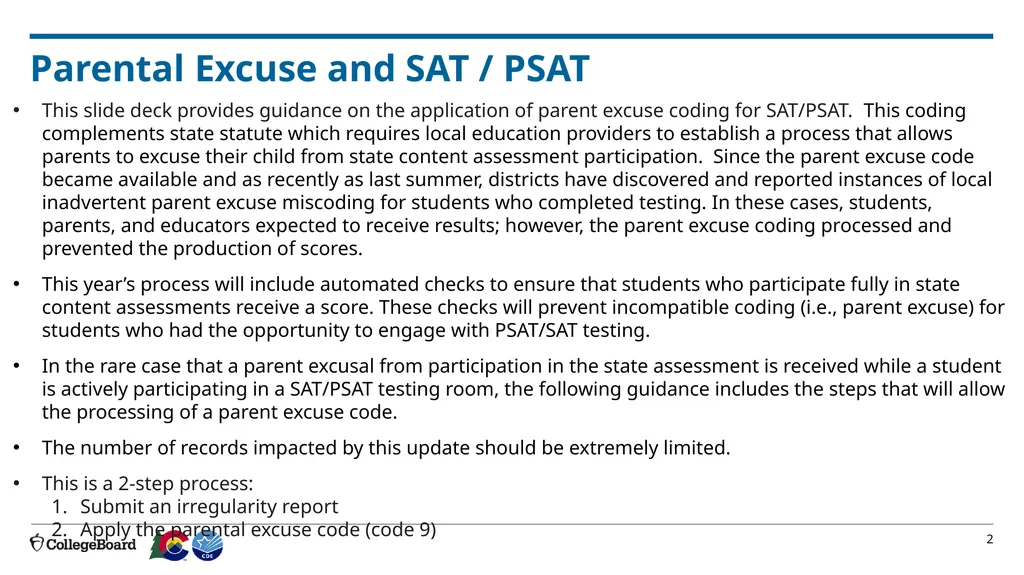
Parental Excuse and SAT / PSAT For internal use only This slide deck provides guidance on the application of parent excuse coding for SAT/PSAT. This coding complements state statute which requires local education providers to establish a process that allows parents to excuse their child from state content assessment participation. Since the parent excuse code became available and as recently as last summer, districts have discovered and reported instances of local inadvertent parent excuse miscoding for students who completed testing. In these cases, students, parents, and educators expected to receive results; however, the parent excuse coding processed and prevented the production of scores.
This year’s process will include automated checks to ensure that students who participate fully in state content assessments receive a score. These checks will prevent incompatible coding (i.e., parent excuse) for students who had the opportunity to engage with PSAT/SAT testing.
In the rare case that a parent excusal from participation in the state assessment is received while a student is actively participating in a SAT/PSAT testing room, the following guidance includes the steps that will allow the processing of a parent excuse code.
The number of records impacted by this update should be extremely limited.
This is a 2-step process:
Submit an irregularity report
Apply the parental excuse code (code 9)<br>
03
Parental Excuse During Testing For internal use only College Board will process and report scores for all students who answer any test items, unless they are invalidated by College Board due to a testing irregularity. College Board does not use CDE Special Reporting Use/Reason Not Tested codes when processing scores.
If a parent excuses their student from participating in the PSAT or SAT prior to the start of testing, the student should not enter a physical testing room and the student’s record should be coded with 9 for parental excuse in the Special Use Only field within the student’s profile in Test Day Toolkit. A parent excuse code applied to a student record for these students who did not enter College Board’s Bluebook student testing app will be processed and will appear in CDE’s final data.
A parent excuse code will not be processed and will not appear in CDE’s final data if the student started testing and submitted responses in any test module with the following exception.<br>
04
Parental Excuse During Testing For internal use only Student Removed from Testing Room Due to Parent Excuse:
In the rare instance that a student needs to be removed during an active testing session in response to a parent excusal:
Immediately after the test session ends, the student must be reported to College Board in Test Day Toolkit through the Irregularities page. To prevent any risk of creating a wider scale irregularity issue that could impact other students, in this situation it would be best to wait for the scheduled section break (between reading/writing and math) to remove the student.
The student’s record should be coded with 9 for parental excuse in the Special Reporting Use/Reason Not Tested Code field, either within Test Day Toolkit or during SBD. If a testing irregularity is not submitted and there is a score in the final file, the Parental Excuse will not be processed.
More information on providing special reporting use/reason not tested codes including parent excusals is available on page 42 of the Spring 2026 Colorado SAT Suite of Assessments Test Coordinator Manual. Guidance on how District Data Respondents can verify and update these codes during the Student Biographical Review (SBD) data clean-up window will be provided during SBD training.
To complete steps 1 and 2 in Test Day Toolkit as described above, please follow the guidance on the following slides.<br>
05
Part One: Submit an Irregularity Report<br>
06
Login to Test Day Toolkit For internal use only Sign into Test Day Toolkit. There are two ways to do this. The first is to access the application from your College Board Educator Account dashboard.
The other option is to sign in https://testday.collegeboard.org/.<br>
07
Choose Your Test Administration For internal use only Chose your test site from the dropdown menu.
Then, chose the test administration and assessment from the dropdown menu.<br>
08
Navigate to Irregularities For internal use only On the Test Day Toolkit home page, click the Irregularities tab or choose the Irregularities tile.<br>
09
Add an Irregularity Report For internal use only Next, choose the yellow Add Report button.<br>
10
Report a security issue or rule violation For internal use only Choose Report a security issue or rule violation.<br>
11
Prohibited behaviors (no retest) For internal use only Then choose Prohibited behaviors (no retest)<br>
12
Irregularity Details For internal use only This presentation will be posted in the Colorado Resource Repository. In the Students Affected field, choose the correct student in the dropdown.
Specific Issue: Choose ‘Other’
Impact: Select ‘Before Timed Testing’ if they had not begun the actual test. If the student began the test, choose the section and module they stopped. 1 2 3<br>
13
Details about the Irregularity For internal use only This presentation will be posted in the Colorado Resource Repository. What best describes the student’s test status? Select the appropriate answer.
Enter the test administration date.
Then, choose None from the list of prohibited items. 4 5 6<br>
14
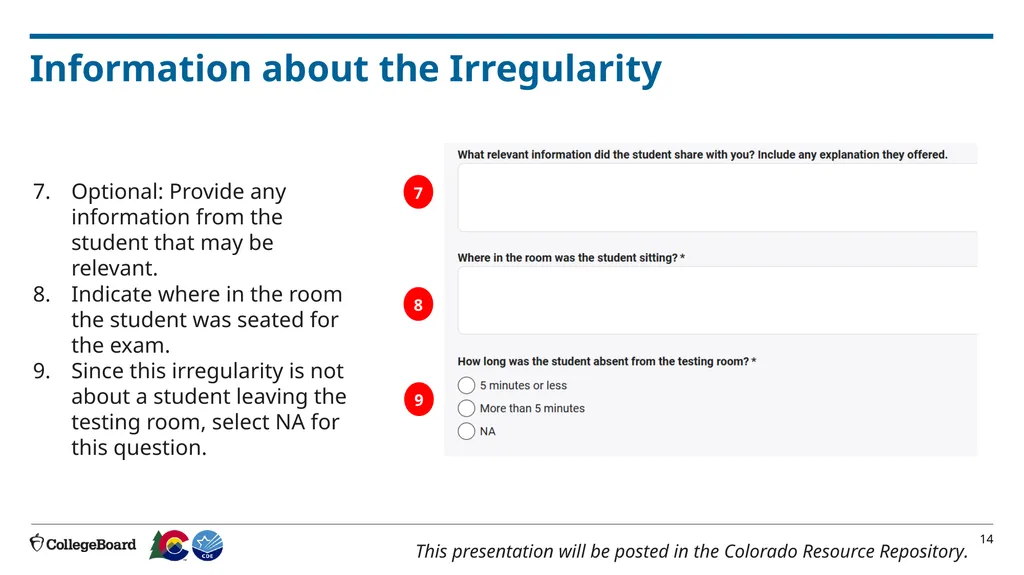
Information about the Irregularity For internal use only This presentation will be posted in the Colorado Resource Repository. Optional: Provide any information from the student that may be relevant.
Indicate where in the room the student was seated for the exam.
Since this irregularity is not about a student leaving the testing room, select NA for this question. 7 8 9<br>
15
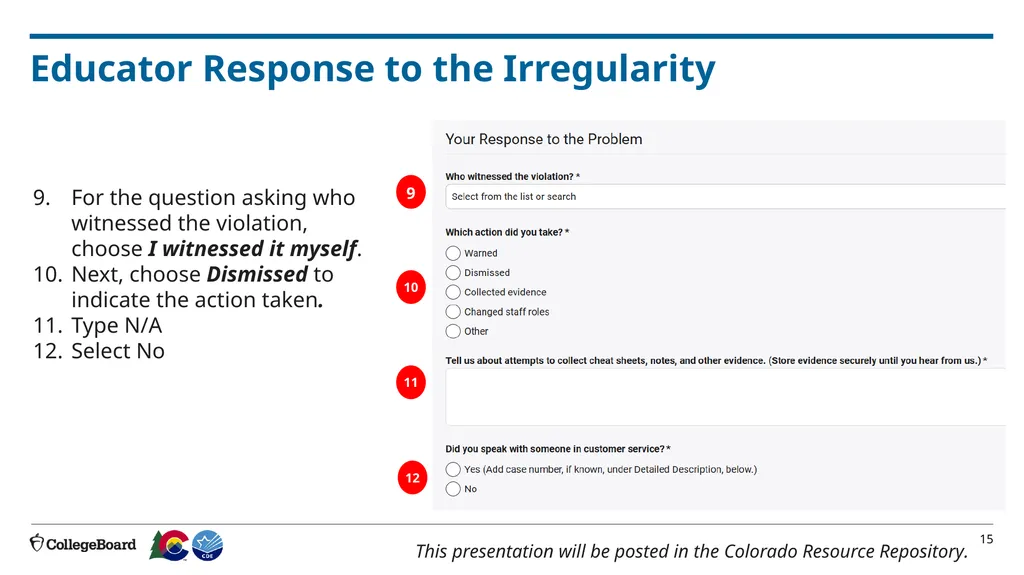
Educator Response to the Irregularity For internal use only This presentation will be posted in the Colorado Resource Repository. For the question asking who witnessed the violation, choose I witnessed it myself.
Next, choose Dismissed to indicate the action taken.
Type N/A
Select No 9 10 11 12<br>
16
Description of Irregularity For internal use only This presentation will be posted in the Colorado Resource Repository. Finally, type the following statement in the Detailed Description field: “This student was not eligible for testing due to a parent excuse and was removed from the test session after testing started. The score MUST BE invalidated using invalidation code 24 and no retesting allowed during spring 2026 School Day testing. No investigation needed.”
Click the yellow Submit to College Board button. 13 14<br>
17
Part Two: Enter a Reason Not Tested Code<br>
18
Part 2: Entering a Reason Not Tested Code Start from the All Students tab and click on the student’s hyperlinked name.<br>
19
Special Use Only Code Scroll to the “Special Use Only” field in the Student Profile.<br>
20
Selecting Code 9 Select code 9 (Parental Excuse) for the student.<br>
21
Using the Data Export From the Downloads tab, you can export a roster of students to see which students have Reason Not Tested Codes assigned.<br>
22
Data Export In this exportable roster, you can see:
Assigned Reason Not Tested Codes
Test type
Room
Test Status
CDE recommends printing a copy of this list with Reason Not Tested Codes assigned and securely storing for your records.<br>
23
Timeline School Test Coordinators and District Assessment Coordinators (DACs) can enter Reason Not Tested Codes in Test Day Toolkit.
Codes will flow into State Data Management System on a regular basis. Test Day Toolkit is closed to adding/editing Special Use/Reason Not Tested Codes.
State Data Management System(SDMS) opens for DACs to make edits/additions to Special Use/Reason Not Tested Codes.
Any changes/updates do not flow back to Test Day Toolkit. March 2 – April 30 May 1 – May 8 State Data Management System Closes for editing special use/reason not tested codes. May 8, 10:59PM<br>