The Optics Library Object Library, Tutorials, and Examples Tim (TJ) LaFave Jr September 30, 2022 TheOpticsLibraryUBLaFave20220930 Version 0.2 (20220930) Table of Contents The Optics Library Instructions Tips Tricks Create Figures
"The Optics Library Object Library, Tutorials, and" is the property of its rightful owner. Permission is granted to
download and print the materials on this website for personal, non-commercial use only, and to display it
on your personal computer provided you do not modify the materials and that you retain all copyright
notices contained in the materials. By downloading content from our website, you accept the terms of this
agreement.
Presentation Transcript
01
The Optics Library Object Library, Tutorials, and Examples Tim (TJ) LaFave Jr September 30, 2022 The_Optics_Library_UB_LaFave_20220930 Version 0.2 (20220930)<br>
02
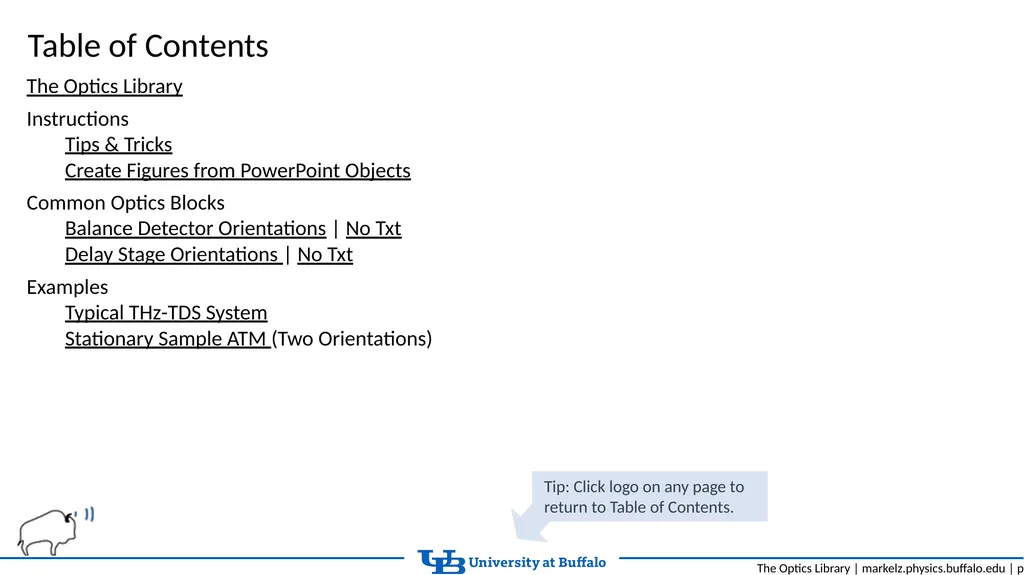
Table of Contents The Optics Library
Instructions
Tips & Tricks
Create Figures from PowerPoint Objects
Common Optics Blocks
Balance Detector Orientations | No Txt
Delay Stage Orientations | No Txt
Examples
Typical THz-TDS System
Stationary Sample ATM (Two Orientations)<br>
03
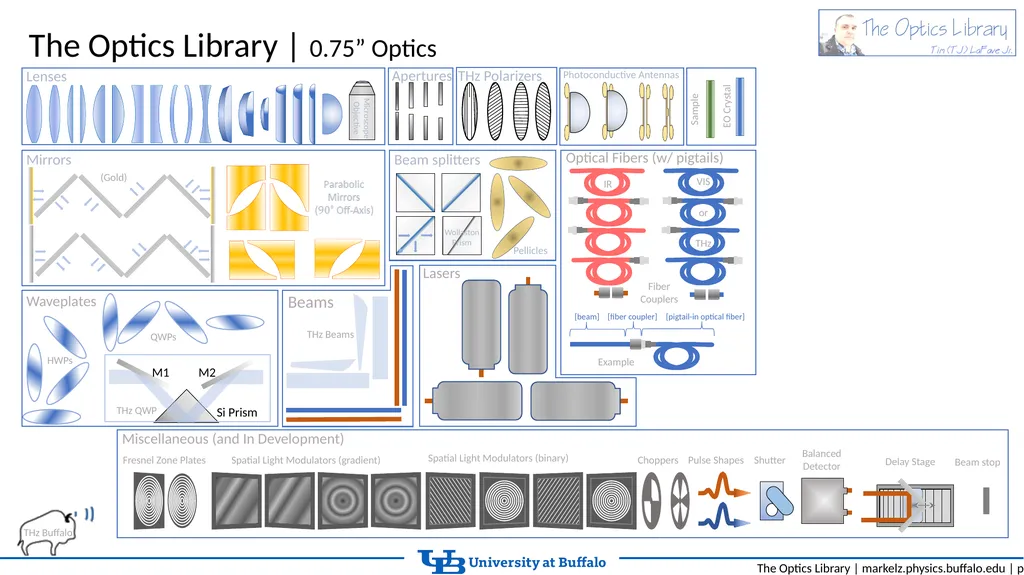
The Optics Library | 0.75” Optics EO Crystal Beams THz Beams THz Buffalo Beam stop Spatial Light Modulators (binary)<br>
04
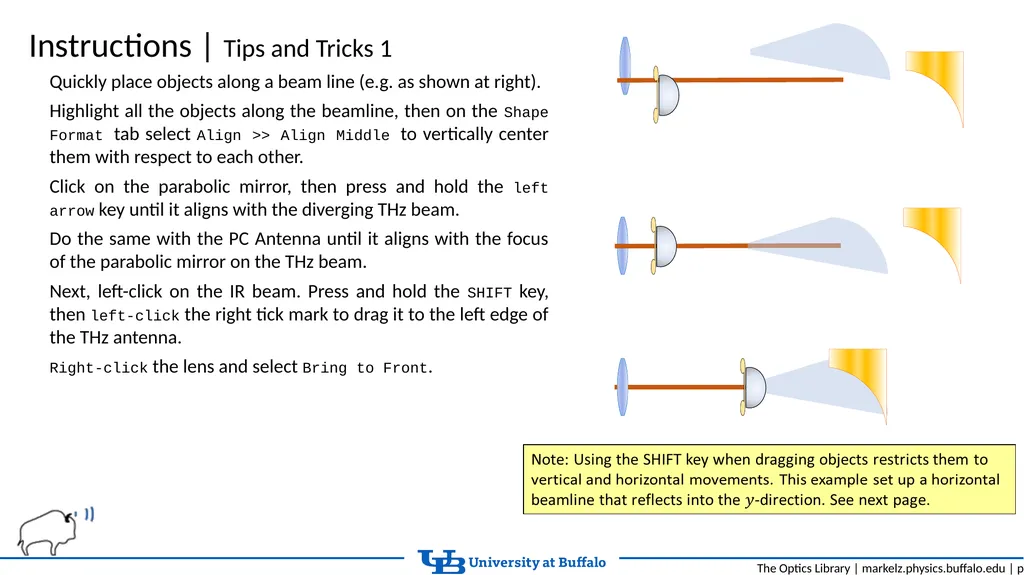
Instructions | Tips and Tricks 1 Quickly place objects along a beam line (e.g. as shown at right).
Highlight all the objects along the beamline, then on the Shape Format tab select Align >> Align Middle to vertically center them with respect to each other.
Click on the parabolic mirror, then press and hold the left arrow key until it aligns with the diverging THz beam.
Do the same with the PC Antenna until it aligns with the focus of the parabolic mirror on the THz beam.
Next, left-click on the IR beam. Press and hold the SHIFT key, then left-click the right tick mark to drag it to the left edge of the THz antenna.
Right-click the lens and select Bring to Front.<br>
05
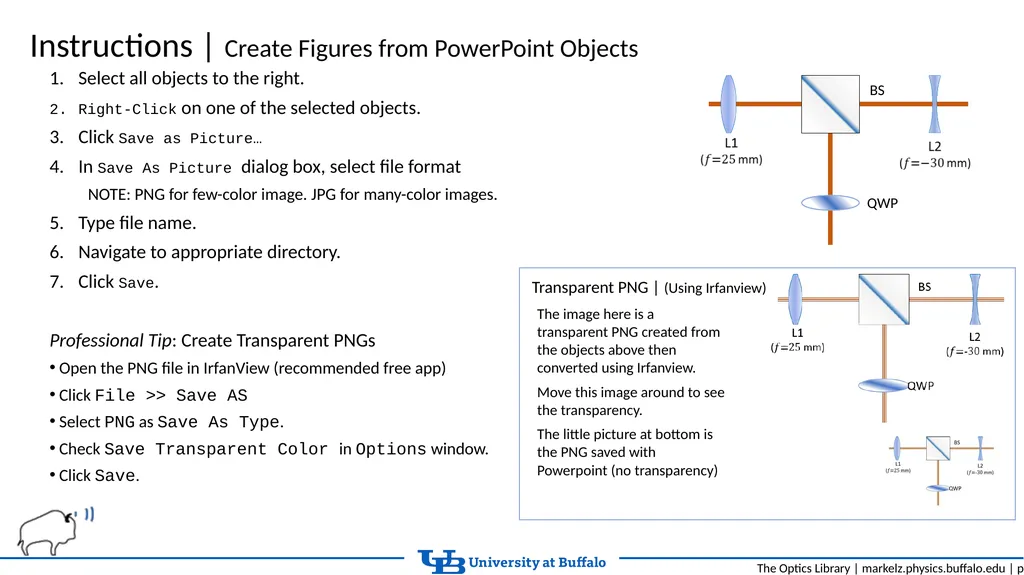
Instructions | Create Figures from PowerPoint Objects Select all objects to the right.
Right-Click on one of the selected objects.
Click Save as Picture…
In Save As Picture dialog box, select file format
NOTE: PNG for few-color image. JPG for many-color images.
Type file name.
Navigate to appropriate directory.
Click Save.
Professional Tip: Create Transparent PNGs
Open the PNG file in IrfanView (recommended free app)
Click File >> Save AS
Select PNG as Save As Type.
Check Save Transparent Color in Options window.
Click Save. BS QWP Transparent PNG | (Using Irfanview) The image here is a transparent PNG created from the objects above then converted using Irfanview.
Move this image around to see the transparency.
The little picture at bottom is the PNG saved with Powerpoint (no transparency)<br>
06
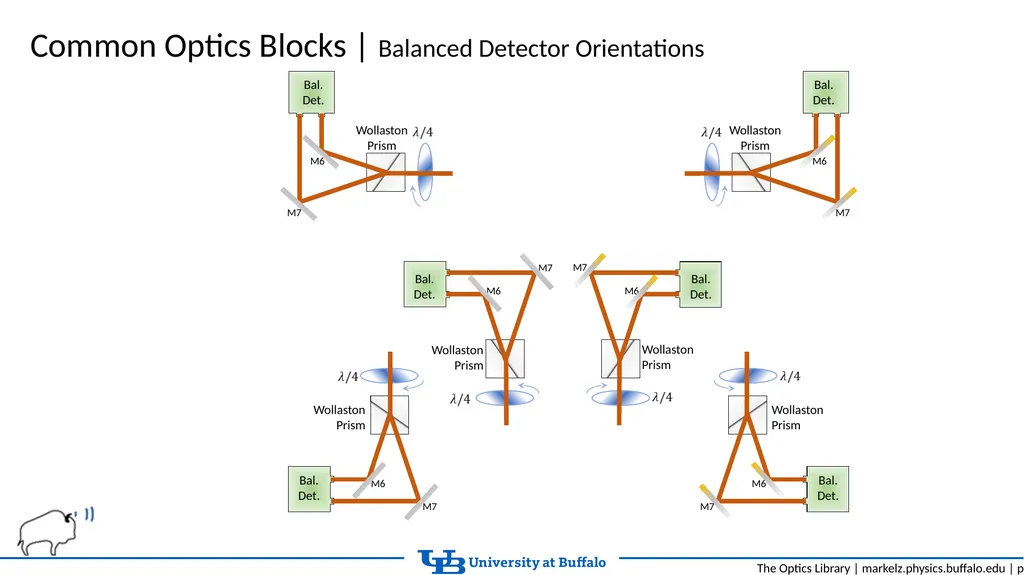
Common Optics Blocks | Balanced Detector Orientations<br>
07
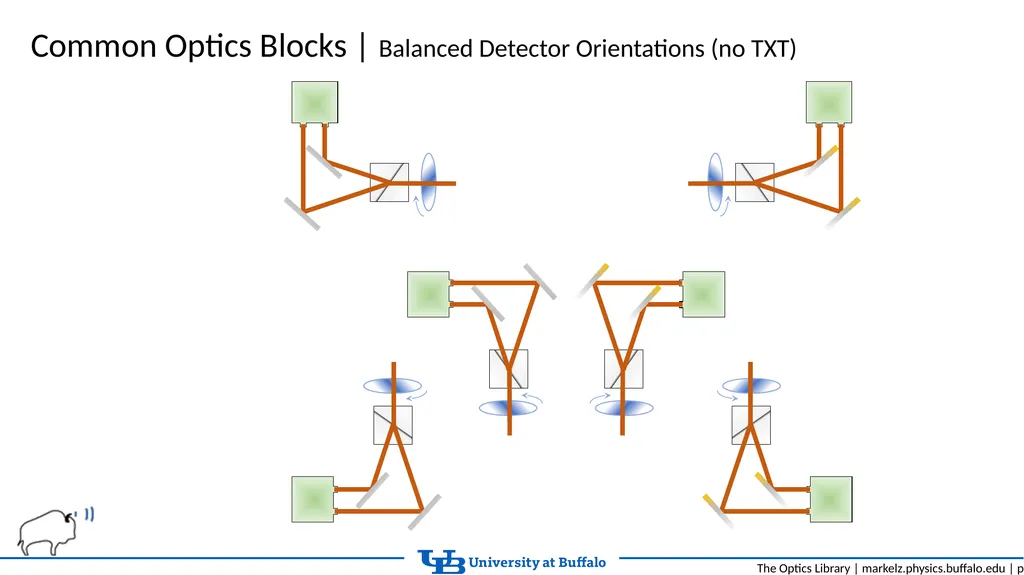
Common Optics Blocks | Balanced Detector Orientations (no TXT)<br>
08
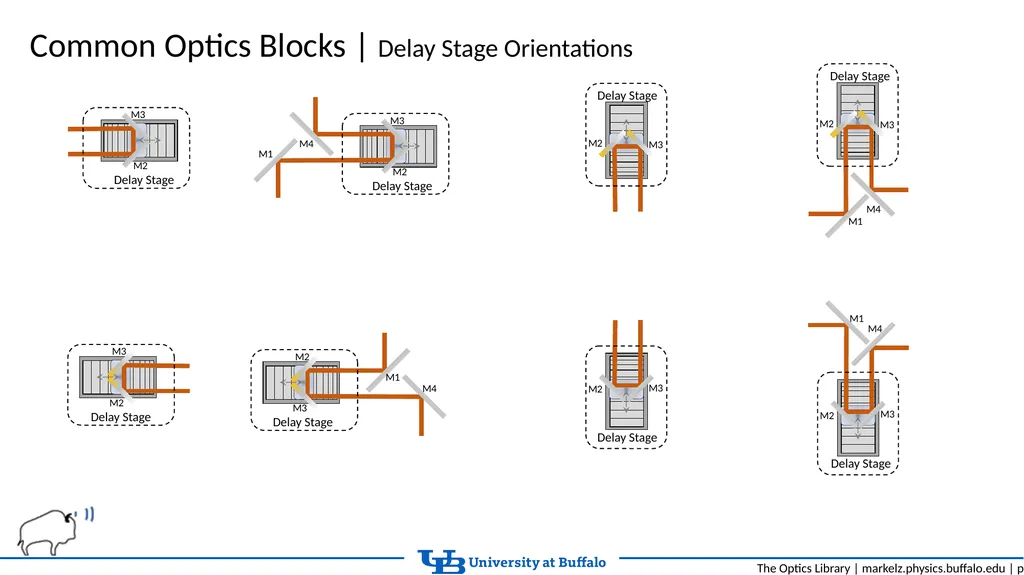
Common Optics Blocks | Delay Stage Orientations<br>
09
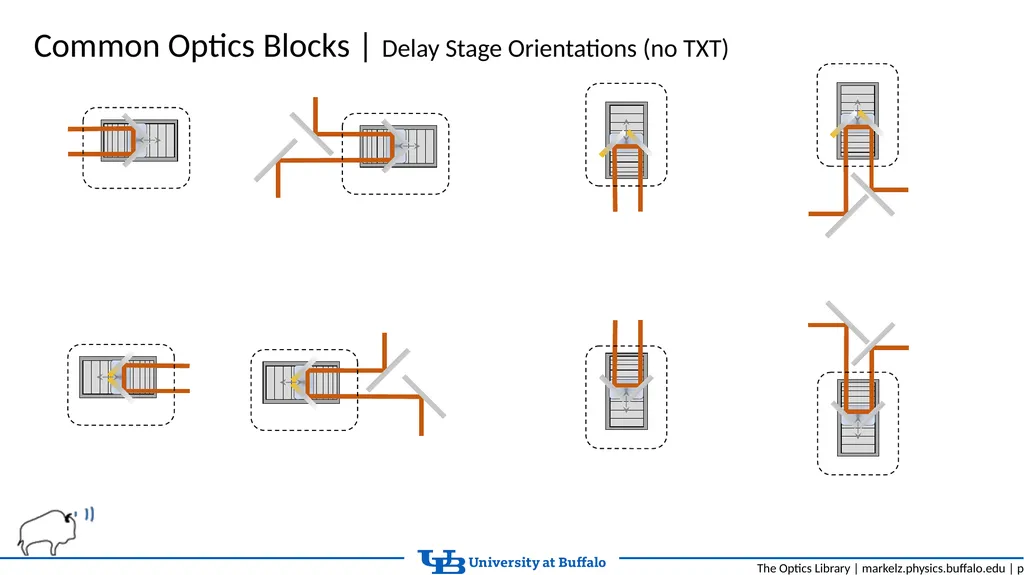
Common Optics Blocks | Delay Stage Orientations (no TXT)<br>
10
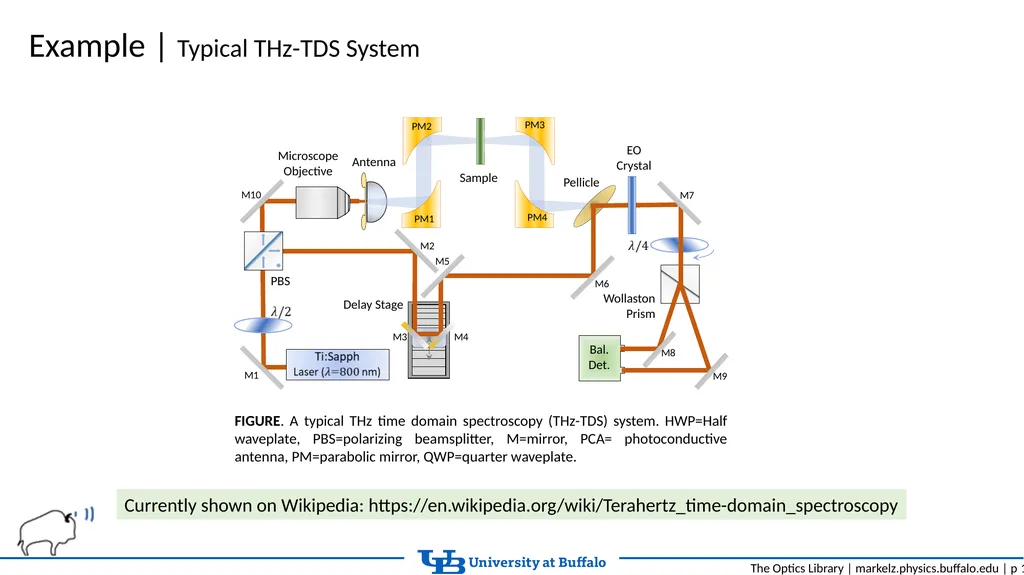
Example | Typical THz-TDS System FIGURE. A typical THz time domain spectroscopy (THz-TDS) system. HWP=Half waveplate, PBS=polarizing beamsplitter, M=mirror, PCA= photoconductive antenna, PM=parabolic mirror, QWP=quarter waveplate. Currently shown on Wikipedia: https://en.wikipedia.org/wiki/Terahertz_time-domain_spectroscopy<br>
11
Instructions | Create Figures from PowerPoint Objects<br>