
VA Paper-Based Forms to Enrollment Manager
TA
Published · 123 slides · 0 views

1 / 1


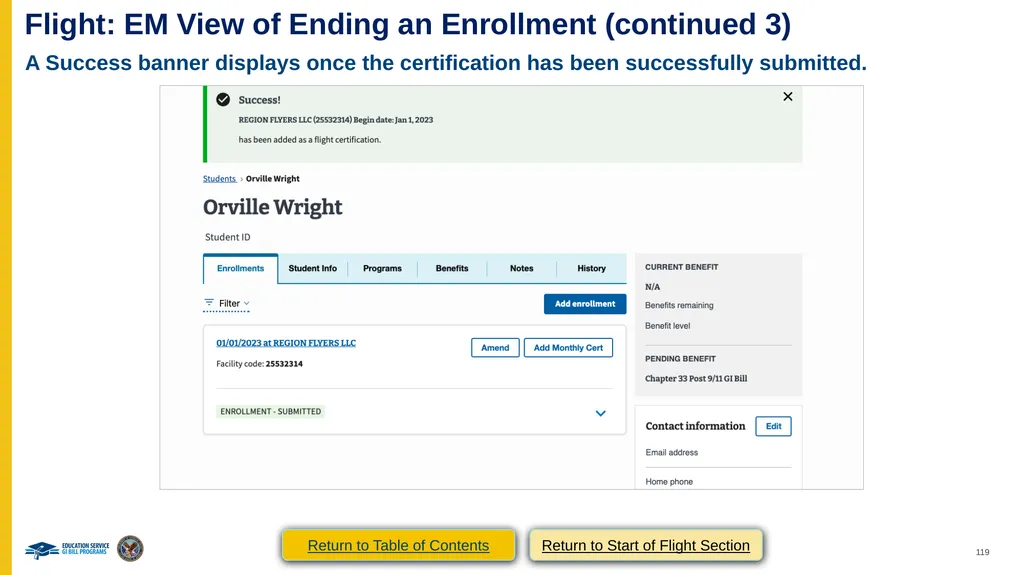
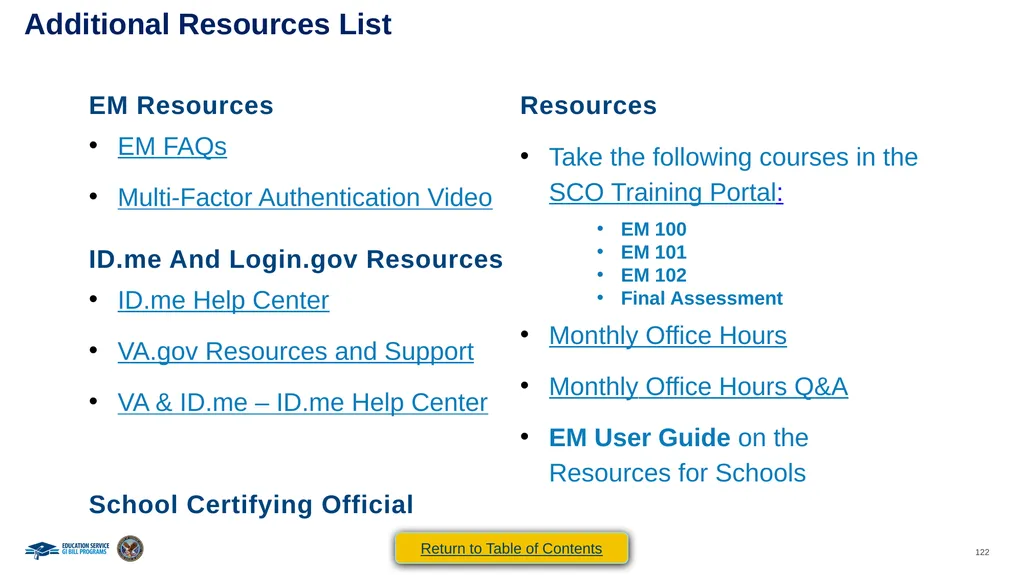

Description
VA Paper-Based Forms to Enrollment Manager Crosswalk Version 2.0 Updated 212024 Table of Contents VA Paper-Based Form to EM Crosswalk Table of Contents Purpose EM Overview Enrollment Manager Terminology Forms By Training Type IHL 22-1999
Related Topics
Share
Embed code
Download this presentation From Below
"VA Paper-Based Forms to Enrollment Manager" is the property of its rightful owner. Permission is granted to download and print the materials on this website for personal, non-commercial use only, and to display it on your personal computer provided you do not modify the materials and that you retain all copyright notices contained in the materials. By downloading content from our website, you accept the terms of this agreement.
Presentation Transcript
01
VA Paper-Based Forms to
Enrollment Manager
Crosswalk
Version 2.0 Updated 2/1/2024<br>
02
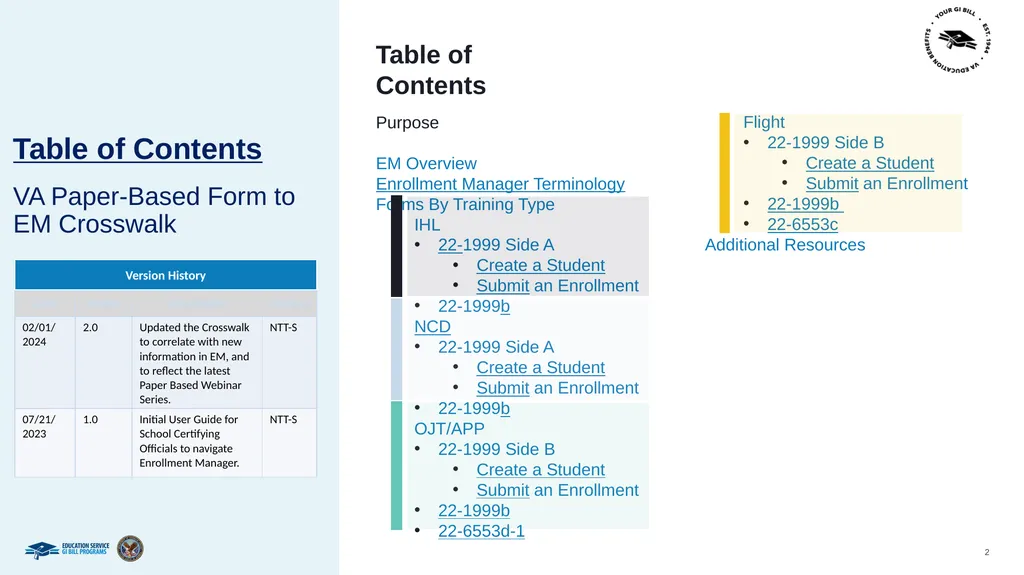
Table of Contents VA Paper-Based Form to EM Crosswalk Table of Contents Purpose
EM Overview
Enrollment Manager Terminology
Forms By Training Type
IHL
22-1999 Side A
Create a Student
Submit an Enrollment
22-1999b
NCD
22-1999 Side A
Create a Student
Submit an Enrollment
22-1999b
OJT/APP
22-1999 Side B
Create a Student
Submit an Enrollment
22-1999b
22-6553d-1 Flight
22-1999 Side B
Create a Student
Submit an Enrollment
22-1999b
22-6553c
Additional Resources<br>
EM Overview
Enrollment Manager Terminology
Forms By Training Type
IHL
22-1999 Side A
Create a Student
Submit an Enrollment
22-1999b
NCD
22-1999 Side A
Create a Student
Submit an Enrollment
22-1999b
OJT/APP
22-1999 Side B
Create a Student
Submit an Enrollment
22-1999b
22-6553d-1 Flight
22-1999 Side B
Create a Student
Submit an Enrollment
22-1999b
22-6553c
Additional Resources<br>
03
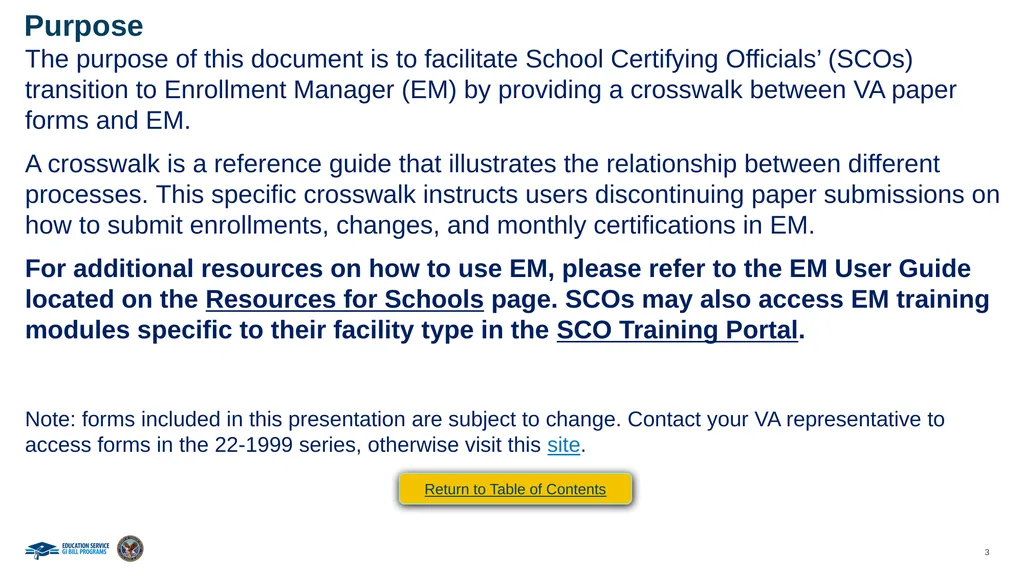
Purpose The purpose of this document is to facilitate School Certifying Officials’ (SCOs) transition to Enrollment Manager (EM) by providing a crosswalk between VA paper forms and EM.
A crosswalk is a reference guide that illustrates the relationship between different processes. This specific crosswalk instructs users discontinuing paper submissions on how to submit enrollments, changes, and monthly certifications in EM.
For additional resources on how to use EM, please refer to the EM User Guide located on the Resources for Schools page. SCOs may also access EM training modules specific to their facility type in the SCO Training Portal.
Note: forms included in this presentation are subject to change. Contact your VA representative to access forms in the 22-1999 series, otherwise visit this site. Return to Table of Contents<br>
A crosswalk is a reference guide that illustrates the relationship between different processes. This specific crosswalk instructs users discontinuing paper submissions on how to submit enrollments, changes, and monthly certifications in EM.
For additional resources on how to use EM, please refer to the EM User Guide located on the Resources for Schools page. SCOs may also access EM training modules specific to their facility type in the SCO Training Portal.
Note: forms included in this presentation are subject to change. Contact your VA representative to access forms in the 22-1999 series, otherwise visit this site. Return to Table of Contents<br>
04
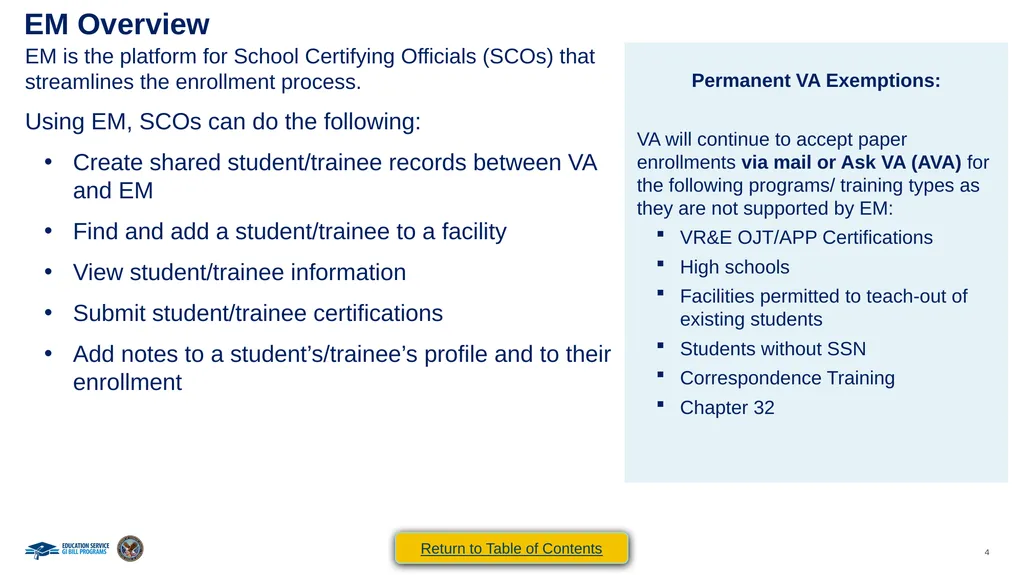
EM Overview EM is the platform for School Certifying Officials (SCOs) that streamlines the enrollment process.
Using EM, SCOs can do the following:
Create shared student/trainee records between VA and EM
Find and add a student/trainee to a facility
View student/trainee information
Submit student/trainee certifications
Add notes to a student’s/trainee’s profile and to their enrollment Return to Table of Contents<br>
Using EM, SCOs can do the following:
Create shared student/trainee records between VA and EM
Find and add a student/trainee to a facility
View student/trainee information
Submit student/trainee certifications
Add notes to a student’s/trainee’s profile and to their enrollment Return to Table of Contents<br>
05
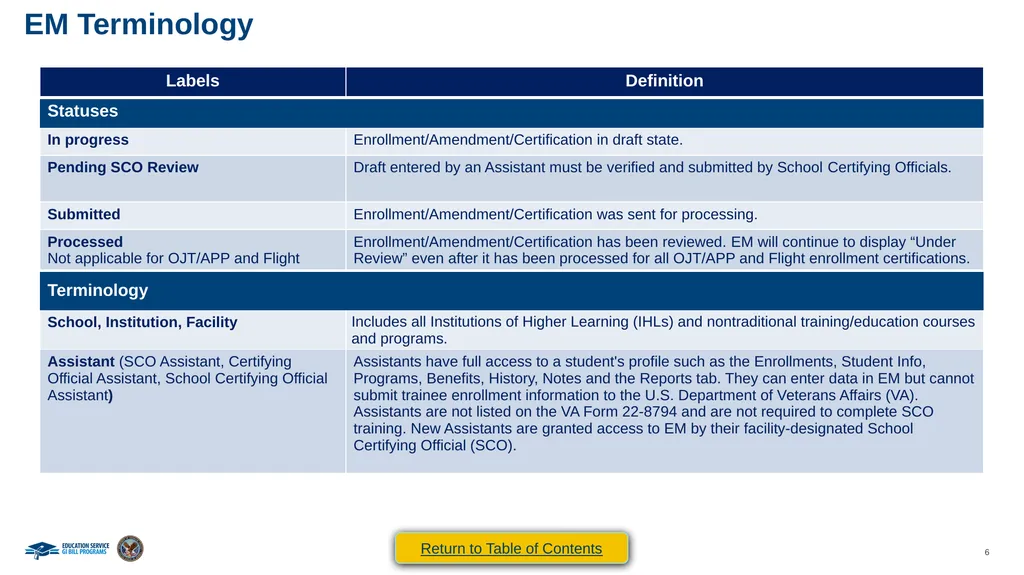
Enrollment Manager Terminology<br>
06
EM Terminology Return to Table of Contents<br>
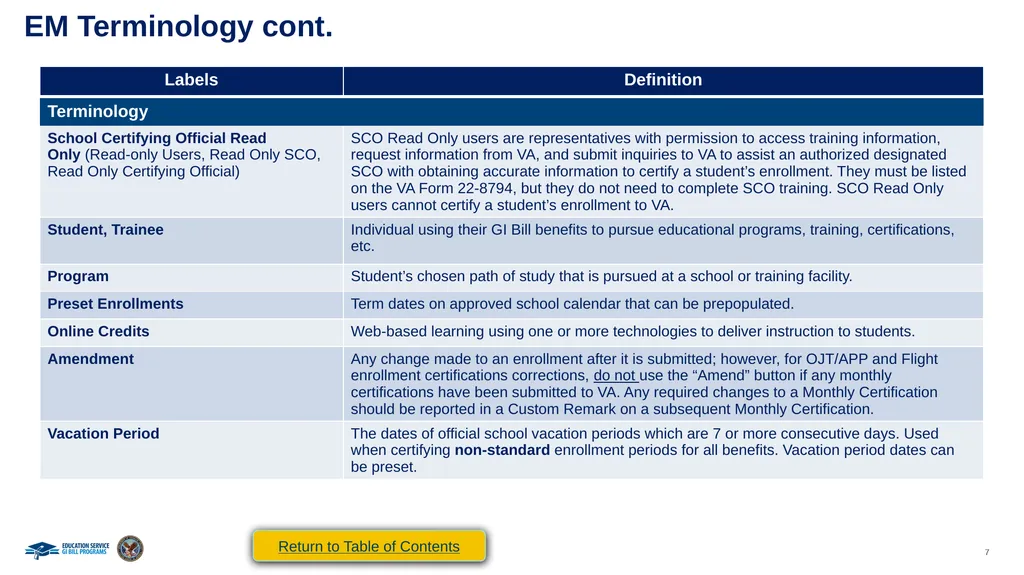
07
EM Terminology cont. Return to Table of Contents<br>
08
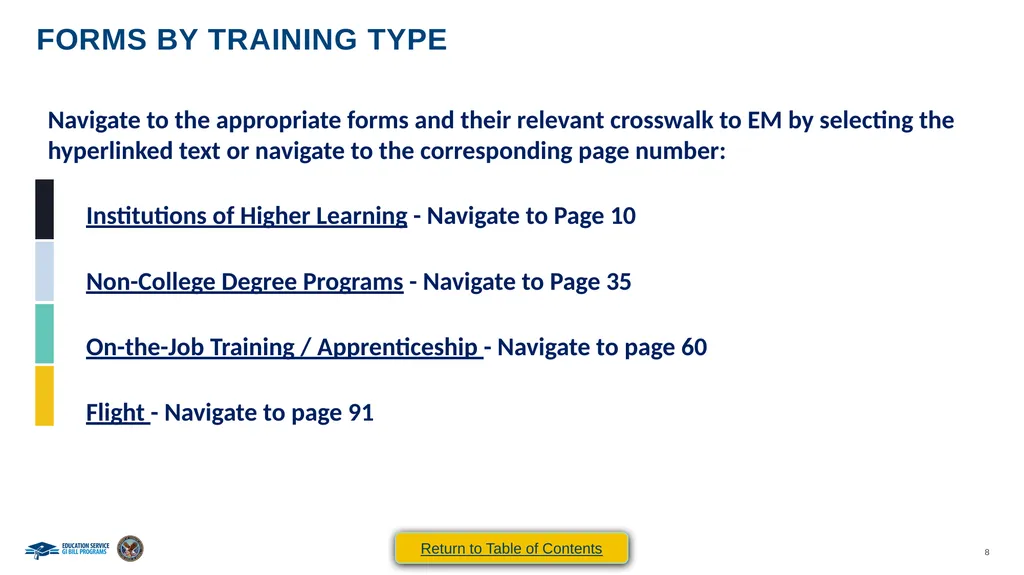
Forms by training type Navigate to the appropriate forms and their relevant crosswalk to EM by selecting the hyperlinked text or navigate to the corresponding page number:
Institutions of Higher Learning - Navigate to Page 10
Non-College Degree Programs - Navigate to Page 35
On-the-Job Training / Apprenticeship - Navigate to page 60
Flight - Navigate to page 91 Return to Table of Contents<br>
Institutions of Higher Learning - Navigate to Page 10
Non-College Degree Programs - Navigate to Page 35
On-the-Job Training / Apprenticeship - Navigate to page 60
Flight - Navigate to page 91 Return to Table of Contents<br>
09
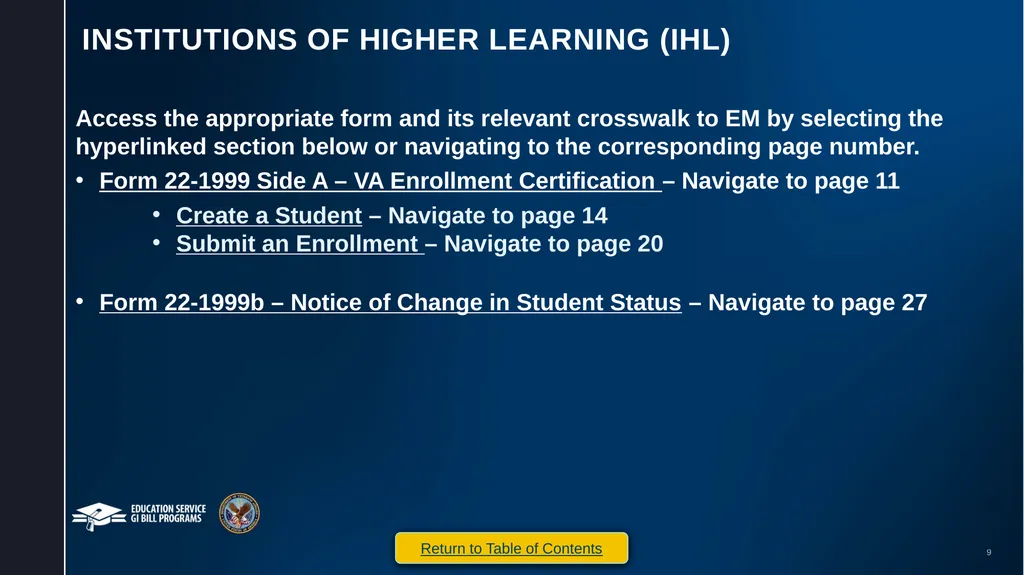
Institutions of Higher learning (IHL) Access the appropriate form and its relevant crosswalk to EM by selecting the hyperlinked section below or navigating to the corresponding page number.
Form 22-1999 Side A – VA Enrollment Certification – Navigate to page 11
Create a Student – Navigate to page 14
Submit an Enrollment – Navigate to page 20
Form 22-1999b – Notice of Change in Student Status – Navigate to page 27 Return to Table of Contents<br>
Form 22-1999 Side A – VA Enrollment Certification – Navigate to page 11
Create a Student – Navigate to page 14
Submit an Enrollment – Navigate to page 20
Form 22-1999b – Notice of Change in Student Status – Navigate to page 27 Return to Table of Contents<br>
10
IHL
VA Form 22-1999 Side A –
VA Enrollment Certification Return to Table of Contents<br>
11
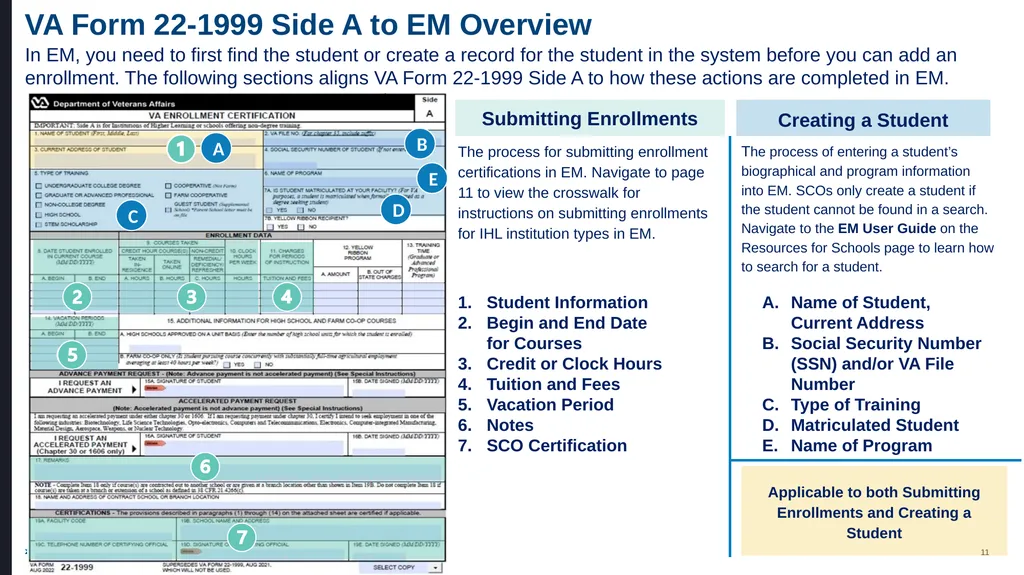
VA Form 22-1999 Side A to EM Overview In EM, you need to first find the student or create a record for the student in the system before you can add an enrollment. The following sections aligns VA Form 22-1999 Side A to how these actions are completed in EM. A B C D E Submitting Enrollments The process for submitting enrollment certifications in EM. Navigate to page 11 to view the crosswalk for instructions on submitting enrollments for IHL institution types in EM. Student Information
Begin and End Date for Courses
Credit or Clock Hours
Tuition and Fees
Vacation Period
Notes
SCO Certification Creating a Student The process of entering a student’s biographical and program information into EM. SCOs only create a student if the student cannot be found in a search. Navigate to the EM User Guide on the Resources for Schools page to learn how to search for a student. Name of Student, Current Address
Social Security Number (SSN) and/or VA File Number
Type of Training
Matriculated Student
Name of Program Applicable to both Submitting Enrollments and Creating a Student<br>
Begin and End Date for Courses
Credit or Clock Hours
Tuition and Fees
Vacation Period
Notes
SCO Certification Creating a Student The process of entering a student’s biographical and program information into EM. SCOs only create a student if the student cannot be found in a search. Navigate to the EM User Guide on the Resources for Schools page to learn how to search for a student. Name of Student, Current Address
Social Security Number (SSN) and/or VA File Number
Type of Training
Matriculated Student
Name of Program Applicable to both Submitting Enrollments and Creating a Student<br>
12
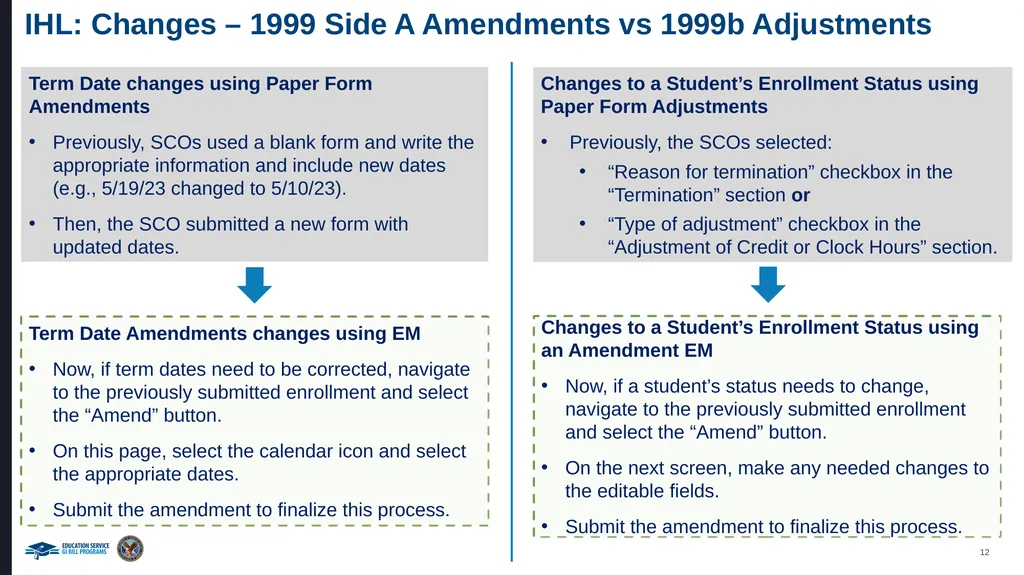
IHL: Changes – 1999 Side A Amendments vs 1999b Adjustments Term Date changes using Paper Form Amendments
Previously, SCOs used a blank form and write the appropriate information and include new dates (e.g., 5/19/23 changed to 5/10/23).
Then, the SCO submitted a new form with updated dates. Term Date Amendments changes using EM
Now, if term dates need to be corrected, navigate to the previously submitted enrollment and select the “Amend” button.
On this page, select the calendar icon and select the appropriate dates.
Submit the amendment to finalize this process. Changes to a Student’s Enrollment Status using Paper Form Adjustments
Previously, the SCOs selected:
“Reason for termination” checkbox in the “Termination” section or
“Type of adjustment” checkbox in the “Adjustment of Credit or Clock Hours” section. Changes to a Student’s Enrollment Status using an Amendment EM
Now, if a student’s status needs to change, navigate to the previously submitted enrollment and select the “Amend” button.
On the next screen, make any needed changes to the editable fields.
Submit the amendment to finalize this process.<br>
Previously, SCOs used a blank form and write the appropriate information and include new dates (e.g., 5/19/23 changed to 5/10/23).
Then, the SCO submitted a new form with updated dates. Term Date Amendments changes using EM
Now, if term dates need to be corrected, navigate to the previously submitted enrollment and select the “Amend” button.
On this page, select the calendar icon and select the appropriate dates.
Submit the amendment to finalize this process. Changes to a Student’s Enrollment Status using Paper Form Adjustments
Previously, the SCOs selected:
“Reason for termination” checkbox in the “Termination” section or
“Type of adjustment” checkbox in the “Adjustment of Credit or Clock Hours” section. Changes to a Student’s Enrollment Status using an Amendment EM
Now, if a student’s status needs to change, navigate to the previously submitted enrollment and select the “Amend” button.
On the next screen, make any needed changes to the editable fields.
Submit the amendment to finalize this process.<br>
13
IHL
VA Form 22-1999 Side A –
VA Enrollment Certification
Creating a Student Return to Table of Contents Return to Start of IHL Section<br>
14
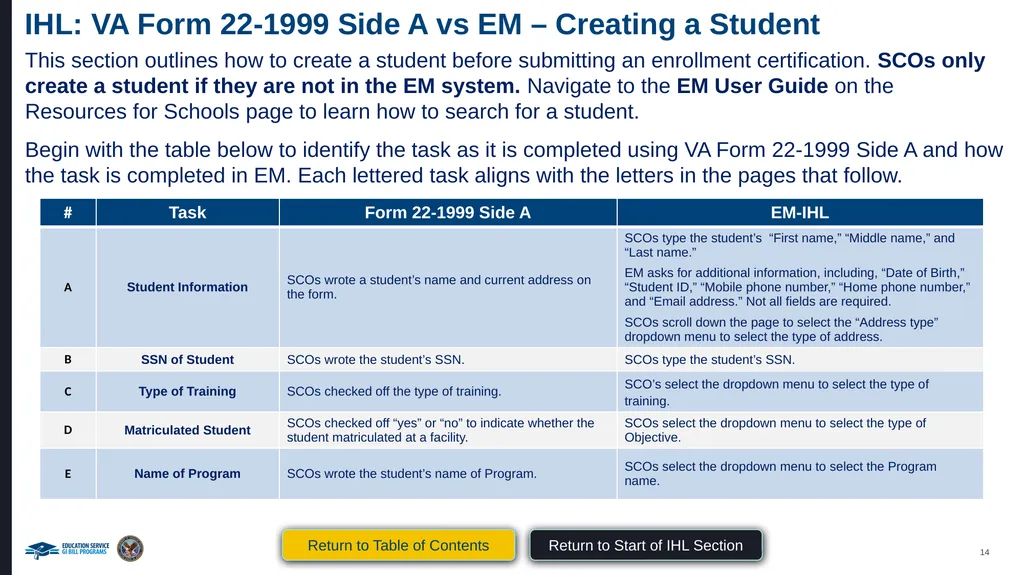
IHL: VA Form 22-1999 Side A vs EM – Creating a Student This section outlines how to create a student before submitting an enrollment certification. SCOs only create a student if they are not in the EM system. Navigate to the EM User Guide on the Resources for Schools page to learn how to search for a student.
Begin with the table below to identify the task as it is completed using VA Form 22-1999 Side A and how the task is completed in EM. Each lettered task aligns with the letters in the pages that follow. Return to Table of Contents Return to Start of IHL Section<br>
Begin with the table below to identify the task as it is completed using VA Form 22-1999 Side A and how the task is completed in EM. Each lettered task aligns with the letters in the pages that follow. Return to Table of Contents Return to Start of IHL Section<br>
15
IHL: VA Form 22-1999 Side A to EM The following section aligns with VA Form 22-1999 Side A actions for Creating a Student in EM. Creating a Student Please note the following while reviewing this VA Form:
“CTRL” + select the number associated with the field to navigate to the updated functionality in EM.
VA File Numbers (Box 2 on 22-1999) are only used when creating a new Chapter 35 trainee. VA File Numbers can only be viewed when completing the actions to print a certification.
Social Security numbers (SSNs) (Box 4 on 22-1999) are only used when creating a new student. SSNs cannot be edited or searched in EM. SSNs can only be viewed when printing the certification. A B C D E Return to Table of Contents Return to Start of IHL Section<br>
“CTRL” + select the number associated with the field to navigate to the updated functionality in EM.
VA File Numbers (Box 2 on 22-1999) are only used when creating a new Chapter 35 trainee. VA File Numbers can only be viewed when completing the actions to print a certification.
Social Security numbers (SSNs) (Box 4 on 22-1999) are only used when creating a new student. SSNs cannot be edited or searched in EM. SSNs can only be viewed when printing the certification. A B C D E Return to Table of Contents Return to Start of IHL Section<br>
16
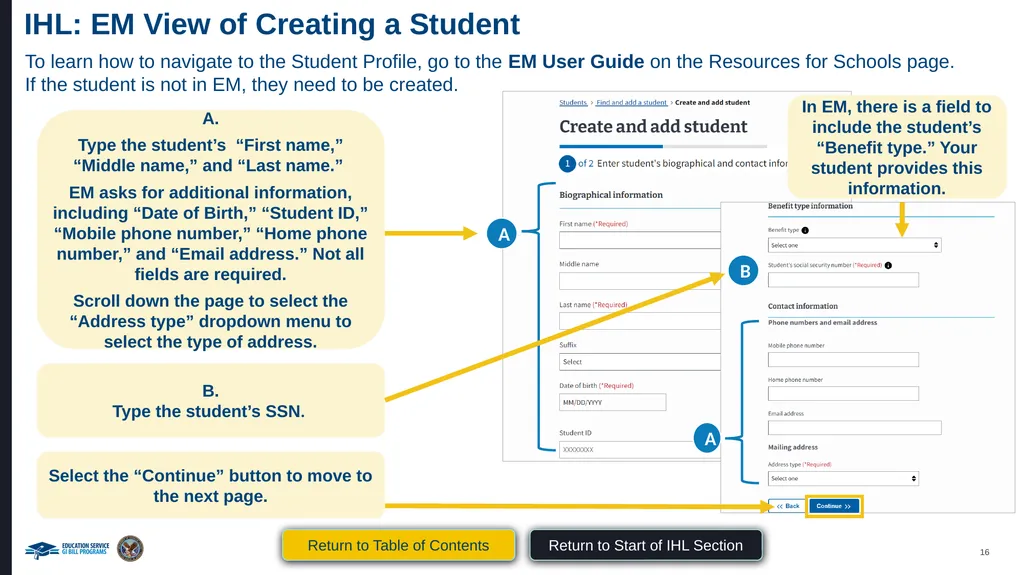
IHL: EM View of Creating a Student To learn how to navigate to the Student Profile, go to the EM User Guide on the Resources for Schools page. If the student is not in EM, they need to be created. A.
Type the student’s “First name,” “Middle name,” and “Last name.”
EM asks for additional information, including “Date of Birth,” “Student ID,” “Mobile phone number,” “Home phone number,” and “Email address.” Not all fields are required.
Scroll down the page to select the “Address type” dropdown menu to select the type of address. A A In EM, there is a field to include the student’s “Benefit type.” Your student provides this information. B.
Type the student’s SSN. B Select the “Continue” button to move to the next page. Return to Table of Contents Return to Start of IHL Section<br>
Type the student’s “First name,” “Middle name,” and “Last name.”
EM asks for additional information, including “Date of Birth,” “Student ID,” “Mobile phone number,” “Home phone number,” and “Email address.” Not all fields are required.
Scroll down the page to select the “Address type” dropdown menu to select the type of address. A A In EM, there is a field to include the student’s “Benefit type.” Your student provides this information. B.
Type the student’s SSN. B Select the “Continue” button to move to the next page. Return to Table of Contents Return to Start of IHL Section<br>
17
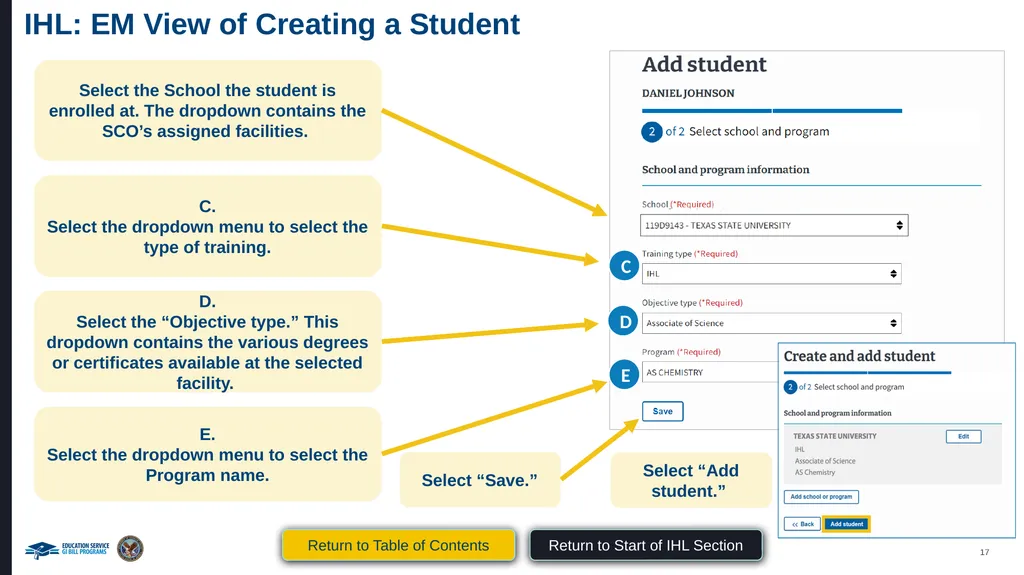
IHL: EM View of Creating a Student (Continued Part 1) Select the School the student is enrolled at. The dropdown contains the SCO’s assigned facilities. C.
Select the dropdown menu to select the type of training. C D.
Select the “Objective type.” This dropdown contains the various degrees or certificates available at the selected facility. D E.
Select the dropdown menu to select the Program name. E Select “Save.” Select “Add student.” Return to Table of Contents Return to Start of IHL Section<br>
Select the dropdown menu to select the type of training. C D.
Select the “Objective type.” This dropdown contains the various degrees or certificates available at the selected facility. D E.
Select the dropdown menu to select the Program name. E Select “Save.” Select “Add student.” Return to Table of Contents Return to Start of IHL Section<br>
18
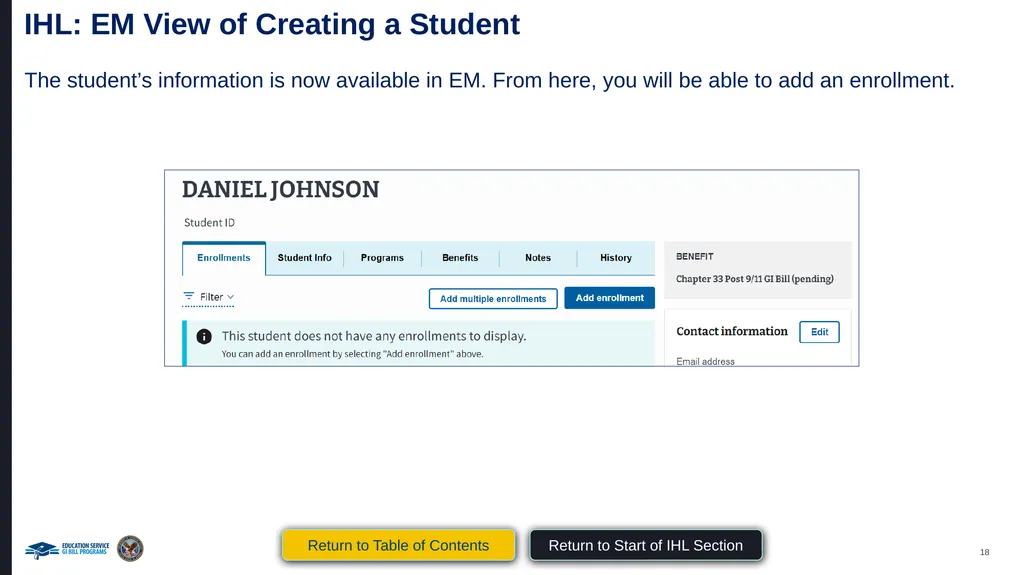
IHL: EM View of Creating a Student (Continued Part 2) The student’s information is now available in EM. From here, you will be able to add an enrollment. Return to Table of Contents Return to Start of IHL Section<br>
19
IHL
VA Form 22-1999 Side A –
VA Enrollment Certification
Submitting an Enrollment Return to Table of Contents Return to Start of IHL Section<br>
20
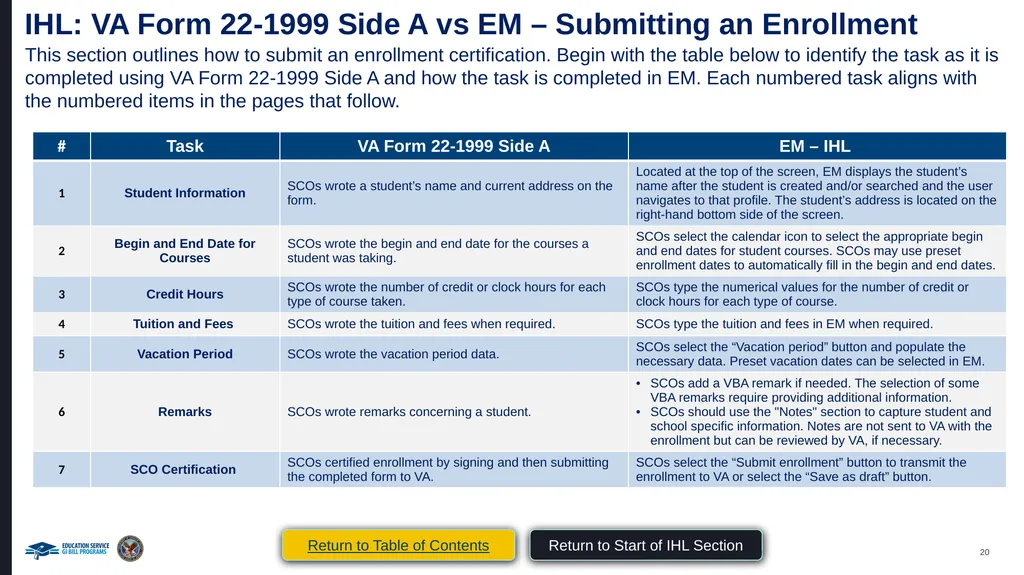
IHL: VA Form 22-1999 Side A vs EM – Submitting an Enrollment This section outlines how to submit an enrollment certification. Begin with the table below to identify the task as it is completed using VA Form 22-1999 Side A and how the task is completed in EM. Each numbered task aligns with the numbered items in the pages that follow. Return to Table of Contents Return to Start of IHL Section<br>
21
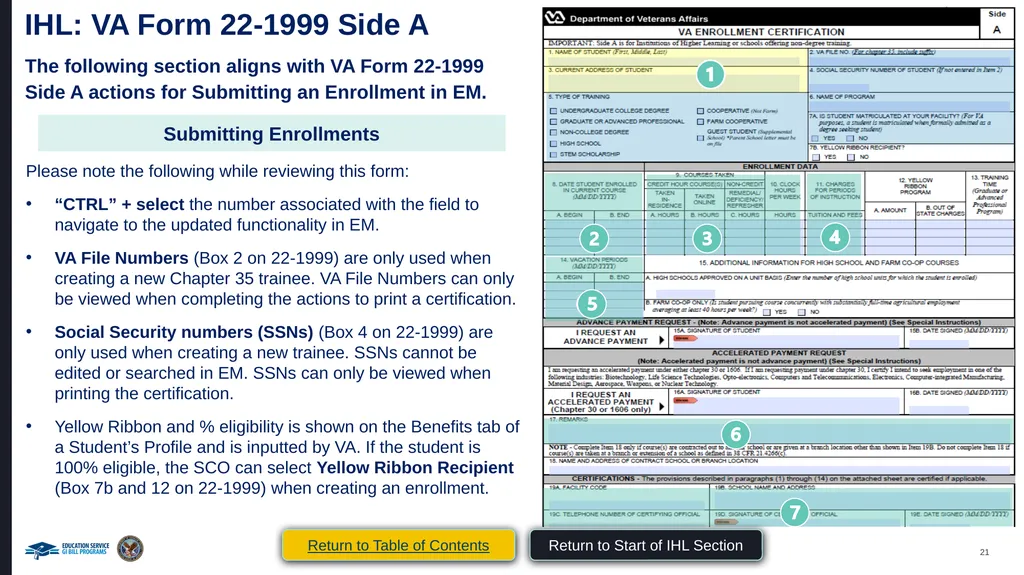
IHL: VA Form 22-1999 Side A The following section aligns with VA Form 22-1999 Side A actions for Submitting an Enrollment in EM. Submitting Enrollments Please note the following while reviewing this form:
“CTRL” + select the number associated with the field to navigate to the updated functionality in EM.
VA File Numbers (Box 2 on 22-1999) are only used when creating a new Chapter 35 trainee. VA File Numbers can only be viewed when completing the actions to print a certification.
Social Security numbers (SSNs) (Box 4 on 22-1999) are only used when creating a new trainee. SSNs cannot be edited or searched in EM. SSNs can only be viewed when printing the certification.
Yellow Ribbon and % eligibility is shown on the Benefits tab of a Student’s Profile and is inputted by VA. If the student is 100% eligible, the SCO can select Yellow Ribbon Recipient (Box 7b and 12 on 22-1999) when creating an enrollment. Return to Table of Contents Return to Start of IHL Section<br>
“CTRL” + select the number associated with the field to navigate to the updated functionality in EM.
VA File Numbers (Box 2 on 22-1999) are only used when creating a new Chapter 35 trainee. VA File Numbers can only be viewed when completing the actions to print a certification.
Social Security numbers (SSNs) (Box 4 on 22-1999) are only used when creating a new trainee. SSNs cannot be edited or searched in EM. SSNs can only be viewed when printing the certification.
Yellow Ribbon and % eligibility is shown on the Benefits tab of a Student’s Profile and is inputted by VA. If the student is 100% eligible, the SCO can select Yellow Ribbon Recipient (Box 7b and 12 on 22-1999) when creating an enrollment. Return to Table of Contents Return to Start of IHL Section<br>
22
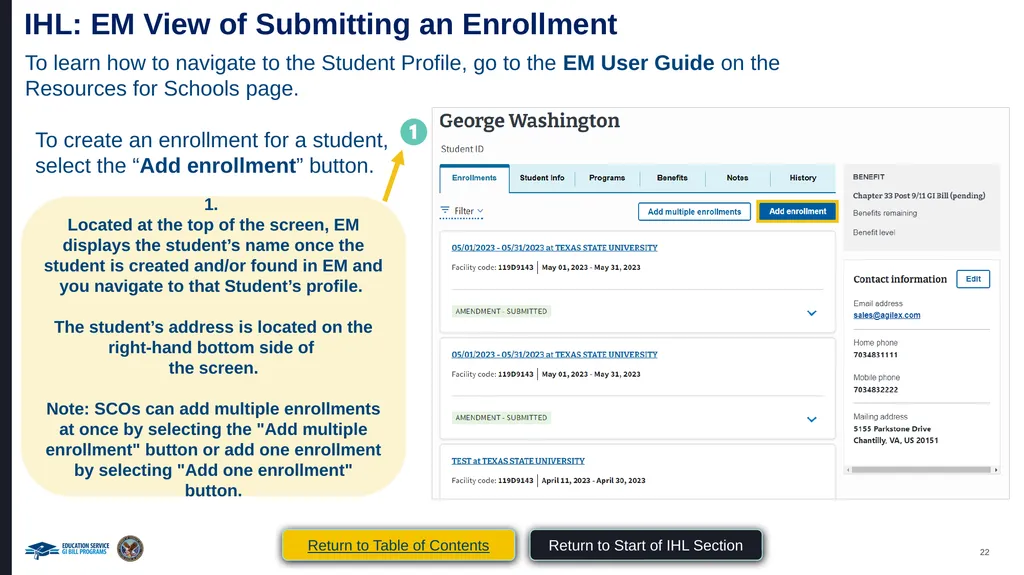
IHL: EM View of Submitting an Enrollment To learn how to navigate to the Student Profile, go to the EM User Guide on the Resources for Schools page. To create an enrollment for a student, select the “Add enrollment” button. 1.
Located at the top of the screen, EM displays the student’s name once the student is created and/or found in EM and you navigate to that Student’s profile.
The student’s address is located on the right-hand bottom side of
the screen.
Note: SCOs can add multiple enrollments at once by selecting the "Add multiple enrollment" button or add one enrollment by selecting "Add one enrollment" button. Return to Table of Contents Return to Start of IHL Section<br>
Located at the top of the screen, EM displays the student’s name once the student is created and/or found in EM and you navigate to that Student’s profile.
The student’s address is located on the right-hand bottom side of
the screen.
Note: SCOs can add multiple enrollments at once by selecting the "Add multiple enrollment" button or add one enrollment by selecting "Add one enrollment" button. Return to Table of Contents Return to Start of IHL Section<br>
23
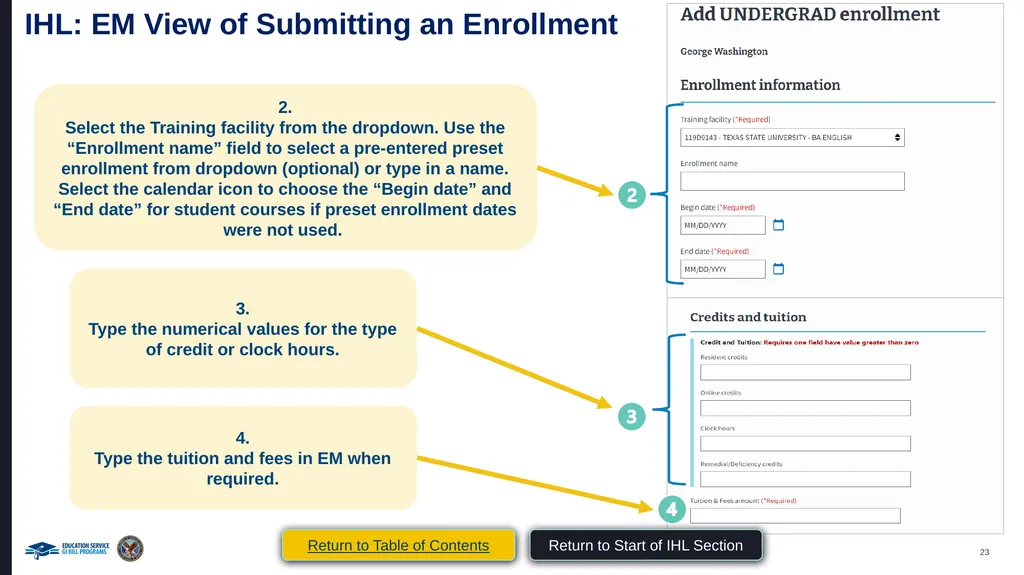
IHL: EM View of Submitting an Enrollment (Continued 1) 2.
Select the Training facility from the dropdown. Use the “Enrollment name” field to select a pre-entered preset enrollment from dropdown (optional) or type in a name.
Select the calendar icon to choose the “Begin date” and “End date” for student courses if preset enrollment dates were not used. 3.
Type the numerical values for the type of credit or clock hours. 4.
Type the tuition and fees in EM when required. Return to Table of Contents Return to Start of IHL Section<br>
Select the Training facility from the dropdown. Use the “Enrollment name” field to select a pre-entered preset enrollment from dropdown (optional) or type in a name.
Select the calendar icon to choose the “Begin date” and “End date” for student courses if preset enrollment dates were not used. 3.
Type the numerical values for the type of credit or clock hours. 4.
Type the tuition and fees in EM when required. Return to Table of Contents Return to Start of IHL Section<br>
24
IHL: EM View of Submitting an Enrollment
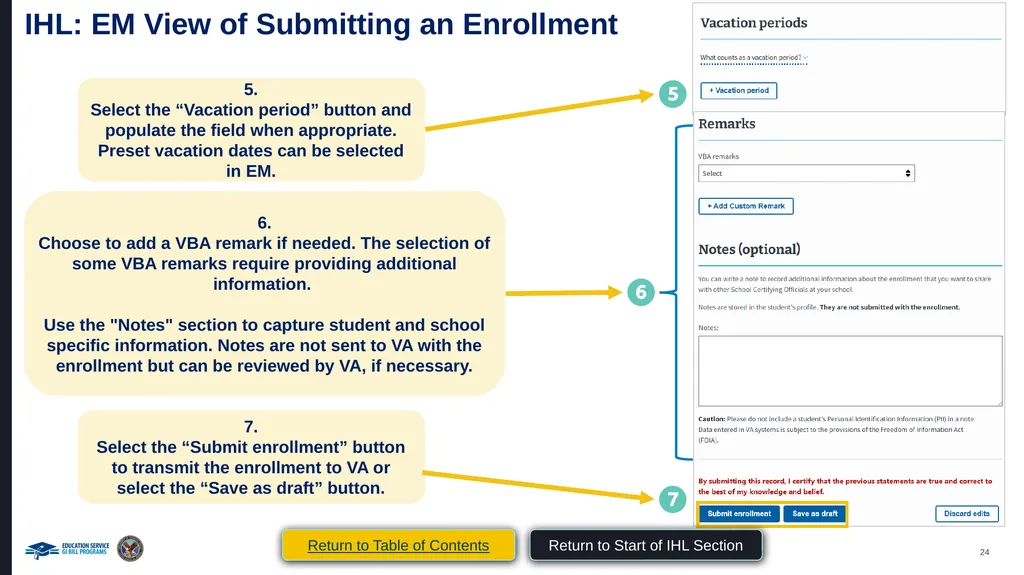
(Continued 2) 5.
Select the “Vacation period” button and populate the field when appropriate. Preset vacation dates can be selected in EM. 6.
Choose to add a VBA remark if needed. The selection of some VBA remarks require providing additional information.
Use the "Notes" section to capture student and school specific information. Notes are not sent to VA with the enrollment but can be reviewed by VA, if necessary. 7.
Select the “Submit enrollment” button to transmit the enrollment to VA or select the “Save as draft” button. Return to Table of Contents Return to Start of IHL Section<br>
Select the “Vacation period” button and populate the field when appropriate. Preset vacation dates can be selected in EM. 6.
Choose to add a VBA remark if needed. The selection of some VBA remarks require providing additional information.
Use the "Notes" section to capture student and school specific information. Notes are not sent to VA with the enrollment but can be reviewed by VA, if necessary. 7.
Select the “Submit enrollment” button to transmit the enrollment to VA or select the “Save as draft” button. Return to Table of Contents Return to Start of IHL Section<br>
25
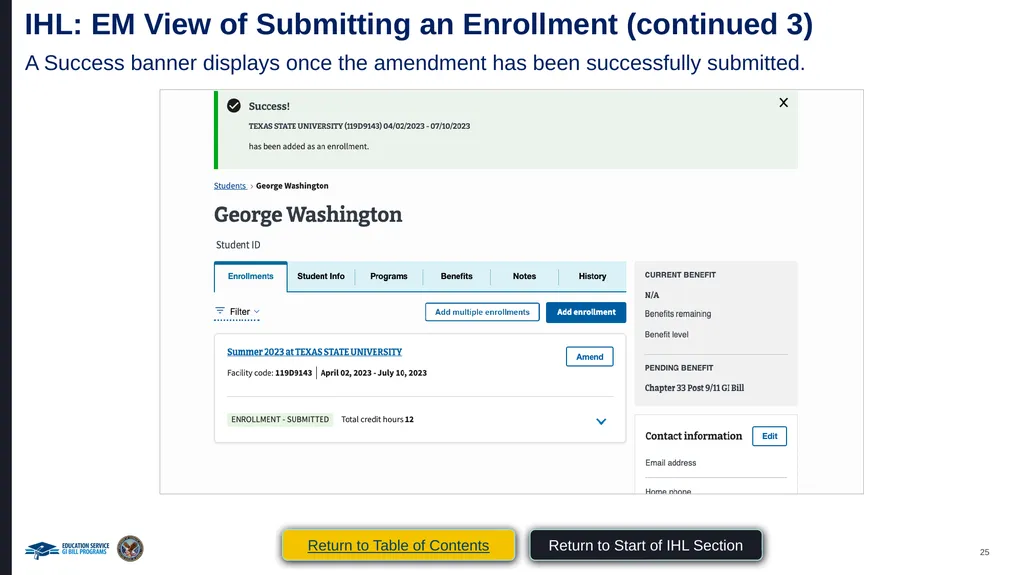
IHL: EM View of Submitting an Enrollment (continued 3) A Success banner displays once the amendment has been successfully submitted. Return to Table of Contents Return to Start of IHL Section<br>
26
IHL
VA Form 22-1999b –
Notice of Change in Student Status Return to Table of Contents Return to Start of IHL Section<br>
27
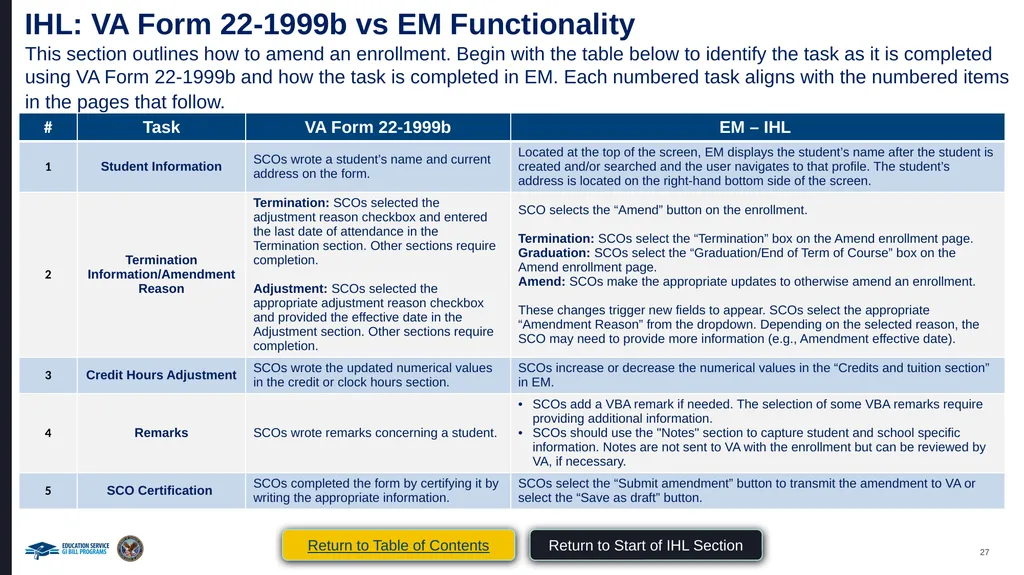
IHL: VA Form 22-1999b vs EM Functionality This section outlines how to amend an enrollment. Begin with the table below to identify the task as it is completed using VA Form 22-1999b and how the task is completed in EM. Each numbered task aligns with the numbered items in the pages that follow. Return to Table of Contents Return to Start of IHL Section<br>
28
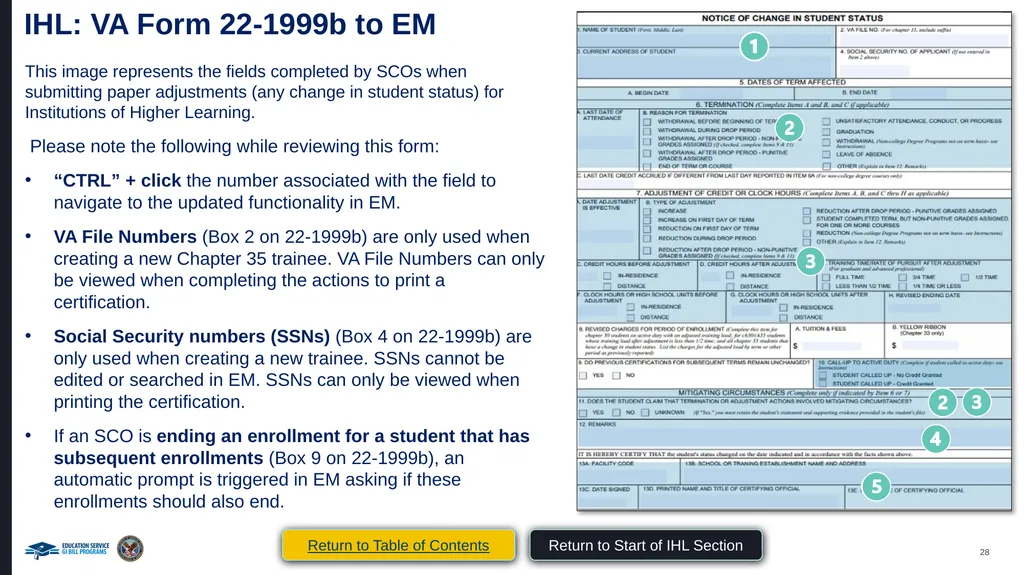
IHL: VA Form 22-1999b to EM This image represents the fields completed by SCOs when submitting paper adjustments (any change in student status) for Institutions of Higher Learning.
Please note the following while reviewing this form:
“CTRL” + click the number associated with the field to navigate to the updated functionality in EM.
VA File Numbers (Box 2 on 22-1999b) are only used when creating a new Chapter 35 trainee. VA File Numbers can only be viewed when completing the actions to print a certification.
Social Security numbers (SSNs) (Box 4 on 22-1999b) are only used when creating a new trainee. SSNs cannot be edited or searched in EM. SSNs can only be viewed when printing the certification.
If an SCO is ending an enrollment for a student that has subsequent enrollments (Box 9 on 22-1999b), an automatic prompt is triggered in EM asking if these enrollments should also end. Return to Table of Contents Return to Start of IHL Section<br>
Please note the following while reviewing this form:
“CTRL” + click the number associated with the field to navigate to the updated functionality in EM.
VA File Numbers (Box 2 on 22-1999b) are only used when creating a new Chapter 35 trainee. VA File Numbers can only be viewed when completing the actions to print a certification.
Social Security numbers (SSNs) (Box 4 on 22-1999b) are only used when creating a new trainee. SSNs cannot be edited or searched in EM. SSNs can only be viewed when printing the certification.
If an SCO is ending an enrollment for a student that has subsequent enrollments (Box 9 on 22-1999b), an automatic prompt is triggered in EM asking if these enrollments should also end. Return to Table of Contents Return to Start of IHL Section<br>
29
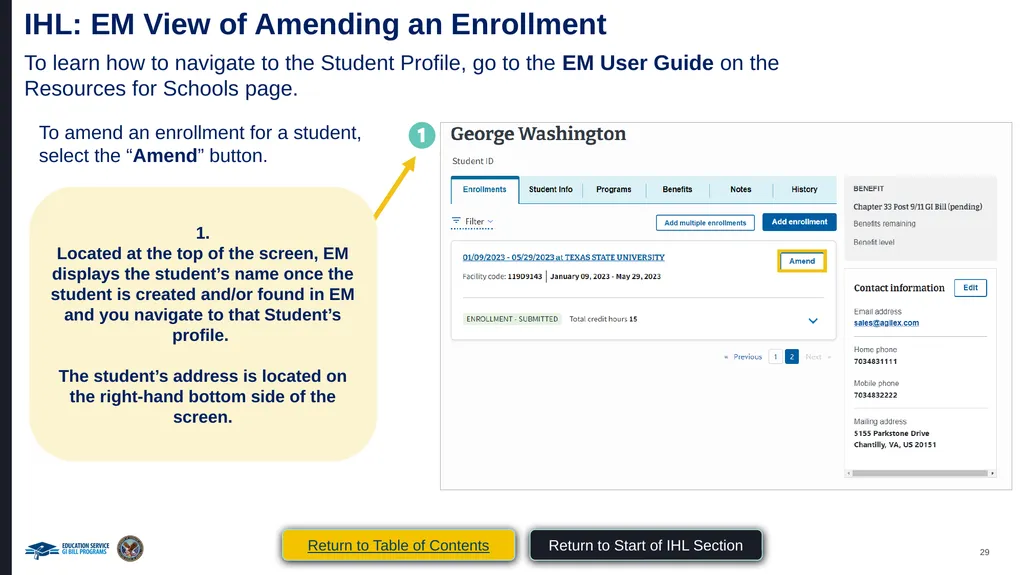
IHL: EM View of Amending an Enrollment To learn how to navigate to the Student Profile, go to the EM User Guide on the Resources for Schools page. To amend an enrollment for a student, select the “Amend” button. 1.
Located at the top of the screen, EM displays the student’s name once the student is created and/or found in EM and you navigate to that Student’s profile.
The student’s address is located on the right-hand bottom side of the screen. Return to Table of Contents Return to Start of IHL Section<br>
Located at the top of the screen, EM displays the student’s name once the student is created and/or found in EM and you navigate to that Student’s profile.
The student’s address is located on the right-hand bottom side of the screen. Return to Table of Contents Return to Start of IHL Section<br>
30
IHL: EM View of Amending an Enrollment
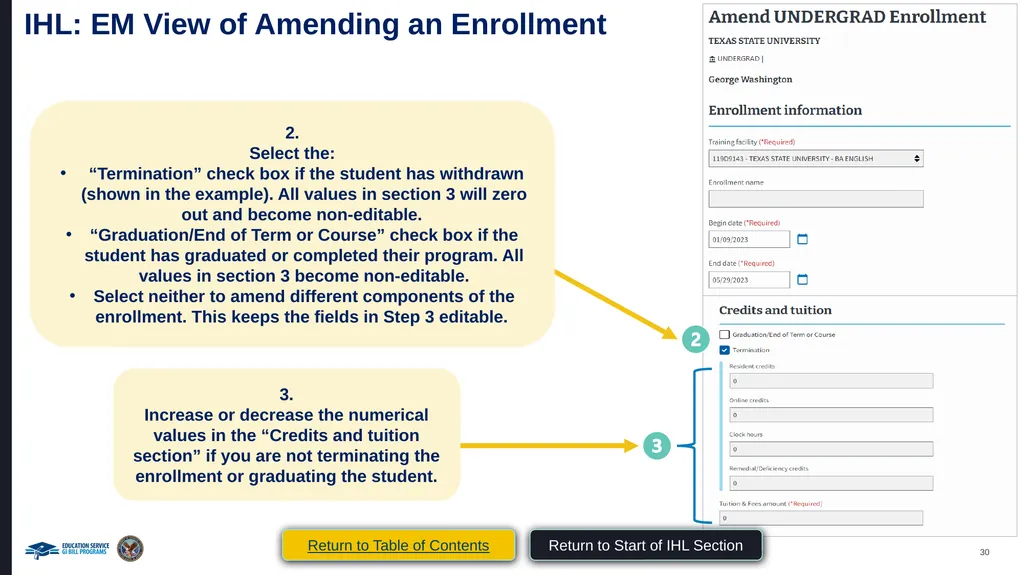
(Continued 1) 2.
Select the:
“Termination” check box if the student has withdrawn (shown in the example). All values in section 3 will zero out and become non-editable.
“Graduation/End of Term or Course” check box if the student has graduated or completed their program. All values in section 3 become non-editable.
Select neither to amend different components of the enrollment. This keeps the fields in Step 3 editable. 3.
Increase or decrease the numerical values in the “Credits and tuition section” if you are not terminating the enrollment or graduating the student. Return to Table of Contents Return to Start of IHL Section<br>
Select the:
“Termination” check box if the student has withdrawn (shown in the example). All values in section 3 will zero out and become non-editable.
“Graduation/End of Term or Course” check box if the student has graduated or completed their program. All values in section 3 become non-editable.
Select neither to amend different components of the enrollment. This keeps the fields in Step 3 editable. 3.
Increase or decrease the numerical values in the “Credits and tuition section” if you are not terminating the enrollment or graduating the student. Return to Table of Contents Return to Start of IHL Section<br>
31
IHL: EM View of Amending an Enrollment
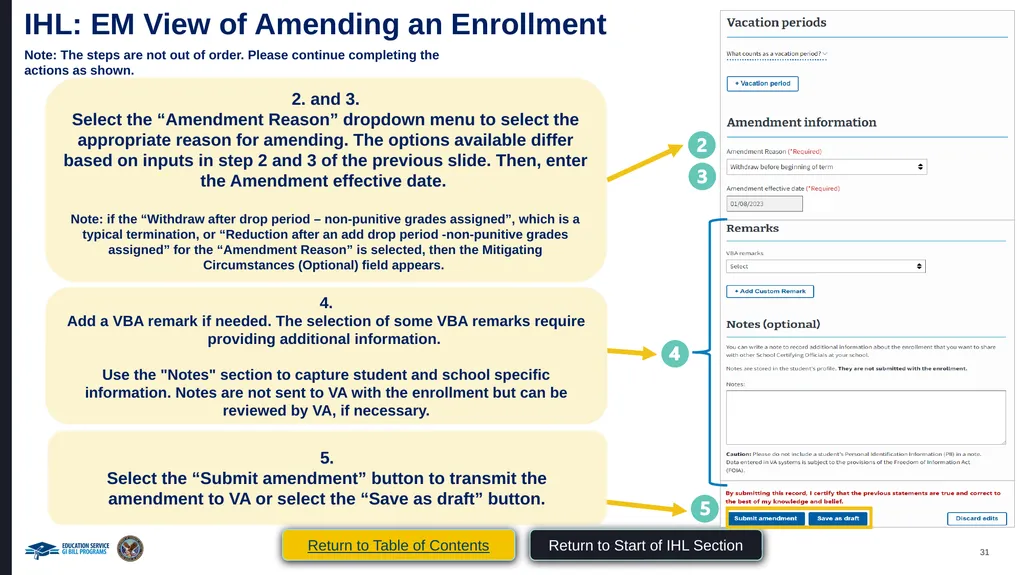
(Continued 2) Note: The steps are not out of order. Please continue completing the actions as shown. 2. and 3.
Select the “Amendment Reason” dropdown menu to select the appropriate reason for amending. The options available differ based on inputs in step 2 and 3 of the previous slide. Then, enter the Amendment effective date.
Note: if the “Withdraw after drop period – non-punitive grades assigned”, which is a typical termination, or “Reduction after an add drop period -non-punitive grades assigned” for the “Amendment Reason” is selected, then the Mitigating Circumstances (Optional) field appears. 4.
Add a VBA remark if needed. The selection of some VBA remarks require providing additional information.
Use the "Notes" section to capture student and school specific information. Notes are not sent to VA with the enrollment but can be reviewed by VA, if necessary. 5.
Select the “Submit amendment” button to transmit the amendment to VA or select the “Save as draft” button. Return to Table of Contents Return to Start of IHL Section<br>
Select the “Amendment Reason” dropdown menu to select the appropriate reason for amending. The options available differ based on inputs in step 2 and 3 of the previous slide. Then, enter the Amendment effective date.
Note: if the “Withdraw after drop period – non-punitive grades assigned”, which is a typical termination, or “Reduction after an add drop period -non-punitive grades assigned” for the “Amendment Reason” is selected, then the Mitigating Circumstances (Optional) field appears. 4.
Add a VBA remark if needed. The selection of some VBA remarks require providing additional information.
Use the "Notes" section to capture student and school specific information. Notes are not sent to VA with the enrollment but can be reviewed by VA, if necessary. 5.
Select the “Submit amendment” button to transmit the amendment to VA or select the “Save as draft” button. Return to Table of Contents Return to Start of IHL Section<br>
32
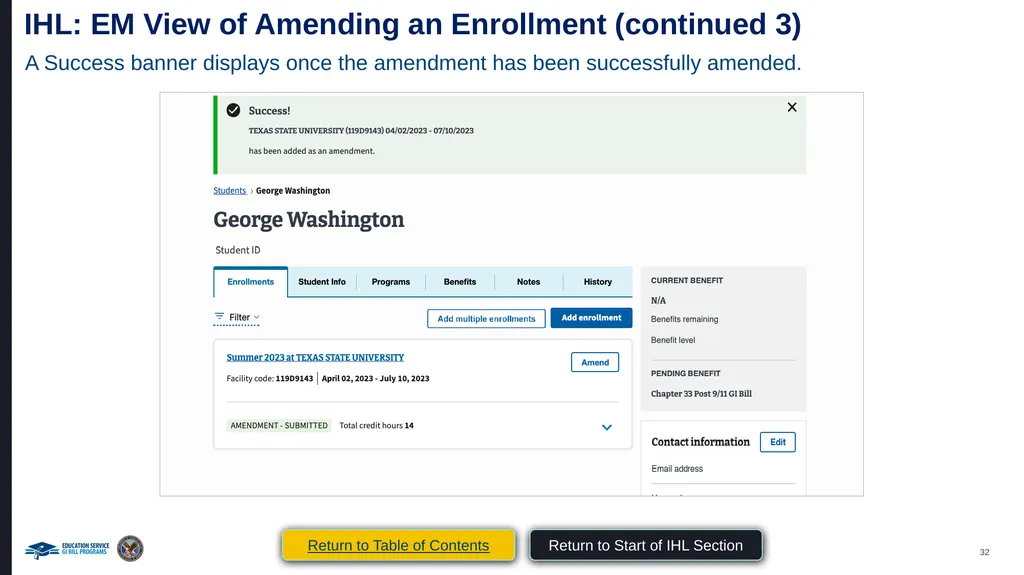
IHL: EM View of Amending an Enrollment (continued 3) A Success banner displays once the amendment has been successfully amended. Return to Table of Contents Return to Start of IHL Section<br>
33
Congratulations!
This is the end of the instructions for the selected facility type. Select here to navigate to the Helpful Resources section. Return to Table of Contents Return to Start of IHL Section<br>
This is the end of the instructions for the selected facility type. Select here to navigate to the Helpful Resources section. Return to Table of Contents Return to Start of IHL Section<br>
34
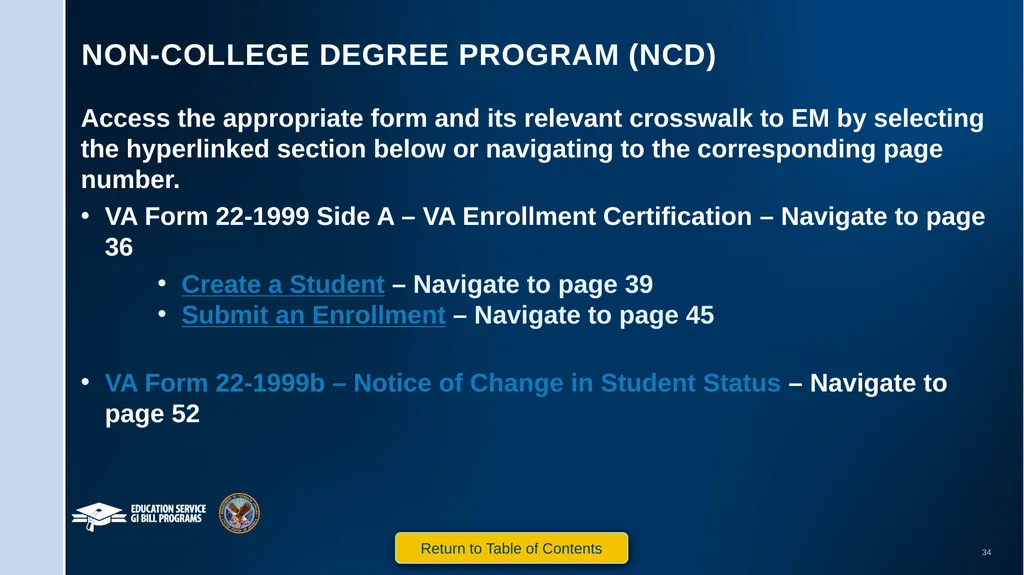
Non-College degree program (NCD) Access the appropriate form and its relevant crosswalk to EM by selecting the hyperlinked section below or navigating to the corresponding page number.
VA Form 22-1999 Side A – VA Enrollment Certification – Navigate to page 36
Create a Student – Navigate to page 39
Submit an Enrollment – Navigate to page 45
VA Form 22-1999b – Notice of Change in Student Status – Navigate to page 52 Return to Table of Contents<br>
VA Form 22-1999 Side A – VA Enrollment Certification – Navigate to page 36
Create a Student – Navigate to page 39
Submit an Enrollment – Navigate to page 45
VA Form 22-1999b – Notice of Change in Student Status – Navigate to page 52 Return to Table of Contents<br>
35
NCD
VA Form 22-1999 Side A –
VA Enrollment Certification Return to Table of Contents Return to Start of NCD Section<br>
36
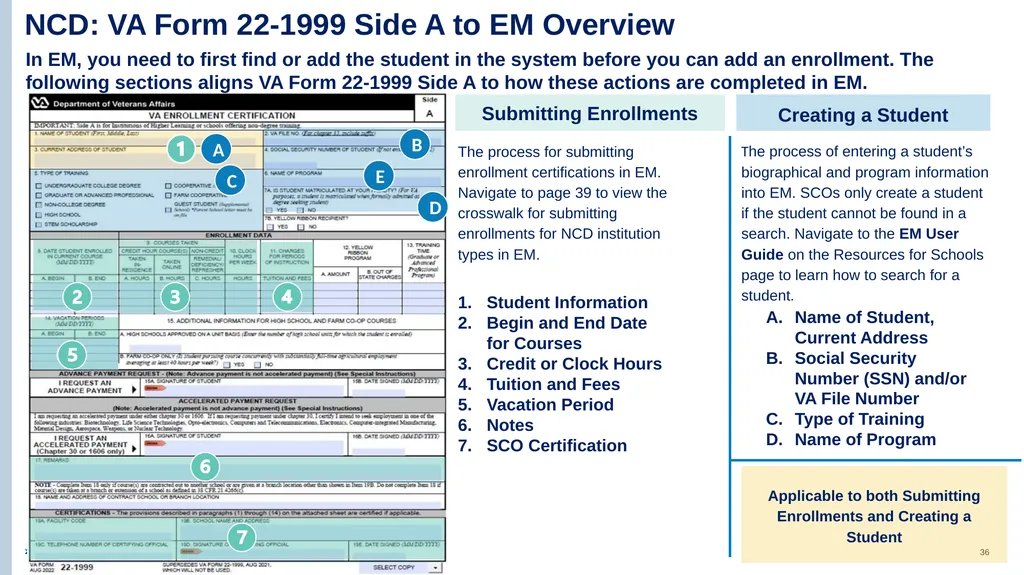
NCD: VA Form 22-1999 Side A to EM Overview In EM, you need to first find or add the student in the system before you can add an enrollment. The following sections aligns VA Form 22-1999 Side A to how these actions are completed in EM. Submitting Enrollments The process for submitting enrollment certifications in EM. Navigate to page 39 to view the crosswalk for submitting enrollments for NCD institution types in EM. Student Information
Begin and End Date for Courses
Credit or Clock Hours
Tuition and Fees
Vacation Period
Notes
SCO Certification Creating a Student The process of entering a student’s biographical and program information into EM. SCOs only create a student if the student cannot be found in a search. Navigate to the EM User Guide on the Resources for Schools page to learn how to search for a student. Name of Student, Current Address
Social Security Number (SSN) and/or VA File Number
Type of Training
Name of Program A B C D E Applicable to both Submitting Enrollments and Creating a Student<br>
Begin and End Date for Courses
Credit or Clock Hours
Tuition and Fees
Vacation Period
Notes
SCO Certification Creating a Student The process of entering a student’s biographical and program information into EM. SCOs only create a student if the student cannot be found in a search. Navigate to the EM User Guide on the Resources for Schools page to learn how to search for a student. Name of Student, Current Address
Social Security Number (SSN) and/or VA File Number
Type of Training
Name of Program A B C D E Applicable to both Submitting Enrollments and Creating a Student<br>
37
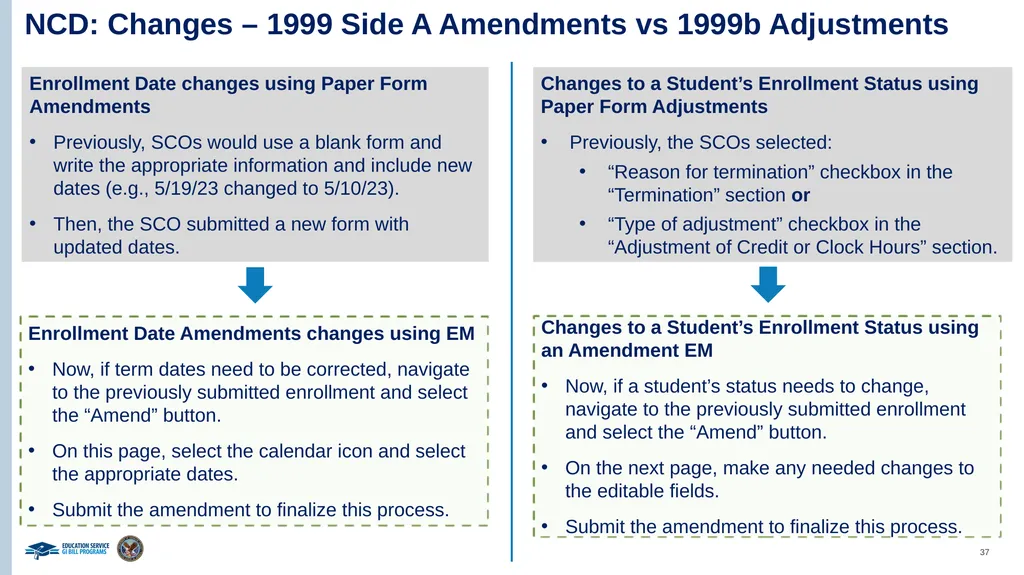
NCD: Changes – 1999 Side A Amendments vs 1999b Adjustments Enrollment Date changes using Paper Form Amendments
Previously, SCOs would use a blank form and write the appropriate information and include new dates (e.g., 5/19/23 changed to 5/10/23).
Then, the SCO submitted a new form with updated dates. Enrollment Date Amendments changes using EM
Now, if term dates need to be corrected, navigate to the previously submitted enrollment and select the “Amend” button.
On this page, select the calendar icon and select the appropriate dates.
Submit the amendment to finalize this process. Changes to a Student’s Enrollment Status using Paper Form Adjustments
Previously, the SCOs selected:
“Reason for termination” checkbox in the “Termination” section or
“Type of adjustment” checkbox in the “Adjustment of Credit or Clock Hours” section. Changes to a Student’s Enrollment Status using an Amendment EM
Now, if a student’s status needs to change, navigate to the previously submitted enrollment and select the “Amend” button.
On the next page, make any needed changes to the editable fields.
Submit the amendment to finalize this process.<br>
Previously, SCOs would use a blank form and write the appropriate information and include new dates (e.g., 5/19/23 changed to 5/10/23).
Then, the SCO submitted a new form with updated dates. Enrollment Date Amendments changes using EM
Now, if term dates need to be corrected, navigate to the previously submitted enrollment and select the “Amend” button.
On this page, select the calendar icon and select the appropriate dates.
Submit the amendment to finalize this process. Changes to a Student’s Enrollment Status using Paper Form Adjustments
Previously, the SCOs selected:
“Reason for termination” checkbox in the “Termination” section or
“Type of adjustment” checkbox in the “Adjustment of Credit or Clock Hours” section. Changes to a Student’s Enrollment Status using an Amendment EM
Now, if a student’s status needs to change, navigate to the previously submitted enrollment and select the “Amend” button.
On the next page, make any needed changes to the editable fields.
Submit the amendment to finalize this process.<br>
38
NCD
VA Form 22-1999 Side A –
VA Enrollment Certification
Creating a Student Return to Table of Contents Return to Start of NCD Section<br>
39
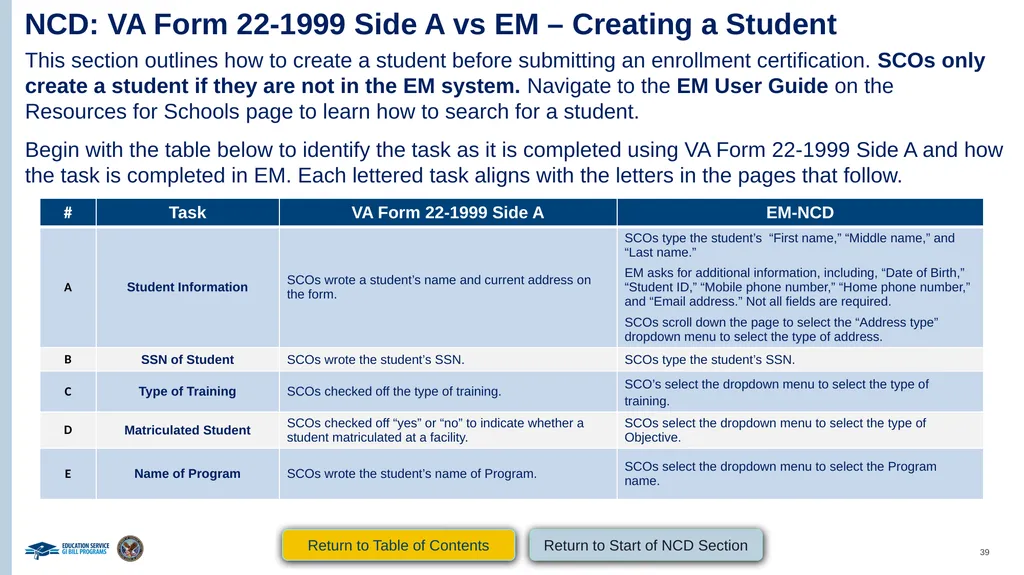
NCD: VA Form 22-1999 Side A vs EM – Creating a Student This section outlines how to create a student before submitting an enrollment certification. SCOs only create a student if they are not in the EM system. Navigate to the EM User Guide on the Resources for Schools page to learn how to search for a student.
Begin with the table below to identify the task as it is completed using VA Form 22-1999 Side A and how the task is completed in EM. Each lettered task aligns with the letters in the pages that follow. Return to Table of Contents Return to Start of NCD Section<br>
Begin with the table below to identify the task as it is completed using VA Form 22-1999 Side A and how the task is completed in EM. Each lettered task aligns with the letters in the pages that follow. Return to Table of Contents Return to Start of NCD Section<br>
40
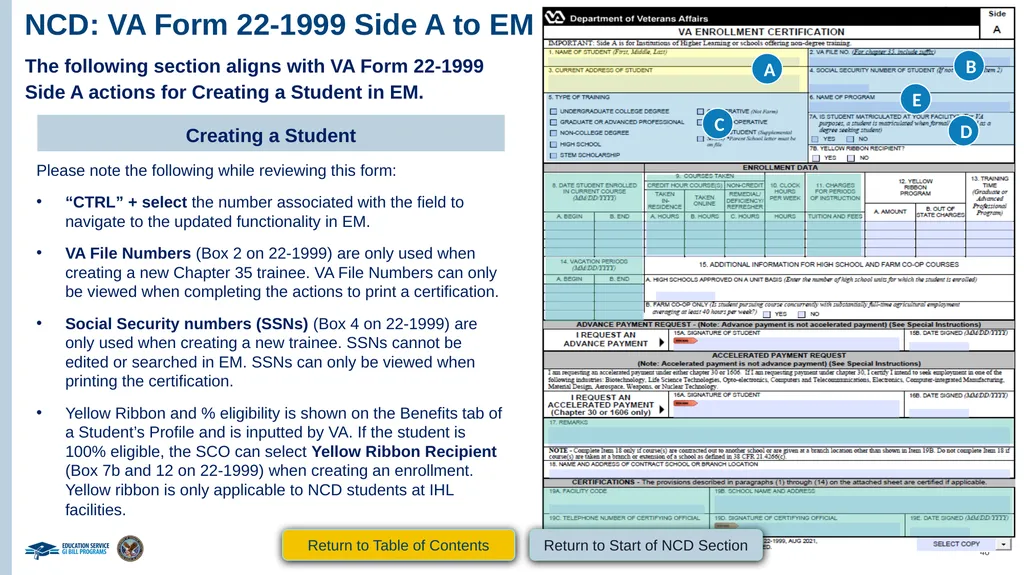
NCD: VA Form 22-1999 Side A to EM The following section aligns with VA Form 22-1999 Side A actions for Creating a Student in EM. Creating a Student Please note the following while reviewing this form:
“CTRL” + select the number associated with the field to navigate to the updated functionality in EM.
VA File Numbers (Box 2 on 22-1999) are only used when creating a new Chapter 35 trainee. VA File Numbers can only be viewed when completing the actions to print a certification.
Social Security numbers (SSNs) (Box 4 on 22-1999) are only used when creating a new trainee. SSNs cannot be edited or searched in EM. SSNs can only be viewed when printing the certification.
Yellow Ribbon and % eligibility is shown on the Benefits tab of a Student’s Profile and is inputted by VA. If the student is 100% eligible, the SCO can select Yellow Ribbon Recipient (Box 7b and 12 on 22-1999) when creating an enrollment. Yellow ribbon is only applicable to NCD students at IHL facilities. A B C D E Return to Table of Contents Return to Start of NCD Section<br>
“CTRL” + select the number associated with the field to navigate to the updated functionality in EM.
VA File Numbers (Box 2 on 22-1999) are only used when creating a new Chapter 35 trainee. VA File Numbers can only be viewed when completing the actions to print a certification.
Social Security numbers (SSNs) (Box 4 on 22-1999) are only used when creating a new trainee. SSNs cannot be edited or searched in EM. SSNs can only be viewed when printing the certification.
Yellow Ribbon and % eligibility is shown on the Benefits tab of a Student’s Profile and is inputted by VA. If the student is 100% eligible, the SCO can select Yellow Ribbon Recipient (Box 7b and 12 on 22-1999) when creating an enrollment. Yellow ribbon is only applicable to NCD students at IHL facilities. A B C D E Return to Table of Contents Return to Start of NCD Section<br>
41
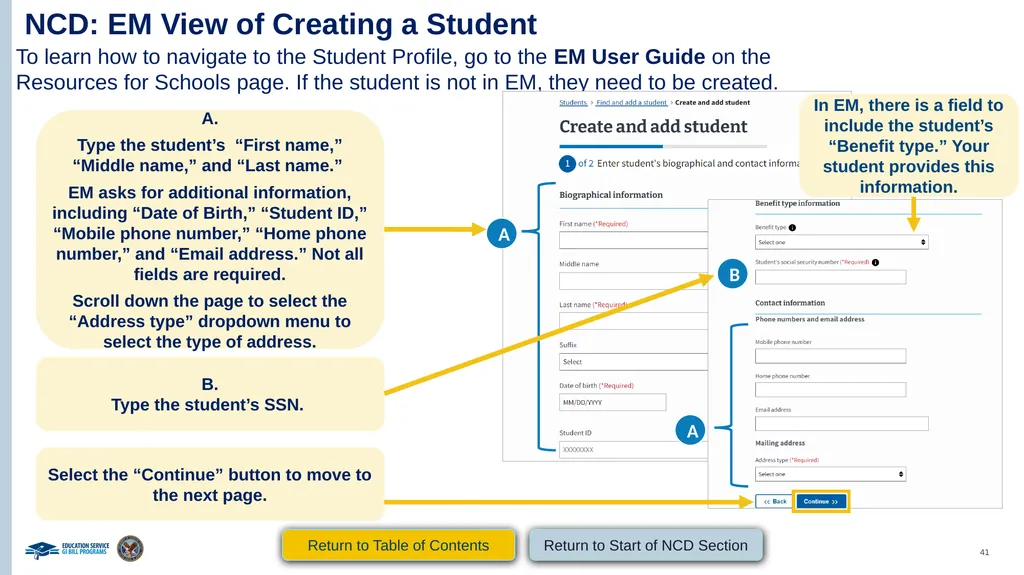
NCD: EM View of Creating a Student To learn how to navigate to the Student Profile, go to the EM User Guide on the Resources for Schools page. If the student is not in EM, they need to be created. A.
Type the student’s “First name,” “Middle name,” and “Last name.”
EM asks for additional information, including “Date of Birth,” “Student ID,” “Mobile phone number,” “Home phone number,” and “Email address.” Not all fields are required.
Scroll down the page to select the “Address type” dropdown menu to select the type of address. A In EM, there is a field to include the student’s “Benefit type.” Your student provides this information. B.
Type the student’s SSN. B A Select the “Continue” button to move to the next page. Return to Table of Contents Return to Start of NCD Section<br>
Type the student’s “First name,” “Middle name,” and “Last name.”
EM asks for additional information, including “Date of Birth,” “Student ID,” “Mobile phone number,” “Home phone number,” and “Email address.” Not all fields are required.
Scroll down the page to select the “Address type” dropdown menu to select the type of address. A In EM, there is a field to include the student’s “Benefit type.” Your student provides this information. B.
Type the student’s SSN. B A Select the “Continue” button to move to the next page. Return to Table of Contents Return to Start of NCD Section<br>
42
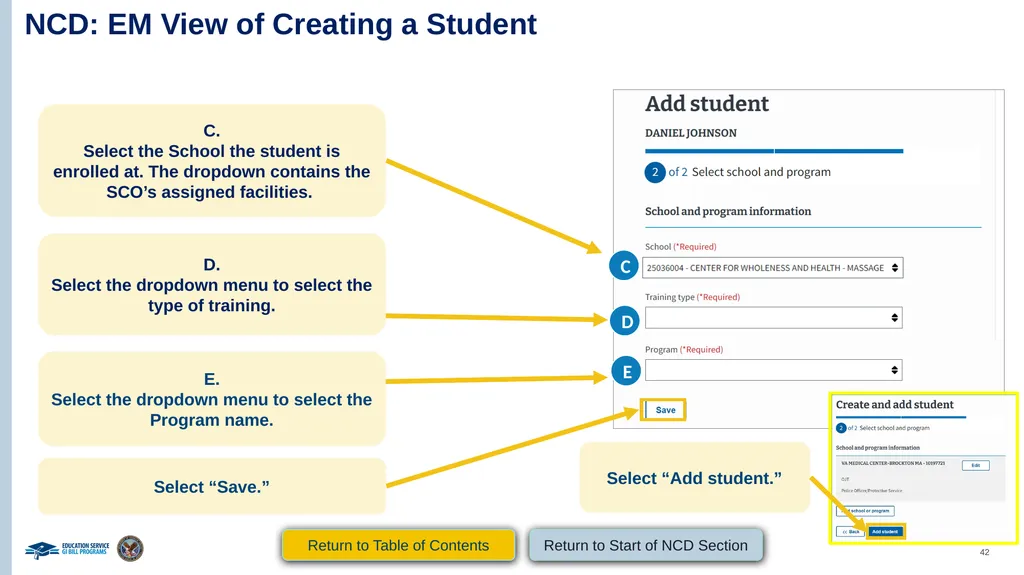
NCD: EM View of Creating a Student (Continued 1) C.
Select the School the student is enrolled at. The dropdown contains the SCO’s assigned facilities. C D.
Select the dropdown menu to select the type of training. D E.
Select the dropdown menu to select the Program name. E Select “Save.” Select “Add student.” Return to Table of Contents Return to Start of NCD Section<br>
Select the School the student is enrolled at. The dropdown contains the SCO’s assigned facilities. C D.
Select the dropdown menu to select the type of training. D E.
Select the dropdown menu to select the Program name. E Select “Save.” Select “Add student.” Return to Table of Contents Return to Start of NCD Section<br>
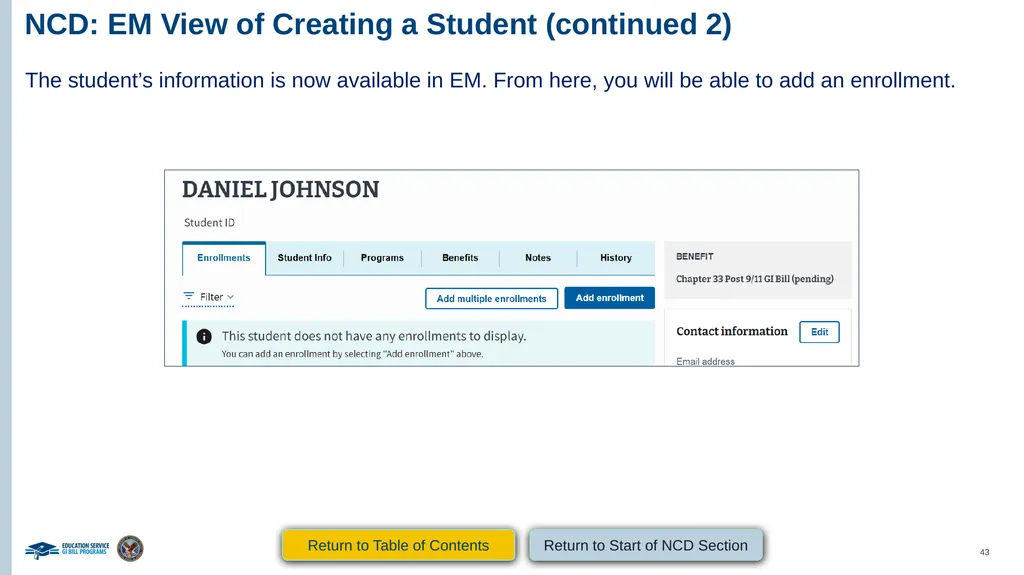
43
NCD: EM View of Creating a Student (continued 2) The student’s information is now available in EM. From here, you will be able to add an enrollment. Return to Table of Contents Return to Start of NCD Section<br>
44
NCD
VA Form 22-1999 Side A –
VA Enrollment Certification
Submitting an Enrollment Return to Table of Contents Return to Start of NCD Section<br>
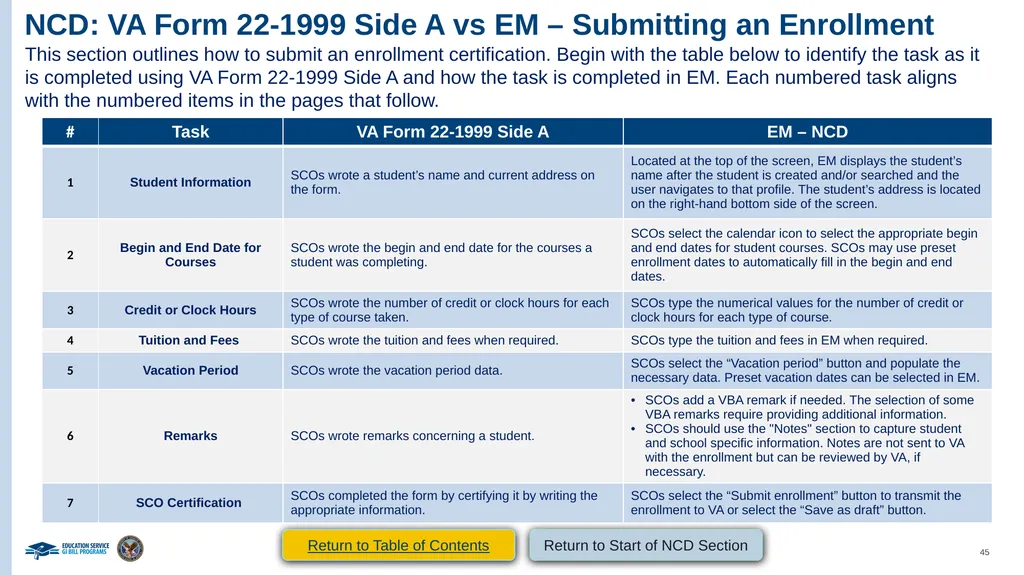
45
NCD: VA Form 22-1999 Side A vs EM – Submitting an Enrollment This section outlines how to submit an enrollment certification. Begin with the table below to identify the task as it is completed using VA Form 22-1999 Side A and how the task is completed in EM. Each numbered task aligns with the numbered items in the pages that follow. Return to Table of Contents Return to Start of NCD Section<br>
46
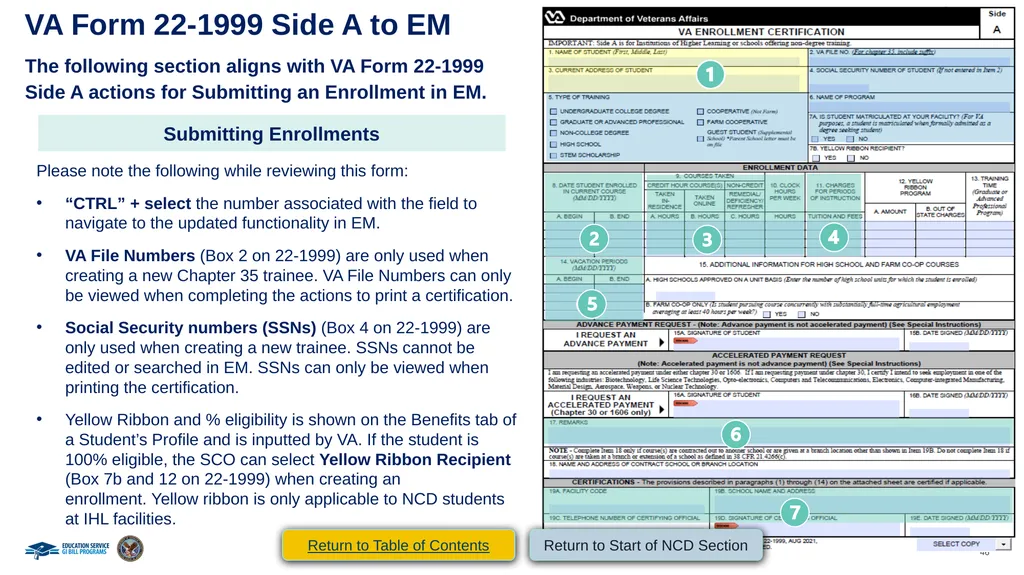
VA Form 22-1999 Side A to EM The following section aligns with VA Form 22-1999 Side A actions for Submitting an Enrollment in EM. Submitting Enrollments Please note the following while reviewing this form:
“CTRL” + select the number associated with the field to navigate to the updated functionality in EM.
VA File Numbers (Box 2 on 22-1999) are only used when creating a new Chapter 35 trainee. VA File Numbers can only be viewed when completing the actions to print a certification.
Social Security numbers (SSNs) (Box 4 on 22-1999) are only used when creating a new trainee. SSNs cannot be edited or searched in EM. SSNs can only be viewed when printing the certification.
Yellow Ribbon and % eligibility is shown on the Benefits tab of a Student’s Profile and is inputted by VA. If the student is 100% eligible, the SCO can select Yellow Ribbon Recipient (Box 7b and 12 on 22-1999) when creating an enrollment. Yellow ribbon is only applicable to NCD students at IHL facilities. Return to Table of Contents Return to Start of NCD Section<br>
“CTRL” + select the number associated with the field to navigate to the updated functionality in EM.
VA File Numbers (Box 2 on 22-1999) are only used when creating a new Chapter 35 trainee. VA File Numbers can only be viewed when completing the actions to print a certification.
Social Security numbers (SSNs) (Box 4 on 22-1999) are only used when creating a new trainee. SSNs cannot be edited or searched in EM. SSNs can only be viewed when printing the certification.
Yellow Ribbon and % eligibility is shown on the Benefits tab of a Student’s Profile and is inputted by VA. If the student is 100% eligible, the SCO can select Yellow Ribbon Recipient (Box 7b and 12 on 22-1999) when creating an enrollment. Yellow ribbon is only applicable to NCD students at IHL facilities. Return to Table of Contents Return to Start of NCD Section<br>
47
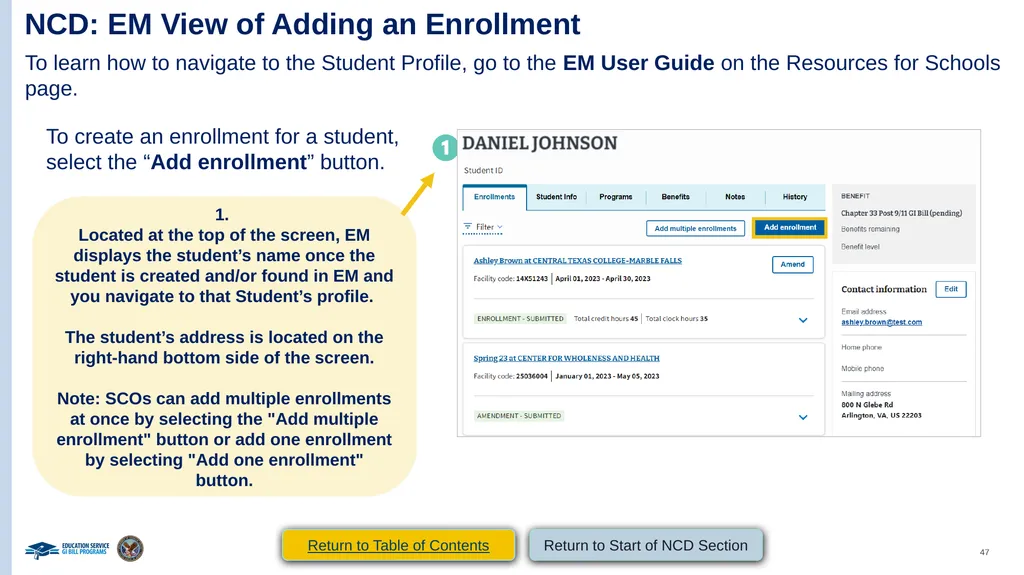
NCD: EM View of Adding an Enrollment To learn how to navigate to the Student Profile, go to the EM User Guide on the Resources for Schools page. To create an enrollment for a student, select the “Add enrollment” button. 1.
Located at the top of the screen, EM displays the student’s name once the student is created and/or found in EM and you navigate to that Student’s profile.
The student’s address is located on the right-hand bottom side of the screen.
Note: SCOs can add multiple enrollments at once by selecting the "Add multiple enrollment" button or add one enrollment by selecting "Add one enrollment" button. Return to Table of Contents Return to Start of NCD Section<br>
Located at the top of the screen, EM displays the student’s name once the student is created and/or found in EM and you navigate to that Student’s profile.
The student’s address is located on the right-hand bottom side of the screen.
Note: SCOs can add multiple enrollments at once by selecting the "Add multiple enrollment" button or add one enrollment by selecting "Add one enrollment" button. Return to Table of Contents Return to Start of NCD Section<br>
48
NCD: EM View of Adding an Enrollment
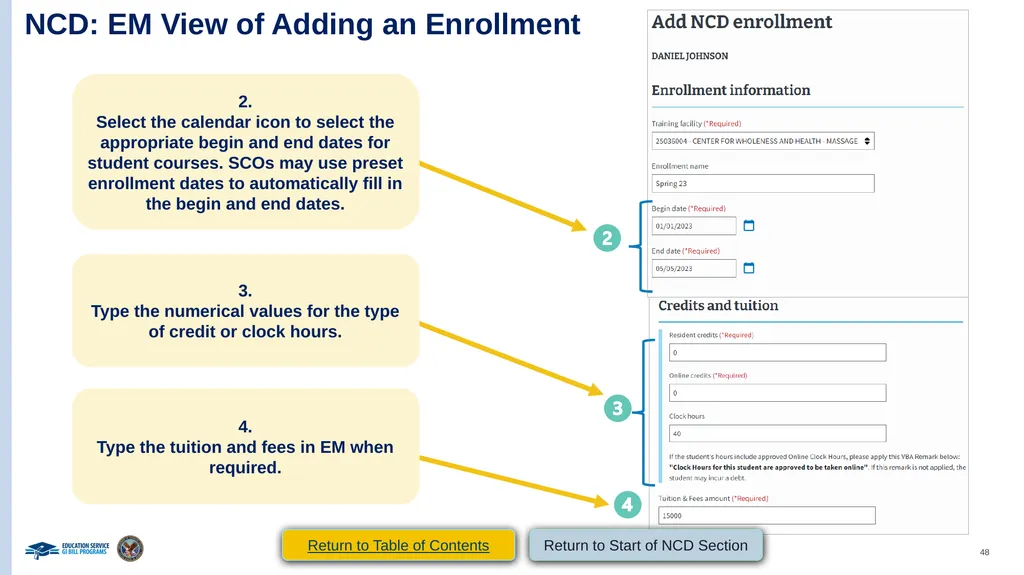
(continued 1) 2.
Select the calendar icon to select the appropriate begin and end dates for student courses. SCOs may use preset enrollment dates to automatically fill in the begin and end dates. 3.
Type the numerical values for the type of credit or clock hours. 4.
Type the tuition and fees in EM when required. Return to Table of Contents Return to Start of NCD Section<br>
Select the calendar icon to select the appropriate begin and end dates for student courses. SCOs may use preset enrollment dates to automatically fill in the begin and end dates. 3.
Type the numerical values for the type of credit or clock hours. 4.
Type the tuition and fees in EM when required. Return to Table of Contents Return to Start of NCD Section<br>
49
NCD: EM View of Adding an Enrollment
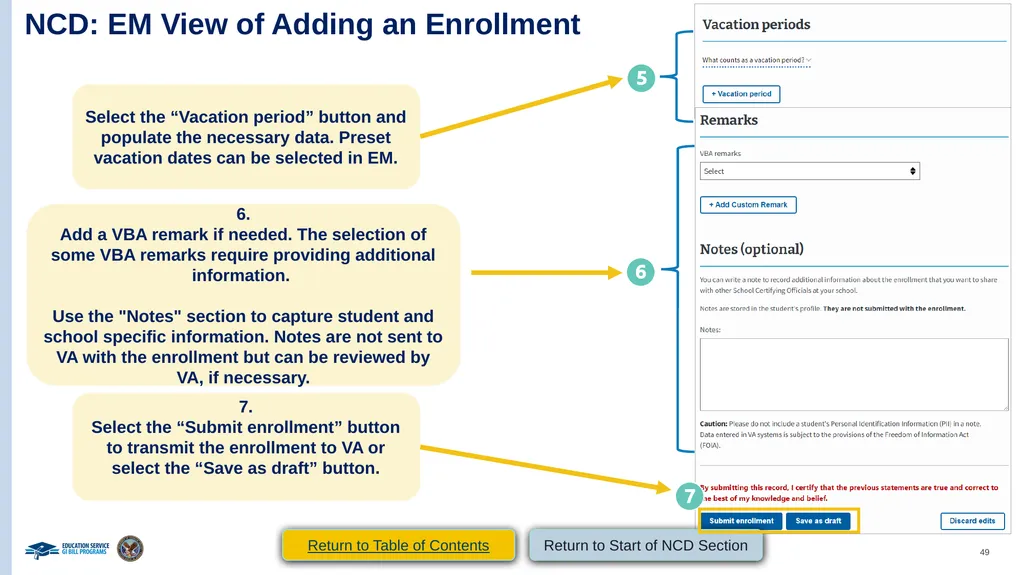
(continued 2) Select the “Vacation period” button and populate the necessary data. Preset vacation dates can be selected in EM. 6.
Add a VBA remark if needed. The selection of some VBA remarks require providing additional information.
Use the "Notes" section to capture student and school specific information. Notes are not sent to VA with the enrollment but can be reviewed by VA, if necessary. 7.
Select the “Submit enrollment” button to transmit the enrollment to VA or select the “Save as draft” button. Return to Table of Contents Return to Start of NCD Section<br>
Add a VBA remark if needed. The selection of some VBA remarks require providing additional information.
Use the "Notes" section to capture student and school specific information. Notes are not sent to VA with the enrollment but can be reviewed by VA, if necessary. 7.
Select the “Submit enrollment” button to transmit the enrollment to VA or select the “Save as draft” button. Return to Table of Contents Return to Start of NCD Section<br>
50
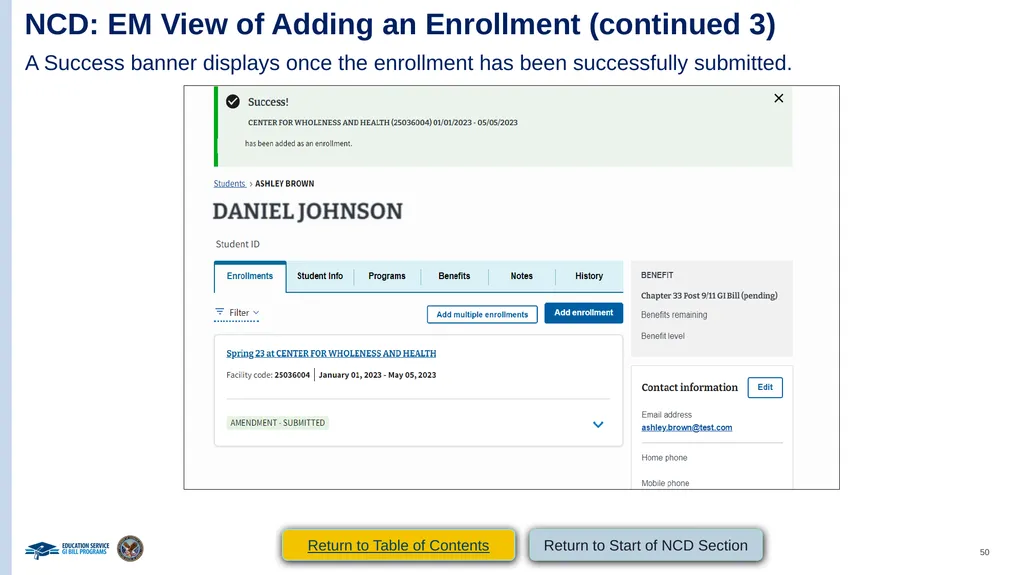
NCD: EM View of Adding an Enrollment (continued 3) A Success banner displays once the enrollment has been successfully submitted. Return to Table of Contents Return to Start of NCD Section<br>
51
NCD
VA Form 22-1999b –
Notice of Change in Student Status Return to Table of Contents Return to Start of NCD Section<br>
52
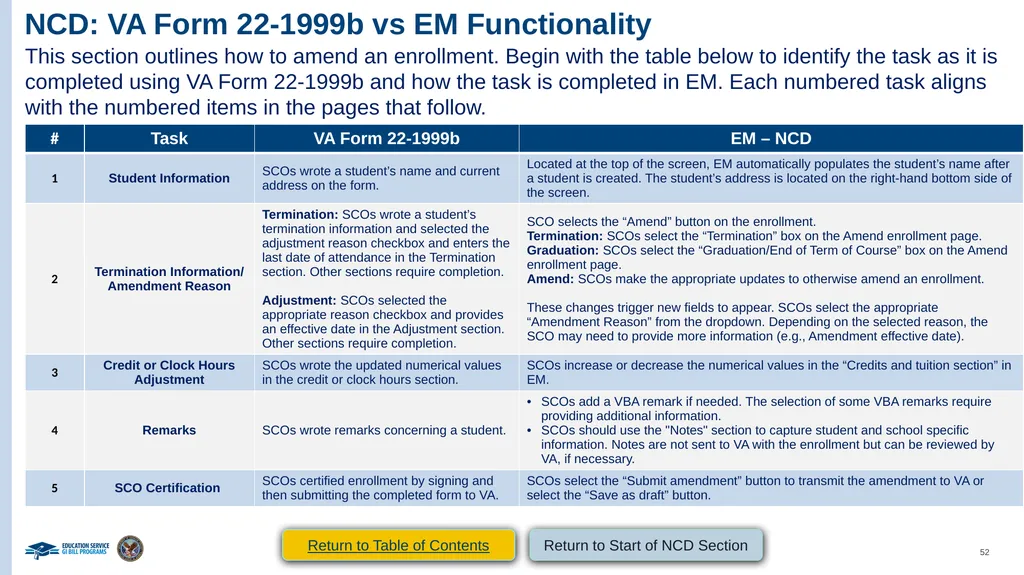
NCD: VA Form 22-1999b vs EM Functionality This section outlines how to amend an enrollment. Begin with the table below to identify the task as it is completed using VA Form 22-1999b and how the task is completed in EM. Each numbered task aligns with the numbered items in the pages that follow. Return to Table of Contents Return to Start of NCD Section<br>
53
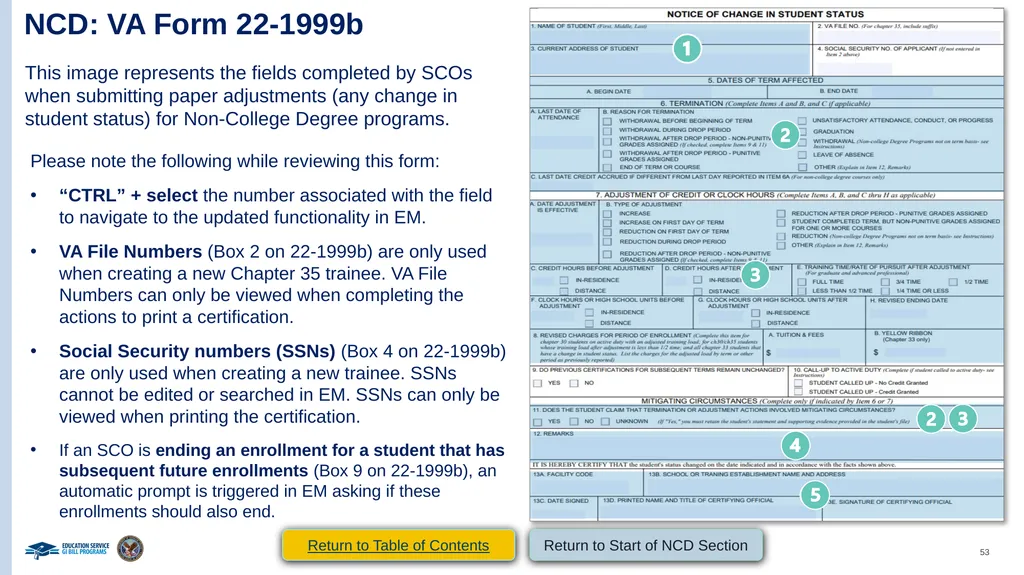
NCD: VA Form 22-1999b This image represents the fields completed by SCOs when submitting paper adjustments (any change in student status) for Non-College Degree programs. Please note the following while reviewing this form:
“CTRL” + select the number associated with the field to navigate to the updated functionality in EM.
VA File Numbers (Box 2 on 22-1999b) are only used when creating a new Chapter 35 trainee. VA File Numbers can only be viewed when completing the actions to print a certification.
Social Security numbers (SSNs) (Box 4 on 22-1999b) are only used when creating a new trainee. SSNs cannot be edited or searched in EM. SSNs can only be viewed when printing the certification.
If an SCO is ending an enrollment for a student that has subsequent future enrollments (Box 9 on 22-1999b), an automatic prompt is triggered in EM asking if these enrollments should also end. Return to Table of Contents Return to Start of NCD Section<br>
“CTRL” + select the number associated with the field to navigate to the updated functionality in EM.
VA File Numbers (Box 2 on 22-1999b) are only used when creating a new Chapter 35 trainee. VA File Numbers can only be viewed when completing the actions to print a certification.
Social Security numbers (SSNs) (Box 4 on 22-1999b) are only used when creating a new trainee. SSNs cannot be edited or searched in EM. SSNs can only be viewed when printing the certification.
If an SCO is ending an enrollment for a student that has subsequent future enrollments (Box 9 on 22-1999b), an automatic prompt is triggered in EM asking if these enrollments should also end. Return to Table of Contents Return to Start of NCD Section<br>
54
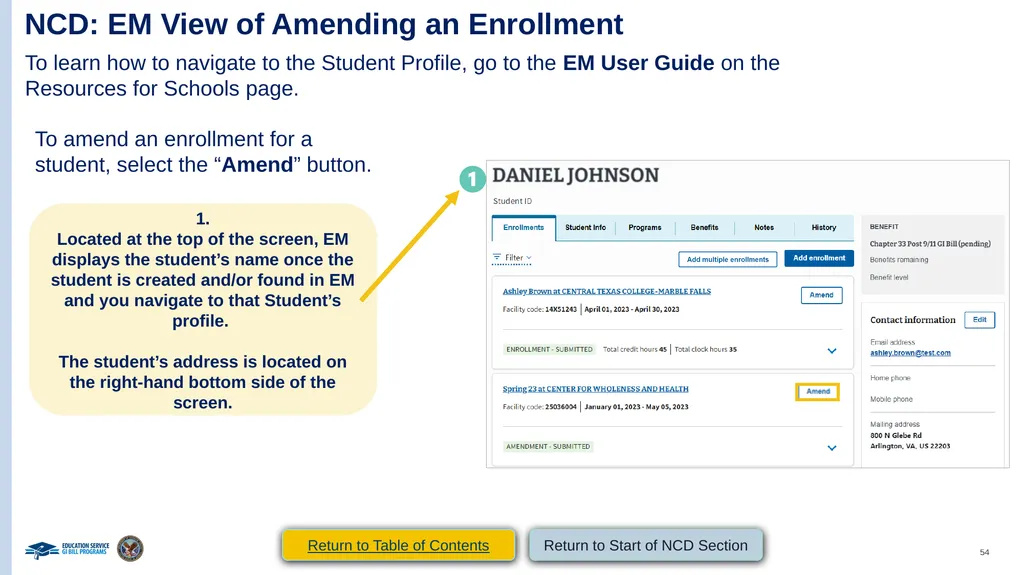
NCD: EM View of Amending an Enrollment To learn how to navigate to the Student Profile, go to the EM User Guide on the Resources for Schools page. To amend an enrollment for a student, select the “Amend” button. 1.
Located at the top of the screen, EM displays the student’s name once the student is created and/or found in EM and you navigate to that Student’s profile.
The student’s address is located on the right-hand bottom side of the screen. Return to Table of Contents Return to Start of NCD Section<br>
Located at the top of the screen, EM displays the student’s name once the student is created and/or found in EM and you navigate to that Student’s profile.
The student’s address is located on the right-hand bottom side of the screen. Return to Table of Contents Return to Start of NCD Section<br>
55
NCD: EM View of Amending an Enrollment
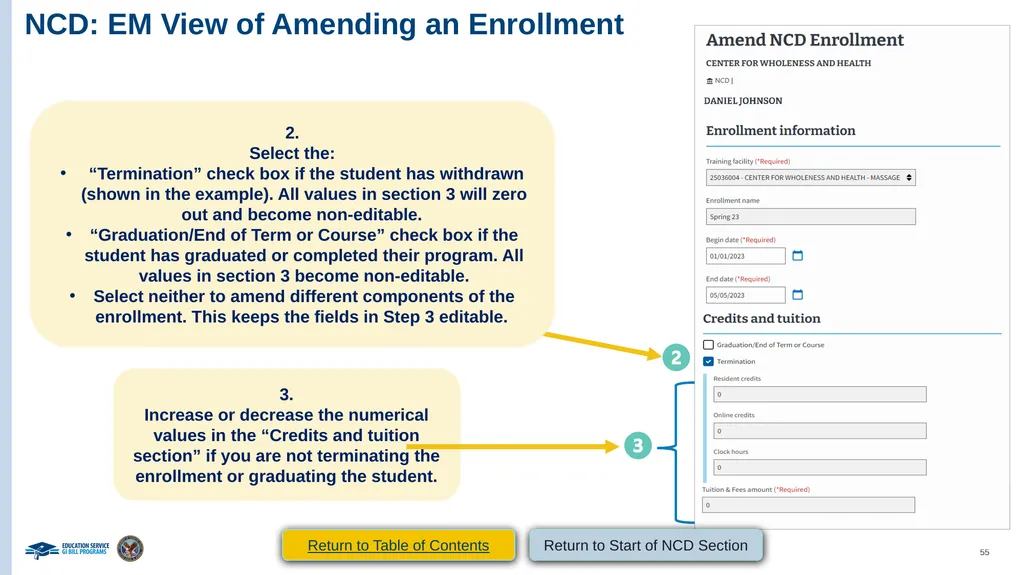
(continued 1) 2.
Select the:
“Termination” check box if the student has withdrawn (shown in the example). All values in section 3 will zero out and become non-editable.
“Graduation/End of Term or Course” check box if the student has graduated or completed their program. All values in section 3 become non-editable.
Select neither to amend different components of the enrollment. This keeps the fields in Step 3 editable. 3.
Increase or decrease the numerical values in the “Credits and tuition section” if you are not terminating the enrollment or graduating the student. Return to Table of Contents Return to Start of NCD Section<br>
Select the:
“Termination” check box if the student has withdrawn (shown in the example). All values in section 3 will zero out and become non-editable.
“Graduation/End of Term or Course” check box if the student has graduated or completed their program. All values in section 3 become non-editable.
Select neither to amend different components of the enrollment. This keeps the fields in Step 3 editable. 3.
Increase or decrease the numerical values in the “Credits and tuition section” if you are not terminating the enrollment or graduating the student. Return to Table of Contents Return to Start of NCD Section<br>
56
NCD: EM View of Amending an Enrollment
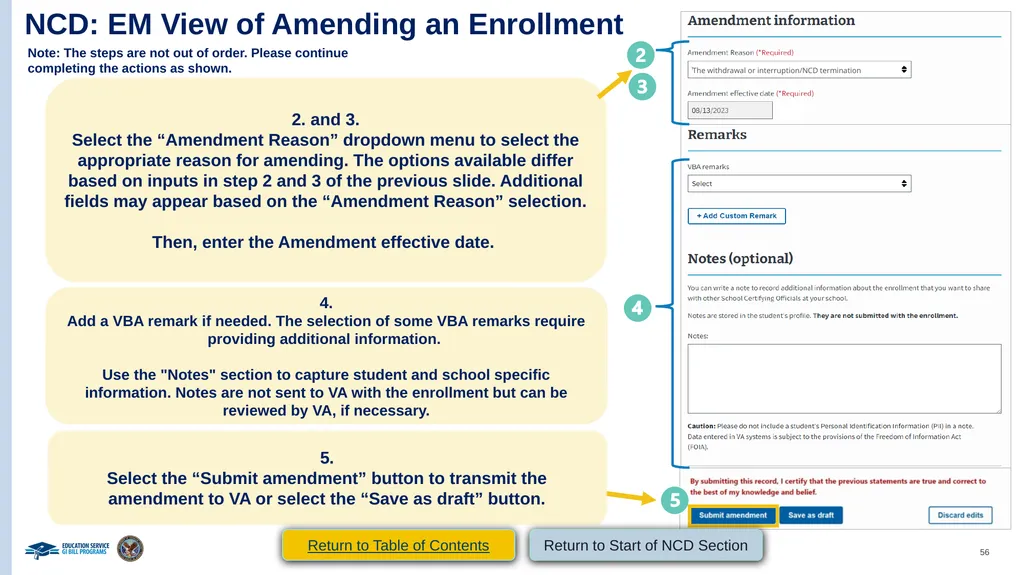
(continued 2) Note: The steps are not out of order. Please continue completing the actions as shown. 2. and 3.
Select the “Amendment Reason” dropdown menu to select the appropriate reason for amending. The options available differ based on inputs in step 2 and 3 of the previous slide. Additional fields may appear based on the “Amendment Reason” selection.
Then, enter the Amendment effective date. The withdrawal or interruption/NCD termination 4.
Add a VBA remark if needed. The selection of some VBA remarks require providing additional information.
Use the "Notes" section to capture student and school specific information. Notes are not sent to VA with the enrollment but can be reviewed by VA, if necessary. 5.
Select the “Submit amendment” button to transmit the amendment to VA or select the “Save as draft” button. Return to Table of Contents Return to Start of NCD Section<br>
Select the “Amendment Reason” dropdown menu to select the appropriate reason for amending. The options available differ based on inputs in step 2 and 3 of the previous slide. Additional fields may appear based on the “Amendment Reason” selection.
Then, enter the Amendment effective date. The withdrawal or interruption/NCD termination 4.
Add a VBA remark if needed. The selection of some VBA remarks require providing additional information.
Use the "Notes" section to capture student and school specific information. Notes are not sent to VA with the enrollment but can be reviewed by VA, if necessary. 5.
Select the “Submit amendment” button to transmit the amendment to VA or select the “Save as draft” button. Return to Table of Contents Return to Start of NCD Section<br>
57
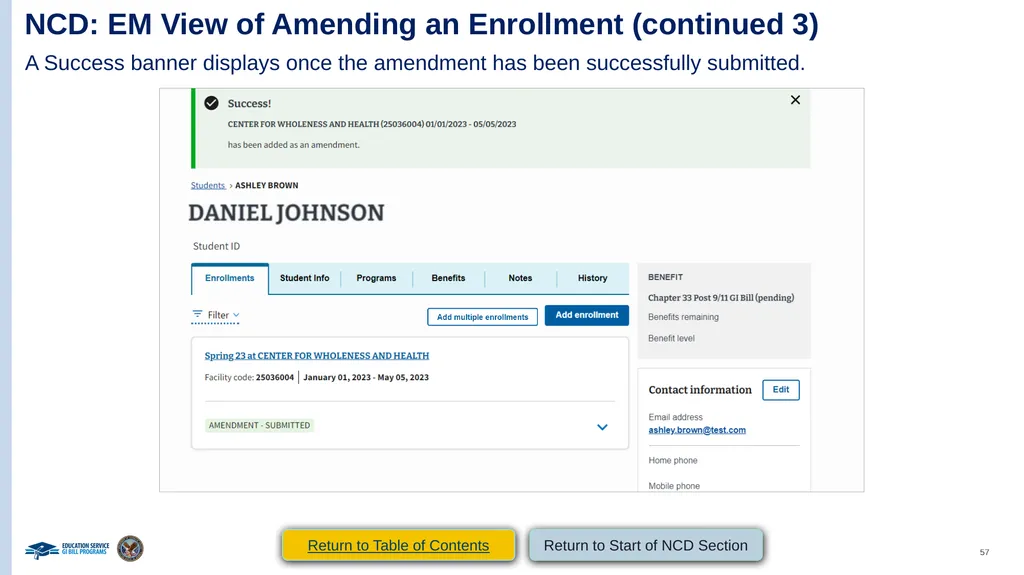
NCD: EM View of Amending an Enrollment (continued 3) A Success banner displays once the amendment has been successfully submitted. Return to Table of Contents Return to Start of NCD Section<br>
58
Congratulations!
This is the end of the instructions for the selected facility type. Select here to navigate to the Helpful Resources section. Return to Start of NCD Section Return to Table of Contents End of NCD section.<br>
This is the end of the instructions for the selected facility type. Select here to navigate to the Helpful Resources section. Return to Start of NCD Section Return to Table of Contents End of NCD section.<br>
59
On-the-Job Training & apprenticeship (OJT/App) Access the appropriate form and its relevant crosswalk to EM by selecting the hyperlinked section below or navigating to the appropriate page number detailed below:
VA Form 22-1999 Side B – VA Enrollment Certification – Navigate to page 61
Create a Student – Navigate to page 63
Submit an Enrollment – Navigate to page 69
VA Form 22-1999b – Notice of Change in Student Status – Navigate to page 76
VA Form 22-6553d-1 – Monthly Certification of On-the-Job and Apprenticeship Training – Navigate to page 83 Return to Table of Contents<br>
VA Form 22-1999 Side B – VA Enrollment Certification – Navigate to page 61
Create a Student – Navigate to page 63
Submit an Enrollment – Navigate to page 69
VA Form 22-1999b – Notice of Change in Student Status – Navigate to page 76
VA Form 22-6553d-1 – Monthly Certification of On-the-Job and Apprenticeship Training – Navigate to page 83 Return to Table of Contents<br>
60
OJT/APP
VA Form 22-1999 Side B –
VA Enrollment Certification Return to Table of Contents Return to Start of OJT/APP<br>
61
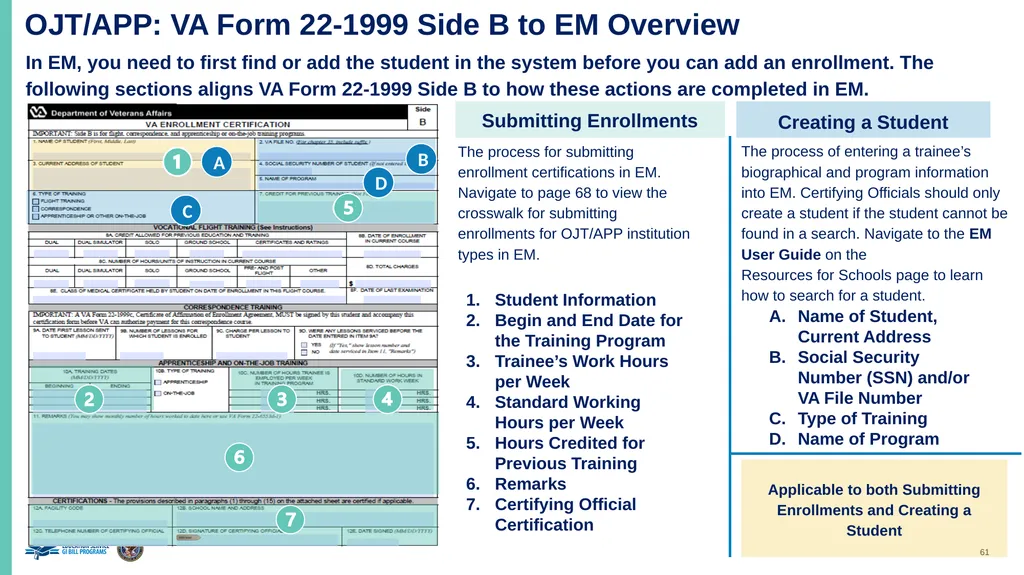
OJT/APP: VA Form 22-1999 Side B to EM Overview In EM, you need to first find or add the student in the system before you can add an enrollment. The following sections aligns VA Form 22-1999 Side B to how these actions are completed in EM. Submitting Enrollments The process for submitting enrollment certifications in EM. Navigate to page 68 to view the crosswalk for submitting enrollments for OJT/APP institution types in EM. Student Information
Student Information
Begin and End Date for the Training Program
Trainee’s Work Hours per Week
Standard Working Hours per Week
Hours Credited for Previous Training
Remarks
Certifying Official Certification Creating a Student The process of entering a trainee’s biographical and program information into EM. Certifying Officials should only create a student if the student cannot be found in a search. Navigate to the EM User Guide on the Resources for Schools page to learn how to search for a student. Name of Student, Current Address
Social Security Number (SSN) and/or VA File Number
Type of Training
Name of Program Applicable to both Submitting Enrollments and Creating a Student A B C D<br>
Student Information
Begin and End Date for the Training Program
Trainee’s Work Hours per Week
Standard Working Hours per Week
Hours Credited for Previous Training
Remarks
Certifying Official Certification Creating a Student The process of entering a trainee’s biographical and program information into EM. Certifying Officials should only create a student if the student cannot be found in a search. Navigate to the EM User Guide on the Resources for Schools page to learn how to search for a student. Name of Student, Current Address
Social Security Number (SSN) and/or VA File Number
Type of Training
Name of Program Applicable to both Submitting Enrollments and Creating a Student A B C D<br>
62
OJT/APP
VA Form 22-1999 Side B –
VA Enrollment Certification
Creating a Student Return to Table of Contents Return to Start of OJT/APP<br>
63
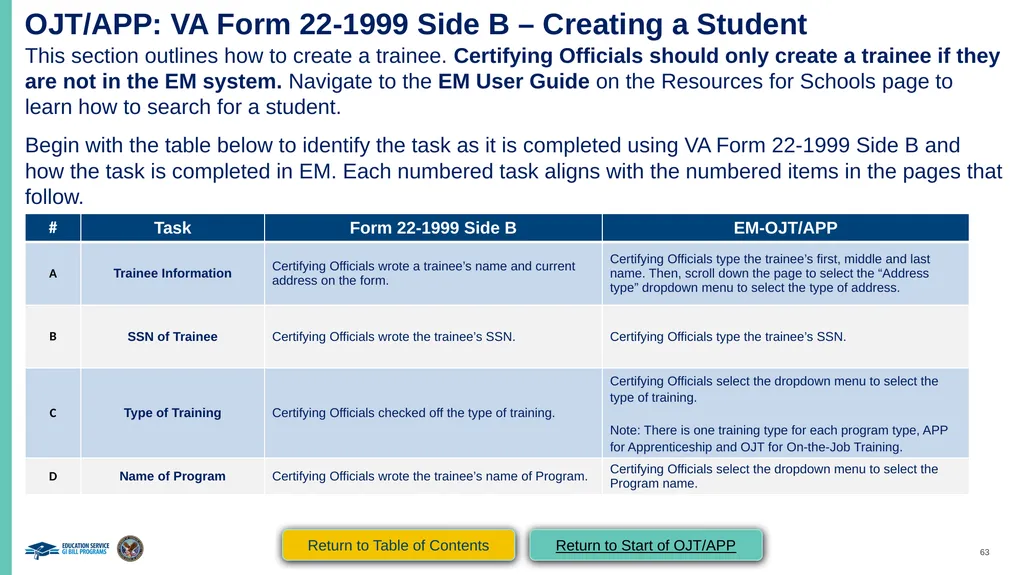
OJT/APP: VA Form 22-1999 Side B – Creating a Student This section outlines how to create a trainee. Certifying Officials should only create a trainee if they are not in the EM system. Navigate to the EM User Guide on the Resources for Schools page to learn how to search for a student.
Begin with the table below to identify the task as it is completed using VA Form 22-1999 Side B and how the task is completed in EM. Each numbered task aligns with the numbered items in the pages that follow. Return to Table of Contents Return to Start of OJT/APP<br>
Begin with the table below to identify the task as it is completed using VA Form 22-1999 Side B and how the task is completed in EM. Each numbered task aligns with the numbered items in the pages that follow. Return to Table of Contents Return to Start of OJT/APP<br>
64
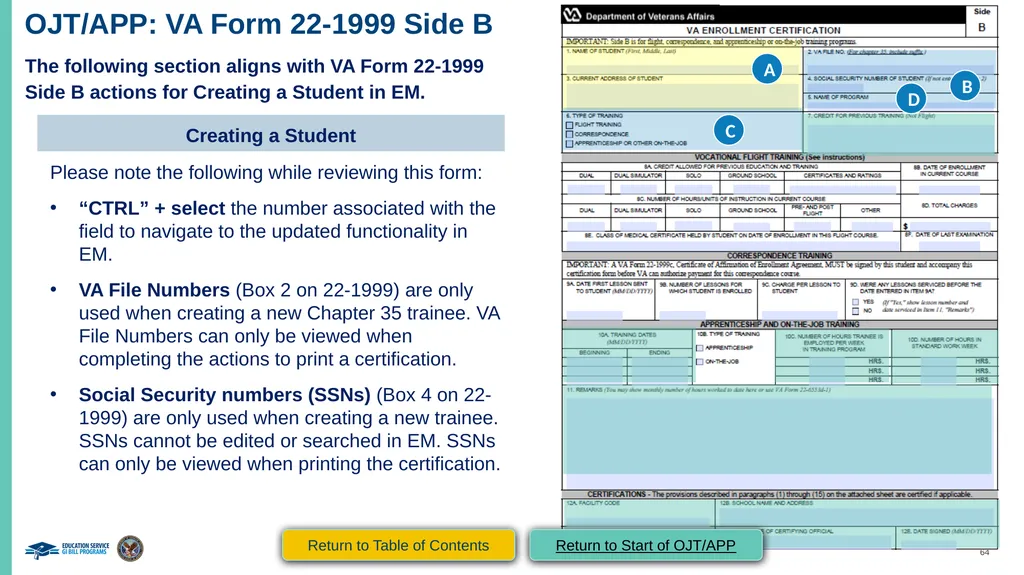
OJT/APP: VA Form 22-1999 Side B The following section aligns with VA Form 22-1999 Side B actions for Creating a Student in EM. Creating a Student Please note the following while reviewing this form:
“CTRL” + select the number associated with the field to navigate to the updated functionality in EM.
VA File Numbers (Box 2 on 22-1999) are only used when creating a new Chapter 35 trainee. VA File Numbers can only be viewed when completing the actions to print a certification.
Social Security numbers (SSNs) (Box 4 on 22-1999) are only used when creating a new trainee. SSNs cannot be edited or searched in EM. SSNs can only be viewed when printing the certification. A B C D Return to Table of Contents Return to Start of OJT/APP<br>
“CTRL” + select the number associated with the field to navigate to the updated functionality in EM.
VA File Numbers (Box 2 on 22-1999) are only used when creating a new Chapter 35 trainee. VA File Numbers can only be viewed when completing the actions to print a certification.
Social Security numbers (SSNs) (Box 4 on 22-1999) are only used when creating a new trainee. SSNs cannot be edited or searched in EM. SSNs can only be viewed when printing the certification. A B C D Return to Table of Contents Return to Start of OJT/APP<br>
65
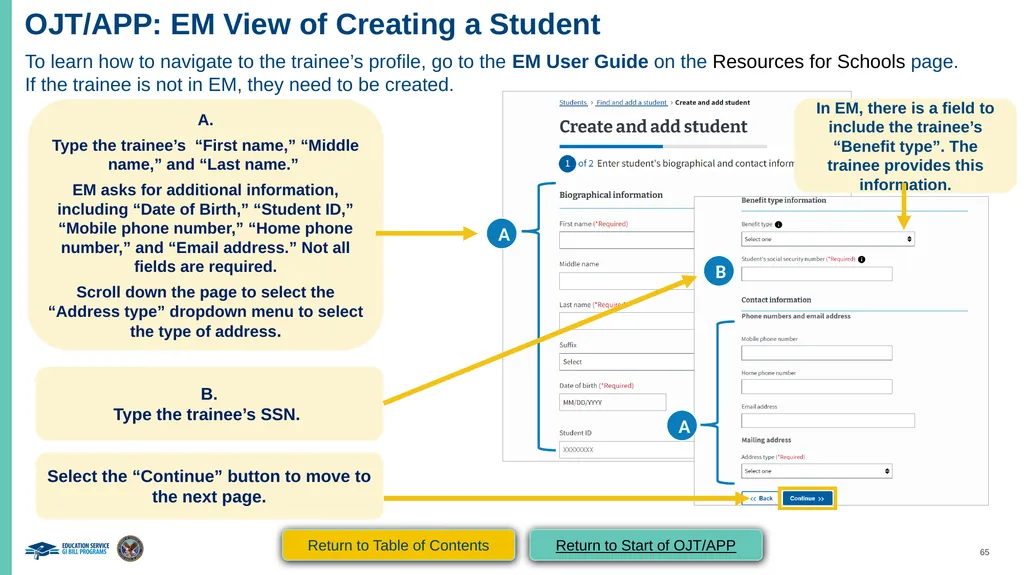
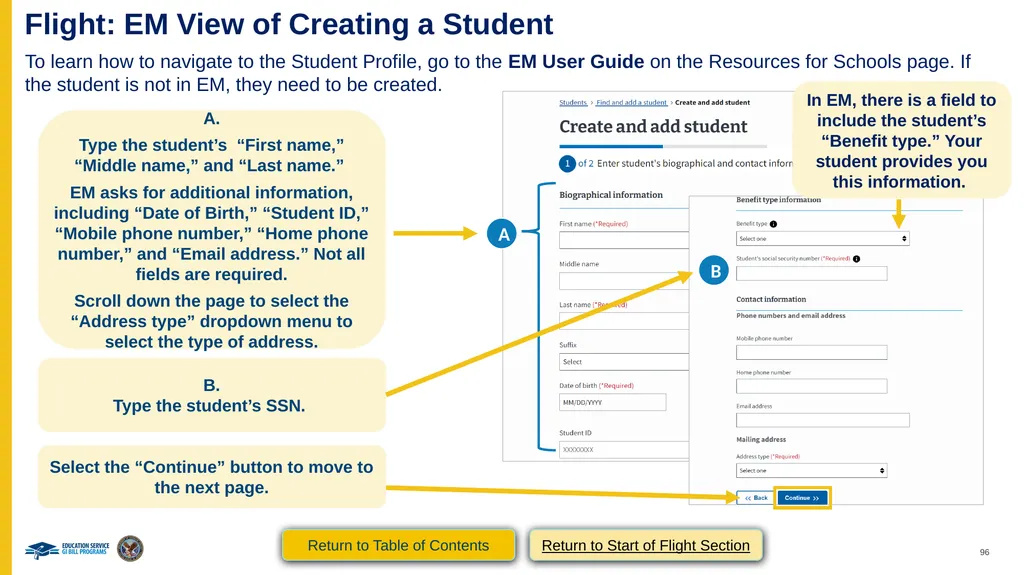
OJT/APP: EM View of Creating a Student To learn how to navigate to the trainee’s profile, go to the EM User Guide on the Resources for Schools page. If the trainee is not in EM, they need to be created. A.
Type the trainee’s “First name,” “Middle name,” and “Last name.”
EM asks for additional information, including “Date of Birth,” “Student ID,” “Mobile phone number,” “Home phone number,” and “Email address.” Not all fields are required.
Scroll down the page to select the “Address type” dropdown menu to select the type of address. A In EM, there is a field to include the trainee’s “Benefit type”. The trainee provides this information. B.
Type the trainee’s SSN. B A Select the “Continue” button to move to the next page. Return to Table of Contents Return to Start of OJT/APP<br>
Type the trainee’s “First name,” “Middle name,” and “Last name.”
EM asks for additional information, including “Date of Birth,” “Student ID,” “Mobile phone number,” “Home phone number,” and “Email address.” Not all fields are required.
Scroll down the page to select the “Address type” dropdown menu to select the type of address. A In EM, there is a field to include the trainee’s “Benefit type”. The trainee provides this information. B.
Type the trainee’s SSN. B A Select the “Continue” button to move to the next page. Return to Table of Contents Return to Start of OJT/APP<br>
66
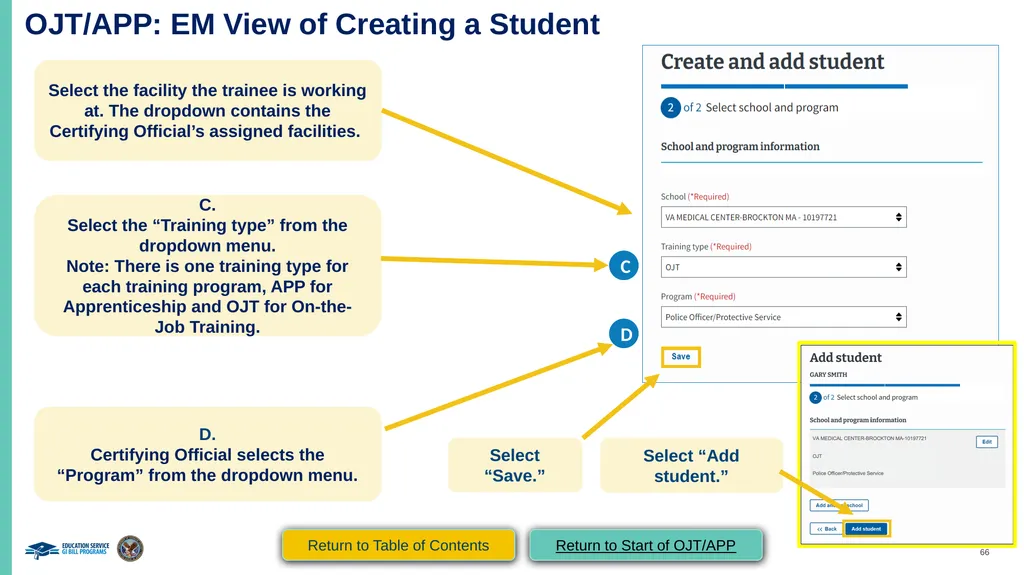
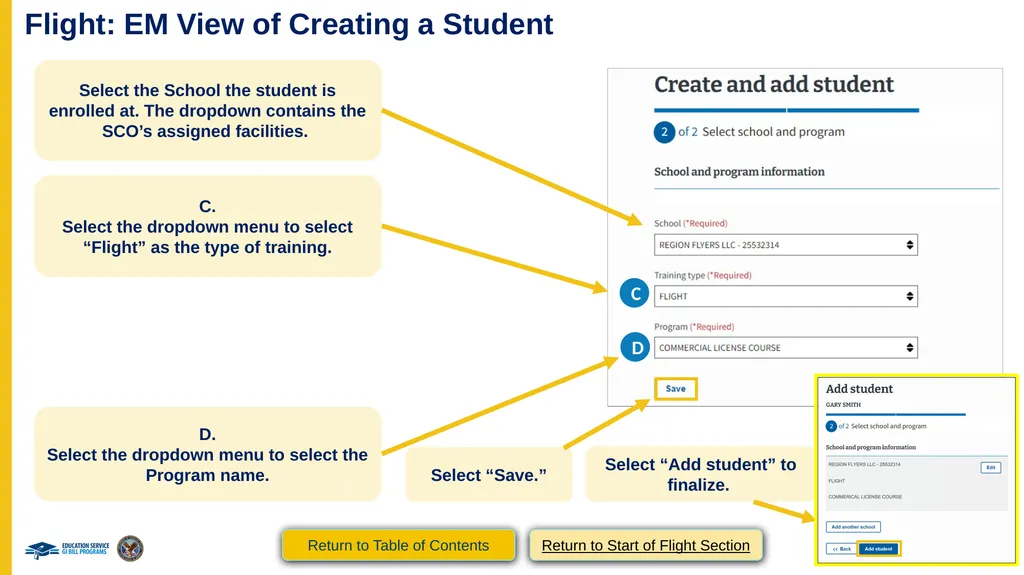
OJT/APP: EM View of Creating a Student (continued 1) Select the facility the trainee is working at. The dropdown contains the Certifying Official’s assigned facilities. C.
Select the “Training type” from the dropdown menu.
Note: There is one training type for each training program, APP for Apprenticeship and OJT for On-the-Job Training. C D.
Certifying Official selects the “Program” from the dropdown menu. D Select “Save.” Select “Add student.” Return to Table of Contents Return to Start of OJT/APP<br>
Select the “Training type” from the dropdown menu.
Note: There is one training type for each training program, APP for Apprenticeship and OJT for On-the-Job Training. C D.
Certifying Official selects the “Program” from the dropdown menu. D Select “Save.” Select “Add student.” Return to Table of Contents Return to Start of OJT/APP<br>
67
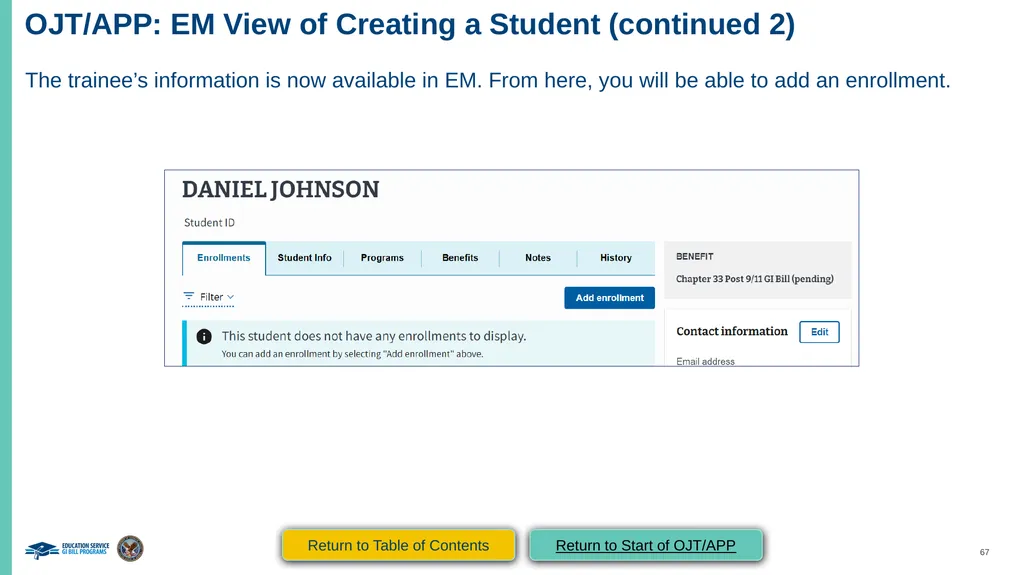
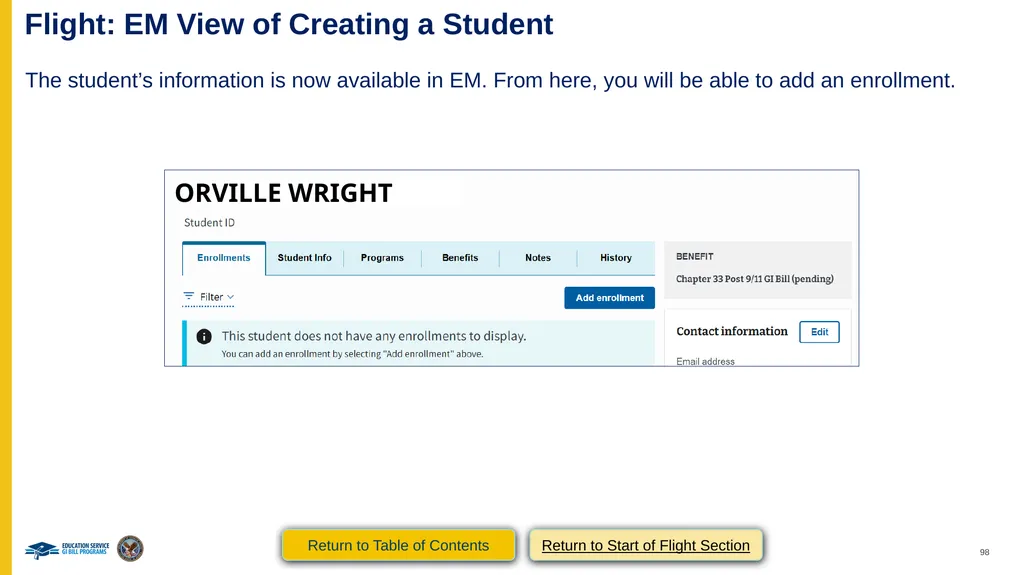
OJT/APP: EM View of Creating a Student (continued 2) The trainee’s information is now available in EM. From here, you will be able to add an enrollment. Return to Table of Contents Return to Start of OJT/APP<br>
68
OJT/APP
VA Form 22-1999 Side B –
VA Enrollment Certification
Submitting an Enrollment Return to Table of Contents Return to Start of OJT/APP<br>
VA Form 22-1999 Side B –
VA Enrollment Certification
Submitting an Enrollment Return to Table of Contents Return to Start of OJT/APP<br>
69
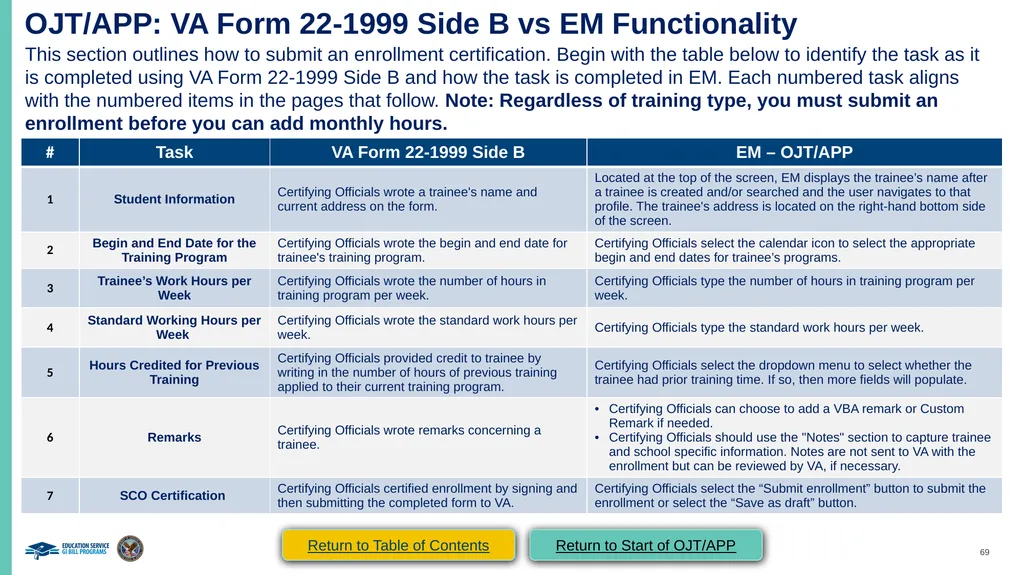
OJT/APP: VA Form 22-1999 Side B vs EM Functionality This section outlines how to submit an enrollment certification. Begin with the table below to identify the task as it is completed using VA Form 22-1999 Side B and how the task is completed in EM. Each numbered task aligns with the numbered items in the pages that follow. Note: Regardless of training type, you must submit an enrollment before you can add monthly hours. Return to Table of Contents Return to Start of OJT/APP<br>
70
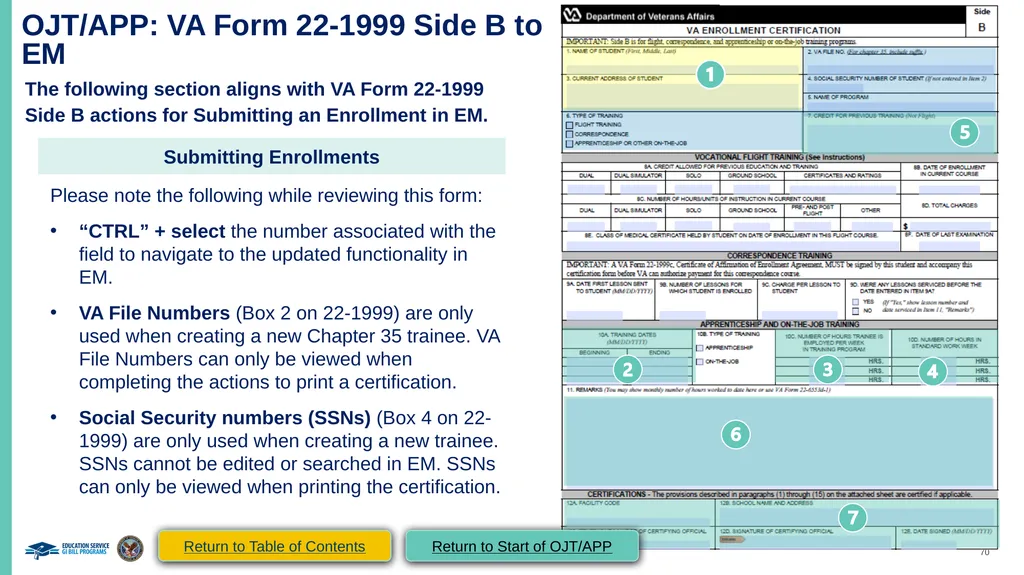
OJT/APP: VA Form 22-1999 Side B to EM Submitting an Enrollment OJT/APP: VA Form 22-1999 Side B to EM The following section aligns with VA Form 22-1999 Side B actions for Submitting an Enrollment in EM. Submitting Enrollments Please note the following while reviewing this form:
“CTRL” + select the number associated with the field to navigate to the updated functionality in EM.
VA File Numbers (Box 2 on 22-1999) are only used when creating a new Chapter 35 trainee. VA File Numbers can only be viewed when completing the actions to print a certification.
Social Security numbers (SSNs) (Box 4 on 22-1999) are only used when creating a new trainee. SSNs cannot be edited or searched in EM. SSNs can only be viewed when printing the certification. Return to Table of Contents Return to Start of OJT/APP<br>
“CTRL” + select the number associated with the field to navigate to the updated functionality in EM.
VA File Numbers (Box 2 on 22-1999) are only used when creating a new Chapter 35 trainee. VA File Numbers can only be viewed when completing the actions to print a certification.
Social Security numbers (SSNs) (Box 4 on 22-1999) are only used when creating a new trainee. SSNs cannot be edited or searched in EM. SSNs can only be viewed when printing the certification. Return to Table of Contents Return to Start of OJT/APP<br>
71
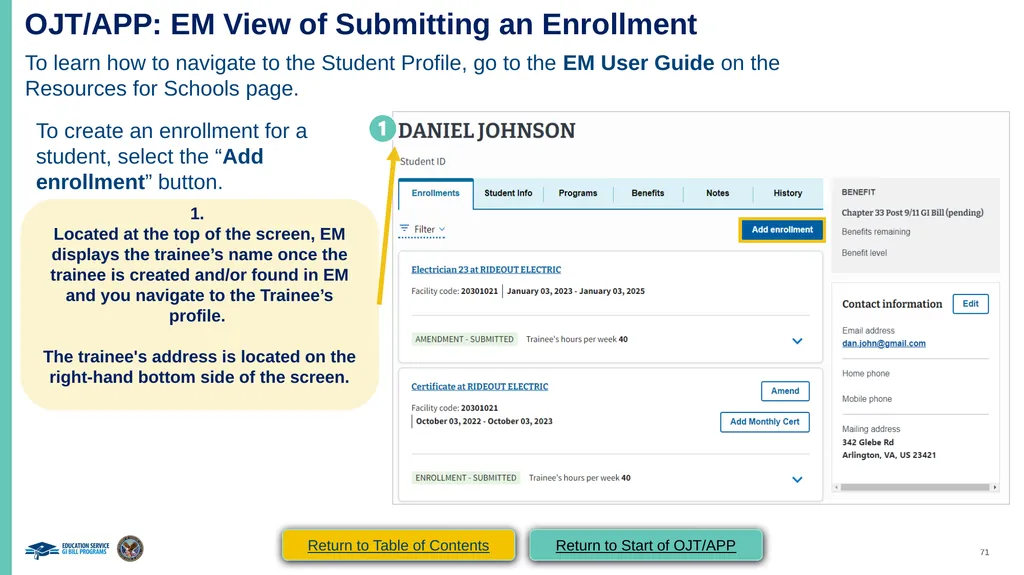
OJT/APP: EM View of Submitting an Enrollment To learn how to navigate to the Student Profile, go to the EM User Guide on the Resources for Schools page. To create an enrollment for a student, select the “Add enrollment” button. 1.
Located at the top of the screen, EM displays the trainee’s name once the trainee is created and/or found in EM and you navigate to the Trainee’s profile.
The trainee's address is located on the right-hand bottom side of the screen. Return to Table of Contents Return to Start of OJT/APP<br>
Located at the top of the screen, EM displays the trainee’s name once the trainee is created and/or found in EM and you navigate to the Trainee’s profile.
The trainee's address is located on the right-hand bottom side of the screen. Return to Table of Contents Return to Start of OJT/APP<br>
72
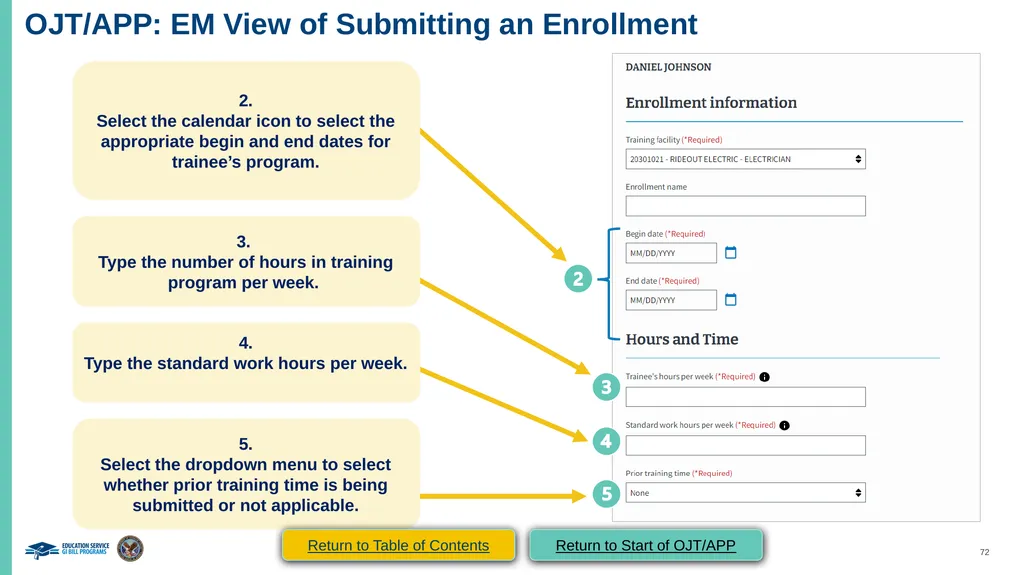
OJT/APP: EM View of Submitting an Enrollment 2.
Select the calendar icon to select the appropriate begin and end dates for trainee’s program. 3.
Type the number of hours in training program per week. 4.
Type the standard work hours per week. 5.
Select the dropdown menu to select whether prior training time is being submitted or not applicable. Return to Table of Contents Return to Start of OJT/APP<br>
Select the calendar icon to select the appropriate begin and end dates for trainee’s program. 3.
Type the number of hours in training program per week. 4.
Type the standard work hours per week. 5.
Select the dropdown menu to select whether prior training time is being submitted or not applicable. Return to Table of Contents Return to Start of OJT/APP<br>
73
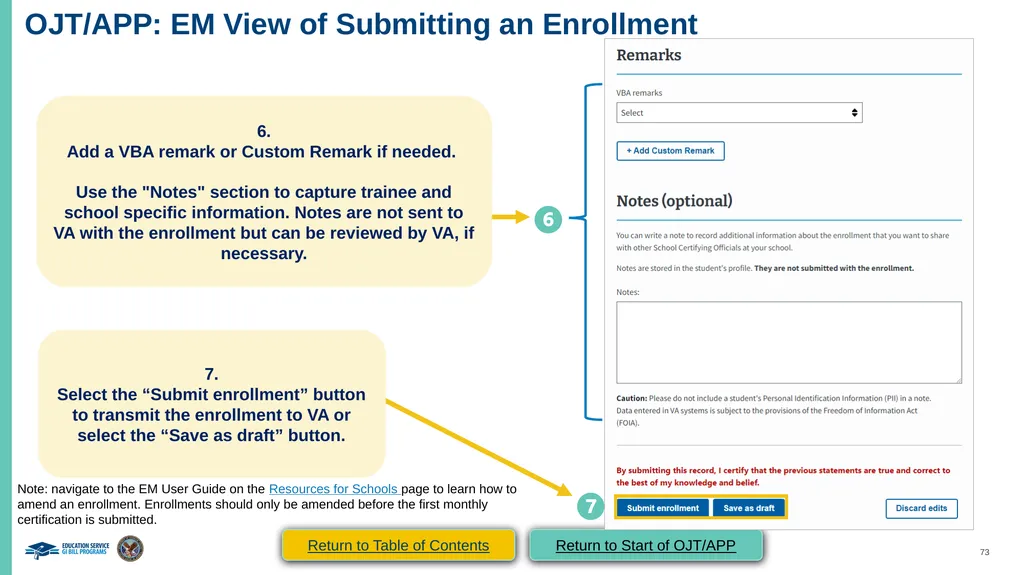
OJT/APP: EM View of Submitting an Enrollment 6.
Add a VBA remark or Custom Remark if needed.
Use the "Notes" section to capture trainee and school specific information. Notes are not sent to VA with the enrollment but can be reviewed by VA, if necessary. 7.
Select the “Submit enrollment” button to transmit the enrollment to VA or select the “Save as draft” button. Note: navigate to the EM User Guide on the Resources for Schools page to learn how to amend an enrollment. Enrollments should only be amended before the first monthly certification is submitted. Return to Table of Contents Return to Start of OJT/APP<br>
Add a VBA remark or Custom Remark if needed.
Use the "Notes" section to capture trainee and school specific information. Notes are not sent to VA with the enrollment but can be reviewed by VA, if necessary. 7.
Select the “Submit enrollment” button to transmit the enrollment to VA or select the “Save as draft” button. Note: navigate to the EM User Guide on the Resources for Schools page to learn how to amend an enrollment. Enrollments should only be amended before the first monthly certification is submitted. Return to Table of Contents Return to Start of OJT/APP<br>
74
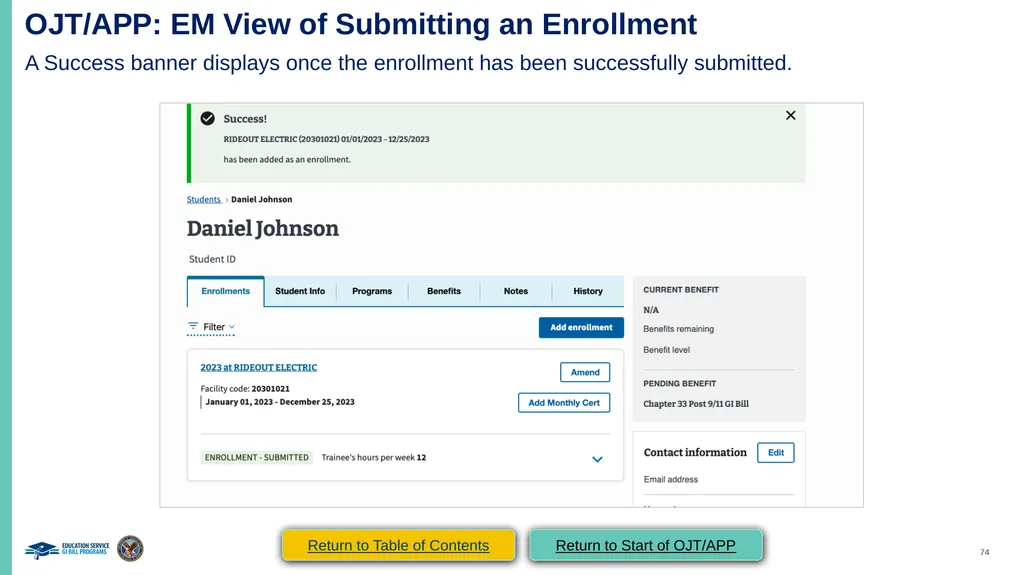
OJT/APP: EM View of Submitting an Enrollment slide 2 OJT/APP: EM View of Submitting an Enrollment A Success banner displays once the enrollment has been successfully submitted. Return to Table of Contents Return to Start of OJT/APP<br>
75
OJT/APP
VA Form 22-6553d-1
Monthly Certification of On-the-Job and Apprenticeship Training Return to Table of Contents Return to Start of OJT/APP<br>
VA Form 22-6553d-1
Monthly Certification of On-the-Job and Apprenticeship Training Return to Table of Contents Return to Start of OJT/APP<br>
76
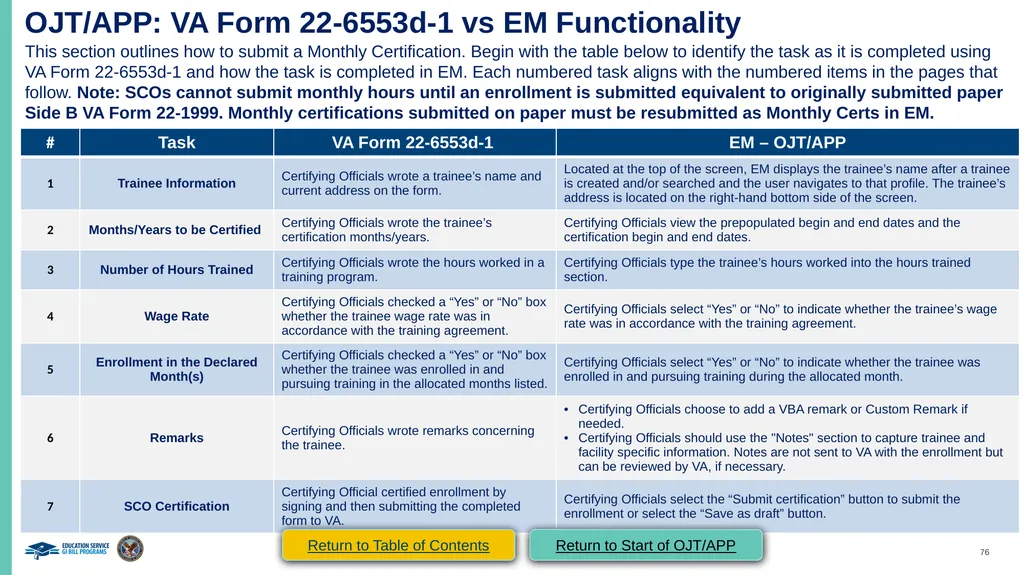
OJT/APP: VA Form 22-6553d-1 vs EM Functionality This section outlines how to submit a Monthly Certification. Begin with the table below to identify the task as it is completed using VA Form 22-6553d-1 and how the task is completed in EM. Each numbered task aligns with the numbered items in the pages that follow. Note: SCOs cannot submit monthly hours until an enrollment is submitted equivalent to originally submitted paper Side B VA Form 22-1999. Monthly certifications submitted on paper must be resubmitted as Monthly Certs in EM. Return to Table of Contents Return to Start of OJT/APP<br>
77
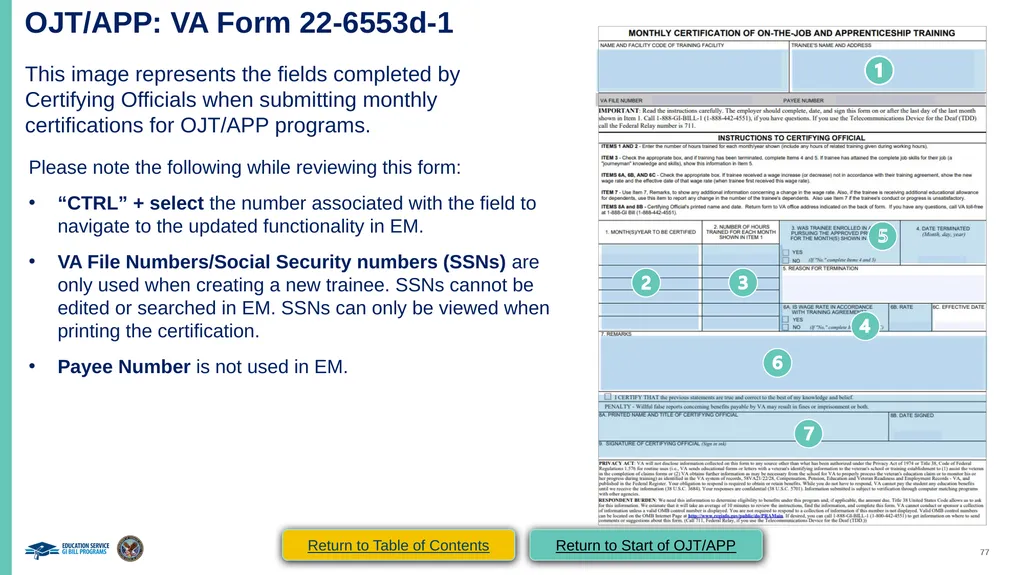
OJT/APP: VA Form 22-6553d-1 This image represents the fields completed by Certifying Officials when submitting monthly certifications for OJT/APP programs. Please note the following while reviewing this form:
“CTRL” + select the number associated with the field to navigate to the updated functionality in EM.
VA File Numbers/Social Security numbers (SSNs) are only used when creating a new trainee. SSNs cannot be edited or searched in EM. SSNs can only be viewed when printing the certification.
Payee Number is not used in EM. Return to Table of Contents Return to Start of OJT/APP<br>
“CTRL” + select the number associated with the field to navigate to the updated functionality in EM.
VA File Numbers/Social Security numbers (SSNs) are only used when creating a new trainee. SSNs cannot be edited or searched in EM. SSNs can only be viewed when printing the certification.
Payee Number is not used in EM. Return to Table of Contents Return to Start of OJT/APP<br>
78
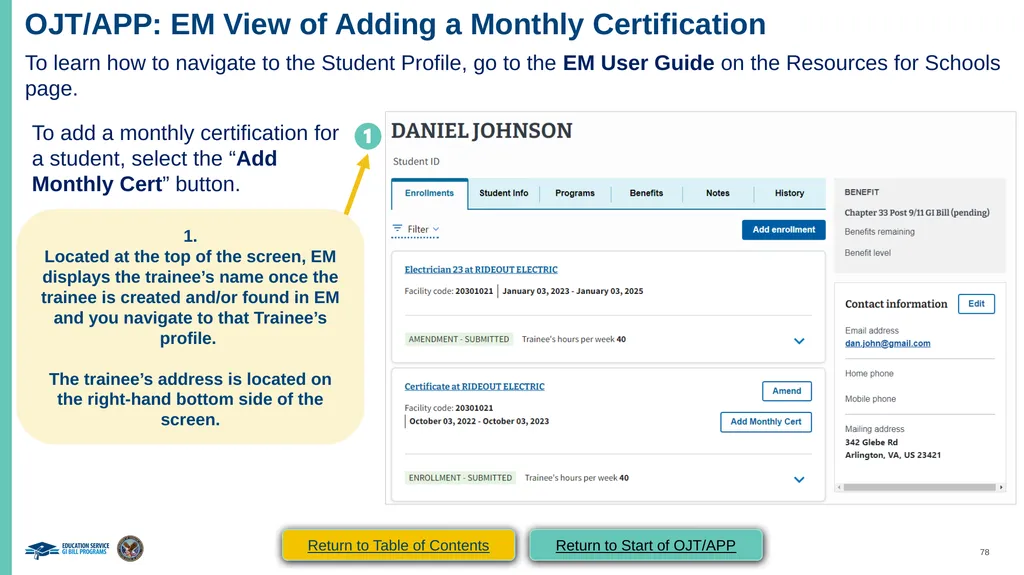
OJT/APP: EM View of Adding a Monthly Certification To learn how to navigate to the Student Profile, go to the EM User Guide on the Resources for Schools page. To add a monthly certification for a student, select the “Add Monthly Cert” button. 1.
Located at the top of the screen, EM displays the trainee’s name once the trainee is created and/or found in EM and you navigate to that Trainee’s profile.
The trainee’s address is located on the right-hand bottom side of the screen. Return to Table of Contents Return to Start of OJT/APP<br>
Located at the top of the screen, EM displays the trainee’s name once the trainee is created and/or found in EM and you navigate to that Trainee’s profile.
The trainee’s address is located on the right-hand bottom side of the screen. Return to Table of Contents Return to Start of OJT/APP<br>
79
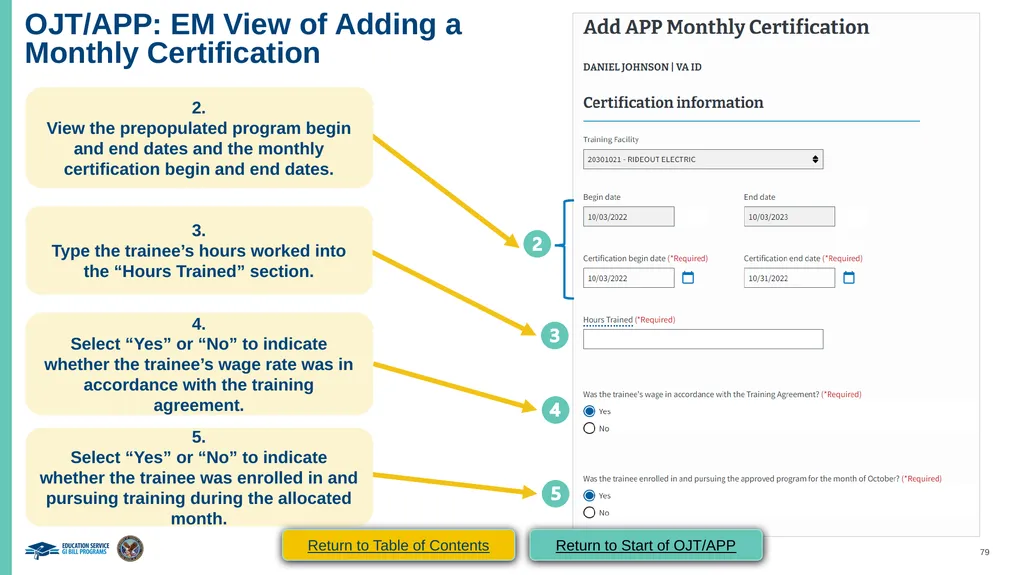
OJT/APP: EM View of Adding a
Monthly Certification (continued 1) 2.
View the prepopulated program begin and end dates and the monthly certification begin and end dates. 3.
Type the trainee’s hours worked into the “Hours Trained” section. 4.
Select “Yes” or “No” to indicate whether the trainee’s wage rate was in accordance with the training agreement. 5.
Select “Yes” or “No” to indicate whether the trainee was enrolled in and pursuing training during the allocated month. Return to Table of Contents Return to Start of OJT/APP<br>
View the prepopulated program begin and end dates and the monthly certification begin and end dates. 3.
Type the trainee’s hours worked into the “Hours Trained” section. 4.
Select “Yes” or “No” to indicate whether the trainee’s wage rate was in accordance with the training agreement. 5.
Select “Yes” or “No” to indicate whether the trainee was enrolled in and pursuing training during the allocated month. Return to Table of Contents Return to Start of OJT/APP<br>
80
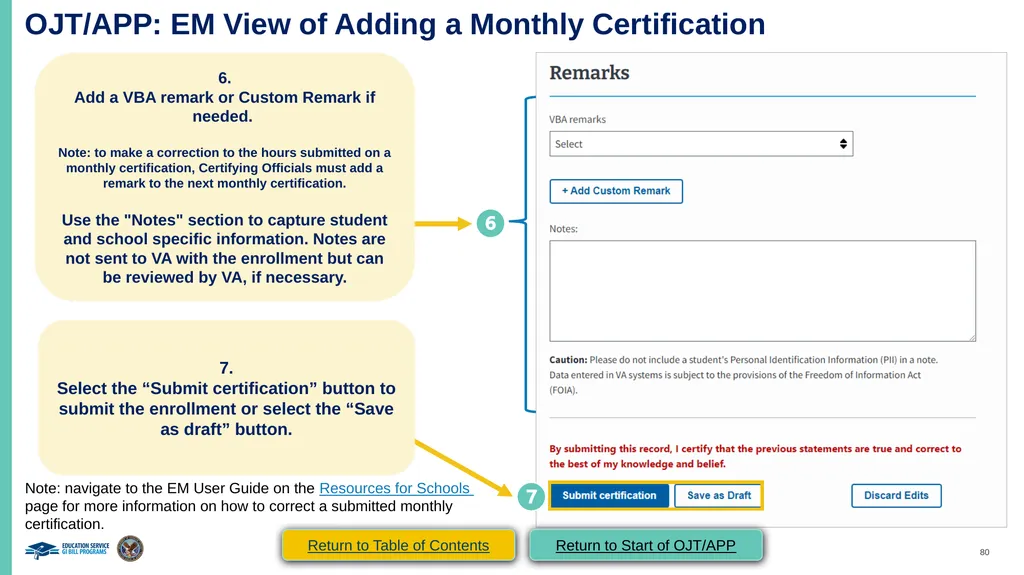
OJT/APP: EM View of Adding a Monthly Certification (continued 2) 6.
Add a VBA remark or Custom Remark if needed.
Note: to make a correction to the hours submitted on a monthly certification, Certifying Officials must add a remark to the next monthly certification.
Use the "Notes" section to capture student and school specific information. Notes are not sent to VA with the enrollment but can be reviewed by VA, if necessary. 7.
Select the “Submit certification” button to submit the enrollment or select the “Save as draft” button. Note: navigate to the EM User Guide on the Resources for Schools page for more information on how to correct a submitted monthly certification. Return to Table of Contents Return to Start of OJT/APP<br>
Add a VBA remark or Custom Remark if needed.
Note: to make a correction to the hours submitted on a monthly certification, Certifying Officials must add a remark to the next monthly certification.
Use the "Notes" section to capture student and school specific information. Notes are not sent to VA with the enrollment but can be reviewed by VA, if necessary. 7.
Select the “Submit certification” button to submit the enrollment or select the “Save as draft” button. Note: navigate to the EM User Guide on the Resources for Schools page for more information on how to correct a submitted monthly certification. Return to Table of Contents Return to Start of OJT/APP<br>
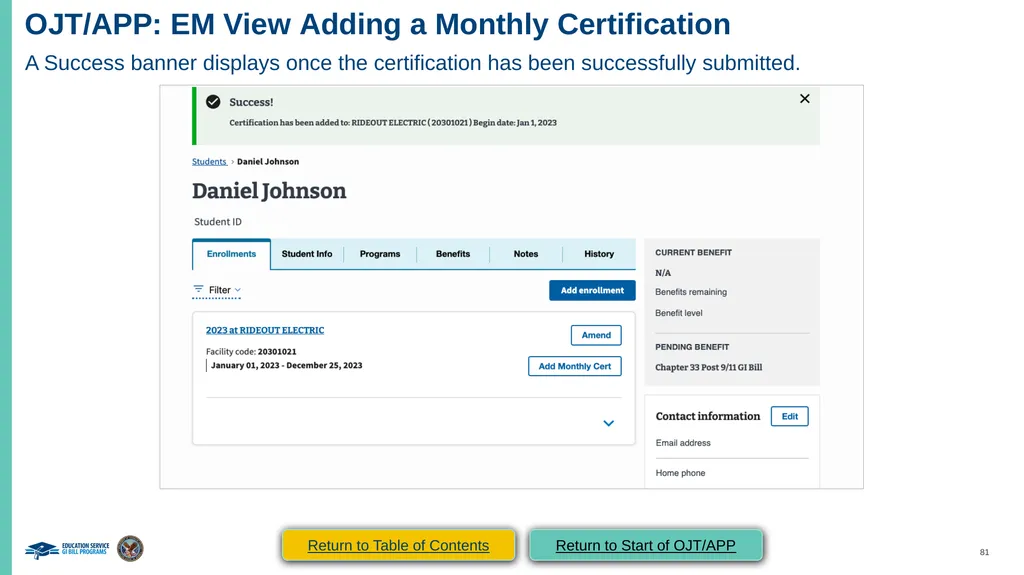
81
OJT/APP: EM View Adding a Monthly Certification (continued 3) A Success banner displays once the certification has been successfully submitted. Return to Table of Contents Return to Start of OJT/APP<br>
82
OJT/APP
VA Form 22-1999b –
Notice of Change in Student Status Return to Table of Contents Return to Start of OJT/APP<br>
VA Form 22-1999b –
Notice of Change in Student Status Return to Table of Contents Return to Start of OJT/APP<br>
83
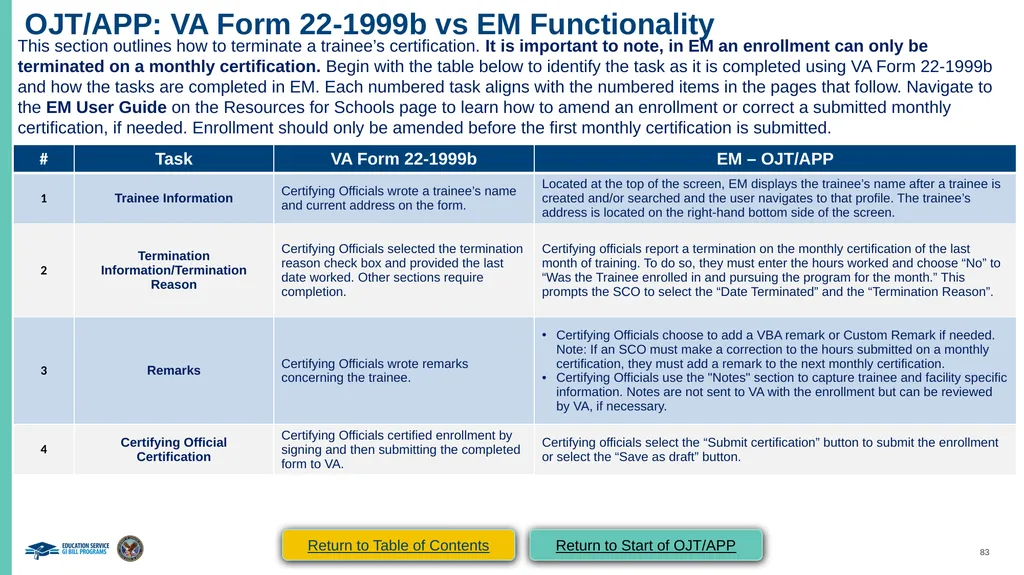
OJT/APP: VA Form 22-1999b vs EM Functionality This section outlines how to terminate a trainee’s certification. It is important to note, in EM an enrollment can only be terminated on a monthly certification. Begin with the table below to identify the task as it is completed using VA Form 22-1999b and how the tasks are completed in EM. Each numbered task aligns with the numbered items in the pages that follow. Navigate to the EM User Guide on the Resources for Schools page to learn how to amend an enrollment or correct a submitted monthly certification, if needed. Enrollment should only be amended before the first monthly certification is submitted. Return to Table of Contents Return to Start of OJT/APP<br>
84
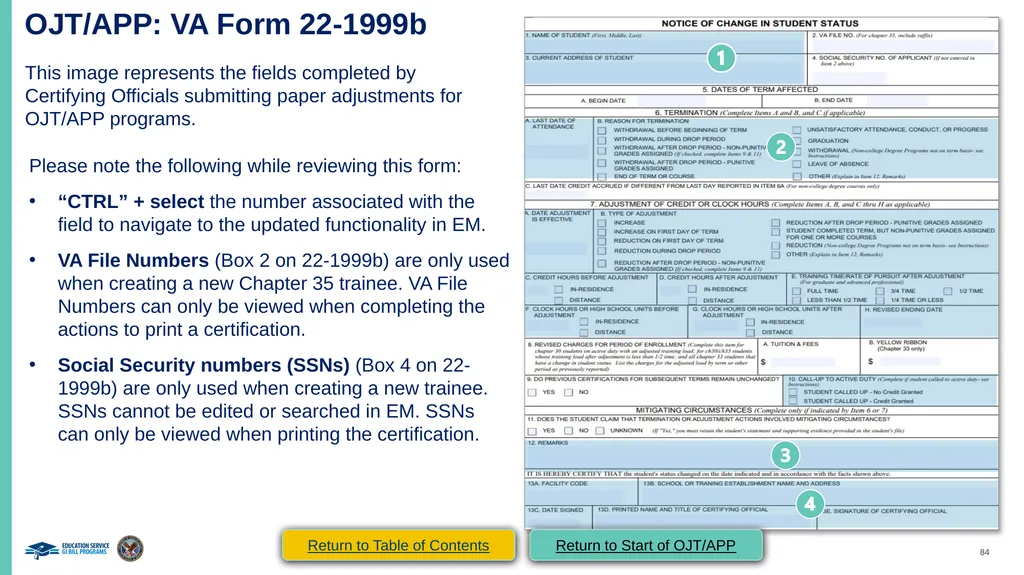
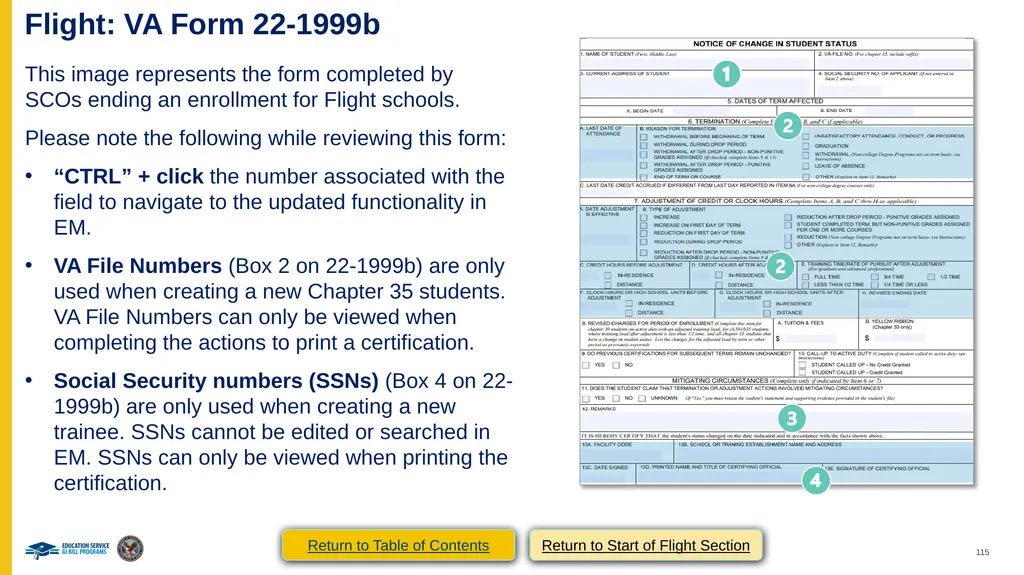
OJT/APP: VA Form 22-1999b This image represents the fields completed by Certifying Officials submitting paper adjustments for OJT/APP programs. Please note the following while reviewing this form:
“CTRL” + select the number associated with the field to navigate to the updated functionality in EM.
VA File Numbers (Box 2 on 22-1999b) are only used when creating a new Chapter 35 trainee. VA File Numbers can only be viewed when completing the actions to print a certification.
Social Security numbers (SSNs) (Box 4 on 22-1999b) are only used when creating a new trainee. SSNs cannot be edited or searched in EM. SSNs can only be viewed when printing the certification. Return to Table of Contents Return to Start of OJT/APP<br>
“CTRL” + select the number associated with the field to navigate to the updated functionality in EM.
VA File Numbers (Box 2 on 22-1999b) are only used when creating a new Chapter 35 trainee. VA File Numbers can only be viewed when completing the actions to print a certification.
Social Security numbers (SSNs) (Box 4 on 22-1999b) are only used when creating a new trainee. SSNs cannot be edited or searched in EM. SSNs can only be viewed when printing the certification. Return to Table of Contents Return to Start of OJT/APP<br>
85
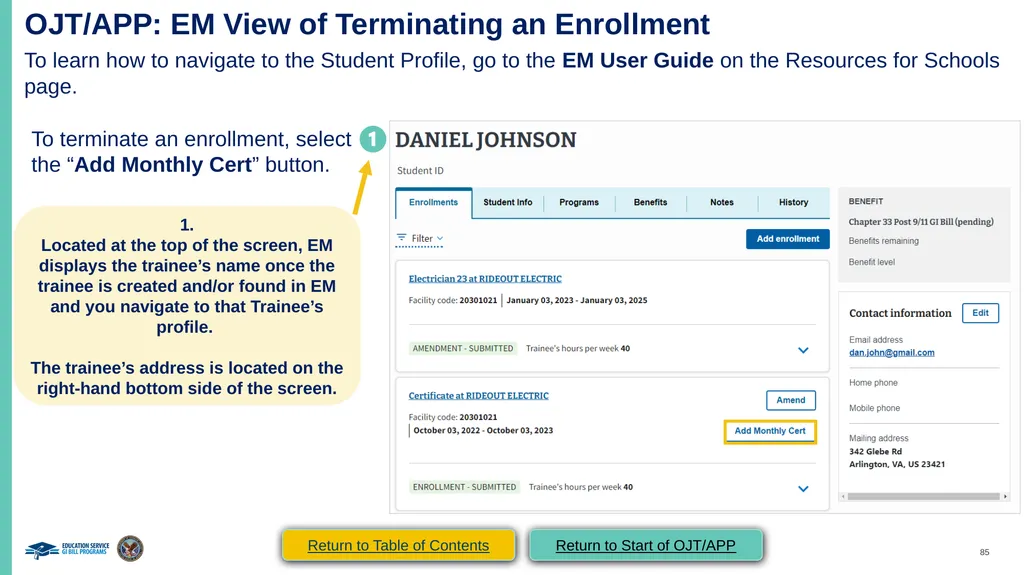
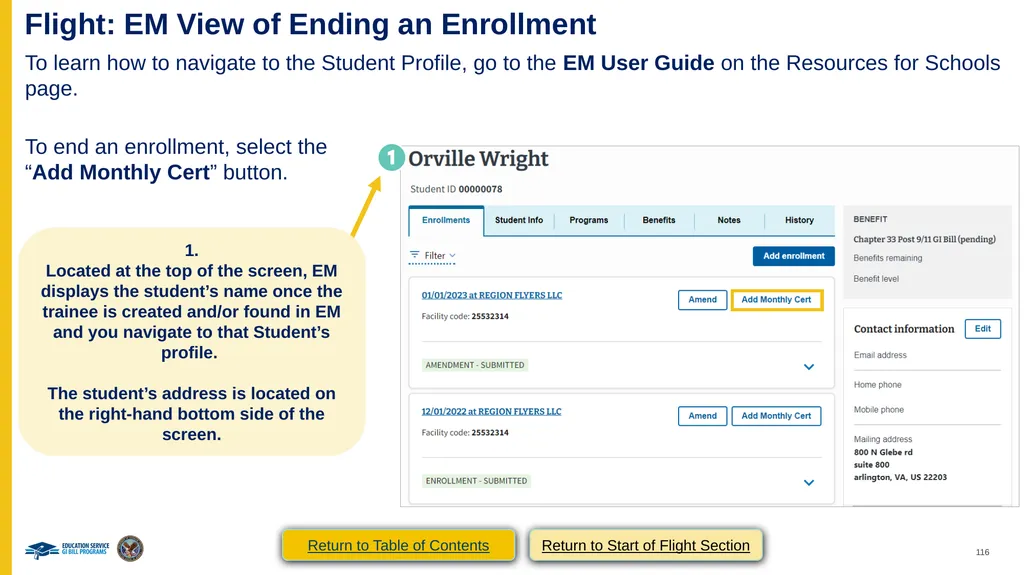
OJT/APP: EM View of Terminating an Enrollment To learn how to navigate to the Student Profile, go to the EM User Guide on the Resources for Schools page. To terminate an enrollment, select the “Add Monthly Cert” button. 1.
Located at the top of the screen, EM displays the trainee’s name once the trainee is created and/or found in EM and you navigate to that Trainee’s profile.
The trainee’s address is located on the right-hand bottom side of the screen. Return to Table of Contents Return to Start of OJT/APP<br>
Located at the top of the screen, EM displays the trainee’s name once the trainee is created and/or found in EM and you navigate to that Trainee’s profile.
The trainee’s address is located on the right-hand bottom side of the screen. Return to Table of Contents Return to Start of OJT/APP<br>
86
OJT/APP: EM View of Terminating an Enrollment
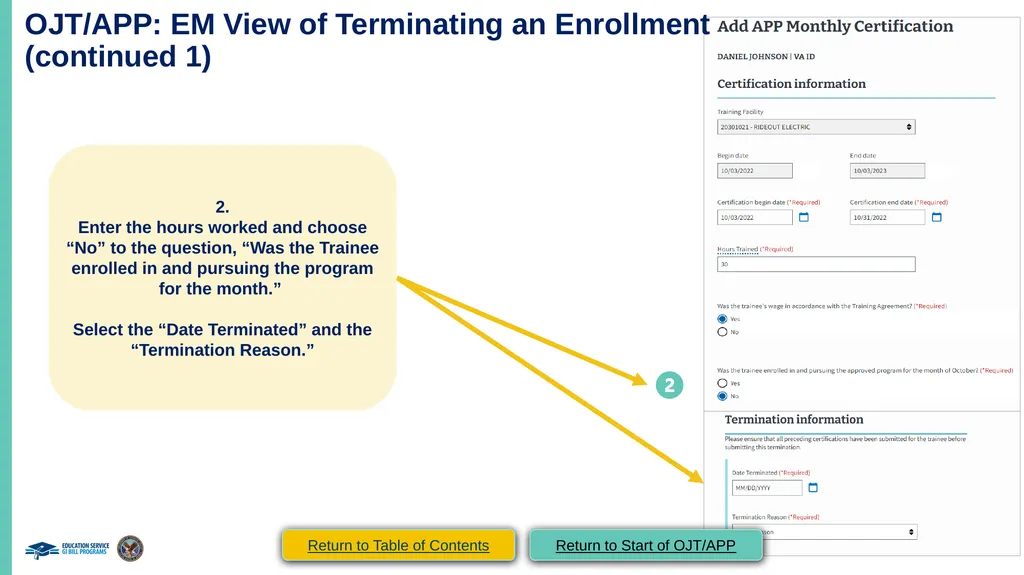
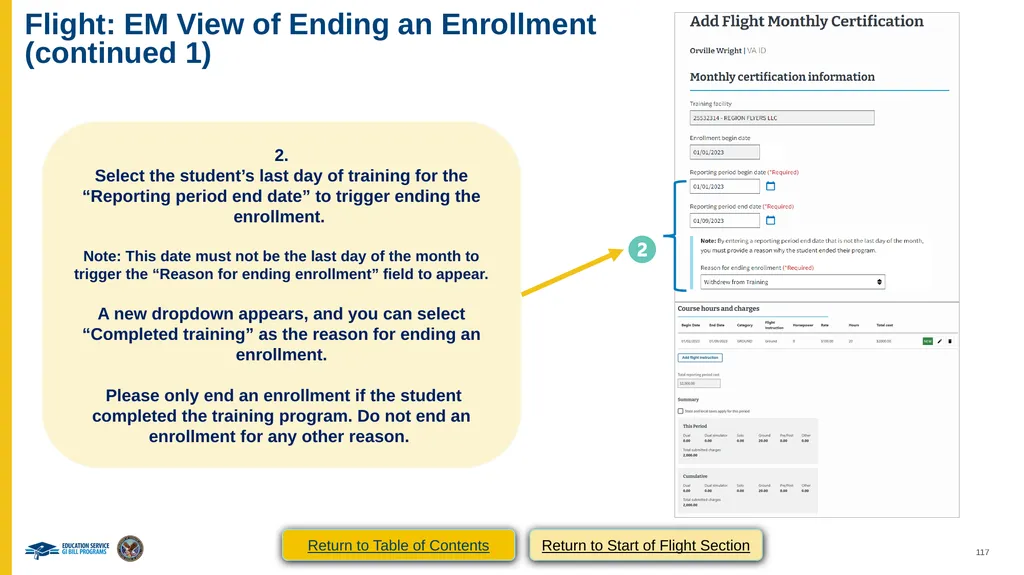
(continued 1) 2.
Enter the hours worked and choose “No” to the question, “Was the Trainee enrolled in and pursuing the program for the month.”
Select the “Date Terminated” and the “Termination Reason.” Return to Table of Contents Return to Start of OJT/APP<br>
Enter the hours worked and choose “No” to the question, “Was the Trainee enrolled in and pursuing the program for the month.”
Select the “Date Terminated” and the “Termination Reason.” Return to Table of Contents Return to Start of OJT/APP<br>
87
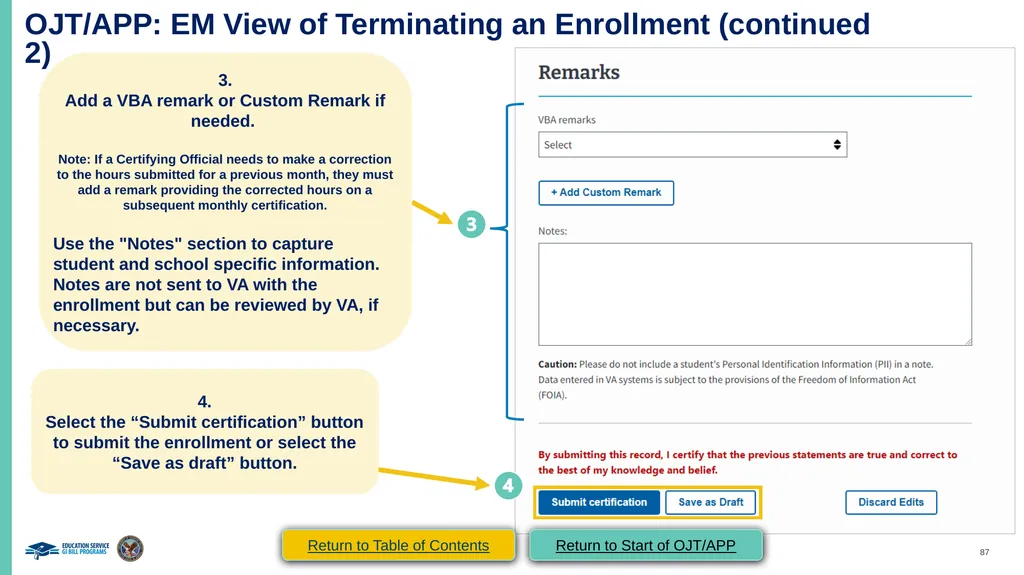
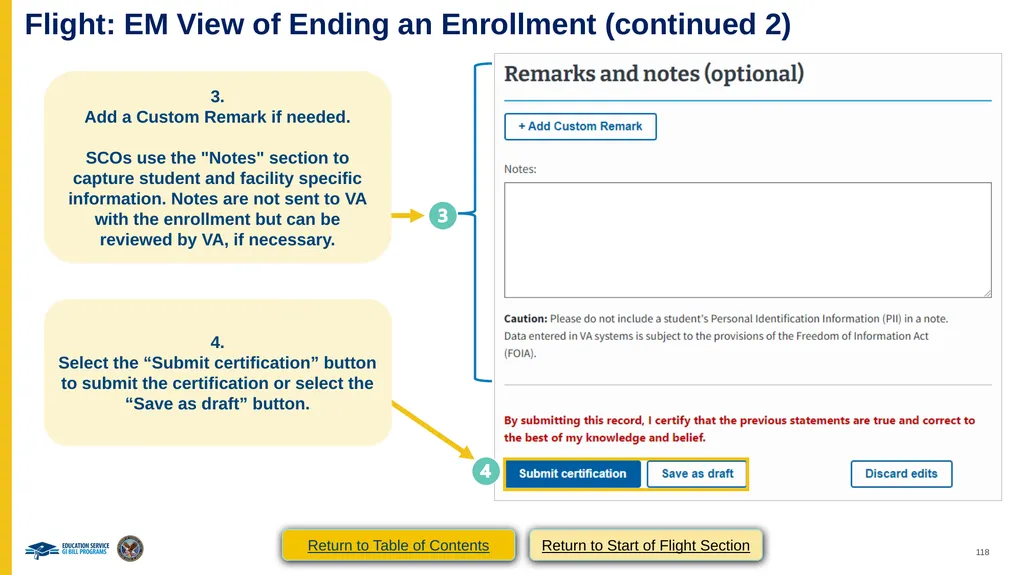
OJT/APP: EM View of Terminating an Enrollment (continued 2) 3.
Add a VBA remark or Custom Remark if needed.
Note: If a Certifying Official needs to make a correction to the hours submitted for a previous month, they must add a remark providing the corrected hours on a subsequent monthly certification.
Use the "Notes" section to capture student and school specific information. Notes are not sent to VA with the enrollment but can be reviewed by VA, if necessary. 4.
Select the “Submit certification” button to submit the enrollment or select the “Save as draft” button. Return to Table of Contents Return to Start of OJT/APP<br>
Add a VBA remark or Custom Remark if needed.
Note: If a Certifying Official needs to make a correction to the hours submitted for a previous month, they must add a remark providing the corrected hours on a subsequent monthly certification.
Use the "Notes" section to capture student and school specific information. Notes are not sent to VA with the enrollment but can be reviewed by VA, if necessary. 4.
Select the “Submit certification” button to submit the enrollment or select the “Save as draft” button. Return to Table of Contents Return to Start of OJT/APP<br>
88
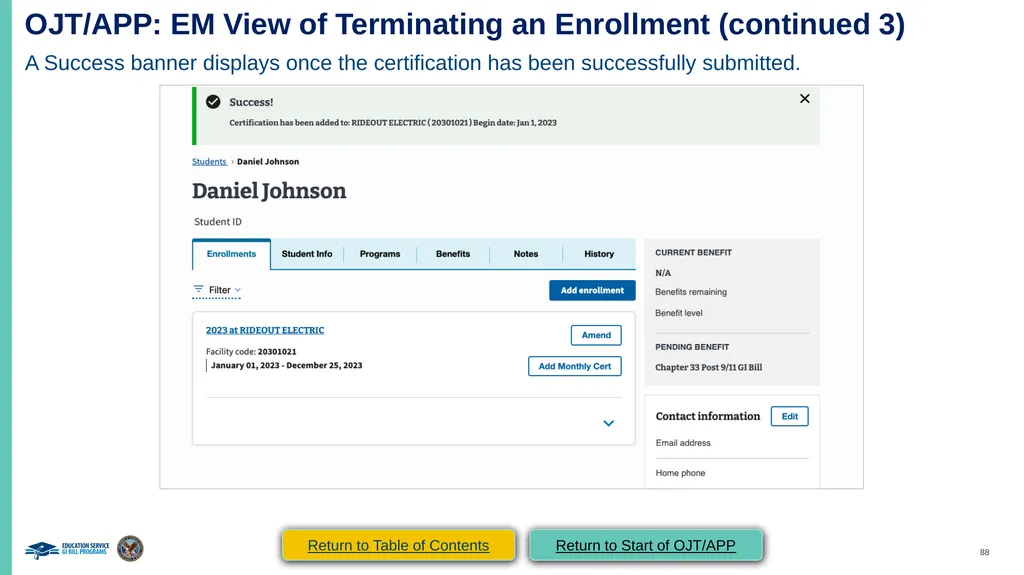
OJT/APP: EM View of Terminating an Enrollment (continued 3) A Success banner displays once the certification has been successfully submitted. Return to Table of Contents Return to Start of OJT/APP<br>
89
End of OJT/APP section. Congratulations!
This is the end of the instructions for the selected facility type. Select here to navigate to the Helpful Resources section Return to Table of Contents Return to Start of OJT/APP<br>
This is the end of the instructions for the selected facility type. Select here to navigate to the Helpful Resources section Return to Table of Contents Return to Start of OJT/APP<br>
90
FLIGHT Access the appropriate form and its relevant crosswalk to EM by selecting the hyperlinked section below or navigating to the appropriate page number detailed below:
VA Form 22-1999 Side B – VA Enrollment Certification – Navigate to page 92
Create a Student – Navigate to page 94
Submit an Enrollment – Navigate to page 100
VA Form 22-1999b – Notice of Change in Student Status – Navigate to page 107
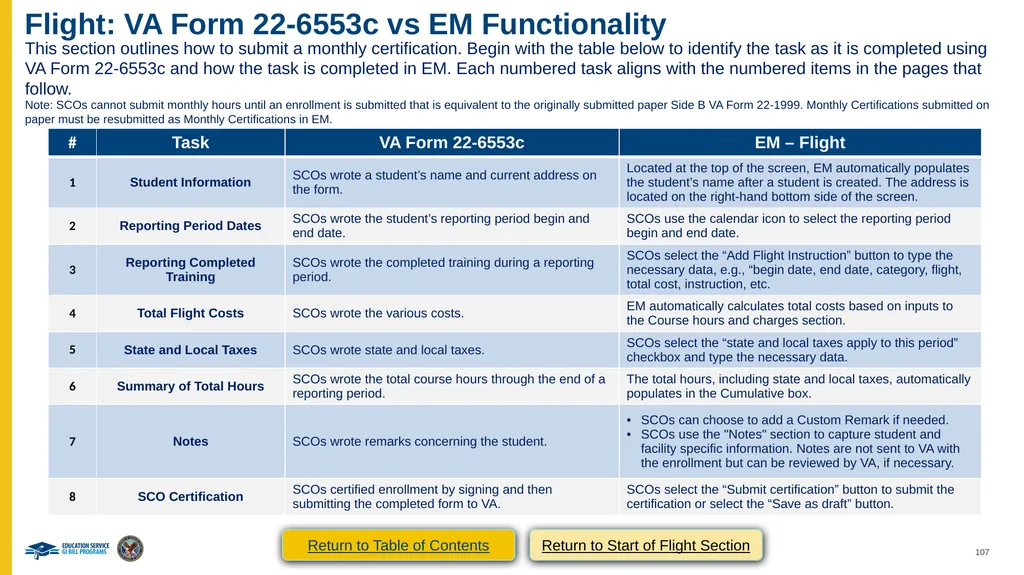
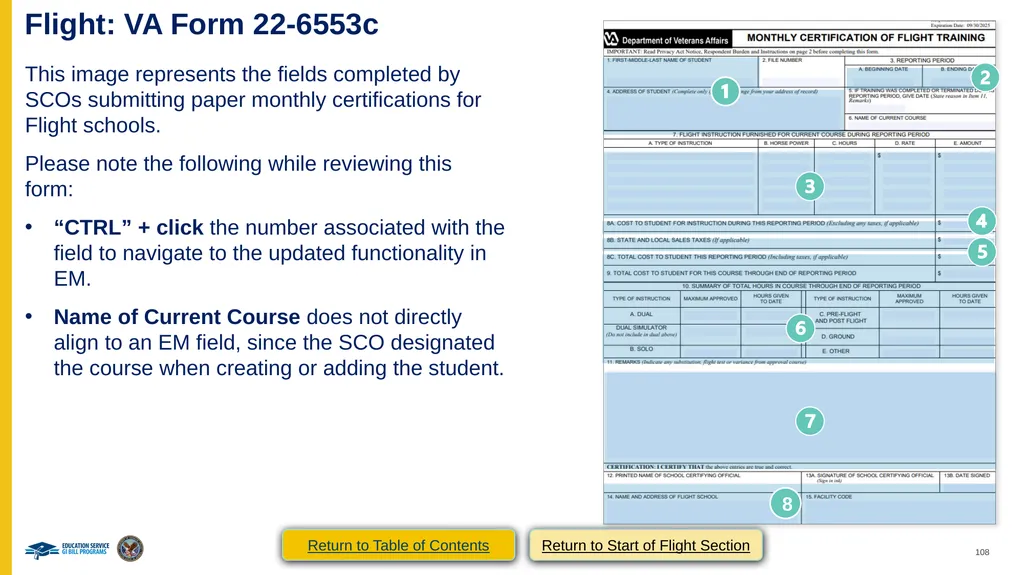
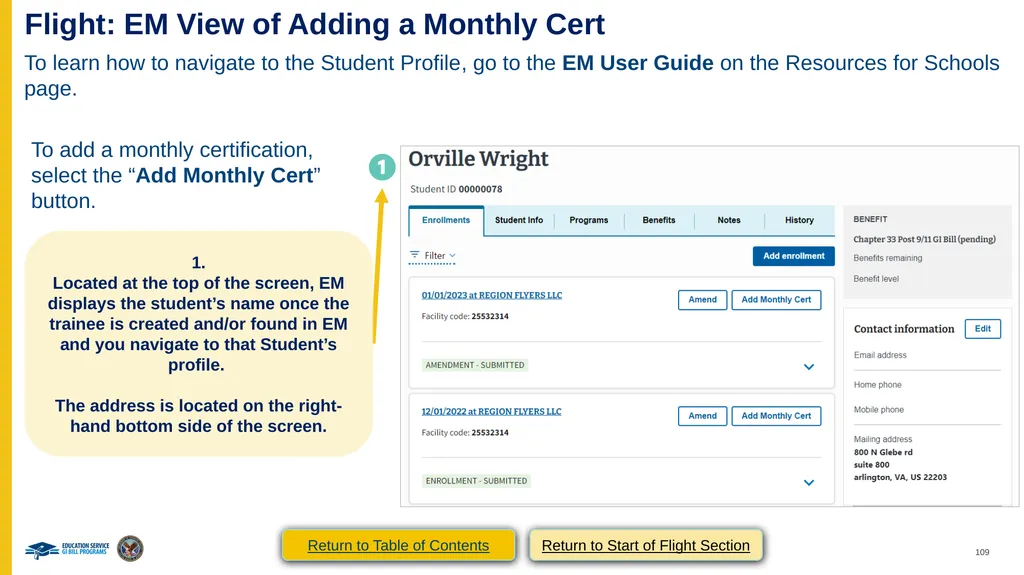
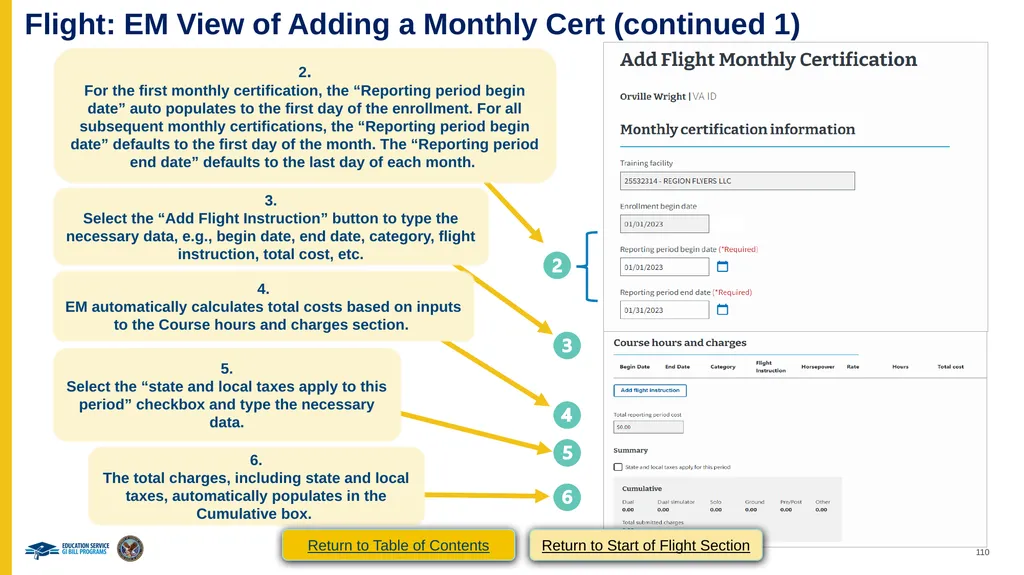
VA Form 22-6553c – Monthly Certification of Flight Training – Navigate to page 114 Return to Table of Contents<br>
VA Form 22-1999 Side B – VA Enrollment Certification – Navigate to page 92
Create a Student – Navigate to page 94
Submit an Enrollment – Navigate to page 100
VA Form 22-1999b – Notice of Change in Student Status – Navigate to page 107
VA Form 22-6553c – Monthly Certification of Flight Training – Navigate to page 114 Return to Table of Contents<br>
91
Flight
VA Form 22-1999 Side B –
VA Enrollment Certification Return to Table of Contents Return to Start of Flight Section<br>
92
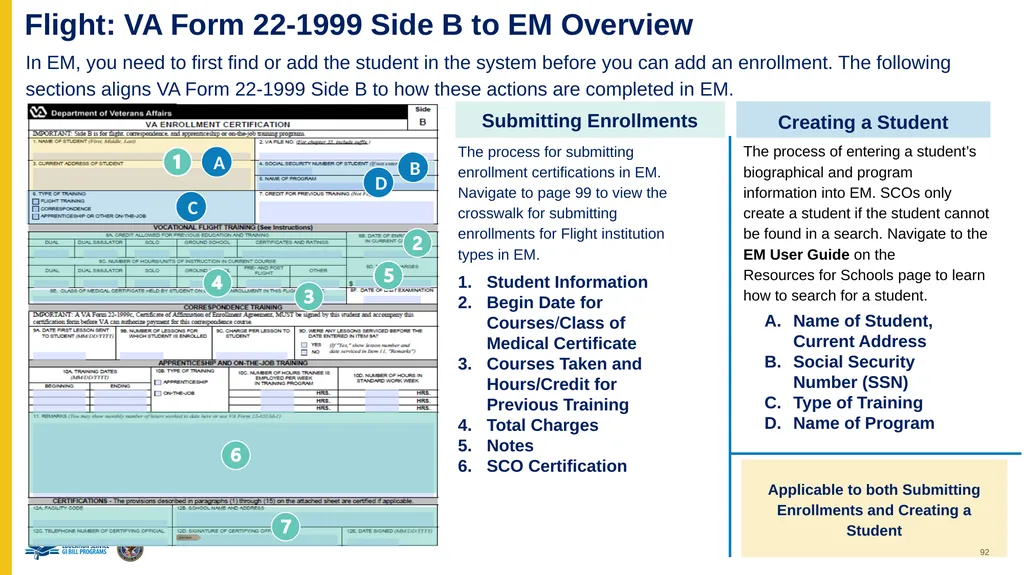
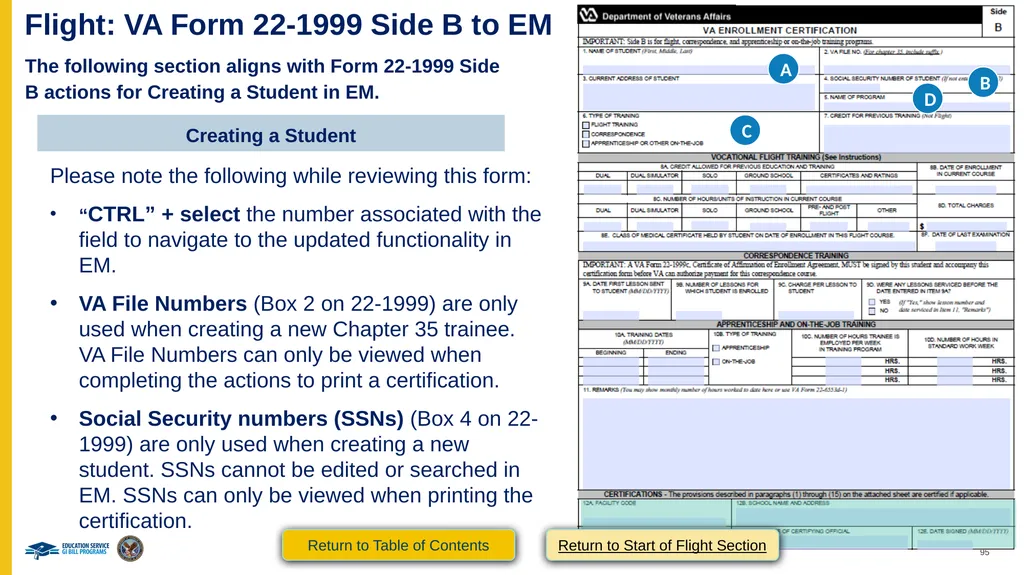
Flight: VA Form 22-1999 Side B to EM Overview In EM, you need to first find or add the student in the system before you can add an enrollment. The following sections aligns VA Form 22-1999 Side B to how these actions are completed in EM. Submitting Enrollments The process for submitting enrollment certifications in EM. Navigate to page 99 to view the crosswalk for submitting enrollments for Flight institution types in EM. Student Information
Begin Date for Courses/Class of Medical Certificate
Courses Taken and Hours/Credit for Previous Training
Total Charges
Notes
SCO Certification Creating a Student The process of entering a student’s biographical and program information into EM. SCOs only create a student if the student cannot be found in a search. Navigate to the EM User Guide on the Resources for Schools page to learn how to search for a student. Name of Student, Current Address
Social Security Number (SSN)
Type of Training
Name of Program Applicable to both Submitting Enrollments and Creating a Student A B C D<br>
Begin Date for Courses/Class of Medical Certificate
Courses Taken and Hours/Credit for Previous Training
Total Charges
Notes
SCO Certification Creating a Student The process of entering a student’s biographical and program information into EM. SCOs only create a student if the student cannot be found in a search. Navigate to the EM User Guide on the Resources for Schools page to learn how to search for a student. Name of Student, Current Address
Social Security Number (SSN)
Type of Training
Name of Program Applicable to both Submitting Enrollments and Creating a Student A B C D<br>
93
FLIGHT
VA Form 22-1999 Side B –
VA Enrollment Certification
Creating a Student Return to Table of Contents Return to Start of Flight Section<br>
94
Flight: VA Form 22-1999 Side B vs EM Functionality This section outlines how to create a student. SCOs should only create a trainee if they are not in the EM system. Navigate to the EM User Guide on the Resources for Schools page to learn how to search for a student.Begin with the table below to identify the task as it is completed using VA Form 22-1999 Side B and how the task is completed in EM. Each numbered task aligns with the numbered items in the pages that follow. Return to Table of Contents Return to Start of Flight Section<br>
95
Flight: VA Form 22-1999 Side B to EM The following section aligns with Form 22-1999 Side B actions for Creating a Student in EM. Creating a Student Please note the following while reviewing this form:
“CTRL” + select the number associated with the field to navigate to the updated functionality in EM.
VA File Numbers (Box 2 on 22-1999) are only used when creating a new Chapter 35 trainee. VA File Numbers can only be viewed when completing the actions to print a certification.
Social Security numbers (SSNs) (Box 4 on 22-1999) are only used when creating a new student. SSNs cannot be edited or searched in EM. SSNs can only be viewed when printing the certification. A B C D Return to Table of Contents Return to Start of Flight Section<br>
“CTRL” + select the number associated with the field to navigate to the updated functionality in EM.
VA File Numbers (Box 2 on 22-1999) are only used when creating a new Chapter 35 trainee. VA File Numbers can only be viewed when completing the actions to print a certification.
Social Security numbers (SSNs) (Box 4 on 22-1999) are only used when creating a new student. SSNs cannot be edited or searched in EM. SSNs can only be viewed when printing the certification. A B C D Return to Table of Contents Return to Start of Flight Section<br>
96
Flight: EM View of Creating a Student To learn how to navigate to the Student Profile, go to the EM User Guide on the Resources for Schools page. If the student is not in EM, they need to be created. A.
Type the student’s “First name,” “Middle name,” and “Last name.”
EM asks for additional information, including “Date of Birth,” “Student ID,” “Mobile phone number,” “Home phone number,” and “Email address.” Not all fields are required.
Scroll down the page to select the “Address type” dropdown menu to select the type of address. A B.
Type the student’s SSN. B In EM, there is a field to include the student’s “Benefit type.” Your student provides you this information. Select the “Continue” button to move to the next page. Return to Table of Contents Return to Start of Flight Section<br>
Type the student’s “First name,” “Middle name,” and “Last name.”
EM asks for additional information, including “Date of Birth,” “Student ID,” “Mobile phone number,” “Home phone number,” and “Email address.” Not all fields are required.
Scroll down the page to select the “Address type” dropdown menu to select the type of address. A B.
Type the student’s SSN. B In EM, there is a field to include the student’s “Benefit type.” Your student provides you this information. Select the “Continue” button to move to the next page. Return to Table of Contents Return to Start of Flight Section<br>
97
Flight: EM View of Creating a Student (continued 1) Select the School the student is enrolled at. The dropdown contains the SCO’s assigned facilities. C.
Select the dropdown menu to select “Flight” as the type of training. C D.
Select the dropdown menu to select the Program name. D Select “Save.” Select “Add student” to finalize. Return to Table of Contents Return to Start of Flight Section<br>
Select the dropdown menu to select “Flight” as the type of training. C D.
Select the dropdown menu to select the Program name. D Select “Save.” Select “Add student” to finalize. Return to Table of Contents Return to Start of Flight Section<br>
98
Flight: EM View of Creating a Student (continued 2) The student’s information is now available in EM. From here, you will be able to add an enrollment. Return to Table of Contents Return to Start of Flight Section<br>
99
Flight
VA Form 22-1999 Side B –
VA Enrollment Certification
Submitting an Enrollment Return to Table of Contents Return to Start of Flight Section<br>
VA Form 22-1999 Side B –
VA Enrollment Certification
Submitting an Enrollment Return to Table of Contents Return to Start of Flight Section<br>
100
Flight: VA Form 22-1999 Side B vs EM Functionality Submitting an Enrollment Flight: VA Form 22-1999 Side B vs EM Functionality This section outlines how to submit an enrollment certification. Begin with the table below to identify the task as it is completed using VA Form 22-1999 Side B and how the task is completed in EM. Each numbered task aligns with the numbered items in the pages that follow. Note: Regardless of training type, you must submit an enrollment before you can add monthly hours. Return to Table of Contents Return to Start of Flight Section<br>
101
Flight: VA Form 22-1999 Side B to EM Submitting an Enrollment Flight: VA Form 22-1999 Side B to EM The following section aligns with VA Form 22-1999 Side B actions for Submitting an Enrollment in EM. Submitting Enrollments Please note the following while reviewing this form:
“CTRL” + select the number associated with the field to navigate to the updated functionality in EM.
VA File Numbers/Social Security numbers (SSNs) are only used when creating a new trainee. SSNs cannot be edited or searched in EM. SSNs can only be viewed when printing the certification.
Type of Training automatically populates in EM based on the program selection. Return to Table of Contents Return to Start of Flight Section<br>
“CTRL” + select the number associated with the field to navigate to the updated functionality in EM.
VA File Numbers/Social Security numbers (SSNs) are only used when creating a new trainee. SSNs cannot be edited or searched in EM. SSNs can only be viewed when printing the certification.
Type of Training automatically populates in EM based on the program selection. Return to Table of Contents Return to Start of Flight Section<br>
102
Flight: EM View of Submitting an Enrollment Before submitting an enrollment, please review EM User Guide on the Resources for Schools for a step-by-step explanation on how to:
Enter flight instruction
Navigate to the Student Profile through searching for a student or creating a student Once those actions are completed, select the “Add enrollment” button to start adding an enrollment. 1.
Located at the top of the screen, EM displays the trainee’s name once the trainee is created and/or found in EM and you navigate to that Student’s profile.
The student’s address is located on the right-hand bottom side of the screen. Return to Table of Contents Return to Start of Flight Section<br>
Enter flight instruction
Navigate to the Student Profile through searching for a student or creating a student Once those actions are completed, select the “Add enrollment” button to start adding an enrollment. 1.
Located at the top of the screen, EM displays the trainee’s name once the trainee is created and/or found in EM and you navigate to that Student’s profile.
The student’s address is located on the right-hand bottom side of the screen. Return to Table of Contents Return to Start of Flight Section<br>
103
Flight: EM View of Submitting an Enrollment SCOs must select the “Training facility” for the enrollment from the assigned facilities. 2.
Enter the appropriate “Begin date” for the student’s course. The student’s “Begin date” is the date the student enrolls, not the first day of the actual training. Select the appropriate “Medical certificate type” and enter the date of the student’s medical certificate in the “Exam date” box. The exam date must be before the begin date of the enrollment. 3.
Enter the number of hours completed for each type of training. SCOs also select the “Prior training time” dropdown menu and select the appropriate option. 4.
Type the total charges for training. Return to Table of Contents Return to Start of Flight Section<br>
Enter the appropriate “Begin date” for the student’s course. The student’s “Begin date” is the date the student enrolls, not the first day of the actual training. Select the appropriate “Medical certificate type” and enter the date of the student’s medical certificate in the “Exam date” box. The exam date must be before the begin date of the enrollment. 3.
Enter the number of hours completed for each type of training. SCOs also select the “Prior training time” dropdown menu and select the appropriate option. 4.
Type the total charges for training. Return to Table of Contents Return to Start of Flight Section<br>
104
Flight: EM View of Submitting an
Enrollment 5.
Add a Custom Remark if needed.
Use the "Notes" section to capture student and school specific information. Notes are not sent to VA with the enrollment but can be reviewed by VA, if necessary. 6.
Select the “Submit enrollment” button to submit the enrollment or select the “Save as draft” button. Return to Table of Contents Return to Start of Flight Section<br>
Add a Custom Remark if needed.
Use the "Notes" section to capture student and school specific information. Notes are not sent to VA with the enrollment but can be reviewed by VA, if necessary. 6.
Select the “Submit enrollment” button to submit the enrollment or select the “Save as draft” button. Return to Table of Contents Return to Start of Flight Section<br>
105
Flight: EM View of Submitting an Enrollment A Success banner displays once the enrollment has been successfully submitted. Return to Table of Contents Return to Start of Flight Section<br>
106
Flight
VA Form 22-6553c –
Monthly Certification of Flight Training Return to Table of Contents Return to Start of Flight Section<br>
VA Form 22-6553c –
Monthly Certification of Flight Training Return to Table of Contents Return to Start of Flight Section<br>
107
Flight: VA Form 22-6553c vs EM Functionality This section outlines how to submit a monthly certification. Begin with the table below to identify the task as it is completed using VA Form 22-6553c and how the task is completed in EM. Each numbered task aligns with the numbered items in the pages that follow. Note: SCOs cannot submit monthly hours until an enrollment is submitted that is equivalent to the originally submitted paper Side B VA Form 22-1999. Monthly Certifications submitted on paper must be resubmitted as Monthly Certifications in EM. Return to Table of Contents Return to Start of Flight Section<br>
108
Flight: VA Form 22-6553c This image represents the fields completed by SCOs submitting paper monthly certifications for Flight schools.
Please note the following while reviewing this form:
“CTRL” + click the number associated with the field to navigate to the updated functionality in EM.
Name of Current Course does not directly align to an EM field, since the SCO designated the course when creating or adding the student. Return to Table of Contents Return to Start of Flight Section<br>
Please note the following while reviewing this form:
“CTRL” + click the number associated with the field to navigate to the updated functionality in EM.
Name of Current Course does not directly align to an EM field, since the SCO designated the course when creating or adding the student. Return to Table of Contents Return to Start of Flight Section<br>
109
Flight: EM View of Adding a Monthly Cert To learn how to navigate to the Student Profile, go to the EM User Guide on the Resources for Schools page. To add a monthly certification, select the “Add Monthly Cert” button. 1.
Located at the top of the screen, EM displays the student’s name once the trainee is created and/or found in EM and you navigate to that Student’s profile.
The address is located on the right-hand bottom side of the screen. Return to Table of Contents Return to Start of Flight Section<br>
Located at the top of the screen, EM displays the student’s name once the trainee is created and/or found in EM and you navigate to that Student’s profile.
The address is located on the right-hand bottom side of the screen. Return to Table of Contents Return to Start of Flight Section<br>
110
Flight: EM View of Adding a Monthly Cert (continued 1) 2.
For the first monthly certification, the “Reporting period begin date” auto populates to the first day of the enrollment. For all subsequent monthly certifications, the “Reporting period begin date” defaults to the first day of the month. The “Reporting period end date” defaults to the last day of each month. 3.
Select the “Add Flight Instruction” button to type the necessary data, e.g., begin date, end date, category, flight instruction, total cost, etc. 4.
EM automatically calculates total costs based on inputs to the Course hours and charges section. 5.
Select the “state and local taxes apply to this period” checkbox and type the necessary data. 6.
The total charges, including state and local taxes, automatically populates in the Cumulative box. Return to Table of Contents Return to Start of Flight Section<br>
For the first monthly certification, the “Reporting period begin date” auto populates to the first day of the enrollment. For all subsequent monthly certifications, the “Reporting period begin date” defaults to the first day of the month. The “Reporting period end date” defaults to the last day of each month. 3.
Select the “Add Flight Instruction” button to type the necessary data, e.g., begin date, end date, category, flight instruction, total cost, etc. 4.
EM automatically calculates total costs based on inputs to the Course hours and charges section. 5.
Select the “state and local taxes apply to this period” checkbox and type the necessary data. 6.
The total charges, including state and local taxes, automatically populates in the Cumulative box. Return to Table of Contents Return to Start of Flight Section<br>
111
Flight: EM View of Adding a Monthly Cert (continued 2) 7.
Add a Custom Remark if needed.
SCOs use the "Notes" section to capture student and facility specific information. Notes are not sent to VA with the enrollment but can be reviewed by VA, if necessary. 8.
Select the “Submit certification” button to submit the certification or select the “Save as draft” button. Return to Table of Contents Return to Start of Flight Section<br>
Add a Custom Remark if needed.
SCOs use the "Notes" section to capture student and facility specific information. Notes are not sent to VA with the enrollment but can be reviewed by VA, if necessary. 8.
Select the “Submit certification” button to submit the certification or select the “Save as draft” button. Return to Table of Contents Return to Start of Flight Section<br>
112
Flight: EM View of Adding a Monthly Cert (continued 3) A Success banner displays once the certification has been successfully submitted. Return to Table of Contents Return to Start of Flight Section<br>
113
Flight
VA Form 22-1999b–
Notice of Change in Student Status Return to Table of Contents Return to Start of Flight Section<br>
VA Form 22-1999b–
Notice of Change in Student Status Return to Table of Contents Return to Start of Flight Section<br>
114
Flight: VA Form 22-1999b vs EM Functionality This section outlines how to end an enrollment. IMPORTANT: there is no equivalent of VA Form 22-1999b in EM. An enrollment can only be ended using a monthly certification and should only be ended if the student completed the program. Begin with the table below to identify the task as it is completed using VA Form 22-1999b and how the task is completed in EM. Each numbered task aligns with the numbered items in the pages that follow. Return to Table of Contents Return to Start of Flight Section<br>
115
Flight: VA Form 22-1999b This image represents the form completed by SCOs ending an enrollment for Flight schools.
Please note the following while reviewing this form:
“CTRL” + click the number associated with the field to navigate to the updated functionality in EM.
VA File Numbers (Box 2 on 22-1999b) are only used when creating a new Chapter 35 students. VA File Numbers can only be viewed when completing the actions to print a certification.
Social Security numbers (SSNs) (Box 4 on 22-1999b) are only used when creating a new trainee. SSNs cannot be edited or searched in EM. SSNs can only be viewed when printing the certification. Return to Table of Contents Return to Start of Flight Section<br>
Please note the following while reviewing this form:
“CTRL” + click the number associated with the field to navigate to the updated functionality in EM.
VA File Numbers (Box 2 on 22-1999b) are only used when creating a new Chapter 35 students. VA File Numbers can only be viewed when completing the actions to print a certification.
Social Security numbers (SSNs) (Box 4 on 22-1999b) are only used when creating a new trainee. SSNs cannot be edited or searched in EM. SSNs can only be viewed when printing the certification. Return to Table of Contents Return to Start of Flight Section<br>
116
Flight: EM View of Ending an Enrollment To learn how to navigate to the Student Profile, go to the EM User Guide on the Resources for Schools page. To end an enrollment, select the “Add Monthly Cert” button. 1.
Located at the top of the screen, EM displays the student’s name once the trainee is created and/or found in EM and you navigate to that Student’s profile.
The student’s address is located on the right-hand bottom side of the screen. Return to Table of Contents Return to Start of Flight Section<br>
Located at the top of the screen, EM displays the student’s name once the trainee is created and/or found in EM and you navigate to that Student’s profile.
The student’s address is located on the right-hand bottom side of the screen. Return to Table of Contents Return to Start of Flight Section<br>
117
Flight: EM View of Ending an Enrollment
(continued 1) 2.
Select the student’s last day of training for the “Reporting period end date” to trigger ending the enrollment.
Note: This date must not be the last day of the month to trigger the “Reason for ending enrollment” field to appear.
A new dropdown appears, and you can select “Completed training” as the reason for ending an enrollment.
Please only end an enrollment if the student completed the training program. Do not end an enrollment for any other reason. Return to Table of Contents Return to Start of Flight Section<br>
Select the student’s last day of training for the “Reporting period end date” to trigger ending the enrollment.
Note: This date must not be the last day of the month to trigger the “Reason for ending enrollment” field to appear.
A new dropdown appears, and you can select “Completed training” as the reason for ending an enrollment.
Please only end an enrollment if the student completed the training program. Do not end an enrollment for any other reason. Return to Table of Contents Return to Start of Flight Section<br>
118
Flight: EM View of Ending an Enrollment (continued 2) 3.
Add a Custom Remark if needed.
SCOs use the "Notes" section to capture student and facility specific information. Notes are not sent to VA with the enrollment but can be reviewed by VA, if necessary. 4.
Select the “Submit certification” button to submit the certification or select the “Save as draft” button. Return to Table of Contents Return to Start of Flight Section<br>
Add a Custom Remark if needed.
SCOs use the "Notes" section to capture student and facility specific information. Notes are not sent to VA with the enrollment but can be reviewed by VA, if necessary. 4.
Select the “Submit certification” button to submit the certification or select the “Save as draft” button. Return to Table of Contents Return to Start of Flight Section<br>
119
Flight: EM View of Ending an Enrollment (continued 3) A Success banner displays once the certification has been successfully submitted. Return to Table of Contents Return to Start of Flight Section<br>
120
End of Flight section. Congratulations!
This is the end of the instructions for the selected facility type. Select here to navigate to the Helpful Resources section. Return to Table of Contents Return to Start of Flight Section<br>
This is the end of the instructions for the selected facility type. Select here to navigate to the Helpful Resources section. Return to Table of Contents Return to Start of Flight Section<br>
121
Additional Resources Return to Table of Contents<br>
122
Additional Resources List Return to Table of Contents EM Resources
EM FAQs
Multi-Factor Authentication Video
ID.me And Login.gov Resources
ID.me Help Center
VA.gov Resources and Support
VA & ID.me – ID.me Help Center
School Certifying Official Resources
Take the following courses in the SCO Training Portal:
EM 100
EM 101
EM 102
Final Assessment
Monthly Office Hours
Monthly Office Hours Q&A
EM User Guide on the Resources for Schools<br>
EM FAQs
Multi-Factor Authentication Video
ID.me And Login.gov Resources
ID.me Help Center
VA.gov Resources and Support
VA & ID.me – ID.me Help Center
School Certifying Official Resources
Take the following courses in the SCO Training Portal:
EM 100
EM 101
EM 102
Final Assessment
Monthly Office Hours
Monthly Office Hours Q&A
EM User Guide on the Resources for Schools<br>
123
End<br>