WiFi Sensor Utility Setting up a WiFi Sensor Log in The URL for the Pointview web site is http:pointview.pointsix.com It is a secure login which requires a registered username and password. View Sensor Page When logging in, you will see
"WiFi Sensor Utility Setting up a WiFi Sensor Log" is the property of its rightful owner. Permission is granted to
download and print the materials on this website for personal, non-commercial use only, and to display it
on your personal computer provided you do not modify the materials and that you retain all copyright
notices contained in the materials. By downloading content from our website, you accept the terms of this
agreement.
Presentation Transcript
01
WiFi Sensor Utility Setting up a WiFi Sensor<br>
02
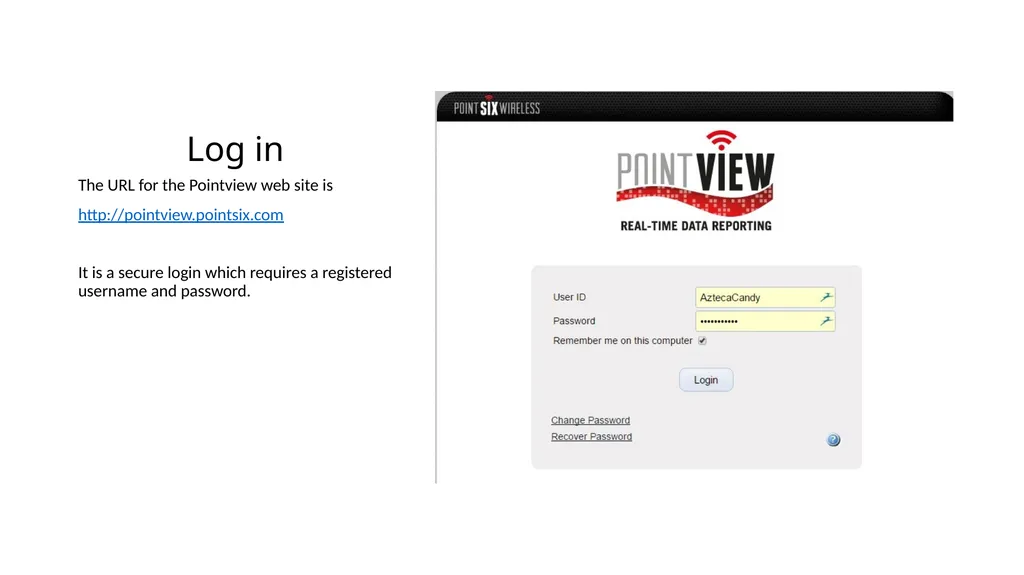
Log in The URL for the Pointview web site is
http://pointview.pointsix.com
It is a secure login which requires a registered username and password.<br>
03
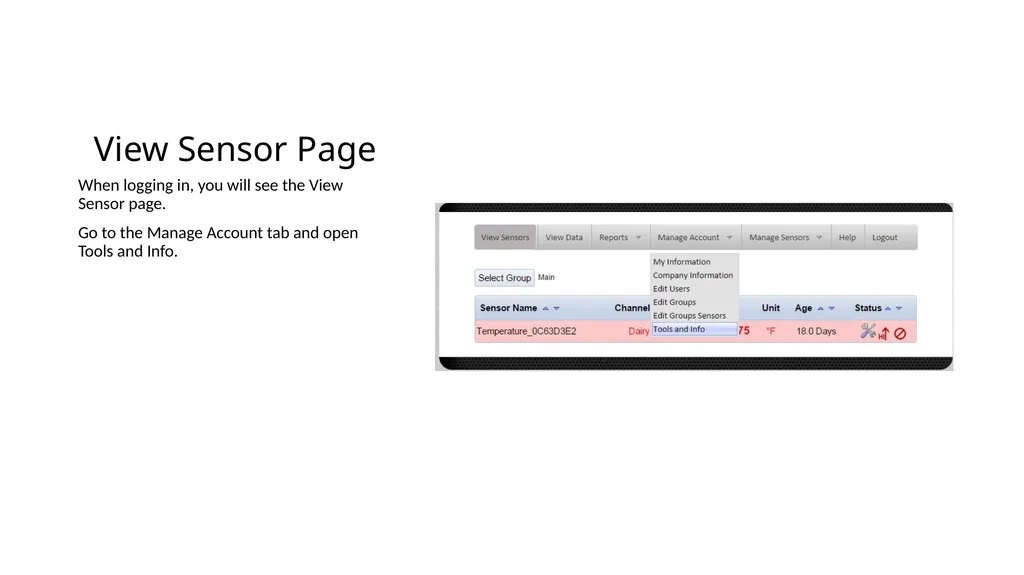
View Sensor Page When logging in, you will see the View Sensor page.
Go to the Manage Account tab and open Tools and Info.<br>
04
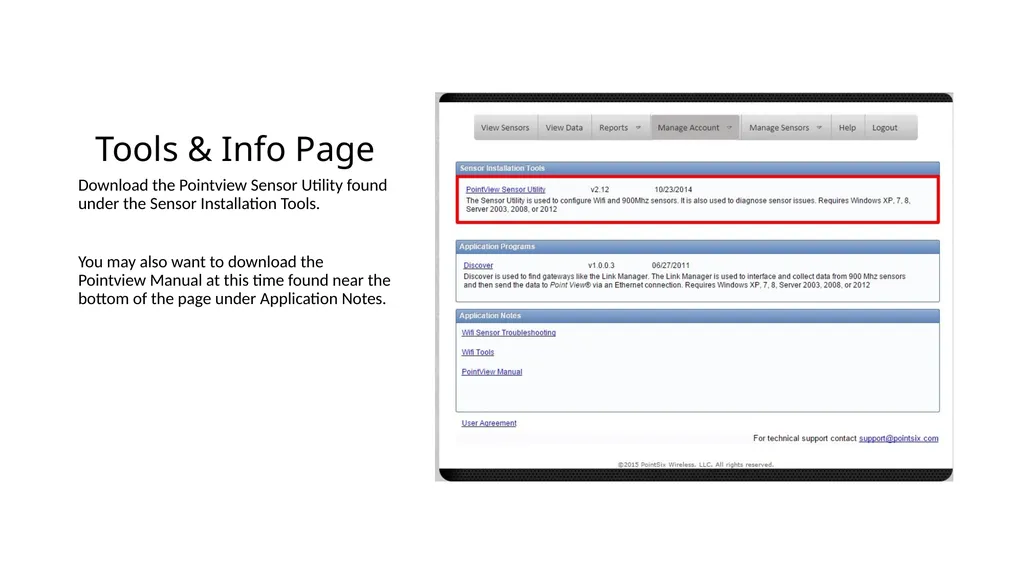
Tools & Info Page Download the Pointview Sensor Utility found under the Sensor Installation Tools.
You may also want to download the Pointview Manual at this time found near the bottom of the page under Application Notes.<br>
05
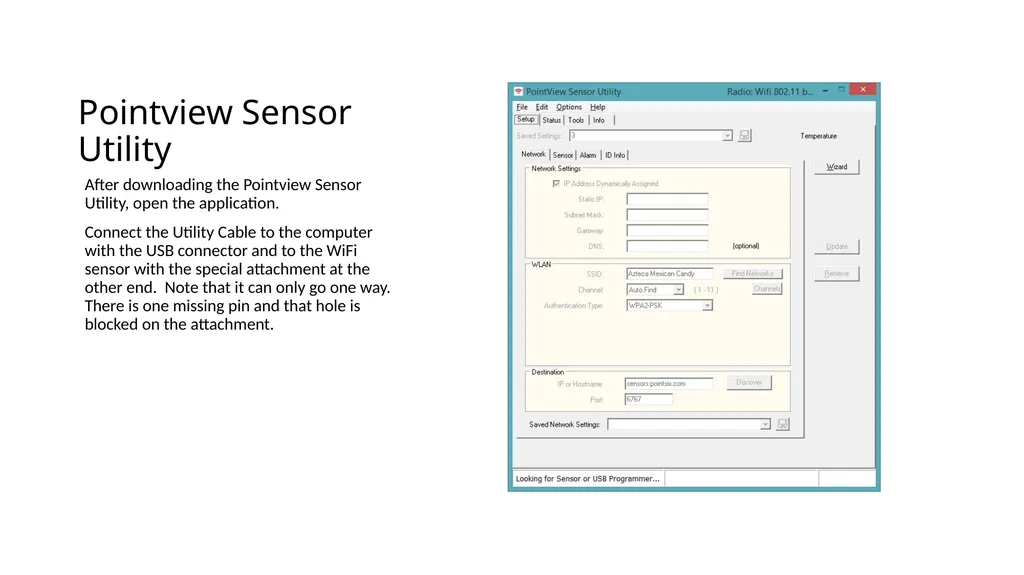
Pointview Sensor Utility After downloading the Pointview Sensor Utility, open the application.
Connect the Utility Cable to the computer with the USB connector and to the WiFi sensor with the special attachment at the other end. Note that it can only go one way. There is one missing pin and that hole is blocked on the attachment.<br>
06
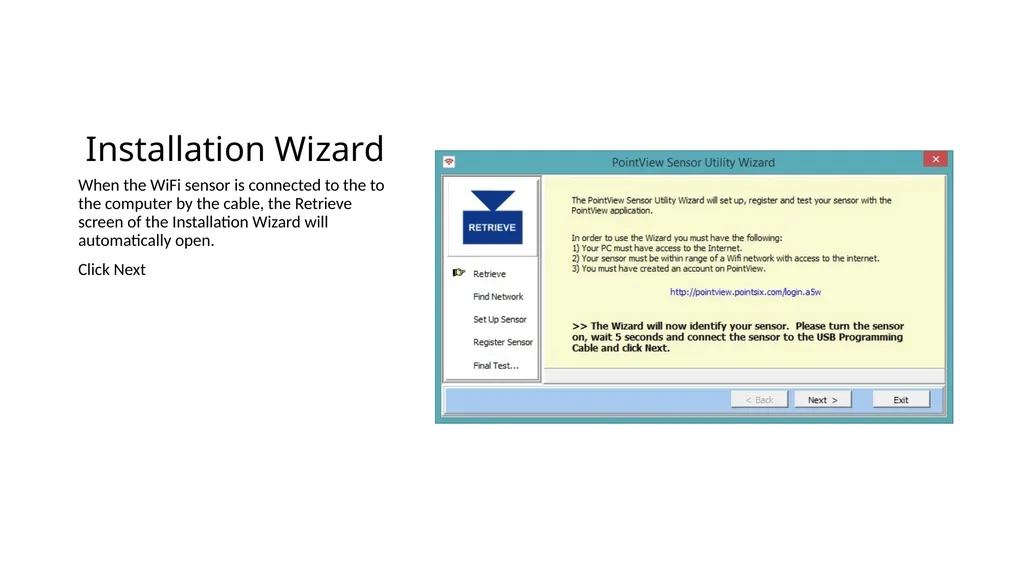
Installation Wizard When the WiFi sensor is connected to the to the computer by the cable, the Retrieve screen of the Installation Wizard will automatically open.
Click Next<br>
07
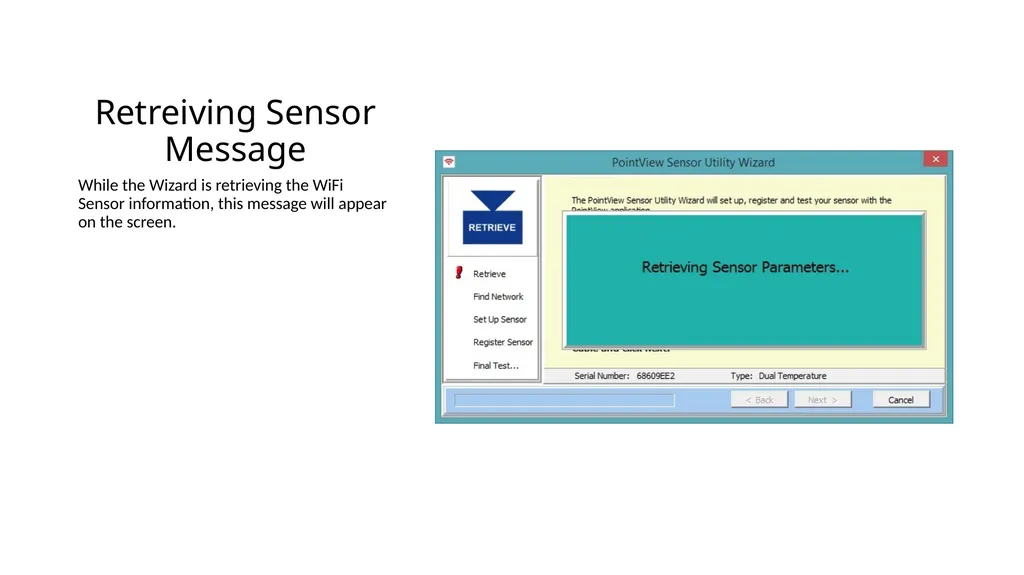
Retreiving Sensor Message While the Wizard is retrieving the WiFi Sensor information, this message will appear on the screen.<br>
08
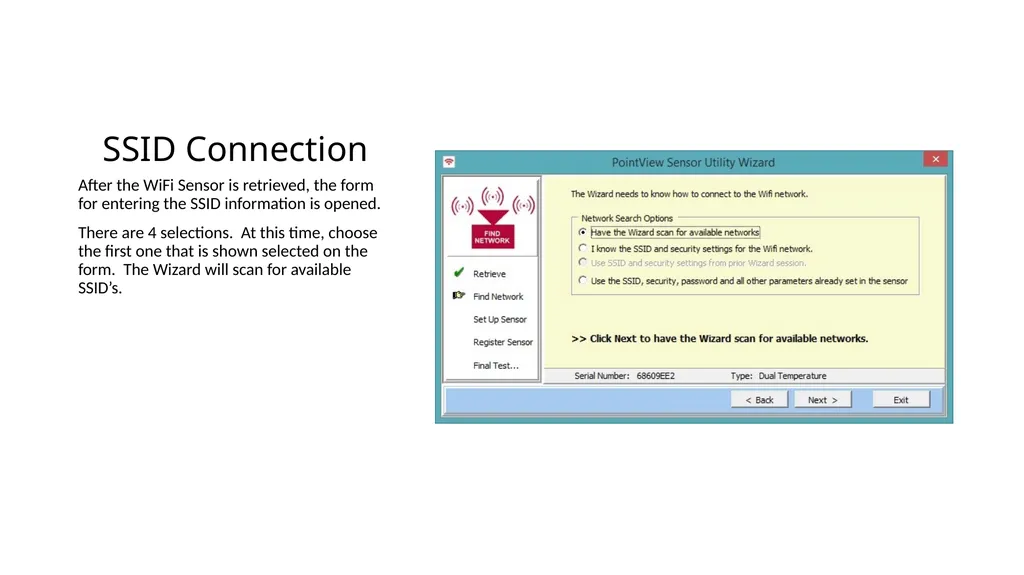
SSID Connection After the WiFi Sensor is retrieved, the form for entering the SSID information is opened.
There are 4 selections. At this time, choose the first one that is shown selected on the form. The Wizard will scan for available SSID’s.<br>
09
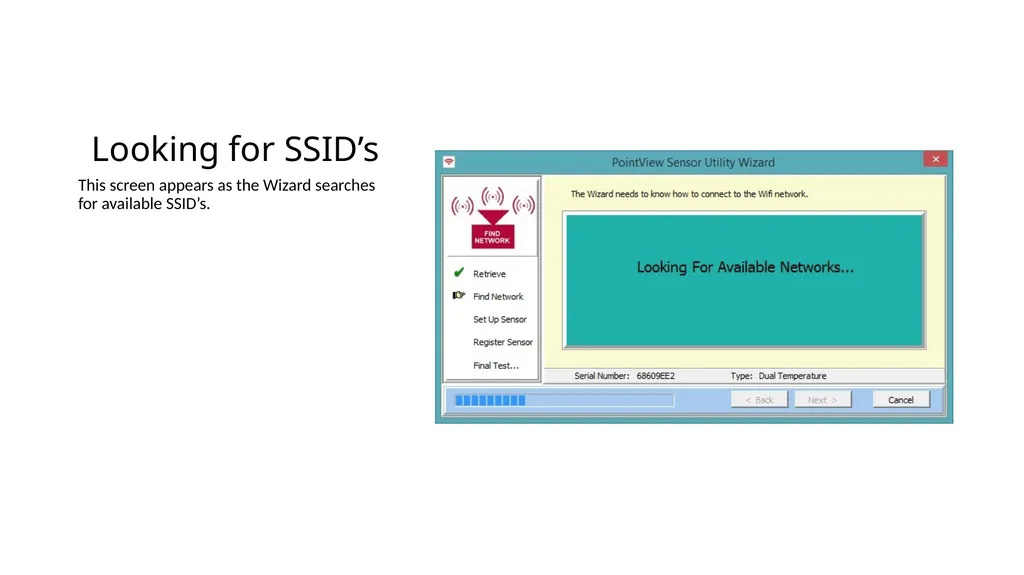
Looking for SSID’s This screen appears as the Wizard searches for available SSID’s.<br>
10
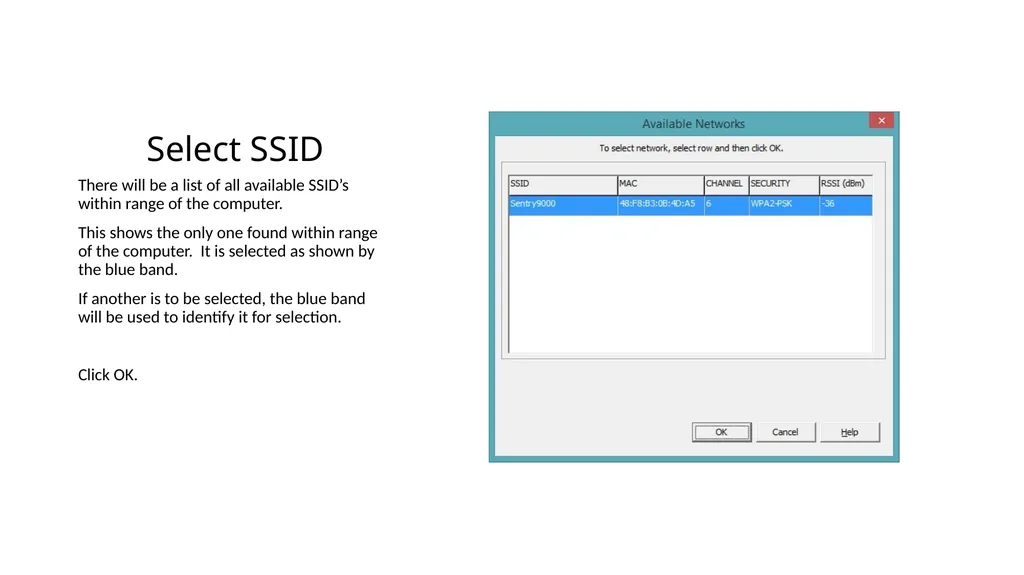
Select SSID There will be a list of all available SSID’s within range of the computer.
This shows the only one found within range of the computer. It is selected as shown by the blue band.
If another is to be selected, the blue band will be used to identify it for selection.
Click OK.<br>
11
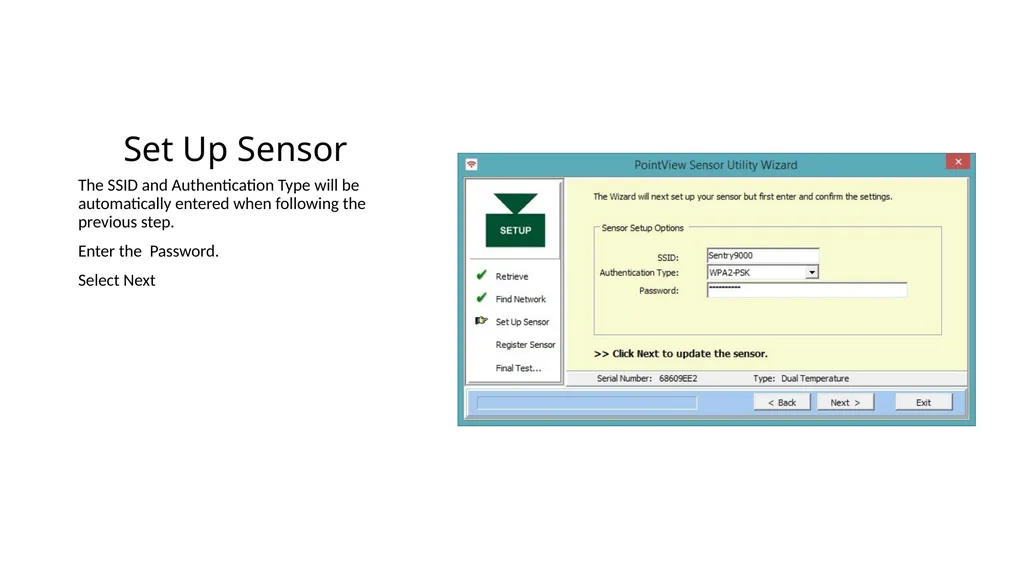
Set Up Sensor The SSID and Authentication Type will be automatically entered when following the previous step.
Enter the Password.
Select Next<br>
12
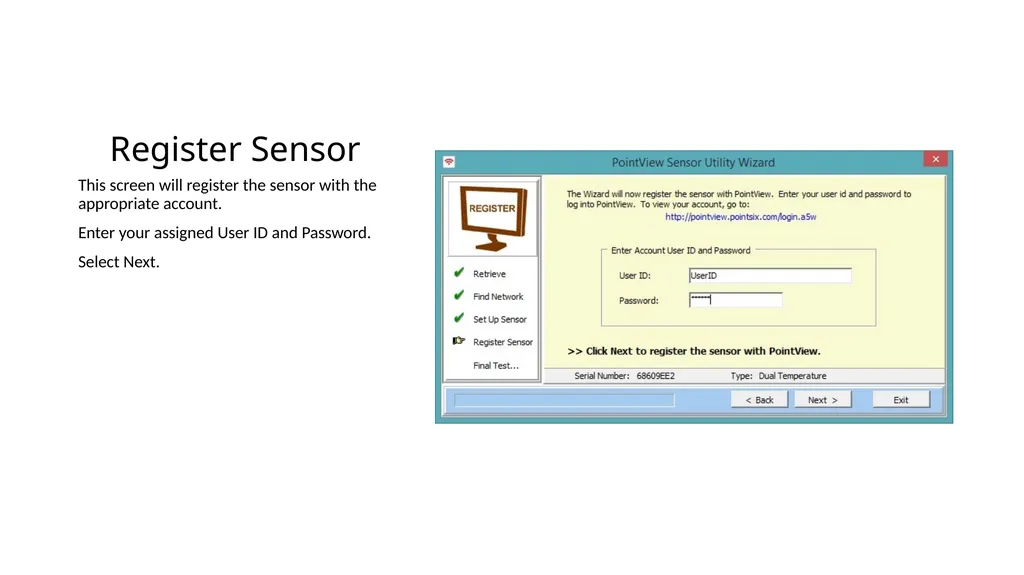
Register Sensor This screen will register the sensor with the appropriate account.
Enter your assigned User ID and Password.
Select Next.<br>
13
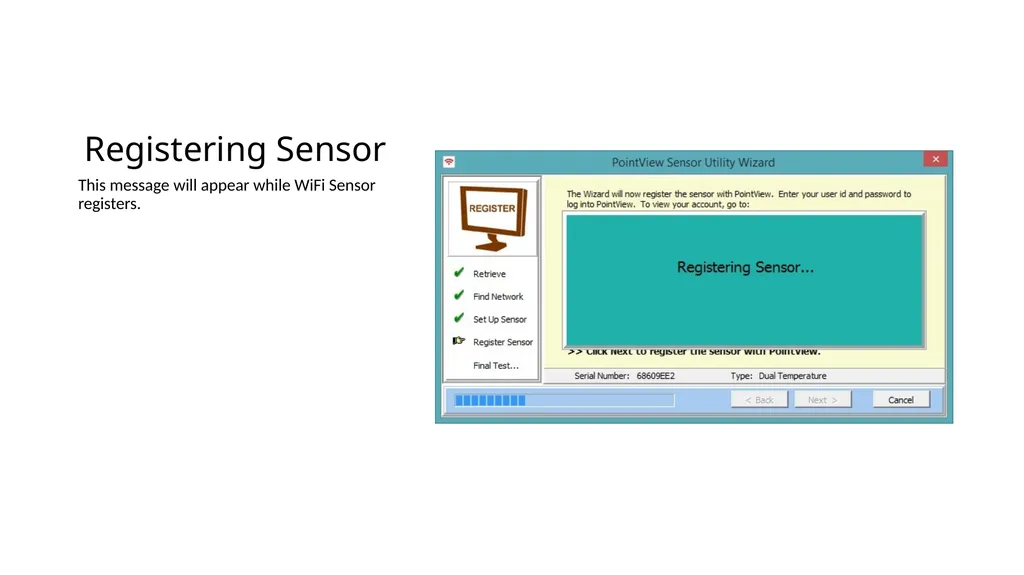
Registering Sensor This message will appear while WiFi Sensor registers.<br>
14
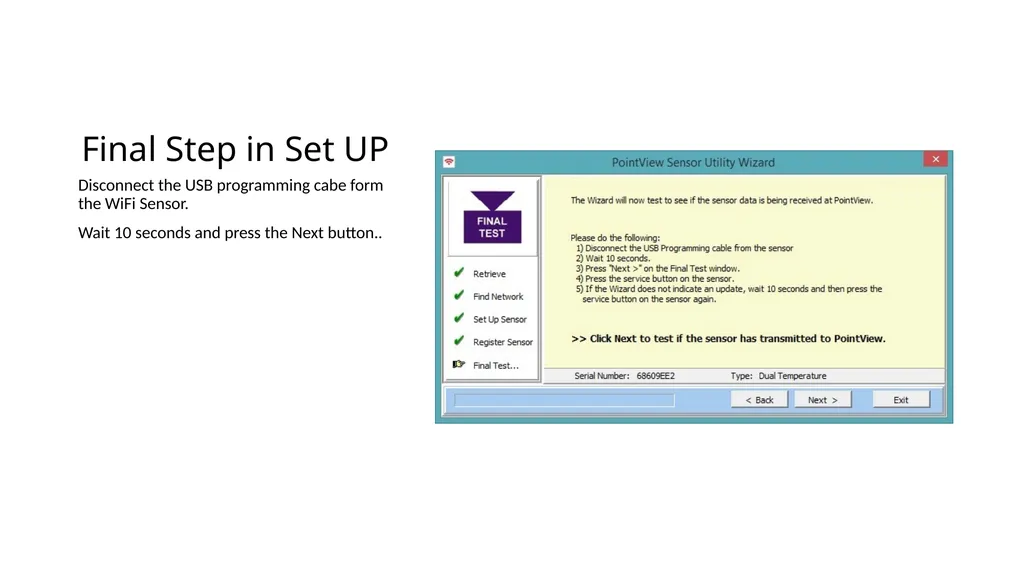
Final Step in Set UP Disconnect the USB programming cabe form the WiFi Sensor.
Wait 10 seconds and press the Next button..<br>
15
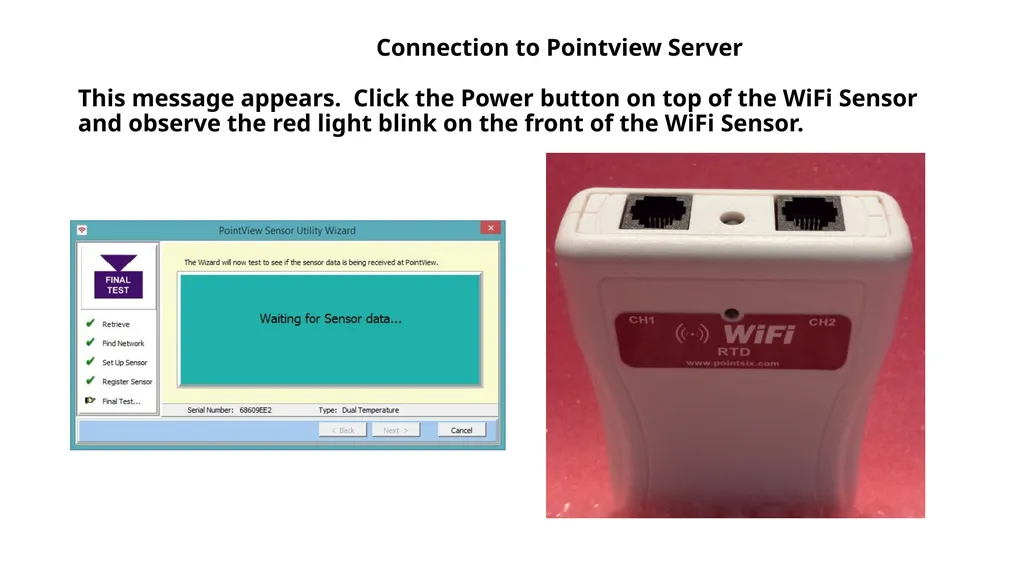
Connection to Pointview Server This message appears. Click the Power button on top of the WiFi Sensor and observe the red light blink on the front of the WiFi Sensor.<br>
16
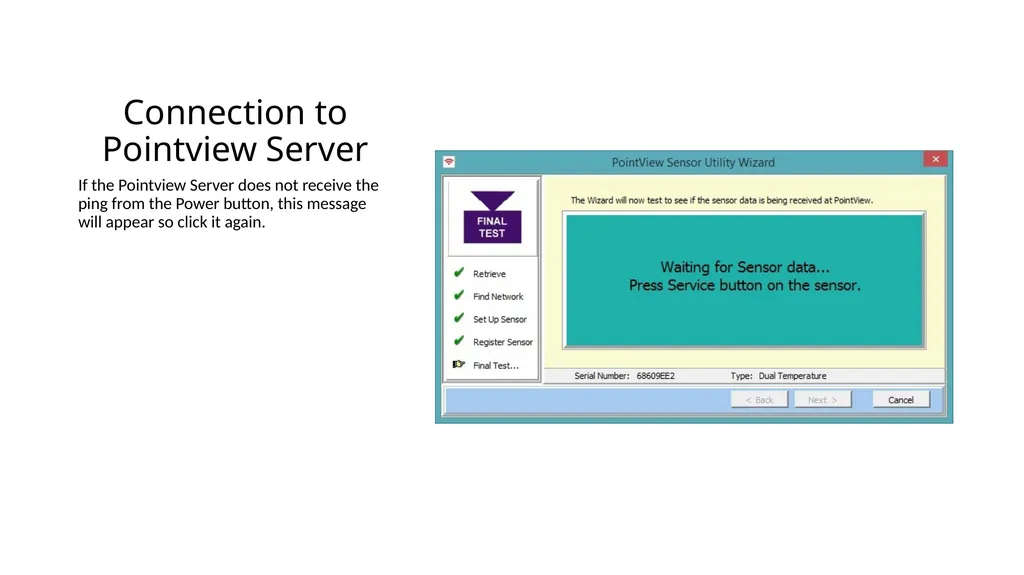
Connection to Pointview Server If the Pointview Server does not receive the ping from the Power button, this message will appear so click it again.<br>
17
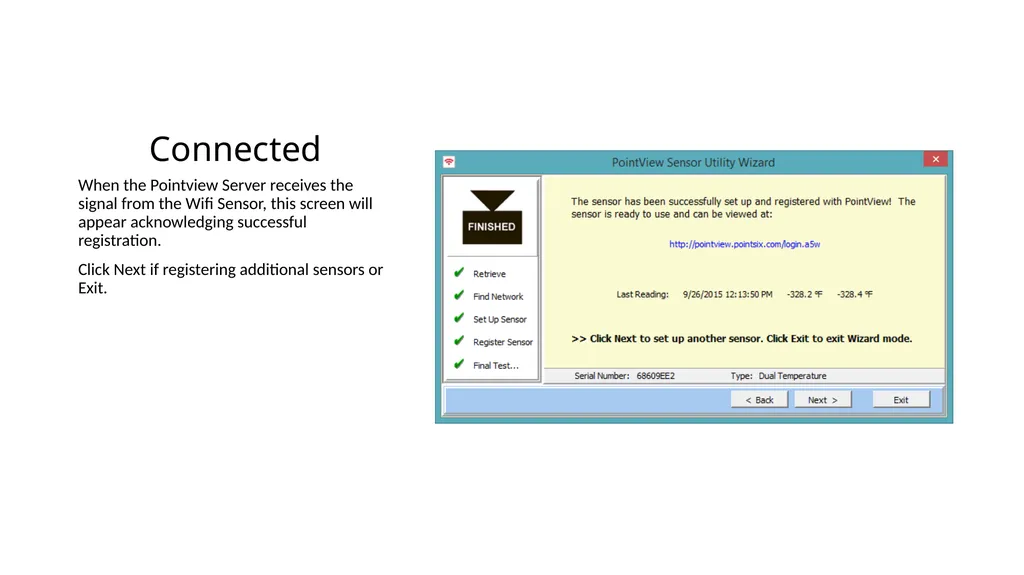
Connected When the Pointview Server receives the signal from the Wifi Sensor, this screen will appear acknowledging successful registration.
Click Next if registering additional sensors or Exit.<br>