02 Drilldown on Data Discovery using Power Query Matt Masson Senior Program Manager What You Will Learn Introducing Power Query Working with Power Query Partner Opportunities Resources Introducing Power Query Power Query is a new add-in
"02 | Drilldown on Data Discovery using Power Query" is the property of its rightful owner. Permission is granted to
download and print the materials on this website for personal, non-commercial use only, and to display it
on your personal computer provided you do not modify the materials and that you retain all copyright
notices contained in the materials. By downloading content from our website, you accept the terms of this
agreement.
Presentation Transcript
01
02 | Drilldown on Data Discovery using Power Query Matt Masson| Senior Program Manager<br>
02
What You Will Learn Introducing Power Query
Working with Power Query
Partner Opportunities
Resources<br>
03
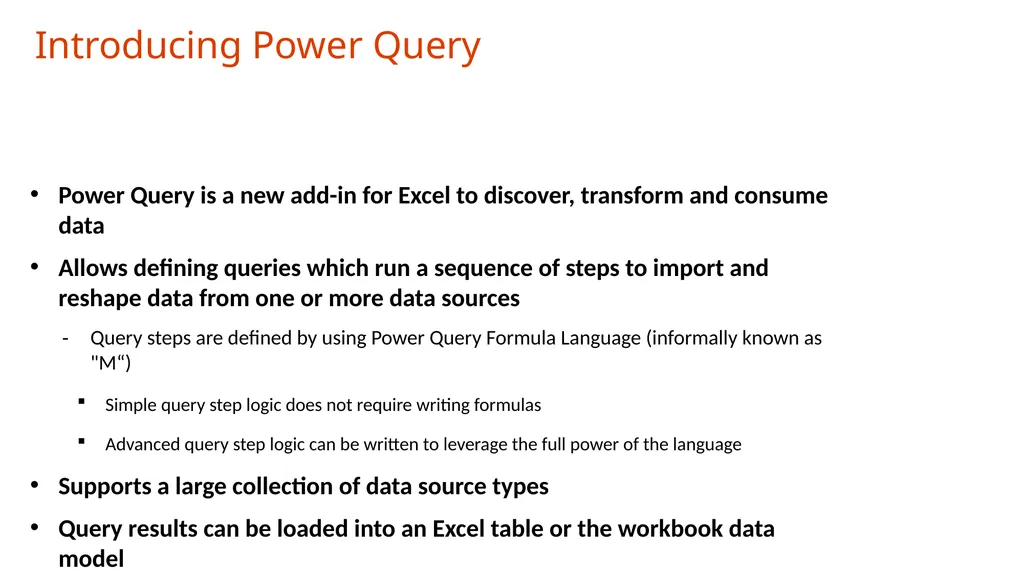
Introducing Power Query Power Query is a new add-in for Excel to discover, transform and consume data
Allows defining queries which run a sequence of steps to import and reshape data from one or more data sources
Query steps are defined by using Power Query Formula Language (informally known as "M“)
Simple query step logic does not require writing formulas
Advanced query step logic can be written to leverage the full power of the language
Supports a large collection of data source types
Query results can be loaded into an Excel table or the workbook data model<br>
04
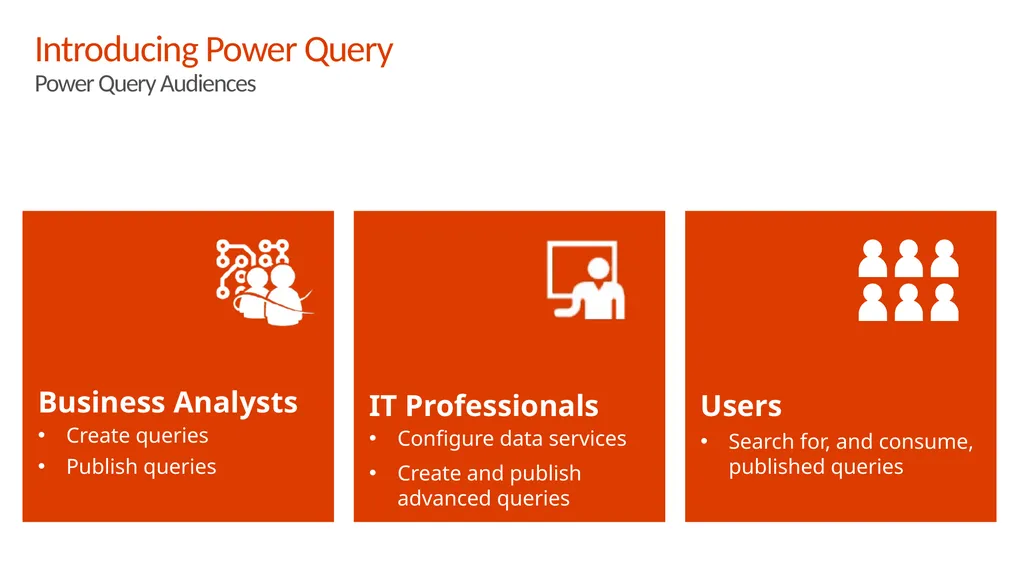
Business Analysts
Create queries
Publish queries IT Professionals
Configure data services
Create and publish advanced queries Users
Search for, and consume, published queries Introducing Power Query
Power Query Audiences<br>
05
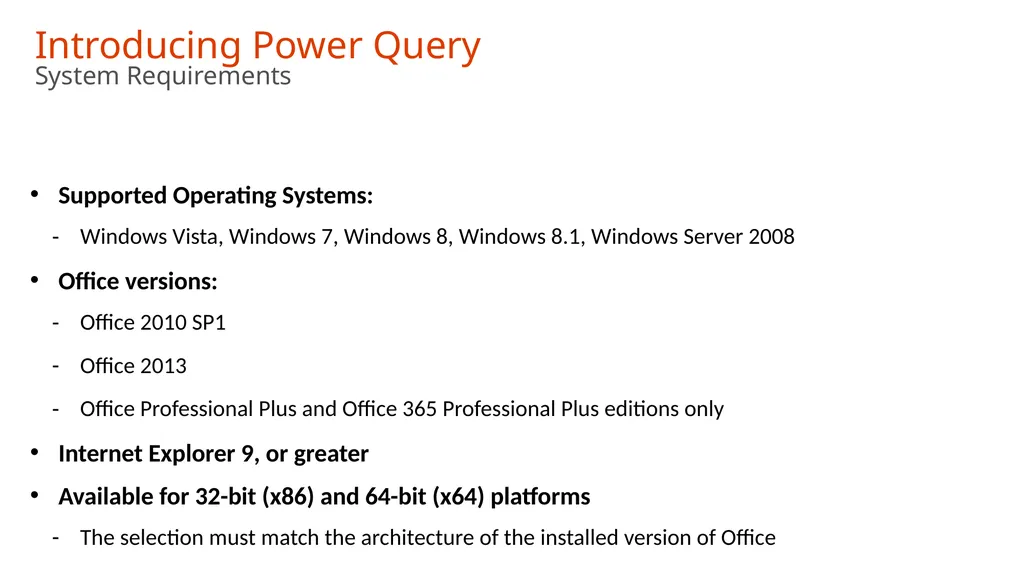
Introducing Power Query System Requirements Supported Operating Systems:
Windows Vista, Windows 7, Windows 8, Windows 8.1, Windows Server 2008
Office versions:
Office 2010 SP1
Office 2013
Office Professional Plus and Office 365 Professional Plus editions only
Internet Explorer 9, or greater
Available for 32-bit (x86) and 64-bit (x64) platforms
The selection must match the architecture of the installed version of Office<br>
06
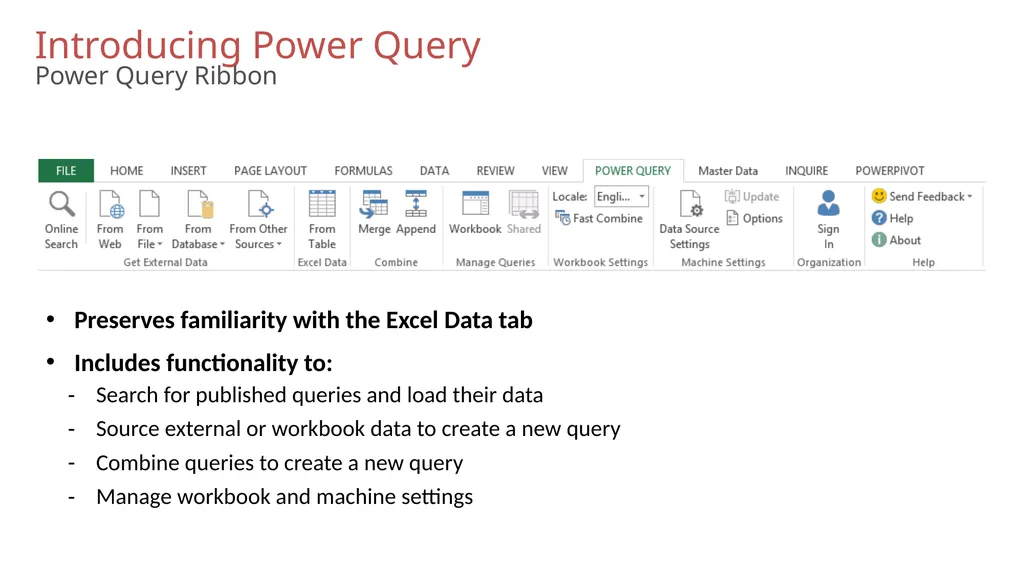
Introducing Power Query Power Query Ribbon Preserves familiarity with the Excel Data tab
Includes functionality to:
Search for published queries and load their data
Source external or workbook data to create a new query
Combine queries to create a new query
Manage workbook and machine settings<br>
07
Working with Power Query Online Search
Creating Queries
Combining Queries
Managing Queries
Advanced Scenarios<br>
08
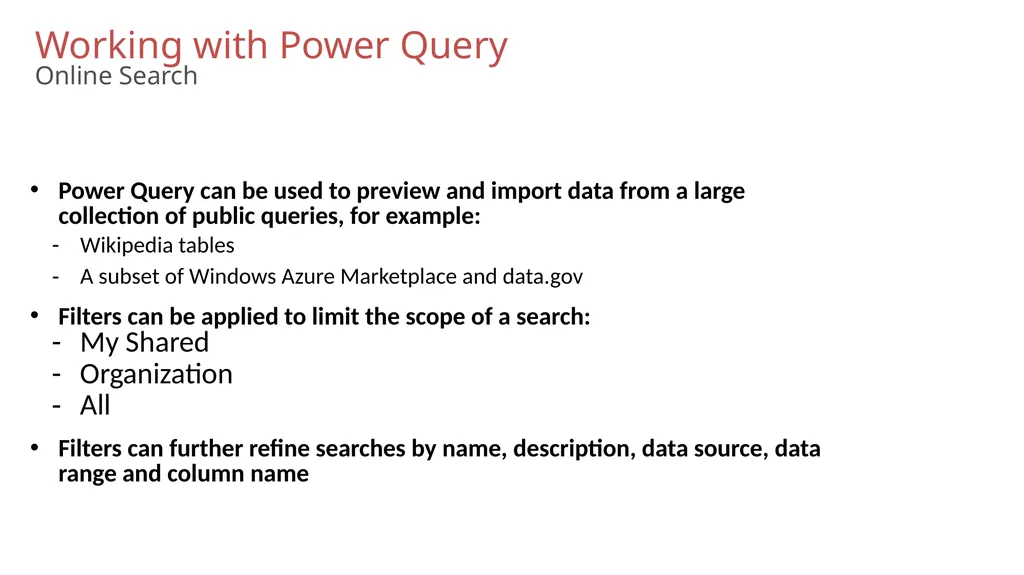
Working with Power Query Online Search Power Query can be used to preview and import data from a large collection of public queries, for example:
Wikipedia tables
A subset of Windows Azure Marketplace and data.gov
Filters can be applied to limit the scope of a search:
My Shared
Organization
All
Filters can further refine searches by name, description, data source, data range and column name<br>
09
Working with Power Query Creating Queries A query is typically created by sourcing external data
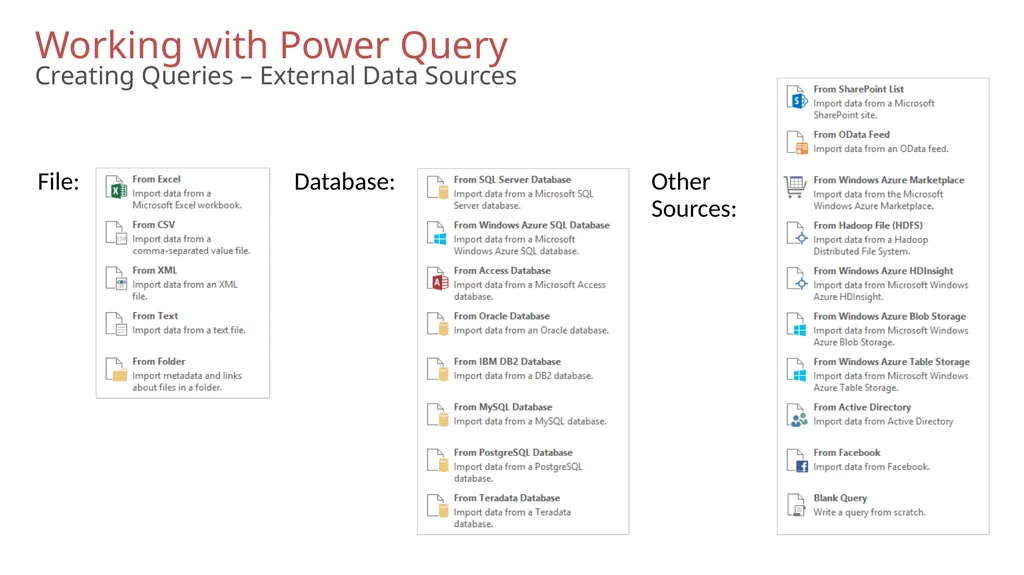
Data can be sourced from:
Web (an HTML page)
File
Database
Other sources<br>
10
Working with Power Query Creating Queries – External Data Sources<br>
11
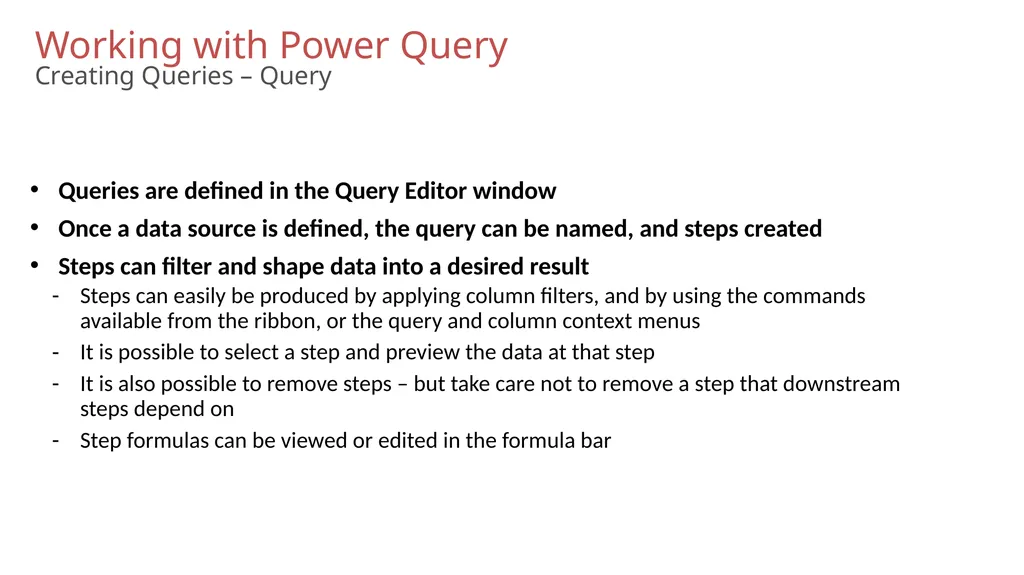
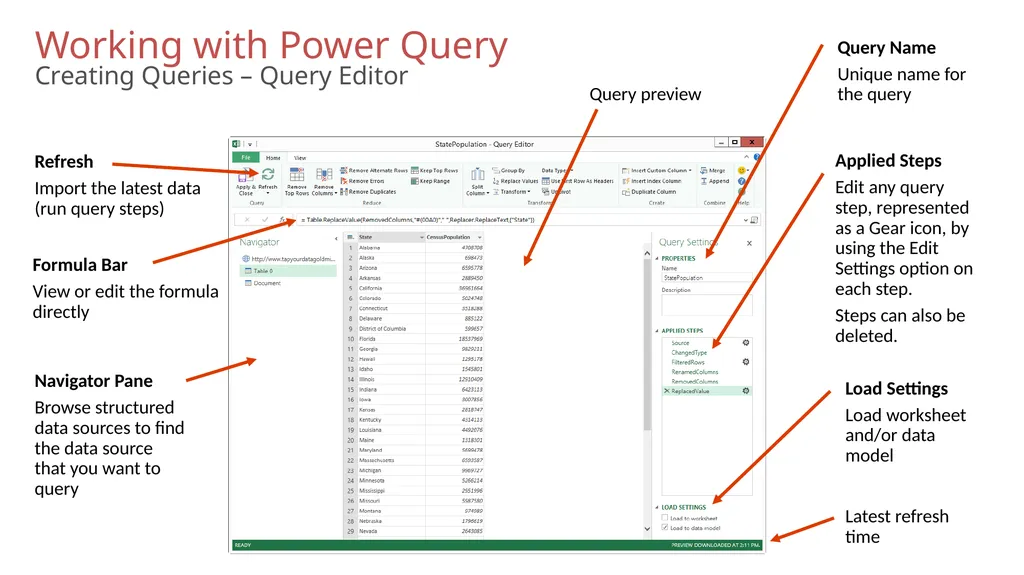
Working with Power Query Creating Queries – Query Queries are defined in the Query Editor window
Once a data source is defined, the query can be named, and steps created
Steps can filter and shape data into a desired result
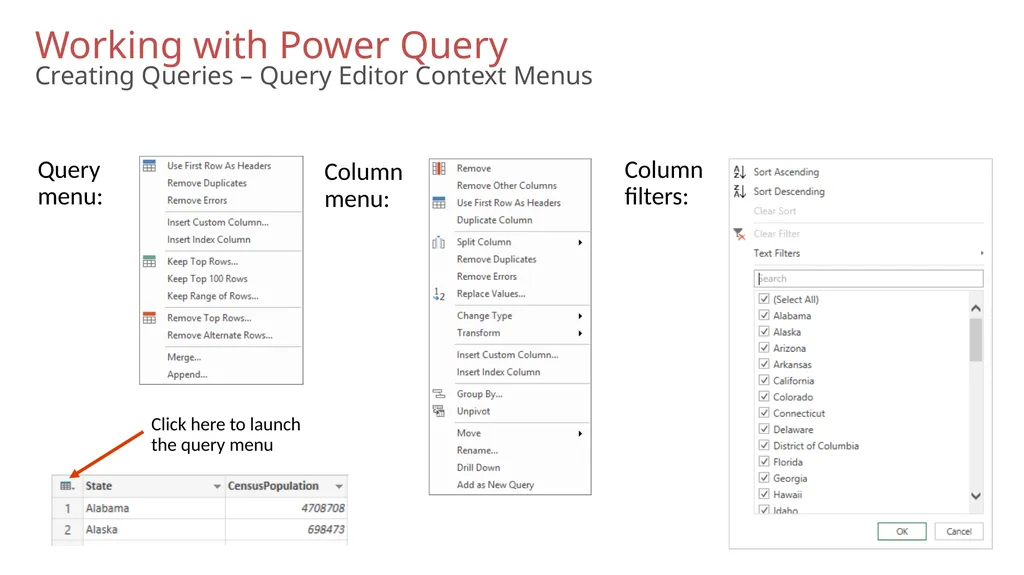
Steps can easily be produced by applying column filters, and by using the commands available from the ribbon, or the query and column context menus
It is possible to select a step and preview the data at that step
It is also possible to remove steps – but take care not to remove a step that downstream steps depend on
Step formulas can be viewed or edited in the formula bar<br>
12
Working with Power Query Creating Queries – Query Editor<br>
13
Working with Power Query Creating Queries – Query Editor Context Menus<br>
14
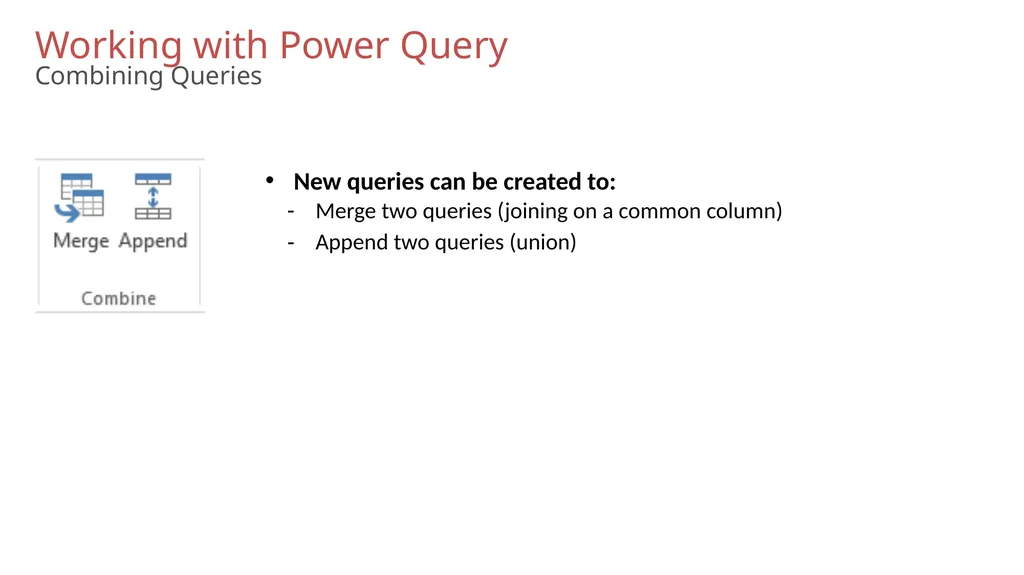
Working with Power Query Combining Queries New queries can be created to:
Merge two queries (joining on a common column)
Append two queries (union)<br>
15
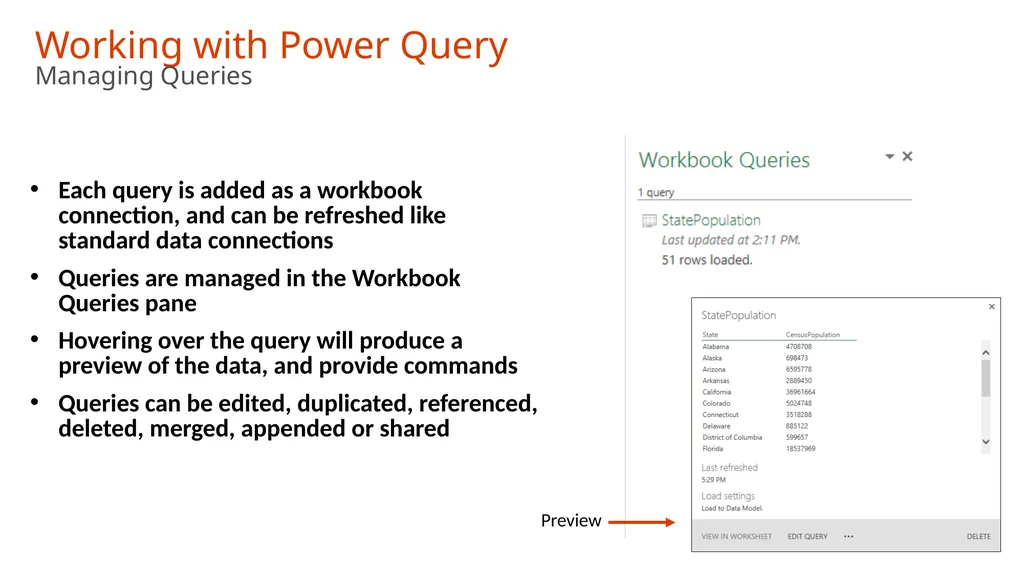
Working with Power Query Managing Queries Each query is added as a workbook connection, and can be refreshed like standard data connections
Queries are managed in the Workbook Queries pane
Hovering over the query will produce a preview of the data, and provide commands
Queries can be edited, duplicated, referenced, deleted, merged, appended or shared<br>
16
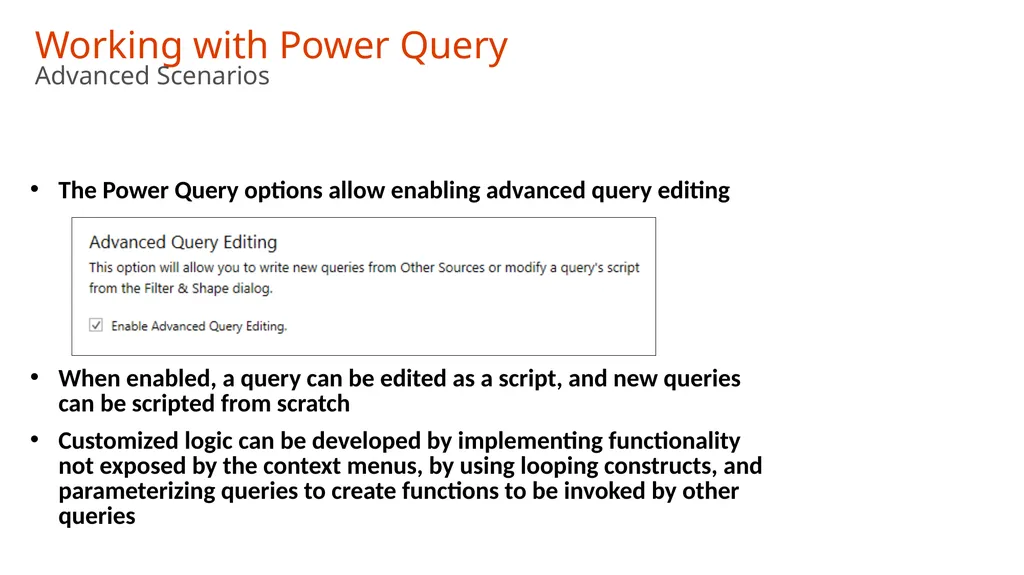
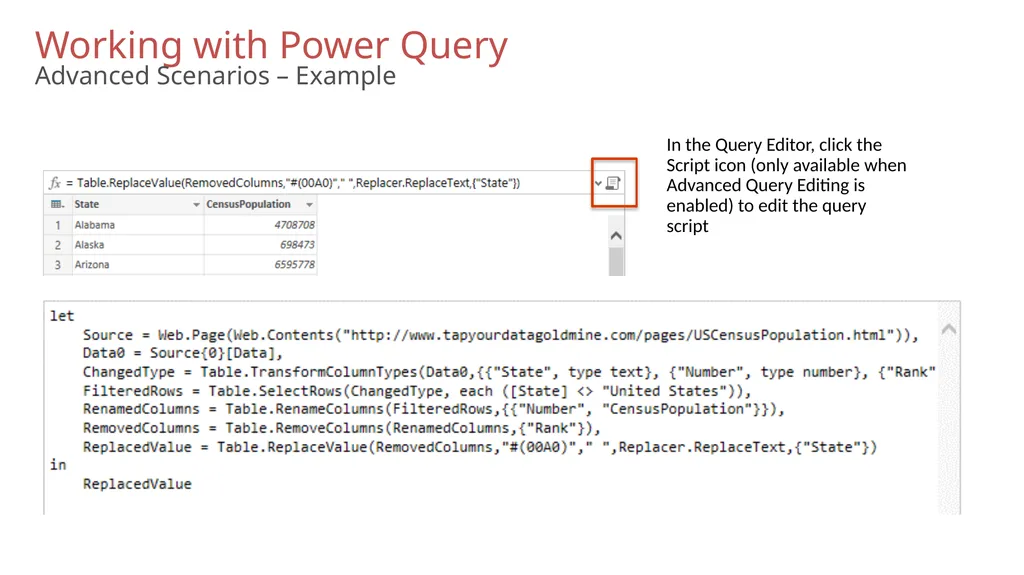
Working with Power Query Advanced Scenarios The Power Query options allow enabling advanced query editing
When enabled, a query can be edited as a script, and new queries can be scripted from scratch
Customized logic can be developed by implementing functionality not exposed by the context menus, by using looping constructs, and parameterizing queries to create functions to be invoked by other queries<br>
17
Working with Power Query Advanced Scenarios – Example In the Query Editor, click the Script icon (only available when Advanced Query Editing is enabled) to edit the query script<br>
18
Introducing Power Query Demo<br>
19
Partner Opportunities Replace legacy Excel data retrieval logic with Power Query queries
Create refreshable queries to source, filter and shape data
Eliminate the requirement to manually prepare and load data
Eliminate complex transformational logic in worksheets and macros
Load data directly into workbook data models
Leverage new data source types:
OData data feeds, Hadoop, Facebook, etc.
Publish libraries of queries for discovery and reuse within the organization<br>