04
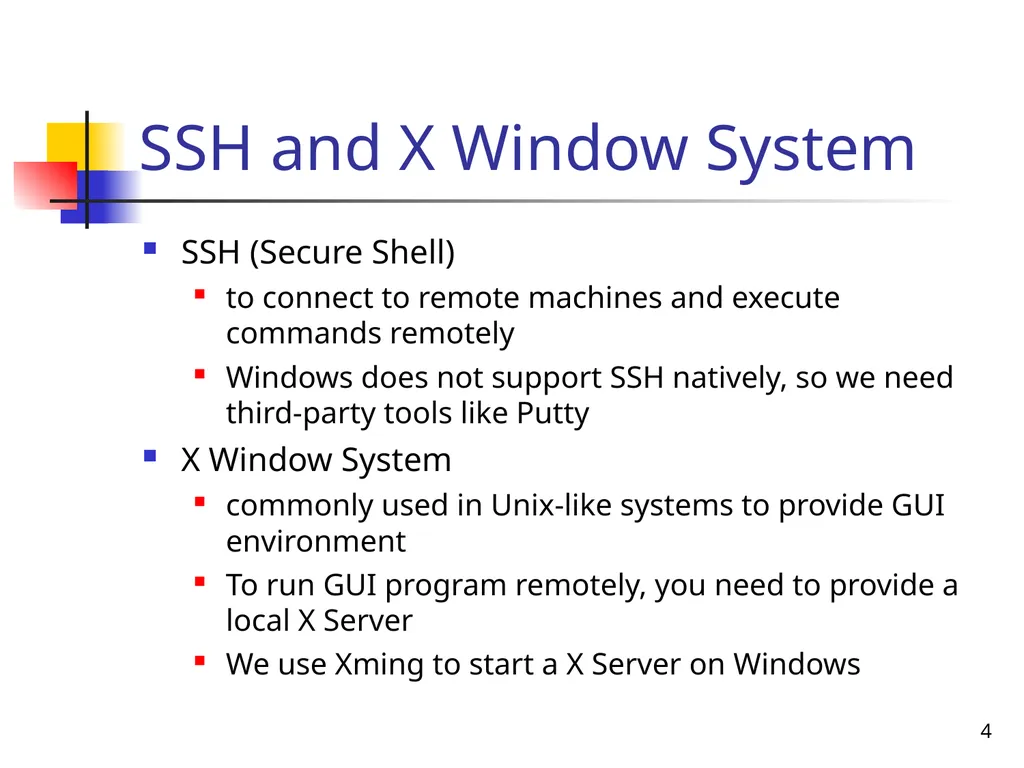
SSH and X Window System SSH (Secure Shell)
to connect to remote machines and execute commands remotely
Windows does not support SSH natively, so we need third-party tools like Putty
X Window System
commonly used in Unix-like systems to provide GUI environment
To run GUI program remotely, you need to provide a local X Server
We use Xming to start a X Server on Windows 4<br>
05
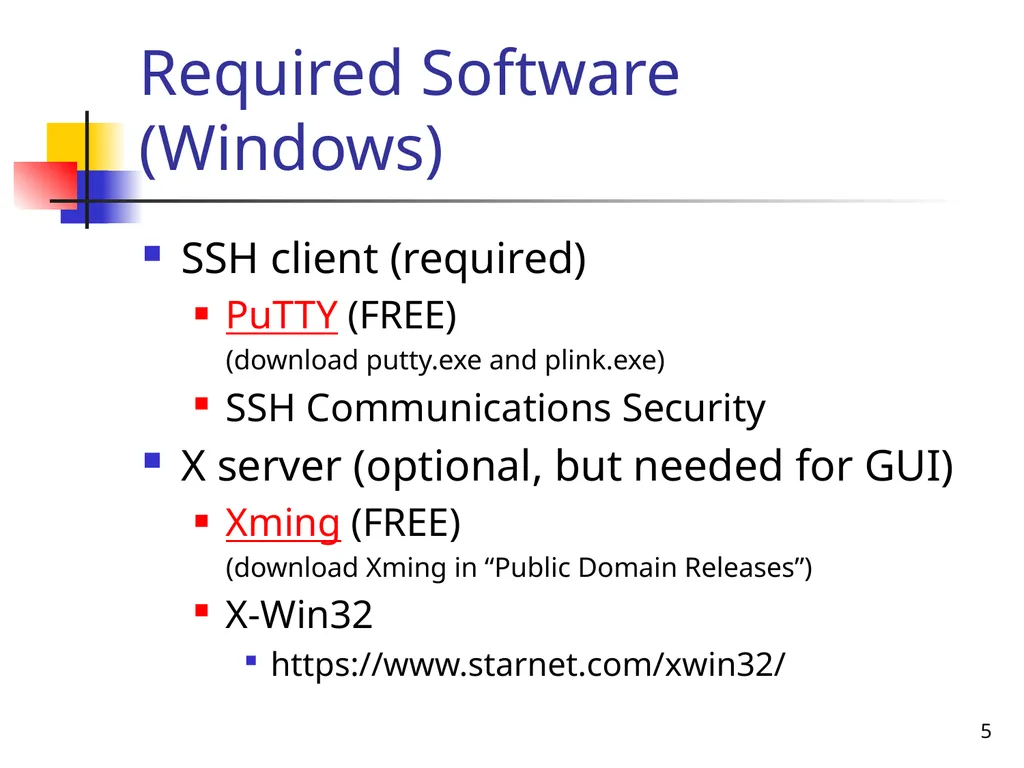
5 Required Software (Windows) SSH client (required)
PuTTY (FREE)�(download putty.exe and plink.exe)
SSH Communications Security
X server (optional, but needed for GUI)
Xming (FREE)�(download Xming in “Public Domain Releases”)
X-Win32
https://www.starnet.com/xwin32/<br>
06
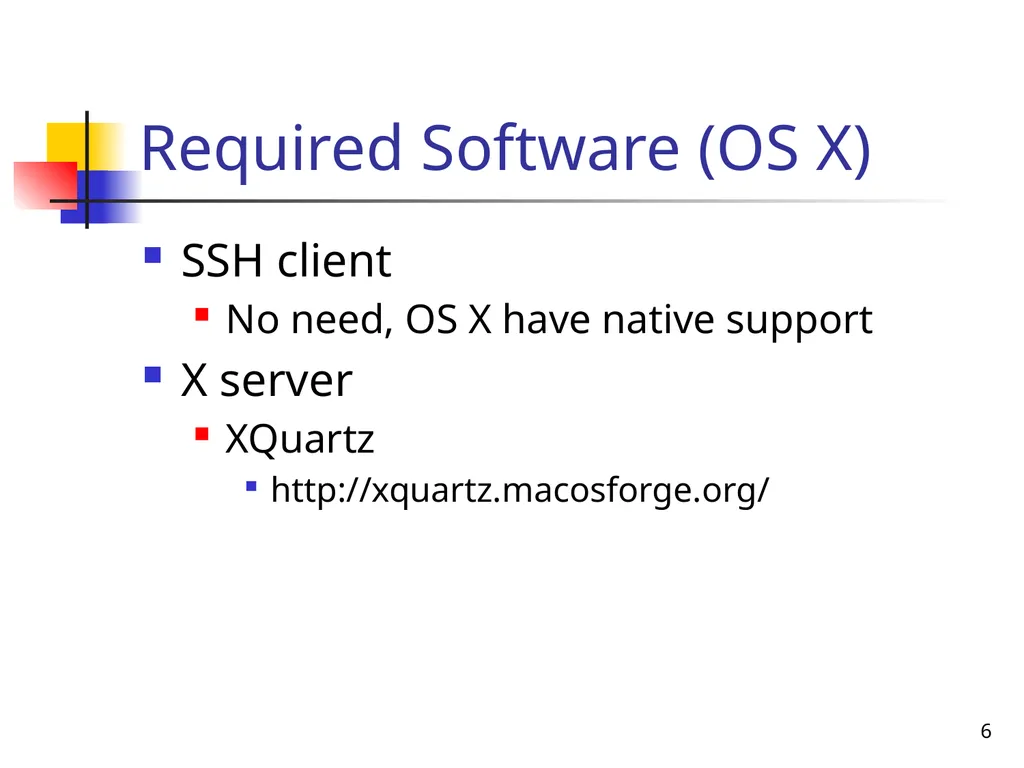
6 Required Software (OS X) SSH client
No need, OS X have native support
X server
XQuartz
http://xquartz.macosforge.org/<br>
07
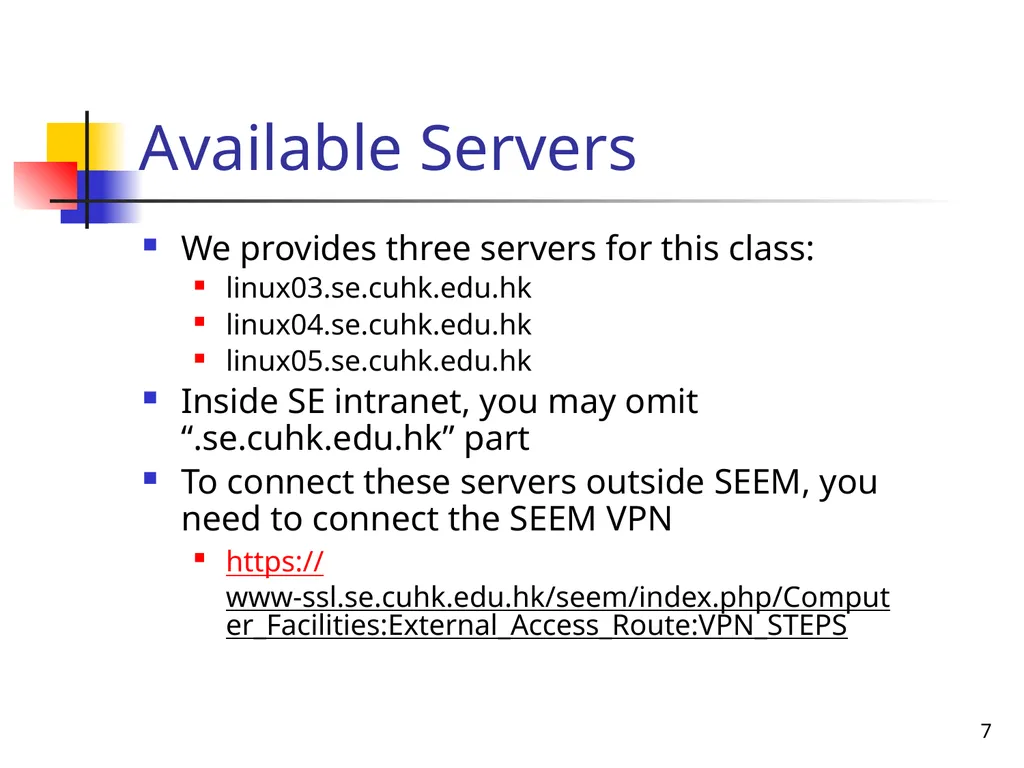
7 Available Servers We provides three servers for this class:
linux03.se.cuhk.edu.hk
linux04.se.cuhk.edu.hk
linux05.se.cuhk.edu.hk
Inside SE intranet, you may omit “.se.cuhk.edu.hk” part
To connect these servers outside SEEM, you need to connect the SEEM VPN
https://www-ssl.se.cuhk.edu.hk/seem/index.php/Computer_Facilities:External_Access_Route:VPN_STEPS<br>
08
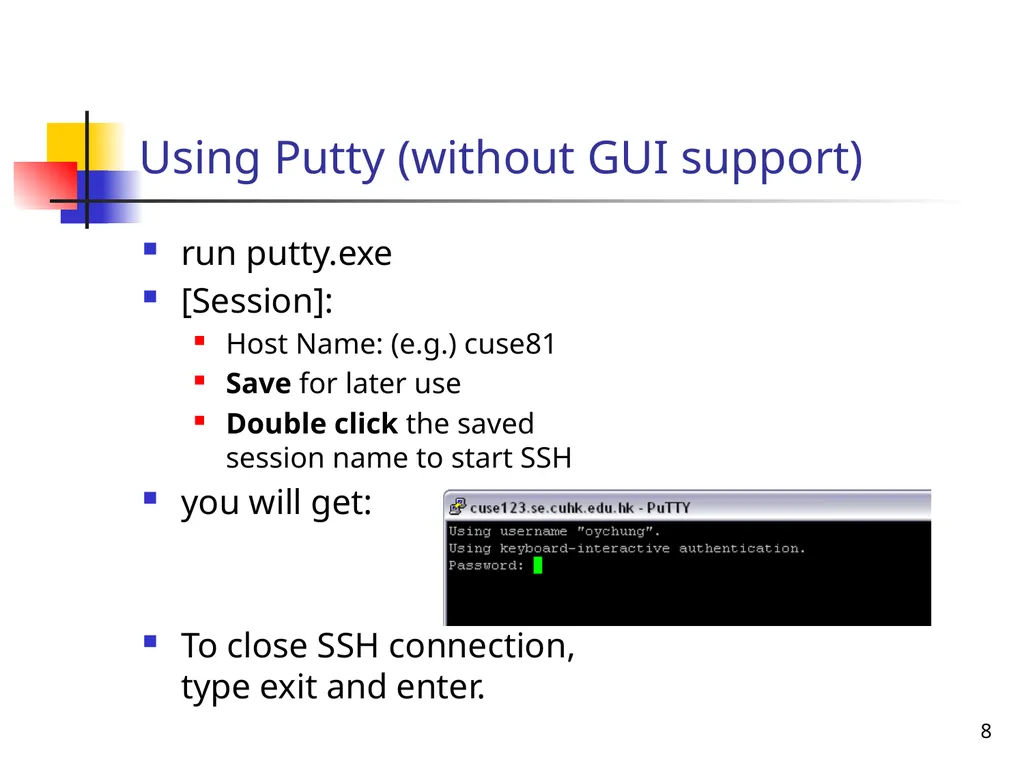
Using Putty (without GUI support) run putty.exe
[Session]:
Host Name: (e.g.) cuse81
Save for later use
Double click the saved session name to start SSH
you will get:
To close SSH connection, type exit and enter. 8<br>
09
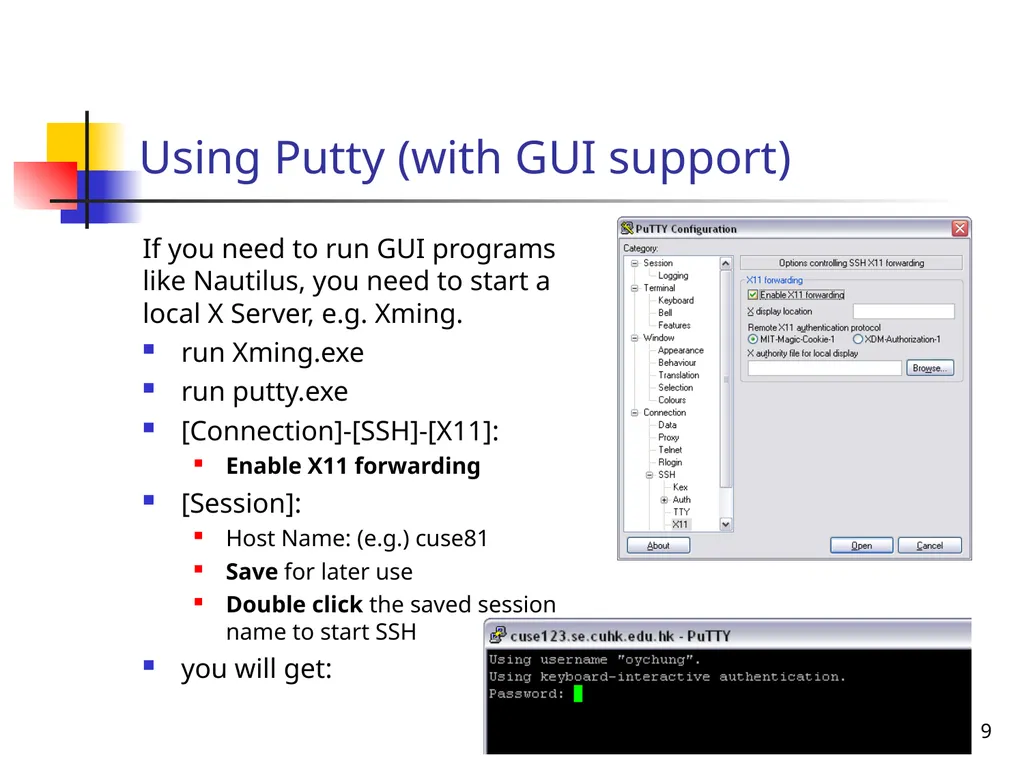
Using Putty (with GUI support) If you need to run GUI programs like Nautilus, you need to start a local X Server, e.g. Xming.
run Xming.exe
run putty.exe
[Connection]-[SSH]-[X11]:
Enable X11 forwarding
[Session]:
Host Name: (e.g.) cuse81
Save for later use
Double click the saved session name to start SSH
you will get: 9<br>
10
Utilities Unix utilities are the basic programs supporting the user to control the system
Examples:
date: shows the system date
man -s 1 ls: shows help on ls from the built-in manual section 1
pwd: prints the working directory
echo: prints a message 10<br>
11
A shell command ls -lp ~
ls: program name
“ls” is the utility to list files
-lp: options/switches, starting with a hyphen
“l” means list in long format
“p” means putting a slash after directory names
~: remaining parameters
actual meaning depends on the program used
for ls, the remaining parameters are the files or directories to be listed
“~” means the home directory of the current user 11<br>
12
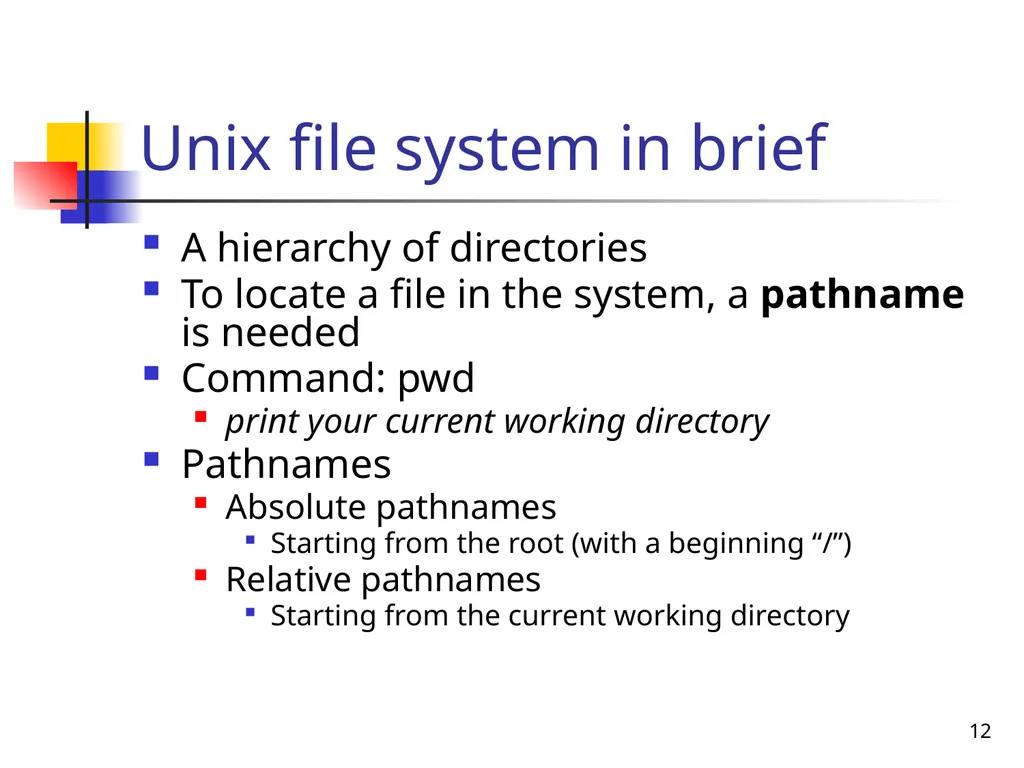
12 Unix file system in brief A hierarchy of directories
To locate a file in the system, a pathname is needed
Command: pwd
print your current working directory
Pathnames
Absolute pathnames
Starting from the root (with a beginning “/”)
Relative pathnames
Starting from the current working directory<br>
13
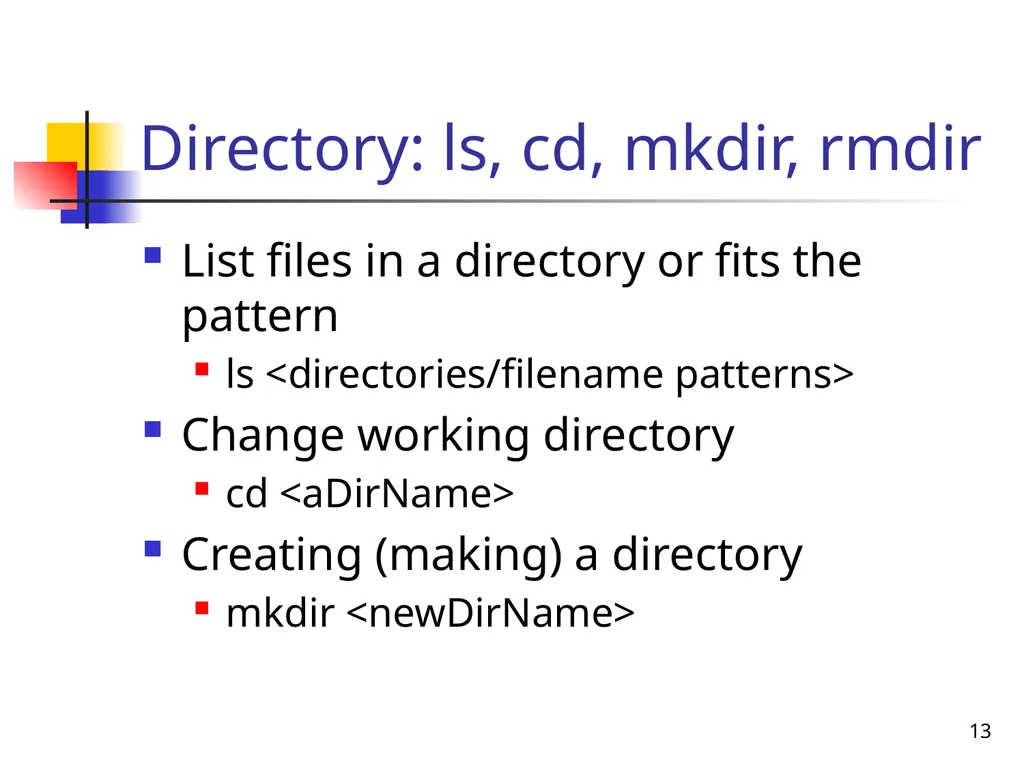
Directory: ls, cd, mkdir, rmdir List files in a directory or fits the pattern
ls <directories/filename patterns>
Change working directory
cd <aDirName>
Creating (making) a directory
mkdir <newDirName> 13<br>
14
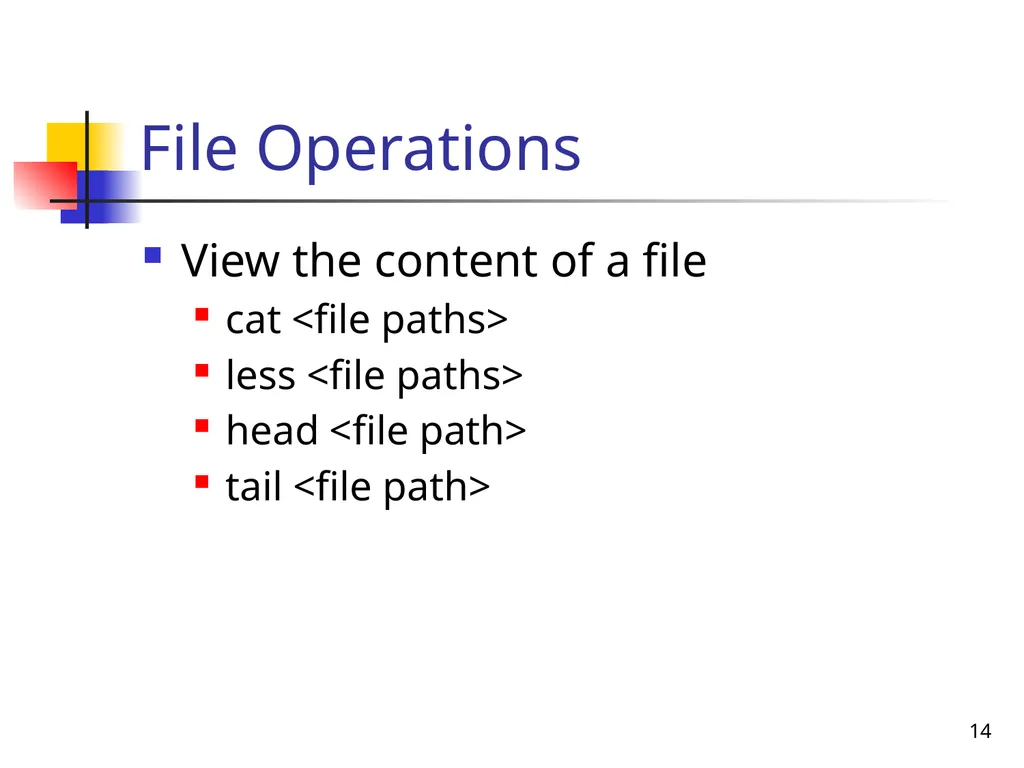
File Operations View the content of a file
cat <file paths>
less <file paths>
head <file path>
tail <file path> 14<br>
15
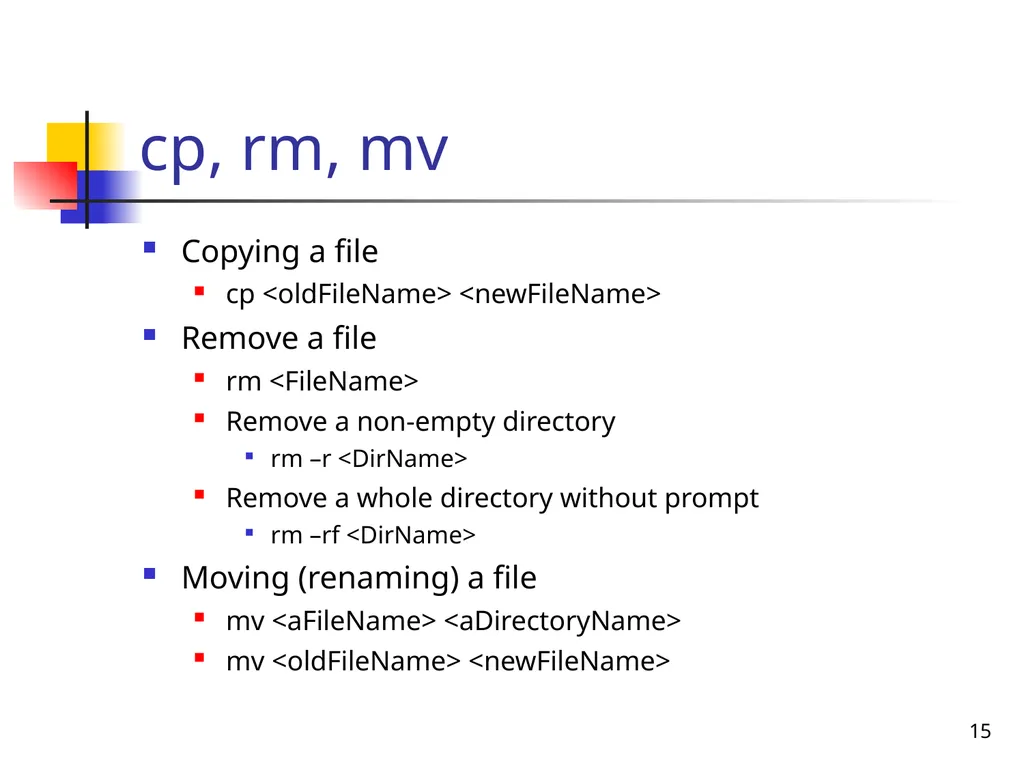
cp, rm, mv Copying a file
cp <oldFileName> <newFileName>
Remove a file
rm <FileName>
Remove a non-empty directory
rm –r <DirName>
Remove a whole directory without prompt
rm –rf <DirName>
Moving (renaming) a file
mv <aFileName> <aDirectoryName>
mv <oldFileName> <newFileName> 15<br>
16
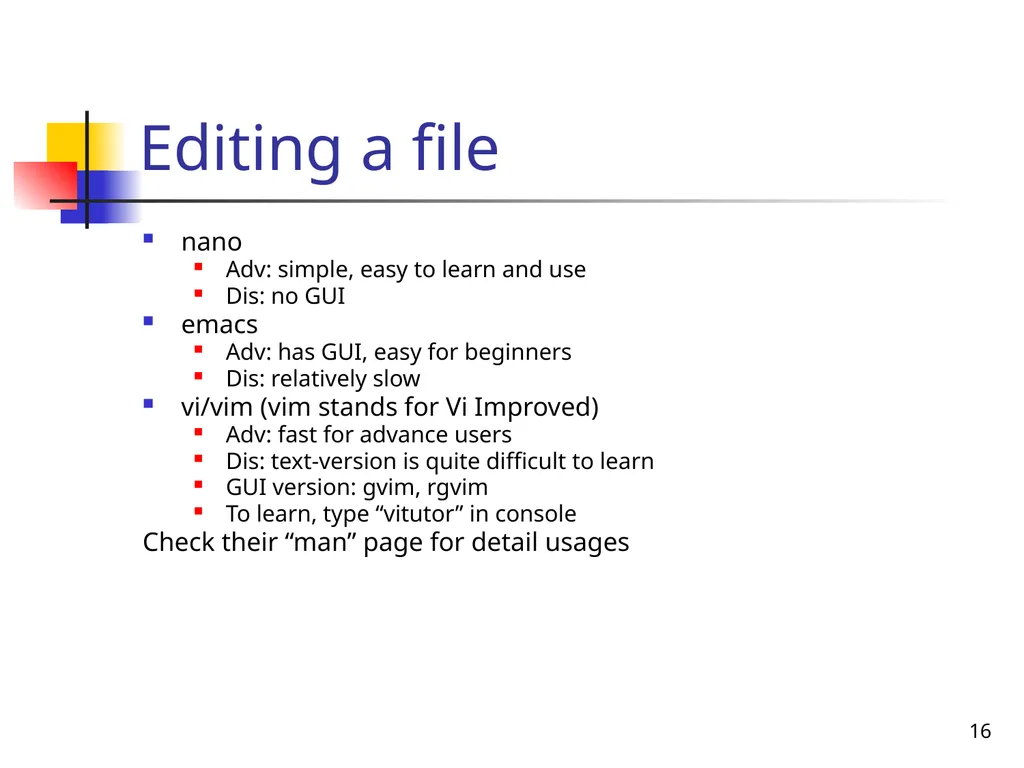
16 Editing a file nano
Adv: simple, easy to learn and use
Dis: no GUI
emacs
Adv: has GUI, easy for beginners
Dis: relatively slow
vi/vim (vim stands for Vi Improved)
Adv: fast for advance users
Dis: text-version is quite difficult to learn
GUI version: gvim, rgvim
To learn, type “vitutor” in console
Check their “man” page for detail usages<br>
17
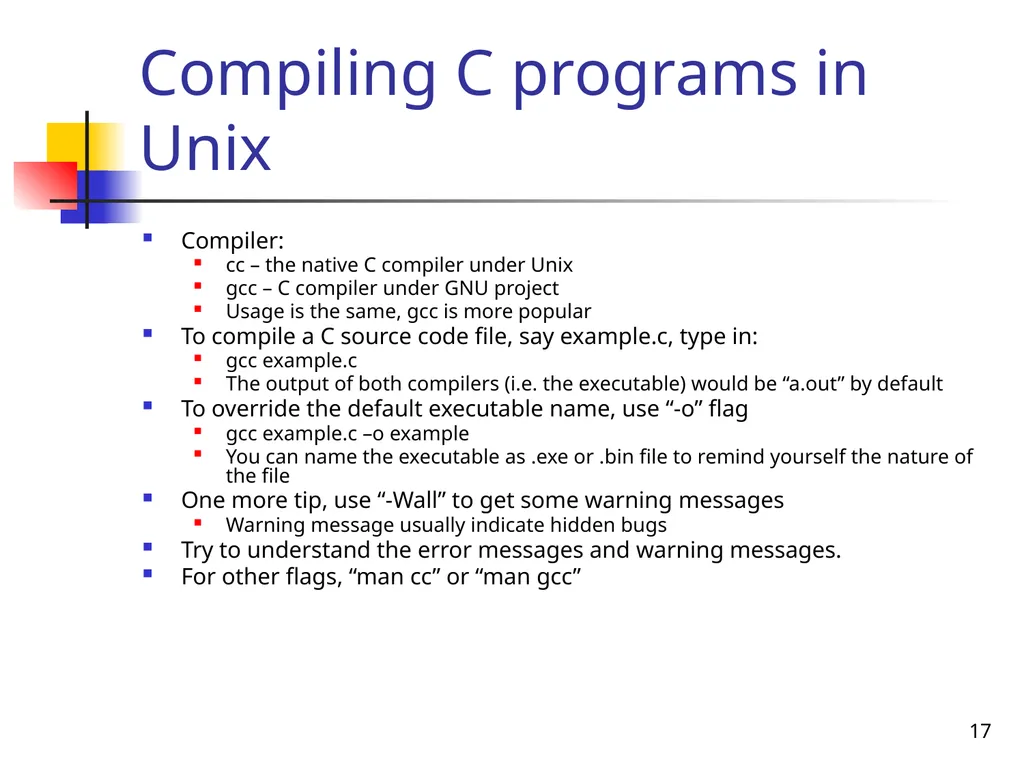
17 Compiling C programs in Unix Compiler:
cc – the native C compiler under Unix
gcc – C compiler under GNU project
Usage is the same, gcc is more popular
To compile a C source code file, say example.c, type in:
gcc example.c
The output of both compilers (i.e. the executable) would be “a.out” by default
To override the default executable name, use “-o” flag
gcc example.c –o example
You can name the executable as .exe or .bin file to remind yourself the nature of the file
One more tip, use “-Wall” to get some warning messages
Warning message usually indicate hidden bugs
Try to understand the error messages and warning messages.
For other flags, “man cc” or “man gcc”<br>
18
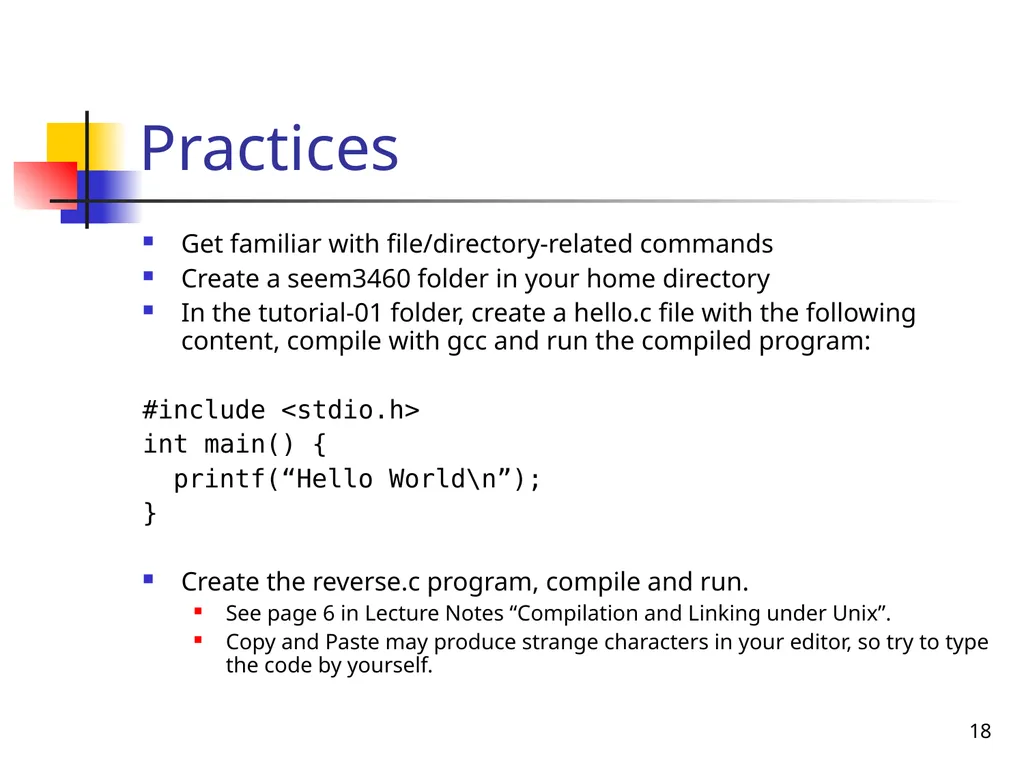
18 Practices Get familiar with file/directory-related commands
Create a seem3460 folder in your home directory
In the tutorial-01 folder, create a hello.c file with the following content, compile with gcc and run the compiled program:
#include <stdio.h>
int main() {
printf(“Hello World\n”);
}
Create the reverse.c program, compile and run.
See page 6 in Lecture Notes “Compilation and Linking under Unix”.
Copy and Paste may produce strange characters in your editor, so try to type the code by yourself.<br>
19
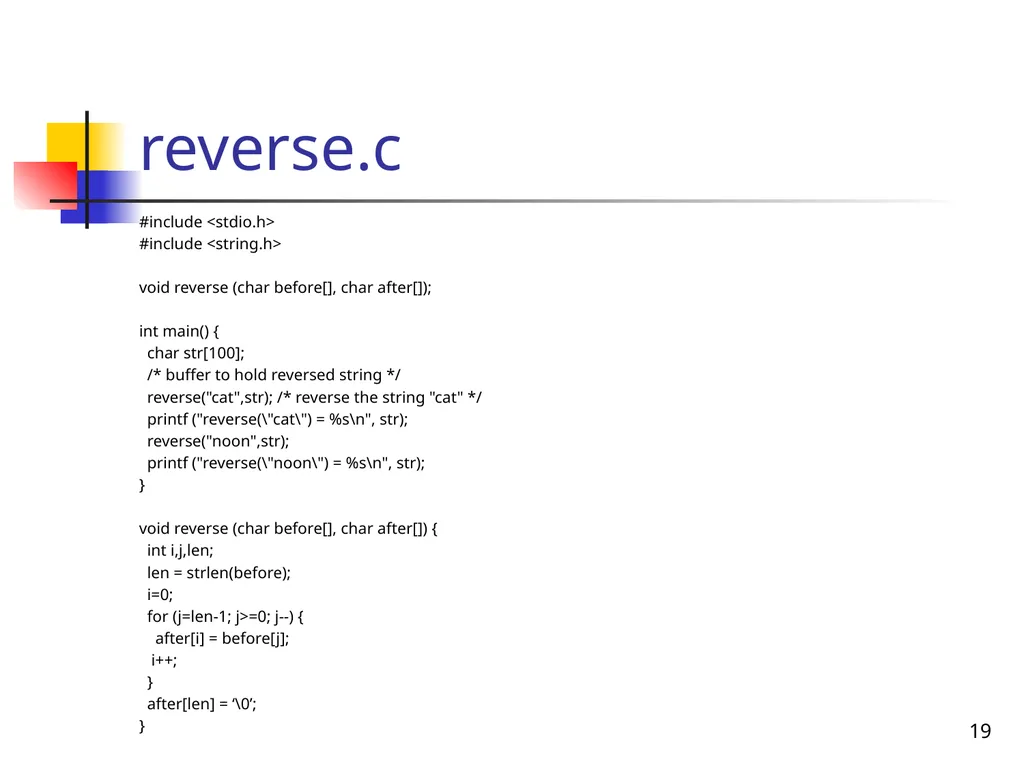
reverse.c #include <stdio.h>
#include <string.h>
void reverse (char before[], char after[]);
int main() {
char str[100];
/* buffer to hold reversed string */
reverse("cat",str); /* reverse the string "cat" */
printf ("reverse(\"cat\") = %s\n", str);
reverse("noon",str);
printf ("reverse(\"noon\") = %s\n", str);
}
void reverse (char before[], char after[]) {
int i,j,len;
len = strlen(before);
i=0;
for (j=len-1; j>=0; j--) {
after[i] = before[j];
i++;
}
after[len] = ‘\0’;
} 19<br>