04
Understand search results.
Evaluate web sites.
Discuss Cyber Safety (safety on the Internet). Objectives<br>
05
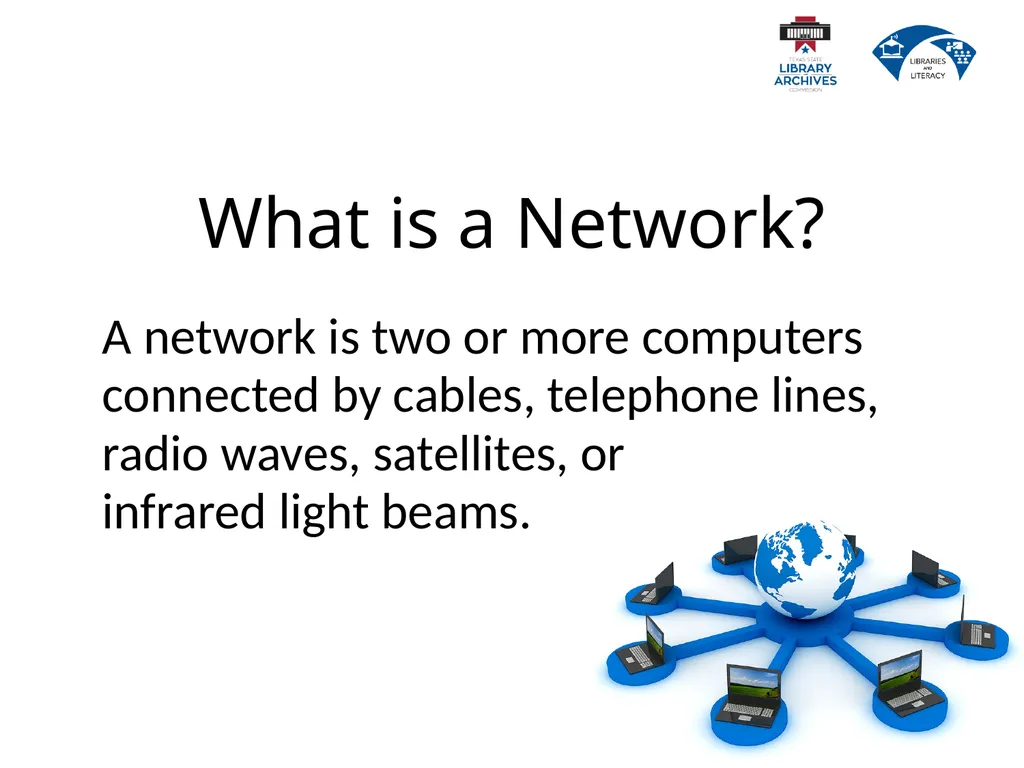
What is a Network? A network is two or more computers connected by cables, telephone lines,
radio waves, satellites, or
infrared light beams.<br>
06
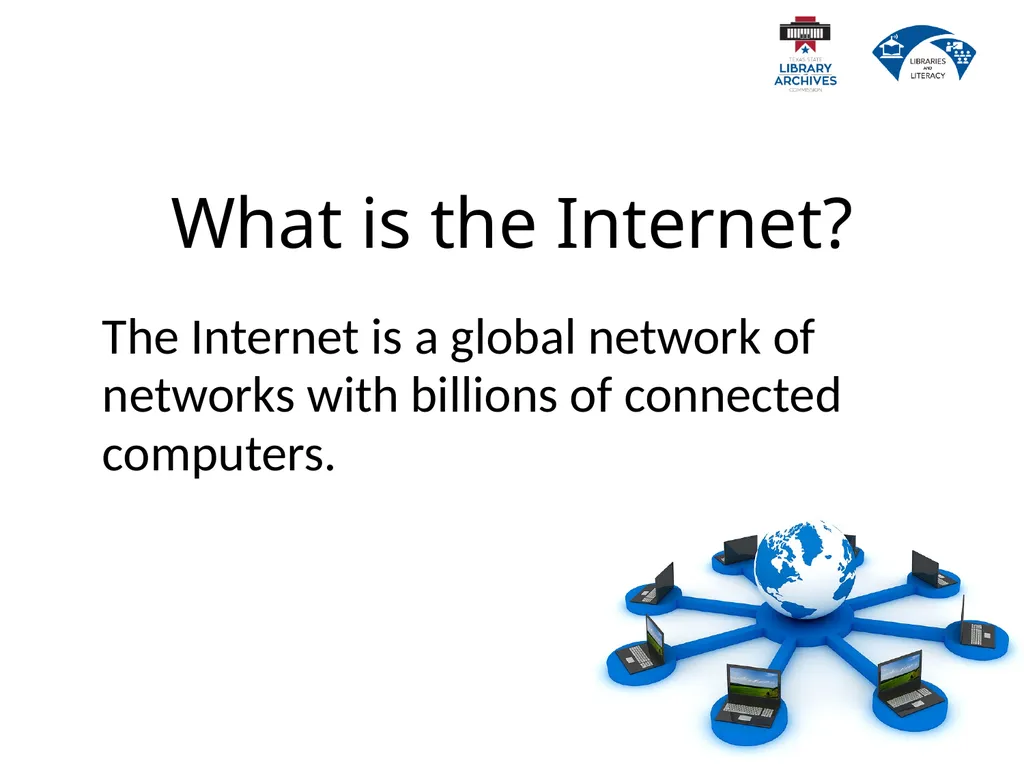
What is the Internet? The Internet is a global network of networks with billions of connected computers.<br>
07
What is the�World Wide Web? People often use the words "the Internet" and "the web“ interchangeably. Is there a difference?<br>
08
The World Wide Web is the system we use to access the Internet.
Email and instant messaging are other systems we use to access the Internet. What is the�World Wide Web?<br>
09
How to Use the Web? We use programs called web browsers to use the World Wide Web for a wide variety of purposes.<br>
10
We Use the Web to… Shop communicate learn play earn &<br>
11
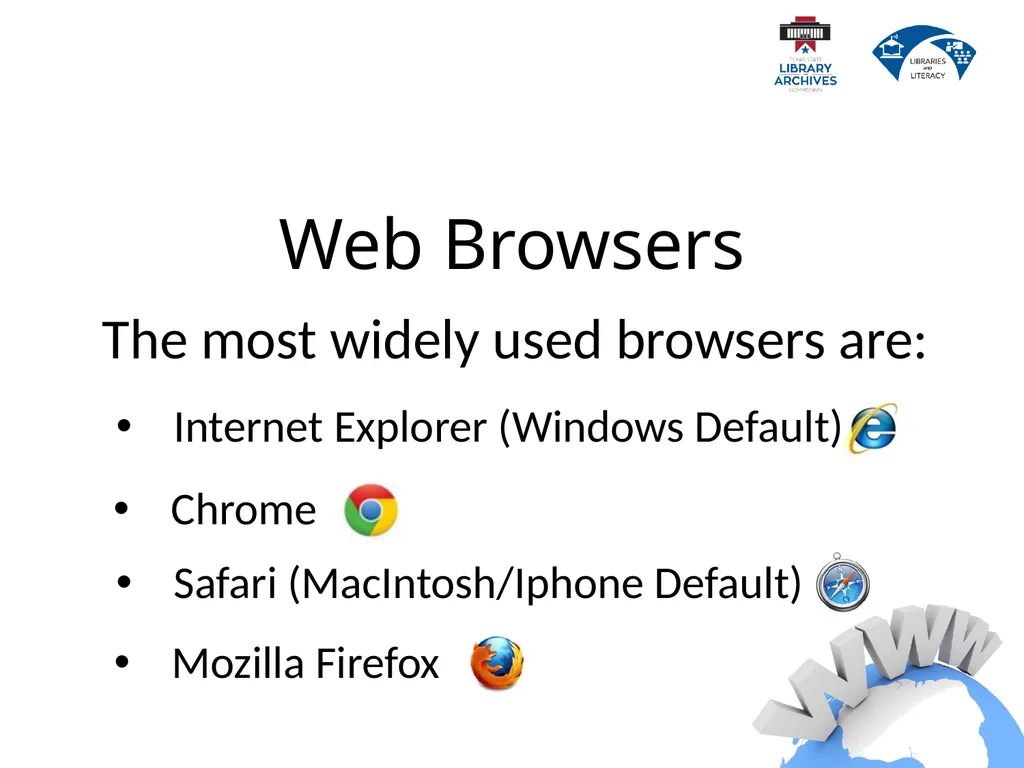
Web Browsers The most widely used browsers are: Internet Explorer (Windows Default) Safari (MacIntosh/Iphone Default) Mozilla Firefox Chrome<br>
12
Internet Explorer We are going to use Internet Explorer for our lesson today because it is the default browser on all Windows computers.<br>
13
Browser Terminology Because of different layouts and appearances of different browsers we are going to focus on browser terminology.
If you know the name of a feature you will be able to find it in another program.<br>
14
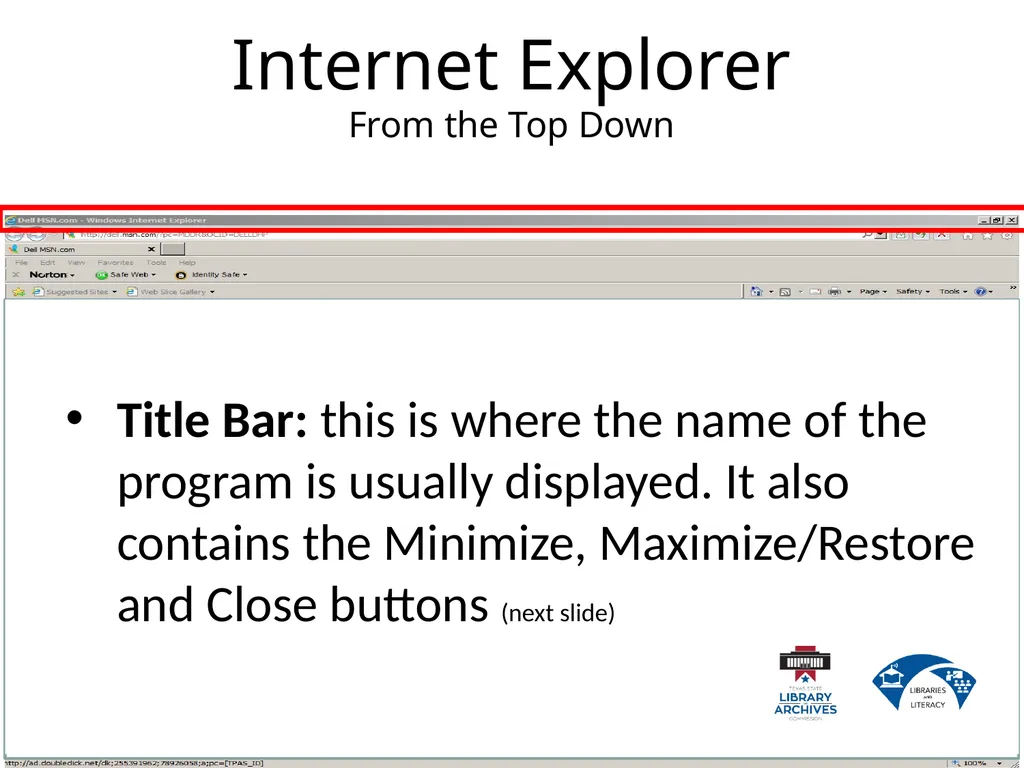
Internet Explorer�From the Top Down Title Bar: this is where the name of the program is usually displayed. It also contains the Minimize, Maximize/Restore and Close buttons (next slide)<br>
15
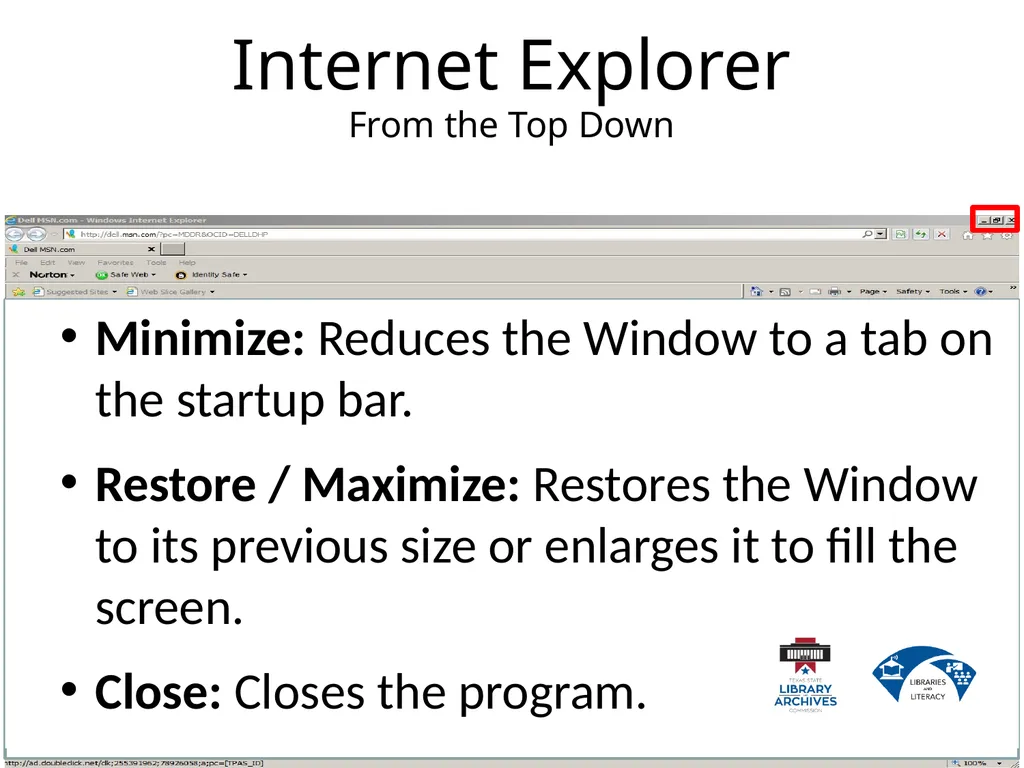
Internet Explorer�From the Top Down Minimize: Reduces the Window to a tab on the startup bar.
Restore / Maximize: Restores the Window to its previous size or enlarges it to fill the screen.
Close: Closes the program.<br>
16
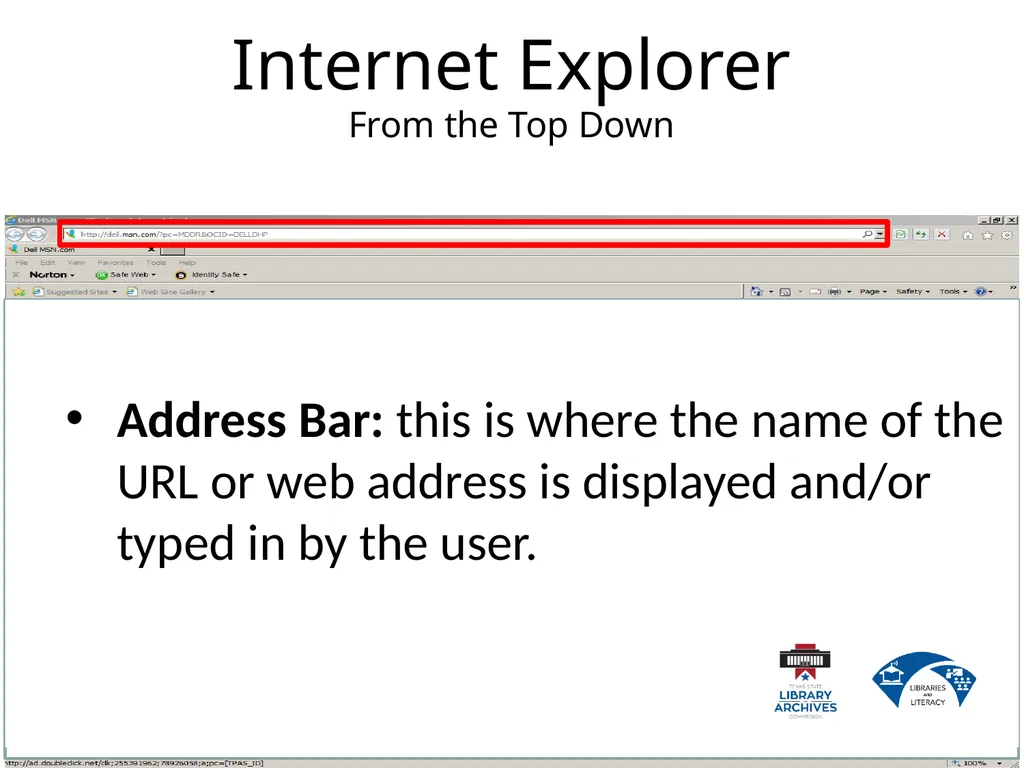
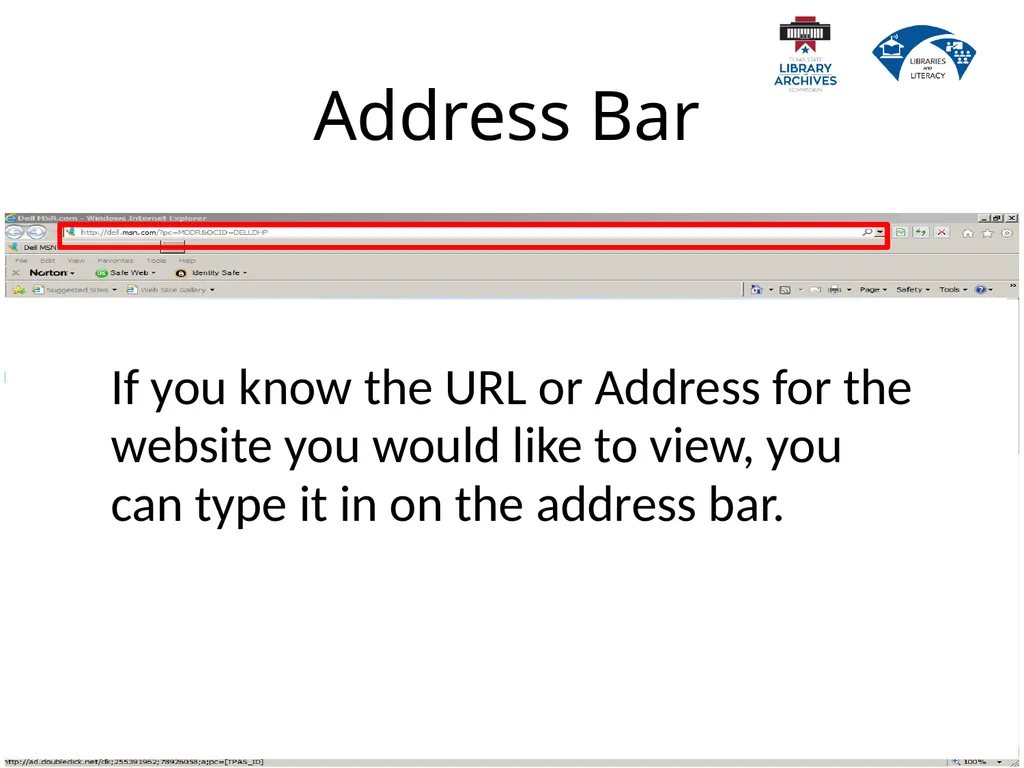
Internet Explorer�From the Top Down Address Bar: this is where the name of the URL or web address is displayed and/or typed in by the user.<br>
17
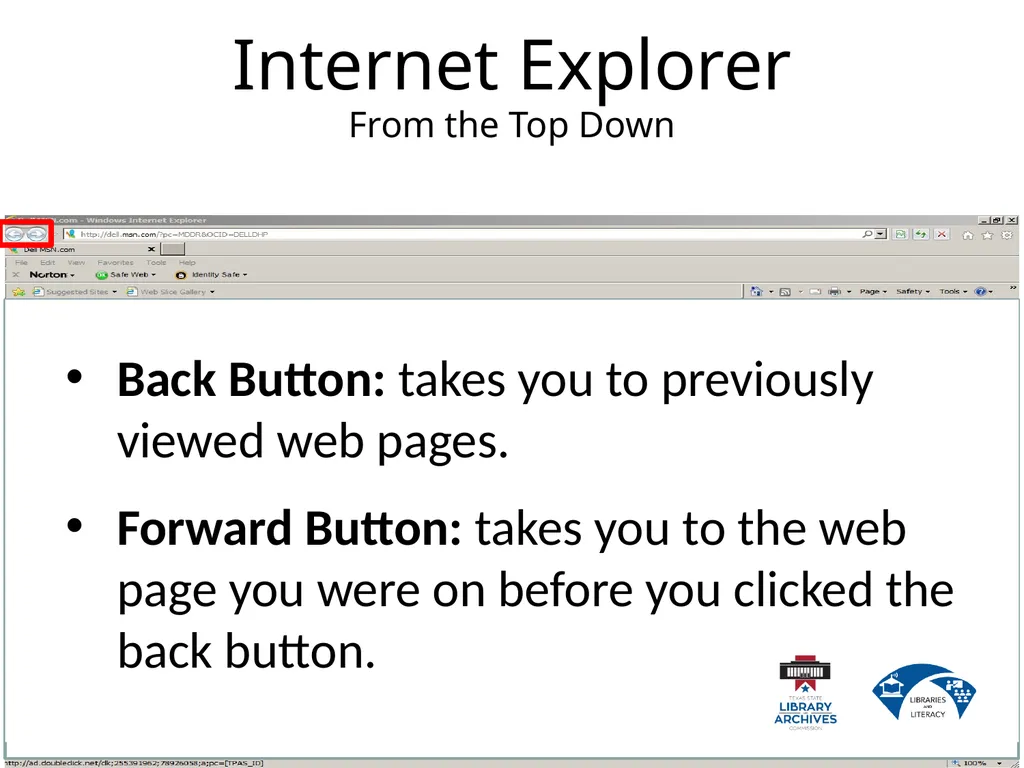
Internet Explorer�From the Top Down Back Button: takes you to previously viewed web pages.
Forward Button: takes you to the web page you were on before you clicked the back button.<br>
18
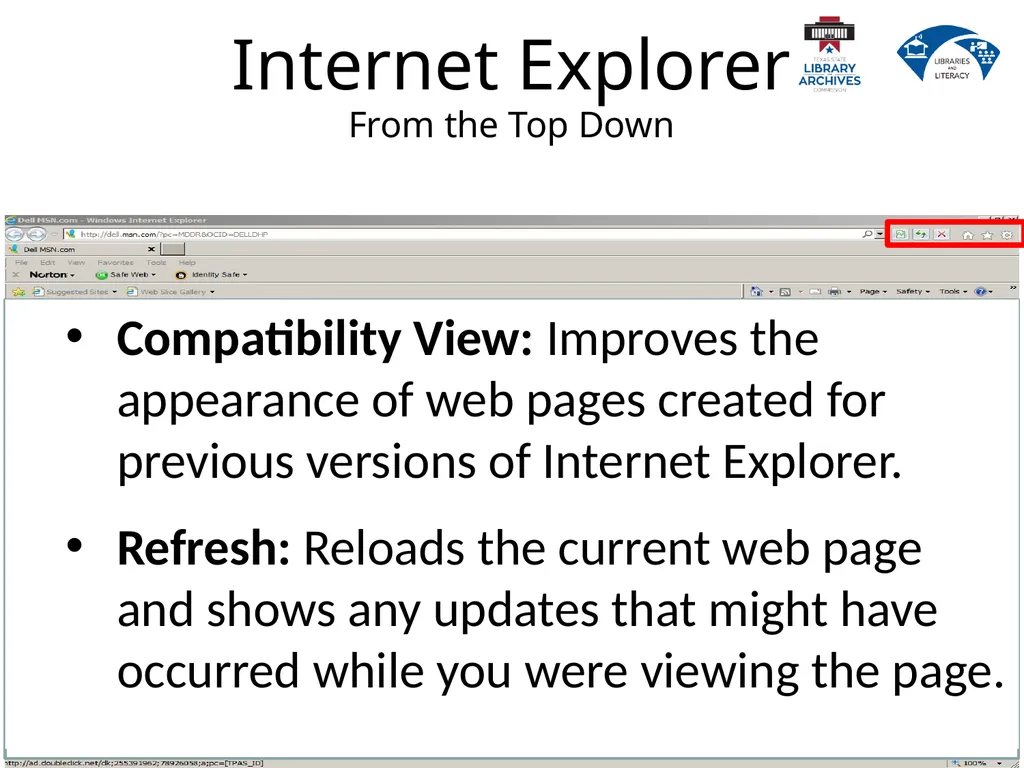
Internet Explorer�From the Top Down Compatibility View: Improves the appearance of web pages created for previous versions of Internet Explorer.
Refresh: Reloads the current web page and shows any updates that might have occurred while you were viewing the page.<br>
19
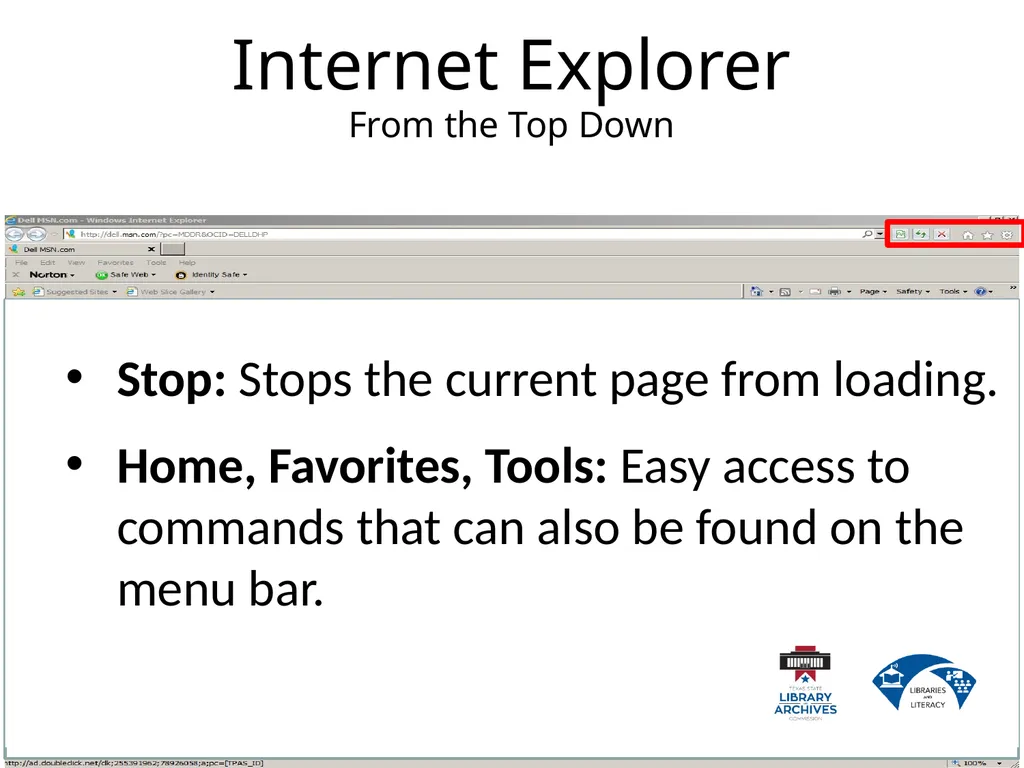
Internet Explorer�From the Top Down Stop: Stops the current page from loading.
Home, Favorites, Tools: Easy access to commands that can also be found on the menu bar.<br>
20
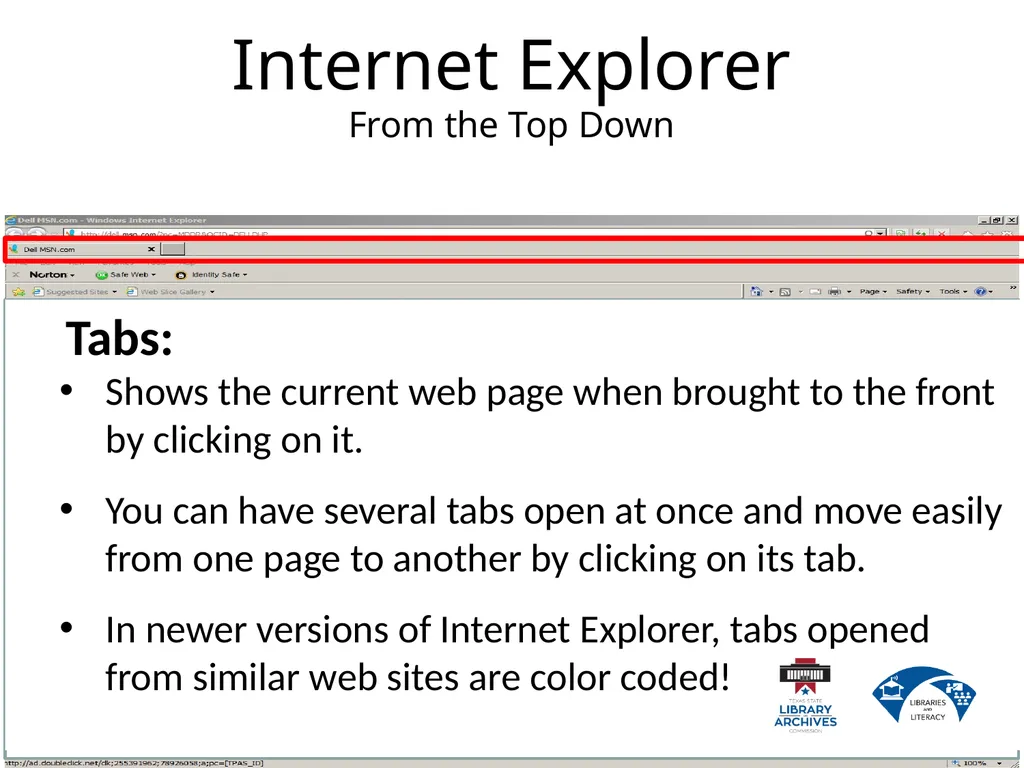
Internet Explorer�From the Top Down Tabs:
Shows the current web page when brought to the front by clicking on it.
You can have several tabs open at once and move easily from one page to another by clicking on its tab.
In newer versions of Internet Explorer, tabs opened from similar web sites are color coded!<br>
21
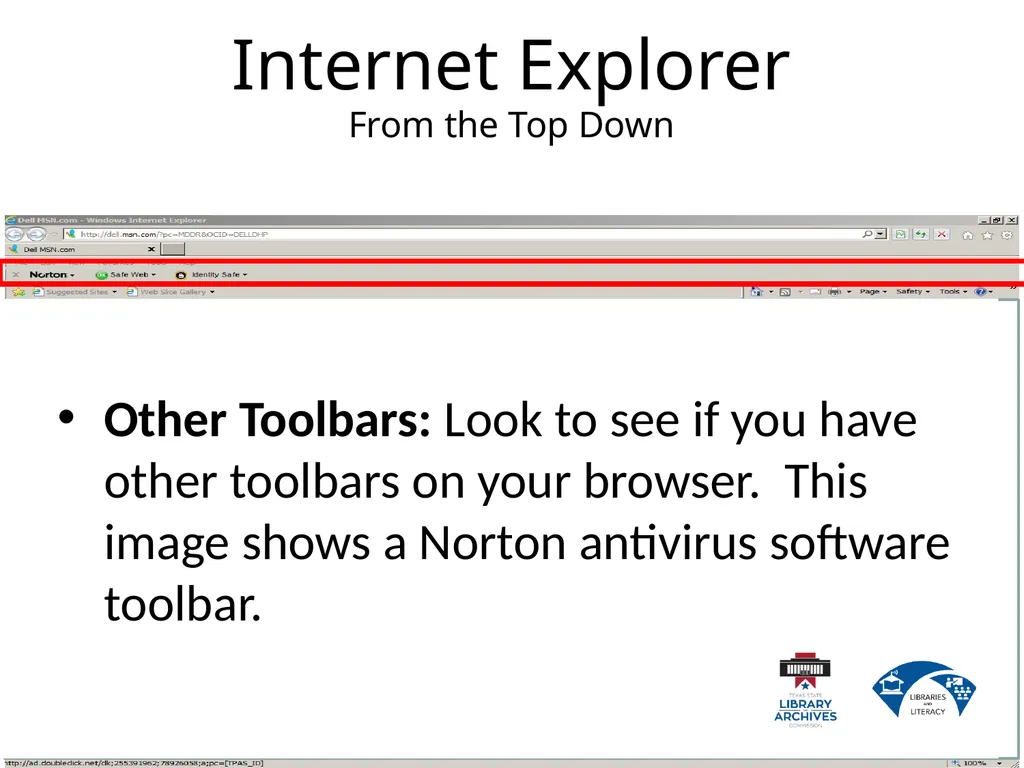
Internet Explorer�From the Top Down Other Toolbars: Look to see if you have other toolbars on your browser. This image shows a Norton antivirus software toolbar.<br>
22
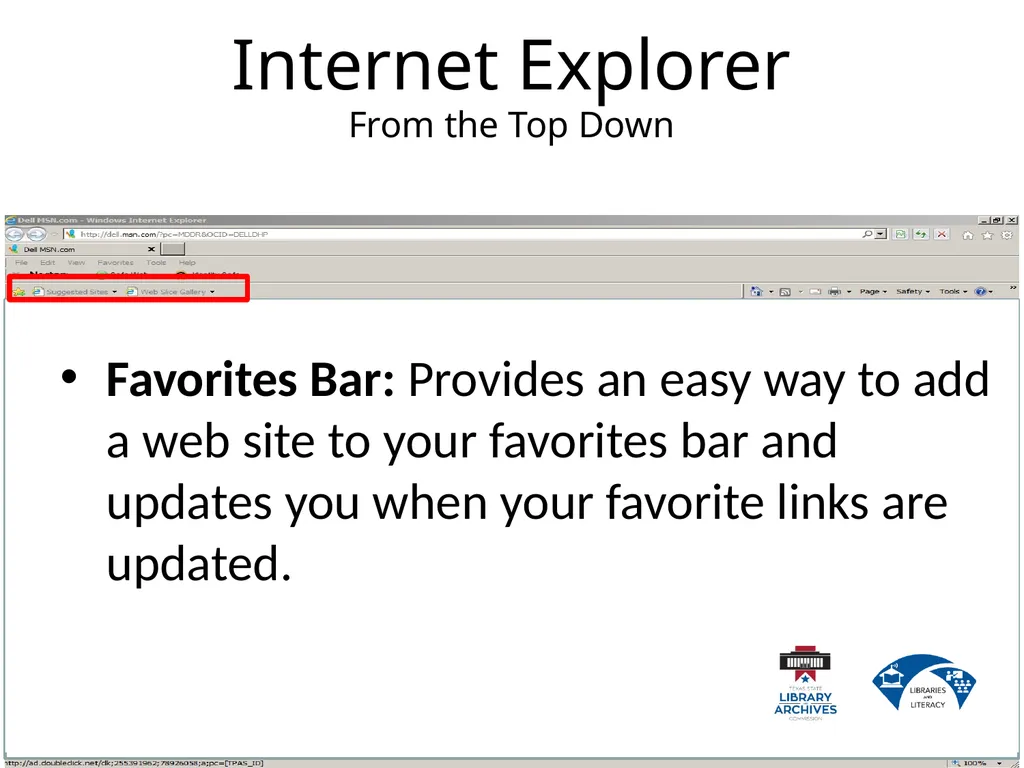
Internet Explorer�From the Top Down Favorites Bar: Provides an easy way to add a web site to your favorites bar and updates you when your favorite links are updated.<br>
23
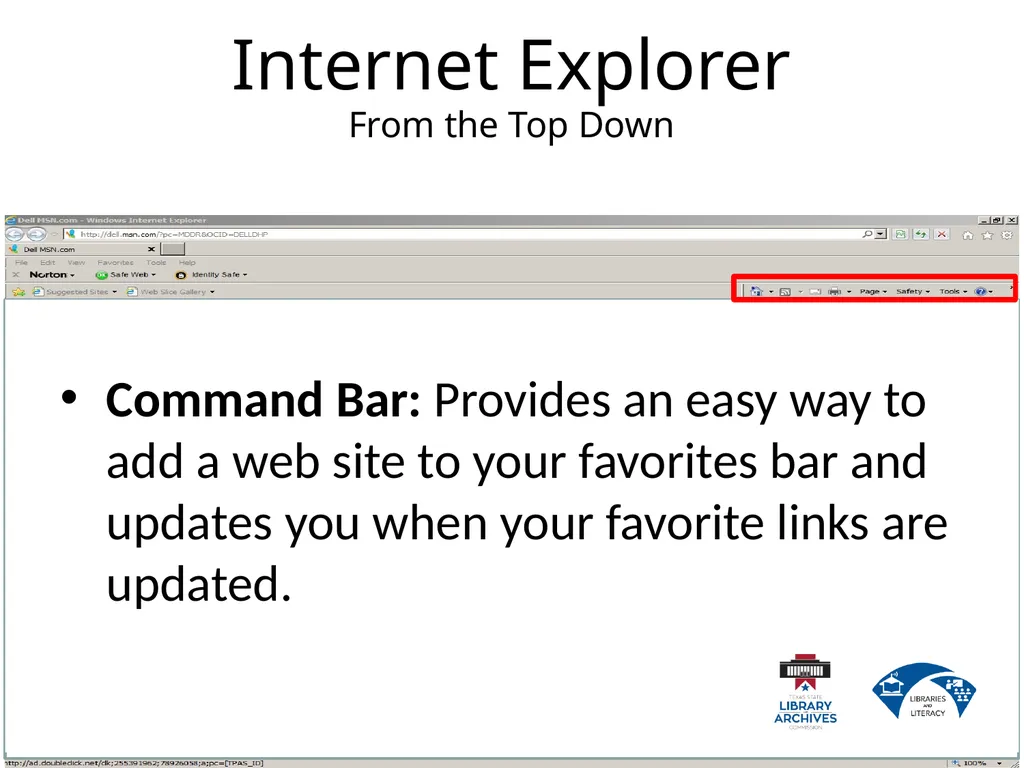
Internet Explorer�From the Top Down Command Bar: Provides an easy way to add a web site to your favorites bar and updates you when your favorite links are updated.<br>
24
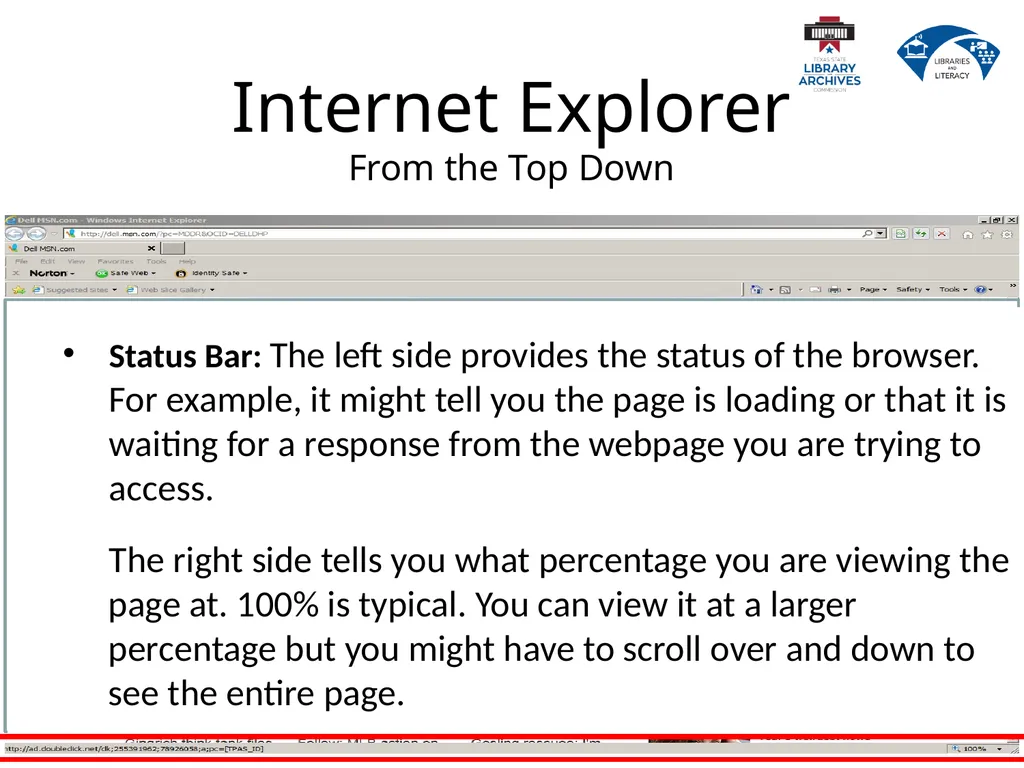
Internet Explorer�From the Top Down Status Bar: The left side provides the status of the browser. For example, it might tell you the page is loading or that it is waiting for a response from the webpage you are trying to access.
The right side tells you what percentage you are viewing the page at. 100% is typical. You can view it at a larger percentage but you might have to scroll over and down to see the entire page.<br>
25
Things to know before�surfing or searching�the�World Wide Web!<br>
26
Hyperlink A hyperlink is a command embedded in text or an object which, when clicked, will open another file, take you to another place in the same file or to a new location on the internet. Example: this text is hyperlinked Hyperlink<br>
27
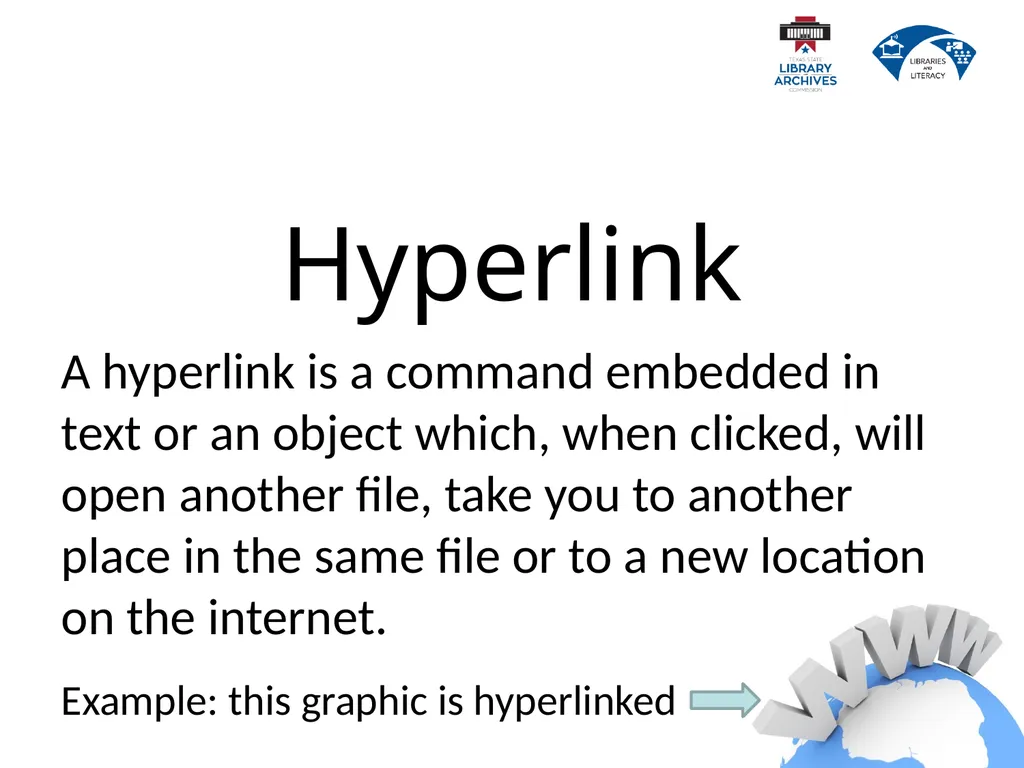
Hyperlink A hyperlink is a command embedded in text or an object which, when clicked, will open another file, take you to another place in the same file or to a new location on the internet. Example: this graphic is hyperlinked<br>
28
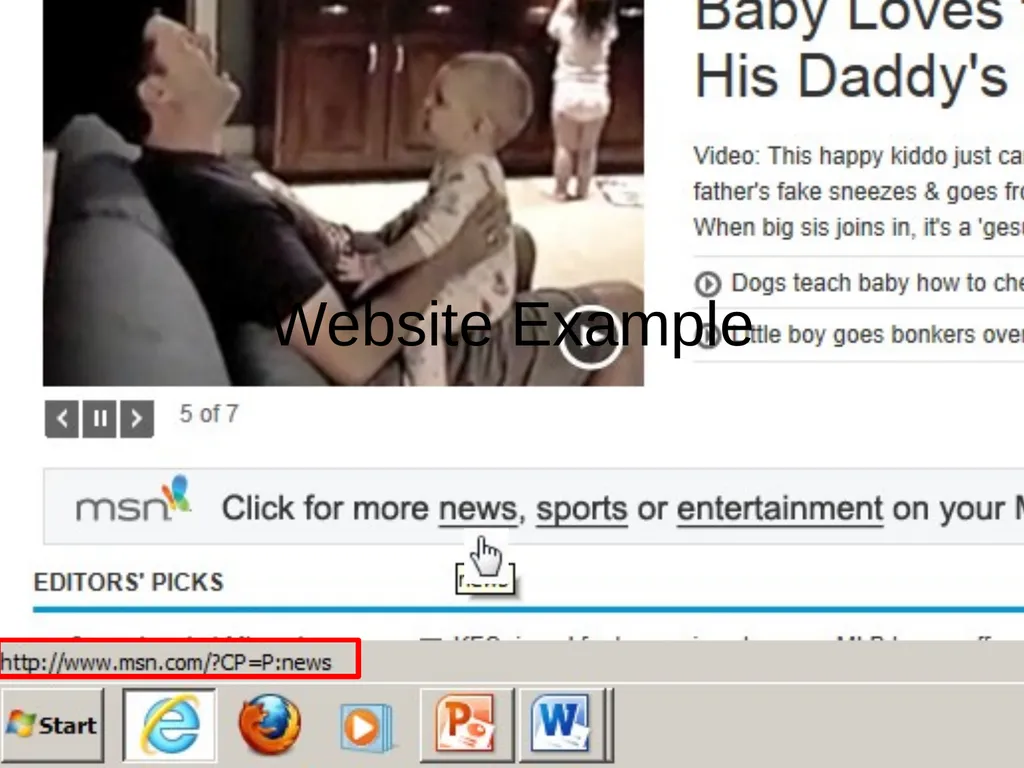
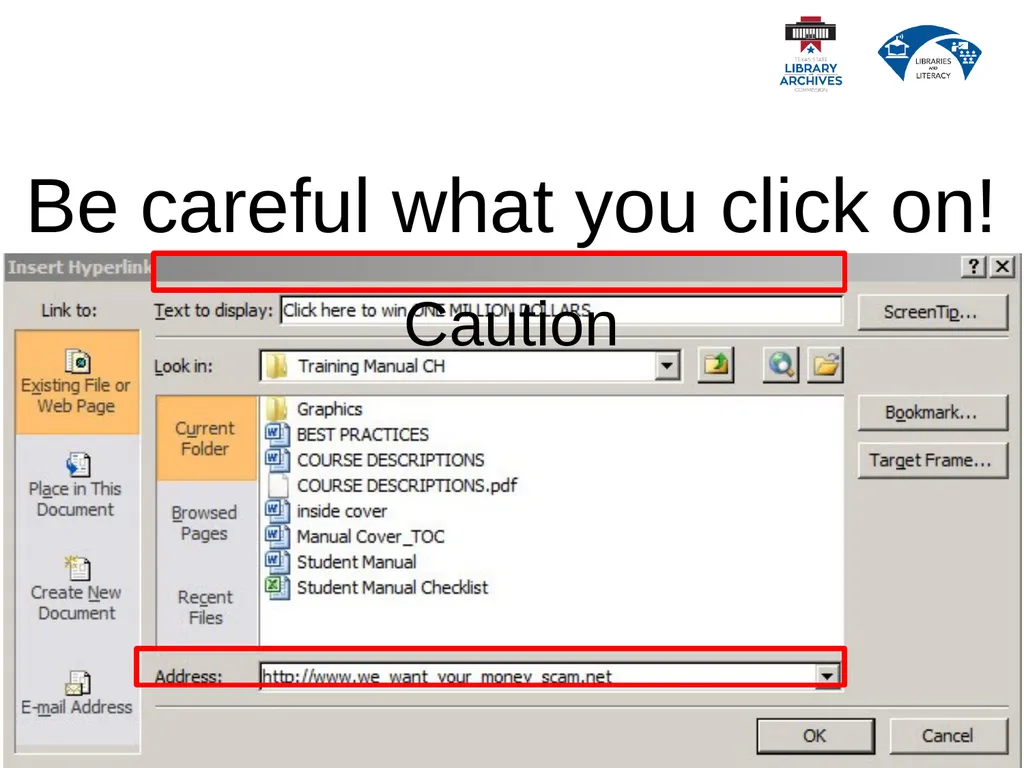
Hyperlink Hyperlinks provide an easy way to navigate throughout the world wide web but it is important to know what the hyperlink is linked to before you click on it!<br>
29
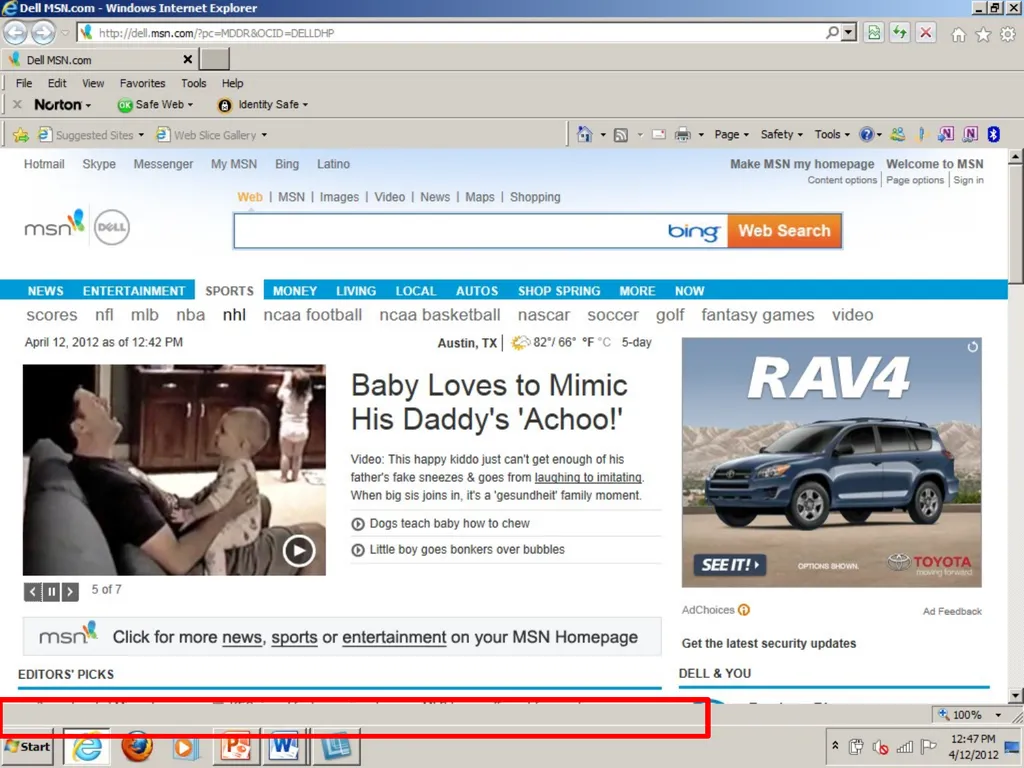
Hyperlink When you put your cursor over a hyperlink on a web page, the URL (Uniform Resource Locator or Web Address) shows up on the left hand side of the status bar.<br>
32
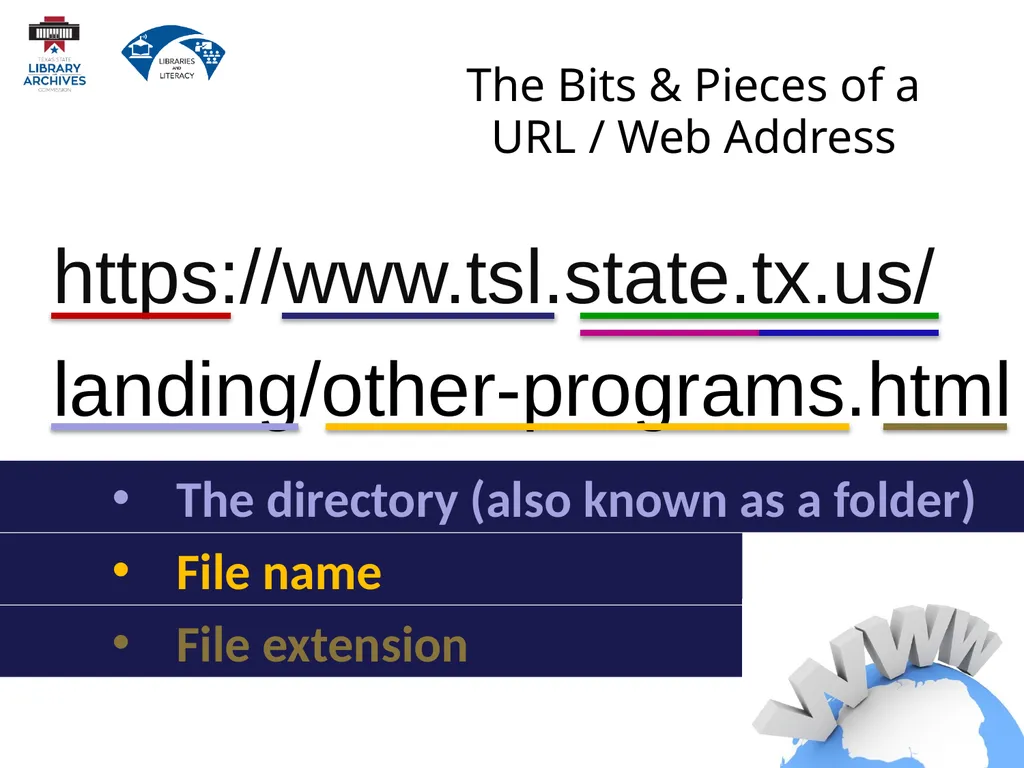
The Bits & Pieces of a URL / Web Address In order to recognize a suspicious web address, you need to know what a legitimate web address looks like!<br>
33
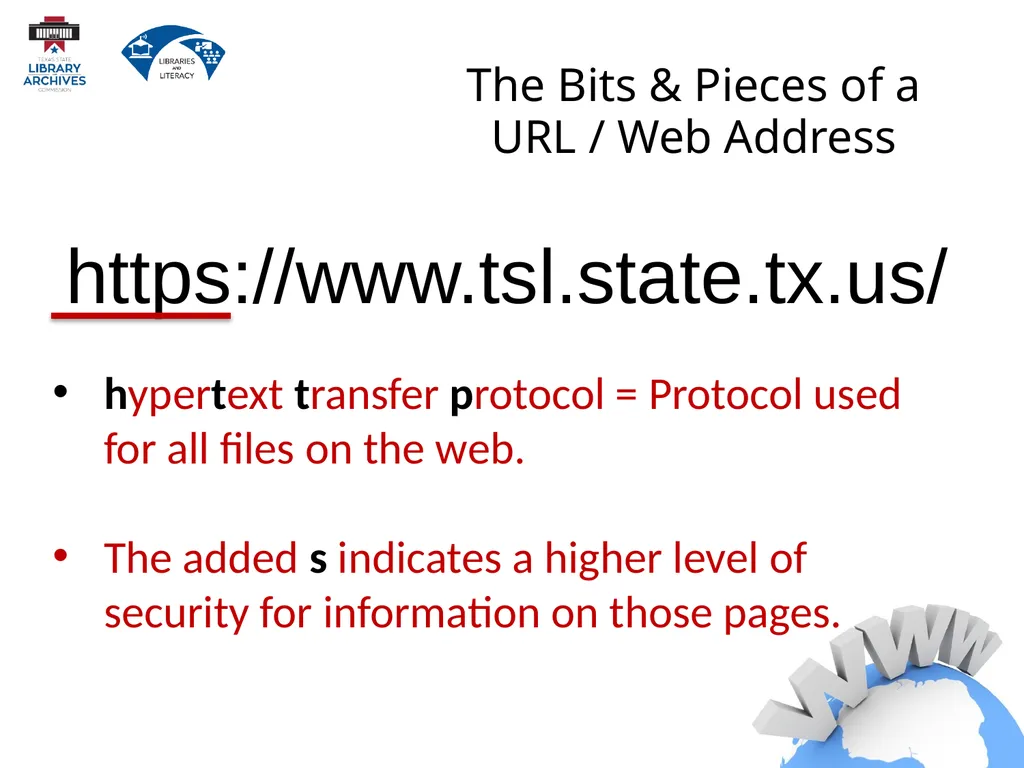
The Bits & Pieces of a�URL / Web Address hypertext transfer protocol = Protocol used for all files on the web.
The added s indicates a higher level of security for information on those pages. https://www.tsl.state.tx.us/<br>
34
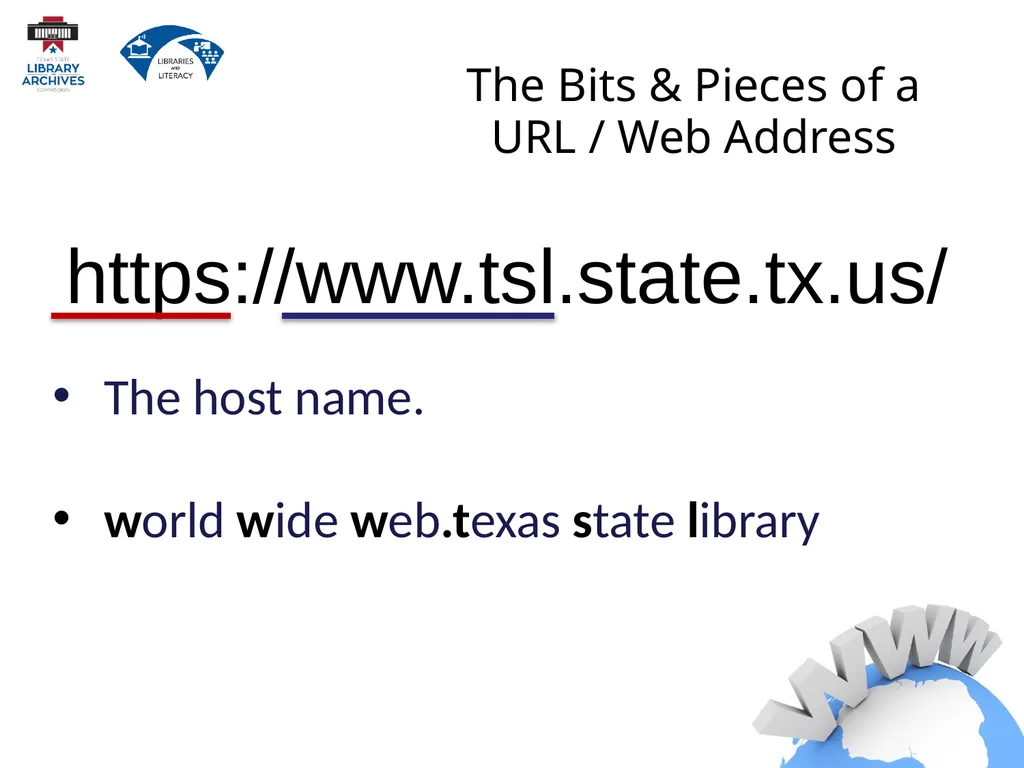
The Bits & Pieces of a�URL / Web Address The host name.
world wide web.texas state library https://www.tsl.state.tx.us/<br>
35
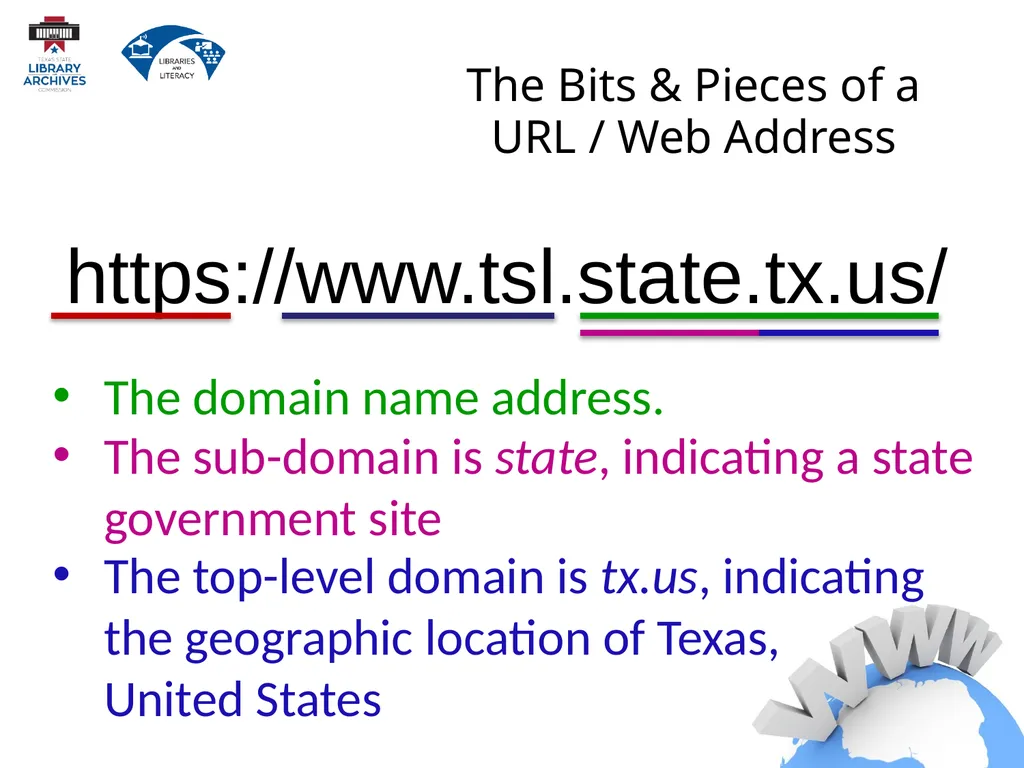
The Bits & Pieces of a�URL / Web Address The sub-domain is state, indicating a state government site https://www.tsl.state.tx.us/ The domain name address. The top-level domain is tx.us, indicating the geographic location of Texas,
United States<br>
36
https://www.tsl.state.tx.us/
landing/other-programs.html The Bits & Pieces of a�URL / Web Address File extension The directory (also known as a folder) File name<br>
37
Be careful what you click on! Caution<br>
38
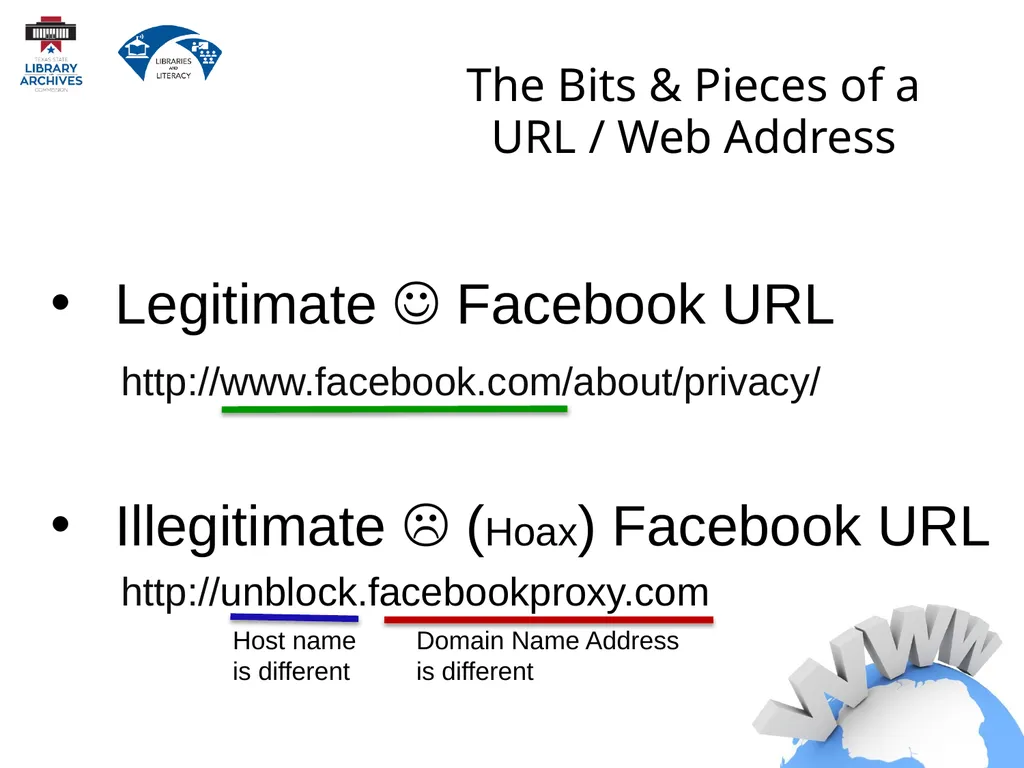
http://unblock.facebookproxy.com The Bits & Pieces of a�URL / Web Address Legitimate Facebook URL http://www.facebook.com/about/privacy/ Illegitimate (Hoax) Facebook URL Host name
is different Domain Name Address
is different<br>
39
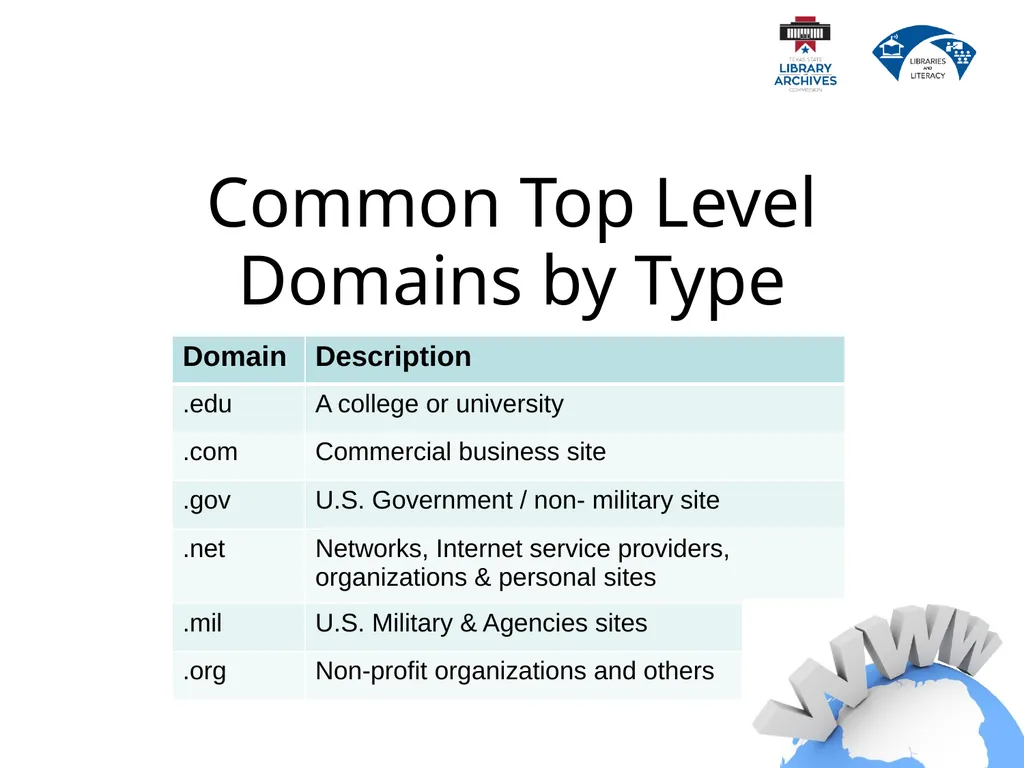
Common Top Level�Domains by Type<br>
40
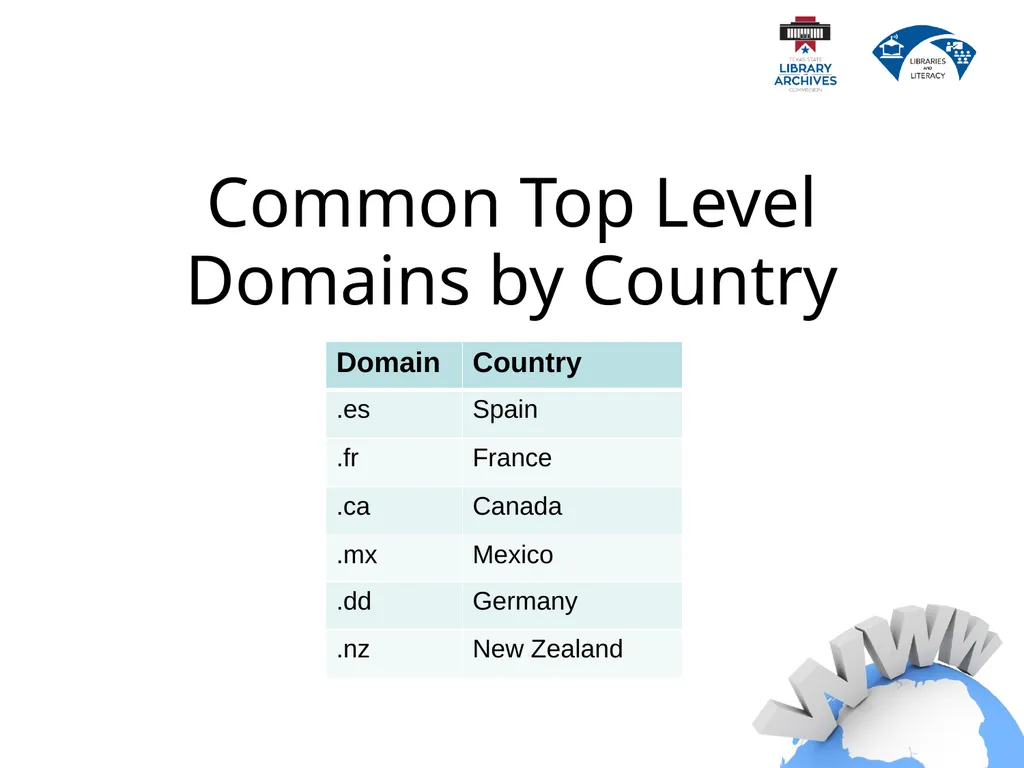
Common Top Level�Domains by Country<br>
41
How to Use�the�World Wide Web<br>
42
Choose a Homepage Your home page is the first page to be displayed when you open the web browser, in this case the web browser is Internet Explorer.<br>
43
Default Homepage Internet Explorer comes pre-installed on your computer and has a default home page.
If you find a page you would rather have as your homepage you can change the settings. (see handout)<br>
44
Address Bar If you know the URL or Address for the website you would like to view, you can type it in on the address bar.<br>
45
If you do not know the address of a web site, you can search for it using any search engine. Search Engines<br>
46
Search engines are programs that search documents for specified keywords and returns a list of the documents where the keywords were found. Search Engines<br>
47
Just about every website has a search feature which will either search the web or search within its own web site. We are going to concentrate on three of the most popular search engines. Search Engines<br>
48
The THREE most widely used Search Engines are: Search Engines<br>
49
Time To Search�The�World Wide Web!<br>