
2024 MGA Treasurer Training NextGen Expense
AM
Published · 47 slides · 0 views
1 / 1



Description
2024 MGA Treasurer Training NextGen Expense Reimbursement (Concur) John DeSimone, Tamara Gallo Mary Murray September 28, 2024 1 Table of Contents Concur 2024 Project Deliverables IEEE Team Responsibilities Perfect Expense Report
Related Topics
Share
Embed code
Download this presentation From Below
"2024 MGA Treasurer Training NextGen Expense" is the property of its rightful owner. Permission is granted to download and print the materials on this website for personal, non-commercial use only, and to display it on your personal computer provided you do not modify the materials and that you retain all copyright notices contained in the materials. By downloading content from our website, you accept the terms of this agreement.
Presentation Transcript
01
2024 MGA Treasurer Training NextGen Expense Reimbursement (Concur)
John DeSimone, Tamara Gallo & Mary Murray
September 28, 2024 1<br>
John DeSimone, Tamara Gallo & Mary Murray
September 28, 2024 1<br>
02
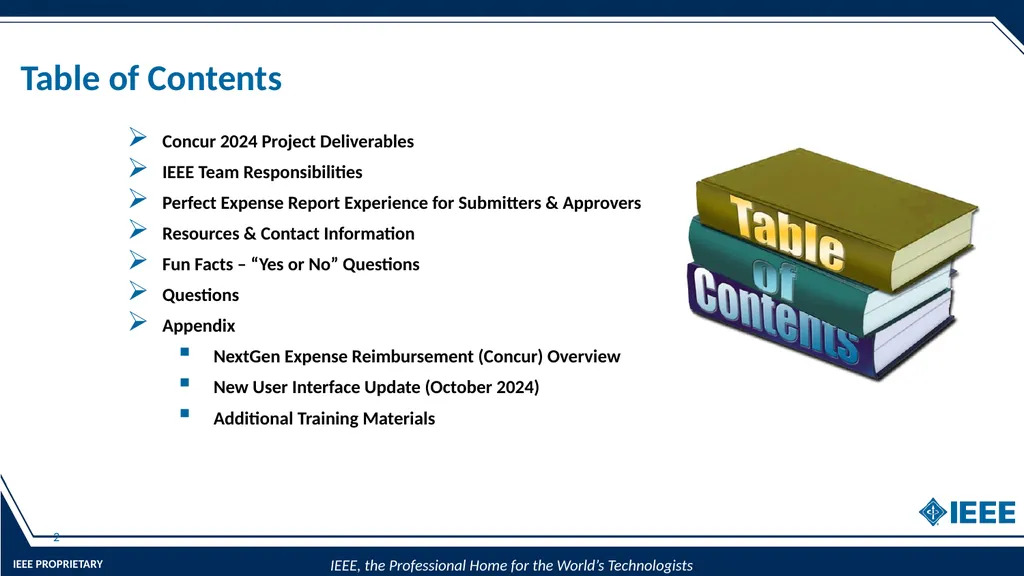
Table of Contents Concur 2024 Project Deliverables
IEEE Team Responsibilities
Perfect Expense Report Experience for Submitters & Approvers
Resources & Contact Information
Fun Facts – “Yes or No” Questions
Questions
Appendix
NextGen Expense Reimbursement (Concur) Overview
New User Interface Update (October 2024)
Additional Training Materials 2<br>
IEEE Team Responsibilities
Perfect Expense Report Experience for Submitters & Approvers
Resources & Contact Information
Fun Facts – “Yes or No” Questions
Questions
Appendix
NextGen Expense Reimbursement (Concur) Overview
New User Interface Update (October 2024)
Additional Training Materials 2<br>
03
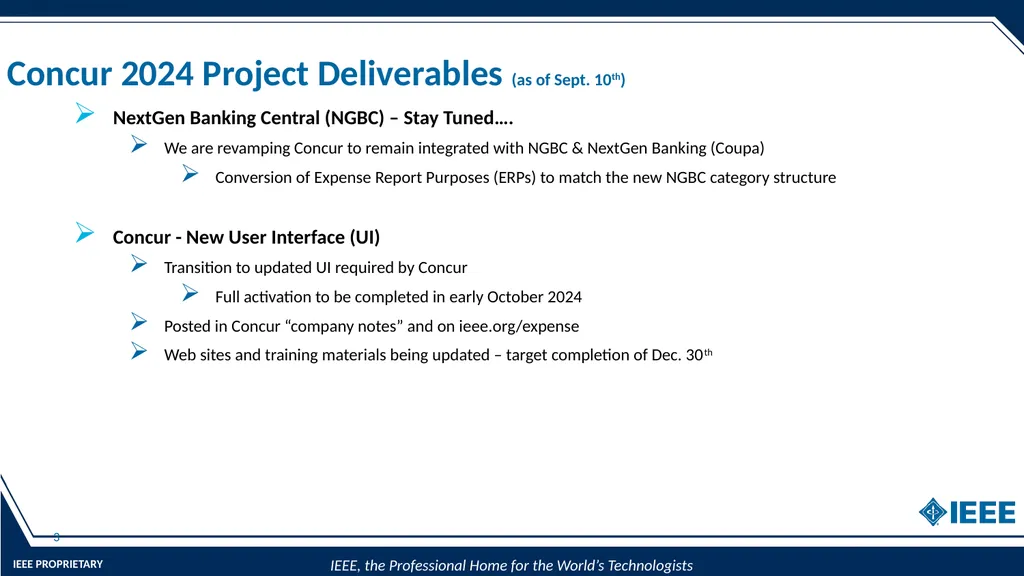
Concur 2024 Project Deliverables (as of Sept. 10th) NextGen Banking Central (NGBC) – Stay Tuned….
We are revamping Concur to remain integrated with NGBC & NextGen Banking (Coupa)
Conversion of Expense Report Purposes (ERPs) to match the new NGBC category structure
Concur - New User Interface (UI)
Transition to updated UI required by Concur
Full activation to be completed in early October 2024
Posted in Concur “company notes” and on ieee.org/expense
Web sites and training materials being updated – target completion of Dec. 30th 3<br>
We are revamping Concur to remain integrated with NGBC & NextGen Banking (Coupa)
Conversion of Expense Report Purposes (ERPs) to match the new NGBC category structure
Concur - New User Interface (UI)
Transition to updated UI required by Concur
Full activation to be completed in early October 2024
Posted in Concur “company notes” and on ieee.org/expense
Web sites and training materials being updated – target completion of Dec. 30th 3<br>
04
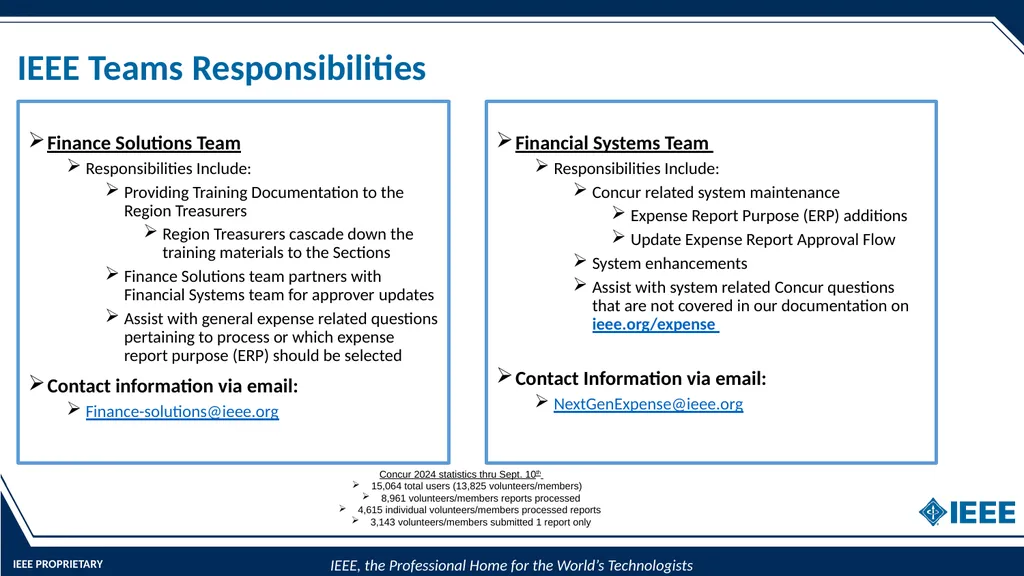
IEEE Teams Responsibilities Financial Systems Team
Responsibilities Include:
Concur related system maintenance
Expense Report Purpose (ERP) additions
Update Expense Report Approval Flow
System enhancements
Assist with system related Concur questions that are not covered in our documentation on ieee.org/expense
Contact Information via email:
NextGenExpense@ieee.org Finance Solutions Team
Responsibilities Include:
Providing Training Documentation to the Region Treasurers
Region Treasurers cascade down the training materials to the Sections
Finance Solutions team partners with Financial Systems team for approver updates
Assist with general expense related questions pertaining to process or which expense report purpose (ERP) should be selected
Contact information via email:
Finance-solutions@ieee.org Concur 2024 statistics thru Sept. 10th
15,064 total users (13,825 volunteers/members)
8,961 volunteers/members reports processed
4,615 individual volunteers/members processed reports
3,143 volunteers/members submitted 1 report only<br>
Responsibilities Include:
Concur related system maintenance
Expense Report Purpose (ERP) additions
Update Expense Report Approval Flow
System enhancements
Assist with system related Concur questions that are not covered in our documentation on ieee.org/expense
Contact Information via email:
NextGenExpense@ieee.org Finance Solutions Team
Responsibilities Include:
Providing Training Documentation to the Region Treasurers
Region Treasurers cascade down the training materials to the Sections
Finance Solutions team partners with Financial Systems team for approver updates
Assist with general expense related questions pertaining to process or which expense report purpose (ERP) should be selected
Contact information via email:
Finance-solutions@ieee.org Concur 2024 statistics thru Sept. 10th
15,064 total users (13,825 volunteers/members)
8,961 volunteers/members reports processed
4,615 individual volunteers/members processed reports
3,143 volunteers/members submitted 1 report only<br>
05
Perfect Expense Report
Experience
for
Submitters & Approvers 5<br>
06
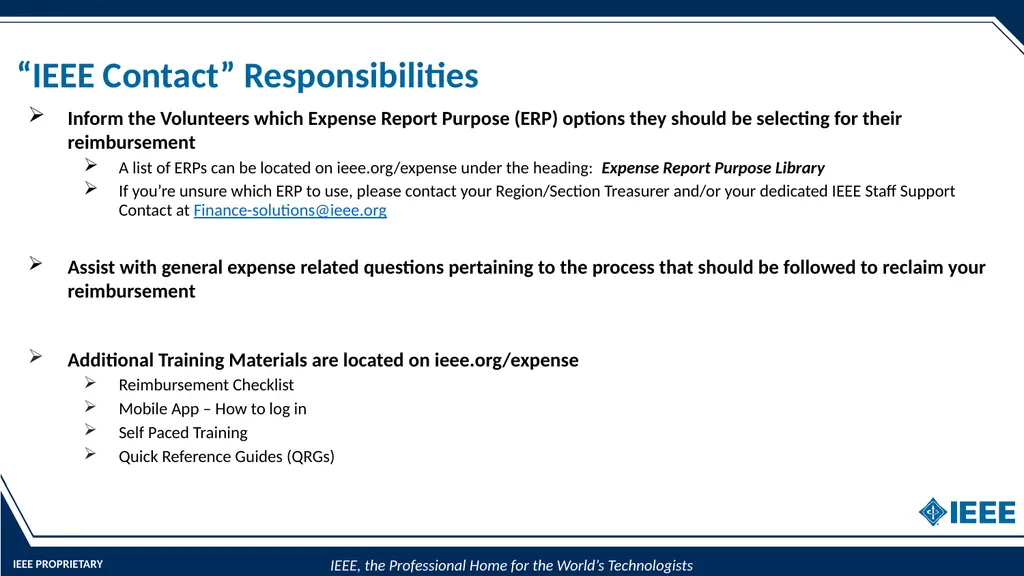
“IEEE Contact” Responsibilities Inform the Volunteers which Expense Report Purpose (ERP) options they should be selecting for their reimbursement
A list of ERPs can be located on ieee.org/expense under the heading: Expense Report Purpose Library
If you’re unsure which ERP to use, please contact your Region/Section Treasurer and/or your dedicated IEEE Staff Support Contact at Finance-solutions@ieee.org
Assist with general expense related questions pertaining to the process that should be followed to reclaim your reimbursement
Additional Training Materials are located on ieee.org/expense
Reimbursement Checklist
Mobile App – How to log in
Self Paced Training
Quick Reference Guides (QRGs)<br>
A list of ERPs can be located on ieee.org/expense under the heading: Expense Report Purpose Library
If you’re unsure which ERP to use, please contact your Region/Section Treasurer and/or your dedicated IEEE Staff Support Contact at Finance-solutions@ieee.org
Assist with general expense related questions pertaining to the process that should be followed to reclaim your reimbursement
Additional Training Materials are located on ieee.org/expense
Reimbursement Checklist
Mobile App – How to log in
Self Paced Training
Quick Reference Guides (QRGs)<br>
07
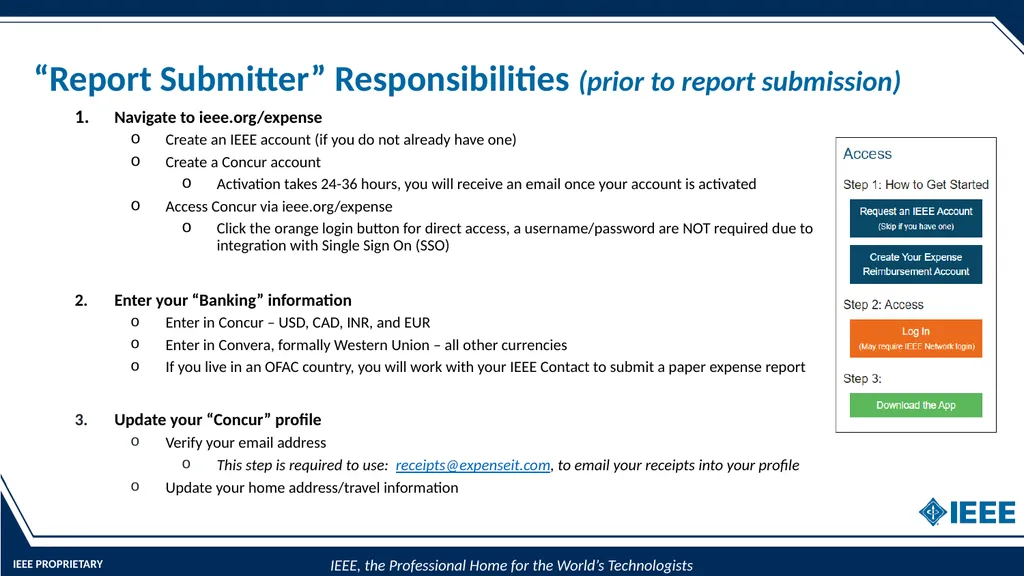
“Report Submitter” Responsibilities (prior to report submission) Navigate to ieee.org/expense
Create an IEEE account (if you do not already have one)
Create a Concur account
Activation takes 24-36 hours, you will receive an email once your account is activated
Access Concur via ieee.org/expense
Click the orange login button for direct access, a username/password are NOT required due to integration with Single Sign On (SSO)
Enter your “Banking” information
Enter in Concur – USD, CAD, INR, and EUR
Enter in Convera, formally Western Union – all other currencies
If you live in an OFAC country, you will work with your IEEE Contact to submit a paper expense report
Update your “Concur” profile
Verify your email address
This step is required to use: receipts@expenseit.com, to email your receipts into your profile
Update your home address/travel information<br>
Create an IEEE account (if you do not already have one)
Create a Concur account
Activation takes 24-36 hours, you will receive an email once your account is activated
Access Concur via ieee.org/expense
Click the orange login button for direct access, a username/password are NOT required due to integration with Single Sign On (SSO)
Enter your “Banking” information
Enter in Concur – USD, CAD, INR, and EUR
Enter in Convera, formally Western Union – all other currencies
If you live in an OFAC country, you will work with your IEEE Contact to submit a paper expense report
Update your “Concur” profile
Verify your email address
This step is required to use: receipts@expenseit.com, to email your receipts into your profile
Update your home address/travel information<br>
08
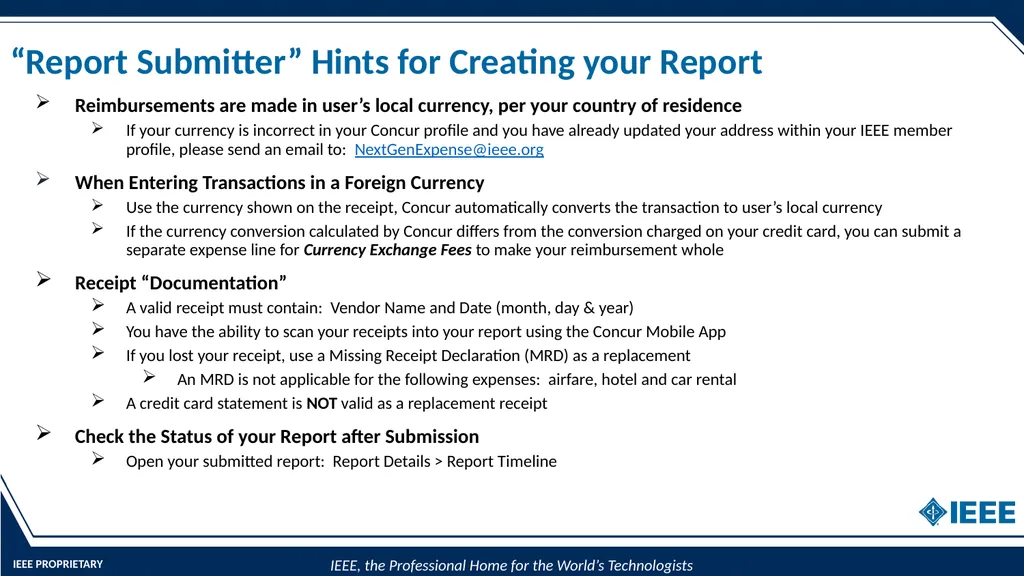
“Report Submitter” Hints for Creating your Report Reimbursements are made in user’s local currency, per your country of residence
If your currency is incorrect in your Concur profile and you have already updated your address within your IEEE member profile, please send an email to: NextGenExpense@ieee.org
When Entering Transactions in a Foreign Currency
Use the currency shown on the receipt, Concur automatically converts the transaction to user’s local currency
If the currency conversion calculated by Concur differs from the conversion charged on your credit card, you can submit a separate expense line for Currency Exchange Fees to make your reimbursement whole
Receipt “Documentation”
A valid receipt must contain: Vendor Name and Date (month, day & year)
You have the ability to scan your receipts into your report using the Concur Mobile App
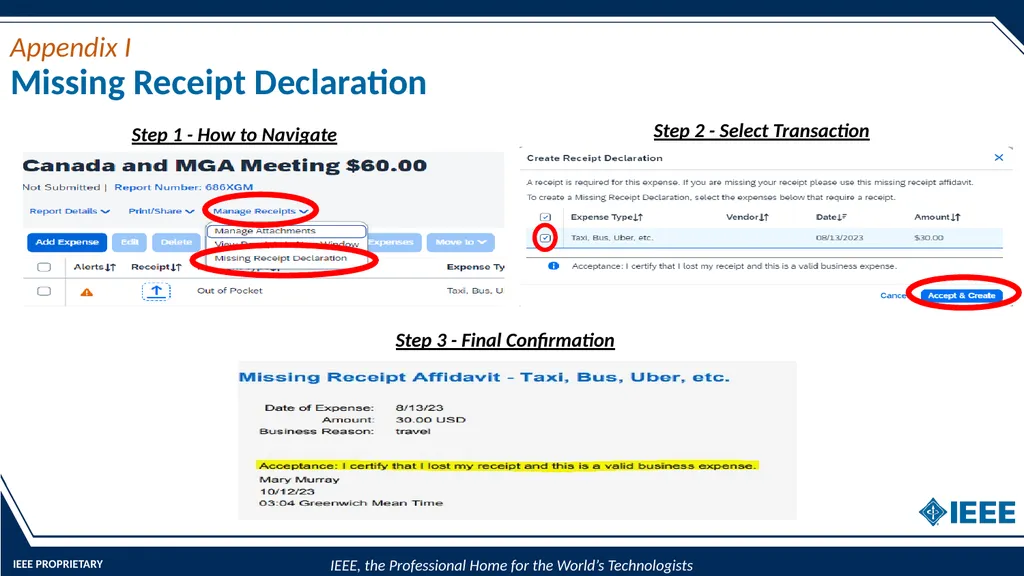
If you lost your receipt, use a Missing Receipt Declaration (MRD) as a replacement
An MRD is not applicable for the following expenses: airfare, hotel and car rental
A credit card statement is NOT valid as a replacement receipt
Check the Status of your Report after Submission
Open your submitted report: Report Details > Report Timeline<br>
If your currency is incorrect in your Concur profile and you have already updated your address within your IEEE member profile, please send an email to: NextGenExpense@ieee.org
When Entering Transactions in a Foreign Currency
Use the currency shown on the receipt, Concur automatically converts the transaction to user’s local currency
If the currency conversion calculated by Concur differs from the conversion charged on your credit card, you can submit a separate expense line for Currency Exchange Fees to make your reimbursement whole
Receipt “Documentation”
A valid receipt must contain: Vendor Name and Date (month, day & year)
You have the ability to scan your receipts into your report using the Concur Mobile App
If you lost your receipt, use a Missing Receipt Declaration (MRD) as a replacement
An MRD is not applicable for the following expenses: airfare, hotel and car rental
A credit card statement is NOT valid as a replacement receipt
Check the Status of your Report after Submission
Open your submitted report: Report Details > Report Timeline<br>
09
“Approver” Responsibilities Provide Demo & Training to all Volunteers/Users who will submit an expense report
Coordinate any training within your Region/Section, etc.
Become Familiar with the Expense Report Purposes (ERP’s) for your Region/Section, ensure the approvers/approval flow is correct
To make changes to Approver(s) in the system, send an email to: NextGenExpense@ieee.org
As an Approver:
Please approve reports in a timely fashion
NOTE: On a submitted expense report, an approver has the ability to: update the ERP, change/reduce the approved amount of an expense, add additional approvers into the approval flow
Locate and view the status of expense reports that you have previously approved
Click Approvals > Reports > View – select your report criteria
Tip: if you do not see a report that you have approved listed in
report view this means the expense report has been returned to submitter<br>
Coordinate any training within your Region/Section, etc.
Become Familiar with the Expense Report Purposes (ERP’s) for your Region/Section, ensure the approvers/approval flow is correct
To make changes to Approver(s) in the system, send an email to: NextGenExpense@ieee.org
As an Approver:
Please approve reports in a timely fashion
NOTE: On a submitted expense report, an approver has the ability to: update the ERP, change/reduce the approved amount of an expense, add additional approvers into the approval flow
Locate and view the status of expense reports that you have previously approved
Click Approvals > Reports > View – select your report criteria
Tip: if you do not see a report that you have approved listed in
report view this means the expense report has been returned to submitter<br>
10
Resources & Contact Information NextGen Expense Reimbursement (Concur) resource page
ieee.org/expense
For information such as: training, quick reference, mobile app video, etc.
Email NextGen Expense Reimbursement (Concur) Team:
NextGenExpense@ieee.org
Email MGA Finance Solutions Team:
Finance-Solutions@ieee.org
NextGen Program resource page
ieee.org/nextgen<br>
ieee.org/expense
For information such as: training, quick reference, mobile app video, etc.
Email NextGen Expense Reimbursement (Concur) Team:
NextGenExpense@ieee.org
Email MGA Finance Solutions Team:
Finance-Solutions@ieee.org
NextGen Program resource page
ieee.org/nextgen<br>
11
Fun Facts – “Yes” or “No” Questions Do CB Transactions get processed in Concur?
No, any expense placed on a CB card gets directly loaded to NextGen Banking Coupa
Once a report is processed, can any changes be made to your report?
As a report submitter, No, to make changes, you need to recall your report, make the changes and resubmit
As an approver, Yes, you can update the following fields: date, ERP, approved amount, etc. Any field with a “red bar”
Does Concur have a Mobile App?
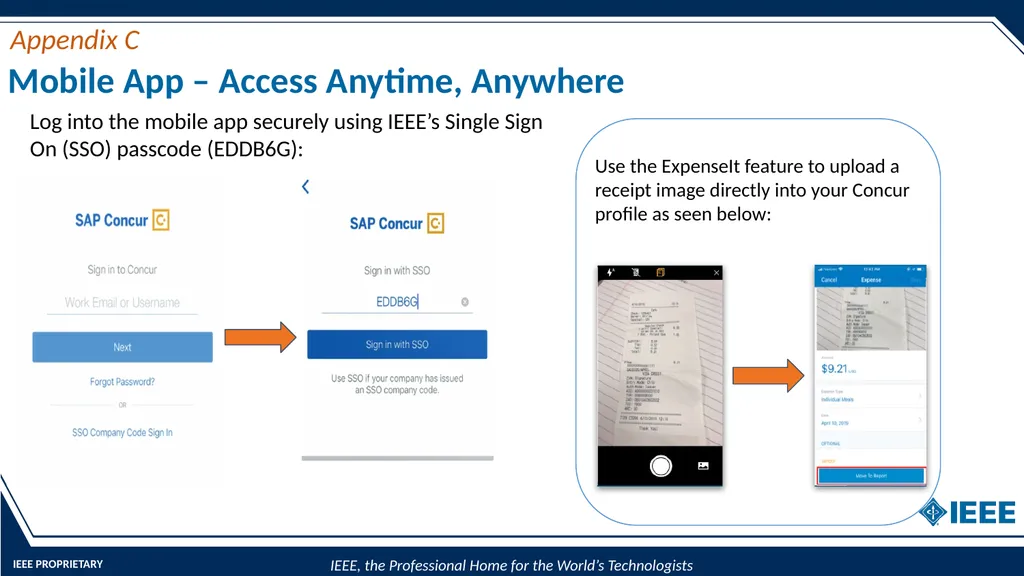
Yes, please download SAP CONCUR , available on both iPhone and Android
Can I enter Banking information on the Mobile App?
No, banking information needs to be entered directly in Concur on the desktop version<br>
No, any expense placed on a CB card gets directly loaded to NextGen Banking Coupa
Once a report is processed, can any changes be made to your report?
As a report submitter, No, to make changes, you need to recall your report, make the changes and resubmit
As an approver, Yes, you can update the following fields: date, ERP, approved amount, etc. Any field with a “red bar”
Does Concur have a Mobile App?
Yes, please download SAP CONCUR , available on both iPhone and Android
Can I enter Banking information on the Mobile App?
No, banking information needs to be entered directly in Concur on the desktop version<br>
12
Fun Facts – “Yes” or “No” Questions continued… Can I use my Credit card statement as a valid receipt?
No, credit card statements are not acceptable as receipt documentation
Do I need to enter my expense in the currency in which it was purchased/incurred?
Yes, please enter the expense in the currency in which it was purchased
If my reimbursement is impacted by currency conversion, can I submit an expense line to make my report whole?
Yes, please use the “currency exchange fees” expense to make your reimbursement whole<br>
No, credit card statements are not acceptable as receipt documentation
Do I need to enter my expense in the currency in which it was purchased/incurred?
Yes, please enter the expense in the currency in which it was purchased
If my reimbursement is impacted by currency conversion, can I submit an expense line to make my report whole?
Yes, please use the “currency exchange fees” expense to make your reimbursement whole<br>
13
Questions Please send all questions, comments, feedback and suggestions to: NextGenExpense@ieee.org<br>
14
Appendix 14<br>
15
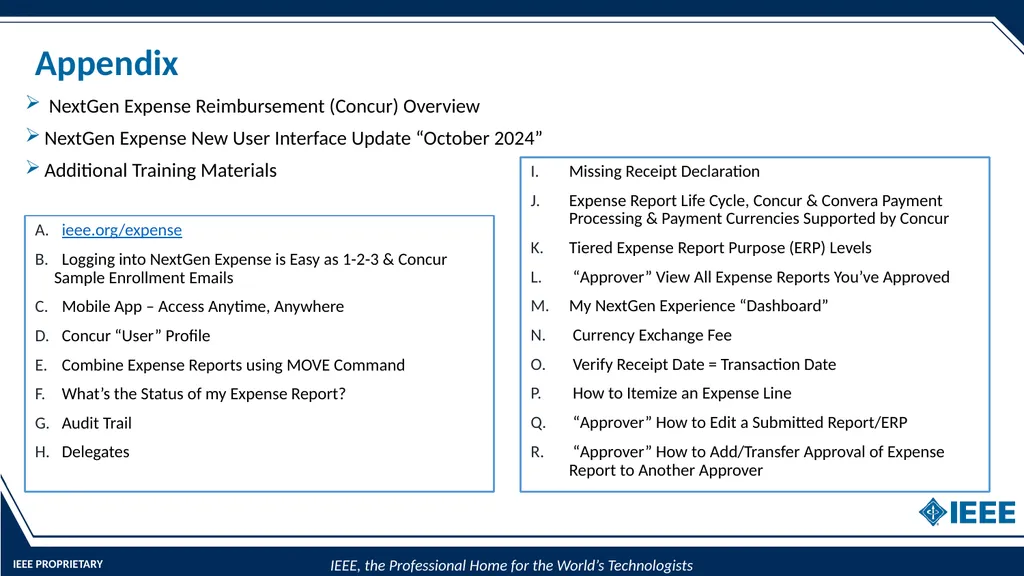
Appendix ieee.org/expense
Logging into NextGen Expense is Easy as 1-2-3 & Concur Sample Enrollment Emails
Mobile App – Access Anytime, Anywhere
Concur “User” Profile
Combine Expense Reports using MOVE Command
What’s the Status of my Expense Report?
Audit Trail
Delegates Missing Receipt Declaration
Expense Report Life Cycle, Concur & Convera Payment Processing & Payment Currencies Supported by Concur
Tiered Expense Report Purpose (ERP) Levels
“Approver” View All Expense Reports You’ve Approved
My NextGen Experience “Dashboard”
Currency Exchange Fee
Verify Receipt Date = Transaction Date
How to Itemize an Expense Line
“Approver” How to Edit a Submitted Report/ERP
“Approver” How to Add/Transfer Approval of Expense Report to Another Approver NextGen Expense Reimbursement (Concur) Overview
NextGen Expense New User Interface Update “October 2024”
Additional Training Materials<br>
Logging into NextGen Expense is Easy as 1-2-3 & Concur Sample Enrollment Emails
Mobile App – Access Anytime, Anywhere
Concur “User” Profile
Combine Expense Reports using MOVE Command
What’s the Status of my Expense Report?
Audit Trail
Delegates Missing Receipt Declaration
Expense Report Life Cycle, Concur & Convera Payment Processing & Payment Currencies Supported by Concur
Tiered Expense Report Purpose (ERP) Levels
“Approver” View All Expense Reports You’ve Approved
My NextGen Experience “Dashboard”
Currency Exchange Fee
Verify Receipt Date = Transaction Date
How to Itemize an Expense Line
“Approver” How to Edit a Submitted Report/ERP
“Approver” How to Add/Transfer Approval of Expense Report to Another Approver NextGen Expense Reimbursement (Concur) Overview
NextGen Expense New User Interface Update “October 2024”
Additional Training Materials<br>
16
NextGen Expense (Concur)
Overview 16<br>
17
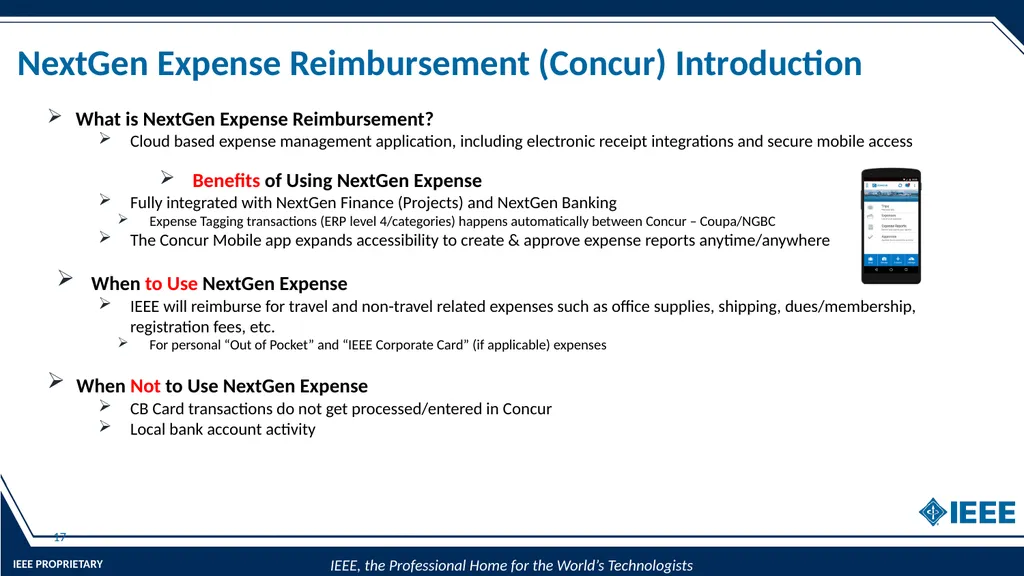
NextGen Expense Reimbursement (Concur) Introduction 17 What is NextGen Expense Reimbursement?
Cloud based expense management application, including electronic receipt integrations and secure mobile access
Benefits of Using NextGen Expense
Fully integrated with NextGen Finance (Projects) and NextGen Banking
Expense Tagging transactions (ERP level 4/categories) happens automatically between Concur – Coupa/NGBC
The Concur Mobile app expands accessibility to create & approve expense reports anytime/anywhere
When to Use NextGen Expense
IEEE will reimburse for travel and non-travel related expenses such as office supplies, shipping, dues/membership, registration fees, etc.
For personal “Out of Pocket” and “IEEE Corporate Card” (if applicable) expenses
When Not to Use NextGen Expense
CB Card transactions do not get processed/entered in Concur
Local bank account activity<br>
Cloud based expense management application, including electronic receipt integrations and secure mobile access
Benefits of Using NextGen Expense
Fully integrated with NextGen Finance (Projects) and NextGen Banking
Expense Tagging transactions (ERP level 4/categories) happens automatically between Concur – Coupa/NGBC
The Concur Mobile app expands accessibility to create & approve expense reports anytime/anywhere
When to Use NextGen Expense
IEEE will reimburse for travel and non-travel related expenses such as office supplies, shipping, dues/membership, registration fees, etc.
For personal “Out of Pocket” and “IEEE Corporate Card” (if applicable) expenses
When Not to Use NextGen Expense
CB Card transactions do not get processed/entered in Concur
Local bank account activity<br>
18
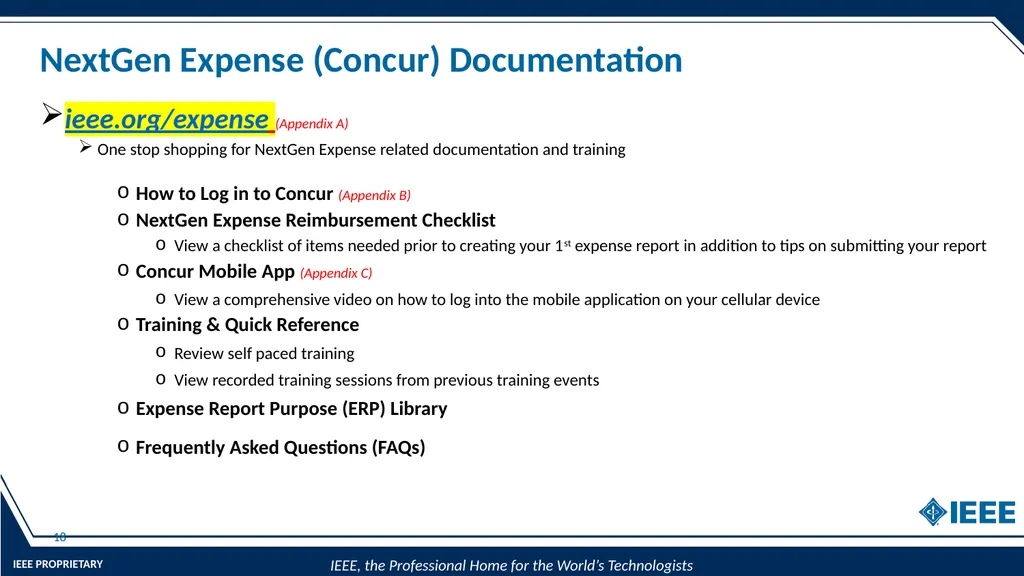
NextGen Expense (Concur) Documentation 18 ieee.org/expense (Appendix A)
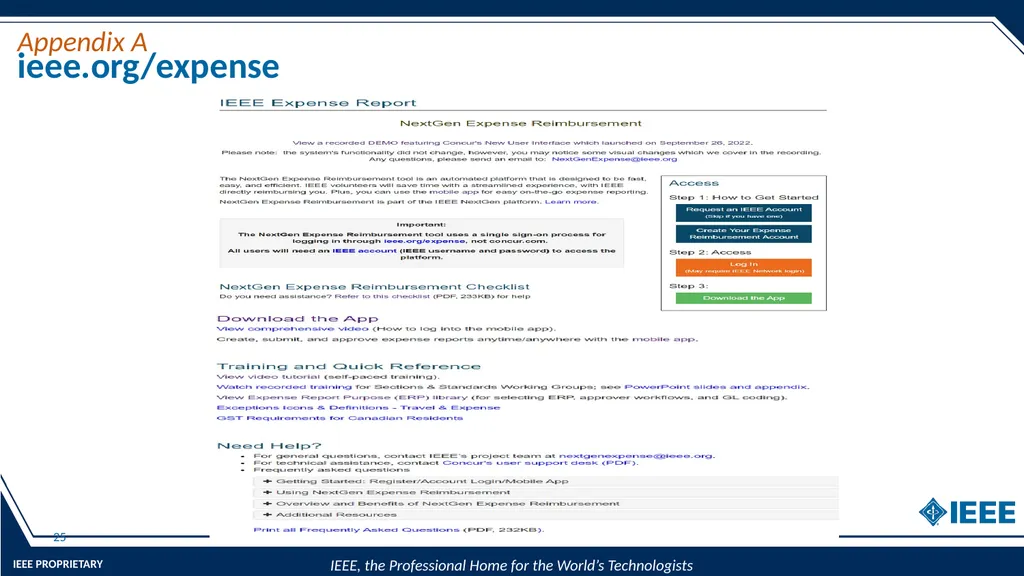
One stop shopping for NextGen Expense related documentation and training
How to Log in to Concur (Appendix B)
NextGen Expense Reimbursement Checklist
View a checklist of items needed prior to creating your 1st expense report in addition to tips on submitting your report
Concur Mobile App (Appendix C)
View a comprehensive video on how to log into the mobile application on your cellular device
Training & Quick Reference
Review self paced training
View recorded training sessions from previous training events
Expense Report Purpose (ERP) Library
Frequently Asked Questions (FAQs)<br>
One stop shopping for NextGen Expense related documentation and training
How to Log in to Concur (Appendix B)
NextGen Expense Reimbursement Checklist
View a checklist of items needed prior to creating your 1st expense report in addition to tips on submitting your report
Concur Mobile App (Appendix C)
View a comprehensive video on how to log into the mobile application on your cellular device
Training & Quick Reference
Review self paced training
View recorded training sessions from previous training events
Expense Report Purpose (ERP) Library
Frequently Asked Questions (FAQs)<br>
19
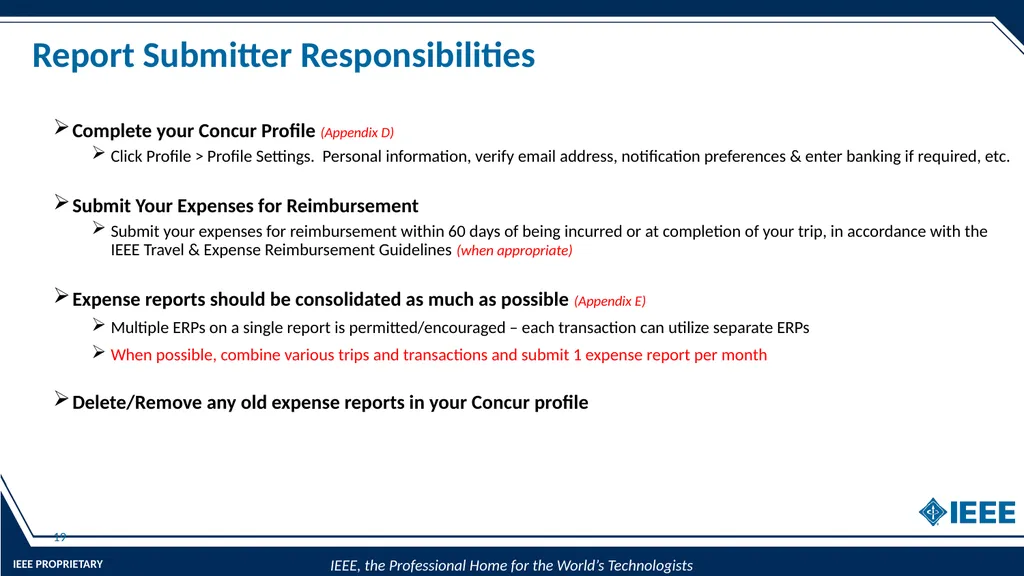
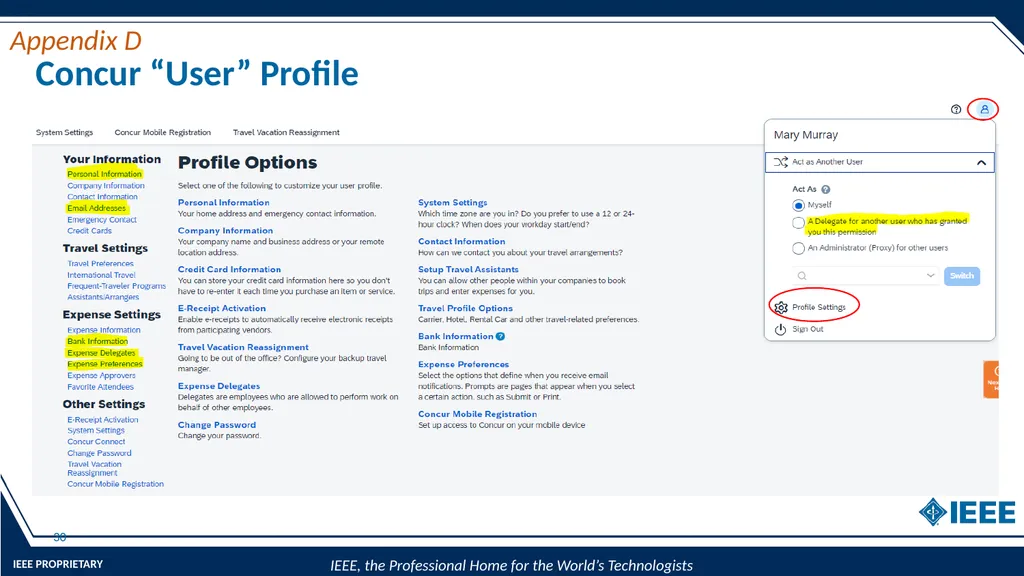
Report Submitter Responsibilities 19 Complete your Concur Profile (Appendix D)
Click Profile > Profile Settings. Personal information, verify email address, notification preferences & enter banking if required, etc.
Submit Your Expenses for Reimbursement
Submit your expenses for reimbursement within 60 days of being incurred or at completion of your trip, in accordance with the IEEE Travel & Expense Reimbursement Guidelines (when appropriate)
Expense reports should be consolidated as much as possible (Appendix E)
Multiple ERPs on a single report is permitted/encouraged – each transaction can utilize separate ERPs
When possible, combine various trips and transactions and submit 1 expense report per month
Delete/Remove any old expense reports in your Concur profile<br>
Click Profile > Profile Settings. Personal information, verify email address, notification preferences & enter banking if required, etc.
Submit Your Expenses for Reimbursement
Submit your expenses for reimbursement within 60 days of being incurred or at completion of your trip, in accordance with the IEEE Travel & Expense Reimbursement Guidelines (when appropriate)
Expense reports should be consolidated as much as possible (Appendix E)
Multiple ERPs on a single report is permitted/encouraged – each transaction can utilize separate ERPs
When possible, combine various trips and transactions and submit 1 expense report per month
Delete/Remove any old expense reports in your Concur profile<br>
20
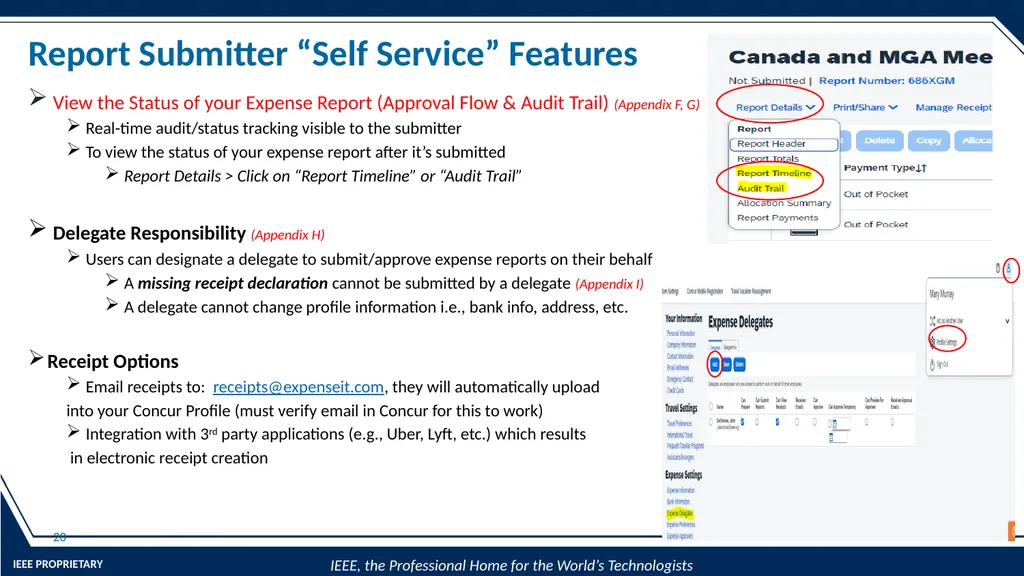
Report Submitter “Self Service” Features 20 View the Status of your Expense Report (Approval Flow & Audit Trail) (Appendix F, G)
Real-time audit/status tracking visible to the submitter
To view the status of your expense report after it’s submitted
Report Details > Click on “Report Timeline” or “Audit Trail”
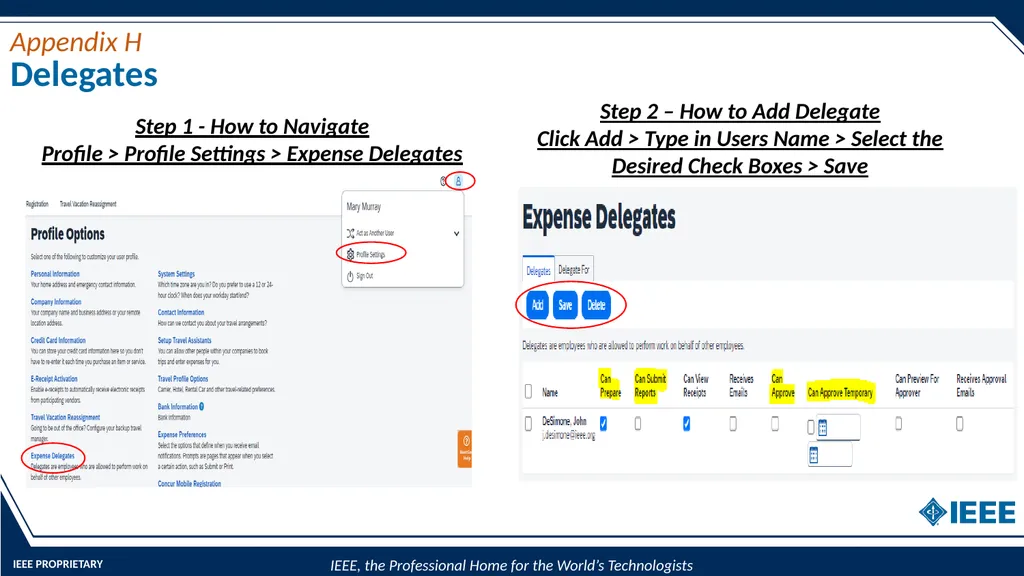
Delegate Responsibility (Appendix H)
Users can designate a delegate to submit/approve expense reports on their behalf
A missing receipt declaration cannot be submitted by a delegate (Appendix I)
A delegate cannot change profile information i.e., bank info, address, etc.
Receipt Options
Email receipts to: receipts@expenseit.com, they will automatically upload
into your Concur Profile (must verify email in Concur for this to work)
Integration with 3rd party applications (e.g., Uber, Lyft, etc.) which results
in electronic receipt creation<br>
Real-time audit/status tracking visible to the submitter
To view the status of your expense report after it’s submitted
Report Details > Click on “Report Timeline” or “Audit Trail”
Delegate Responsibility (Appendix H)
Users can designate a delegate to submit/approve expense reports on their behalf
A missing receipt declaration cannot be submitted by a delegate (Appendix I)
A delegate cannot change profile information i.e., bank info, address, etc.
Receipt Options
Email receipts to: receipts@expenseit.com, they will automatically upload
into your Concur Profile (must verify email in Concur for this to work)
Integration with 3rd party applications (e.g., Uber, Lyft, etc.) which results
in electronic receipt creation<br>
21
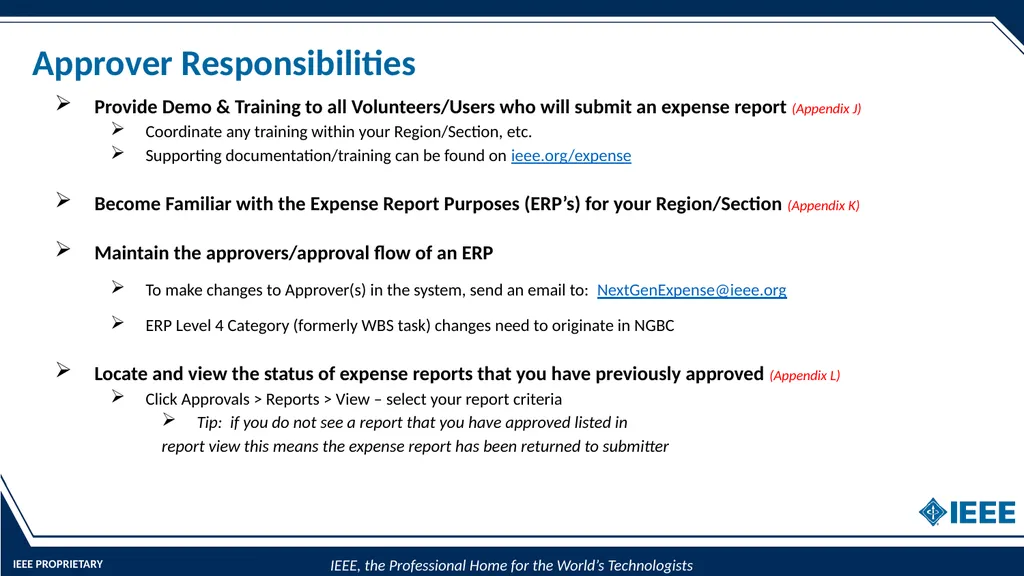
Approver Responsibilities Provide Demo & Training to all Volunteers/Users who will submit an expense report (Appendix J)
Coordinate any training within your Region/Section, etc.
Supporting documentation/training can be found on ieee.org/expense
Become Familiar with the Expense Report Purposes (ERP’s) for your Region/Section (Appendix K)
Maintain the approvers/approval flow of an ERP
To make changes to Approver(s) in the system, send an email to: NextGenExpense@ieee.org
ERP Level 4 Category (formerly WBS task) changes need to originate in NGBC
Locate and view the status of expense reports that you have previously approved (Appendix L)
Click Approvals > Reports > View – select your report criteria
Tip: if you do not see a report that you have approved listed in
report view this means the expense report has been returned to submitter<br>
Coordinate any training within your Region/Section, etc.
Supporting documentation/training can be found on ieee.org/expense
Become Familiar with the Expense Report Purposes (ERP’s) for your Region/Section (Appendix K)
Maintain the approvers/approval flow of an ERP
To make changes to Approver(s) in the system, send an email to: NextGenExpense@ieee.org
ERP Level 4 Category (formerly WBS task) changes need to originate in NGBC
Locate and view the status of expense reports that you have previously approved (Appendix L)
Click Approvals > Reports > View – select your report criteria
Tip: if you do not see a report that you have approved listed in
report view this means the expense report has been returned to submitter<br>
22
NextGen Expense
New User Interface Update
“October 2024” 22<br>
23
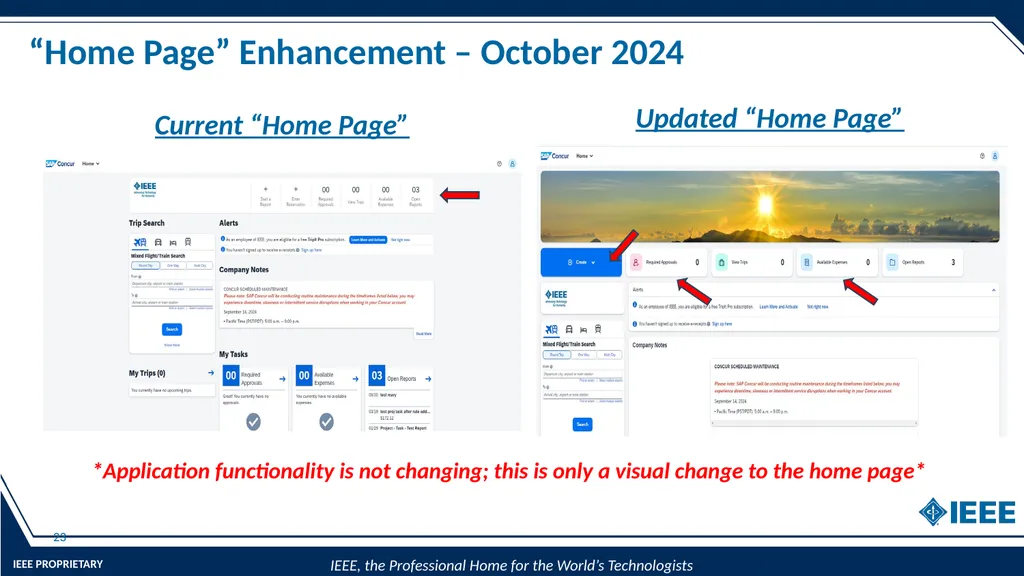
“Home Page” Enhancement – October 2024 23 Current “Home Page” Updated “Home Page” *Application functionality is not changing; this is only a visual change to the home page*<br>
24
NextGen Expense
(Concur)
Additional Training Materials 24<br>
25
ieee.org/expense 25 Appendix A<br>
26
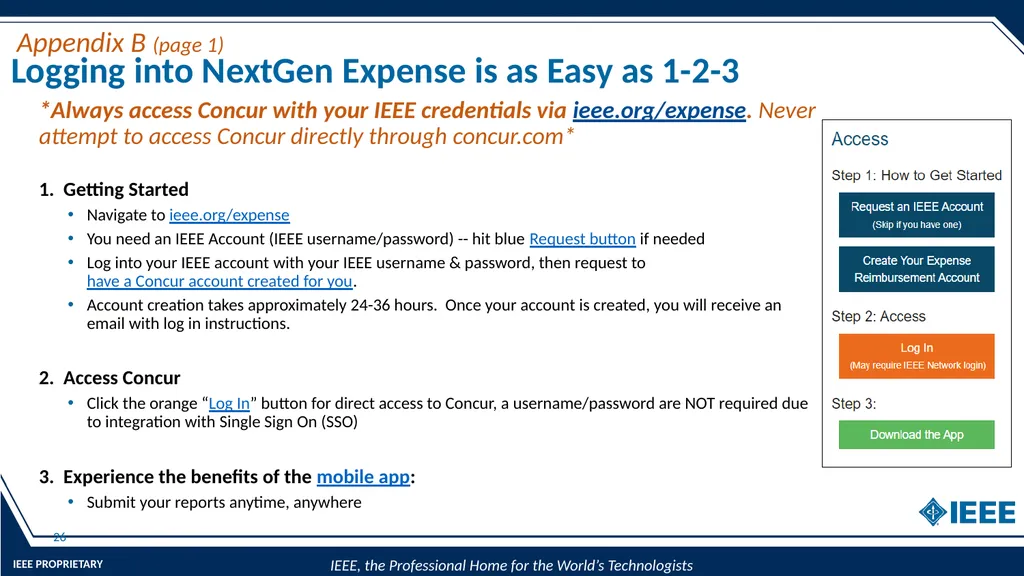
Logging into NextGen Expense is as Easy as 1-2-3 26 *Always access Concur with your IEEE credentials via ieee.org/expense. Never attempt to access Concur directly through concur.com*
1. Getting Started
Navigate to ieee.org/expense
You need an IEEE Account (IEEE username/password) -- hit blue Request button if needed
Log into your IEEE account with your IEEE username & password, then request to have a Concur account created for you.
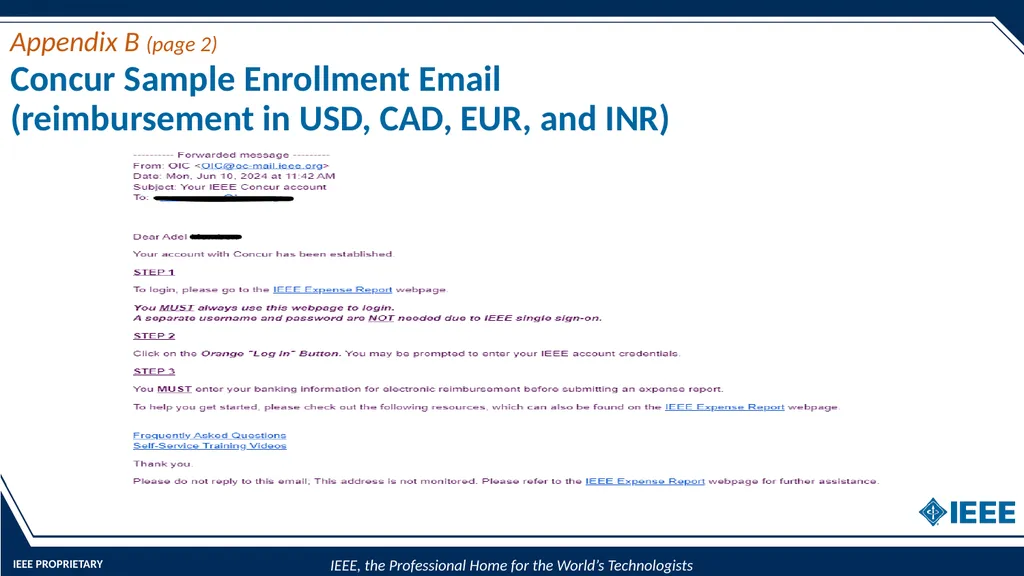
Account creation takes approximately 24-36 hours. Once your account is created, you will receive an email with log in instructions.
2. Access Concur
Click the orange “Log In” button for direct access to Concur, a username/password are NOT required due to integration with Single Sign On (SSO)
3. Experience the benefits of the mobile app:
Submit your reports anytime, anywhere Appendix B (page 1)<br>
1. Getting Started
Navigate to ieee.org/expense
You need an IEEE Account (IEEE username/password) -- hit blue Request button if needed
Log into your IEEE account with your IEEE username & password, then request to have a Concur account created for you.
Account creation takes approximately 24-36 hours. Once your account is created, you will receive an email with log in instructions.
2. Access Concur
Click the orange “Log In” button for direct access to Concur, a username/password are NOT required due to integration with Single Sign On (SSO)
3. Experience the benefits of the mobile app:
Submit your reports anytime, anywhere Appendix B (page 1)<br>
27
Concur Sample Enrollment Email
(reimbursement in USD, CAD, EUR, and INR) Appendix B (page 2)<br>
28
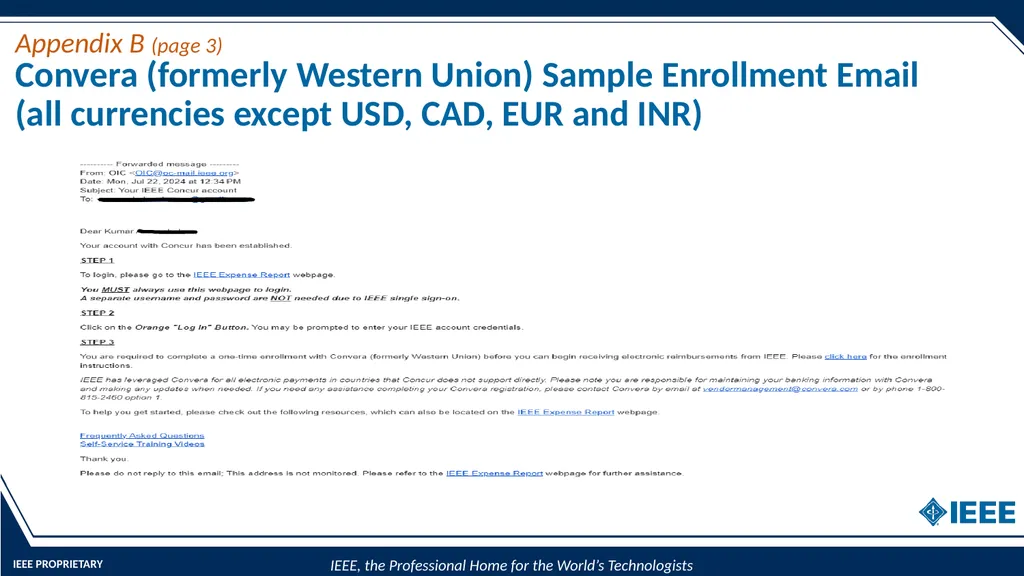
Convera (formerly Western Union) Sample Enrollment Email
(all currencies except USD, CAD, EUR and INR) Appendix B (page 3)<br>
29
Mobile App – Access Anytime, Anywhere Appendix C Log into the mobile app securely using IEEE’s Single Sign On (SSO) passcode (EDDB6G): Use the ExpenseIt feature to upload a receipt image directly into your Concur profile as seen below:<br>
30
Concur “User” Profile 30 Appendix D<br>
31
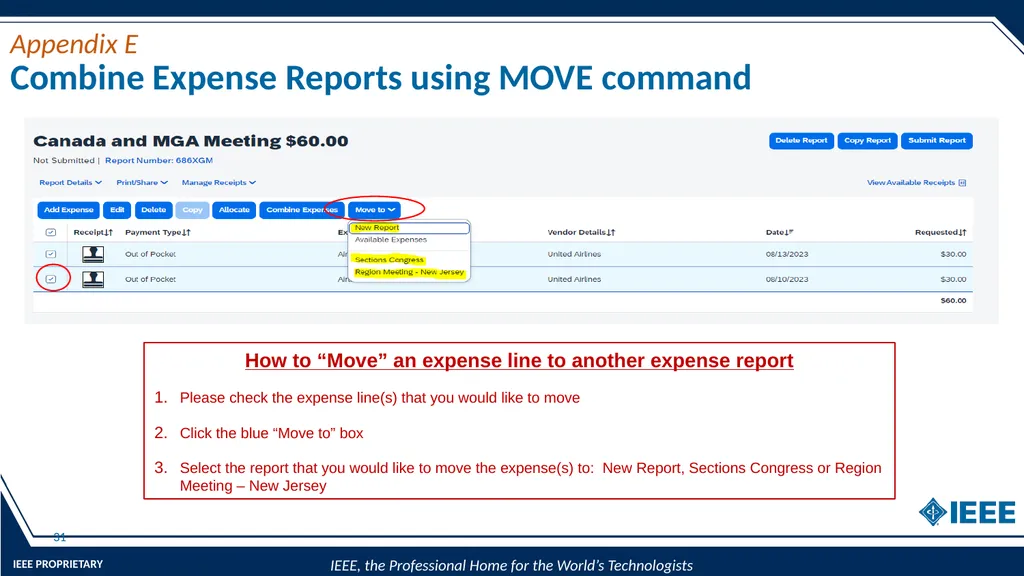
Combine Expense Reports using MOVE command 31 Appendix E How to “Move” an expense line to another expense report
Please check the expense line(s) that you would like to move
Click the blue “Move to” box
Select the report that you would like to move the expense(s) to: New Report, Sections Congress or Region Meeting – New Jersey<br>
Please check the expense line(s) that you would like to move
Click the blue “Move to” box
Select the report that you would like to move the expense(s) to: New Report, Sections Congress or Region Meeting – New Jersey<br>
32
“What’s the Status of my Expense Report?”
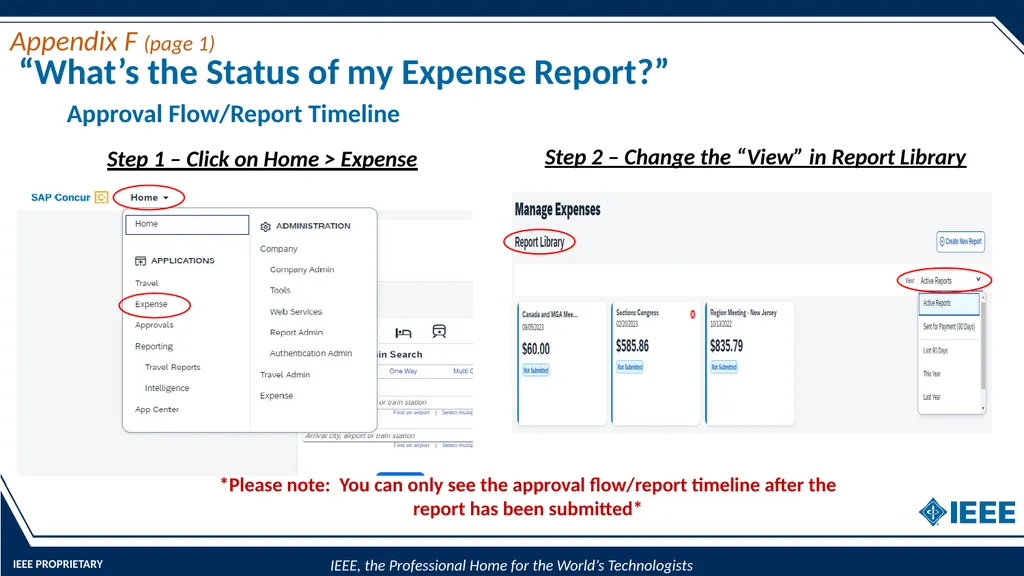
Approval Flow/Report Timeline Appendix F (page 1) Step 1 – Click on Home > Expense *Please note: You can only see the approval flow/report timeline after the report has been submitted* Step 2 – Change the “View” in Report Library<br>
33
“What’s the Status of my Expense Report?” (cont.)
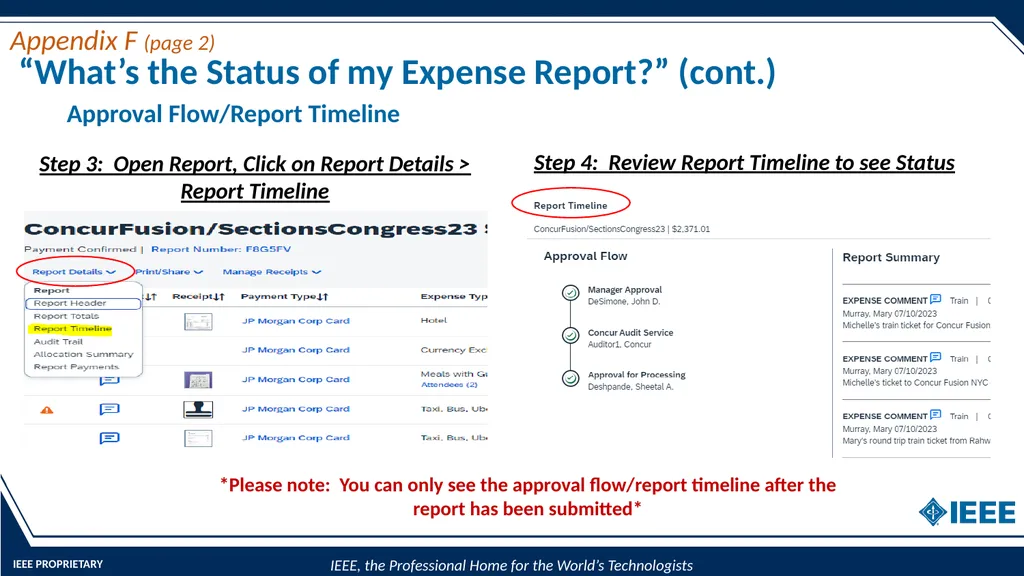
Approval Flow/Report Timeline Step 4: Review Report Timeline to see Status *Please note: You can only see the approval flow/report timeline after the report has been submitted* Step 3: Open Report, Click on Report Details > Report Timeline Appendix F (page 2)<br>
34
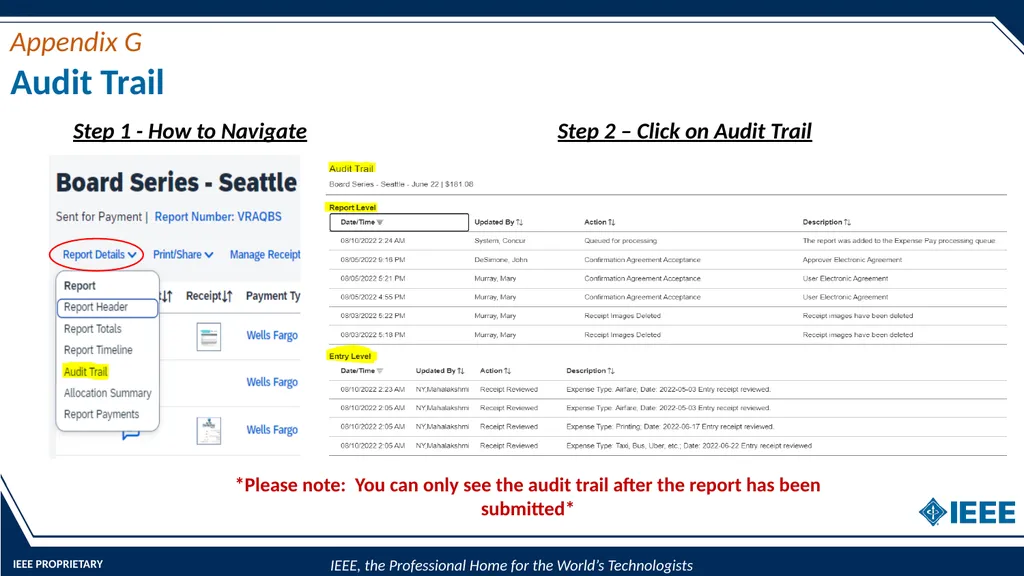
Audit Trail Appendix G Step 1 - How to Navigate Step 2 – Click on Audit Trail *Please note: You can only see the audit trail after the report has been submitted*<br>
35
Delegates Appendix H Step 1 - How to Navigate
Profile > Profile Settings > Expense Delegates Step 2 – How to Add Delegate
Click Add > Type in Users Name > Select the Desired Check Boxes > Save<br>
Profile > Profile Settings > Expense Delegates Step 2 – How to Add Delegate
Click Add > Type in Users Name > Select the Desired Check Boxes > Save<br>
36
Missing Receipt Declaration Appendix I Step 1 - How to Navigate Step 2 - Select Transaction Step 3 - Final Confirmation<br>
37
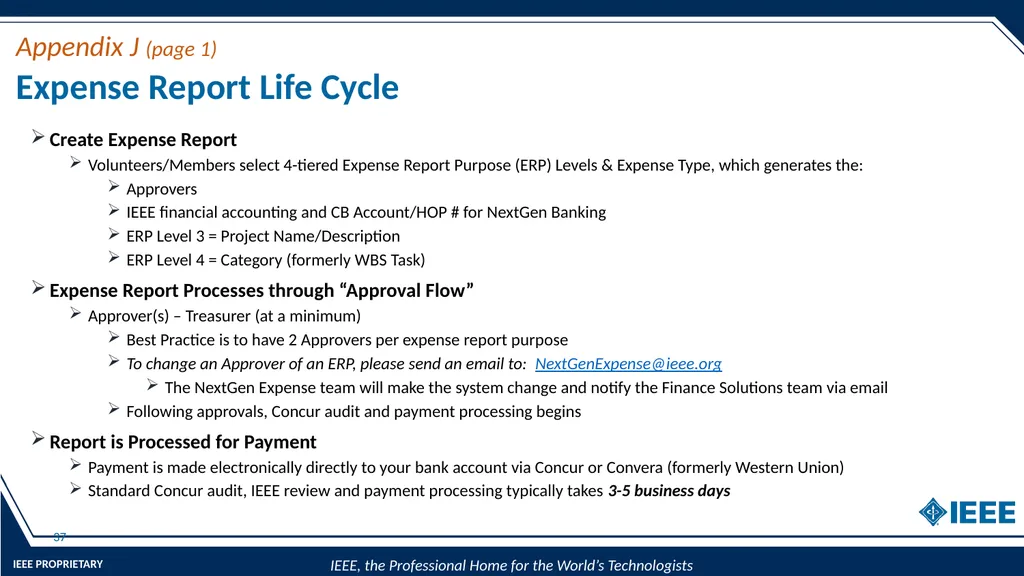
Expense Report Life Cycle 37 Create Expense Report
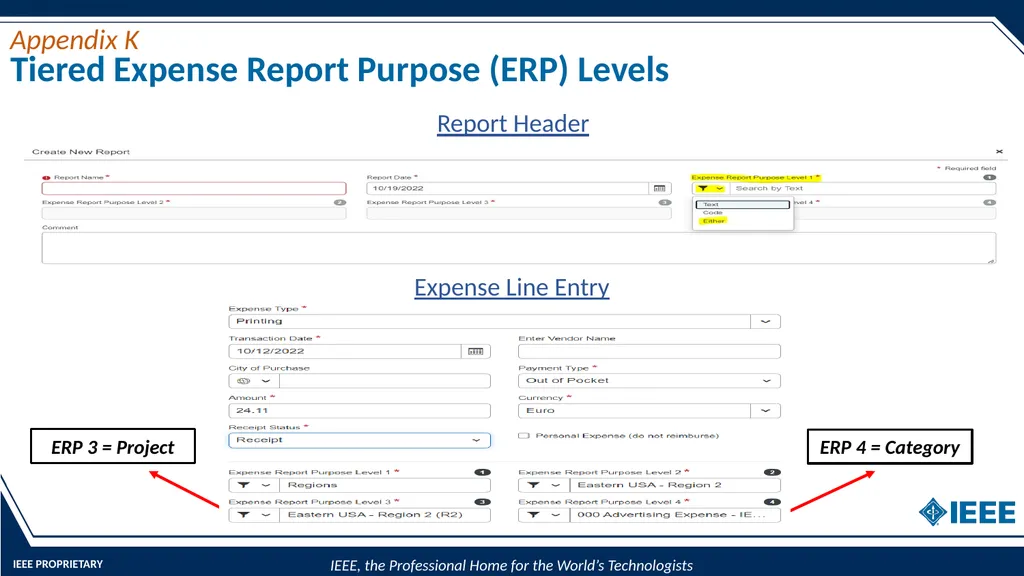
Volunteers/Members select 4-tiered Expense Report Purpose (ERP) Levels & Expense Type, which generates the:
Approvers
IEEE financial accounting and CB Account/HOP # for NextGen Banking
ERP Level 3 = Project Name/Description
ERP Level 4 = Category (formerly WBS Task)
Expense Report Processes through “Approval Flow”
Approver(s) – Treasurer (at a minimum)
Best Practice is to have 2 Approvers per expense report purpose
To change an Approver of an ERP, please send an email to: NextGenExpense@ieee.org
The NextGen Expense team will make the system change and notify the Finance Solutions team via email
Following approvals, Concur audit and payment processing begins
Report is Processed for Payment
Payment is made electronically directly to your bank account via Concur or Convera (formerly Western Union)
Standard Concur audit, IEEE review and payment processing typically takes 3-5 business days Appendix J (page 1)<br>
Volunteers/Members select 4-tiered Expense Report Purpose (ERP) Levels & Expense Type, which generates the:
Approvers
IEEE financial accounting and CB Account/HOP # for NextGen Banking
ERP Level 3 = Project Name/Description
ERP Level 4 = Category (formerly WBS Task)
Expense Report Processes through “Approval Flow”
Approver(s) – Treasurer (at a minimum)
Best Practice is to have 2 Approvers per expense report purpose
To change an Approver of an ERP, please send an email to: NextGenExpense@ieee.org
The NextGen Expense team will make the system change and notify the Finance Solutions team via email
Following approvals, Concur audit and payment processing begins
Report is Processed for Payment
Payment is made electronically directly to your bank account via Concur or Convera (formerly Western Union)
Standard Concur audit, IEEE review and payment processing typically takes 3-5 business days Appendix J (page 1)<br>
38
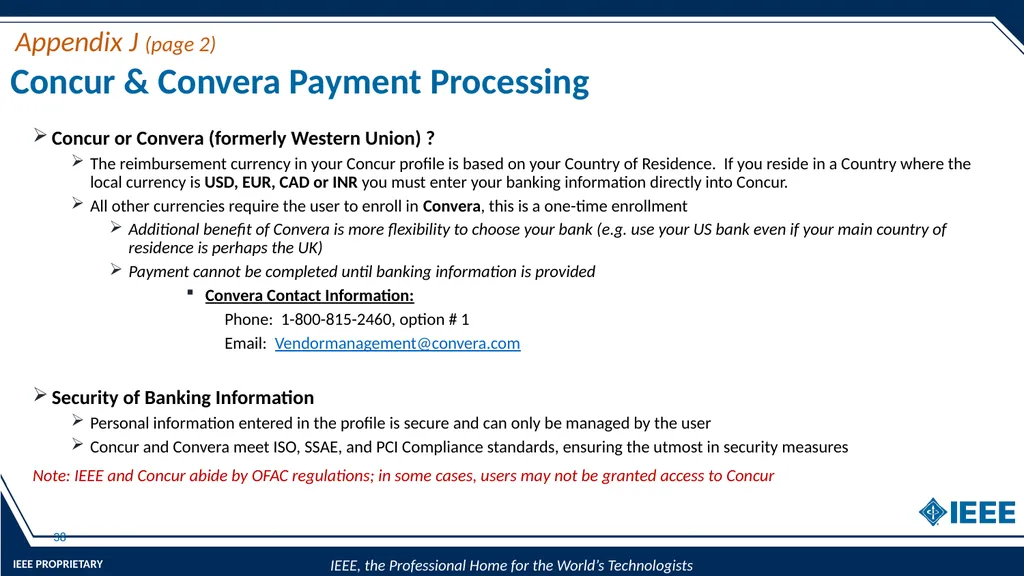
Concur & Convera Payment Processing 38 Concur or Convera (formerly Western Union) ?
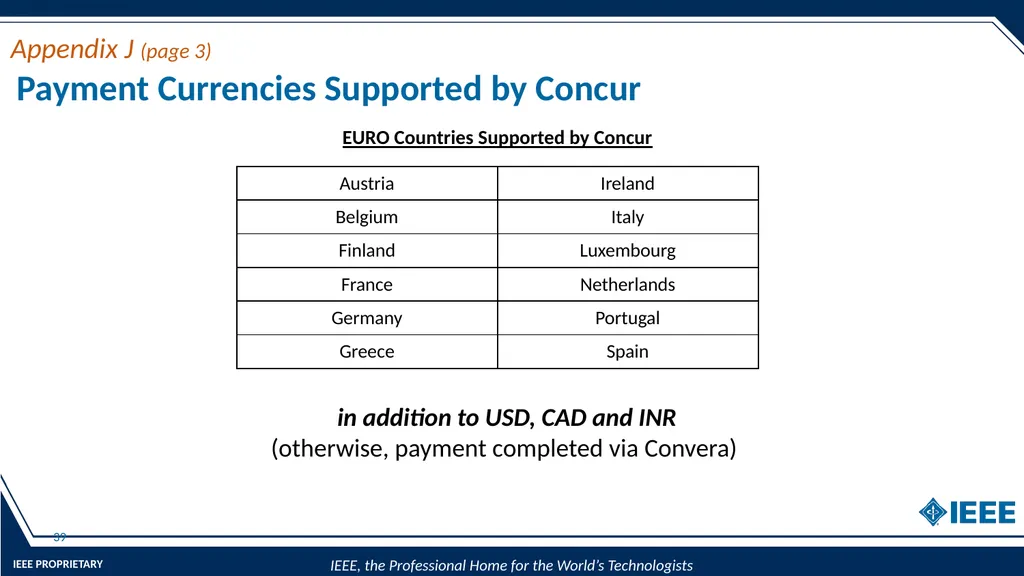
The reimbursement currency in your Concur profile is based on your Country of Residence. If you reside in a Country where the local currency is USD, EUR, CAD or INR you must enter your banking information directly into Concur.
All other currencies require the user to enroll in Convera, this is a one-time enrollment
Additional benefit of Convera is more flexibility to choose your bank (e.g. use your US bank even if your main country of residence is perhaps the UK)
Payment cannot be completed until banking information is provided
Convera Contact Information:
Phone: 1-800-815-2460, option # 1
Email: Vendormanagement@convera.com
Security of Banking Information
Personal information entered in the profile is secure and can only be managed by the user
Concur and Convera meet ISO, SSAE, and PCI Compliance standards, ensuring the utmost in security measures
Note: IEEE and Concur abide by OFAC regulations; in some cases, users may not be granted access to Concur Appendix J (page 2)<br>
The reimbursement currency in your Concur profile is based on your Country of Residence. If you reside in a Country where the local currency is USD, EUR, CAD or INR you must enter your banking information directly into Concur.
All other currencies require the user to enroll in Convera, this is a one-time enrollment
Additional benefit of Convera is more flexibility to choose your bank (e.g. use your US bank even if your main country of residence is perhaps the UK)
Payment cannot be completed until banking information is provided
Convera Contact Information:
Phone: 1-800-815-2460, option # 1
Email: Vendormanagement@convera.com
Security of Banking Information
Personal information entered in the profile is secure and can only be managed by the user
Concur and Convera meet ISO, SSAE, and PCI Compliance standards, ensuring the utmost in security measures
Note: IEEE and Concur abide by OFAC regulations; in some cases, users may not be granted access to Concur Appendix J (page 2)<br>
39
Payment Currencies Supported by Concur 39 in addition to USD, CAD and INR
(otherwise, payment completed via Convera) EURO Countries Supported by Concur Appendix J (page 3)<br>
(otherwise, payment completed via Convera) EURO Countries Supported by Concur Appendix J (page 3)<br>
40
Tiered Expense Report Purpose (ERP) Levels Report Header Expense Line Entry ERP 3 = Project ERP 4 = Category Appendix K<br>
41
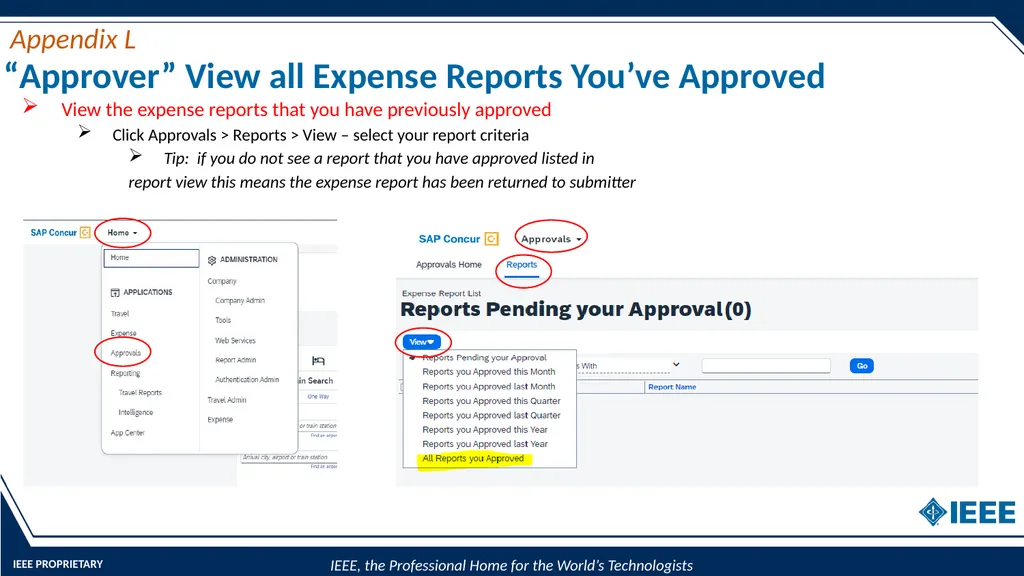
“Approver” View all Expense Reports You’ve Approved View the expense reports that you have previously approved
Click Approvals > Reports > View – select your report criteria
Tip: if you do not see a report that you have approved listed in
report view this means the expense report has been returned to submitter Appendix L<br>
Click Approvals > Reports > View – select your report criteria
Tip: if you do not see a report that you have approved listed in
report view this means the expense report has been returned to submitter Appendix L<br>
42
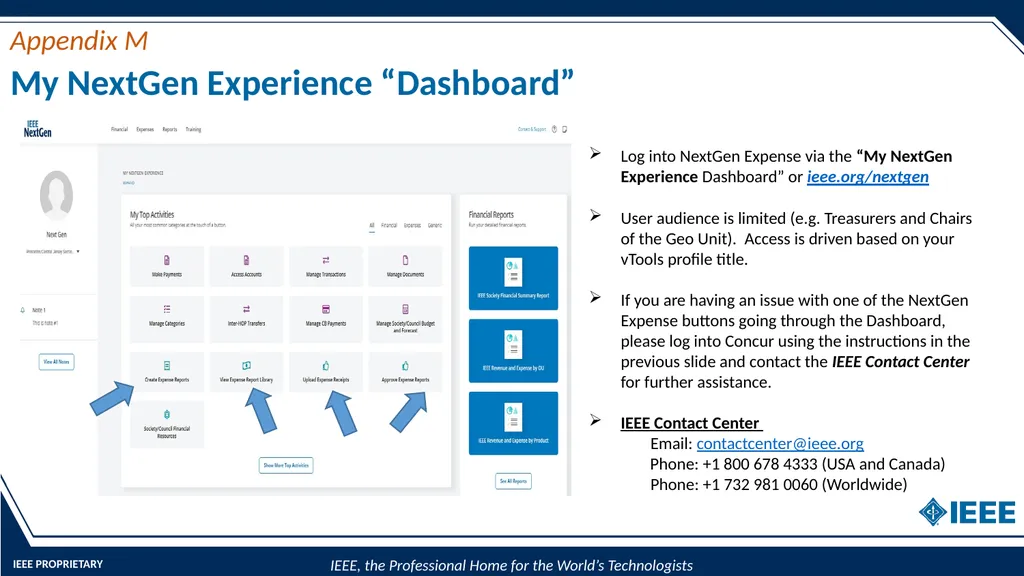
My NextGen Experience “Dashboard” Log into NextGen Expense via the “My NextGen Experience Dashboard” or ieee.org/nextgen
User audience is limited (e.g. Treasurers and Chairs of the Geo Unit). Access is driven based on your vTools profile title.
If you are having an issue with one of the NextGen Expense buttons going through the Dashboard, please log into Concur using the instructions in the previous slide and contact the IEEE Contact Center for further assistance.
IEEE Contact Center
Email: contactcenter@ieee.org Phone: +1 800 678 4333 (USA and Canada)
Phone: +1 732 981 0060 (Worldwide) Appendix M<br>
User audience is limited (e.g. Treasurers and Chairs of the Geo Unit). Access is driven based on your vTools profile title.
If you are having an issue with one of the NextGen Expense buttons going through the Dashboard, please log into Concur using the instructions in the previous slide and contact the IEEE Contact Center for further assistance.
IEEE Contact Center
Email: contactcenter@ieee.org Phone: +1 800 678 4333 (USA and Canada)
Phone: +1 732 981 0060 (Worldwide) Appendix M<br>
43
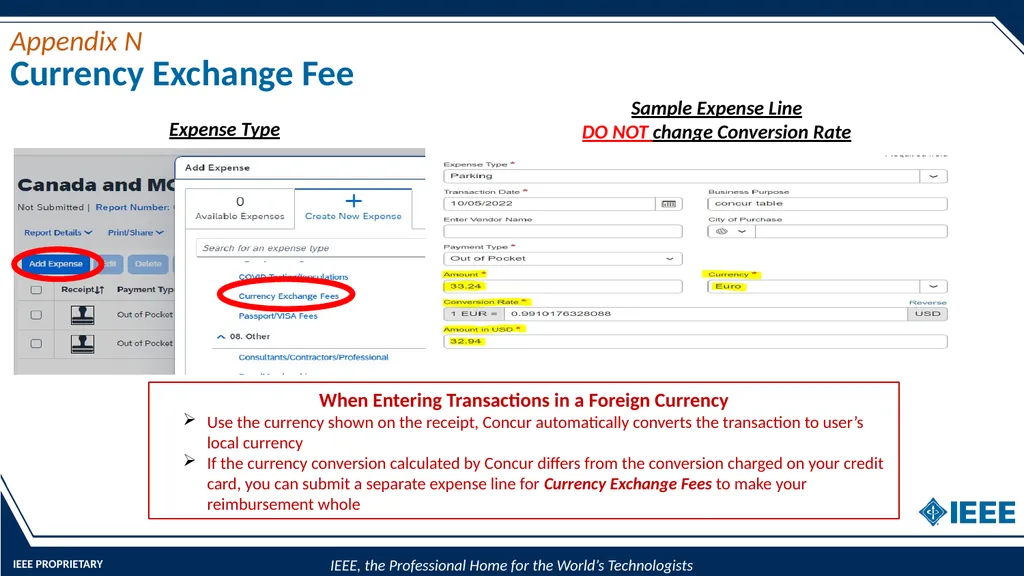
Currency Exchange Fee Appendix N When Entering Transactions in a Foreign Currency
Use the currency shown on the receipt, Concur automatically converts the transaction to user’s local currency
If the currency conversion calculated by Concur differs from the conversion charged on your credit card, you can submit a separate expense line for Currency Exchange Fees to make your reimbursement whole Expense Type Sample Expense Line
DO NOT change Conversion Rate<br>
Use the currency shown on the receipt, Concur automatically converts the transaction to user’s local currency
If the currency conversion calculated by Concur differs from the conversion charged on your credit card, you can submit a separate expense line for Currency Exchange Fees to make your reimbursement whole Expense Type Sample Expense Line
DO NOT change Conversion Rate<br>
44
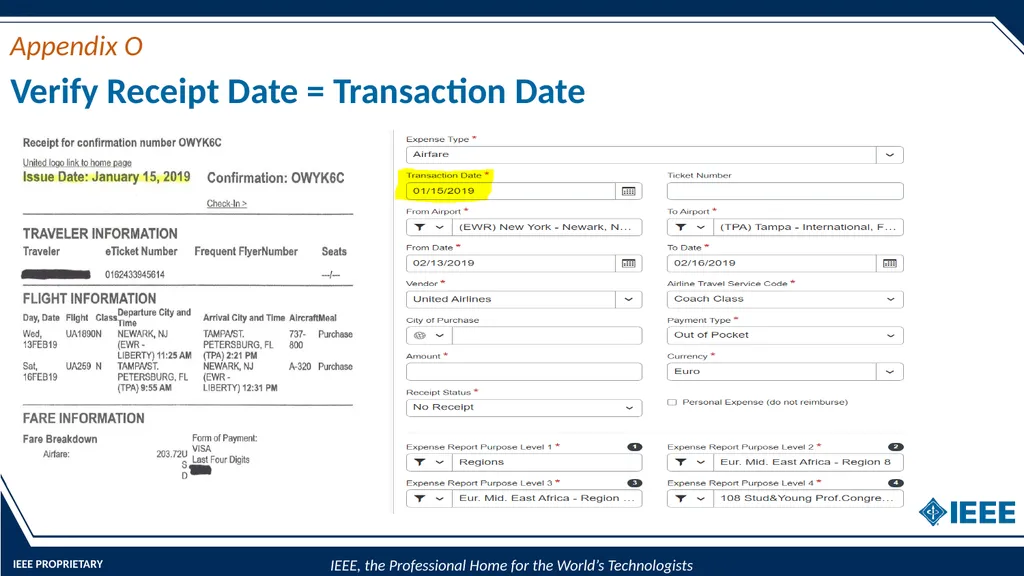
Verify Receipt Date = Transaction Date Appendix O<br>
45
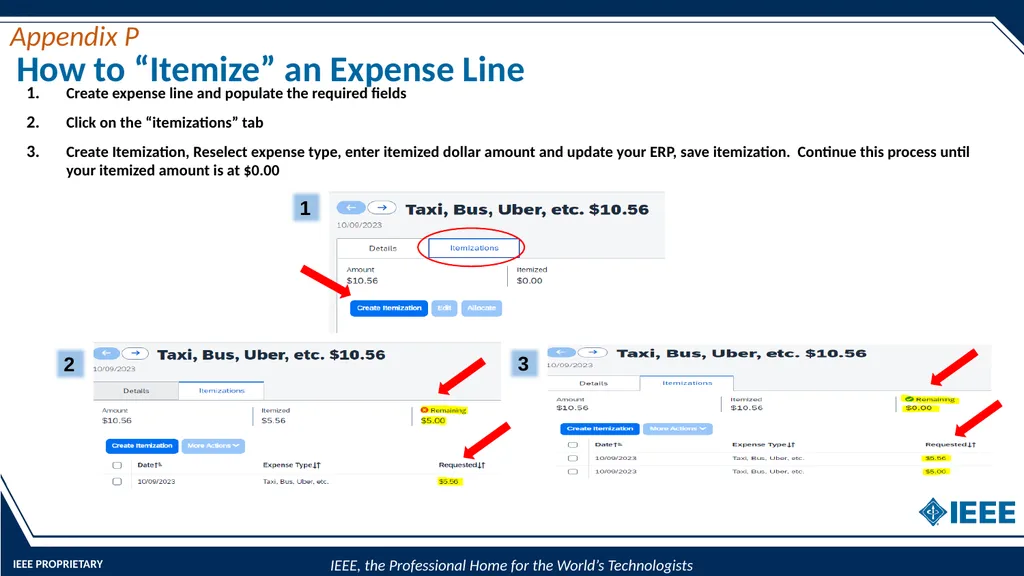
How to “Itemize” an Expense Line Create expense line and populate the required fields
Click on the “itemizations” tab
Create Itemization, Reselect expense type, enter itemized dollar amount and update your ERP, save itemization. Continue this process until your itemized amount is at $0.00 1 2 3 Appendix P<br>
Click on the “itemizations” tab
Create Itemization, Reselect expense type, enter itemized dollar amount and update your ERP, save itemization. Continue this process until your itemized amount is at $0.00 1 2 3 Appendix P<br>
46
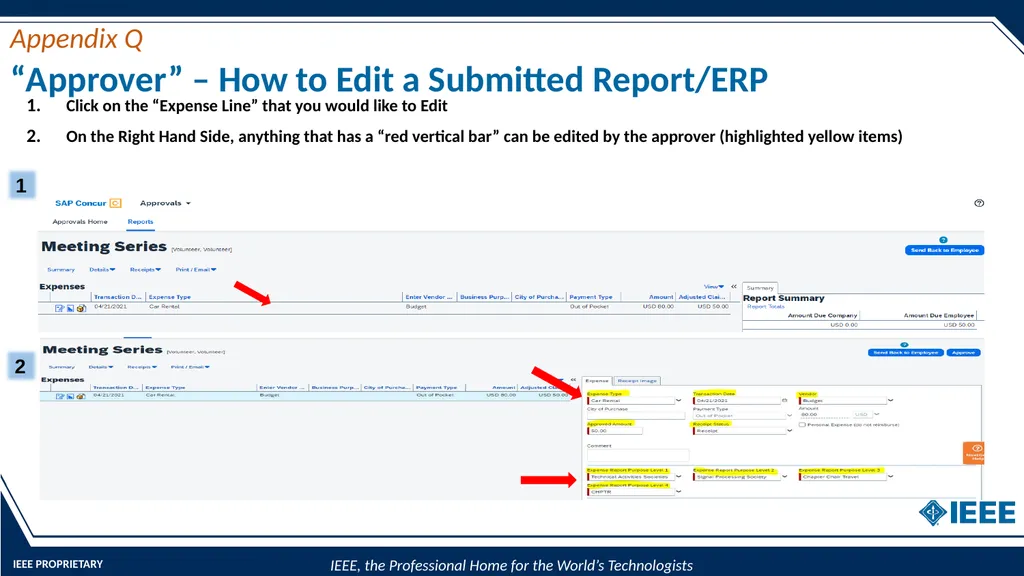
“Approver” – How to Edit a Submitted Report/ERP Click on the “Expense Line” that you would like to Edit
On the Right Hand Side, anything that has a “red vertical bar” can be edited by the approver (highlighted yellow items) 1 2 Appendix Q<br>
On the Right Hand Side, anything that has a “red vertical bar” can be edited by the approver (highlighted yellow items) 1 2 Appendix Q<br>
47
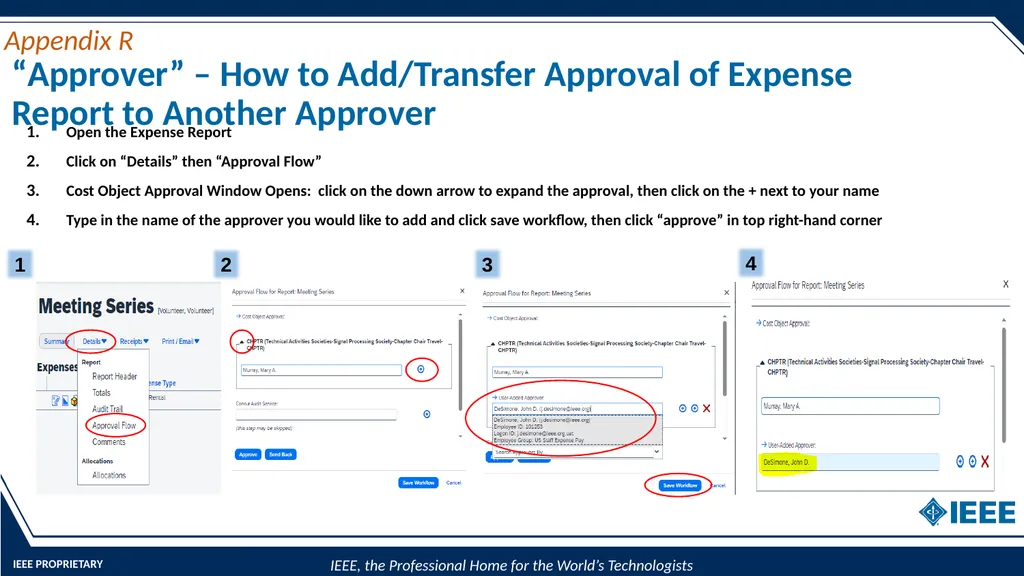
“Approver” – How to Add/Transfer Approval of Expense Report to Another Approver Open the Expense Report
Click on “Details” then “Approval Flow”
Cost Object Approval Window Opens: click on the down arrow to expand the approval, then click on the + next to your name
Type in the name of the approver you would like to add and click save workflow, then click “approve” in top right-hand corner 1 2 3 4 Appendix R<br>
Click on “Details” then “Approval Flow”
Cost Object Approval Window Opens: click on the down arrow to expand the approval, then click on the + next to your name
Type in the name of the approver you would like to add and click save workflow, then click “approve” in top right-hand corner 1 2 3 4 Appendix R<br>