
2025–26 FAFSA® Overview October 2024 Dependent
SB
Published · 103 slides · 0 views

1 / 1
Description
202526 FAFSA Overview October 2024 Dependent Student FAFSA Landing Page This is the main FAFSA landing page. On this page, students are directed to Start New Form or Edit Existing Forms. For this section of the presentation, the
Related Topics
Share
Embed code
Download this presentation From Below
"2025–26 FAFSA® Overview October 2024 Dependent" is the property of its rightful owner. Permission is granted to download and print the materials on this website for personal, non-commercial use only, and to display it on your personal computer provided you do not modify the materials and that you retain all copyright notices contained in the materials. By downloading content from our website, you accept the terms of this agreement.
Presentation Transcript
01
2025–26 FAFSA® Overview October 2024<br>
02
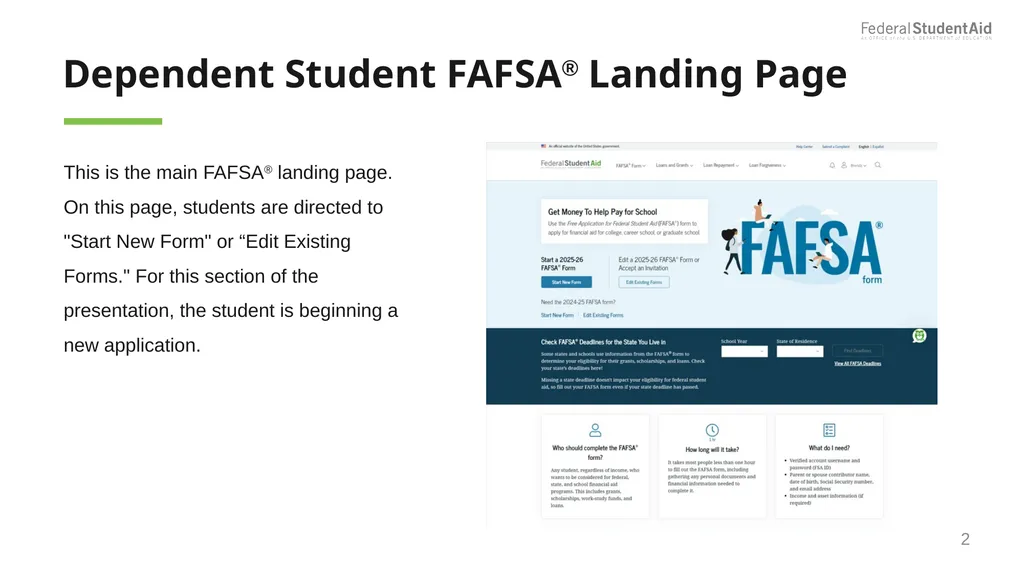
Dependent Student FAFSA® Landing Page This is the main FAFSA® landing page. On this page, students are directed to "Start New Form" or “Edit Existing Forms." For this section of the presentation, the student is beginning a new application. 2<br>
03
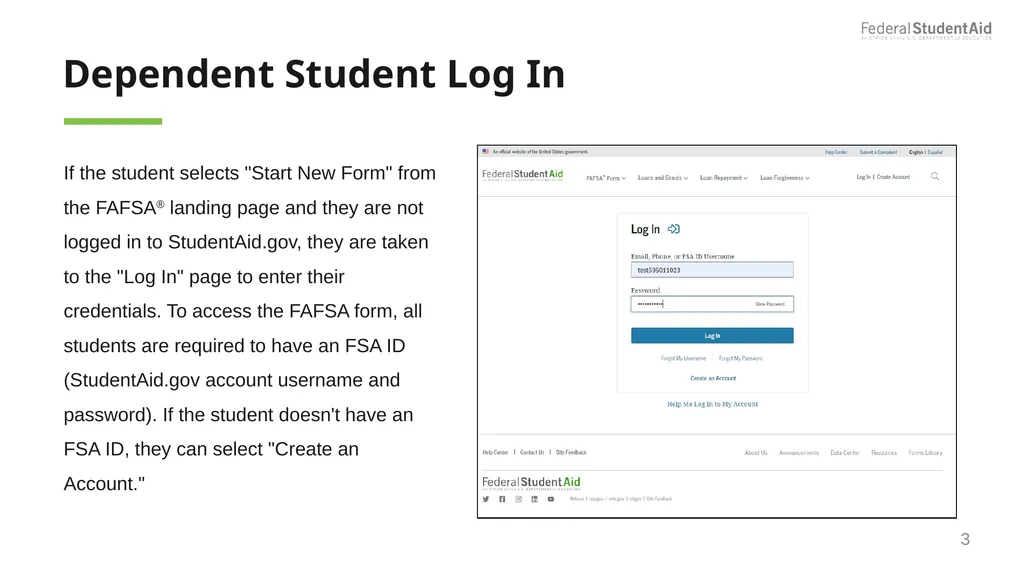
Dependent Student Log In If the student selects "Start New Form" from the FAFSA® landing page and they are not logged in to StudentAid.gov, they are taken to the "Log In" page to enter their credentials. To access the FAFSA form, all students are required to have an FSA ID (StudentAid.gov account username and password). If the student doesn't have an FSA ID, they can select "Create an Account." 3<br>
04
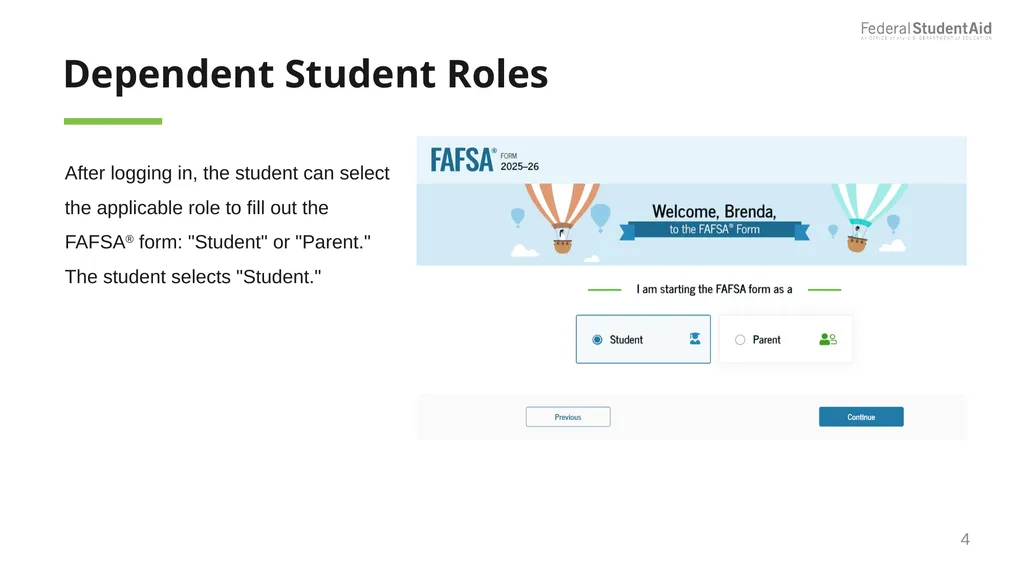
Dependent Student Roles After logging in, the student can select the applicable role to fill out the FAFSA® form: "Student" or "Parent." The student selects "Student." 4<br>
05
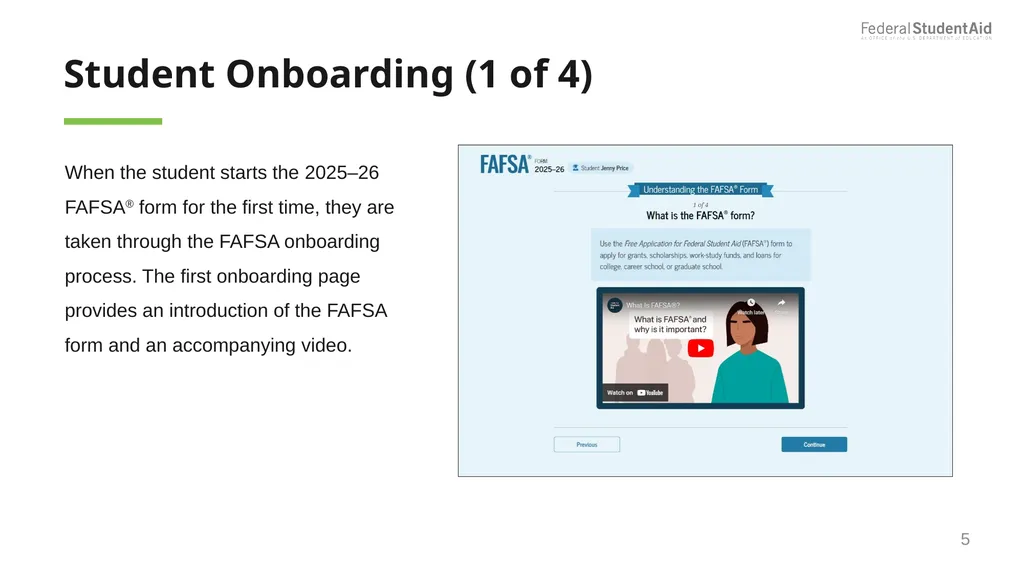
Student Onboarding (1 of 4) When the student starts the 2025–26 FAFSA® form for the first time, they are taken through the FAFSA onboarding process. The first onboarding page provides an introduction of the FAFSA form and an accompanying video. 5<br>
06
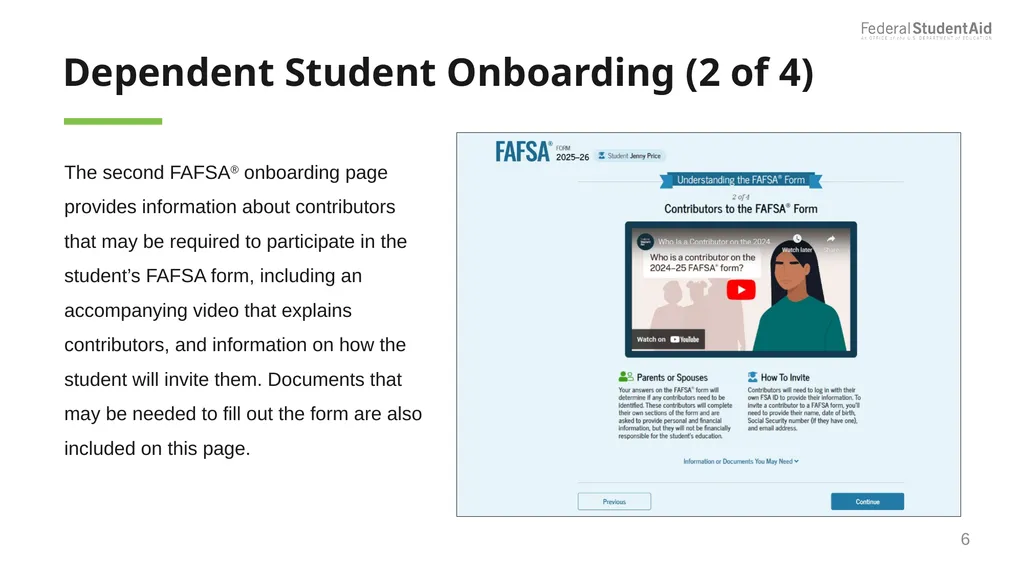
Dependent Student Onboarding (2 of 4) The second FAFSA® onboarding page provides information about contributors that may be required to participate in the student’s FAFSA form, including an accompanying video that explains contributors, and information on how the student will invite them. Documents that may be needed to fill out the form are also included on this page. 6<br>
07
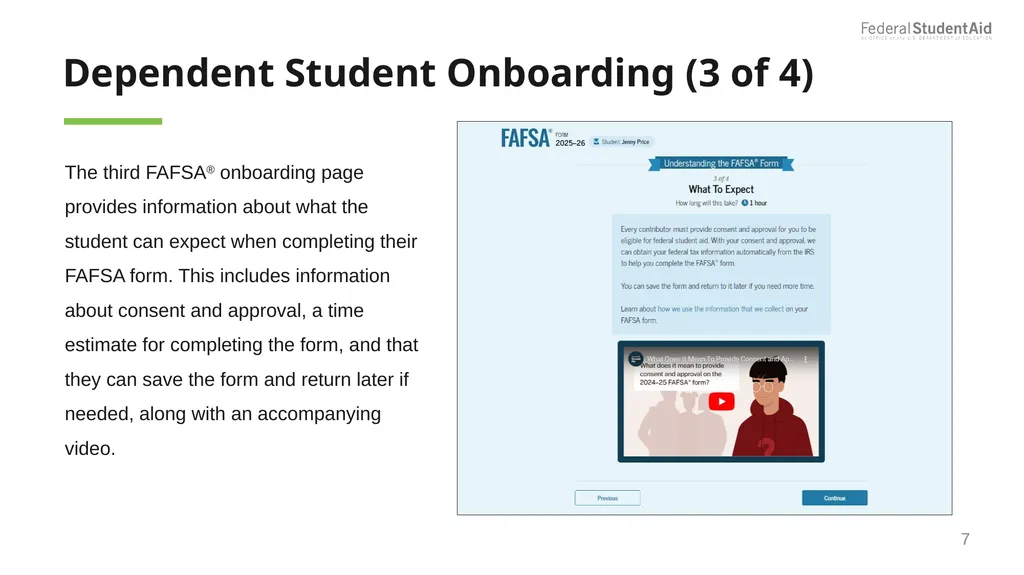
Dependent Student Onboarding (3 of 4) The third FAFSA® onboarding page provides information about what the student can expect when completing their FAFSA form. This includes information about consent and approval, a time estimate for completing the form, and that they can save the form and return later if needed, along with an accompanying video. 7<br>
08
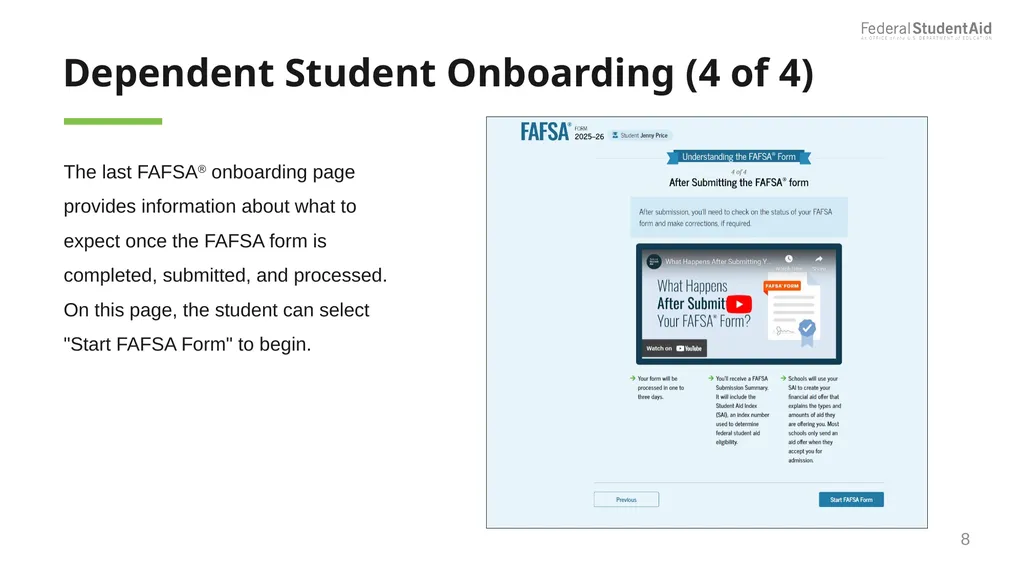
Dependent Student Onboarding (4 of 4) The last FAFSA® onboarding page provides information about what to expect once the FAFSA form is completed, submitted, and processed. On this page, the student can select "Start FAFSA Form" to begin. 8<br>
09
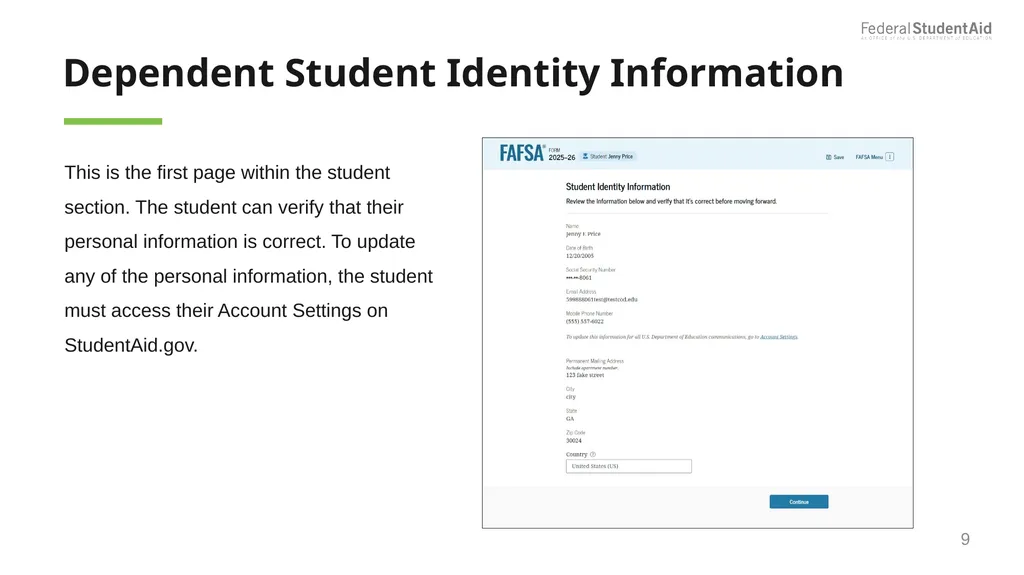
Dependent Student Identity Information This is the first page within the student section. The student can verify that their personal information is correct. To update any of the personal information, the student must access their Account Settings on StudentAid.gov. 9<br>
10
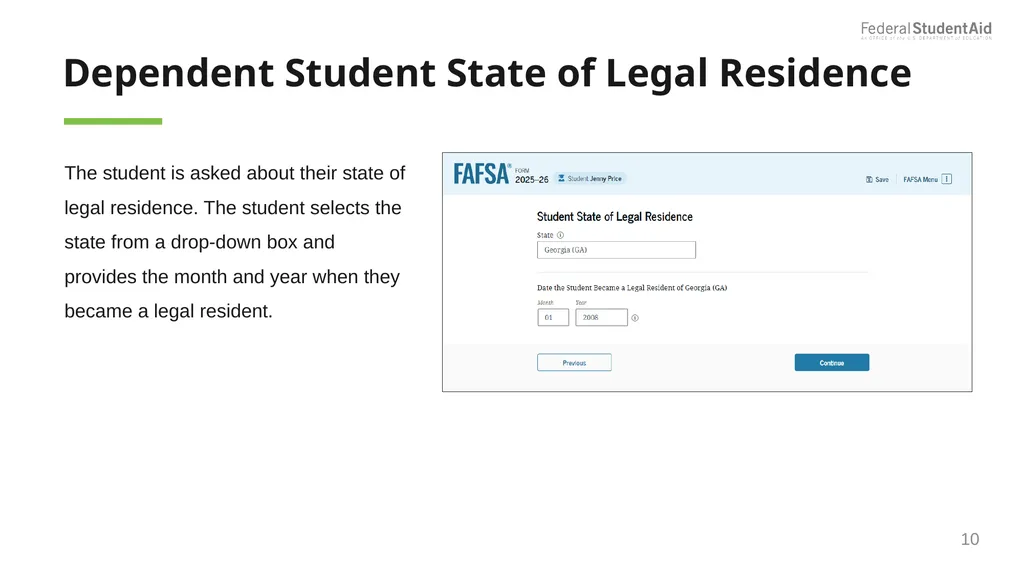
Dependent Student State of Legal Residence The student is asked about their state of legal residence. The student selects the state from a drop-down box and provides the month and year when they became a legal resident. 10<br>
11
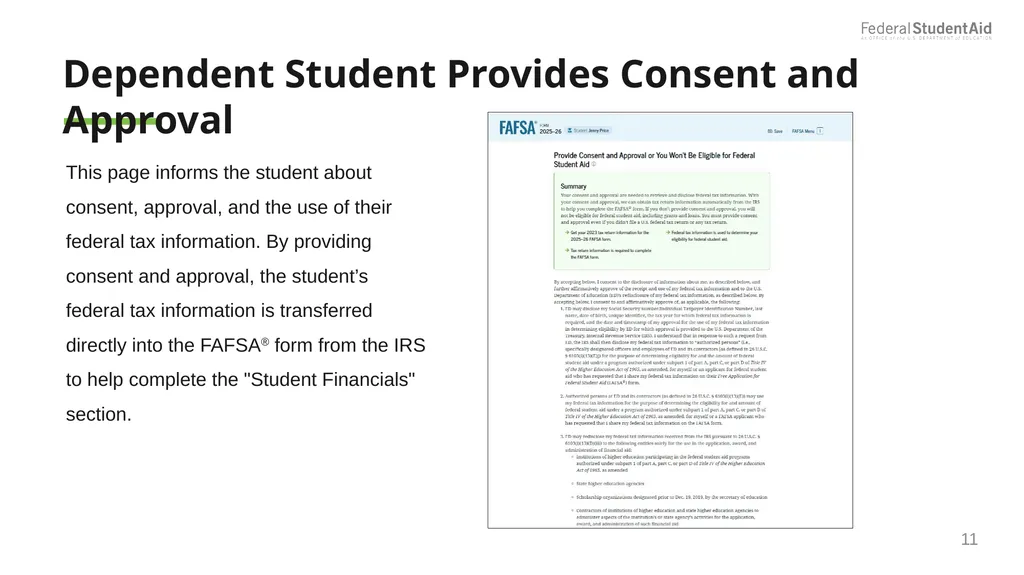
Dependent Student Provides Consent and Approval This page informs the student about consent, approval, and the use of their federal tax information. By providing consent and approval, the student’s federal tax information is transferred directly into the FAFSA® form from the IRS to help complete the "Student Financials" section. 11<br>
12
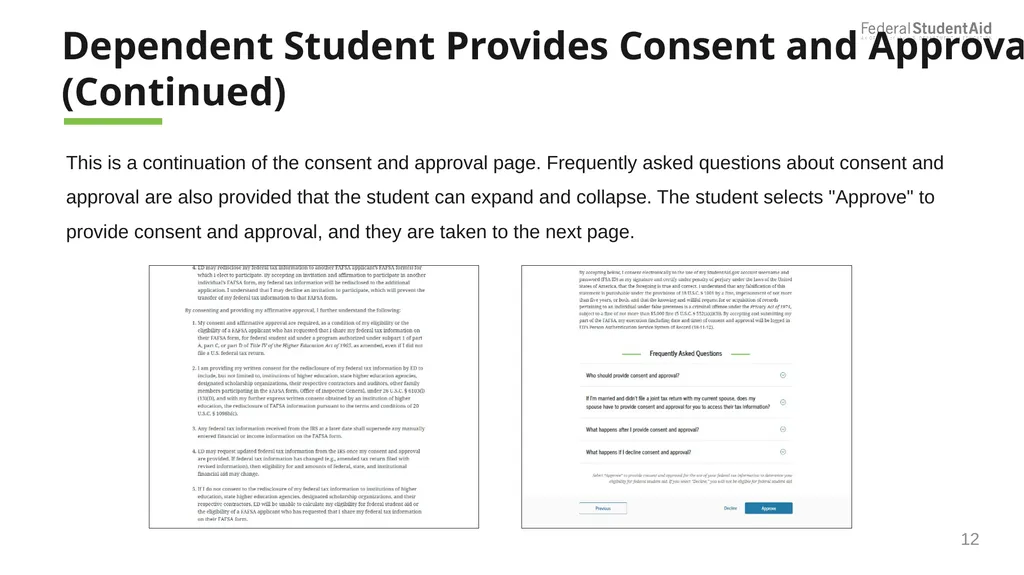
Dependent Student Provides Consent and Approval (Continued) 12 This is a continuation of the consent and approval page. Frequently asked questions about consent and approval are also provided that the student can expand and collapse. The student selects "Approve" to provide consent and approval, and they are taken to the next page.<br>
13
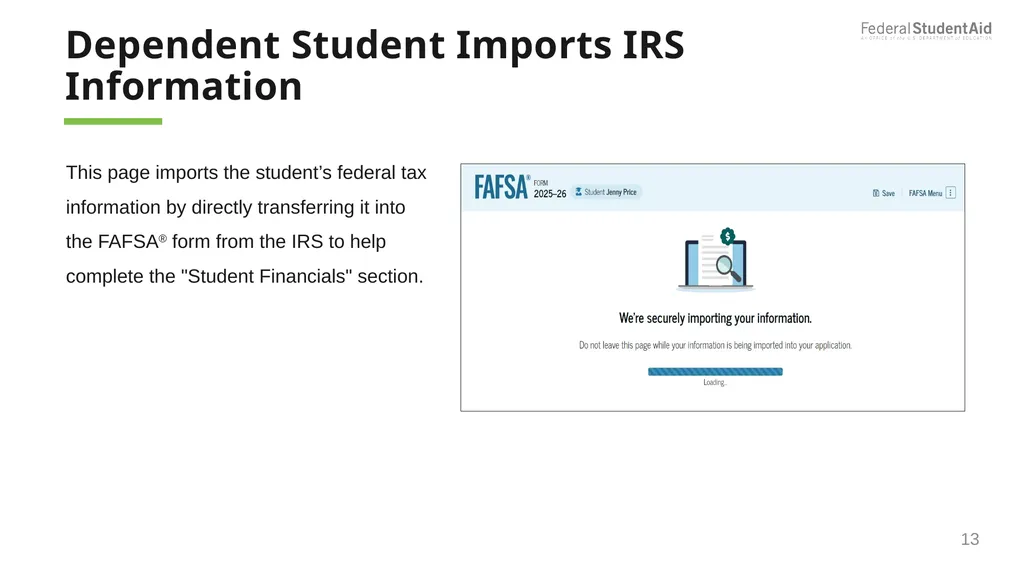
Dependent Student Imports IRS Information 13 This page imports the student’s federal tax information by directly transferring it into the FAFSA® form from the IRS to help complete the "Student Financials" section.<br>
14
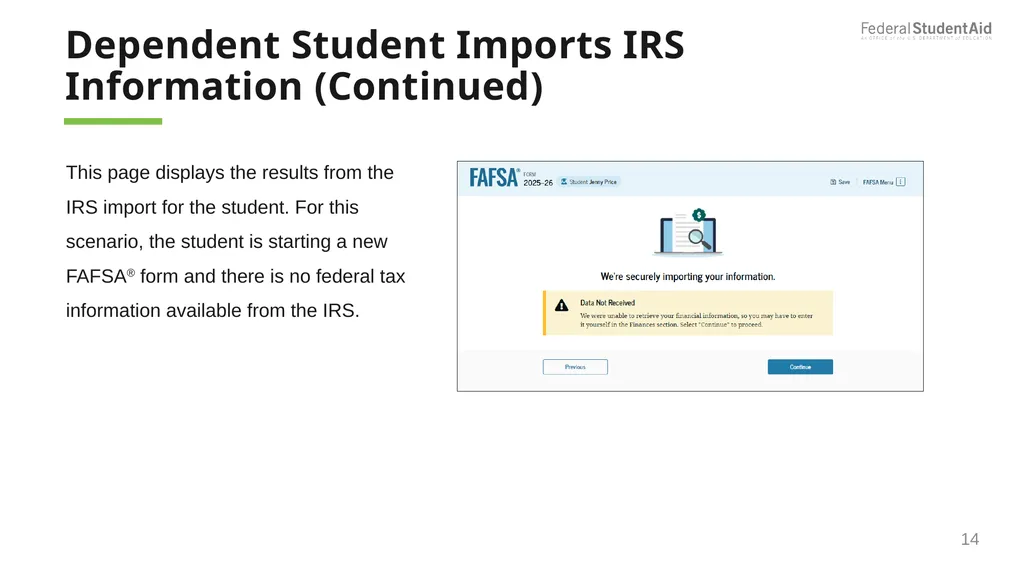
Dependent Student Imports IRS Information (Continued) 14 This page displays the results from the IRS import for the student. For this scenario, the student is starting a new FAFSA® form and there is no federal tax information available from the IRS.<br>
15
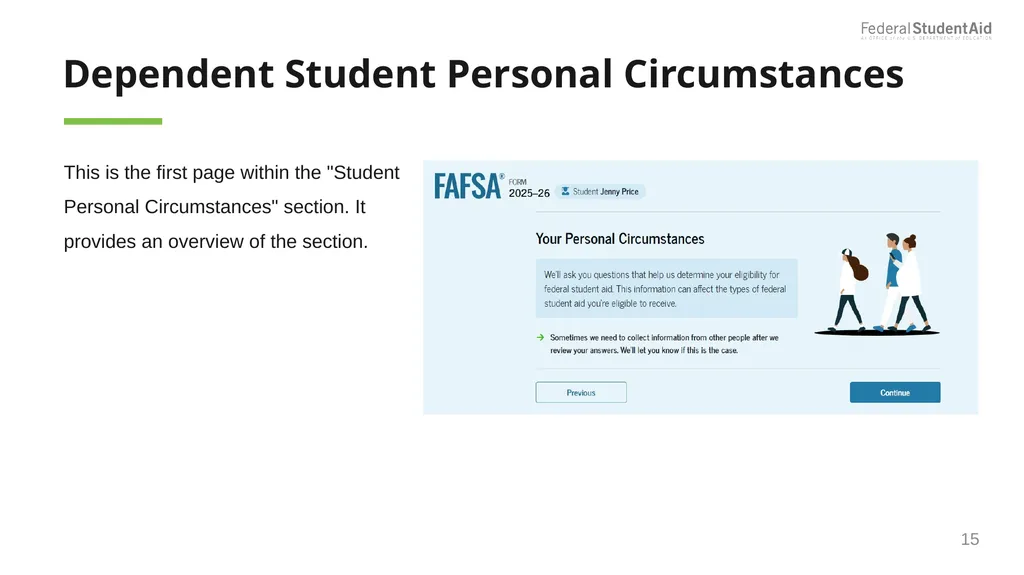
Dependent Student Personal Circumstances This is the first page within the "Student Personal Circumstances" section. It provides an overview of the section. 15<br>
16
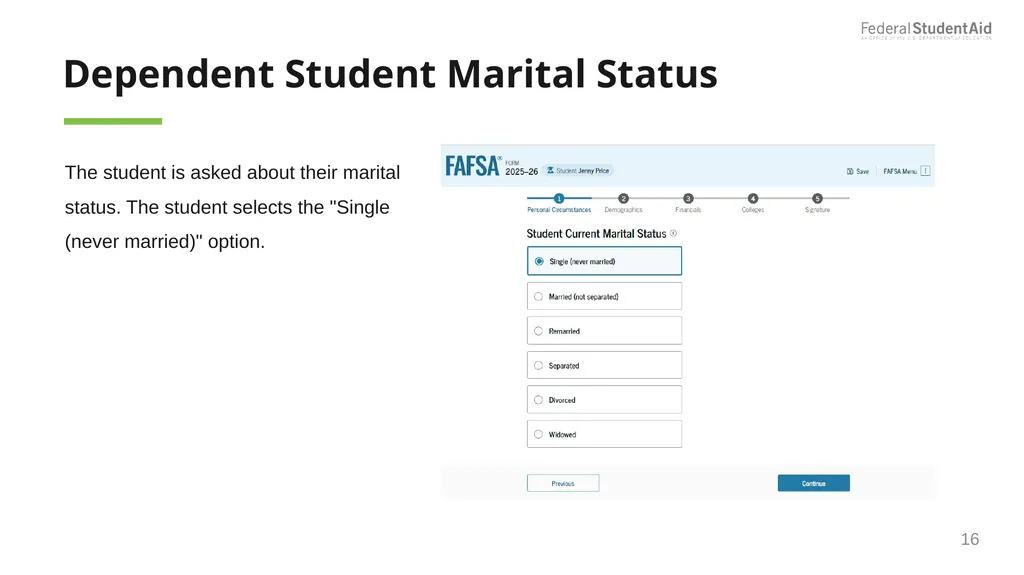
Dependent Student Marital Status The student is asked about their marital status. The student selects the "Single (never married)" option. 16<br>
17
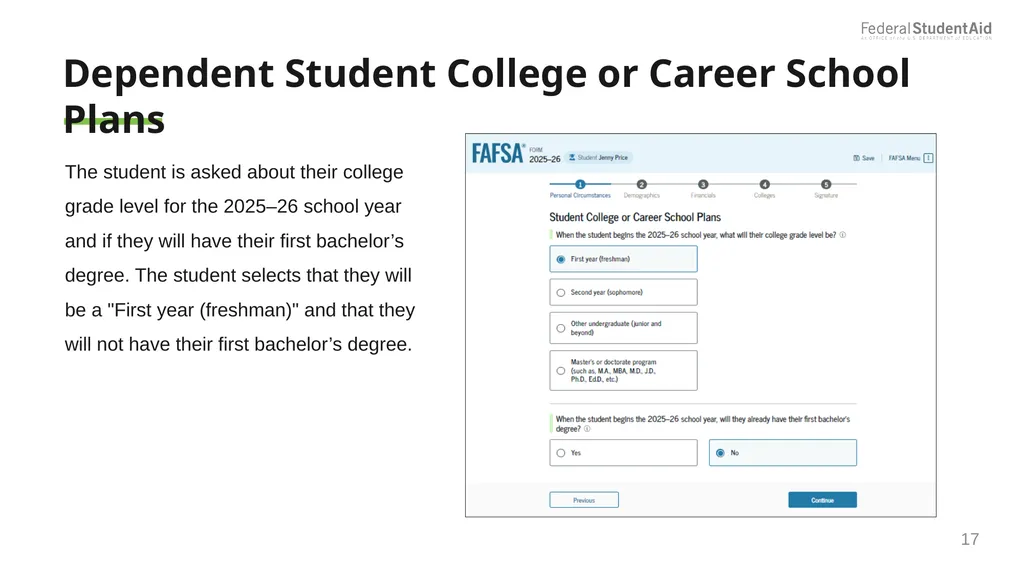
Dependent Student College or Career School Plans The student is asked about their college grade level for the 2025–26 school year and if they will have their first bachelor’s degree. The student selects that they will be a "First year (freshman)" and that they will not have their first bachelor’s degree. 17<br>
18
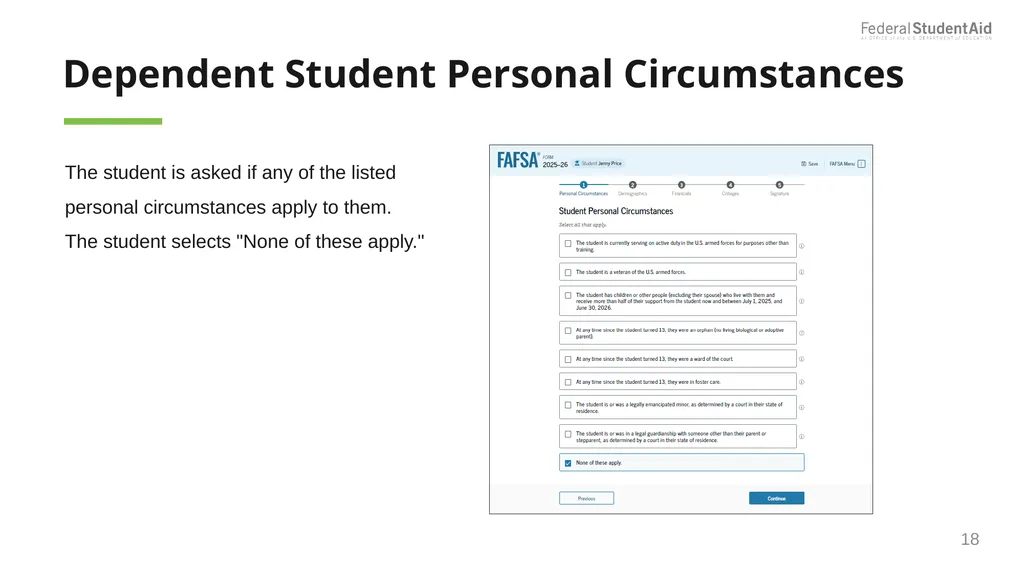
Dependent Student Personal Circumstances The student is asked if any of the listed personal circumstances apply to them. The student selects "None of these apply." 18<br>
19
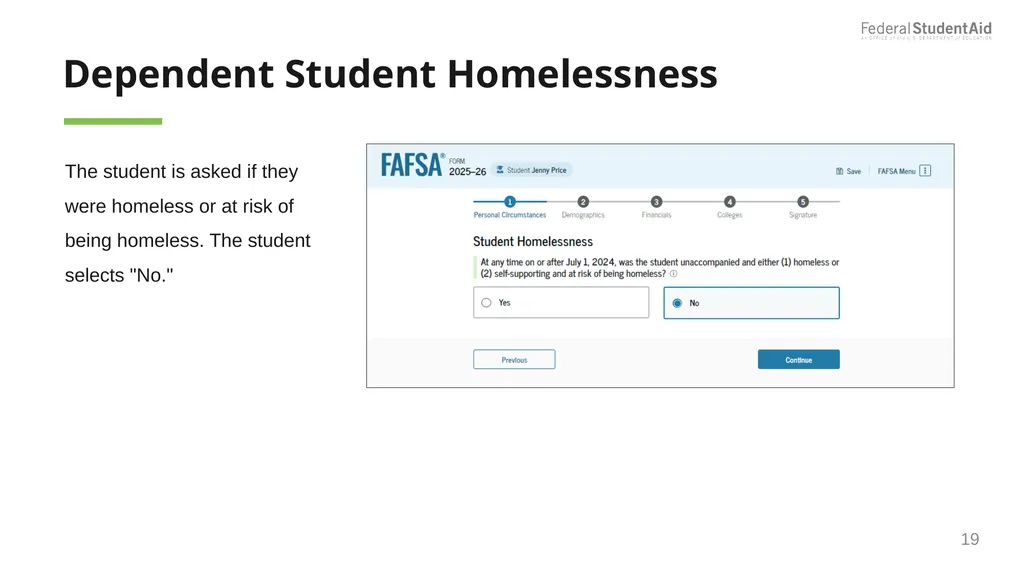
Dependent Student Homelessness The student is asked if they were homeless or at risk of being homeless. The student selects "No." 19<br>
20
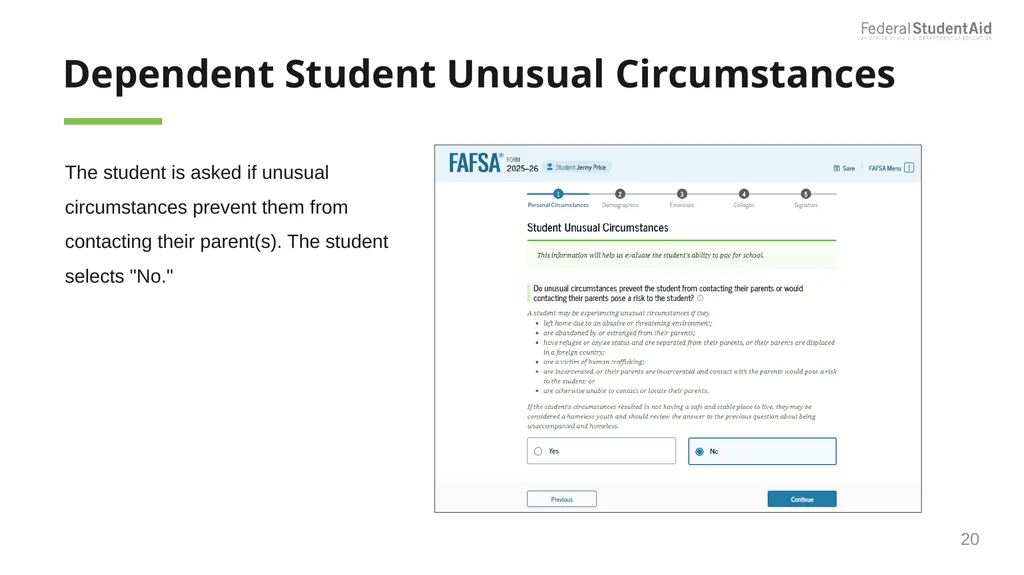
Dependent Student Unusual Circumstances The student is asked if unusual circumstances prevent them from contacting their parent(s). The student selects "No." 20<br>
21
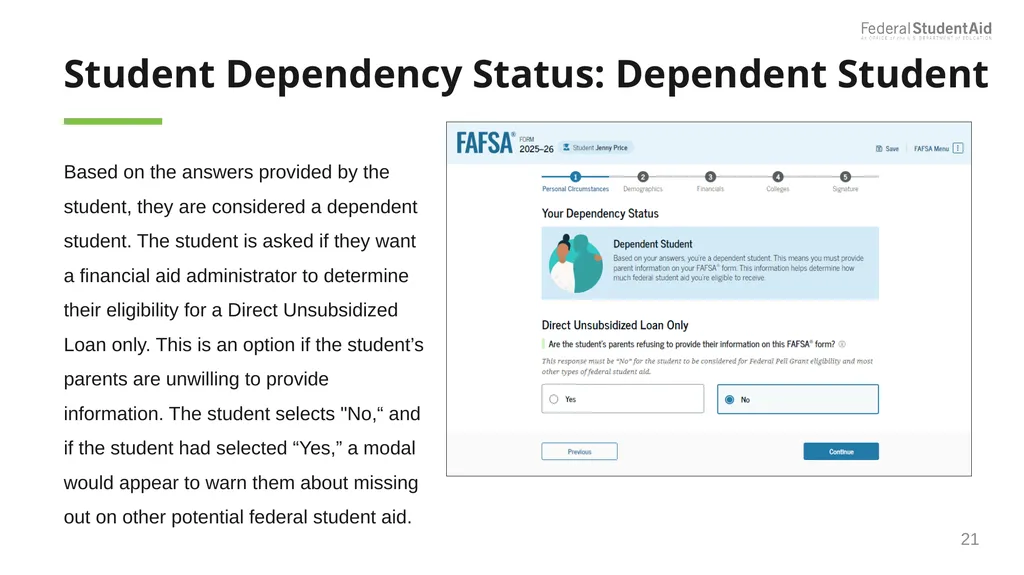
Student Dependency Status: Dependent Student Based on the answers provided by the student, they are considered a dependent student. The student is asked if they want a financial aid administrator to determine their eligibility for a Direct Unsubsidized Loan only. This is an option if the student’s parents are unwilling to provide information. The student selects "No,“ and if the student had selected “Yes,” a modal would appear to warn them about missing out on other potential federal student aid. 21<br>
22
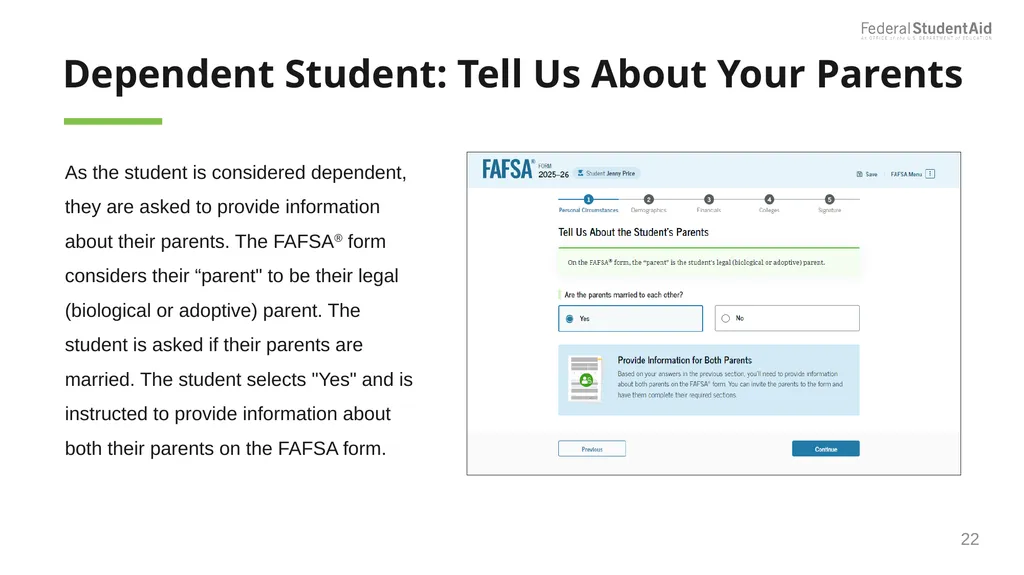
Dependent Student: Tell Us About Your Parents As the student is considered dependent, they are asked to provide information about their parents. The FAFSA® form considers their “parent" to be their legal (biological or adoptive) parent. The student is asked if their parents are married. The student selects "Yes" and is instructed to provide information about both their parents on the FAFSA form. 22<br>
23
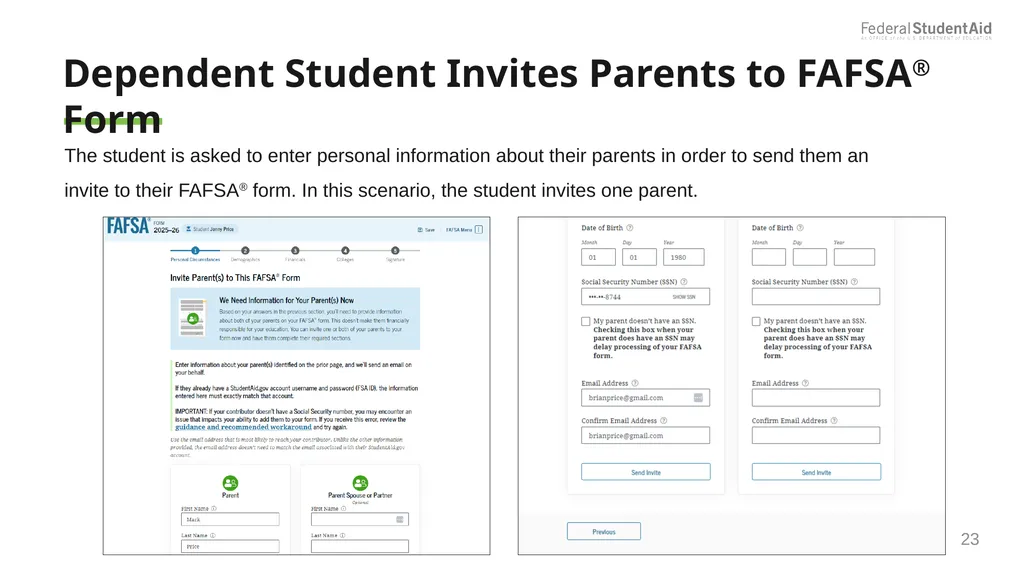
Dependent Student Invites Parents to FAFSA® Form The student is asked to enter personal information about their parents in order to send them an invite to their FAFSA® form. In this scenario, the student invites one parent. 23<br>
24
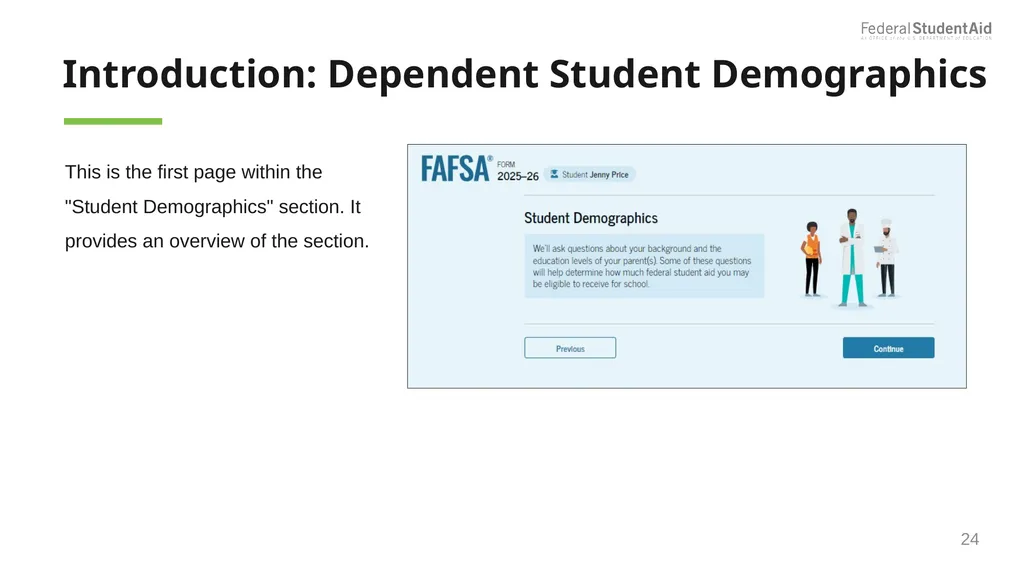
Introduction: Dependent Student Demographics This is the first page within the "Student Demographics" section. It provides an overview of the section. 24<br>
25
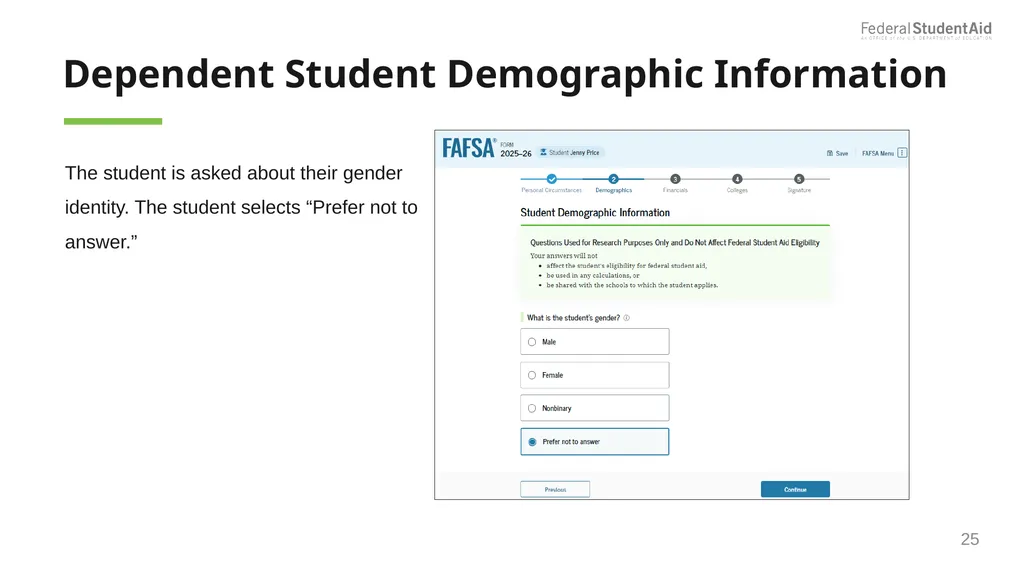
Dependent Student Demographic Information The student is asked about their gender identity. The student selects “Prefer not to answer.” 25<br>
26
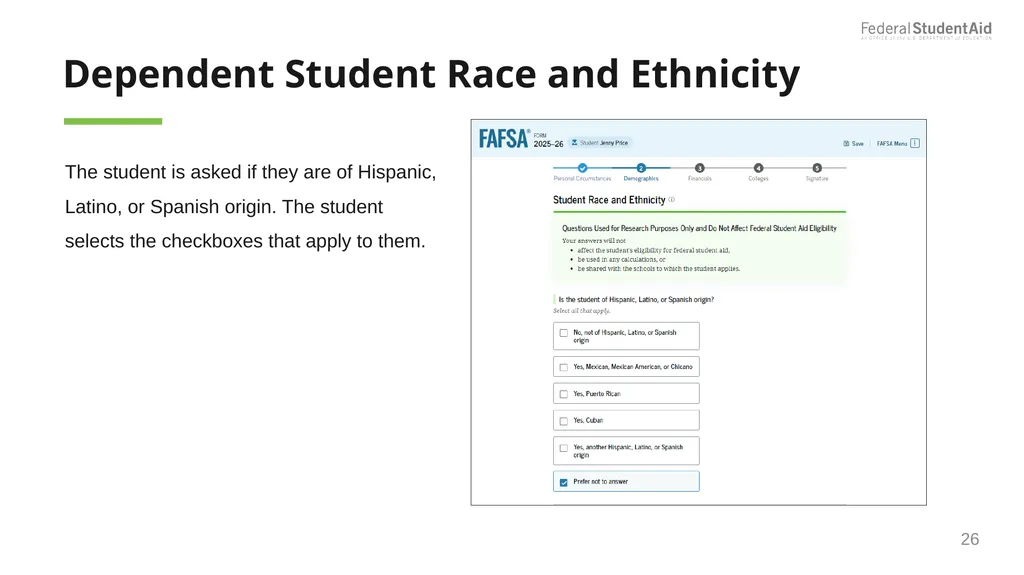
Dependent Student Race and Ethnicity The student is asked if they are of Hispanic, Latino, or Spanish origin. The student selects the checkboxes that apply to them. 26<br>
27
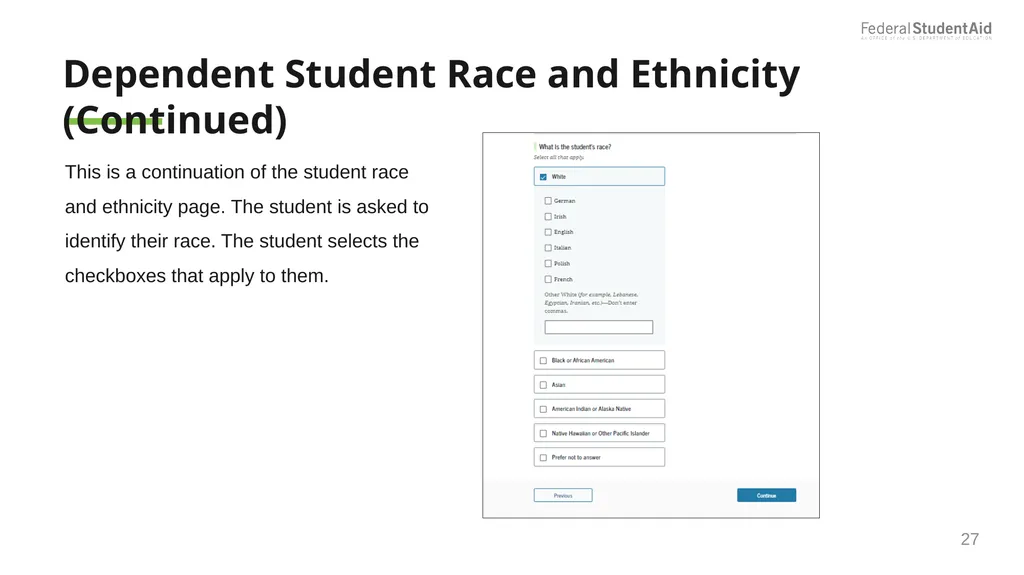
Dependent Student Race and Ethnicity (Continued) This is a continuation of the student race and ethnicity page. The student is asked to identify their race. The student selects the checkboxes that apply to them. 27<br>
28
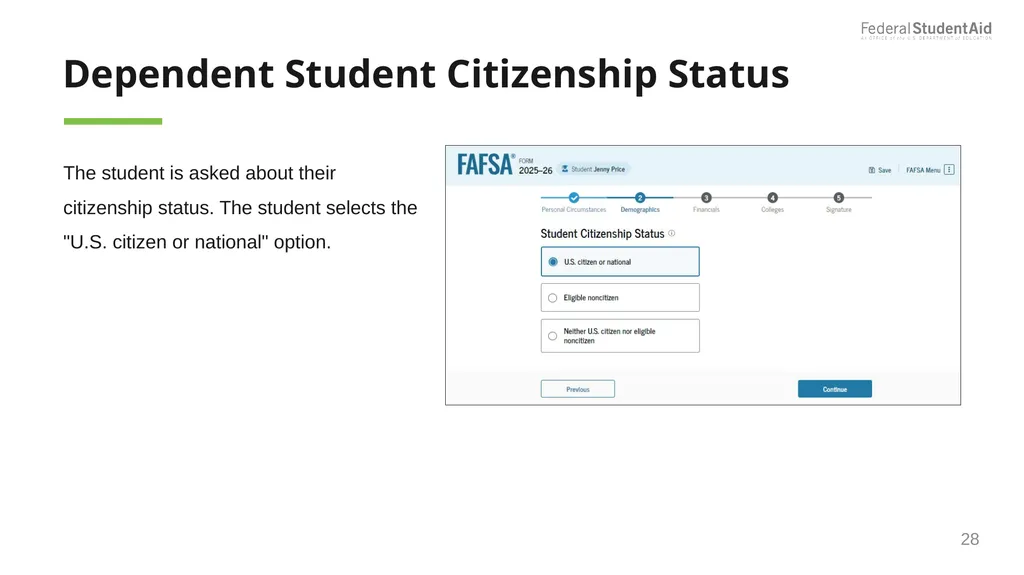
Dependent Student Citizenship Status The student is asked about their citizenship status. The student selects the "U.S. citizen or national" option. 28<br>
29
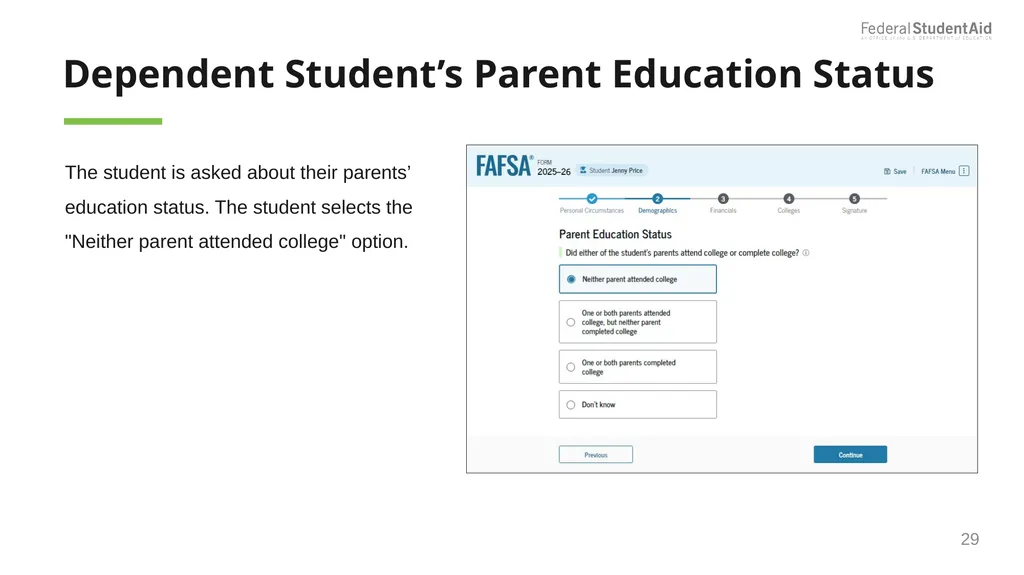
Dependent Student’s Parent Education Status The student is asked about their parents’ education status. The student selects the "Neither parent attended college" option. 29<br>
30
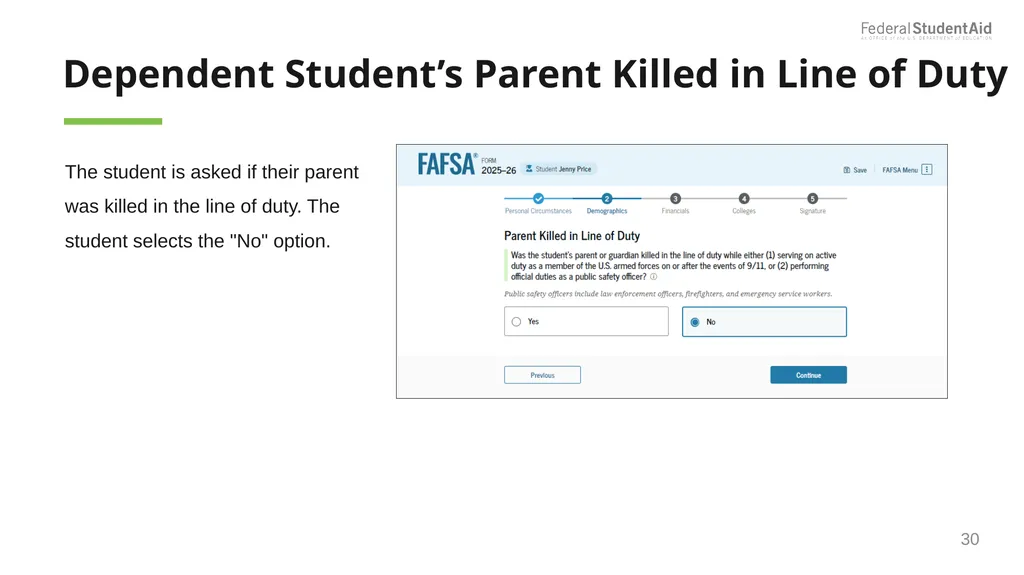
Dependent Student’s Parent Killed in Line of Duty The student is asked if their parent was killed in the line of duty. The student selects the "No" option. 30<br>
31
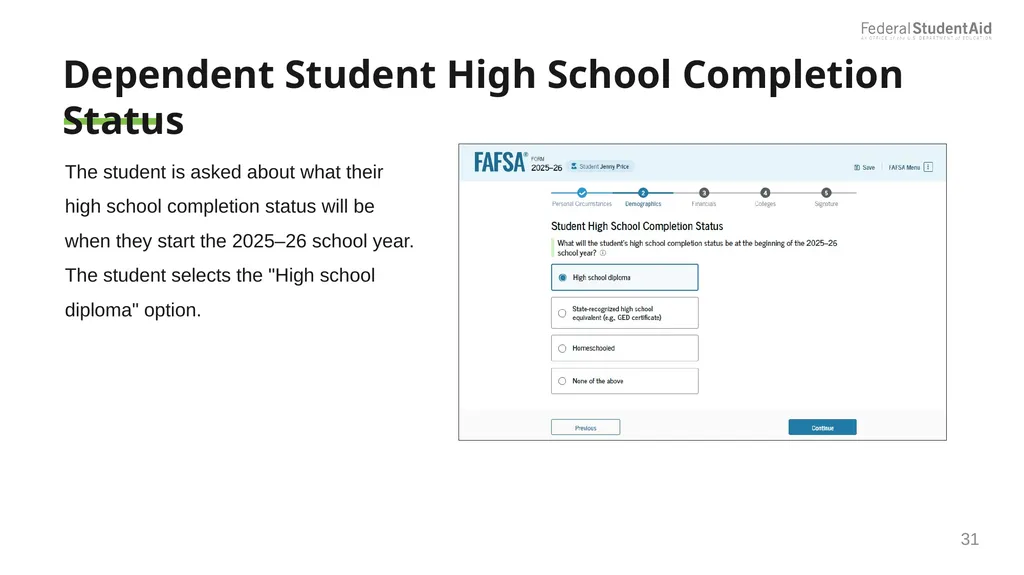
Dependent Student High School Completion Status The student is asked about what their high school completion status will be when they start the 2025–26 school year. The student selects the "High school diploma" option. 31<br>
32
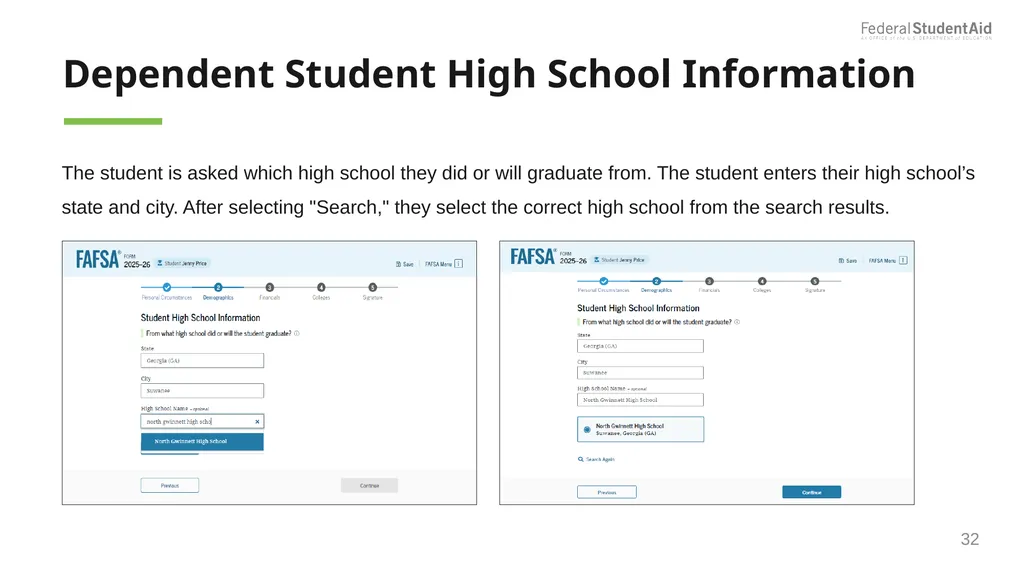
Dependent Student High School Information The student is asked which high school they did or will graduate from. The student enters their high school’s state and city. After selecting "Search," they select the correct high school from the search results. 32<br>
33
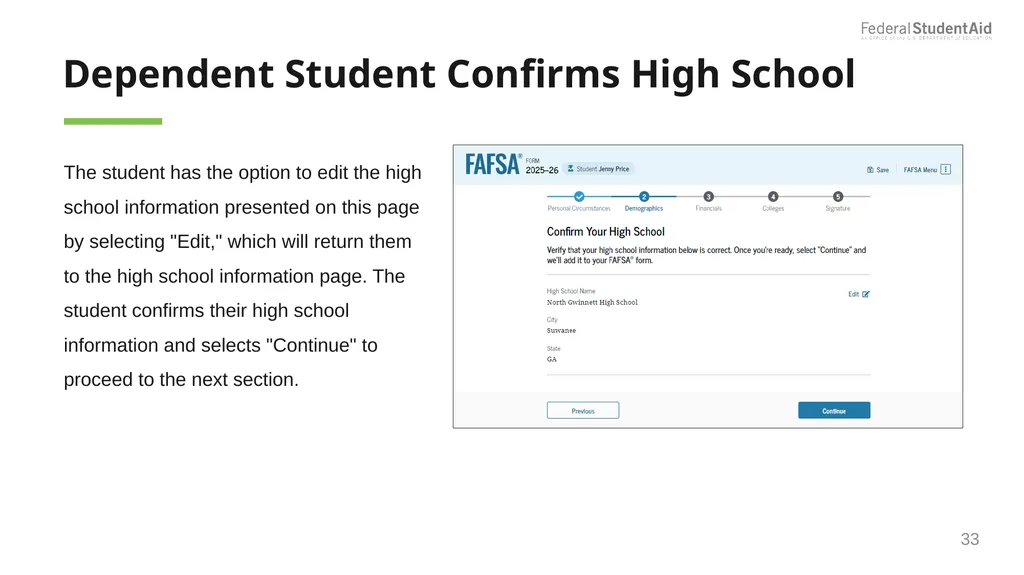
Dependent Student Confirms High School The student has the option to edit the high school information presented on this page by selecting "Edit," which will return them to the high school information page. The student confirms their high school information and selects "Continue" to proceed to the next section. 33<br>
34
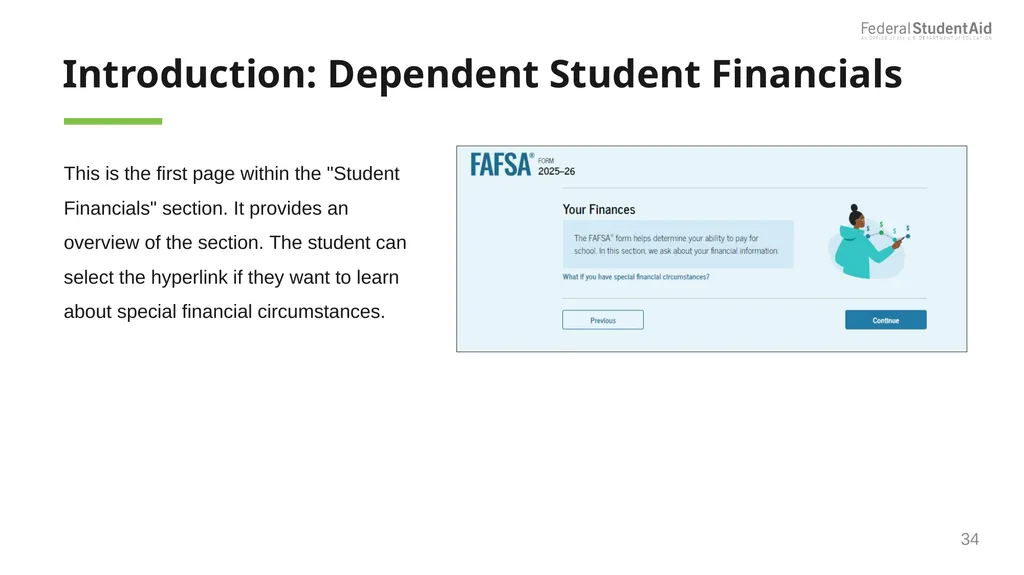
Introduction: Dependent Student Financials This is the first page within the "Student Financials" section. It provides an overview of the section. The student can select the hyperlink if they want to learn about special financial circumstances. 34<br>
35
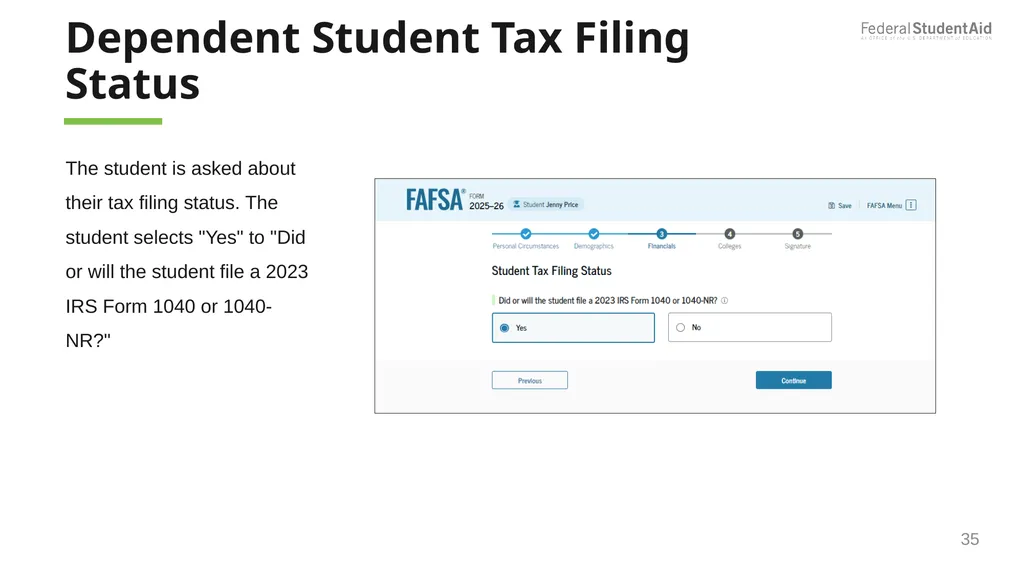
Dependent Student Tax Filing Status 35 The student is asked about their tax filing status. The student selects "Yes" to "Did or will the student file a 2023 IRS Form 1040 or 1040-NR?"<br>
36
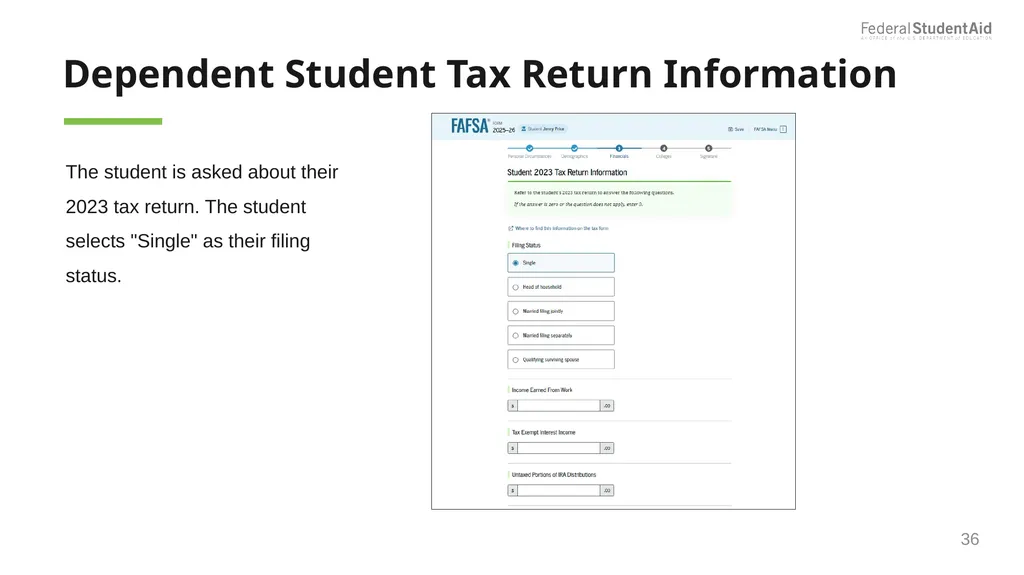
Dependent Student Tax Return Information The student is asked about their 2023 tax return. The student selects "Single" as their filing status. 36<br>
37
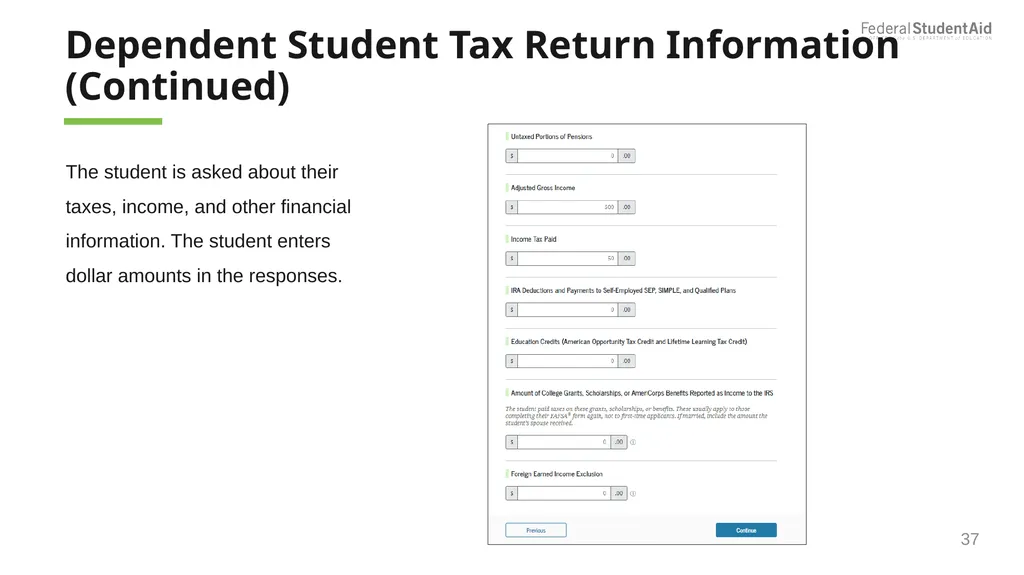
Dependent Student Tax Return Information (Continued) 37 The student is asked about their taxes, income, and other financial information. The student enters dollar amounts in the responses.<br>
38
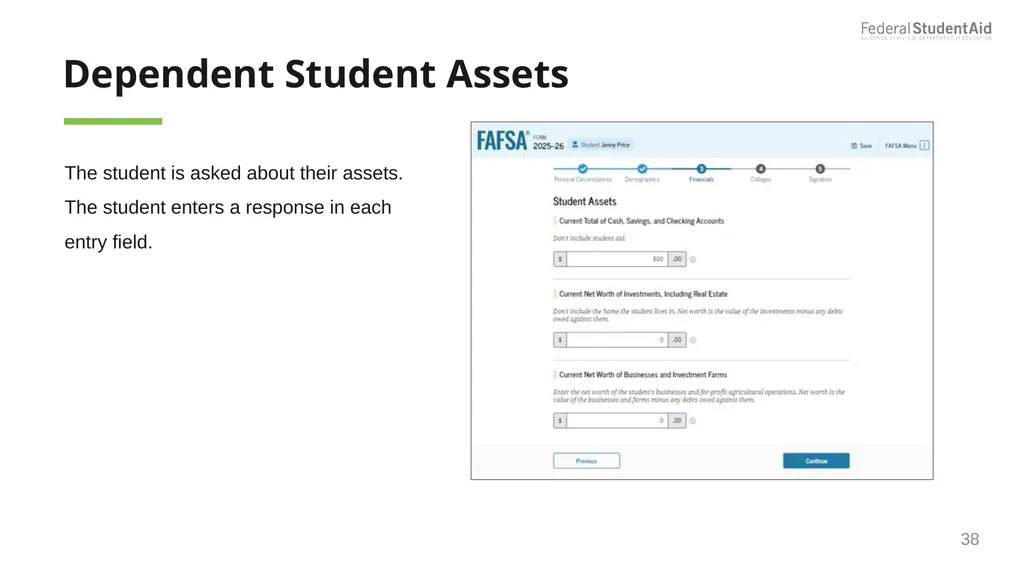
Dependent Student Assets The student is asked about their assets. The student enters a response in each entry field. 38<br>
39
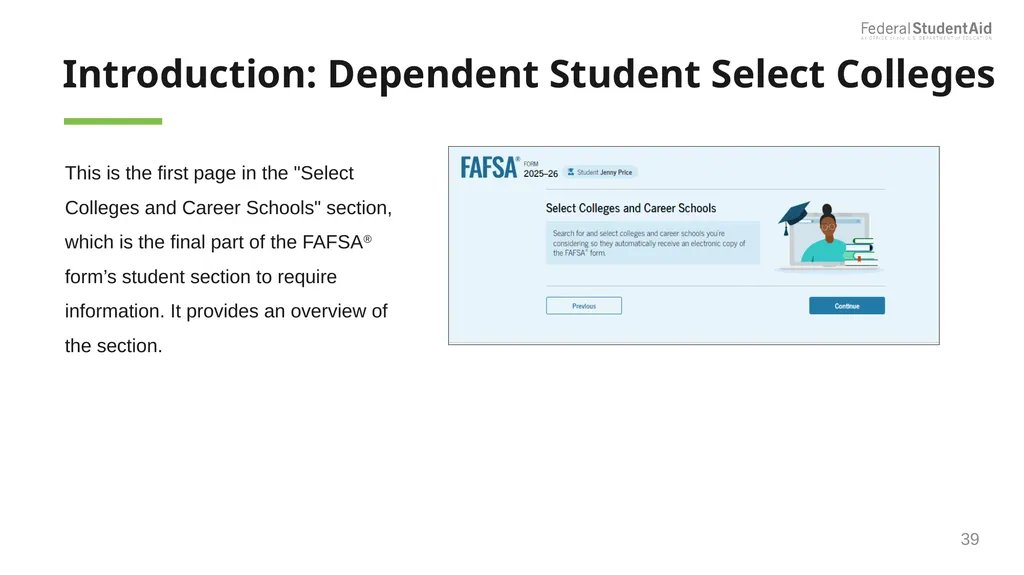
Introduction: Dependent Student Select Colleges This is the first page in the "Select Colleges and Career Schools" section, which is the final part of the FAFSA® form’s student section to require information. It provides an overview of the section. 39<br>
40
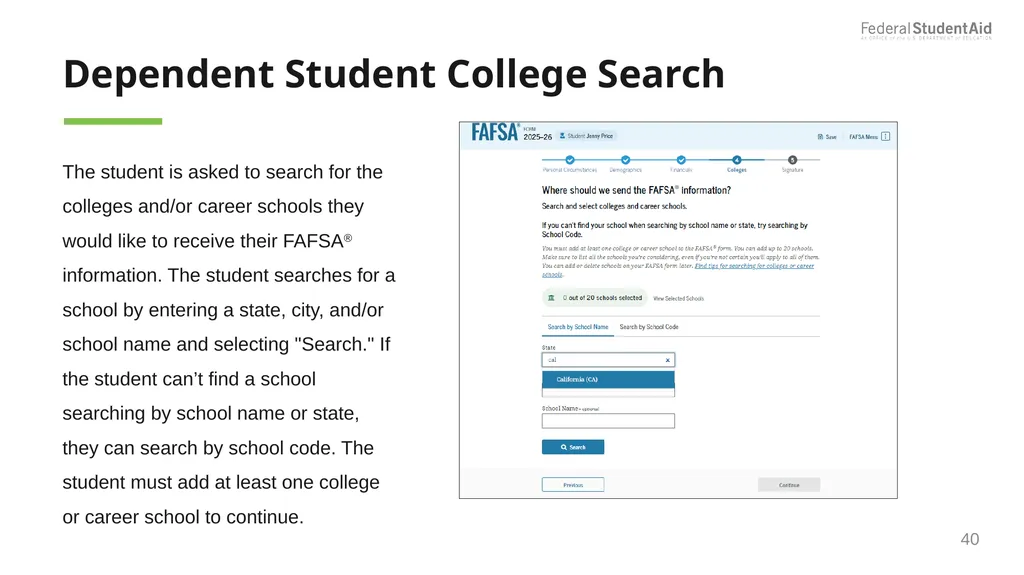
Dependent Student College Search The student is asked to search for the colleges and/or career schools they would like to receive their FAFSA® information. The student searches for a school by entering a state, city, and/or school name and selecting "Search." If the student can’t find a school searching by school name or state, they can search by school code. The student must add at least one college or career school to continue. 40<br>
41
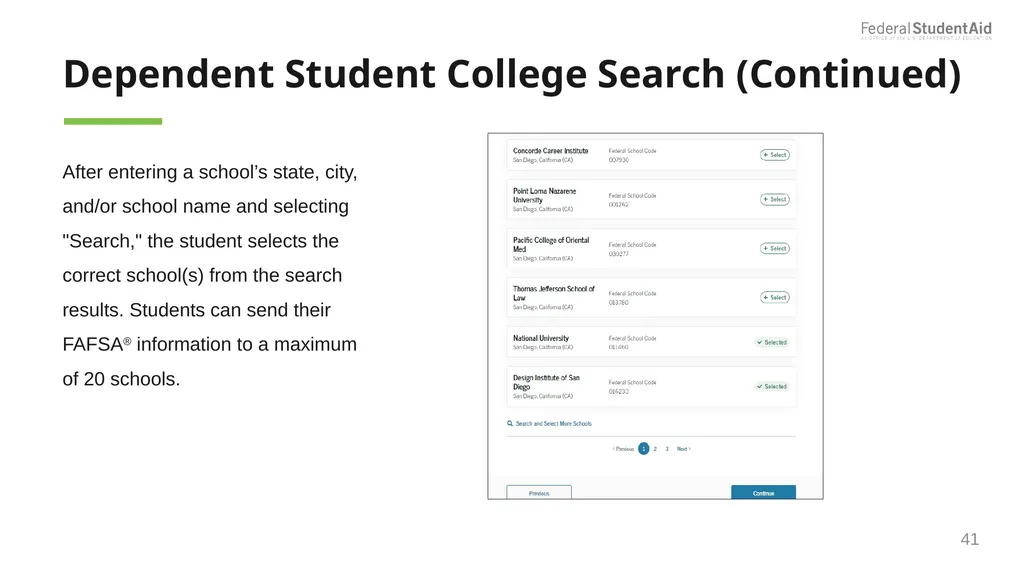
Dependent Student College Search (Continued) After entering a school’s state, city, and/or school name and selecting "Search," the student selects the correct school(s) from the search results. Students can send their FAFSA® information to a maximum of 20 schools. 41<br>
42
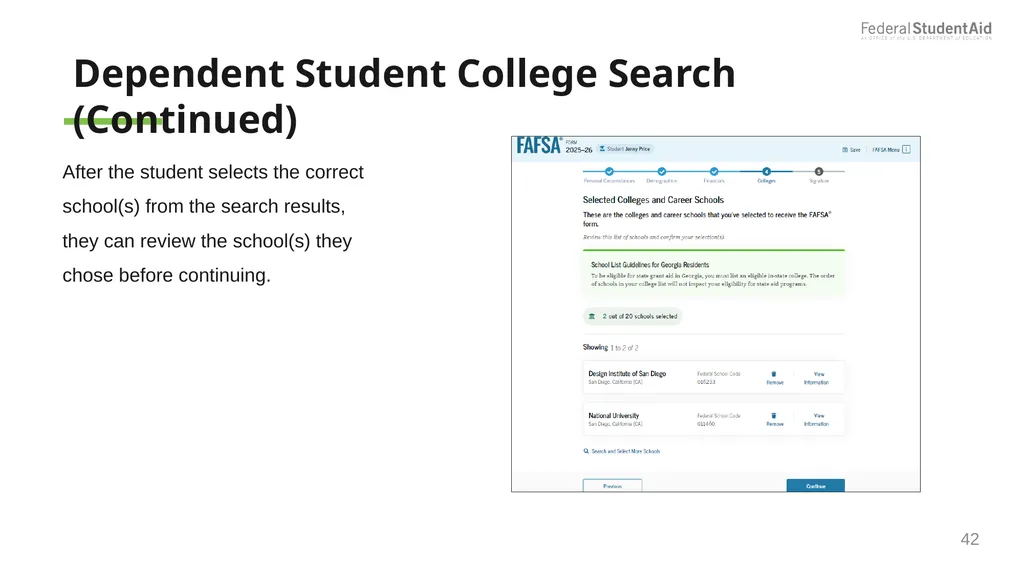
42 Dependent Student College Search (Continued) After the student selects the correct school(s) from the search results, they can review the school(s) they chose before continuing.<br>
43
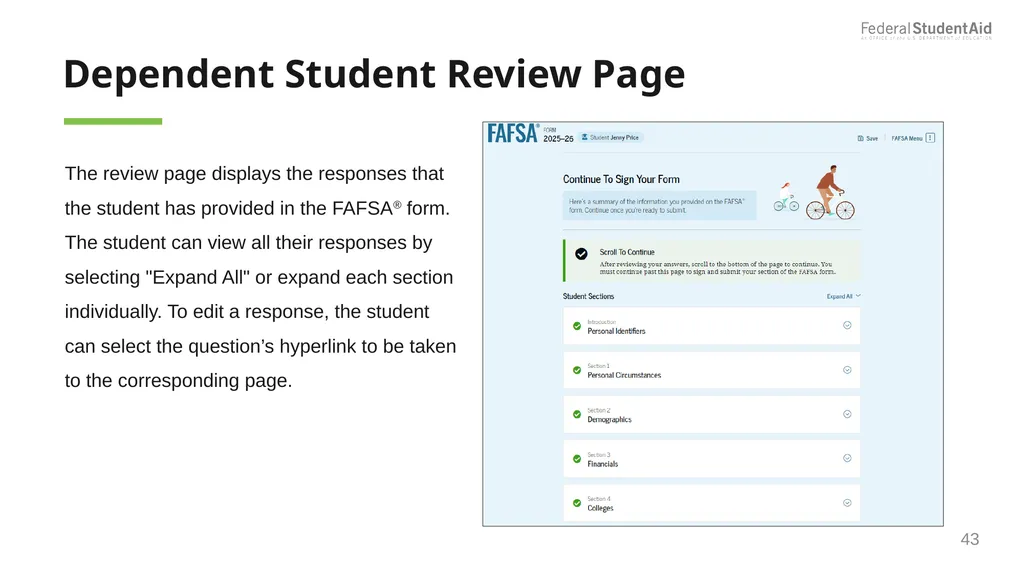
Dependent Student Review Page The review page displays the responses that the student has provided in the FAFSA® form. The student can view all their responses by selecting "Expand All" or expand each section individually. To edit a response, the student can select the question’s hyperlink to be taken to the corresponding page. 43<br>
44
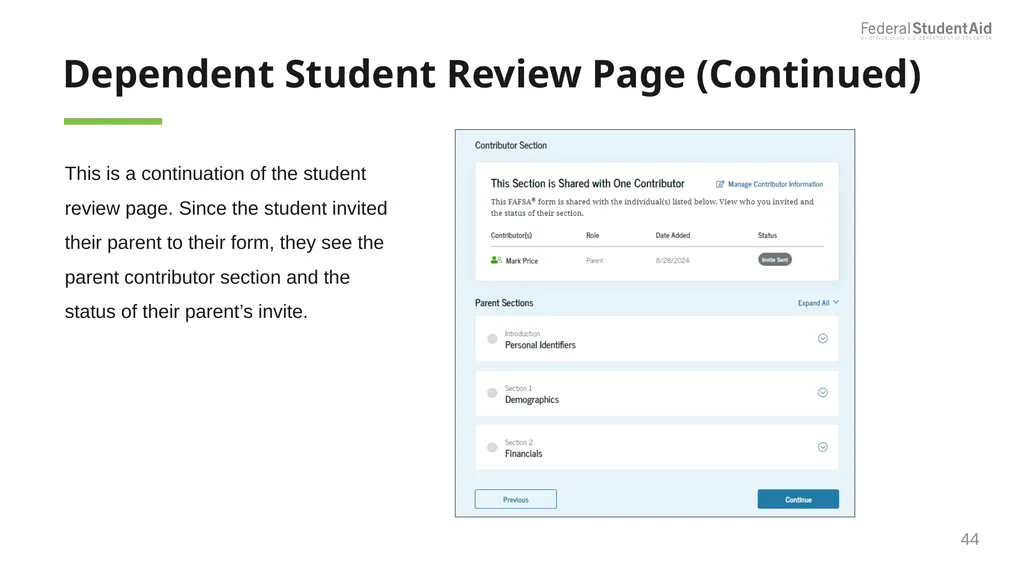
Dependent Student Review Page (Continued) 44 This is a continuation of the student review page. Since the student invited their parent to their form, they see the parent contributor section and the status of their parent’s invite.<br>
45
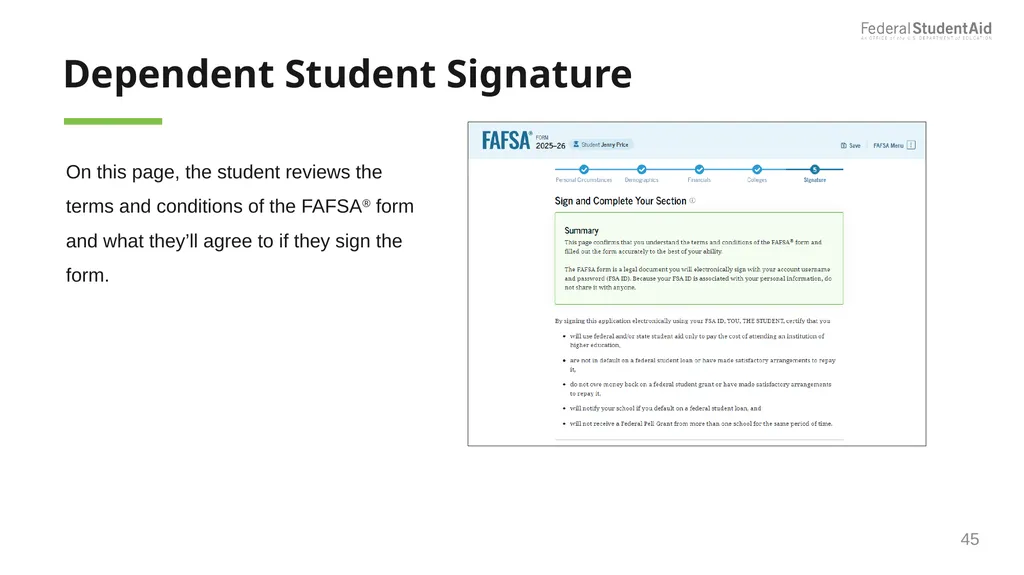
Dependent Student Signature On this page, the student reviews the terms and conditions of the FAFSA® form and what they’ll agree to if they sign the form. 45<br>
46
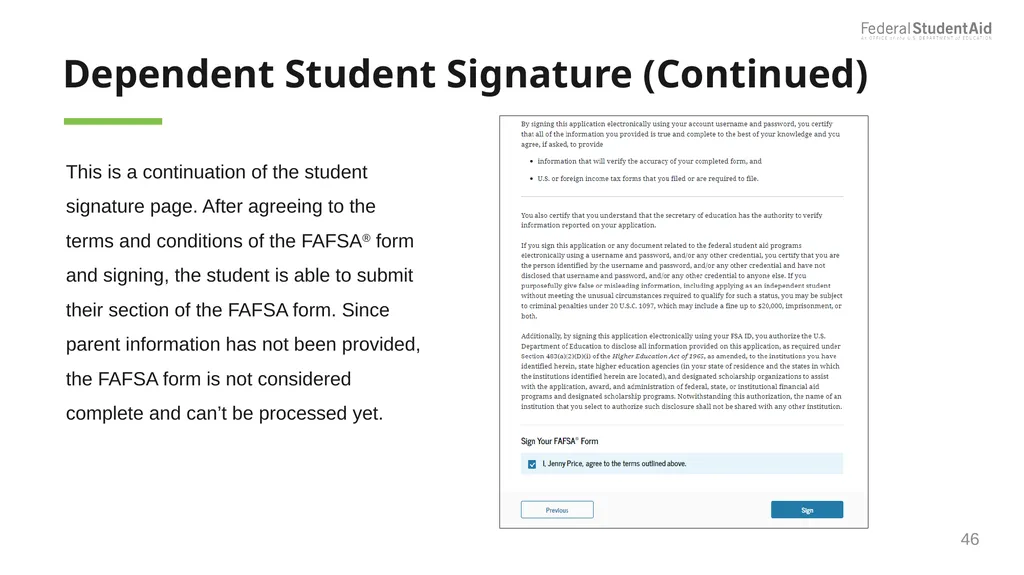
Dependent Student Signature (Continued) This is a continuation of the student signature page. After agreeing to the terms and conditions of the FAFSA® form and signing, the student is able to submit their section of the FAFSA form. Since parent information has not been provided, the FAFSA form is not considered complete and can’t be processed yet. 46<br>
47
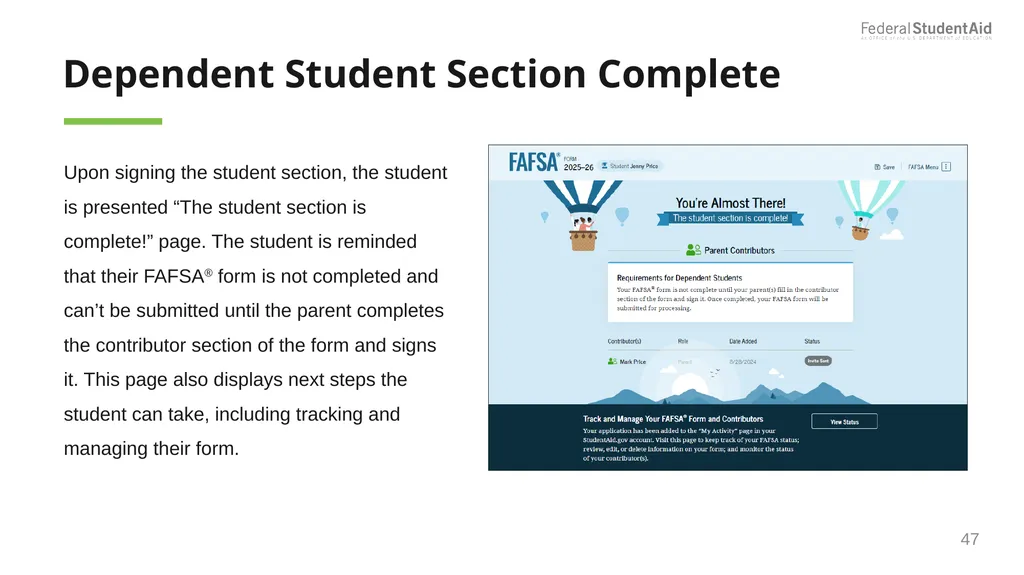
Dependent Student Section Complete Upon signing the student section, the student is presented “The student section is complete!” page. The student is reminded that their FAFSA® form is not completed and can’t be submitted until the parent completes the contributor section of the form and signs it. This page also displays next steps the student can take, including tracking and managing their form. 47<br>
48
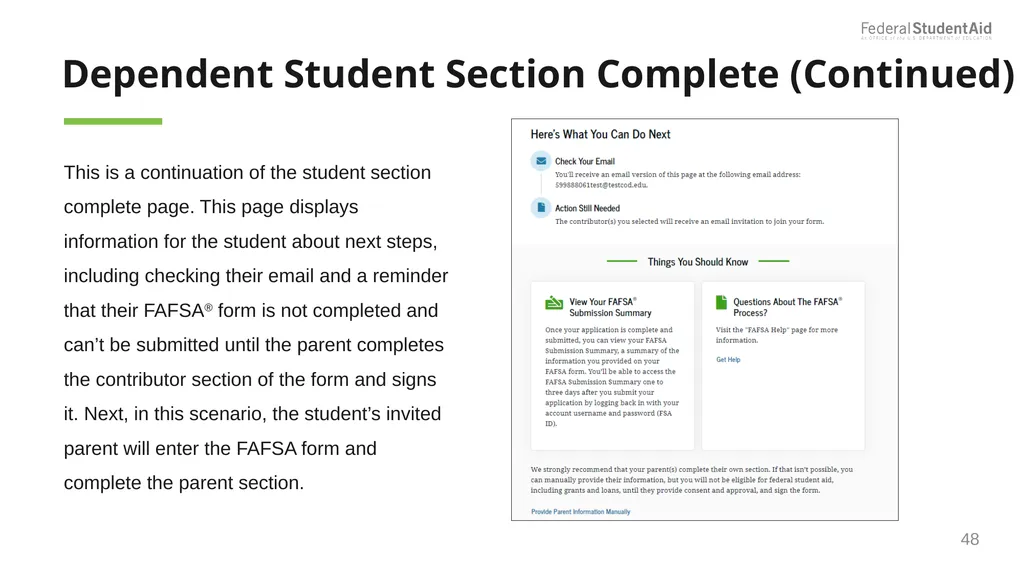
Dependent Student Section Complete (Continued) This is a continuation of the student section complete page. This page displays information for the student about next steps, including checking their email and a reminder that their FAFSA® form is not completed and can’t be submitted until the parent completes the contributor section of the form and signs it. Next, in this scenario, the student’s invited parent will enter the FAFSA form and complete the parent section. 48<br>
49
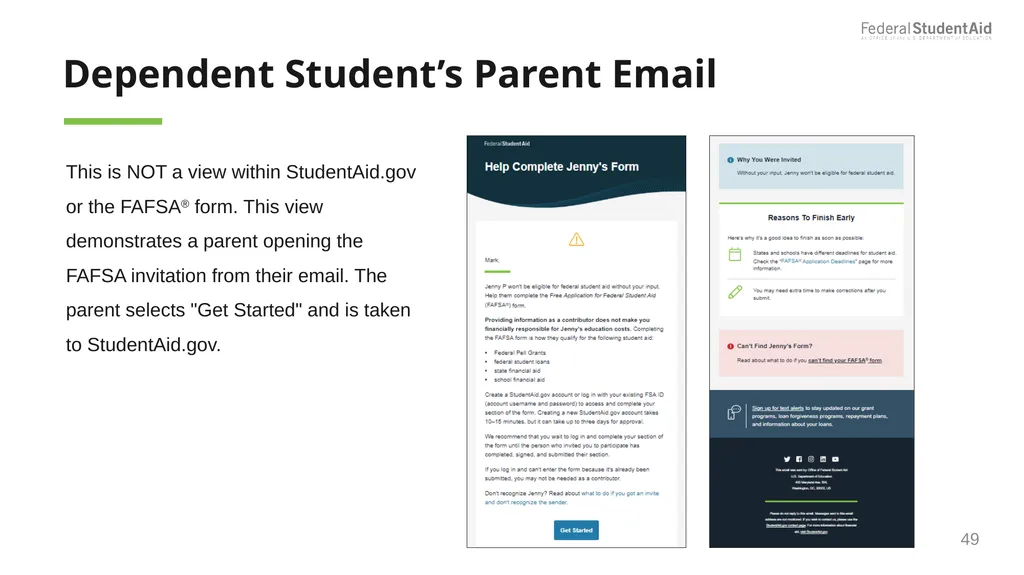
Dependent Student’s Parent Email This is NOT a view within StudentAid.gov or the FAFSA® form. This view demonstrates a parent opening the FAFSA invitation from their email. The parent selects "Get Started" and is taken to StudentAid.gov. 49<br>
50
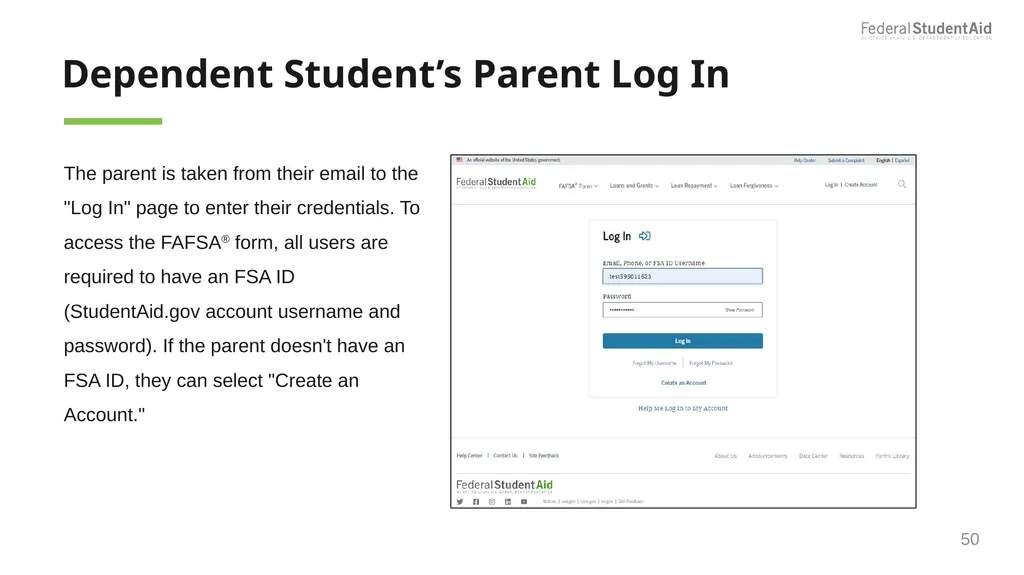
Dependent Student’s Parent Log In The parent is taken from their email to the "Log In" page to enter their credentials. To access the FAFSA® form, all users are required to have an FSA ID (StudentAid.gov account username and password). If the parent doesn't have an FSA ID, they can select "Create an Account." 50<br>
51
Independent Student Who Is Single
and a Non-Tax Filer 51<br>
52
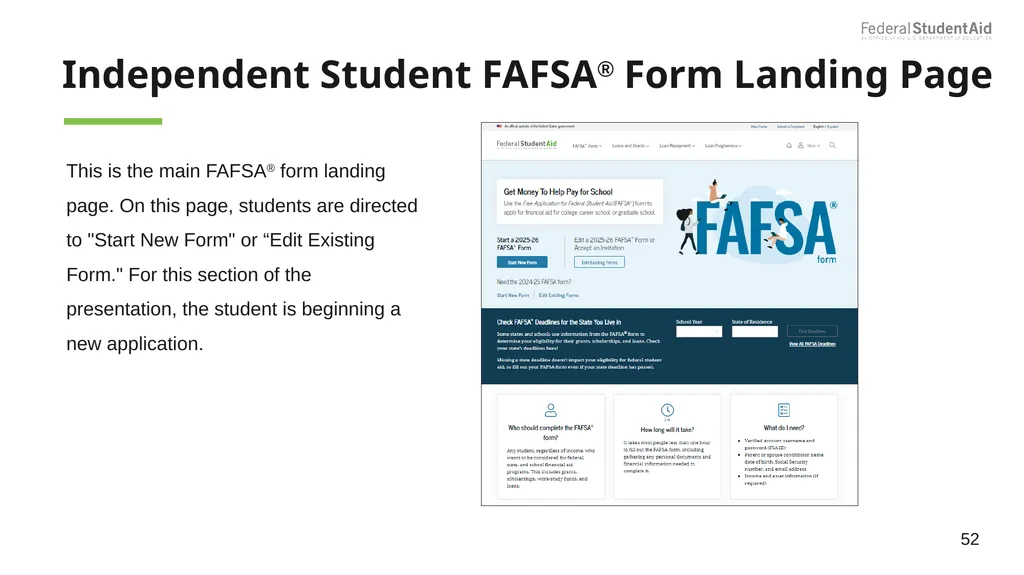
Independent Student FAFSA® Form Landing Page This is the main FAFSA® form landing page. On this page, students are directed to "Start New Form" or “Edit Existing Form." For this section of the presentation, the student is beginning a new application. 52<br>
53
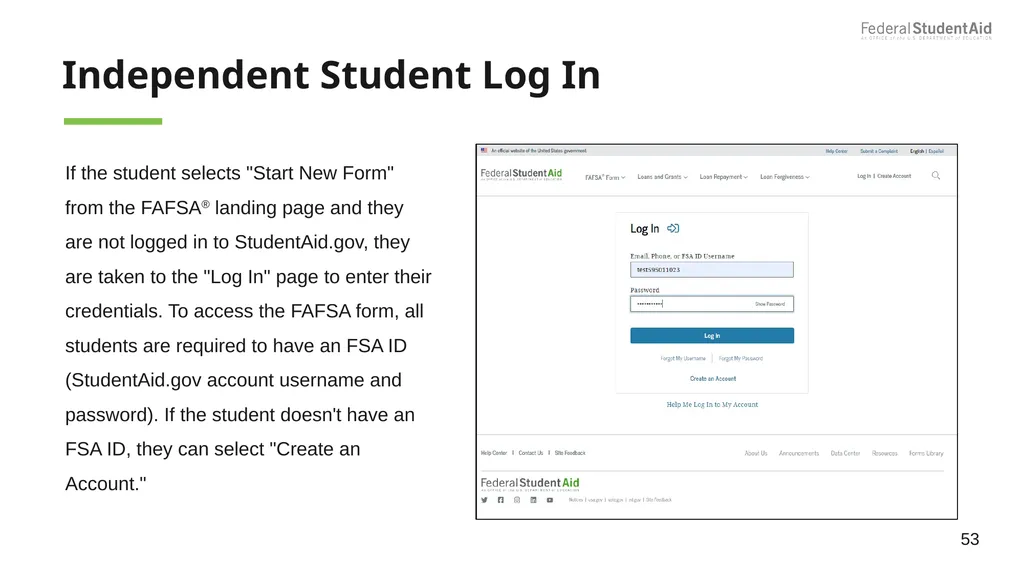
Independent Student Log In If the student selects "Start New Form" from the FAFSA® landing page and they are not logged in to StudentAid.gov, they are taken to the "Log In" page to enter their credentials. To access the FAFSA form, all students are required to have an FSA ID (StudentAid.gov account username and password). If the student doesn't have an FSA ID, they can select "Create an Account." 53<br>
54
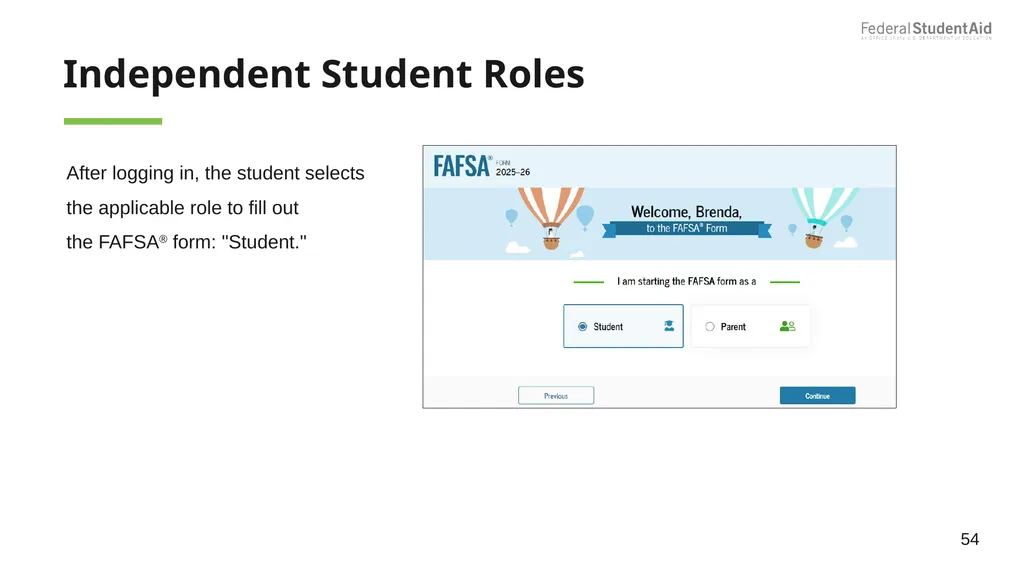
Independent Student Roles After logging in, the student selects the applicable role to fill out the FAFSA® form: "Student." 54<br>
55
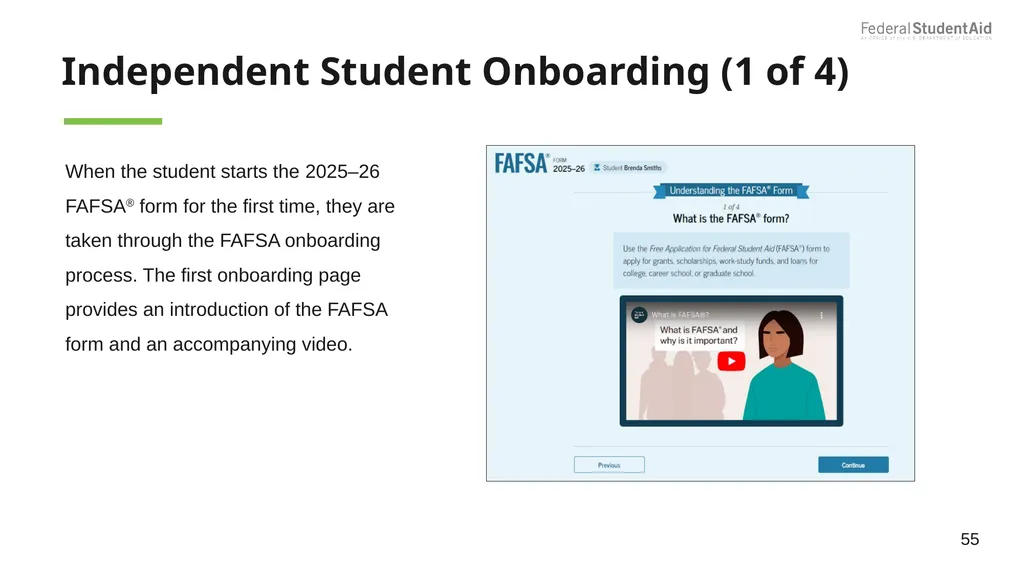
Independent Student Onboarding (1 of 4) When the student starts the 2025–26 FAFSA® form for the first time, they are taken through the FAFSA onboarding process. The first onboarding page provides an introduction of the FAFSA form and an accompanying video. 55<br>
56
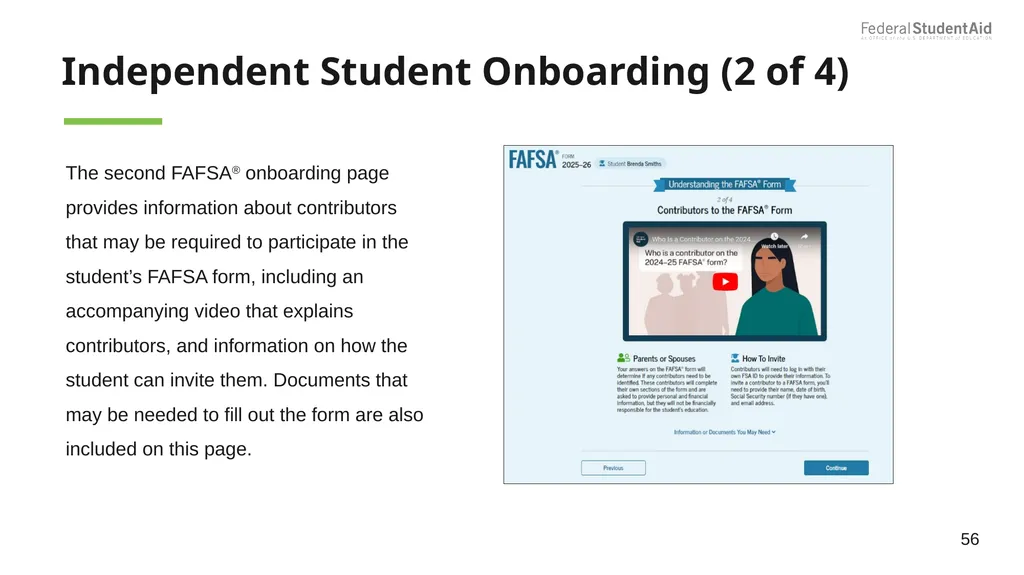
Independent Student Onboarding (2 of 4) 56 The second FAFSA® onboarding page provides information about contributors that may be required to participate in the student’s FAFSA form, including an accompanying video that explains contributors, and information on how the student can invite them. Documents that may be needed to fill out the form are also included on this page.<br>
57
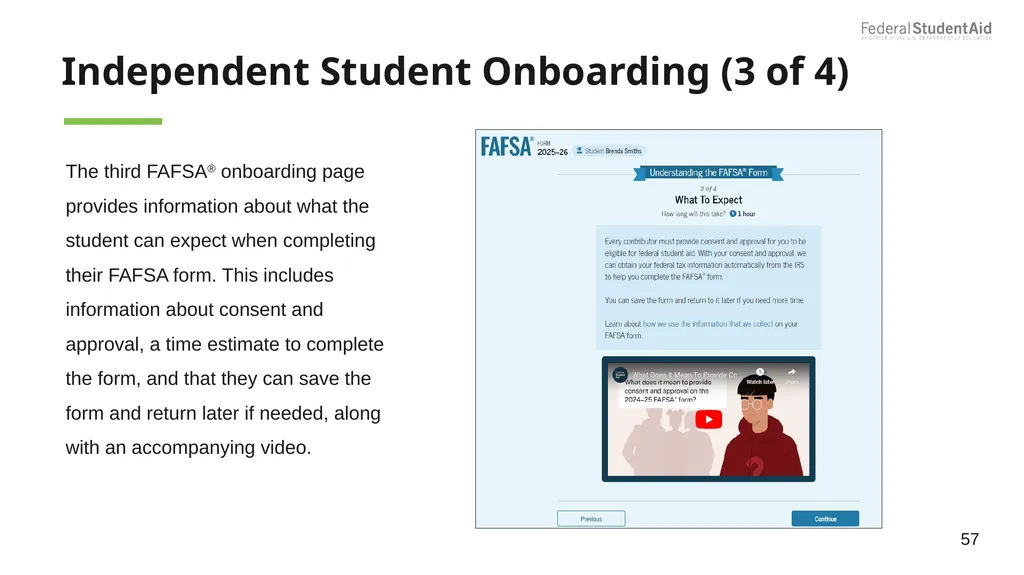
Independent Student Onboarding (3 of 4) 57 The third FAFSA® onboarding page provides information about what the student can expect when completing their FAFSA form. This includes information about consent and approval, a time estimate to complete the form, and that they can save the form and return later if needed, along with an accompanying video.<br>
58
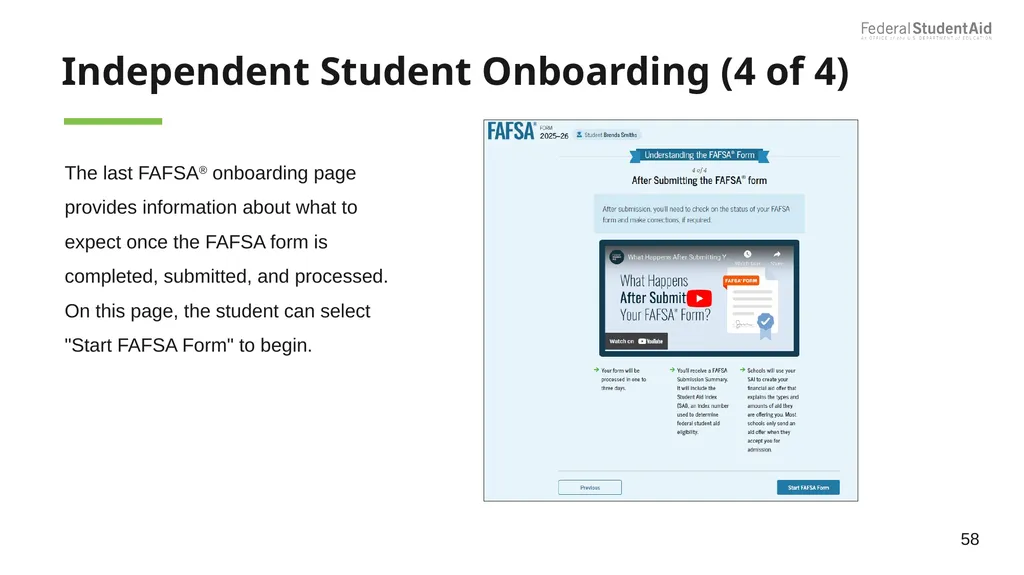
Independent Student Onboarding (4 of 4) 58 The last FAFSA® onboarding page provides information about what to expect once the FAFSA form is completed, submitted, and processed. On this page, the student can select "Start FAFSA Form" to begin.<br>
59
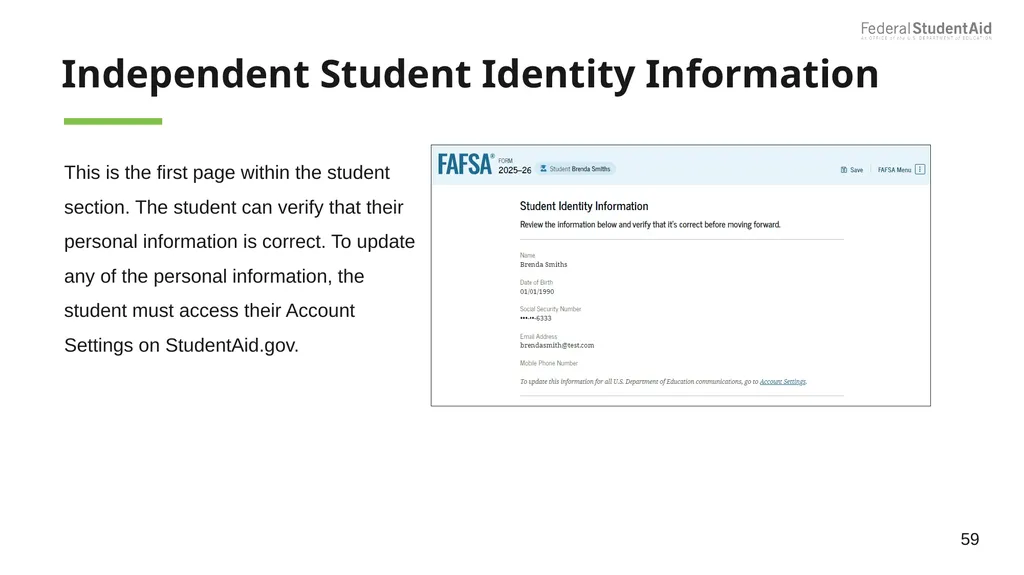
Independent Student Identity Information This is the first page within the student section. The student can verify that their personal information is correct. To update any of the personal information, the student must access their Account Settings on StudentAid.gov. 59<br>
60
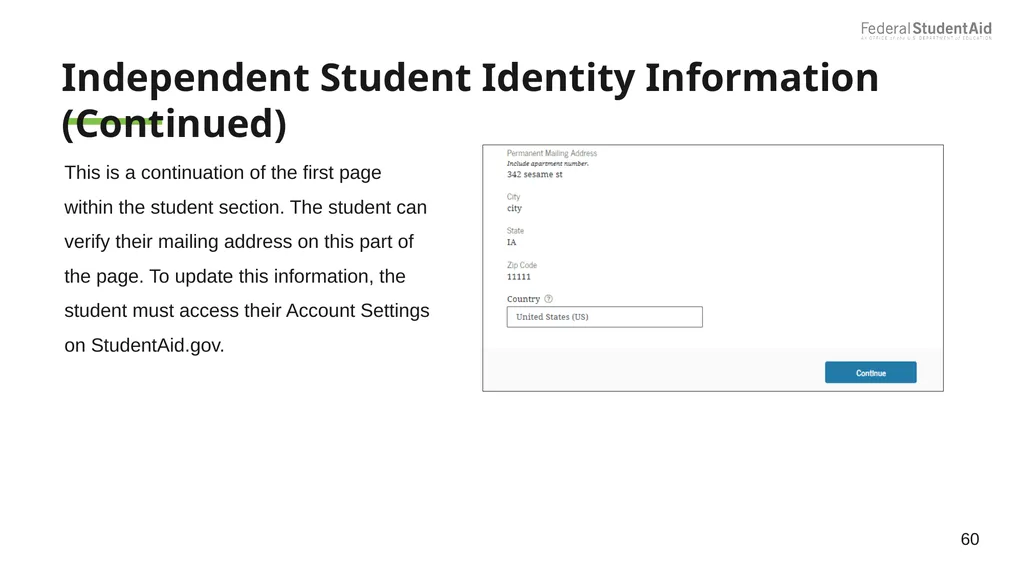
Independent Student Identity Information (Continued) 60 This is a continuation of the first page within the student section. The student can verify their mailing address on this part of the page. To update this information, the student must access their Account Settings on StudentAid.gov.<br>
61
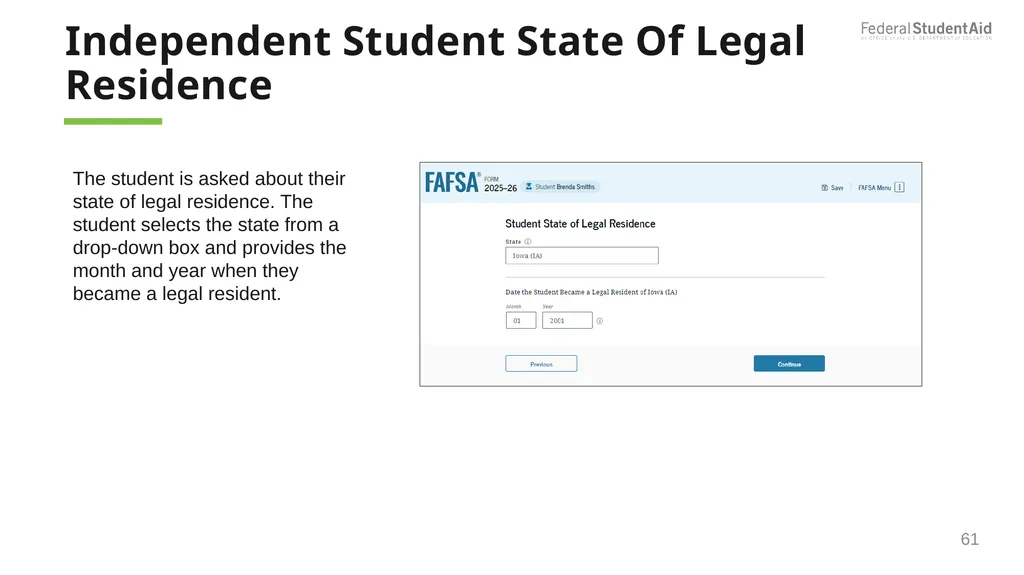
Independent Student State Of Legal Residence 61 The student is asked about their state of legal residence. The student selects the state from a drop-down box and provides the month and year when they became a legal resident.<br>
62
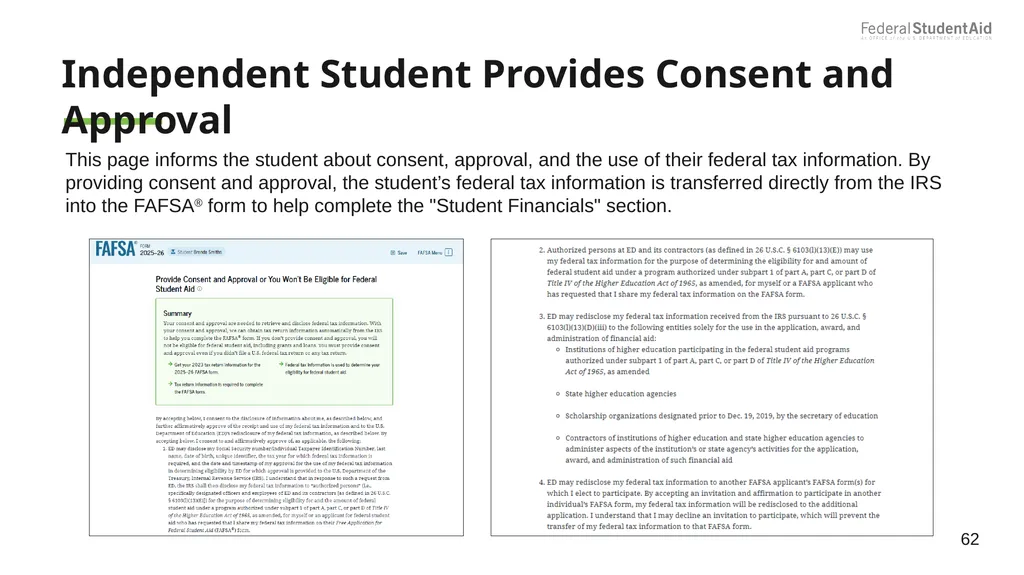
Independent Student Provides Consent and Approval This page informs the student about consent, approval, and the use of their federal tax information. By providing consent and approval, the student’s federal tax information is transferred directly from the IRS into the FAFSA® form to help complete the "Student Financials" section. 62<br>
63
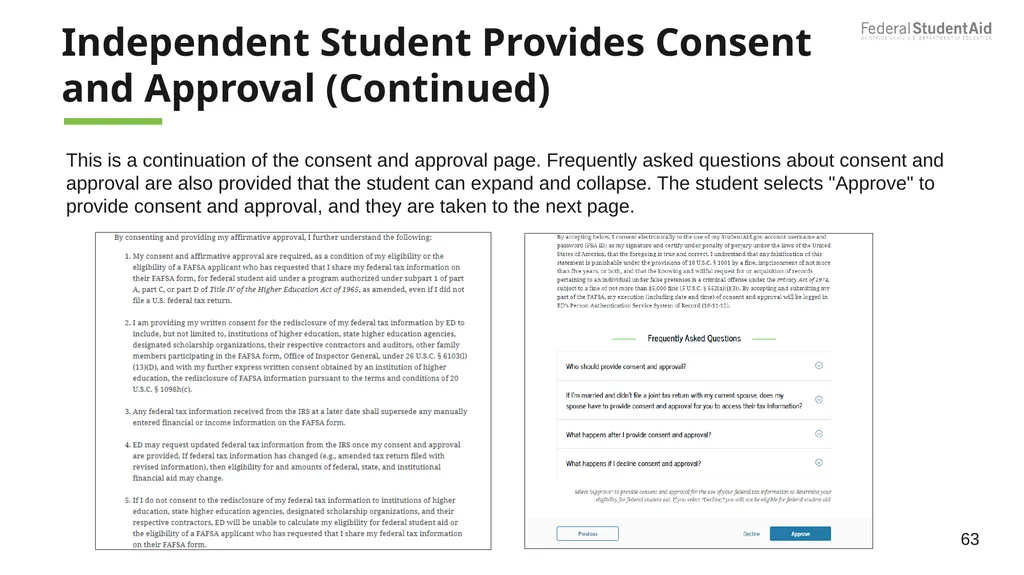
Independent Student Provides Consent and Approval (Continued) 63 This is a continuation of the consent and approval page. Frequently asked questions about consent and approval are also provided that the student can expand and collapse. The student selects "Approve" to provide consent and approval, and they are taken to the next page.<br>
64
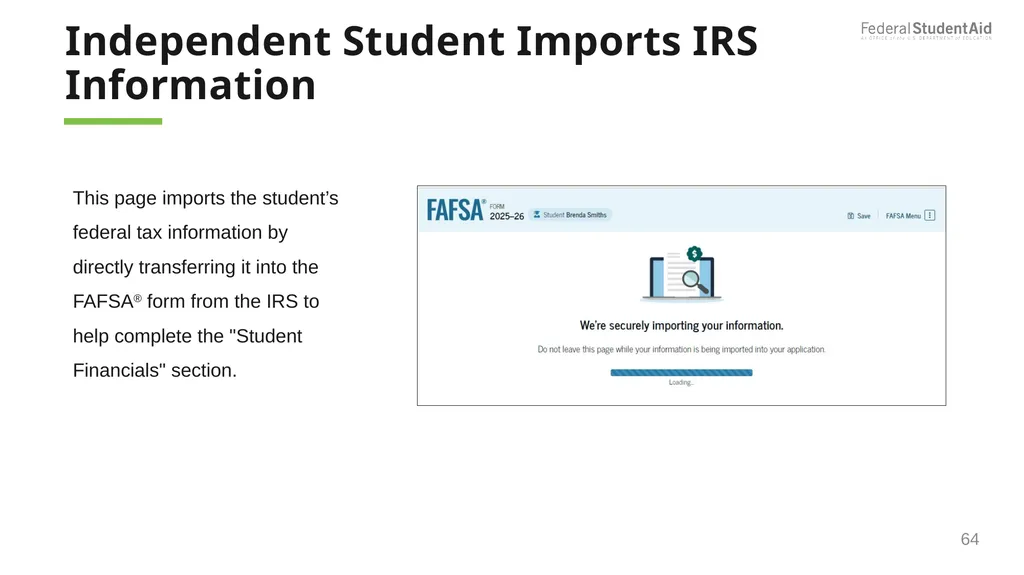
Independent Student Imports IRS Information 64 This page imports the student’s federal tax information by directly transferring it into the FAFSA® form from the IRS to help complete the "Student Financials" section.<br>
65
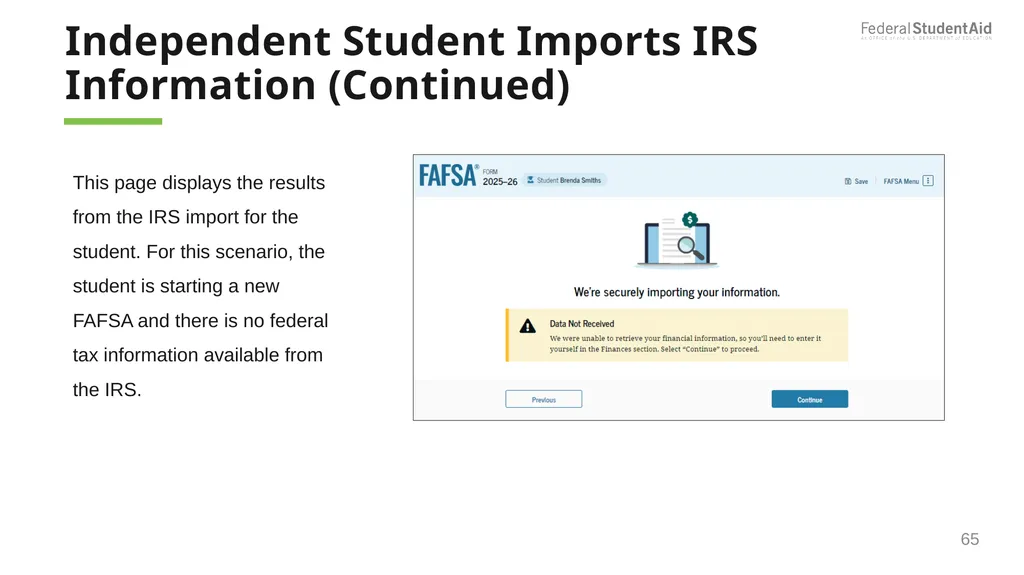
Independent Student Imports IRS Information (Continued) 65 This page displays the results from the IRS import for the student. For this scenario, the student is starting a new FAFSA and there is no federal tax information available from the IRS.<br>
66
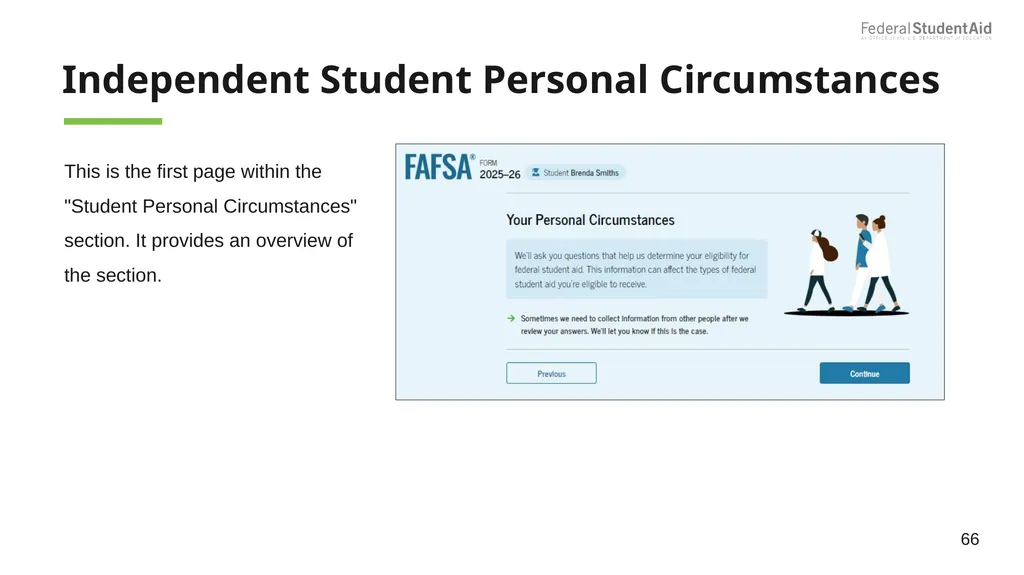
Independent Student Personal Circumstances This is the first page within the "Student Personal Circumstances" section. It provides an overview of the section. 66<br>
67
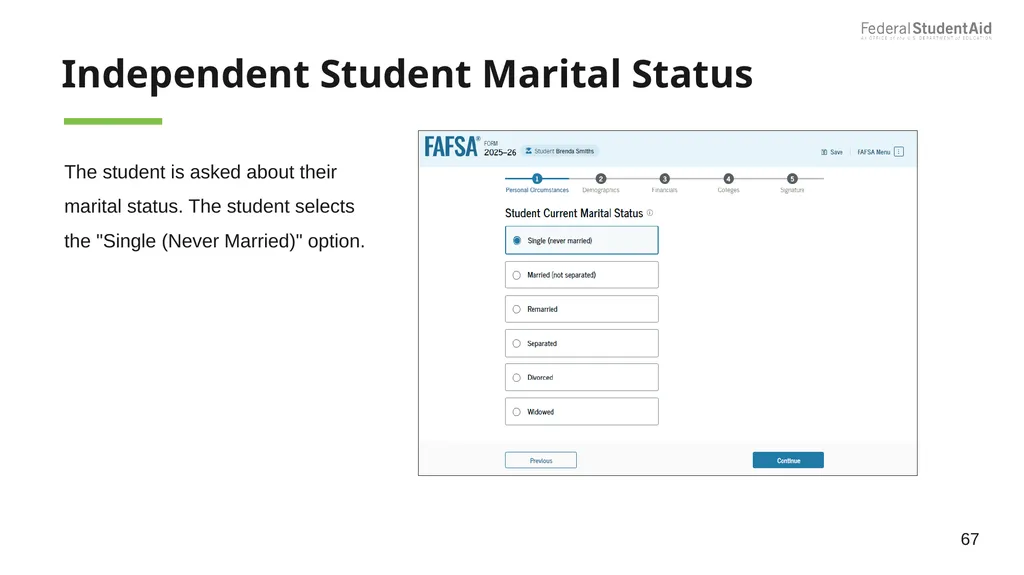
Independent Student Marital Status The student is asked about their marital status. The student selects the "Single (Never Married)" option. 67<br>
68
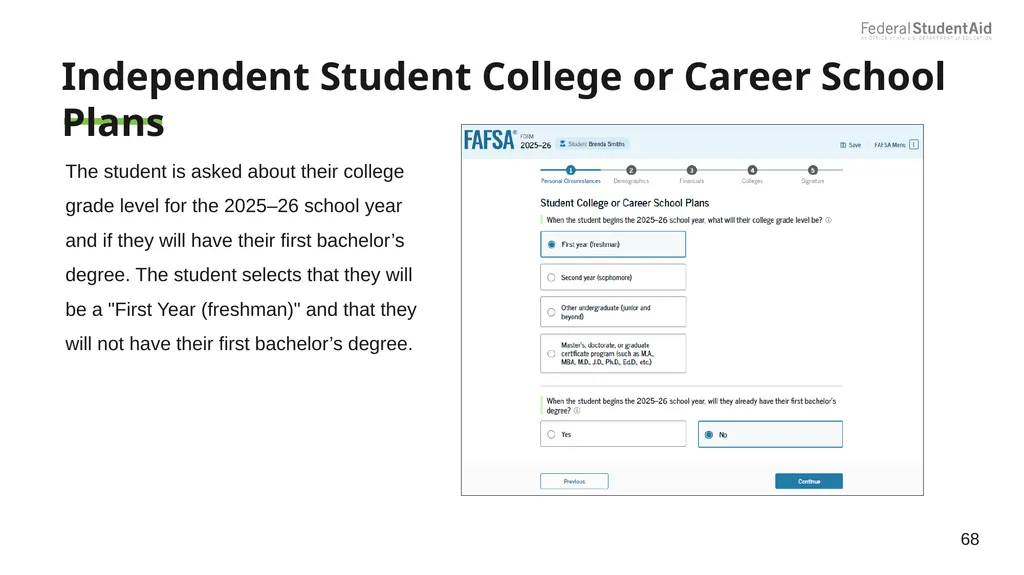
Independent Student College or Career School Plans The student is asked about their college grade level for the 2025–26 school year and if they will have their first bachelor’s degree. The student selects that they will be a "First Year (freshman)" and that they will not have their first bachelor’s degree. 68<br>
69
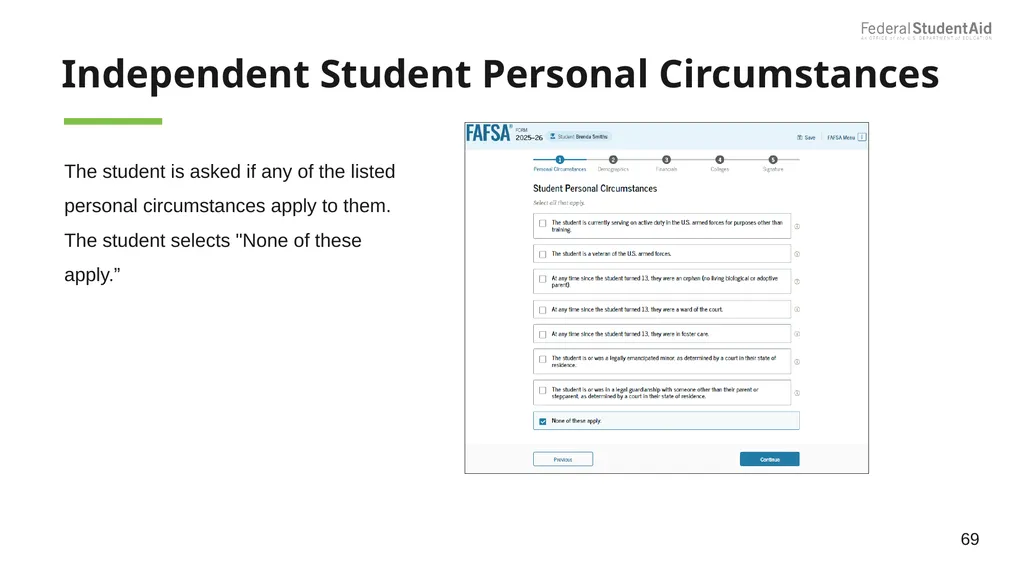
Independent Student Personal Circumstances The student is asked if any of the listed personal circumstances apply to them. The student selects "None of these apply.” 69<br>
70
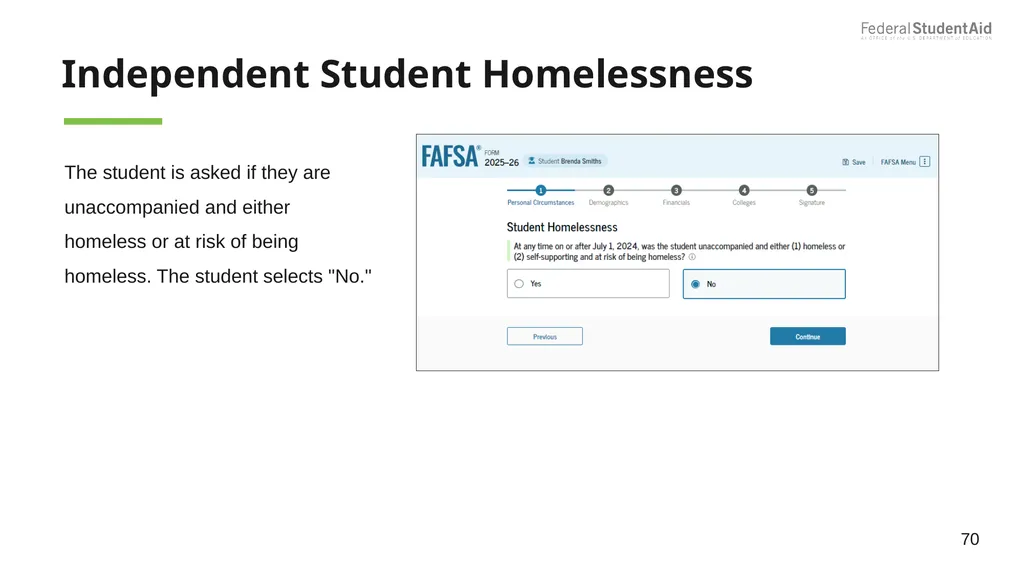
Independent Student Homelessness The student is asked if they are unaccompanied and either homeless or at risk of being homeless. The student selects "No." 70<br>
71
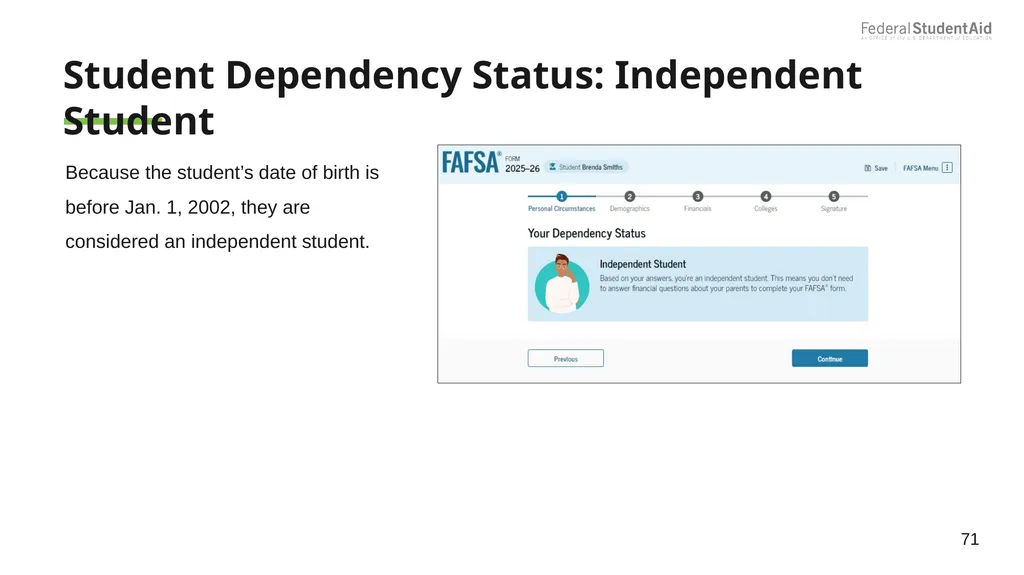
Student Dependency Status: Independent Student Because the student’s date of birth is before Jan. 1, 2002, they are considered an independent student. 71<br>
72
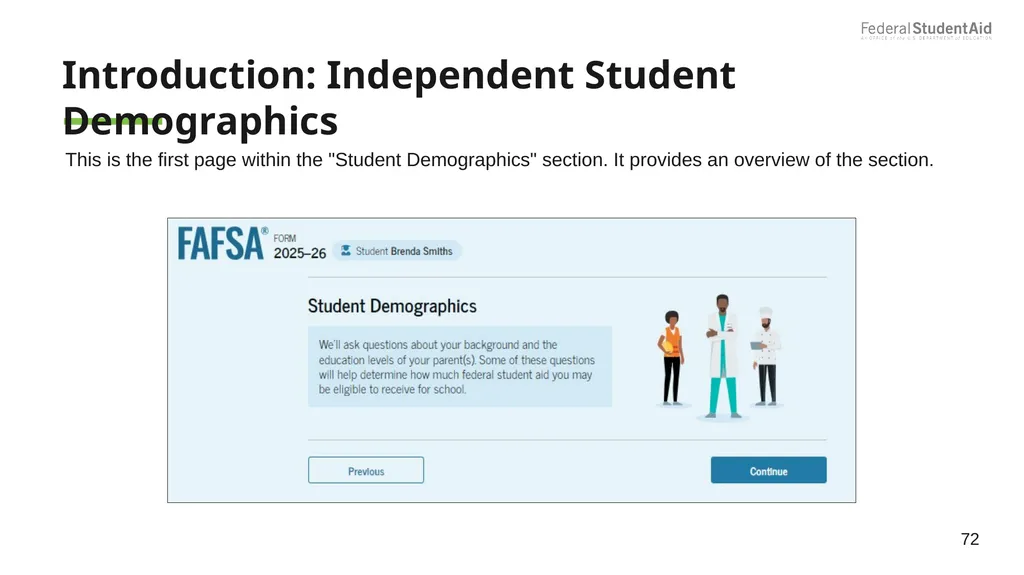
Introduction: Independent Student Demographics This is the first page within the "Student Demographics" section. It provides an overview of the section. 72<br>
73
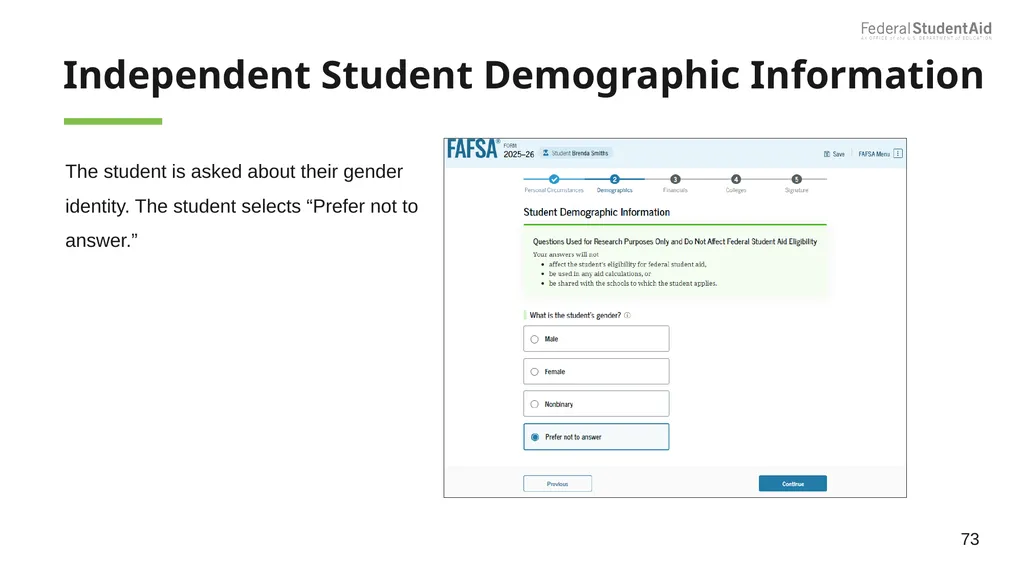
Independent Student Demographic Information The student is asked about their gender identity. The student selects “Prefer not to answer.” 73<br>
74
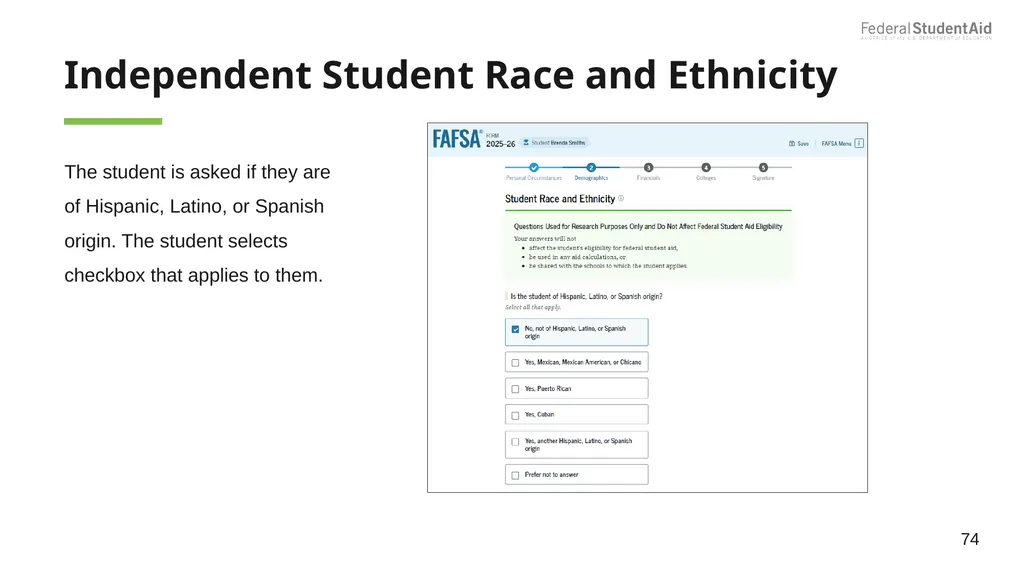
Independent Student Race and Ethnicity The student is asked if they are of Hispanic, Latino, or Spanish origin. The student selects checkbox that applies to them. 74<br>
75
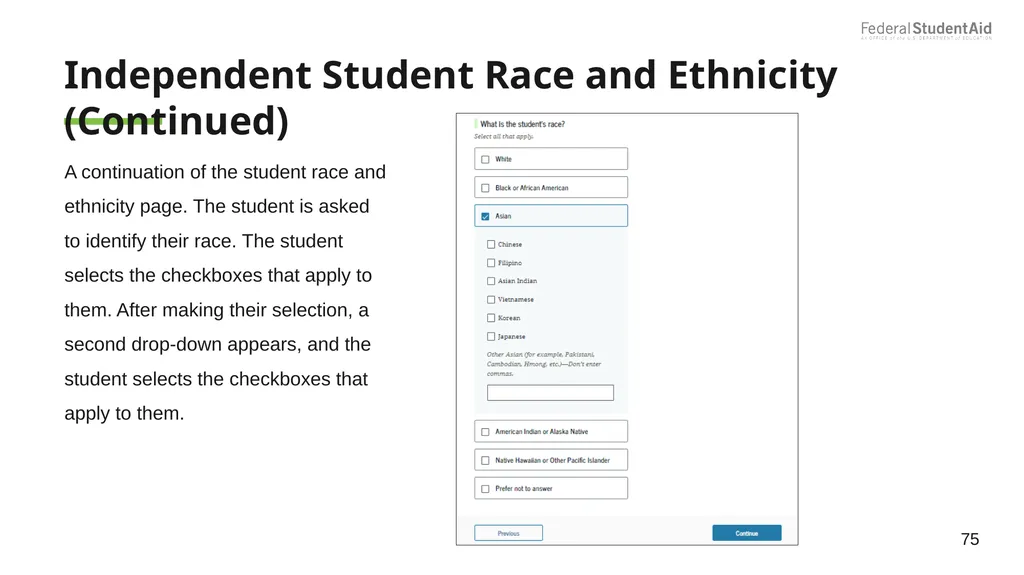
Independent Student Race and Ethnicity (Continued) A continuation of the student race and ethnicity page. The student is asked to identify their race. The student selects the checkboxes that apply to them. After making their selection, a second drop-down appears, and the student selects the checkboxes that apply to them. 75<br>
76
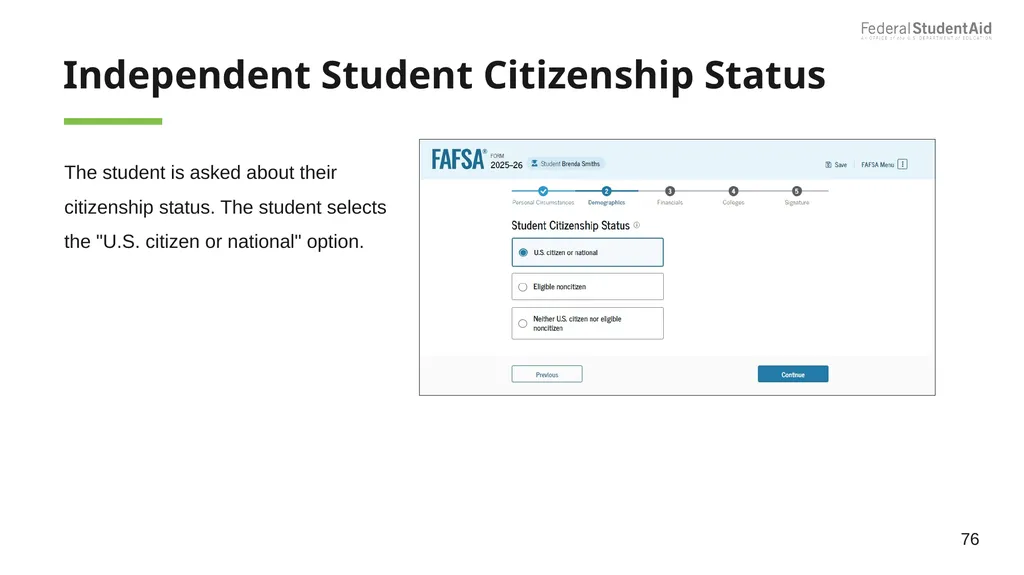
Independent Student Citizenship Status The student is asked about their citizenship status. The student selects the "U.S. citizen or national" option. 76<br>
77
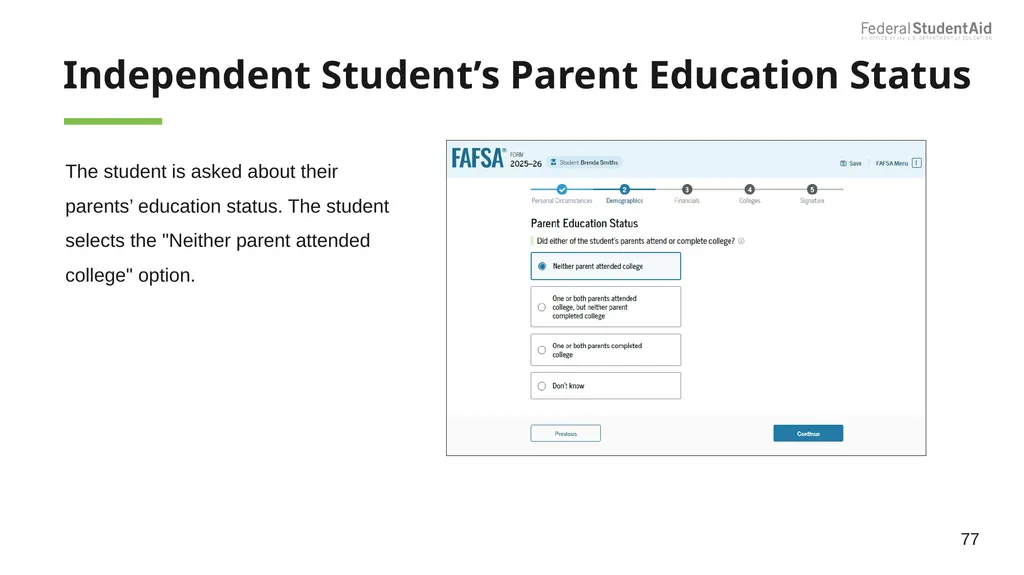
Independent Student’s Parent Education Status The student is asked about their parents’ education status. The student selects the "Neither parent attended college" option. 77<br>
78
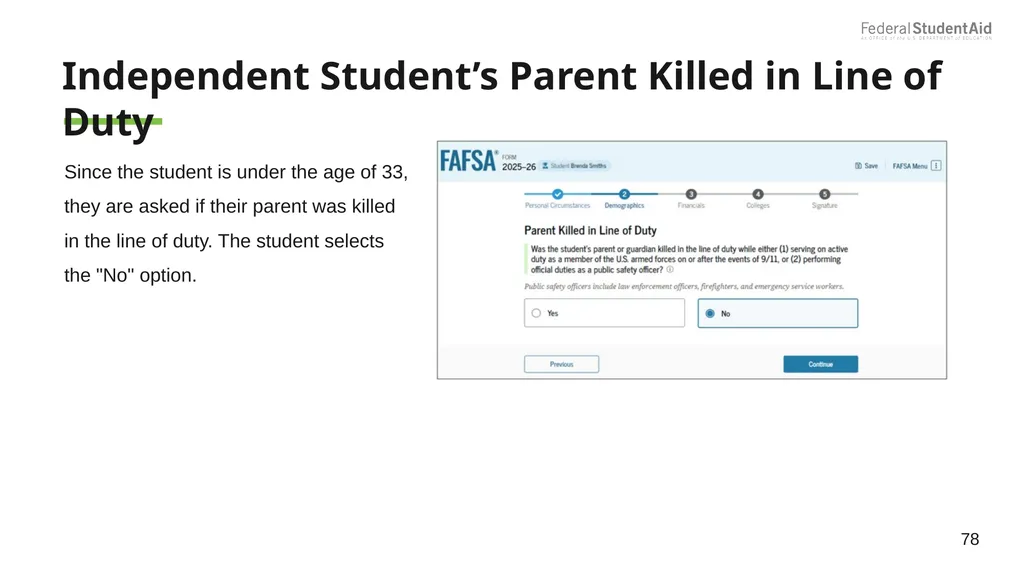
Independent Student’s Parent Killed in Line of Duty Since the student is under the age of 33, they are asked if their parent was killed in the line of duty. The student selects the "No" option. 78<br>
79
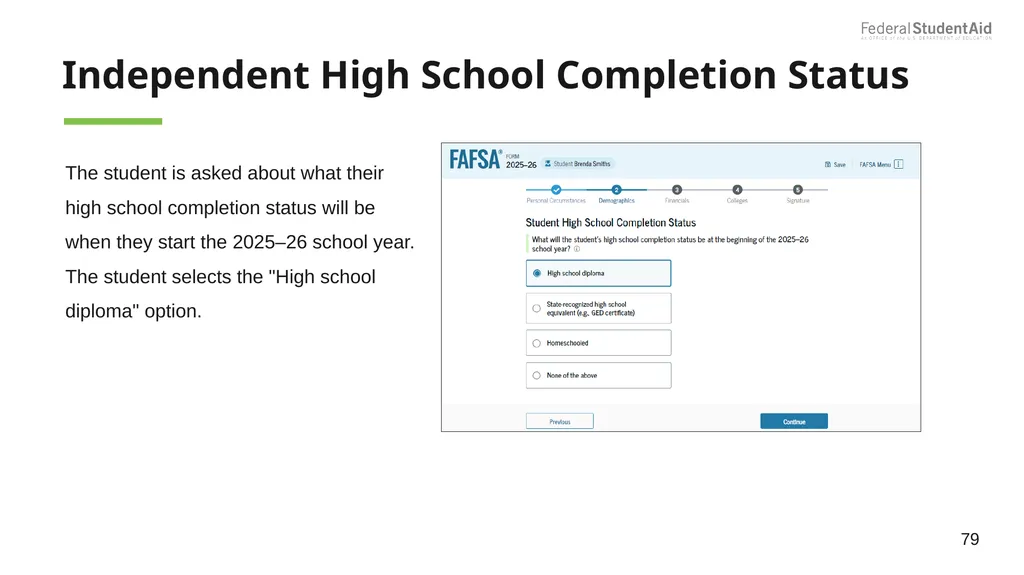
Independent High School Completion Status The student is asked about what their high school completion status will be when they start the 2025–26 school year. The student selects the "High school diploma" option. 79<br>
80
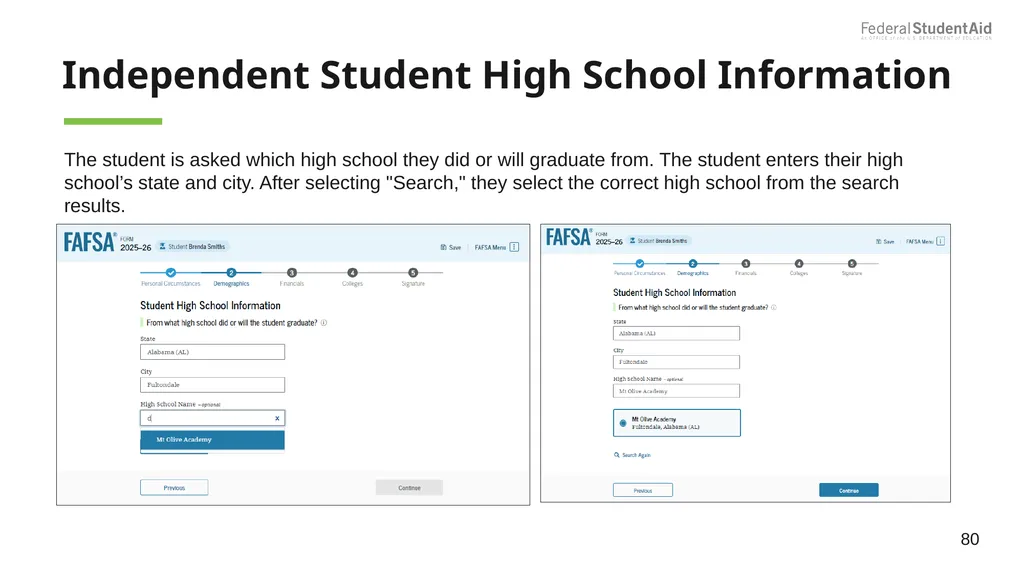
Independent Student High School Information The student is asked which high school they did or will graduate from. The student enters their high school’s state and city. After selecting "Search," they select the correct high school from the search results. 80<br>
81
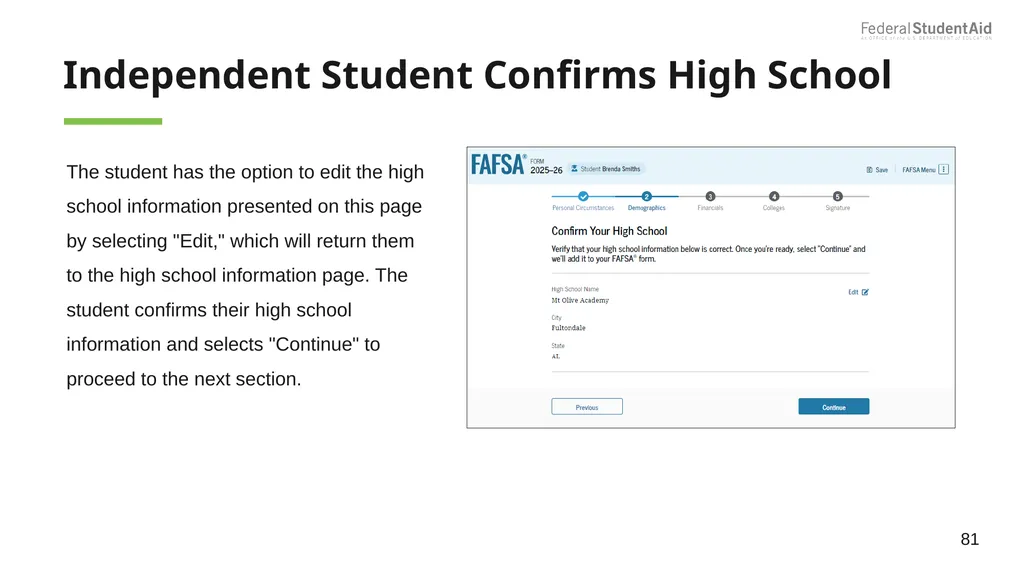
Independent Student Confirms High School The student has the option to edit the high school information presented on this page by selecting "Edit," which will return them to the high school information page. The student confirms their high school information and selects "Continue" to proceed to the next section. 81<br>
82
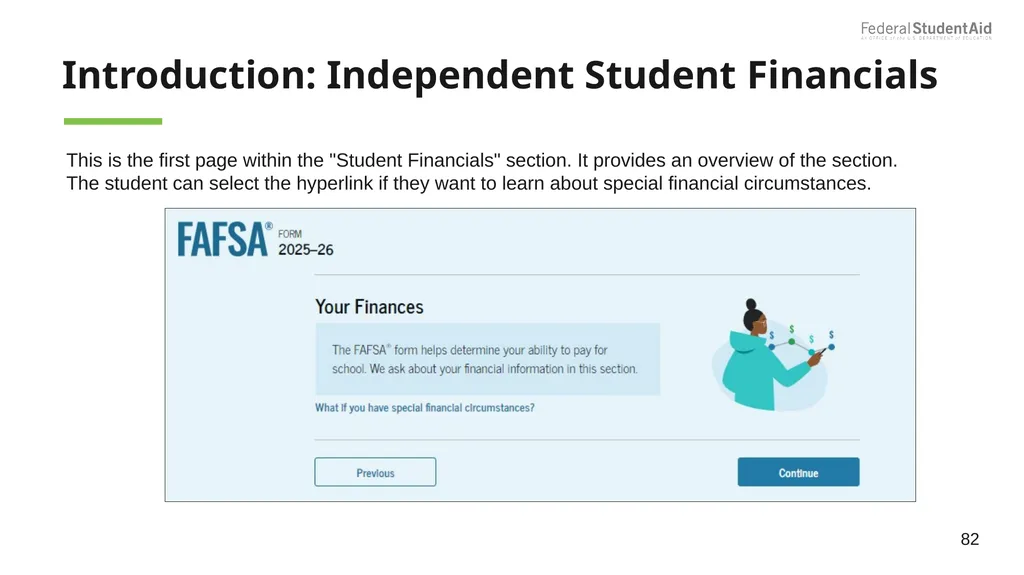
Introduction: Independent Student Financials This is the first page within the "Student Financials" section. It provides an overview of the section. The student can select the hyperlink if they want to learn about special financial circumstances. 82<br>
83
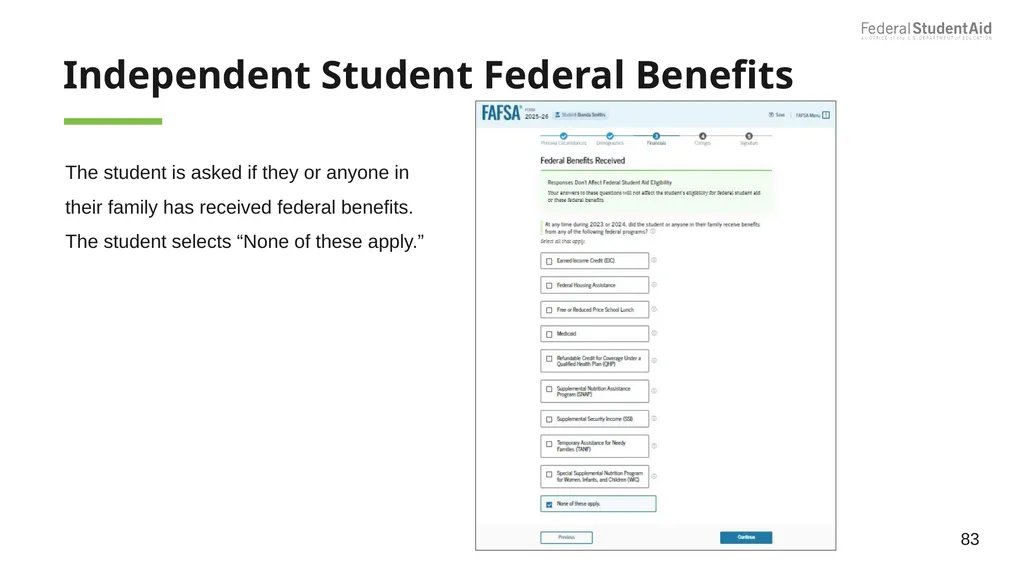
Independent Student Federal Benefits The student is asked if they or anyone in their family has received federal benefits. The student selects “None of these apply.” 83<br>
84
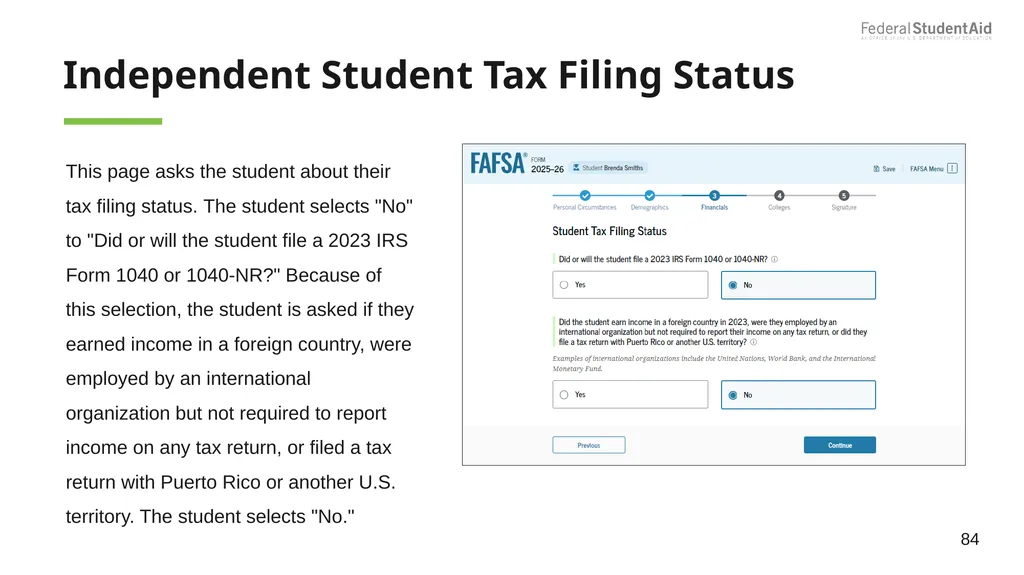
Independent Student Tax Filing Status This page asks the student about their tax filing status. The student selects "No" to "Did or will the student file a 2023 IRS Form 1040 or 1040-NR?" Because of this selection, the student is asked if they earned income in a foreign country, were employed by an international organization but not required to report income on any tax return, or filed a tax return with Puerto Rico or another U.S. territory. The student selects "No." 84<br>
85
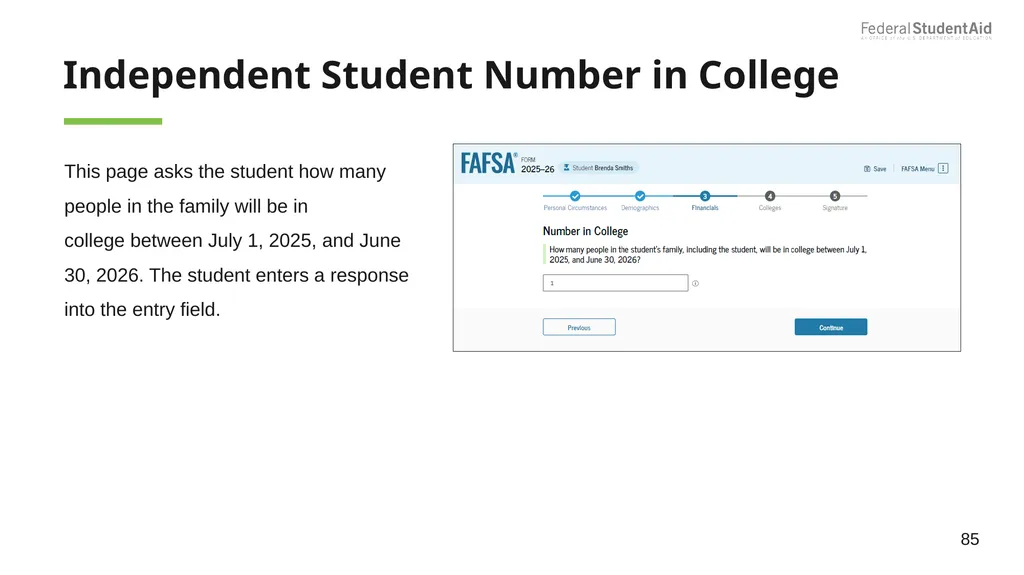
Independent Student Number in College This page asks the student how many people in the family will be in college between July 1, 2025, and June 30, 2026. The student enters a response into the entry field. 85<br>
86
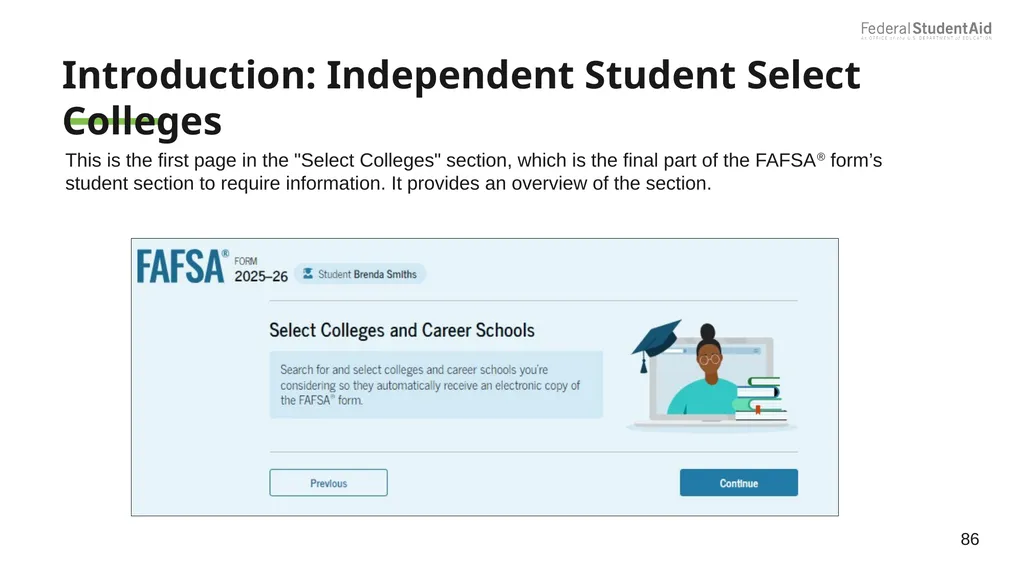
Introduction: Independent Student Select Colleges This is the first page in the "Select Colleges" section, which is the final part of the FAFSA® form’s student section to require information. It provides an overview of the section. 86<br>
87
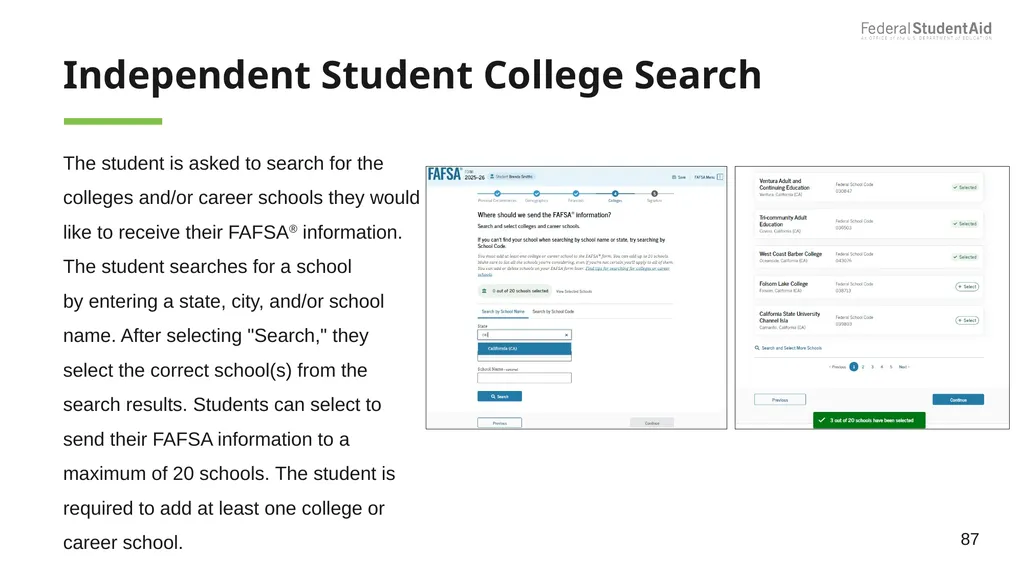
Independent Student College Search The student is asked to search for the colleges and/or career schools they would like to receive their FAFSA® information. The student searches for a school by entering a state, city, and/or school name. After selecting "Search," they select the correct school(s) from the search results. Students can select to send their FAFSA information to a maximum of 20 schools. The student is required to add at least one college or career school. 87<br>
88
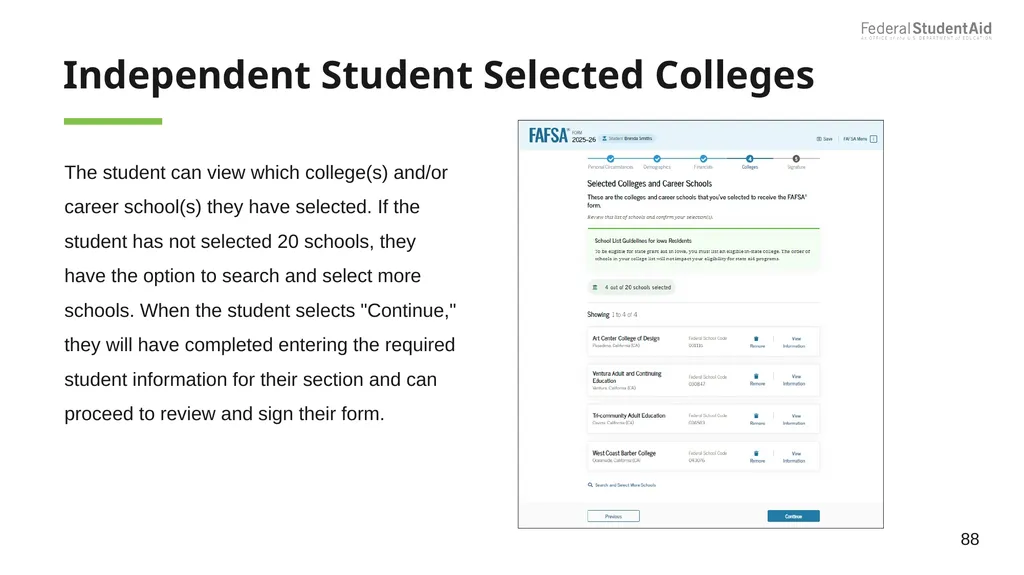
Independent Student Selected Colleges The student can view which college(s) and/or career school(s) they have selected. If the student has not selected 20 schools, they have the option to search and select more schools. When the student selects "Continue," they will have completed entering the required student information for their section and can proceed to review and sign their form. 88<br>
89
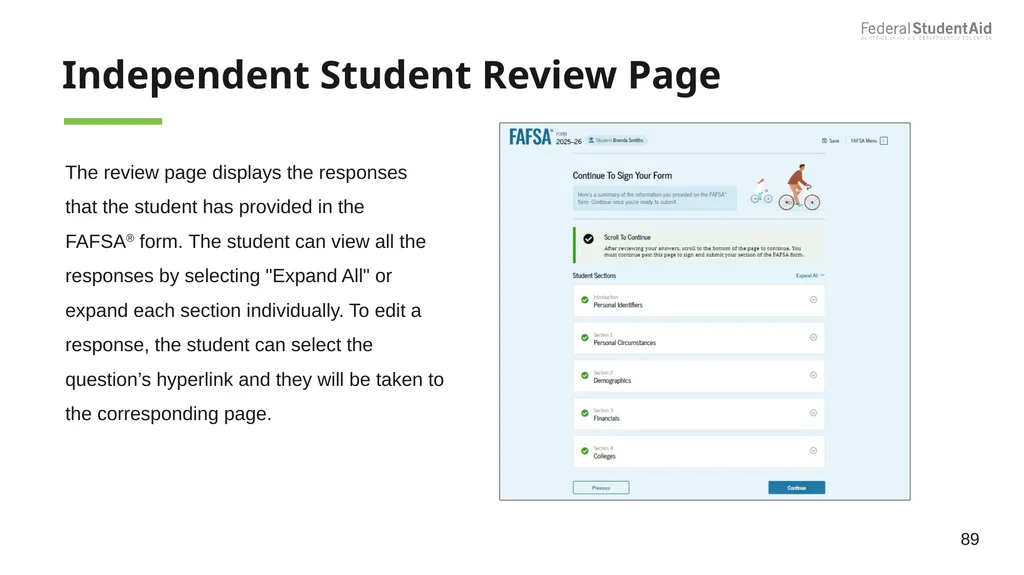
Independent Student Review Page The review page displays the responses that the student has provided in the FAFSA® form. The student can view all the responses by selecting "Expand All" or expand each section individually. To edit a response, the student can select the question’s hyperlink and they will be taken to the corresponding page. 89<br>
90
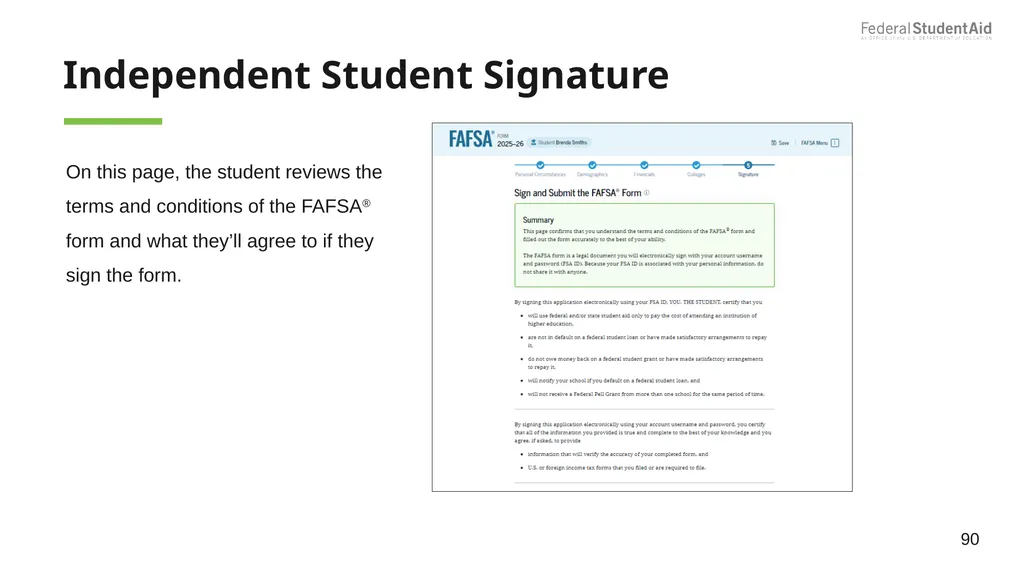
Independent Student Signature 90 On this page, the student reviews the terms and conditions of the FAFSA® form and what they’ll agree to if they sign the form.<br>
91
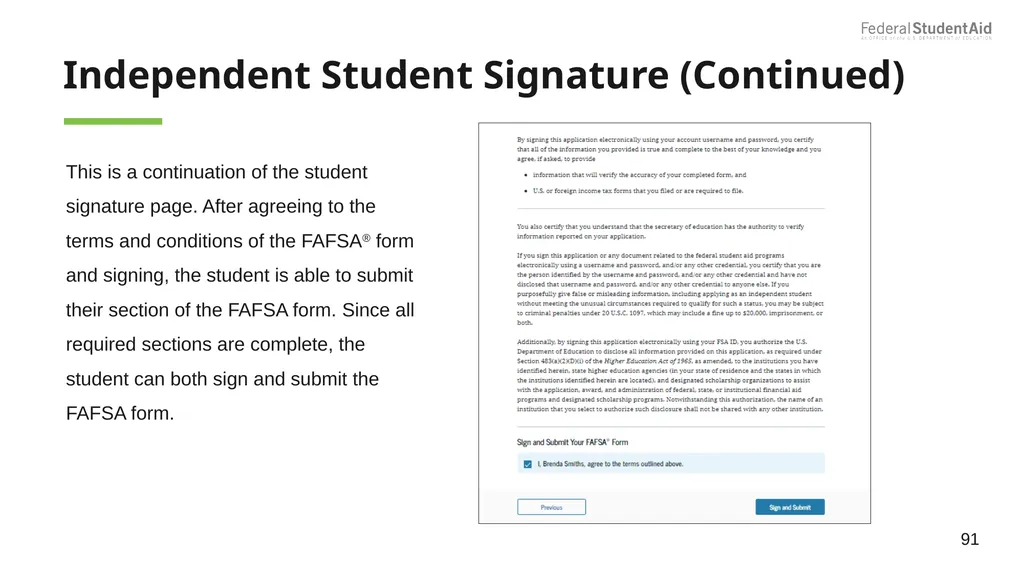
Independent Student Signature (Continued) 91 This is a continuation of the student signature page. After agreeing to the terms and conditions of the FAFSA® form and signing, the student is able to submit their section of the FAFSA form. Since all required sections are complete, the student can both sign and submit the FAFSA form.<br>
92
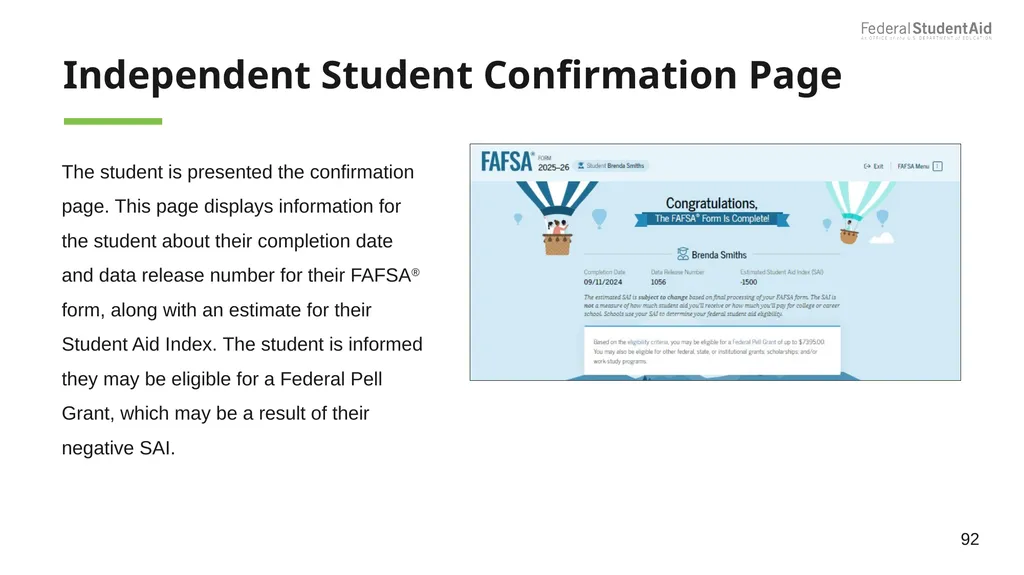
Independent Student Confirmation Page The student is presented the confirmation page. This page displays information for the student about their completion date and data release number for their FAFSA® form, along with an estimate for their Student Aid Index. The student is informed they may be eligible for a Federal Pell Grant, which may be a result of their negative SAI. 92<br>
93
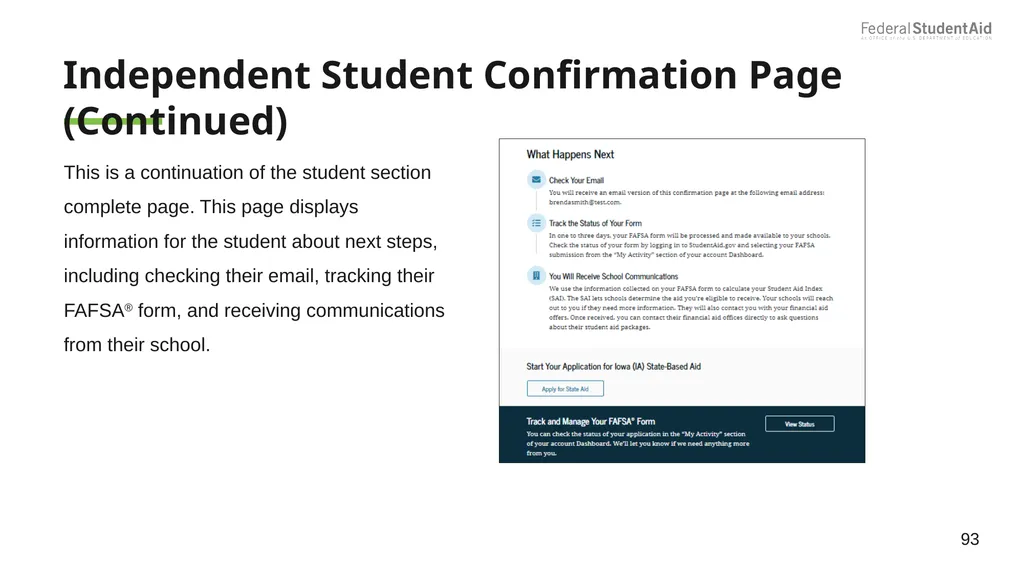
Independent Student Confirmation Page (Continued) This is a continuation of the student section complete page. This page displays information for the student about next steps, including checking their email, tracking their FAFSA® form, and receiving communications from their school. 93<br>
94
FAFSA Submission Summary 94<br>
95
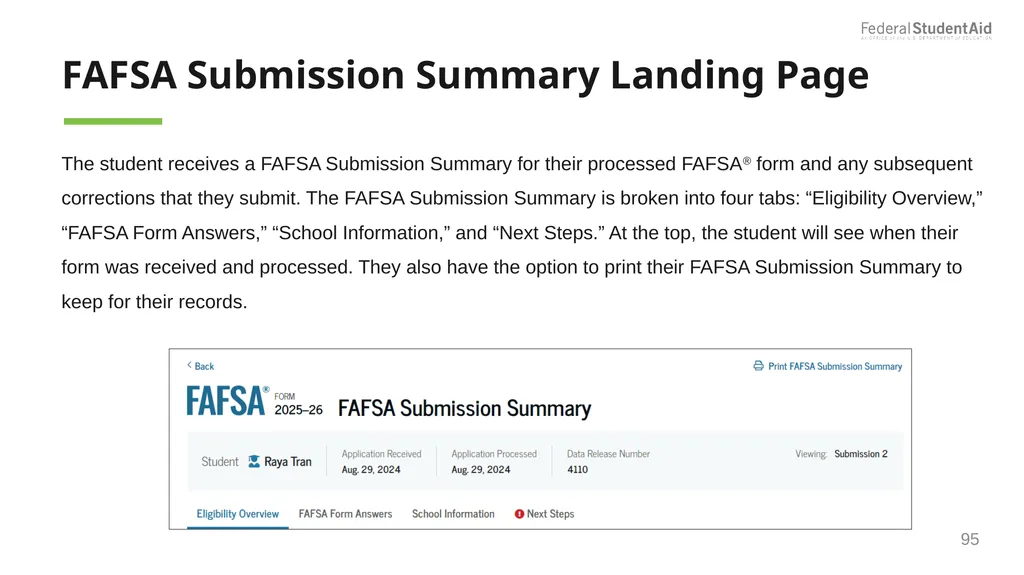
FAFSA Submission Summary Landing Page The student receives a FAFSA Submission Summary for their processed FAFSA® form and any subsequent corrections that they submit. The FAFSA Submission Summary is broken into four tabs: “Eligibility Overview,” “FAFSA Form Answers,” “School Information,” and “Next Steps.” At the top, the student will see when their form was received and processed. They also have the option to print their FAFSA Submission Summary to keep for their records. 95<br>
96
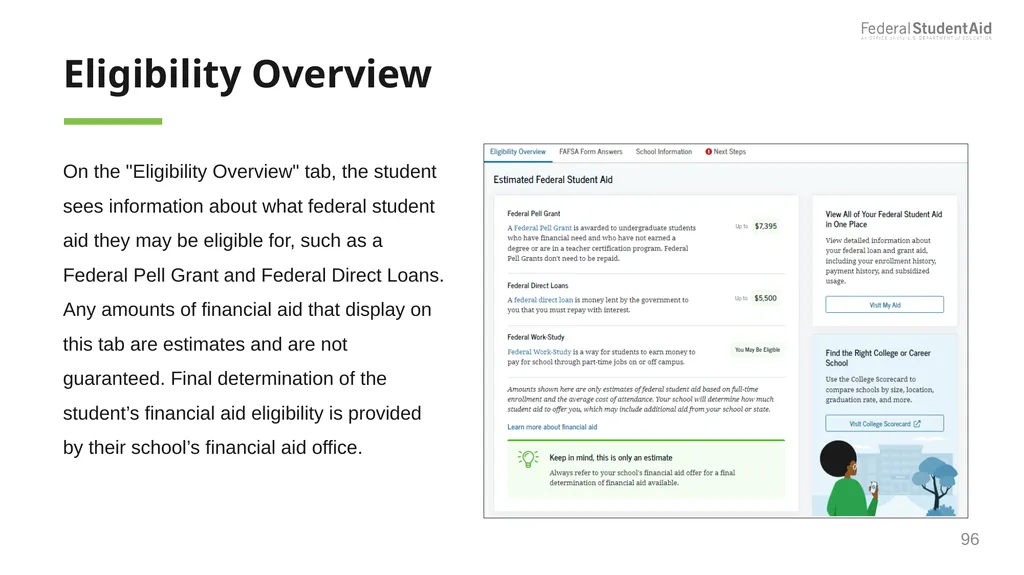
Eligibility Overview On the "Eligibility Overview" tab, the student sees information about what federal student aid they may be eligible for, such as a Federal Pell Grant and Federal Direct Loans. Any amounts of financial aid that display on this tab are estimates and are not guaranteed. Final determination of the student’s financial aid eligibility is provided by their school’s financial aid office. 96<br>
97
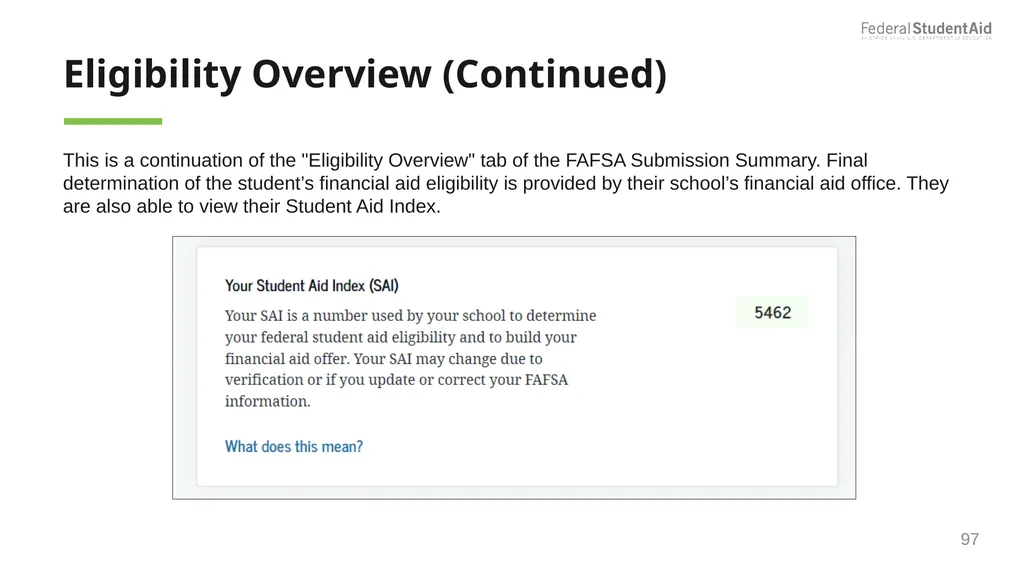
Eligibility Overview (Continued) 97 This is a continuation of the "Eligibility Overview" tab of the FAFSA Submission Summary. Final determination of the student’s financial aid eligibility is provided by their school’s financial aid office. They are also able to view their Student Aid Index.<br>
98
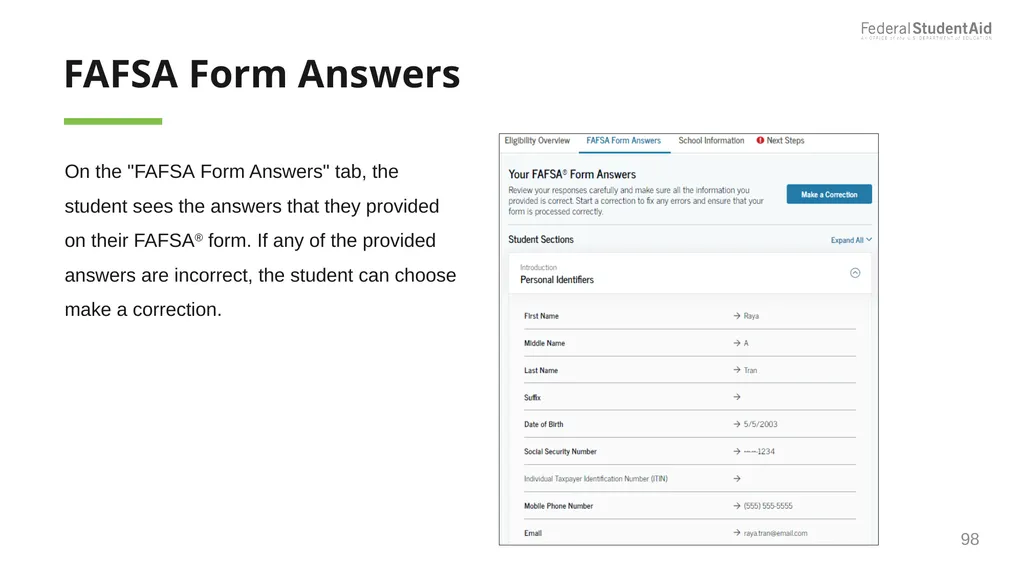
FAFSA Form Answers On the "FAFSA Form Answers" tab, the student sees the answers that they provided on their FAFSA® form. If any of the provided answers are incorrect, the student can choose make a correction. 98<br>
99
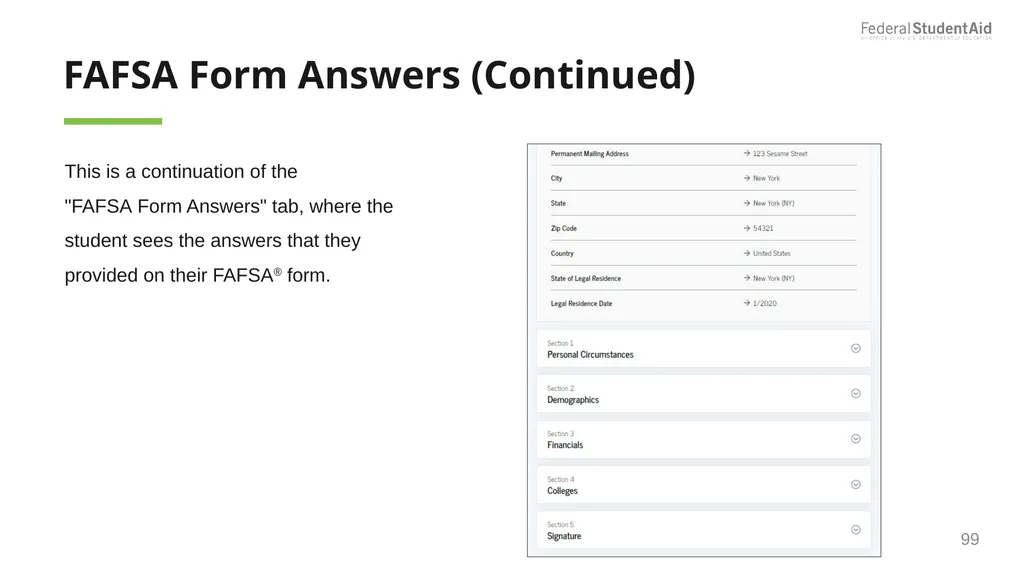
FAFSA Form Answers (Continued) 99 This is a continuation of the "FAFSA Form Answers" tab, where the student sees the answers that they provided on their FAFSA® form.<br>
100
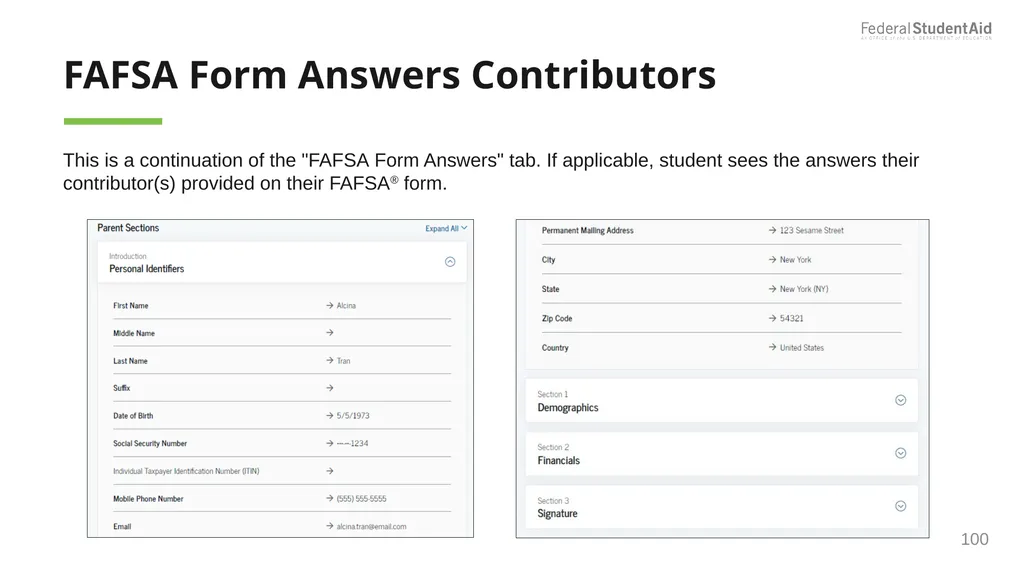
FAFSA Form Answers Contributors 100 This is a continuation of the "FAFSA Form Answers" tab. If applicable, student sees the answers their contributor(s) provided on their FAFSA® form.<br>
101
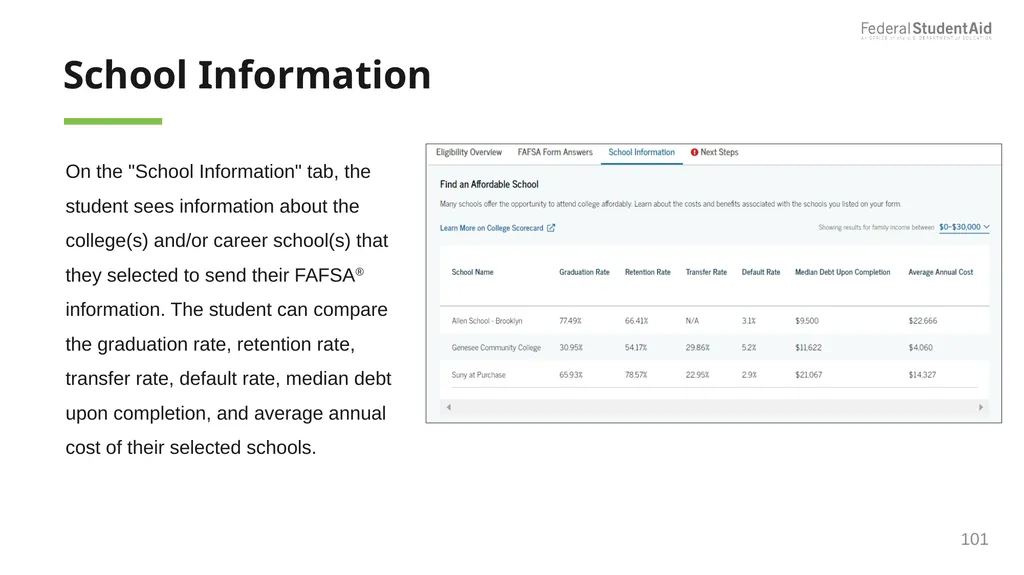
School Information On the "School Information" tab, the student sees information about the college(s) and/or career school(s) that they selected to send their FAFSA® information. The student can compare the graduation rate, retention rate, transfer rate, default rate, median debt upon completion, and average annual cost of their selected schools. 101<br>
102
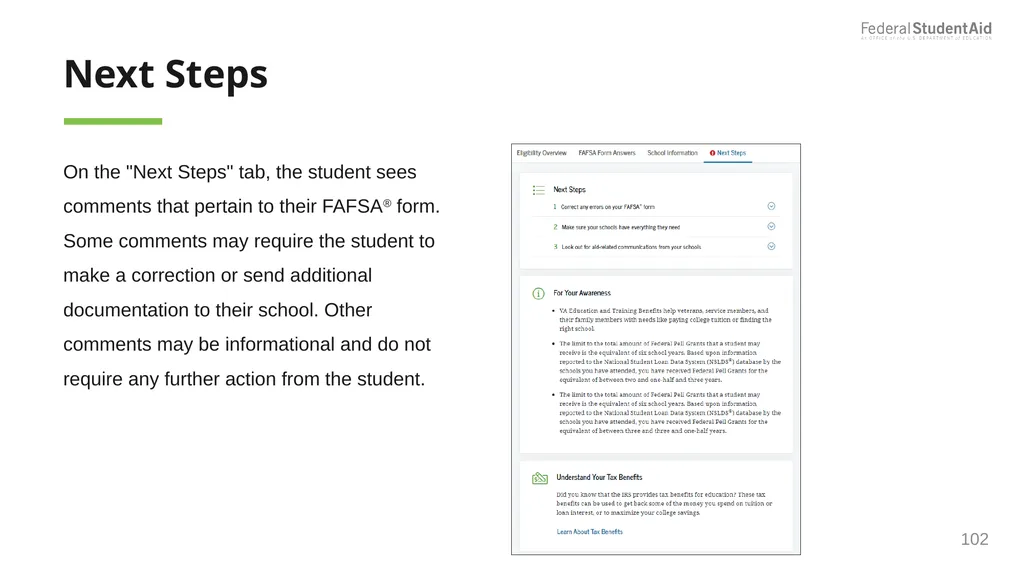
Next Steps On the "Next Steps" tab, the student sees comments that pertain to their FAFSA® form. Some comments may require the student to make a correction or send additional documentation to their school. Other comments may be informational and do not require any further action from the student. 102<br>
103
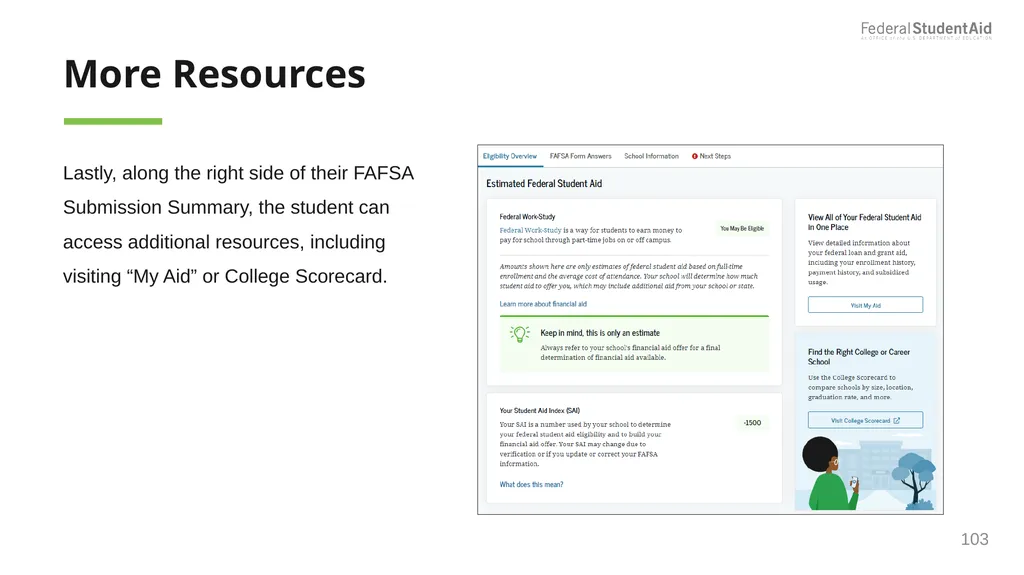
More Resources Lastly, along the right side of their FAFSA Submission Summary, the student can access additional resources, including visiting “My Aid” or College Scorecard. 103<br>