02
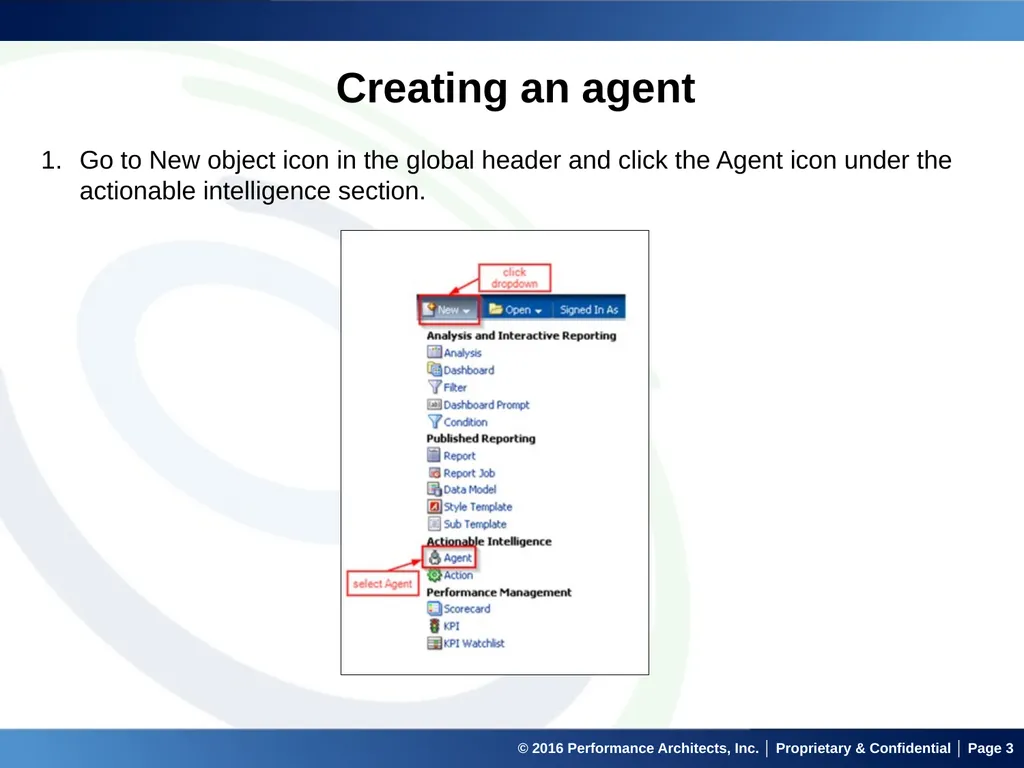
© 2016 Performance Architects, Inc. │ Proprietary & Confidential │ Page 2 Overview of Agents Agents are automated tasks that are created in order to deliver queries, dashboards or alerts to one or more users.
These queries can be set to be delivered to users only one time, on demand or on a regular schedule depending on organizational needs.
Queries can be delivered to user’s home page, dashboard page, email account or mobile device.
On Dashboard pages agents appear as alerts.
Agents can be set to deliver only when a certain condition is met.<br>
04
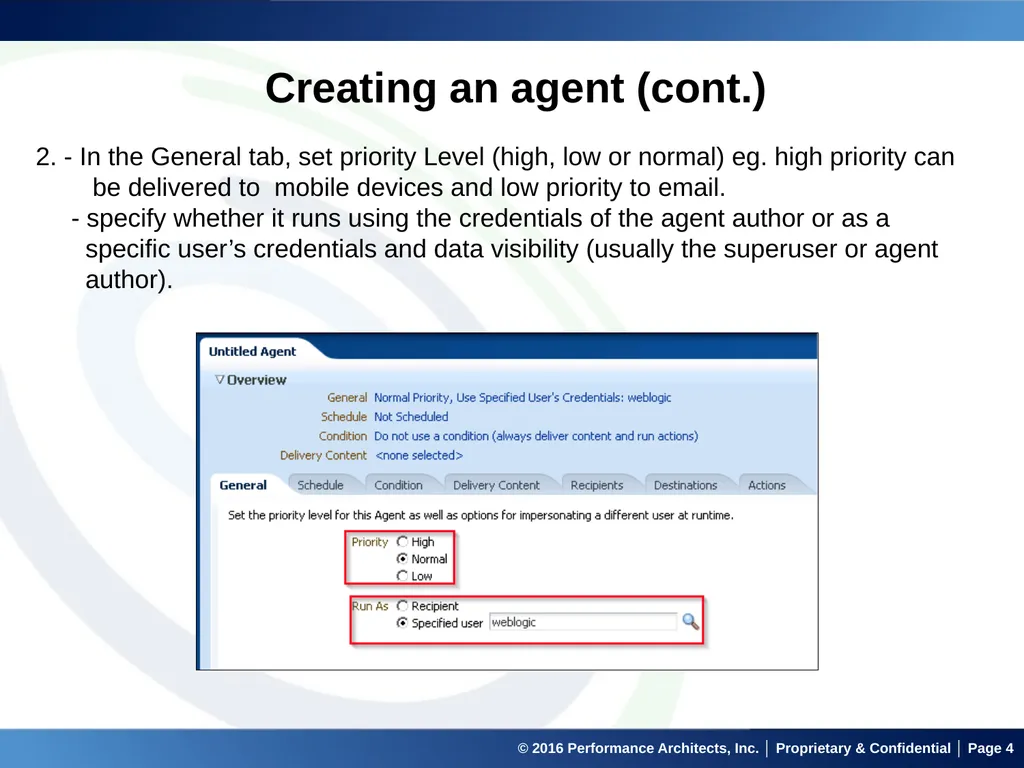
© 2016 Performance Architects, Inc. │ Proprietary & Confidential │ Page 4 Creating an agent (cont.) 2. - In the General tab, set priority Level (high, low or normal) eg. high priority can
be delivered to mobile devices and low priority to email.
- specify whether it runs using the credentials of the agent author or as a
specific user’s credentials and data visibility (usually the superuser or agent
author).<br>
05
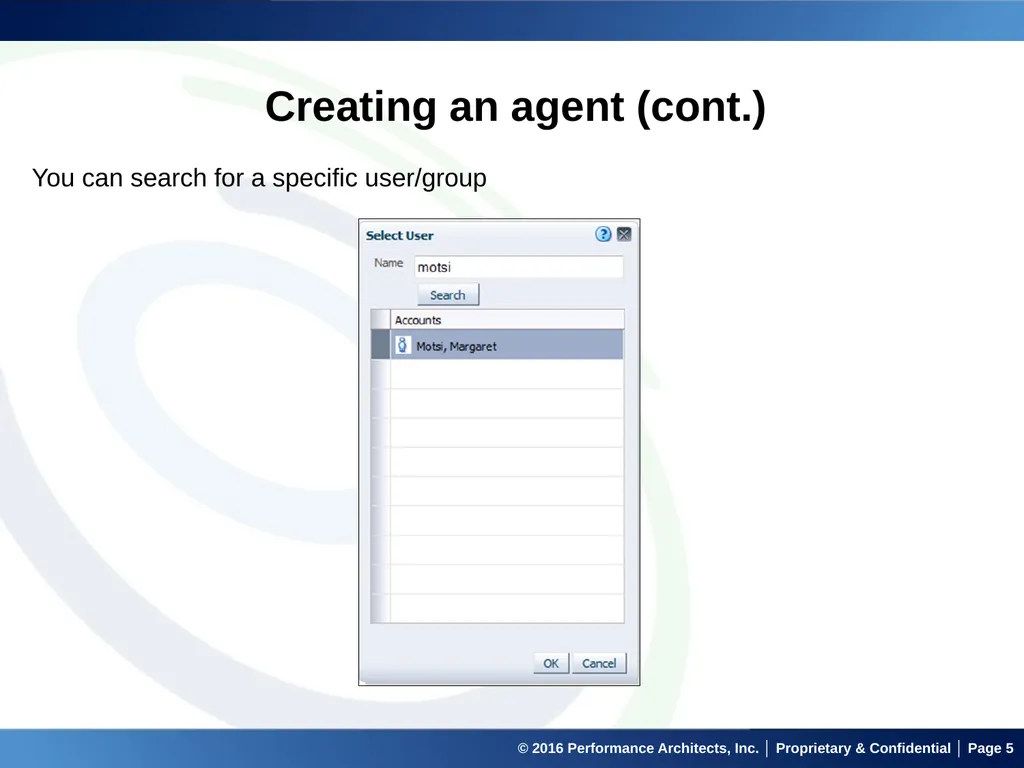
© 2016 Performance Architects, Inc. │ Proprietary & Confidential │ Page 5 Creating an agent (cont.) You can search for a specific user/group<br>
06
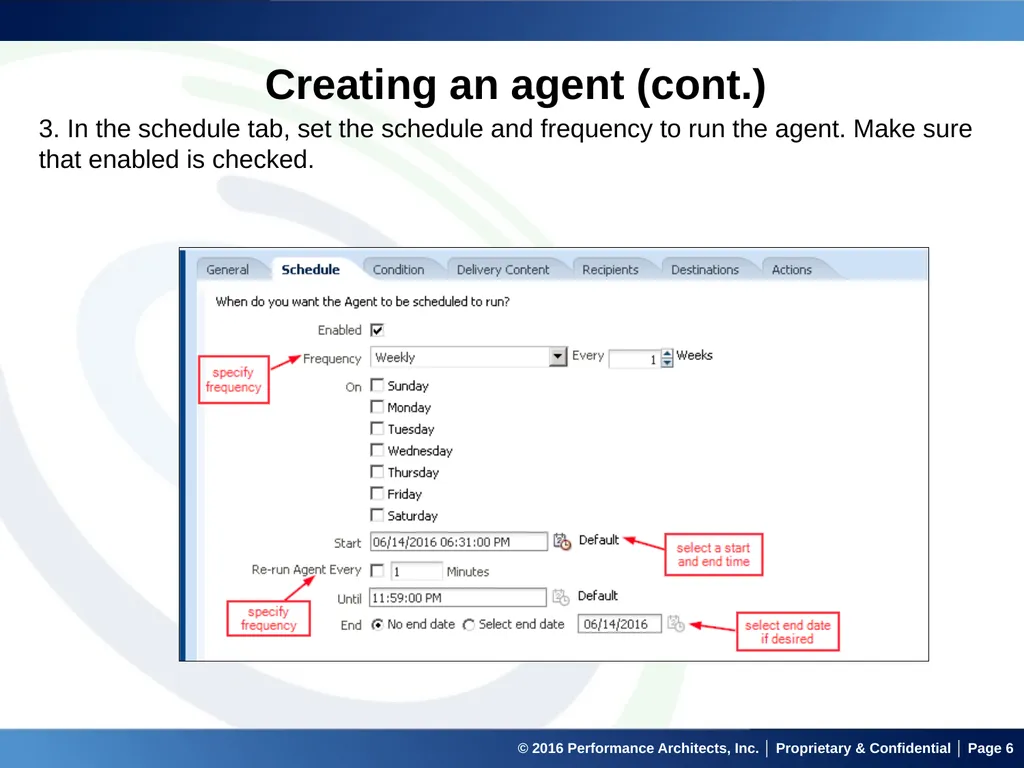
© 2016 Performance Architects, Inc. │ Proprietary & Confidential │ Page 6 Creating an agent (cont.) 3. In the schedule tab, set the schedule and frequency to run the agent. Make sure that enabled is checked.<br>
07
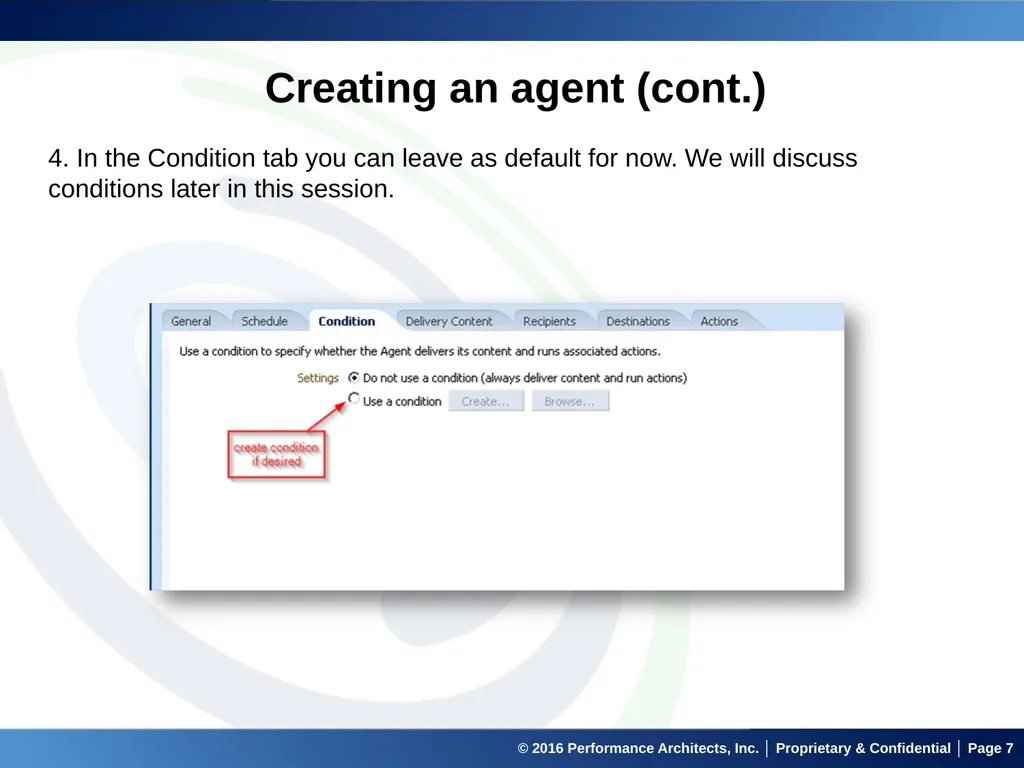
© 2016 Performance Architects, Inc. │ Proprietary & Confidential │ Page 7 Creating an agent (cont.) 4. In the Condition tab you can leave as default for now. We will discuss conditions later in this session.<br>
08
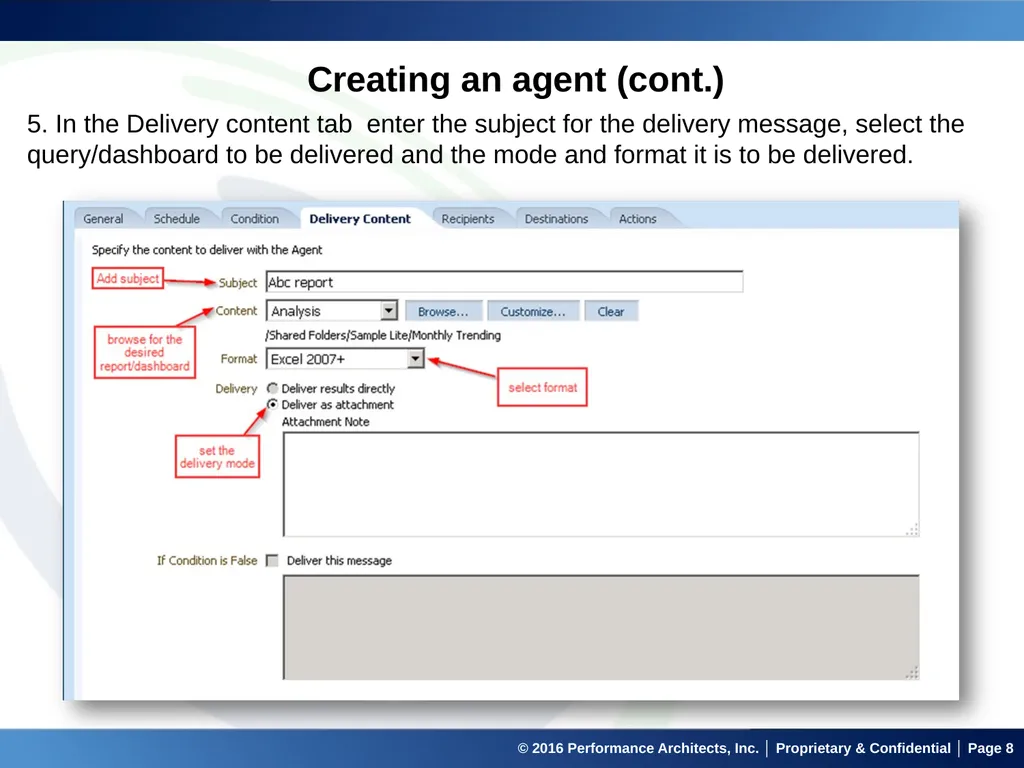
© 2016 Performance Architects, Inc. │ Proprietary & Confidential │ Page 8 Creating an agent (cont.) 5. In the Delivery content tab enter the subject for the delivery message, select the query/dashboard to be delivered and the mode and format it is to be delivered.<br>
09
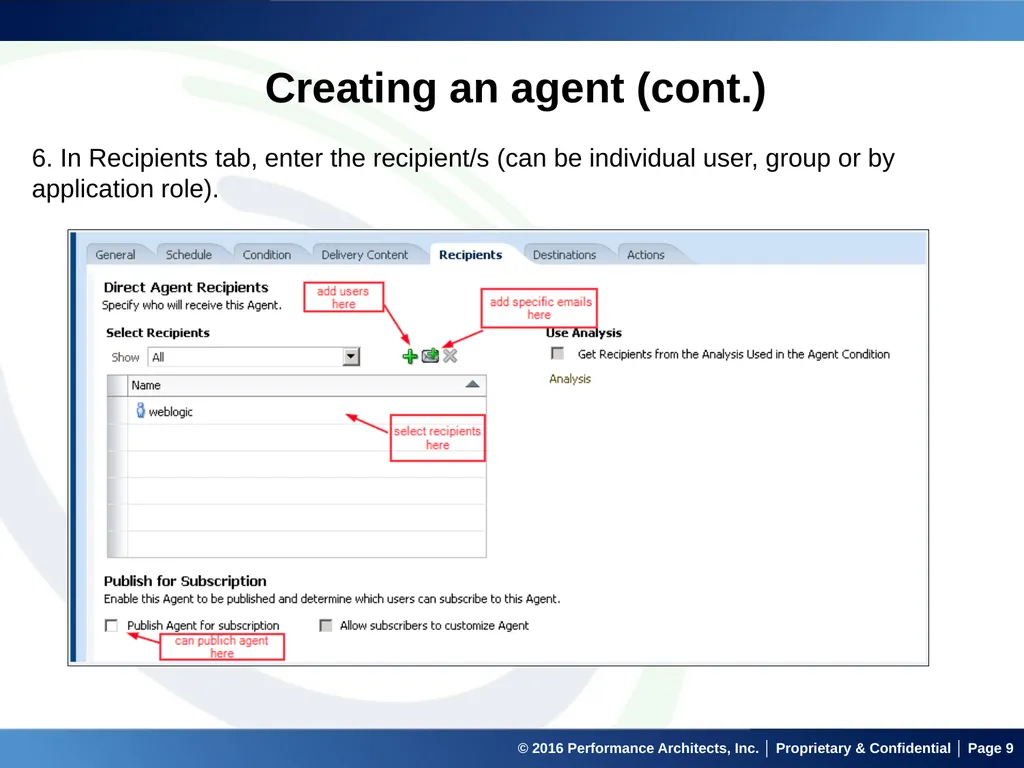
© 2016 Performance Architects, Inc. │ Proprietary & Confidential │ Page 9 Creating an agent (cont.) 6. In Recipients tab, enter the recipient/s (can be individual user, group or by application role).<br>
10
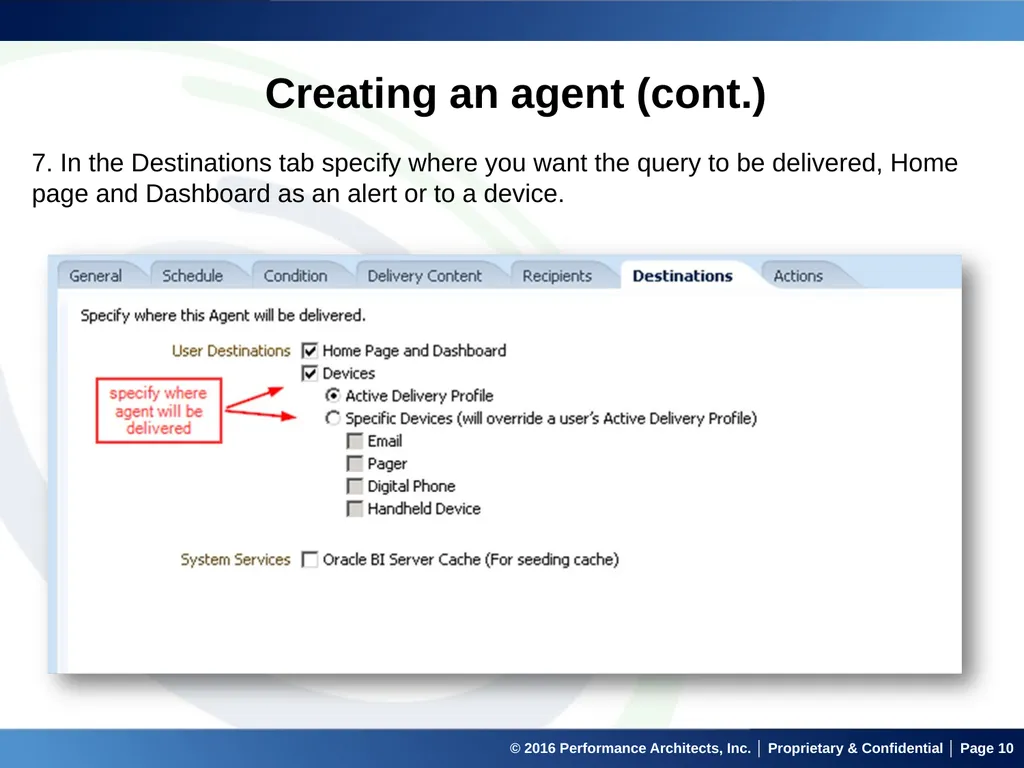
© 2016 Performance Architects, Inc. │ Proprietary & Confidential │ Page 10 Creating an agent (cont.) 7. In the Destinations tab specify where you want the query to be delivered, Home page and Dashboard as an alert or to a device.<br>
11
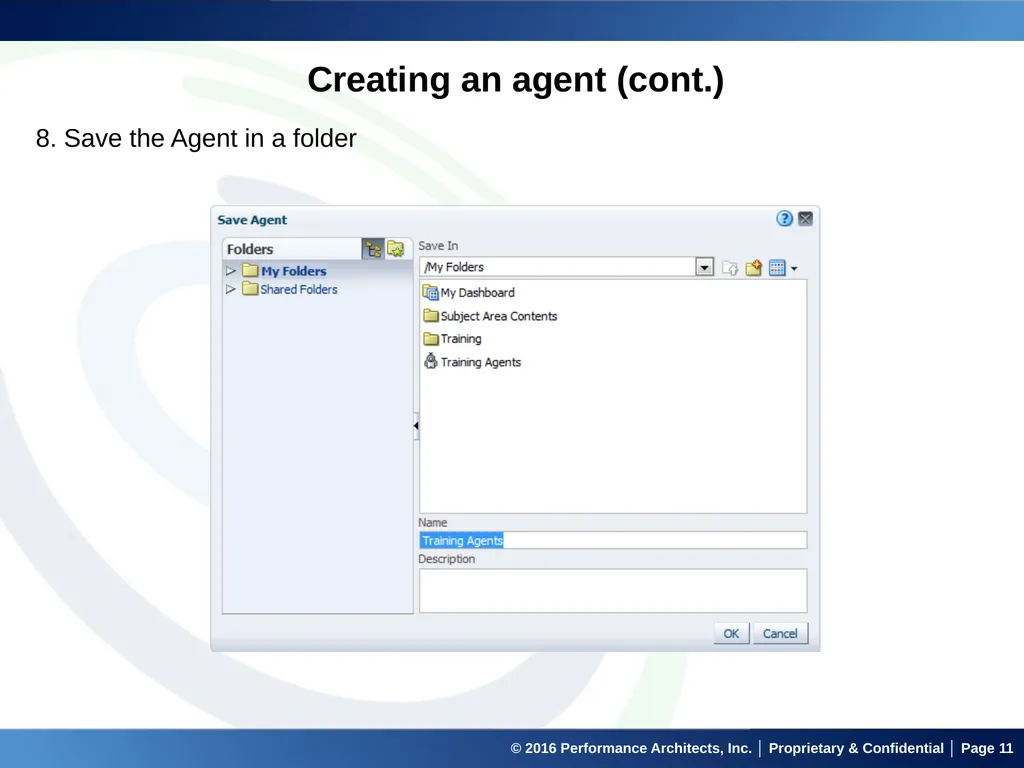
© 2016 Performance Architects, Inc. │ Proprietary & Confidential │ Page 11 Creating an agent (cont.) 8. Save the Agent in a folder<br>
12
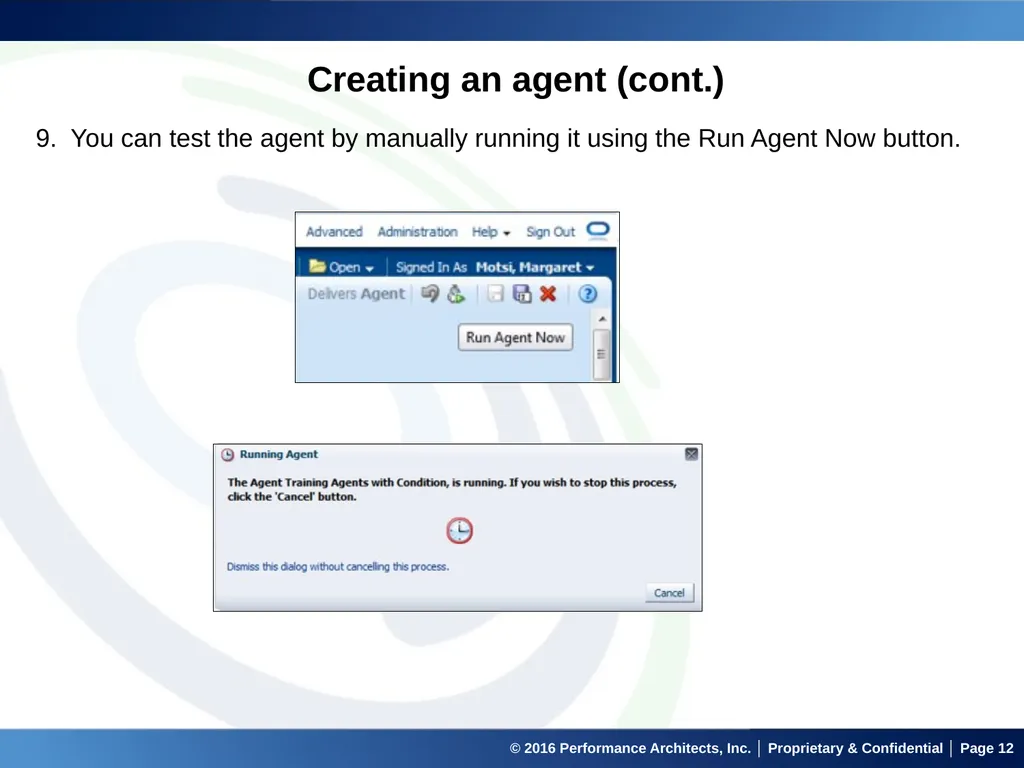
© 2016 Performance Architects, Inc. │ Proprietary & Confidential │ Page 12 Creating an agent (cont.) 9. You can test the agent by manually running it using the Run Agent Now button.<br>
13
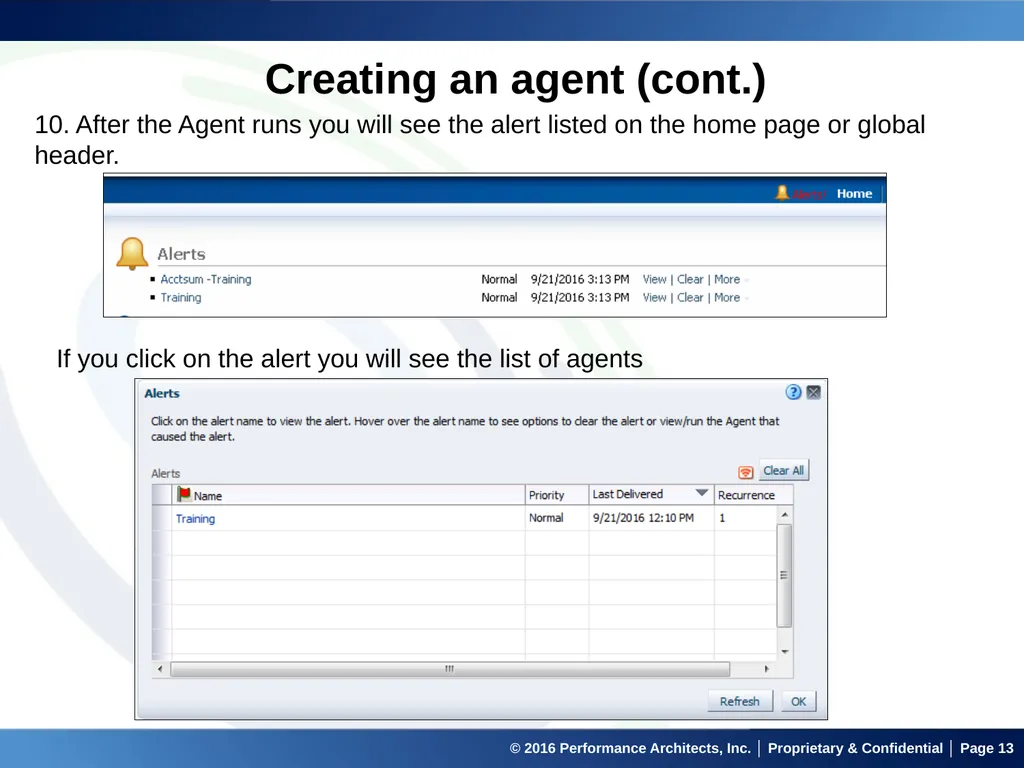
© 2016 Performance Architects, Inc. │ Proprietary & Confidential │ Page 13 Creating an agent (cont.) 10. After the Agent runs you will see the alert listed on the home page or global header. If you click on the alert you will see the list of agents<br>
14
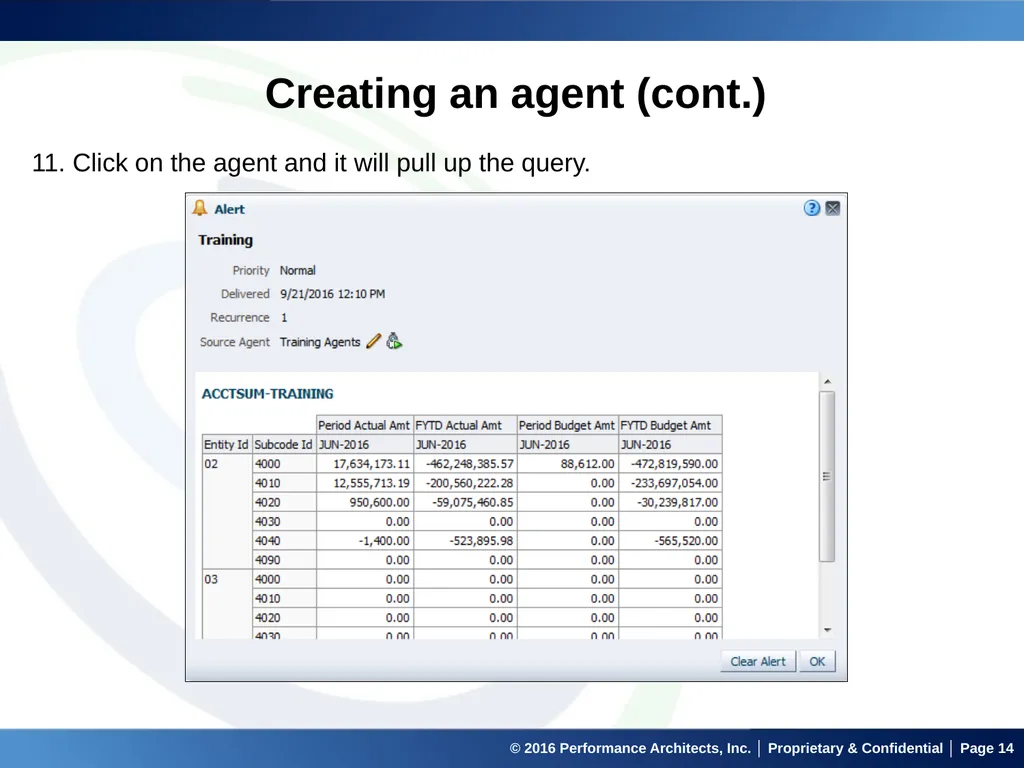
© 2016 Performance Architects, Inc. │ Proprietary & Confidential │ Page 14 Creating an agent (cont.) 11. Click on the agent and it will pull up the query.<br>
15
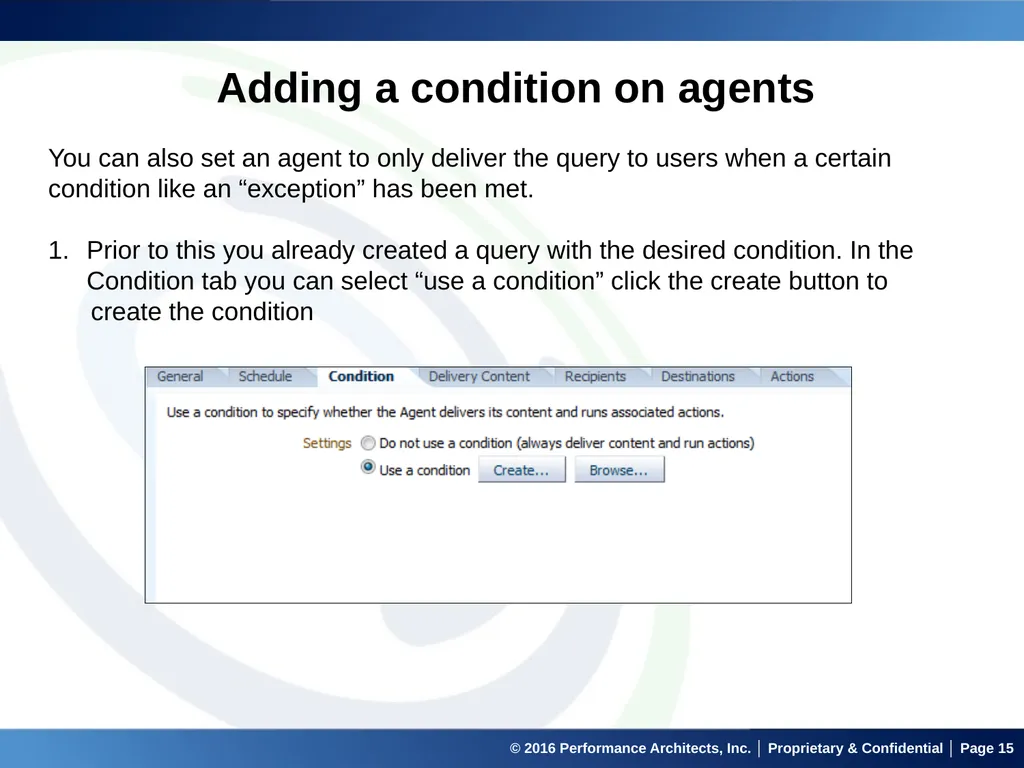
© 2016 Performance Architects, Inc. │ Proprietary & Confidential │ Page 15 Adding a condition on agents You can also set an agent to only deliver the query to users when a certain condition like an “exception” has been met.
Prior to this you already created a query with the desired condition. In the Condition tab you can select “use a condition” click the create button to
create the condition<br>
16
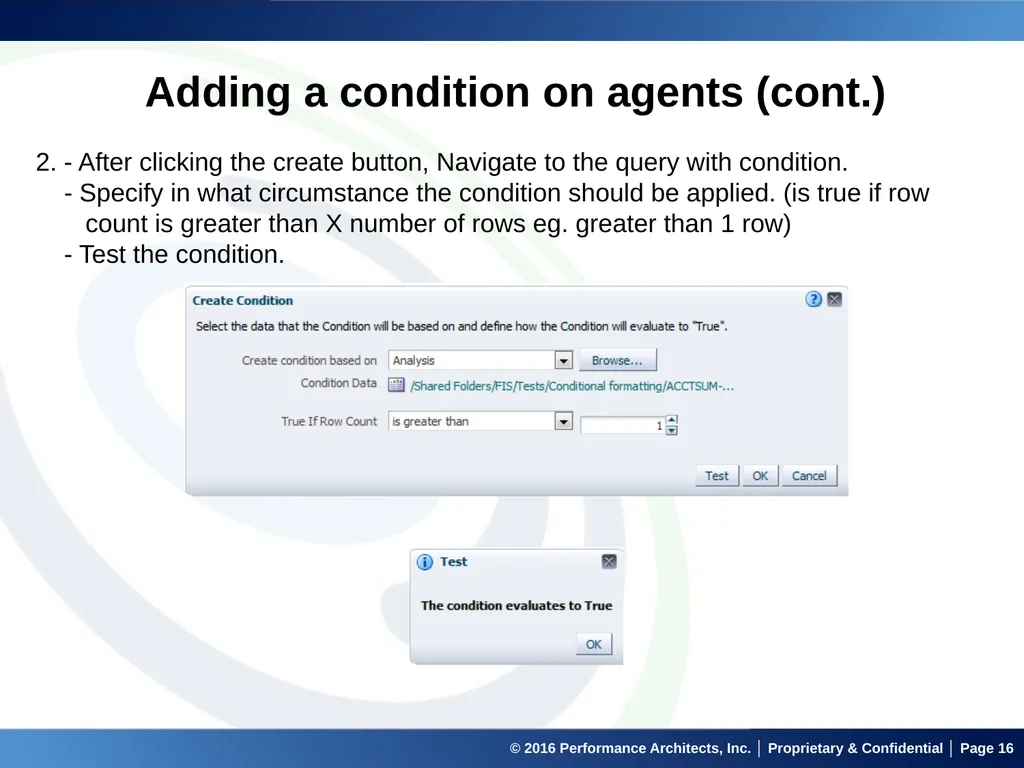
© 2016 Performance Architects, Inc. │ Proprietary & Confidential │ Page 16 Adding a condition on agents (cont.) 2. - After clicking the create button, Navigate to the query with condition.
- Specify in what circumstance the condition should be applied. (is true if row
count is greater than X number of rows eg. greater than 1 row)
- Test the condition.<br>
17
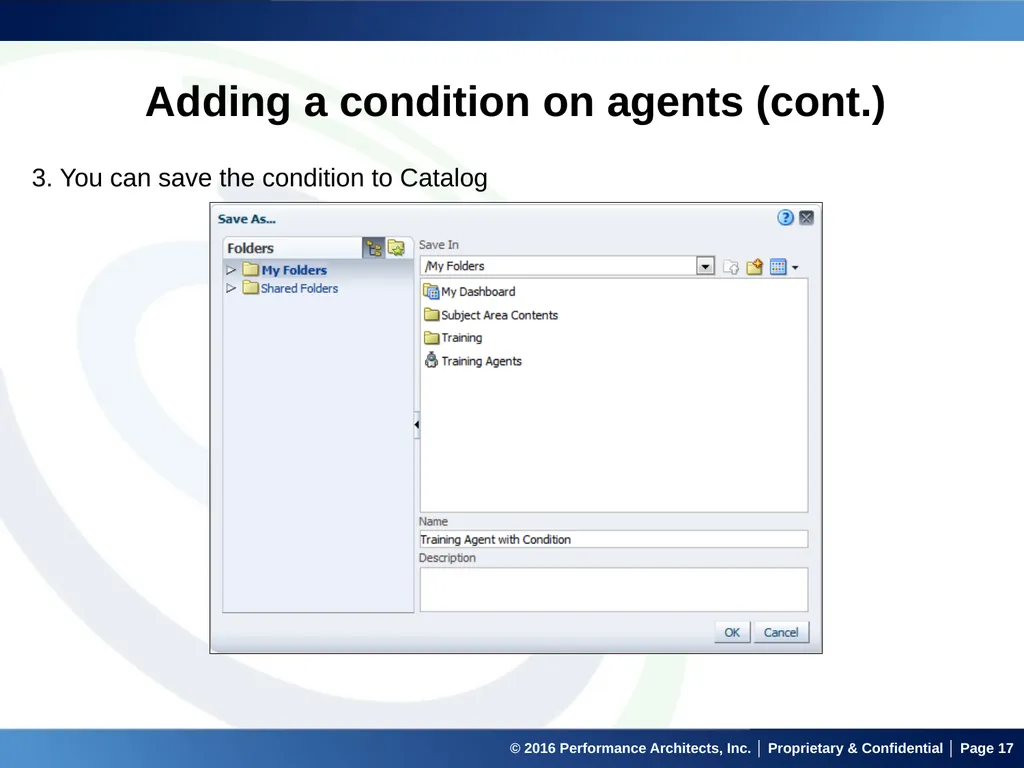
© 2016 Performance Architects, Inc. │ Proprietary & Confidential │ Page 17 Adding a condition on agents (cont.) 3. You can save the condition to Catalog<br>
18
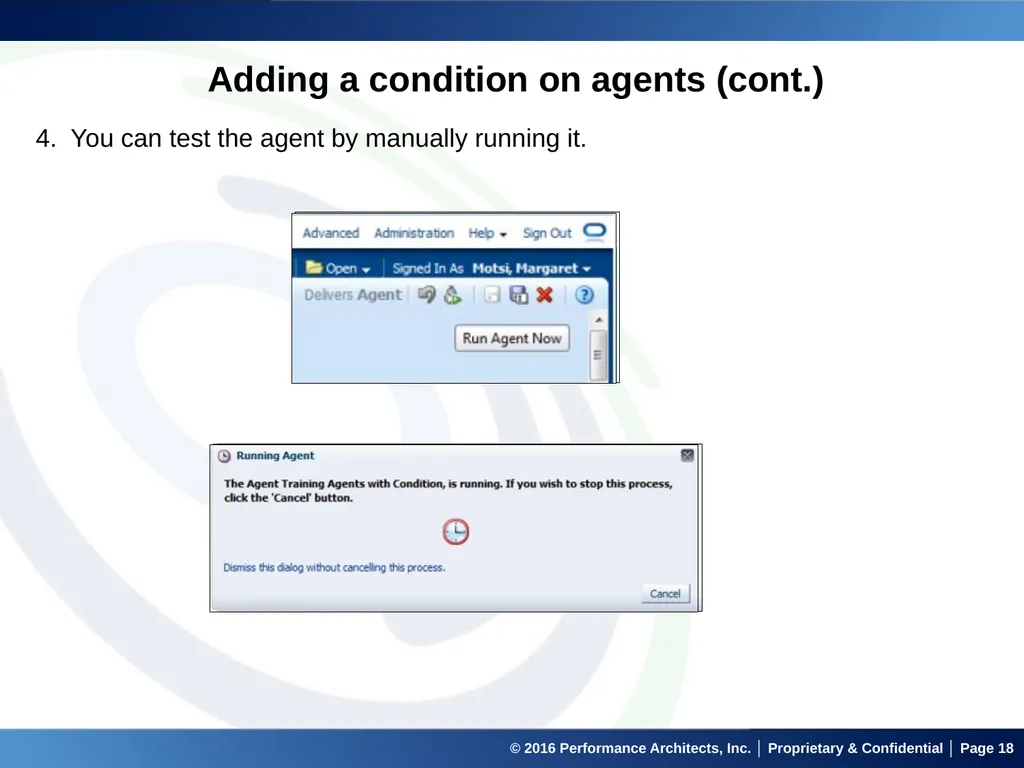
© 2016 Performance Architects, Inc. │ Proprietary & Confidential │ Page 18 Adding a condition on agents (cont.) 4. You can test the agent by manually running it.<br>
19
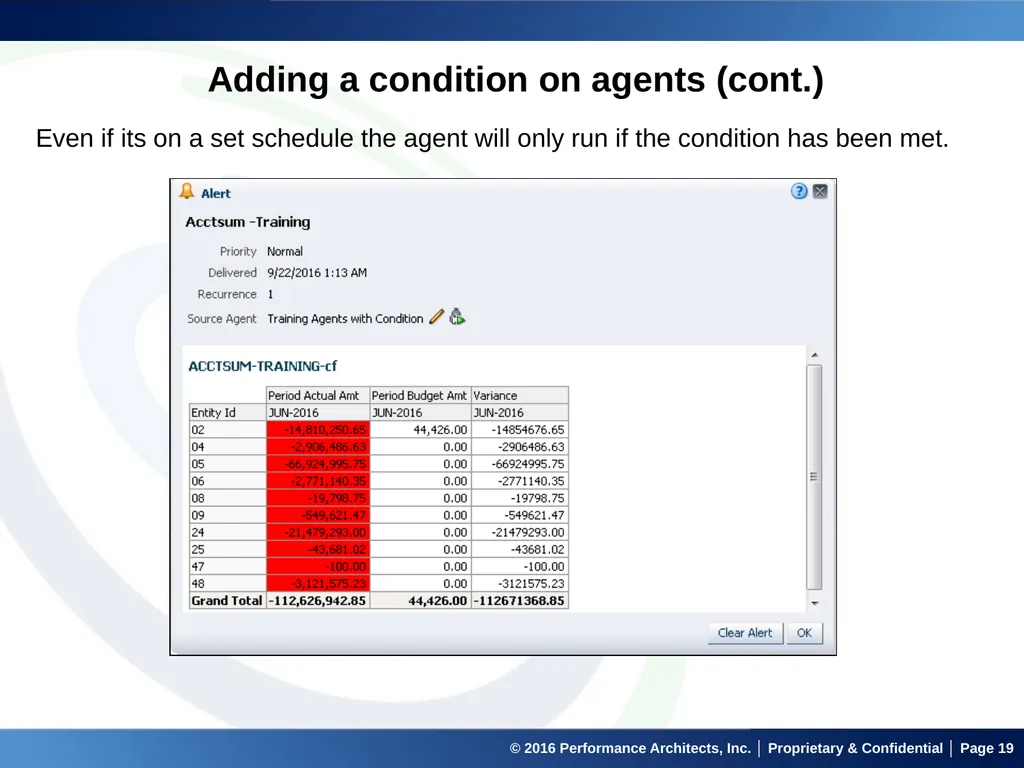
© 2016 Performance Architects, Inc. │ Proprietary & Confidential │ Page 19 Adding a condition on agents (cont.) Even if its on a set schedule the agent will only run if the condition has been met.<br>
20
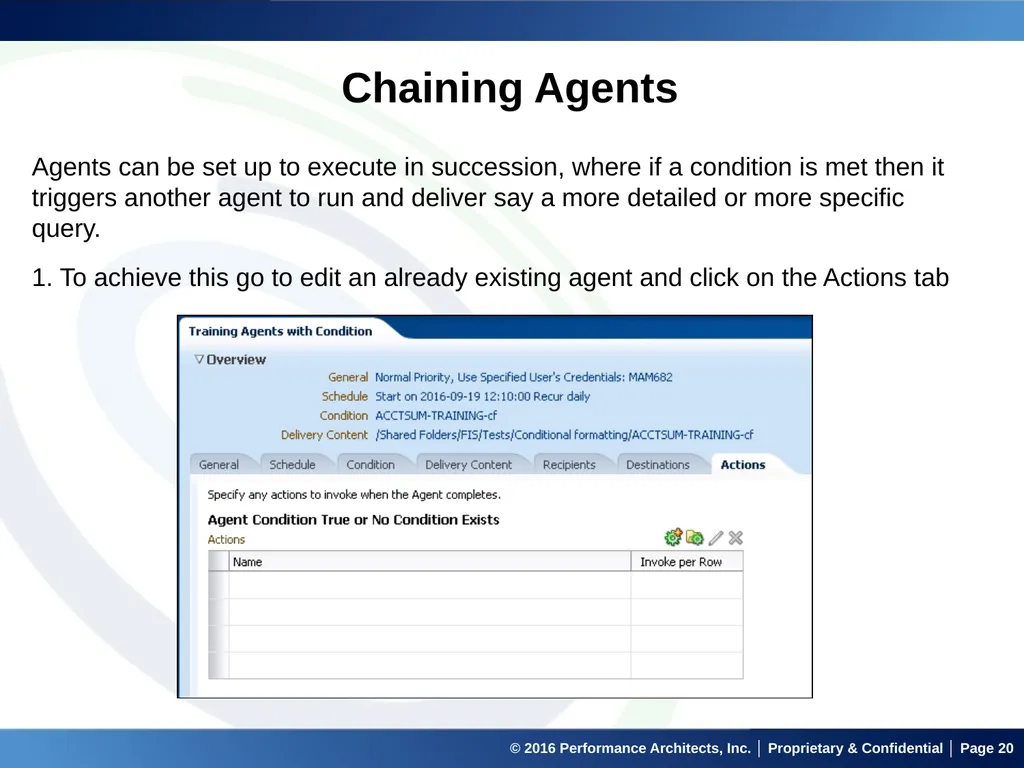
© 2016 Performance Architects, Inc. │ Proprietary & Confidential │ Page 20 Chaining Agents Agents can be set up to execute in succession, where if a condition is met then it triggers another agent to run and deliver say a more detailed or more specific query. 1. To achieve this go to edit an already existing agent and click on the Actions tab<br>
21
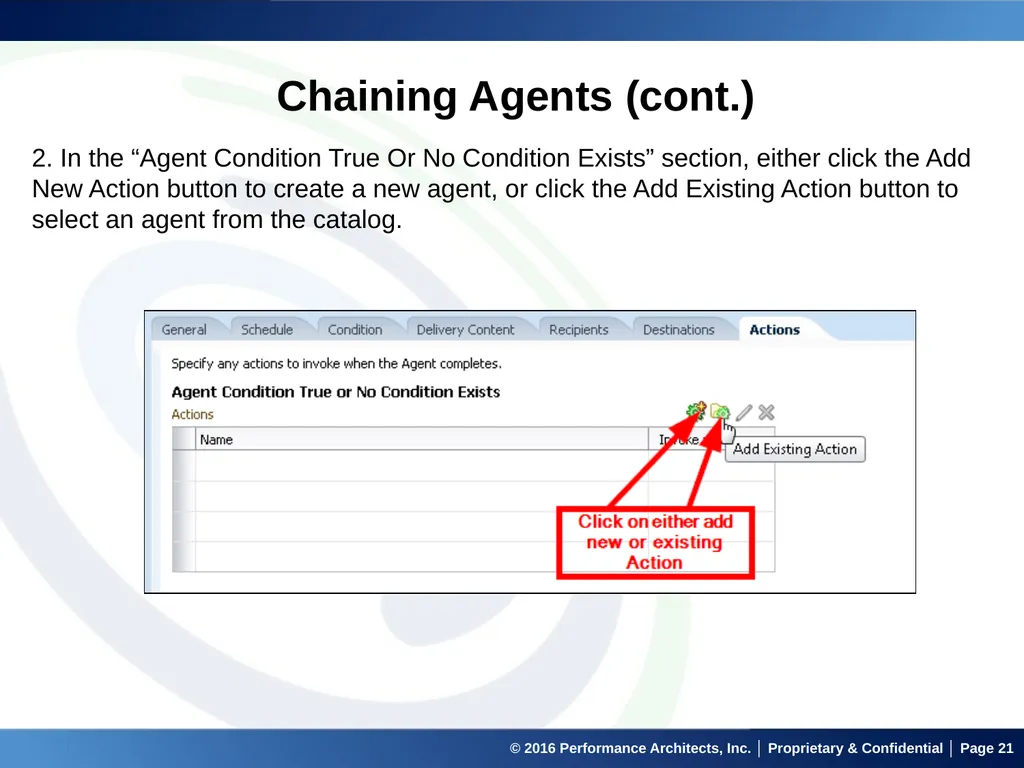
© 2016 Performance Architects, Inc. │ Proprietary & Confidential │ Page 21 Chaining Agents (cont.) 2. In the “Agent Condition True Or No Condition Exists” section, either click the Add New Action button to create a new agent, or click the Add Existing Action button to select an agent from the catalog.<br>
22
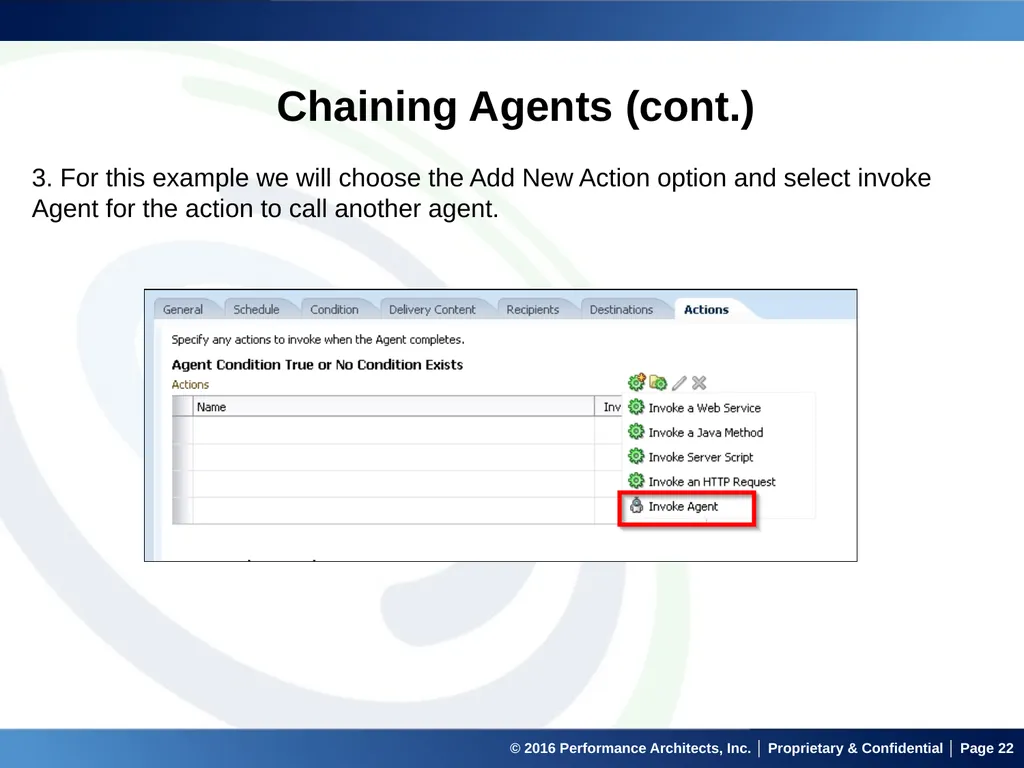
© 2016 Performance Architects, Inc. │ Proprietary & Confidential │ Page 22 Chaining Agents (cont.) 3. For this example we will choose the Add New Action option and select invoke Agent for the action to call another agent.<br>
23
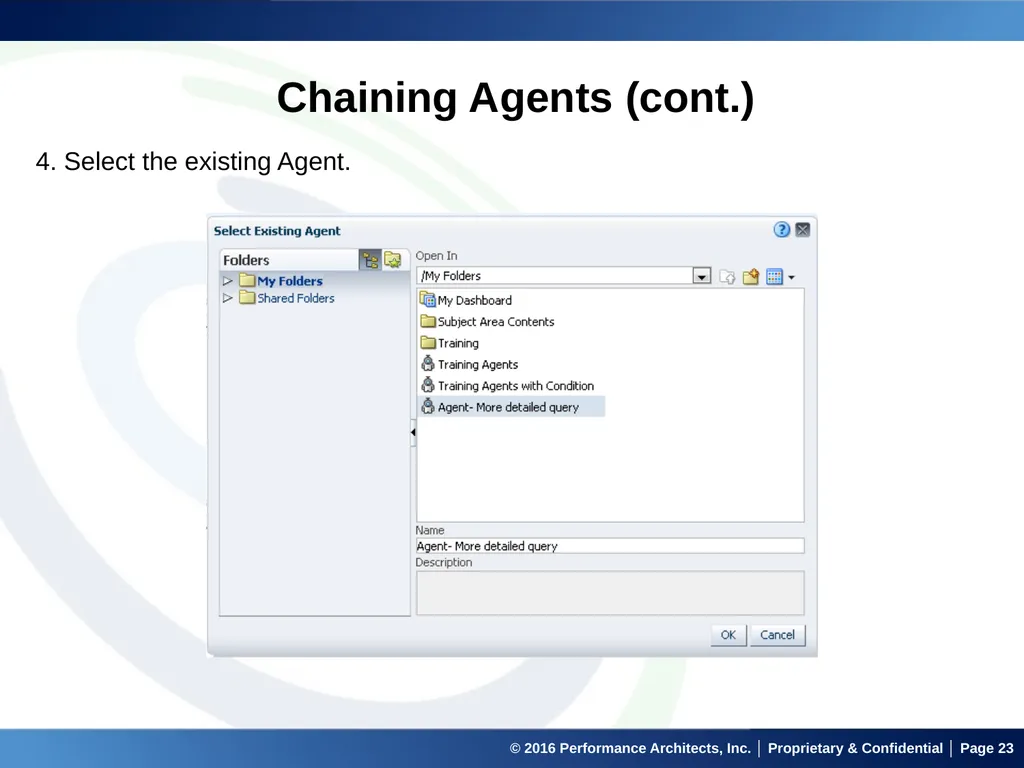
© 2016 Performance Architects, Inc. │ Proprietary & Confidential │ Page 23 Chaining Agents (cont.) 4. Select the existing Agent.<br>
24
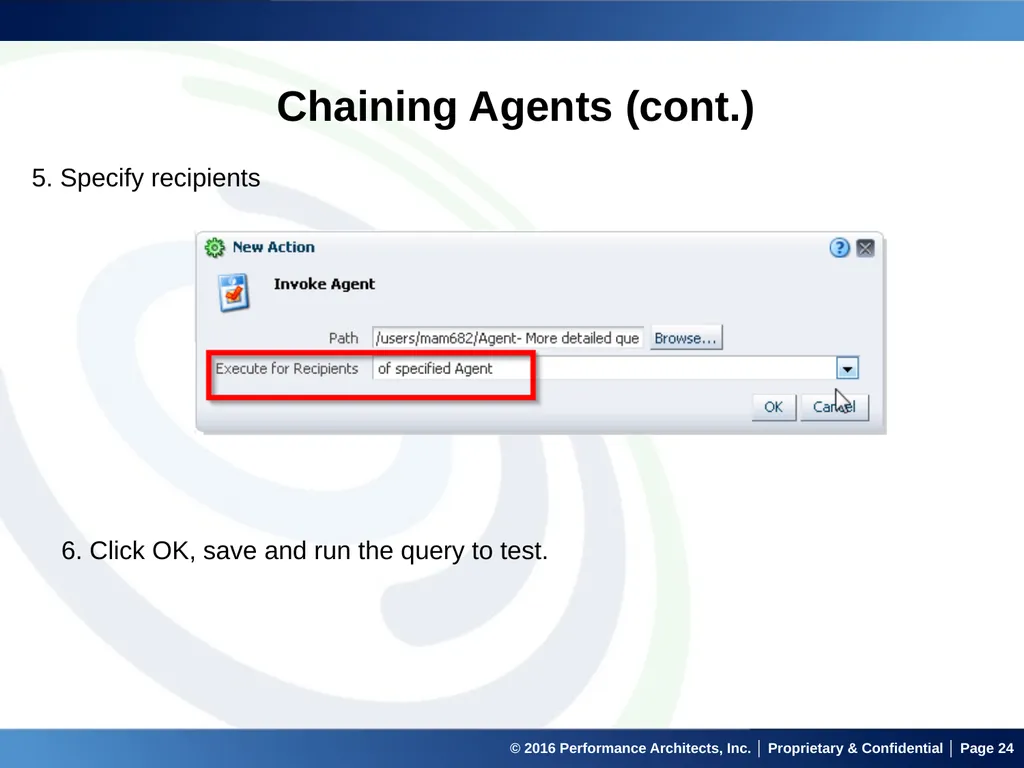
© 2016 Performance Architects, Inc. │ Proprietary & Confidential │ Page 24 Chaining Agents (cont.) 5. Specify recipients 6. Click OK, save and run the query to test.<br>
25
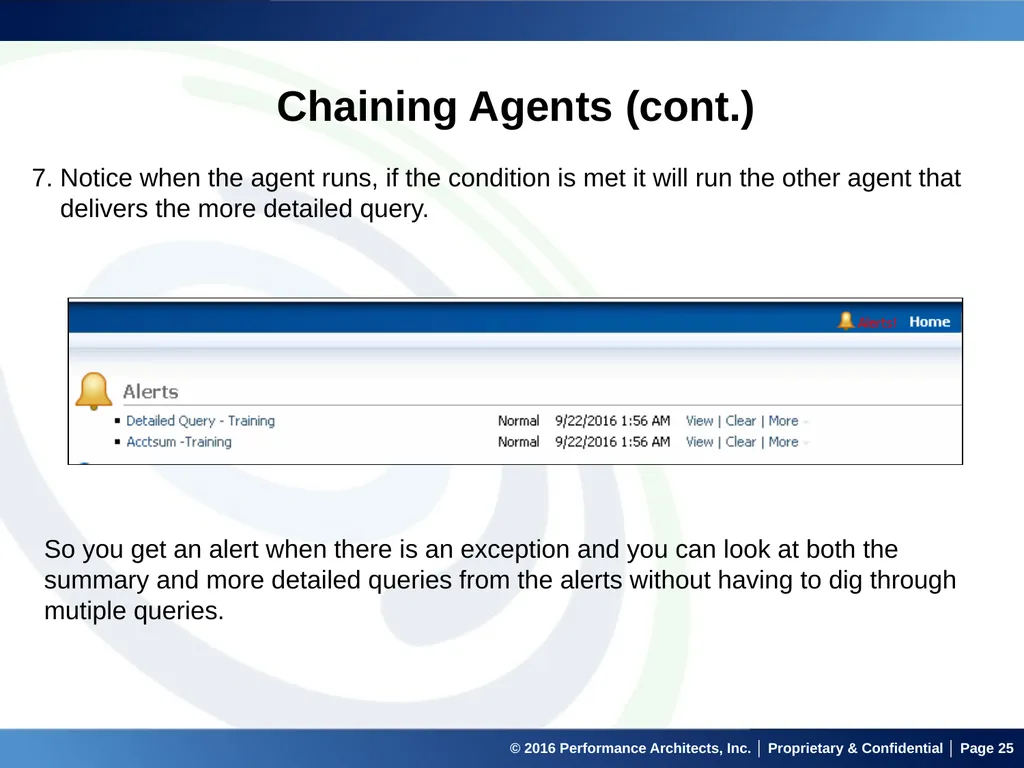
© 2016 Performance Architects, Inc. │ Proprietary & Confidential │ Page 25 Chaining Agents (cont.) 7. Notice when the agent runs, if the condition is met it will run the other agent that
delivers the more detailed query. So you get an alert when there is an exception and you can look at both the summary and more detailed queries from the alerts without having to dig through mutiple queries.<br>
26
© 2016 Performance Architects, Inc. │ Proprietary & Confidential │ Page 26 Demo<br>
27
© 2016 Performance Architects, Inc. │ Proprietary & Confidential │ Page 27 Q&A<br>