
Auxiliary Fund Training April 11, 2017 WSU
MT
Published · 57 slides · 0 views

1 / 1








Description
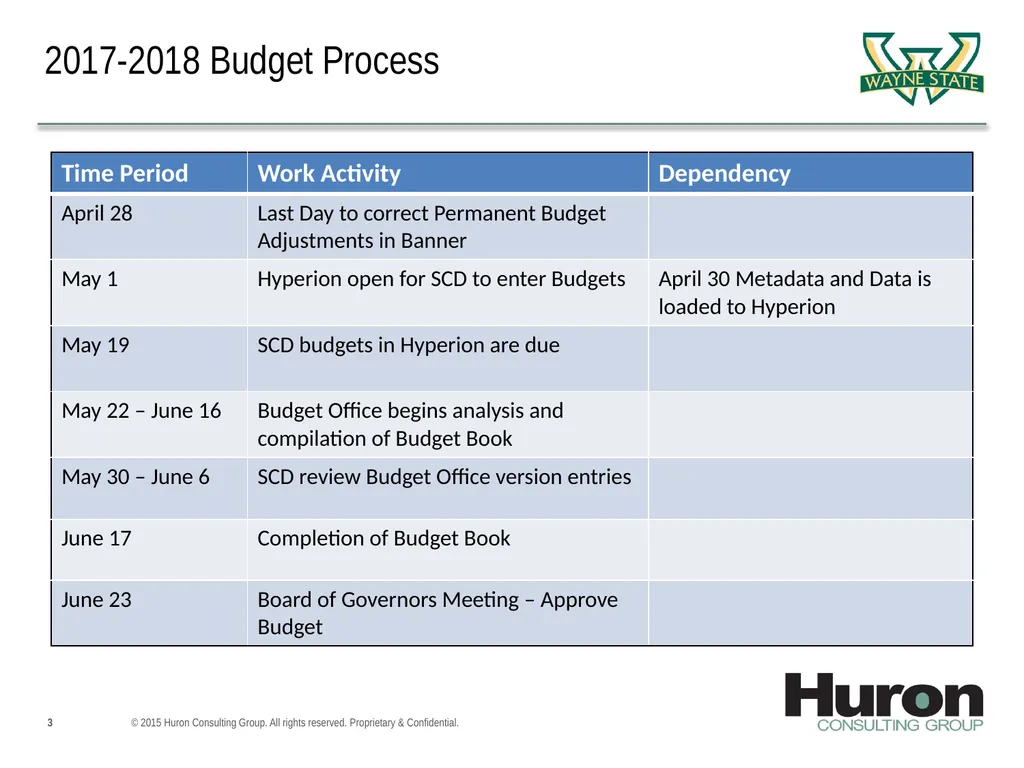
Auxiliary Fund Training April 11, 2017 WSU 2017-2018 Budgeting Process 2015 Huron Consulting Group. All rights reserved. Proprietary Confidential. 2017-2018 Budget Process 2015 Huron Consulting Group. All rights reserved. Proprietary
Related Topics
Share
Embed code
Download this presentation From Below
"Auxiliary Fund Training April 11, 2017 WSU" is the property of its rightful owner. Permission is granted to download and print the materials on this website for personal, non-commercial use only, and to display it on your personal computer provided you do not modify the materials and that you retain all copyright notices contained in the materials. By downloading content from our website, you accept the terms of this agreement.
Presentation Transcript
01
Auxiliary Fund Training April 11, 2017<br>
02
WSU 2017-2018 Budgeting Process © 2015 Huron Consulting Group. All rights reserved. Proprietary & Confidential.<br>
03
2017-2018 Budget Process © 2015 Huron Consulting Group. All rights reserved. Proprietary & Confidential.<br>
04
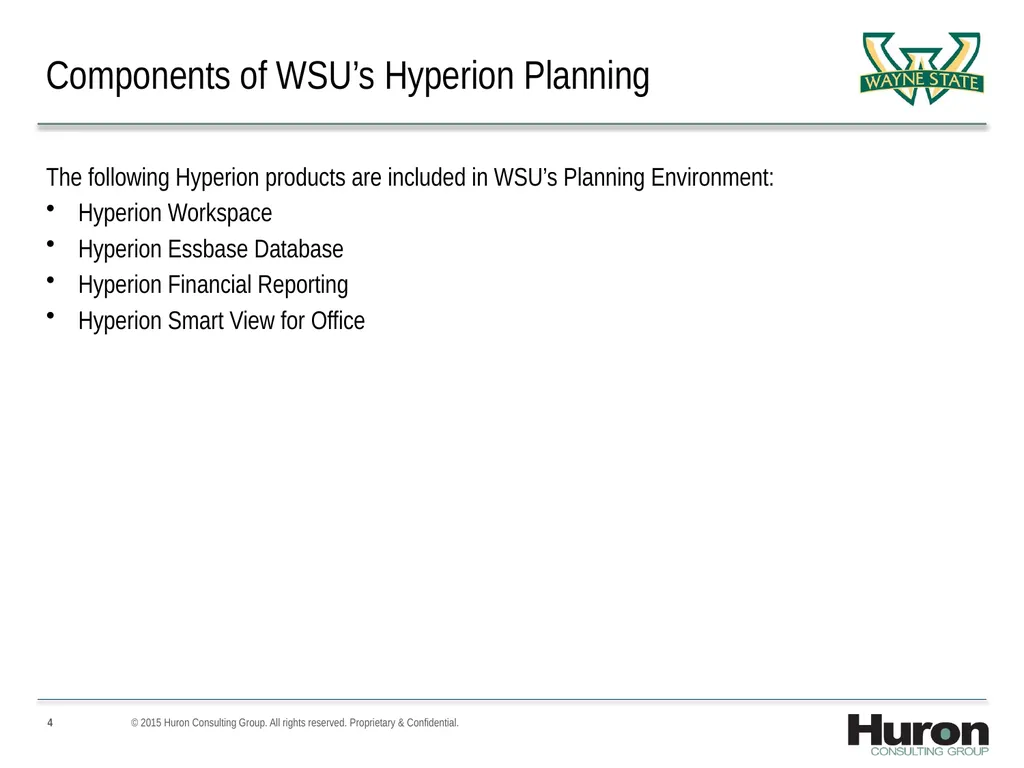
Components of WSU’s Hyperion Planning The following Hyperion products are included in WSU’s Planning Environment:
Hyperion Workspace
Hyperion Essbase Database
Hyperion Financial Reporting
Hyperion Smart View for Office © 2015 Huron Consulting Group. All rights reserved. Proprietary & Confidential.<br>
Hyperion Workspace
Hyperion Essbase Database
Hyperion Financial Reporting
Hyperion Smart View for Office © 2015 Huron Consulting Group. All rights reserved. Proprietary & Confidential.<br>
05
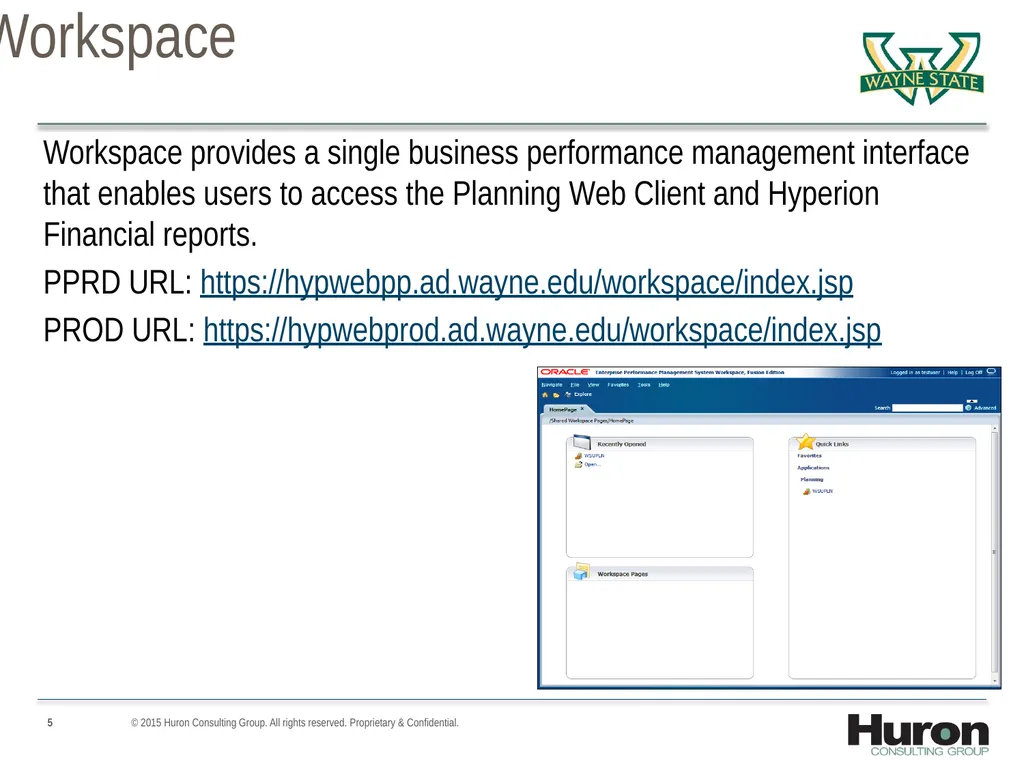
Hyperion Workspace Workspace provides a single business performance management interface that enables users to access the Planning Web Client and Hyperion Financial reports.
PPRD URL: https://hypwebpp.ad.wayne.edu/workspace/index.jsp
PROD URL: https://hypwebprod.ad.wayne.edu/workspace/index.jsp © 2015 Huron Consulting Group. All rights reserved. Proprietary & Confidential.<br>
PPRD URL: https://hypwebpp.ad.wayne.edu/workspace/index.jsp
PROD URL: https://hypwebprod.ad.wayne.edu/workspace/index.jsp © 2015 Huron Consulting Group. All rights reserved. Proprietary & Confidential.<br>
06
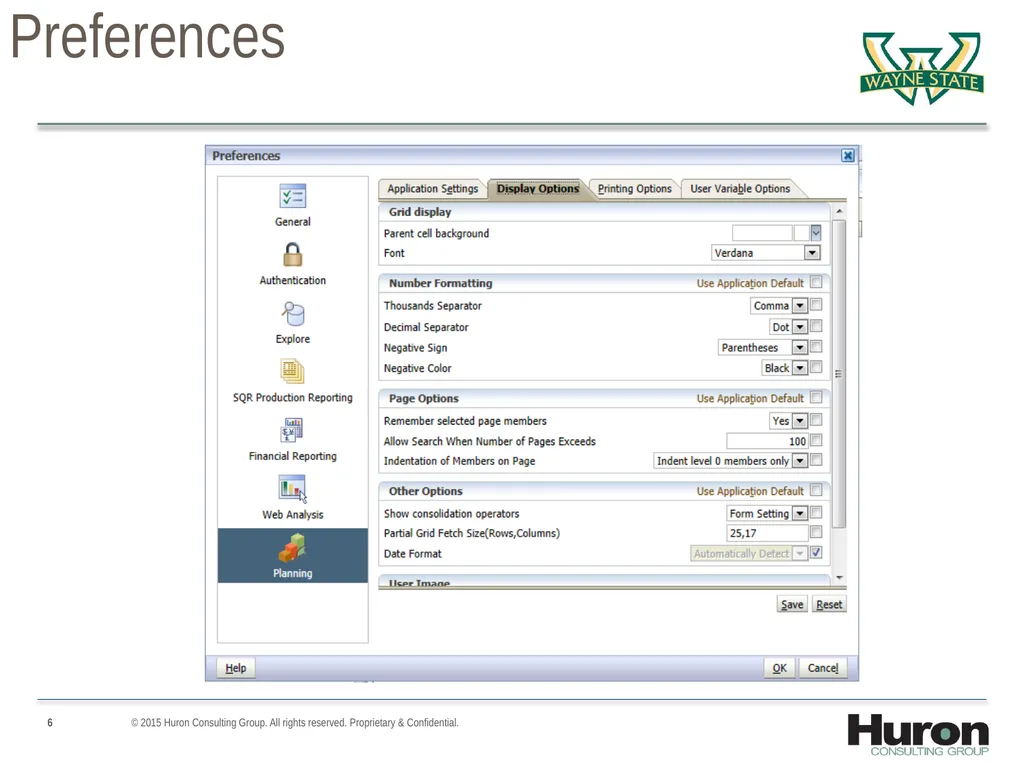
Setting User Preferences © 2015 Huron Consulting Group. All rights reserved. Proprietary & Confidential.<br>
07
Hyperion Planning at WSU<br>
08
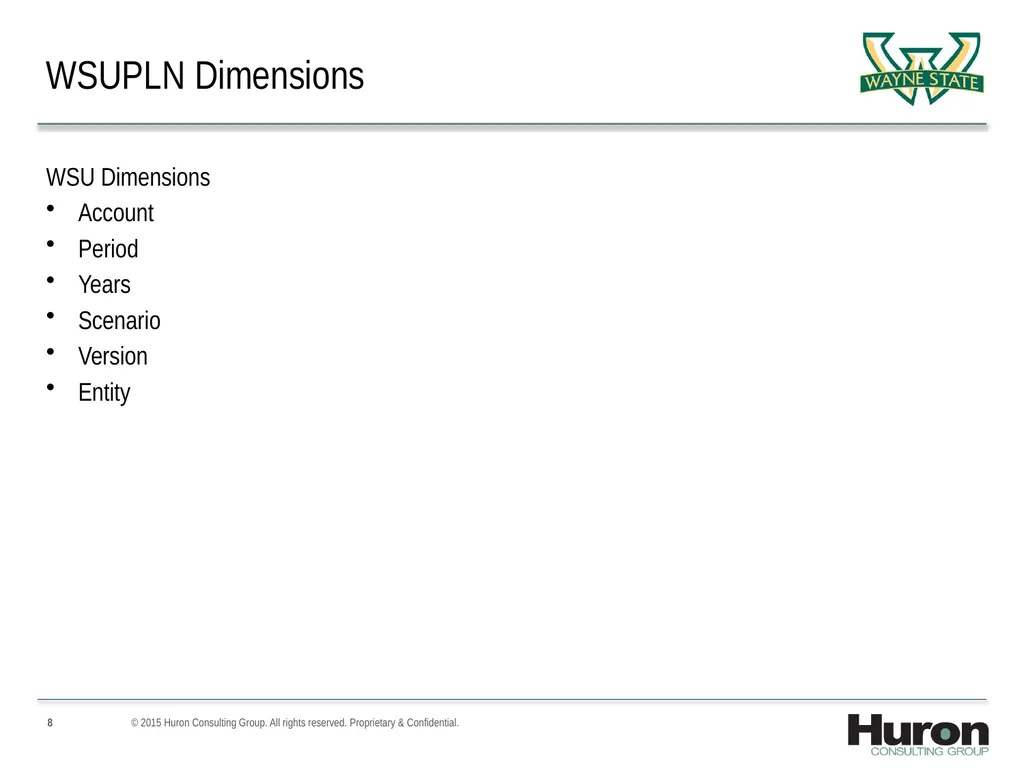
WSUPLN Dimensions WSU Dimensions
Account
Period
Years
Scenario
Version
Entity © 2015 Huron Consulting Group. All rights reserved. Proprietary & Confidential.<br>
Account
Period
Years
Scenario
Version
Entity © 2015 Huron Consulting Group. All rights reserved. Proprietary & Confidential.<br>
09
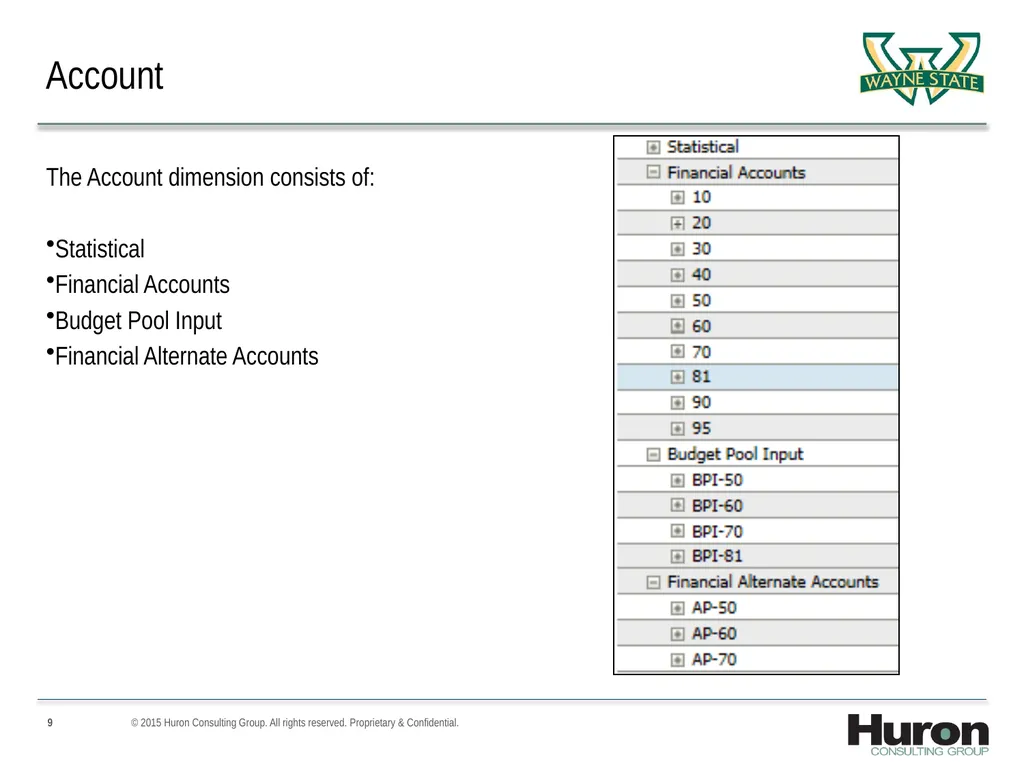
Account The Account dimension consists of:
Statistical
Financial Accounts
Budget Pool Input
Financial Alternate Accounts © 2015 Huron Consulting Group. All rights reserved. Proprietary & Confidential.<br>
Statistical
Financial Accounts
Budget Pool Input
Financial Alternate Accounts © 2015 Huron Consulting Group. All rights reserved. Proprietary & Confidential.<br>
10
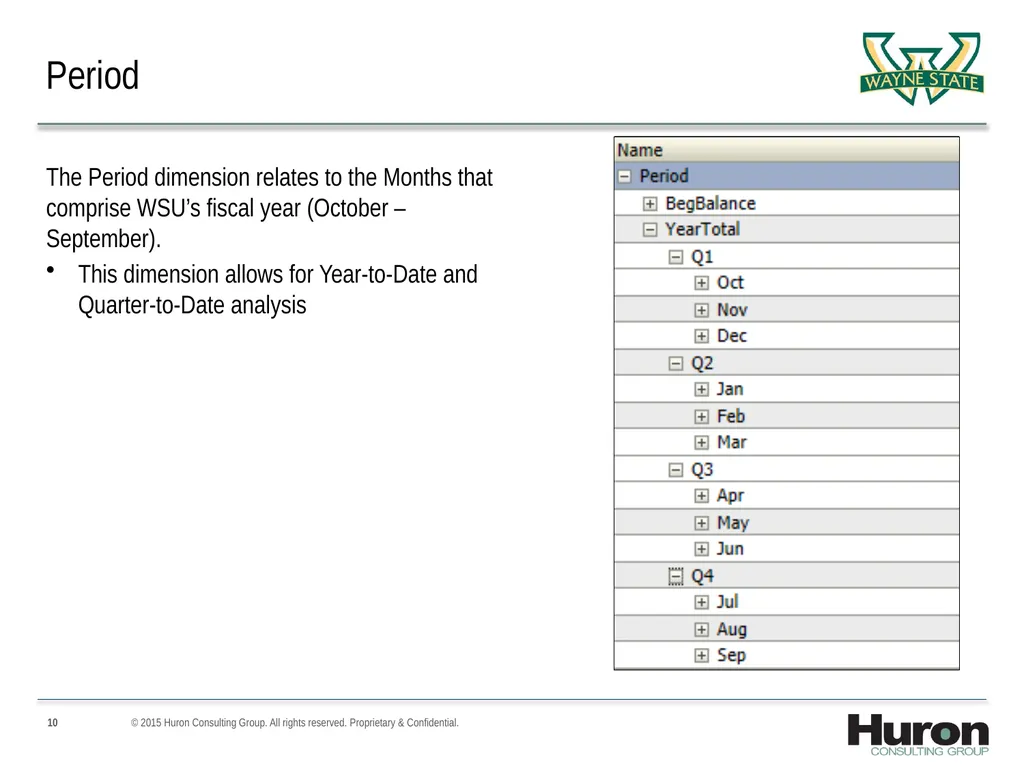
Period The Period dimension relates to the Months that comprise WSU’s fiscal year (October – September).
This dimension allows for Year-to-Date and Quarter-to-Date analysis © 2015 Huron Consulting Group. All rights reserved. Proprietary & Confidential.<br>
This dimension allows for Year-to-Date and Quarter-to-Date analysis © 2015 Huron Consulting Group. All rights reserved. Proprietary & Confidential.<br>
11
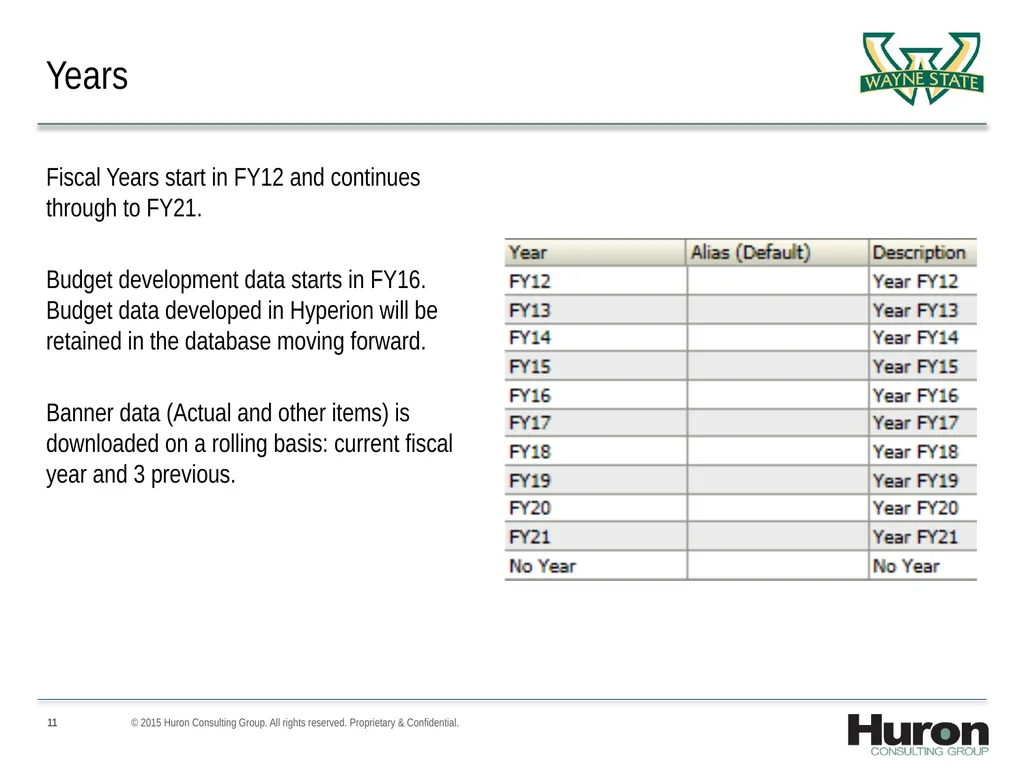
Years Fiscal Years start in FY12 and continues through to FY21.
Budget development data starts in FY16. Budget data developed in Hyperion will be retained in the database moving forward.
Banner data (Actual and other items) is downloaded on a rolling basis: current fiscal year and 3 previous. © 2015 Huron Consulting Group. All rights reserved. Proprietary & Confidential.<br>
Budget development data starts in FY16. Budget data developed in Hyperion will be retained in the database moving forward.
Banner data (Actual and other items) is downloaded on a rolling basis: current fiscal year and 3 previous. © 2015 Huron Consulting Group. All rights reserved. Proprietary & Confidential.<br>
12
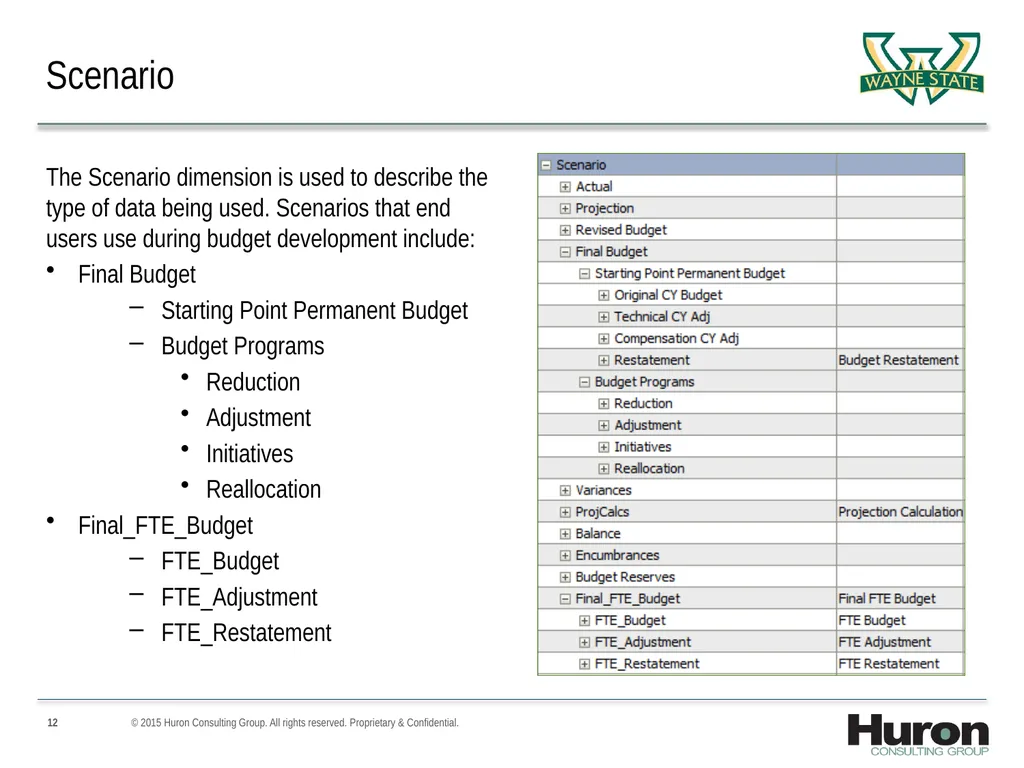
Scenario The Scenario dimension is used to describe the type of data being used. Scenarios that end users use during budget development include:
Final Budget
Starting Point Permanent Budget
Budget Programs
Reduction
Adjustment
Initiatives
Reallocation
Final_FTE_Budget
FTE_Budget
FTE_Adjustment
FTE_Restatement © 2015 Huron Consulting Group. All rights reserved. Proprietary & Confidential.<br>
Final Budget
Starting Point Permanent Budget
Budget Programs
Reduction
Adjustment
Initiatives
Reallocation
Final_FTE_Budget
FTE_Budget
FTE_Adjustment
FTE_Restatement © 2015 Huron Consulting Group. All rights reserved. Proprietary & Confidential.<br>
13
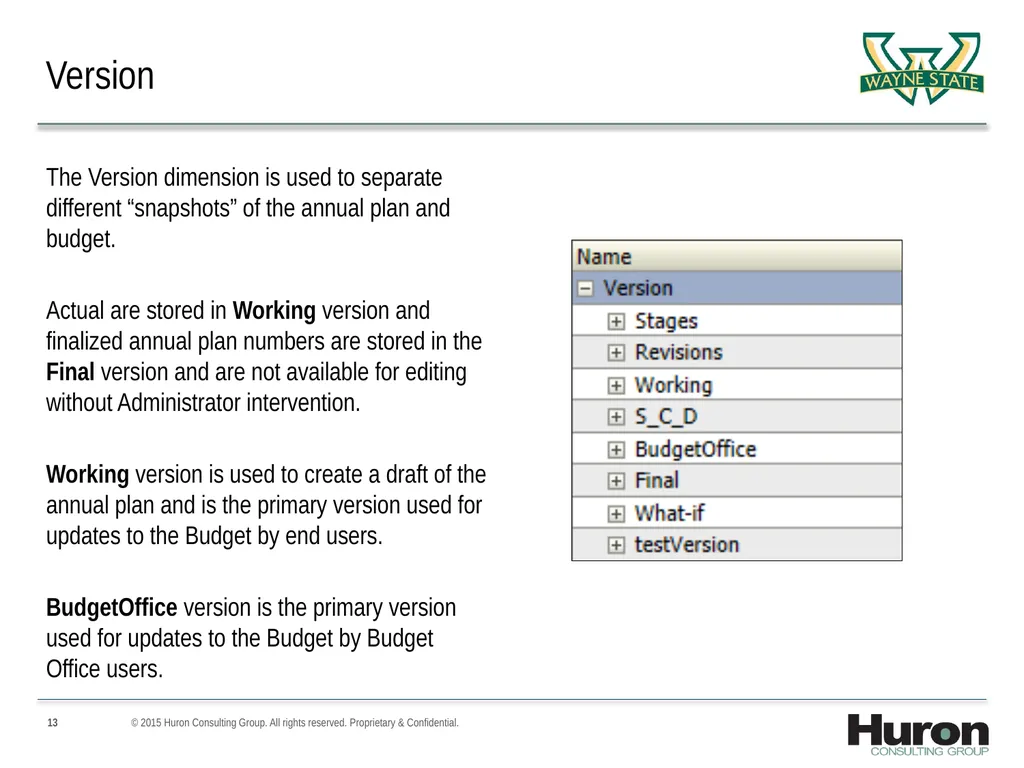
Version The Version dimension is used to separate different “snapshots” of the annual plan and budget.
Actual are stored in Working version and finalized annual plan numbers are stored in the Final version and are not available for editing without Administrator intervention.
Working version is used to create a draft of the annual plan and is the primary version used for updates to the Budget by end users.
BudgetOffice version is the primary version used for updates to the Budget by Budget Office users. © 2015 Huron Consulting Group. All rights reserved. Proprietary & Confidential.<br>
Actual are stored in Working version and finalized annual plan numbers are stored in the Final version and are not available for editing without Administrator intervention.
Working version is used to create a draft of the annual plan and is the primary version used for updates to the Budget by end users.
BudgetOffice version is the primary version used for updates to the Budget by Budget Office users. © 2015 Huron Consulting Group. All rights reserved. Proprietary & Confidential.<br>
14
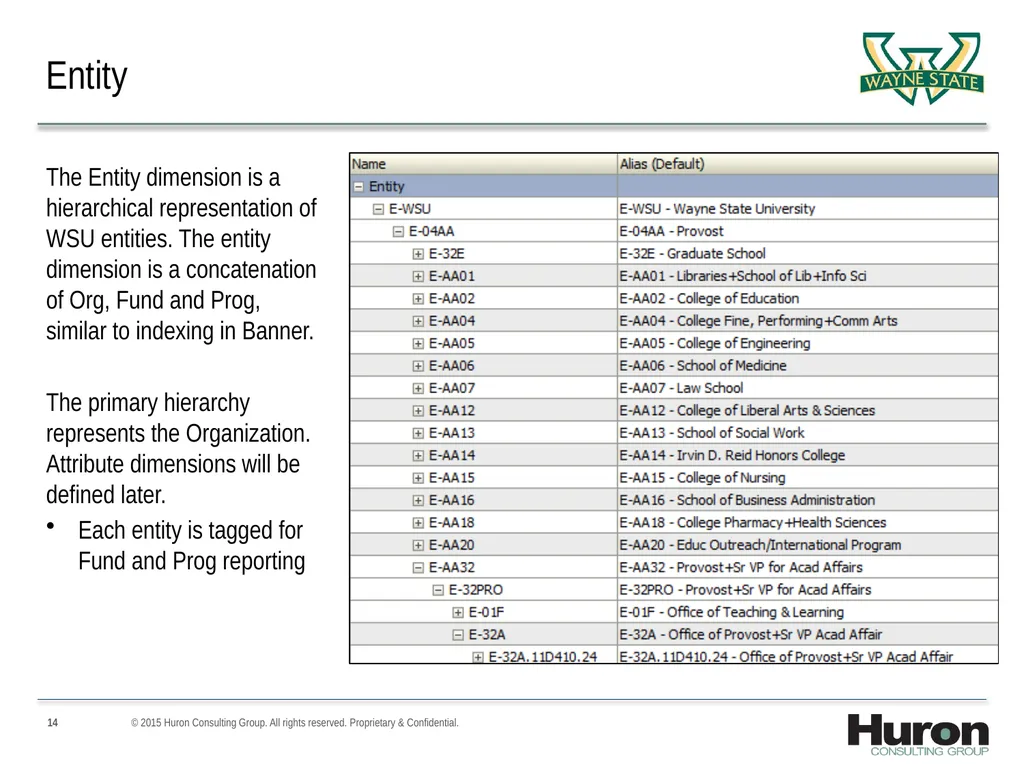
Entity The Entity dimension is a hierarchical representation of WSU entities. The entity dimension is a concatenation of Org, Fund and Prog, similar to indexing in Banner.
The primary hierarchy represents the Organization. Attribute dimensions will be defined later.
Each entity is tagged for Fund and Prog reporting © 2015 Huron Consulting Group. All rights reserved. Proprietary & Confidential.<br>
The primary hierarchy represents the Organization. Attribute dimensions will be defined later.
Each entity is tagged for Fund and Prog reporting © 2015 Huron Consulting Group. All rights reserved. Proprietary & Confidential.<br>
15
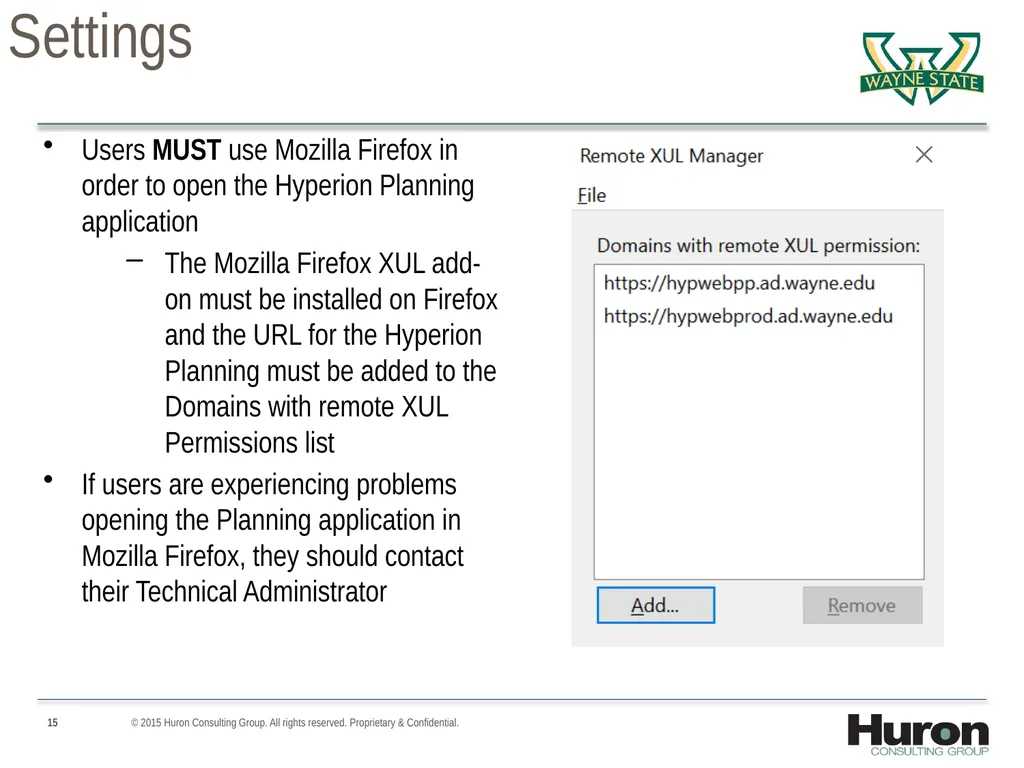
Browser Settings Users MUST use Mozilla Firefox in order to open the Hyperion Planning application
The Mozilla Firefox XUL add-on must be installed on Firefox and the URL for the Hyperion Planning must be added to the Domains with remote XUL Permissions list
If users are experiencing problems opening the Planning application in Mozilla Firefox, they should contact their Technical Administrator © 2015 Huron Consulting Group. All rights reserved. Proprietary & Confidential.<br>
The Mozilla Firefox XUL add-on must be installed on Firefox and the URL for the Hyperion Planning must be added to the Domains with remote XUL Permissions list
If users are experiencing problems opening the Planning application in Mozilla Firefox, they should contact their Technical Administrator © 2015 Huron Consulting Group. All rights reserved. Proprietary & Confidential.<br>
16
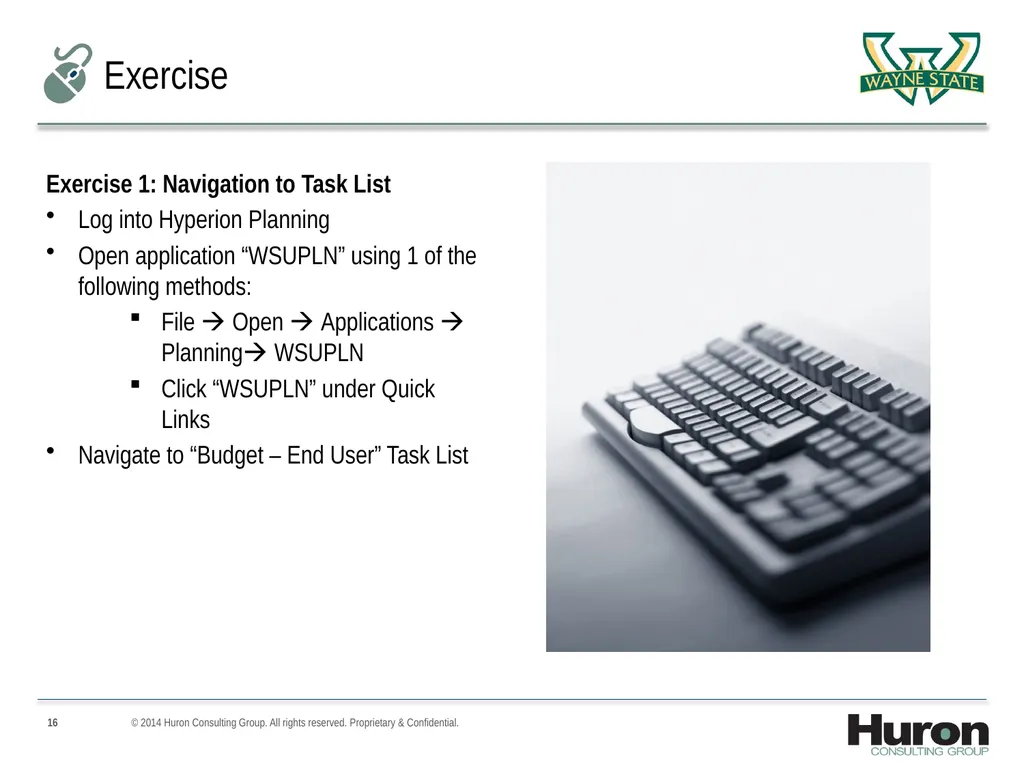
© 2014 Huron Consulting Group. All rights reserved. Proprietary & Confidential. Exercise Exercise 1: Navigation to Task List
Log into Hyperion Planning
Open application “WSUPLN” using 1 of the following methods:
File Open Applications Planning WSUPLN
Click “WSUPLN” under Quick Links
Navigate to “Budget – End User” Task List<br>
Log into Hyperion Planning
Open application “WSUPLN” using 1 of the following methods:
File Open Applications Planning WSUPLN
Click “WSUPLN” under Quick Links
Navigate to “Budget – End User” Task List<br>
17
WSU End User Task Lists<br>
18
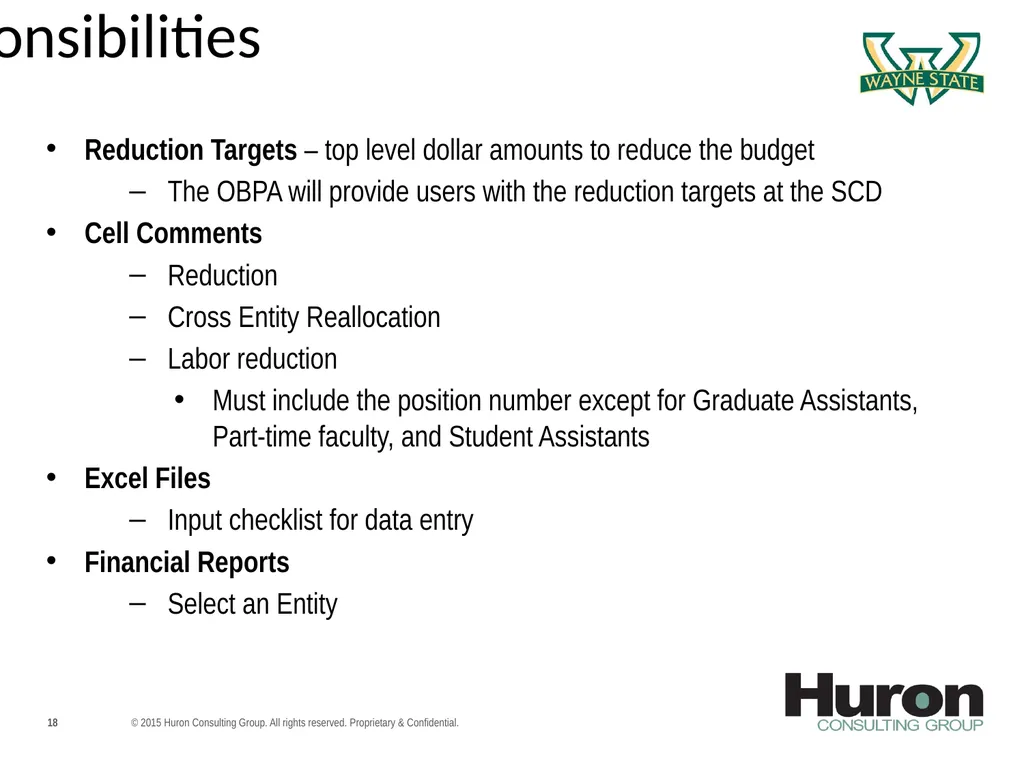
User Responsibilities Reduction Targets – top level dollar amounts to reduce the budget
The OBPA will provide users with the reduction targets at the SCD
Cell Comments
Reduction
Cross Entity Reallocation
Labor reduction
Must include the position number except for Graduate Assistants, Part-time faculty, and Student Assistants
Excel Files
Input checklist for data entry
Financial Reports
Select an Entity © 2015 Huron Consulting Group. All rights reserved. Proprietary & Confidential.<br>
The OBPA will provide users with the reduction targets at the SCD
Cell Comments
Reduction
Cross Entity Reallocation
Labor reduction
Must include the position number except for Graduate Assistants, Part-time faculty, and Student Assistants
Excel Files
Input checklist for data entry
Financial Reports
Select an Entity © 2015 Huron Consulting Group. All rights reserved. Proprietary & Confidential.<br>
19
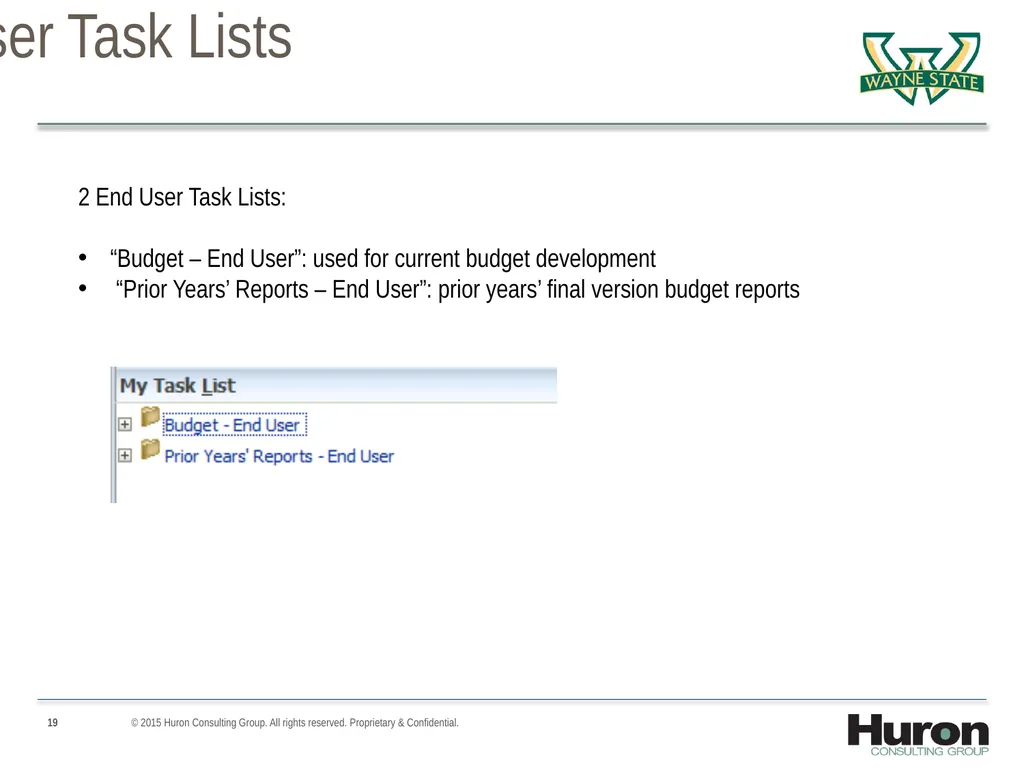
WSU End User Task Lists © 2015 Huron Consulting Group. All rights reserved. Proprietary & Confidential. 2 End User Task Lists:
“Budget – End User”: used for current budget development
“Prior Years’ Reports – End User”: prior years’ final version budget reports<br>
“Budget – End User”: used for current budget development
“Prior Years’ Reports – End User”: prior years’ final version budget reports<br>
20
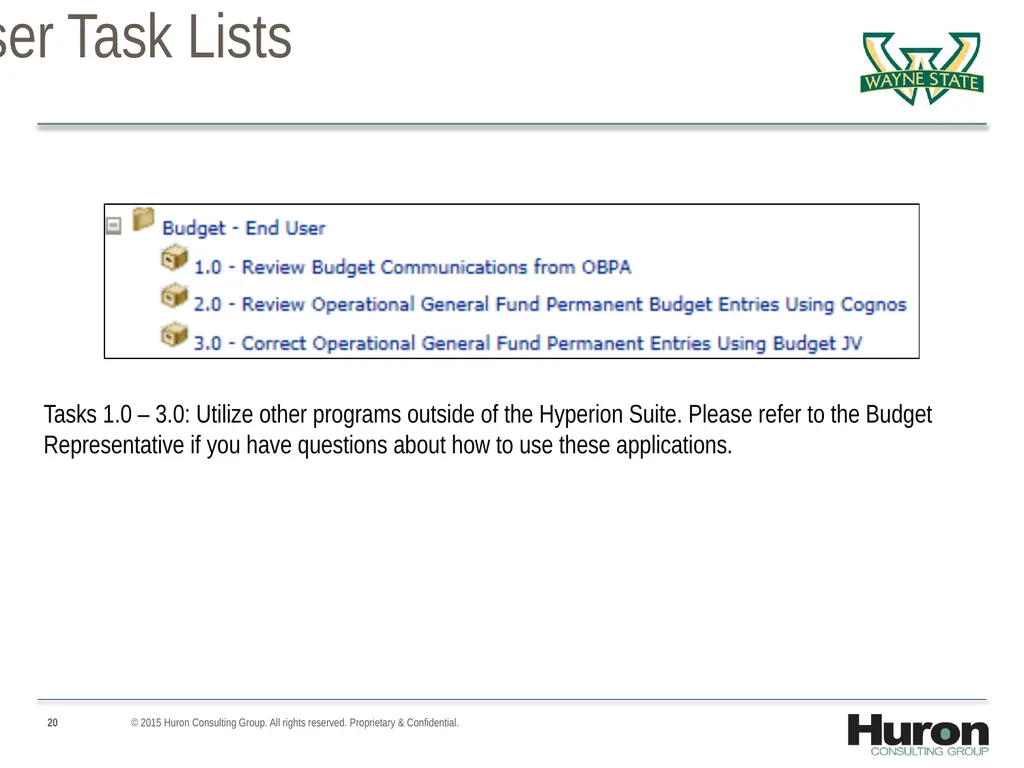
WSU End User Task Lists Tasks 1.0 – 3.0: Utilize other programs outside of the Hyperion Suite. Please refer to the Budget Representative if you have questions about how to use these applications. © 2015 Huron Consulting Group. All rights reserved. Proprietary & Confidential.<br>
21
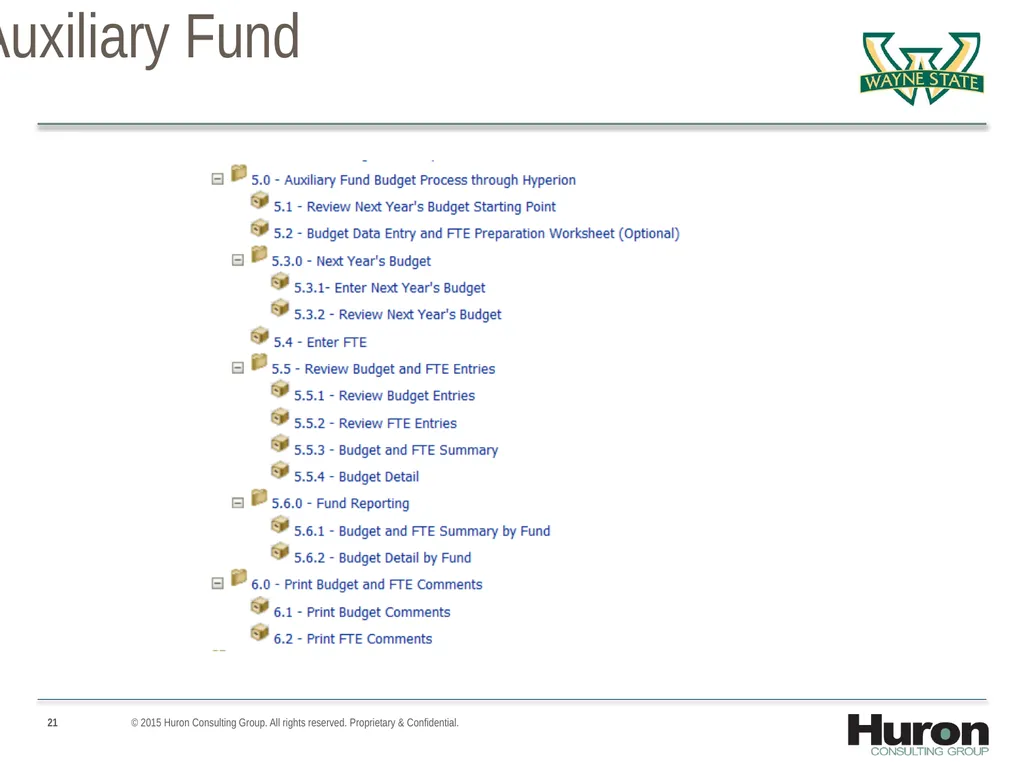
Task Lists – Auxiliary Fund © 2015 Huron Consulting Group. All rights reserved. Proprietary & Confidential.<br>
22
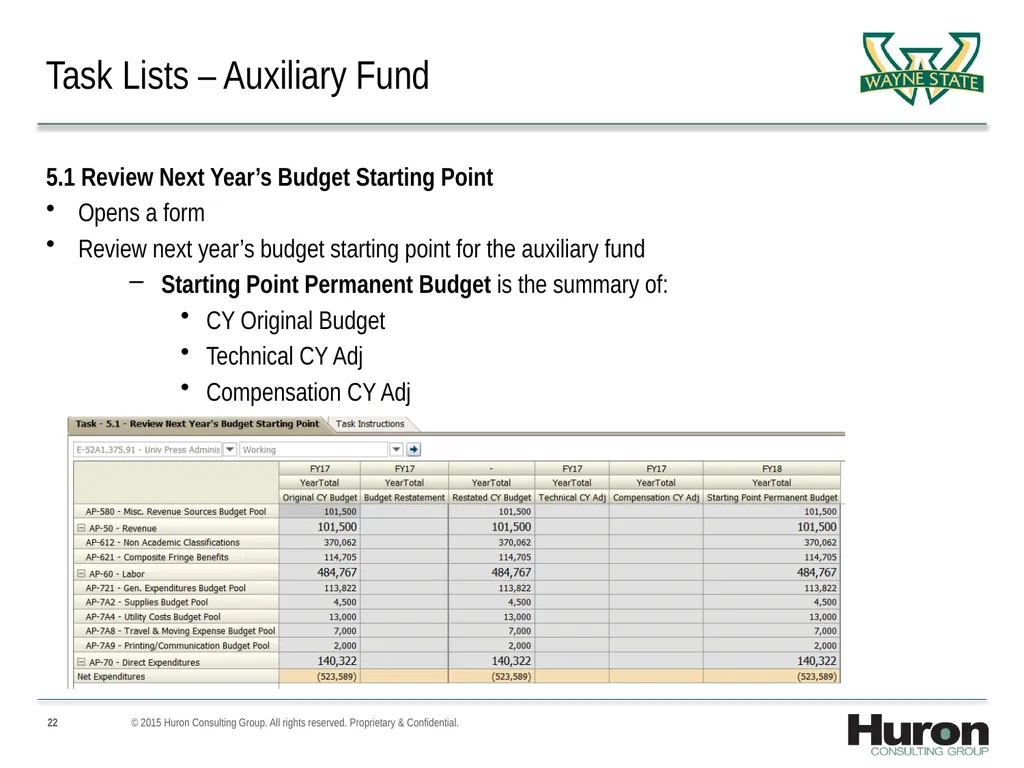
5.1 Review Next Year’s Budget Starting Point
Opens a form
Review next year’s budget starting point for the auxiliary fund
Starting Point Permanent Budget is the summary of:
CY Original Budget
Technical CY Adj
Compensation CY Adj Task Lists – Auxiliary Fund © 2015 Huron Consulting Group. All rights reserved. Proprietary & Confidential.<br>
Opens a form
Review next year’s budget starting point for the auxiliary fund
Starting Point Permanent Budget is the summary of:
CY Original Budget
Technical CY Adj
Compensation CY Adj Task Lists – Auxiliary Fund © 2015 Huron Consulting Group. All rights reserved. Proprietary & Confidential.<br>
23
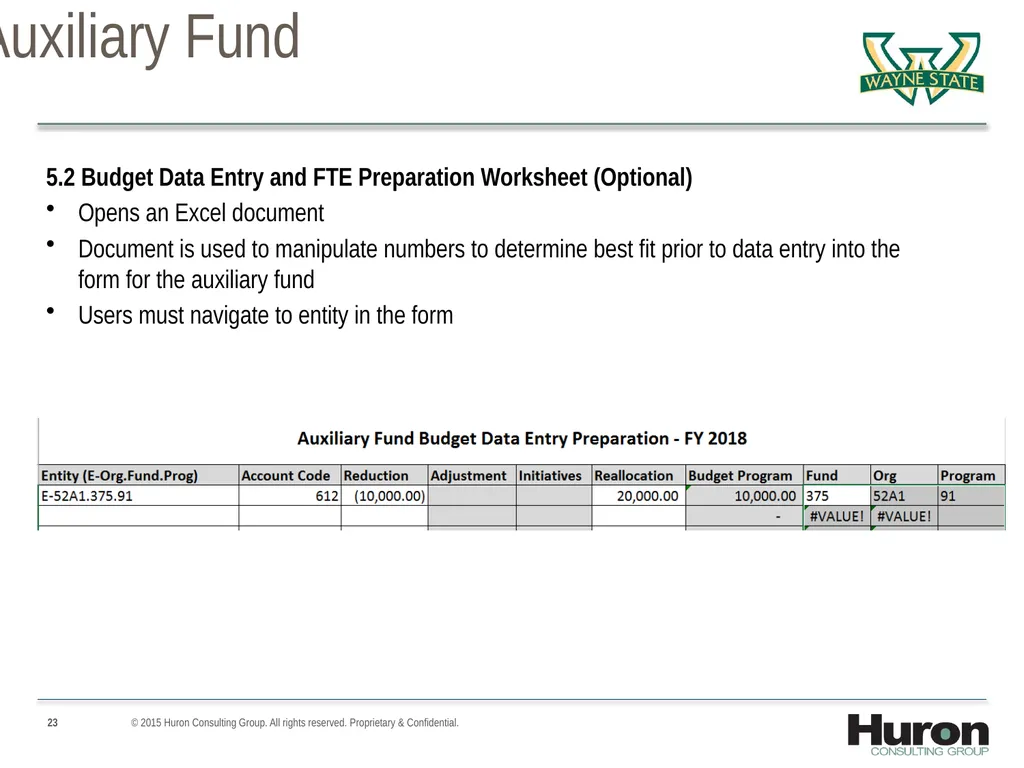
Task Lists – Auxiliary Fund 5.2 Budget Data Entry and FTE Preparation Worksheet (Optional)
Opens an Excel document
Document is used to manipulate numbers to determine best fit prior to data entry into the form for the auxiliary fund
Users must navigate to entity in the form © 2015 Huron Consulting Group. All rights reserved. Proprietary & Confidential.<br>
Opens an Excel document
Document is used to manipulate numbers to determine best fit prior to data entry into the form for the auxiliary fund
Users must navigate to entity in the form © 2015 Huron Consulting Group. All rights reserved. Proprietary & Confidential.<br>
24
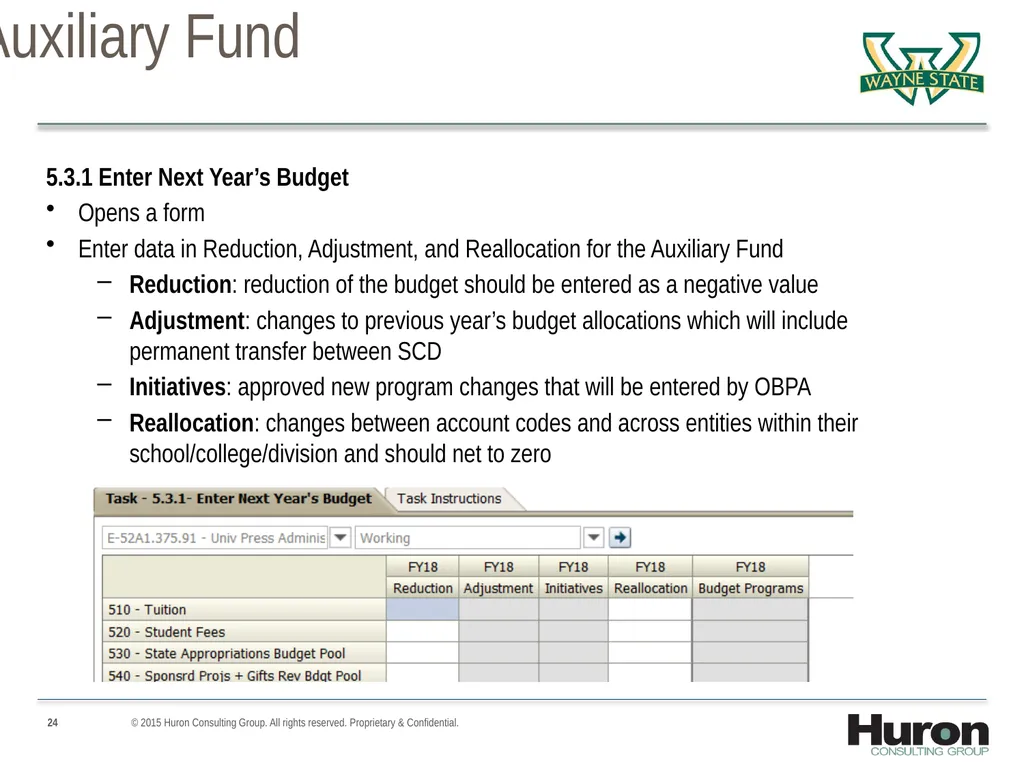
Task Lists – Auxiliary Fund 5.3.1 Enter Next Year’s Budget
Opens a form
Enter data in Reduction, Adjustment, and Reallocation for the Auxiliary Fund
Reduction: reduction of the budget should be entered as a negative value
Adjustment: changes to previous year’s budget allocations which will include permanent transfer between SCD
Initiatives: approved new program changes that will be entered by OBPA
Reallocation: changes between account codes and across entities within their school/college/division and should net to zero © 2015 Huron Consulting Group. All rights reserved. Proprietary & Confidential.<br>
Opens a form
Enter data in Reduction, Adjustment, and Reallocation for the Auxiliary Fund
Reduction: reduction of the budget should be entered as a negative value
Adjustment: changes to previous year’s budget allocations which will include permanent transfer between SCD
Initiatives: approved new program changes that will be entered by OBPA
Reallocation: changes between account codes and across entities within their school/college/division and should net to zero © 2015 Huron Consulting Group. All rights reserved. Proprietary & Confidential.<br>
25
Adding Cell Comments Planners can also add supplemental cell information to explain to budget reviewers the assumptions they have made while developing the plan
Comments must be added for the following situations:
Reduction
Cross Entity Reallocation
All labor reduction requires a position number except:
Grad Assistants, part-time employees and student assistants © 2015 Huron Consulting Group. All rights reserved. Proprietary & Confidential.<br>
Comments must be added for the following situations:
Reduction
Cross Entity Reallocation
All labor reduction requires a position number except:
Grad Assistants, part-time employees and student assistants © 2015 Huron Consulting Group. All rights reserved. Proprietary & Confidential.<br>
26
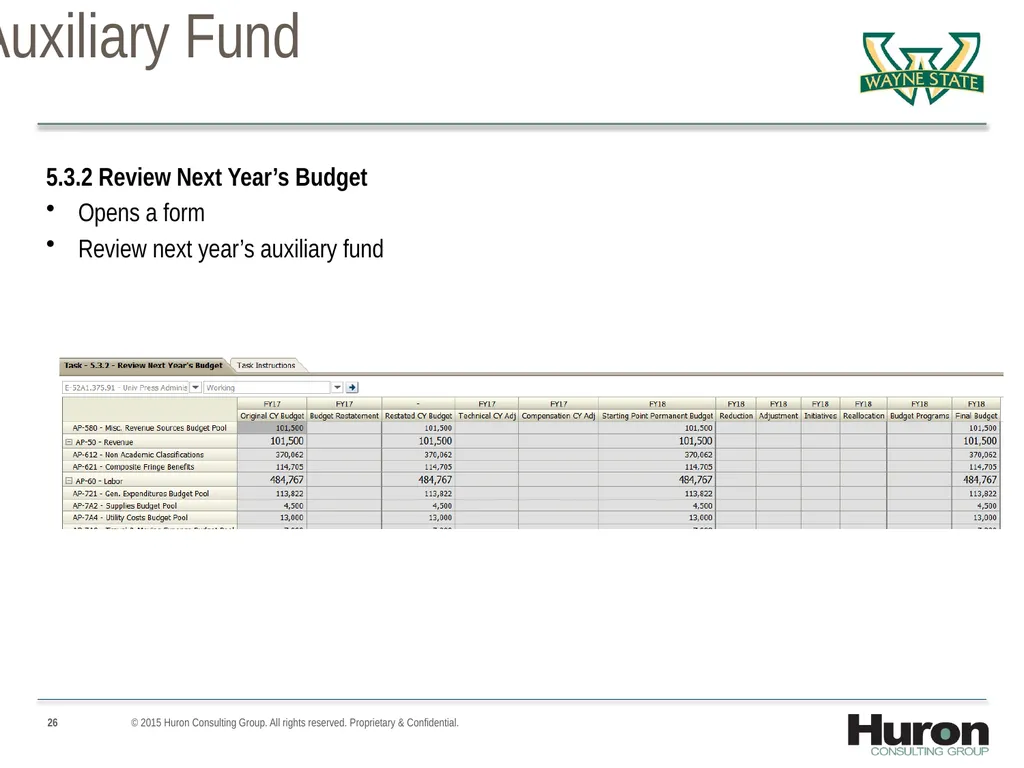
Task Lists – Auxiliary Fund 5.3.2 Review Next Year’s Budget
Opens a form
Review next year’s auxiliary fund © 2015 Huron Consulting Group. All rights reserved. Proprietary & Confidential.<br>
Opens a form
Review next year’s auxiliary fund © 2015 Huron Consulting Group. All rights reserved. Proprietary & Confidential.<br>
27
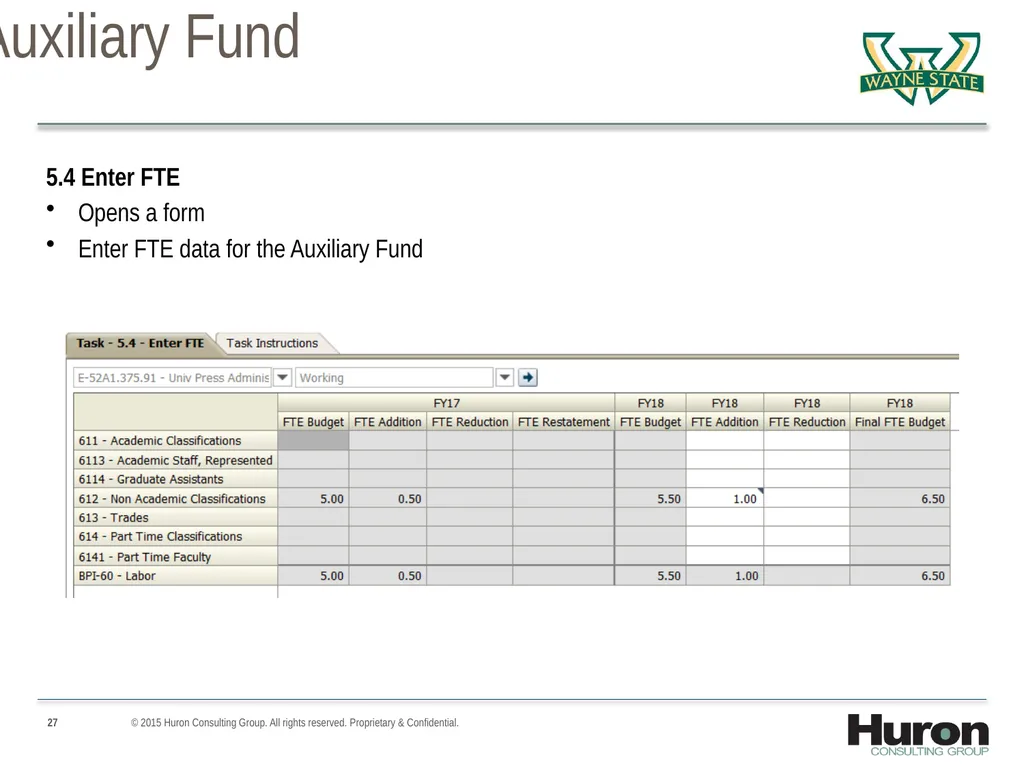
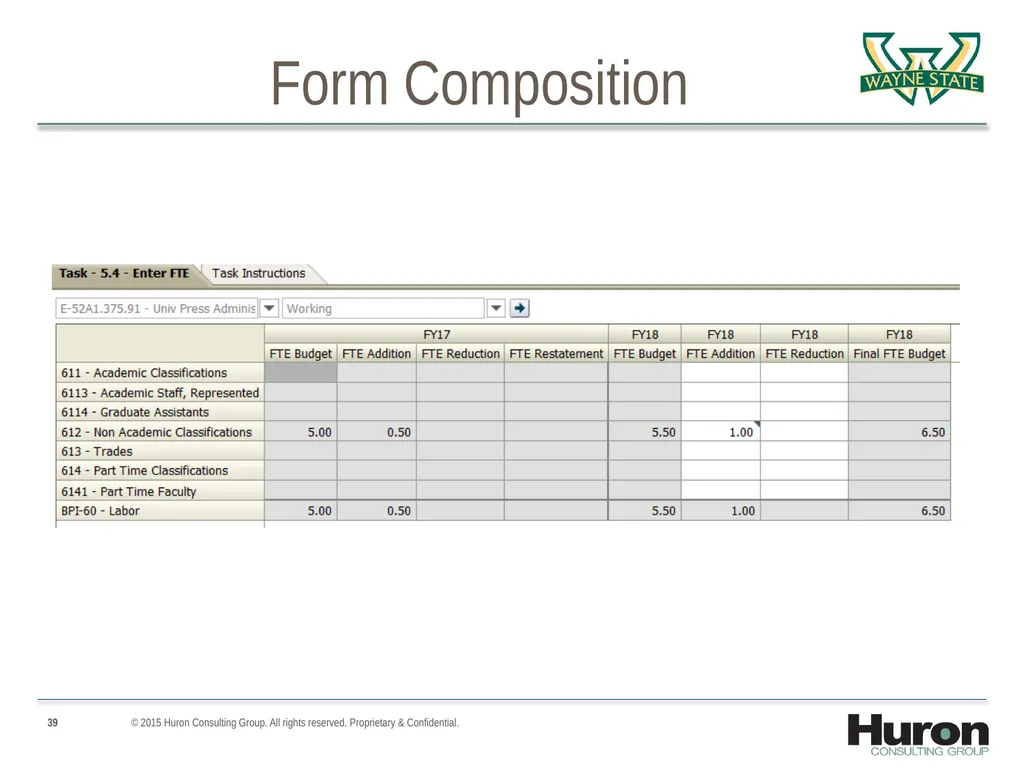
Task Lists – Auxiliary Fund 5.4 Enter FTE
Opens a form
Enter FTE data for the Auxiliary Fund © 2015 Huron Consulting Group. All rights reserved. Proprietary & Confidential.<br>
Opens a form
Enter FTE data for the Auxiliary Fund © 2015 Huron Consulting Group. All rights reserved. Proprietary & Confidential.<br>
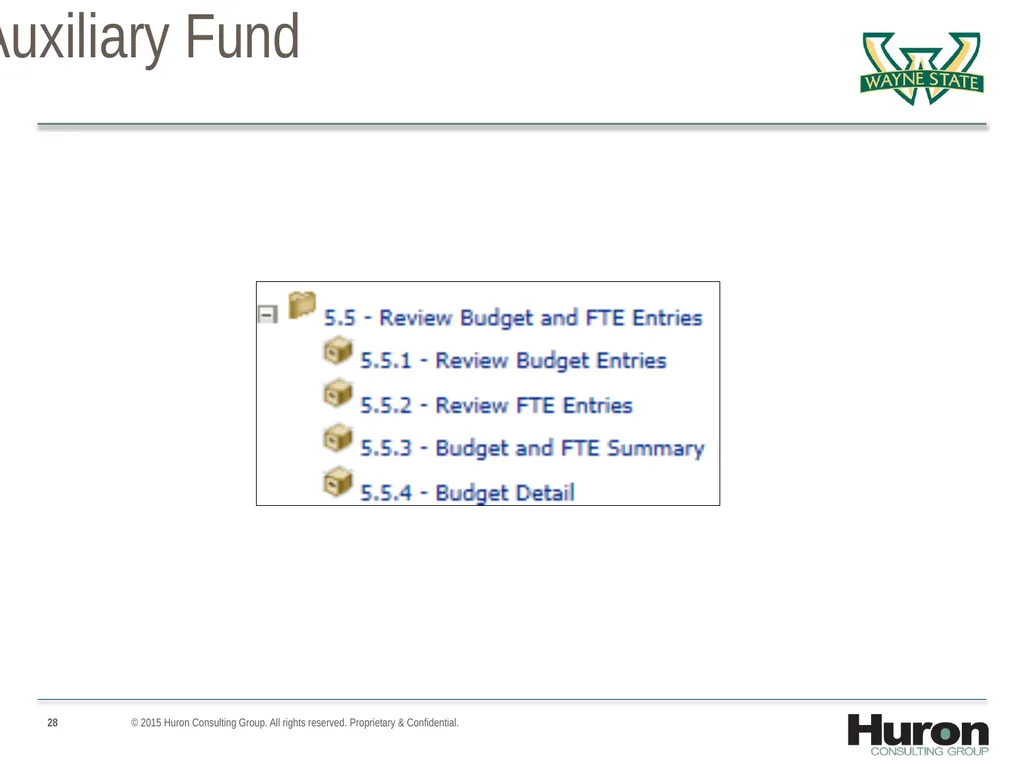
28
Task Lists – Auxiliary Fund © 2015 Huron Consulting Group. All rights reserved. Proprietary & Confidential.<br>
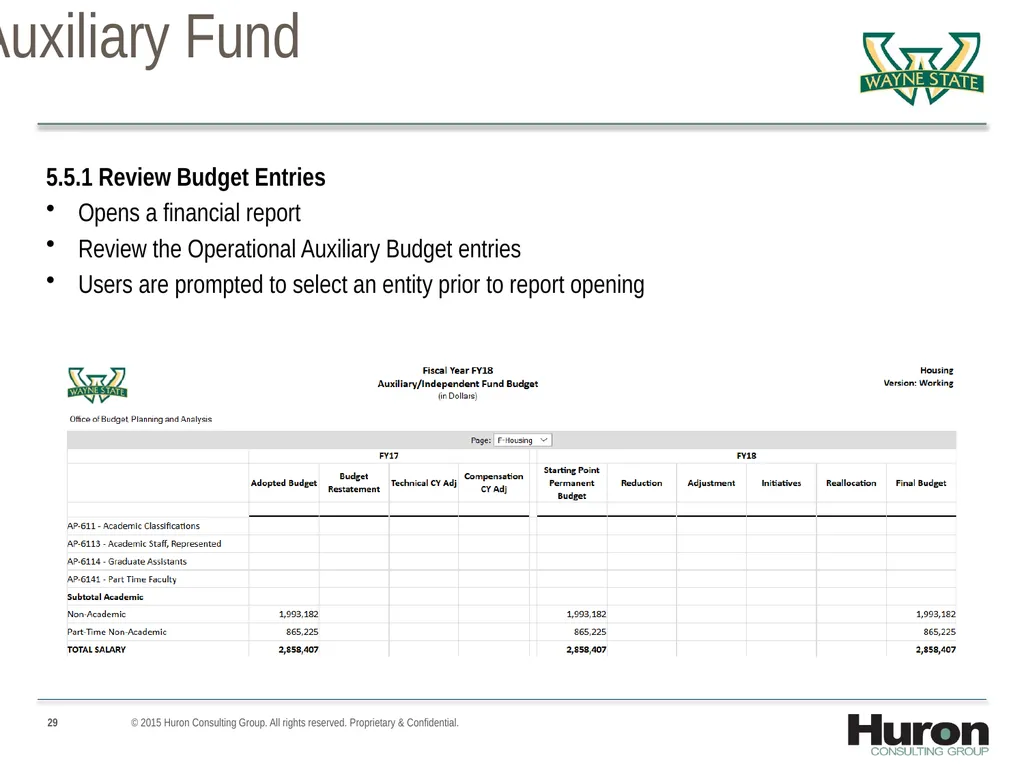
29
Task Lists – Auxiliary Fund 5.5.1 Review Budget Entries
Opens a financial report
Review the Operational Auxiliary Budget entries
Users are prompted to select an entity prior to report opening © 2015 Huron Consulting Group. All rights reserved. Proprietary & Confidential.<br>
Opens a financial report
Review the Operational Auxiliary Budget entries
Users are prompted to select an entity prior to report opening © 2015 Huron Consulting Group. All rights reserved. Proprietary & Confidential.<br>
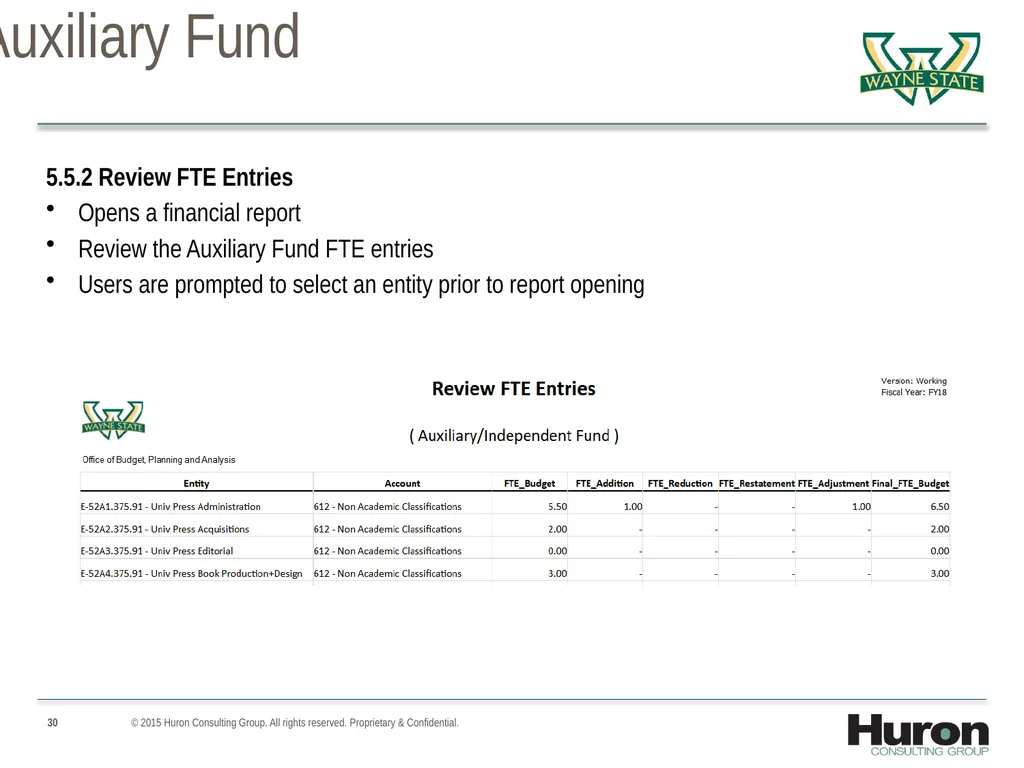
30
Task Lists – Auxiliary Fund 5.5.2 Review FTE Entries
Opens a financial report
Review the Auxiliary Fund FTE entries
Users are prompted to select an entity prior to report opening © 2015 Huron Consulting Group. All rights reserved. Proprietary & Confidential.<br>
Opens a financial report
Review the Auxiliary Fund FTE entries
Users are prompted to select an entity prior to report opening © 2015 Huron Consulting Group. All rights reserved. Proprietary & Confidential.<br>
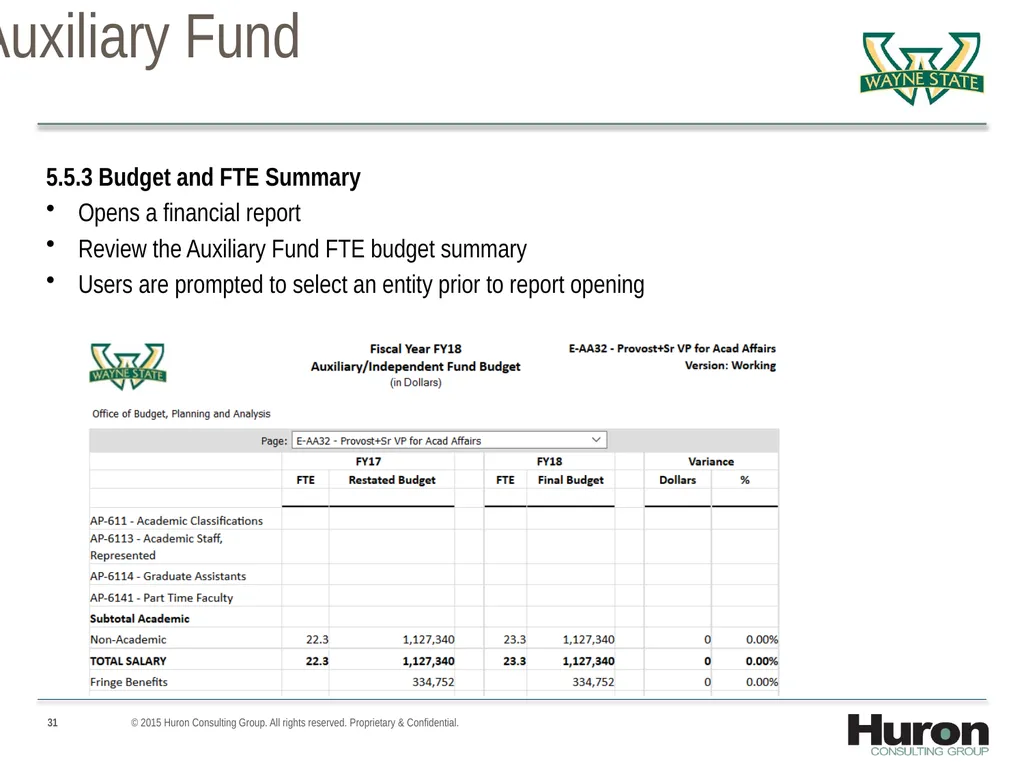
31
Task Lists – Auxiliary Fund 5.5.3 Budget and FTE Summary
Opens a financial report
Review the Auxiliary Fund FTE budget summary
Users are prompted to select an entity prior to report opening © 2015 Huron Consulting Group. All rights reserved. Proprietary & Confidential.<br>
Opens a financial report
Review the Auxiliary Fund FTE budget summary
Users are prompted to select an entity prior to report opening © 2015 Huron Consulting Group. All rights reserved. Proprietary & Confidential.<br>
32
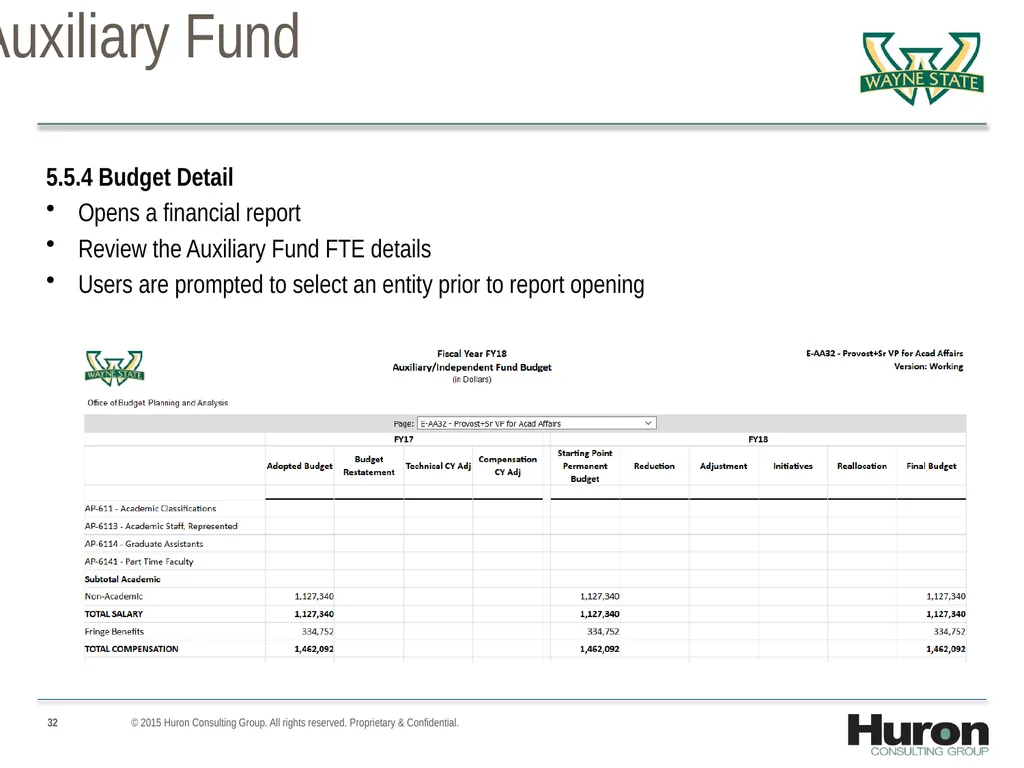
Task Lists – Auxiliary Fund 5.5.4 Budget Detail
Opens a financial report
Review the Auxiliary Fund FTE details
Users are prompted to select an entity prior to report opening © 2015 Huron Consulting Group. All rights reserved. Proprietary & Confidential.<br>
Opens a financial report
Review the Auxiliary Fund FTE details
Users are prompted to select an entity prior to report opening © 2015 Huron Consulting Group. All rights reserved. Proprietary & Confidential.<br>
33
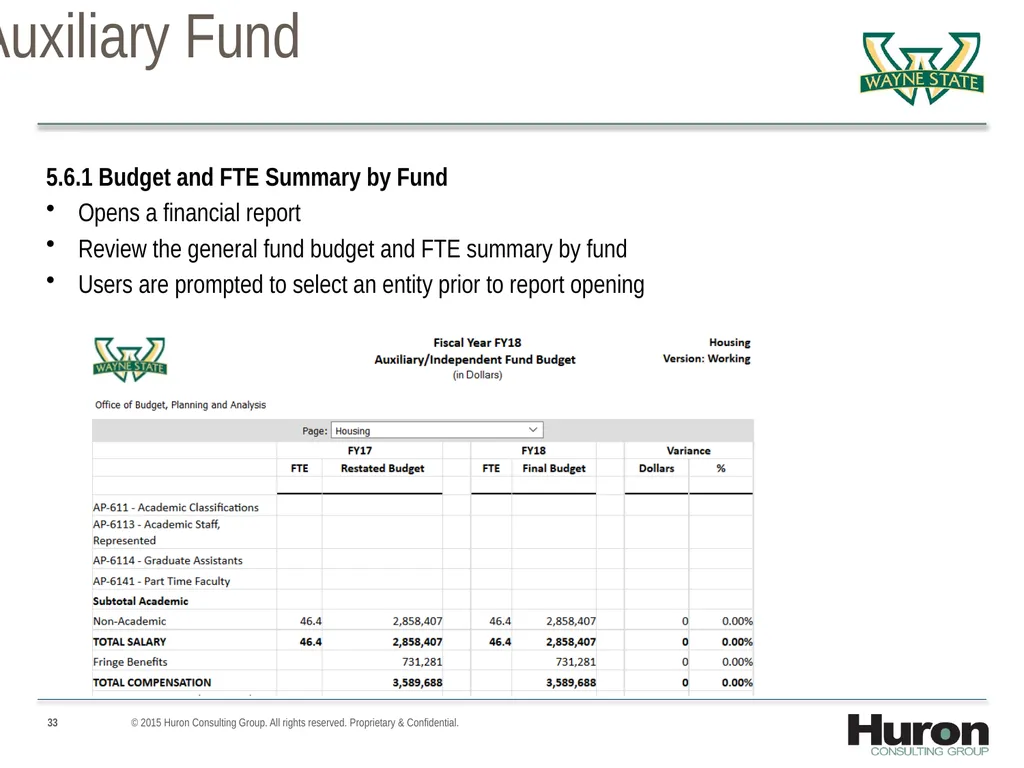
Task Lists – Auxiliary Fund 5.6.1 Budget and FTE Summary by Fund
Opens a financial report
Review the general fund budget and FTE summary by fund
Users are prompted to select an entity prior to report opening © 2015 Huron Consulting Group. All rights reserved. Proprietary & Confidential.<br>
Opens a financial report
Review the general fund budget and FTE summary by fund
Users are prompted to select an entity prior to report opening © 2015 Huron Consulting Group. All rights reserved. Proprietary & Confidential.<br>
34
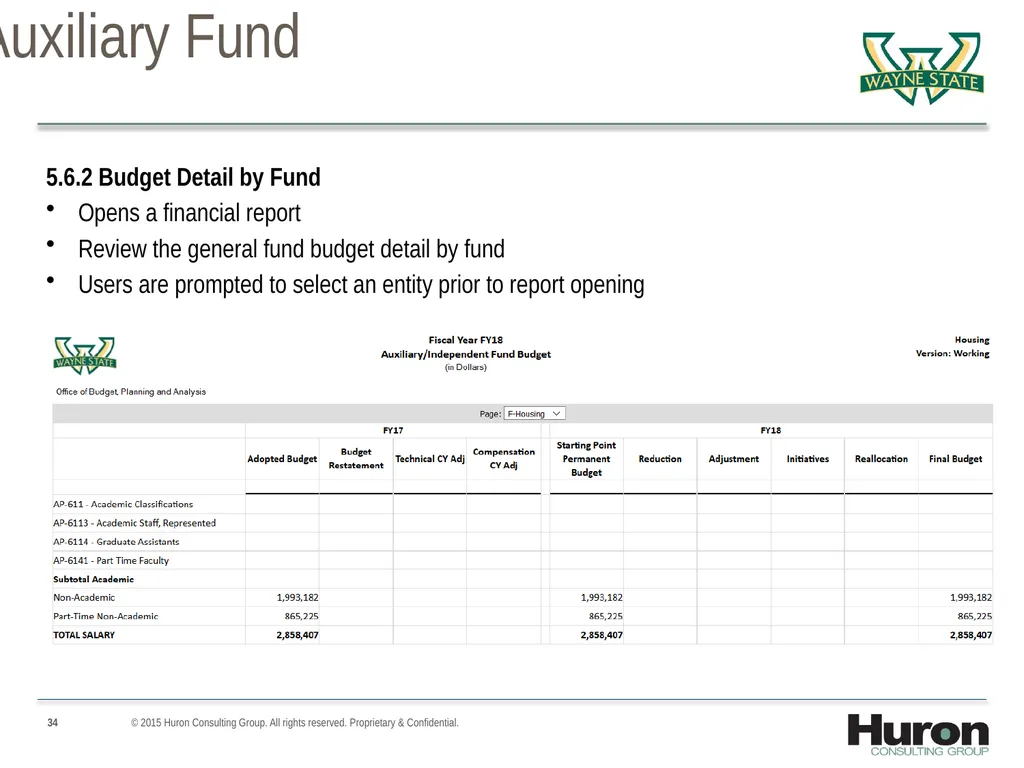
Task Lists – Auxiliary Fund 5.6.2 Budget Detail by Fund
Opens a financial report
Review the general fund budget detail by fund
Users are prompted to select an entity prior to report opening © 2015 Huron Consulting Group. All rights reserved. Proprietary & Confidential.<br>
Opens a financial report
Review the general fund budget detail by fund
Users are prompted to select an entity prior to report opening © 2015 Huron Consulting Group. All rights reserved. Proprietary & Confidential.<br>
35
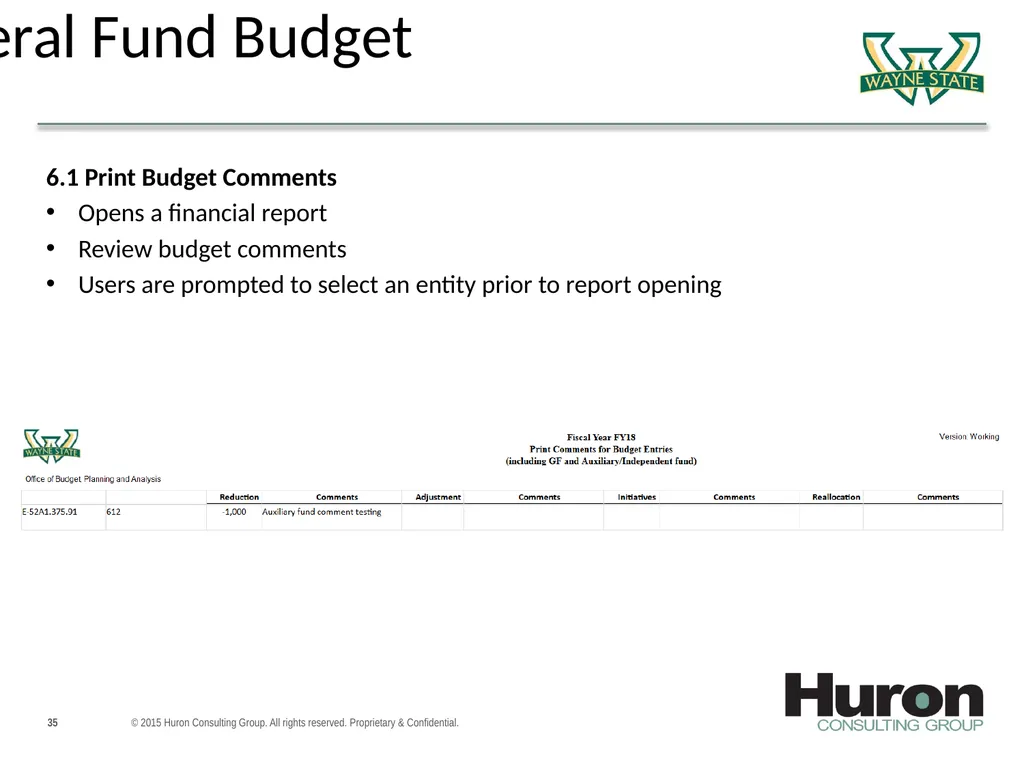
Task Lists – General Fund Budget 6.1 Print Budget Comments
Opens a financial report
Review budget comments
Users are prompted to select an entity prior to report opening © 2015 Huron Consulting Group. All rights reserved. Proprietary & Confidential.<br>
Opens a financial report
Review budget comments
Users are prompted to select an entity prior to report opening © 2015 Huron Consulting Group. All rights reserved. Proprietary & Confidential.<br>
36
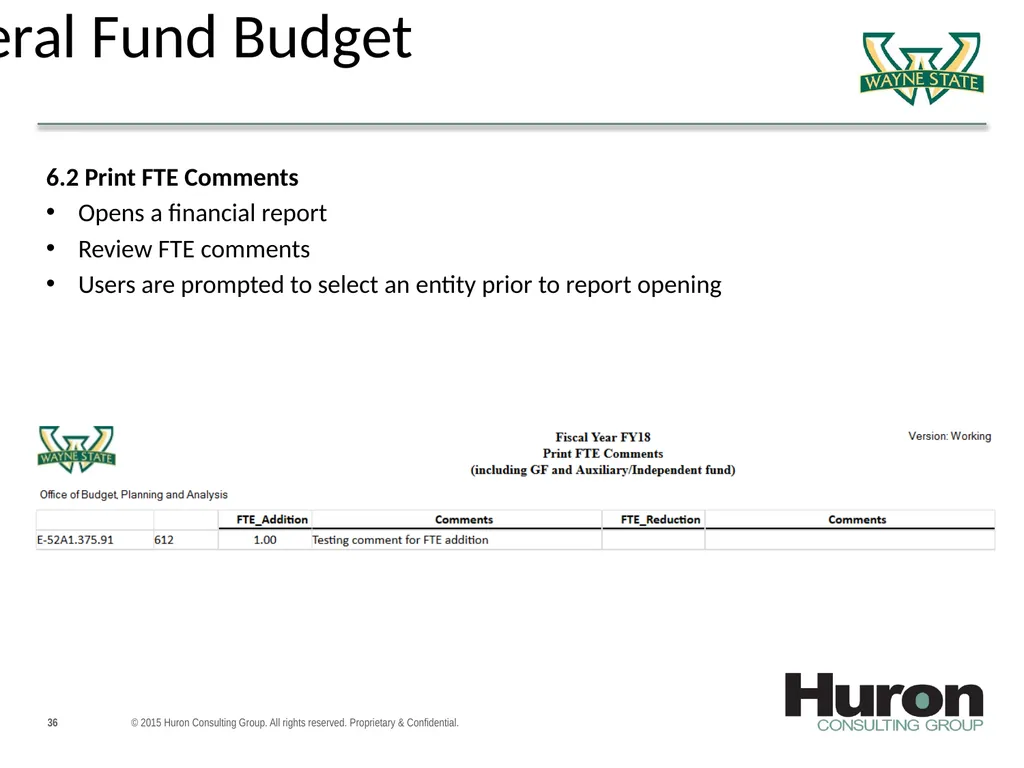
Task Lists – General Fund Budget 6.2 Print FTE Comments
Opens a financial report
Review FTE comments
Users are prompted to select an entity prior to report opening © 2015 Huron Consulting Group. All rights reserved. Proprietary & Confidential.<br>
Opens a financial report
Review FTE comments
Users are prompted to select an entity prior to report opening © 2015 Huron Consulting Group. All rights reserved. Proprietary & Confidential.<br>
37
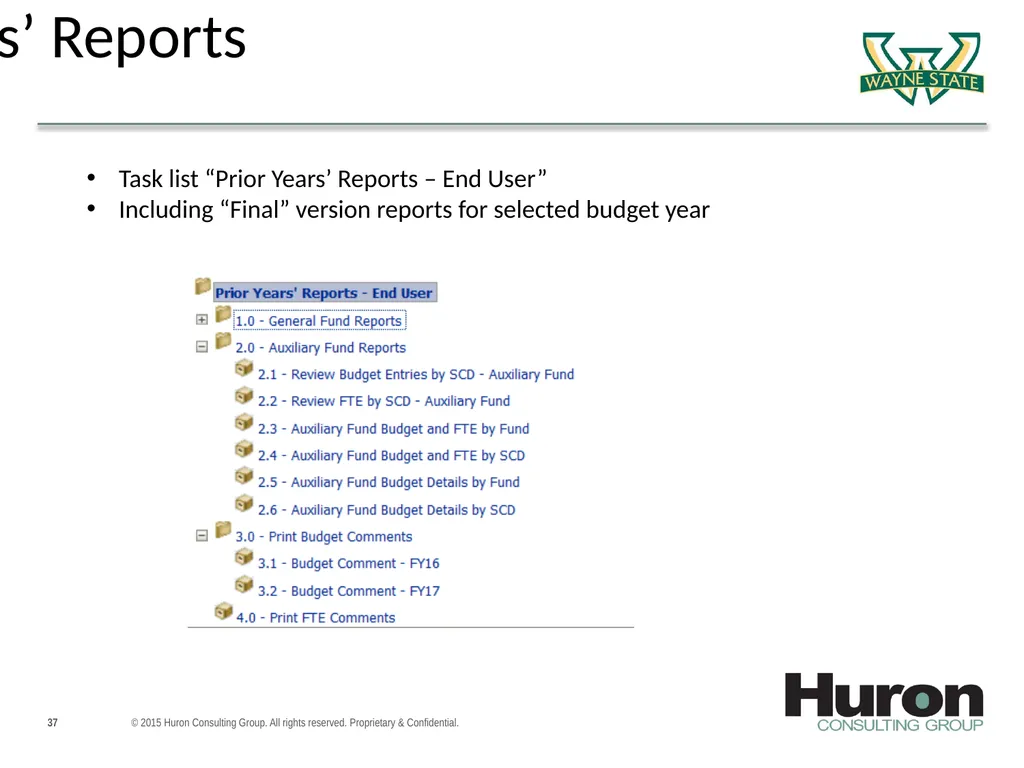
Prior Years’ Reports © 2015 Huron Consulting Group. All rights reserved. Proprietary & Confidential. Task list “Prior Years’ Reports – End User”
Including “Final” version reports for selected budget year<br>
Including “Final” version reports for selected budget year<br>
38
Working with Data Forms<br>
39
Form Composition © 2015 Huron Consulting Group. All rights reserved. Proprietary & Confidential.<br>
40
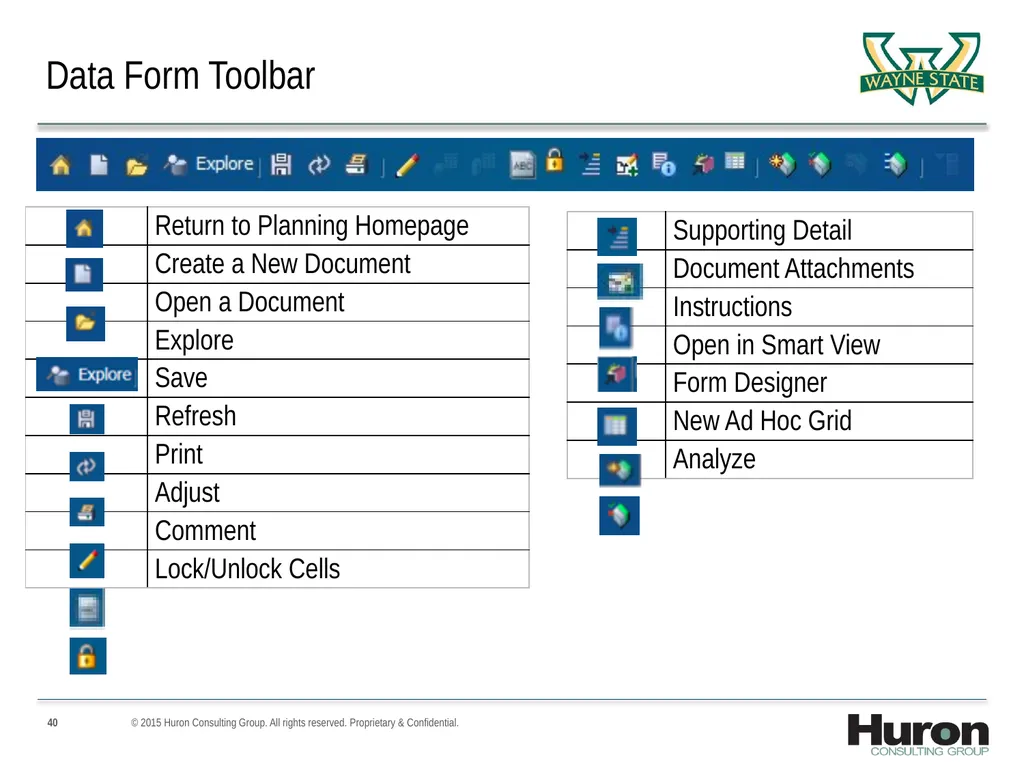
Data Form Toolbar © 2015 Huron Consulting Group. All rights reserved. Proprietary & Confidential.<br>
41
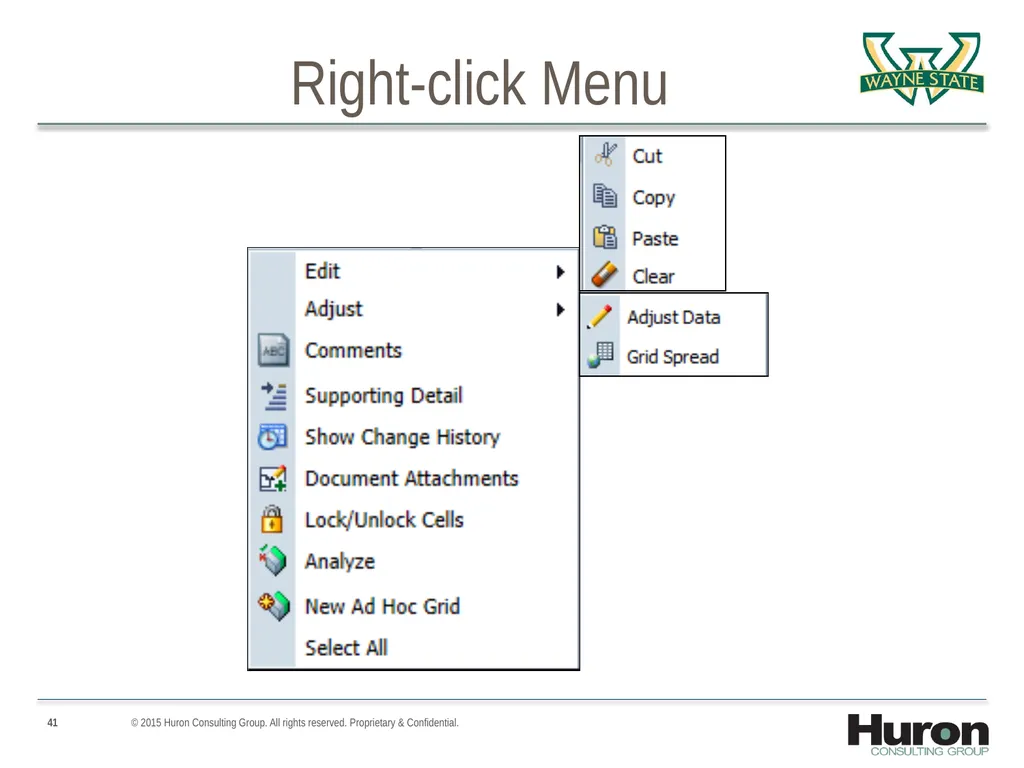
Right-click Menu © 2015 Huron Consulting Group. All rights reserved. Proprietary & Confidential.<br>
42
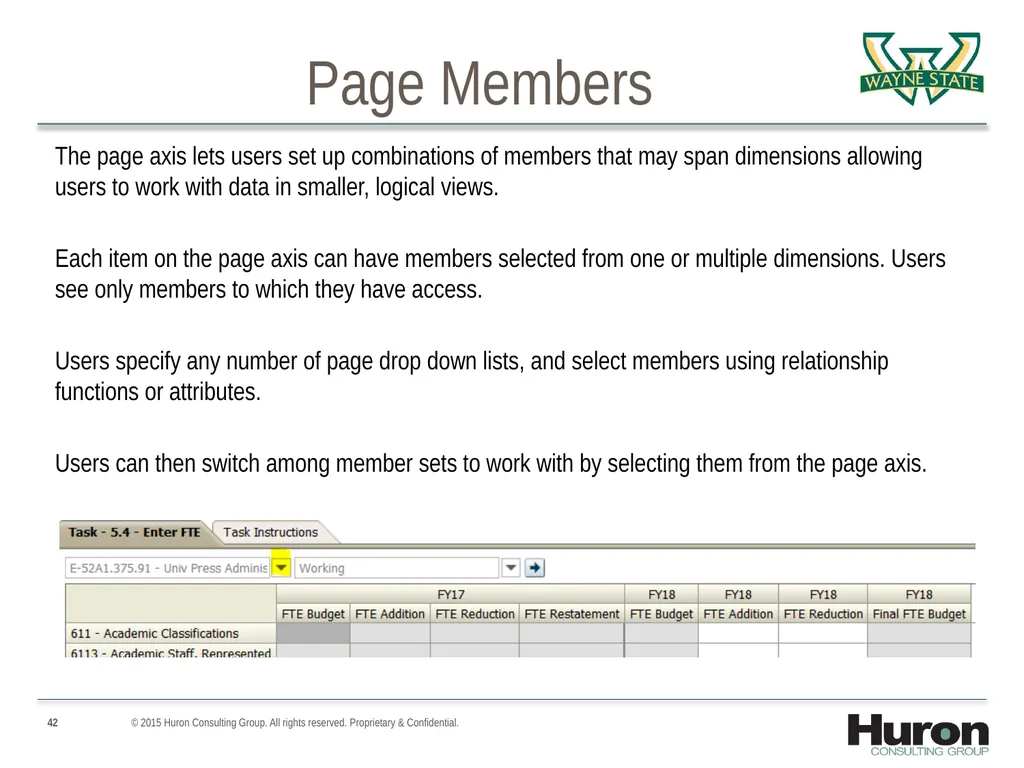
Page Members The page axis lets users set up combinations of members that may span dimensions allowing users to work with data in smaller, logical views.
Each item on the page axis can have members selected from one or multiple dimensions. Users see only members to which they have access.
Users specify any number of page drop down lists, and select members using relationship functions or attributes.
Users can then switch among member sets to work with by selecting them from the page axis. © 2015 Huron Consulting Group. All rights reserved. Proprietary & Confidential.<br>
Each item on the page axis can have members selected from one or multiple dimensions. Users see only members to which they have access.
Users specify any number of page drop down lists, and select members using relationship functions or attributes.
Users can then switch among member sets to work with by selecting them from the page axis. © 2015 Huron Consulting Group. All rights reserved. Proprietary & Confidential.<br>
43
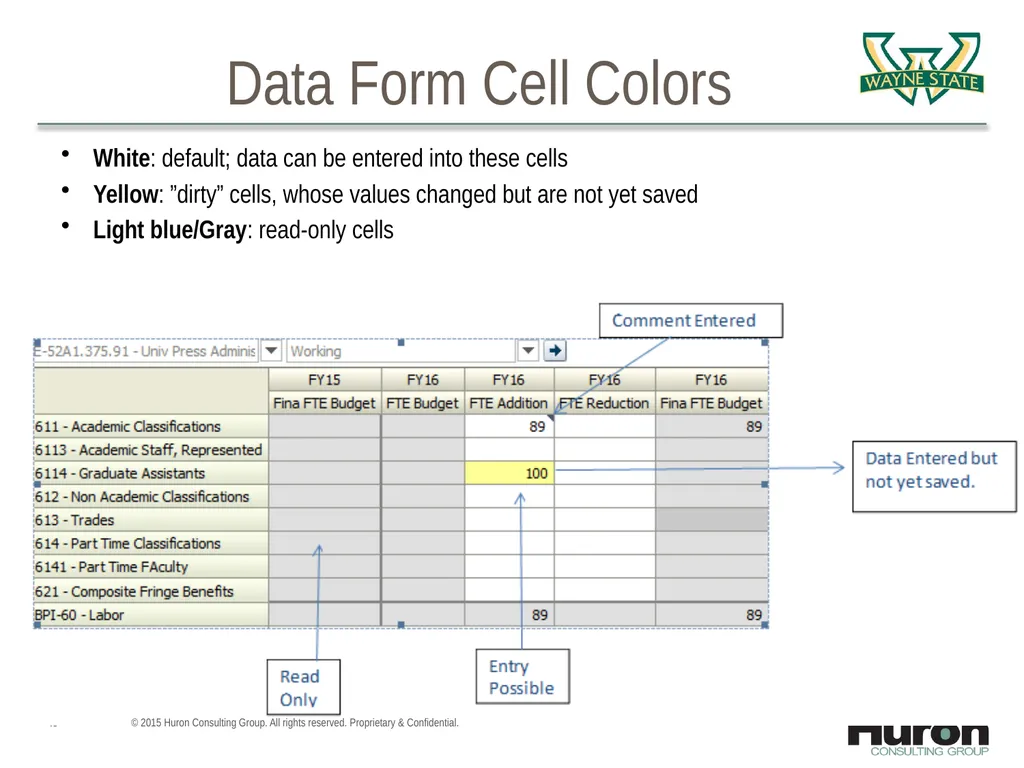
Data Form Cell Colors White: default; data can be entered into these cells
Yellow: ”dirty” cells, whose values changed but are not yet saved
Light blue/Gray: read-only cells © 2015 Huron Consulting Group. All rights reserved. Proprietary & Confidential.<br>
Yellow: ”dirty” cells, whose values changed but are not yet saved
Light blue/Gray: read-only cells © 2015 Huron Consulting Group. All rights reserved. Proprietary & Confidential.<br>
44
Data Entry Typing values in cells
Copy and Paste data © 2015 Huron Consulting Group. All rights reserved. Proprietary & Confidential.<br>
Copy and Paste data © 2015 Huron Consulting Group. All rights reserved. Proprietary & Confidential.<br>
45
Adjusting Cells Adjust by a Percentage
Adjust using a Mathematical Operator © 2015 Huron Consulting Group. All rights reserved. Proprietary & Confidential.<br>
Adjust using a Mathematical Operator © 2015 Huron Consulting Group. All rights reserved. Proprietary & Confidential.<br>
46
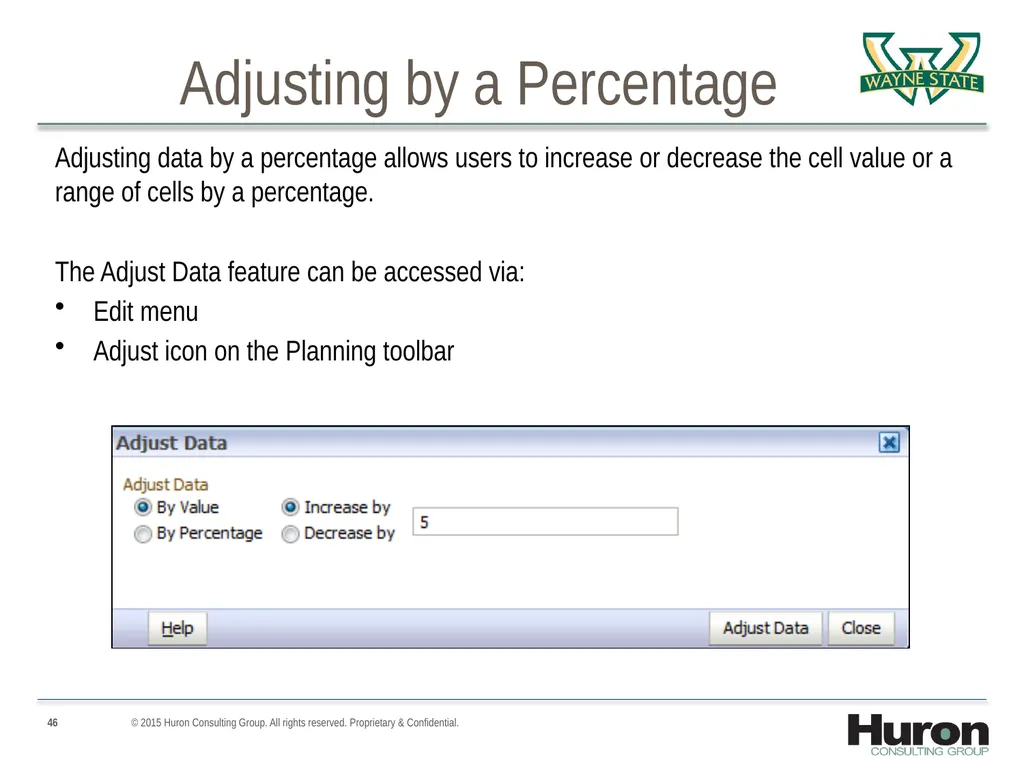
Adjusting by a Percentage Adjusting data by a percentage allows users to increase or decrease the cell value or a range of cells by a percentage.
The Adjust Data feature can be accessed via:
Edit menu
Adjust icon on the Planning toolbar © 2015 Huron Consulting Group. All rights reserved. Proprietary & Confidential.<br>
The Adjust Data feature can be accessed via:
Edit menu
Adjust icon on the Planning toolbar © 2015 Huron Consulting Group. All rights reserved. Proprietary & Confidential.<br>
47
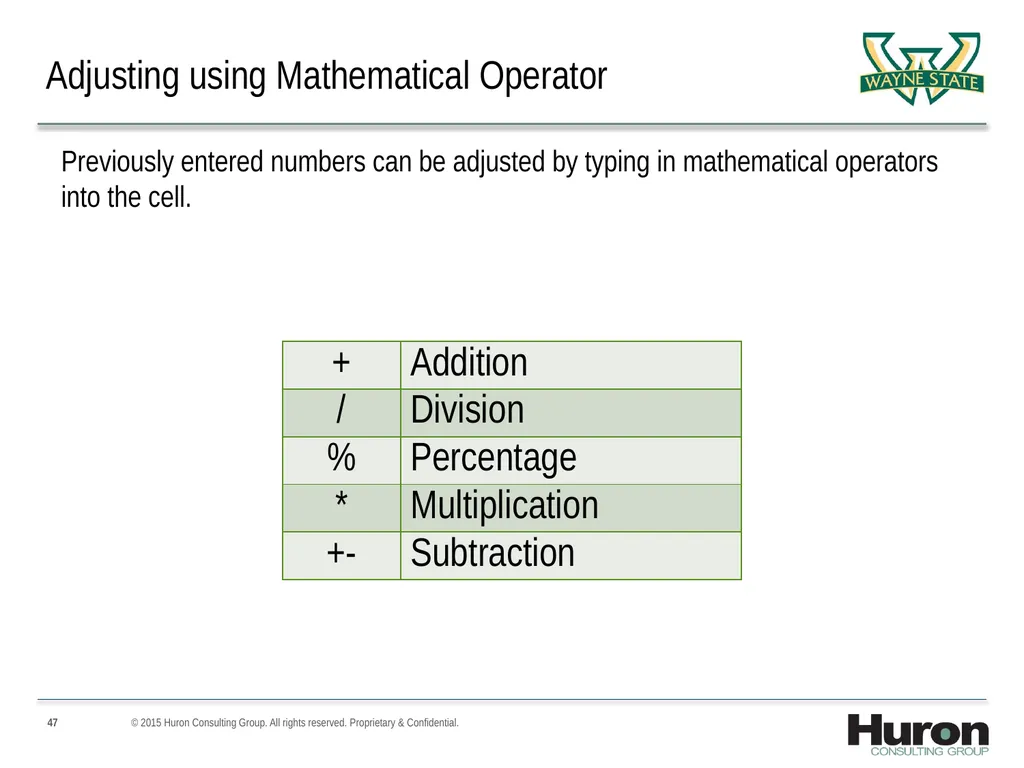
Adjusting using Mathematical Operator Previously entered numbers can be adjusted by typing in mathematical operators into the cell. © 2015 Huron Consulting Group. All rights reserved. Proprietary & Confidential.<br>
48
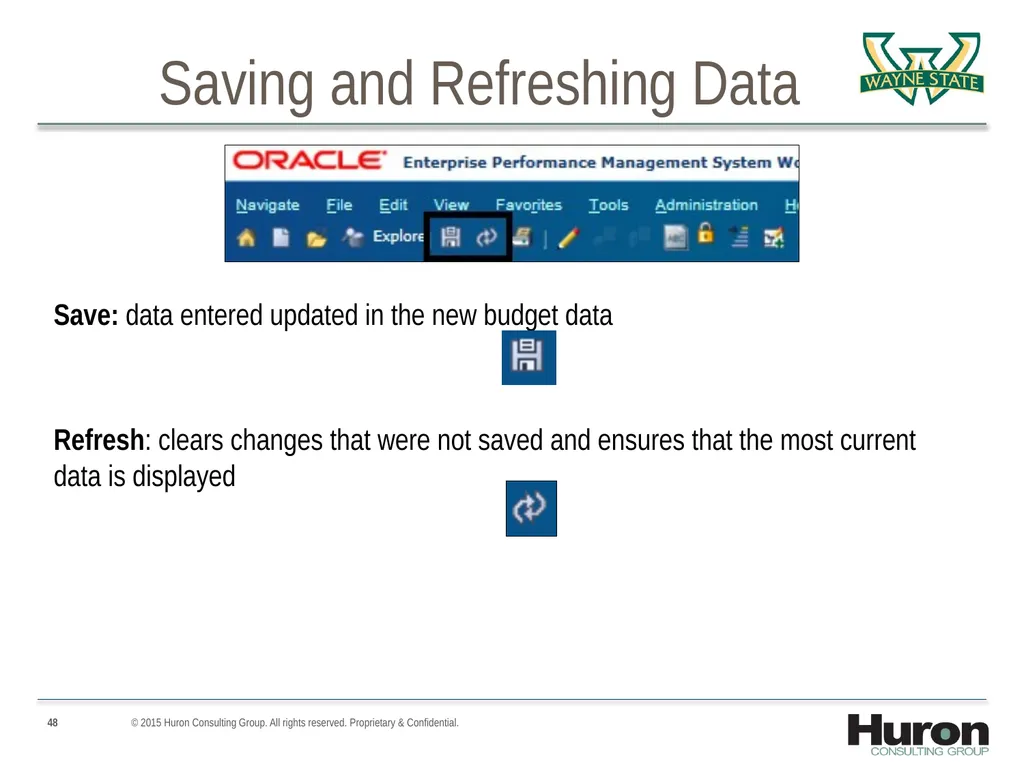
Saving and Refreshing Data Save: data entered updated in the new budget data
Refresh: clears changes that were not saved and ensures that the most current data is displayed © 2015 Huron Consulting Group. All rights reserved. Proprietary & Confidential.<br>
Refresh: clears changes that were not saved and ensures that the most current data is displayed © 2015 Huron Consulting Group. All rights reserved. Proprietary & Confidential.<br>
49
© 2014 Huron Consulting Group. All rights reserved. Proprietary & Confidential. Exercise Exercise 2: Adjusting Data in a Data Form
Open a form from the task list and change page members
Enter data in a form
Copy and paste data
Increase and decrease data values
Add a comment to a cell
Submit data
Attach a document to a cell<br>
Open a form from the task list and change page members
Enter data in a form
Copy and paste data
Increase and decrease data values
Add a comment to a cell
Submit data
Attach a document to a cell<br>
50
Introduction to Hyperion Financial Reports<br>
51
Introduction to Hyperion Financial Reporting Reports Financial Reports are developed by Administrators and can be accessed in the Hyperion Planning Task Lists.
Financial Reports utilize data from Planning and display a report based on specifications. © 2015 Huron Consulting Group. All rights reserved. Proprietary & Confidential.<br>
Financial Reports utilize data from Planning and display a report based on specifications. © 2015 Huron Consulting Group. All rights reserved. Proprietary & Confidential.<br>
52
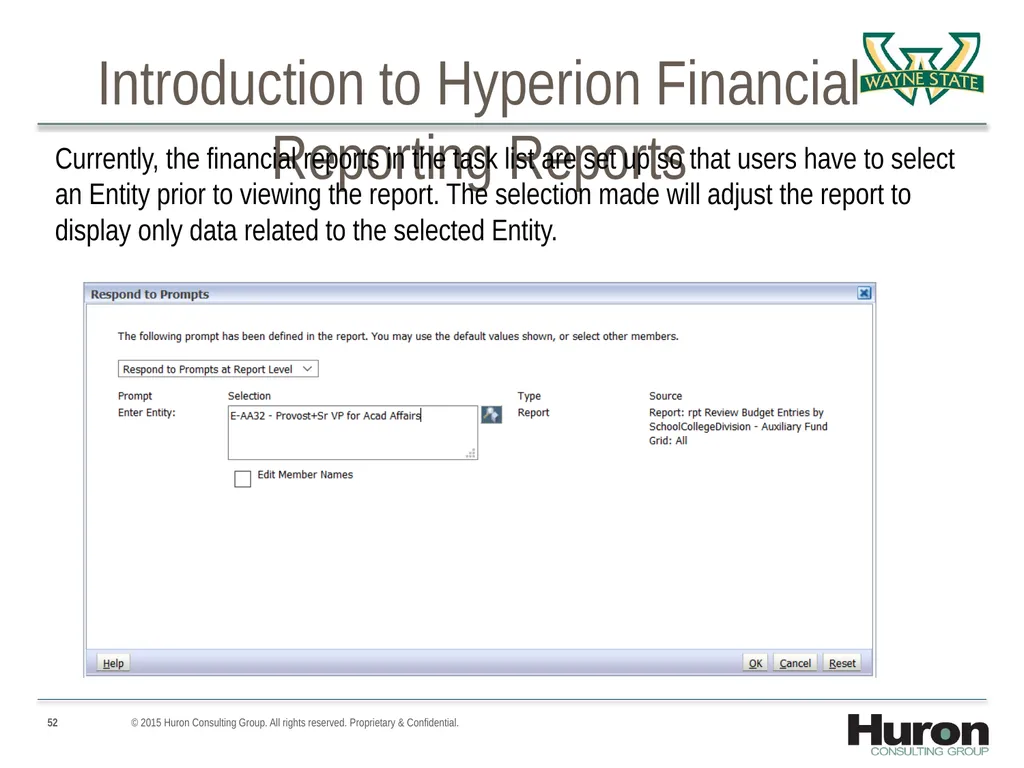
Introduction to Hyperion Financial Reporting Reports Currently, the financial reports in the task list are set up so that users have to select an Entity prior to viewing the report. The selection made will adjust the report to display only data related to the selected Entity. © 2015 Huron Consulting Group. All rights reserved. Proprietary & Confidential.<br>
53
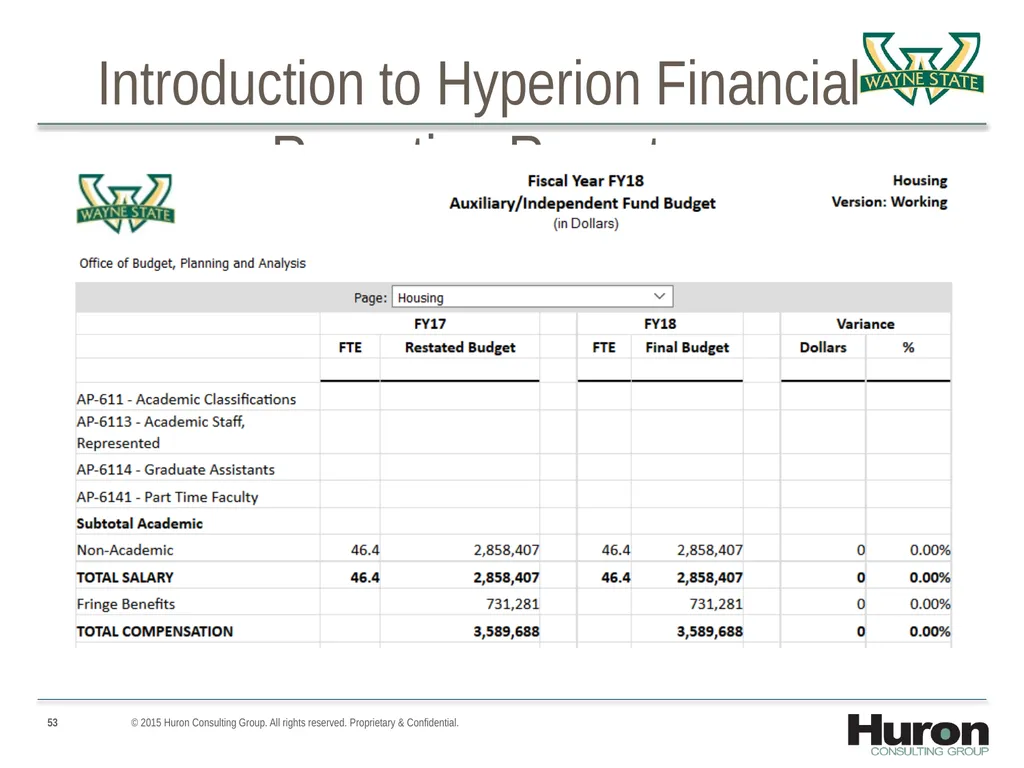
Introduction to Hyperion Financial Reporting Reports © 2015 Huron Consulting Group. All rights reserved. Proprietary & Confidential.<br>
54
Exercise Exercise 3: Financial Report
Open a financial report from the task list and select an entity
Change the page of a financial report © 2015 Huron Consulting Group. All rights reserved. Proprietary & Confidential.<br>
Open a financial report from the task list and select an entity
Change the page of a financial report © 2015 Huron Consulting Group. All rights reserved. Proprietary & Confidential.<br>
55
Support Discussion Firefox or Smart View installation
Technical Administrator
Hyperion Planning Technical
Susan Qi – Access ID al8527
Budget Process
Budget Office Representative © 2015 Huron Consulting Group. All rights reserved. Proprietary & Confidential.<br>
Technical Administrator
Hyperion Planning Technical
Susan Qi – Access ID al8527
Budget Process
Budget Office Representative © 2015 Huron Consulting Group. All rights reserved. Proprietary & Confidential.<br>
56
Questions © 2015 Huron Consulting Group. All rights reserved. Proprietary & Confidential.<br>