CHAPTER 1 GETTING TO KNOW MICROS OPERA Chapter 1: an Overview LEARNING OBJECTIVES EXPECTED DEMONSTRATED SKILLS Basic Hotel Software Defaults Log-in and log-out of Micros Opera Secure and change Passwords Navigate through the different
"CHAPTER 1 GETTING TO KNOW MICROS OPERA Chapter 1:" is the property of its rightful owner. Permission is granted to
download and print the materials on this website for personal, non-commercial use only, and to display it
on your personal computer provided you do not modify the materials and that you retain all copyright
notices contained in the materials. By downloading content from our website, you accept the terms of this
agreement.
Presentation Transcript
01
CHAPTER 1 GETTING TO KNOW MICROS OPERA<br>
02
Chapter 1: an Overview LEARNING OBJECTIVES EXPECTED DEMONSTRATED SKILLS Basic Hotel Software Defaults
Log-in and log-out of Micros Opera
Secure and change Passwords
Navigate through the different Micros Opera Windows
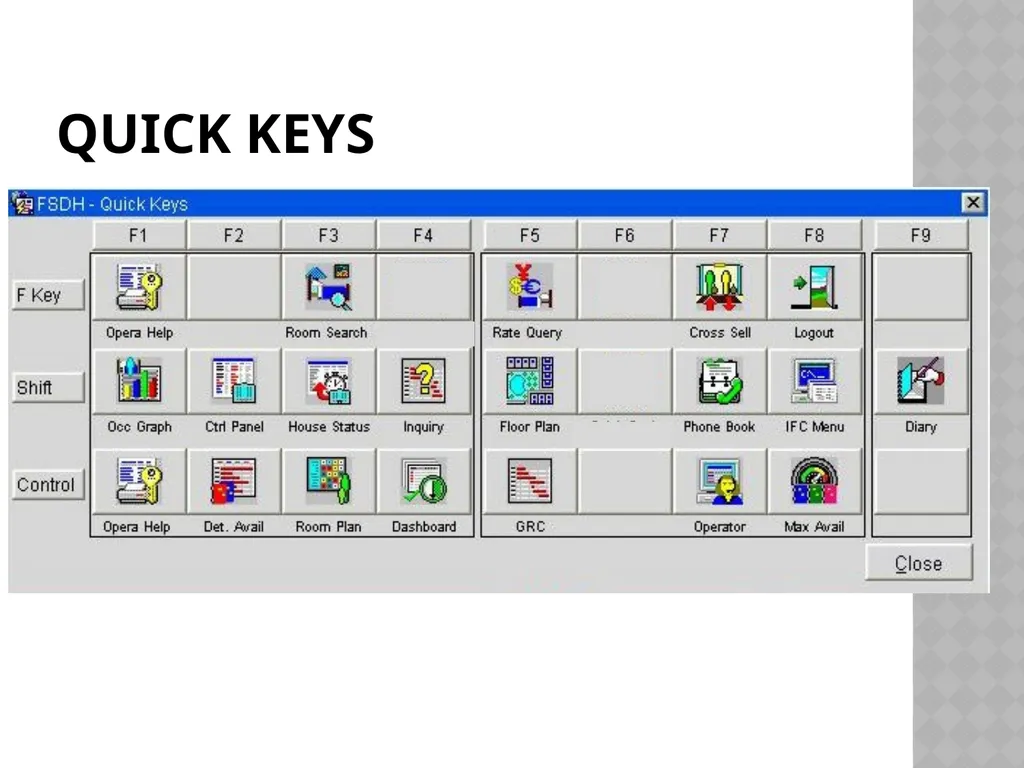
Use keyboard Shortcuts and quick keys Enumerate the benefits of a PMS in a hotel or related institution
Perform the log-in and log-out of Micros Opera
Change Passwords
Identify the different screens and the locations of the different Hotel Functional Modules in Micros Opera PMS
Use keyboard shortcuts and Quick keys<br>
03
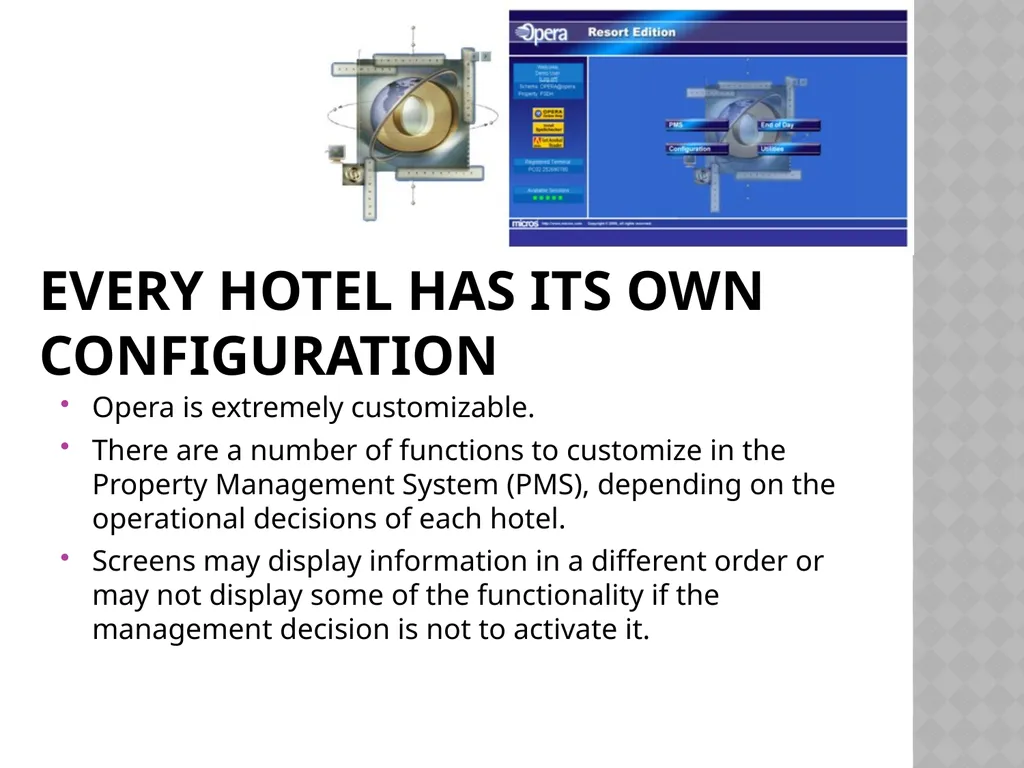
Every Hotel has its own configuration Opera is extremely customizable.
There are a number of functions to customize in the Property Management System (PMS), depending on the operational decisions of each hotel.
Screens may display information in a different order or may not display some of the functionality if the management decision is not to activate it.<br>
04
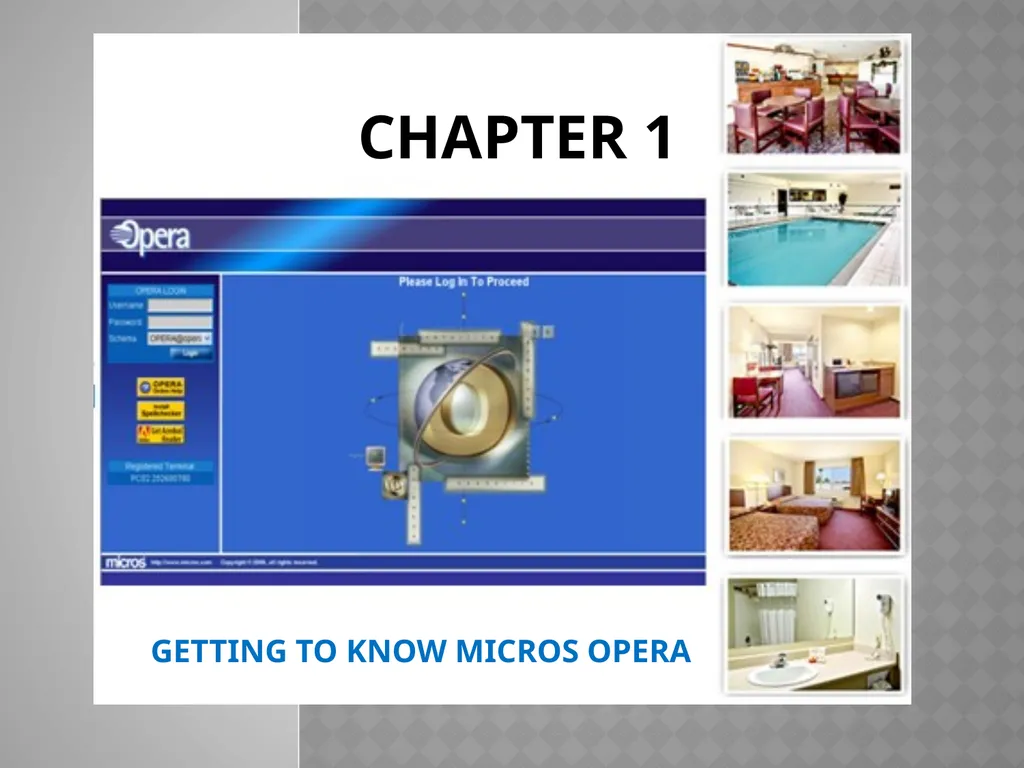
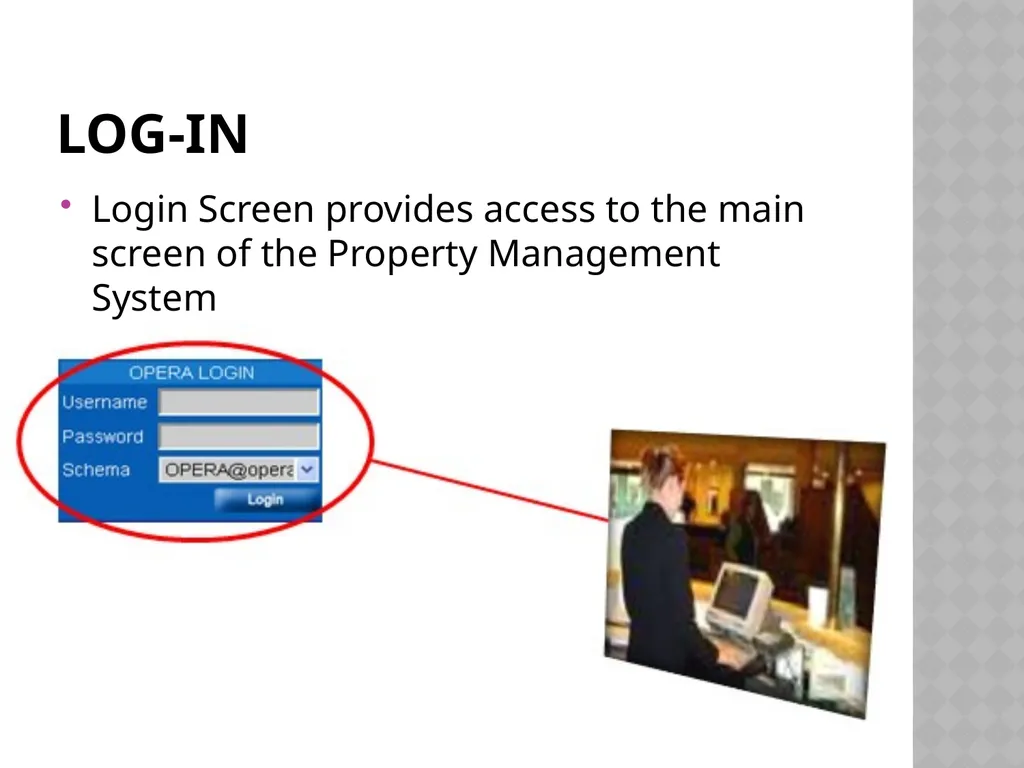
LOG-IN Login Screen provides access to the main screen of the Property Management System<br>
05
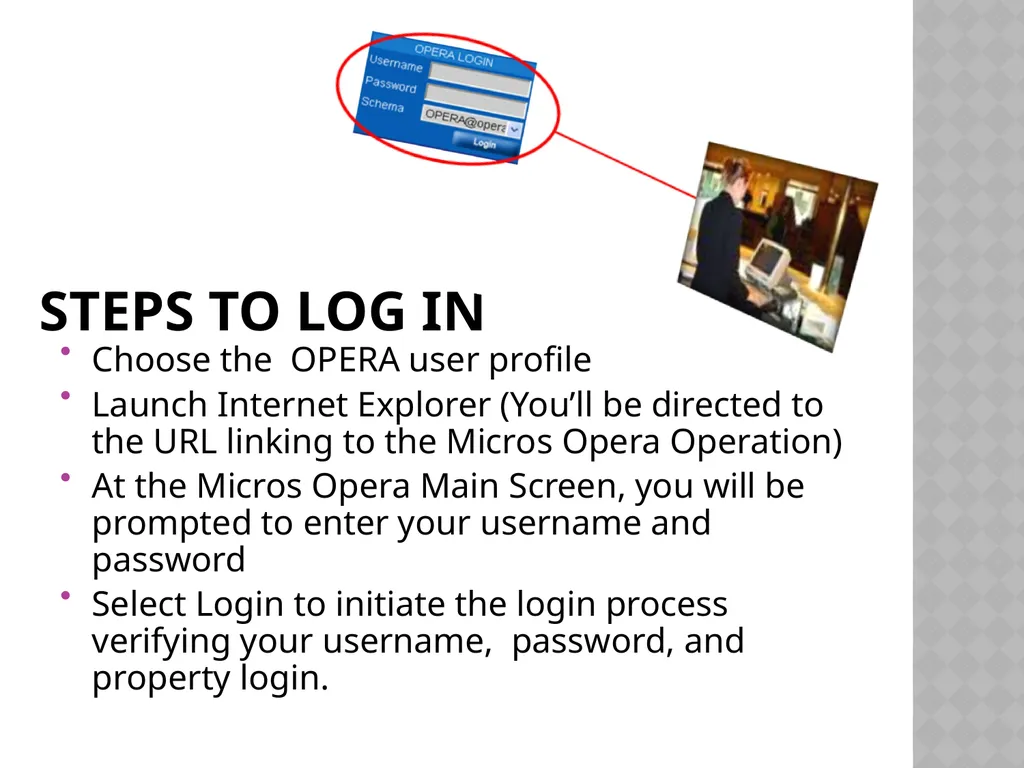
Steps to Log In Choose the OPERA user profile
Launch Internet Explorer (You’ll be directed to the URL linking to the Micros Opera Operation)
At the Micros Opera Main Screen, you will be prompted to enter your username and password
Select Login to initiate the login process verifying your username, password, and property login.<br>
06
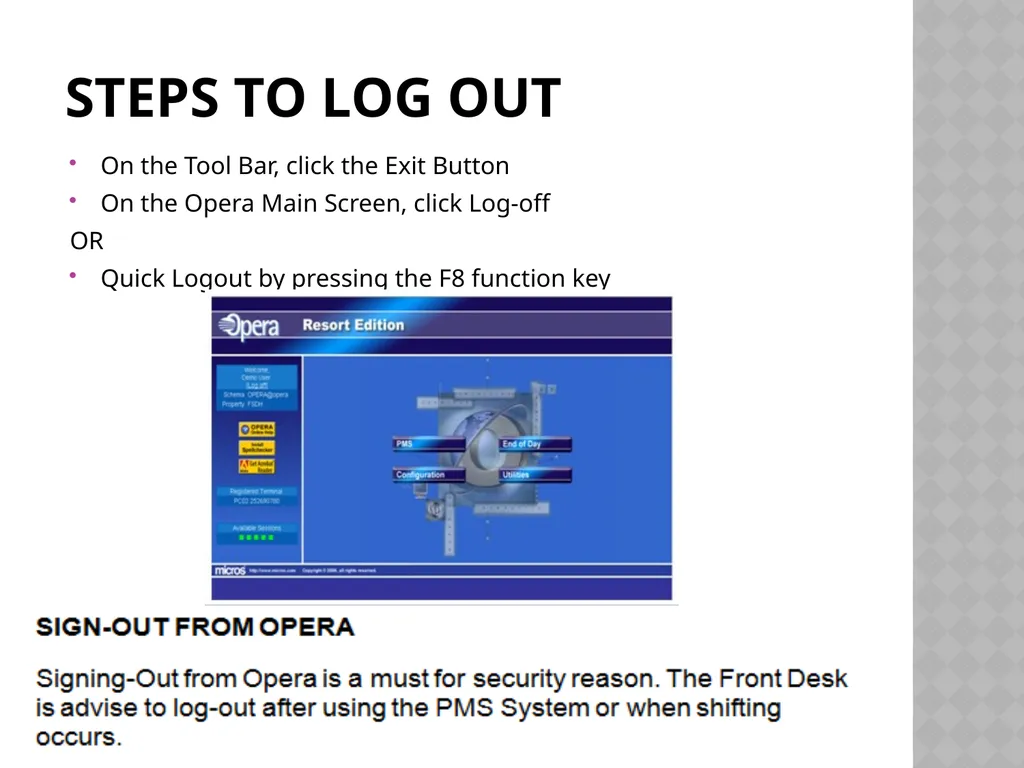
Steps to Log Out On the Tool Bar, click the Exit Button
On the Opera Main Screen, click Log-off
OR
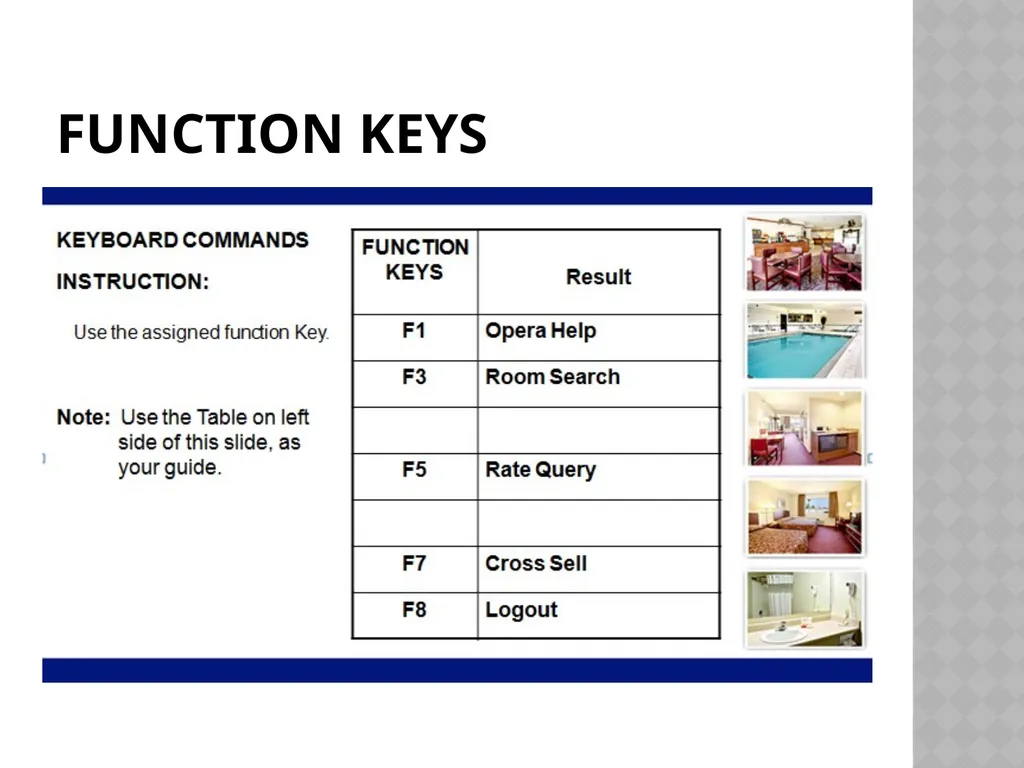
Quick Logout by pressing the F8 function key<br>
07
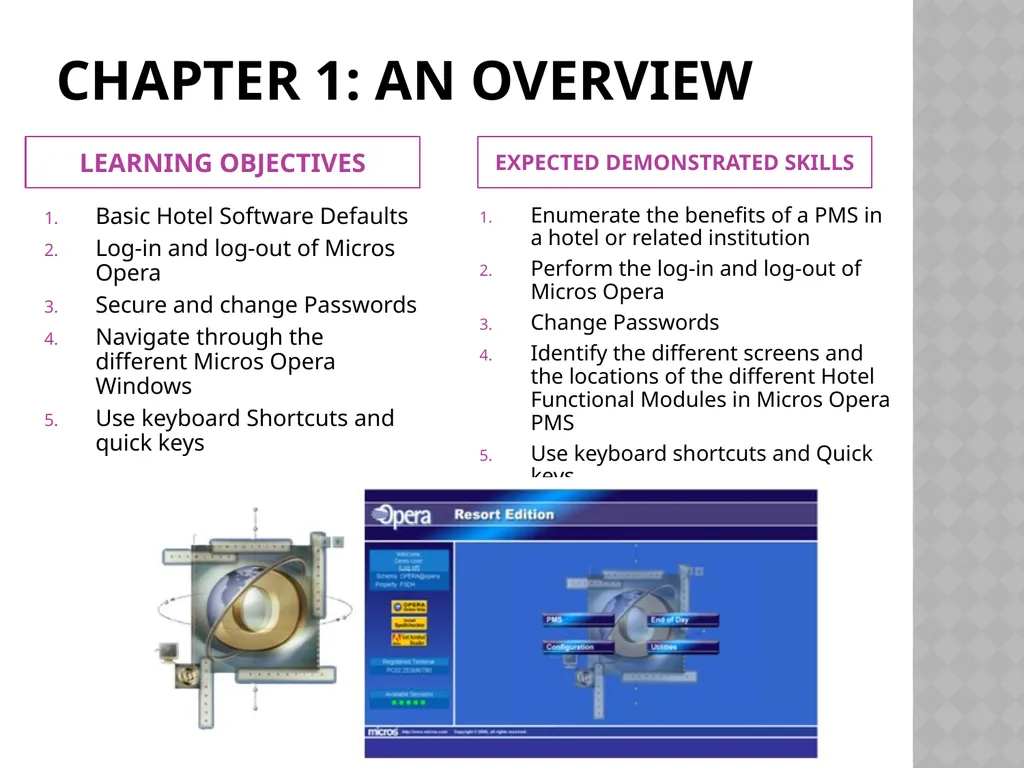
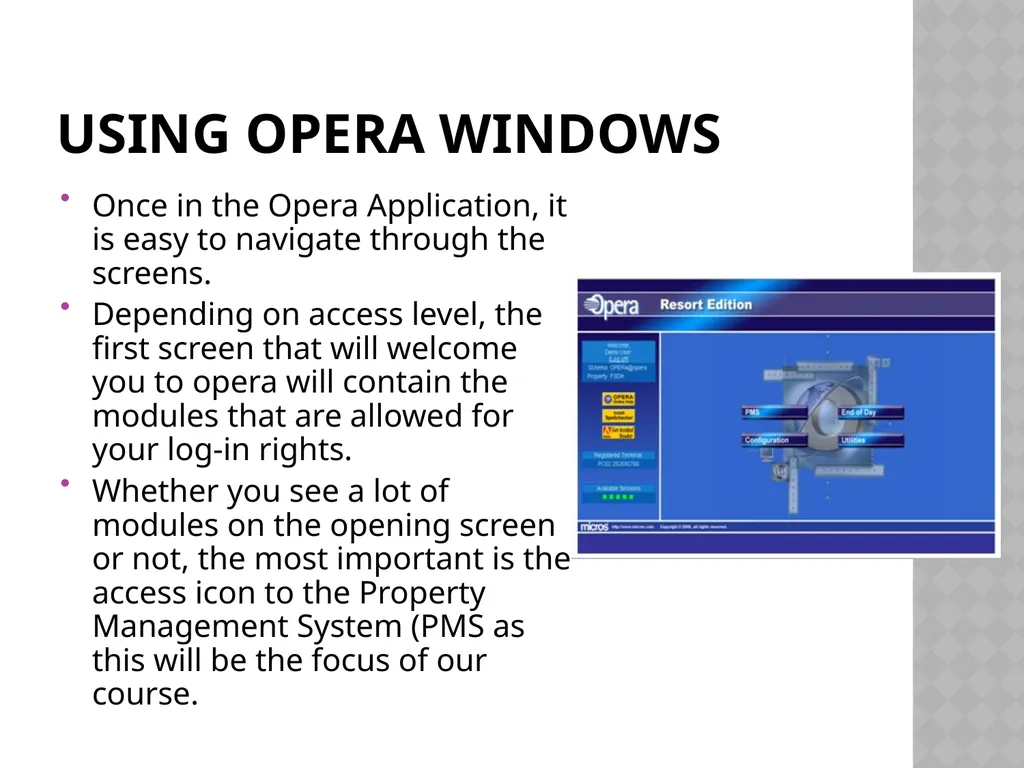
Using OPERA Windows Once in the Opera Application, it is easy to navigate through the screens.
Depending on access level, the first screen that will welcome you to opera will contain the modules that are allowed for your log-in rights.
Whether you see a lot of modules on the opening screen or not, the most important is the access icon to the Property Management System (PMS as this will be the focus of our course.<br>
08
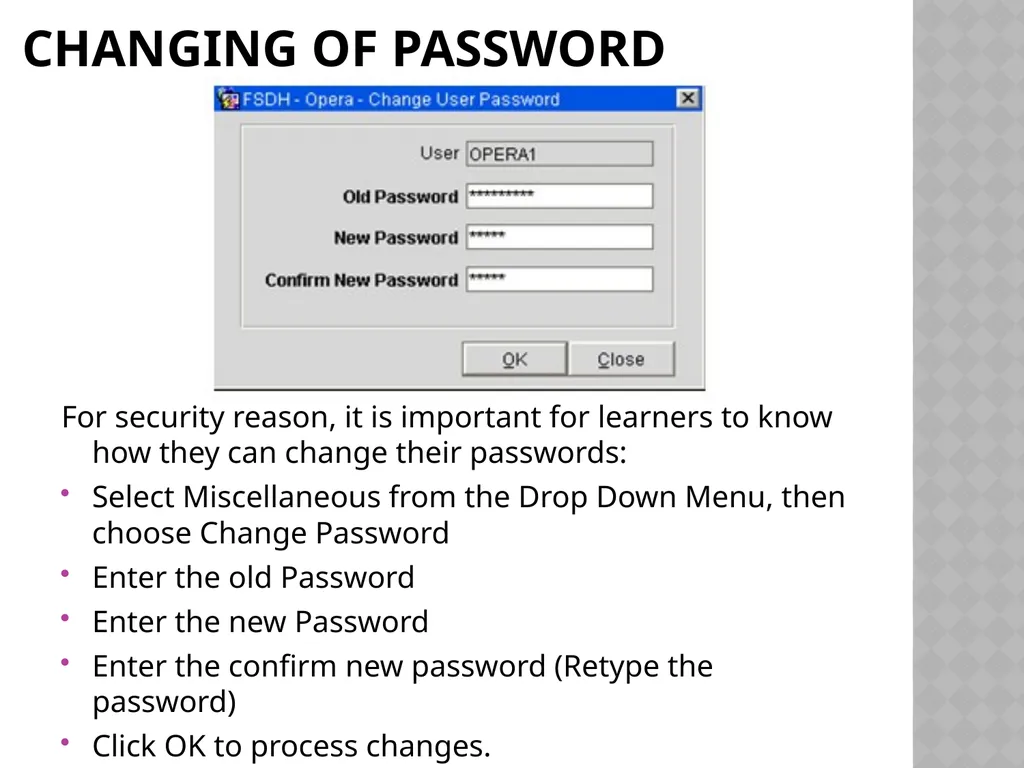
CHANGING OF PASSWORD For security reason, it is important for learners to know how they can change their passwords:
Select Miscellaneous from the Drop Down Menu, then choose Change Password
Enter the old Password
Enter the new Password
Enter the confirm new password (Retype the password)
Click OK to process changes.<br>
09
BASIC PARTS OF THE OPERA MAIN SCREEN<br>
10
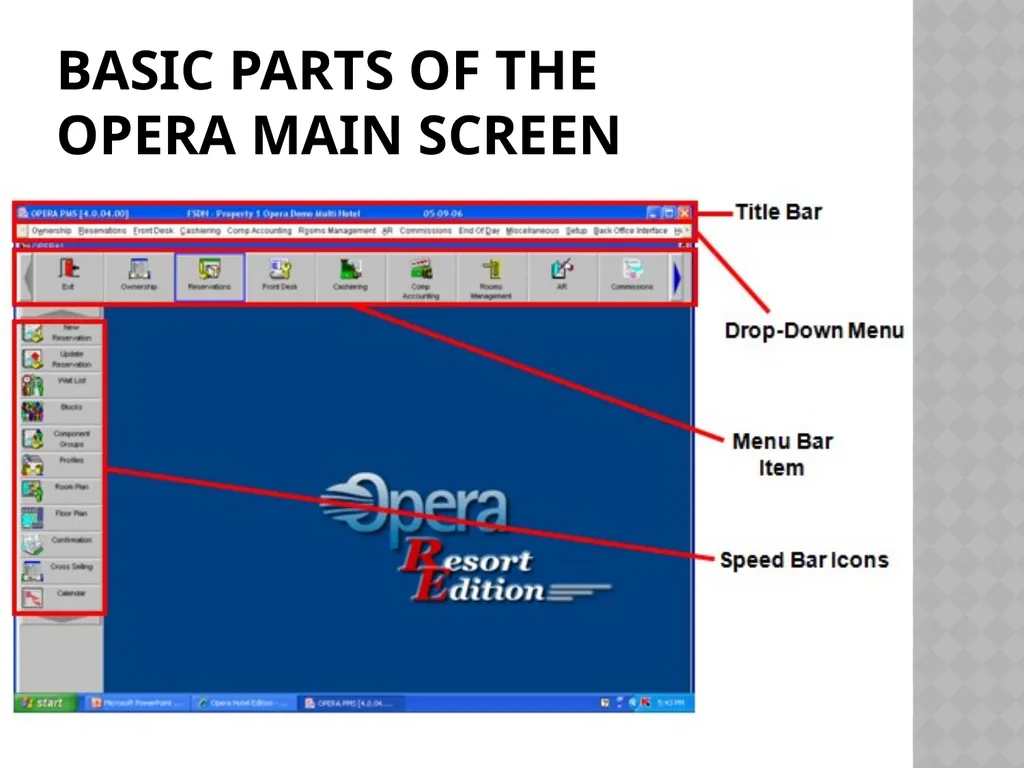
Title Bar – contains the Micros Opera Version installed in the machine that you are using and the name of the Hotel or institution to whom the license is granted.
Drop Down Menu – contains the different modules in the PMS. By clicking each option in the menu bar, a sub-menu of functionalities under each module will roll-down. Clicking on the sub-menu will activate a command or open a window. BASIC PARTS OF THE OPERA MAIN SCREEN<br>
11
Menu Bar – contains the visual representations of the different modules in the PMS that are also found on the Drop Down menu. Clicking an option will show different sub-menus at the left panel of the screen called the Speed Bar.
Speed Bar – contains the clickable shortcuts for functionalities of each PMS<br>
12
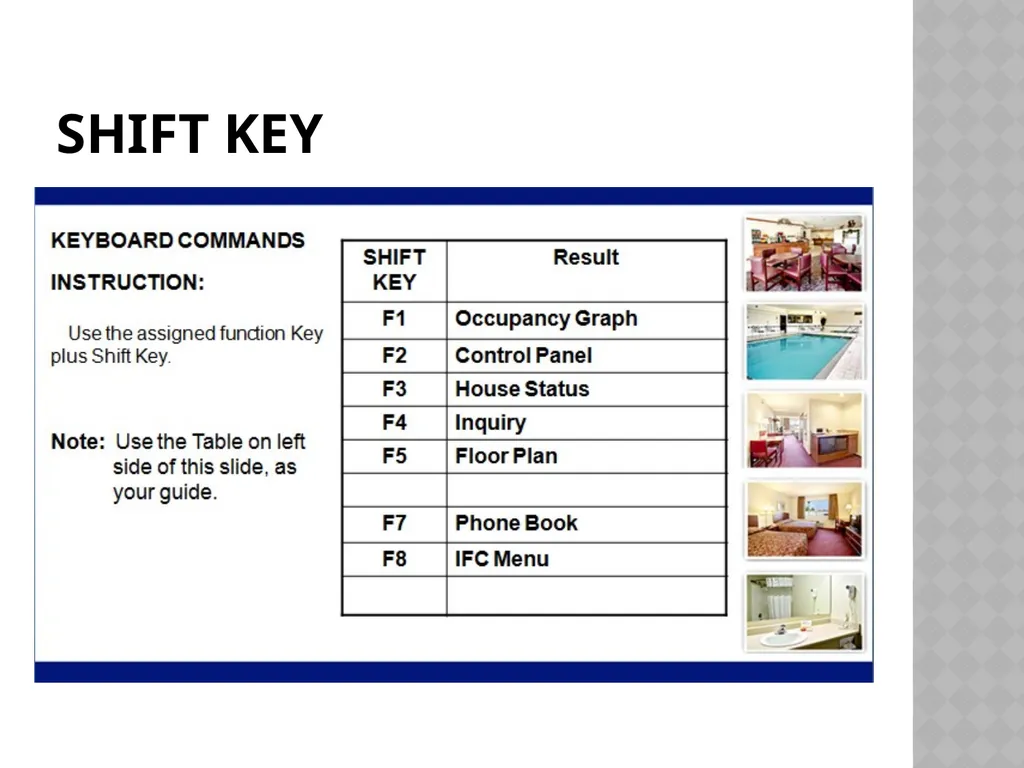
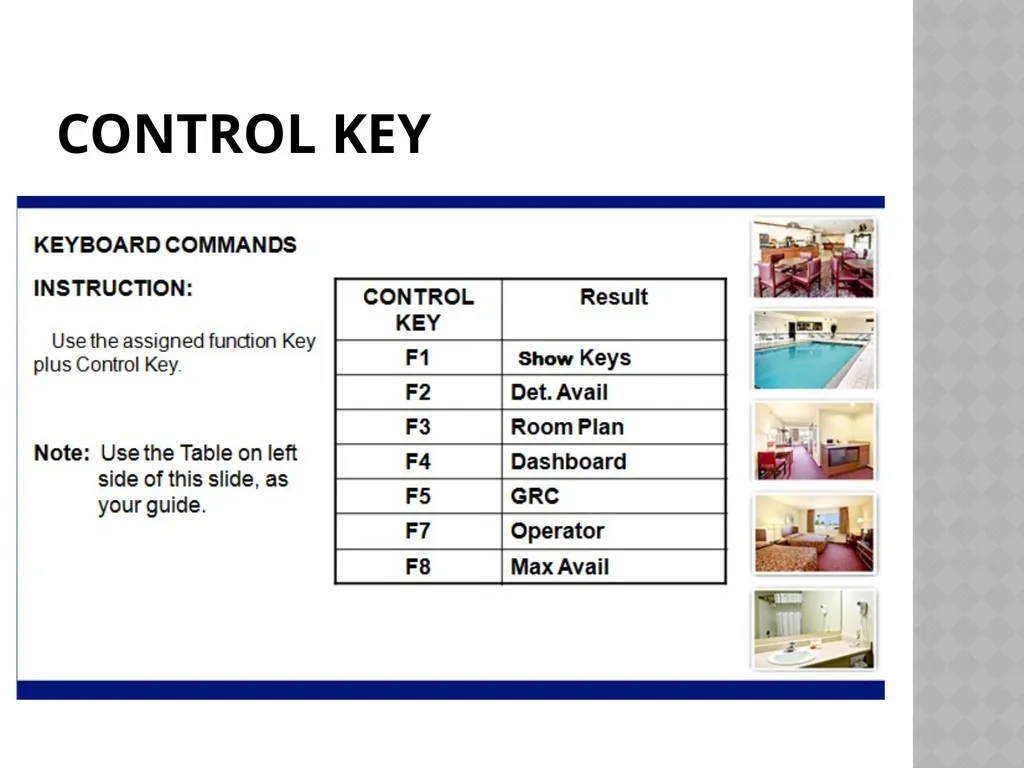
KEYBOARD SHORTCUTS Keyboard commands variations:
Alt keys
Shift Keys
Control Keys
Function Keys<br>
13
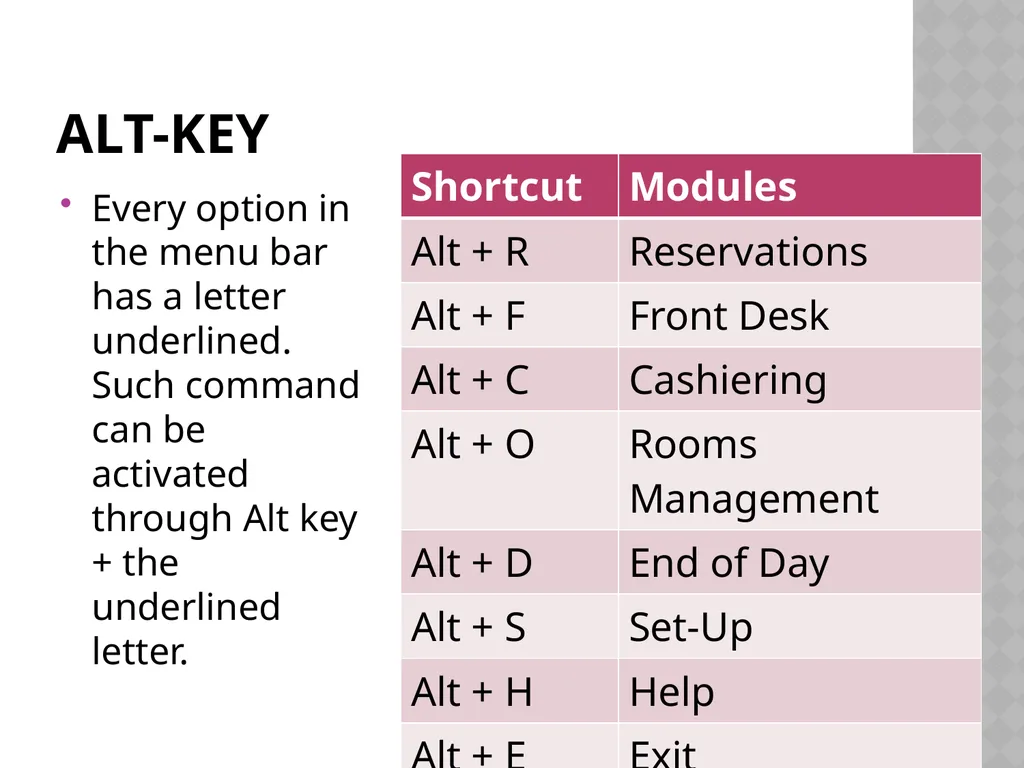
Alt-Key Every option in the menu bar has a letter underlined. Such command can be activated through Alt key + the underlined letter.<br>