
Cheat Sheets for everyday tasks Table of Contents
KB
Published · 20 slides · 0 views

1 / 1

Description
Cheat Sheets for everyday tasks Table of Contents Log in Process Order Fulfillment Process Overview Order Items Using the Shopping Cart ADD a New Item to the System UPDATE Existing Item Information Requisitions: Filling and Delivering from
Related Topics
Share
Embed code
Download this presentation From Below
"Cheat Sheets for everyday tasks Table of Contents" is the property of its rightful owner. Permission is granted to download and print the materials on this website for personal, non-commercial use only, and to display it on your personal computer provided you do not modify the materials and that you retain all copyright notices contained in the materials. By downloading content from our website, you accept the terms of this agreement.
Presentation Transcript
01
Cheat Sheets for everyday tasks<br>
02
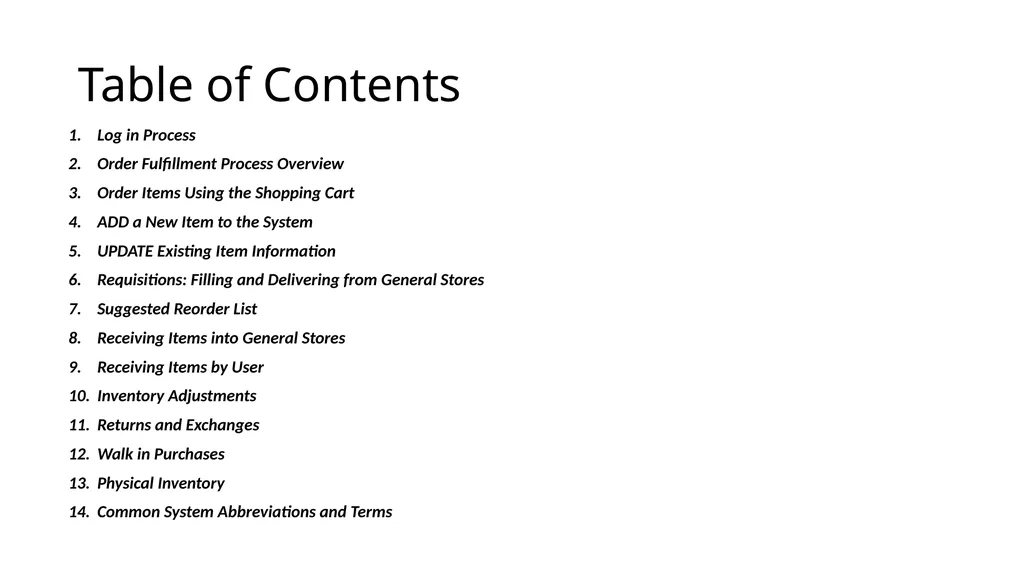
Table of Contents Log in Process
Order Fulfillment Process Overview
Order Items Using the Shopping Cart
ADD a New Item to the System
UPDATE Existing Item Information
Requisitions: Filling and Delivering from General Stores
Suggested Reorder List
Receiving Items into General Stores
Receiving Items by User
Inventory Adjustments
Returns and Exchanges
Walk in Purchases
Physical Inventory
Common System Abbreviations and Terms<br>
Order Fulfillment Process Overview
Order Items Using the Shopping Cart
ADD a New Item to the System
UPDATE Existing Item Information
Requisitions: Filling and Delivering from General Stores
Suggested Reorder List
Receiving Items into General Stores
Receiving Items by User
Inventory Adjustments
Returns and Exchanges
Walk in Purchases
Physical Inventory
Common System Abbreviations and Terms<br>
03
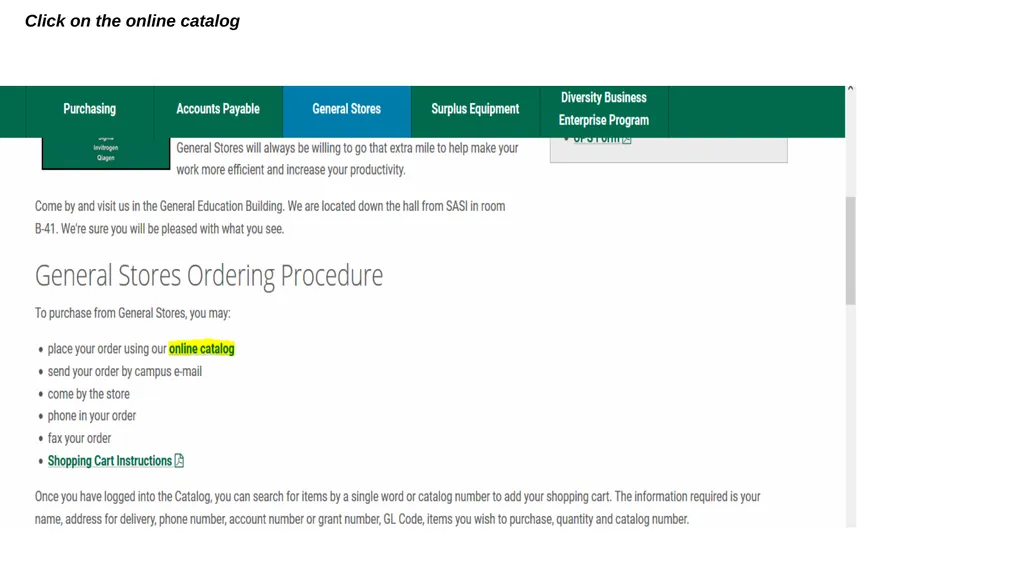
Click on the online catalog<br>
04
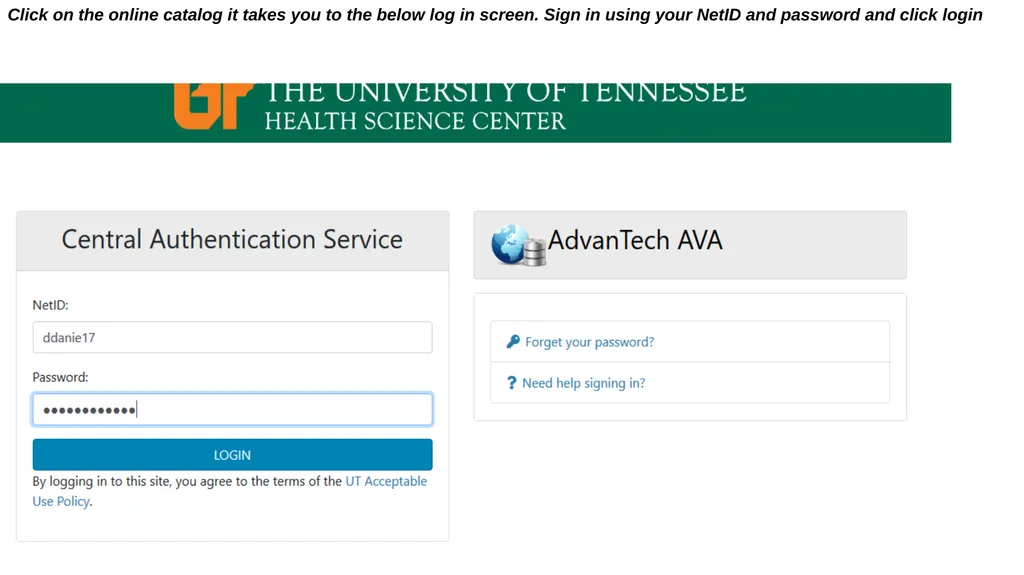
Click on the online catalog it takes you to the below log in screen. Sign in using your NetID and password and click login<br>
05
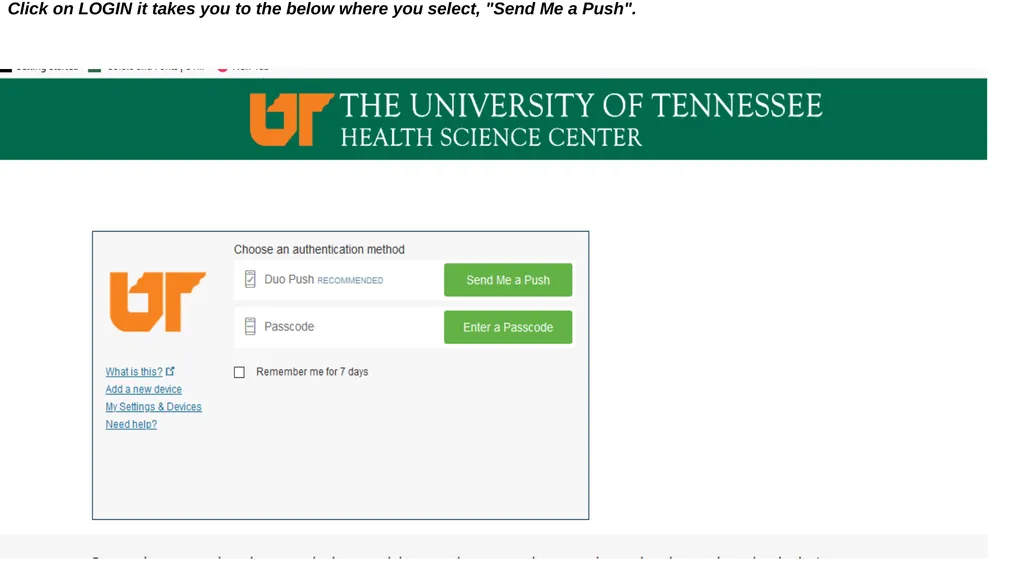
Click on LOGIN it takes you to the below where you select, "Send Me a Push".<br>
06
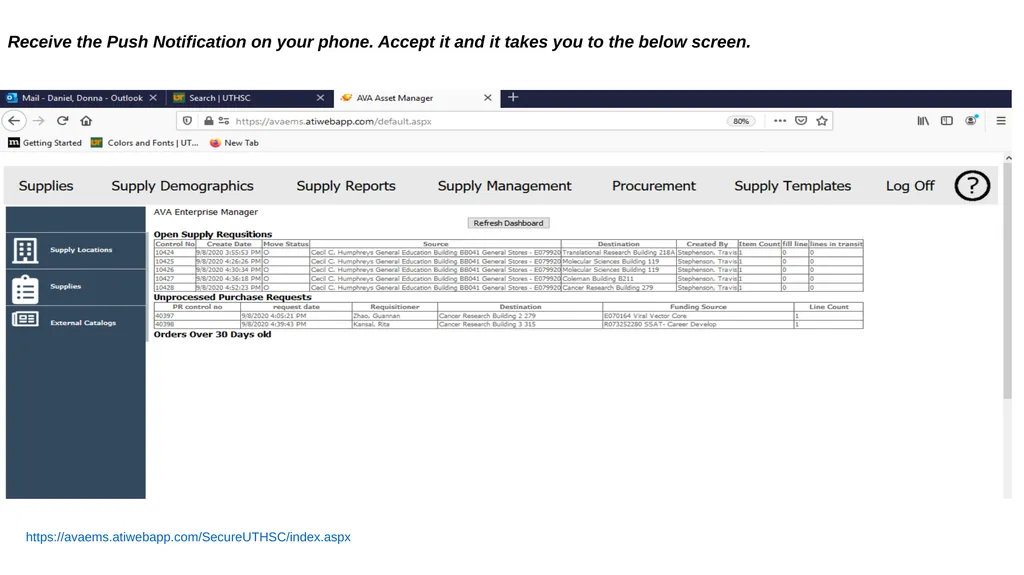
Receive the Push Notification on your phone. Accept it and it takes you to the below screen. https://avaems.atiwebapp.com/SecureUTHSC/index.aspx<br>
07
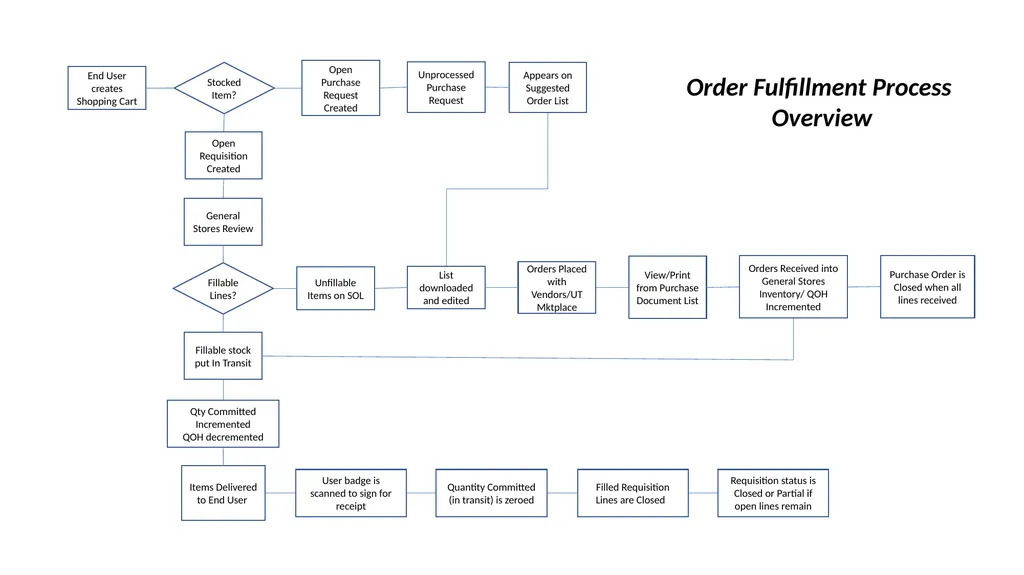
End User creates Shopping Cart Stocked Item? Open Purchase Request Created Unprocessed Purchase Request Appears on Suggested Order List Open Requisition Created Purchase Order is Closed when all lines received Fillable Lines? Unfillable Items on SOL List downloaded and edited Orders Placed with Vendors/UT Mktplace View/Print from Purchase Document List Orders Received into General Stores Inventory/ QOH Incremented Fillable stock put In Transit Qty Committed Incremented
QOH decremented General Stores Review Items Delivered to End User User badge is scanned to sign for receipt Quantity Committed (in transit) is zeroed Filled Requisition Lines are Closed Requisition status is Closed or Partial if open lines remain Order Fulfillment Process
Overview<br>
QOH decremented General Stores Review Items Delivered to End User User badge is scanned to sign for receipt Quantity Committed (in transit) is zeroed Filled Requisition Lines are Closed Requisition status is Closed or Partial if open lines remain Order Fulfillment Process
Overview<br>
08
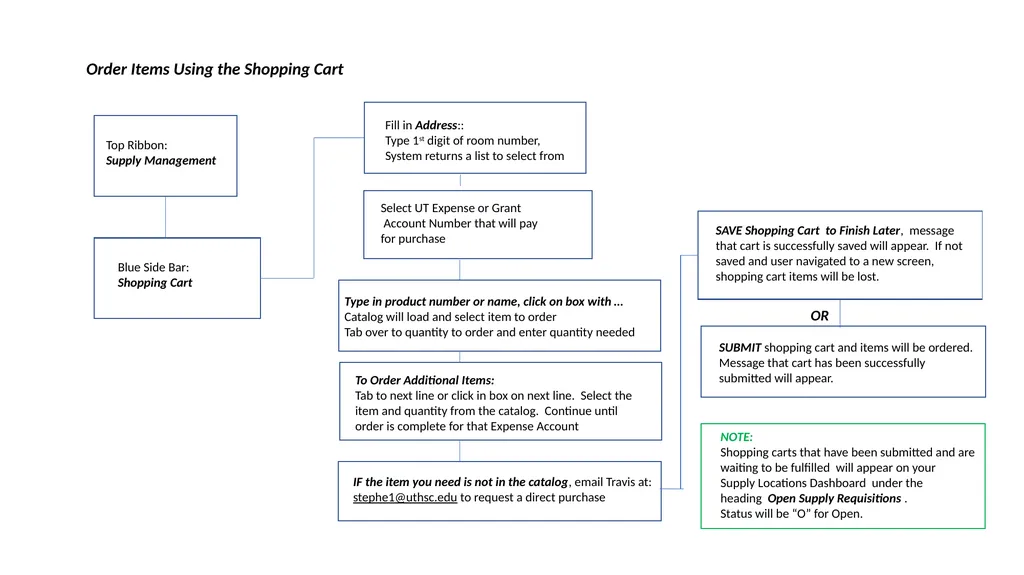
Order Items Using the Shopping Cart Top Ribbon:
Supply Management Blue Side Bar:
Shopping Cart Fill in Address::
Type 1st digit of room number,
System returns a list to select from Select UT Expense or Grant
Account Number that will pay
for purchase Type in product number or name, click on box with …
Catalog will load and select item to order
Tab over to quantity to order and enter quantity needed SUBMIT shopping cart and items will be ordered. Message that cart has been successfully submitted will appear. To Order Additional Items:
Tab to next line or click in box on next line. Select the item and quantity from the catalog. Continue until order is complete for that Expense Account IF the item you need is not in the catalog, email Travis at:
stephe1@uthsc.edu to request a direct purchase OR SAVE Shopping Cart to Finish Later, message that cart is successfully saved will appear. If not saved and user navigated to a new screen, shopping cart items will be lost. NOTE:
Shopping carts that have been submitted and are
waiting to be fulfilled will appear on your
Supply Locations Dashboard under the
heading Open Supply Requisitions .
Status will be “O” for Open.<br>
Supply Management Blue Side Bar:
Shopping Cart Fill in Address::
Type 1st digit of room number,
System returns a list to select from Select UT Expense or Grant
Account Number that will pay
for purchase Type in product number or name, click on box with …
Catalog will load and select item to order
Tab over to quantity to order and enter quantity needed SUBMIT shopping cart and items will be ordered. Message that cart has been successfully submitted will appear. To Order Additional Items:
Tab to next line or click in box on next line. Select the item and quantity from the catalog. Continue until order is complete for that Expense Account IF the item you need is not in the catalog, email Travis at:
stephe1@uthsc.edu to request a direct purchase OR SAVE Shopping Cart to Finish Later, message that cart is successfully saved will appear. If not saved and user navigated to a new screen, shopping cart items will be lost. NOTE:
Shopping carts that have been submitted and are
waiting to be fulfilled will appear on your
Supply Locations Dashboard under the
heading Open Supply Requisitions .
Status will be “O” for Open.<br>
09
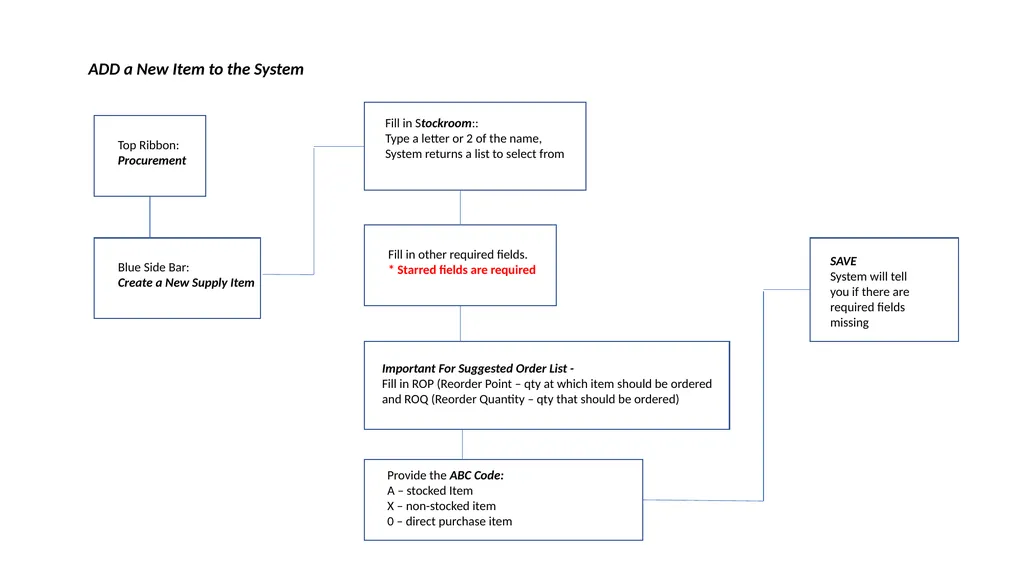
ADD a New Item to the System Top Ribbon:
Procurement Blue Side Bar:
Create a New Supply Item Fill in Stockroom::
Type a letter or 2 of the name,
System returns a list to select from Fill in other required fields.
* Starred fields are required Important For Suggested Order List -
Fill in ROP (Reorder Point – qty at which item should be ordered
and ROQ (Reorder Quantity – qty that should be ordered) Provide the ABC Code:
A – stocked Item
X – non-stocked item
0 – direct purchase item SAVE
System will tell you if there are required fields missing<br>
Procurement Blue Side Bar:
Create a New Supply Item Fill in Stockroom::
Type a letter or 2 of the name,
System returns a list to select from Fill in other required fields.
* Starred fields are required Important For Suggested Order List -
Fill in ROP (Reorder Point – qty at which item should be ordered
and ROQ (Reorder Quantity – qty that should be ordered) Provide the ABC Code:
A – stocked Item
X – non-stocked item
0 – direct purchase item SAVE
System will tell you if there are required fields missing<br>
10
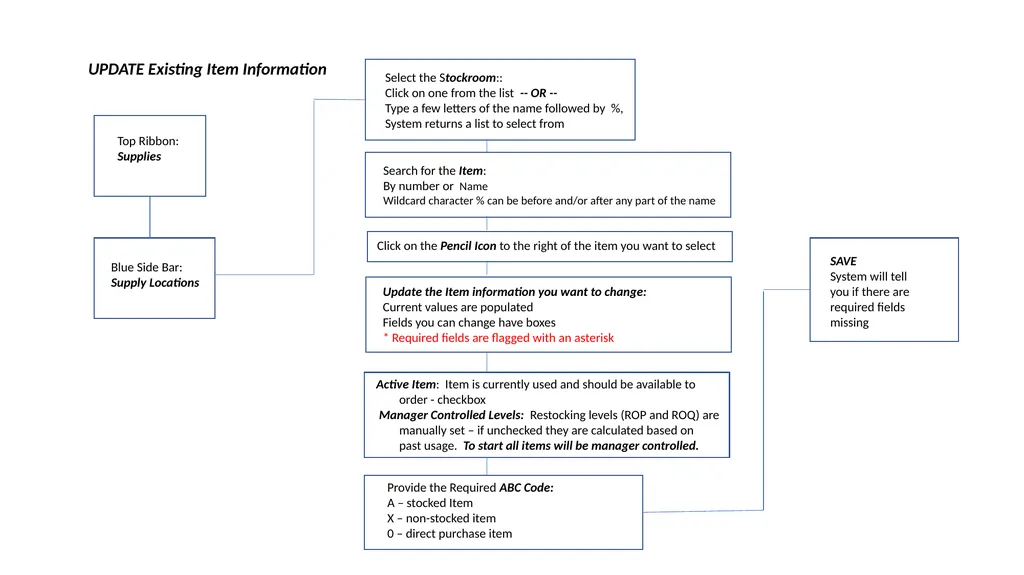
UPDATE Existing Item Information Top Ribbon:
Supplies Blue Side Bar:
Supply Locations Select the Stockroom::
Click on one from the list -- OR --
Type a few letters of the name followed by %,
System returns a list to select from Search for the Item:
By number or Name
Wildcard character % can be before and/or after any part of the name Click on the Pencil Icon to the right of the item you want to select Provide the Required ABC Code:
A – stocked Item
X – non-stocked item
0 – direct purchase item SAVE
System will tell you if there are required fields missing Update the Item information you want to change:
Current values are populated
Fields you can change have boxes
* Required fields are flagged with an asterisk Active Item: Item is currently used and should be available to
order - checkbox
Manager Controlled Levels: Restocking levels (ROP and ROQ) are
manually set – if unchecked they are calculated based on
past usage. To start all items will be manager controlled.<br>
Supplies Blue Side Bar:
Supply Locations Select the Stockroom::
Click on one from the list -- OR --
Type a few letters of the name followed by %,
System returns a list to select from Search for the Item:
By number or Name
Wildcard character % can be before and/or after any part of the name Click on the Pencil Icon to the right of the item you want to select Provide the Required ABC Code:
A – stocked Item
X – non-stocked item
0 – direct purchase item SAVE
System will tell you if there are required fields missing Update the Item information you want to change:
Current values are populated
Fields you can change have boxes
* Required fields are flagged with an asterisk Active Item: Item is currently used and should be available to
order - checkbox
Manager Controlled Levels: Restocking levels (ROP and ROQ) are
manually set – if unchecked they are calculated based on
past usage. To start all items will be manager controlled.<br>
11
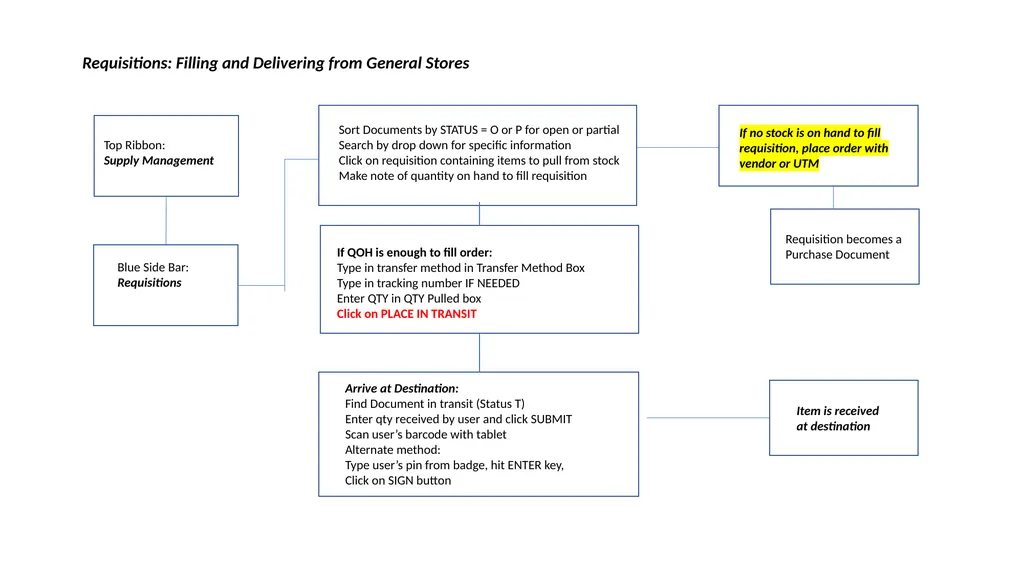
Requisitions: Filling and Delivering from General Stores Top Ribbon:
Supply Management Blue Side Bar:
Requisitions Sort Documents by STATUS = O or P for open or partial
Search by drop down for specific information
Click on requisition containing items to pull from stock
Make note of quantity on hand to fill requisition If QOH is enough to fill order:
Type in transfer method in Transfer Method Box
Type in tracking number IF NEEDED
Enter QTY in QTY Pulled box
Click on PLACE IN TRANSIT Arrive at Destination:
Find Document in transit (Status T)
Enter qty received by user and click SUBMIT
Scan user’s barcode with tablet
Alternate method:
Type user’s pin from badge, hit ENTER key,
Click on SIGN button Requisition becomes a Purchase Document If no stock is on hand to fill requisition, place order with vendor or UTM Item is received at destination<br>
Supply Management Blue Side Bar:
Requisitions Sort Documents by STATUS = O or P for open or partial
Search by drop down for specific information
Click on requisition containing items to pull from stock
Make note of quantity on hand to fill requisition If QOH is enough to fill order:
Type in transfer method in Transfer Method Box
Type in tracking number IF NEEDED
Enter QTY in QTY Pulled box
Click on PLACE IN TRANSIT Arrive at Destination:
Find Document in transit (Status T)
Enter qty received by user and click SUBMIT
Scan user’s barcode with tablet
Alternate method:
Type user’s pin from badge, hit ENTER key,
Click on SIGN button Requisition becomes a Purchase Document If no stock is on hand to fill requisition, place order with vendor or UTM Item is received at destination<br>
12
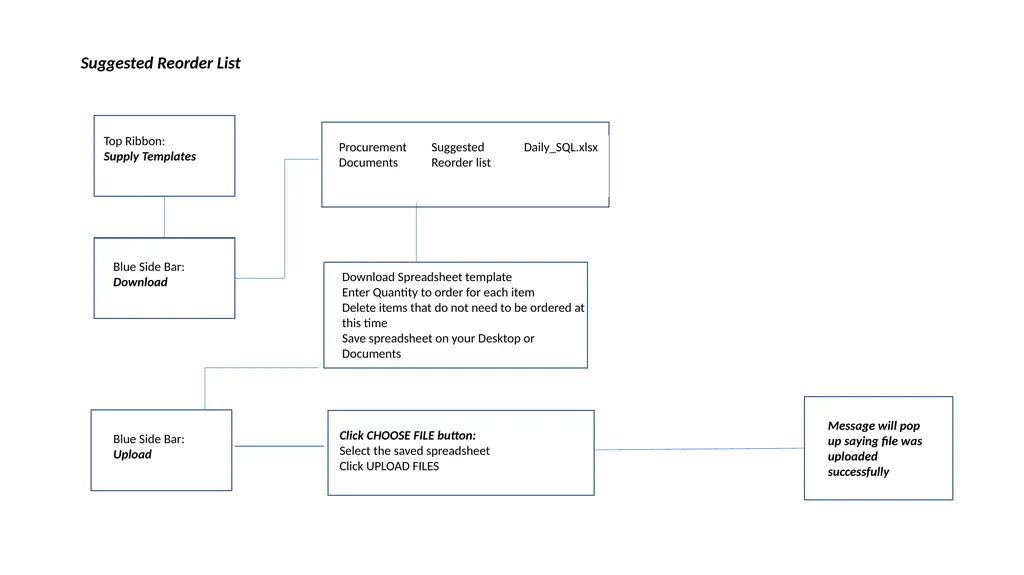
Suggested Reorder List Top Ribbon:
Supply Templates Blue Side Bar:
Download Download Spreadsheet template
Enter Quantity to order for each item
Delete items that do not need to be ordered at this time
Save spreadsheet on your Desktop or Documents Message will pop up saying file was uploaded successfully Click CHOOSE FILE button:
Select the saved spreadsheet
Click UPLOAD FILES Blue Side Bar:
Upload<br>
Supply Templates Blue Side Bar:
Download Download Spreadsheet template
Enter Quantity to order for each item
Delete items that do not need to be ordered at this time
Save spreadsheet on your Desktop or Documents Message will pop up saying file was uploaded successfully Click CHOOSE FILE button:
Select the saved spreadsheet
Click UPLOAD FILES Blue Side Bar:
Upload<br>
13
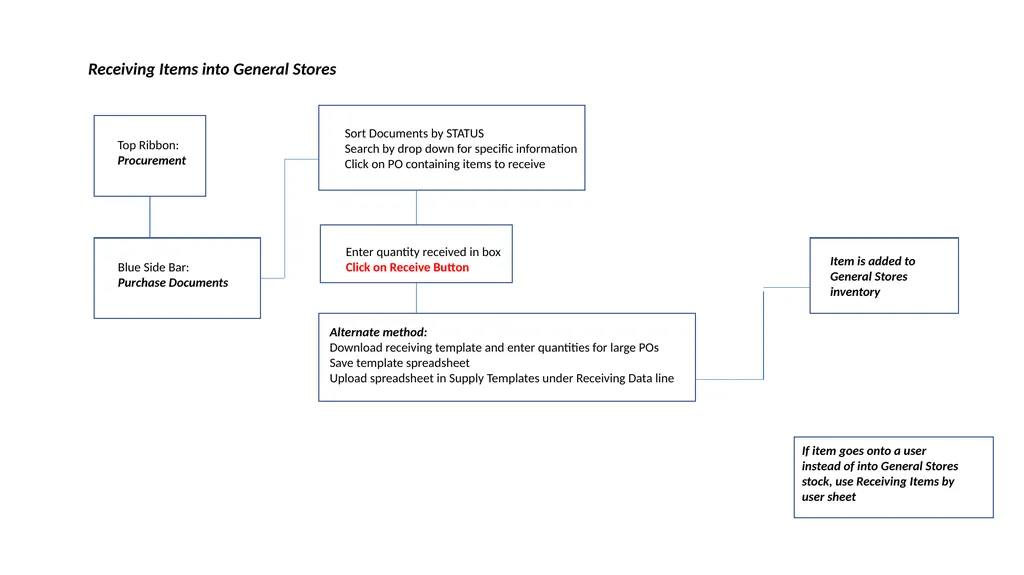
Receiving Items into General Stores Top Ribbon:
Procurement Blue Side Bar:
Purchase Documents Sort Documents by STATUS
Search by drop down for specific information
Click on PO containing items to receive Enter quantity received in box
Click on Receive Button Alternate method:
Download receiving template and enter quantities for large POs
Save template spreadsheet
Upload spreadsheet in Supply Templates under Receiving Data line If item goes onto a user instead of into General Stores stock, use Receiving Items by user sheet Item is added to General Stores inventory<br>
Procurement Blue Side Bar:
Purchase Documents Sort Documents by STATUS
Search by drop down for specific information
Click on PO containing items to receive Enter quantity received in box
Click on Receive Button Alternate method:
Download receiving template and enter quantities for large POs
Save template spreadsheet
Upload spreadsheet in Supply Templates under Receiving Data line If item goes onto a user instead of into General Stores stock, use Receiving Items by user sheet Item is added to General Stores inventory<br>
14
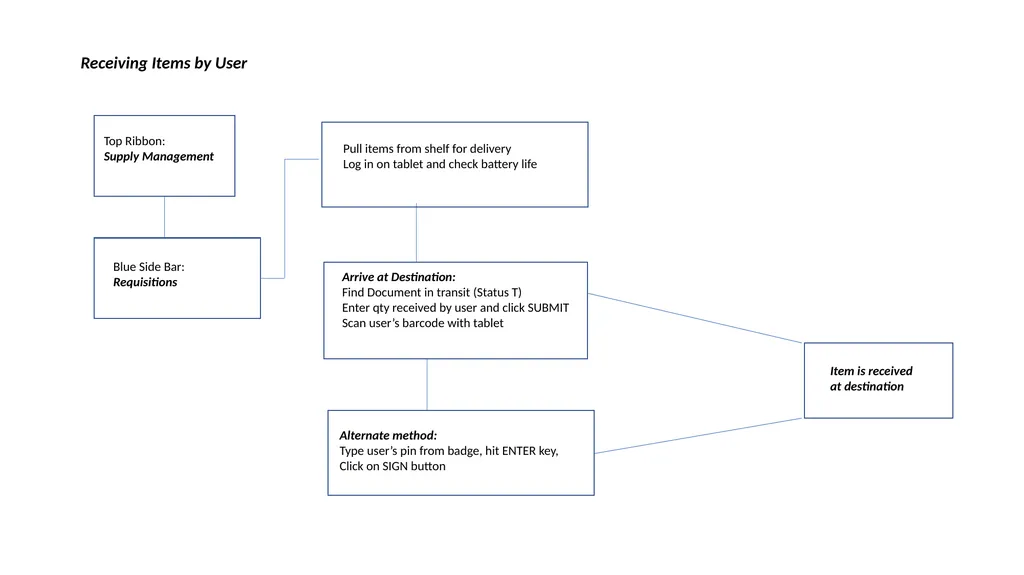
Receiving Items by User Top Ribbon:
Supply Management Blue Side Bar:
Requisitions Pull items from shelf for delivery
Log in on tablet and check battery life Arrive at Destination:
Find Document in transit (Status T)
Enter qty received by user and click SUBMIT
Scan user’s barcode with tablet Item is received at destination Alternate method:
Type user’s pin from badge, hit ENTER key,
Click on SIGN button<br>
Supply Management Blue Side Bar:
Requisitions Pull items from shelf for delivery
Log in on tablet and check battery life Arrive at Destination:
Find Document in transit (Status T)
Enter qty received by user and click SUBMIT
Scan user’s barcode with tablet Item is received at destination Alternate method:
Type user’s pin from badge, hit ENTER key,
Click on SIGN button<br>
15
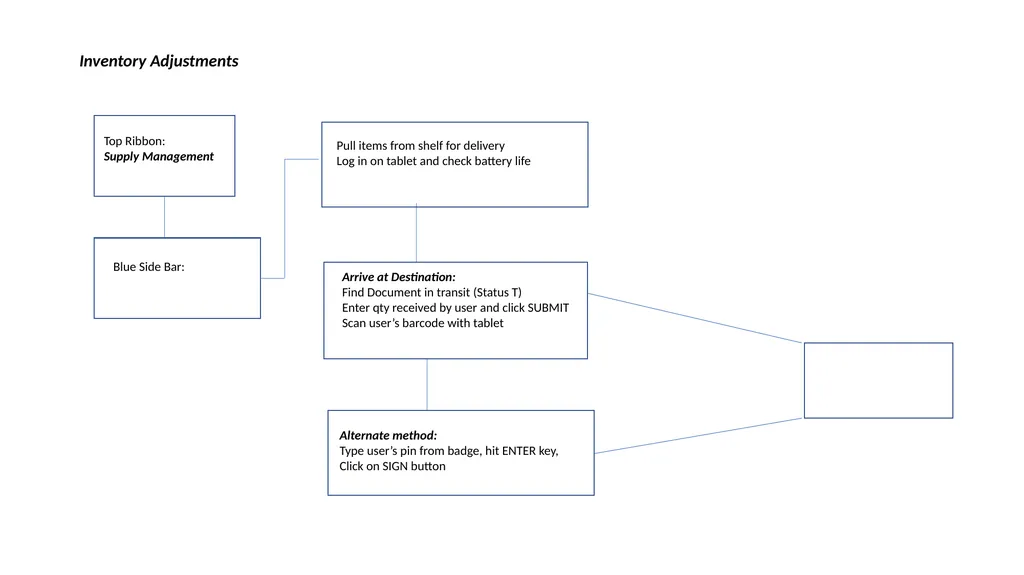
Inventory Adjustments Top Ribbon:
Supply Management Blue Side Bar: Pull items from shelf for delivery
Log in on tablet and check battery life Arrive at Destination:
Find Document in transit (Status T)
Enter qty received by user and click SUBMIT
Scan user’s barcode with tablet Alternate method:
Type user’s pin from badge, hit ENTER key,
Click on SIGN button<br>
Supply Management Blue Side Bar: Pull items from shelf for delivery
Log in on tablet and check battery life Arrive at Destination:
Find Document in transit (Status T)
Enter qty received by user and click SUBMIT
Scan user’s barcode with tablet Alternate method:
Type user’s pin from badge, hit ENTER key,
Click on SIGN button<br>
16
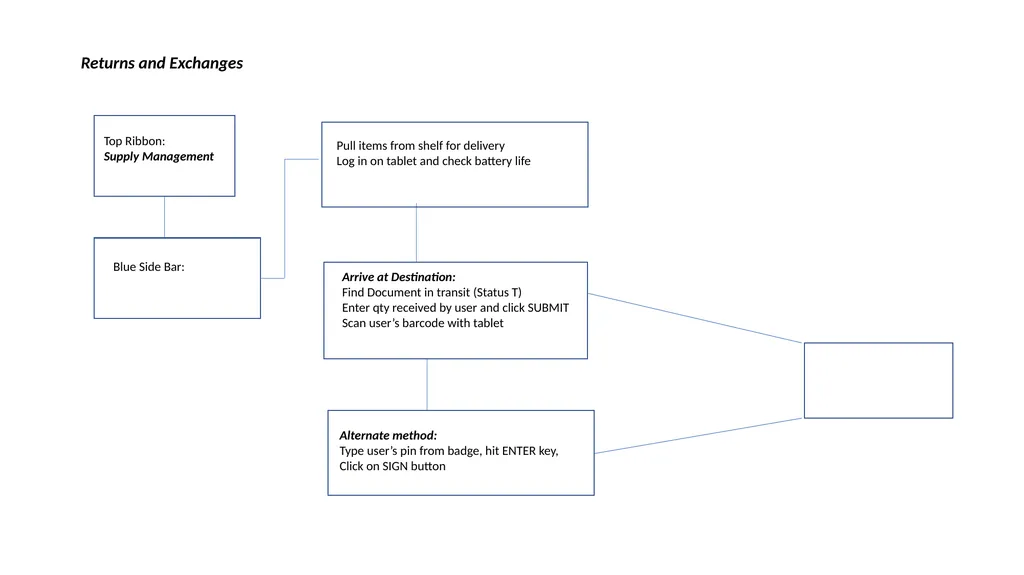
Returns and Exchanges Top Ribbon:
Supply Management Blue Side Bar: Pull items from shelf for delivery
Log in on tablet and check battery life Arrive at Destination:
Find Document in transit (Status T)
Enter qty received by user and click SUBMIT
Scan user’s barcode with tablet Alternate method:
Type user’s pin from badge, hit ENTER key,
Click on SIGN button<br>
Supply Management Blue Side Bar: Pull items from shelf for delivery
Log in on tablet and check battery life Arrive at Destination:
Find Document in transit (Status T)
Enter qty received by user and click SUBMIT
Scan user’s barcode with tablet Alternate method:
Type user’s pin from badge, hit ENTER key,
Click on SIGN button<br>
17
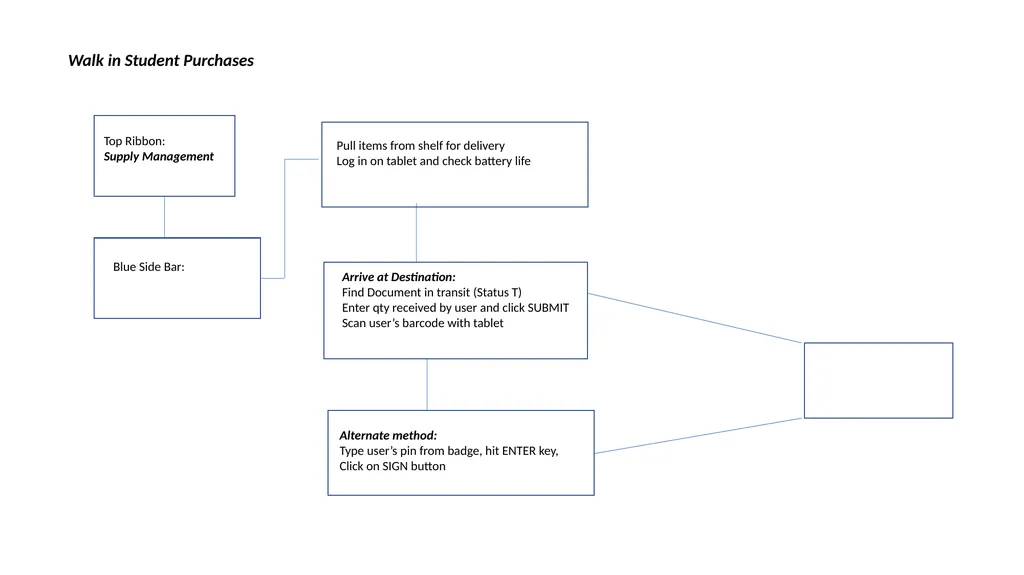
Walk in Student Purchases Top Ribbon:
Supply Management Blue Side Bar: Pull items from shelf for delivery
Log in on tablet and check battery life Arrive at Destination:
Find Document in transit (Status T)
Enter qty received by user and click SUBMIT
Scan user’s barcode with tablet Alternate method:
Type user’s pin from badge, hit ENTER key,
Click on SIGN button<br>
Supply Management Blue Side Bar: Pull items from shelf for delivery
Log in on tablet and check battery life Arrive at Destination:
Find Document in transit (Status T)
Enter qty received by user and click SUBMIT
Scan user’s barcode with tablet Alternate method:
Type user’s pin from badge, hit ENTER key,
Click on SIGN button<br>
18
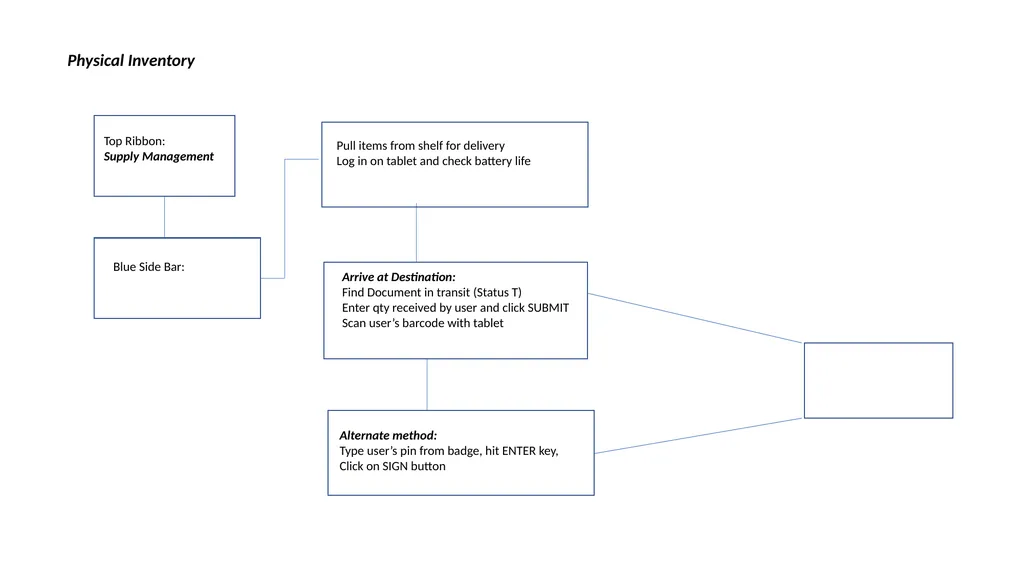
Physical Inventory Top Ribbon:
Supply Management Blue Side Bar: Pull items from shelf for delivery
Log in on tablet and check battery life Arrive at Destination:
Find Document in transit (Status T)
Enter qty received by user and click SUBMIT
Scan user’s barcode with tablet Alternate method:
Type user’s pin from badge, hit ENTER key,
Click on SIGN button<br>
Supply Management Blue Side Bar: Pull items from shelf for delivery
Log in on tablet and check battery life Arrive at Destination:
Find Document in transit (Status T)
Enter qty received by user and click SUBMIT
Scan user’s barcode with tablet Alternate method:
Type user’s pin from badge, hit ENTER key,
Click on SIGN button<br>
19
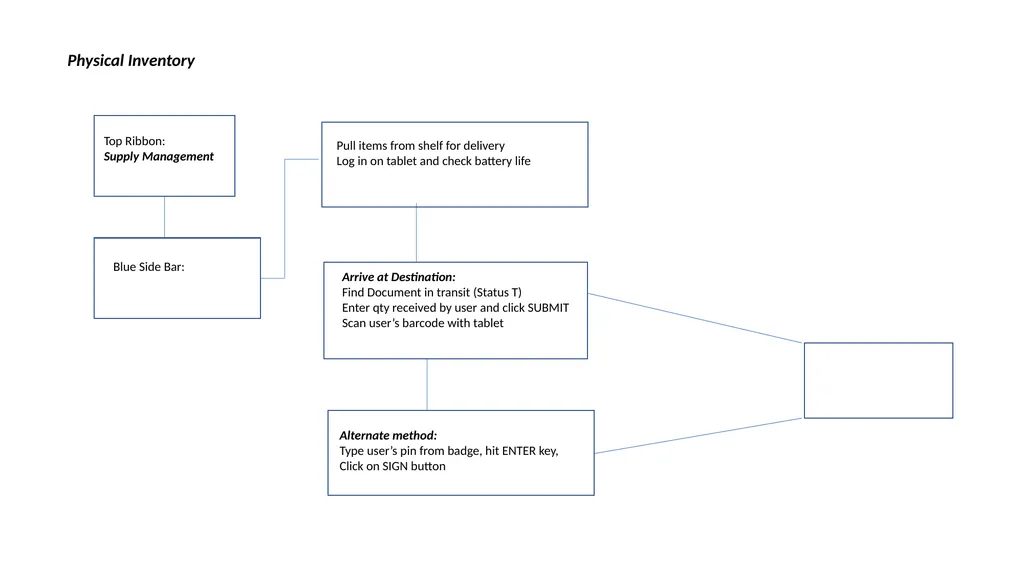
Physical Inventory Top Ribbon:
Supply Management Blue Side Bar: Pull items from shelf for delivery
Log in on tablet and check battery life Arrive at Destination:
Find Document in transit (Status T)
Enter qty received by user and click SUBMIT
Scan user’s barcode with tablet Alternate method:
Type user’s pin from badge, hit ENTER key,
Click on SIGN button<br>
Supply Management Blue Side Bar: Pull items from shelf for delivery
Log in on tablet and check battery life Arrive at Destination:
Find Document in transit (Status T)
Enter qty received by user and click SUBMIT
Scan user’s barcode with tablet Alternate method:
Type user’s pin from badge, hit ENTER key,
Click on SIGN button<br>
20
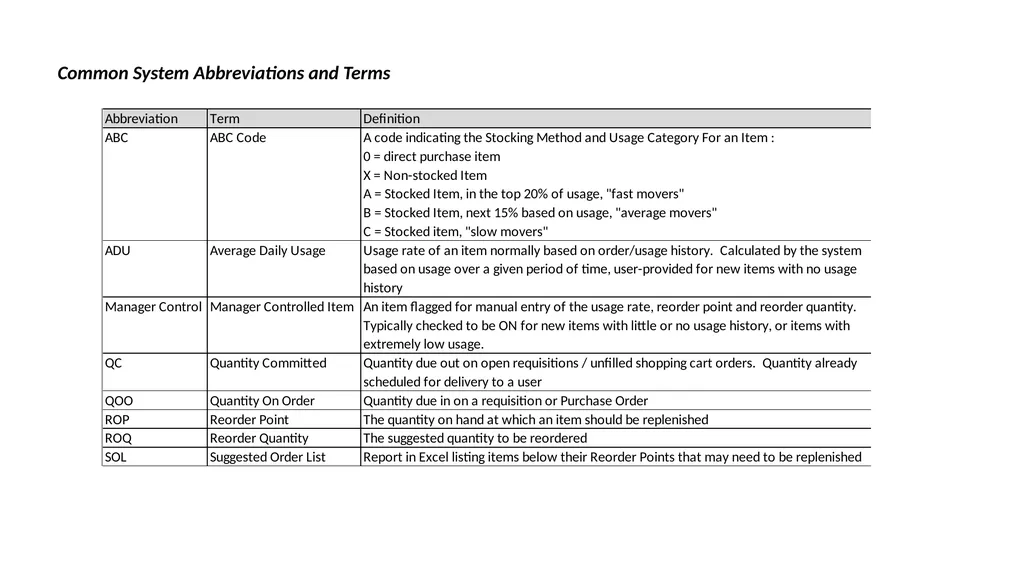
Common System Abbreviations and Terms<br>