COMPASS Community Partner Registration www.dhs.pa.govcompass COMPASS Community Partner Registration Registration is done online in a two-step process: Step 1: Register the organization, if not already registered. Step 2: Request user
"COMPASS Community Partner Registration" is the property of its rightful owner. Permission is granted to
download and print the materials on this website for personal, non-commercial use only, and to display it
on your personal computer provided you do not modify the materials and that you retain all copyright
notices contained in the materials. By downloading content from our website, you accept the terms of this
agreement.
Presentation Transcript
01
COMPASS Community Partner Registration www.dhs.pa.gov/compass<br>
02
COMPASS Community Partner Registration Registration is done online in a two-step process:
Step 1: Register the organization, if not already registered.
Step 2: Request user access, beginning with a Delegated Administrator (DA). All users will receive their Keystone ID (b-userID) by email after the registration request has been approved. Begin by visiting the COMPASS Homepage at www.dhs.pa.gov/compass 2 3/12/26<br>
03
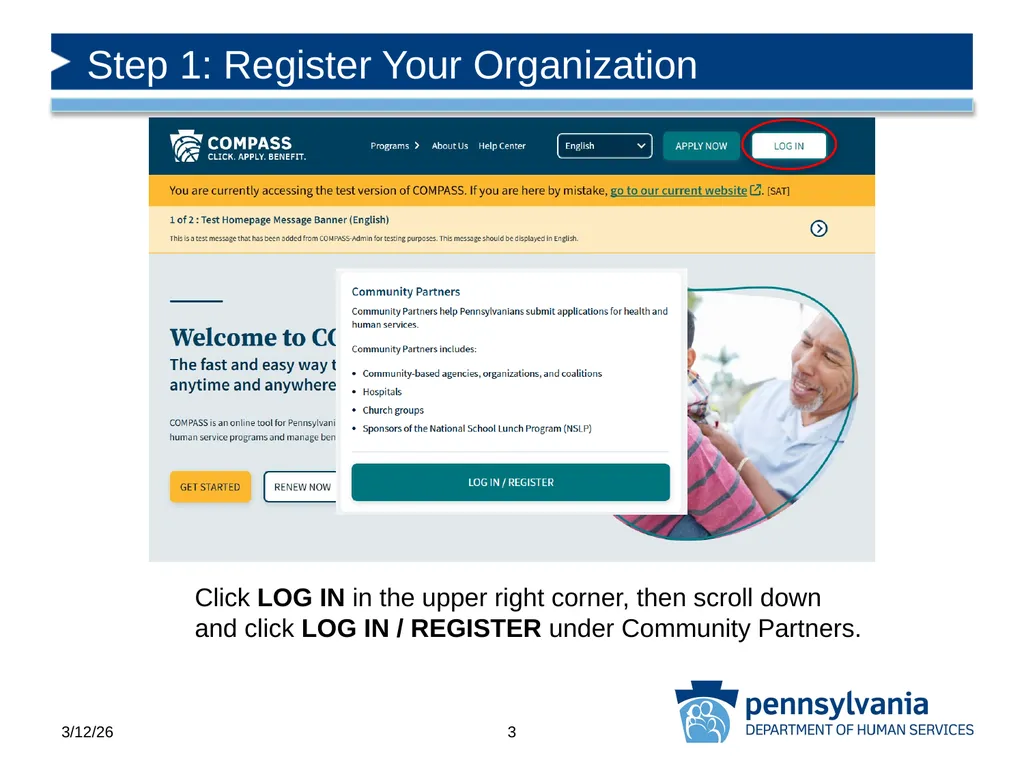
Step 1: Register Your Organization Click LOG IN in the upper right corner, then scroll down
and click LOG IN / REGISTER under Community Partners. 3 3/12/26<br>
04
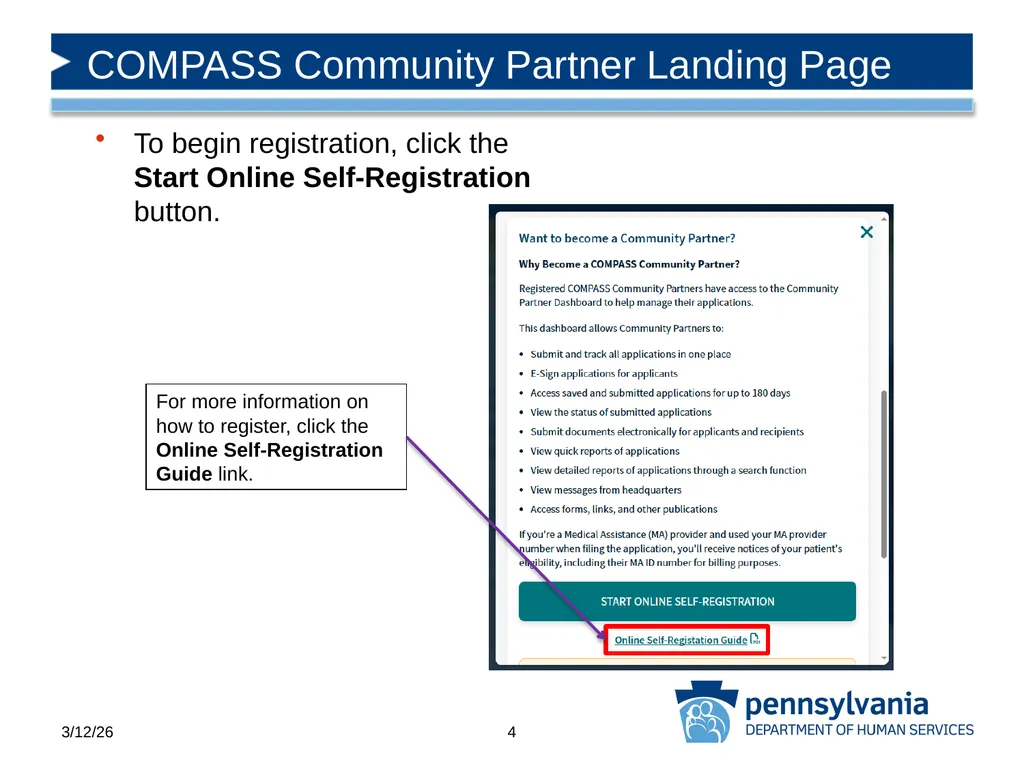
COMPASS Community Partner Landing Page To begin registration, click the Start Online Self-Registration button. For more information on how to register, click the Online Self-Registration Guide link. 4 3/12/26<br>
05
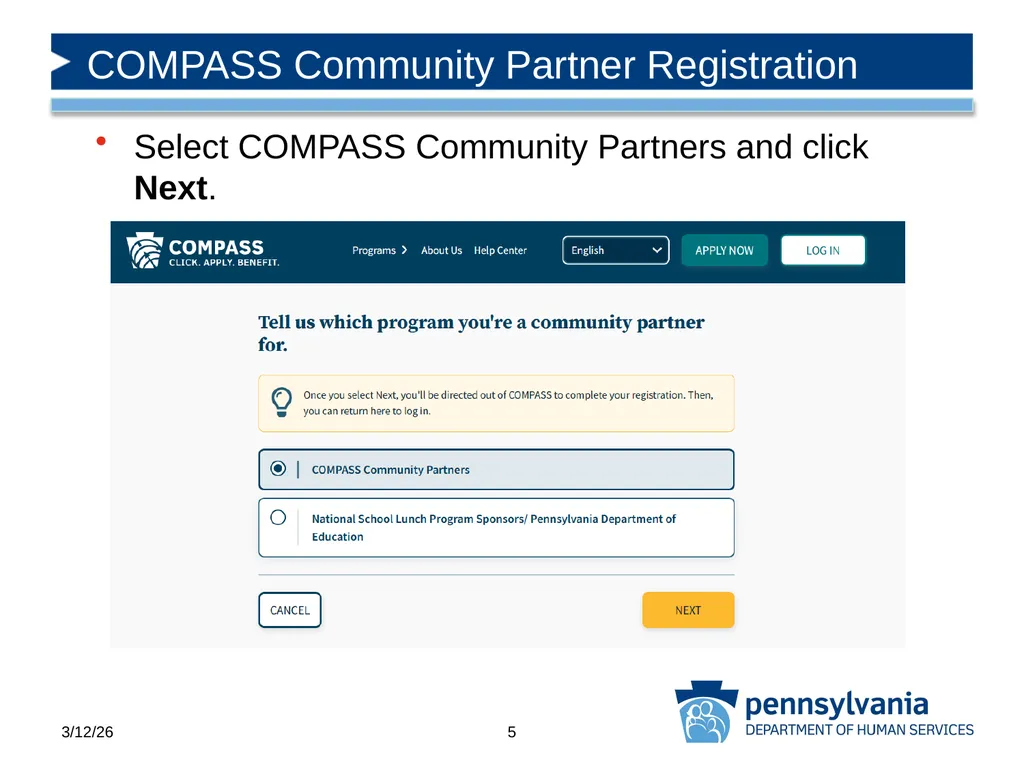
COMPASS Community Partner Registration Select COMPASS Community Partners and click Next. 5 3/12/26<br>
06
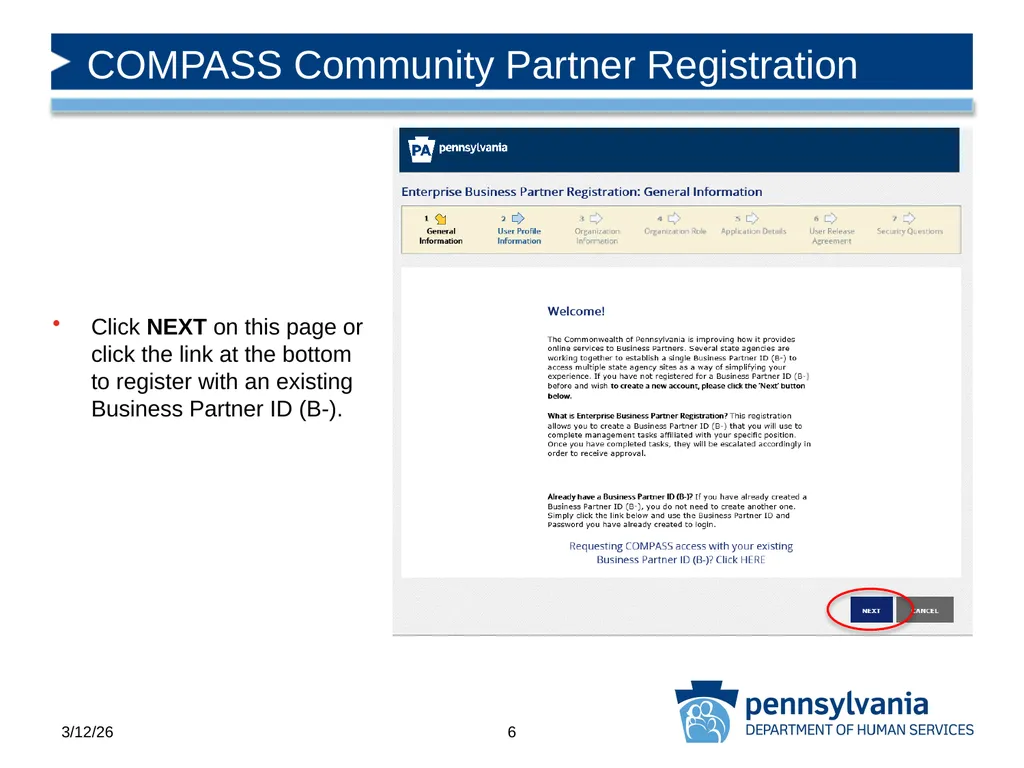
COMPASS Community Partner Registration Click NEXT on this page or click the link at the bottom to register with an existing Business Partner ID (B-). 6 3/12/26<br>
07
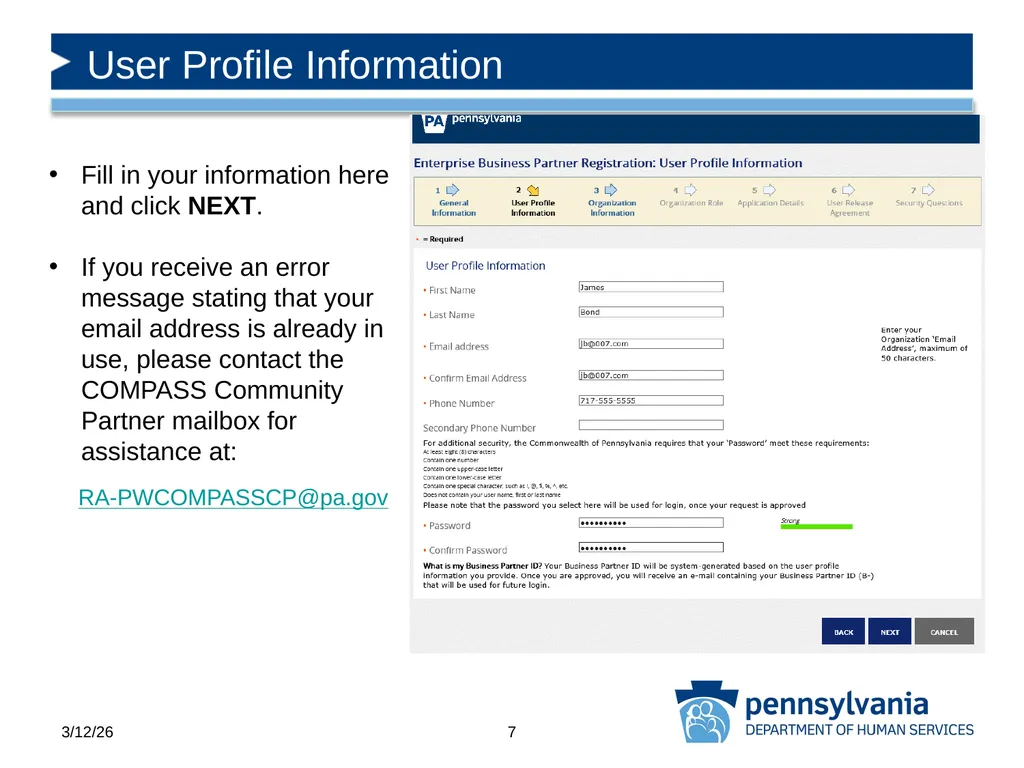
User Profile Information Fill in your information here and click NEXT.
If you receive an error message stating that your email address is already in use, please contact the COMPASS Community Partner mailbox for assistance at: RA-PWCOMPASSCP@pa.gov 7 3/12/26<br>
08
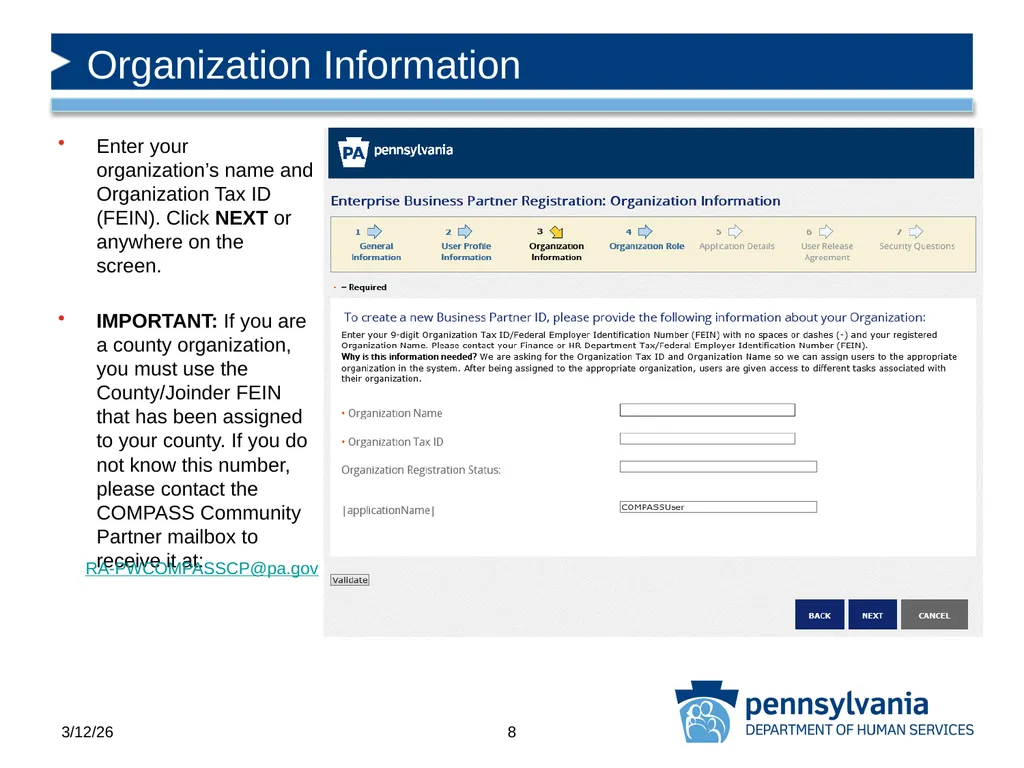
Enter your organization’s name and Organization Tax ID (FEIN). Click NEXT or anywhere on the screen.
IMPORTANT: If you are a county organization, you must use the County/Joinder FEIN that has been assigned to your county. If you do not know this number, please contact the COMPASS Community Partner mailbox to receive it at: Organization Information RA-PWCOMPASSCP@pa.gov 8 3/12/26<br>
09
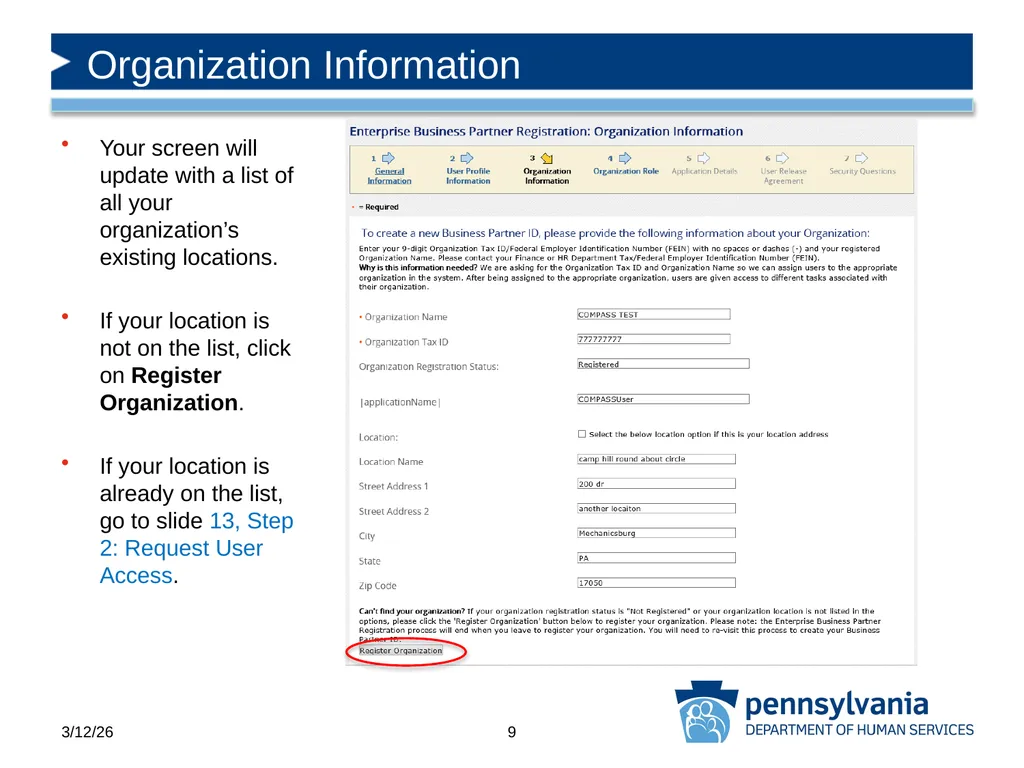
Your screen will update with a list of all your organization’s existing locations.
If your location is not on the list, click on Register Organization.
If your location is already on the list, go to slide 13, Step 2: Request User Access. Organization Information 9 3/12/26<br>
10
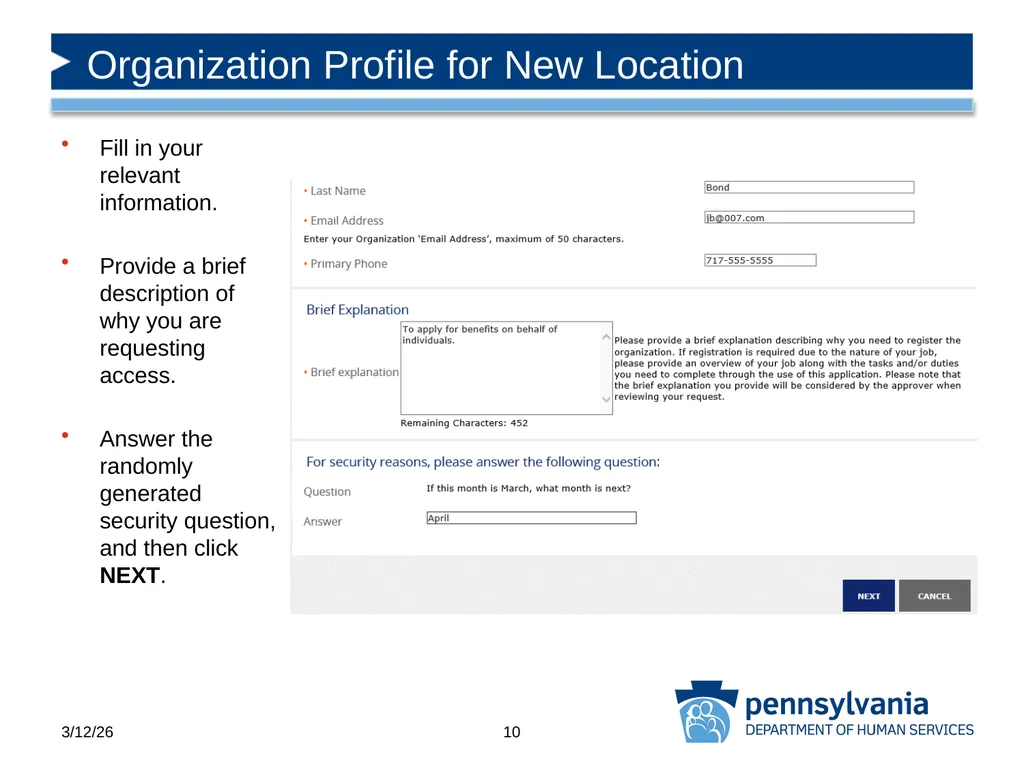
Fill in your relevant information.
Provide a brief description of why you are requesting access.
Answer the randomly generated security question, and then click NEXT. Organization Profile for New Location 10 3/12/26<br>
11
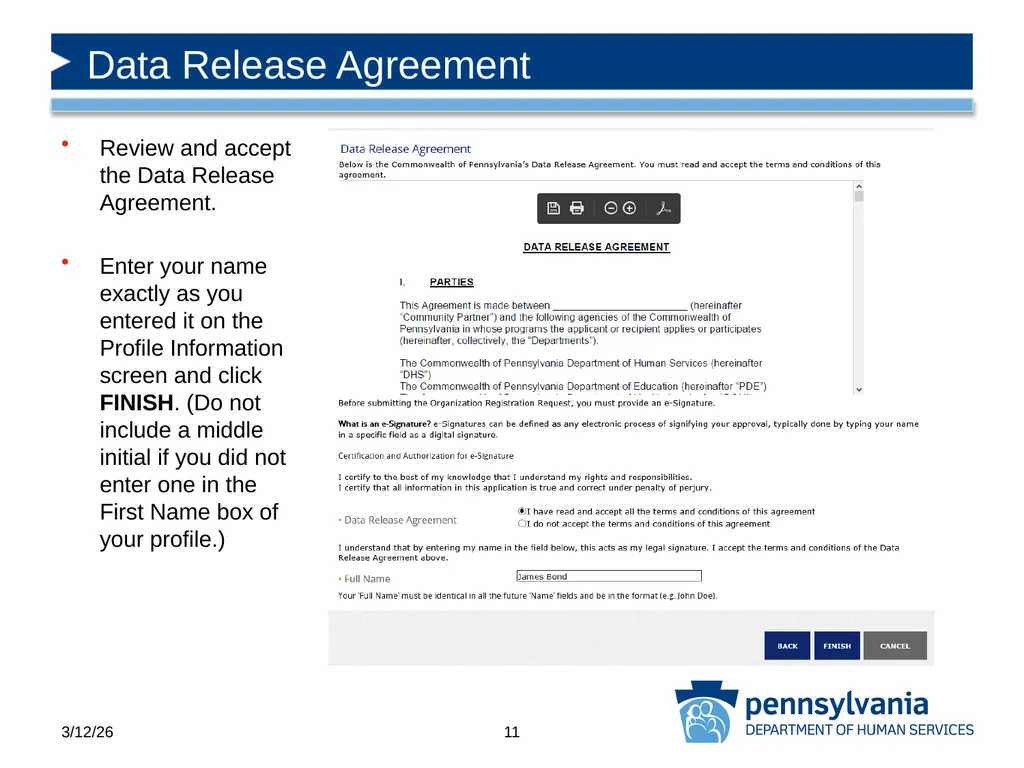
Review and accept the Data Release Agreement.
Enter your name exactly as you entered it on the Profile Information screen and click FINISH. (Do not include a middle initial if you did not enter one in the First Name box of your profile.) Data Release Agreement 11 3/12/26<br>
12
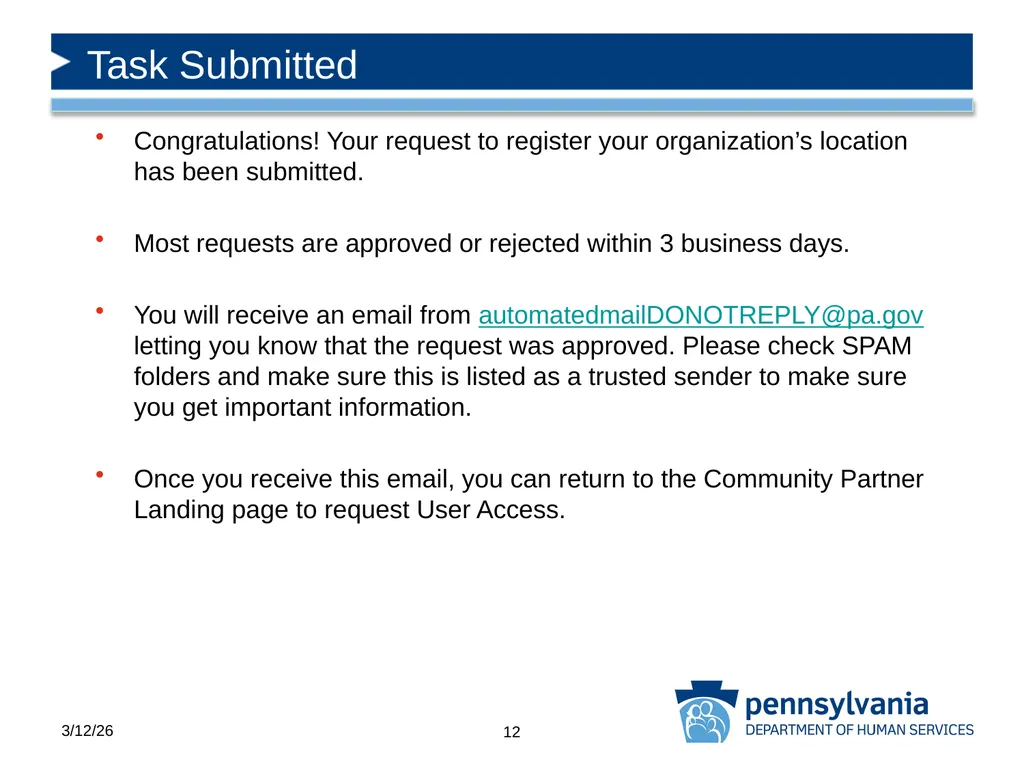
Task Submitted Congratulations! Your request to register your organization’s location has been submitted.
Most requests are approved or rejected within 3 business days.
You will receive an email from automatedmailDONOTREPLY@pa.gov letting you know that the request was approved. Please check SPAM folders and make sure this is listed as a trusted sender to make sure you get important information.
Once you receive this email, you can return to the Community Partner Landing page to request User Access. 12 3/12/26<br>
13
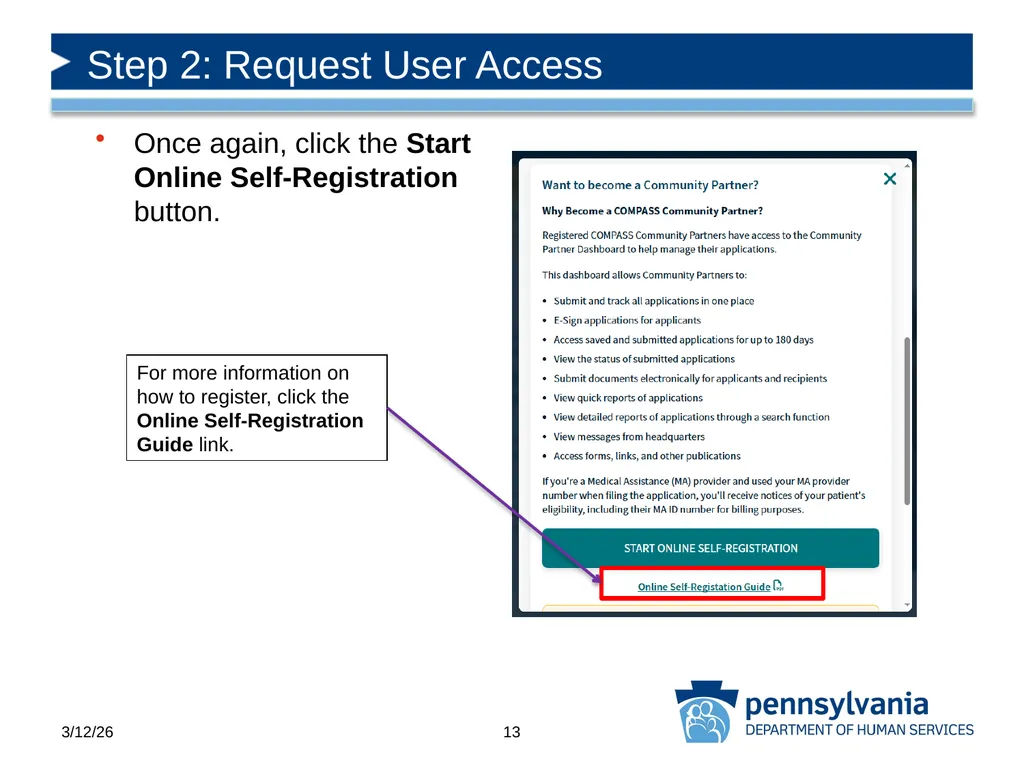
Step 2: Request User Access Once again, click the Start Online Self-Registration button. For more information on how to register, click the Online Self-Registration Guide link. 13 3/12/26<br>
14
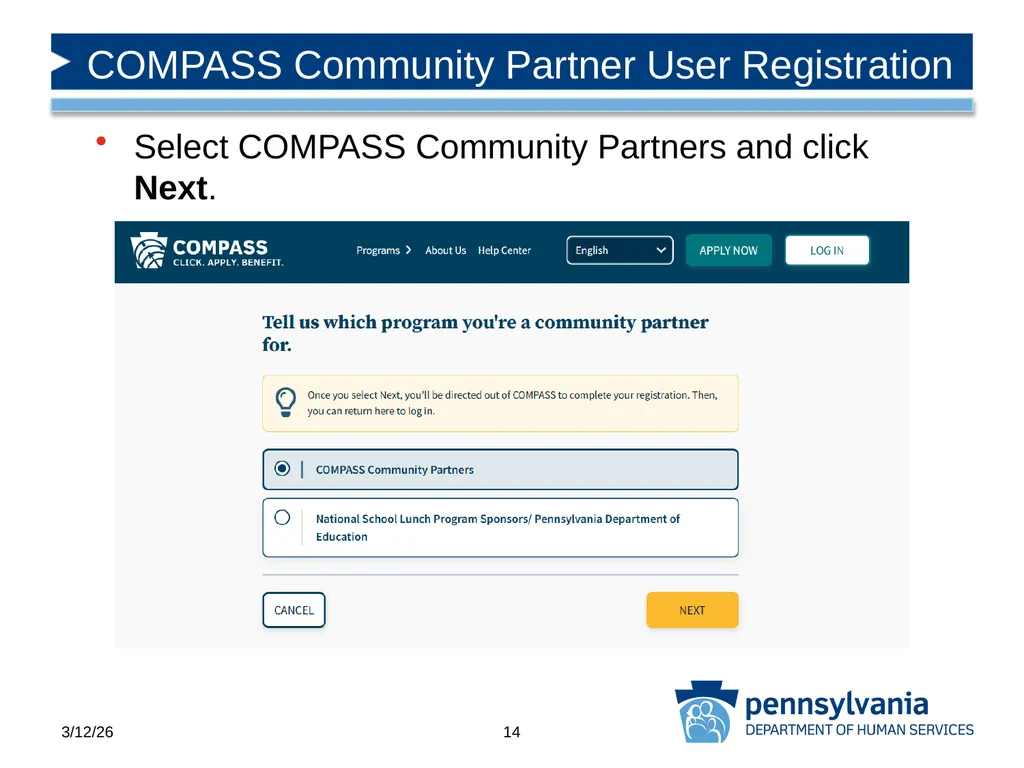
COMPASS Community Partner User Registration Select COMPASS Community Partners and click Next. 14 3/12/26<br>
15
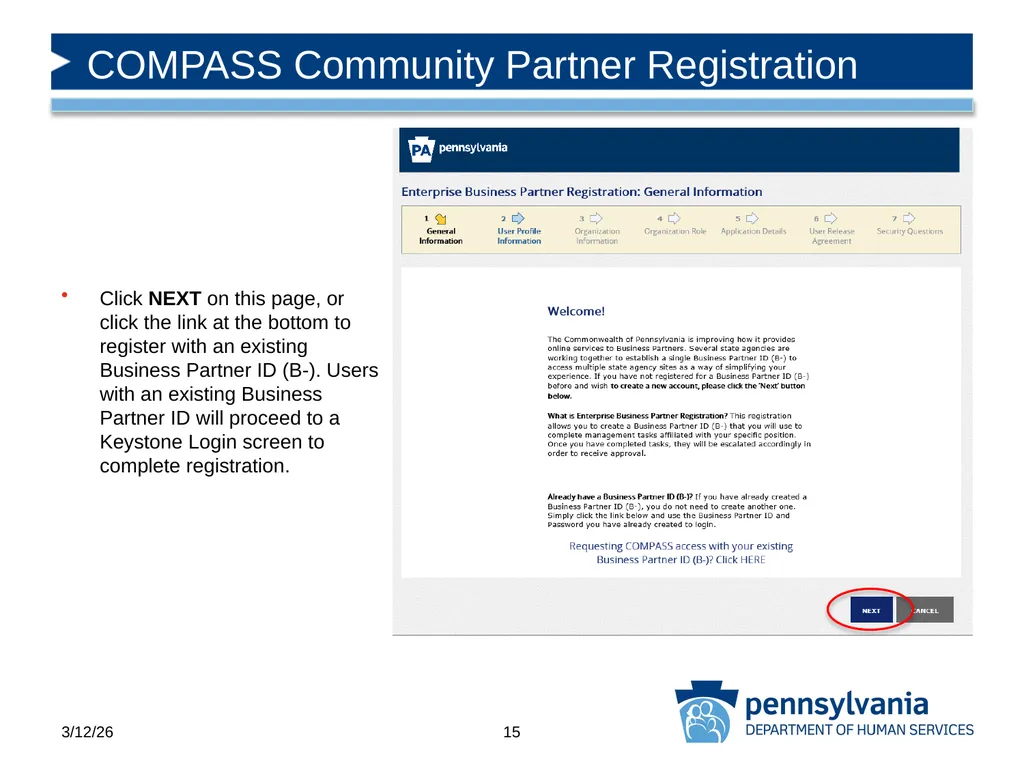
COMPASS Community Partner Registration Click NEXT on this page, or click the link at the bottom to register with an existing Business Partner ID (B-). Users with an existing Business Partner ID will proceed to a Keystone Login screen to complete registration. 15 3/12/26<br>
16
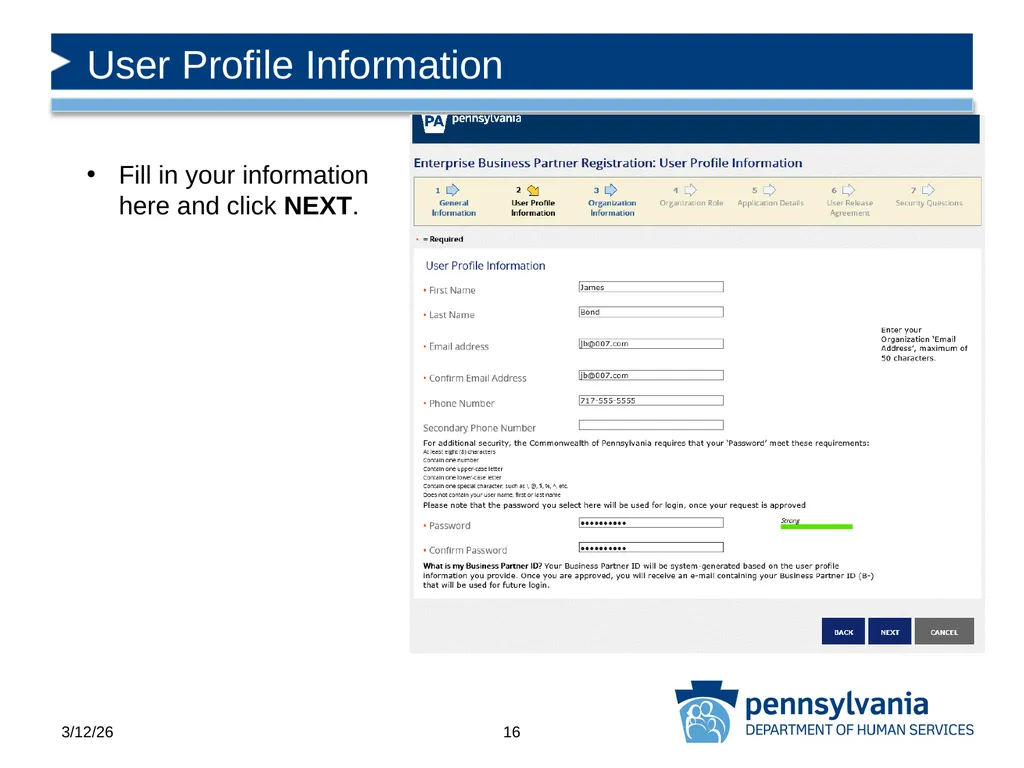
User Profile Information Fill in your information here and click NEXT. 16 3/12/26<br>
17
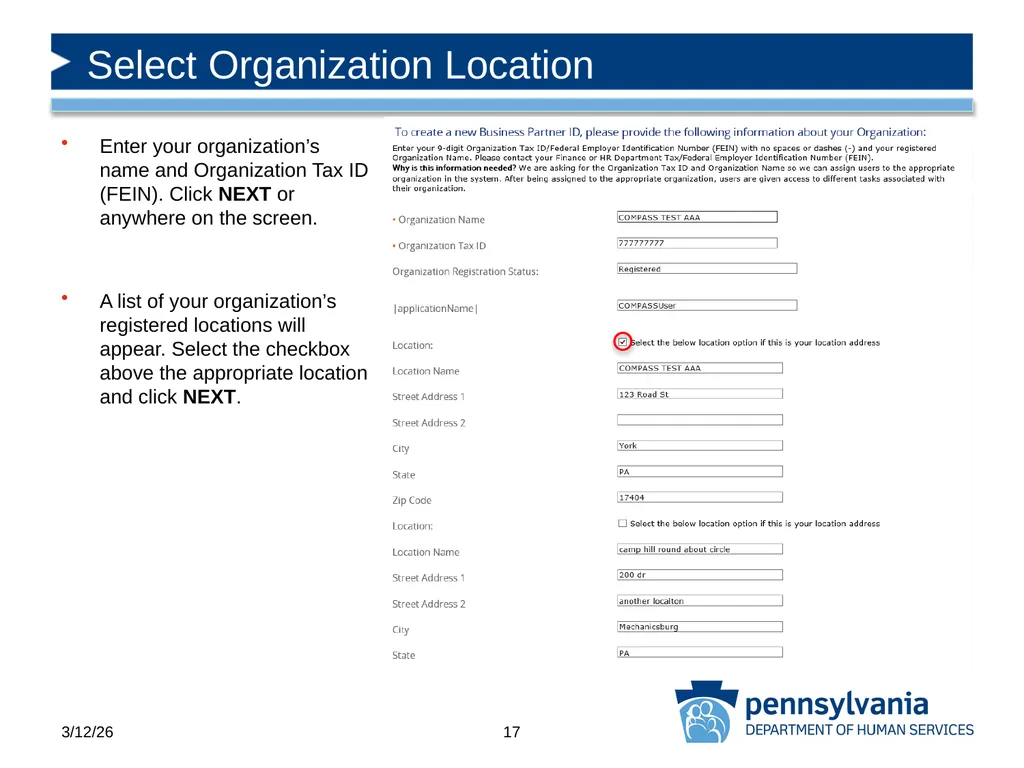
Enter your organization’s name and Organization Tax ID (FEIN). Click NEXT or anywhere on the screen.
A list of your organization’s registered locations will appear. Select the checkbox above the appropriate location and click NEXT. Select Organization Location 17 3/12/26<br>
18
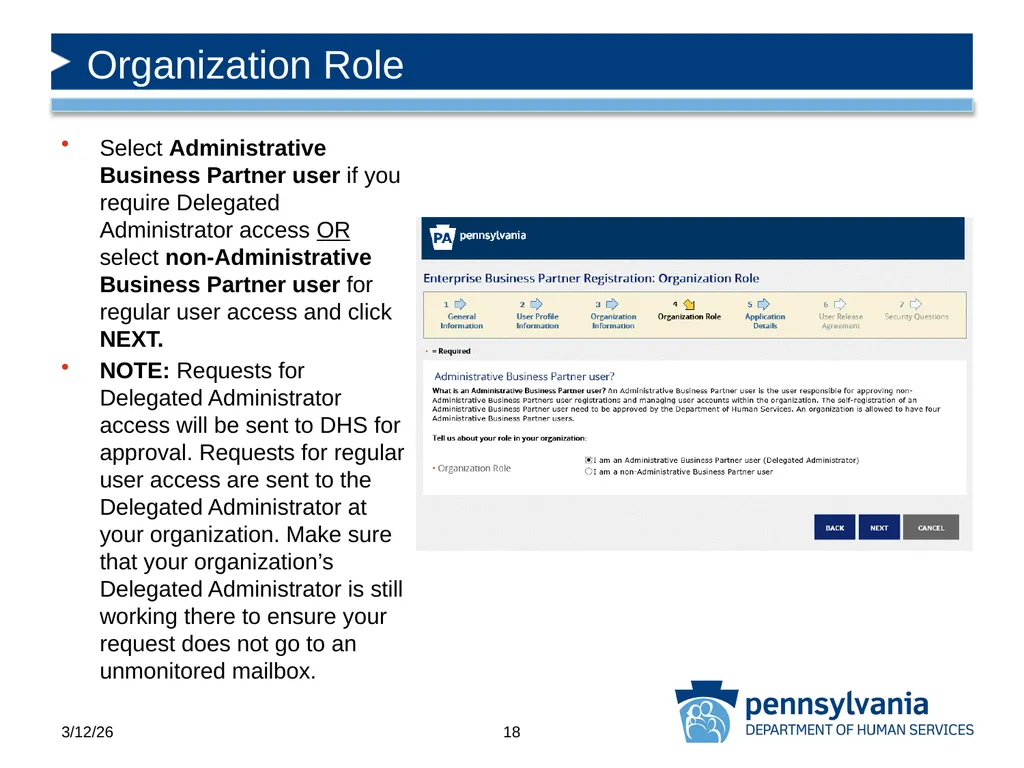
Select Administrative Business Partner user if you require Delegated Administrator access OR select non-Administrative Business Partner user for regular user access and click NEXT.
NOTE: Requests for Delegated Administrator access will be sent to DHS for approval. Requests for regular user access are sent to the Delegated Administrator at your organization. Make sure that your organization’s Delegated Administrator is still working there to ensure your request does not go to an unmonitored mailbox. Organization Role 18 3/12/26<br>
19
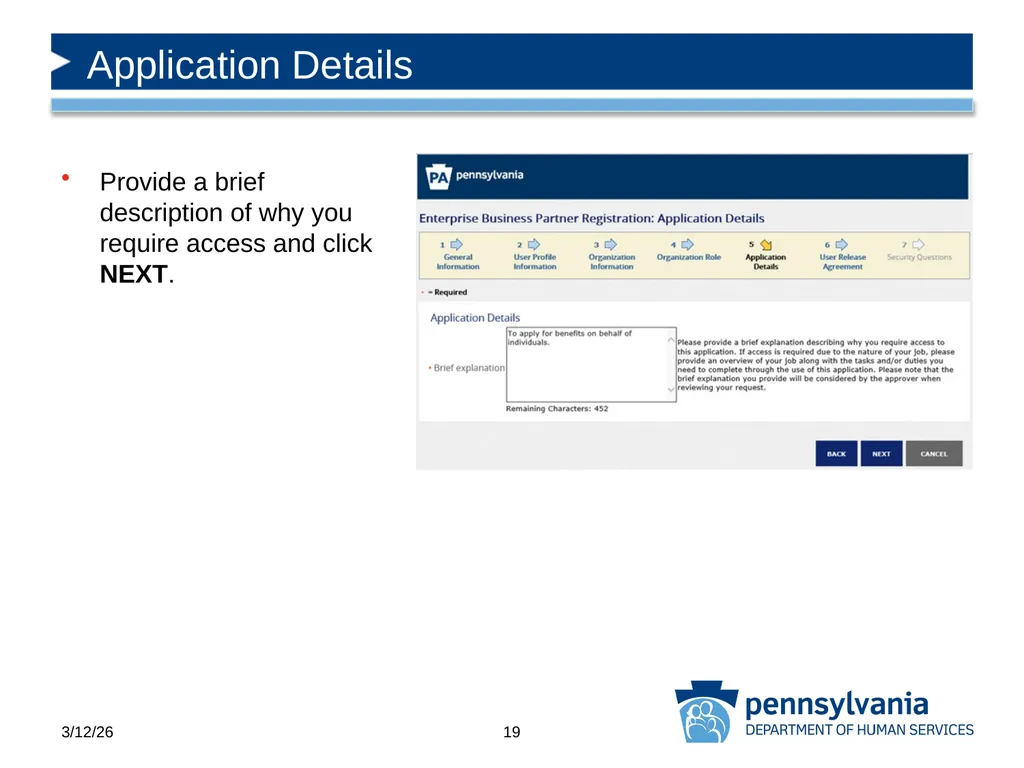
Provide a brief description of why you require access and click NEXT. Application Details 19 3/12/26<br>
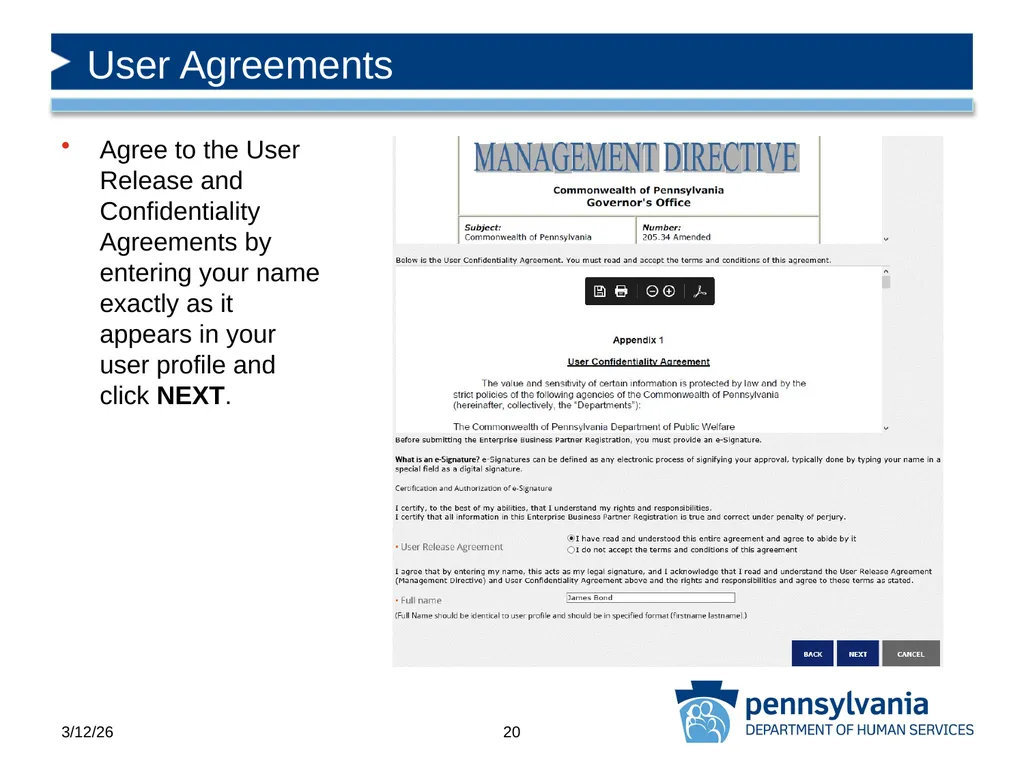
20
Agree to the User Release and Confidentiality Agreements by entering your name exactly as it appears in your user profile and click NEXT. User Agreements 20 3/12/26<br>
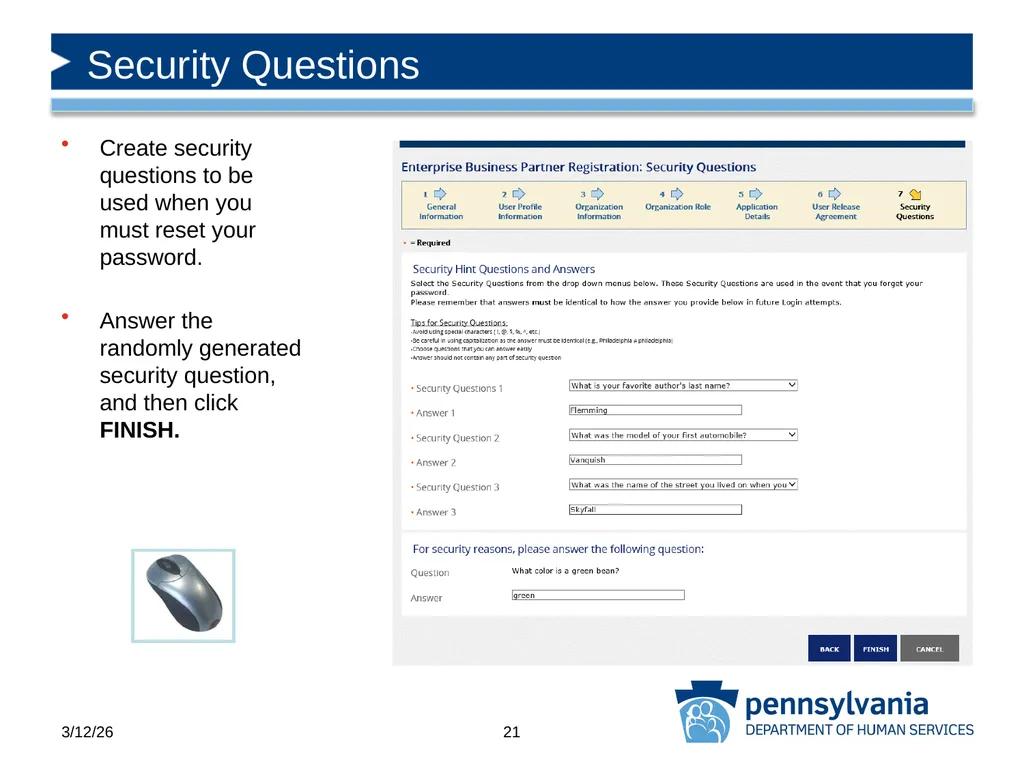
21
Create security questions to be used when you must reset your password.
Answer the randomly generated security question, and then click FINISH. Security Questions 21 3/12/26<br>
22
Business Partner ID Congratulations! Your request for COMPASS Community Partner user access has been submitted.
Once your request has been approved, you will receive an email from automatedmailDONOTREPLY@pa.gov containing your b-userID.
Once you have access, you can now return to the COMPASS Homepage and log in to your COMPASS Community Partner Account with your b-userID and the password that you chose during registration.
Remember: You can contact RA-PWCOMPASSCP@pa.gov at any time for assistance. 22 3/12/26<br>