Computer Applications Lab A folder is a storage space, or container, where many files can be placed into groups and organize the computer. A folder can also contain other folders. A file is the common storage unit in a computer, and all
"Computer Applications Lab A folder is a storage" is the property of its rightful owner. Permission is granted to
download and print the materials on this website for personal, non-commercial use only, and to display it
on your personal computer provided you do not modify the materials and that you retain all copyright
notices contained in the materials. By downloading content from our website, you accept the terms of this
agreement.
Presentation Transcript
01
Computer Applications Lab<br>
02
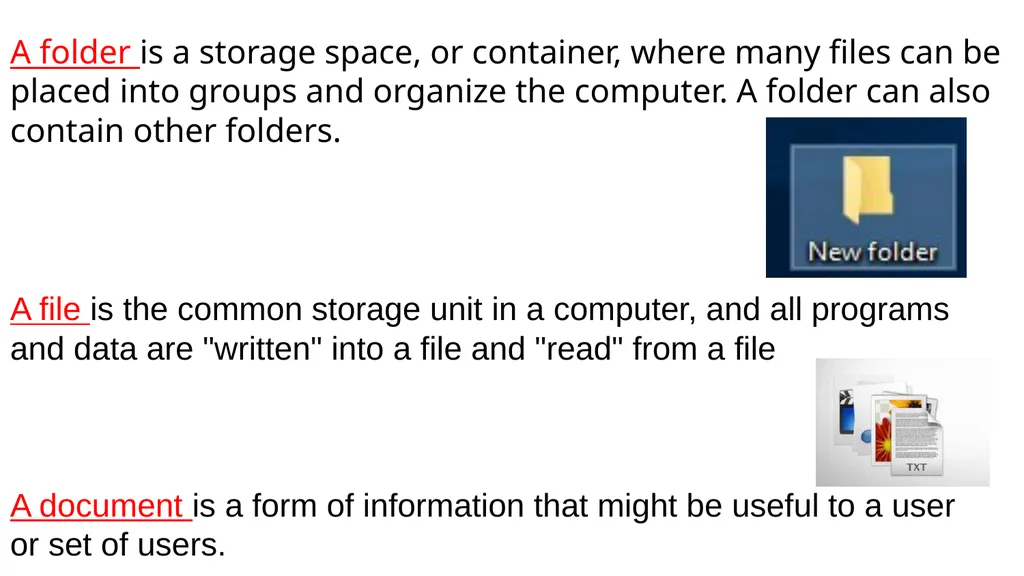
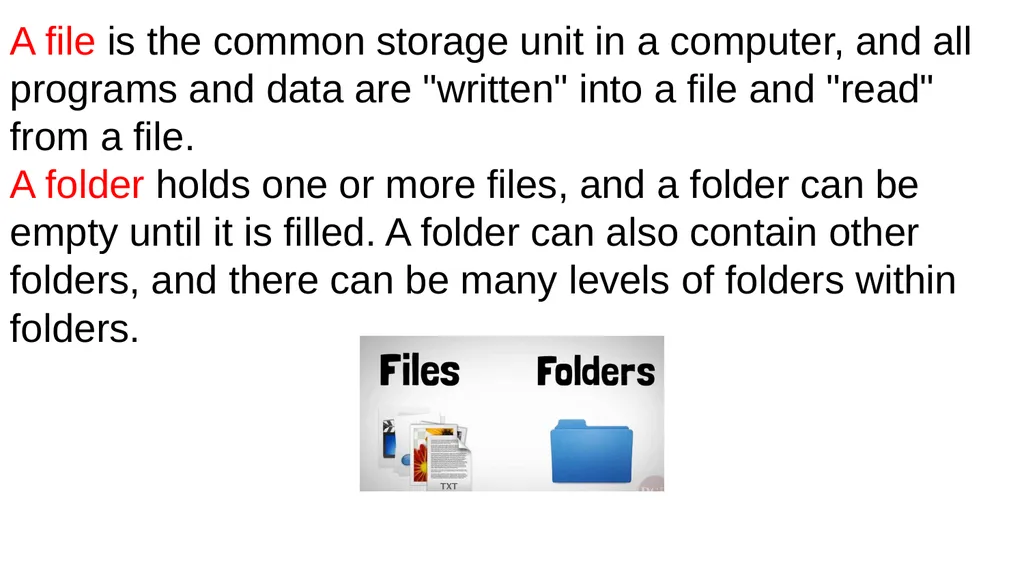
A folder is a storage space, or container, where many files can be placed into groups and organize the computer. A folder can also contain other folders. A file is the common storage unit in a computer, and all programs and data are "written" into a file and "read" from a file
A document is a form of information that might be useful to a user or set of users.<br>
03
A file is the common storage unit in a computer, and all programs and data are "written" into a file and "read" from a file.
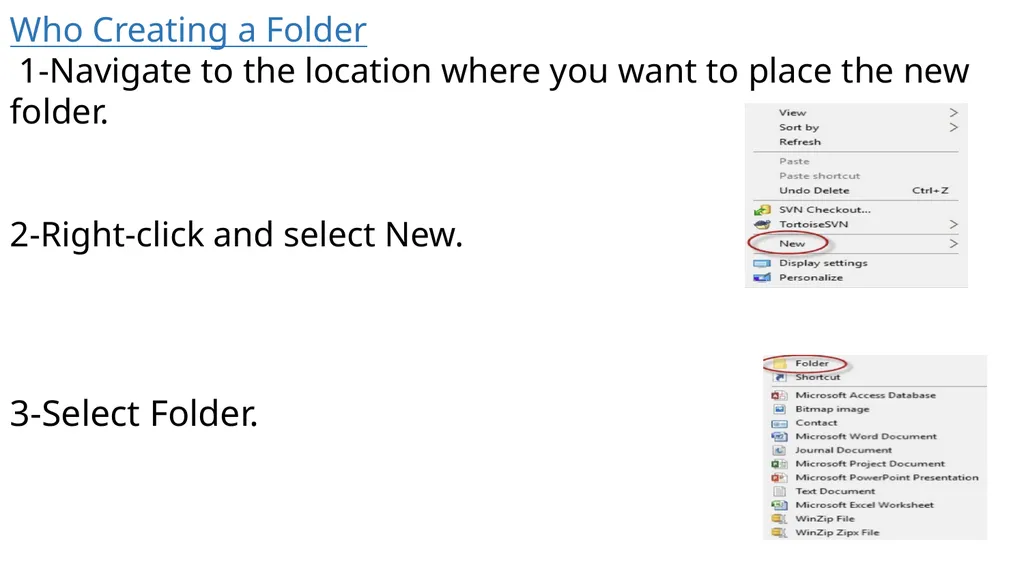
A folder holds one or more files, and a folder can be empty until it is filled. A folder can also contain other folders, and there can be many levels of folders within folders.<br>
04
Who Creating a Folder
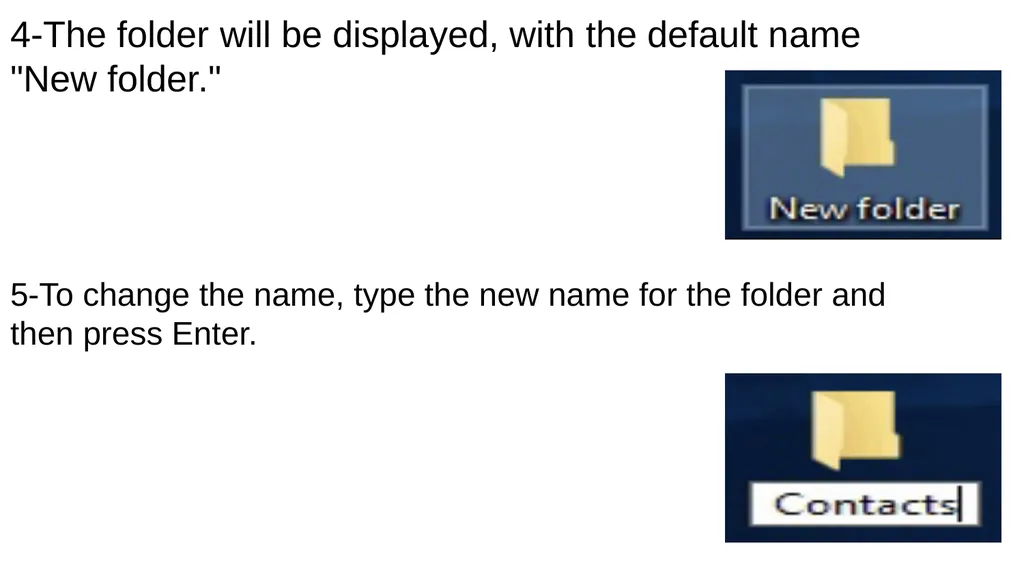
1-Navigate to the location where you want to place the new folder.
2-Right-click and select New. 3-Select Folder.<br>
05
4-The folder will be displayed, with the default name "New folder." 5-To change the name, type the new name for the folder and then press Enter.<br>
06
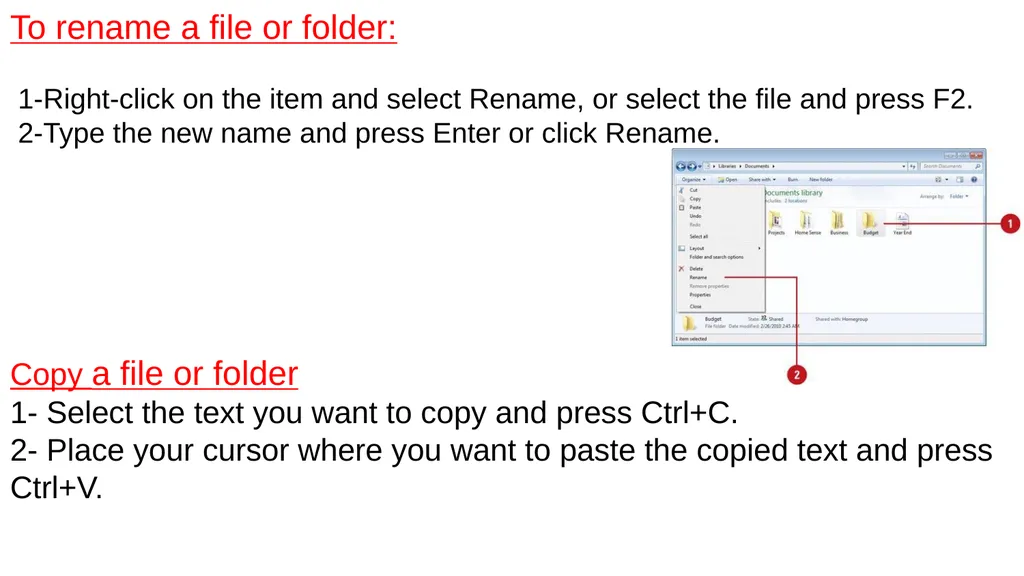
Most of the time, you will want to use a specific program to create a new file. For example, if you want to create a new Word document, you would simply open Word and it would display a new, blank document. Once you create your new file, you need to save it. Saving a New File
1-Select the Save option. 2- In the Save As dialog box, type a new file name for your file. 3-Click Save.<br>
07
Copy a file or folder
1- Select the text you want to copy and press Ctrl+C.
2- Place your cursor where you want to paste the copied text and press Ctrl+V. To rename a file or folder:
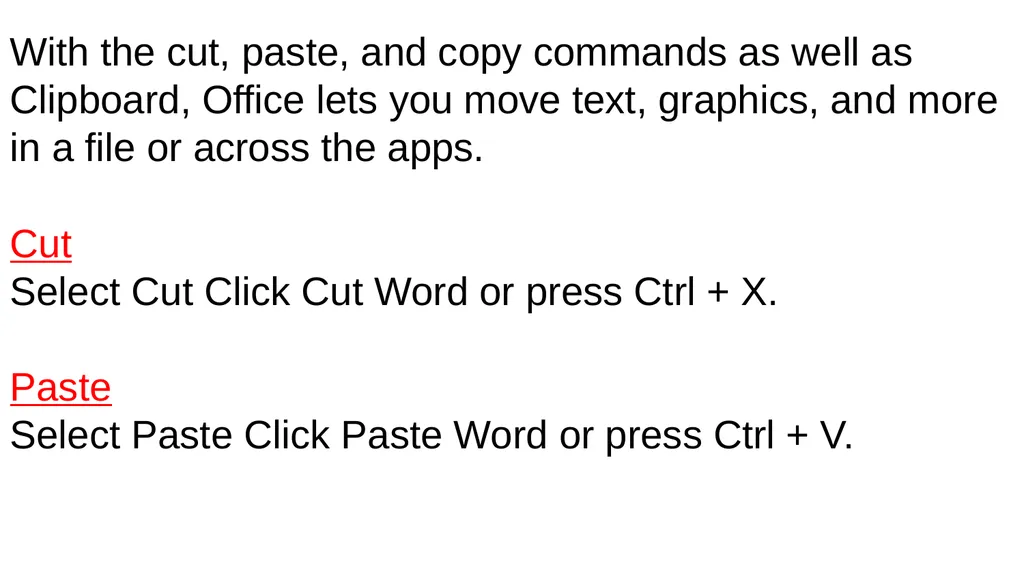
1-Right-click on the item and select Rename, or select the file and press F2.
2-Type the new name and press Enter or click Rename.<br>
08
With the cut, paste, and copy commands as well as Clipboard, Office lets you move text, graphics, and more in a file or across the apps.
Cut
Select Cut Click Cut Word or press Ctrl + X.
Paste
Select Paste Click Paste Word or press Ctrl + V.<br>
09
Sometimes called seek, a search is a function or process of finding letters, words, files, web pages, or other data. Many operating systems, programs, and websites contain a search or find feature to locate data. To only search (find) text in the web page or document you are viewing, the Ctrl+F keyboard shortcut (Command+F on Apple computers) can open the Find box. You can then type the text you want to find in the Find box.<br>
10
What is the difference between search and find?
Generally, when trying to find text in the current document or web page, it's called find. However, if you want to look for text in multiple documents or pages, it is known as a search.<br>