01
Conversion Tracking Conversion tracking allows you to measure the effectiveness of a digital campaign �by tracking actions on the site and tying them back to the campaign. CAPTURING CONVERSIONS Click Through Conversion
Ad is displayed, ad is clicked, user goes to website and completes the action. View Through Conversion
Ad is displayed, ad is NOT clicked, user still goes to website and completes the action. DESIGN YOUR STRATEGY PIXEL PLACEMENT
Is there backend access �to the site?
Can someone place the pixel?
Where will the pixel be placed? EASE OF USE
Ensure the action is easy to accomplish, The action should be uncomplicated, quick to accomplish, and non-intrusive. DEFINE THE GOAL– Identify the action to be tracked.
Is it a specific action (form fill, purchase, etc)?
Is it tracking post impression traffic to the site? CREATIVE STRATEGY
The creative should ask the user to complete the action and the landing page should take them to a place on the site that makes it easy. PLACING THE AUDIENCE PIXEL UNIVERSAL PIXEL�To use the universal pixel, allowing for multiple conversions to be tracked with one pixel, place the universal pixel in the footer across your entire site and create the rule sets in the DSP. WORD PRESS SITES
In the dashboard, select Appearance and then Editor. Select the Theme Footer, footer.php option from the list of “Theme Files.” Paste the DSP pixel into the footer.php file one line above the close body tag (</body>). STANDARD PIXEL
Place the conversion pixel in between the two body tags but not in between other pixels. Put the pixel on the pages you wish to track a conversion. This is usually the “thank you” page of the conversions but could be placed on homepage or section heads to track post impression traffic as well.<br>
02
Conversion Tracking PLACING YOUR PIXEL – THIRD PARTY WEBSITES CONTINUED Instructions for Google Tag Manager*:
Pull image pixel from Basis DSP.
Create a new tag in GTM and label it based on the type of pixel it is and where it will be located (ie – Retargeting – All Site, Conversion – Form Fill, etc.)
Click on “Choose a tag type to begin setup…”
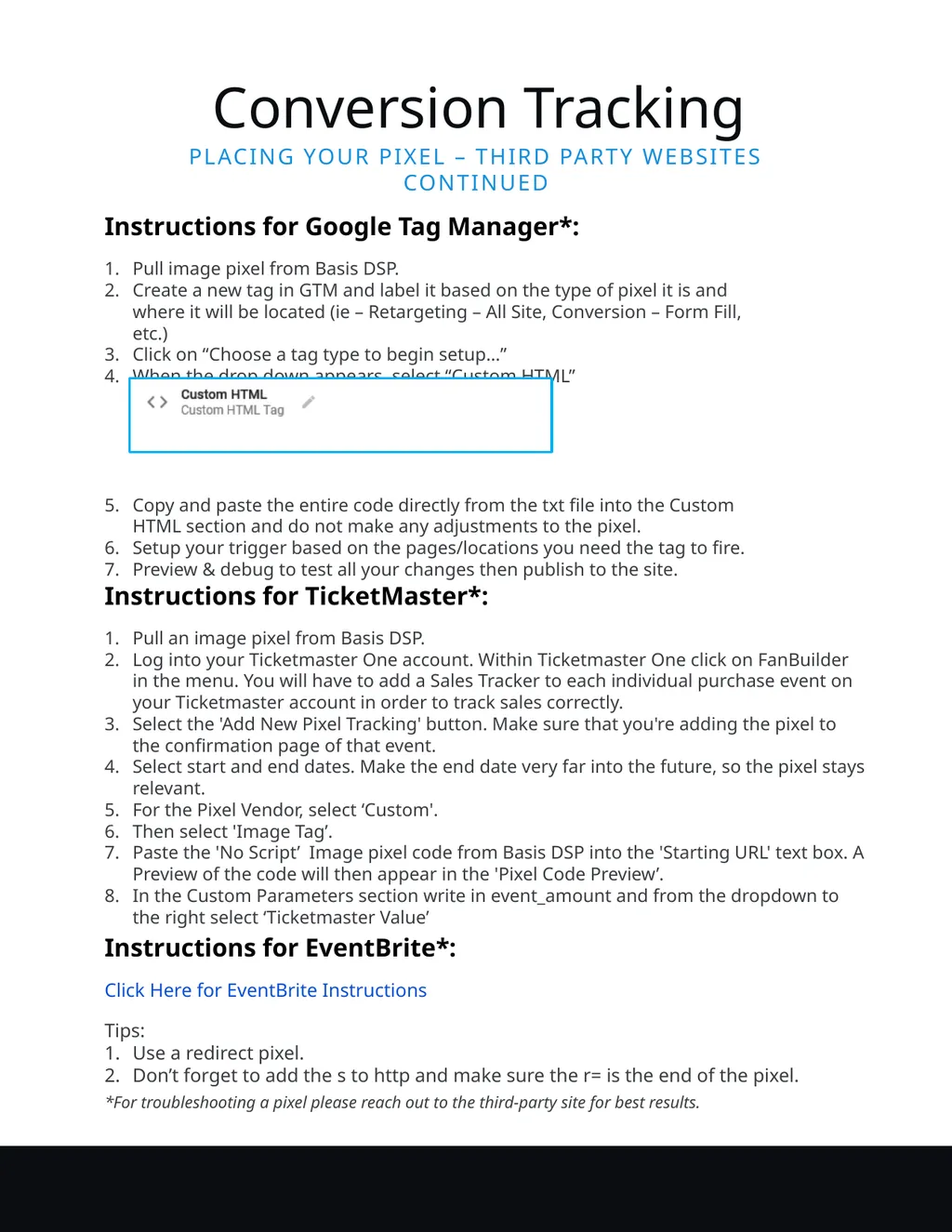
When the drop down appears, select “Custom HTML”
Copy and paste the entire code directly from the txt file into the Custom HTML section and do not make any adjustments to the pixel.
Setup your trigger based on the pages/locations you need the tag to fire.
Preview & debug to test all your changes then publish to the site. Instructions for TicketMaster*:
Pull an image pixel from Basis DSP.
Log into your Ticketmaster One account. Within Ticketmaster One click on FanBuilder in the menu. You will have to add a Sales Tracker to each individual purchase event on your Ticketmaster account in order to track sales correctly.
Select the 'Add New Pixel Tracking' button. Make sure that you're adding the pixel to the confirmation page of that event.
Select start and end dates. Make the end date very far into the future, so the pixel stays relevant.
For the Pixel Vendor, select ‘Custom'.
Then select 'Image Tag’.
Paste the 'No Script’ Image pixel code from Basis DSP into the 'Starting URL' text box. A Preview of the code will then appear in the 'Pixel Code Preview’.
In the Custom Parameters section write in event_amount and from the dropdown to the right select ‘Ticketmaster Value’ Instructions for EventBrite*:
Click Here for EventBrite Instructions
Tips:
Use a redirect pixel.
Don’t forget to add the s to http and make sure the r= is the end of the pixel. *For troubleshooting a pixel please reach out to the third-party site for best results.<br>