Creating Custom Metadata Starter Creating Calculated Fields Understanding Metadata Discovery Center collects a wide range of metadata Basic metadata comes from the properties of a file Extraction rules collect metadata from text contents
"Creating Custom Metadata Starter Creating" is the property of its rightful owner. Permission is granted to
download and print the materials on this website for personal, non-commercial use only, and to display it
on your personal computer provided you do not modify the materials and that you retain all copyright
notices contained in the materials. By downloading content from our website, you accept the terms of this
agreement.
Understanding Metadata Discovery Center collects a wide range of metadata
Basic metadata comes from the properties of a file
Extraction rules collect metadata from text contents and other sources
Calculated fields are used to collect metadata and tag files for practical uses such as
Identifying files for cleansing
Matching files against records classes
Highlighting files with potentially sensitive data<br>
03
MD1 Terminology Metadata
Labels which describe the contents, value, purpose and other attributes of a file
Metadata is added to electronic content as tags to support its management, protection, use or exploitation
Calculated fields
Discovery Center extracts and stores metadata in calculated fields
Each calculated field is named to match a metadata attribute
Fields may be used to report on content or tag file migrated to a suitable repository
Extraction rules
Extraction rules define how Discovery Center extracts metadata values from a file or repository
The results from extraction rules are written into calculated fields for storage and re-use<br>
04
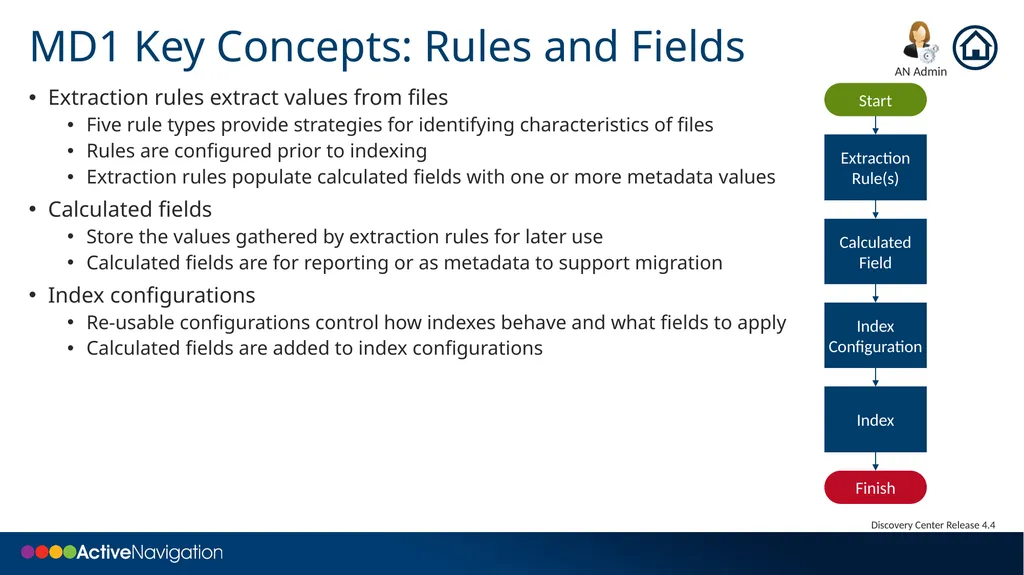
MD1 Key Concepts: Rules and Fields Extraction rules extract values from files
Five rule types provide strategies for identifying characteristics of files
Rules are configured prior to indexing
Extraction rules populate calculated fields with one or more metadata values
Calculated fields
Store the values gathered by extraction rules for later use
Calculated fields are for reporting or as metadata to support migration
Index configurations
Re-usable configurations control how indexes behave and what fields to apply
Calculated fields are added to index configurations Start Extraction Rule(s) Calculated Field Index Configuration Finish Index<br>
05
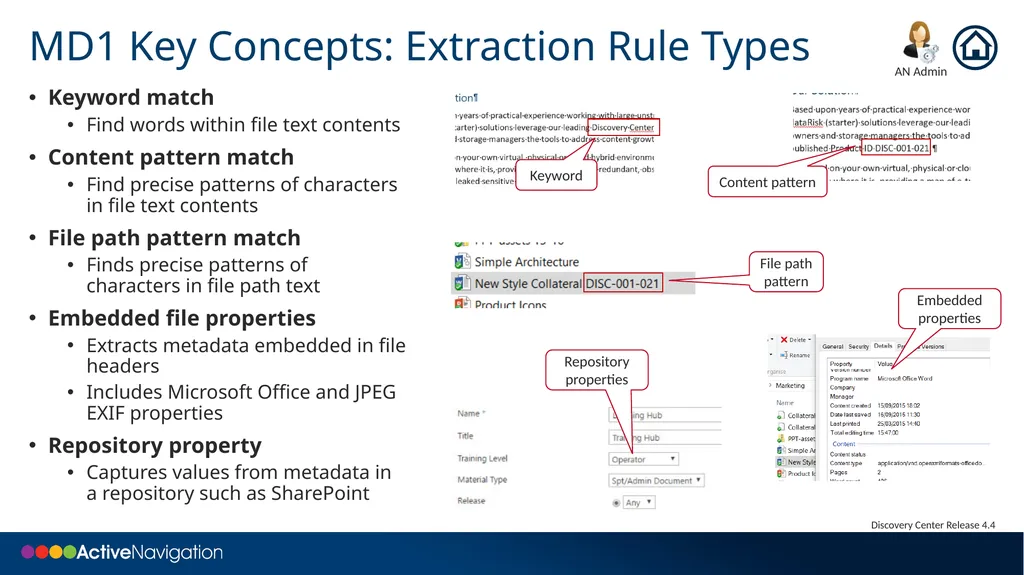
MD1 Key Concepts: Extraction Rule Types Keyword match
Find words within file text contents
Content pattern match
Find precise patterns of characters in file text contents
File path pattern match
Finds precise patterns of characters in file path text
Embedded file properties
Extracts metadata embedded in file headers
Includes Microsoft Office and JPEG EXIF properties
Repository property
Captures values from metadata in a repository such as SharePoint<br>
06
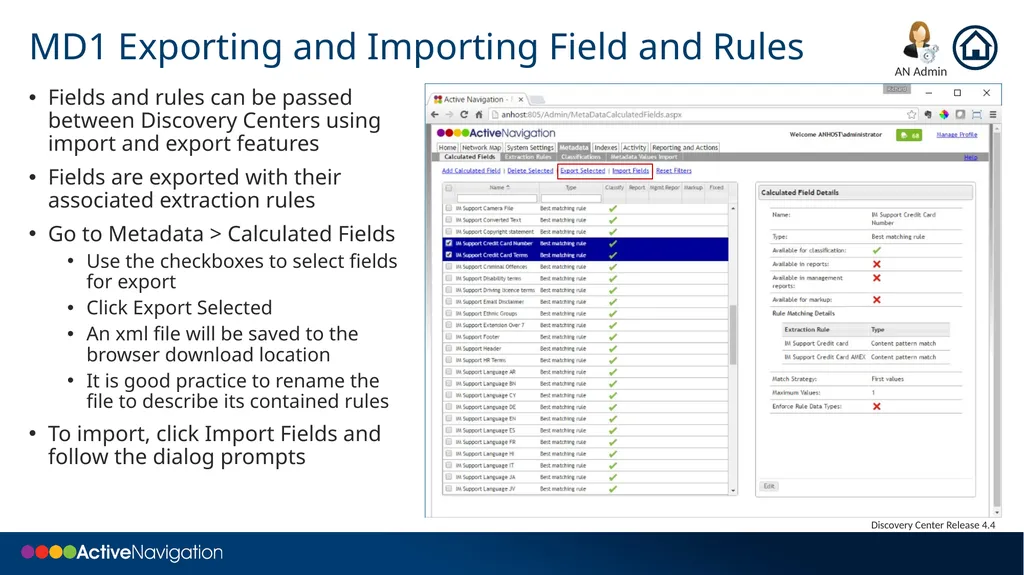
MD1 Exporting and Importing Field and Rules Fields and rules can be passed between Discovery Centers using import and export features
Fields are exported with their associated extraction rules
Go to Metadata > Calculated Fields
Use the checkboxes to select fields for export
Click Export Selected
An xml file will be saved to the browser download location
It is good practice to rename the file to describe its contained rules
To import, click Import Fields and follow the dialog prompts<br>
07
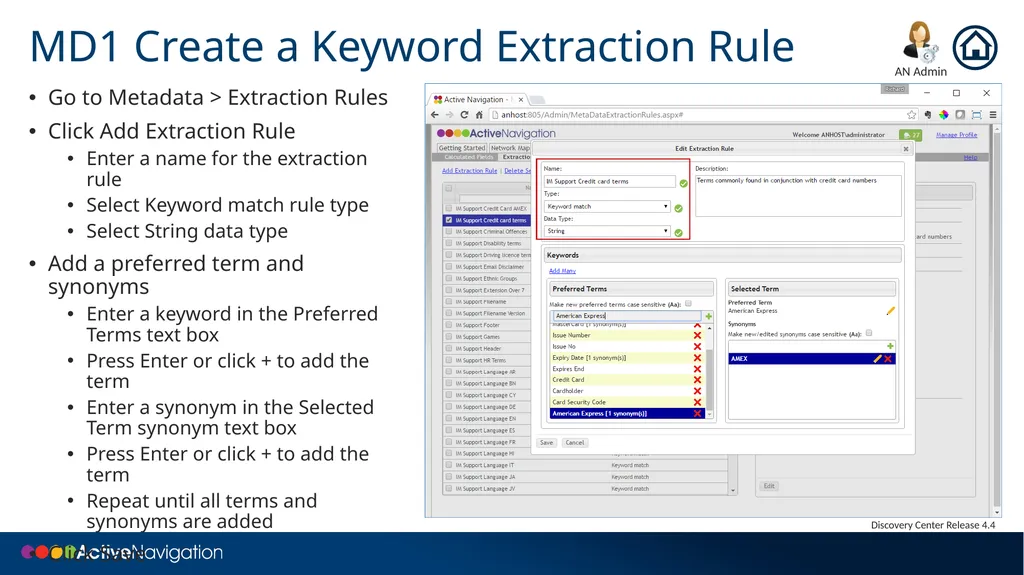
MD1 Create a Keyword Extraction Rule Go to Metadata > Extraction Rules
Click Add Extraction Rule
Enter a name for the extraction rule
Select Keyword match rule type
Select String data type
Add a preferred term and synonyms
Enter a keyword in the Preferred Terms text box
Press Enter or click + to add the term
Enter a synonym in the Selected Term synonym text box
Press Enter or click + to add the term
Repeat until all terms and synonyms are added
Click Save<br>
08
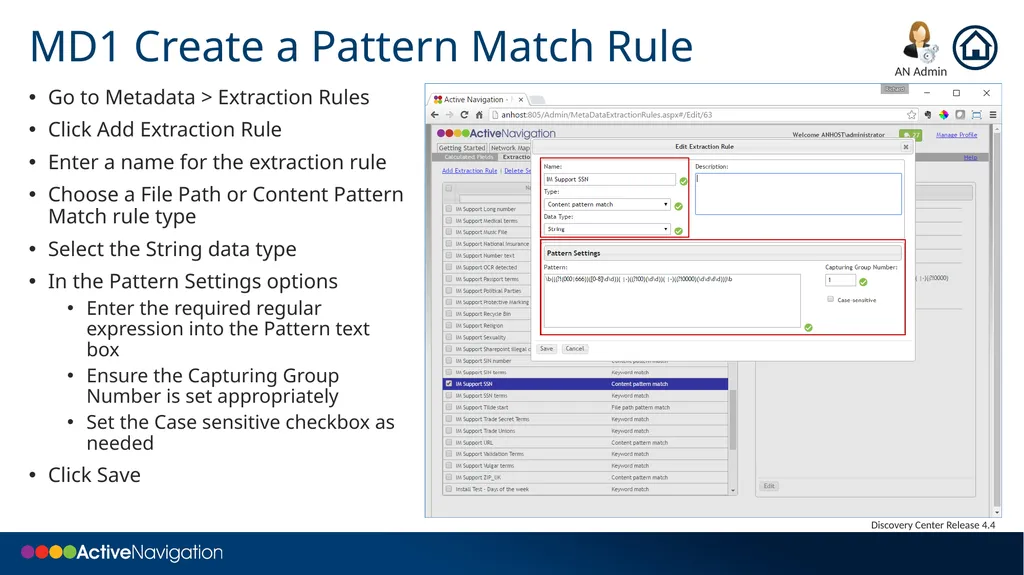
MD1 Create a Pattern Match Rule Go to Metadata > Extraction Rules
Click Add Extraction Rule
Enter a name for the extraction rule
Choose a File Path or Content Pattern Match rule type
Select the String data type
In the Pattern Settings options
Enter the required regular expression into the Pattern text box
Ensure the Capturing Group Number is set appropriately
Set the Case sensitive checkbox as needed
Click Save<br>
09
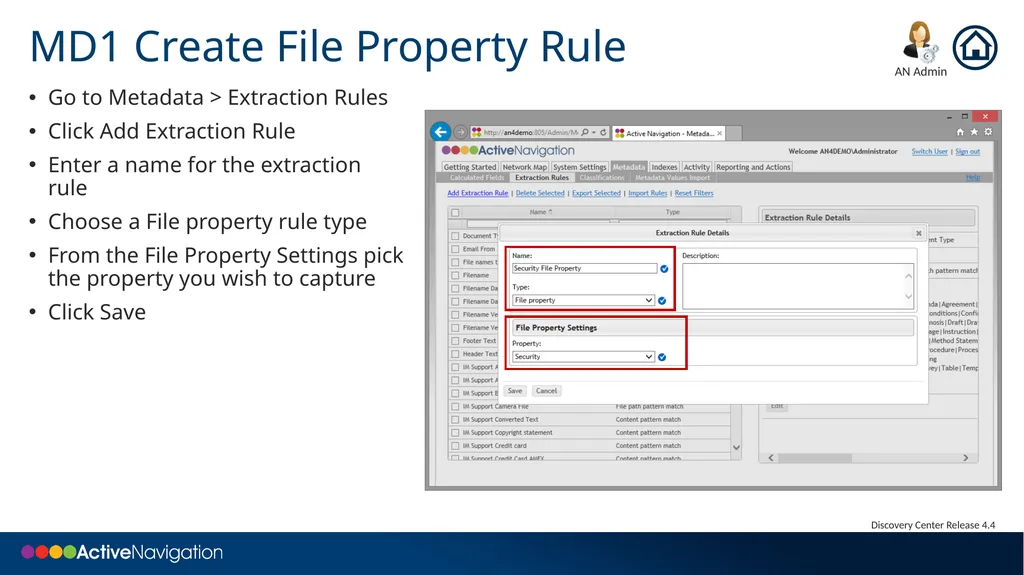
MD1 Create File Property Rule Go to Metadata > Extraction Rules
Click Add Extraction Rule
Enter a name for the extraction rule
Choose a File property rule type
From the File Property Settings pick the property you wish to capture
Click Save<br>
10
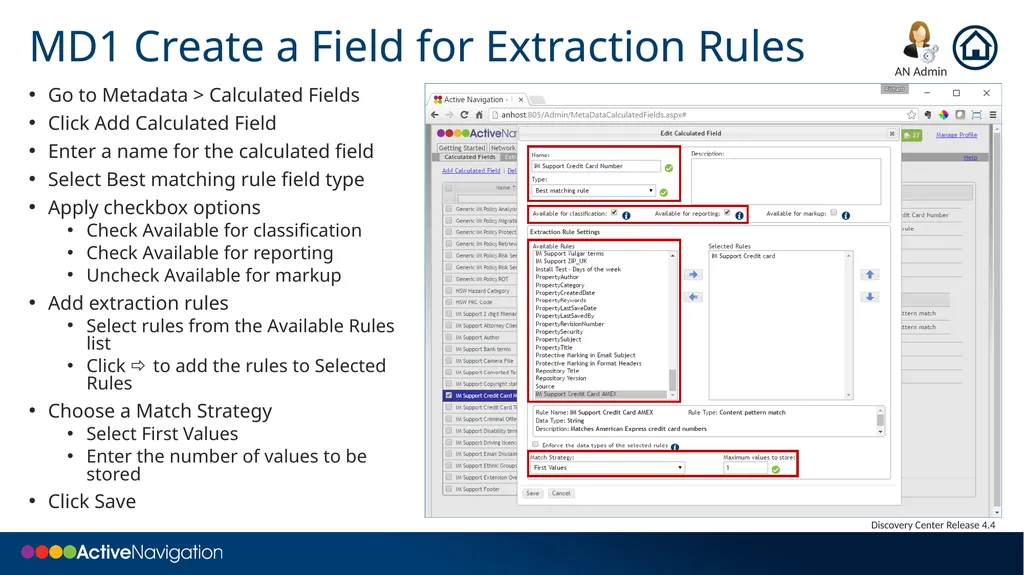
MD1 Create a Field for Extraction Rules Go to Metadata > Calculated Fields
Click Add Calculated Field
Enter a name for the calculated field
Select Best matching rule field type
Apply checkbox options
Check Available for classification
Check Available for reporting
Uncheck Available for markup
Add extraction rules
Select rules from the Available Rules list
Click to add the rules to Selected Rules
Choose a Match Strategy
Select First Values
Enter the number of values to be stored
Click Save<br>
11
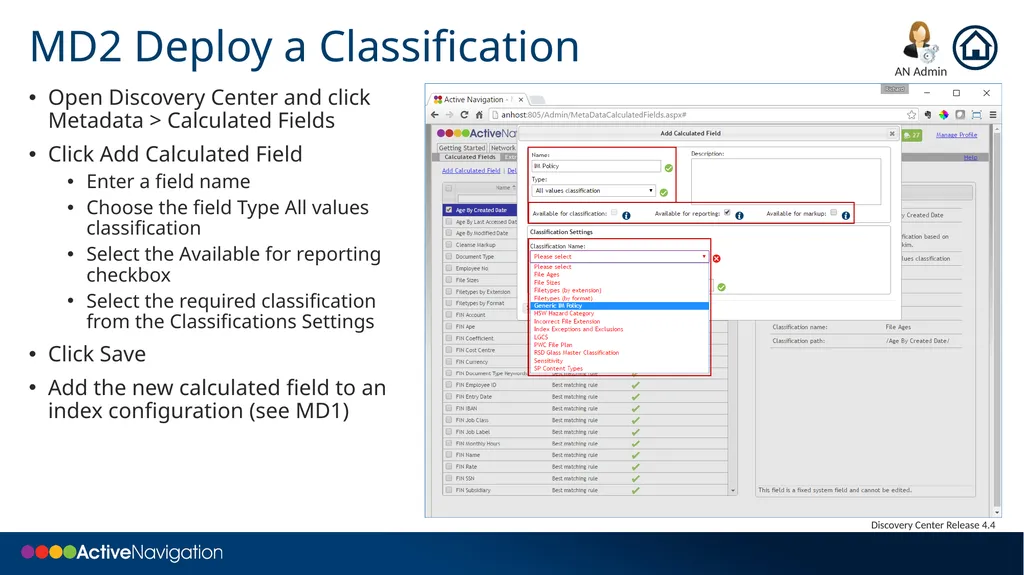
MD2 Deploy a Classification Open Discovery Center and click Metadata > Calculated Fields
Click Add Calculated Field
Enter a field name
Choose the field Type All values classification
Select the Available for reporting checkbox
Select the required classification from the Classifications Settings
Click Save
Add the new calculated field to an index configuration (see MD1)<br>
12
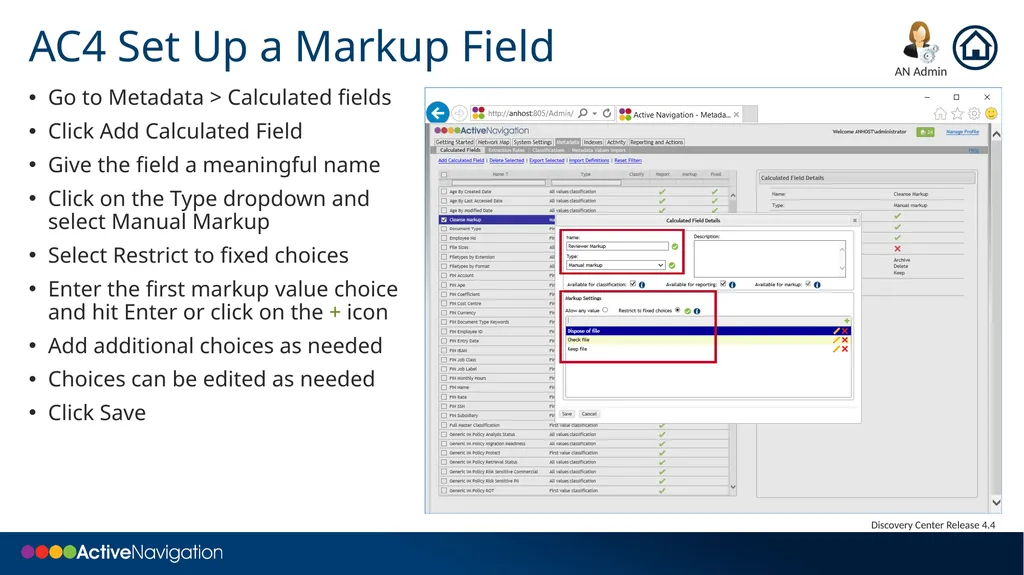
AC4 Set Up a Markup Field Go to Metadata > Calculated fields
Click Add Calculated Field
Give the field a meaningful name
Click on the Type dropdown and select Manual Markup
Select Restrict to fixed choices
Enter the first markup value choice and hit Enter or click on the + icon
Add additional choices as needed
Choices can be edited as needed
Click Save<br>