
E-Tutorial on TDS/TCS Return Preparation Utility
MY
Published · 74 slides · 0 views
1 / 1
Description
E-Tutorial on TDSTCS Return Preparation Utility (RPU) Protean eGov Technologies Limited 1 Table of Content 2 Protean Return Preparation Utility (RPU) based on (JAVA platform) is a freely downloadable utility. e-TDSTCS Regular Correction
Related Topics
Share
Embed code
Download this presentation From Below
"E-Tutorial on TDS/TCS Return Preparation Utility" is the property of its rightful owner. Permission is granted to download and print the materials on this website for personal, non-commercial use only, and to display it on your personal computer provided you do not modify the materials and that you retain all copyright notices contained in the materials. By downloading content from our website, you accept the terms of this agreement.
Presentation Transcript
01
E-Tutorial on TDS/TCS Return Preparation Utility (RPU) Protean eGov Technologies Limited 1<br>
02
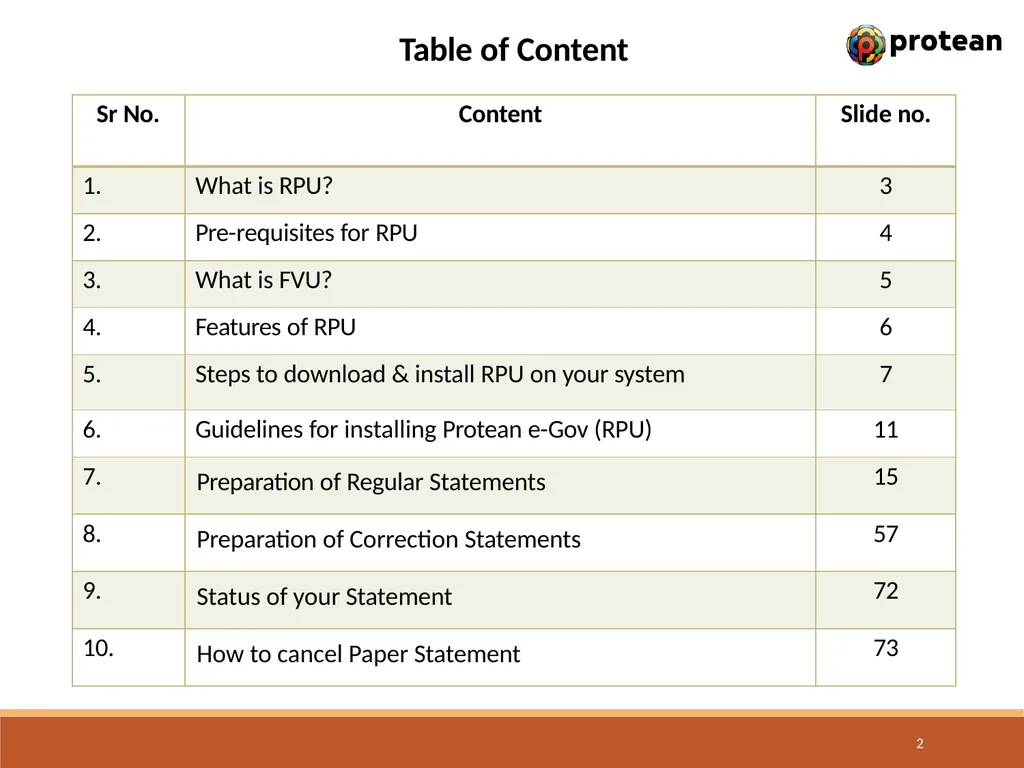
Table of Content 2<br>
03
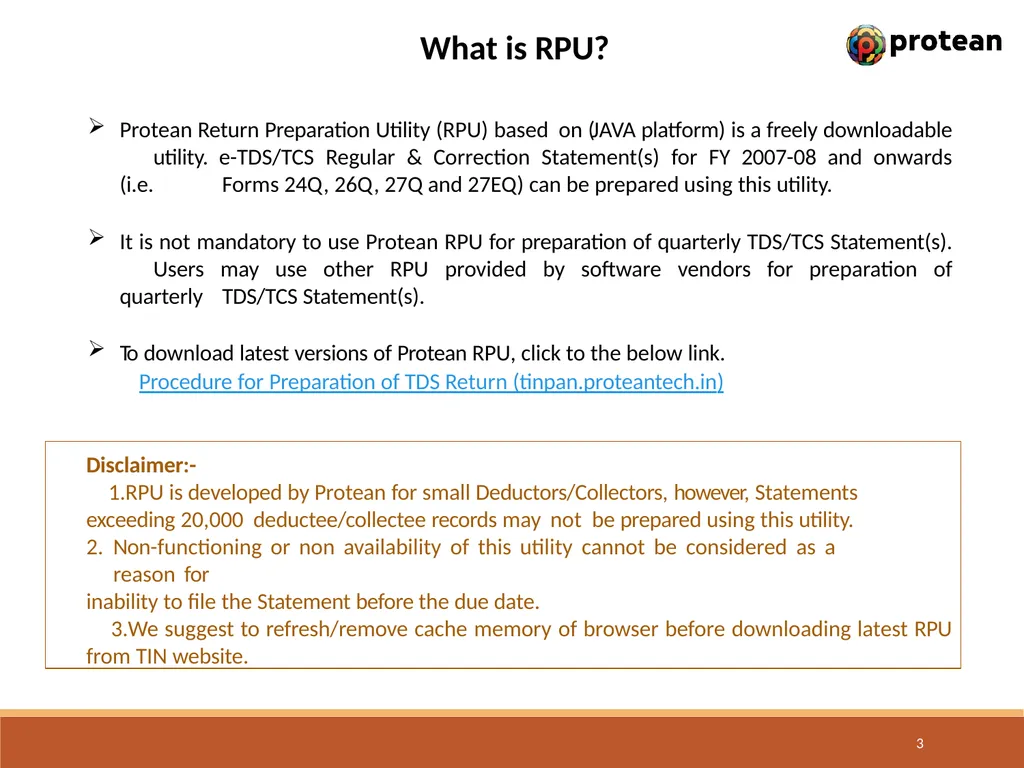
Protean Return Preparation Utility (RPU) based on (JAVA platform) is a freely downloadable utility. e-TDS/TCS Regular & Correction Statement(s) for FY 2007-08 and onwards (i.e. Forms 24Q, 26Q, 27Q and 27EQ) can be prepared using this utility.
It is not mandatory to use Protean RPU for preparation of quarterly TDS/TCS Statement(s). Users may use other RPU provided by software vendors for preparation of quarterly TDS/TCS Statement(s).
To download latest versions of Protean RPU, click to the below link.
Procedure for Preparation of TDS Return (tinpan.proteantech.in) 3 Disclaimer:-
RPU is developed by Protean for small Deductors/Collectors, however, Statements exceeding 20,000 deductee/collectee records may not be prepared using this utility.
Non-functioning or non availability of this utility cannot be considered as a reason for
inability to file the Statement before the due date.
We suggest to refresh/remove cache memory of browser before downloading latest RPU from TIN website. What is RPU?<br>
It is not mandatory to use Protean RPU for preparation of quarterly TDS/TCS Statement(s). Users may use other RPU provided by software vendors for preparation of quarterly TDS/TCS Statement(s).
To download latest versions of Protean RPU, click to the below link.
Procedure for Preparation of TDS Return (tinpan.proteantech.in) 3 Disclaimer:-
RPU is developed by Protean for small Deductors/Collectors, however, Statements exceeding 20,000 deductee/collectee records may not be prepared using this utility.
Non-functioning or non availability of this utility cannot be considered as a reason for
inability to file the Statement before the due date.
We suggest to refresh/remove cache memory of browser before downloading latest RPU from TIN website. What is RPU?<br>
04
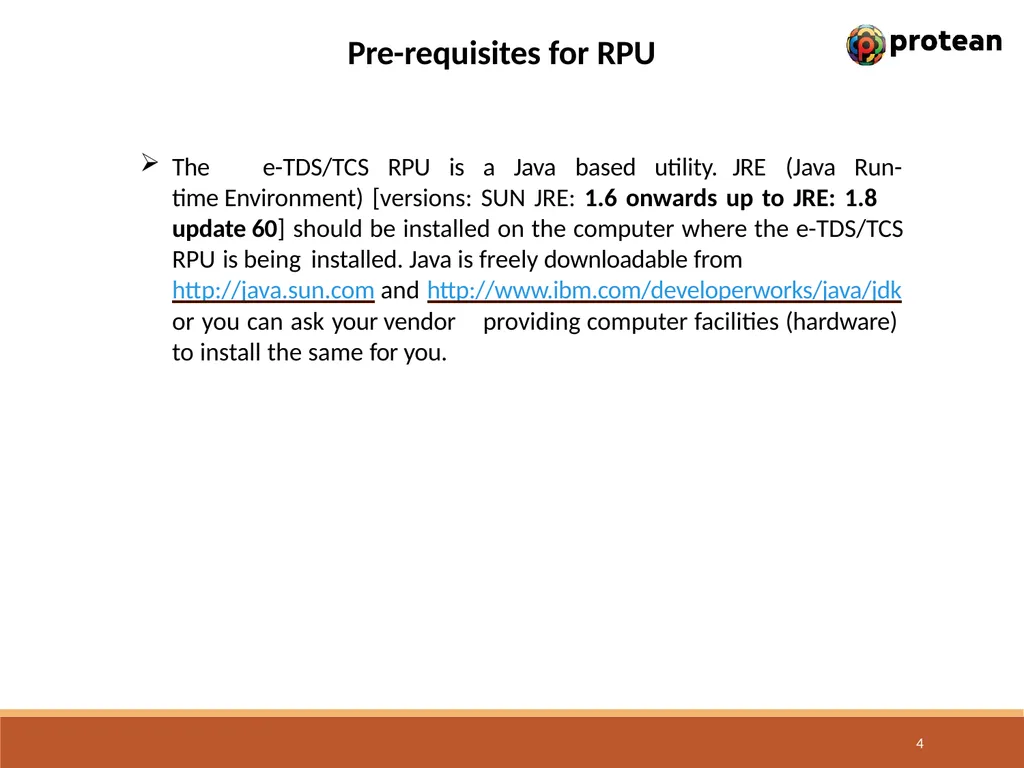
The e-TDS/TCS RPU is a Java based utility. JRE (Java Run-time Environment) [versions: SUN JRE: 1.6 onwards up to JRE: 1.8 update 60] should be installed on the computer where the e-TDS/TCS RPU is being installed. Java is freely downloadable from http://java.sun.com and http://www.ibm.com/developerworks/java/jdk or you can ask your vendor providing computer facilities (hardware) to install the same for you. 4 Pre-requisites for RPU<br>
05
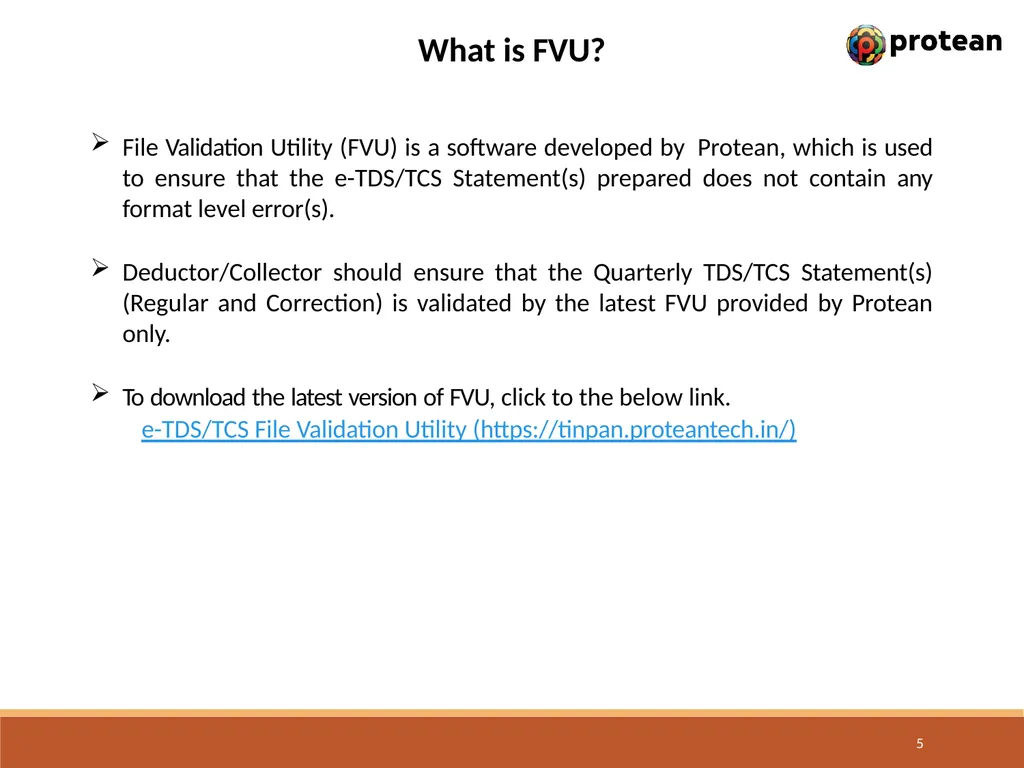
File Validation Utility (FVU) is a software developed by Protean, which is used to ensure that the e-TDS/TCS Statement(s) prepared does not contain any format level error(s).
Deductor/Collector should ensure that the Quarterly TDS/TCS Statement(s) (Regular and Correction) is validated by the latest FVU provided by Protean only.
To download the latest version of FVU, click to the below link.
e-TDS/TCS File Validation Utility (https://tinpan.proteantech.in/) 5 What is FVU?<br>
Deductor/Collector should ensure that the Quarterly TDS/TCS Statement(s) (Regular and Correction) is validated by the latest FVU provided by Protean only.
To download the latest version of FVU, click to the below link.
e-TDS/TCS File Validation Utility (https://tinpan.proteantech.in/) 5 What is FVU?<br>
06
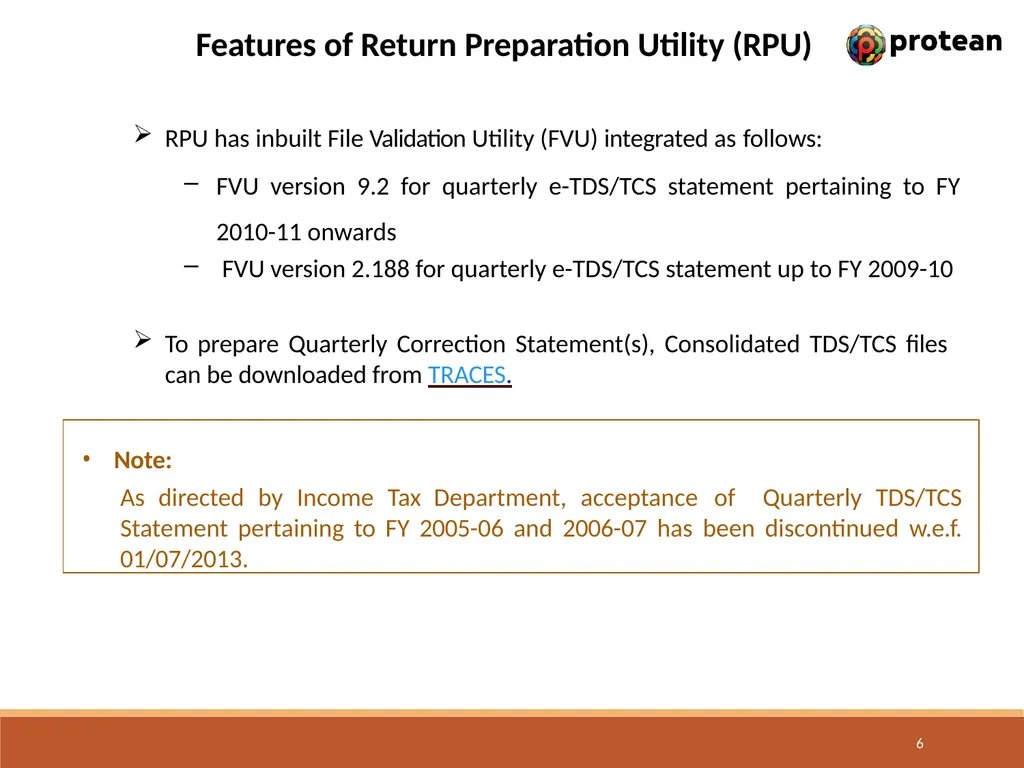
RPU has inbuilt File Validation Utility (FVU) integrated as follows:
FVU version 9.2 for quarterly e-TDS/TCS statement pertaining to FY 2010-11 onwards
FVU version 2.188 for quarterly e-TDS/TCS statement up to FY 2009-10
To prepare Quarterly Correction Statement(s), Consolidated TDS/TCS files can be downloaded from TRACES. 6 Note:
As directed by Income Tax Department, acceptance of Quarterly TDS/TCS Statement pertaining to FY 2005-06 and 2006-07 has been discontinued w.e.f. 01/07/2013. Features of Return Preparation Utility (RPU)<br>
FVU version 9.2 for quarterly e-TDS/TCS statement pertaining to FY 2010-11 onwards
FVU version 2.188 for quarterly e-TDS/TCS statement up to FY 2009-10
To prepare Quarterly Correction Statement(s), Consolidated TDS/TCS files can be downloaded from TRACES. 6 Note:
As directed by Income Tax Department, acceptance of Quarterly TDS/TCS Statement pertaining to FY 2005-06 and 2006-07 has been discontinued w.e.f. 01/07/2013. Features of Return Preparation Utility (RPU)<br>
07
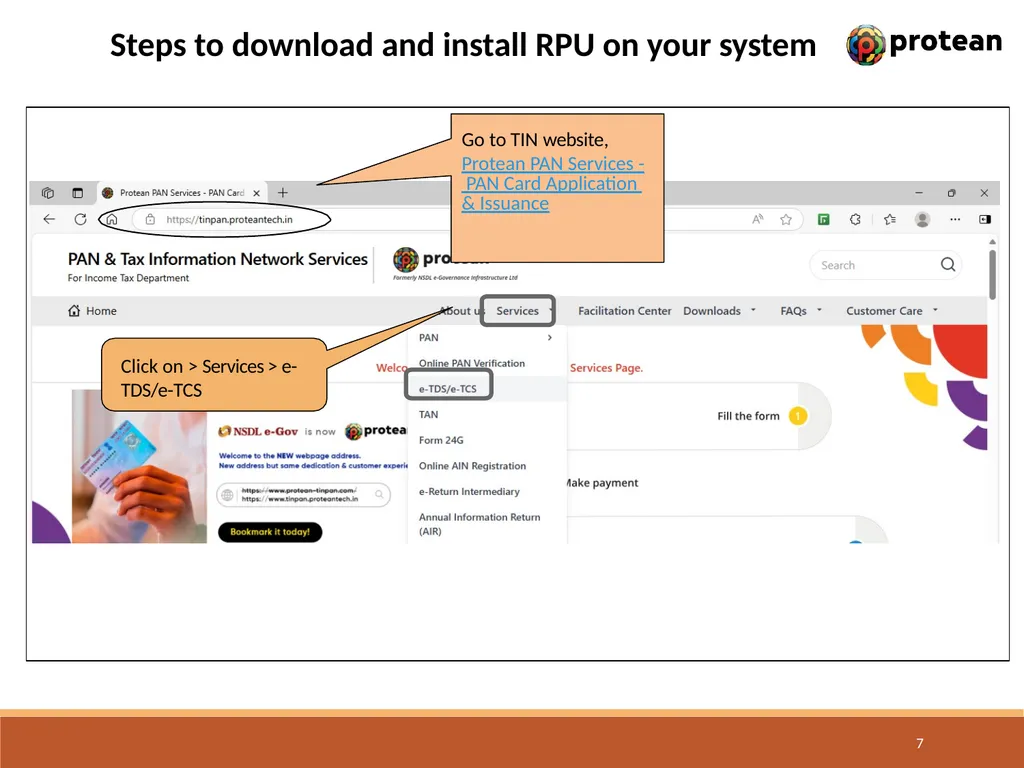
Steps to download and install RPU on your system Click on > Services > e- TDS/e-TCS 7 Go to TIN website, Protean PAN Services - PAN Card Application & Issuance<br>
08
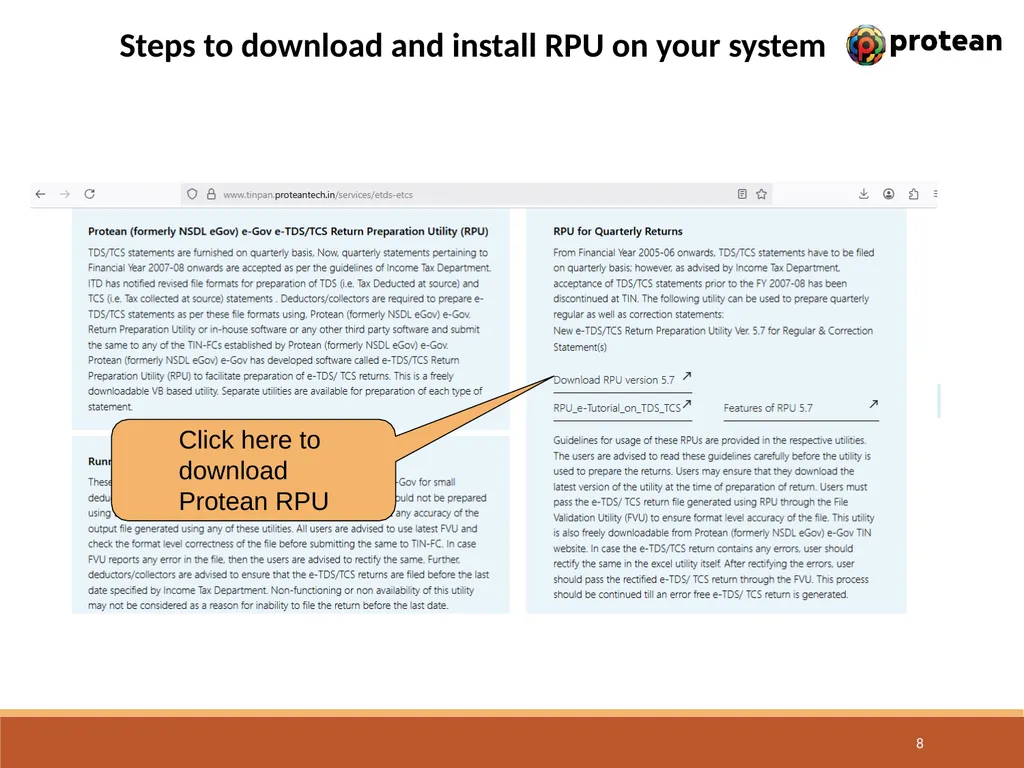
Steps to download and install RPU on your system Click to download Protean RPU 8 Click here to download Protean RPU<br>
09
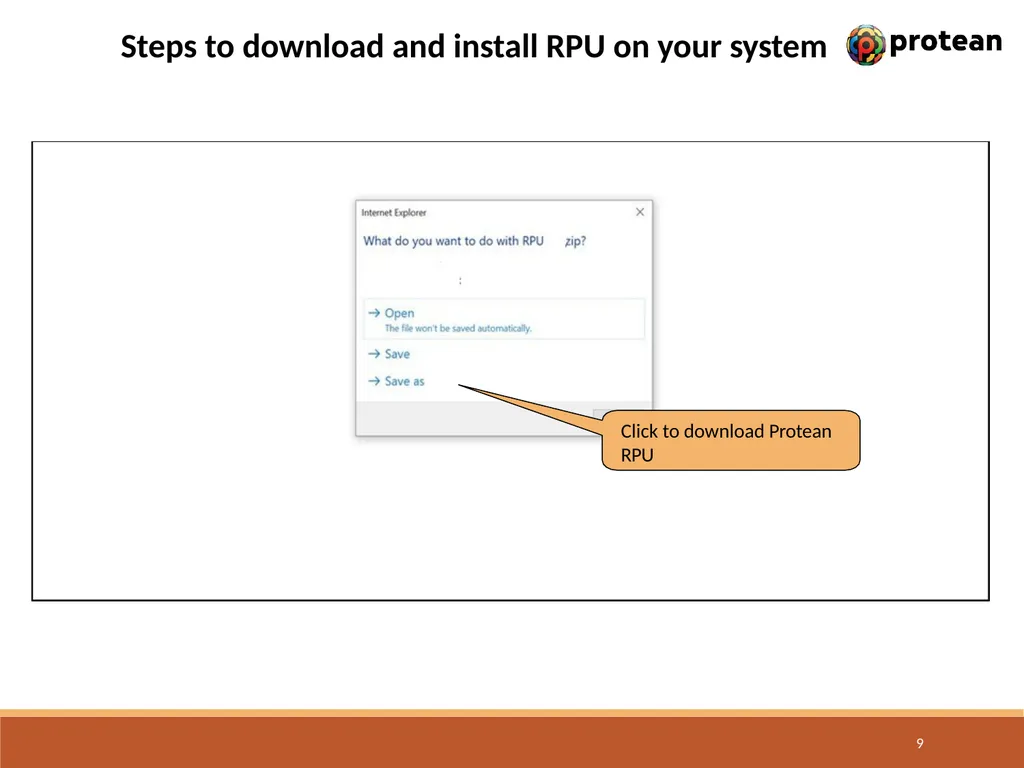
Steps to download and install RPU on your system Click to download Protean RPU 9<br>
10
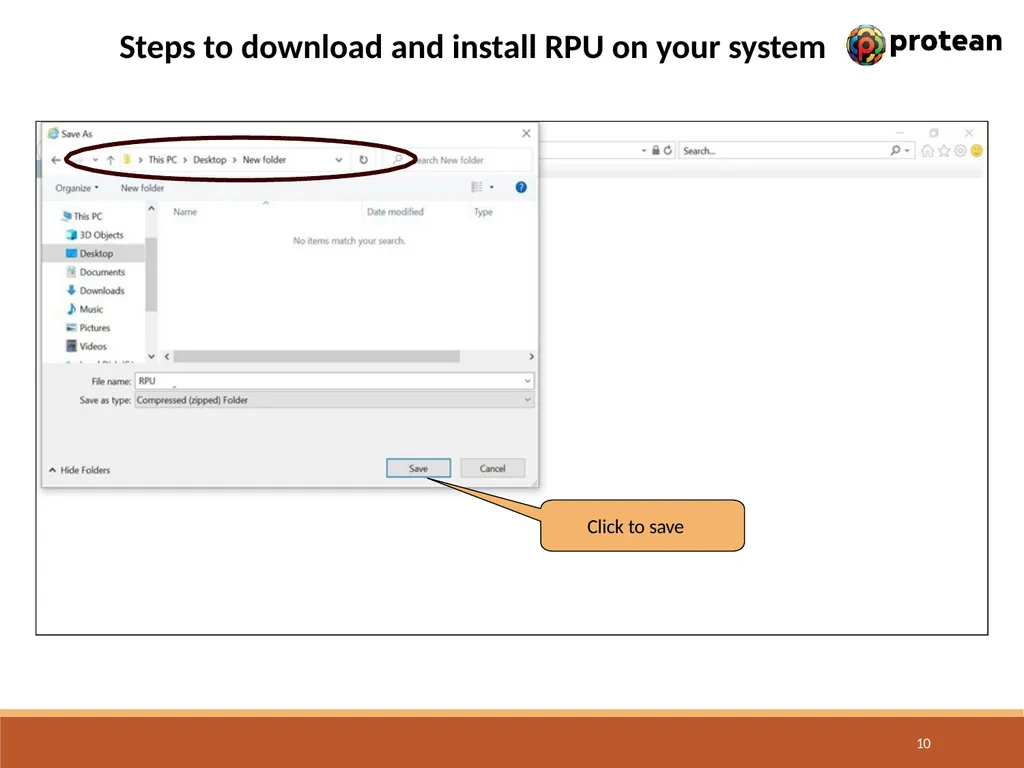
Steps to download and install RPU on your system Click to save 10<br>
11
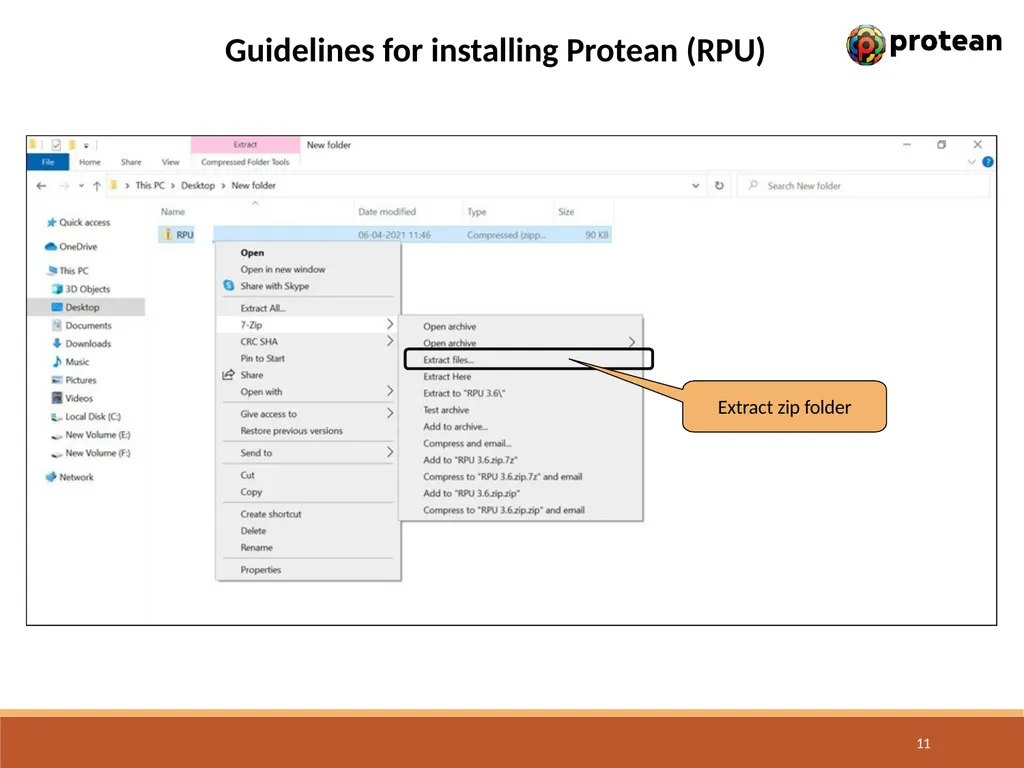
Guidelines for installing Protean (RPU) Extract zip folder 11<br>
12
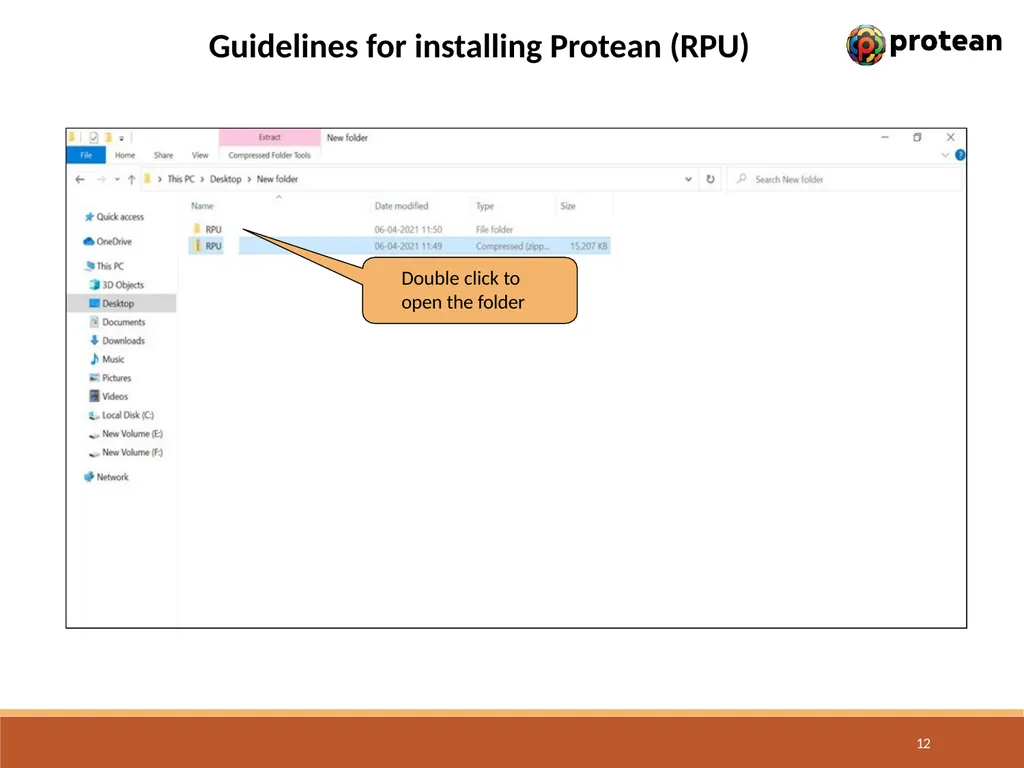
Guidelines for installing Protean (RPU) Double click to open the folder 12<br>
13
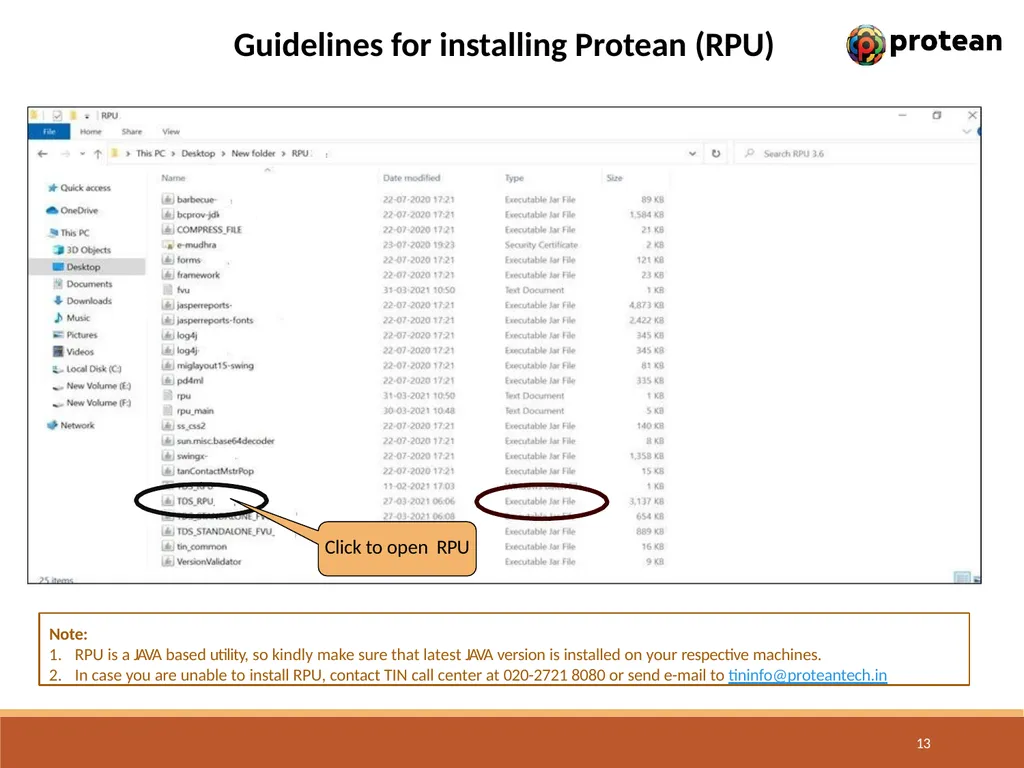
Guidelines for installing Protean (RPU) Click to open RPU 13 Note:
RPU is a JAVA based utility, so kindly make sure that latest JAVA version is installed on your respective machines.
In case you are unable to install RPU, contact TIN call center at 020-2721 8080 or send e-mail to tininfo@proteantech.in<br>
RPU is a JAVA based utility, so kindly make sure that latest JAVA version is installed on your respective machines.
In case you are unable to install RPU, contact TIN call center at 020-2721 8080 or send e-mail to tininfo@proteantech.in<br>
14
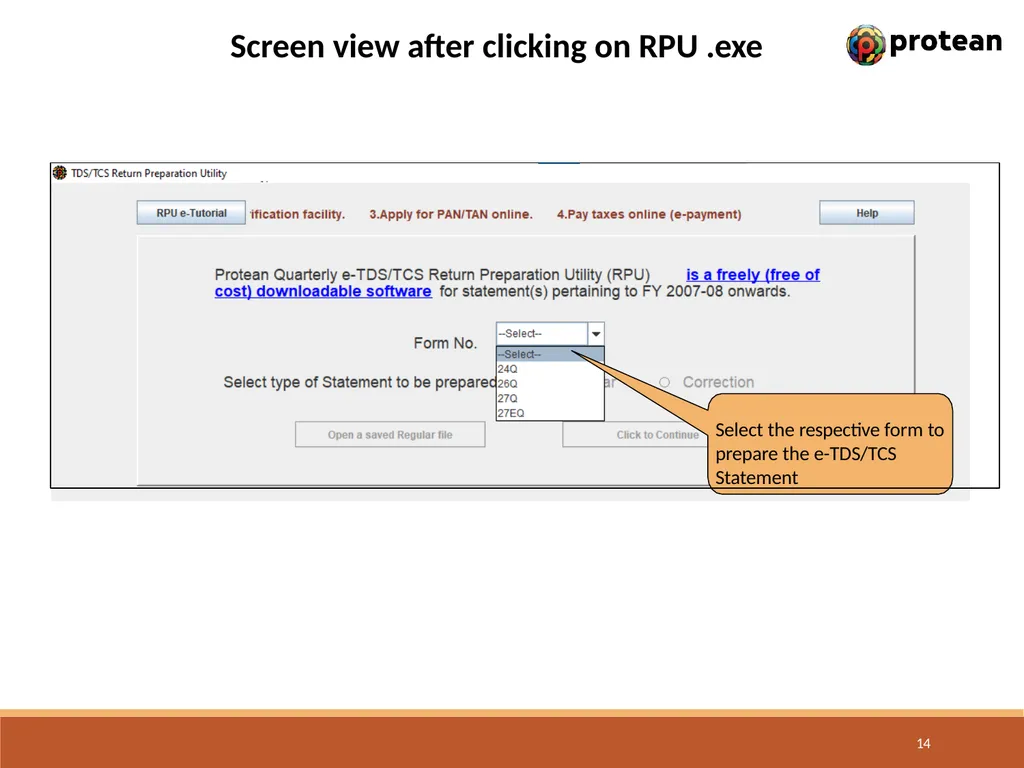
Screen view after clicking on RPU .exe Select the respective form to prepare the e-TDS/TCS Statement 14<br>
15
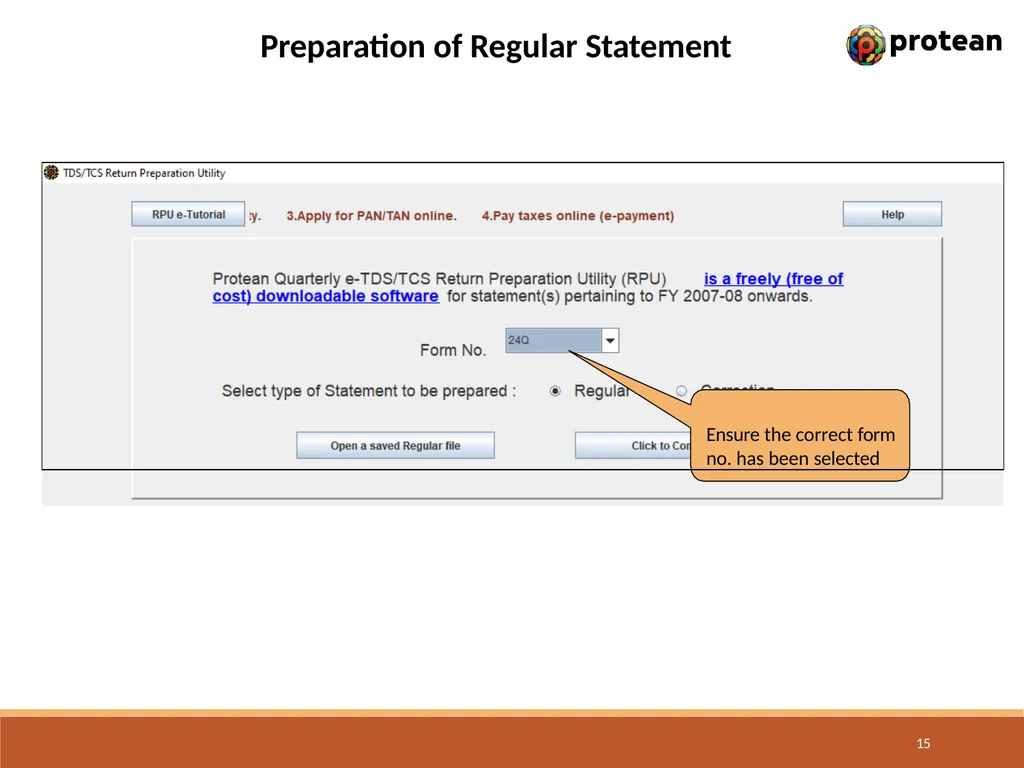
Preparation of Regular Statement Ensure the correct form no. has been selected 15<br>
16
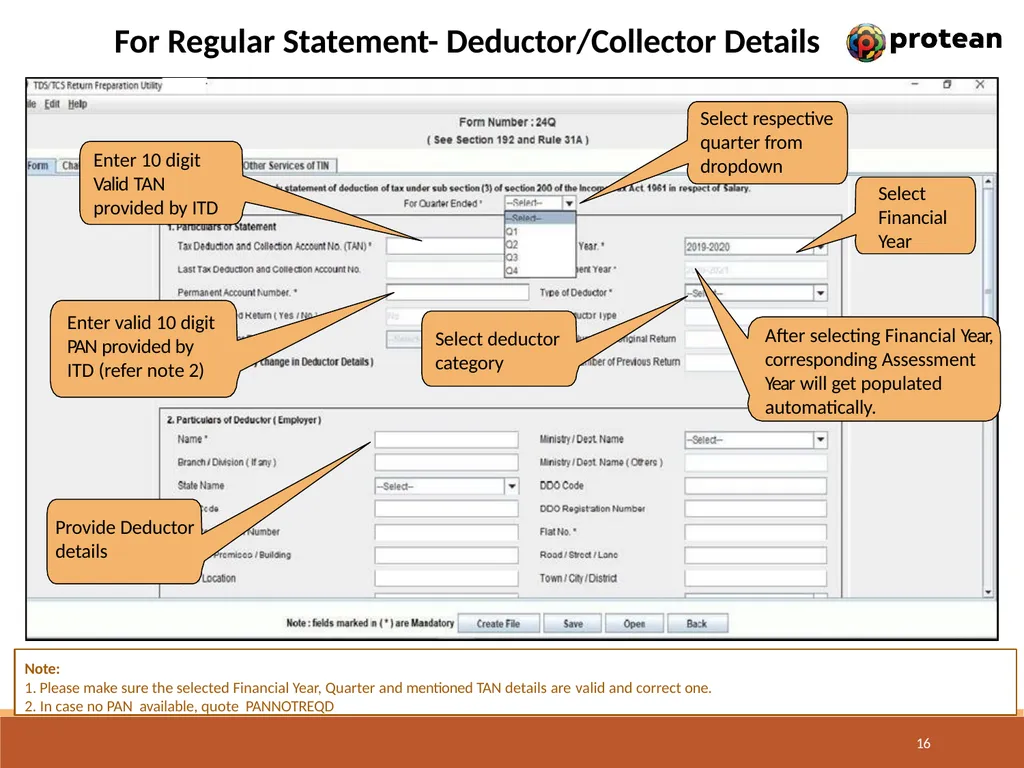
For Regular Statement- Deductor/Collector Details Enter 10 digit Valid TAN provided by ITD Enter valid 10 digit PAN provided by ITD (refer note 2) Provide Deductor
details Select respective quarter from dropdown Select Financial Year Select deductor category After selecting Financial Year, corresponding Assessment Year will get populated automatically. Note:
Please make sure the selected Financial Year, Quarter and mentioned TAN details are valid and correct one.
In case no PAN available, quote PANNOTREQD 16<br>
details Select respective quarter from dropdown Select Financial Year Select deductor category After selecting Financial Year, corresponding Assessment Year will get populated automatically. Note:
Please make sure the selected Financial Year, Quarter and mentioned TAN details are valid and correct one.
In case no PAN available, quote PANNOTREQD 16<br>
17
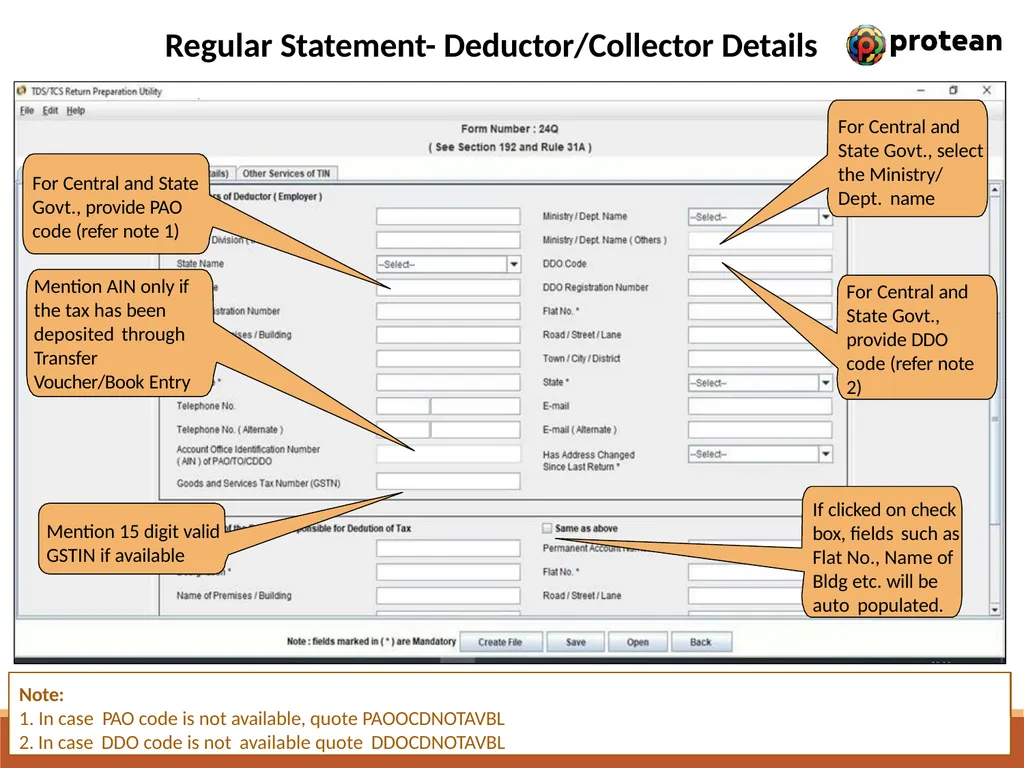
Regular Statement- Deductor/Collector Details For Central and State Govt., provide PAO code (refer note 1) Mention AIN only if the tax has been deposited through Transfer Voucher/Book Entry Mention 15 digit valid
GSTIN if available For Central and State Govt., select the Ministry/ Dept. name For Central and State Govt., provide DDO code (refer note 2) If clicked on check box, fields such as Flat No., Name of Bldg etc. will be auto populated. 17 Note: In case PAO code is not available, quote PAOOCDNOTAVBL
In case DDO code is not available quote DDOCDNOTAVBL<br>
GSTIN if available For Central and State Govt., select the Ministry/ Dept. name For Central and State Govt., provide DDO code (refer note 2) If clicked on check box, fields such as Flat No., Name of Bldg etc. will be auto populated. 17 Note: In case PAO code is not available, quote PAOOCDNOTAVBL
In case DDO code is not available quote DDOCDNOTAVBL<br>
18
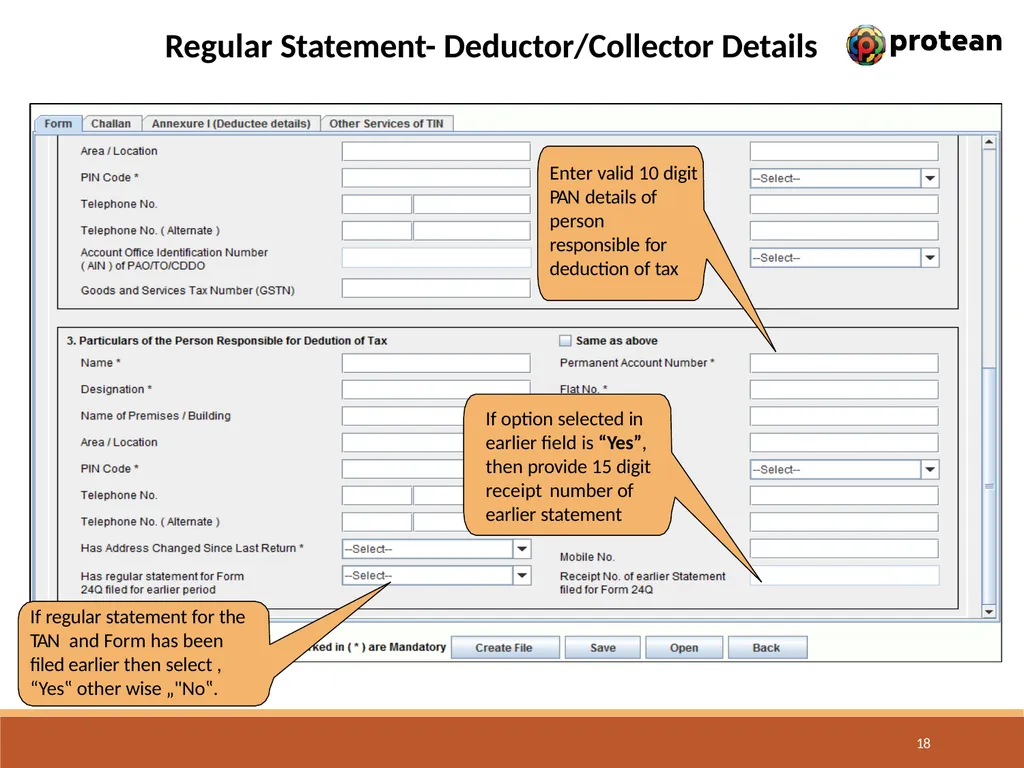
Regular Statement- Deductor/Collector Details If regular statement for the TAN and Form has been filed earlier then select , “Yes‟ other wise „"No‟. If option selected in earlier field is “Yes”, then provide 15 digit receipt number of earlier statement Enter valid 10 digit PAN details of person responsible for deduction of tax 18<br>
19
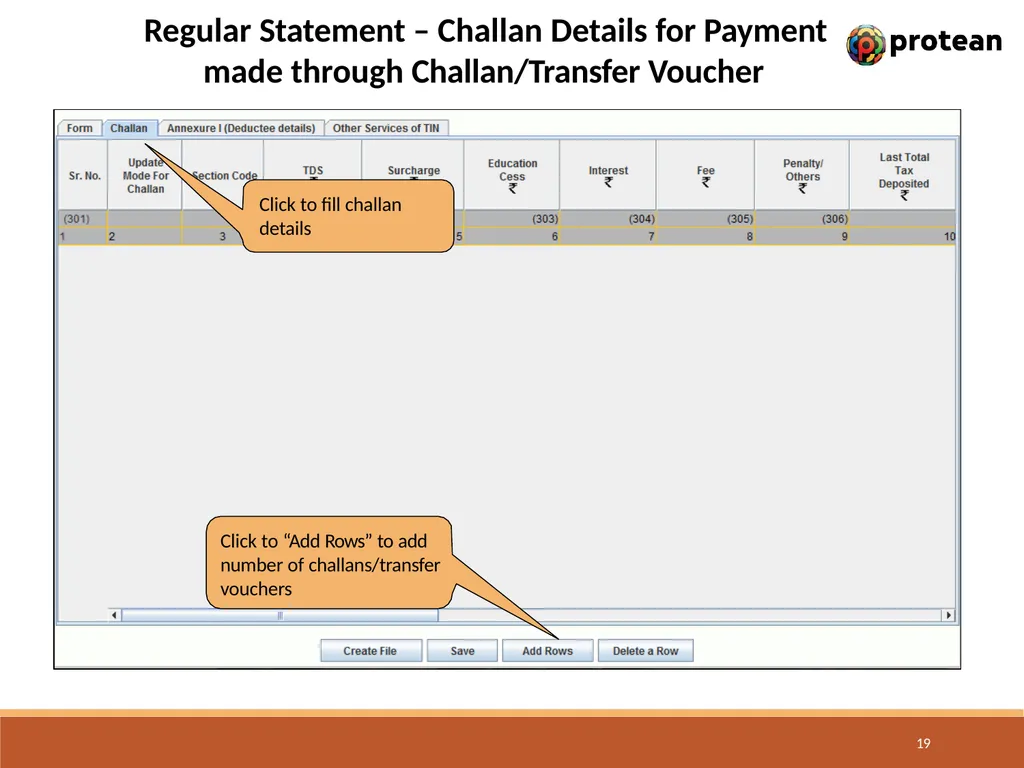
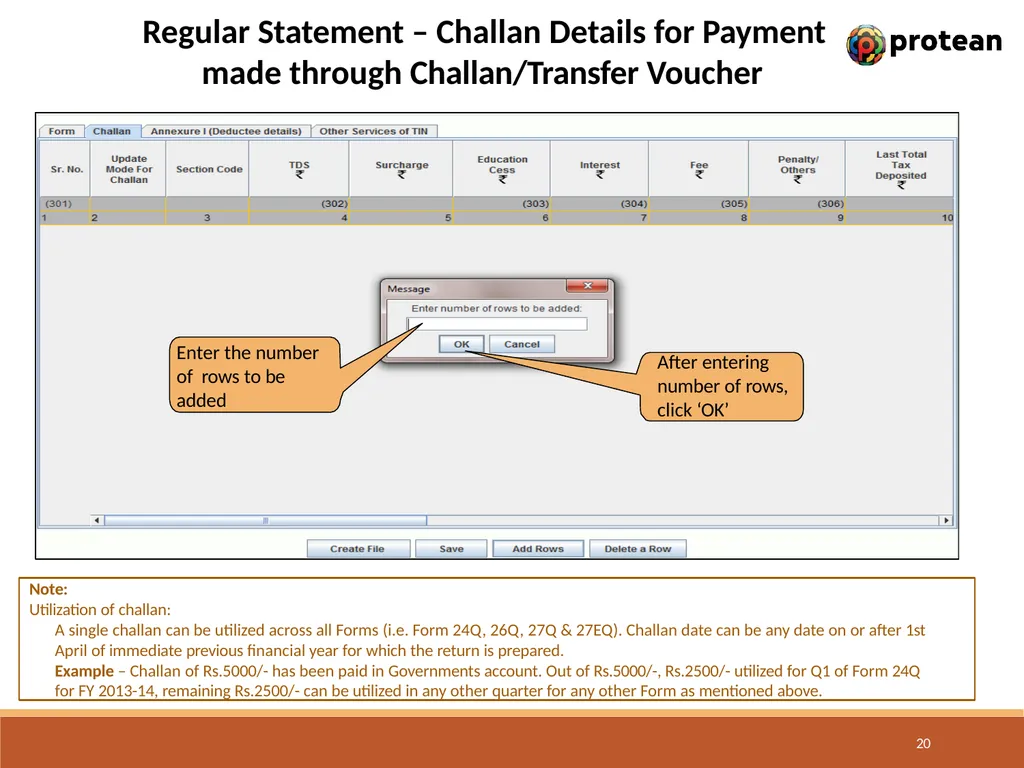
Regular Statement – Challan Details for Payment made through Challan/Transfer Voucher Click to fill challan
details Click to “Add Rows” to add number of challans/transfer vouchers 19<br>
details Click to “Add Rows” to add number of challans/transfer vouchers 19<br>
20
Regular Statement – Challan Details for Payment made through Challan/Transfer Voucher Note:
Utilization of challan:
A single challan can be utilized across all Forms (i.e. Form 24Q, 26Q, 27Q & 27EQ). Challan date can be any date on or after 1st April of immediate previous financial year for which the return is prepared.
Example – Challan of Rs.5000/- has been paid in Governments account. Out of Rs.5000/-, Rs.2500/- utilized for Q1 of Form 24Q for FY 2013-14, remaining Rs.2500/- can be utilized in any other quarter for any other Form as mentioned above. 20 After entering number of rows, click ‘OK’ Enter the number of rows to be added<br>
Utilization of challan:
A single challan can be utilized across all Forms (i.e. Form 24Q, 26Q, 27Q & 27EQ). Challan date can be any date on or after 1st April of immediate previous financial year for which the return is prepared.
Example – Challan of Rs.5000/- has been paid in Governments account. Out of Rs.5000/-, Rs.2500/- utilized for Q1 of Form 24Q for FY 2013-14, remaining Rs.2500/- can be utilized in any other quarter for any other Form as mentioned above. 20 After entering number of rows, click ‘OK’ Enter the number of rows to be added<br>
21
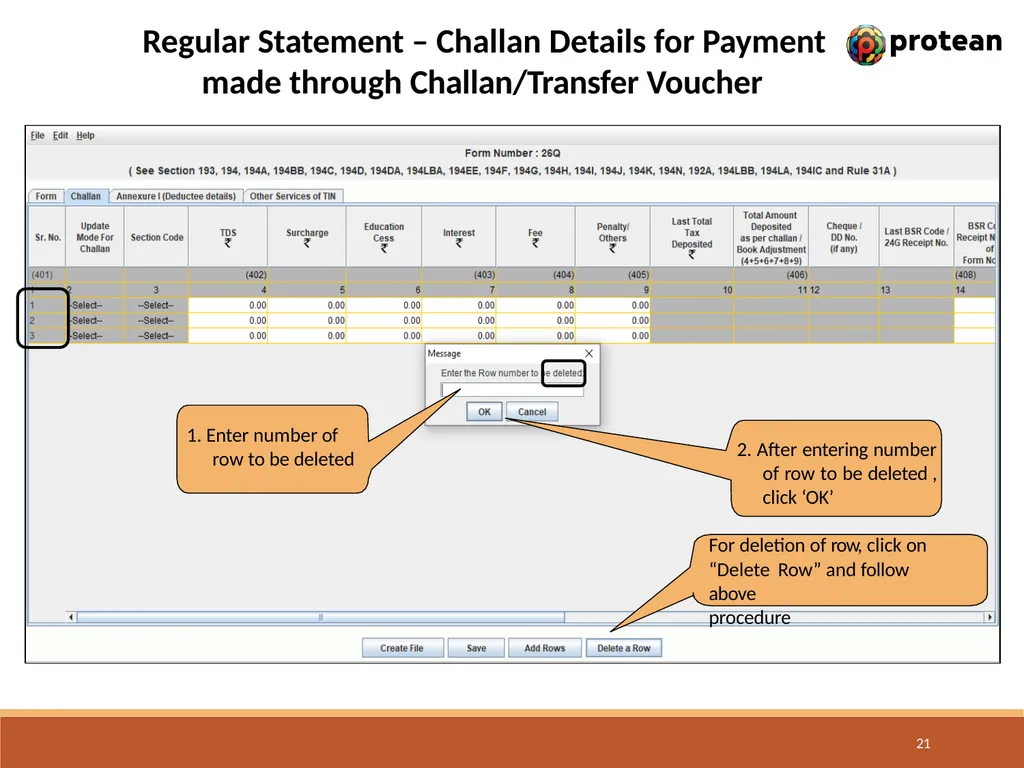
Regular Statement – Challan Details for Payment made through Challan/Transfer Voucher 1. Enter number of row to be deleted 21 2. After entering number of row to be deleted , click ‘OK’ For deletion of row, click on
“Delete Row” and follow above
procedure<br>
“Delete Row” and follow above
procedure<br>
22
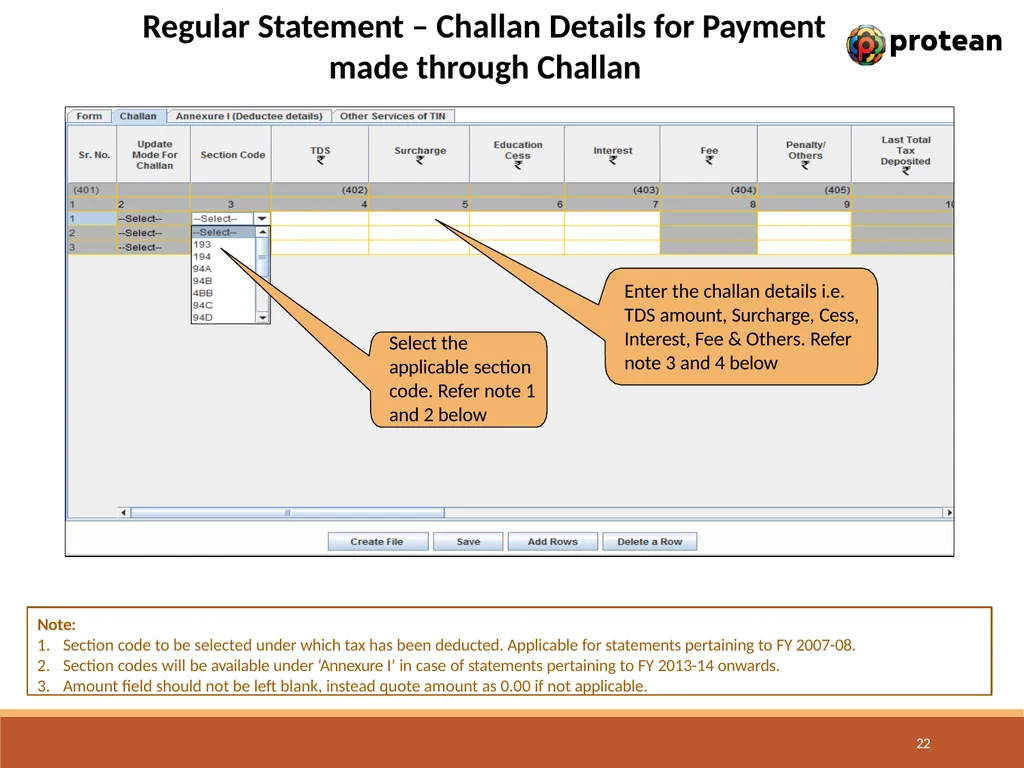
Regular Statement – Challan Details for Payment made through Challan Note:
Section code to be selected under which tax has been deducted. Applicable for statements pertaining to FY 2007-08.
Section codes will be available under ‘Annexure I’ in case of statements pertaining to FY 2013-14 onwards.
Amount field should not be left blank, instead quote amount as 0.00 if not applicable. Select the applicable section code. Refer note 1 and 2 below Enter the challan details i.e. TDS amount, Surcharge, Cess, Interest, Fee & Others. Refer note 3 and 4 below 22<br>
Section code to be selected under which tax has been deducted. Applicable for statements pertaining to FY 2007-08.
Section codes will be available under ‘Annexure I’ in case of statements pertaining to FY 2013-14 onwards.
Amount field should not be left blank, instead quote amount as 0.00 if not applicable. Select the applicable section code. Refer note 1 and 2 below Enter the challan details i.e. TDS amount, Surcharge, Cess, Interest, Fee & Others. Refer note 3 and 4 below 22<br>
23
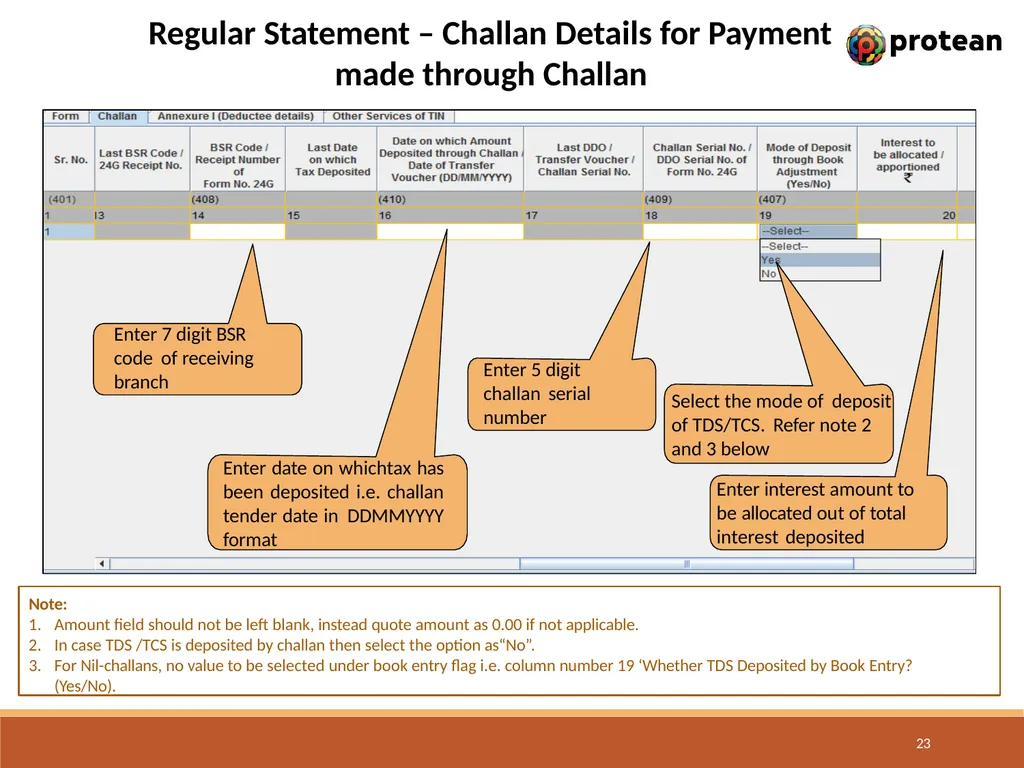
Regular Statement – Challan Details for Payment made through Challan Note:
Amount field should not be left blank, instead quote amount as 0.00 if not applicable.
In case TDS /TCS is deposited by challan then select the option as“No”.
For Nil-challans, no value to be selected under book entry flag i.e. column number 19 ‘Whether TDS Deposited by Book Entry? (Yes/No). Enter 7 digit BSR code of receiving branch Enter date on whichtax has been deposited i.e. challan tender date in DDMMYYYY format Enter 5 digit challan serial number Select the mode of deposit of TDS/TCS. Refer note 2 and 3 below Enter interest amount to be allocated out of total interest deposited 23<br>
Amount field should not be left blank, instead quote amount as 0.00 if not applicable.
In case TDS /TCS is deposited by challan then select the option as“No”.
For Nil-challans, no value to be selected under book entry flag i.e. column number 19 ‘Whether TDS Deposited by Book Entry? (Yes/No). Enter 7 digit BSR code of receiving branch Enter date on whichtax has been deposited i.e. challan tender date in DDMMYYYY format Enter 5 digit challan serial number Select the mode of deposit of TDS/TCS. Refer note 2 and 3 below Enter interest amount to be allocated out of total interest deposited 23<br>
24
Regular Statement – Challan Details for Payment made through Challan Note:
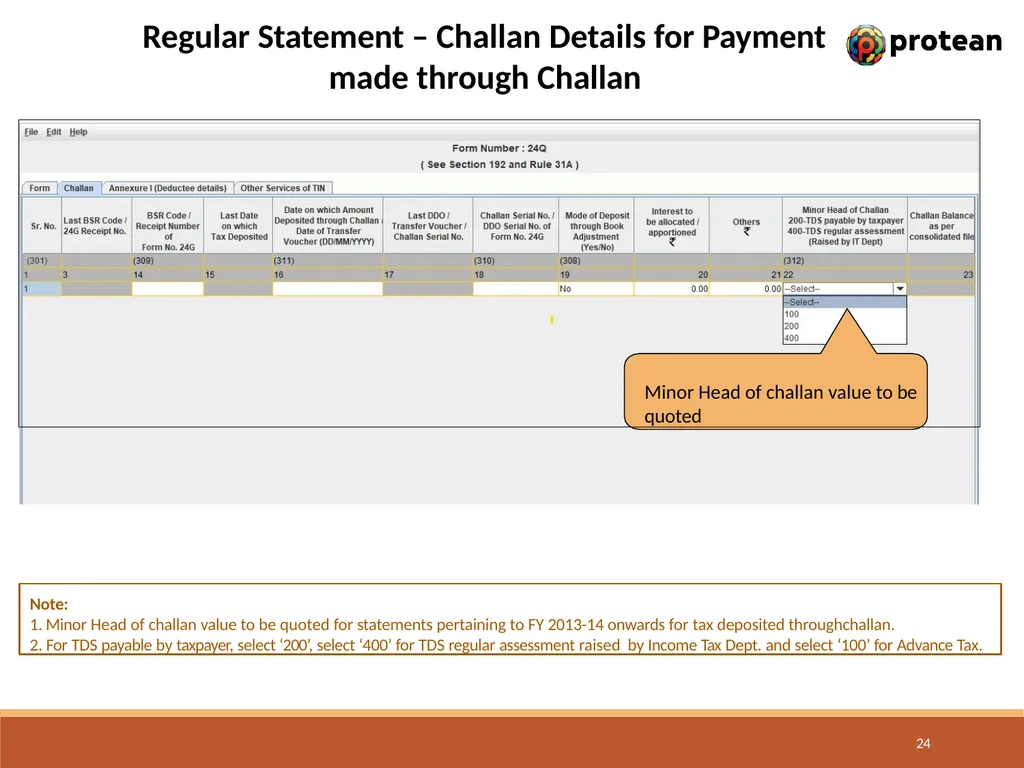
Minor Head of challan value to be quoted for statements pertaining to FY 2013-14 onwards for tax deposited throughchallan.
For TDS payable by taxpayer, select ‘200’, select ‘400’ for TDS regular assessment raised by Income Tax Dept. and select ‘100’ for Advance Tax. Minor Head of challan value to be quoted 24<br>
Minor Head of challan value to be quoted for statements pertaining to FY 2013-14 onwards for tax deposited throughchallan.
For TDS payable by taxpayer, select ‘200’, select ‘400’ for TDS regular assessment raised by Income Tax Dept. and select ‘100’ for Advance Tax. Minor Head of challan value to be quoted 24<br>
25
Regular Statement – Challan Details for Payment made through Challan Note:
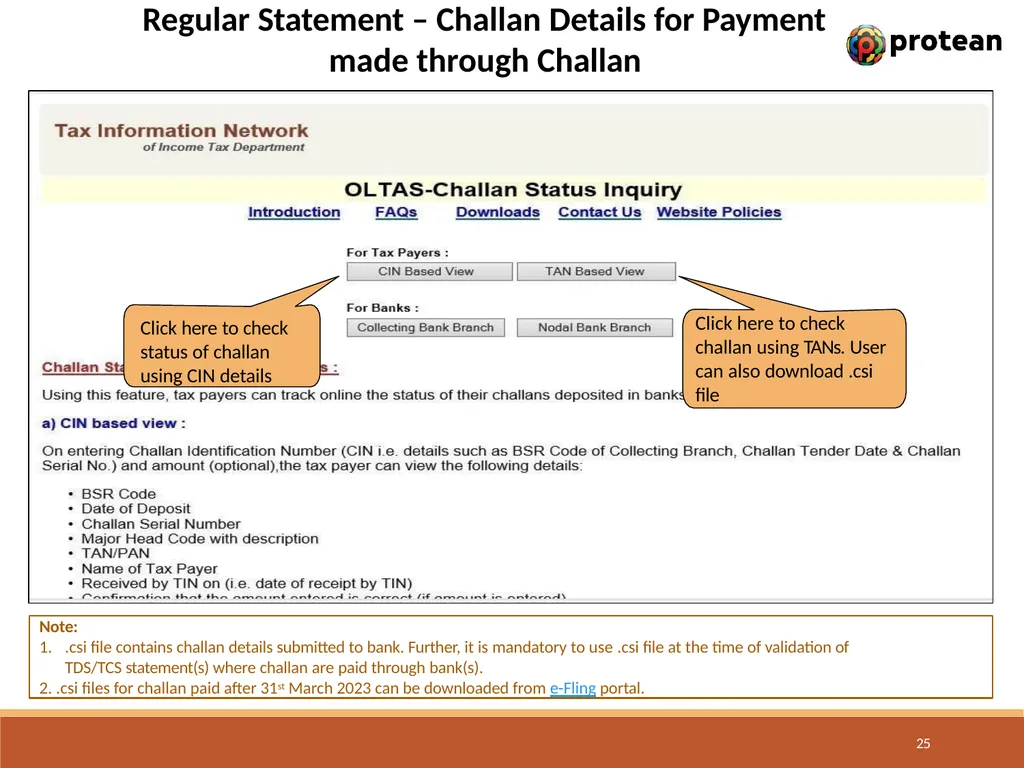
.csi file contains challan details submitted to bank. Further, it is mandatory to use .csi file at the time of validation of TDS/TCS statement(s) where challan are paid through bank(s).
.csi files for challan paid after 31st March 2023 can be downloaded from e-Fling portal. Click here to check status of challan using CIN details Click here to check challan using TANs. User can also download .csi file 25<br>
.csi file contains challan details submitted to bank. Further, it is mandatory to use .csi file at the time of validation of TDS/TCS statement(s) where challan are paid through bank(s).
.csi files for challan paid after 31st March 2023 can be downloaded from e-Fling portal. Click here to check status of challan using CIN details Click here to check challan using TANs. User can also download .csi file 25<br>
26
Regular Statement – Challan Details for Payment made through Transfer Voucher Note:
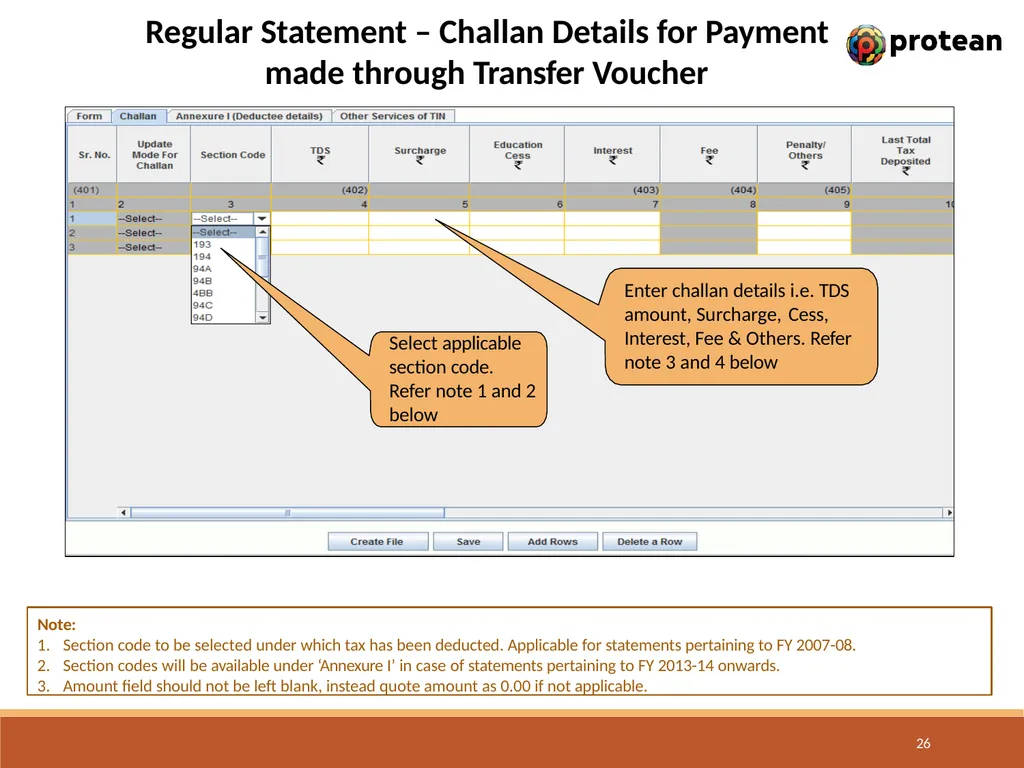
Section code to be selected under which tax has been deducted. Applicable for statements pertaining to FY 2007-08.
Section codes will be available under ‘Annexure I’ in case of statements pertaining to FY 2013-14 onwards.
Amount field should not be left blank, instead quote amount as 0.00 if not applicable. Select applicable section code.
Refer note 1 and 2 below Enter challan details i.e. TDS amount, Surcharge, Cess, Interest, Fee & Others. Refer note 3 and 4 below 26<br>
Section code to be selected under which tax has been deducted. Applicable for statements pertaining to FY 2007-08.
Section codes will be available under ‘Annexure I’ in case of statements pertaining to FY 2013-14 onwards.
Amount field should not be left blank, instead quote amount as 0.00 if not applicable. Select applicable section code.
Refer note 1 and 2 below Enter challan details i.e. TDS amount, Surcharge, Cess, Interest, Fee & Others. Refer note 3 and 4 below 26<br>
27
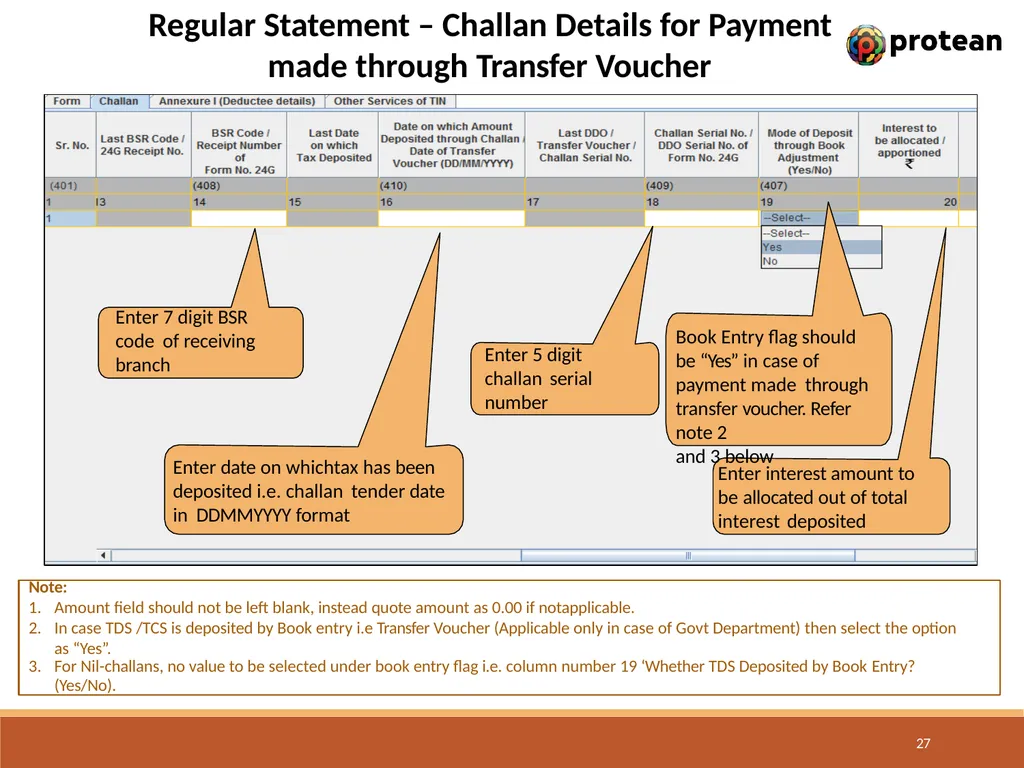
Regular Statement – Challan Details for Payment made through Transfer Voucher Enter 7 digit BSR code of receiving branch Enter date on whichtax has been deposited i.e. challan tender date in DDMMYYYY format Enter 5 digit challan serial number Enter interest amount to be allocated out of total interest deposited 27 Note:
Amount field should not be left blank, instead quote amount as 0.00 if notapplicable.
In case TDS /TCS is deposited by Book entry i.e Transfer Voucher (Applicable only in case of Govt Department) then select the option as “Yes”.
For Nil-challans, no value to be selected under book entry flag i.e. column number 19 ‘Whether TDS Deposited by Book Entry?
(Yes/No). Book Entry flag should be “Yes” in case of payment made through transfer voucher. Refer note 2
and 3 below<br>
Amount field should not be left blank, instead quote amount as 0.00 if notapplicable.
In case TDS /TCS is deposited by Book entry i.e Transfer Voucher (Applicable only in case of Govt Department) then select the option as “Yes”.
For Nil-challans, no value to be selected under book entry flag i.e. column number 19 ‘Whether TDS Deposited by Book Entry?
(Yes/No). Book Entry flag should be “Yes” in case of payment made through transfer voucher. Refer note 2
and 3 below<br>
28
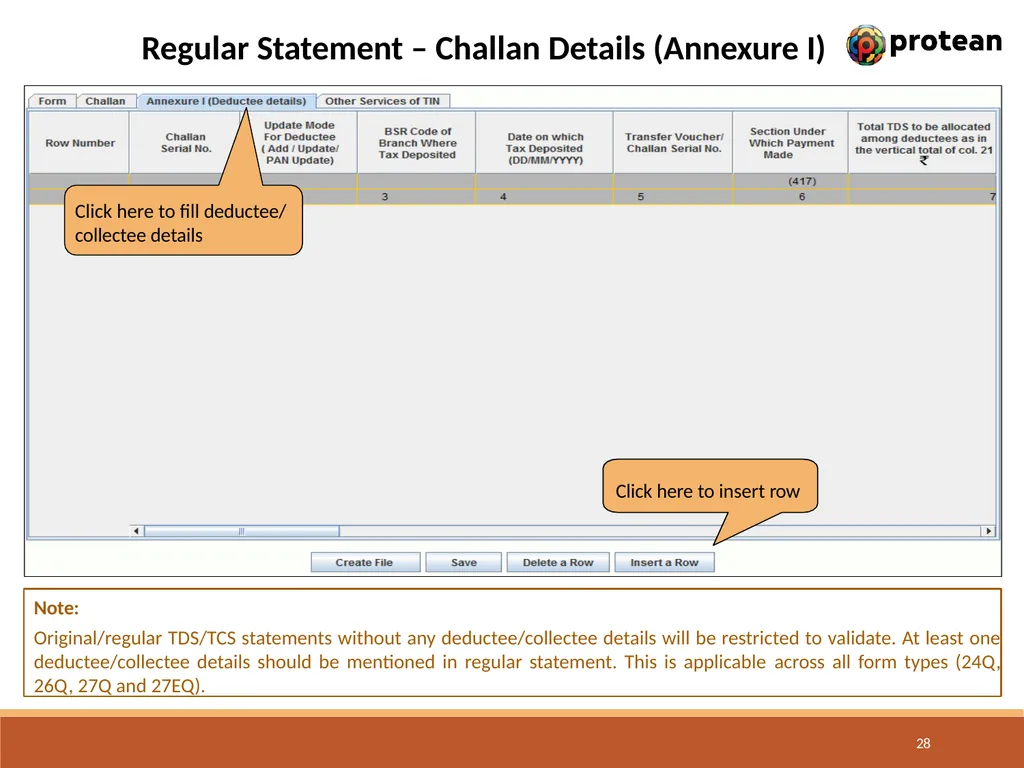
Regular Statement – Challan Details (Annexure I) Click here to insert row 28 Click here to fill deductee/ collectee details Note:
Original/regular TDS/TCS statements without any deductee/collectee details will be restricted to validate. At least one deductee/collectee details should be mentioned in regular statement. This is applicable across all form types (24Q, 26Q, 27Q and 27EQ).<br>
Original/regular TDS/TCS statements without any deductee/collectee details will be restricted to validate. At least one deductee/collectee details should be mentioned in regular statement. This is applicable across all form types (24Q, 26Q, 27Q and 27EQ).<br>
29
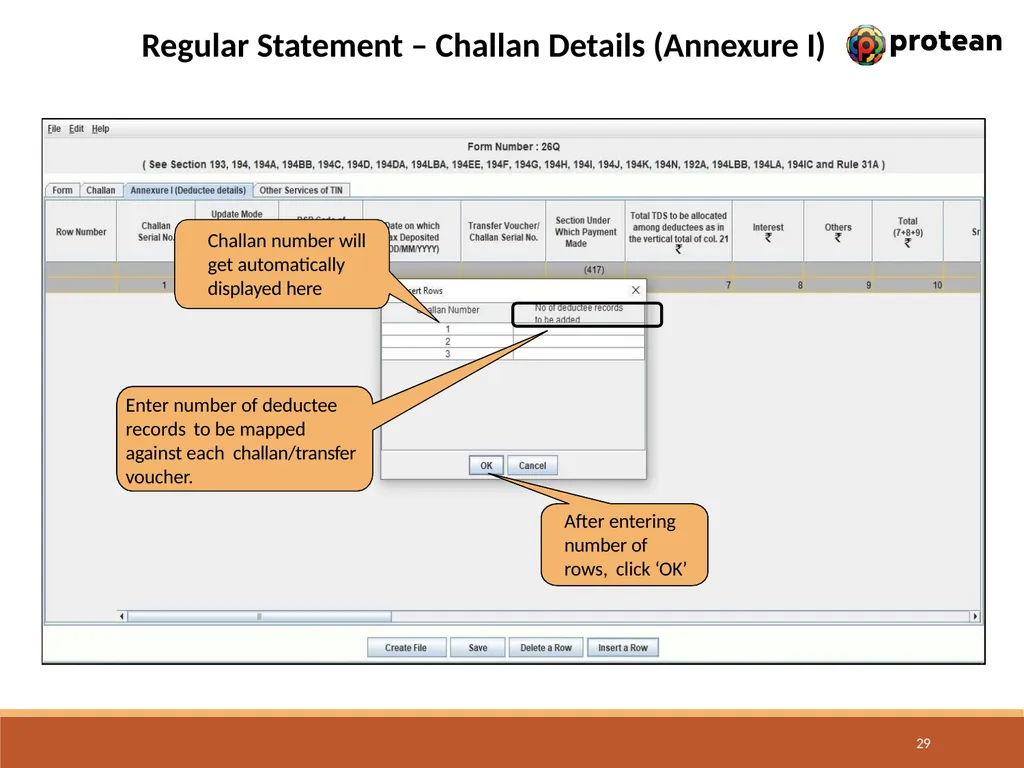
Regular Statement – Challan Details (Annexure I) Challan number will get automatically displayed here Enter number of deductee records to be mapped against each challan/transfer voucher. After entering number of rows, click ‘OK’ 29<br>
30
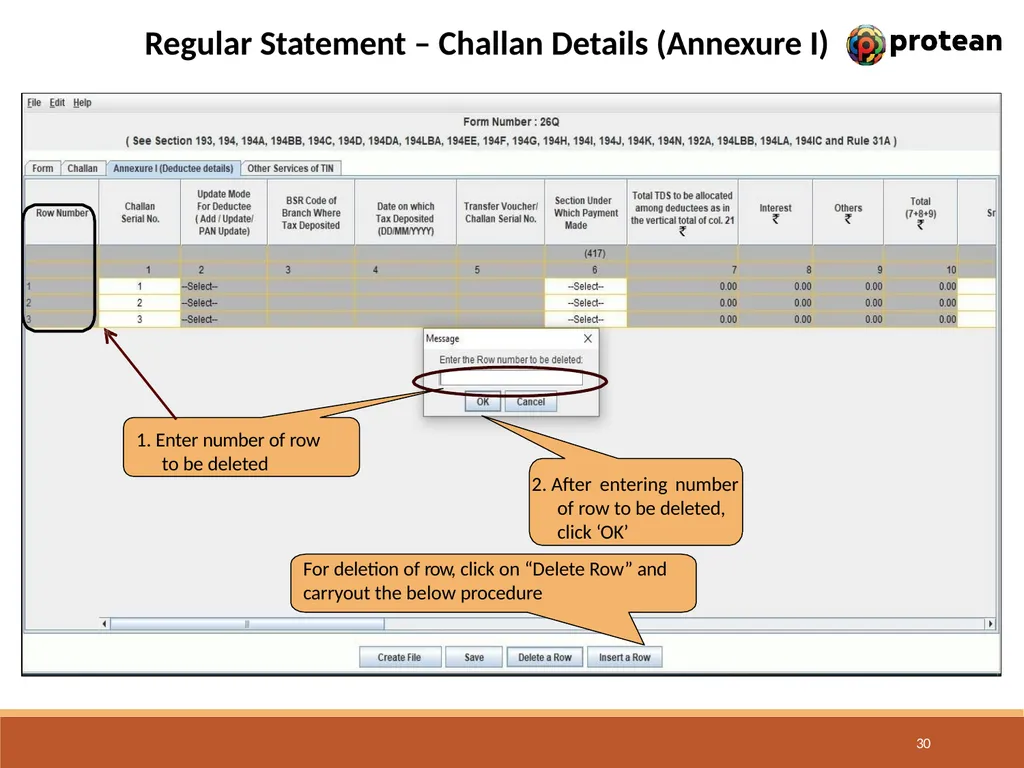
Regular Statement – Challan Details (Annexure I) 1. Enter number of row to be deleted 2. After entering number of row to be deleted, click ‘OK’
For deletion of row, click on “Delete Row” and carryout the below procedure 30<br>
For deletion of row, click on “Delete Row” and carryout the below procedure 30<br>
31
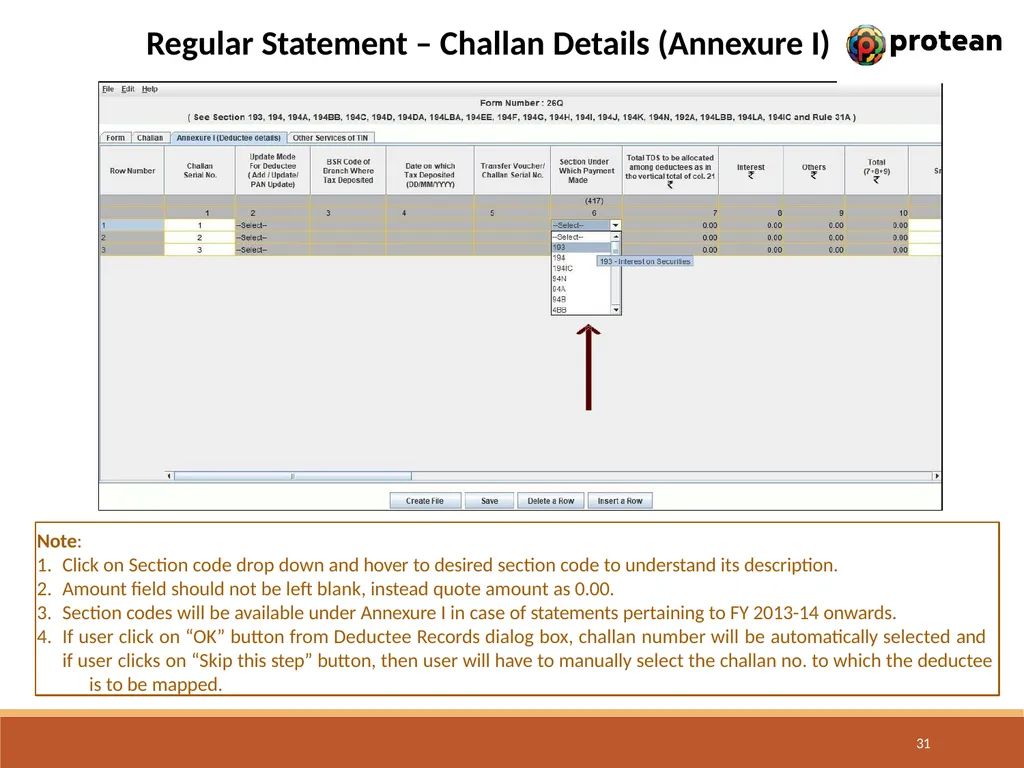
Regular Statement – Challan Details (Annexure I) Note:
Click on Section code drop down and hover to desired section code to understand its description.
Amount field should not be left blank, instead quote amount as 0.00.
Section codes will be available under Annexure I in case of statements pertaining to FY 2013-14 onwards.
If user click on “OK” button from Deductee Records dialog box, challan number will be automatically selected and if user clicks on “Skip this step” button, then user will have to manually select the challan no. to which the deductee is to be mapped. 31<br>
Click on Section code drop down and hover to desired section code to understand its description.
Amount field should not be left blank, instead quote amount as 0.00.
Section codes will be available under Annexure I in case of statements pertaining to FY 2013-14 onwards.
If user click on “OK” button from Deductee Records dialog box, challan number will be automatically selected and if user clicks on “Skip this step” button, then user will have to manually select the challan no. to which the deductee is to be mapped. 31<br>
32
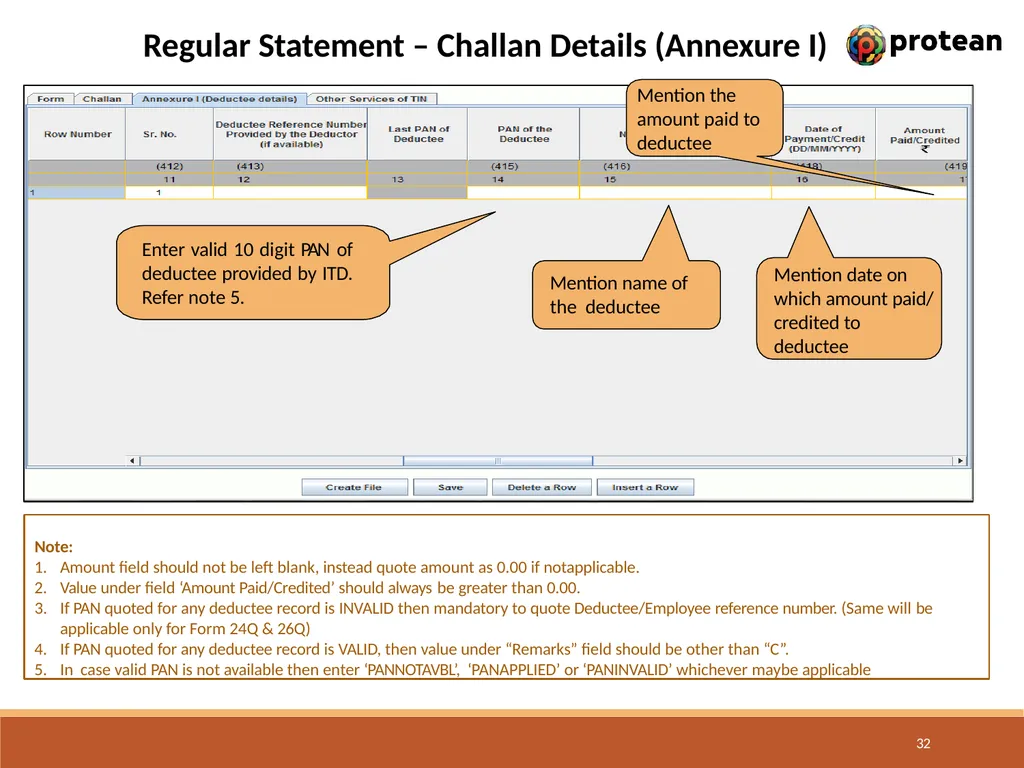
Regular Statement – Challan Details (Annexure I) Note:
Amount field should not be left blank, instead quote amount as 0.00 if notapplicable.
Value under field ‘Amount Paid/Credited’ should always be greater than 0.00.
If PAN quoted for any deductee record is INVALID then mandatory to quote Deductee/Employee reference number. (Same will be applicable only for Form 24Q & 26Q)
If PAN quoted for any deductee record is VALID, then value under “Remarks” field should be other than “C”.
In case valid PAN is not available then enter ‘PANNOTAVBL’, ‘PANAPPLIED’ or ‘PANINVALID’ whichever maybe applicable Enter valid 10 digit PAN of deductee provided by ITD. Refer note 5. Mention name of the deductee Mention date on which amount paid/ credited to deductee Mention the amount paid to deductee 32<br>
Amount field should not be left blank, instead quote amount as 0.00 if notapplicable.
Value under field ‘Amount Paid/Credited’ should always be greater than 0.00.
If PAN quoted for any deductee record is INVALID then mandatory to quote Deductee/Employee reference number. (Same will be applicable only for Form 24Q & 26Q)
If PAN quoted for any deductee record is VALID, then value under “Remarks” field should be other than “C”.
In case valid PAN is not available then enter ‘PANNOTAVBL’, ‘PANAPPLIED’ or ‘PANINVALID’ whichever maybe applicable Enter valid 10 digit PAN of deductee provided by ITD. Refer note 5. Mention name of the deductee Mention date on which amount paid/ credited to deductee Mention the amount paid to deductee 32<br>
33
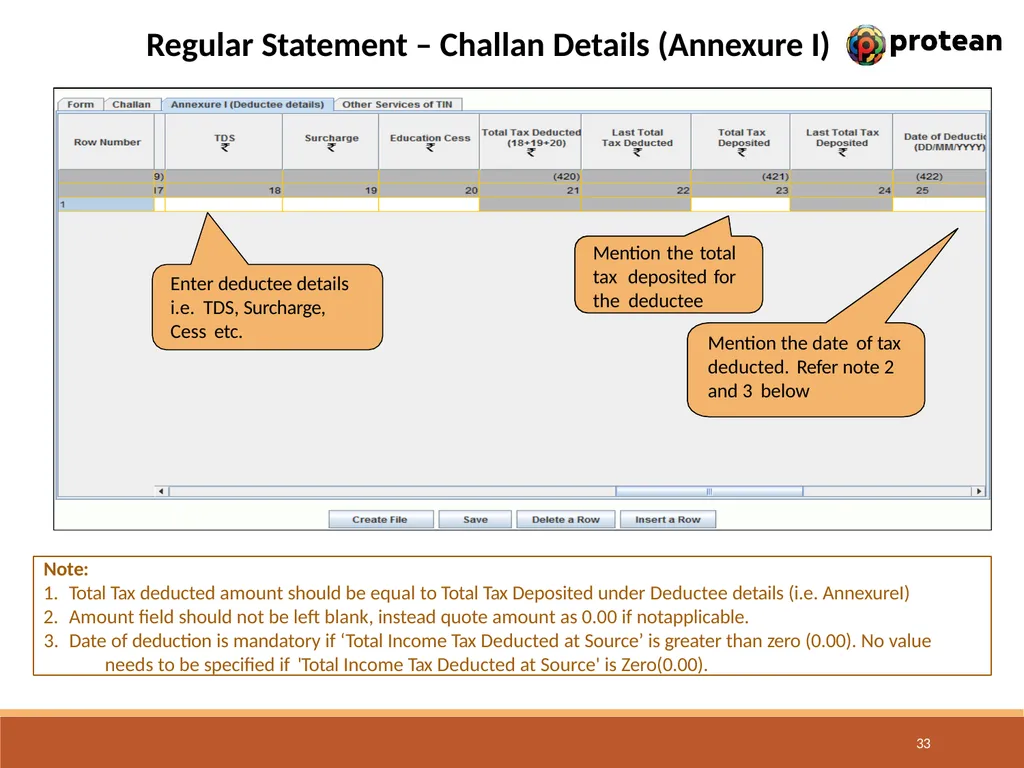
Regular Statement – Challan Details (Annexure I) Note:
Total Tax deducted amount should be equal to Total Tax Deposited under Deductee details (i.e. AnnexureI)
Amount field should not be left blank, instead quote amount as 0.00 if notapplicable.
Date of deduction is mandatory if ‘Total Income Tax Deducted at Source’ is greater than zero (0.00). No value needs to be specified if 'Total Income Tax Deducted at Source' is Zero(0.00). Enter deductee details
i.e. TDS, Surcharge, Cess etc. Mention the total tax deposited for the deductee Mention the date of tax deducted. Refer note 2 and 3 below 33<br>
Total Tax deducted amount should be equal to Total Tax Deposited under Deductee details (i.e. AnnexureI)
Amount field should not be left blank, instead quote amount as 0.00 if notapplicable.
Date of deduction is mandatory if ‘Total Income Tax Deducted at Source’ is greater than zero (0.00). No value needs to be specified if 'Total Income Tax Deducted at Source' is Zero(0.00). Enter deductee details
i.e. TDS, Surcharge, Cess etc. Mention the total tax deposited for the deductee Mention the date of tax deducted. Refer note 2 and 3 below 33<br>
34
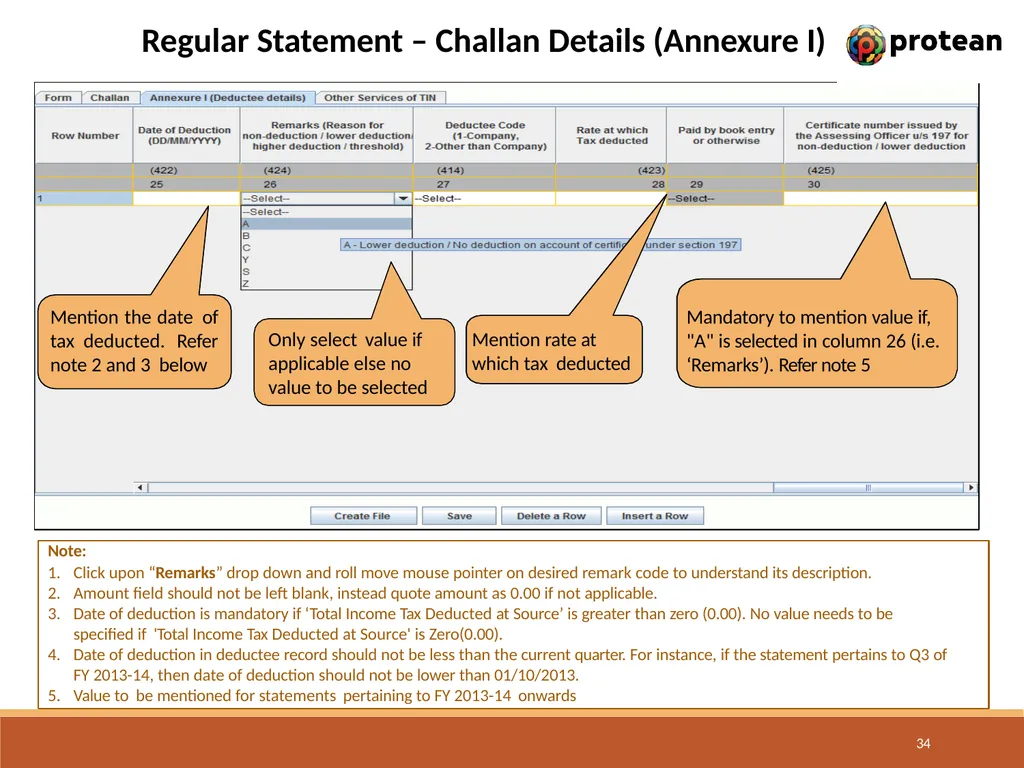
Regular Statement – Challan Details (Annexure I) Note:
Click upon “Remarks” drop down and roll move mouse pointer on desired remark code to understand its description.
Amount field should not be left blank, instead quote amount as 0.00 if not applicable.
Date of deduction is mandatory if ‘Total Income Tax Deducted at Source’ is greater than zero (0.00). No value needs to be
specified if 'Total Income Tax Deducted at Source' is Zero(0.00).
Date of deduction in deductee record should not be less than the current quarter. For instance, if the statement pertains to Q3 of FY 2013-14, then date of deduction should not be lower than 01/10/2013.
Value to be mentioned for statements pertaining to FY 2013-14 onwards Mention the date of tax deducted. Refer note 2 and 3 below Only select value if applicable else no value to be selected Mention rate at which tax deducted Mandatory to mention value if, "A" is selected in column 26 (i.e. ‘Remarks’). Refer note 5 34<br>
Click upon “Remarks” drop down and roll move mouse pointer on desired remark code to understand its description.
Amount field should not be left blank, instead quote amount as 0.00 if not applicable.
Date of deduction is mandatory if ‘Total Income Tax Deducted at Source’ is greater than zero (0.00). No value needs to be
specified if 'Total Income Tax Deducted at Source' is Zero(0.00).
Date of deduction in deductee record should not be less than the current quarter. For instance, if the statement pertains to Q3 of FY 2013-14, then date of deduction should not be lower than 01/10/2013.
Value to be mentioned for statements pertaining to FY 2013-14 onwards Mention the date of tax deducted. Refer note 2 and 3 below Only select value if applicable else no value to be selected Mention rate at which tax deducted Mandatory to mention value if, "A" is selected in column 26 (i.e. ‘Remarks’). Refer note 5 34<br>
35
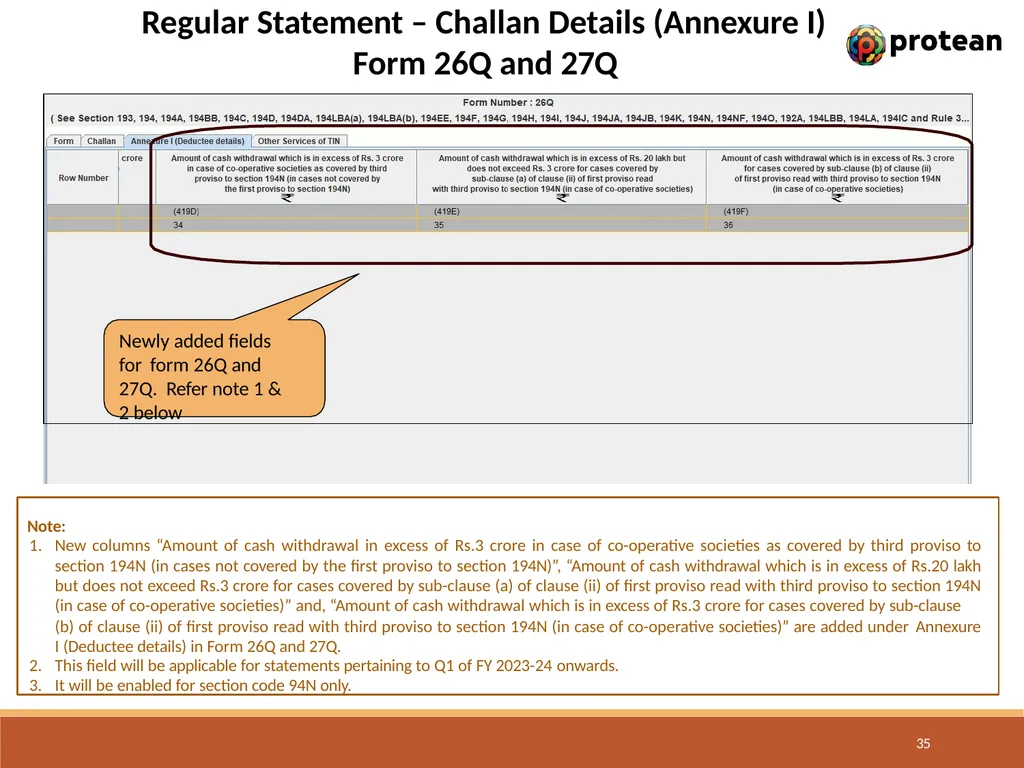
Regular Statement – Challan Details (Annexure I) Form 26Q and 27Q Note:
New columns “Amount of cash withdrawal in excess of Rs.3 crore in case of co-operative societies as covered by third proviso to section 194N (in cases not covered by the first proviso to section 194N)”, “Amount of cash withdrawal which is in excess of Rs.20 lakh but does not exceed Rs.3 crore for cases covered by sub-clause (a) of clause (ii) of first proviso read with third proviso to section 194N (in case of co-operative societies)” and, “Amount of cash withdrawal which is in excess of Rs.3 crore for cases covered by sub-clause
(b) of clause (ii) of first proviso read with third proviso to section 194N (in case of co-operative societies)” are added under Annexure I (Deductee details) in Form 26Q and 27Q.
This field will be applicable for statements pertaining to Q1 of FY 2023-24 onwards.
It will be enabled for section code 94N only. Newly added fields for form 26Q and 27Q. Refer note 1 & 2 below 35<br>
New columns “Amount of cash withdrawal in excess of Rs.3 crore in case of co-operative societies as covered by third proviso to section 194N (in cases not covered by the first proviso to section 194N)”, “Amount of cash withdrawal which is in excess of Rs.20 lakh but does not exceed Rs.3 crore for cases covered by sub-clause (a) of clause (ii) of first proviso read with third proviso to section 194N (in case of co-operative societies)” and, “Amount of cash withdrawal which is in excess of Rs.3 crore for cases covered by sub-clause
(b) of clause (ii) of first proviso read with third proviso to section 194N (in case of co-operative societies)” are added under Annexure I (Deductee details) in Form 26Q and 27Q.
This field will be applicable for statements pertaining to Q1 of FY 2023-24 onwards.
It will be enabled for section code 94N only. Newly added fields for form 26Q and 27Q. Refer note 1 & 2 below 35<br>
36
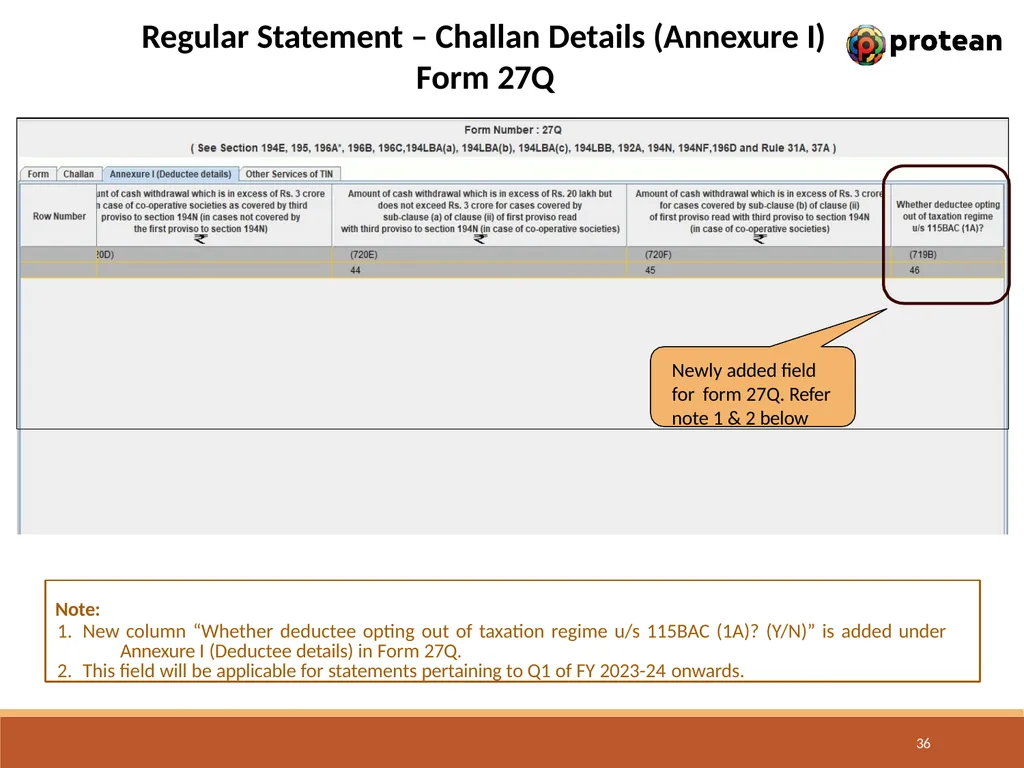
Regular Statement – Challan Details (Annexure I) Form 27Q Note:
New column “Whether deductee opting out of taxation regime u/s 115BAC (1A)? (Y/N)” is added under Annexure I (Deductee details) in Form 27Q.
This field will be applicable for statements pertaining to Q1 of FY 2023-24 onwards. Newly added field for form 27Q. Refer note 1 & 2 below 36<br>
New column “Whether deductee opting out of taxation regime u/s 115BAC (1A)? (Y/N)” is added under Annexure I (Deductee details) in Form 27Q.
This field will be applicable for statements pertaining to Q1 of FY 2023-24 onwards. Newly added field for form 27Q. Refer note 1 & 2 below 36<br>
37
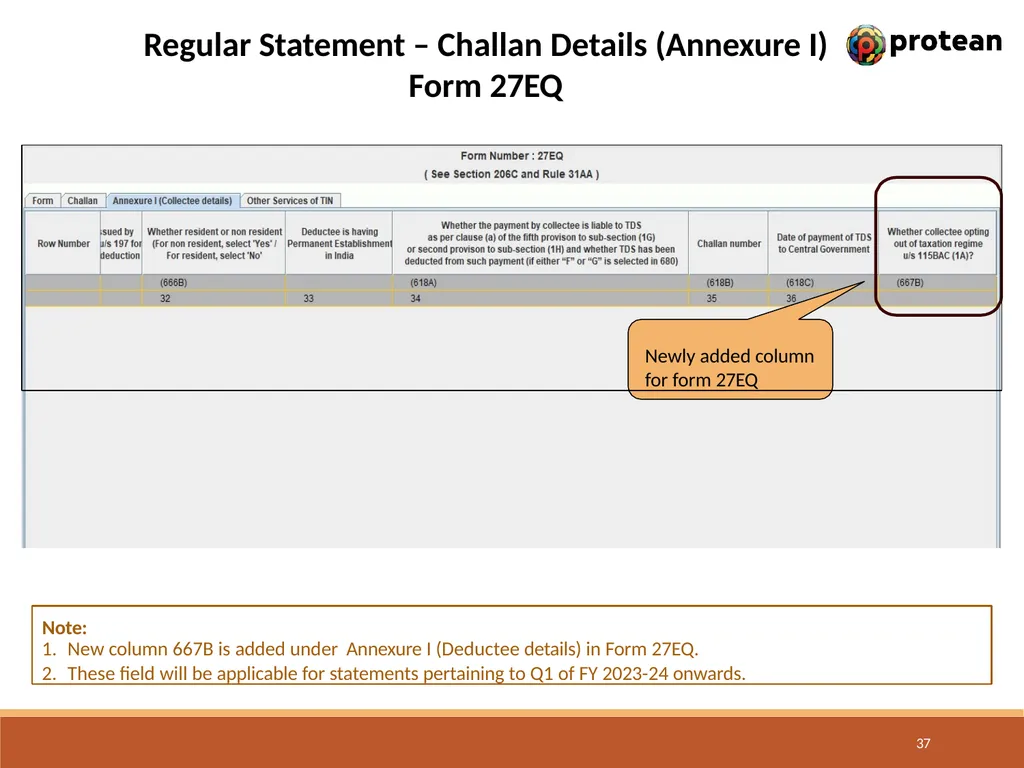
Regular Statement – Challan Details (Annexure I)
Form 27EQ Newly added column for form 27EQ 37 Note:
New column 667B is added under Annexure I (Deductee details) in Form 27EQ.
These field will be applicable for statements pertaining to Q1 of FY 2023-24 onwards.<br>
Form 27EQ Newly added column for form 27EQ 37 Note:
New column 667B is added under Annexure I (Deductee details) in Form 27EQ.
These field will be applicable for statements pertaining to Q1 of FY 2023-24 onwards.<br>
38
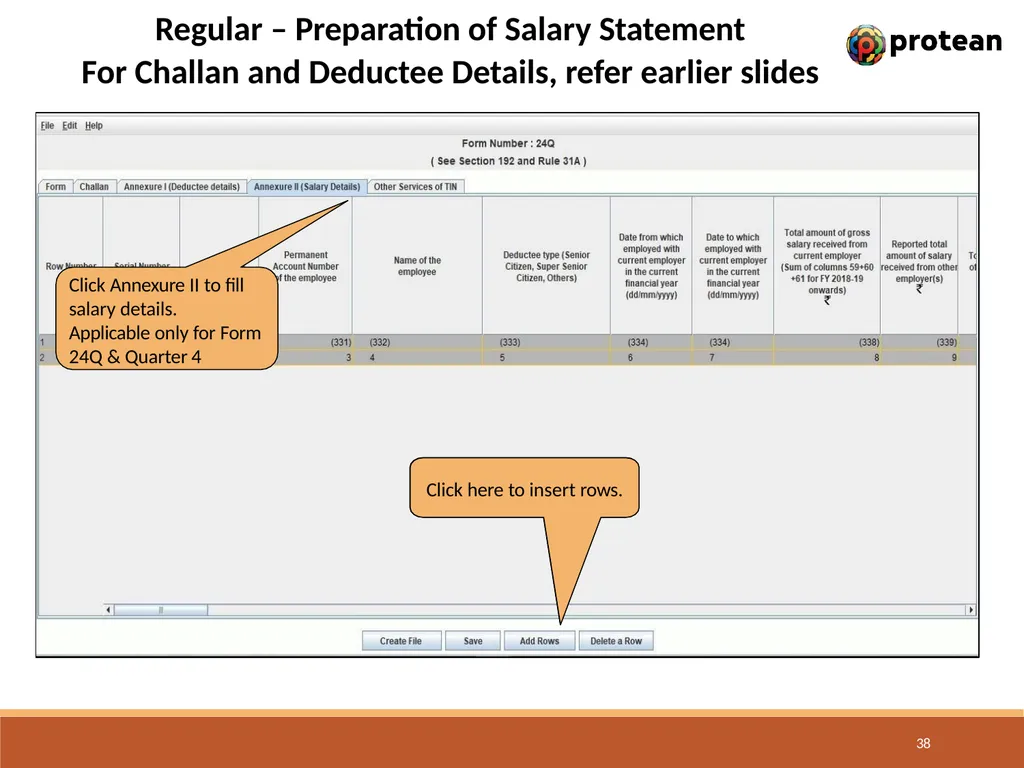
Regular – Preparation of Salary Statement
For Challan and Deductee Details, refer earlier slides Click Annexure II to fill salary details.
Applicable only for Form 24Q & Quarter 4 Click here to insert rows. 38<br>
For Challan and Deductee Details, refer earlier slides Click Annexure II to fill salary details.
Applicable only for Form 24Q & Quarter 4 Click here to insert rows. 38<br>
39
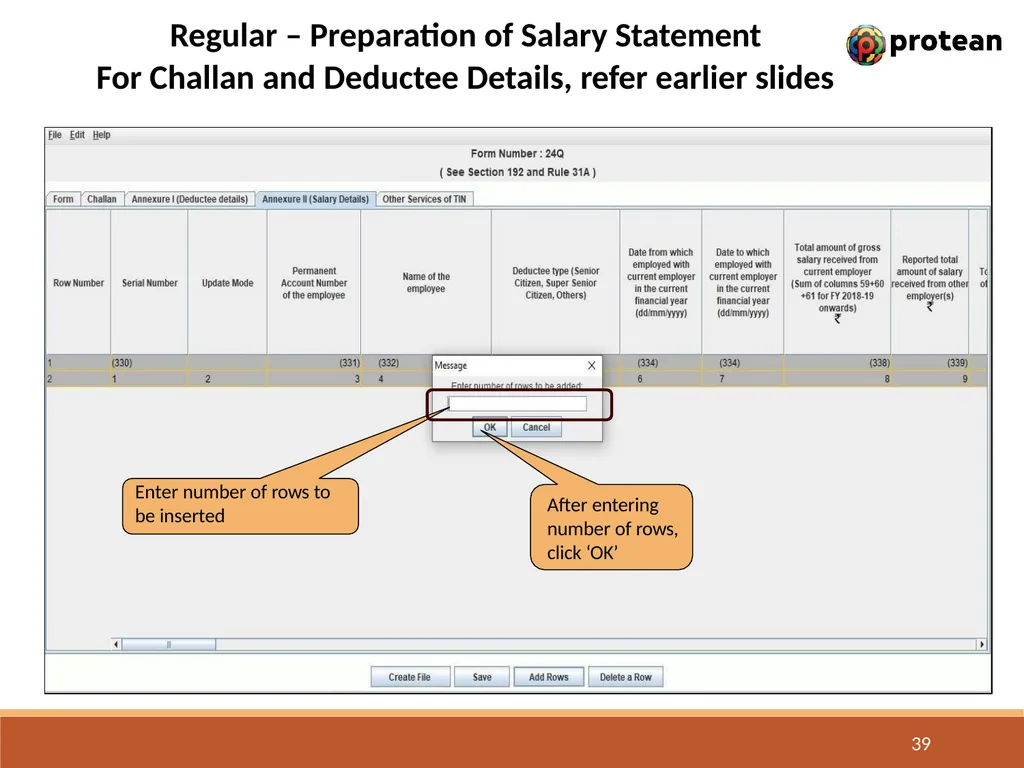
Regular – Preparation of Salary Statement
For Challan and Deductee Details, refer earlier slides Enter number of rows to be inserted After entering number of rows, click ‘OK’ 39<br>
For Challan and Deductee Details, refer earlier slides Enter number of rows to be inserted After entering number of rows, click ‘OK’ 39<br>
40
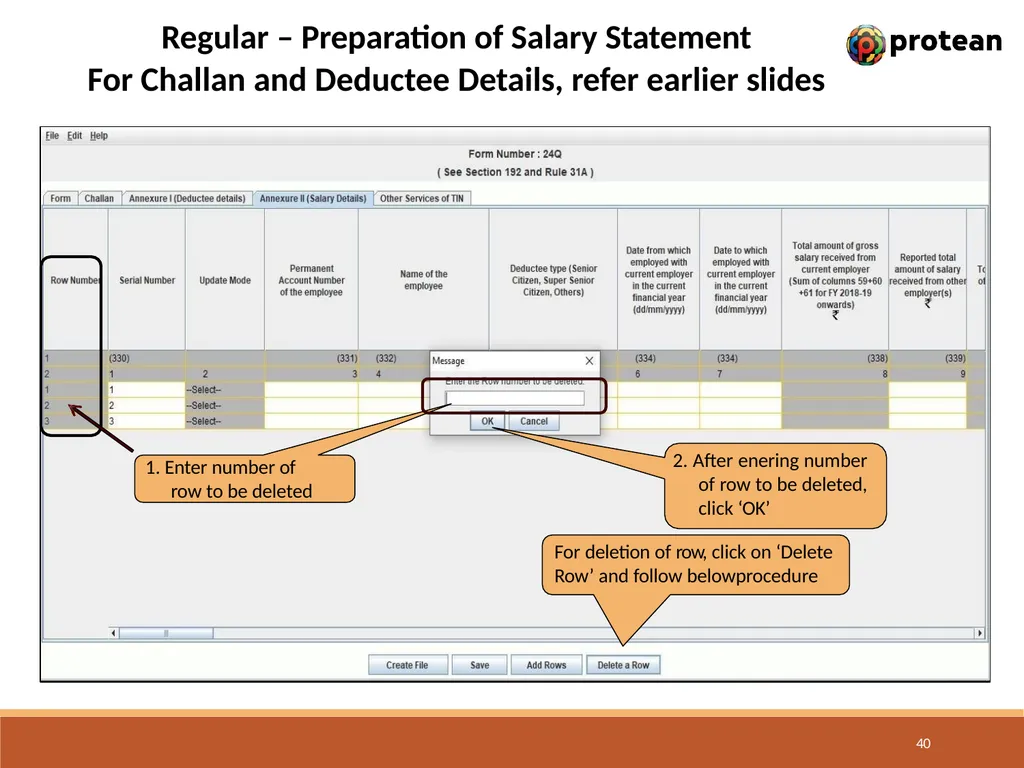
Regular – Preparation of Salary Statement
For Challan and Deductee Details, refer earlier slides 1. Enter number of row to be deleted For deletion of row, click on ‘Delete
Row’ and follow belowprocedure 2. After enering number of row to be deleted, click ‘OK’ 40<br>
For Challan and Deductee Details, refer earlier slides 1. Enter number of row to be deleted For deletion of row, click on ‘Delete
Row’ and follow belowprocedure 2. After enering number of row to be deleted, click ‘OK’ 40<br>
41
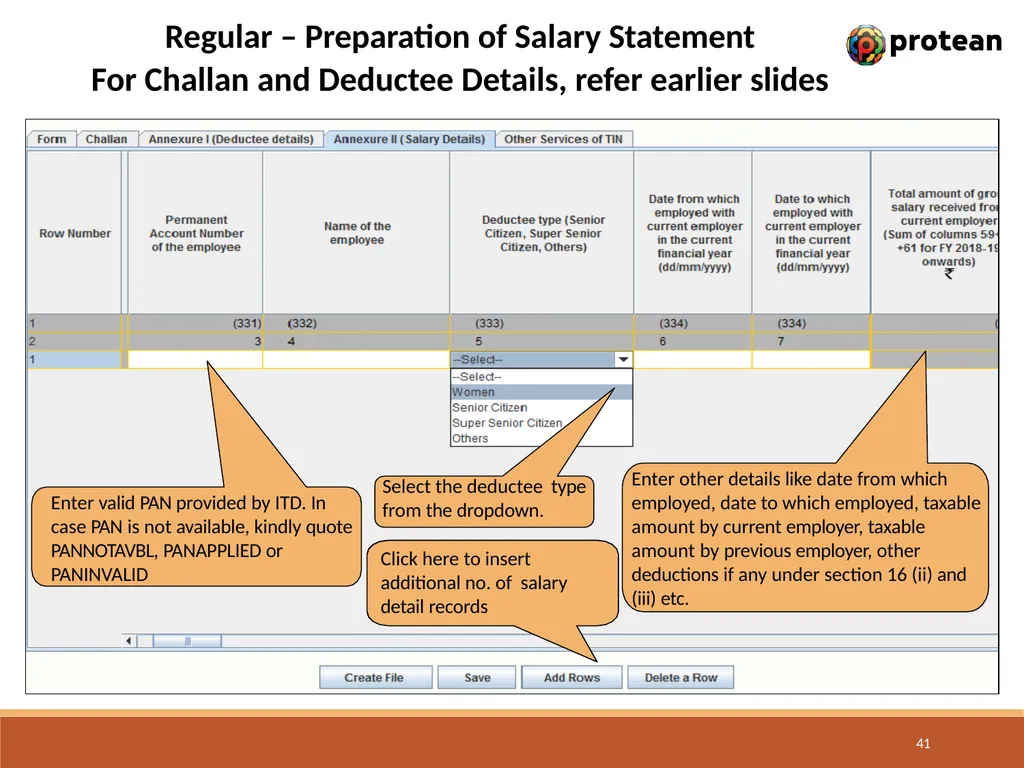
Regular – Preparation of Salary Statement
For Challan and Deductee Details, refer earlier slides Enter valid PAN provided by ITD. In case PAN is not available, kindly quote PANNOTAVBL, PANAPPLIED or PANINVALID Select the deductee type from the dropdown. Enter other details like date from which employed, date to which employed, taxable amount by current employer, taxable amount by previous employer, other deductions if any under section 16 (ii) and
(iii) etc. Click here to insert additional no. of salary detail records 41<br>
For Challan and Deductee Details, refer earlier slides Enter valid PAN provided by ITD. In case PAN is not available, kindly quote PANNOTAVBL, PANAPPLIED or PANINVALID Select the deductee type from the dropdown. Enter other details like date from which employed, date to which employed, taxable amount by current employer, taxable amount by previous employer, other deductions if any under section 16 (ii) and
(iii) etc. Click here to insert additional no. of salary detail records 41<br>
42
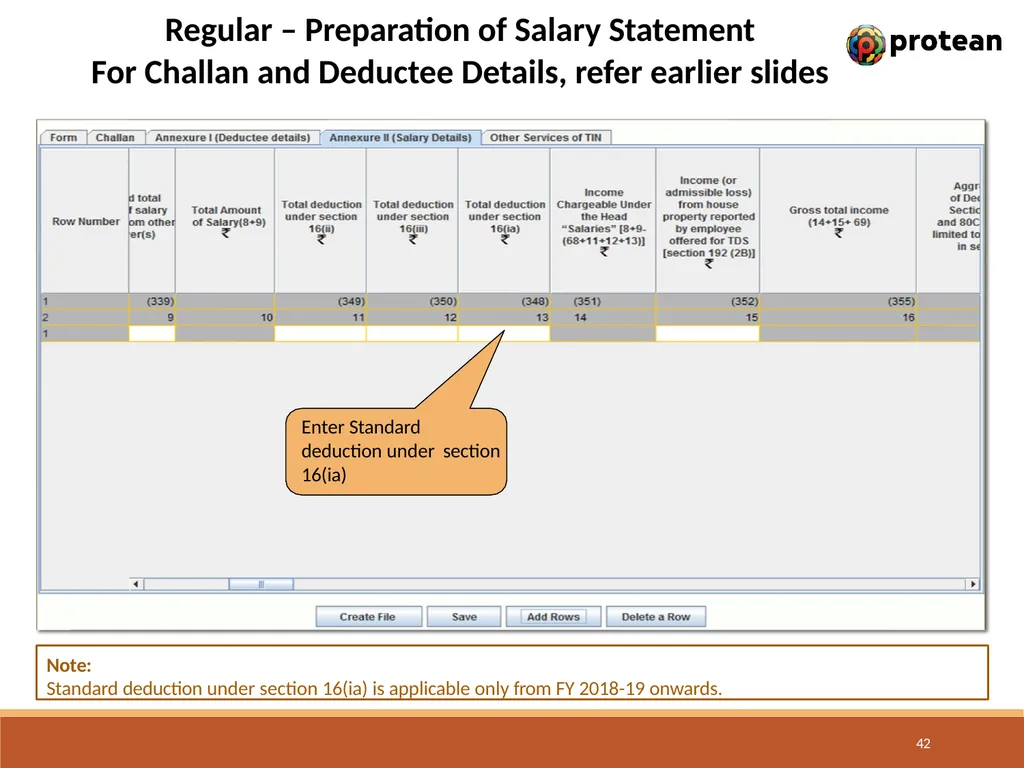
Regular – Preparation of Salary Statement
For Challan and Deductee Details, refer earlier slides Enter Standard deduction under section 16(ia) 42 Note:
Standard deduction under section 16(ia) is applicable only from FY 2018-19 onwards.<br>
For Challan and Deductee Details, refer earlier slides Enter Standard deduction under section 16(ia) 42 Note:
Standard deduction under section 16(ia) is applicable only from FY 2018-19 onwards.<br>
43
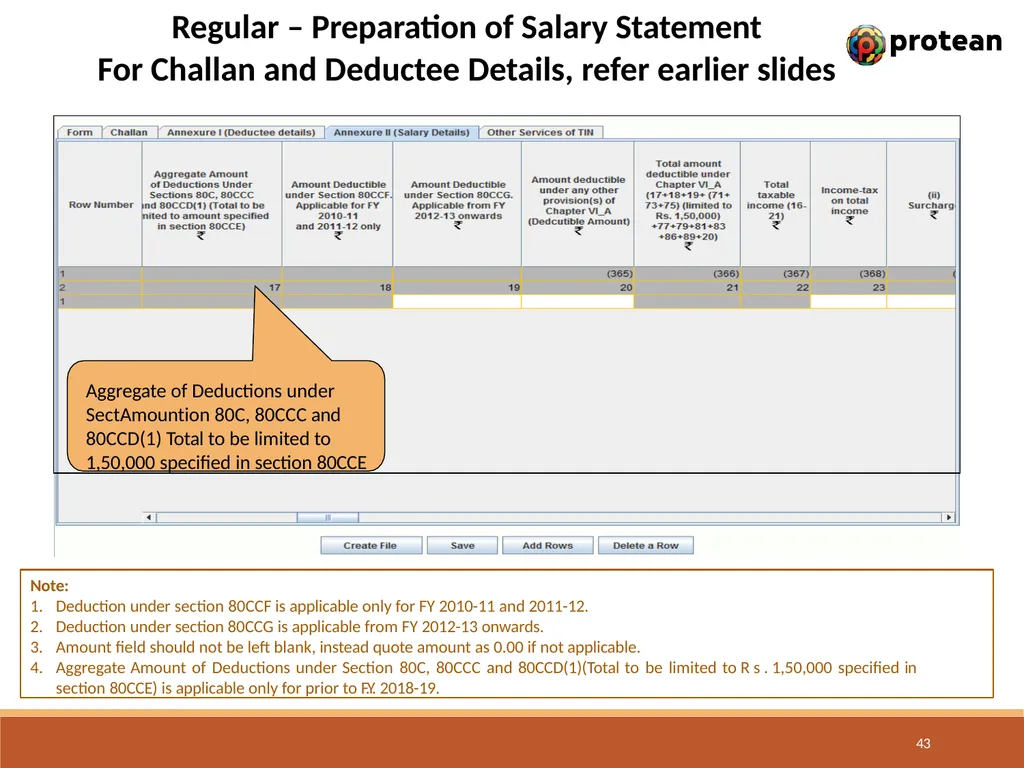
Regular – Preparation of Salary Statement
For Challan and Deductee Details, refer earlier slides Aggregate of Deductions under SectAmountion 80C, 80CCC and 80CCD(1) Total to be limited to 1,50,000 specified in section 80CCE 43 Note:
Deduction under section 80CCF is applicable only for FY 2010-11 and 2011-12.
Deduction under section 80CCG is applicable from FY 2012-13 onwards.
Amount field should not be left blank, instead quote amount as 0.00 if not applicable.
Aggregate Amount of Deductions under Section 80C, 80CCC and 80CCD(1)(Total to be limited to R s . 1,50,000 specified in section 80CCE) is applicable only for prior to F.Y. 2018-19.<br>
For Challan and Deductee Details, refer earlier slides Aggregate of Deductions under SectAmountion 80C, 80CCC and 80CCD(1) Total to be limited to 1,50,000 specified in section 80CCE 43 Note:
Deduction under section 80CCF is applicable only for FY 2010-11 and 2011-12.
Deduction under section 80CCG is applicable from FY 2012-13 onwards.
Amount field should not be left blank, instead quote amount as 0.00 if not applicable.
Aggregate Amount of Deductions under Section 80C, 80CCC and 80CCD(1)(Total to be limited to R s . 1,50,000 specified in section 80CCE) is applicable only for prior to F.Y. 2018-19.<br>
44
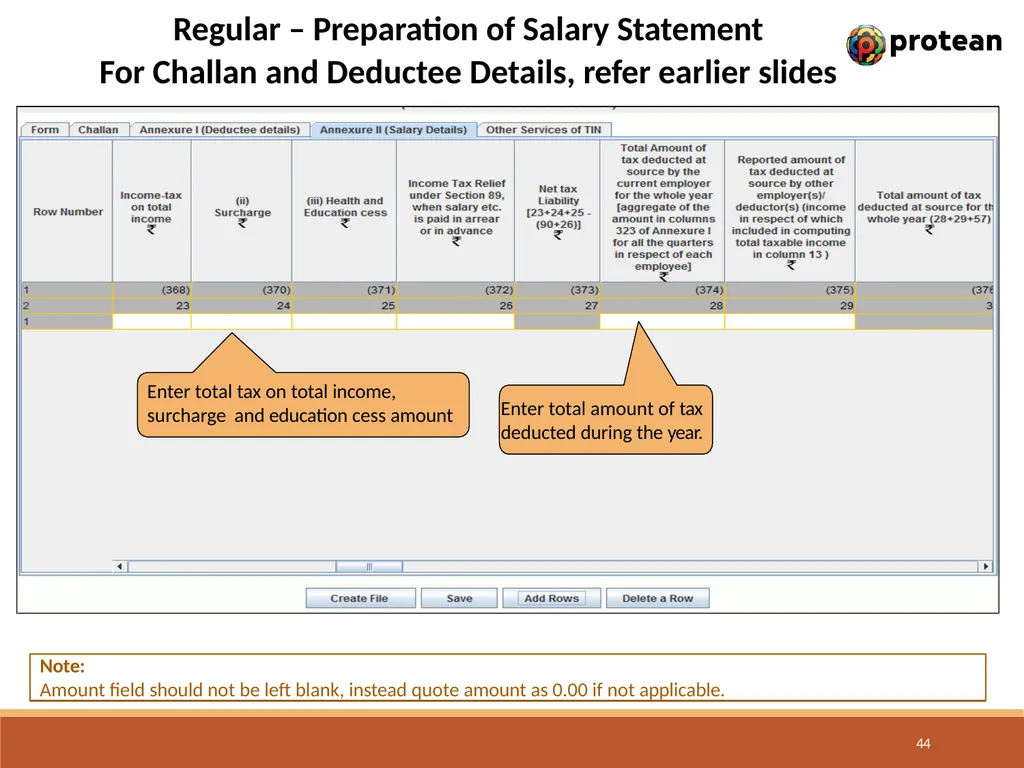
Regular – Preparation of Salary Statement
For Challan and Deductee Details, refer earlier slides Enter total tax on total income, surcharge and education cess amount Note:
Amount field should not be left blank, instead quote amount as 0.00 if not applicable. Enter total amount of tax deducted during the year. 44<br>
For Challan and Deductee Details, refer earlier slides Enter total tax on total income, surcharge and education cess amount Note:
Amount field should not be left blank, instead quote amount as 0.00 if not applicable. Enter total amount of tax deducted during the year. 44<br>
45
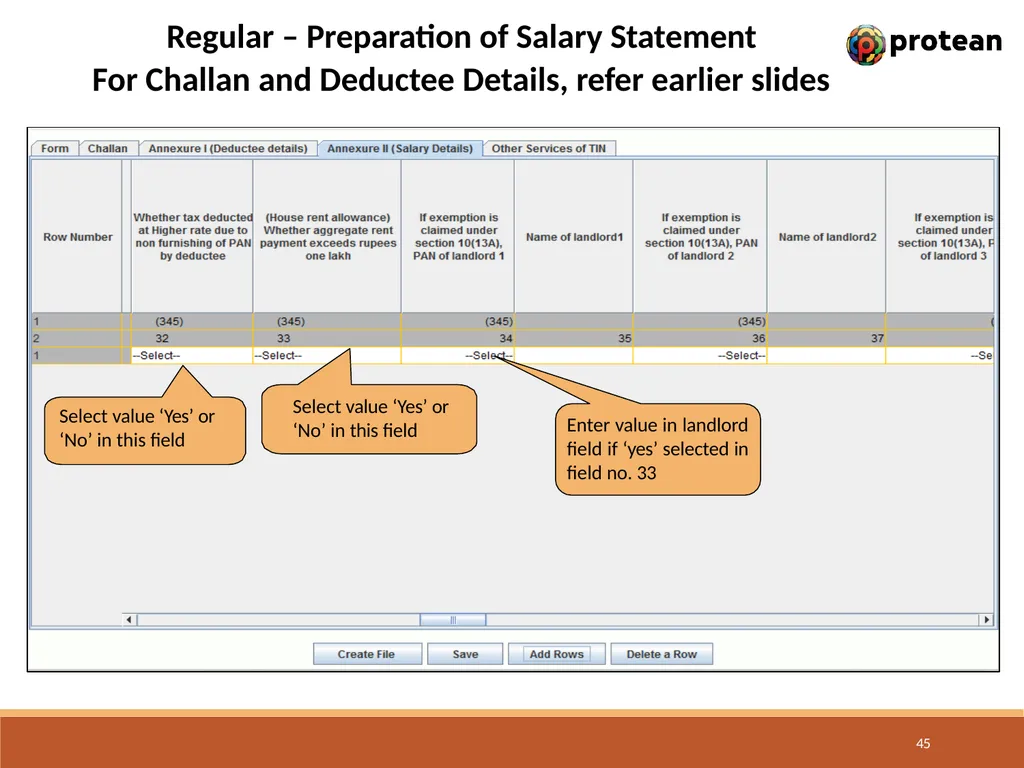
Regular – Preparation of Salary Statement
For Challan and Deductee Details, refer earlier slides Select value ‘Yes’ or
‘No’ in this field Select value ‘Yes’ or ‘No’ in this field Enter value in landlord field if ‘yes’ selected in field no. 33 45<br>
For Challan and Deductee Details, refer earlier slides Select value ‘Yes’ or
‘No’ in this field Select value ‘Yes’ or ‘No’ in this field Enter value in landlord field if ‘yes’ selected in field no. 33 45<br>
46
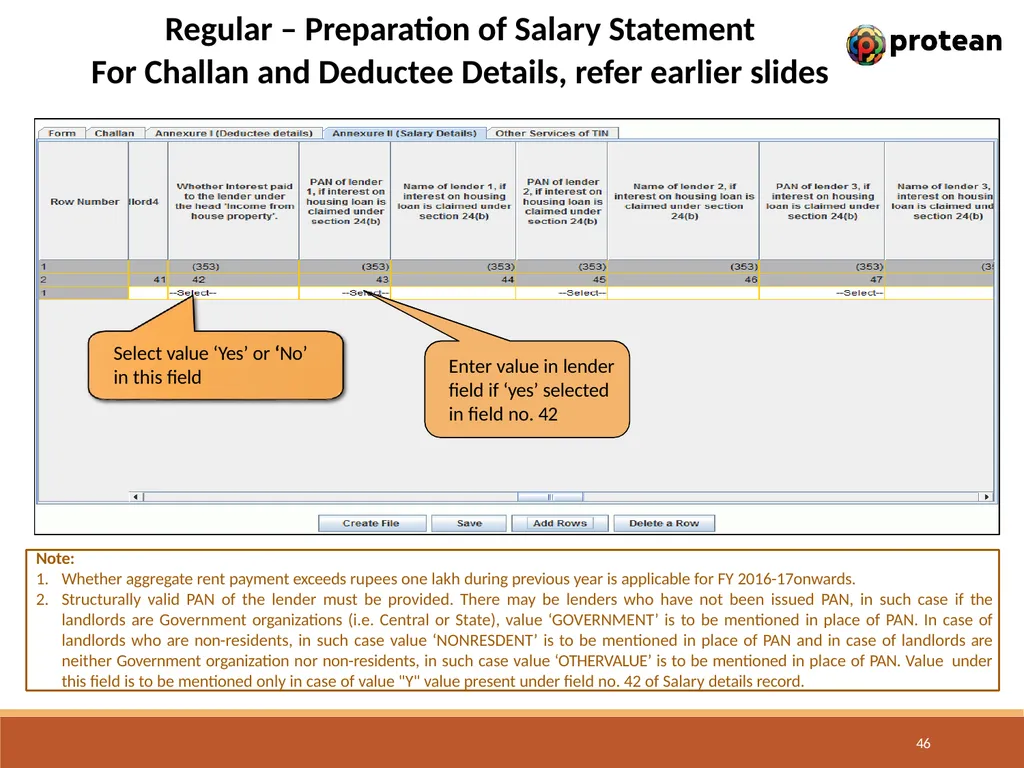
Regular – Preparation of Salary Statement
For Challan and Deductee Details, refer earlier slides Select value ‘Yes’ or ‘No’
in this field Enter value in lender field if ‘yes’ selected in field no. 42 46 Note:
Whether aggregate rent payment exceeds rupees one lakh during previous year is applicable for FY 2016-17onwards.
Structurally valid PAN of the lender must be provided. There may be lenders who have not been issued PAN, in such case if the landlords are Government organizations (i.e. Central or State), value ‘GOVERNMENT’ is to be mentioned in place of PAN. In case of landlords who are non-residents, in such case value ‘NONRESDENT’ is to be mentioned in place of PAN and in case of landlords are neither Government organization nor non-residents, in such case value ‘OTHERVALUE’ is to be mentioned in place of PAN. Value under this field is to be mentioned only in case of value "Y" value present under field no. 42 of Salary details record.<br>
For Challan and Deductee Details, refer earlier slides Select value ‘Yes’ or ‘No’
in this field Enter value in lender field if ‘yes’ selected in field no. 42 46 Note:
Whether aggregate rent payment exceeds rupees one lakh during previous year is applicable for FY 2016-17onwards.
Structurally valid PAN of the lender must be provided. There may be lenders who have not been issued PAN, in such case if the landlords are Government organizations (i.e. Central or State), value ‘GOVERNMENT’ is to be mentioned in place of PAN. In case of landlords who are non-residents, in such case value ‘NONRESDENT’ is to be mentioned in place of PAN and in case of landlords are neither Government organization nor non-residents, in such case value ‘OTHERVALUE’ is to be mentioned in place of PAN. Value under this field is to be mentioned only in case of value "Y" value present under field no. 42 of Salary details record.<br>
47
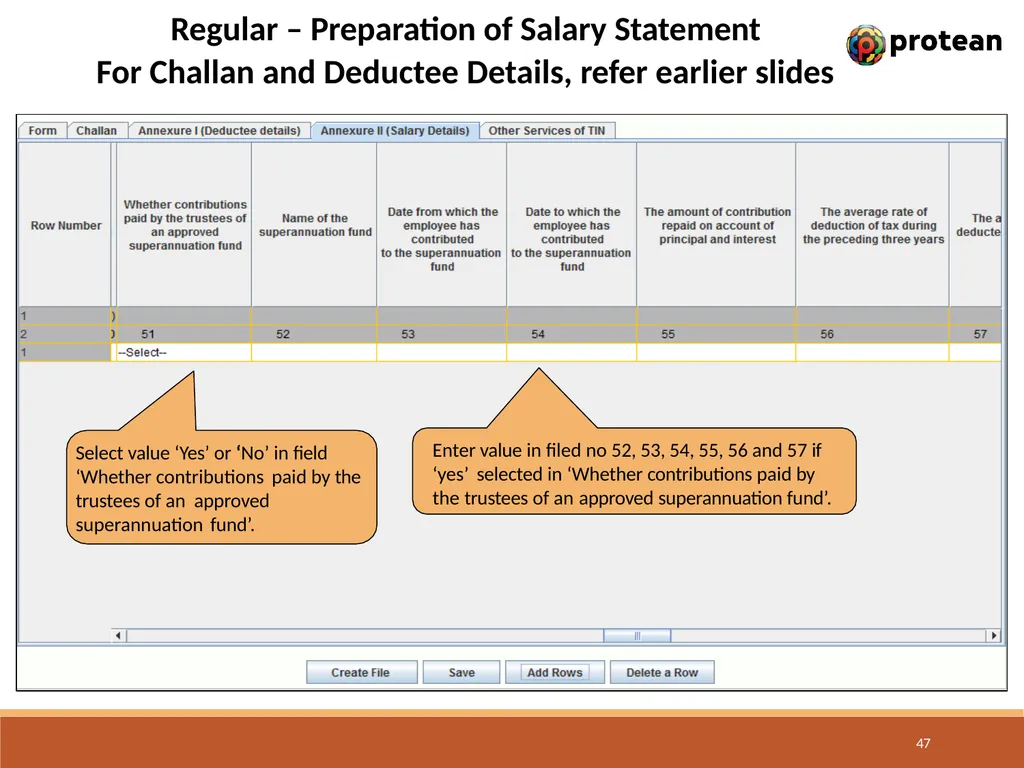
Regular – Preparation of Salary Statement
For Challan and Deductee Details, refer earlier slides Select value ‘Yes’ or ‘No’ in field ‘Whether contributions paid by the trustees of an approved superannuation fund’. Enter value in filed no 52, 53, 54, 55, 56 and 57 if ‘yes’ selected in ‘Whether contributions paid by the trustees of an approved superannuation fund’. 47<br>
For Challan and Deductee Details, refer earlier slides Select value ‘Yes’ or ‘No’ in field ‘Whether contributions paid by the trustees of an approved superannuation fund’. Enter value in filed no 52, 53, 54, 55, 56 and 57 if ‘yes’ selected in ‘Whether contributions paid by the trustees of an approved superannuation fund’. 47<br>
48
Regular – Preparation of Salary Statement
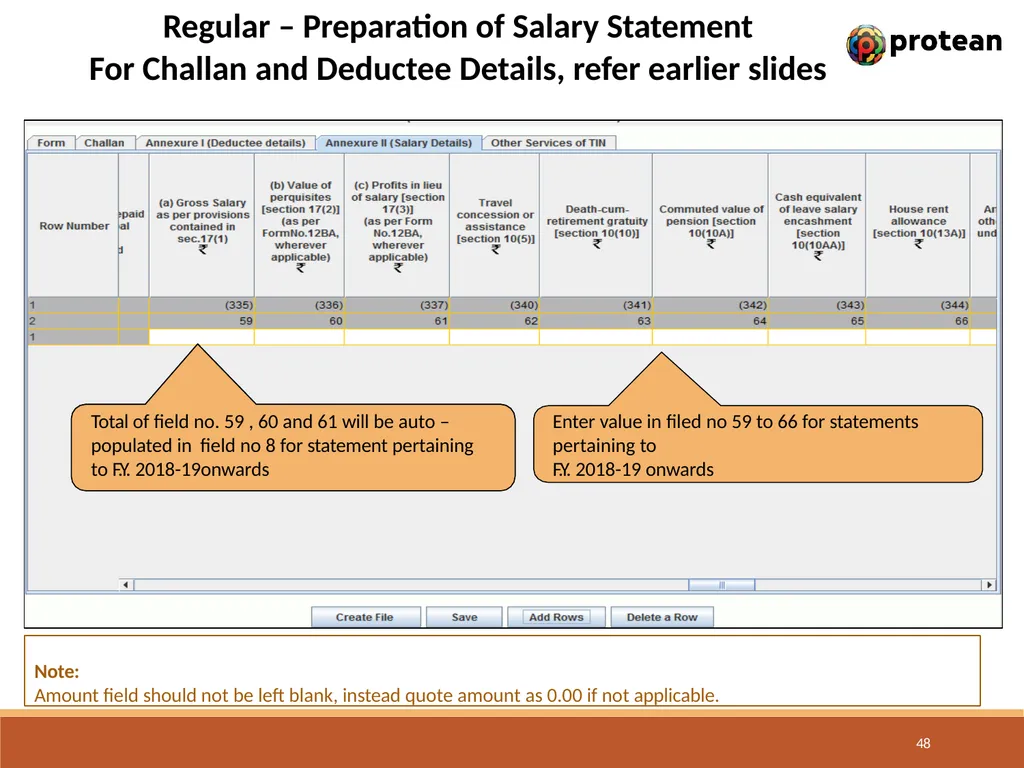
For Challan and Deductee Details, refer earlier slides Enter value in filed no 59 to 66 for statements pertaining to
F.Y. 2018-19 onwards Note:
Amount field should not be left blank, instead quote amount as 0.00 if not applicable. Total of field no. 59 , 60 and 61 will be auto – populated in field no 8 for statement pertaining to F.Y. 2018-19onwards 48<br>
For Challan and Deductee Details, refer earlier slides Enter value in filed no 59 to 66 for statements pertaining to
F.Y. 2018-19 onwards Note:
Amount field should not be left blank, instead quote amount as 0.00 if not applicable. Total of field no. 59 , 60 and 61 will be auto – populated in field no 8 for statement pertaining to F.Y. 2018-19onwards 48<br>
49
Regular – Preparation of Salary Statement
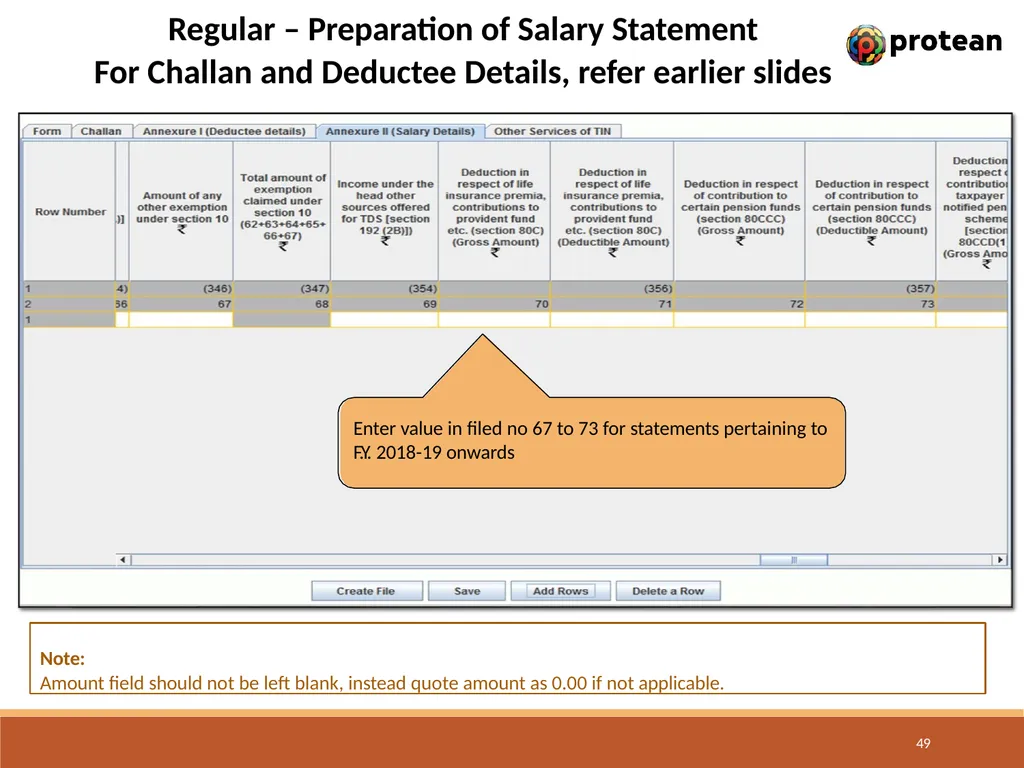
For Challan and Deductee Details, refer earlier slides Enter value in filed no 67 to 73 for statements pertaining to
F.Y. 2018-19 onwards 49 Note:
Amount field should not be left blank, instead quote amount as 0.00 if not applicable.<br>
For Challan and Deductee Details, refer earlier slides Enter value in filed no 67 to 73 for statements pertaining to
F.Y. 2018-19 onwards 49 Note:
Amount field should not be left blank, instead quote amount as 0.00 if not applicable.<br>
50
Regular – Preparation of Salary Statement
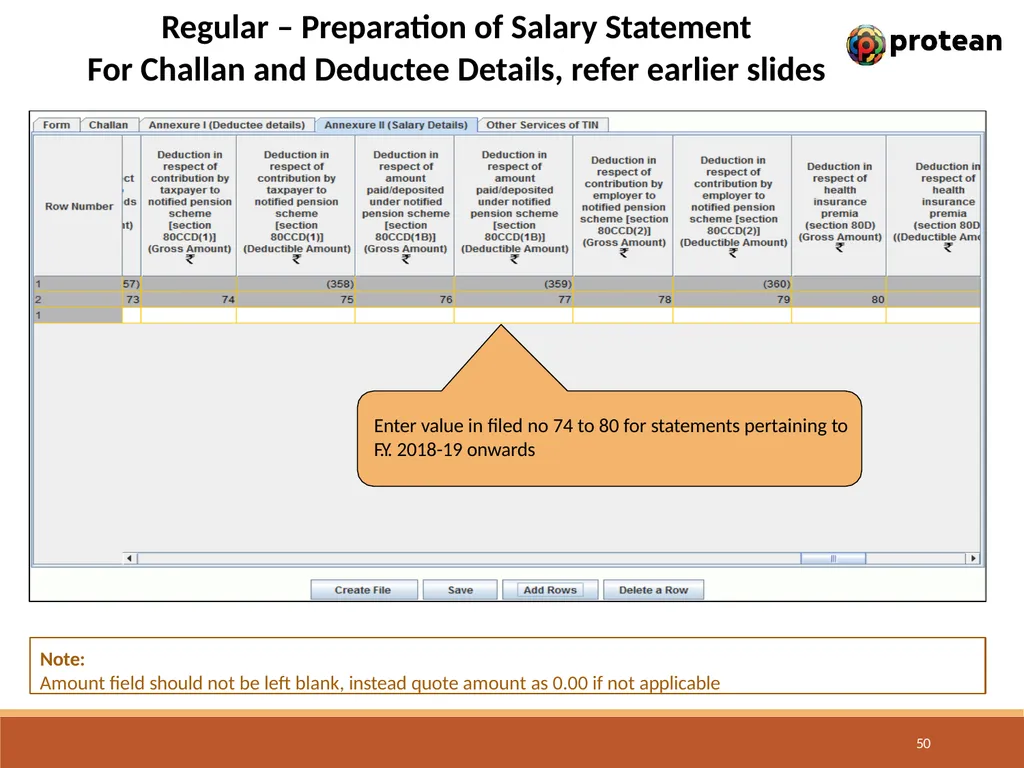
For Challan and Deductee Details, refer earlier slides Enter value in filed no 74 to 80 for statements pertaining to
F.Y. 2018-19 onwards 50 Note:
Amount field should not be left blank, instead quote amount as 0.00 if not applicable<br>
For Challan and Deductee Details, refer earlier slides Enter value in filed no 74 to 80 for statements pertaining to
F.Y. 2018-19 onwards 50 Note:
Amount field should not be left blank, instead quote amount as 0.00 if not applicable<br>
51
Regular – Preparation of Salary Statement
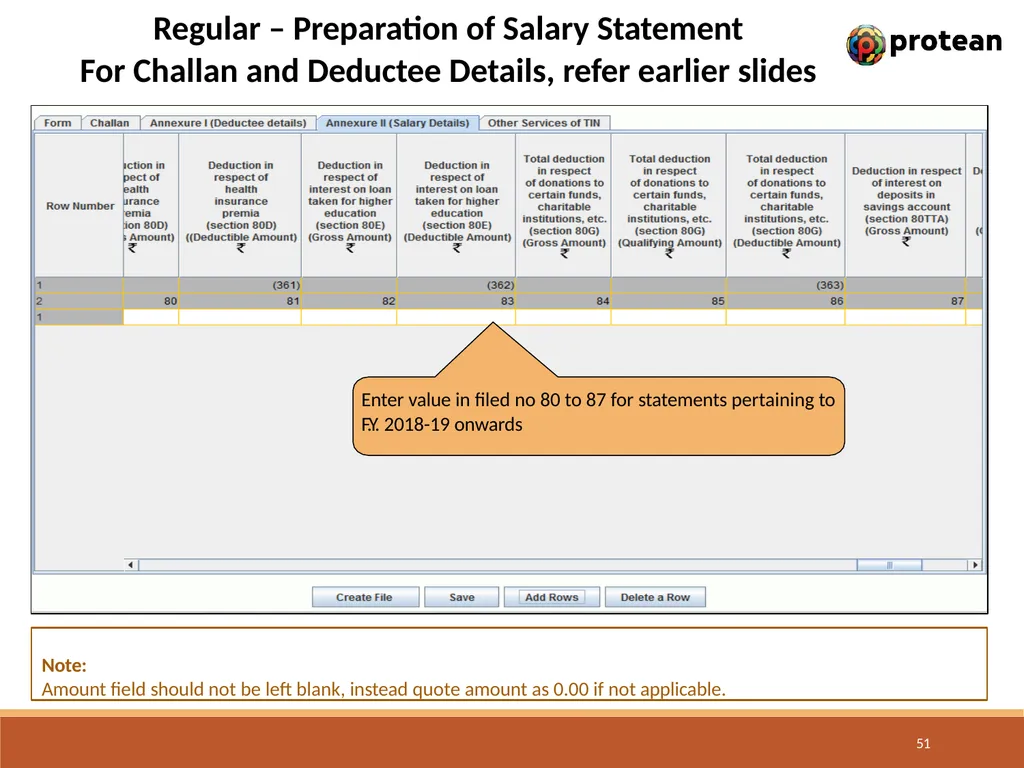
For Challan and Deductee Details, refer earlier slides Enter value in filed no 80 to 87 for statements pertaining to
F.Y. 2018-19 onwards 51 Note:
Amount field should not be left blank, instead quote amount as 0.00 if not applicable.<br>
For Challan and Deductee Details, refer earlier slides Enter value in filed no 80 to 87 for statements pertaining to
F.Y. 2018-19 onwards 51 Note:
Amount field should not be left blank, instead quote amount as 0.00 if not applicable.<br>
52
Regular – Preparation of Salary Statement
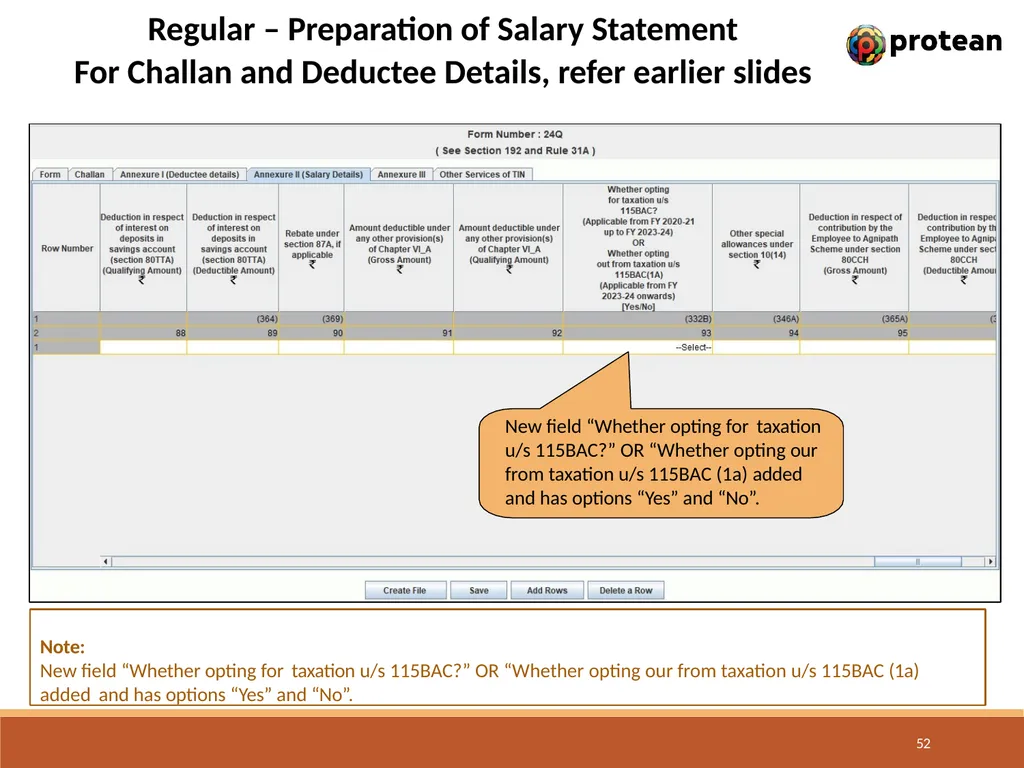
For Challan and Deductee Details, refer earlier slides Note:
New field “Whether opting for taxation u/s 115BAC?” OR “Whether opting our from taxation u/s 115BAC (1a)
added and has options “Yes” and “No”. New field “Whether opting for taxation u/s 115BAC?” OR “Whether opting our from taxation u/s 115BAC (1a) added and has options “Yes” and “No”. 52<br>
For Challan and Deductee Details, refer earlier slides Note:
New field “Whether opting for taxation u/s 115BAC?” OR “Whether opting our from taxation u/s 115BAC (1a)
added and has options “Yes” and “No”. New field “Whether opting for taxation u/s 115BAC?” OR “Whether opting our from taxation u/s 115BAC (1a) added and has options “Yes” and “No”. 52<br>
53
Regular – Preparation of Salary Statement
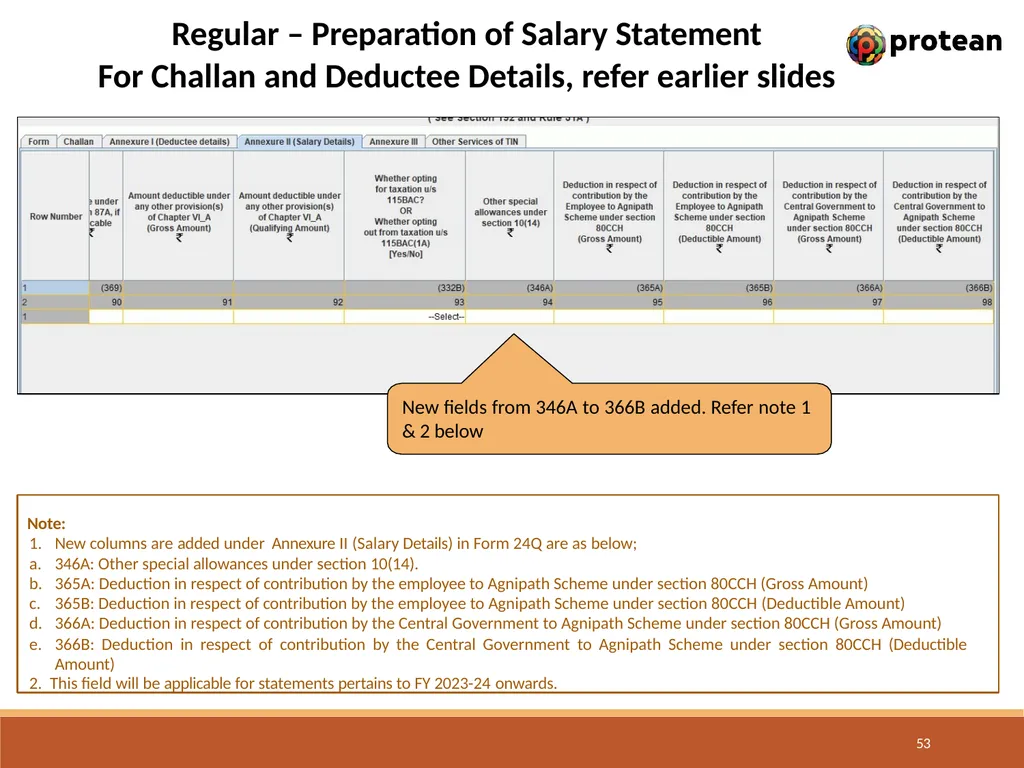
For Challan and Deductee Details, refer earlier slides New fields from 346A to 366B added. Refer note 1 & 2 below 53 Note:
New columns are added under Annexure II (Salary Details) in Form 24Q are as below;
346A: Other special allowances under section 10(14).
365A: Deduction in respect of contribution by the employee to Agnipath Scheme under section 80CCH (Gross Amount)
365B: Deduction in respect of contribution by the employee to Agnipath Scheme under section 80CCH (Deductible Amount)
366A: Deduction in respect of contribution by the Central Government to Agnipath Scheme under section 80CCH (Gross Amount)
366B: Deduction in respect of contribution by the Central Government to Agnipath Scheme under section 80CCH (Deductible Amount)
2. This field will be applicable for statements pertains to FY 2023-24 onwards.<br>
For Challan and Deductee Details, refer earlier slides New fields from 346A to 366B added. Refer note 1 & 2 below 53 Note:
New columns are added under Annexure II (Salary Details) in Form 24Q are as below;
346A: Other special allowances under section 10(14).
365A: Deduction in respect of contribution by the employee to Agnipath Scheme under section 80CCH (Gross Amount)
365B: Deduction in respect of contribution by the employee to Agnipath Scheme under section 80CCH (Deductible Amount)
366A: Deduction in respect of contribution by the Central Government to Agnipath Scheme under section 80CCH (Gross Amount)
366B: Deduction in respect of contribution by the Central Government to Agnipath Scheme under section 80CCH (Deductible Amount)
2. This field will be applicable for statements pertains to FY 2023-24 onwards.<br>
54
Save Regular Statement Note:
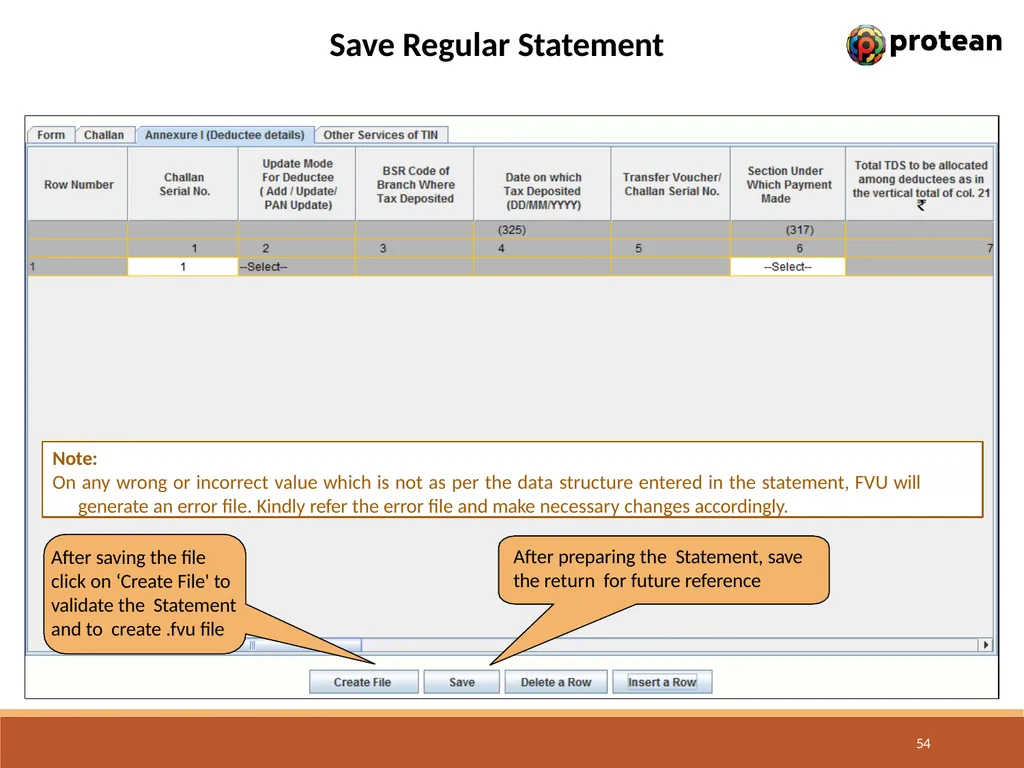
On any wrong or incorrect value which is not as per the data structure entered in the statement, FVU will generate an error file. Kindly refer the error file and make necessary changes accordingly. After saving the file click on ‘Create File' to validate the Statement and to create .fvu file After preparing the Statement, save the return for future reference 54<br>
On any wrong or incorrect value which is not as per the data structure entered in the statement, FVU will generate an error file. Kindly refer the error file and make necessary changes accordingly. After saving the file click on ‘Create File' to validate the Statement and to create .fvu file After preparing the Statement, save the return for future reference 54<br>
55
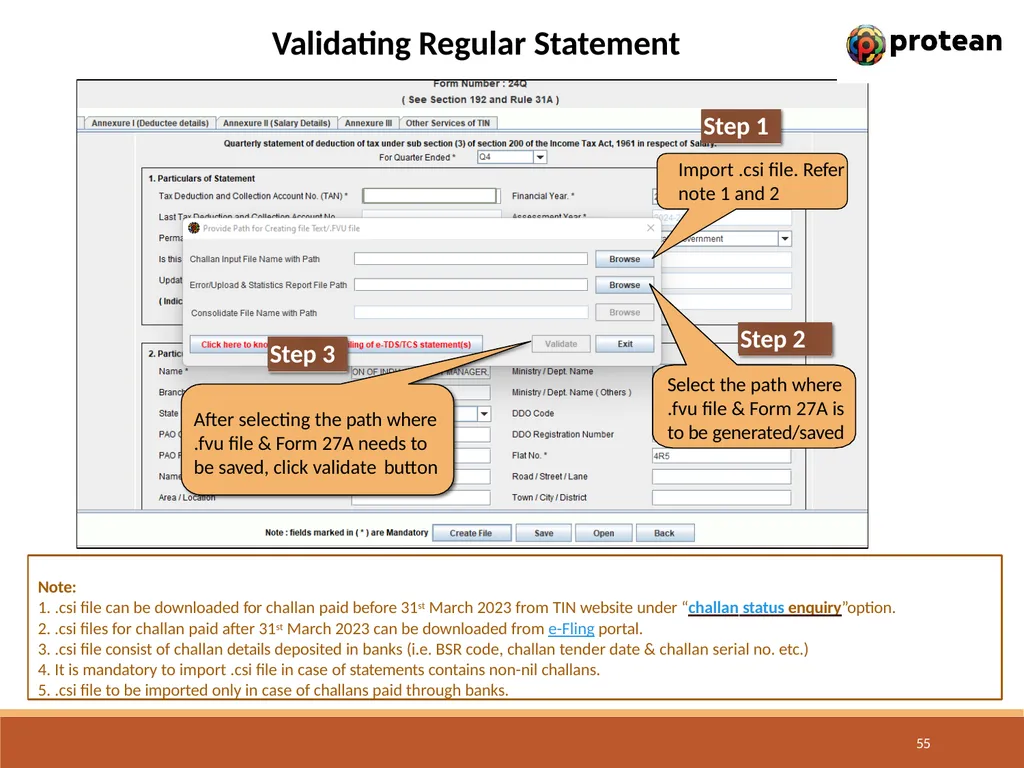
Validating Regular Statement Step 1 Select the path where
.fvu file & Form 27A is to be generated/saved Step 2 After selecting the path where
.fvu file & Form 27A needs to be saved, click validate button Step 3 Note:
.csi file can be downloaded for challan paid before 31st March 2023 from TIN website under “challan status enquiry”option.
.csi files for challan paid after 31st March 2023 can be downloaded from e-Fling portal.
.csi file consist of challan details deposited in banks (i.e. BSR code, challan tender date & challan serial no. etc.)
It is mandatory to import .csi file in case of statements contains non-nil challans.
.csi file to be imported only in case of challans paid through banks. Import .csi file. Refer note 1 and 2 55<br>
.fvu file & Form 27A is to be generated/saved Step 2 After selecting the path where
.fvu file & Form 27A needs to be saved, click validate button Step 3 Note:
.csi file can be downloaded for challan paid before 31st March 2023 from TIN website under “challan status enquiry”option.
.csi files for challan paid after 31st March 2023 can be downloaded from e-Fling portal.
.csi file consist of challan details deposited in banks (i.e. BSR code, challan tender date & challan serial no. etc.)
It is mandatory to import .csi file in case of statements contains non-nil challans.
.csi file to be imported only in case of challans paid through banks. Import .csi file. Refer note 1 and 2 55<br>
56
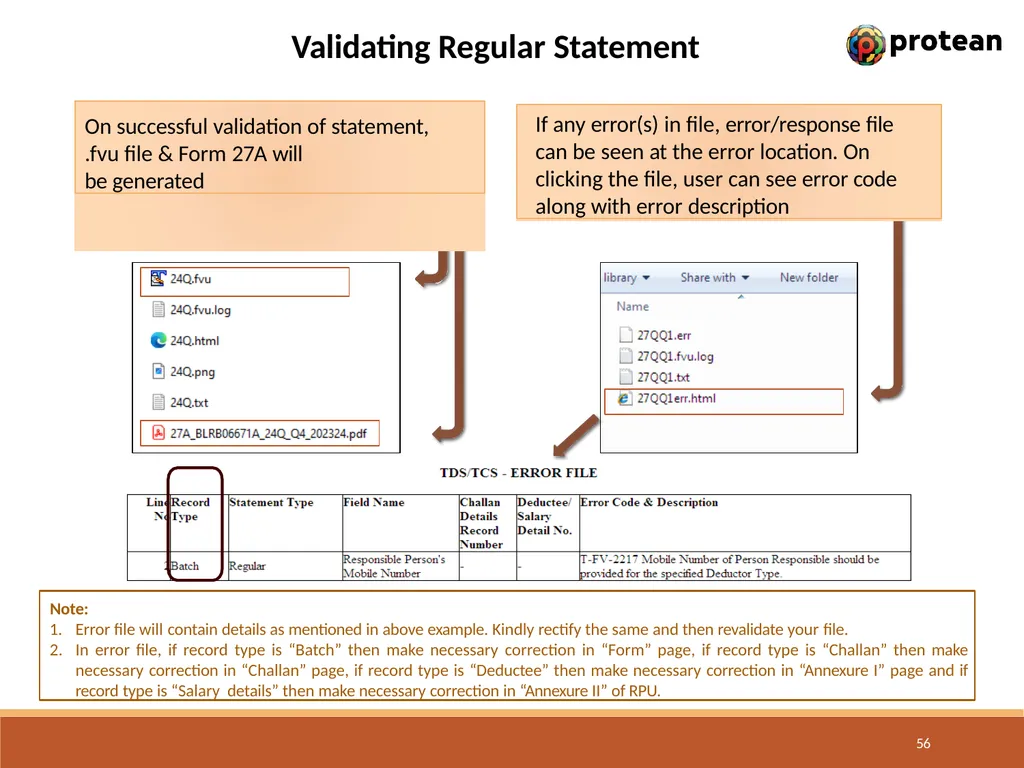
Validating Regular Statement Note:
Error file will contain details as mentioned in above example. Kindly rectify the same and then revalidate your file.
In error file, if record type is “Batch” then make necessary correction in “Form” page, if record type is “Challan” then make necessary correction in “Challan” page, if record type is “Deductee” then make necessary correction in “Annexure I” page and if record type is “Salary details” then make necessary correction in “Annexure II” of RPU. On successful validation of statement,
.fvu file & Form 27A will be generated If any error(s) in file, error/response file can be seen at the error location. On clicking the file, user can see error code along with error description 56<br>
Error file will contain details as mentioned in above example. Kindly rectify the same and then revalidate your file.
In error file, if record type is “Batch” then make necessary correction in “Form” page, if record type is “Challan” then make necessary correction in “Challan” page, if record type is “Deductee” then make necessary correction in “Annexure I” page and if record type is “Salary details” then make necessary correction in “Annexure II” of RPU. On successful validation of statement,
.fvu file & Form 27A will be generated If any error(s) in file, error/response file can be seen at the error location. On clicking the file, user can see error code along with error description 56<br>
57
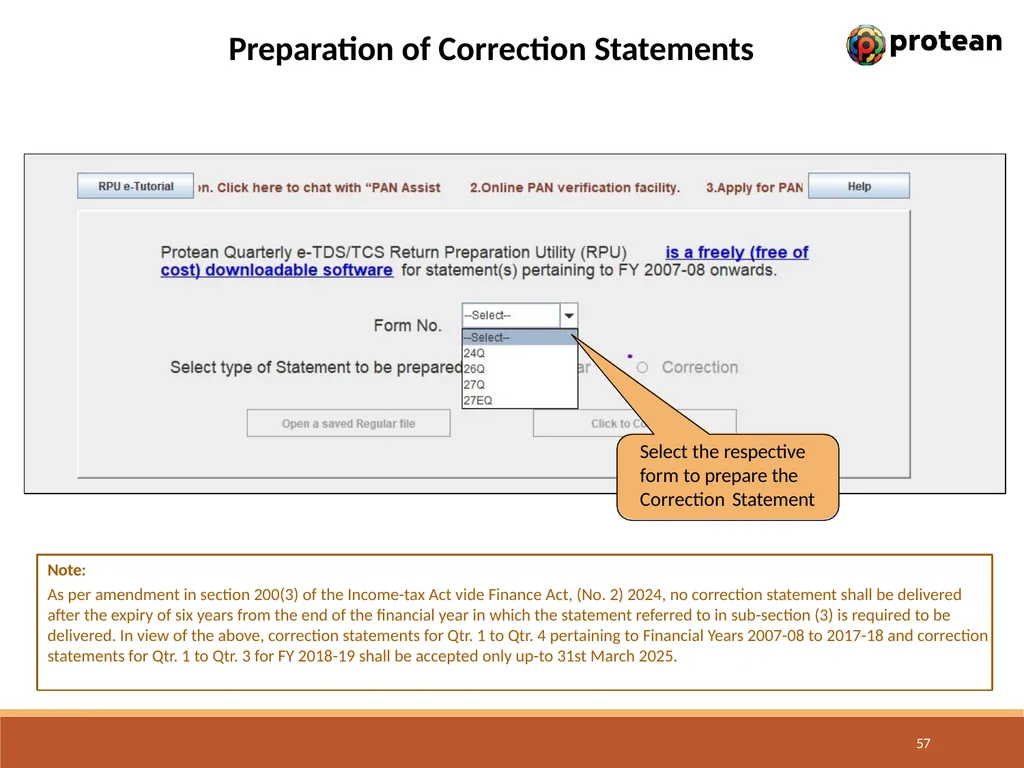
Preparation of Correction Statements Select the respective form to prepare the Correction Statement 57 Note:
As per amendment in section 200(3) of the Income-tax Act vide Finance Act, (No. 2) 2024, no correction statement shall be delivered after the expiry of six years from the end of the financial year in which the statement referred to in sub-section (3) is required to be delivered. In view of the above, correction statements for Qtr. 1 to Qtr. 4 pertaining to Financial Years 2007-08 to 2017-18 and correction statements for Qtr. 1 to Qtr. 3 for FY 2018-19 shall be accepted only up-to 31st March 2025.<br>
As per amendment in section 200(3) of the Income-tax Act vide Finance Act, (No. 2) 2024, no correction statement shall be delivered after the expiry of six years from the end of the financial year in which the statement referred to in sub-section (3) is required to be delivered. In view of the above, correction statements for Qtr. 1 to Qtr. 4 pertaining to Financial Years 2007-08 to 2017-18 and correction statements for Qtr. 1 to Qtr. 3 for FY 2018-19 shall be accepted only up-to 31st March 2025.<br>
58
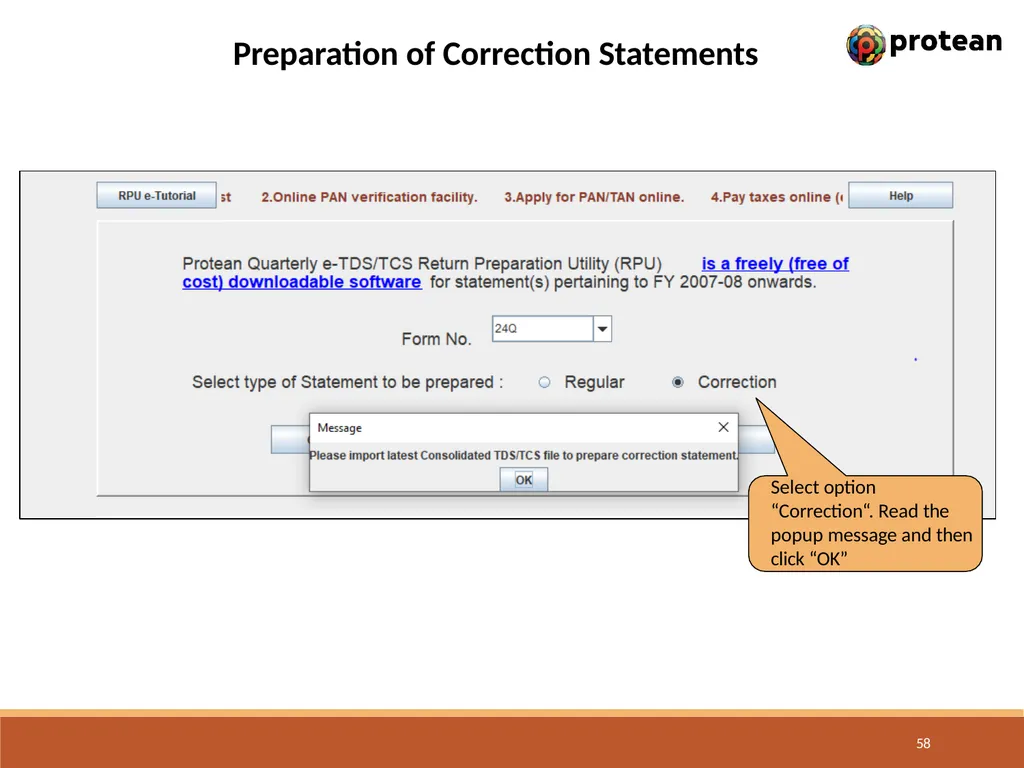
Preparation of Correction Statements Select option “Correction“. Read the popup message and then click “OK” 58<br>
59
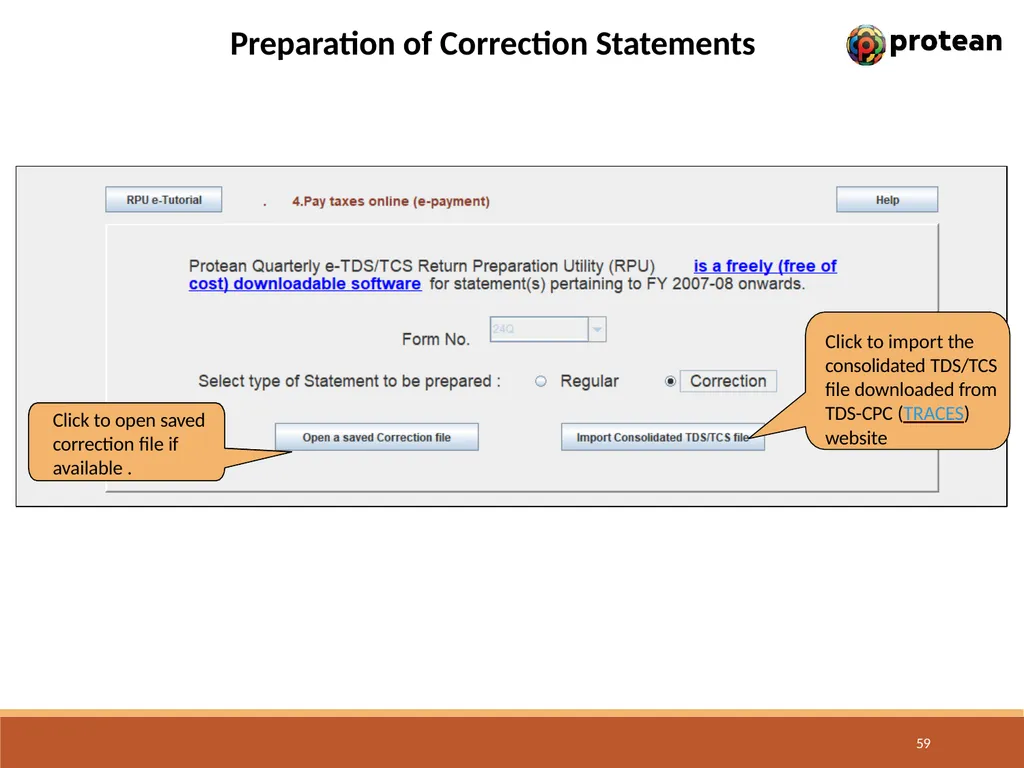
Preparation of Correction Statements Click to import the consolidated TDS/TCS file downloaded from TDS-CPC (TRACES)
website Click to open saved correction file if available . 59<br>
website Click to open saved correction file if available . 59<br>
60
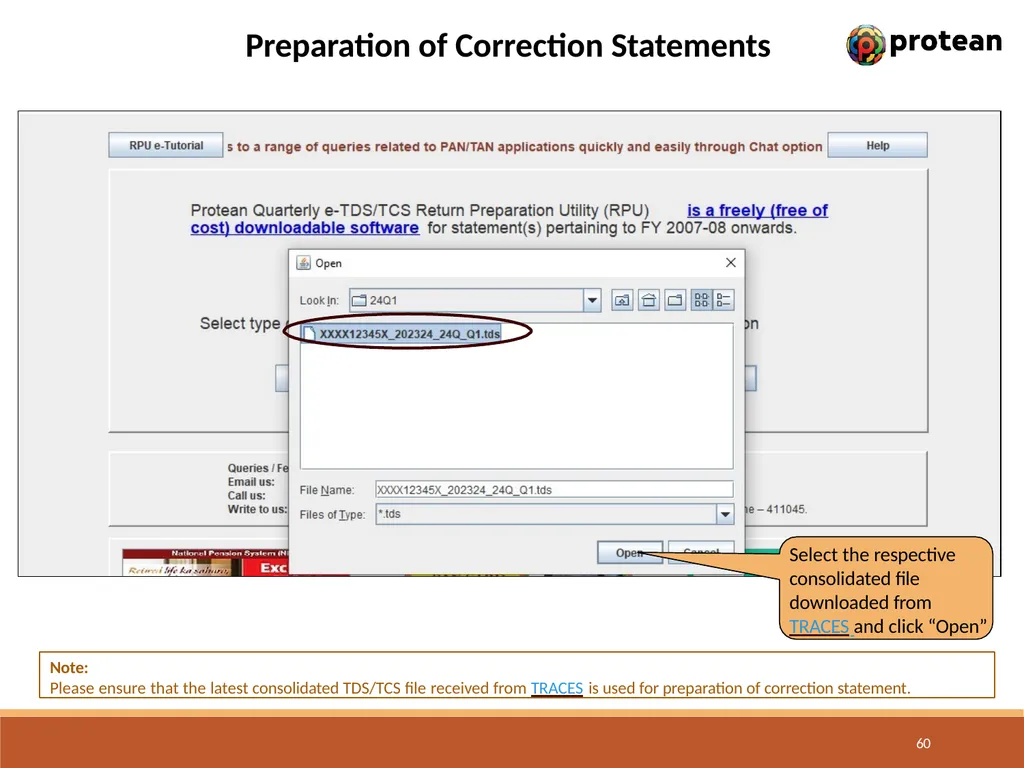
Preparation of Correction Statements Note:
Please ensure that the latest consolidated TDS/TCS file received from TRACES is used for preparation of correction statement. Select the respective consolidated file downloaded from TRACES and click “Open” 60<br>
Please ensure that the latest consolidated TDS/TCS file received from TRACES is used for preparation of correction statement. Select the respective consolidated file downloaded from TRACES and click “Open” 60<br>
61
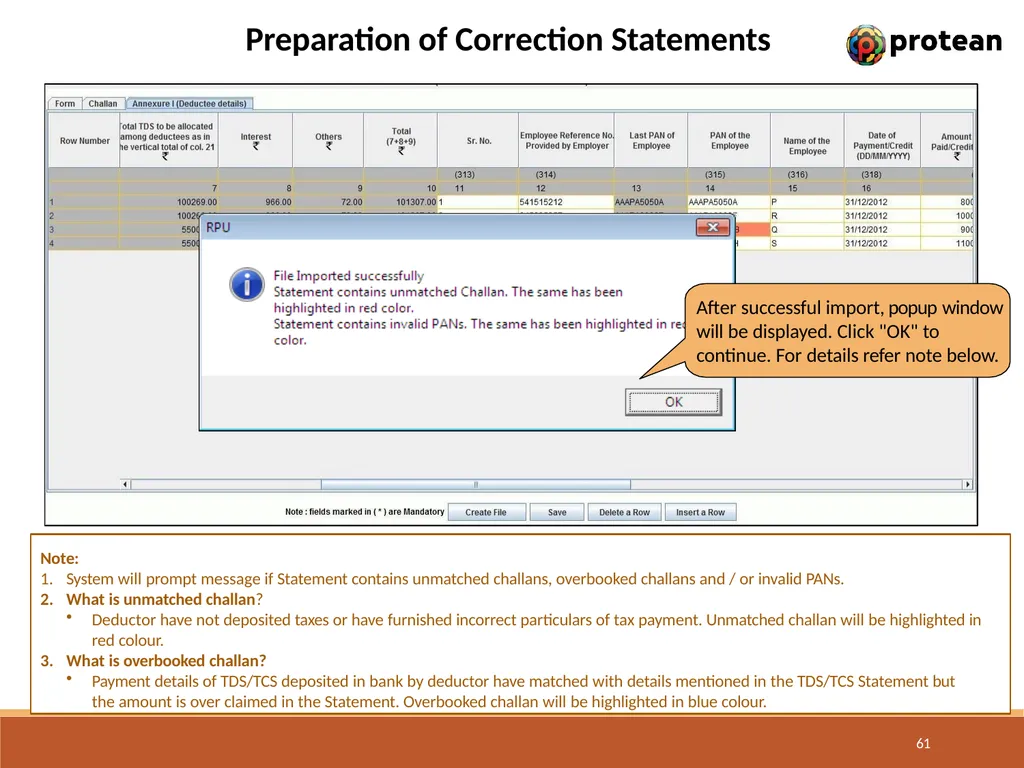
Preparation of Correction Statements Note:
System will prompt message if Statement contains unmatched challans, overbooked challans and / or invalid PANs.
What is unmatched challan?
Deductor have not deposited taxes or have furnished incorrect particulars of tax payment. Unmatched challan will be highlighted in red colour.
What is overbooked challan?
Payment details of TDS/TCS deposited in bank by deductor have matched with details mentioned in the TDS/TCS Statement but the amount is over claimed in the Statement. Overbooked challan will be highlighted in blue colour. 61 After successful import, popup window will be displayed. Click "OK" to continue. For details refer note below.<br>
System will prompt message if Statement contains unmatched challans, overbooked challans and / or invalid PANs.
What is unmatched challan?
Deductor have not deposited taxes or have furnished incorrect particulars of tax payment. Unmatched challan will be highlighted in red colour.
What is overbooked challan?
Payment details of TDS/TCS deposited in bank by deductor have matched with details mentioned in the TDS/TCS Statement but the amount is over claimed in the Statement. Overbooked challan will be highlighted in blue colour. 61 After successful import, popup window will be displayed. Click "OK" to continue. For details refer note below.<br>
62
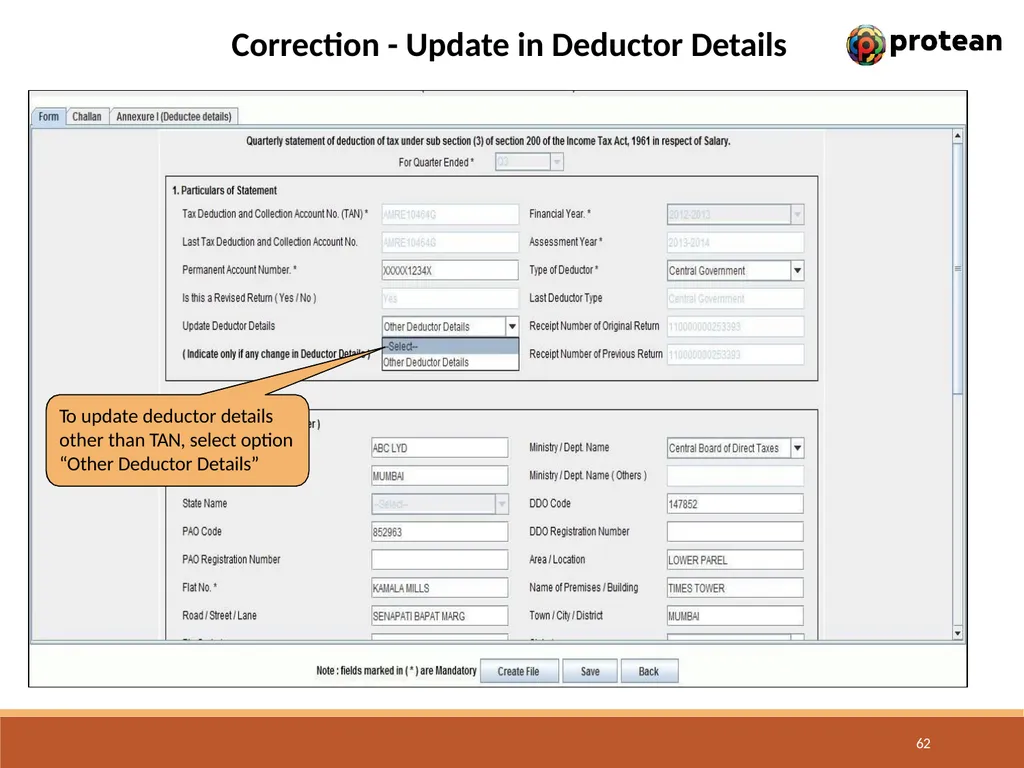
Correction - Update in Deductor Details To update deductor details other than TAN, select option “Other Deductor Details” 62<br>
63
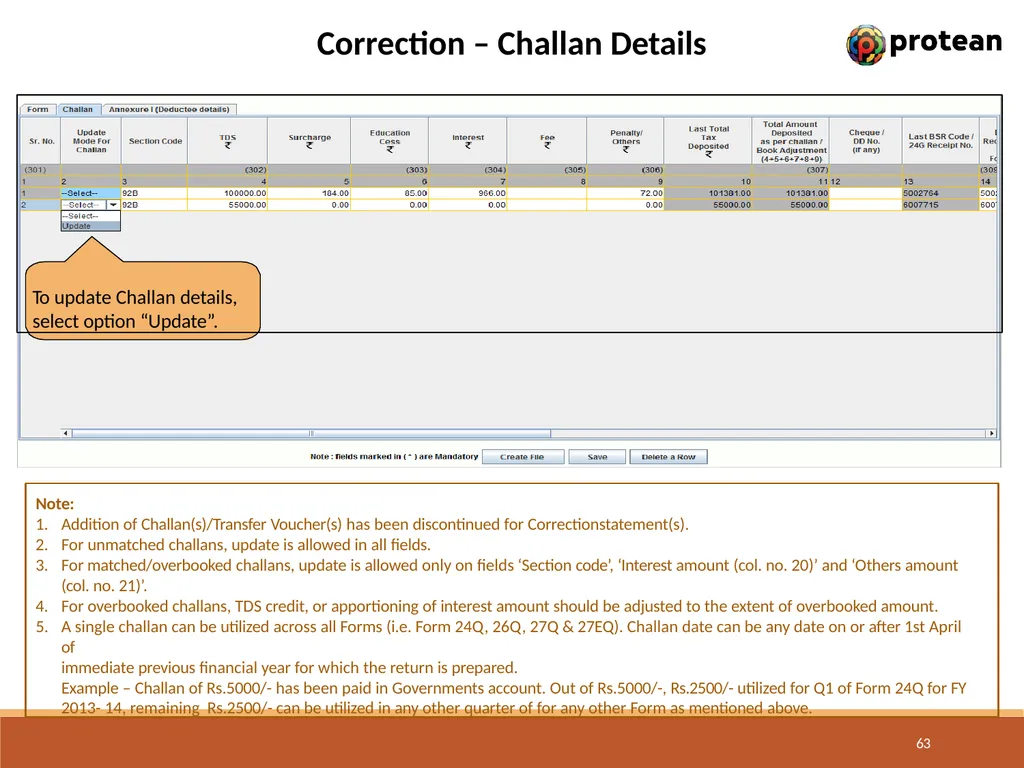
Correction – Challan Details To update Challan details, select option “Update”. 63 Note:
Addition of Challan(s)/Transfer Voucher(s) has been discontinued for Correctionstatement(s).
For unmatched challans, update is allowed in all fields.
For matched/overbooked challans, update is allowed only on fields ‘Section code’, ‘Interest amount (col. no. 20)’ and ‘Others amount (col. no. 21)’.
For overbooked challans, TDS credit, or apportioning of interest amount should be adjusted to the extent of overbooked amount.
A single challan can be utilized across all Forms (i.e. Form 24Q, 26Q, 27Q & 27EQ). Challan date can be any date on or after 1st April of
immediate previous financial year for which the return is prepared.
Example – Challan of Rs.5000/- has been paid in Governments account. Out of Rs.5000/-, Rs.2500/- utilized for Q1 of Form 24Q for FY 2013- 14, remaining Rs.2500/- can be utilized in any other quarter of for any other Form as mentioned above.<br>
Addition of Challan(s)/Transfer Voucher(s) has been discontinued for Correctionstatement(s).
For unmatched challans, update is allowed in all fields.
For matched/overbooked challans, update is allowed only on fields ‘Section code’, ‘Interest amount (col. no. 20)’ and ‘Others amount (col. no. 21)’.
For overbooked challans, TDS credit, or apportioning of interest amount should be adjusted to the extent of overbooked amount.
A single challan can be utilized across all Forms (i.e. Form 24Q, 26Q, 27Q & 27EQ). Challan date can be any date on or after 1st April of
immediate previous financial year for which the return is prepared.
Example – Challan of Rs.5000/- has been paid in Governments account. Out of Rs.5000/-, Rs.2500/- utilized for Q1 of Form 24Q for FY 2013- 14, remaining Rs.2500/- can be utilized in any other quarter of for any other Form as mentioned above.<br>
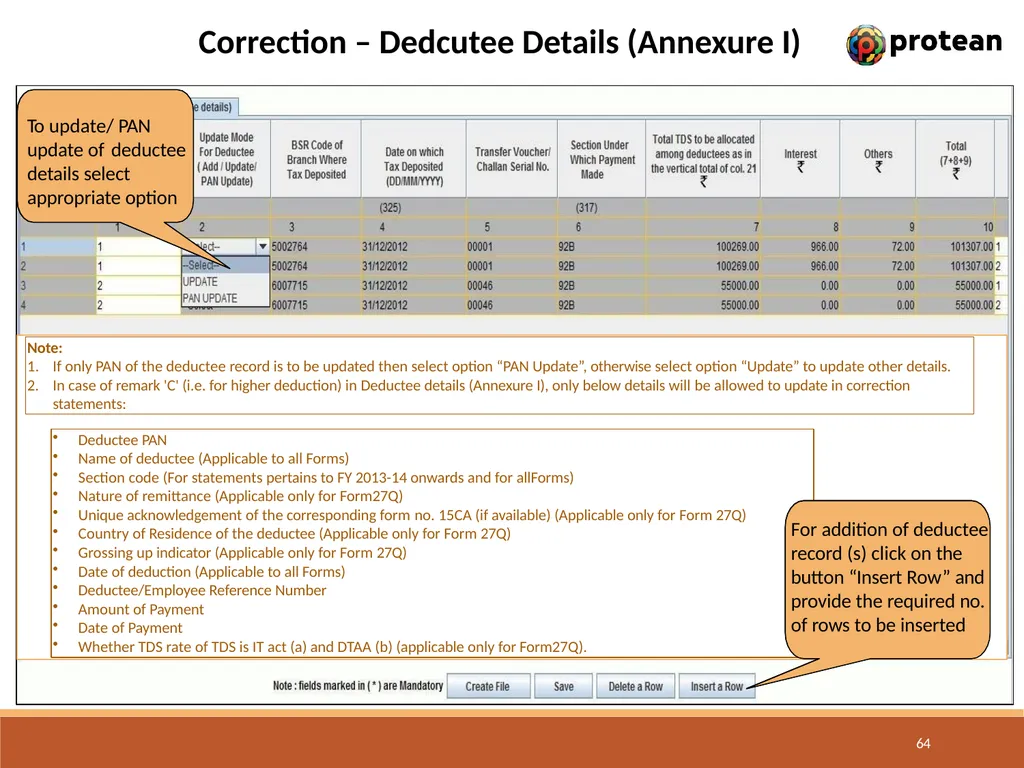
64
Correction – Dedcutee Details (Annexure I) To update/ PAN update of deductee details select appropriate option Note:
If only PAN of the deductee record is to be updated then select option “PAN Update”, otherwise select option “Update” to update other details.
In case of remark 'C' (i.e. for higher deduction) in Deductee details (Annexure I), only below details will be allowed to update in correction statements: Deductee PAN
Name of deductee (Applicable to all Forms)
Section code (For statements pertains to FY 2013-14 onwards and for allForms)
Nature of remittance (Applicable only for Form27Q)
Unique acknowledgement of the corresponding form no. 15CA (if available) (Applicable only for Form 27Q)
Country of Residence of the deductee (Applicable only for Form 27Q)
Grossing up indicator (Applicable only for Form 27Q)
Date of deduction (Applicable to all Forms)
Deductee/Employee Reference Number
Amount of Payment
Date of Payment
Whether TDS rate of TDS is IT act (a) and DTAA (b) (applicable only for Form27Q). For addition of deductee record (s) click on the button “Insert Row” and provide the required no. of rows to be inserted 64<br>
If only PAN of the deductee record is to be updated then select option “PAN Update”, otherwise select option “Update” to update other details.
In case of remark 'C' (i.e. for higher deduction) in Deductee details (Annexure I), only below details will be allowed to update in correction statements: Deductee PAN
Name of deductee (Applicable to all Forms)
Section code (For statements pertains to FY 2013-14 onwards and for allForms)
Nature of remittance (Applicable only for Form27Q)
Unique acknowledgement of the corresponding form no. 15CA (if available) (Applicable only for Form 27Q)
Country of Residence of the deductee (Applicable only for Form 27Q)
Grossing up indicator (Applicable only for Form 27Q)
Date of deduction (Applicable to all Forms)
Deductee/Employee Reference Number
Amount of Payment
Date of Payment
Whether TDS rate of TDS is IT act (a) and DTAA (b) (applicable only for Form27Q). For addition of deductee record (s) click on the button “Insert Row” and provide the required no. of rows to be inserted 64<br>
65
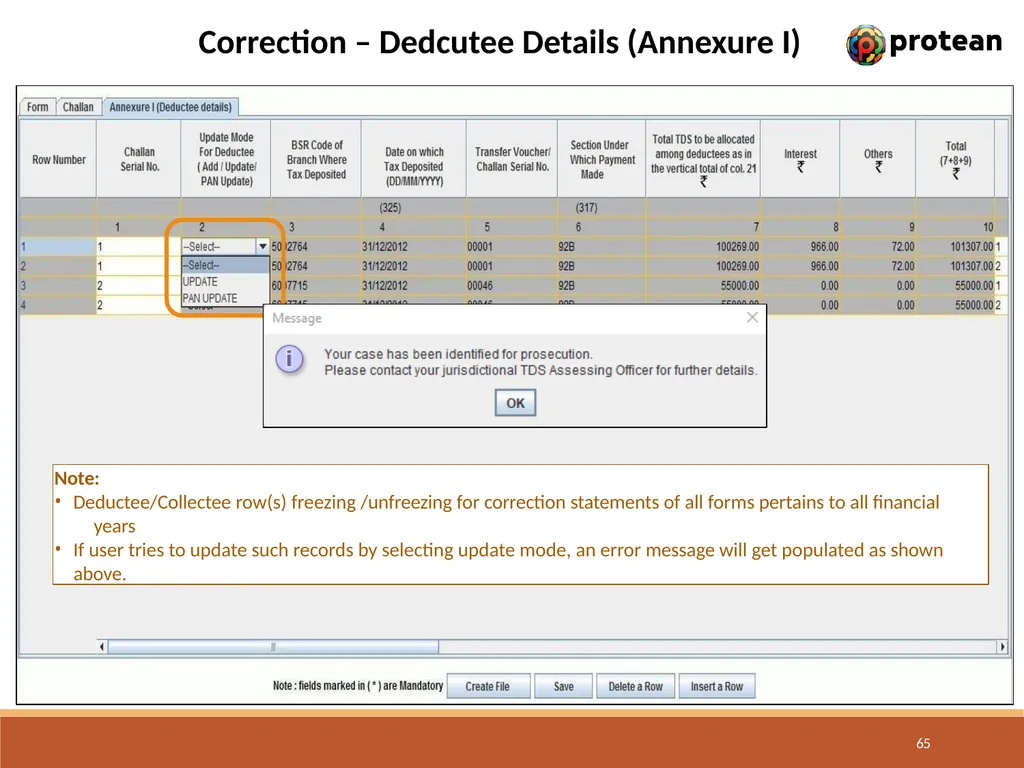
Correction – Dedcutee Details (Annexure I) Note:
Deductee/Collectee row(s) freezing /unfreezing for correction statements of all forms pertains to all financial years
If user tries to update such records by selecting update mode, an error message will get populated as shown
above. 65<br>
Deductee/Collectee row(s) freezing /unfreezing for correction statements of all forms pertains to all financial years
If user tries to update such records by selecting update mode, an error message will get populated as shown
above. 65<br>
66
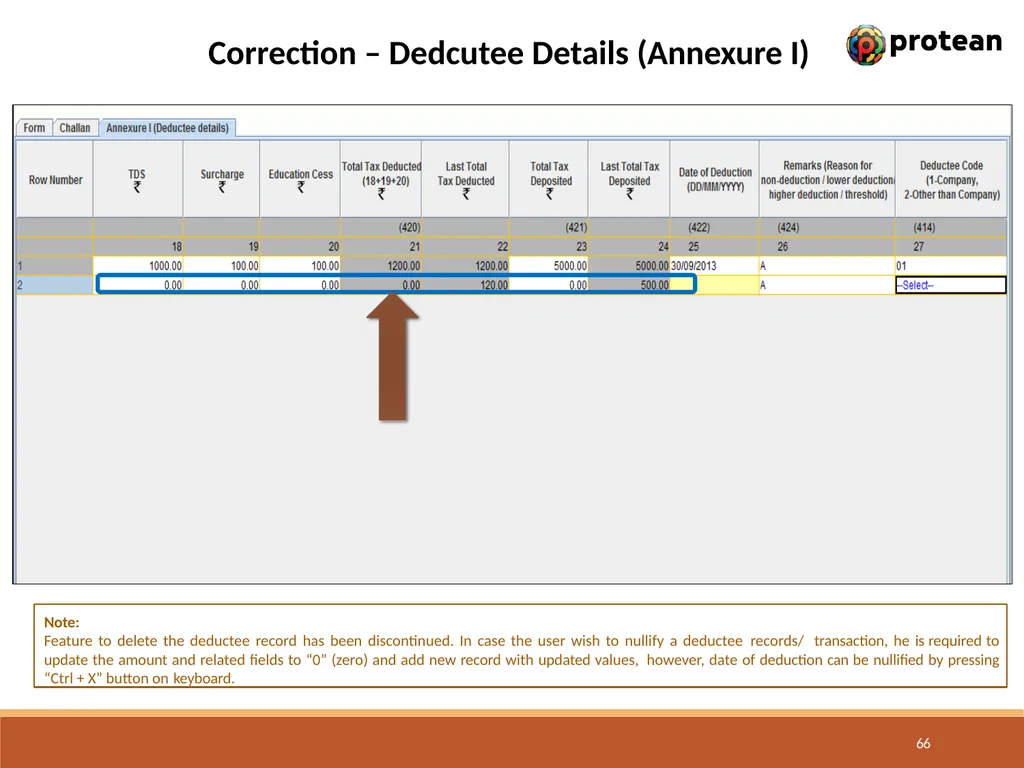
Correction – Dedcutee Details (Annexure I) Note:
Feature to delete the deductee record has been discontinued. In case the user wish to nullify a deductee records/ transaction, he is required to update the amount and related fields to “0” (zero) and add new record with updated values, however, date of deduction can be nullified by pressing “Ctrl + X” button on keyboard. 66<br>
Feature to delete the deductee record has been discontinued. In case the user wish to nullify a deductee records/ transaction, he is required to update the amount and related fields to “0” (zero) and add new record with updated values, however, date of deduction can be nullified by pressing “Ctrl + X” button on keyboard. 66<br>
67
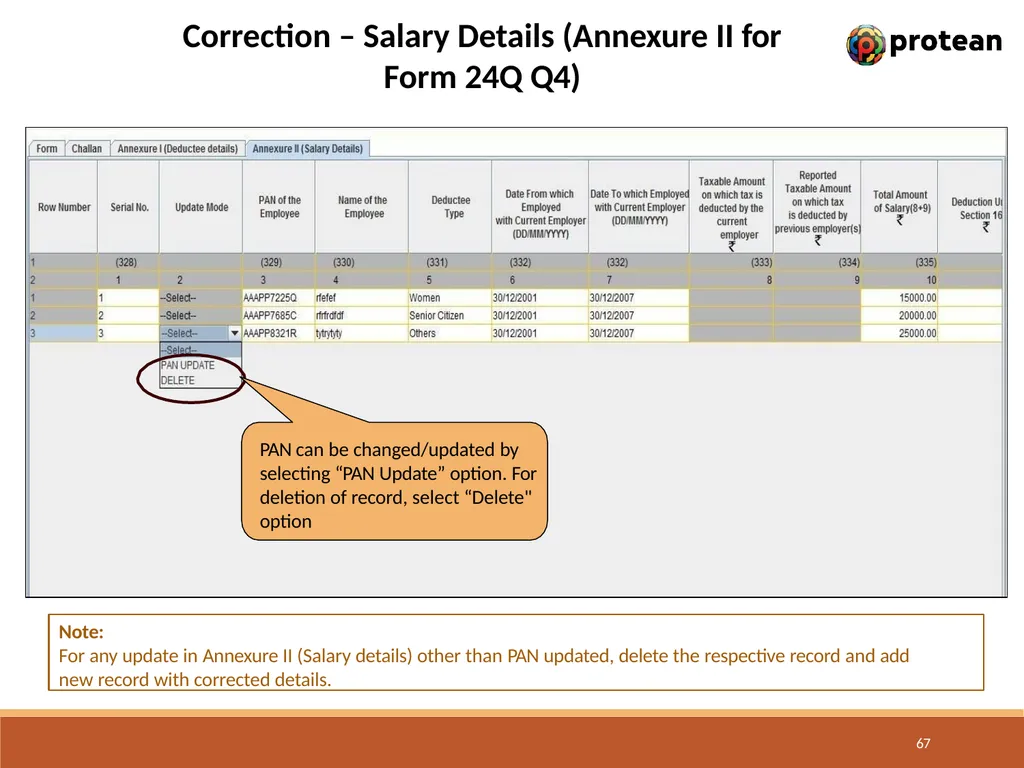
Correction – Salary Details (Annexure II for
Form 24Q Q4) Note:
For any update in Annexure II (Salary details) other than PAN updated, delete the respective record and add new record with corrected details. 67 PAN can be changed/updated by selecting “PAN Update” option. For deletion of record, select “Delete" option<br>
Form 24Q Q4) Note:
For any update in Annexure II (Salary details) other than PAN updated, delete the respective record and add new record with corrected details. 67 PAN can be changed/updated by selecting “PAN Update” option. For deletion of record, select “Delete" option<br>
68
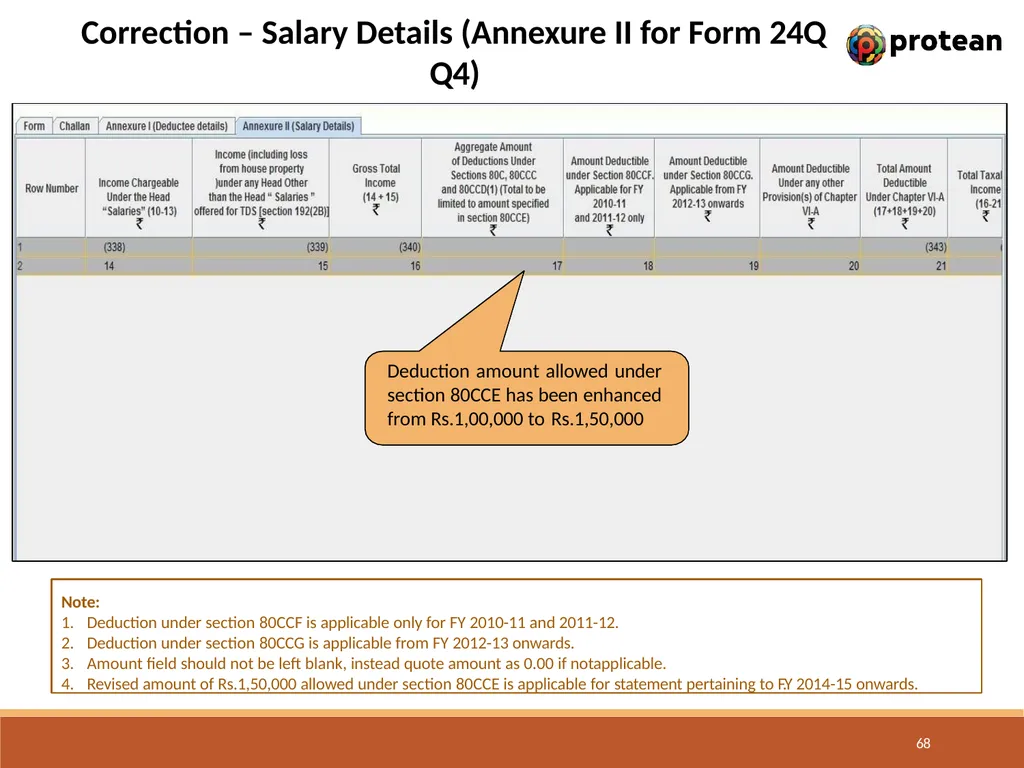
Correction – Salary Details (Annexure II for Form 24Q Q4) Deduction amount allowed under section 80CCE has been enhanced from Rs.1,00,000 to Rs.1,50,000 68 Note:
Deduction under section 80CCF is applicable only for FY 2010-11 and 2011-12.
Deduction under section 80CCG is applicable from FY 2012-13 onwards.
Amount field should not be left blank, instead quote amount as 0.00 if notapplicable.
Revised amount of Rs.1,50,000 allowed under section 80CCE is applicable for statement pertaining to F.Y 2014-15 onwards.<br>
Deduction under section 80CCF is applicable only for FY 2010-11 and 2011-12.
Deduction under section 80CCG is applicable from FY 2012-13 onwards.
Amount field should not be left blank, instead quote amount as 0.00 if notapplicable.
Revised amount of Rs.1,50,000 allowed under section 80CCE is applicable for statement pertaining to F.Y 2014-15 onwards.<br>
69
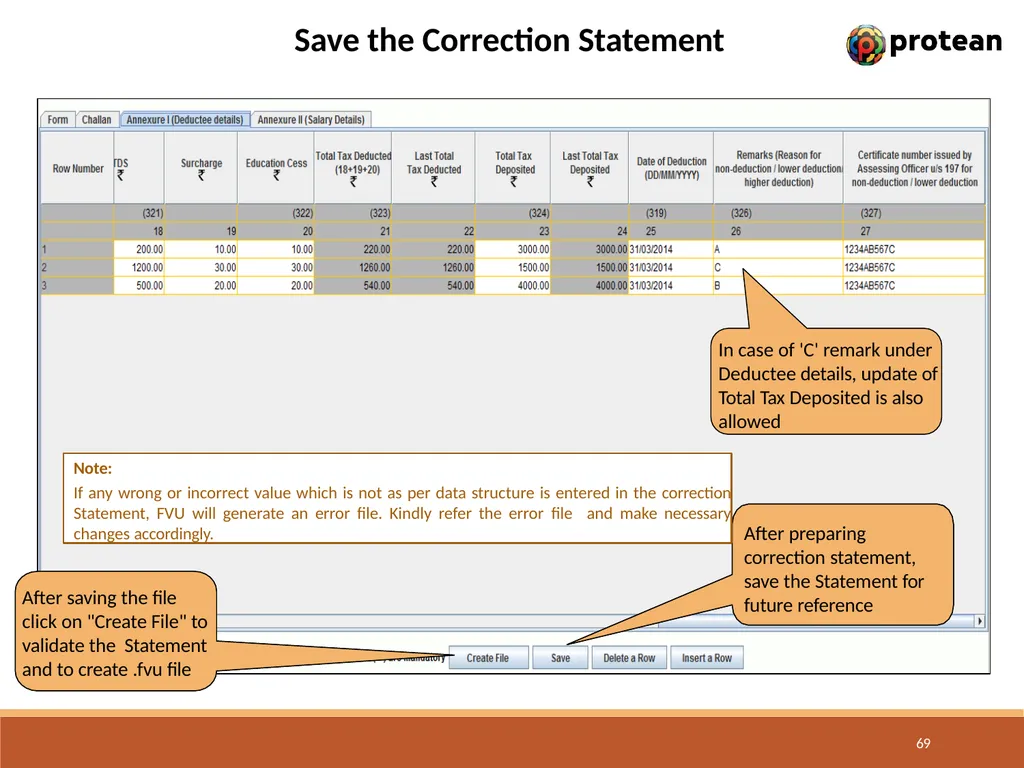
Save the Correction Statement After preparing correction statement, save the Statement for future reference After saving the file click on "Create File" to validate the Statement and to create .fvu file Note:
If any wrong or incorrect value which is not as per data structure is entered in the correction Statement, FVU will generate an error file. Kindly refer the error file and make necessary changes accordingly. In case of 'C' remark under Deductee details, update of Total Tax Deposited is also allowed 69<br>
If any wrong or incorrect value which is not as per data structure is entered in the correction Statement, FVU will generate an error file. Kindly refer the error file and make necessary changes accordingly. In case of 'C' remark under Deductee details, update of Total Tax Deposited is also allowed 69<br>
70
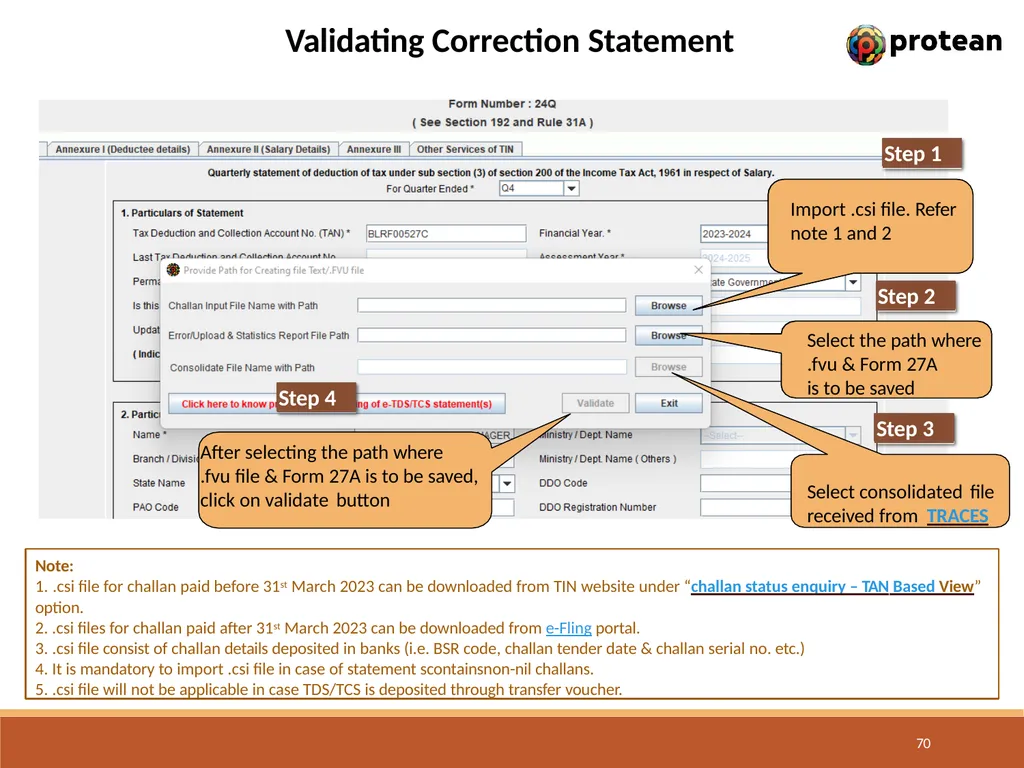
Validating Correction Statement After selecting the path where
.fvu file & Form 27A is to be saved, click on validate button Import .csi file. Refer note 1 and 2 Step 1 Select the path where
.fvu & Form 27A is to be saved Select consolidated file received from TRACES Step 4 Note:
.csi file for challan paid before 31st March 2023 can be downloaded from TIN website under “challan status enquiry – TAN Based View”
option.
.csi files for challan paid after 31st March 2023 can be downloaded from e-Fling portal.
.csi file consist of challan details deposited in banks (i.e. BSR code, challan tender date & challan serial no. etc.)
It is mandatory to import .csi file in case of statement scontainsnon-nil challans.
.csi file will not be applicable in case TDS/TCS is deposited through transfer voucher. Step 2 Step 3 70<br>
.fvu file & Form 27A is to be saved, click on validate button Import .csi file. Refer note 1 and 2 Step 1 Select the path where
.fvu & Form 27A is to be saved Select consolidated file received from TRACES Step 4 Note:
.csi file for challan paid before 31st March 2023 can be downloaded from TIN website under “challan status enquiry – TAN Based View”
option.
.csi files for challan paid after 31st March 2023 can be downloaded from e-Fling portal.
.csi file consist of challan details deposited in banks (i.e. BSR code, challan tender date & challan serial no. etc.)
It is mandatory to import .csi file in case of statement scontainsnon-nil challans.
.csi file will not be applicable in case TDS/TCS is deposited through transfer voucher. Step 2 Step 3 70<br>
71
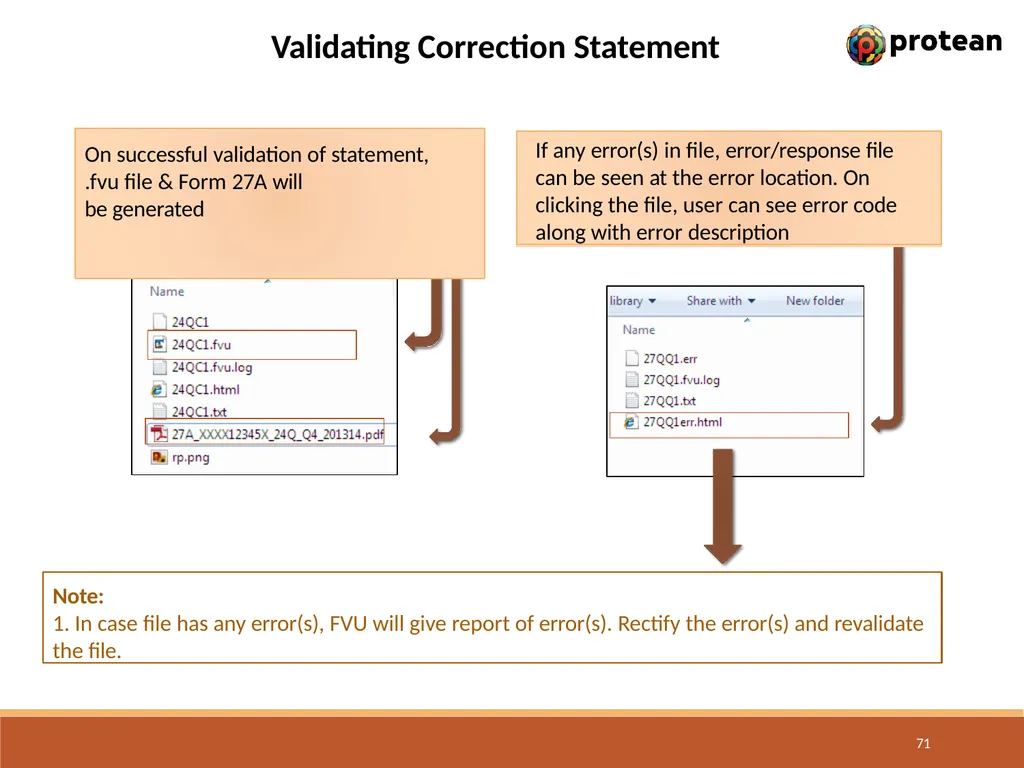
Validating Correction Statement On successful validation of statement,
.fvu file & Form 27A will be generated If any error(s) in file, error/response file can be seen at the error location. On clicking the file, user can see error code along with error description Note:
1. In case file has any error(s), FVU will give report of error(s). Rectify the error(s) and revalidate
the file. 71<br>
.fvu file & Form 27A will be generated If any error(s) in file, error/response file can be seen at the error location. On clicking the file, user can see error code along with error description Note:
1. In case file has any error(s), FVU will give report of error(s). Rectify the error(s) and revalidate
the file. 71<br>
72
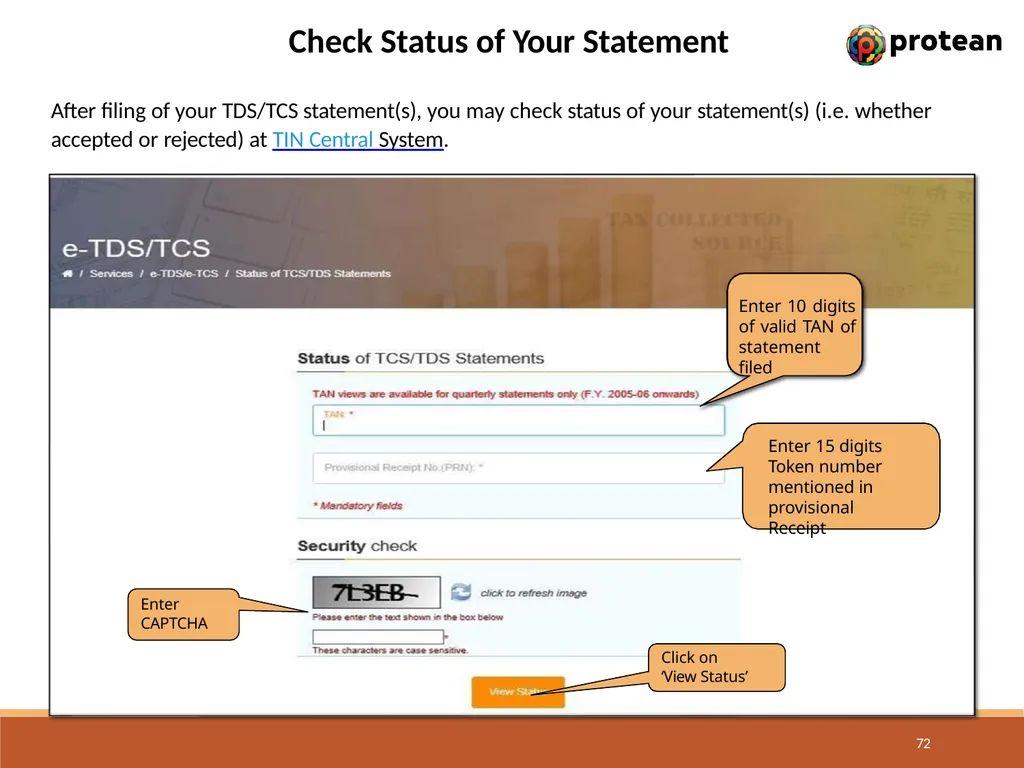
Check Status of Your Statement After filing of your TDS/TCS statement(s), you may check status of your statement(s) (i.e. whether accepted or rejected) at TIN Central System. Enter 10 digits of valid TAN of statement filed Enter 15 digits Token number mentioned in provisional Receipt Enter CAPTCHA Click on ‘View Status’ 72<br>
73
How to chancel Paper Statement 73 Duly signed request letter on companies letterhead of deductor/collector, stating cancellation of paper TDS/TCS statement is to be submitted to TIN-FC along with below details.
Copy of provisional receipt of original TDS/TCS statement (which is to be cancelled).
Electronic regular TDS/TCS statement with the same TAN, Form, Period and
Financial Year in computer media.
Duly signed physical Form 27A.<br>
Copy of provisional receipt of original TDS/TCS statement (which is to be cancelled).
Electronic regular TDS/TCS statement with the same TAN, Form, Period and
Financial Year in computer media.
Duly signed physical Form 27A.<br>
74
Where to File e-TDS/TCS Statement 74 e-TDS/TCS Statements can be filed with any of the TIN-FCs managed by Protean or e-filing portal.<br>