electronic Research Administration (eRA) OER, OD,
Description: electronic Research Administration (eRA) OER, OD, National Institutes of Health xTRACT Overview The Extramural Trainee Reporting And Career Tracking (xTRACT) system is a module in the eRA Commons that allows applicants, grantees, and
Related Topics
Download Presentation
"electronic Research Administration (eRA) OER, OD," is the property of its rightful owner. Permission is granted to download and print the materials on this website for personal, non-commercial use only, and to display it on your personal computer provided you do not modify the materials and that you retain all copyright notices contained in the materials. By downloading content from our website, you accept the terms of this agreement.
Presentation Transcript
slide1. electronic Research Administration (eRA)
OER, OD, National Institutes of Health xTRACT Overview<br>
slide2. The Extramural Trainee Reporting And Career Tracking (xTRACT) system is a module in the eRA Commons that allows applicants, grantees, and assistants to create Research Training Data (RTD) tables for NIH progress reports and institutional training grant applications.
Because xTRACT is integrated with eRA Commons, some training data will be prepopulated in the system, including trainee names, selected characteristics, institutions, grant numbers, and subsequent NIH and other HHS awards.
In addition, xTRACT allows institutions to create profiles for participating faculty that do not require access to eRA Commons, create institutional programs, and non-NIH funding sources; which can be retrieved for future use. What is xTRACT? 2<br>
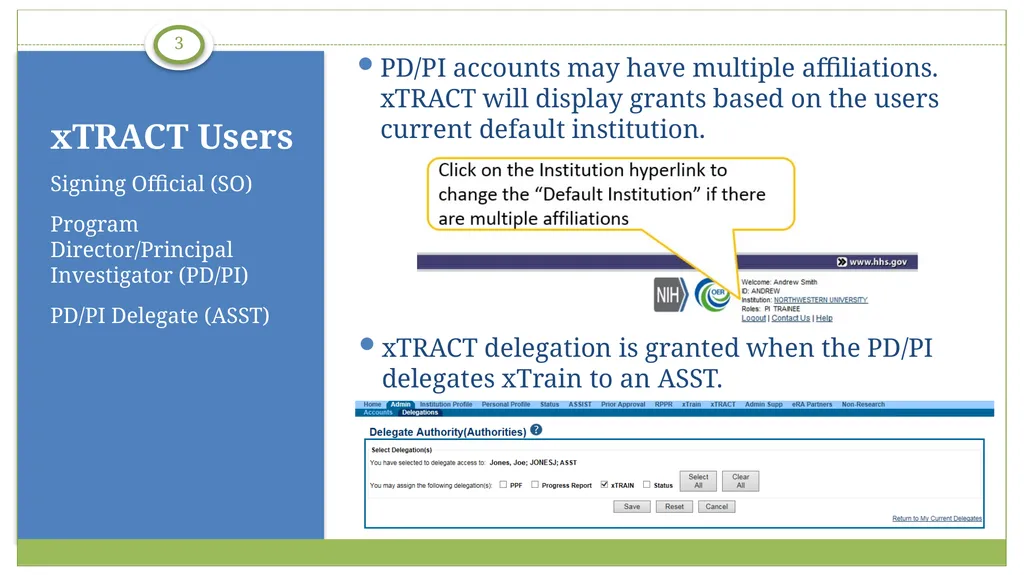
slide3. xTRACT delegation is granted when the PD/PI delegates xTrain to an ASST. PD/PI accounts may have multiple affiliations. xTRACT will display grants based on the users current default institution. Signing Official (SO)
Program Director/Principal Investigator (PD/PI)
PD/PI Delegate (ASST) xTRACT Users 3<br>
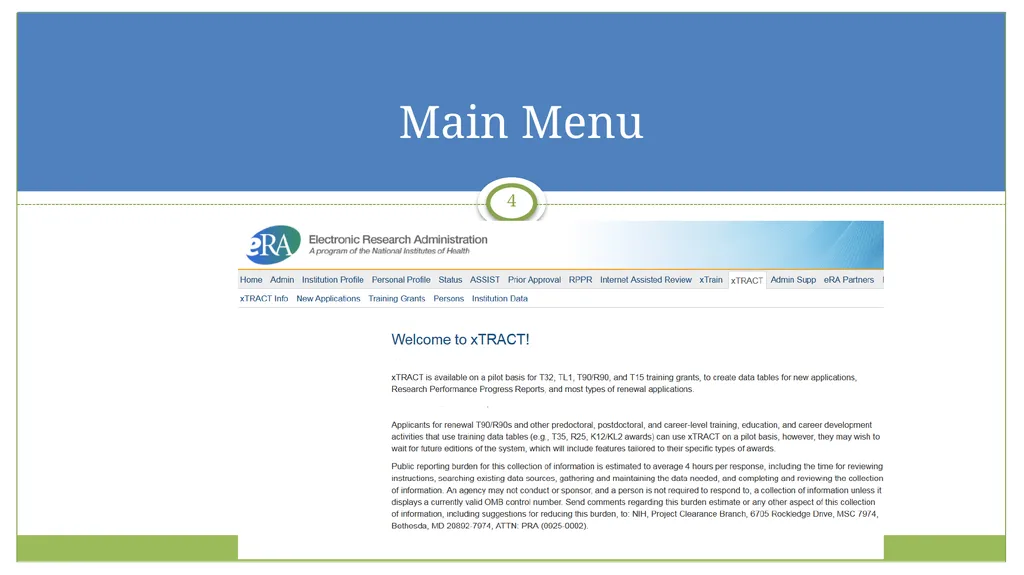
slide4. Main Menu 4<br>
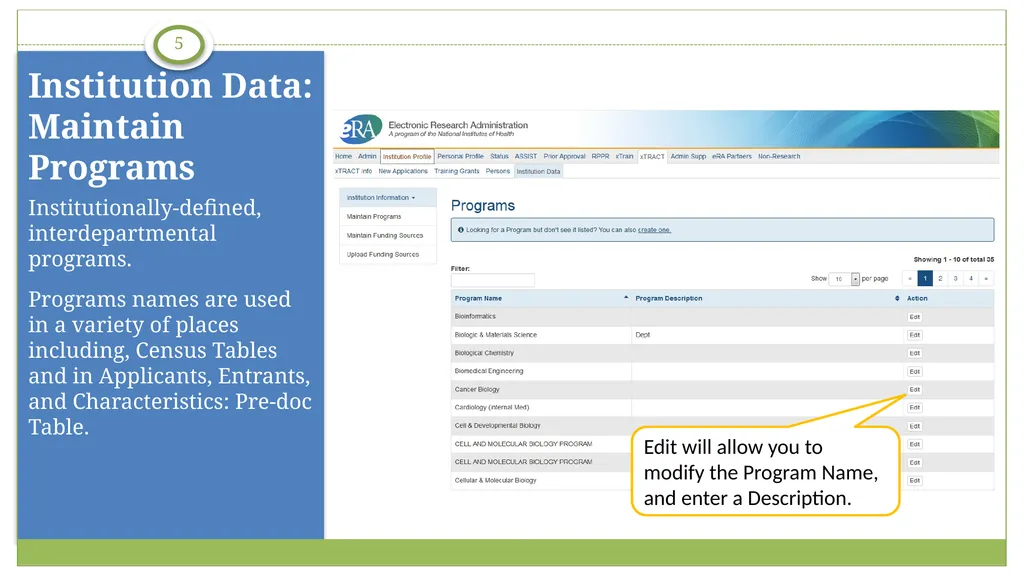
slide5. Institutionally-defined, interdepartmental programs.
Programs names are used in a variety of places including, Census Tables and in Applicants, Entrants, and Characteristics: Pre-doc Table. Institution Data: Maintain Programs 5<br>
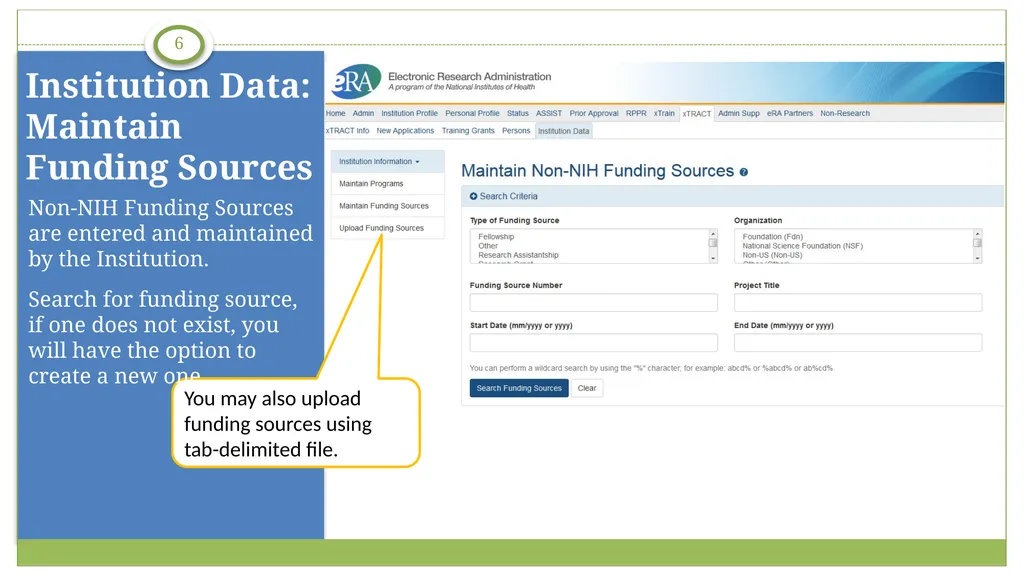
slide6. Non-NIH Funding Sources are entered and maintained by the Institution.
Search for funding source, if one does not exist, you will have the option to create a new one. Institution Data: Maintain Funding Sources 6<br>
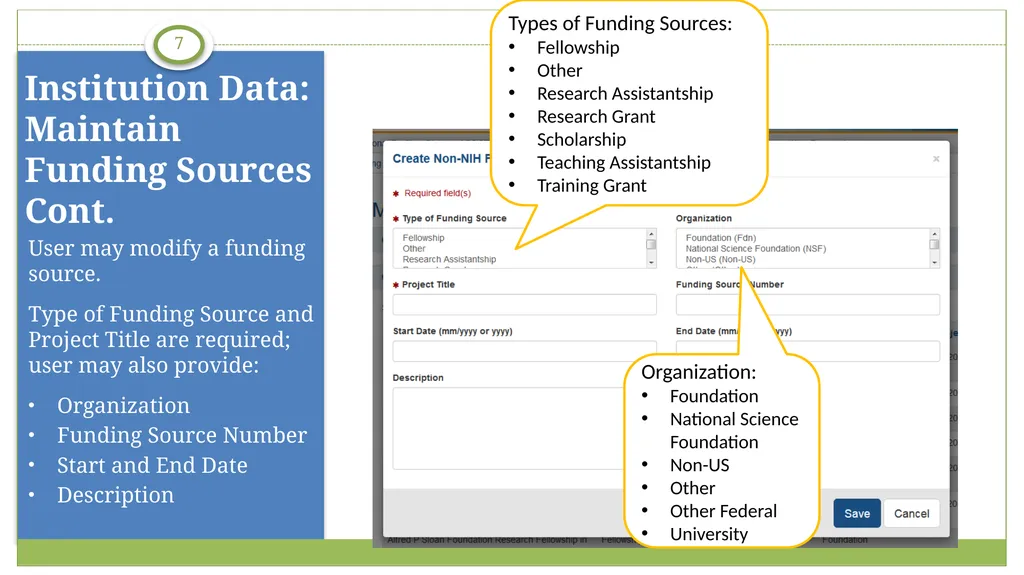
slide7. User may modify a funding source.
Type of Funding Source and Project Title are required; user may also provide:
Organization
Funding Source Number
Start and End Date
Description Institution Data: Maintain Funding SourcesCont. 7<br>
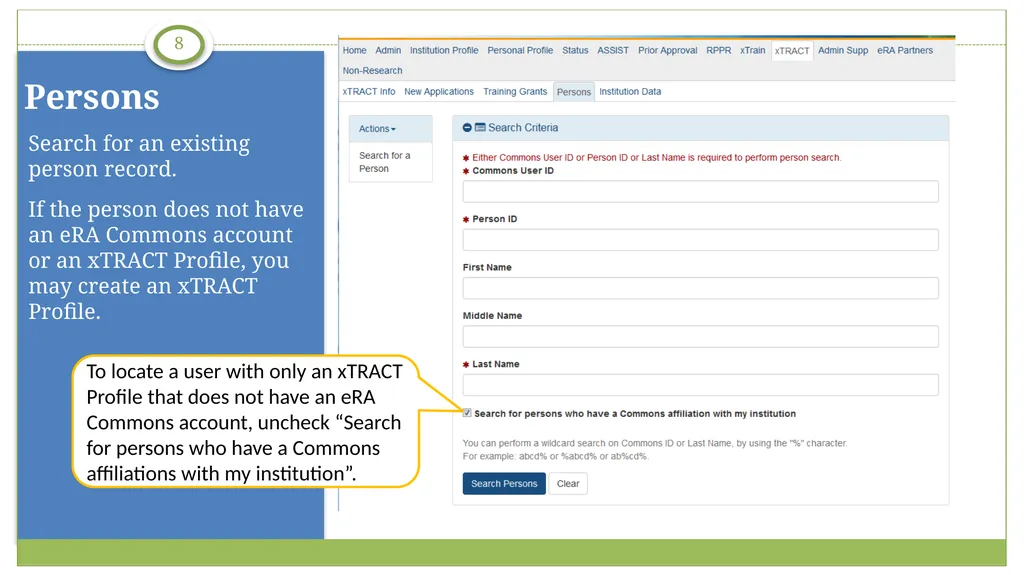
slide8. Search for an existing person record.
If the person does not have an eRA Commons account or an xTRACT Profile, you may create an xTRACT Profile. Persons 8<br>
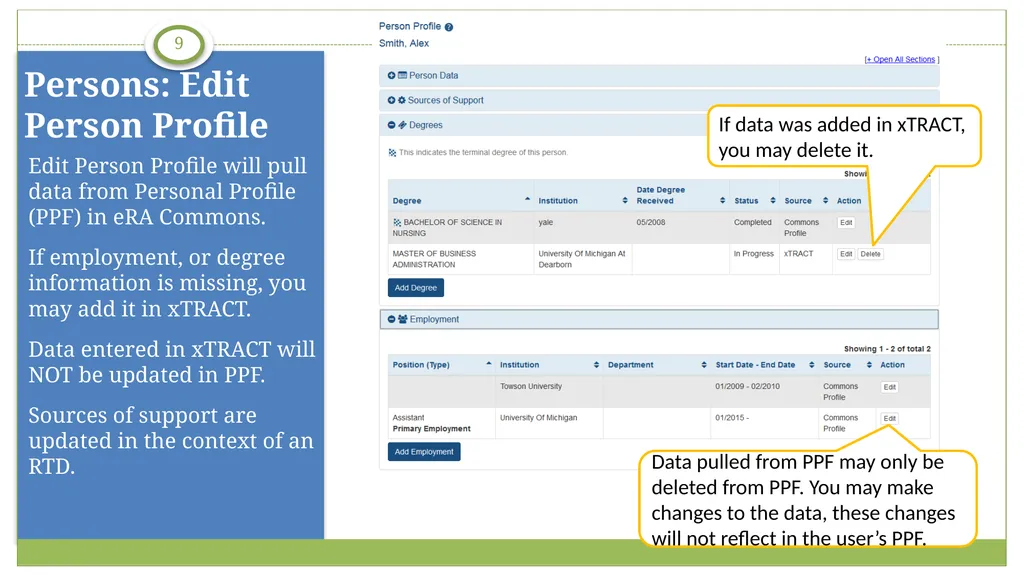
slide9. Edit Person Profile will pull data from Personal Profile (PPF) in eRA Commons.
If employment, or degree information is missing, you may add it in xTRACT.
Data entered in xTRACT will NOT be updated in PPF.
Sources of support are updated in the context of an RTD. Persons: Edit Person Profile 9<br>
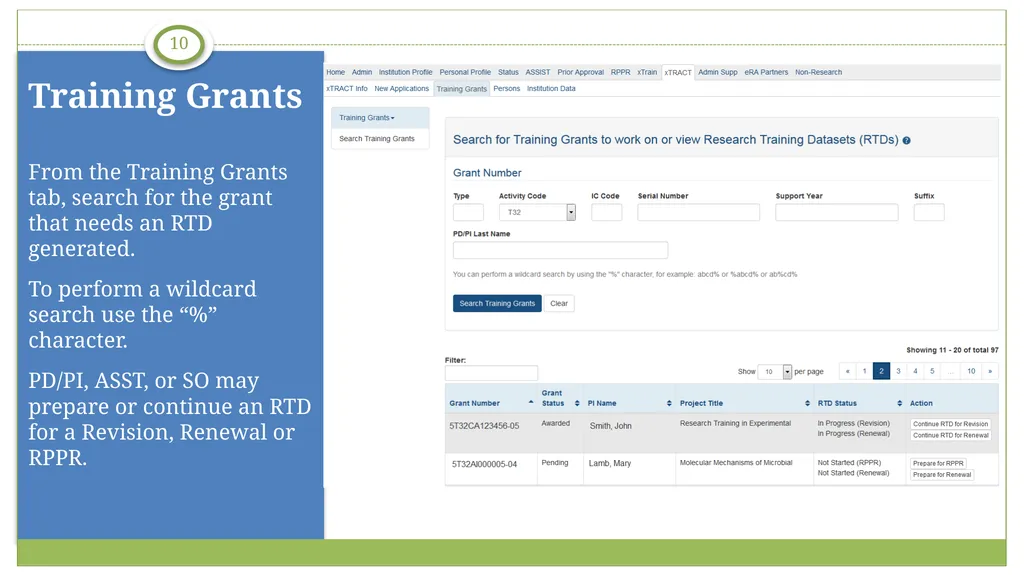
slide10. From the Training Grants tab, search for the grant that needs an RTD generated.
To perform a wildcard search use the “%” character.
PD/PI, ASST, or SO may prepare or continue an RTD for a Revision, Renewal or RPPR. Training Grants 10<br>
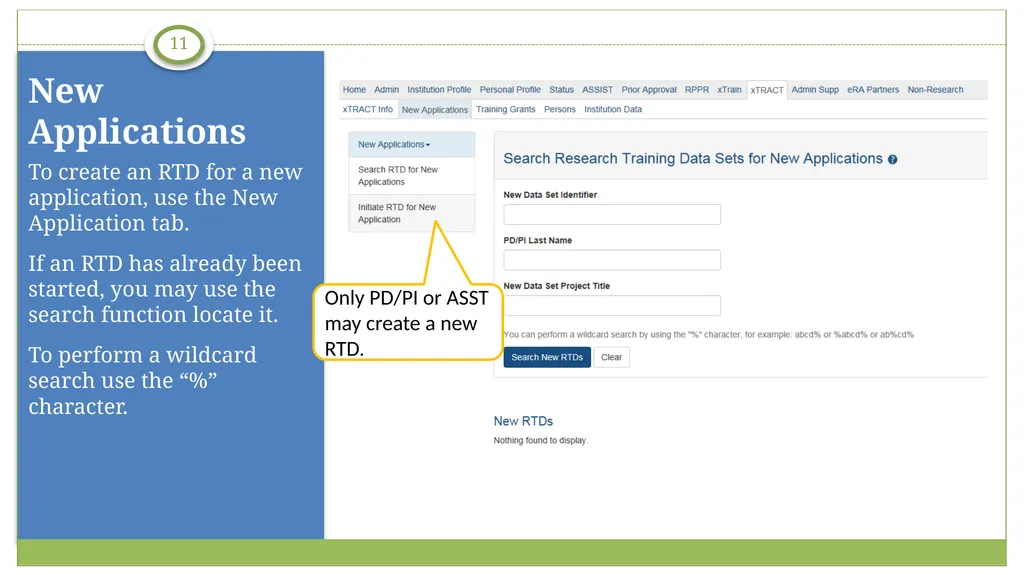
slide11. To create an RTD for a new application, use the New Application tab.
If an RTD has already been started, you may use the search function locate it.
To perform a wildcard search use the “%” character. New Applications 11<br>
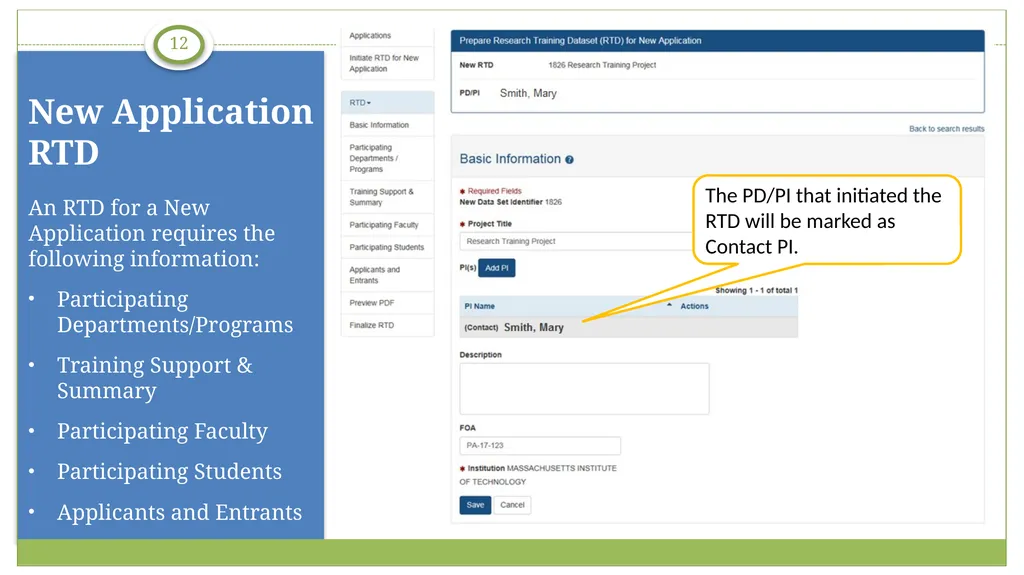
slide12. An RTD for a New Application requires the following information:
Participating Departments/Programs
Training Support & Summary
Participating Faculty
Participating Students
Applicants and Entrants New Application RTD 12<br>
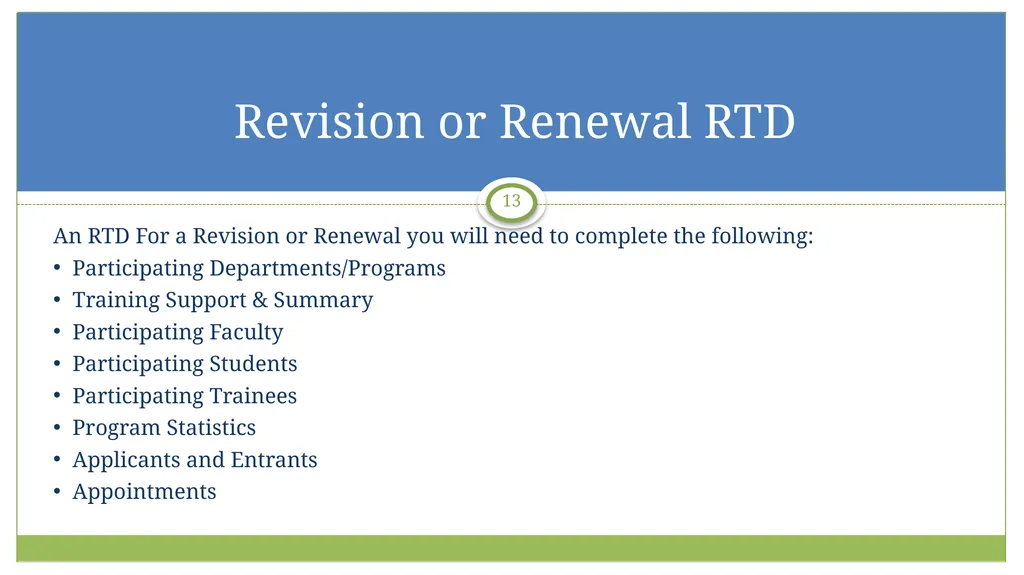
slide13. An RTD For a Revision or Renewal you will need to complete the following:
Participating Departments/Programs
Training Support & Summary
Participating Faculty
Participating Students
Participating Trainees
Program Statistics
Applicants and Entrants
Appointments Revision or Renewal RTD 13<br>
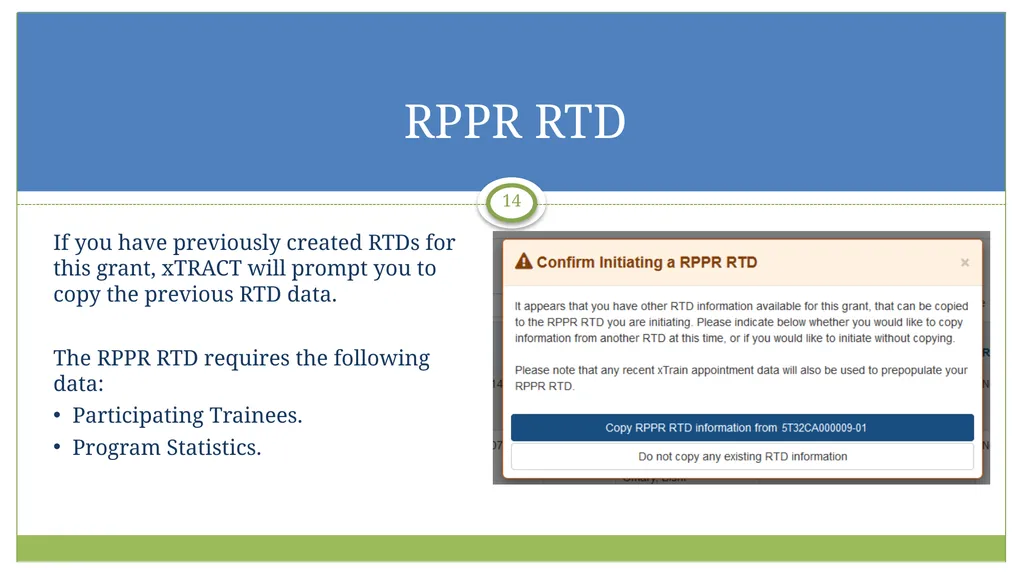
slide14. If you have previously created RTDs for this grant, xTRACT will prompt you to copy the previous RTD data.
The RPPR RTD requires the following data:
Participating Trainees.
Program Statistics. RPPR RTD 14<br>
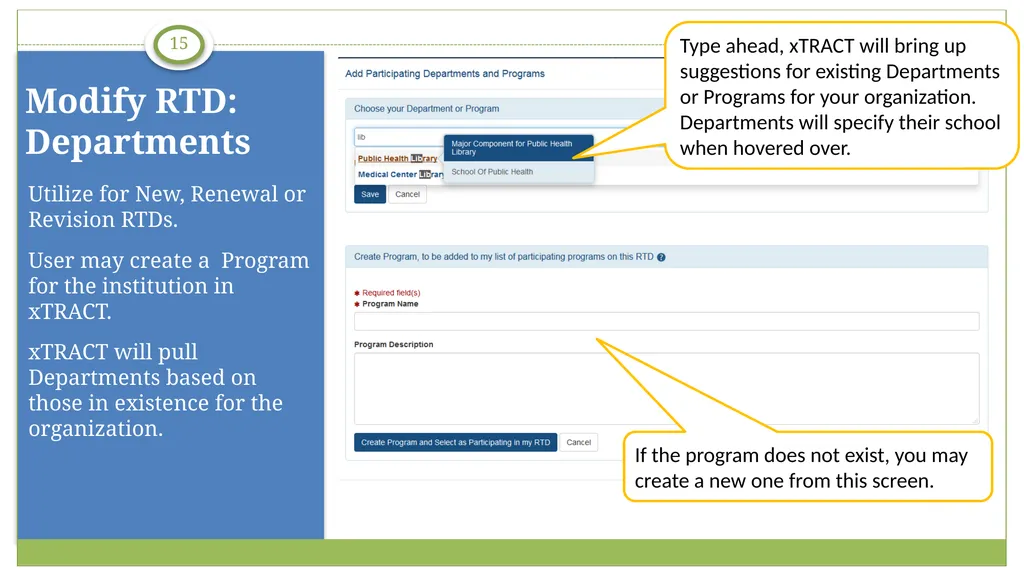
slide15. Utilize for New, Renewal or Revision RTDs.
User may create a Program for the institution in xTRACT.
xTRACT will pull Departments based on those in existence for the organization. Modify RTD: Departments 15<br>
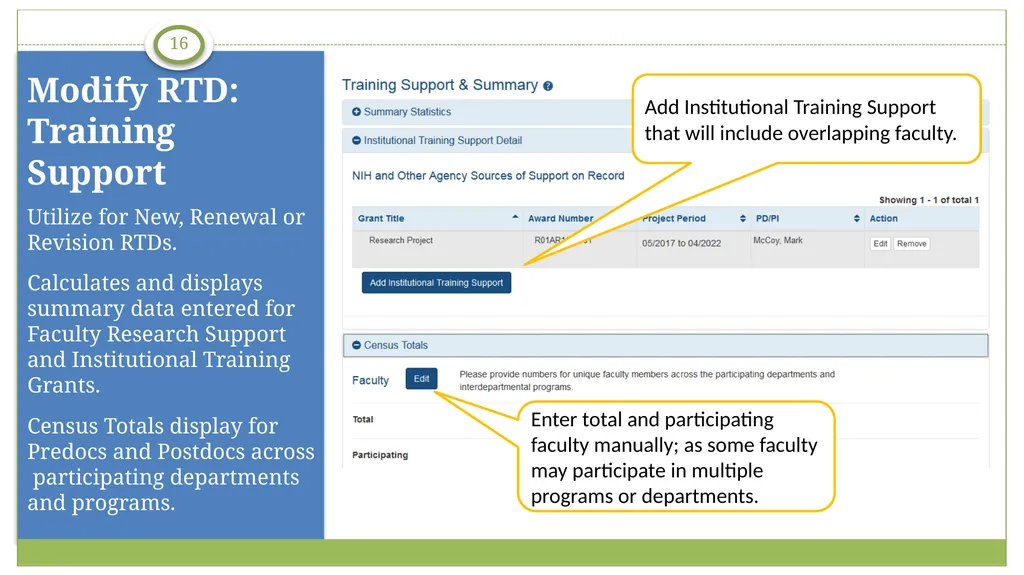
slide16. Utilize for New, Renewal or Revision RTDs.
Calculates and displays summary data entered for Faculty Research Support and Institutional Training Grants.
Census Totals display for Predocs and Postdocs across participating departments and programs. Modify RTD: Training Support 16<br>
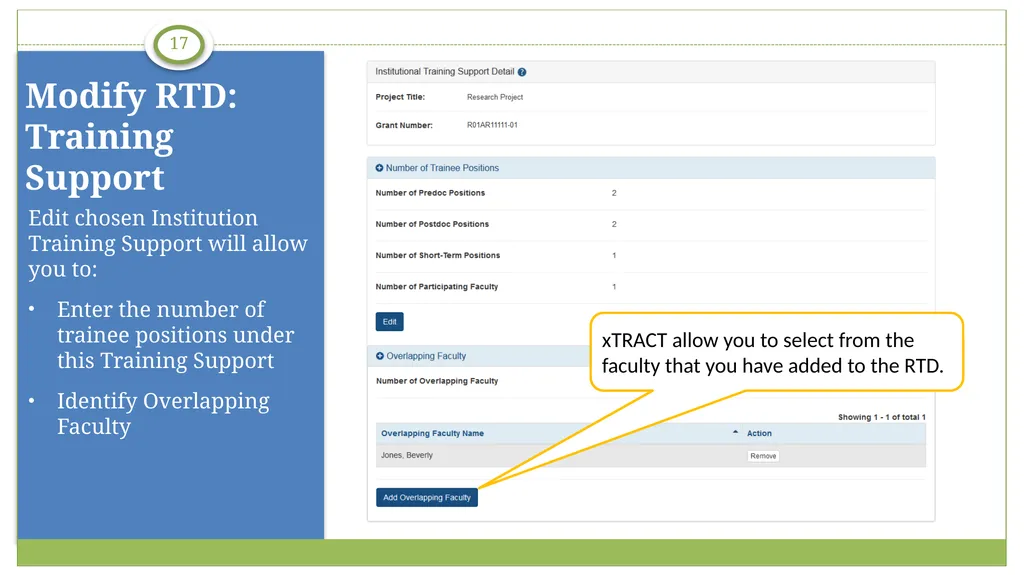
slide17. Edit chosen Institution Training Support will allow you to:
Enter the number of trainee positions under this Training Support
Identify Overlapping Faculty Modify RTD: Training Support 17<br>
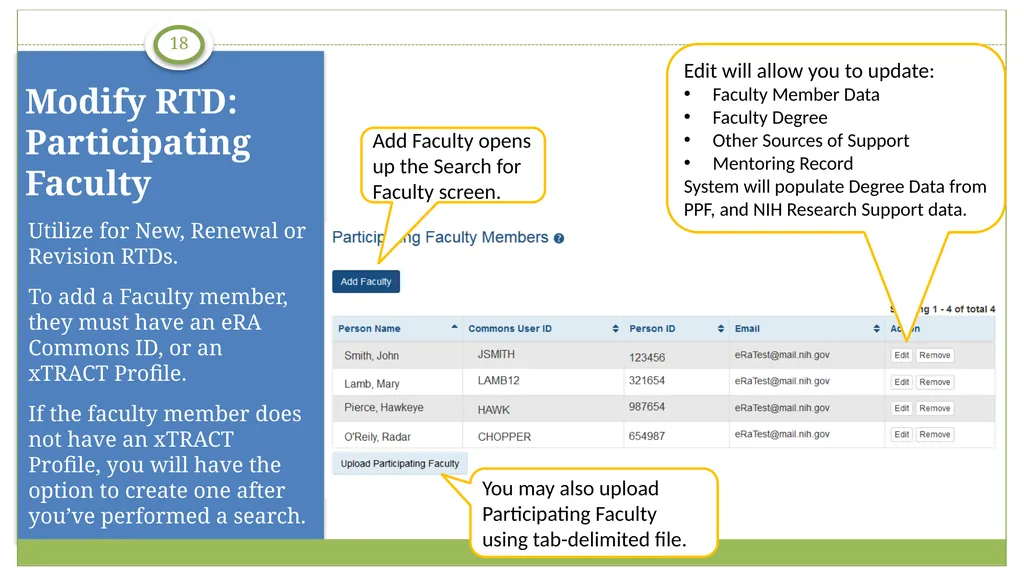
slide18. Utilize for New, Renewal or Revision RTDs.
To add a Faculty member, they must have an eRA Commons ID, or an xTRACT Profile.
If the faculty member does not have an xTRACT Profile, you will have the option to create one after you’ve performed a search. Modify RTD: Participating Faculty 18<br>
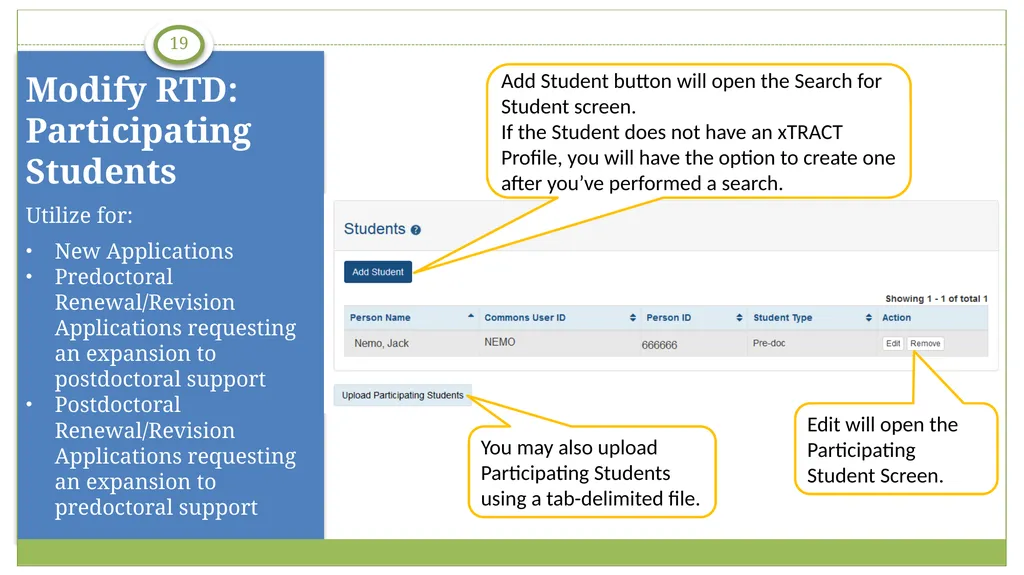
slide19. Utilize for:
New Applications
Predoctoral Renewal/Revision Applications requesting an expansion to postdoctoral support
Postdoctoral Renewal/Revision Applications requesting an expansion to predoctoral support Modify RTD: Participating Students 19<br>
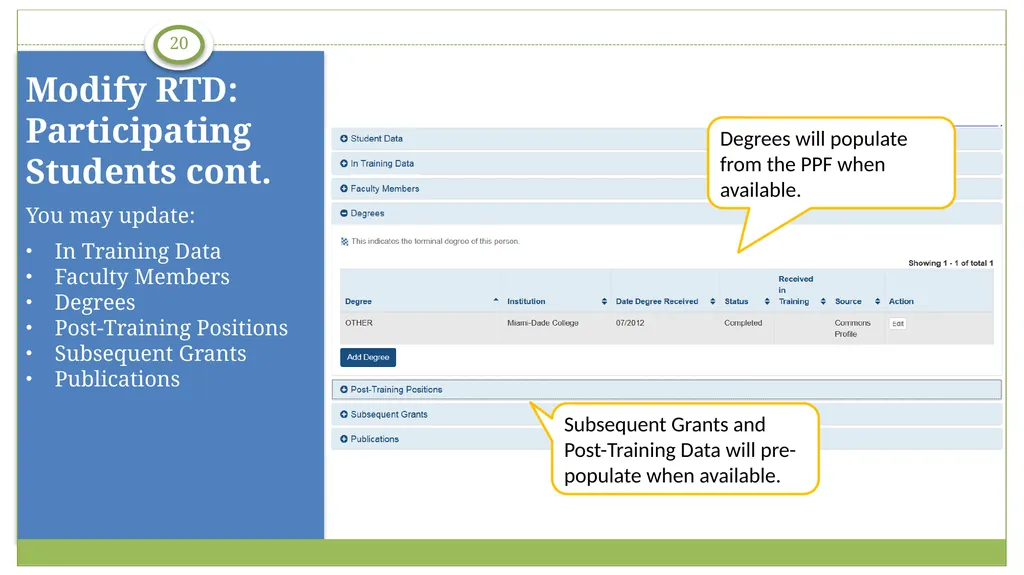
slide20. You may update:
In Training Data
Faculty Members
Degrees
Post-Training Positions
Subsequent Grants
Publications Modify RTD: Participating Students cont. 20<br>
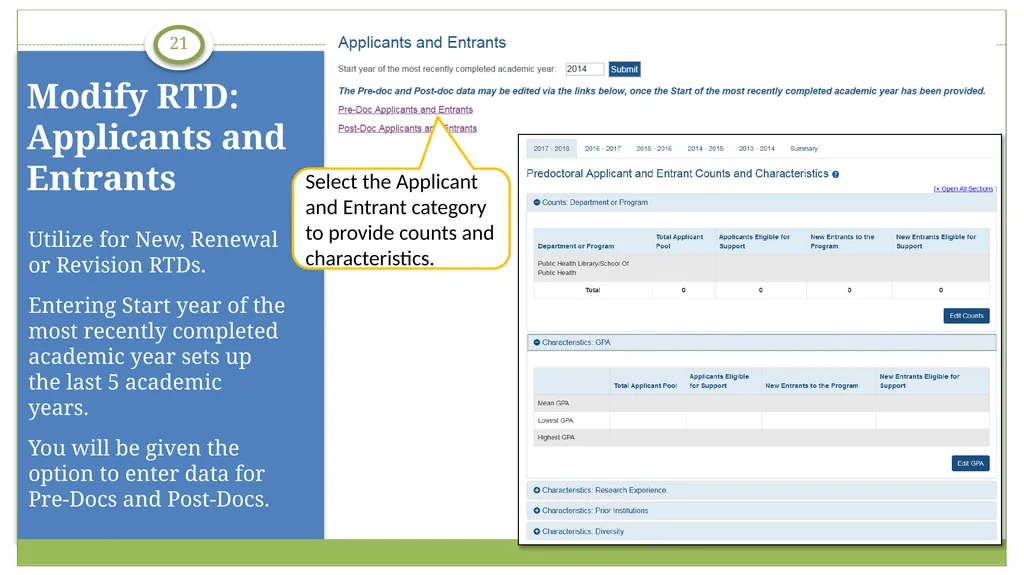
slide21. Utilize for New, Renewal or Revision RTDs.
Entering Start year of the most recently completed academic year sets up the last 5 academic years.
You will be given the option to enter data for Pre-Docs and Post-Docs. Modify RTD: Applicants and Entrants 21<br>
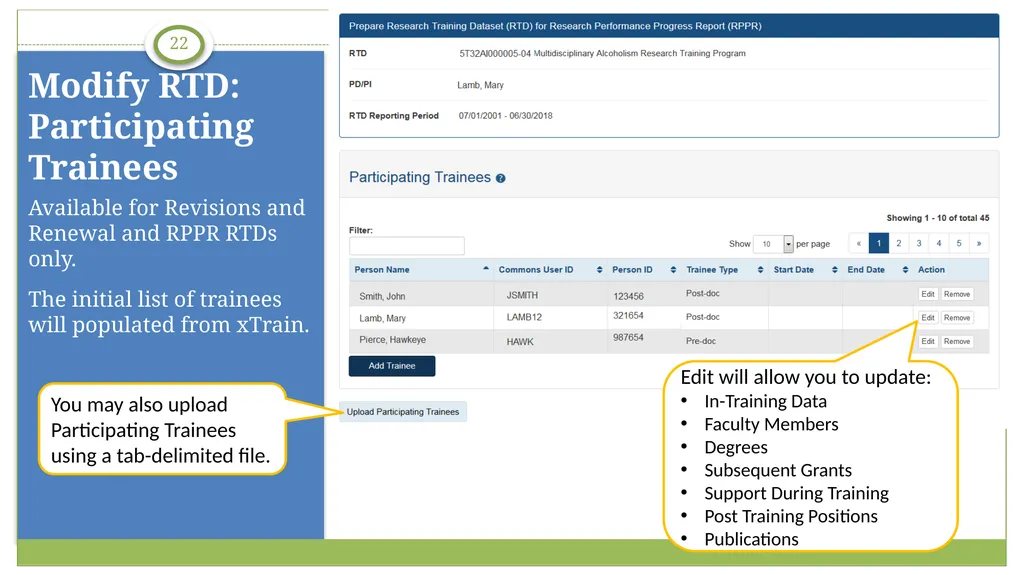
slide22. You may also upload Participating Trainees using a tab-delimited file. Available for Revisions and Renewal and RPPR RTDs only.
The initial list of trainees will populated from xTrain. Modify RTD: Participating Trainees 22<br>
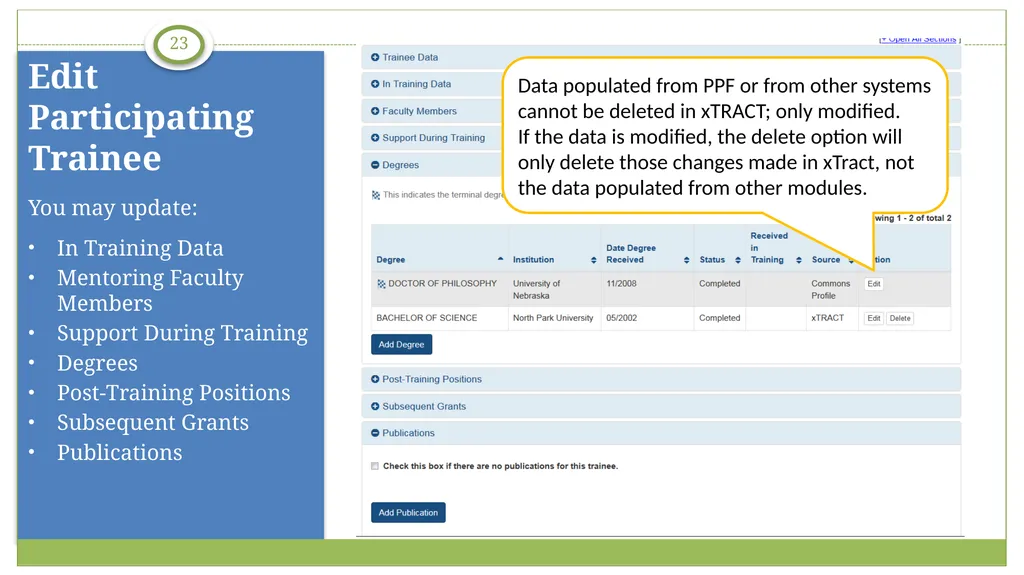
slide23. You may update:
In Training Data
Mentoring Faculty Members
Support During Training
Degrees
Post-Training Positions
Subsequent Grants
Publications Edit Participating Trainee 23<br>
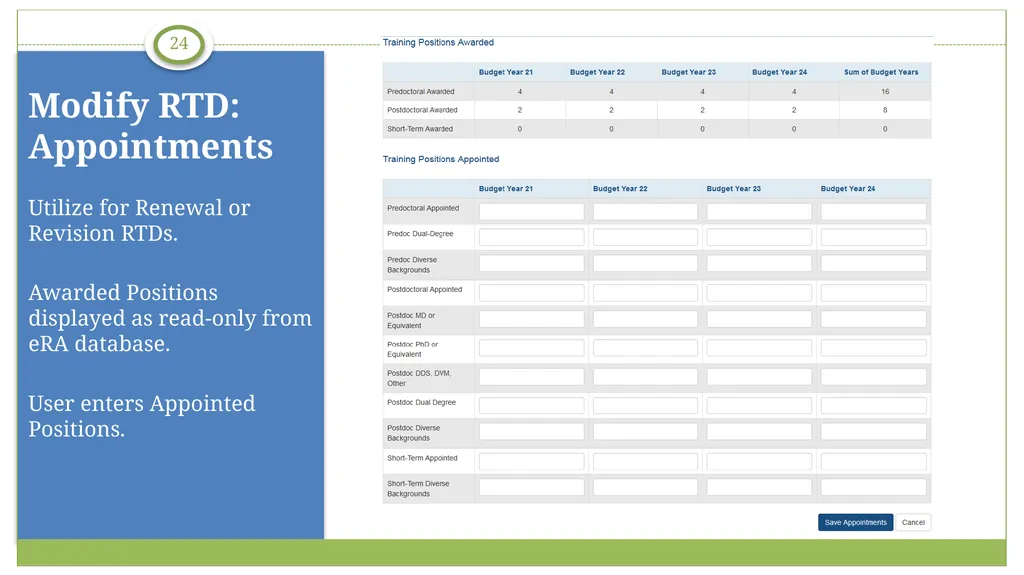
slide24. Utilize for Renewal or Revision RTDs.
Awarded Positions displayed as read-only from eRA database.
User enters Appointed Positions. Modify RTD: Appointments 24<br>
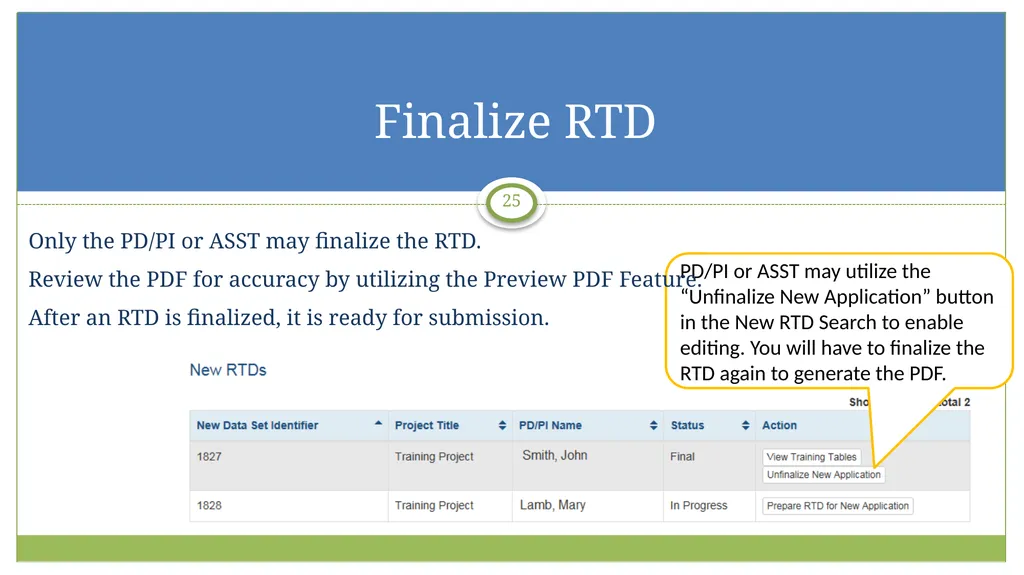
slide25. PD/PI or ASST may utilize the “Unfinalize New Application” button in the New RTD Search to enable editing. You will have to finalize the RTD again to generate the PDF. Only the PD/PI or ASST may finalize the RTD.
Review the PDF for accuracy by utilizing the Preview PDF Feature.
After an RTD is finalized, it is ready for submission. Finalize RTD 25<br>
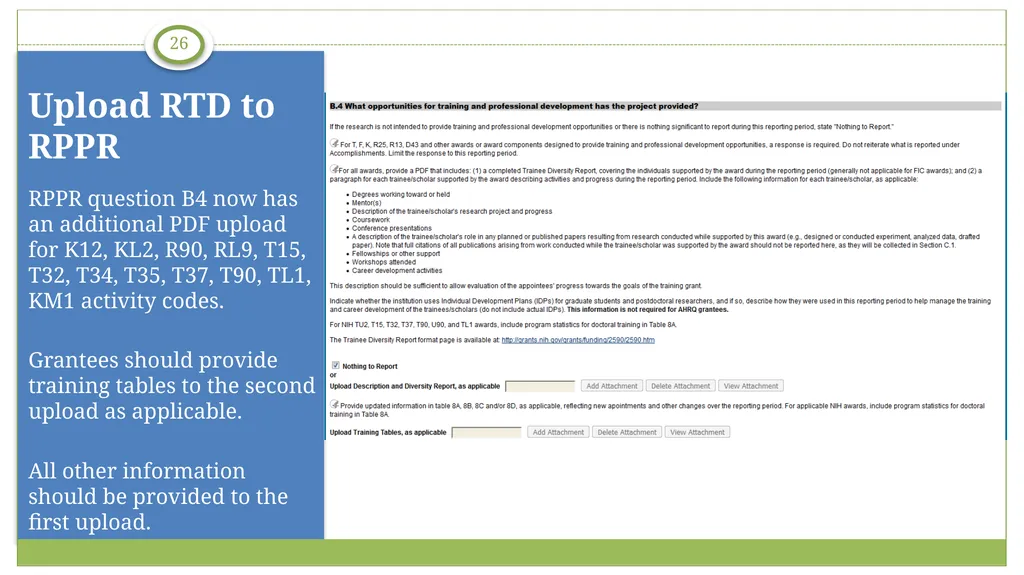
slide26. RPPR question B4 now has an additional PDF upload for K12, KL2, R90, RL9, T15, T32, T34, T35, T37, T90, TL1, KM1 activity codes.
Grantees should provide training tables to the second upload as applicable.
All other information should be provided to the first upload. Upload RTD to RPPR 26<br>
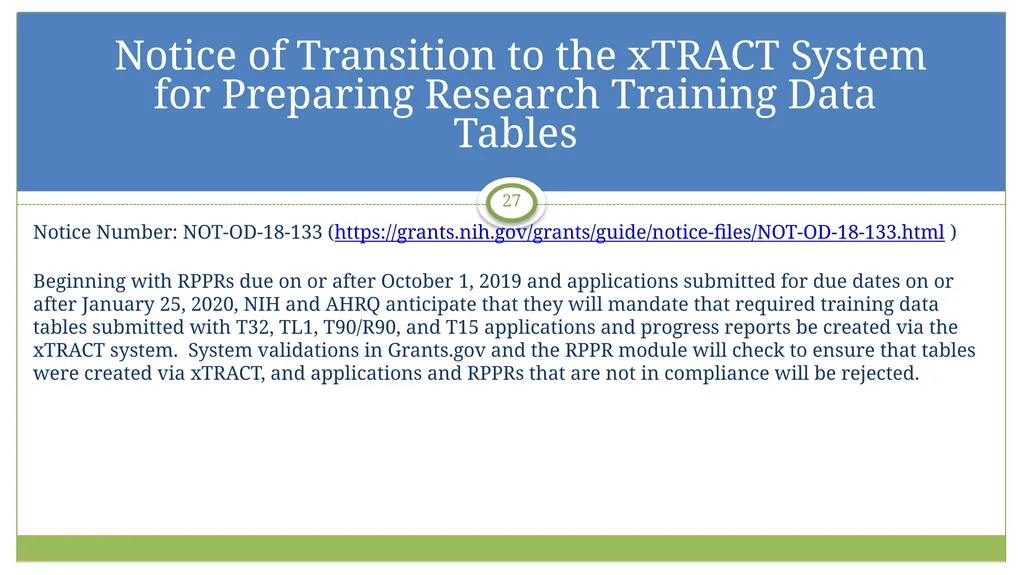
slide27. Notice Number: NOT-OD-18-133 (https://grants.nih.gov/grants/guide/notice-files/NOT-OD-18-133.html )
Beginning with RPPRs due on or after October 1, 2019 and applications submitted for due dates on or after January 25, 2020, NIH and AHRQ anticipate that they will mandate that required training data tables submitted with T32, TL1, T90/R90, and T15 applications and progress reports be created via the xTRACT system. System validations in Grants.gov and the RPPR module will check to ensure that tables were created via xTRACT, and applications and RPPRs that are not in compliance will be rejected. Notice of Transition to the xTRACT System for Preparing Research Training Data Tables 27<br>
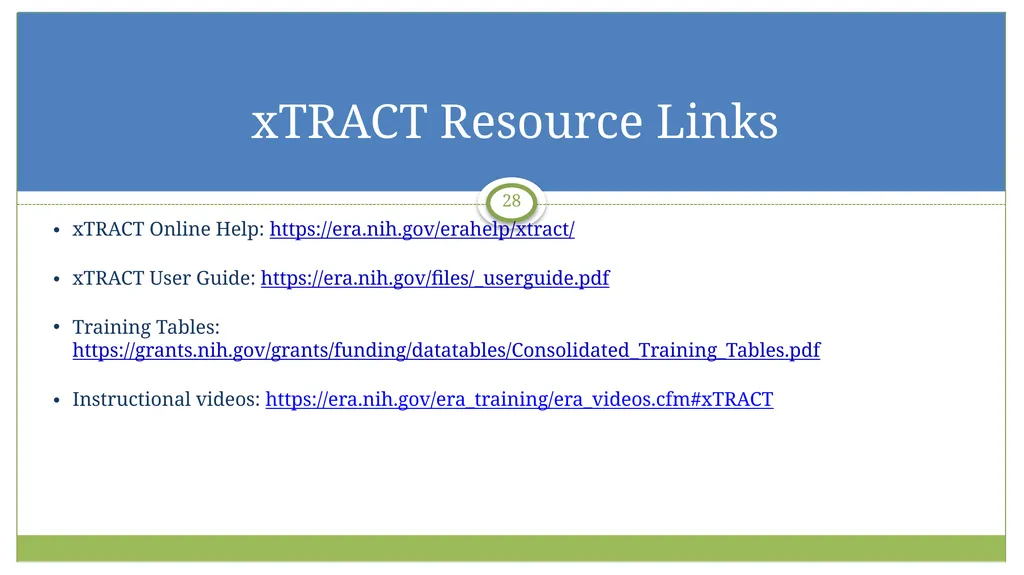
slide28. xTRACT Online Help: https://era.nih.gov/erahelp/xtract/
xTRACT User Guide: https://era.nih.gov/files/_userguide.pdf
Training Tables: https://grants.nih.gov/grants/funding/datatables/Consolidated_Training_Tables.pdf
Instructional videos: https://era.nih.gov/era_training/era_videos.cfm#xTRACT xTRACT Resource Links 28<br>
slide29. The eRA Service Desk can assist with technical issues related to xTRACT.
Hours: Mon-Fri, 7 a.m. to 8 p.m. Eastern Time (closed on federal holidays)
Toll-free: 1-866-504-9552
Phone: 301-402-7469
You may also submit a ticket online at: http://grants.nih.gov/support/index.html Need help? 29<br>

OER, OD, National Institutes of Health xTRACT Overview<br>
slide2. The Extramural Trainee Reporting And Career Tracking (xTRACT) system is a module in the eRA Commons that allows applicants, grantees, and assistants to create Research Training Data (RTD) tables for NIH progress reports and institutional training grant applications.
Because xTRACT is integrated with eRA Commons, some training data will be prepopulated in the system, including trainee names, selected characteristics, institutions, grant numbers, and subsequent NIH and other HHS awards.
In addition, xTRACT allows institutions to create profiles for participating faculty that do not require access to eRA Commons, create institutional programs, and non-NIH funding sources; which can be retrieved for future use. What is xTRACT? 2<br>
slide3. xTRACT delegation is granted when the PD/PI delegates xTrain to an ASST. PD/PI accounts may have multiple affiliations. xTRACT will display grants based on the users current default institution. Signing Official (SO)
Program Director/Principal Investigator (PD/PI)
PD/PI Delegate (ASST) xTRACT Users 3<br>
slide4. Main Menu 4<br>
slide5. Institutionally-defined, interdepartmental programs.
Programs names are used in a variety of places including, Census Tables and in Applicants, Entrants, and Characteristics: Pre-doc Table. Institution Data: Maintain Programs 5<br>
slide6. Non-NIH Funding Sources are entered and maintained by the Institution.
Search for funding source, if one does not exist, you will have the option to create a new one. Institution Data: Maintain Funding Sources 6<br>
slide7. User may modify a funding source.
Type of Funding Source and Project Title are required; user may also provide:
Organization
Funding Source Number
Start and End Date
Description Institution Data: Maintain Funding SourcesCont. 7<br>
slide8. Search for an existing person record.
If the person does not have an eRA Commons account or an xTRACT Profile, you may create an xTRACT Profile. Persons 8<br>
slide9. Edit Person Profile will pull data from Personal Profile (PPF) in eRA Commons.
If employment, or degree information is missing, you may add it in xTRACT.
Data entered in xTRACT will NOT be updated in PPF.
Sources of support are updated in the context of an RTD. Persons: Edit Person Profile 9<br>
slide10. From the Training Grants tab, search for the grant that needs an RTD generated.
To perform a wildcard search use the “%” character.
PD/PI, ASST, or SO may prepare or continue an RTD for a Revision, Renewal or RPPR. Training Grants 10<br>
slide11. To create an RTD for a new application, use the New Application tab.
If an RTD has already been started, you may use the search function locate it.
To perform a wildcard search use the “%” character. New Applications 11<br>
slide12. An RTD for a New Application requires the following information:
Participating Departments/Programs
Training Support & Summary
Participating Faculty
Participating Students
Applicants and Entrants New Application RTD 12<br>
slide13. An RTD For a Revision or Renewal you will need to complete the following:
Participating Departments/Programs
Training Support & Summary
Participating Faculty
Participating Students
Participating Trainees
Program Statistics
Applicants and Entrants
Appointments Revision or Renewal RTD 13<br>
slide14. If you have previously created RTDs for this grant, xTRACT will prompt you to copy the previous RTD data.
The RPPR RTD requires the following data:
Participating Trainees.
Program Statistics. RPPR RTD 14<br>
slide15. Utilize for New, Renewal or Revision RTDs.
User may create a Program for the institution in xTRACT.
xTRACT will pull Departments based on those in existence for the organization. Modify RTD: Departments 15<br>
slide16. Utilize for New, Renewal or Revision RTDs.
Calculates and displays summary data entered for Faculty Research Support and Institutional Training Grants.
Census Totals display for Predocs and Postdocs across participating departments and programs. Modify RTD: Training Support 16<br>
slide17. Edit chosen Institution Training Support will allow you to:
Enter the number of trainee positions under this Training Support
Identify Overlapping Faculty Modify RTD: Training Support 17<br>
slide18. Utilize for New, Renewal or Revision RTDs.
To add a Faculty member, they must have an eRA Commons ID, or an xTRACT Profile.
If the faculty member does not have an xTRACT Profile, you will have the option to create one after you’ve performed a search. Modify RTD: Participating Faculty 18<br>
slide19. Utilize for:
New Applications
Predoctoral Renewal/Revision Applications requesting an expansion to postdoctoral support
Postdoctoral Renewal/Revision Applications requesting an expansion to predoctoral support Modify RTD: Participating Students 19<br>
slide20. You may update:
In Training Data
Faculty Members
Degrees
Post-Training Positions
Subsequent Grants
Publications Modify RTD: Participating Students cont. 20<br>
slide21. Utilize for New, Renewal or Revision RTDs.
Entering Start year of the most recently completed academic year sets up the last 5 academic years.
You will be given the option to enter data for Pre-Docs and Post-Docs. Modify RTD: Applicants and Entrants 21<br>
slide22. You may also upload Participating Trainees using a tab-delimited file. Available for Revisions and Renewal and RPPR RTDs only.
The initial list of trainees will populated from xTrain. Modify RTD: Participating Trainees 22<br>
slide23. You may update:
In Training Data
Mentoring Faculty Members
Support During Training
Degrees
Post-Training Positions
Subsequent Grants
Publications Edit Participating Trainee 23<br>
slide24. Utilize for Renewal or Revision RTDs.
Awarded Positions displayed as read-only from eRA database.
User enters Appointed Positions. Modify RTD: Appointments 24<br>
slide25. PD/PI or ASST may utilize the “Unfinalize New Application” button in the New RTD Search to enable editing. You will have to finalize the RTD again to generate the PDF. Only the PD/PI or ASST may finalize the RTD.
Review the PDF for accuracy by utilizing the Preview PDF Feature.
After an RTD is finalized, it is ready for submission. Finalize RTD 25<br>
slide26. RPPR question B4 now has an additional PDF upload for K12, KL2, R90, RL9, T15, T32, T34, T35, T37, T90, TL1, KM1 activity codes.
Grantees should provide training tables to the second upload as applicable.
All other information should be provided to the first upload. Upload RTD to RPPR 26<br>
slide27. Notice Number: NOT-OD-18-133 (https://grants.nih.gov/grants/guide/notice-files/NOT-OD-18-133.html )
Beginning with RPPRs due on or after October 1, 2019 and applications submitted for due dates on or after January 25, 2020, NIH and AHRQ anticipate that they will mandate that required training data tables submitted with T32, TL1, T90/R90, and T15 applications and progress reports be created via the xTRACT system. System validations in Grants.gov and the RPPR module will check to ensure that tables were created via xTRACT, and applications and RPPRs that are not in compliance will be rejected. Notice of Transition to the xTRACT System for Preparing Research Training Data Tables 27<br>
slide28. xTRACT Online Help: https://era.nih.gov/erahelp/xtract/
xTRACT User Guide: https://era.nih.gov/files/_userguide.pdf
Training Tables: https://grants.nih.gov/grants/funding/datatables/Consolidated_Training_Tables.pdf
Instructional videos: https://era.nih.gov/era_training/era_videos.cfm#xTRACT xTRACT Resource Links 28<br>
slide29. The eRA Service Desk can assist with technical issues related to xTRACT.
Hours: Mon-Fri, 7 a.m. to 8 p.m. Eastern Time (closed on federal holidays)
Toll-free: 1-866-504-9552
Phone: 301-402-7469
You may also submit a ticket online at: http://grants.nih.gov/support/index.html Need help? 29<br>