
External Document Posting Site (DPS) Topic: Search

Published  . 0 views
↓ Download
External Document Posting Site (DPS) Topic: Search
1 / 1
External Document Posting Site (DPS) Topic: Search - slide 1 of 5 External Document Posting Site (DPS) Topic: Search - slide 2 of 5 External Document Posting Site (DPS) Topic: Search - slide 3 of 5 External Document Posting Site (DPS) Topic: Search - slide 4 of 5 External Document Posting Site (DPS) Topic: Search - slide 5 of 5

Description: External Document Posting Site (DPS) Topic: Search User Guide Search Criteria State selection is the landing page for External Document Posting Site (DPS). User must select a State to begin. User must select Market Unit and Product Type for

Related Topics

Download Presentation

"External Document Posting Site (DPS) Topic: Search" is the property of its rightful owner. Permission is granted to download and print the materials on this website for personal, non-commercial use only, and to display it on your personal computer provided you do not modify the materials and that you retain all copyright notices contained in the materials. By downloading content from our website, you accept the terms of this agreement.

Presentation Transcript

slide1. External Document Posting Site (DPS) Topic: Search User Guide<br>
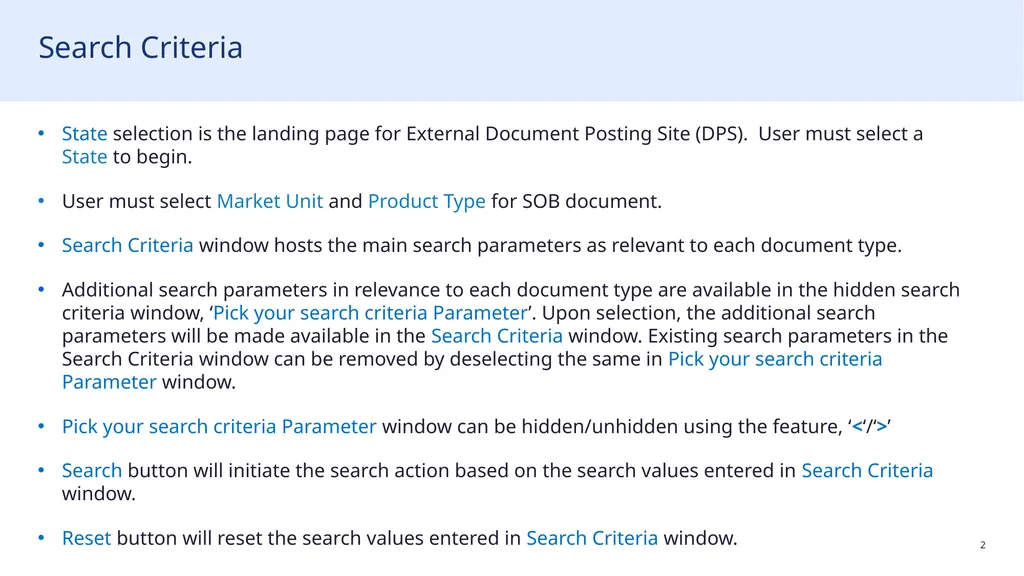
slide2. Search Criteria State selection is the landing page for External Document Posting Site (DPS). User must select a State to begin.
User must select Market Unit and Product Type for SOB document.
Search Criteria window hosts the main search parameters as relevant to each document type.
Additional search parameters in relevance to each document type are available in the hidden search criteria window, ‘Pick your search criteria Parameter’. Upon selection, the additional search parameters will be made available in the Search Criteria window. Existing search parameters in the Search Criteria window can be removed by deselecting the same in Pick your search criteria Parameter window.
Pick your search criteria Parameter window can be hidden/unhidden using the feature, ‘<‘/‘>’
Search button will initiate the search action based on the search values entered in Search Criteria window.
Reset button will reset the search values entered in Search Criteria window.<br>
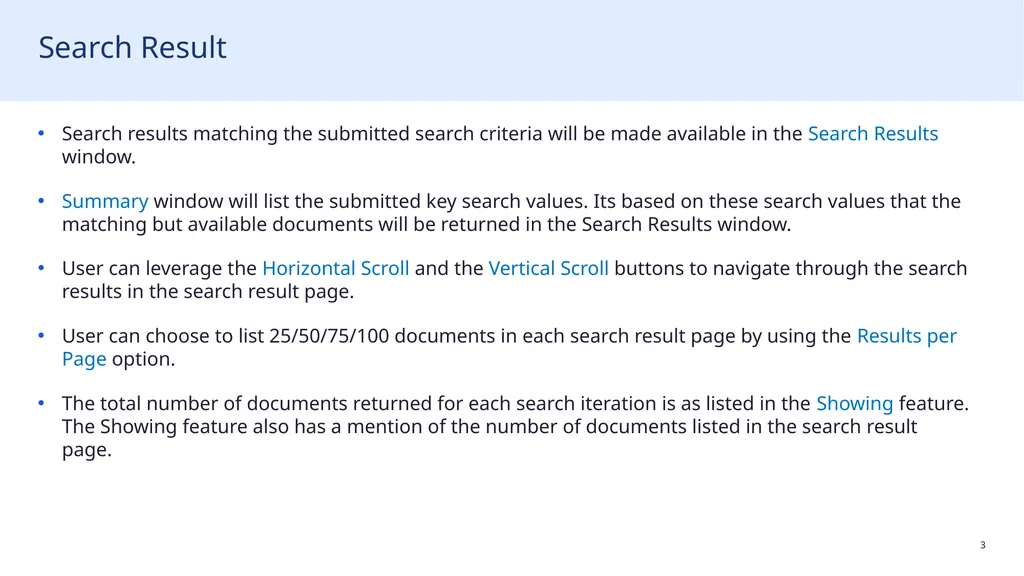
slide3. Search Result Search results matching the submitted search criteria will be made available in the Search Results window.
Summary window will list the submitted key search values. Its based on these search values that the matching but available documents will be returned in the Search Results window.
User can leverage the Horizontal Scroll and the Vertical Scroll buttons to navigate through the search results in the search result page.
User can choose to list 25/50/75/100 documents in each search result page by using the Results per Page option.
The total number of documents returned for each search iteration is as listed in the Showing feature. The Showing feature also has a mention of the number of documents listed in the search result page.<br>
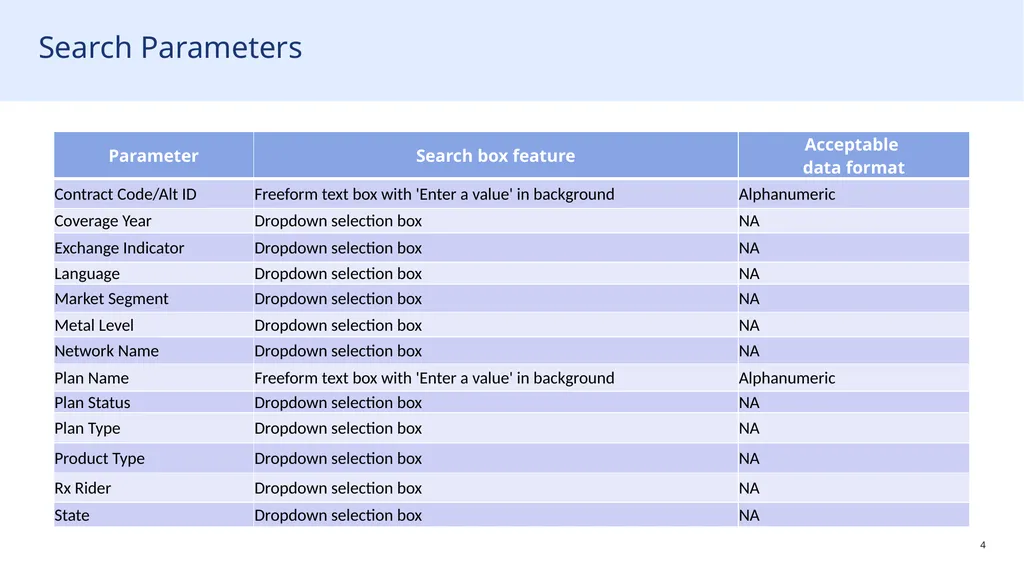
slide4. Search Parameters<br>
slide5. End of topic Thanks for watching<br>