FOLLOW THESE STEPS How to CHECK your invoice document status in Tungsten Portal https:portal.tungsten-network.comLogin.aspx?ReturnUrl2f STEP 01: Login to Tungsten Network portal with your login credentials NEXT BACK Enter your login
"FOLLOW THESE STEPS How to CHECK your invoice/" is the property of its rightful owner. Permission is granted to
download and print the materials on this website for personal, non-commercial use only, and to display it
on your personal computer provided you do not modify the materials and that you retain all copyright
notices contained in the materials. By downloading content from our website, you accept the terms of this
agreement.
Presentation Transcript
01
FOLLOW
THESE STEPS How to
CHECK
your invoice/ document status in Tungsten Portal<br>
02
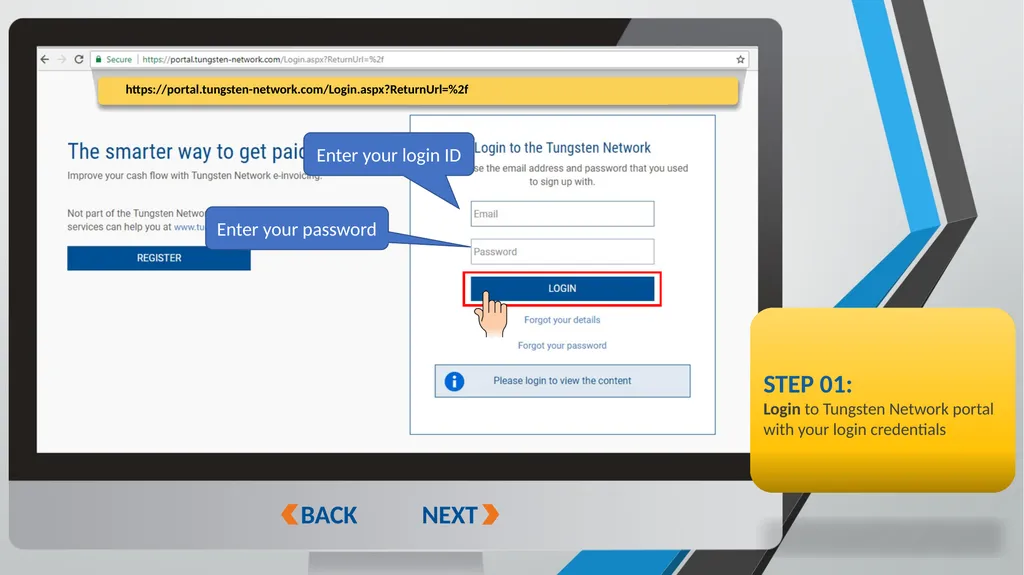
https://portal.tungsten-network.com/Login.aspx?ReturnUrl=%2f STEP 01:
Login to Tungsten Network portal with your login credentials NEXT BACK Enter your login ID Enter your password<br>
03
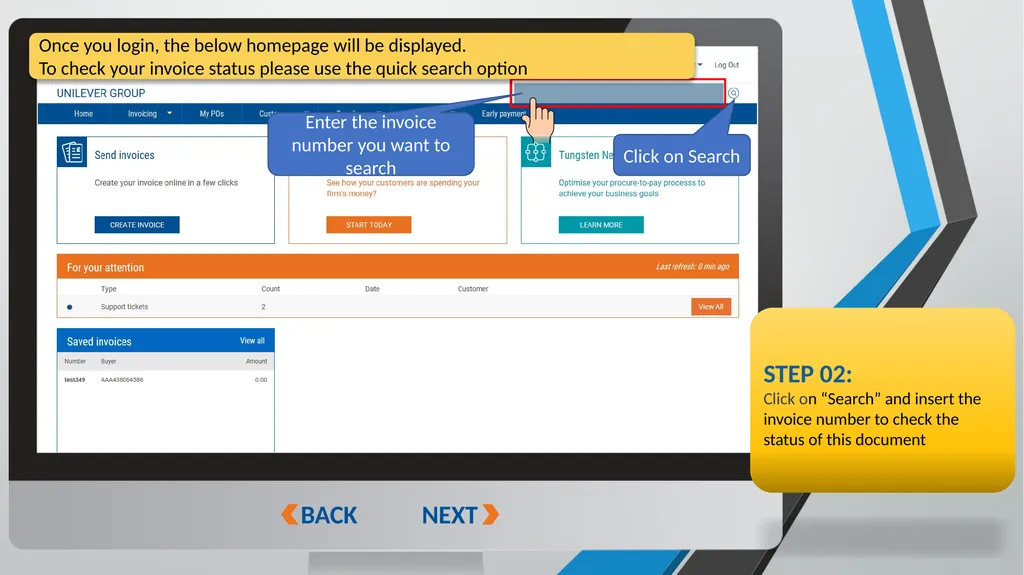
https://portal.tungsten-network.com/Login.aspx?ReturnUrl=%2f NEXT BACK STEP 02:
Click on “Search” and insert the invoice number to check the status of this document Once you login, the below homepage will be displayed.
To check your invoice status please use the quick search option Enter the invoice number you want to search Click on Search<br>
04
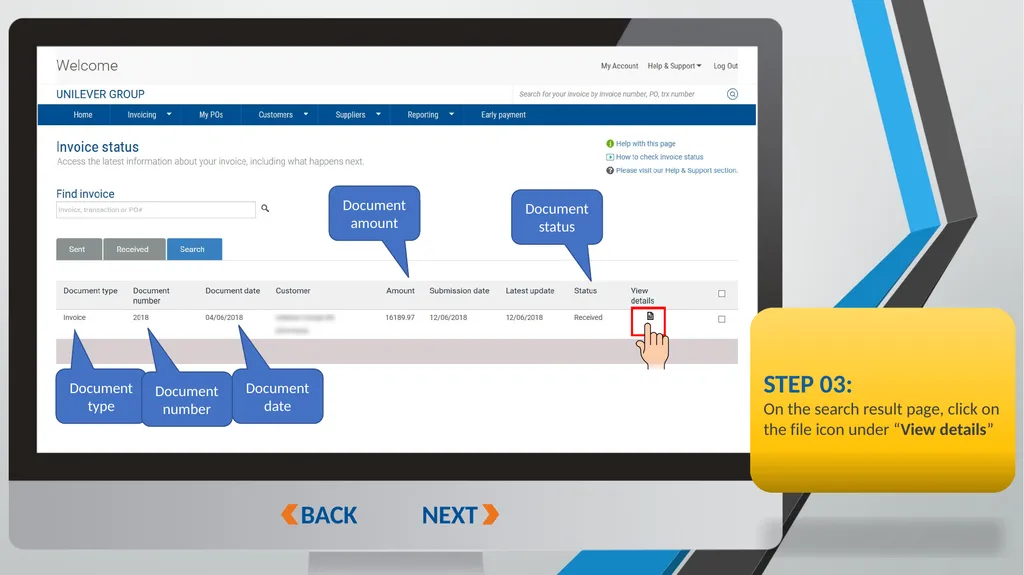
NEXT BACK STEP 03:
On the search result page, click on the file icon under “View details” Document status Document amount Document type Document number Document date<br>
05
Document
STATUS
Definitions<br>
06
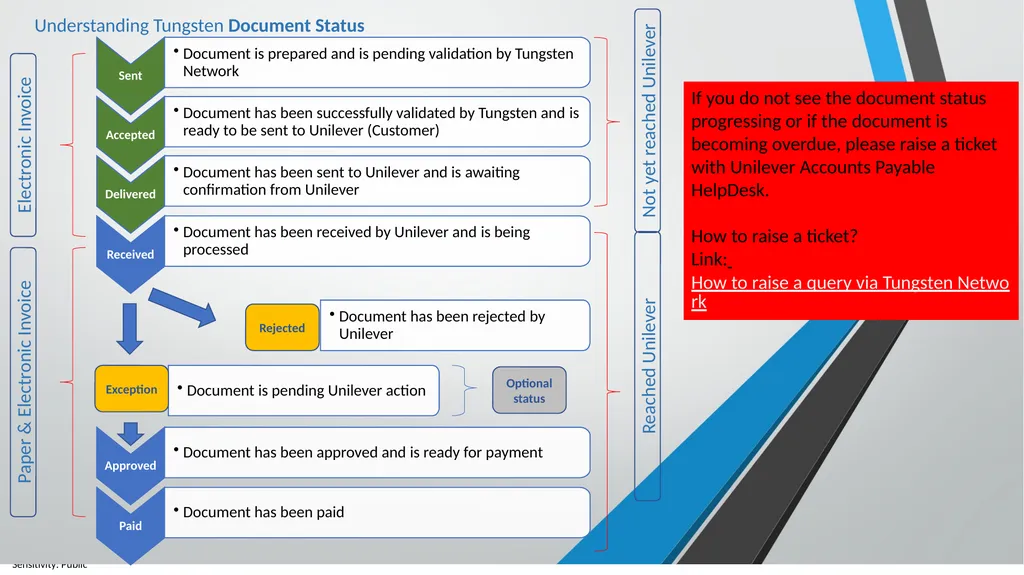
Sent Document is prepared and is pending validation by Tungsten Network Accepted Document has been successfully validated by Tungsten and is ready to be sent to Unilever (Customer) Delivered Document has been sent to Unilever and is awaiting confirmation from Unilever Received Document has been received by Unilever and is being processed Approved Document has been approved and is ready for payment Paid Document has been paid Document has been rejected by Unilever Electronic Invoice Paper & Electronic Invoice Understanding Tungsten Document Status Not yet reached Unilever Reached Unilever If you do not see the document status progressing or if the document is becoming overdue, please raise a ticket with Unilever Accounts Payable HelpDesk.
How to raise a ticket?
Link: How to raise a query via Tungsten Network Document is pending Unilever action Rejected Exception Optional status<br>
07
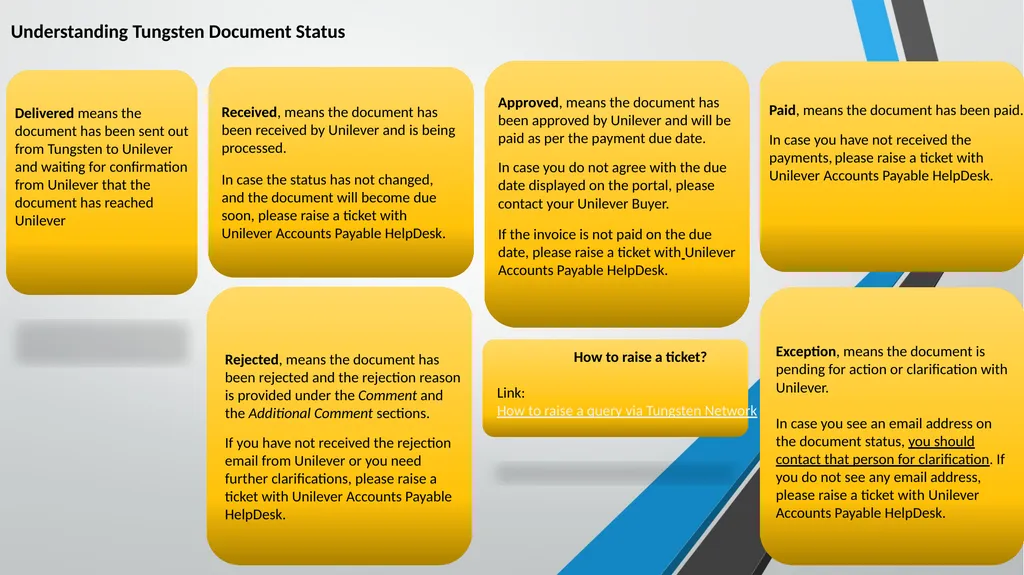
Understanding Tungsten Document Status How to raise a ticket?
Link: How to raise a query via Tungsten Network Delivered means the document has been sent out from Tungsten to Unilever and waiting for confirmation from Unilever that the document has reached Unilever<br>
08
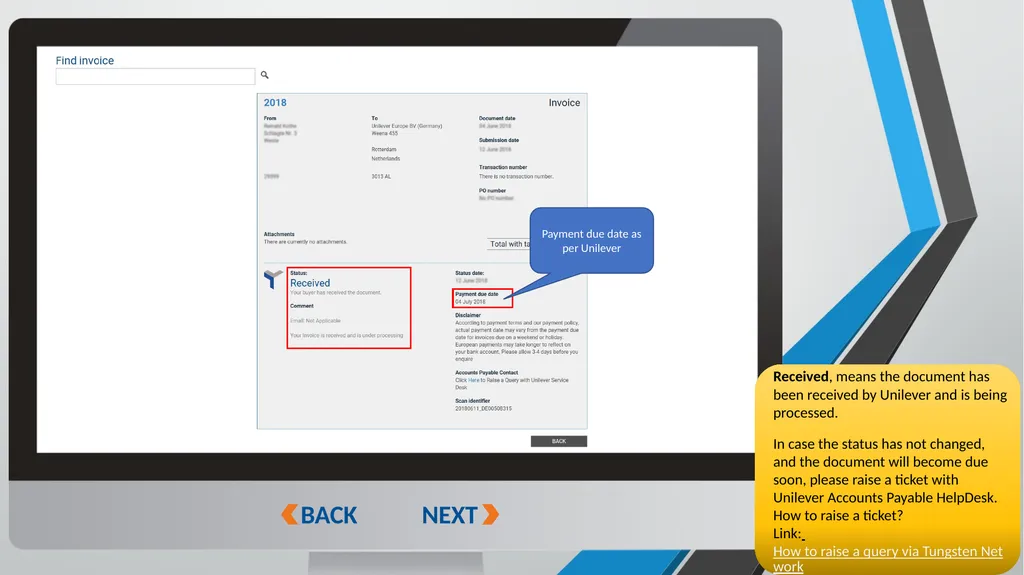
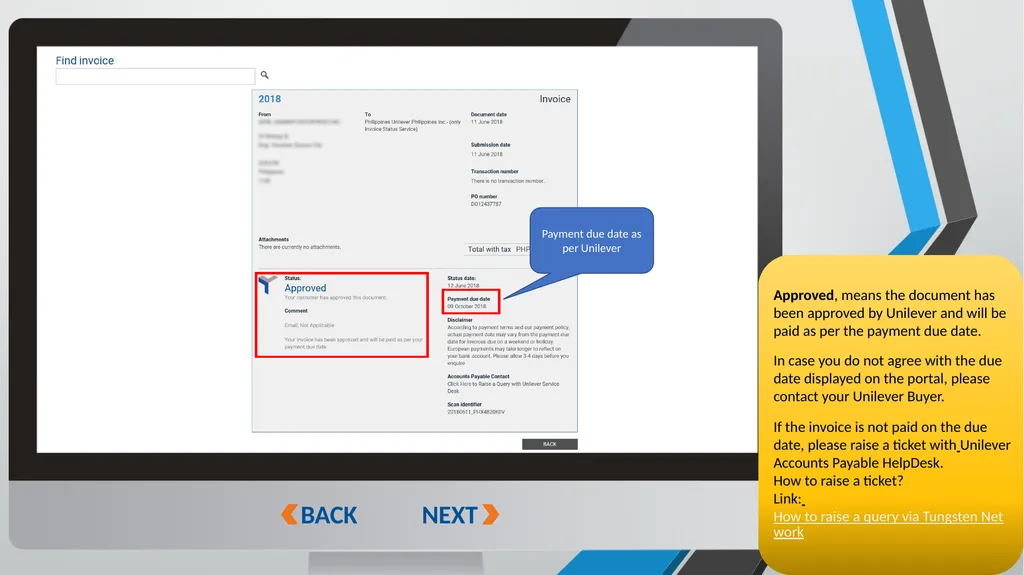
NEXT BACK Payment due date as per Unilever<br>
09
NEXT BACK Payment due date as per Unilever Approved, means the document has been approved by Unilever and will be paid as per the payment due date.
In case you do not agree with the due date displayed on the portal, please contact your Unilever Buyer.
If the invoice is not paid on the due date, please raise a ticket with Unilever Accounts Payable HelpDesk.
How to raise a ticket?
Link: How to raise a query via Tungsten Network<br>
10
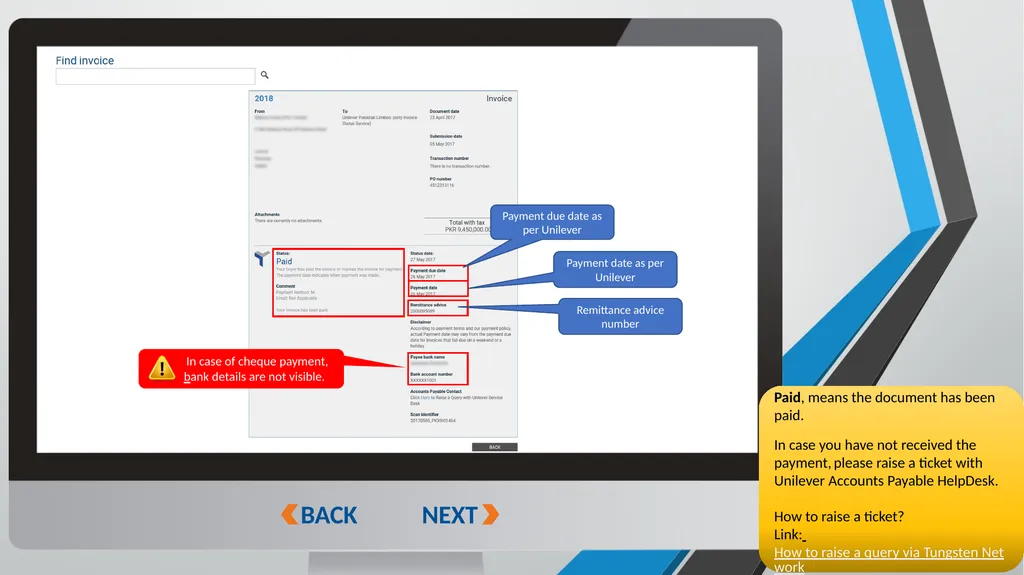
NEXT BACK In case of cheque payment, bank details are not visible. Payment due date as per Unilever Payment date as per Unilever Remittance advice number Paid, means the document has been paid.
In case you have not received the payment, please raise a ticket with Unilever Accounts Payable HelpDesk.
How to raise a ticket?
Link: How to raise a query via Tungsten Network<br>
11
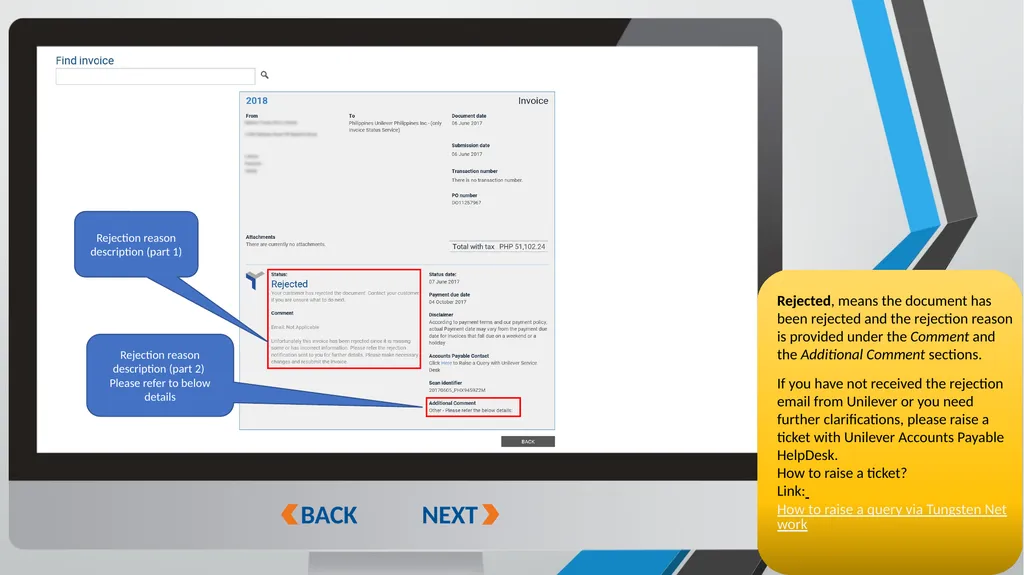
NEXT BACK Rejection reason description (part 1) Rejection reason description (part 2)
Please refer to below details<br>
12
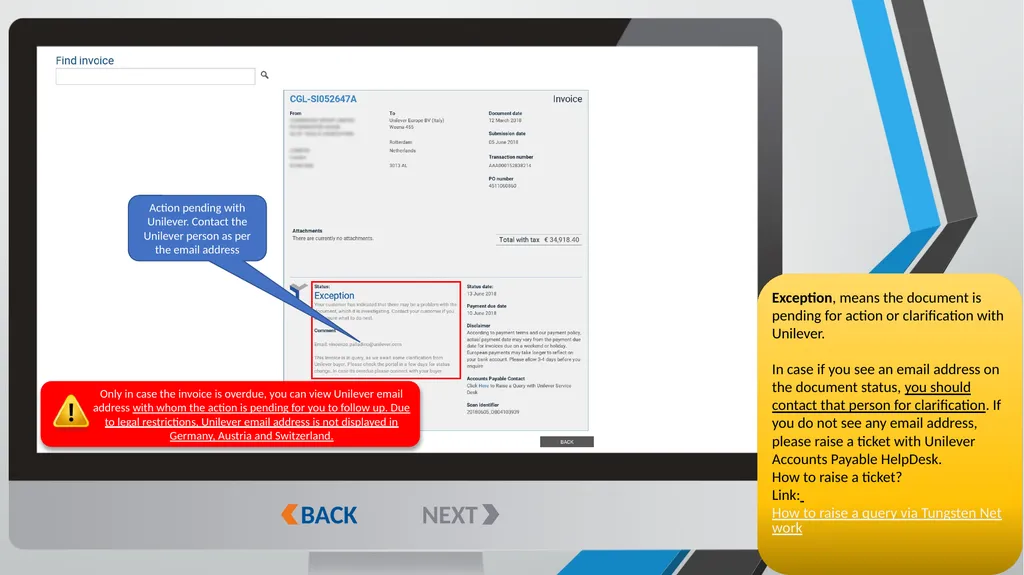
NEXT BACK Exception, means the document is pending for action or clarification with Unilever.
In case if you see an email address on the document status, you should contact that person for clarification. If you do not see any email address, please raise a ticket with Unilever Accounts Payable HelpDesk.
How to raise a ticket?
Link: How to raise a query via Tungsten Network Only in case the invoice is overdue, you can view Unilever email address with whom the action is pending for you to follow up. Due to legal restrictions, Unilever email address is not displayed in Germany, Austria and Switzerland. Action pending with Unilever. Contact the Unilever person as per the email address<br>
13
remittance advice in Tungsten Portal VIEW How to<br>
14
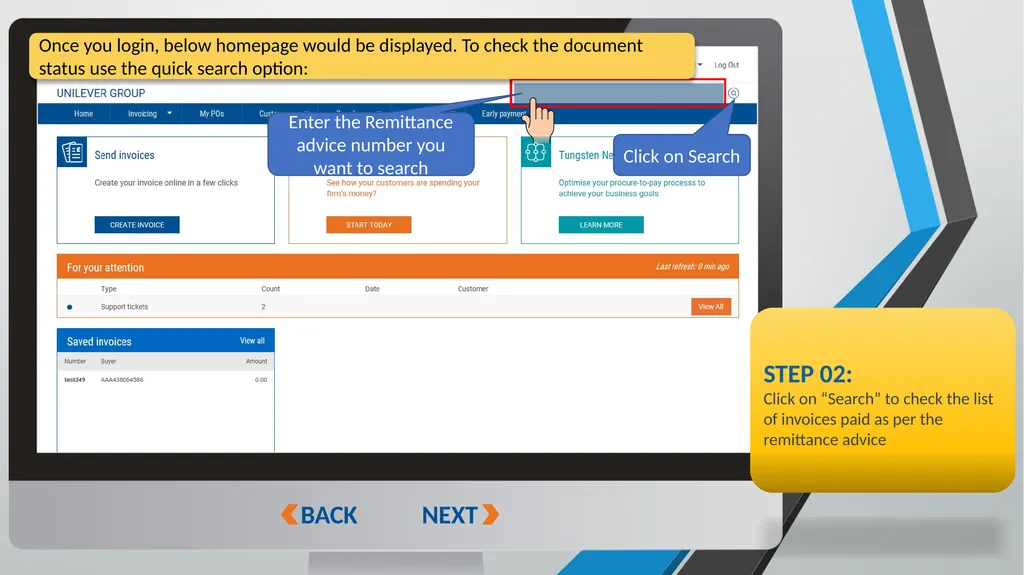
https://portal.tungsten-network.com/Login.aspx?ReturnUrl=%2f NEXT BACK STEP 02:
Click on “Search” to check the list of invoices paid as per the remittance advice Once you login, below homepage would be displayed. To check the document status use the quick search option: Enter the Remittance advice number you want to search Click on Search<br>
15
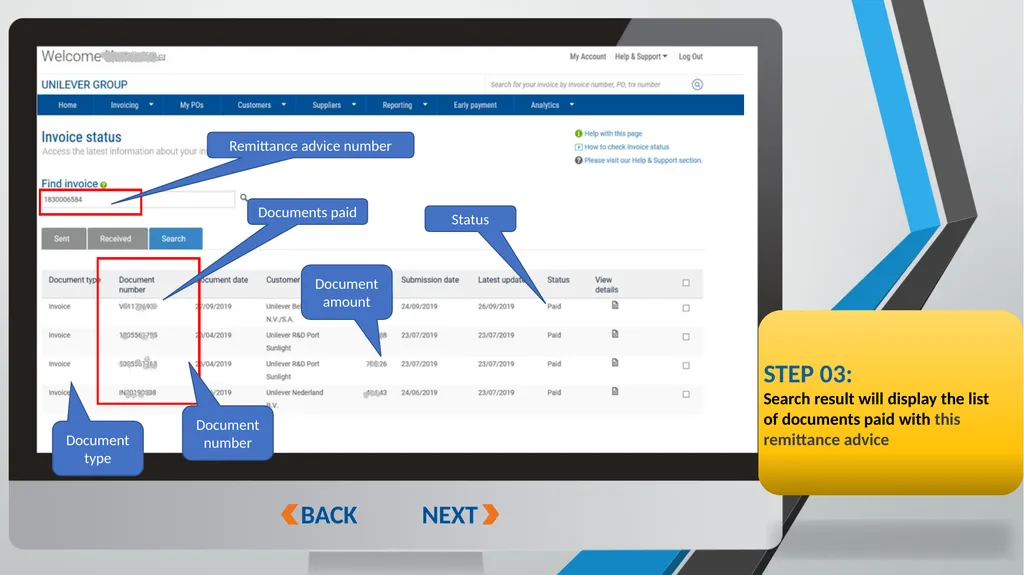
NEXT BACK STEP 03:
Search result will display the list of documents paid with this remittance advice Document amount Document type Document number Status Remittance advice number Documents paid<br>