Form Basics CS380 1 Web Data Most interesting web pages revolve around data examples: Google, IMDB, Digg, Facebook, YouTube, Rotten Tomatoes can take many formats: text, HTML, XML, multimedia Many of them allow us to access their data Some
"Form Basics CS380 1 Web Data Most interesting web" is the property of its rightful owner. Permission is granted to
download and print the materials on this website for personal, non-commercial use only, and to display it
on your personal computer provided you do not modify the materials and that you retain all copyright
notices contained in the materials. By downloading content from our website, you accept the terms of this
agreement.
Presentation Transcript
01
Form Basics CS380 1<br>
02
Web Data Most interesting web pages revolve around data
examples: Google, IMDB, Digg, Facebook, YouTube, Rotten Tomatoes
can take many formats: text, HTML, XML, multimedia
Many of them allow us to access their data
Some even allow us to submit our own new data
Most server-side web programs accept parameters that guide their execution CS380 2<br>
03
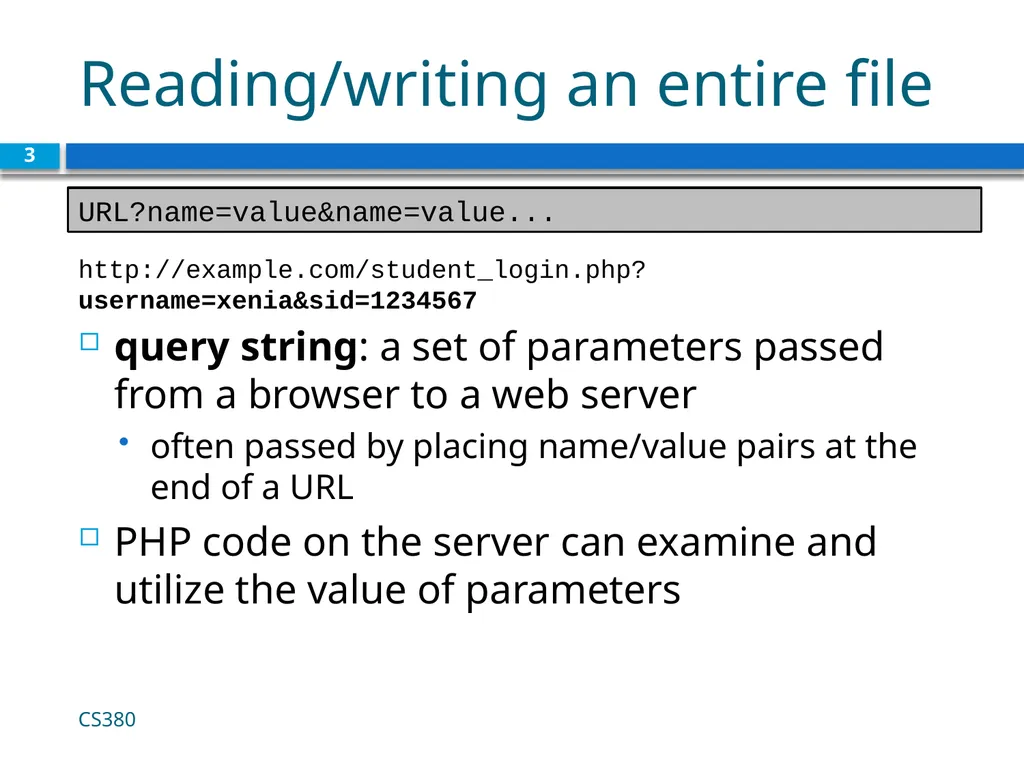
Reading/writing an entire file query string: a set of parameters passed from a browser to a web server
often passed by placing name/value pairs at the end of a URL
PHP code on the server can examine and utilize the value of parameters CS380 3 URL?name=value&name=value... http://example.com/student_login.php?username=xenia&sid=1234567<br>
04
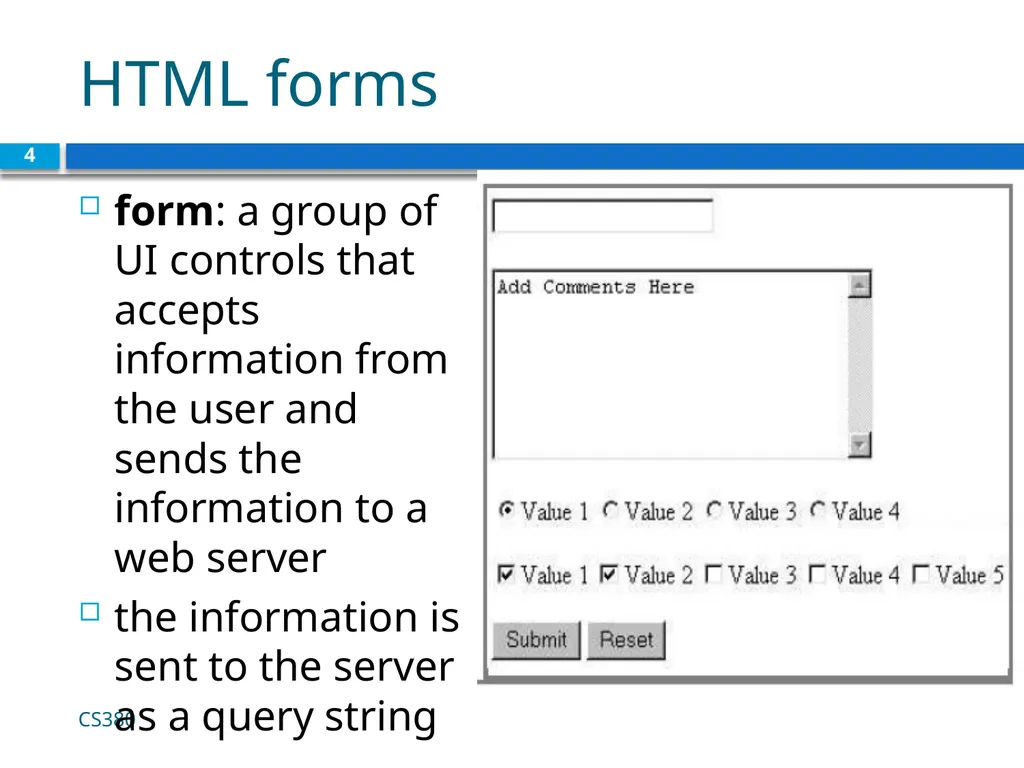
HTML forms form: a group of UI controls that accepts information from the user and sends the information to a web server
the information is sent to the server as a query string CS380 4<br>
05
HTML form: <form> required action attribute gives the URL of the page that will process this form's data
when form has been filled out and submitted, its data will be sent to the action's URL CS380 5 <form action="destination URL">
form controls
</form> HTML<br>
06
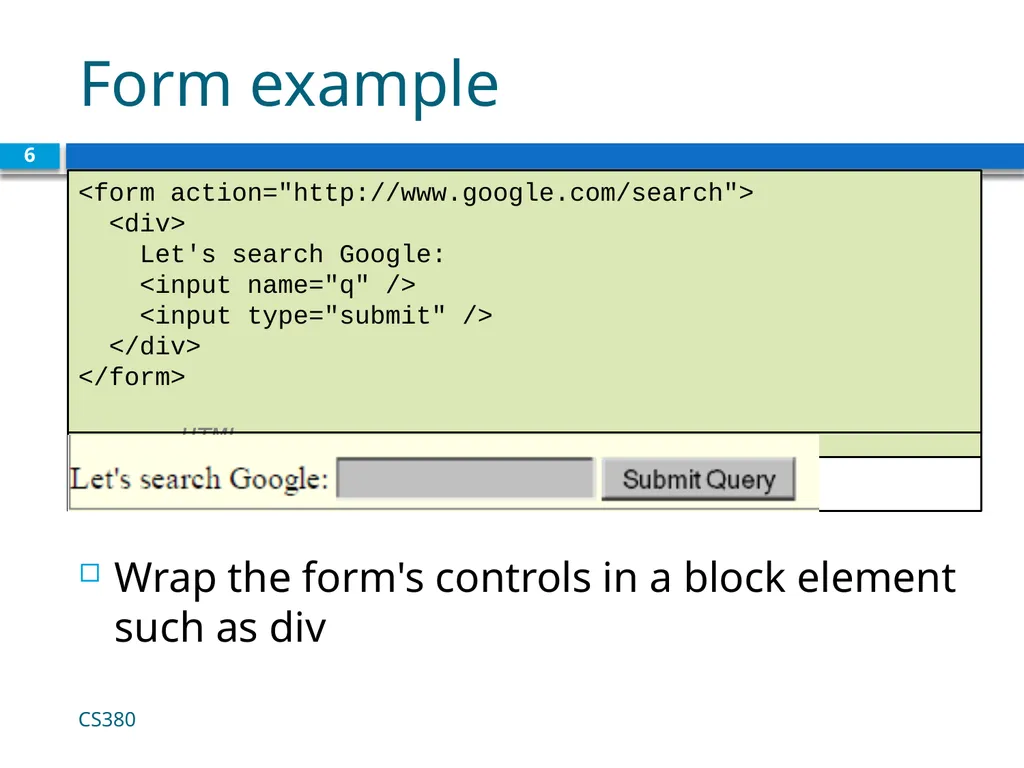
Form example Wrap the form's controls in a block element such as div CS380 6 <form action="http://www.google.com/search">
<div>
Let's search Google:
<input name="q" />
<input type="submit" />
</div>
</form> HTML First Paragraph<br>
07
Form controls 7 CS380<br>
08
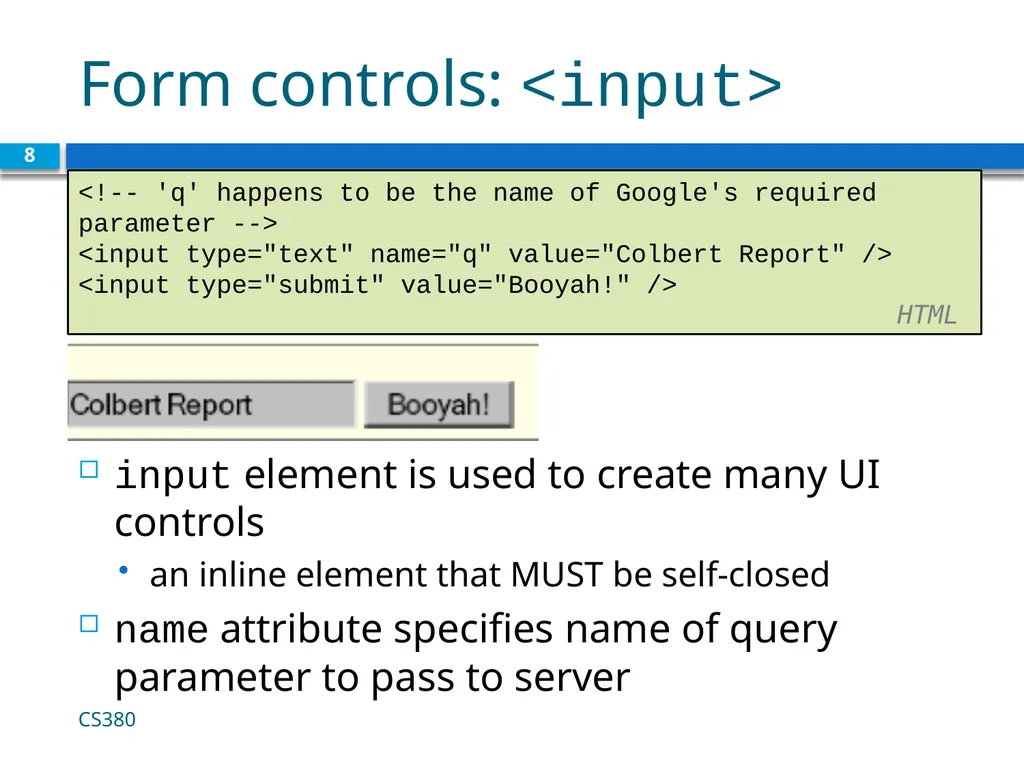
Form controls: <input> input element is used to create many UI controls
an inline element that MUST be self-closed
name attribute specifies name of query parameter to pass to server 8 <!-- 'q' happens to be the name of Google's required parameter -->
<input type="text" name="q" value="Colbert Report" />
<input type="submit" value="Booyah!" /> HTML CS380<br>
09
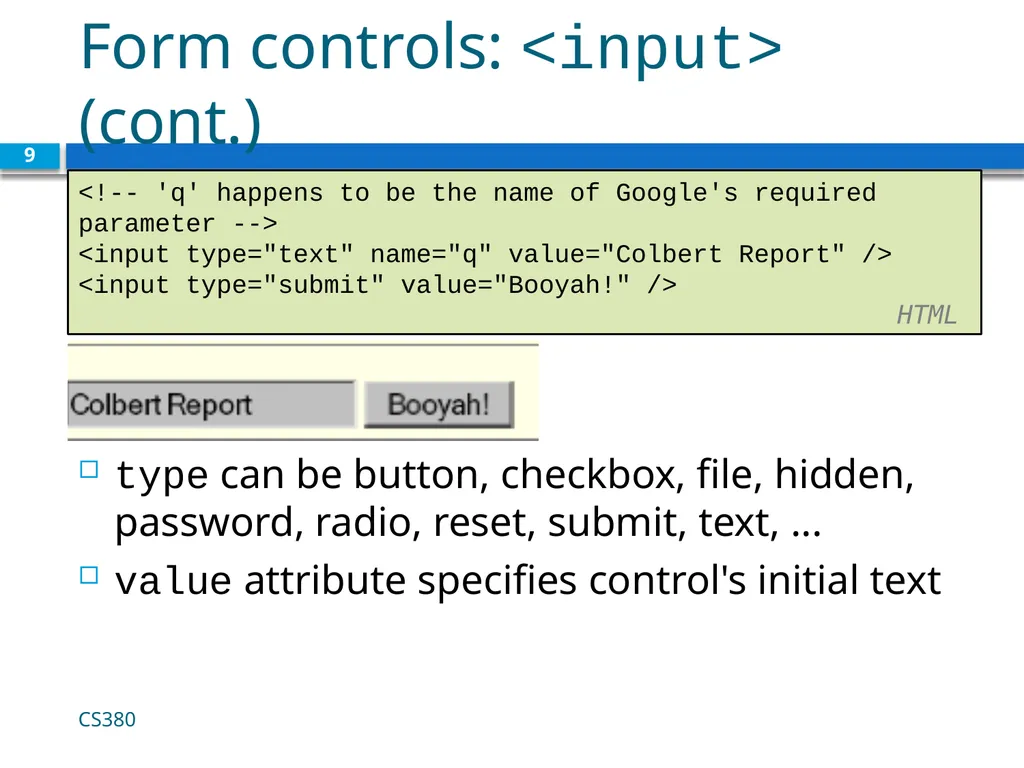
Form controls: <input> (cont.) type can be button, checkbox, file, hidden, password, radio, reset, submit, text, ...
value attribute specifies control's initial text 9 <!-- 'q' happens to be the name of Google's required parameter -->
<input type="text" name="q" value="Colbert Report" />
<input type="submit" value="Booyah!" /> HTML CS380<br>
10
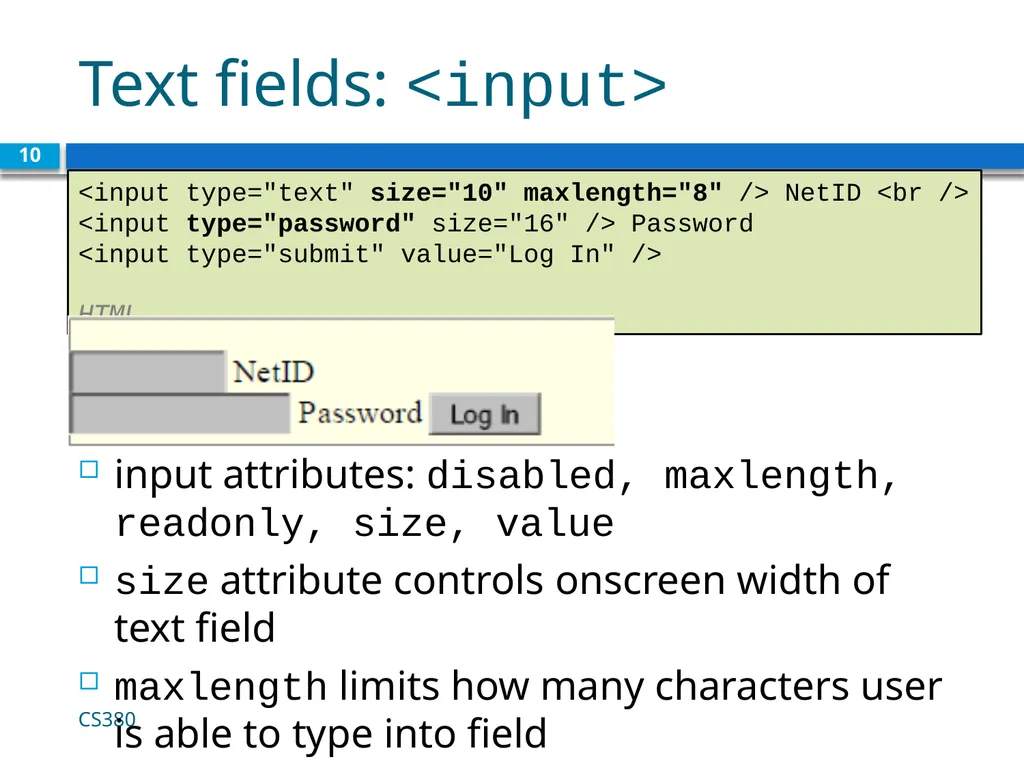
Text fields: <input> input attributes: disabled, maxlength, readonly, size, value
size attribute controls onscreen width of text field
maxlength limits how many characters user is able to type into field 10 <input type="text" size="10" maxlength="8" /> NetID <br />
<input type="password" size="16" /> Password
<input type="submit" value="Log In" /> HTML CS380<br>
11
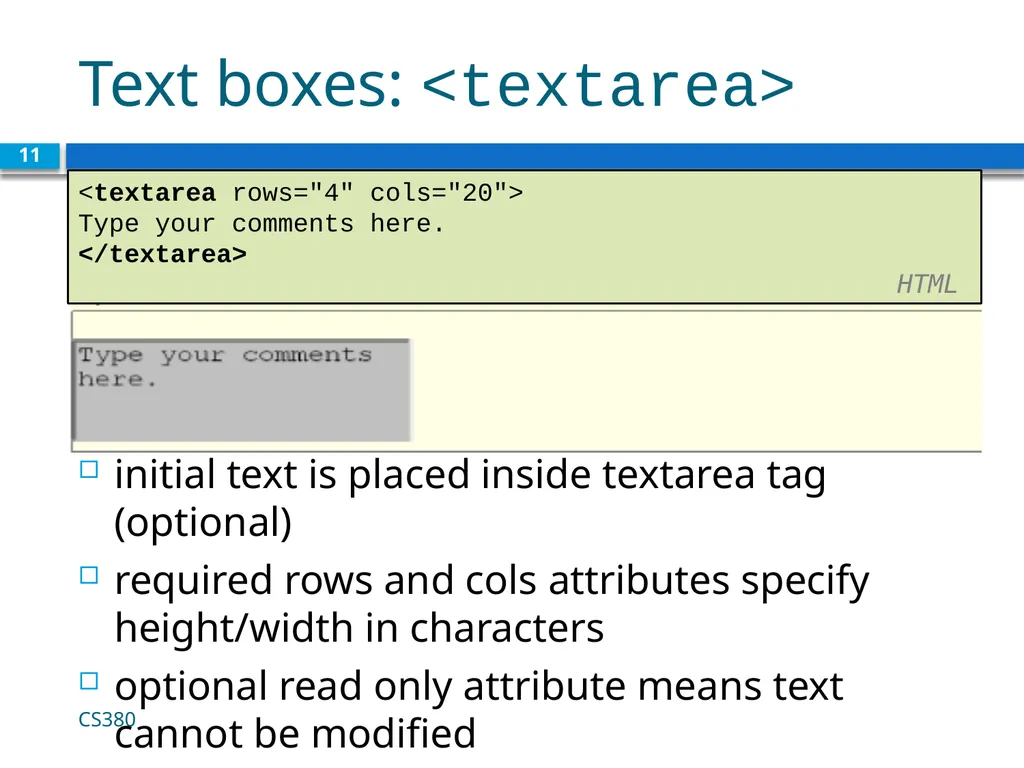
Text boxes: <textarea> initial text is placed inside textarea tag (optional)
required rows and cols attributes specify height/width in characters
optional read only attribute means text cannot be modified 11 <textarea rows="4" cols="20">
Type your comments here.
</textarea> HTML CS380<br>
12
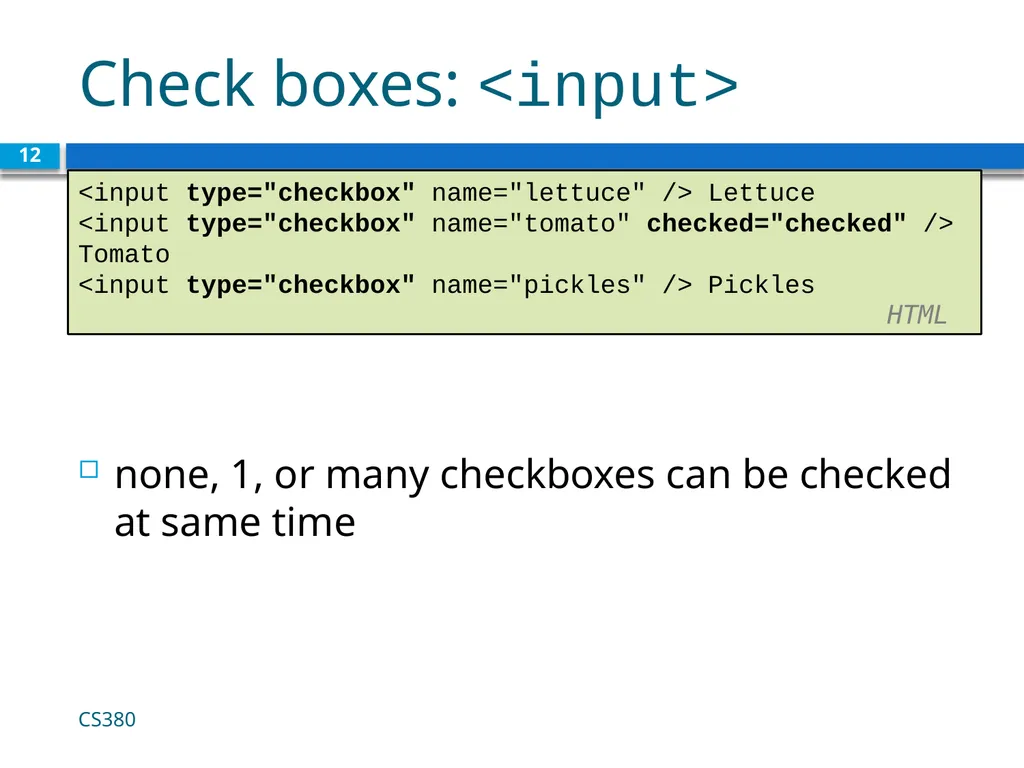
Check boxes: <input> none, 1, or many checkboxes can be checked at same time 12 <input type="checkbox" name="lettuce" /> Lettuce
<input type="checkbox" name="tomato" checked="checked" /> Tomato
<input type="checkbox" name="pickles" /> Pickles HTML CS380<br>
13
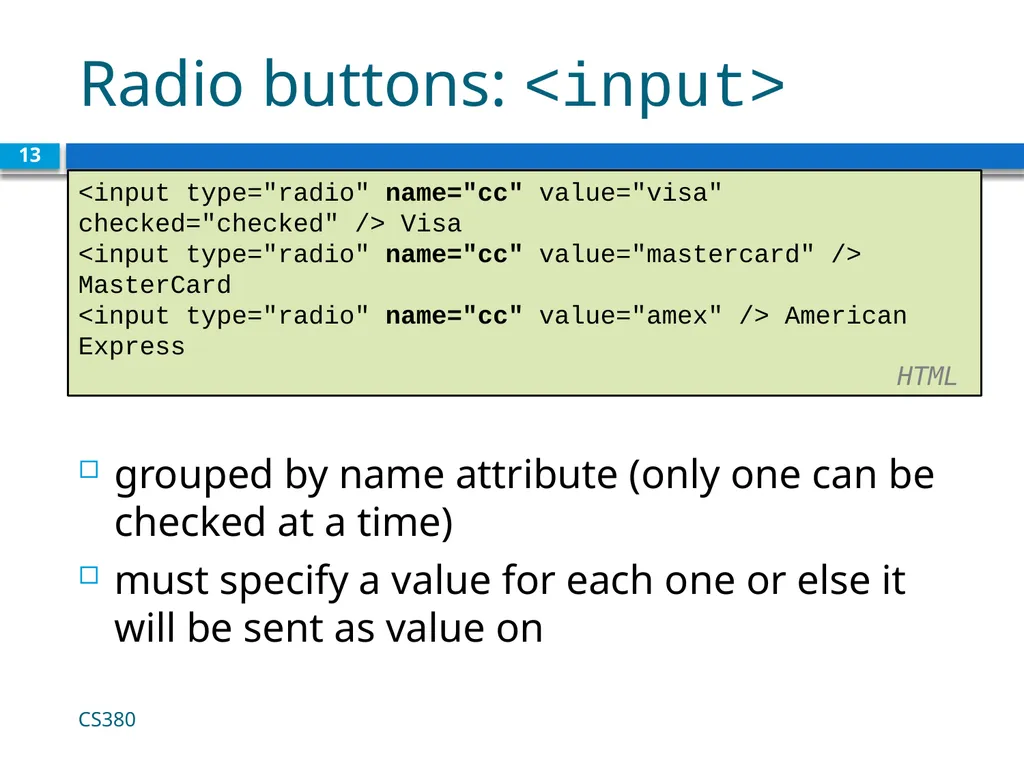
Radio buttons: <input> grouped by name attribute (only one can be checked at a time)
must specify a value for each one or else it will be sent as value on 13 <input type="radio" name="cc" value="visa" checked="checked" /> Visa
<input type="radio" name="cc" value="mastercard" /> MasterCard
<input type="radio" name="cc" value="amex" /> American Express HTML CS380<br>
14
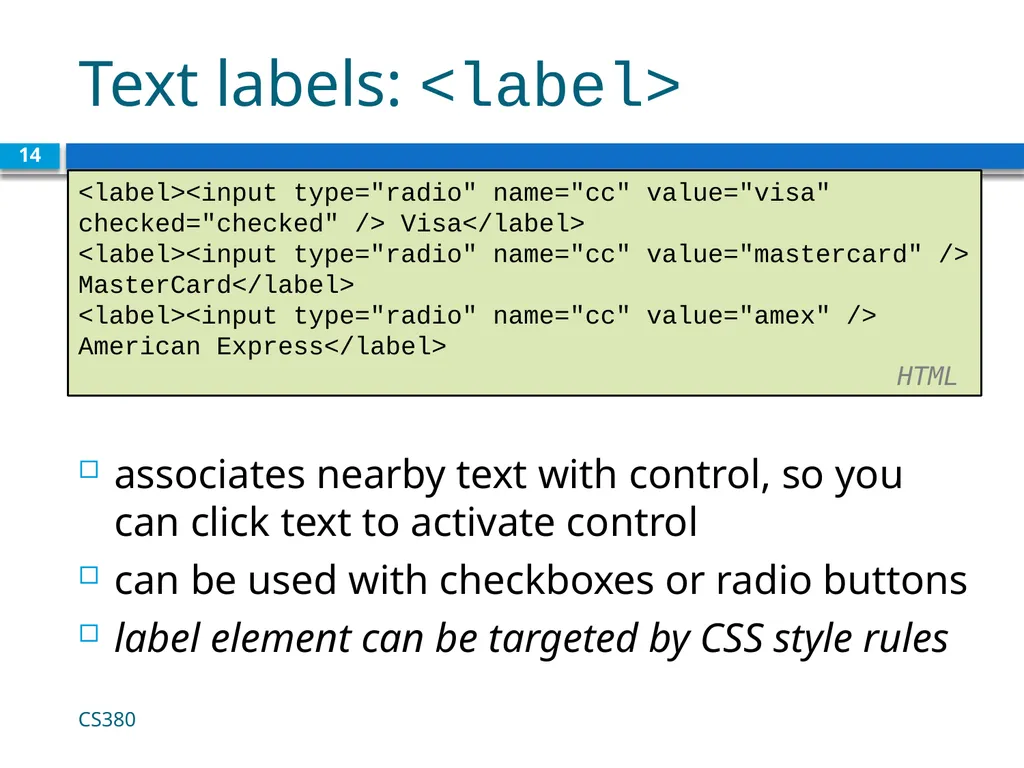
Text labels: <label> associates nearby text with control, so you can click text to activate control
can be used with checkboxes or radio buttons
label element can be targeted by CSS style rules 14 <label><input type="radio" name="cc" value="visa" checked="checked" /> Visa</label>
<label><input type="radio" name="cc" value="mastercard" /> MasterCard</label>
<label><input type="radio" name="cc" value="amex" /> American Express</label> HTML CS380<br>
15
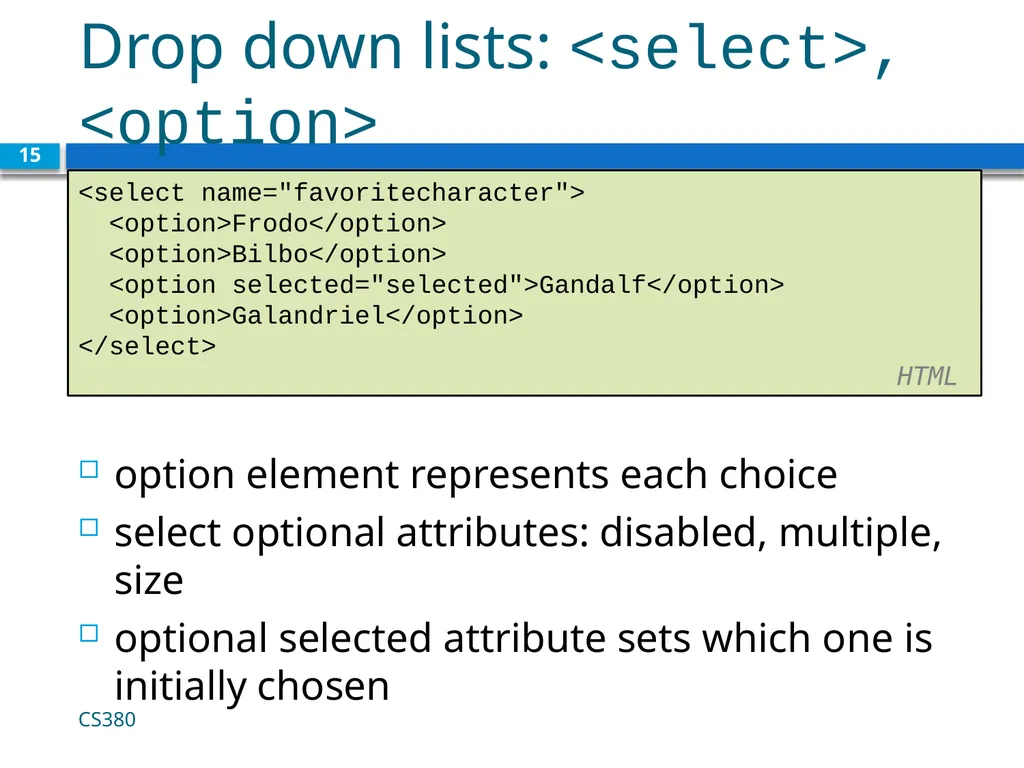
Drop down lists: <select>, <option> option element represents each choice
select optional attributes: disabled, multiple, size
optional selected attribute sets which one is initially chosen 15 <select name="favoritecharacter">
<option>Frodo</option>
<option>Bilbo</option>
<option selected="selected">Gandalf</option>
<option>Galandriel</option>
</select> HTML CS380<br>
16
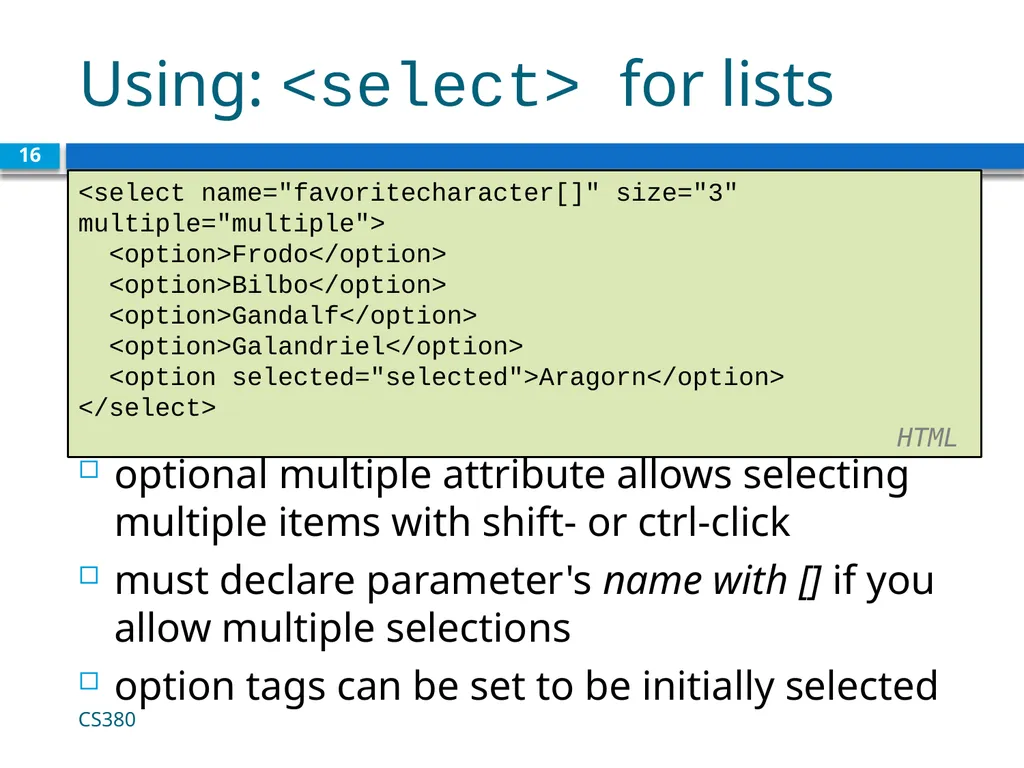
Using: <select> for lists optional multiple attribute allows selecting multiple items with shift- or ctrl-click
must declare parameter's name with [] if you allow multiple selections
option tags can be set to be initially selected 16 <select name="favoritecharacter[]" size="3" multiple="multiple">
<option>Frodo</option>
<option>Bilbo</option>
<option>Gandalf</option>
<option>Galandriel</option>
<option selected="selected">Aragorn</option>
</select> HTML CS380<br>
17
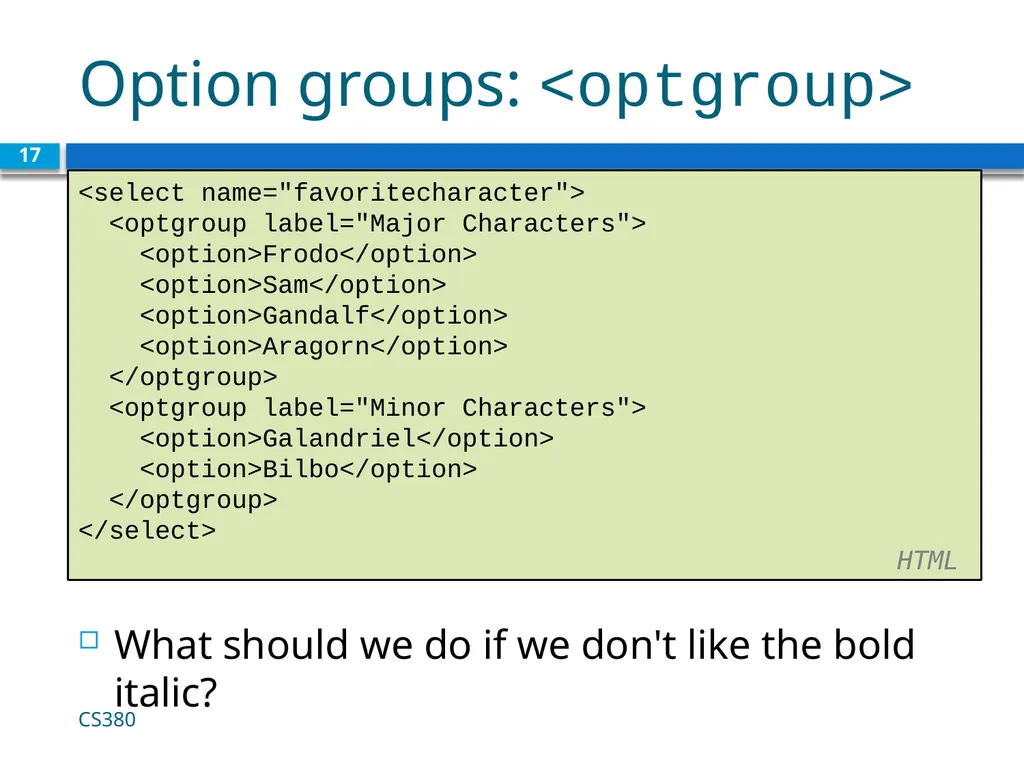
Option groups: <optgroup> What should we do if we don't like the bold italic? 17 <select name="favoritecharacter">
<optgroup label="Major Characters">
<option>Frodo</option>
<option>Sam</option>
<option>Gandalf</option>
<option>Aragorn</option>
</optgroup>
<optgroup label="Minor Characters">
<option>Galandriel</option>
<option>Bilbo</option>
</optgroup>
</select> HTML CS380<br>