
FY2028 Exhibit 54 Guidelines
CB
Published · 21 slides · 0 views
1 / 1
Description
FY2028 Exhibit 54 Guidelines gsa.govreal-estatereal-estate-servicesrent-pricing-and-payments 1 Tool used for assisting agencies in completing their Space Budget Justifications Basis for Annual Rent Payments PY : Current GSA Rent Bill
Related Topics
Share
Embed code
Download this presentation From Below
"FY2028 Exhibit 54 Guidelines" is the property of its rightful owner. Permission is granted to download and print the materials on this website for personal, non-commercial use only, and to display it on your personal computer provided you do not modify the materials and that you retain all copyright notices contained in the materials. By downloading content from our website, you accept the terms of this agreement.
Presentation Transcript
01
FY2028 Exhibit 54
Guidelines gsa.gov/real-estate/real-estate-services/rent-pricing-and-payments 1<br>
02
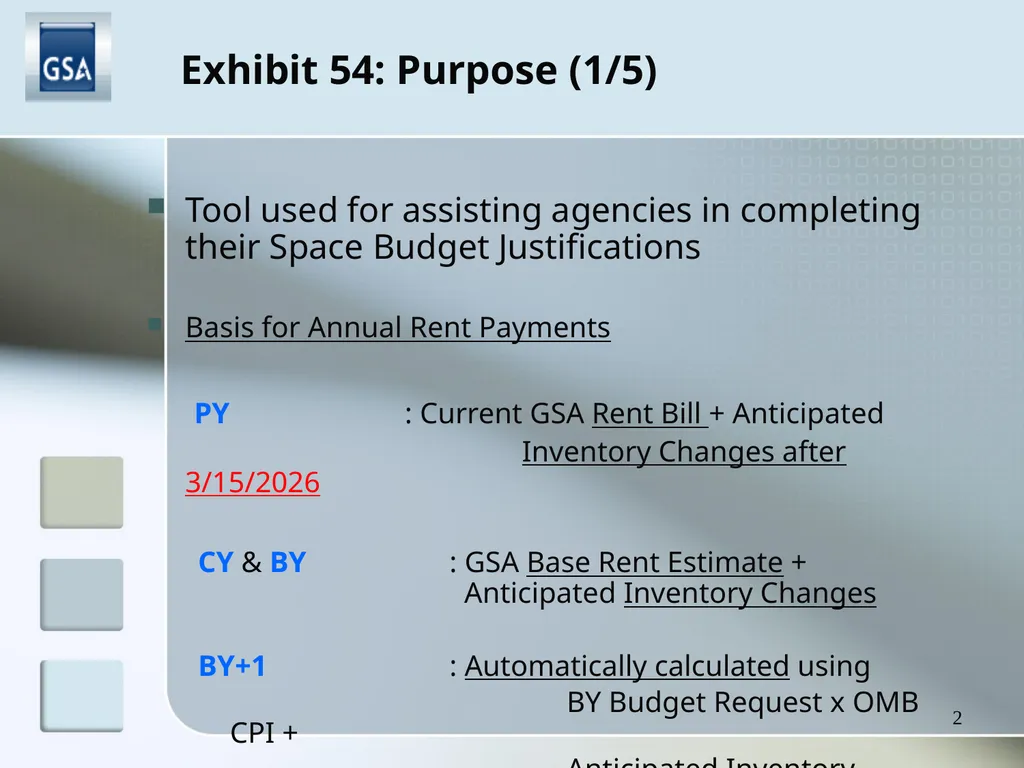
Tool used for assisting agencies in completing their Space Budget Justifications
Basis for Annual Rent Payments
PY : Current GSA Rent Bill + Anticipated
Inventory Changes after 3/15/2026
CY & BY : GSA Base Rent Estimate + Anticipated Inventory Changes
BY+1 : Automatically calculated using
BY Budget Request x OMB CPI +
Anticipated Inventory Changes 2 Exhibit 54: Purpose (1/5)<br>
Basis for Annual Rent Payments
PY : Current GSA Rent Bill + Anticipated
Inventory Changes after 3/15/2026
CY & BY : GSA Base Rent Estimate + Anticipated Inventory Changes
BY+1 : Automatically calculated using
BY Budget Request x OMB CPI +
Anticipated Inventory Changes 2 Exhibit 54: Purpose (1/5)<br>
03
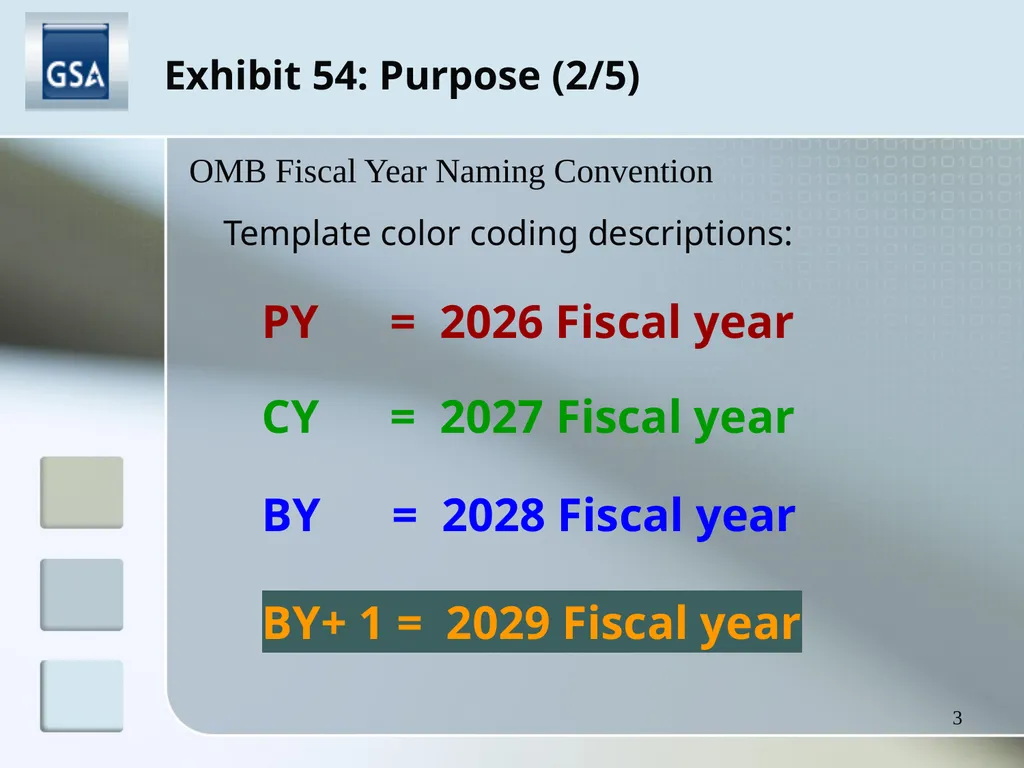
3 Exhibit 54: Purpose (2/5) Template color coding descriptions:
PY = 2026 Fiscal year CY = 2027 Fiscal year BY = 2028 Fiscal year
BY+ 1 = 2029 Fiscal year OMB Fiscal Year Naming Convention<br>
PY = 2026 Fiscal year CY = 2027 Fiscal year BY = 2028 Fiscal year
BY+ 1 = 2029 Fiscal year OMB Fiscal Year Naming Convention<br>
04
4 Exhibit 54: Purpose (3/5) NOTE: The GSA Rent Estimate calculations, the GSA Anticipated Inventory Changes file and the modified Exhibit 54 template are provided to assist you in completing your Space Budget Justification report.
However, the user of this information is ultimately responsible for the accuracy of their Agency Budget Request.
We strongly recommend that you thoroughly review all of the data in these files and to make all necessary adjustments for any errors or omissions on our part that may have occurred in the compilation of this data. Statement of Use<br>
However, the user of this information is ultimately responsible for the accuracy of their Agency Budget Request.
We strongly recommend that you thoroughly review all of the data in these files and to make all necessary adjustments for any errors or omissions on our part that may have occurred in the compilation of this data. Statement of Use<br>
05
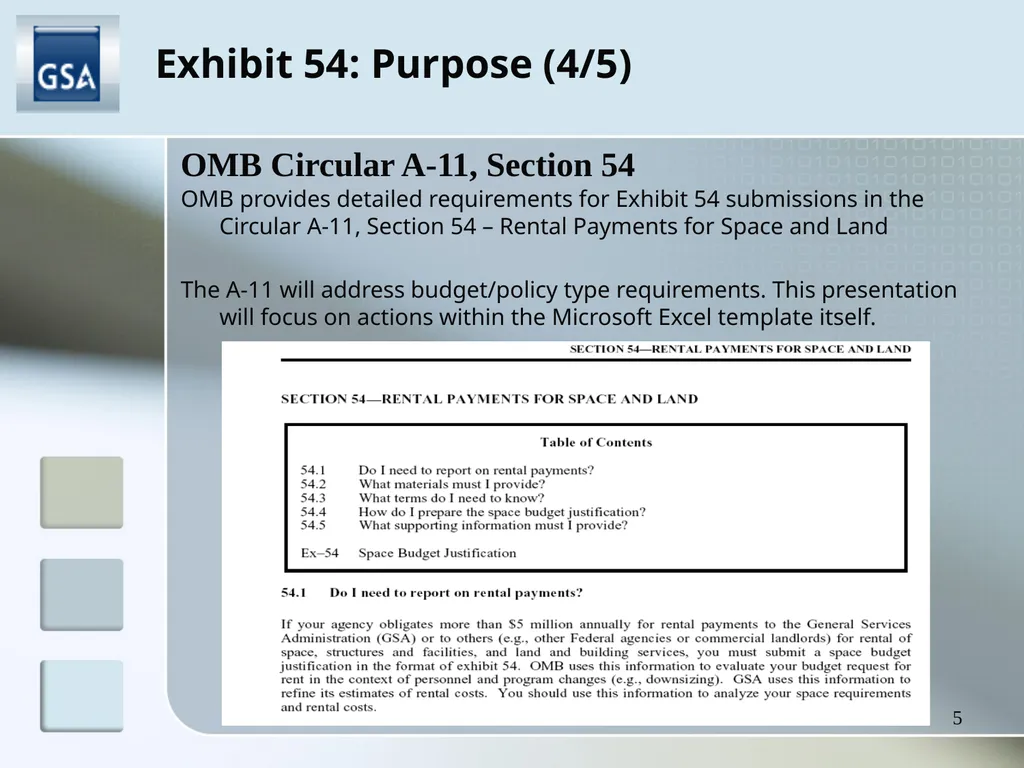
5 Exhibit 54: Purpose (4/5) OMB provides detailed requirements for Exhibit 54 submissions in the Circular A-11, Section 54 – Rental Payments for Space and Land
The A-11 will address budget/policy type requirements. This presentation will focus on actions within the Microsoft Excel template itself. OMB Circular A-11, Section 54<br>
The A-11 will address budget/policy type requirements. This presentation will focus on actions within the Microsoft Excel template itself. OMB Circular A-11, Section 54<br>
06
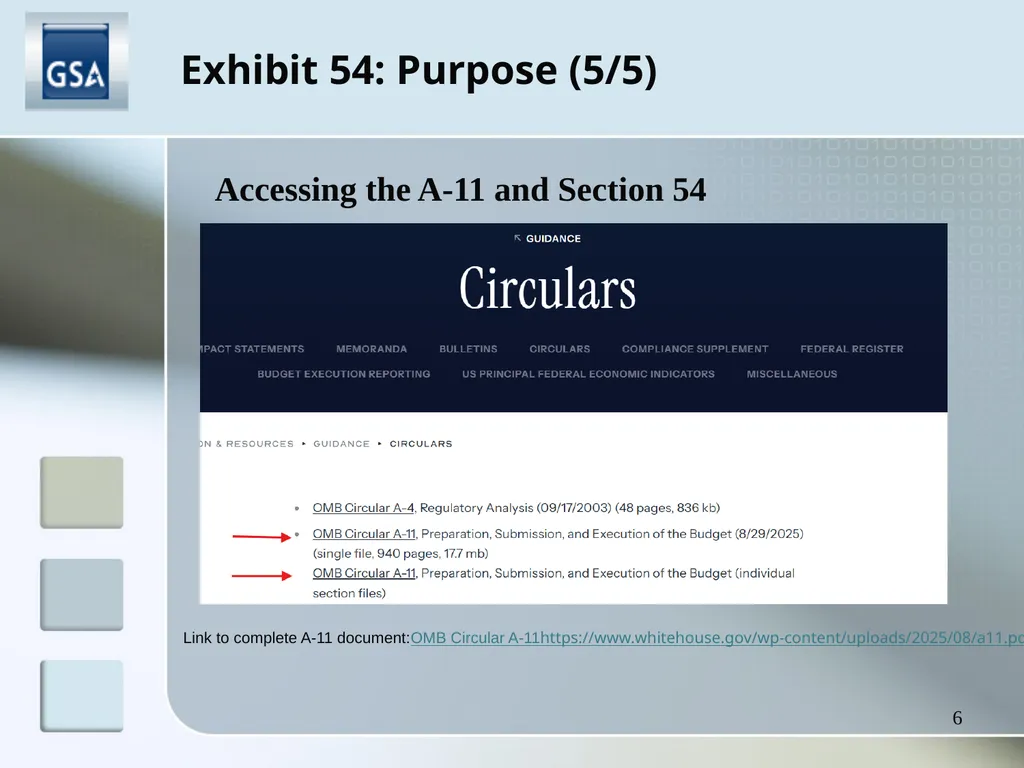
6 Exhibit 54: Purpose (5/5) Link to complete A-11 document:OMB Circular A-11https://www.whitehouse.gov/wp-content/uploads/2025/08/a11.pdf Accessing the A-11 and Section 54<br>
07
Exhibit 54: Completion – Step 1 7 STOP! Did you know GSA provides PREPOPULATED exhibit 54 files for each bureau within your agency?
The same email containing your agency’s Rent Estimate (subject line “[your agency] Rent Estimate from GSA”) includes a .zip file with a separate Exhibit 54 excel file for each bureau that pays rent to GSA.
Note that some attachment limits/security features may remove the .zip file from the email you receive – reach out to the POCs provided on the last slide if the .zip doesn’t come through.
If you prefer to populate a blank template Exhibit 54, continue to Step 1a on Slide 8, otherwise jump ahead to Step 2 on Slide 14.<br>
The same email containing your agency’s Rent Estimate (subject line “[your agency] Rent Estimate from GSA”) includes a .zip file with a separate Exhibit 54 excel file for each bureau that pays rent to GSA.
Note that some attachment limits/security features may remove the .zip file from the email you receive – reach out to the POCs provided on the last slide if the .zip doesn’t come through.
If you prefer to populate a blank template Exhibit 54, continue to Step 1a on Slide 8, otherwise jump ahead to Step 2 on Slide 14.<br>
08
Exhibit 54: Completion – Step 1a (1/6) 8 The Exhibit 54 template and guidelines are available at this link:
gsa.gov/real-estate/real-estate-services/rent-pricing-and-payments Accessing the Exhibit 54 template<br>
gsa.gov/real-estate/real-estate-services/rent-pricing-and-payments Accessing the Exhibit 54 template<br>
09
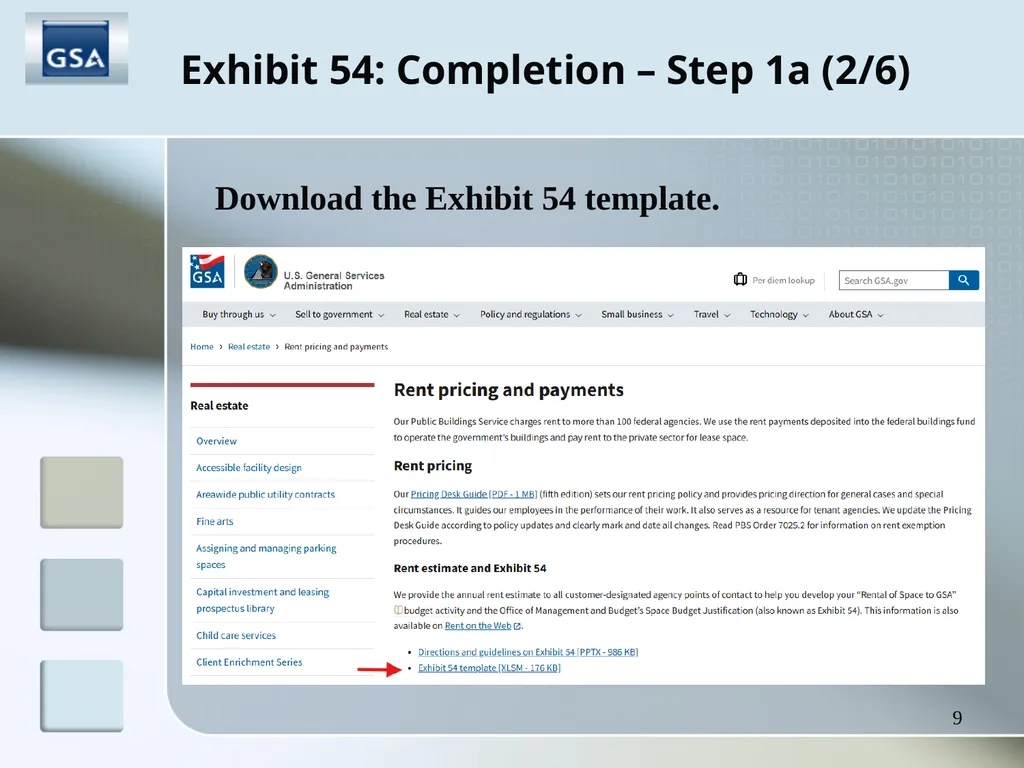
Exhibit 54: Completion – Step 1a (2/6) 9 Download the Exhibit 54 Template: Download the Exhibit 54 template.<br>
10
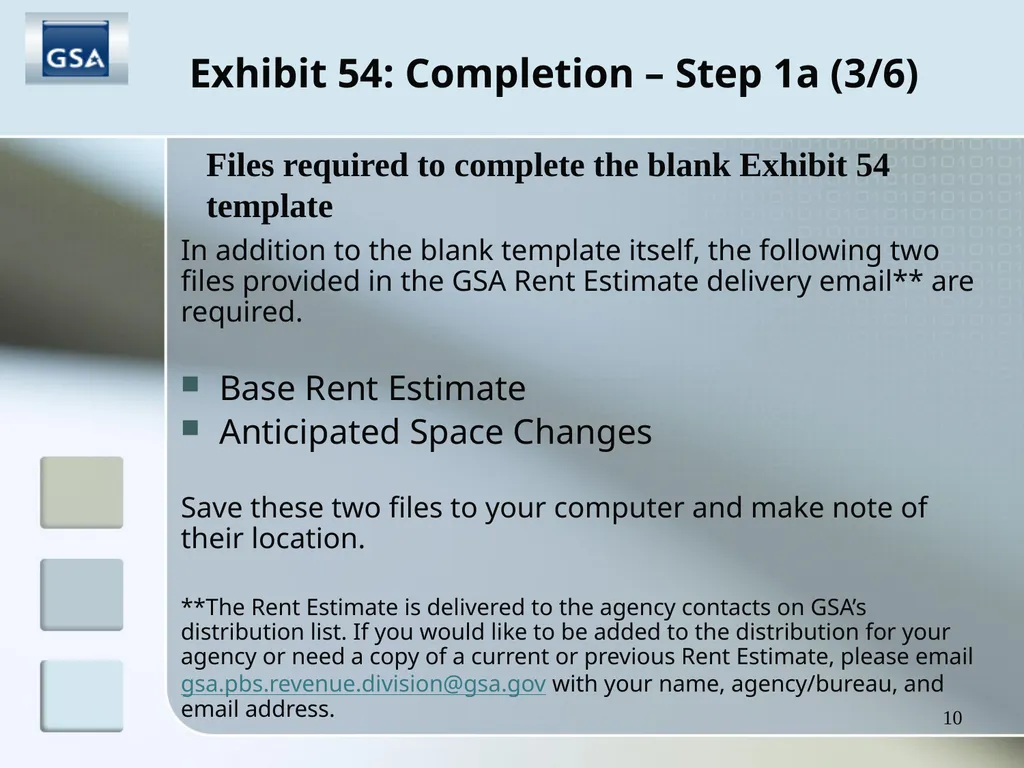
10 Exhibit 54: Completion – Step 1a (3/6) In addition to the blank template itself, the following two files provided in the GSA Rent Estimate delivery email** are required.
Base Rent Estimate
Anticipated Space Changes
Save these two files to your computer and make note of their location.
**The Rent Estimate is delivered to the agency contacts on GSA’s distribution list. If you would like to be added to the distribution for your agency or need a copy of a current or previous Rent Estimate, please email gsa.pbs.revenue.division@gsa.gov with your name, agency/bureau, and email address. Files required to complete the blank Exhibit 54 template<br>
Base Rent Estimate
Anticipated Space Changes
Save these two files to your computer and make note of their location.
**The Rent Estimate is delivered to the agency contacts on GSA’s distribution list. If you would like to be added to the distribution for your agency or need a copy of a current or previous Rent Estimate, please email gsa.pbs.revenue.division@gsa.gov with your name, agency/bureau, and email address. Files required to complete the blank Exhibit 54 template<br>
11
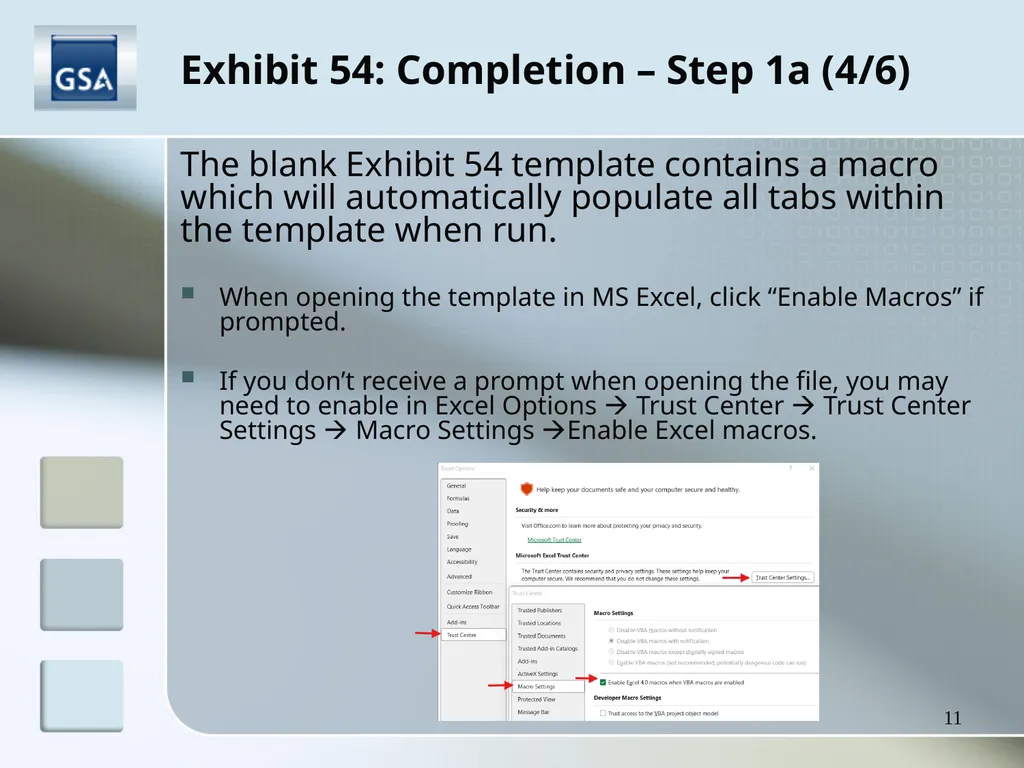
Exhibit 54: Completion – Step 1a (4/6) 11 The blank Exhibit 54 template contains a macro which will automatically populate all tabs within the template when run.
When opening the template in MS Excel, click “Enable Macros” if prompted.
If you don’t receive a prompt when opening the file, you may need to enable in Excel Options Trust Center Trust Center Settings Macro Settings Enable Excel macros.<br>
When opening the template in MS Excel, click “Enable Macros” if prompted.
If you don’t receive a prompt when opening the file, you may need to enable in Excel Options Trust Center Trust Center Settings Macro Settings Enable Excel macros.<br>
12
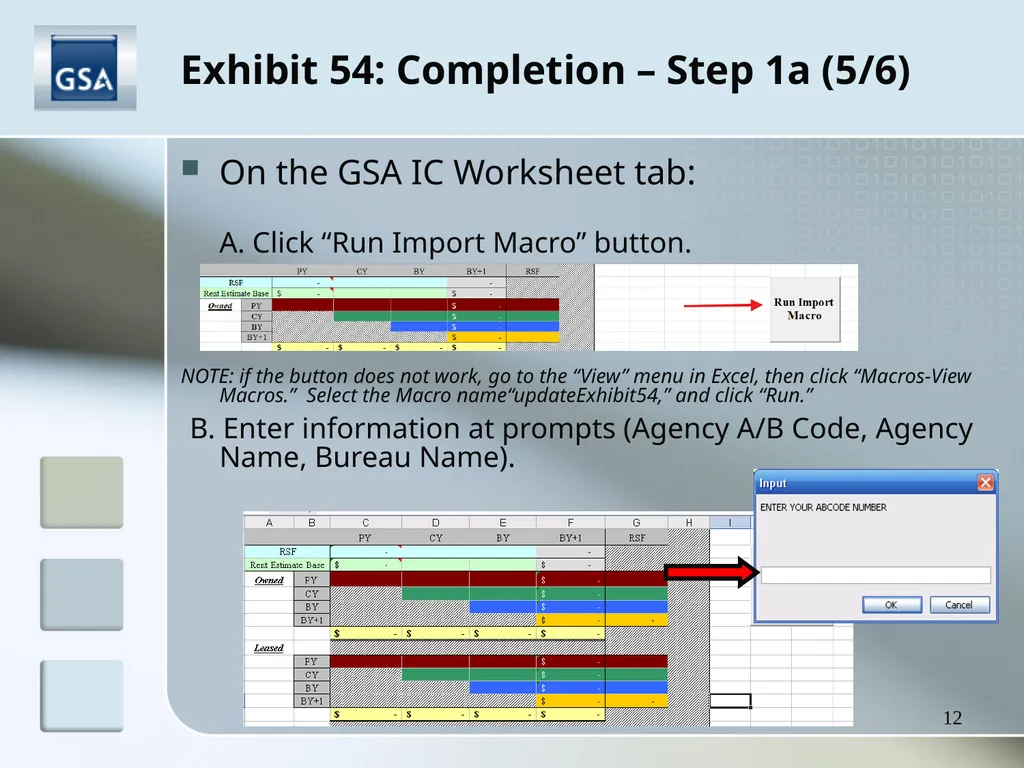
Exhibit 54: Completion – Step 1a (5/6) 12 On the GSA IC Worksheet tab:
A. Click “Run Import Macro” button.
NOTE: if the button does not work, go to the “View” menu in Excel, then click “Macros-View Macros.” Select the Macro name“updateExhibit54,” and click “Run.”
B. Enter information at prompts (Agency A/B Code, Agency Name, Bureau Name).<br>
A. Click “Run Import Macro” button.
NOTE: if the button does not work, go to the “View” menu in Excel, then click “Macros-View Macros.” Select the Macro name“updateExhibit54,” and click “Run.”
B. Enter information at prompts (Agency A/B Code, Agency Name, Bureau Name).<br>
13
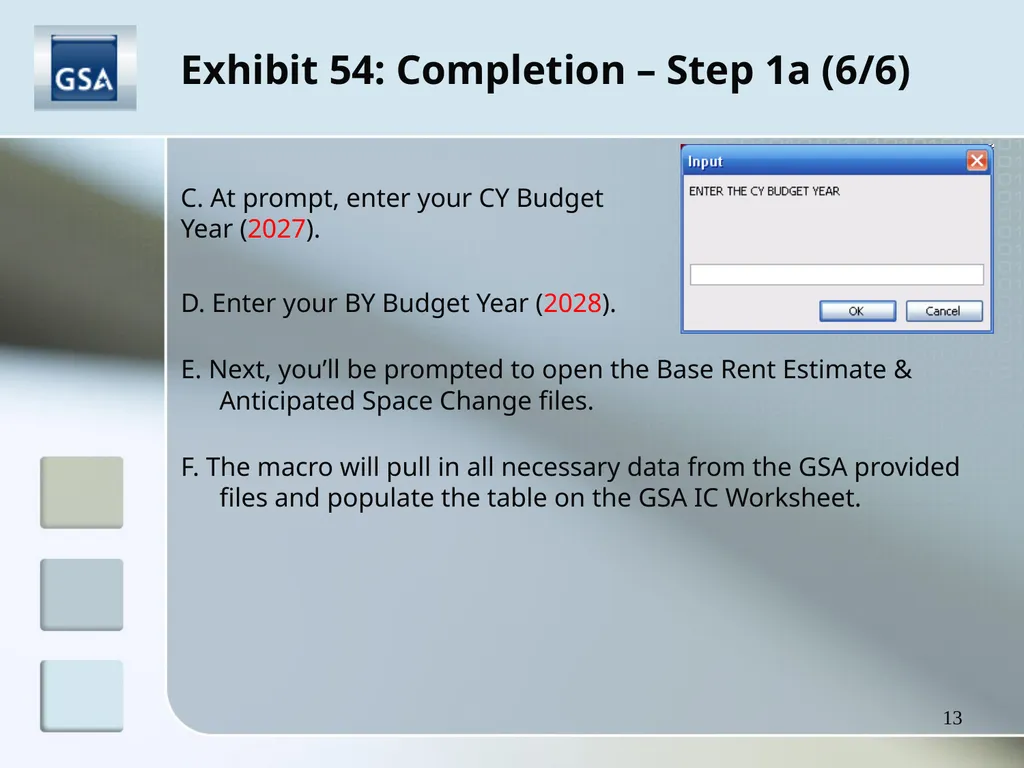
Exhibit 54: Completion – Step 1a (6/6) 13 C. At prompt, enter your CY Budget Year (2027). D. Enter your BY Budget Year (2028).
E. Next, you’ll be prompted to open the Base Rent Estimate & Anticipated Space Change files.
F. The macro will pull in all necessary data from the GSA provided files and populate the table on the GSA IC Worksheet.<br>
E. Next, you’ll be prompted to open the Base Rent Estimate & Anticipated Space Change files.
F. The macro will pull in all necessary data from the GSA provided files and populate the table on the GSA IC Worksheet.<br>
14
Exhibit 54: Completion - Step 2 (1/3) 14 The next step is make any necessary adjustments or corrections to the GSA data (if no adjustments are necessary, the Exhibit 54 is complete!).
Use the Corrections PY tab to adjust for incorrect billing amounts in the March 2026 GSA rent bill, if needed.
This can include chargebacks/disputes, but should not include missed billings.
(GSA may have already captured a missed or incorrect billing with the Anticipated Space Changes. Please check that file before adding any changes to the ‘PY’ tab.) Corrections & Adjustments<br>
Use the Corrections PY tab to adjust for incorrect billing amounts in the March 2026 GSA rent bill, if needed.
This can include chargebacks/disputes, but should not include missed billings.
(GSA may have already captured a missed or incorrect billing with the Anticipated Space Changes. Please check that file before adding any changes to the ‘PY’ tab.) Corrections & Adjustments<br>
15
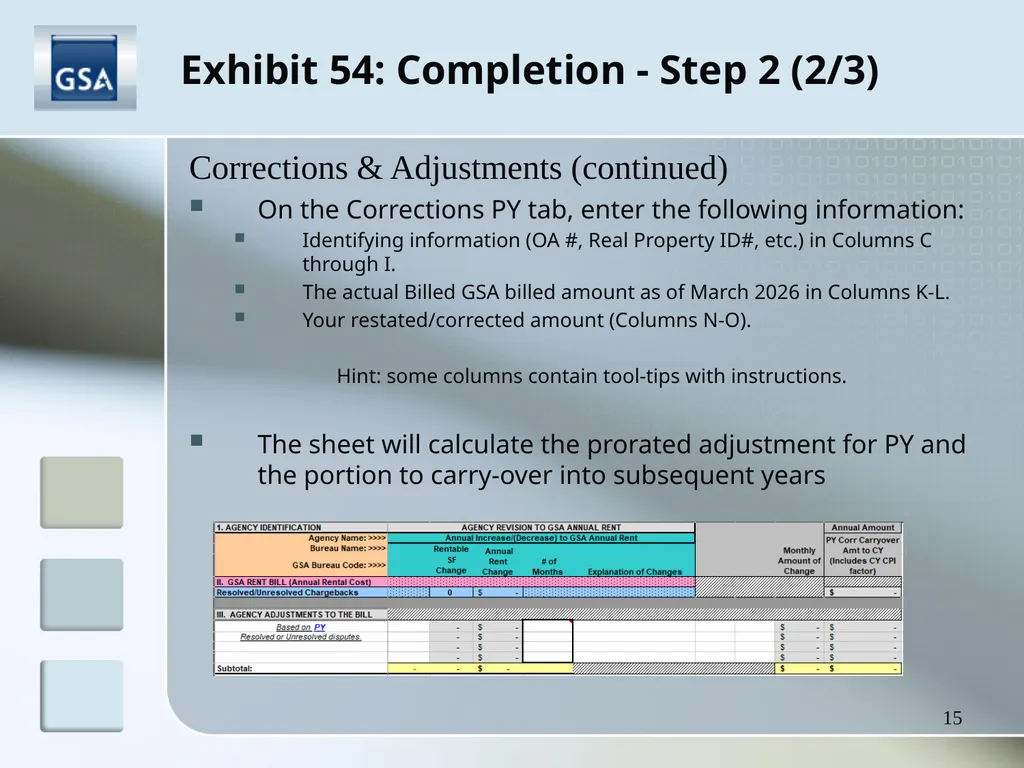
Exhibit 54: Completion - Step 2 (2/3) 15 On the Corrections PY tab, enter the following information:
Identifying information (OA #, Real Property ID#, etc.) in Columns C through I.
The actual Billed GSA billed amount as of March 2026 in Columns K-L.
Your restated/corrected amount (Columns N-O).
Hint: some columns contain tool-tips with instructions.
The sheet will calculate the prorated adjustment for PY and the portion to carry-over into subsequent years Corrections & Adjustments (continued)<br>
Identifying information (OA #, Real Property ID#, etc.) in Columns C through I.
The actual Billed GSA billed amount as of March 2026 in Columns K-L.
Your restated/corrected amount (Columns N-O).
Hint: some columns contain tool-tips with instructions.
The sheet will calculate the prorated adjustment for PY and the portion to carry-over into subsequent years Corrections & Adjustments (continued)<br>
16
Exhibit 54: Completion - Step 3 (3/3) 16 Use the PY, CY, BY and BY+1 tabs to adjust or add planned space changes, if needed.
Most commonly, these will be space releases (or additions!) that GSA did not have a record of in the Anticipated Space Changes file.
You may also be correcting for an updated effective date, sqft, or rate for a space change.
Like the Corrections PY tab, enter identifying information, the existing data elements from the GSA files (if not null), and your restated amounts for Effective Date, sqft, and annual rent.
Again, the tool-tips will provide additional instructions for some columns.
The template will calculate the net adjustment to apply to the year in which you’re adjusting AND any portion to carry over to subsequent fiscal years. Corrections & Adjustments (continued)<br>
Most commonly, these will be space releases (or additions!) that GSA did not have a record of in the Anticipated Space Changes file.
You may also be correcting for an updated effective date, sqft, or rate for a space change.
Like the Corrections PY tab, enter identifying information, the existing data elements from the GSA files (if not null), and your restated amounts for Effective Date, sqft, and annual rent.
Again, the tool-tips will provide additional instructions for some columns.
The template will calculate the net adjustment to apply to the year in which you’re adjusting AND any portion to carry over to subsequent fiscal years. Corrections & Adjustments (continued)<br>
17
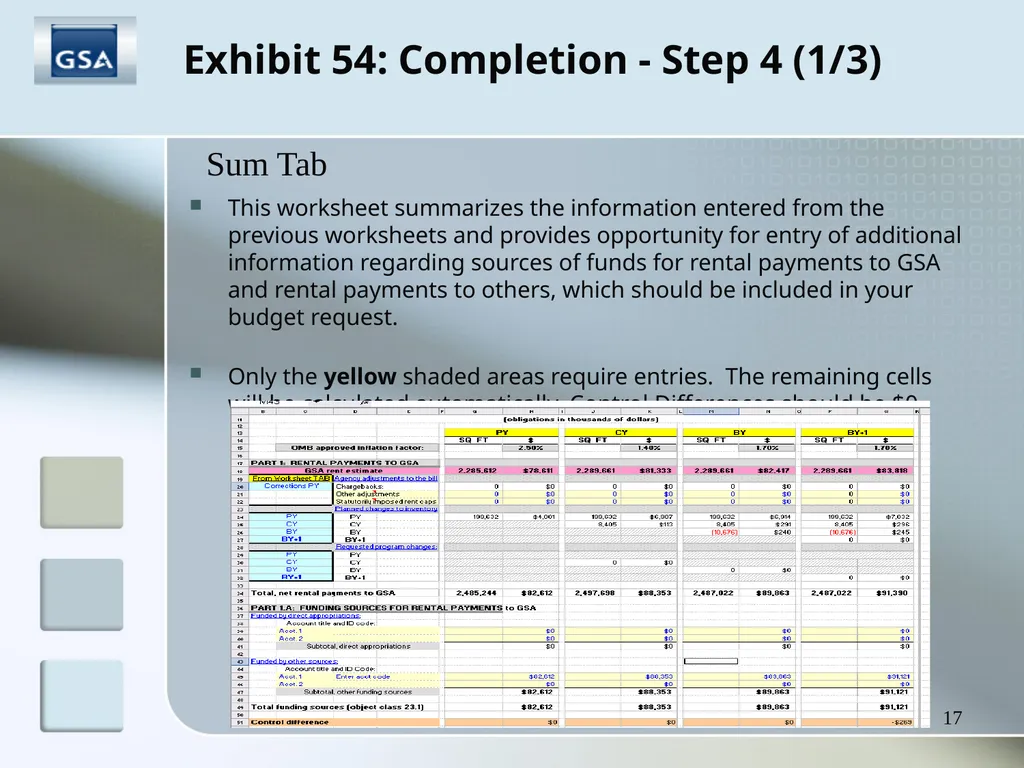
17 Exhibit 54: Completion - Step 4 (1/3) This worksheet summarizes the information entered from the previous worksheets and provides opportunity for entry of additional information regarding sources of funds for rental payments to GSA and rental payments to others, which should be included in your budget request.
Only the yellow shaded areas require entries. The remaining cells will be calculated automatically. Control Differences should be $0 Sum Tab<br>
Only the yellow shaded areas require entries. The remaining cells will be calculated automatically. Control Differences should be $0 Sum Tab<br>
18
Exhibit 54: Completion - Step 4 (2/3) 18 Total Workplace FIT:
GSA’s Total Workplace Initiative FIT (Furniture & Information Technology) allows agencies to lease furniture over a 5-year term and lease information technology over a 3-year term, easing the burden of costs while giving agencies the furniture and technology they need to build a more efficient government.
If you plan to fund a FIT project from object class 23.1, it must be included in your Exhibit 54 on Row 33 of the SUM Tab
Antenna Charges:
Some tenants have Antenna charges included on their monthly rent bills. These amounts are not Rent (Object Class 23.1) and are only included on the rent bill as a mechanism for processing through IPAC. The Antenna amount, which is not included in the Total Rent Amount, should be included under Object Class 25.3 in your OMB budget submission.
The Antenna Amount should NOT be reported on Exhibit 54. Sum Tab (continued)<br>
GSA’s Total Workplace Initiative FIT (Furniture & Information Technology) allows agencies to lease furniture over a 5-year term and lease information technology over a 3-year term, easing the burden of costs while giving agencies the furniture and technology they need to build a more efficient government.
If you plan to fund a FIT project from object class 23.1, it must be included in your Exhibit 54 on Row 33 of the SUM Tab
Antenna Charges:
Some tenants have Antenna charges included on their monthly rent bills. These amounts are not Rent (Object Class 23.1) and are only included on the rent bill as a mechanism for processing through IPAC. The Antenna amount, which is not included in the Total Rent Amount, should be included under Object Class 25.3 in your OMB budget submission.
The Antenna Amount should NOT be reported on Exhibit 54. Sum Tab (continued)<br>
19
Exhibit 54: Completion - Step 4 (3/3) 19 Recap:
GSA IC Worksheet
- Populated by the macro using data from the GSA Rent Estimate - Rows 24 & 25 add the Base and Space Change data together to calculate the total sqft and rent estimate amounts from GSA
- No inputs required
PY Corrections Tab
- Include corrections for incorrect billings from the March 2026 rent bill & Charge-backs
- Do not include missed billings
PY, CY, BY, BY+1
- Enter discrepancies or omissions found in the provided BRE and Anticipated Space Change files
SUM Tab
- Summarizes data from all tabs, combining the GSA data with any/all adjustments made in the other tabs
- Opportunity to incorporate funding sources<br>
GSA IC Worksheet
- Populated by the macro using data from the GSA Rent Estimate - Rows 24 & 25 add the Base and Space Change data together to calculate the total sqft and rent estimate amounts from GSA
- No inputs required
PY Corrections Tab
- Include corrections for incorrect billings from the March 2026 rent bill & Charge-backs
- Do not include missed billings
PY, CY, BY, BY+1
- Enter discrepancies or omissions found in the provided BRE and Anticipated Space Change files
SUM Tab
- Summarizes data from all tabs, combining the GSA data with any/all adjustments made in the other tabs
- Opportunity to incorporate funding sources<br>
20
Exhibit 54: Completion – Step 5 20 Please email all completed Exhibit 54’s to:
OMB at: exhibit54@omb.eop.gov
GSA at: OMBexhibit54@gsa.gov<br>
OMB at: exhibit54@omb.eop.gov
GSA at: OMBexhibit54@gsa.gov<br>
21
Exhibit 54: Points of Contact 21 For questions about the Rent Estimate files, including the Exhibit 54, please contact GSA’s Rent Estimate team at the following inbox:
gsa.pbs.revenue.division@gsa.gov<br>
gsa.pbs.revenue.division@gsa.gov<br>