01
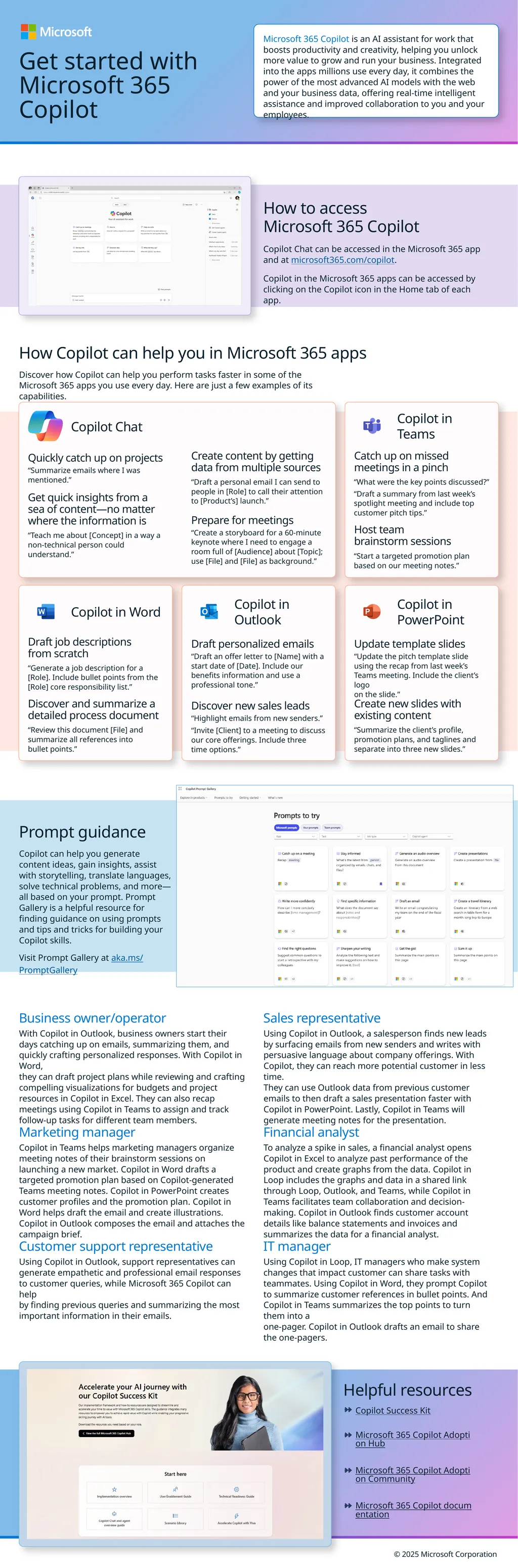
Get started with Microsoft 365 Copilot Microsoft 365 Copilot is an AI assistant for work that boosts productivity and creativity, helping you unlock more value to grow and run your business. Integrated into the apps millions use every day, it combines the power of the most advanced AI models with the web and your business data, offering real-time intelligent assistance and improved collaboration to you and your employees. How to access
Microsoft 365 Copilot Copilot Chat can be accessed in the Microsoft 365 app and at microsoft365.com/copilot.
Copilot in the Microsoft 365 apps can be accessed by clicking on the Copilot icon in the Home tab of each app. How Copilot can help you in Microsoft 365 apps Discover how Copilot can help you perform tasks faster in some of the Microsoft 365 apps you use every day. Here are just a few examples of its capabilities. Copilot Chat Quickly catch up on projects “Summarize emails where I was mentioned.” Get quick insights from a sea of content—no matter where the information is “Teach me about [Concept] in a way a non-technical person could understand.” Create content by getting data from multiple sources “Draft a personal email I can send to people in [Role] to call their attention to [Product’s] launch.” Prepare for meetings “Create a storyboard for a 60-minute keynote where I need to engage a room full of [Audience] about [Topic]; use [File] and [File] as background.” Copilot in Teams Catch up on missed meetings in a pinch “What were the key points discussed?” “Draft a summary from last week’s spotlight meeting and include top customer pitch tips.” Host team �brainstorm sessions “Start a targeted promotion plan �based on our meeting notes.” Copilot in Word Draft job descriptions�from scratch “Generate a job description for a [Role]. Include bullet points from the [Role] core responsibility list.” Discover and summarize a detailed process document “Review this document [File] and summarize all references into�bullet points.” Copilot in Outlook Draft personalized emails “Draft an offer letter to [Name] with a start date of [Date]. Include our benefits information and use a professional tone.” Discover new sales leads “Highlight emails from new senders.” “Invite [Client] to a meeting to discuss our core offerings. Include three �time options.” Copilot in PowerPoint Update template slides “Update the pitch template slide using the recap from last week’s Teams meeting. Include the client’s logo �on the slide.” Create new slides with�existing content “Summarize the client’s profile, promotion plans, and taglines and separate into three new slides.” Prompt guidance Copilot can help you generate content ideas, gain insights, assist with storytelling, translate languages, solve technical problems, and more—all based on your prompt. Prompt Gallery is a helpful resource for finding guidance on using prompts and tips and tricks for building your Copilot skills.
Visit Prompt Gallery at aka.ms/PromptGallery Business owner/operator With Copilot in Outlook, business owners start their days catching up on emails, summarizing them, and quickly crafting personalized responses. With Copilot in Word, �they can draft project plans while reviewing and crafting compelling visualizations for budgets and project resources in Copilot in Excel. They can also recap meetings using Copilot in Teams to assign and track follow-up tasks for different team members. Marketing manager Copilot in Teams helps marketing managers organize meeting notes of their brainstorm sessions on launching a new market. Copilot in Word drafts a targeted promotion plan based on Copilot-generated Teams meeting notes. Copilot in PowerPoint creates customer profiles and the promotion plan. Copilot in Word helps draft the email and create illustrations. Copilot in Outlook composes the email and attaches the campaign brief. Customer support representative Using Copilot in Outlook, support representatives can generate empathetic and professional email responses �to customer queries, while Microsoft 365 Copilot can help �by finding previous queries and summarizing the most important information in their emails. Sales representative Using Copilot in Outlook, a salesperson finds new leads �by surfacing emails from new senders and writes with persuasive language about company offerings. With Copilot, they can reach more potential customer in less time. �They can use Outlook data from previous customer emails to then draft a sales presentation faster with Copilot in PowerPoint. Lastly, Copilot in Teams will generate meeting notes for the presentation. Financial analyst To analyze a spike in sales, a financial analyst opens Copilot in Excel to analyze past performance of the product and create graphs from the data. Copilot in Loop includes the graphs and data in a shared link through Loop, Outlook, and Teams, while Copilot in Teams facilitates team collaboration and decision-making. Copilot in Outlook finds customer account details like balance statements and invoices and summarizes the data for a financial analyst. IT manager Using Copilot in Loop, IT managers who make system changes that impact customer can share tasks with teammates. Using Copilot in Word, they prompt Copilot to summarize customer references in bullet points. And Copilot in Teams summarizes the top points to turn them into a �one-pager. Copilot in Outlook drafts an email to share the one-pagers. Helpful resources Copilot Success Kit Microsoft 365 Copilot Adoption Hub Microsoft 365 Copilot Adoption Community Microsoft 365 Copilot documentation © 2025 Microsoft Corporation<br>