04
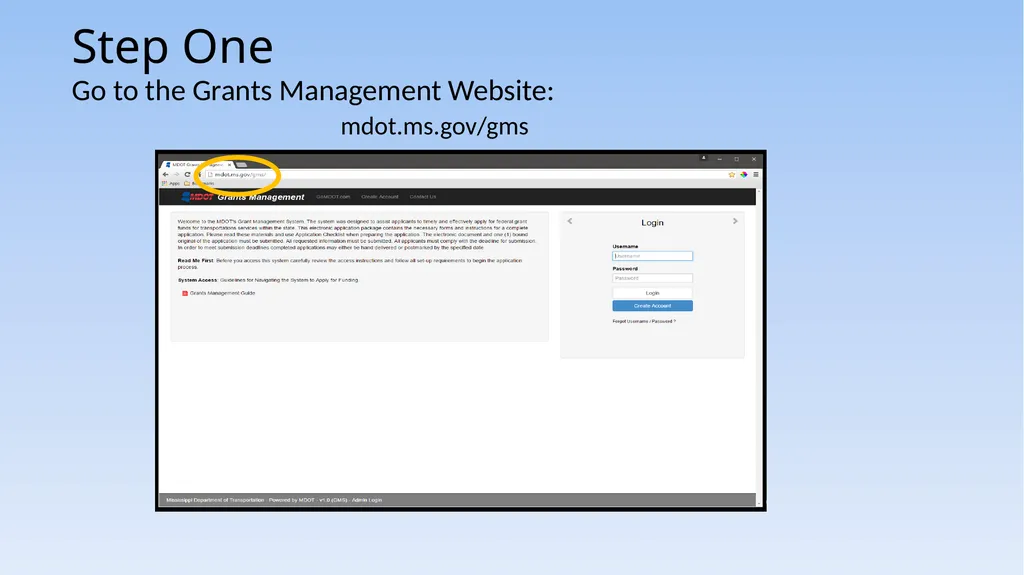
Step One Go to the Grants Management Website:
mdot.ms.gov/gms<br>
05
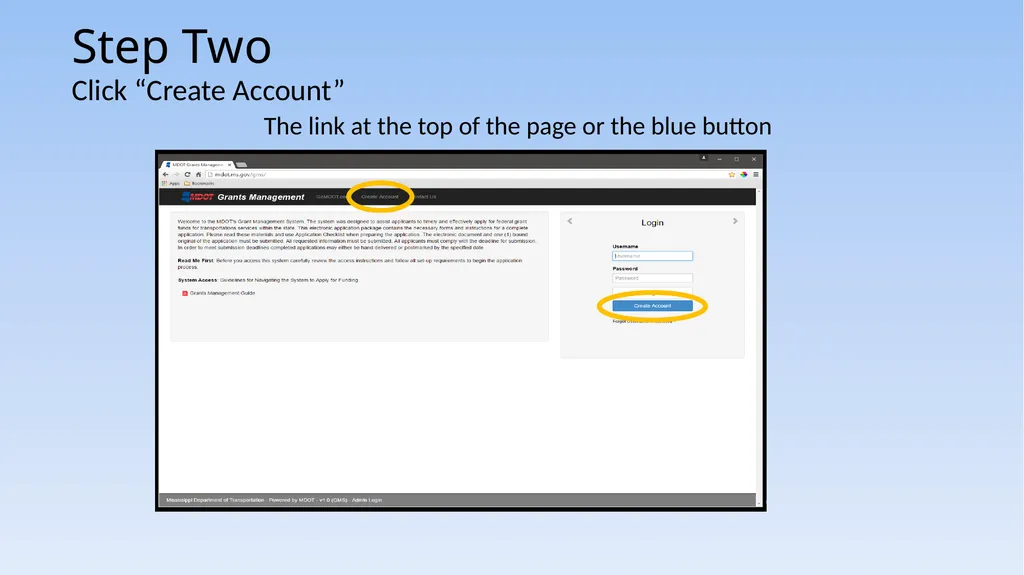
Step Two Click “Create Account”
The link at the top of the page or the blue button<br>
06
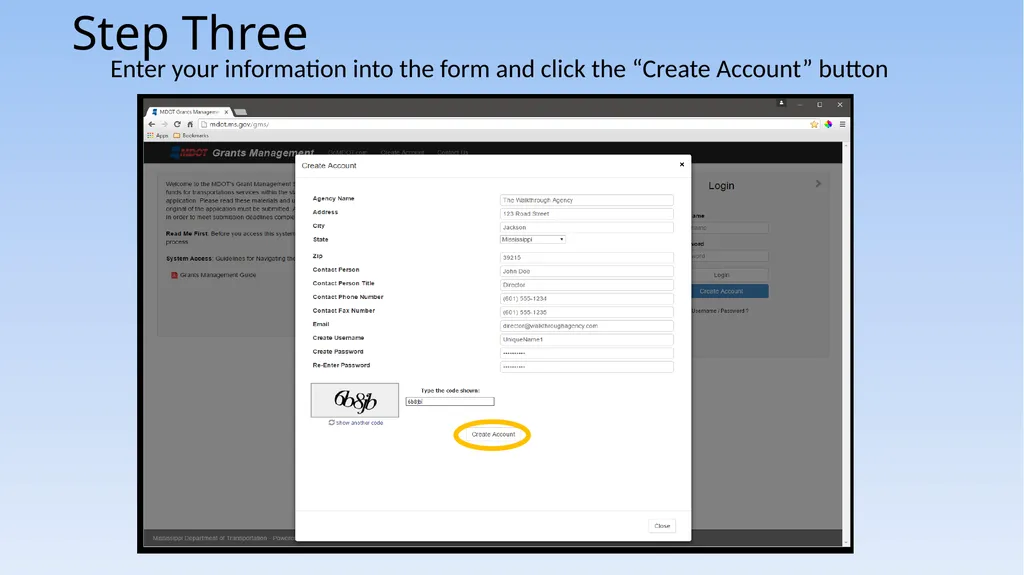
Enter your information into the form and click the “Create Account” button Step Three<br>
07
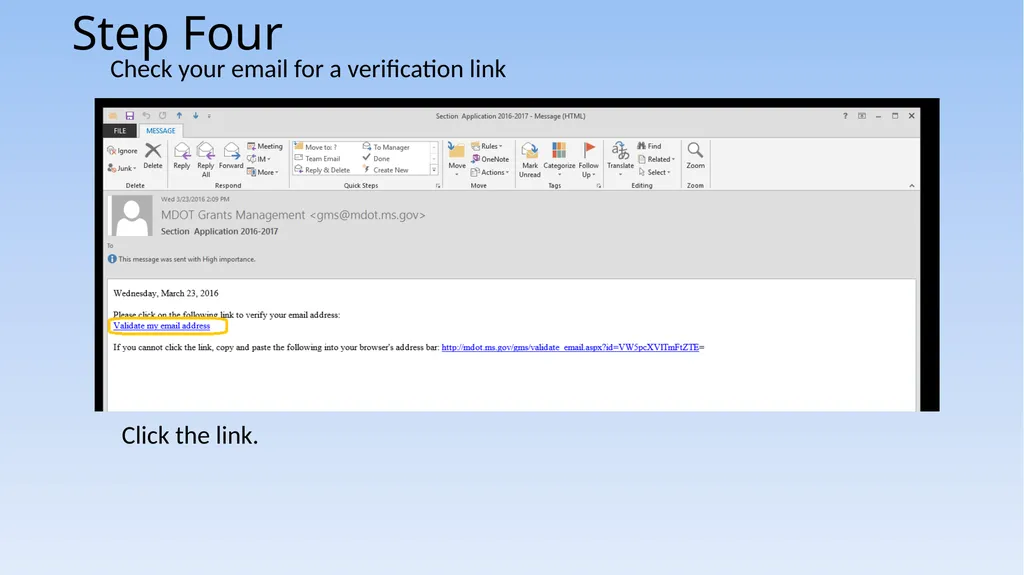
Check your email for a verification link Step Four Click the link.<br>
08
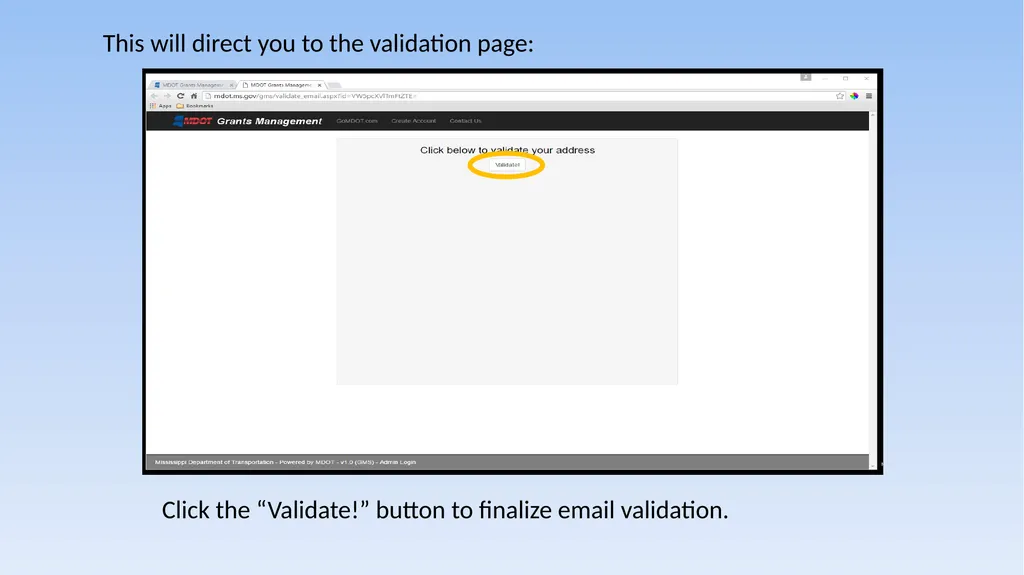
This will direct you to the validation page: Click the “Validate!” button to finalize email validation.<br>
09
Wait Step Five An email will be automatically sent from an administrator that an account has been activated. Depending on volume, this could be nearly instant, or take some time.<br>
10
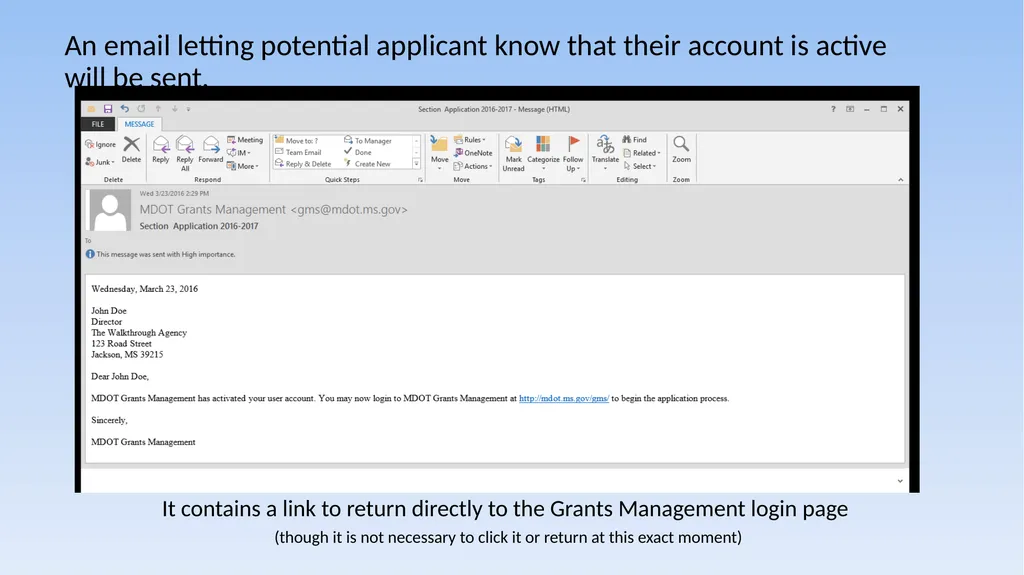
An email letting potential applicant know that their account is active will be sent. It contains a link to return directly to the Grants Management login page (though it is not necessary to click it or return at this exact moment)<br>
11
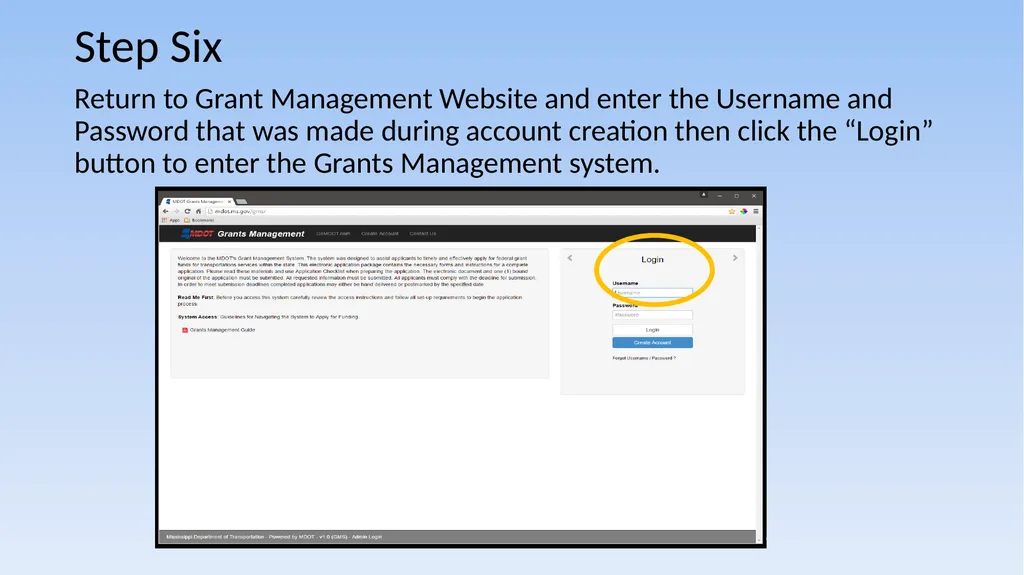
Step Six
Return to Grant Management Website and enter the Username and Password that was made during account creation then click the “Login” button to enter the Grants Management system.<br>
12
Welcome to the
Grants Management system!<br>
13
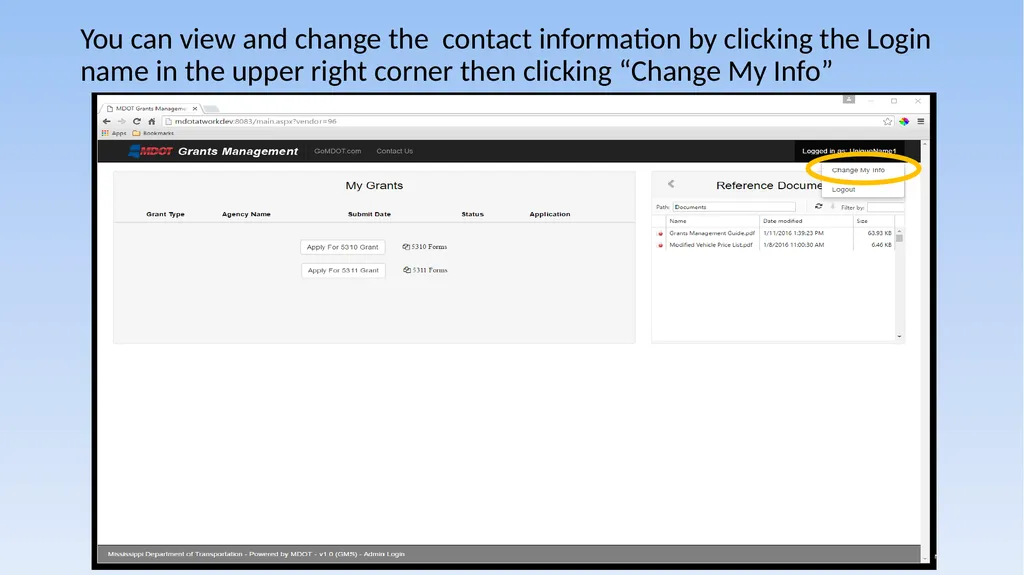
You can view and change the contact information by clicking the Login name in the upper right corner then clicking “Change My Info”<br>
14
Here an agency can edit all of their contact information
Save changes with the “Change Information” button or go back without saving by clicking the “Close” button<br>
15
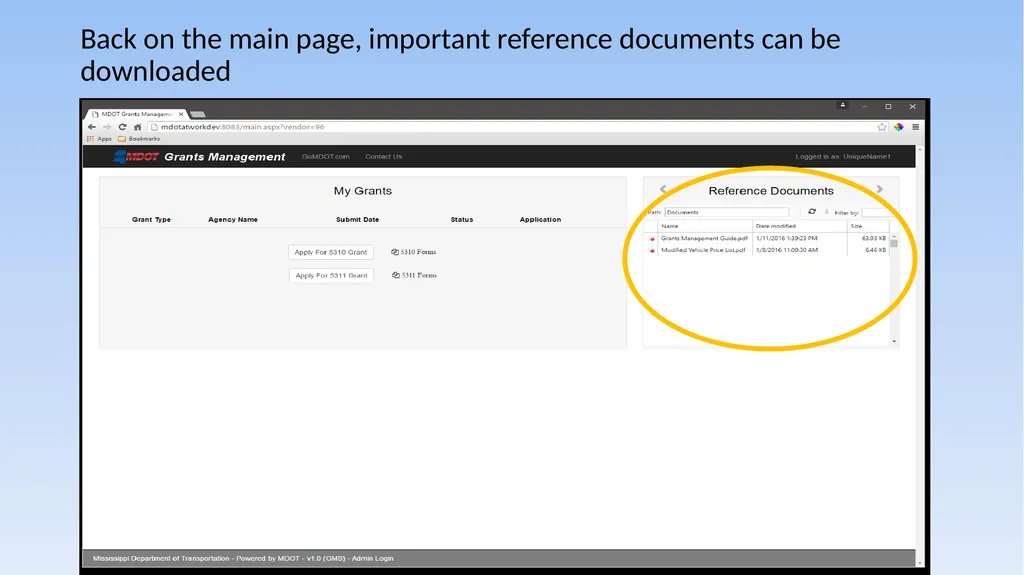
Back on the main page, important reference documents can be downloaded<br>
16
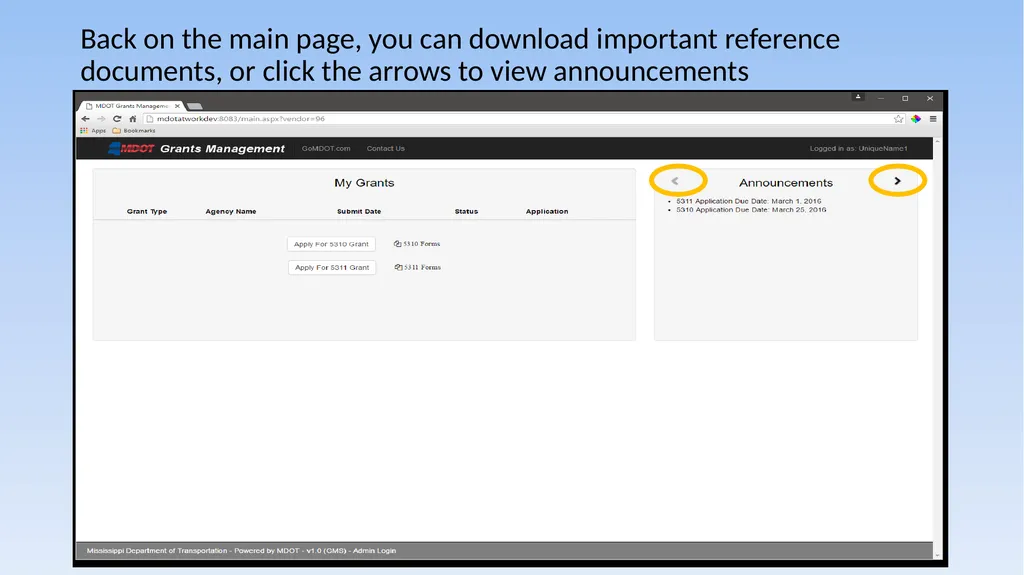
Back on the main page, you can download important reference documents, or click the arrows to view announcements<br>
17
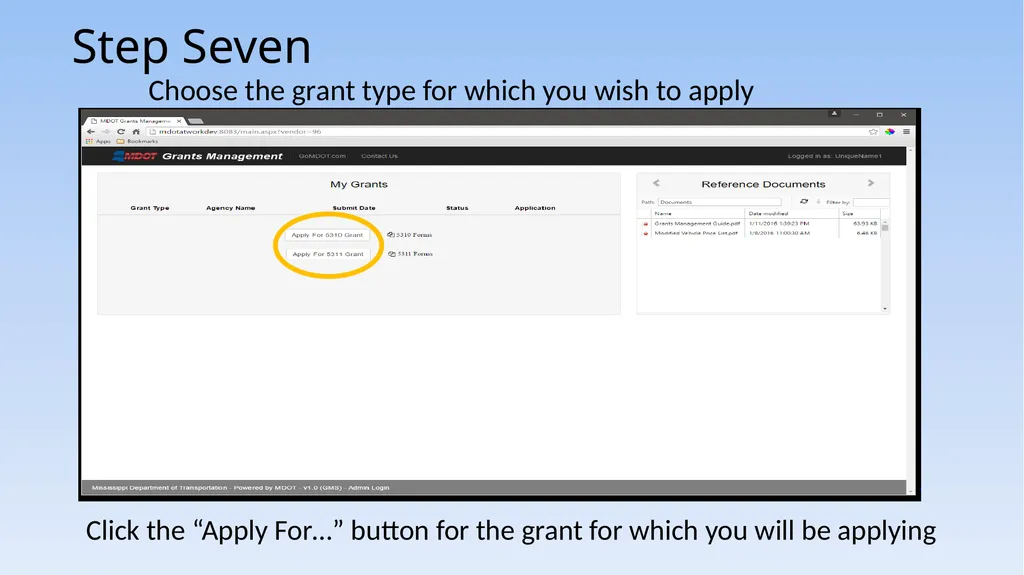
Step Seven Choose the grant type for which you wish to apply Click the “Apply For…” button for the grant for which you will be applying<br>
18
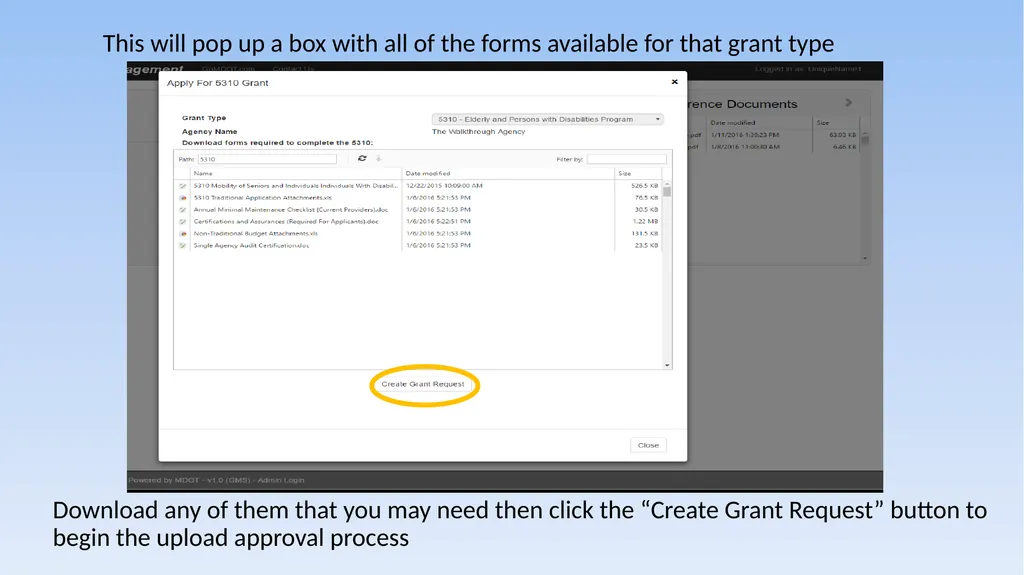
This will pop up a box with all of the forms available for that grant type Download any of them that you may need then click the “Create Grant Request” button to begin the upload approval process<br>
19
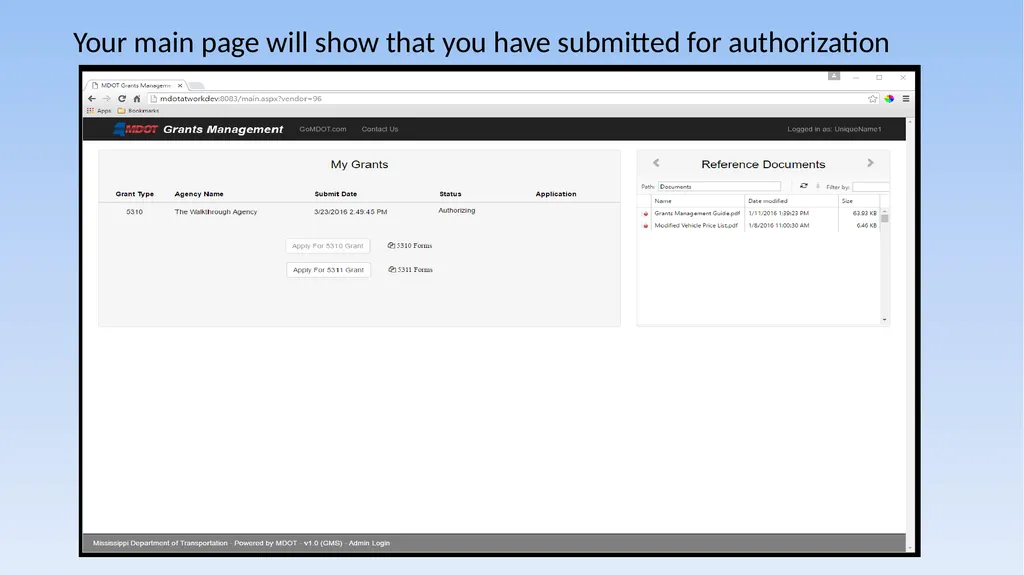
Your main page will show that you have submitted for authorization<br>
20
Wait Step Eight An administrator will email you when they have approved your account for upload. Again, depending on volume, this could be nearly instant, or take some time.<br>
21
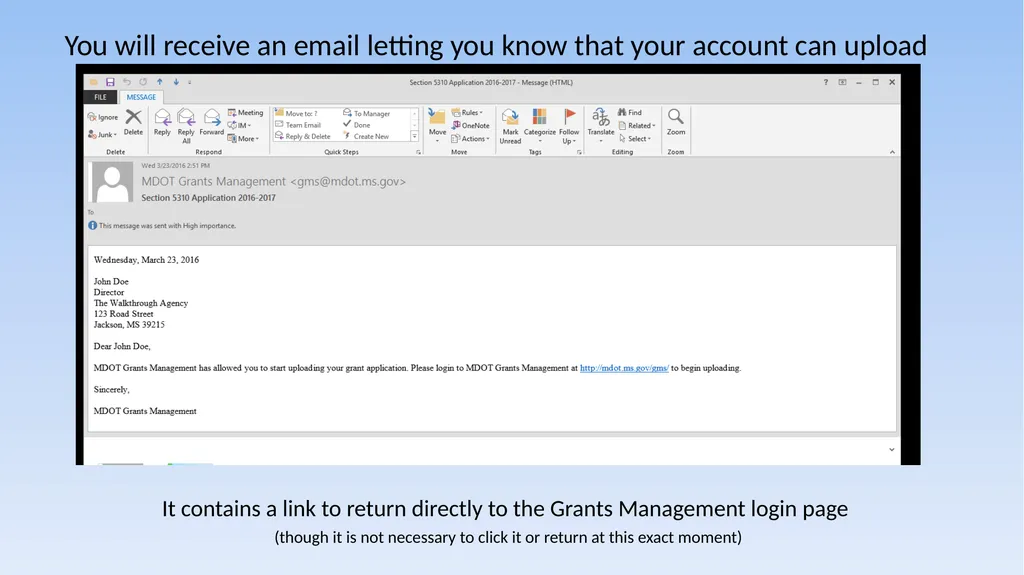
You will receive an email letting you know that your account can upload It contains a link to return directly to the Grants Management login page (though it is not necessary to click it or return at this exact moment)<br>
22
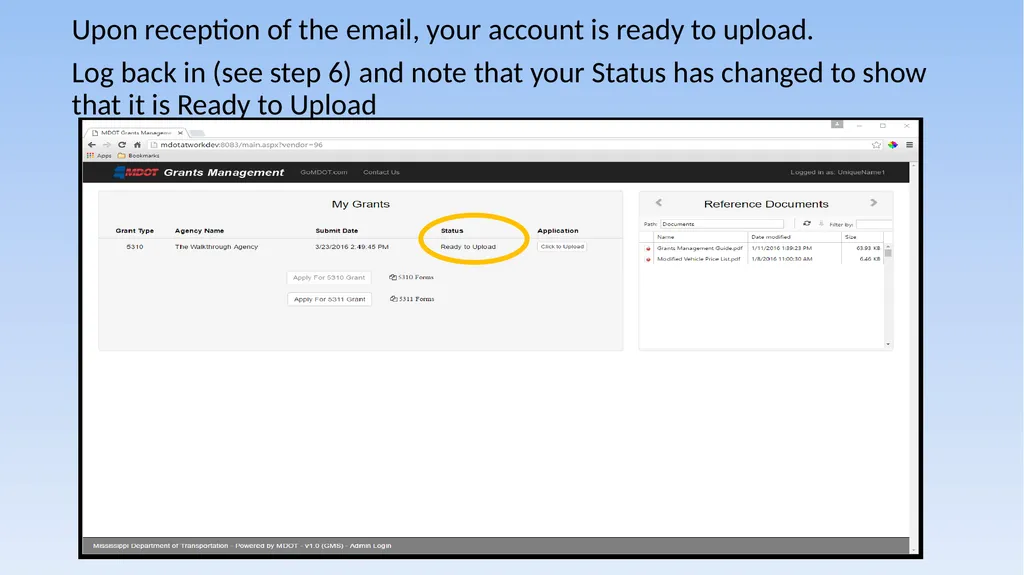
Upon reception of the email, your account is ready to upload.
Log back in (see step 6) and note that your Status has changed to show that it is Ready to Upload<br>
23
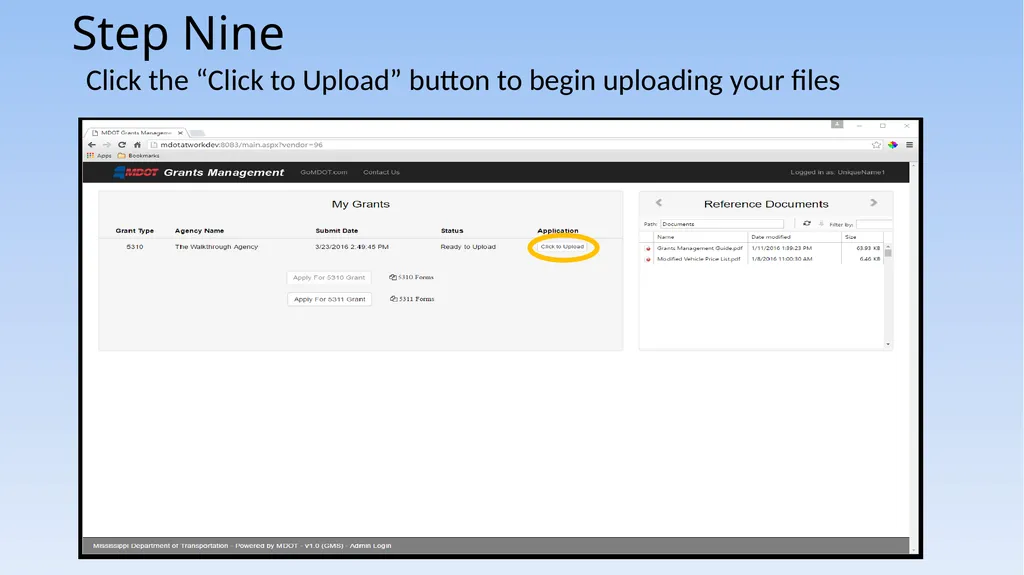
Click the “Click to Upload” button to begin uploading your files Step Nine<br>
24
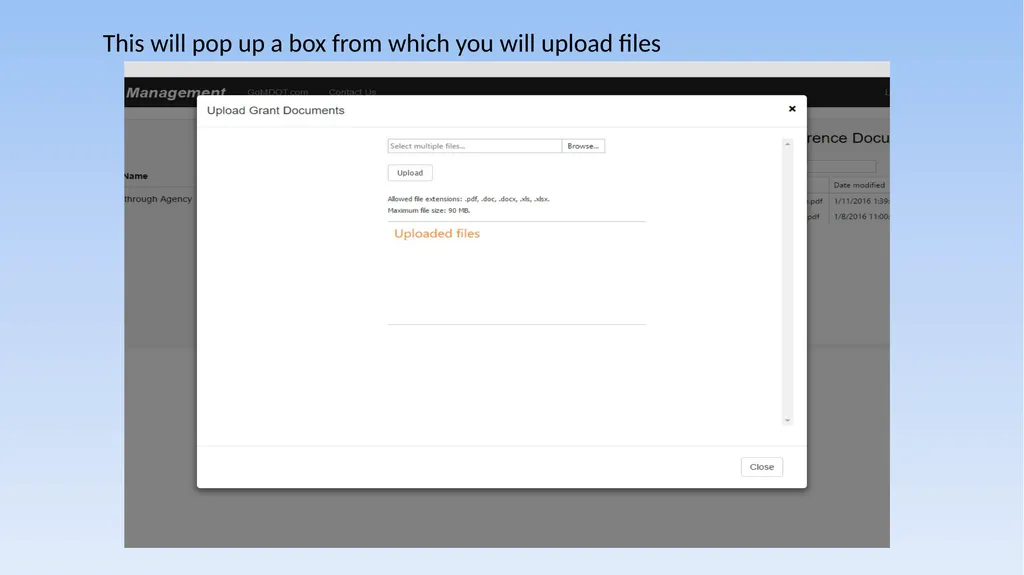
This will pop up a box from which you will upload files<br>
25
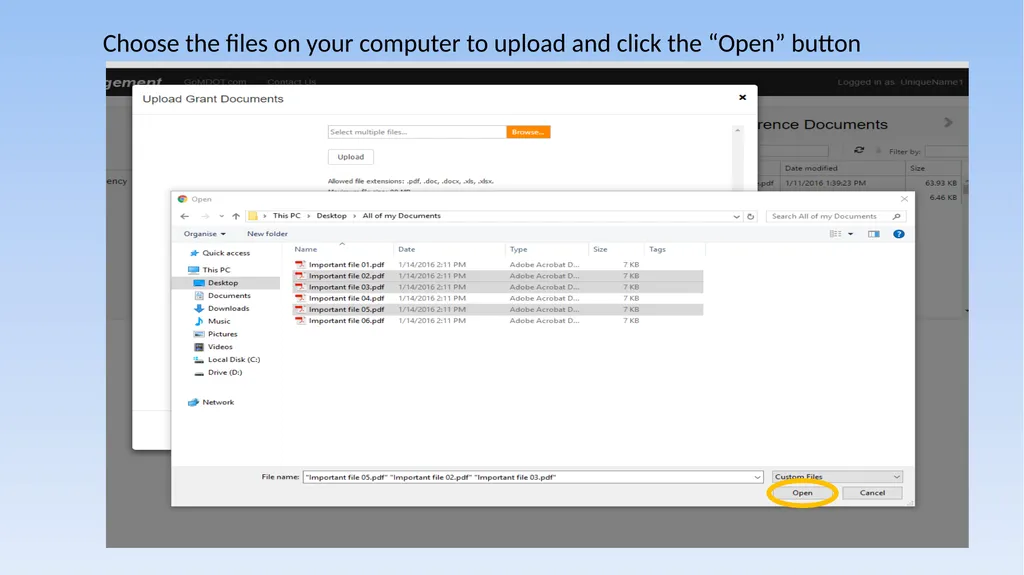
Choose the files on your computer to upload and click the “Open” button<br>
26
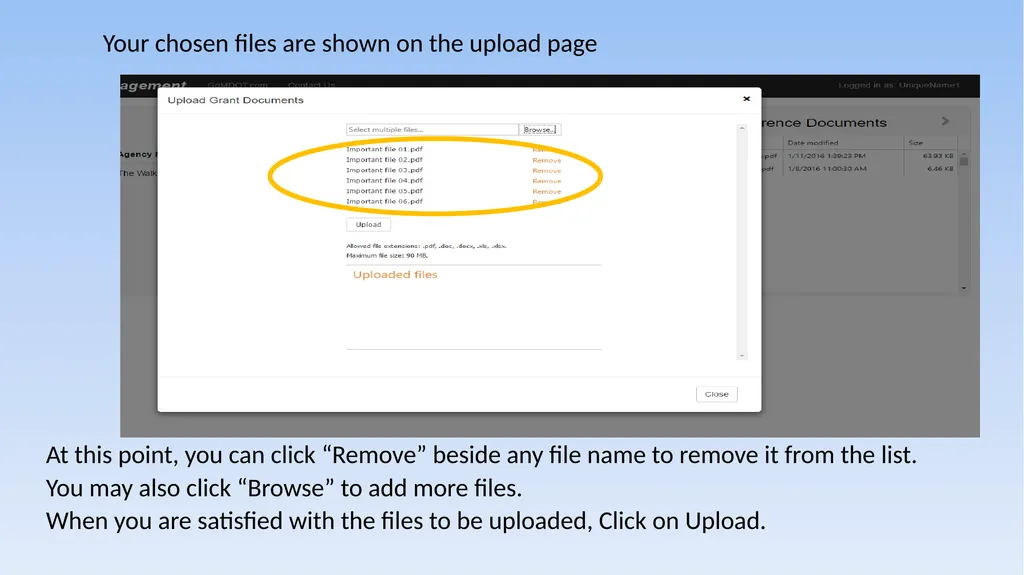
Your chosen files are shown on the upload page At this point, you can click “Remove” beside any file name to remove it from the list.
You may also click “Browse” to add more files.
When you are satisfied with the files to be uploaded, Click on Upload.<br>
27
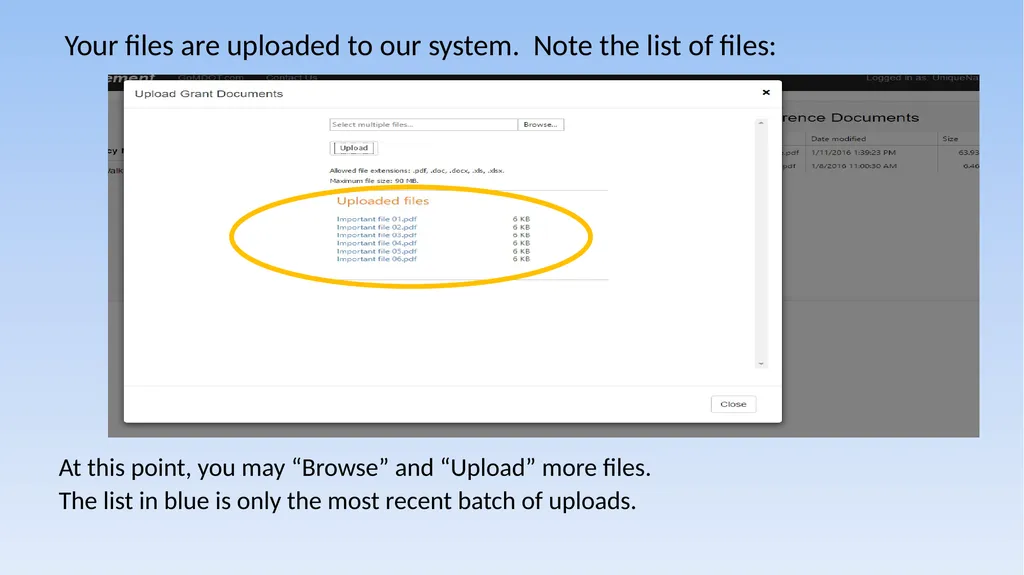
Your files are uploaded to our system. Note the list of files: At this point, you may “Browse” and “Upload” more files.
The list in blue is only the most recent batch of uploads.<br>
28
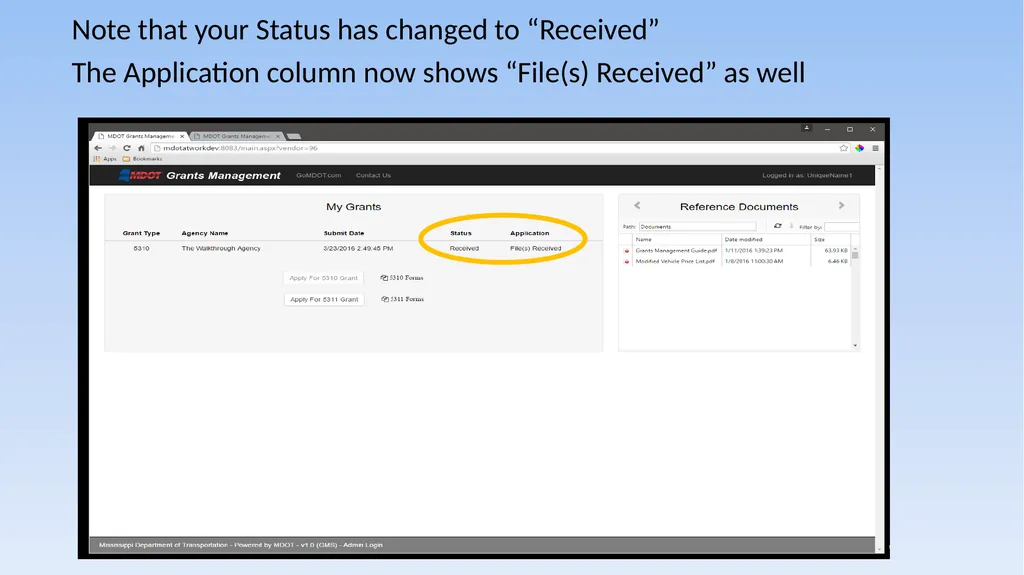
Note that your Status has changed to “Received”
The Application column now shows “File(s) Received” as well<br>
29
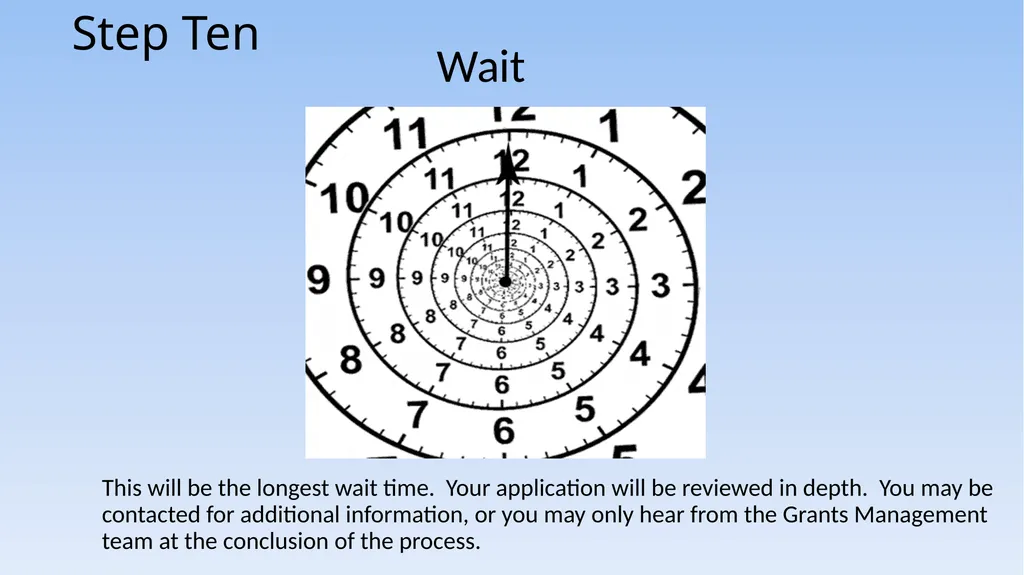
Wait Step Ten This will be the longest wait time. Your application will be reviewed in depth. You may be contacted for additional information, or you may only hear from the Grants Management team at the conclusion of the process.<br>
30
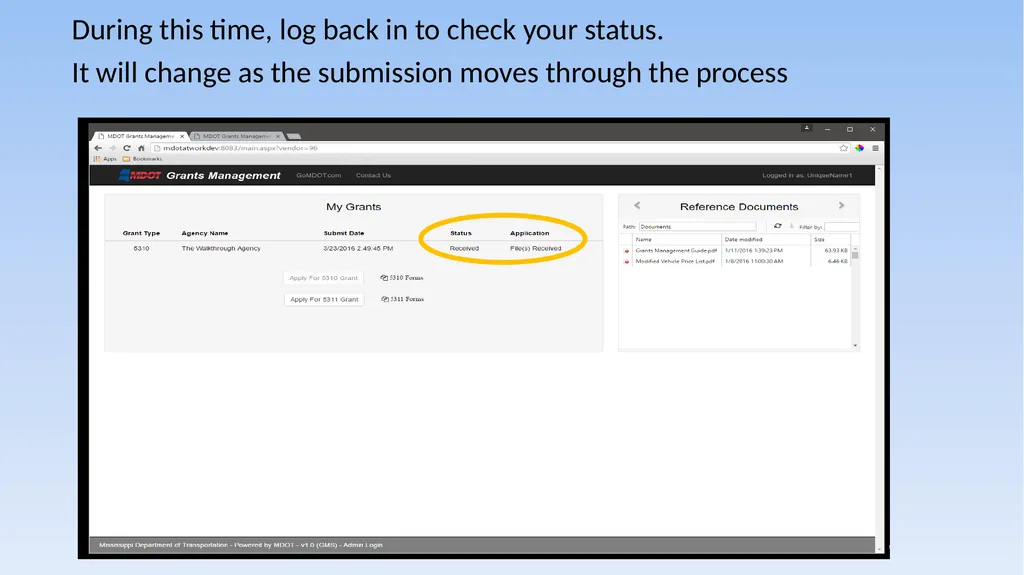
During this time, log back in to check your status.
It will change as the submission moves through the process<br>
31
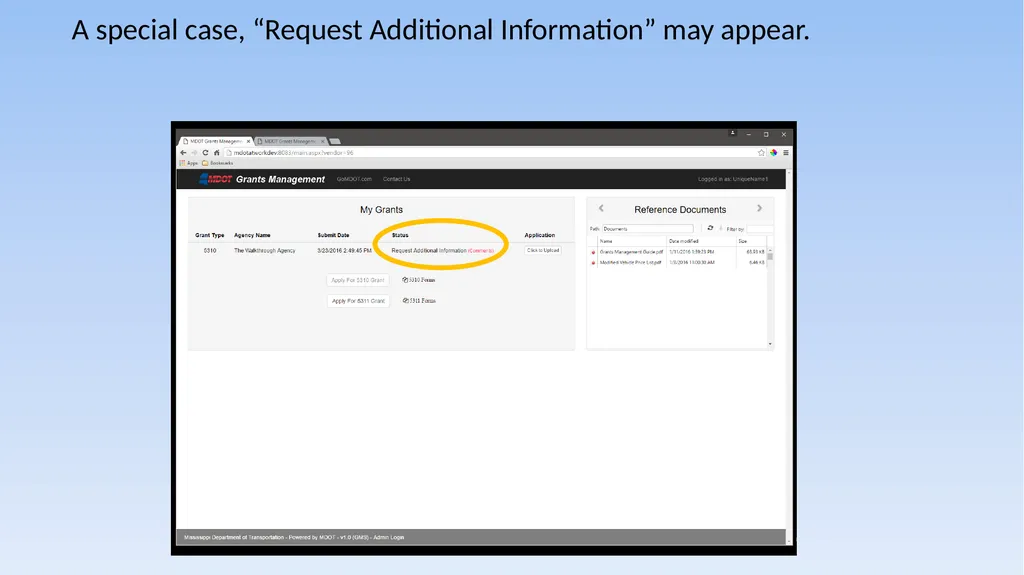
A special case, “Request Additional Information” may appear.<br>
32
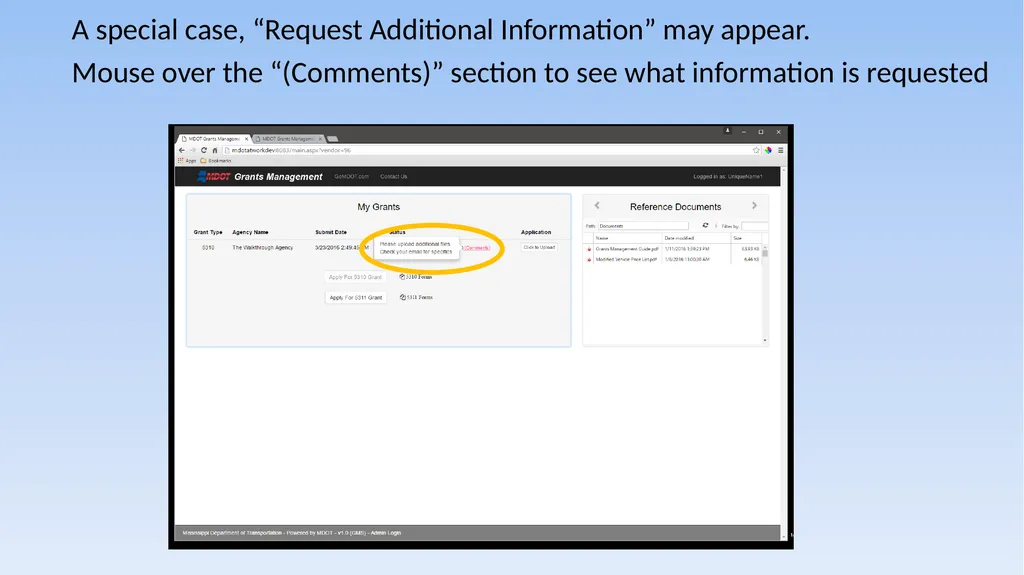
A special case, “Request Additional Information” may appear.
Mouse over the “(Comments)” section to see what information is requested<br>
33
When you are approved or denied you will receive an email letting you know the final status of your grant application<br>
34
When you are approved or denied you will receive an email letting you know the final status of your grant application<br>
35
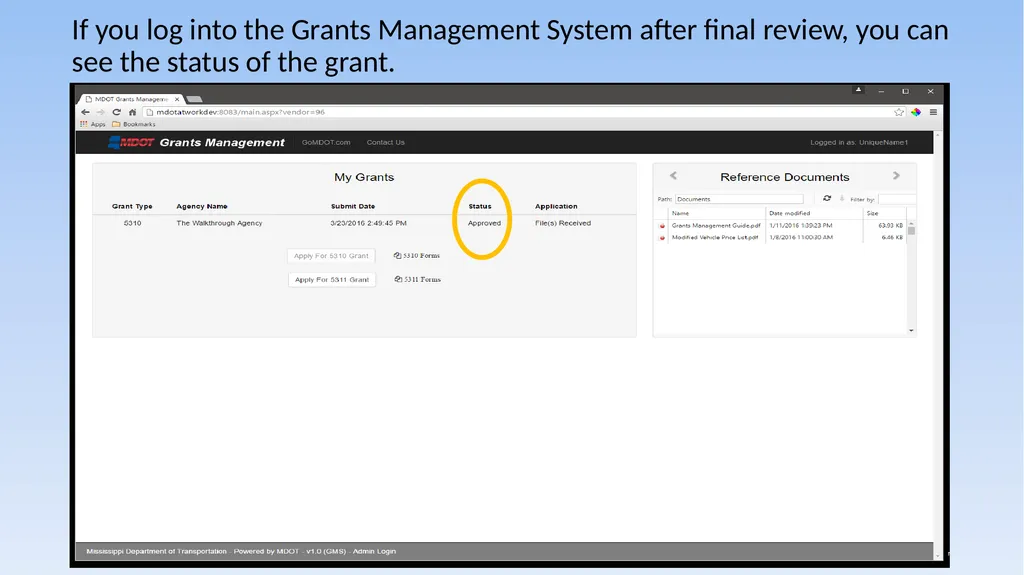
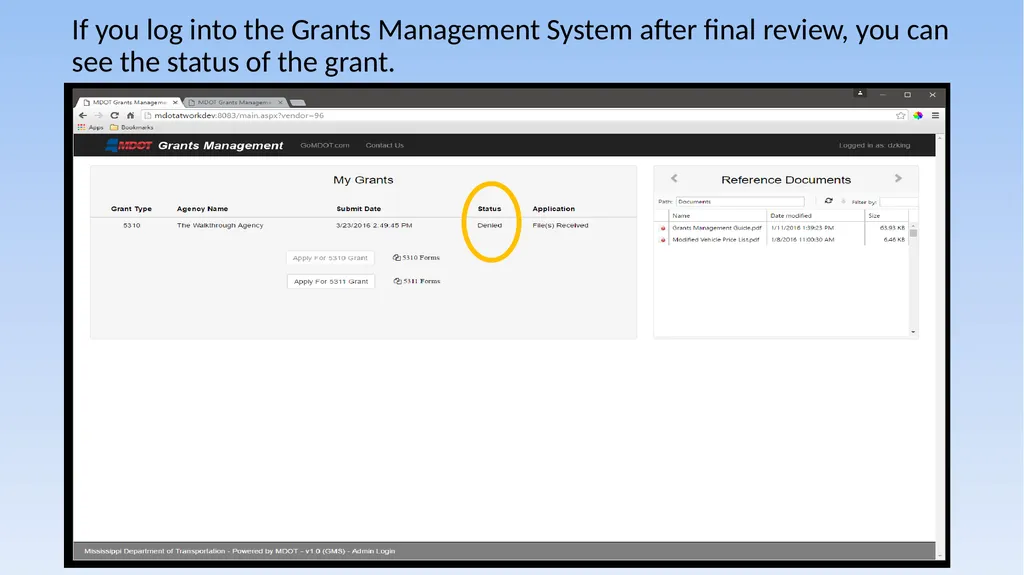
If you log into the Grants Management System after final review, you can see the status of the grant.<br>
36
If you log into the Grants Management System after final review, you can see the status of the grant.<br>
37
Grant Administrator Role and Benefits The grant administrator functionality will allow us to:
Activate User Accounts
Manage the download and upload of grant application documents for system security purposes
Review the grants from the system and store them in project specific files on the transit server
Send electronic notices to applicant requesting additional information or clarifications<br>
38
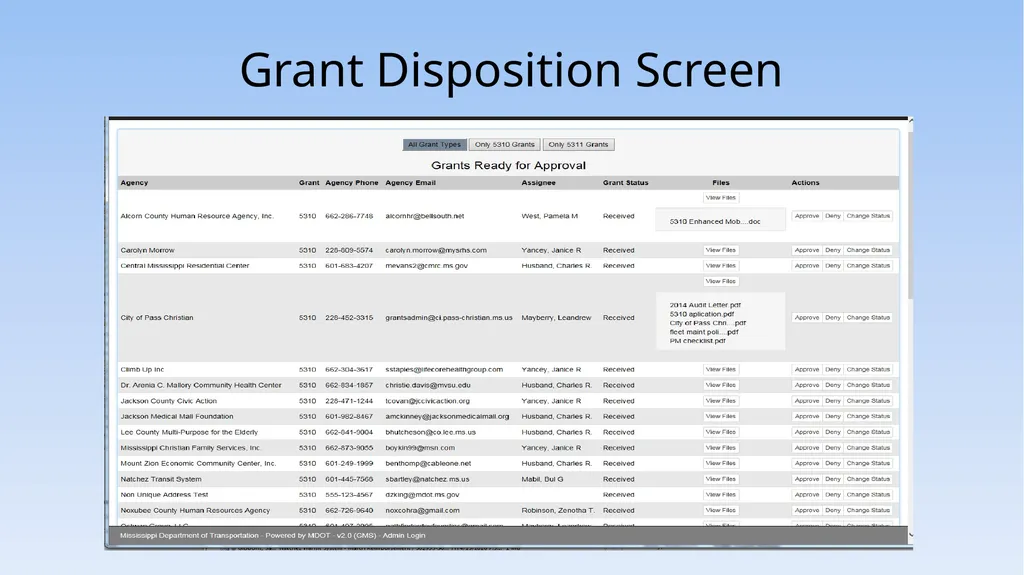
Grant Administrator Role and Benefits (contd.) Transmit electronic notices of grant status (i.e. received, approved, denied)
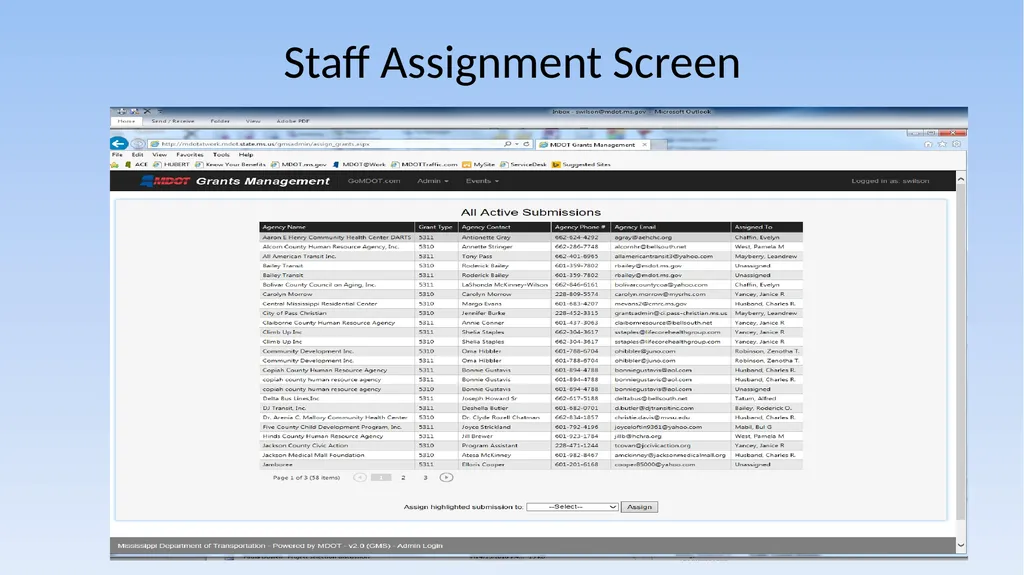
Assign applications to team members for review and preparation of grant profiles
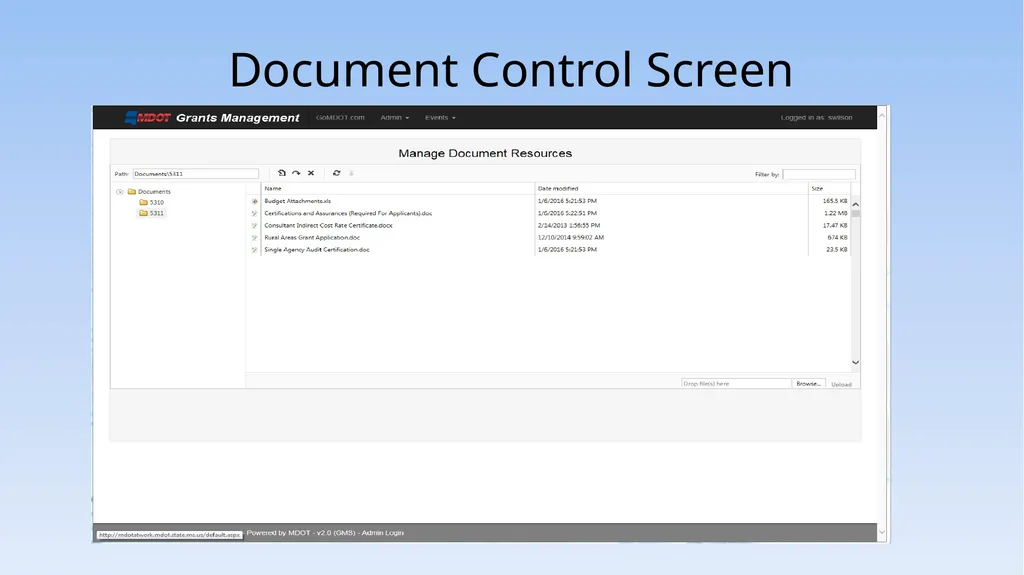
Internal management of documents stored in software (don’t have to rely of IT department for application revisions/deletions)
Maintain a list of application requests by program
Benefit of system being created in-house by IT Division
Timely technical assistance/maintenance
Cost-saving – not having to pay an outside vendor
Ability to continue to grow the system without added cost<br>
39
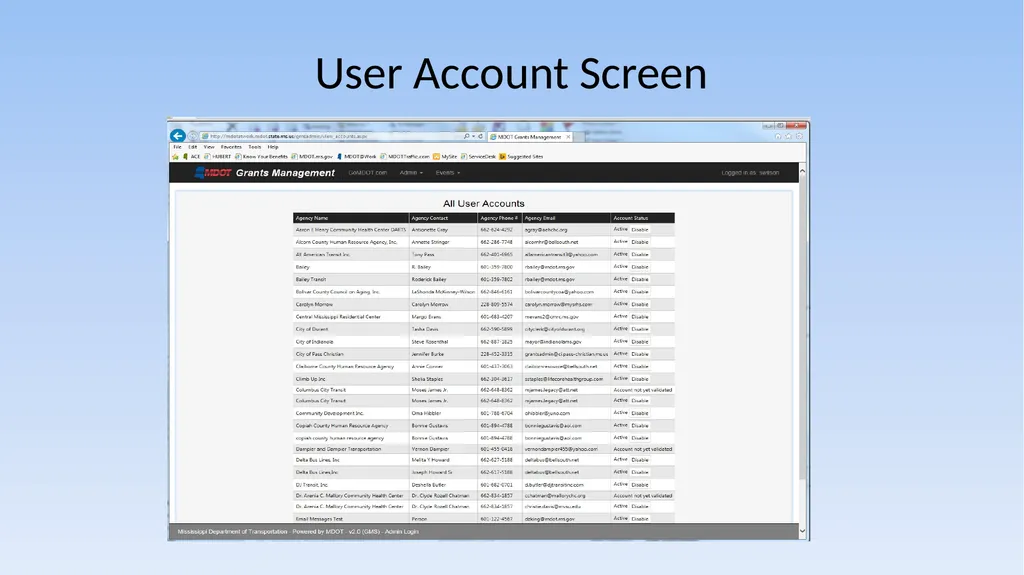
User Account Screen<br>
40
Staff Assignment Screen<br>
41
Grant Disposition Screen<br>
42
Document Control Screen<br>
43
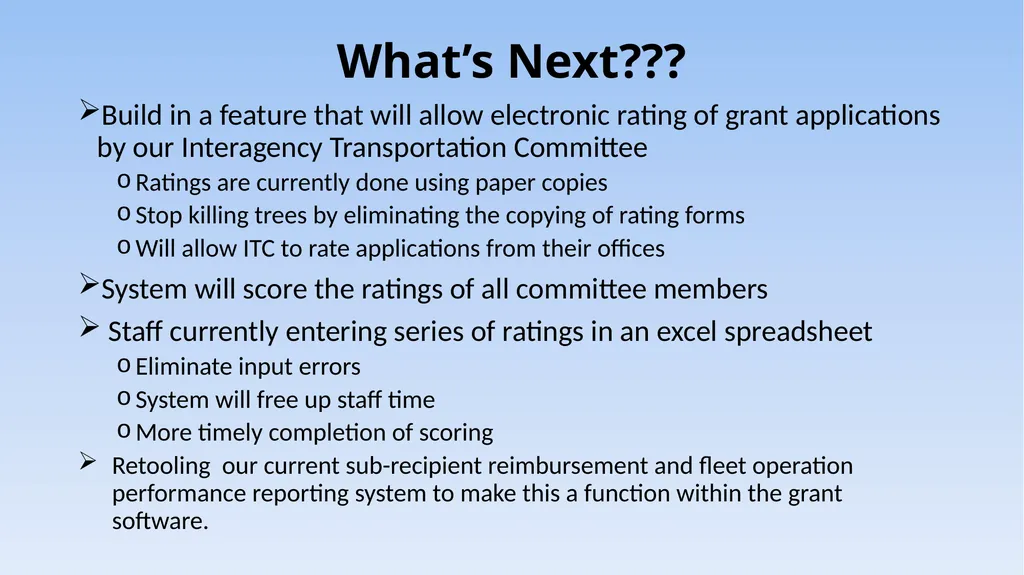
What’s Next??? Build in a feature that will allow electronic rating of grant applications by our Interagency Transportation Committee
Ratings are currently done using paper copies
Stop killing trees by eliminating the copying of rating forms
Will allow ITC to rate applications from their offices
System will score the ratings of all committee members
Staff currently entering series of ratings in an excel spreadsheet
Eliminate input errors
System will free up staff time
More timely completion of scoring
Retooling our current sub-recipient reimbursement and fleet operation performance reporting system to make this a function within the grant software.<br>
44
Contact Information MS Department of Transportation
P.O. Box 1850
Jackson, MS 39215-1850
Public Transit Director: Shirley Wilson
e-mail: swilson@mdot.ms.gov
601-359-7800<br>