
HR∙Smart Manager Self Service (MSS) Manager &
TD
Published · 87 slides · 0 views

1 / 1








Description
HRSmart Manager Self Service (MSS) Manager Supervisor Training April 2020 VBA Office of Talent Management Spencer A. Hawkyard, HRIS Topic 1: General Introduction Topic 2: HRSmart Navigation Topic 3: HRSmart and MSS Overview Topic 4: My
Related Topics
Share
Embed code
Download this presentation From Below
"HR∙Smart Manager Self Service (MSS) Manager &" is the property of its rightful owner. Permission is granted to download and print the materials on this website for personal, non-commercial use only, and to display it on your personal computer provided you do not modify the materials and that you retain all copyright notices contained in the materials. By downloading content from our website, you accept the terms of this agreement.
Presentation Transcript
01
HR∙Smart Manager Self Service (MSS)
Manager & Supervisor Training April 2020
VBA Office of Talent Management
Spencer A. Hawkyard, HRIS<br>
VBA Office of Talent Management
Spencer A. Hawkyard, HRIS<br>
02
Topic 1: General Introduction
Topic 2: HR∙Smart Navigation
Topic 3: HR∙Smart and MSS Overview
Topic 4: My Team
Topic 5: Update My Team (Manager Role)
Topic 6: Update My Team (Admin Officer Role)
Topic 7: Manager Delegation
Topic 8: Manager Analytics & Reports
Topic 9: Understanding the Data Course Overview<br>
Topic 2: HR∙Smart Navigation
Topic 3: HR∙Smart and MSS Overview
Topic 4: My Team
Topic 5: Update My Team (Manager Role)
Topic 6: Update My Team (Admin Officer Role)
Topic 7: Manager Delegation
Topic 8: Manager Analytics & Reports
Topic 9: Understanding the Data Course Overview<br>
03
Topic 1: General Introduction<br>
04
A new functionality in HR∙Smart being launched to support the HR Modernization efforts.
Enables Managers and Supervisors to have real-time visibility into the status of their direct and indirect reports.
Allows HR Liaisons, Managers, and Supervisors to initiate recruitment and personnel actions electronically into HR∙Smart.
Allows Managers and Supervisors to manage both filled and vacant positions all in one system.
Mandatory use of MSS for recruitment actions will begin May 1st, 2020. What is Manager Self Service (MSS)?<br>
Enables Managers and Supervisors to have real-time visibility into the status of their direct and indirect reports.
Allows HR Liaisons, Managers, and Supervisors to initiate recruitment and personnel actions electronically into HR∙Smart.
Allows Managers and Supervisors to manage both filled and vacant positions all in one system.
Mandatory use of MSS for recruitment actions will begin May 1st, 2020. What is Manager Self Service (MSS)?<br>
05
Real-time access to workforce information, enabling Managers and Supervisors to more effectively manage staff development and succession planning
Increase HR processing efficiency and timeliness. By empowering Managers and Supervisors to request actions on behalf of their direct reports directly in the VA HR system of record, it improves the quality and speed of HR services and supports a positive HR customer experience
Streamline recruitment and hiring activities in support of best utilizing mission-critical employees, that serve Veterans and their families
Standardized position management provides an organizational view of vacant and encumbered positions, enabling the alignment of VA’s workforce to support future agency hiring needs What are the Benefits of MSS?<br>
Increase HR processing efficiency and timeliness. By empowering Managers and Supervisors to request actions on behalf of their direct reports directly in the VA HR system of record, it improves the quality and speed of HR services and supports a positive HR customer experience
Streamline recruitment and hiring activities in support of best utilizing mission-critical employees, that serve Veterans and their families
Standardized position management provides an organizational view of vacant and encumbered positions, enabling the alignment of VA’s workforce to support future agency hiring needs What are the Benefits of MSS?<br>
06
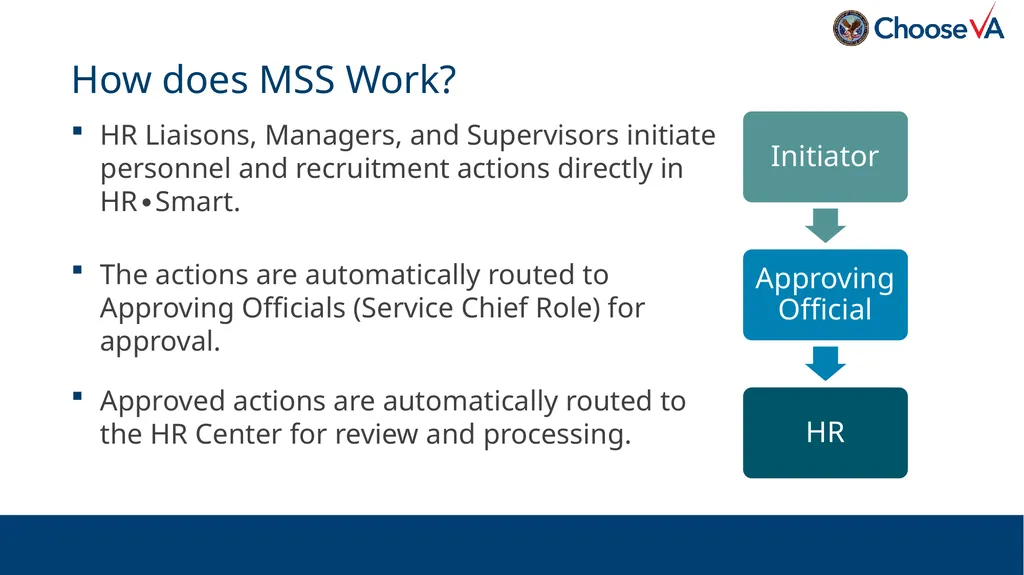
HR Liaisons, Managers, and Supervisors initiate personnel and recruitment actions directly in HR∙Smart.
The actions are automatically routed to Approving Officials (Service Chief Role) for approval.
Approved actions are automatically routed to the HR Center for review and processing. How does MSS Work?<br>
The actions are automatically routed to Approving Officials (Service Chief Role) for approval.
Approved actions are automatically routed to the HR Center for review and processing. How does MSS Work?<br>
07
HR is still responsible for reviewing all actions submitted via MSS.
HR may need to add or change fields submitted to ensure the action is processed according to federal regulations.
HR is responsible for doing a Quality Review of all actions prior to them being processed and submitted to DFAS and eOPF.
HR may still return requests for more information or deny them based on individual situations or legal reasons. How does this affect the job of HR professionals?<br>
HR may need to add or change fields submitted to ensure the action is processed according to federal regulations.
HR is responsible for doing a Quality Review of all actions prior to them being processed and submitted to DFAS and eOPF.
HR may still return requests for more information or deny them based on individual situations or legal reasons. How does this affect the job of HR professionals?<br>
08
The AO role in HR∙Smart was built to support management in initiating actions. Whenever possible managers should be initiating actions for their employees (direct reports).
The current design of the Administrative Officer (AO) role provides the AO access to all positions and employees at the Station level.
This means AO’s may be able to see more than their area of responsibility. Due to the high level of access, the AO cannot see the same amount of personal information managers and supervisors can see.
Managers and Approving Officials still have to review and approve actions submitted by the AO Role. Administrative Officer (AO) Role in MSS<br>
The current design of the Administrative Officer (AO) role provides the AO access to all positions and employees at the Station level.
This means AO’s may be able to see more than their area of responsibility. Due to the high level of access, the AO cannot see the same amount of personal information managers and supervisors can see.
Managers and Approving Officials still have to review and approve actions submitted by the AO Role. Administrative Officer (AO) Role in MSS<br>
09
Topic 2: HR∙Smart Navigation<br>
10
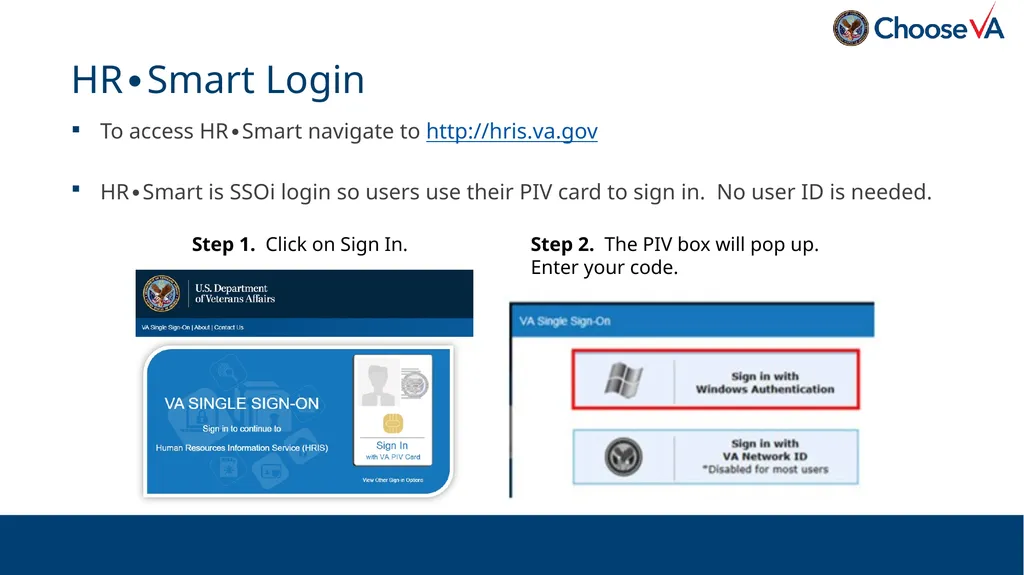
To access HR∙Smart navigate to http://hris.va.gov
HR∙Smart is SSOi login so users use their PIV card to sign in. No user ID is needed. HR∙Smart Login Step 1. Click on Sign In. Step 2. The PIV box will pop up.
Enter your code.<br>
HR∙Smart is SSOi login so users use their PIV card to sign in. No user ID is needed. HR∙Smart Login Step 1. Click on Sign In. Step 2. The PIV box will pop up.
Enter your code.<br>
11
If you have trouble logging in, here are a couple of things to try.
If SSOi takes you immediately to the logout page, just type the web address for HR∙Smart again, you should be taken back to the homepage.
Clear your cache. When in doubt and something doesn’t look right, clearing the internet browser cache is the first thing to try. You may have to repeat this several times.
Check with HR Specialists to see if your account is set up correctly. HR∙Smart Login Issues<br>
If SSOi takes you immediately to the logout page, just type the web address for HR∙Smart again, you should be taken back to the homepage.
Clear your cache. When in doubt and something doesn’t look right, clearing the internet browser cache is the first thing to try. You may have to repeat this several times.
Check with HR Specialists to see if your account is set up correctly. HR∙Smart Login Issues<br>
12
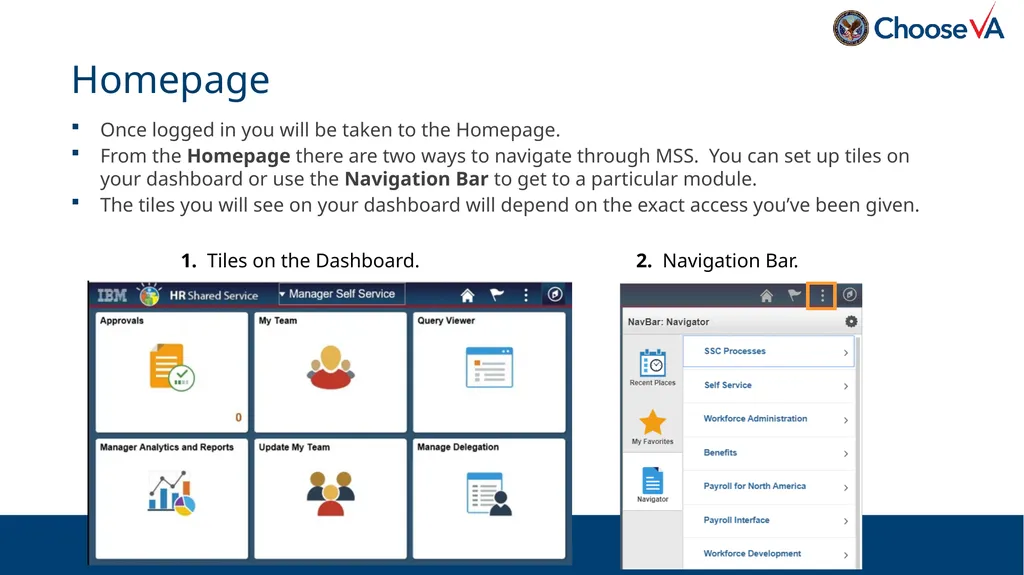
Once logged in you will be taken to the Homepage.
From the Homepage there are two ways to navigate through MSS. You can set up tiles on your dashboard or use the Navigation Bar to get to a particular module.
The tiles you will see on your dashboard will depend on the exact access you’ve been given. Homepage 1. Tiles on the Dashboard. 2. Navigation Bar.<br>
From the Homepage there are two ways to navigate through MSS. You can set up tiles on your dashboard or use the Navigation Bar to get to a particular module.
The tiles you will see on your dashboard will depend on the exact access you’ve been given. Homepage 1. Tiles on the Dashboard. 2. Navigation Bar.<br>
13
To add tiles to the homepage click on the Actions List in the upper right hand corner of the Navigation Bar. Select Personalize Homepage. Personalize Homepage 1. Actions List. 2. Click Add Tile and navigate to the Manager Self Service folder to find the Tile be added and select Save.<br>
14
On the Homepage click on any tile and drag it around to rearrange the tiles.
If you do not have access to Manager Self Service you need to contact your VISN HRIS Office.
Administrative Officers (AO) will not have the My Team tile. Access Review<br>
If you do not have access to Manager Self Service you need to contact your VISN HRIS Office.
Administrative Officers (AO) will not have the My Team tile. Access Review<br>
15
Topic 3: HR∙Smart & MSS Overview<br>
16
HR∙Smart is the VA’s official Human Resources Information System (HRIS). HR∙Smart officially replaced the VA PAID System in 2016 as a modernized solution to process personnel actions.
HR∙Smart is used by both HR and payroll offices to ensure employee’s information is accurate.
HR∙Smart is built with system interfaces that transfers information back-and-forth between HR∙Smart and other critical systems. HR∙Smart Data Interfaces PAID VISTA * These are just the most common system interfaces<br>
HR∙Smart is used by both HR and payroll offices to ensure employee’s information is accurate.
HR∙Smart is built with system interfaces that transfers information back-and-forth between HR∙Smart and other critical systems. HR∙Smart Data Interfaces PAID VISTA * These are just the most common system interfaces<br>
17
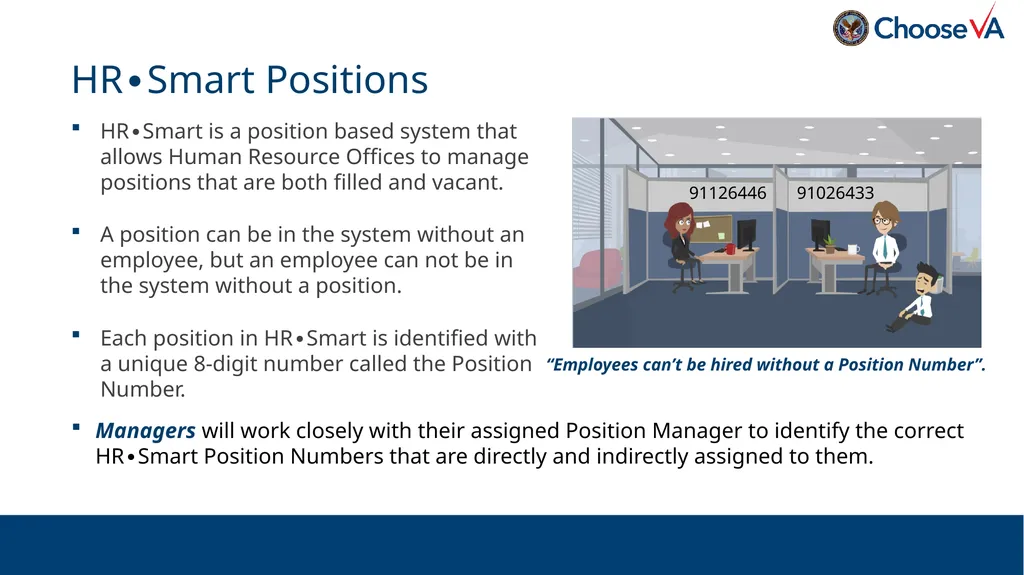
HR∙Smart is a position based system that allows Human Resource Offices to manage positions that are both filled and vacant.
A position can be in the system without an employee, but an employee can not be in the system without a position.
Each position in HR∙Smart is identified with a unique 8-digit number called the Position Number. HR∙Smart Positions Managers will work closely with their assigned Position Manager to identify the correct HR∙Smart Position Numbers that are directly and indirectly assigned to them.<br>
A position can be in the system without an employee, but an employee can not be in the system without a position.
Each position in HR∙Smart is identified with a unique 8-digit number called the Position Number. HR∙Smart Positions Managers will work closely with their assigned Position Manager to identify the correct HR∙Smart Position Numbers that are directly and indirectly assigned to them.<br>
18
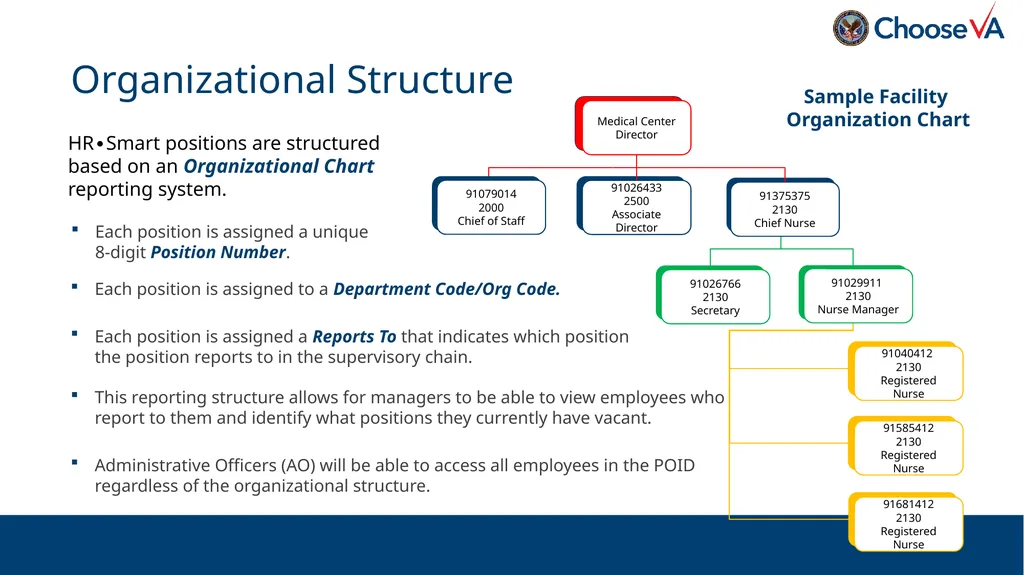
Each position is assigned a unique 8-digit Position Number. Organizational Structure HR∙Smart positions are structured based on an Organizational Chart reporting system. 91026433
2500
Associate Director 91026766
2130
Secretary 91040412
2130
Registered Nurse 91375375
2130
Chief Nurse Medical Center Director 91029911
2130
Nurse Manager 91079014
2000
Chief of Staff Sample Facility
Organization Chart 91585412
2130
Registered Nurse 91681412
2130
Registered Nurse Each position is assigned to a Department Code/Org Code.
Each position is assigned a Reports To that indicates which position the position reports to in the supervisory chain. This reporting structure allows for managers to be able to view employees who report to them and identify what positions they currently have vacant.
Administrative Officers (AO) will be able to access all employees in the POID regardless of the organizational structure.<br>
2500
Associate Director 91026766
2130
Secretary 91040412
2130
Registered Nurse 91375375
2130
Chief Nurse Medical Center Director 91029911
2130
Nurse Manager 91079014
2000
Chief of Staff Sample Facility
Organization Chart 91585412
2130
Registered Nurse 91681412
2130
Registered Nurse Each position is assigned to a Department Code/Org Code.
Each position is assigned a Reports To that indicates which position the position reports to in the supervisory chain. This reporting structure allows for managers to be able to view employees who report to them and identify what positions they currently have vacant.
Administrative Officers (AO) will be able to access all employees in the POID regardless of the organizational structure.<br>
19
Organizational Structure 91026433
2500
Associate Director 91026766
2130
Secretary 91040412
2130
Registered Nurse 91375375
2130
Chief Nurse Medical Center Director 91029911
2130
Nurse Manager 91079014
2000
Chief of Staff Sample Facility
Organization Chart 91585412
2130
Registered Nurse 91681412
2130
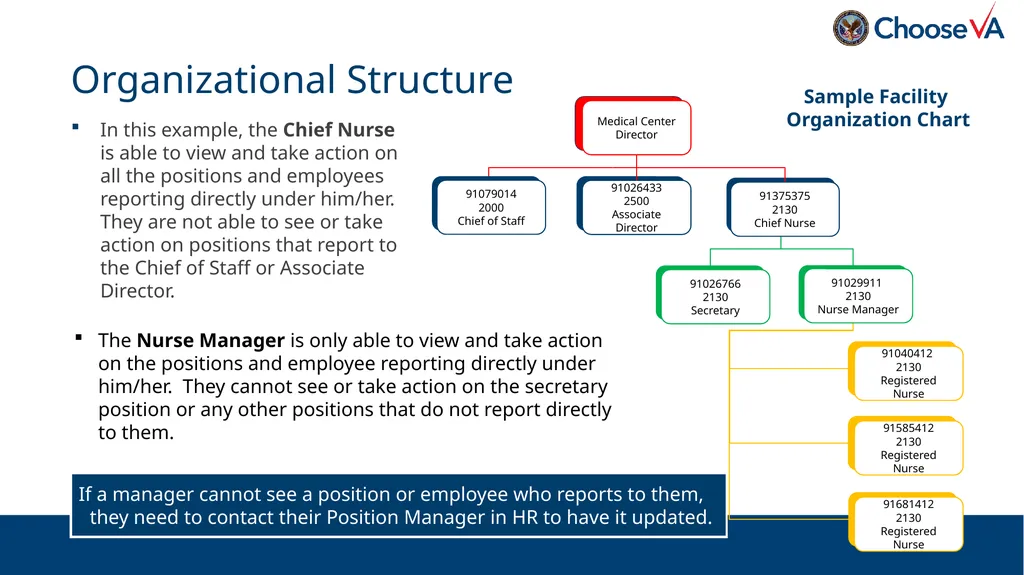
Registered Nurse In this example, the Chief Nurse is able to view and take action on all the positions and employees reporting directly under him/her. They are not able to see or take action on positions that report to the Chief of Staff or Associate Director. The Nurse Manager is only able to view and take action on the positions and employee reporting directly under him/her. They cannot see or take action on the secretary position or any other positions that do not report directly to them. If a manager cannot see a position or employee who reports to them, they need to contact their Position Manager in HR to have it updated.<br>
2500
Associate Director 91026766
2130
Secretary 91040412
2130
Registered Nurse 91375375
2130
Chief Nurse Medical Center Director 91029911
2130
Nurse Manager 91079014
2000
Chief of Staff Sample Facility
Organization Chart 91585412
2130
Registered Nurse 91681412
2130
Registered Nurse In this example, the Chief Nurse is able to view and take action on all the positions and employees reporting directly under him/her. They are not able to see or take action on positions that report to the Chief of Staff or Associate Director. The Nurse Manager is only able to view and take action on the positions and employee reporting directly under him/her. They cannot see or take action on the secretary position or any other positions that do not report directly to them. If a manager cannot see a position or employee who reports to them, they need to contact their Position Manager in HR to have it updated.<br>
20
HR∙Smart was deployed to VA HR from 2015-2016 and is relatively new to HR Professionals. HR has been trying to get data as clean as possible before launching MSS. This being said, not all records will be completely clean. We hope that by implementing MSS this will bring additional awareness to cleaning up employee records.
There may also be instances where Managers and Supervisors have access to more positions than authorized by the approved organizational charts. This does NOT mean that this extra FTE is available to be recruited for. These issues should be brought to the attention of assigned Position Manager so they can get the information updated accordingly.
In order to capture all the needs of Managers and Supervisors, use of the system is necessary. As with any information system there will be growing pains. Communication with HR is critical to the overall success. MSS Launch Notes<br>
There may also be instances where Managers and Supervisors have access to more positions than authorized by the approved organizational charts. This does NOT mean that this extra FTE is available to be recruited for. These issues should be brought to the attention of assigned Position Manager so they can get the information updated accordingly.
In order to capture all the needs of Managers and Supervisors, use of the system is necessary. As with any information system there will be growing pains. Communication with HR is critical to the overall success. MSS Launch Notes<br>
21
There are currently 3 separate roles for Manager Self Service.
VA Service Chief. The Service Chief role in HR∙Smart is limited only to the chief of each Service Line/Organizational Code. The Service Chief is responsible for approving all actions for his/her direct and indirect reports before it is routed to the HR Office.
VA Manager. The VA Manager role in HR∙Smart is designed for employees direct supervisors under the service chief to initiate actions and review their employee data. This role must be assigned to all supervisors who have at least one position reporting to him/her. If the supervisor does not have this role the action will not flow properly.
VA Admin Officer. The Administrative Officer (AO) role in HR∙Smart was built to support the managers in initiating actions. The current design provides access to the Personnel Office Identification (POID) level. Due to the high level of access, the AO can only see limited data and should only be given to trusted Administrative Officers. When selecting employee’s, the AO should double check that they are selecting the correct employee. MSS User Roles<br>
VA Service Chief. The Service Chief role in HR∙Smart is limited only to the chief of each Service Line/Organizational Code. The Service Chief is responsible for approving all actions for his/her direct and indirect reports before it is routed to the HR Office.
VA Manager. The VA Manager role in HR∙Smart is designed for employees direct supervisors under the service chief to initiate actions and review their employee data. This role must be assigned to all supervisors who have at least one position reporting to him/her. If the supervisor does not have this role the action will not flow properly.
VA Admin Officer. The Administrative Officer (AO) role in HR∙Smart was built to support the managers in initiating actions. The current design provides access to the Personnel Office Identification (POID) level. Due to the high level of access, the AO can only see limited data and should only be given to trusted Administrative Officers. When selecting employee’s, the AO should double check that they are selecting the correct employee. MSS User Roles<br>
22
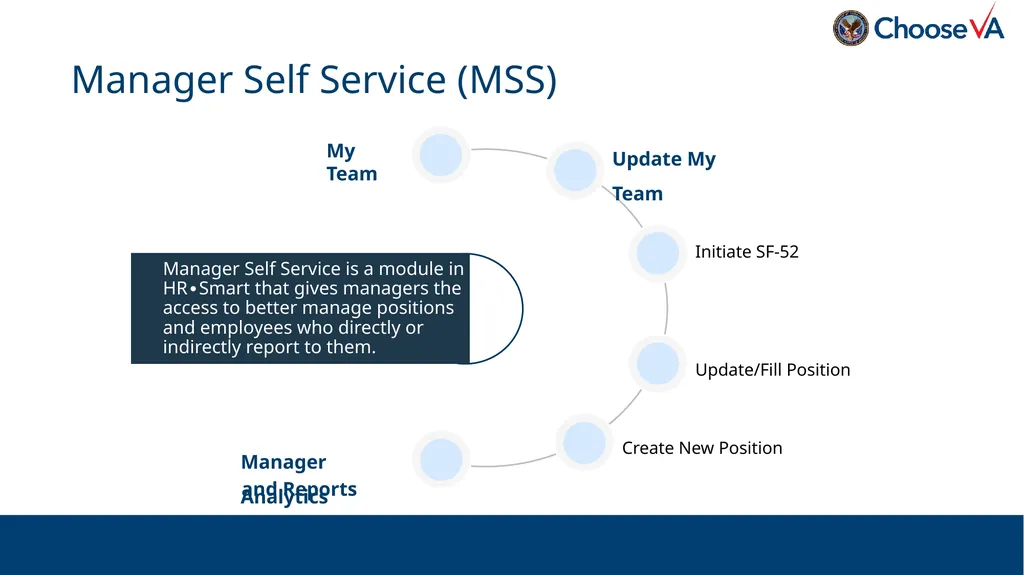
Manager Self Service (MSS) Update My Team Update/Fill Position Manager Self Service is a module in HR∙Smart that gives managers the access to better manage positions and employees who directly or indirectly report to them. My Team Create New Position Initiate SF-52 Manager Analytics and Reports<br>
23
Topic 4: My Team<br>
24
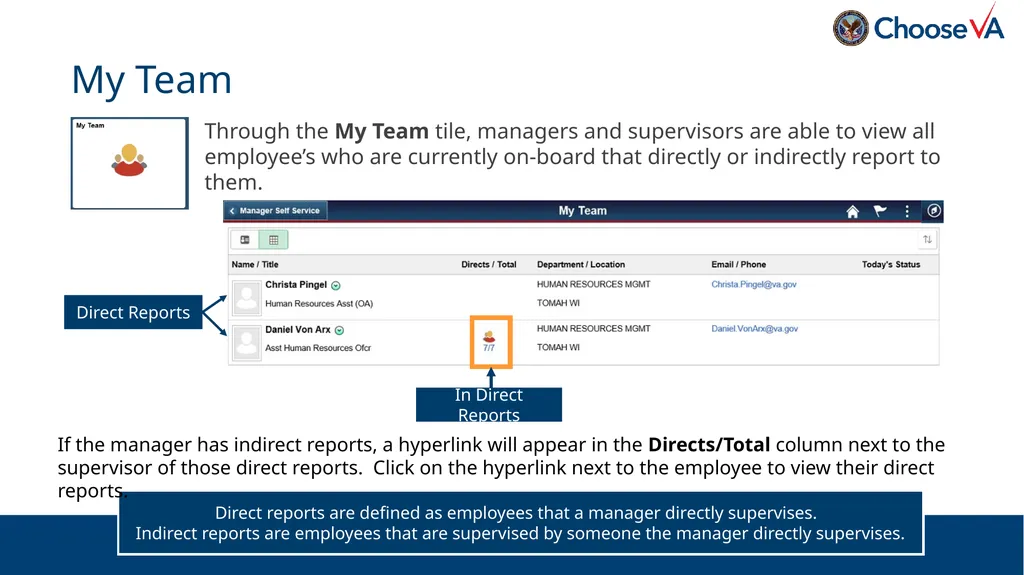
Through the My Team tile, managers and supervisors are able to view all employee’s who are currently on-board that directly or indirectly report to them. My Team Direct reports are defined as employees that a manager directly supervises.
Indirect reports are employees that are supervised by someone the manager directly supervises. If the manager has indirect reports, a hyperlink will appear in the Directs/Total column next to the supervisor of those direct reports. Click on the hyperlink next to the employee to view their direct reports. Direct Reports In Direct Reports<br>
Indirect reports are employees that are supervised by someone the manager directly supervises. If the manager has indirect reports, a hyperlink will appear in the Directs/Total column next to the supervisor of those direct reports. Click on the hyperlink next to the employee to view their direct reports. Direct Reports In Direct Reports<br>
25
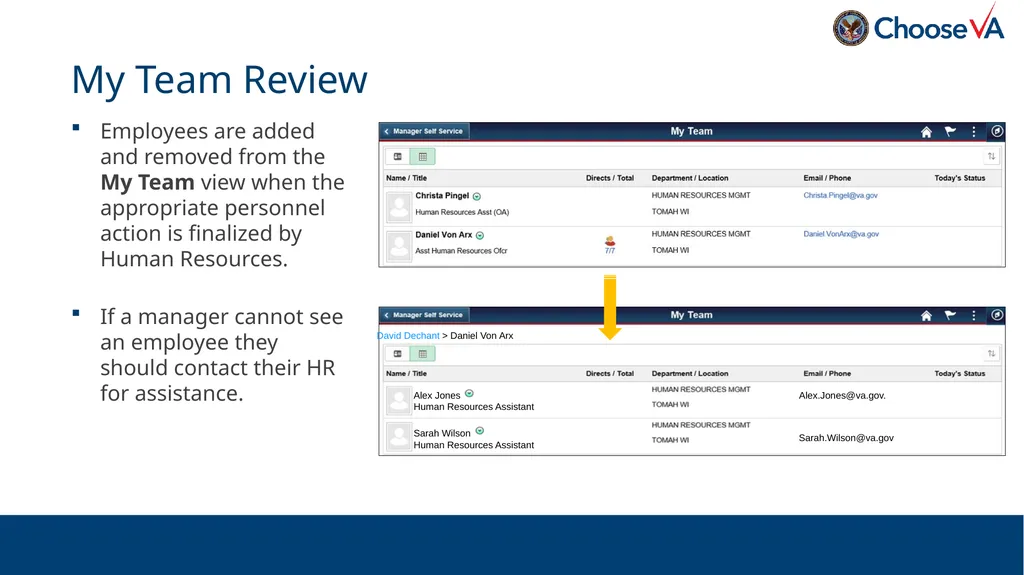
To return to the list of direct reports, click on the managers name in the upper left-hand corner. My Team – Indirect Reports David Dechant > Daniel Von Arx Alex Jones
Human Resources Assistant Sarah Wilson
Human Resources Assistant Alex.Jones@va.gov. Sarah.Wilson@va.gov<br>
Human Resources Assistant Sarah Wilson
Human Resources Assistant Alex.Jones@va.gov. Sarah.Wilson@va.gov<br>
26
Employees are added and removed from the My Team view when the appropriate personnel action is finalized by Human Resources.
If a manager cannot see an employee they should contact their HR for assistance. My Team Review<br>
If a manager cannot see an employee they should contact their HR for assistance. My Team Review<br>
27
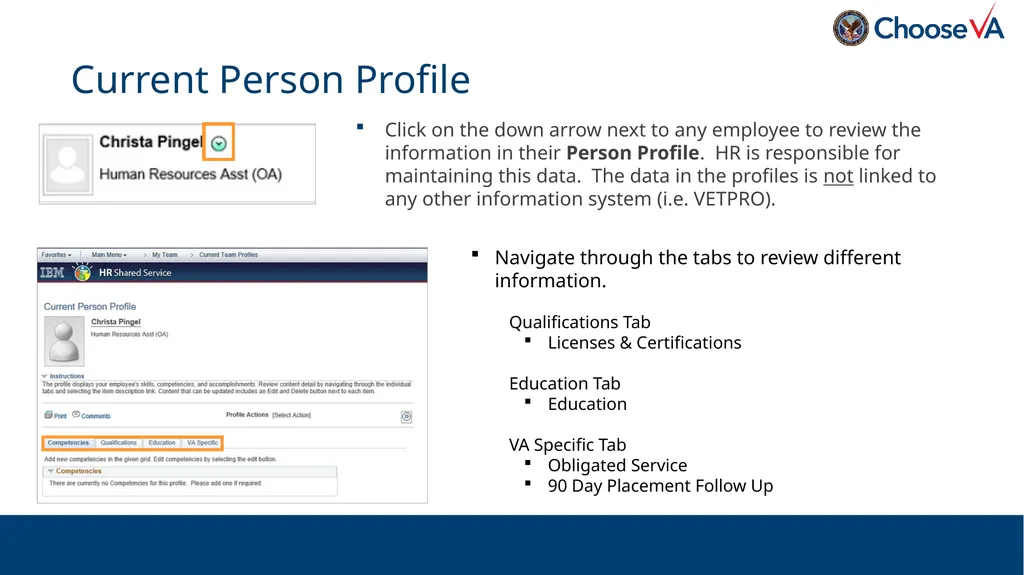
Click on the down arrow next to any employee to review the information in their Person Profile. HR is responsible for maintaining this data. The data in the profiles is not linked to any other information system (i.e. VETPRO). Current Person Profile Navigate through the tabs to review different information.
Qualifications Tab
Licenses & Certifications
Education Tab
Education
VA Specific Tab
Obligated Service
90 Day Placement Follow Up<br>
Qualifications Tab
Licenses & Certifications
Education Tab
Education
VA Specific Tab
Obligated Service
90 Day Placement Follow Up<br>
28
Topic 5: Update My Team<br>
29
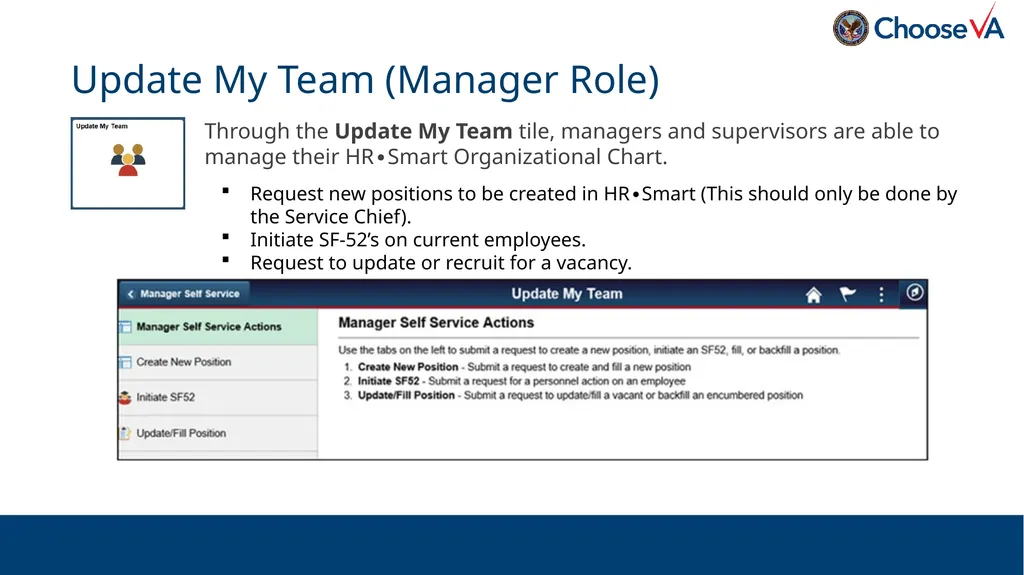
Through the Update My Team tile, managers and supervisors are able to manage their HR∙Smart Organizational Chart. Update My Team (Manager Role) Request new positions to be created in HR∙Smart (This should only be done by the Service Chief).
Initiate SF-52’s on current employees.
Request to update or recruit for a vacancy.<br>
Initiate SF-52’s on current employees.
Request to update or recruit for a vacancy.<br>
30
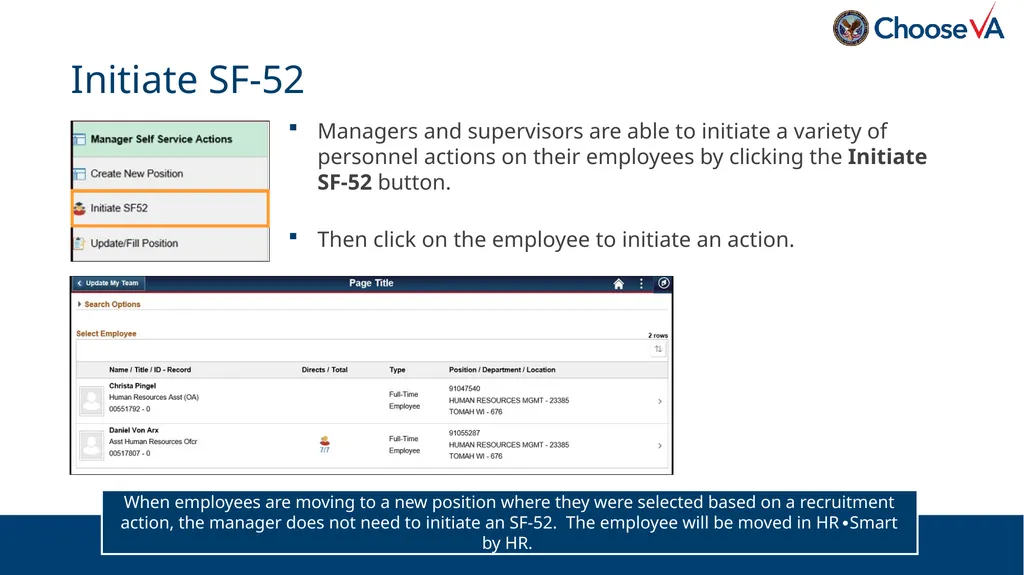
Managers and supervisors are able to initiate a variety of personnel actions on their employees by clicking the Initiate SF-52 button.
Then click on the employee to initiate an action. Initiate SF-52 When employees are moving to a new position where they were selected based on a recruitment action, the manager does not need to initiate an SF-52. The employee will be moved in HR∙Smart by HR.<br>
Then click on the employee to initiate an action. Initiate SF-52 When employees are moving to a new position where they were selected based on a recruitment action, the manager does not need to initiate an SF-52. The employee will be moved in HR∙Smart by HR.<br>
31
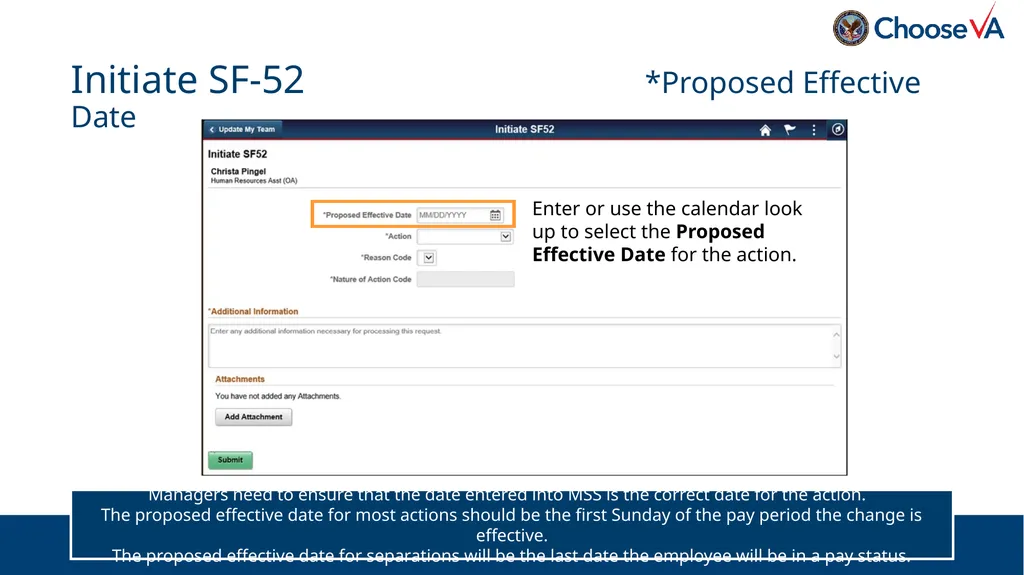
Initiate SF-52 *Proposed Effective Date Enter or use the calendar look up to select the Proposed Effective Date for the action. Managers need to ensure that the date entered into MSS is the correct date for the action.
The proposed effective date for most actions should be the first Sunday of the pay period the change is effective.
The proposed effective date for separations will be the last date the employee will be in a pay status.<br>
The proposed effective date for most actions should be the first Sunday of the pay period the change is effective.
The proposed effective date for separations will be the last date the employee will be in a pay status.<br>
32
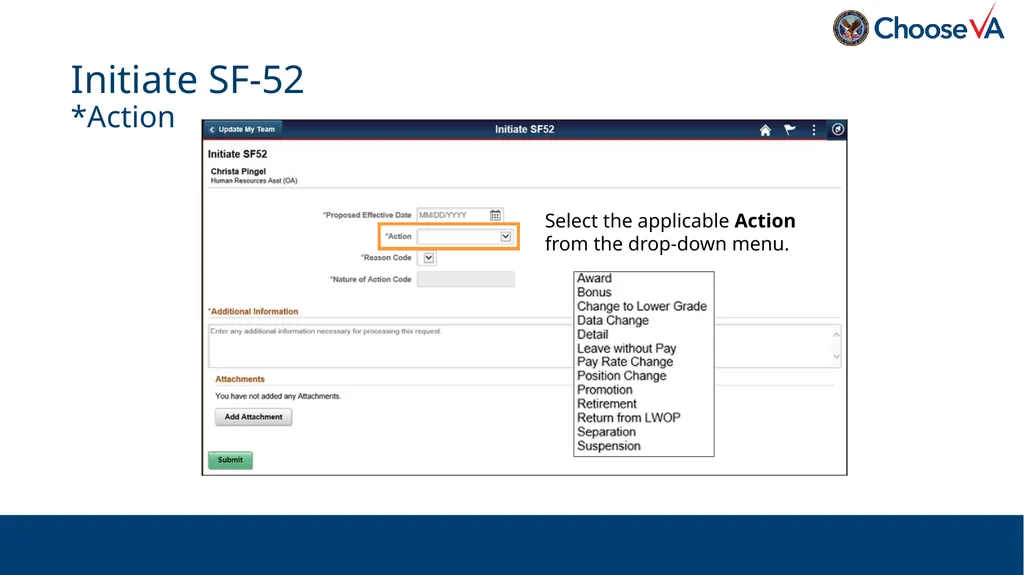
Initiate SF-52 *Action Select the applicable Action from the drop-down menu.<br>
33
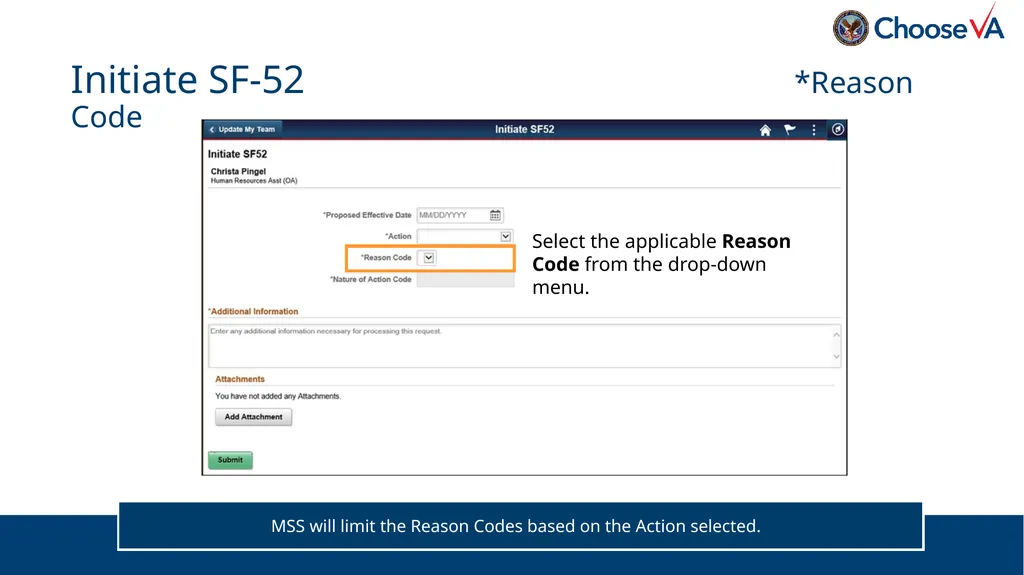
Initiate SF-52 *Reason Code Select the applicable Reason Code from the drop-down menu. MSS will limit the Reason Codes based on the Action selected.<br>
34
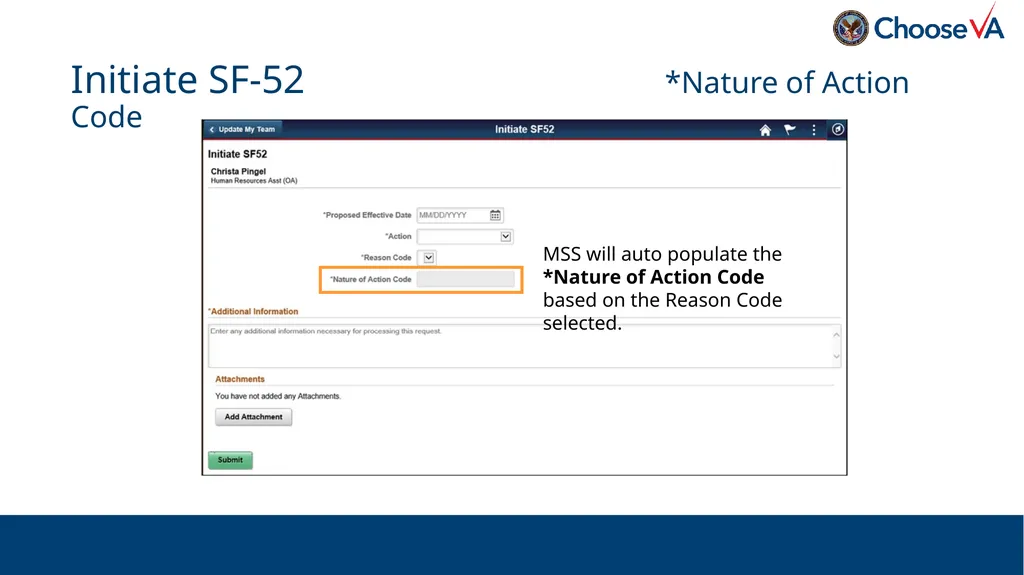
Initiate SF-52 *Nature of Action Code MSS will auto populate the *Nature of Action Code based on the Reason Code selected.<br>
35
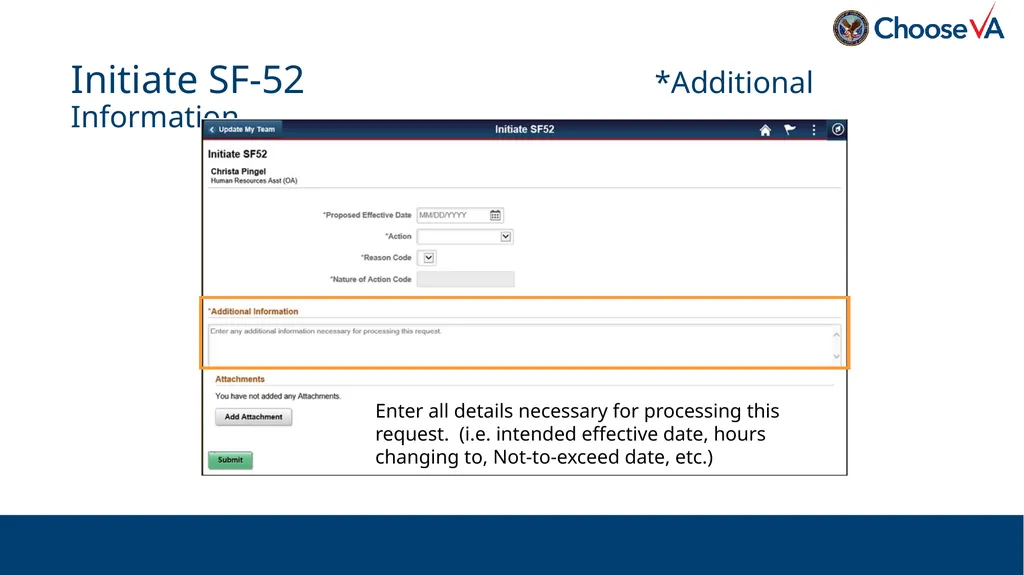
Initiate SF-52 *Additional Information Enter all details necessary for processing this request. (i.e. intended effective date, hours changing to, Not-to-exceed date, etc.)<br>
36
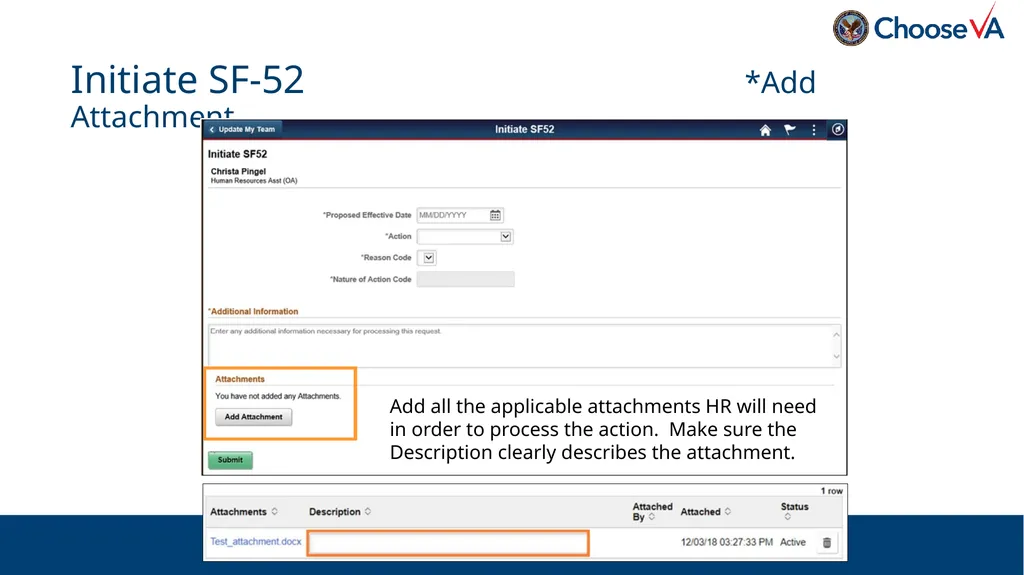
Initiate SF-52 *Add Attachment Add all the applicable attachments HR will need in order to process the action. Make sure the Description clearly describes the attachment.<br>
37
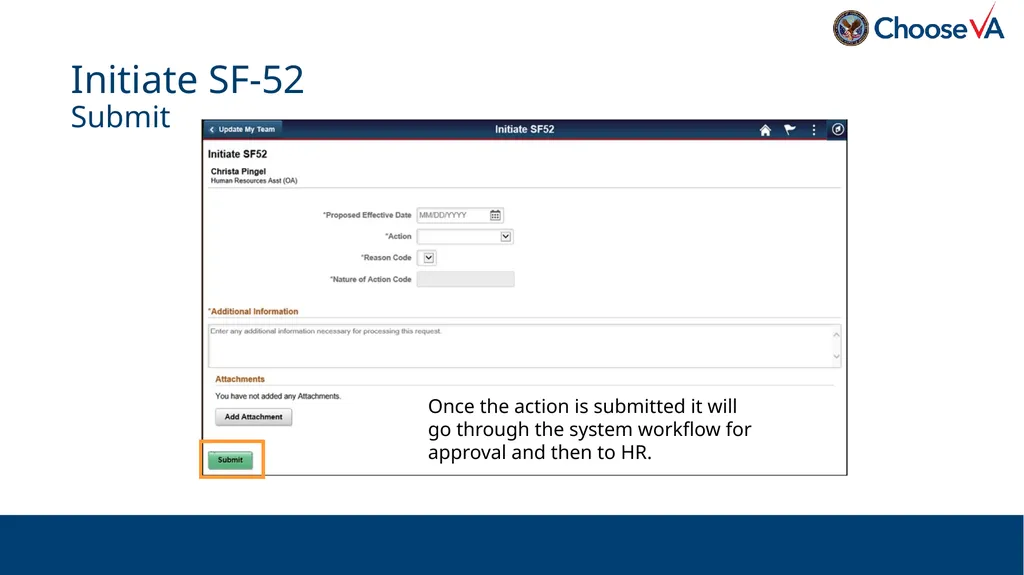
Initiate SF-52 Submit Once the action is submitted it will go through the system workflow for approval and then to HR.<br>
38
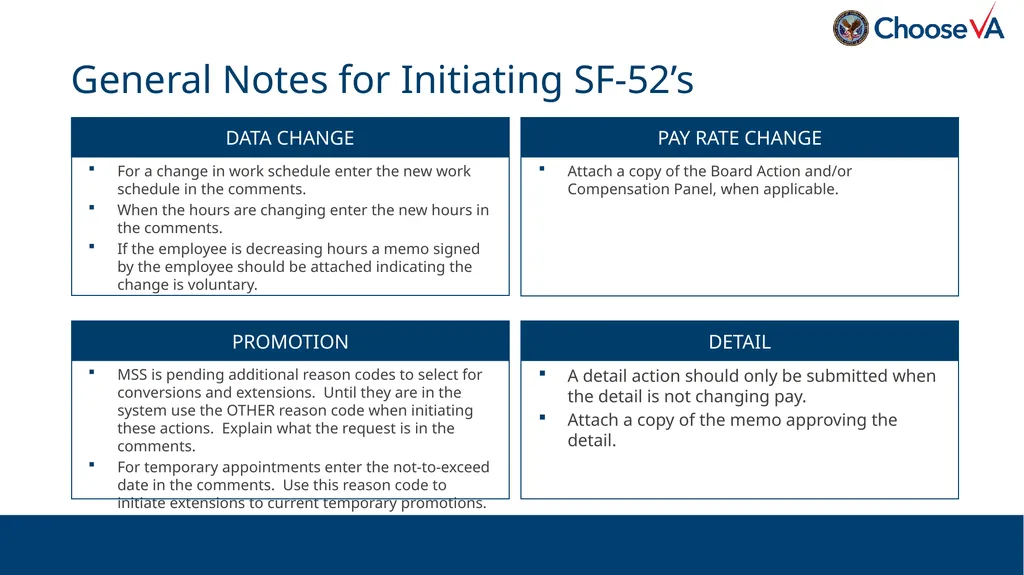
For a change in work schedule enter the new work schedule in the comments.
When the hours are changing enter the new hours in the comments.
If the employee is decreasing hours a memo signed by the employee should be attached indicating the change is voluntary. General Notes for Initiating SF-52’s Attach a copy of the Board Action and/or Compensation Panel, when applicable. MSS is pending additional reason codes to select for conversions and extensions. Until they are in the system use the OTHER reason code when initiating these actions. Explain what the request is in the comments.
For temporary appointments enter the not-to-exceed date in the comments. Use this reason code to initiate extensions to current temporary promotions. A detail action should only be submitted when the detail is not changing pay.
Attach a copy of the memo approving the detail. DATA CHANGE PAY RATE CHANGE PROMOTION DETAIL<br>
When the hours are changing enter the new hours in the comments.
If the employee is decreasing hours a memo signed by the employee should be attached indicating the change is voluntary. General Notes for Initiating SF-52’s Attach a copy of the Board Action and/or Compensation Panel, when applicable. MSS is pending additional reason codes to select for conversions and extensions. Until they are in the system use the OTHER reason code when initiating these actions. Explain what the request is in the comments.
For temporary appointments enter the not-to-exceed date in the comments. Use this reason code to initiate extensions to current temporary promotions. A detail action should only be submitted when the detail is not changing pay.
Attach a copy of the memo approving the detail. DATA CHANGE PAY RATE CHANGE PROMOTION DETAIL<br>
39
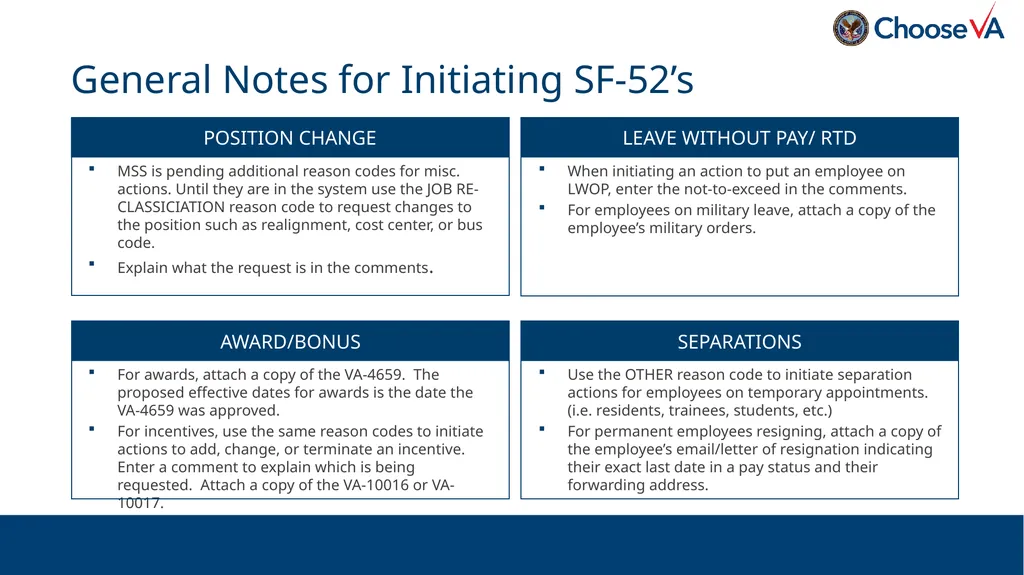
MSS is pending additional reason codes for misc. actions. Until they are in the system use the JOB RE-CLASSICIATION reason code to request changes to the position such as realignment, cost center, or bus code.
Explain what the request is in the comments. General Notes for Initiating SF-52’s When initiating an action to put an employee on LWOP, enter the not-to-exceed in the comments.
For employees on military leave, attach a copy of the employee’s military orders. For awards, attach a copy of the VA-4659. The proposed effective dates for awards is the date the VA-4659 was approved.
For incentives, use the same reason codes to initiate actions to add, change, or terminate an incentive. Enter a comment to explain which is being requested. Attach a copy of the VA-10016 or VA-10017. Use the OTHER reason code to initiate separation actions for employees on temporary appointments. (i.e. residents, trainees, students, etc.)
For permanent employees resigning, attach a copy of the employee’s email/letter of resignation indicating their exact last date in a pay status and their forwarding address. POSITION CHANGE LEAVE WITHOUT PAY/ RTD AWARD/BONUS SEPARATIONS<br>
Explain what the request is in the comments. General Notes for Initiating SF-52’s When initiating an action to put an employee on LWOP, enter the not-to-exceed in the comments.
For employees on military leave, attach a copy of the employee’s military orders. For awards, attach a copy of the VA-4659. The proposed effective dates for awards is the date the VA-4659 was approved.
For incentives, use the same reason codes to initiate actions to add, change, or terminate an incentive. Enter a comment to explain which is being requested. Attach a copy of the VA-10016 or VA-10017. Use the OTHER reason code to initiate separation actions for employees on temporary appointments. (i.e. residents, trainees, students, etc.)
For permanent employees resigning, attach a copy of the employee’s email/letter of resignation indicating their exact last date in a pay status and their forwarding address. POSITION CHANGE LEAVE WITHOUT PAY/ RTD AWARD/BONUS SEPARATIONS<br>
40
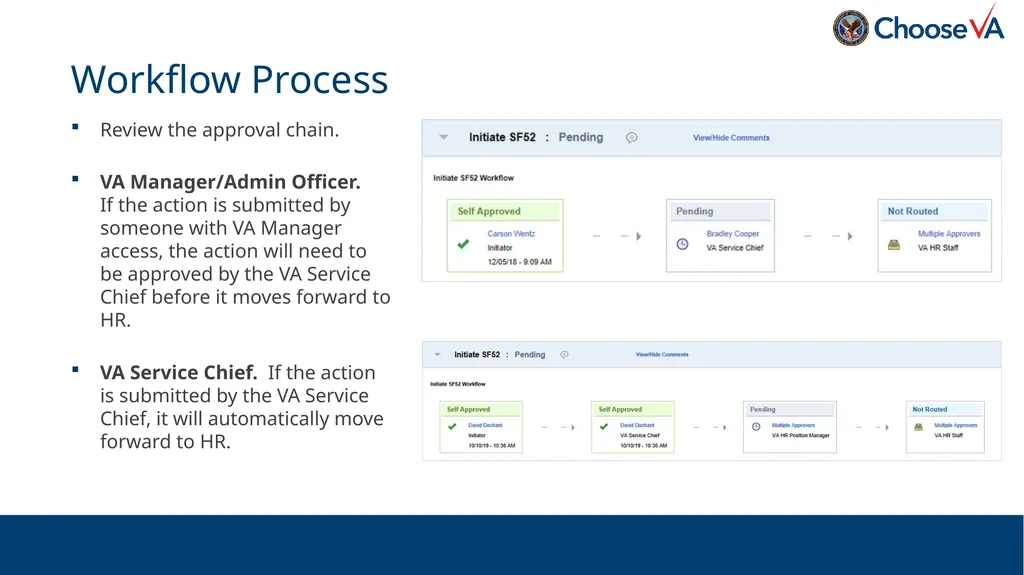
Review the approval chain.
VA Manager/Admin Officer. If the action is submitted by someone with VA Manager access, the action will need to be approved by the VA Service Chief before it moves forward to HR.
VA Service Chief. If the action is submitted by the VA Service Chief, it will automatically move forward to HR. Workflow Process<br>
VA Manager/Admin Officer. If the action is submitted by someone with VA Manager access, the action will need to be approved by the VA Service Chief before it moves forward to HR.
VA Service Chief. If the action is submitted by the VA Service Chief, it will automatically move forward to HR. Workflow Process<br>
41
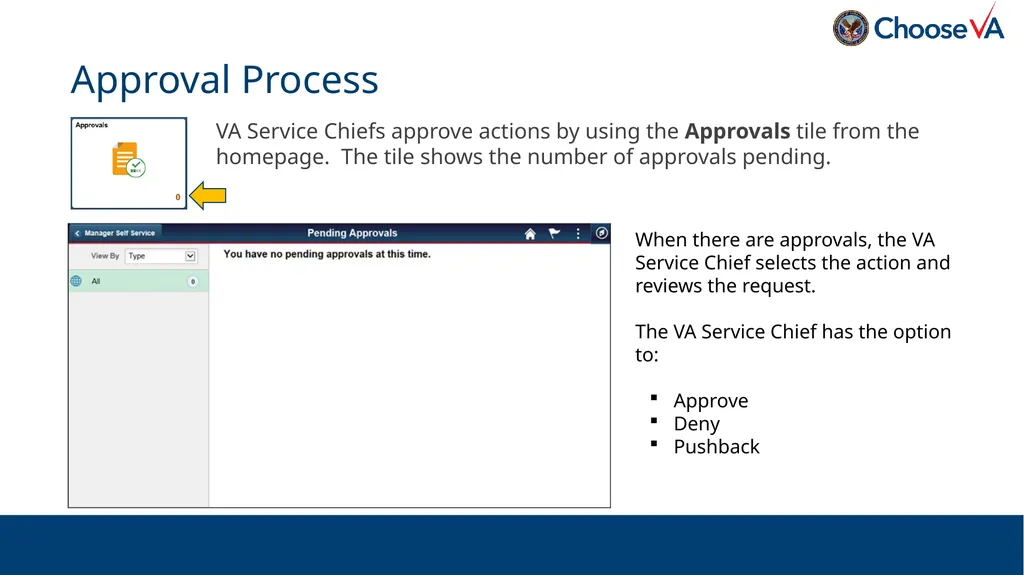
VA Service Chiefs approve actions by using the Approvals tile from the homepage. The tile shows the number of approvals pending. Approval Process When there are approvals, the VA Service Chief selects the action and reviews the request.
The VA Service Chief has the option to:
Approve
Deny
Pushback<br>
The VA Service Chief has the option to:
Approve
Deny
Pushback<br>
42
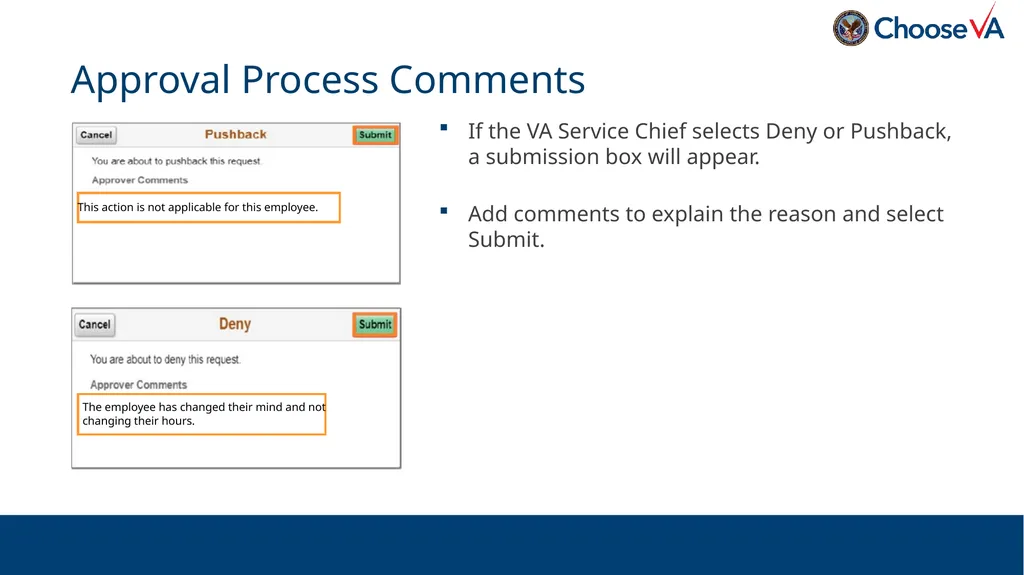
If the VA Service Chief selects Deny or Pushback, a submission box will appear.
Add comments to explain the reason and select Submit. Approval Process Comments This action is not applicable for this employee. The employee has changed their mind and not changing their hours.<br>
Add comments to explain the reason and select Submit. Approval Process Comments This action is not applicable for this employee. The employee has changed their mind and not changing their hours.<br>
43
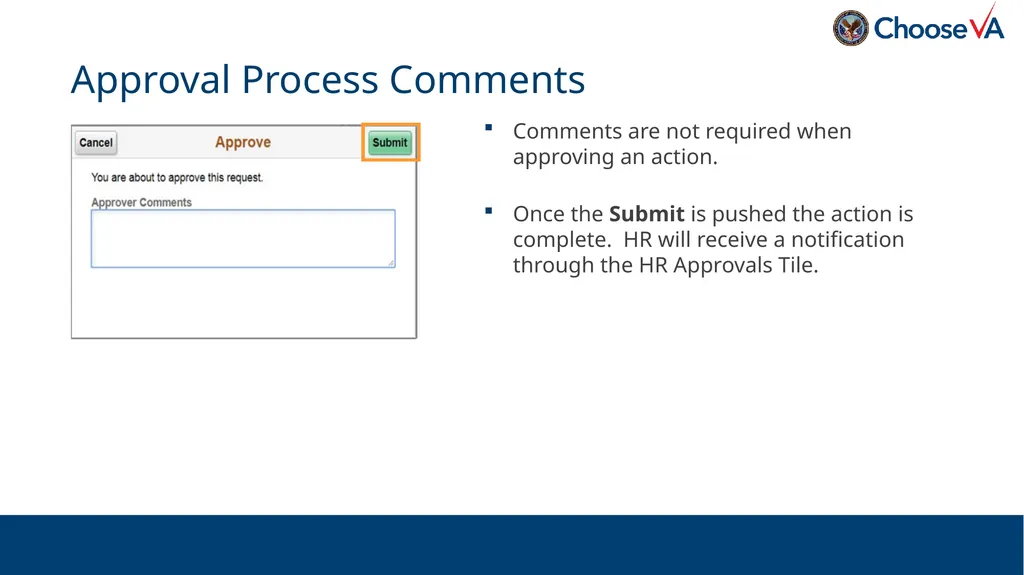
Comments are not required when approving an action.
Once the Submit is pushed the action is complete. HR will receive a notification through the HR Approvals Tile. Approval Process Comments<br>
Once the Submit is pushed the action is complete. HR will receive a notification through the HR Approvals Tile. Approval Process Comments<br>
44
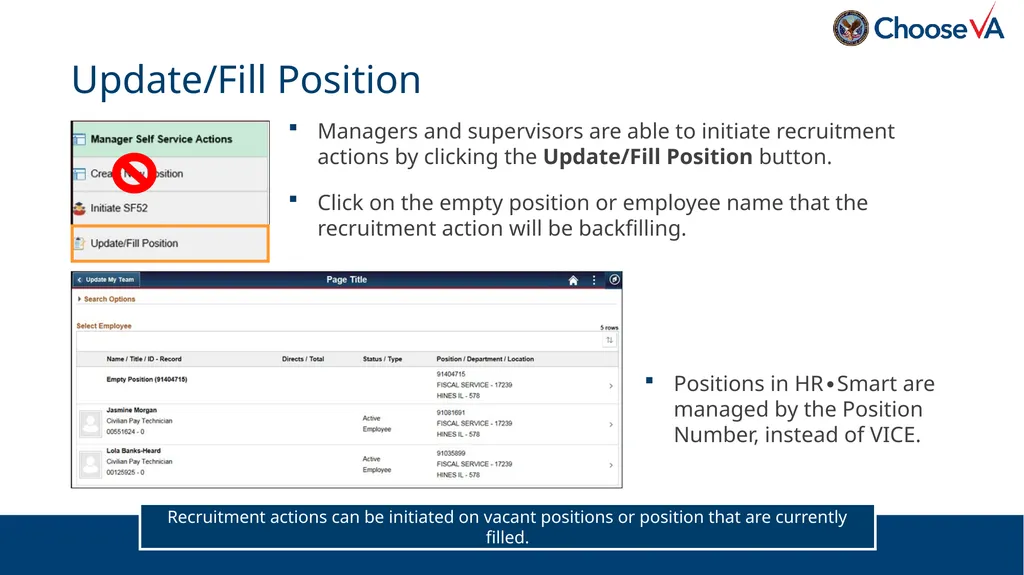
Managers and supervisors are able to initiate recruitment actions by clicking the Update/Fill Position button.
Click on the empty position or employee name that the recruitment action will be backfilling. Update/Fill Position Recruitment actions can be initiated on vacant positions or position that are currently filled. Positions in HR∙Smart are managed by the Position Number, instead of VICE.<br>
Click on the empty position or employee name that the recruitment action will be backfilling. Update/Fill Position Recruitment actions can be initiated on vacant positions or position that are currently filled. Positions in HR∙Smart are managed by the Position Number, instead of VICE.<br>
45
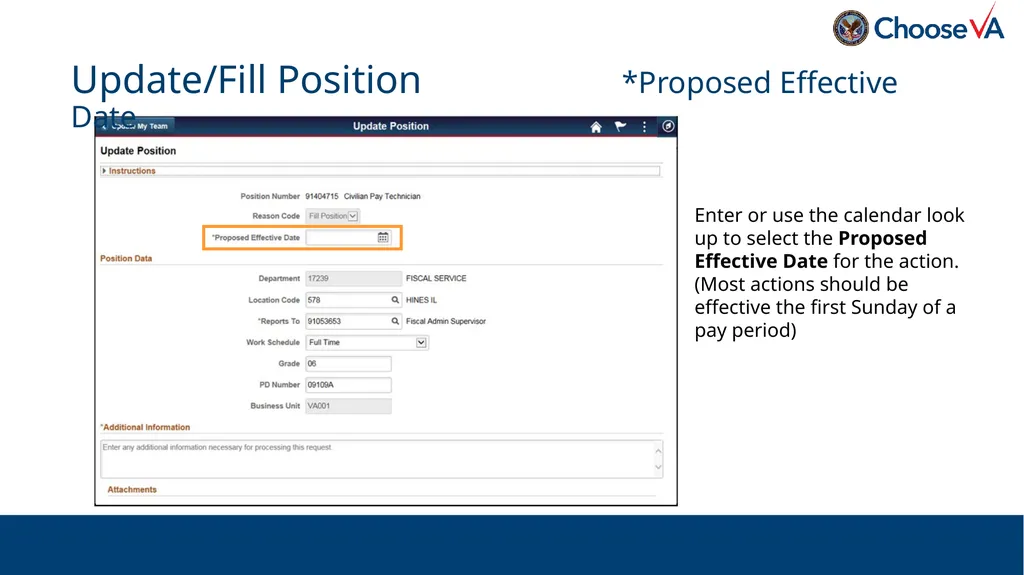
Update/Fill Position *Proposed Effective Date Enter or use the calendar look up to select the Proposed Effective Date for the action. (Most actions should be effective the first Sunday of a pay period)<br>
46
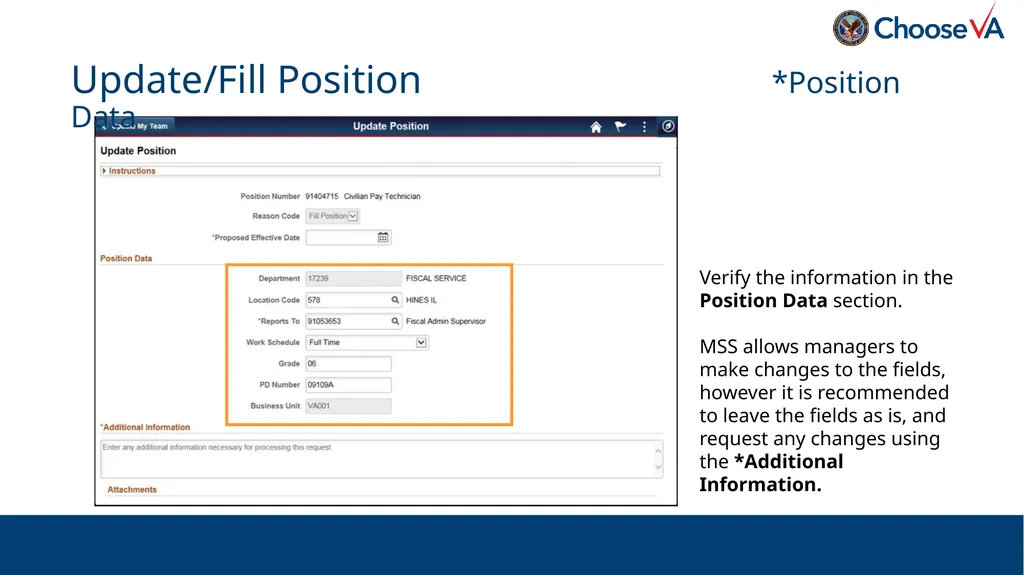
Update/Fill Position *Position Data Verify the information in the Position Data section.
MSS allows managers to make changes to the fields, however it is recommended to leave the fields as is, and request any changes using the *Additional Information.<br>
MSS allows managers to make changes to the fields, however it is recommended to leave the fields as is, and request any changes using the *Additional Information.<br>
47
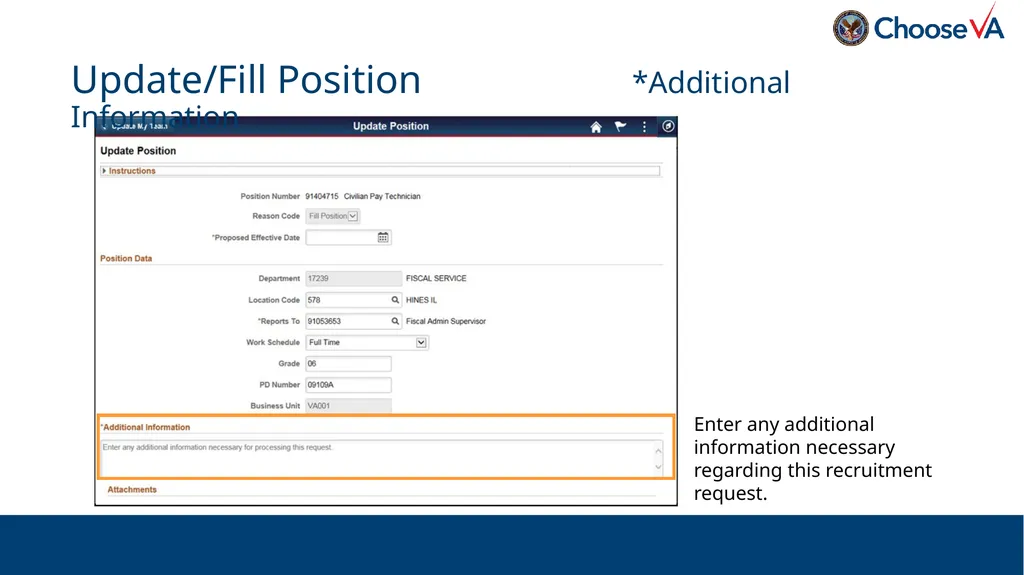
Update/Fill Position *Additional Information Enter any additional information necessary regarding this recruitment request.<br>
48
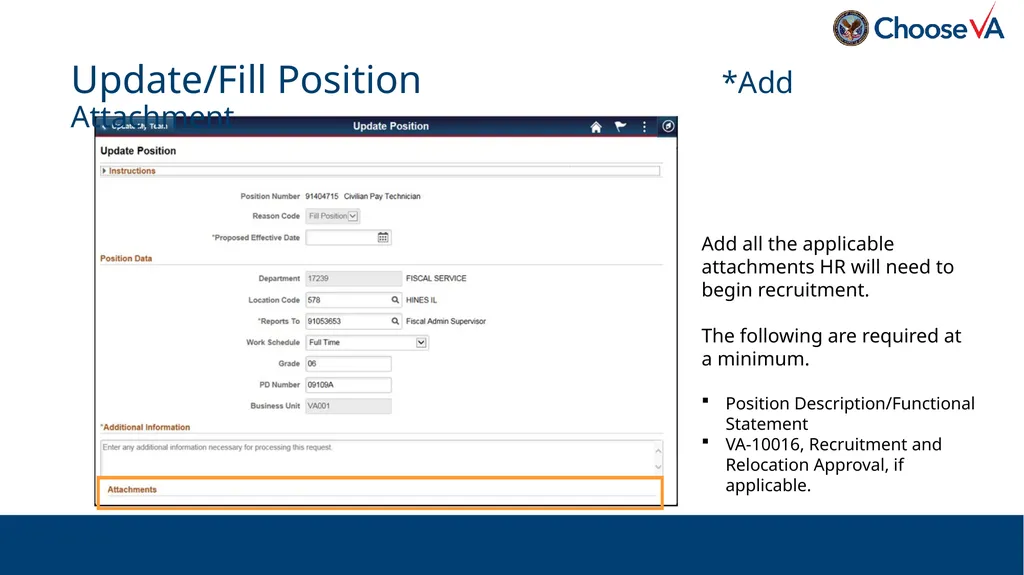
Update/Fill Position *Add Attachment Add all the applicable attachments HR will need to begin recruitment.
The following are required at a minimum.
Position Description/Functional Statement
VA-10016, Recruitment and Relocation Approval, if applicable.<br>
The following are required at a minimum.
Position Description/Functional Statement
VA-10016, Recruitment and Relocation Approval, if applicable.<br>
49
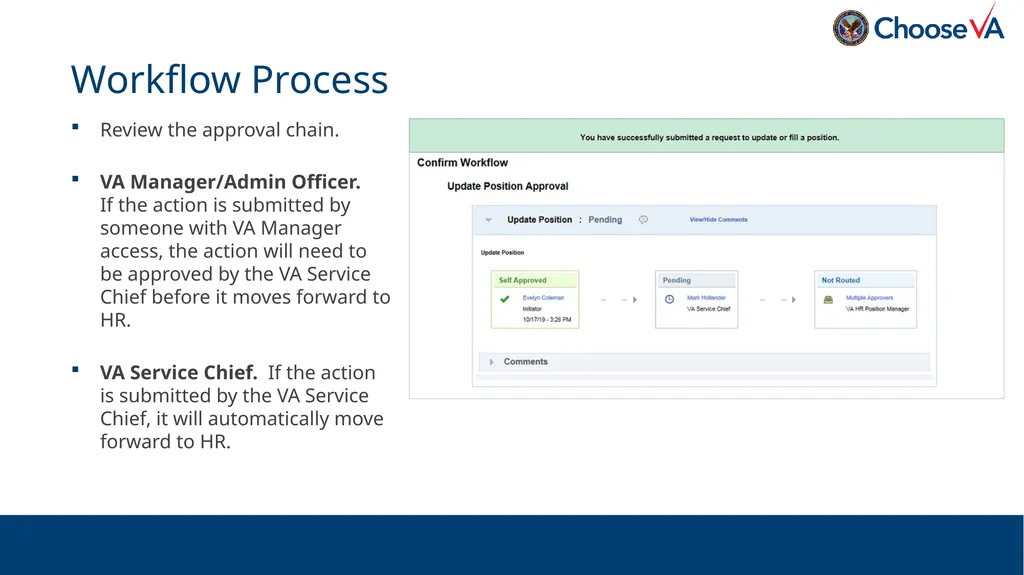
Review the approval chain.
VA Manager/Admin Officer. If the action is submitted by someone with VA Manager access, the action will need to be approved by the VA Service Chief before it moves forward to HR.
VA Service Chief. If the action is submitted by the VA Service Chief, it will automatically move forward to HR. Workflow Process<br>
VA Manager/Admin Officer. If the action is submitted by someone with VA Manager access, the action will need to be approved by the VA Service Chief before it moves forward to HR.
VA Service Chief. If the action is submitted by the VA Service Chief, it will automatically move forward to HR. Workflow Process<br>
50
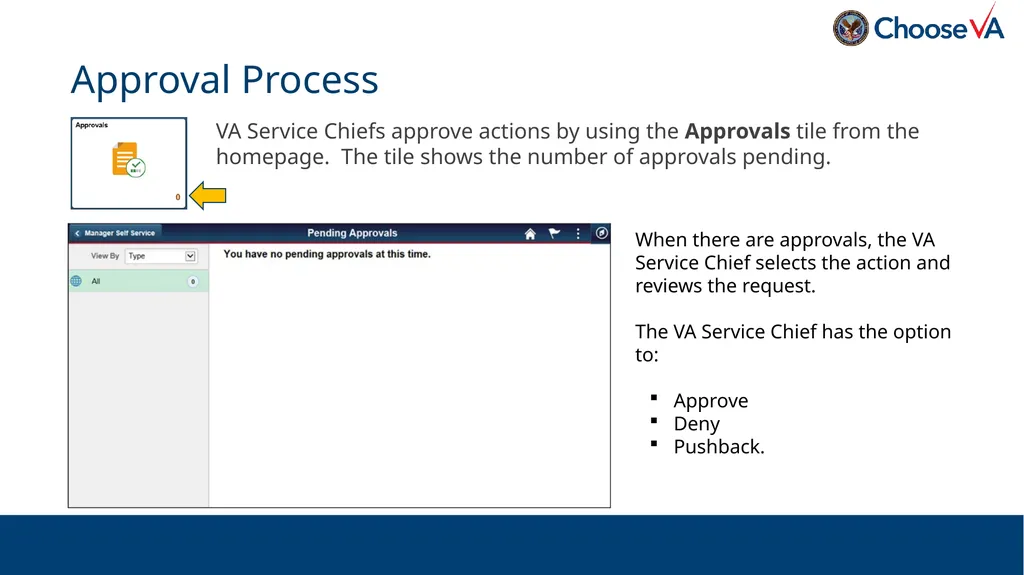
VA Service Chiefs approve actions by using the Approvals tile from the homepage. The tile shows the number of approvals pending. Approval Process When there are approvals, the VA Service Chief selects the action and reviews the request.
The VA Service Chief has the option to:
Approve
Deny
Pushback.<br>
The VA Service Chief has the option to:
Approve
Deny
Pushback.<br>
51
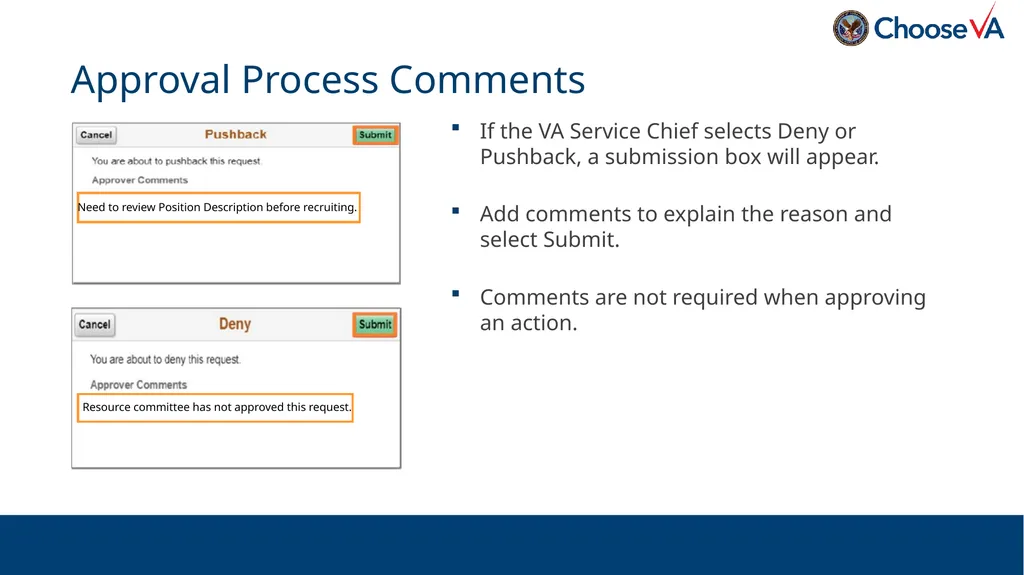
If the VA Service Chief selects Deny or Pushback, a submission box will appear.
Add comments to explain the reason and select Submit.
Comments are not required when approving an action. Approval Process Comments Need to review Position Description before recruiting. Resource committee has not approved this request.<br>
Add comments to explain the reason and select Submit.
Comments are not required when approving an action. Approval Process Comments Need to review Position Description before recruiting. Resource committee has not approved this request.<br>
52
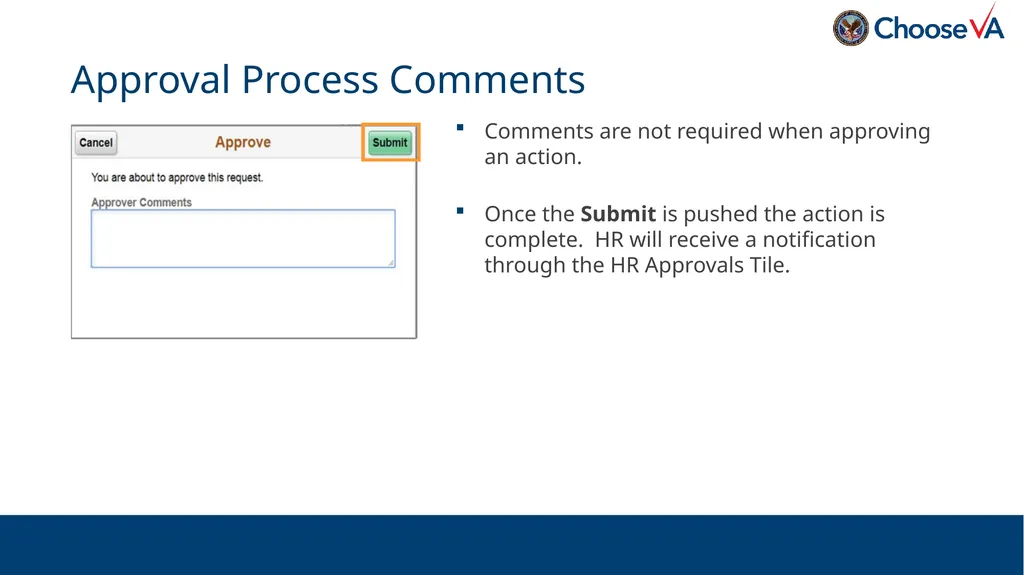
Comments are not required when approving an action.
Once the Submit is pushed the action is complete. HR will receive a notification through the HR Approvals Tile. Approval Process Comments<br>
Once the Submit is pushed the action is complete. HR will receive a notification through the HR Approvals Tile. Approval Process Comments<br>
53
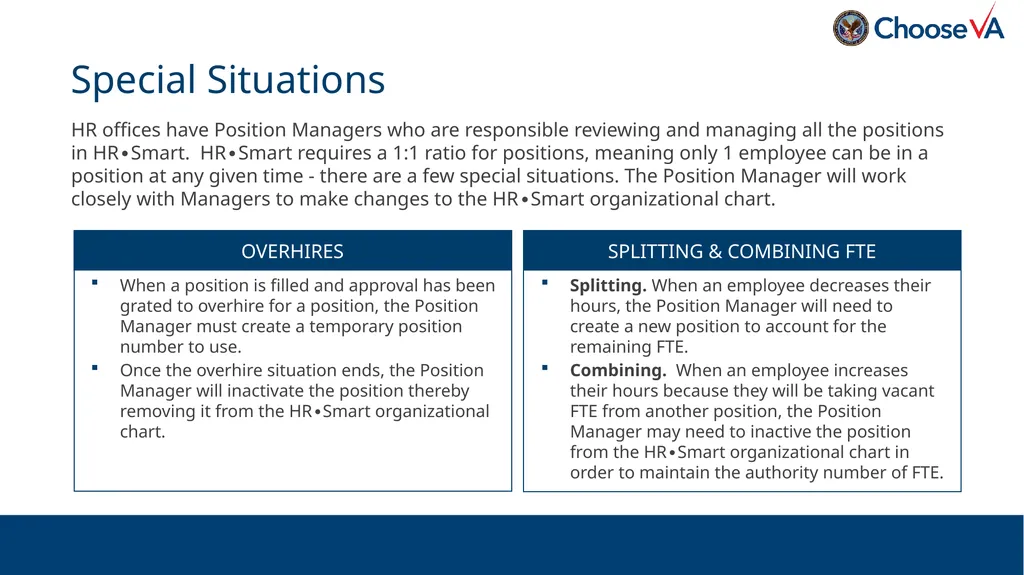
HR offices have Position Managers who are responsible reviewing and managing all the positions in HR∙Smart. HR∙Smart requires a 1:1 ratio for positions, meaning only 1 employee can be in a position at any given time - there are a few special situations. The Position Manager will work closely with Managers to make changes to the HR∙Smart organizational chart. Special Situations When a position is filled and approval has been grated to overhire for a position, the Position Manager must create a temporary position number to use.
Once the overhire situation ends, the Position Manager will inactivate the position thereby removing it from the HR∙Smart organizational chart. Splitting. When an employee decreases their hours, the Position Manager will need to create a new position to account for the remaining FTE.
Combining. When an employee increases their hours because they will be taking vacant FTE from another position, the Position Manager may need to inactive the position from the HR∙Smart organizational chart in order to maintain the authority number of FTE. OVERHIRES SPLITTING & COMBINING FTE<br>
Once the overhire situation ends, the Position Manager will inactivate the position thereby removing it from the HR∙Smart organizational chart. Splitting. When an employee decreases their hours, the Position Manager will need to create a new position to account for the remaining FTE.
Combining. When an employee increases their hours because they will be taking vacant FTE from another position, the Position Manager may need to inactive the position from the HR∙Smart organizational chart in order to maintain the authority number of FTE. OVERHIRES SPLITTING & COMBINING FTE<br>
54
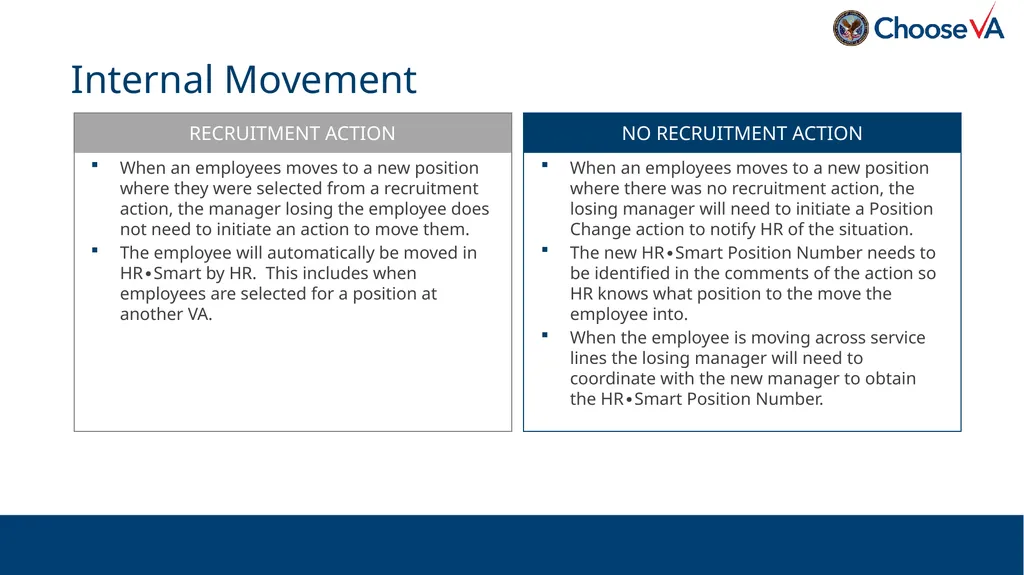
Internal Movement When an employees moves to a new position where they were selected from a recruitment action, the manager losing the employee does not need to initiate an action to move them.
The employee will automatically be moved in HR∙Smart by HR. This includes when employees are selected for a position at another VA. When an employees moves to a new position where there was no recruitment action, the losing manager will need to initiate a Position Change action to notify HR of the situation.
The new HR∙Smart Position Number needs to be identified in the comments of the action so HR knows what position to the move the employee into.
When the employee is moving across service lines the losing manager will need to coordinate with the new manager to obtain the HR∙Smart Position Number. RECRUITMENT ACTION NO RECRUITMENT ACTION<br>
The employee will automatically be moved in HR∙Smart by HR. This includes when employees are selected for a position at another VA. When an employees moves to a new position where there was no recruitment action, the losing manager will need to initiate a Position Change action to notify HR of the situation.
The new HR∙Smart Position Number needs to be identified in the comments of the action so HR knows what position to the move the employee into.
When the employee is moving across service lines the losing manager will need to coordinate with the new manager to obtain the HR∙Smart Position Number. RECRUITMENT ACTION NO RECRUITMENT ACTION<br>
55
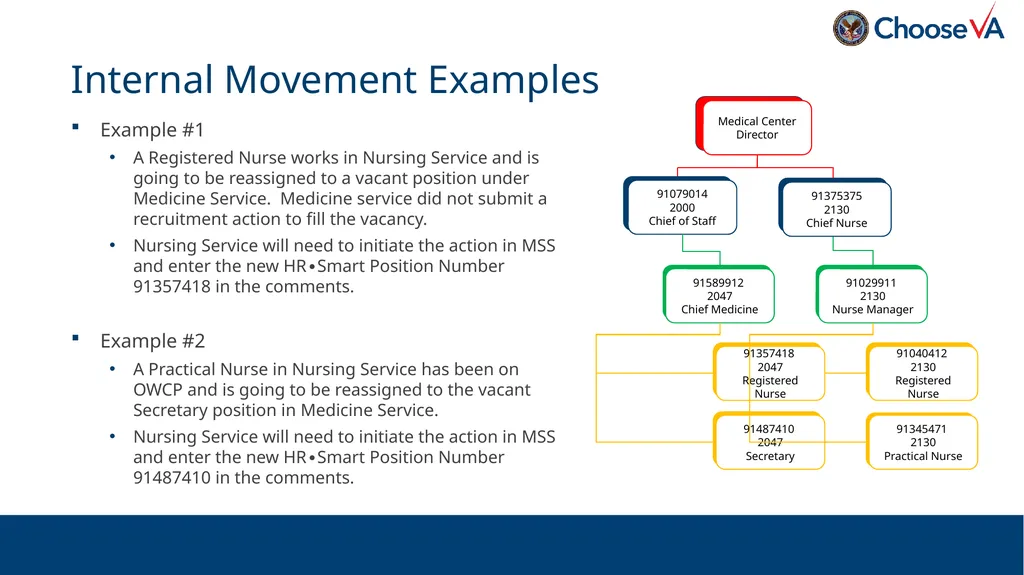
Example #1
A Registered Nurse works in Nursing Service and is going to be reassigned to a vacant position under Medicine Service. Medicine service did not submit a recruitment action to fill the vacancy.
Nursing Service will need to initiate the action in MSS and enter the new HR∙Smart Position Number 91357418 in the comments.
Example #2
A Practical Nurse in Nursing Service has been on OWCP and is going to be reassigned to the vacant Secretary position in Medicine Service.
Nursing Service will need to initiate the action in MSS and enter the new HR∙Smart Position Number 91487410 in the comments. Internal Movement Examples 91040412
2130
Registered Nurse 91375375
2130
Chief Nurse Medical Center Director 91029911
2130
Nurse Manager 91079014
2000
Chief of Staff 91357418
2047
Registered Nurse 91589912
2047
Chief Medicine 91345471
2130
Practical Nurse 91487410
2047
Secretary<br>
A Registered Nurse works in Nursing Service and is going to be reassigned to a vacant position under Medicine Service. Medicine service did not submit a recruitment action to fill the vacancy.
Nursing Service will need to initiate the action in MSS and enter the new HR∙Smart Position Number 91357418 in the comments.
Example #2
A Practical Nurse in Nursing Service has been on OWCP and is going to be reassigned to the vacant Secretary position in Medicine Service.
Nursing Service will need to initiate the action in MSS and enter the new HR∙Smart Position Number 91487410 in the comments. Internal Movement Examples 91040412
2130
Registered Nurse 91375375
2130
Chief Nurse Medical Center Director 91029911
2130
Nurse Manager 91079014
2000
Chief of Staff 91357418
2047
Registered Nurse 91589912
2047
Chief Medicine 91345471
2130
Practical Nurse 91487410
2047
Secretary<br>
56
Topic 6: Administrative Officer (AO) Role<br>
57
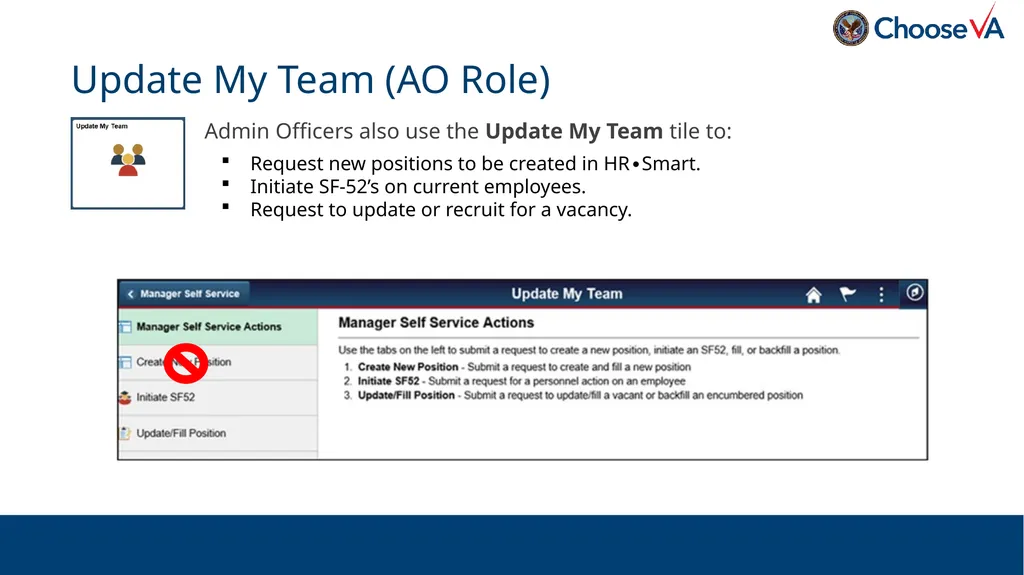
Admin Officers also use the Update My Team tile to: Update My Team (AO Role) Request new positions to be created in HR∙Smart.
Initiate SF-52’s on current employees.
Request to update or recruit for a vacancy.<br>
Initiate SF-52’s on current employees.
Request to update or recruit for a vacancy.<br>
58
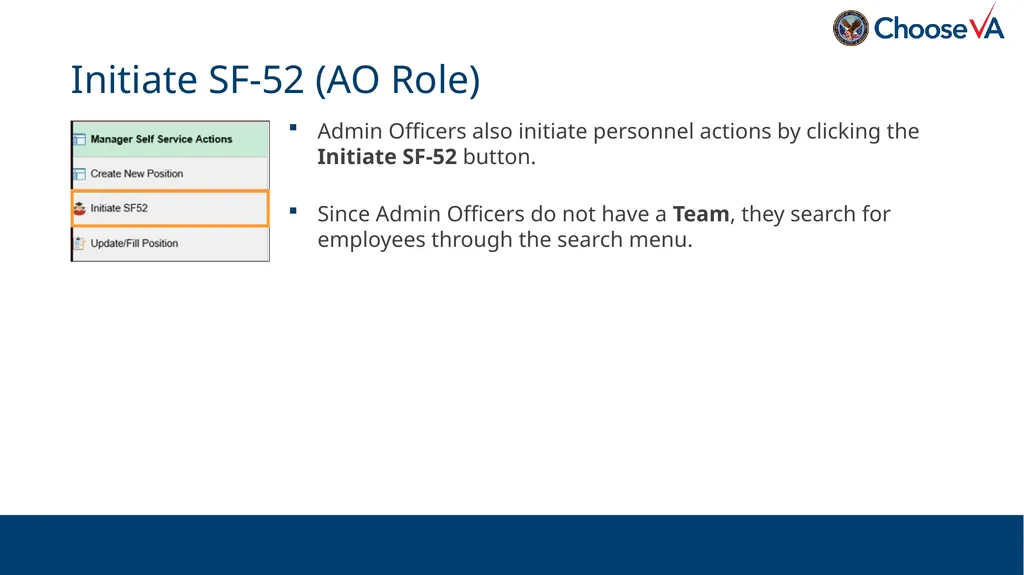
Admin Officers also initiate personnel actions by clicking the Initiate SF-52 button.
Since Admin Officers do not have a Team, they search for employees through the search menu. Initiate SF-52 (AO Role)<br>
Since Admin Officers do not have a Team, they search for employees through the search menu. Initiate SF-52 (AO Role)<br>
59
Enter search criteria to find an employee.
Enter a partial name and use the “%” wildcard at the end to broaden search results. Initiate SF-52 (AO Role) Position # MAJO%<br>
Enter a partial name and use the “%” wildcard at the end to broaden search results. Initiate SF-52 (AO Role) Position # MAJO%<br>
60
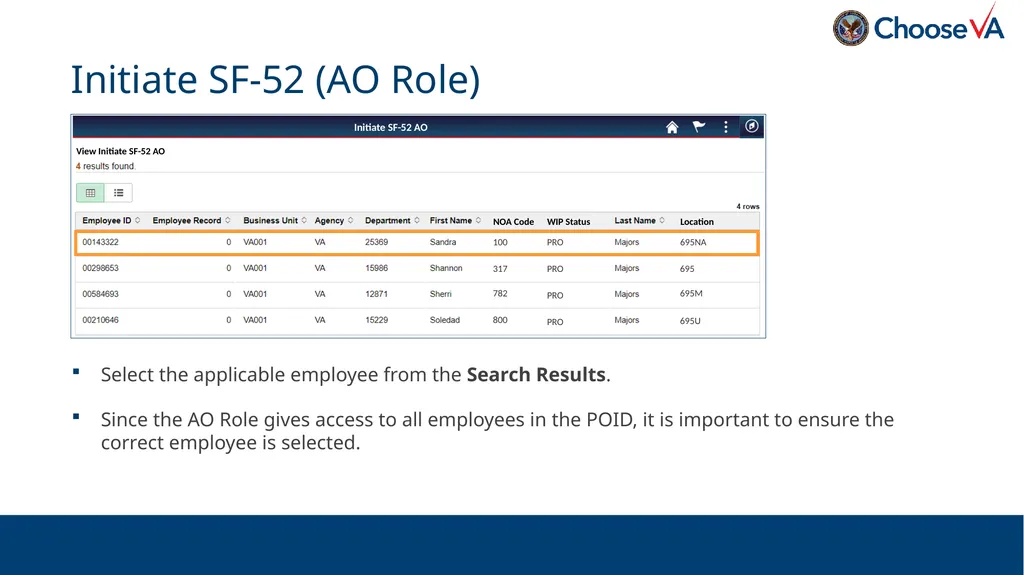
Select the applicable employee from the Search Results.
Since the AO Role gives access to all employees in the POID, it is important to ensure the correct employee is selected. Initiate SF-52 (AO Role) NOA Code WIP Status Location 100 317 782 800 PRO PRO PRO PRO 695NA 695 695M 695U Initiate SF-52 AO View Initiate SF-52 AO<br>
Since the AO Role gives access to all employees in the POID, it is important to ensure the correct employee is selected. Initiate SF-52 (AO Role) NOA Code WIP Status Location 100 317 782 800 PRO PRO PRO PRO 695NA 695 695M 695U Initiate SF-52 AO View Initiate SF-52 AO<br>
61
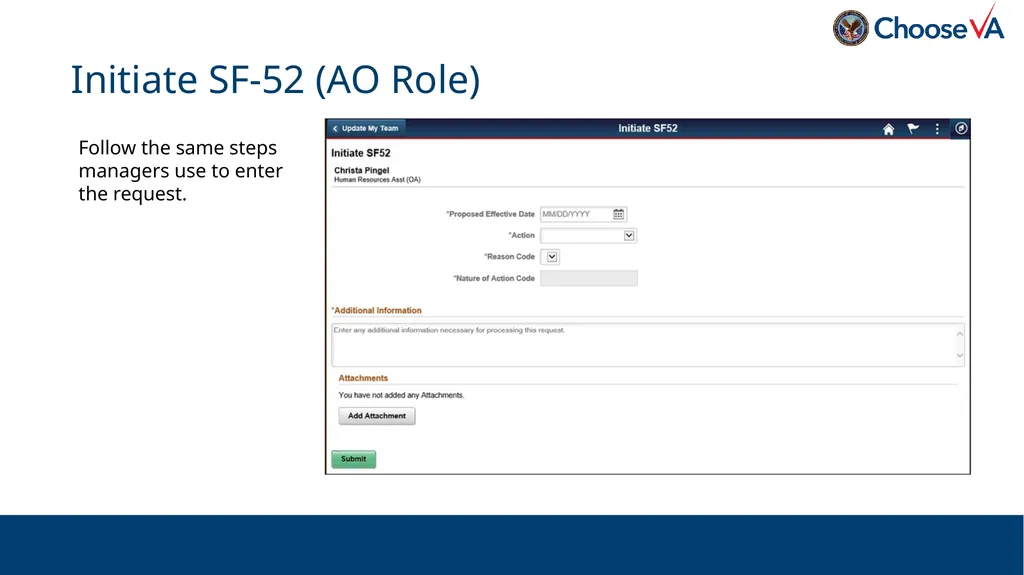
Initiate SF-52 (AO Role) Follow the same steps managers use to enter the request.<br>
62
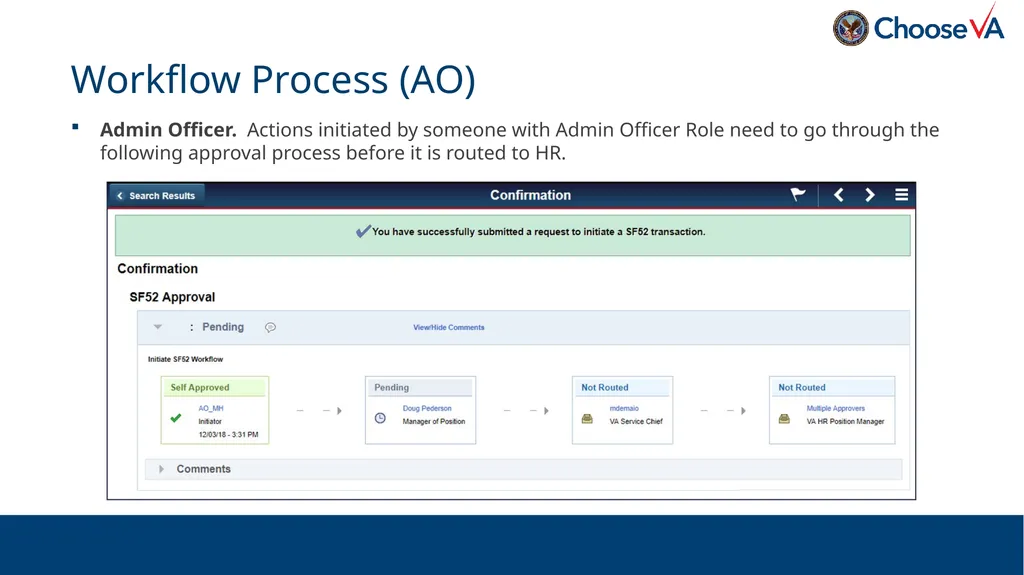
Admin Officer. Actions initiated by someone with Admin Officer Role need to go through the following approval process before it is routed to HR. Workflow Process (AO)<br>
63
Topic 7: Manager Delegation<br>
64
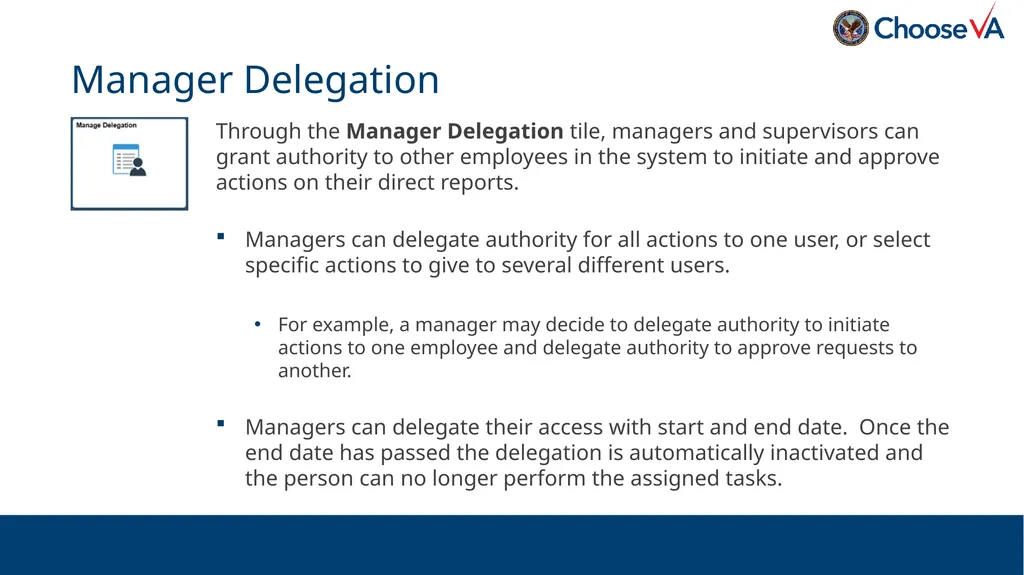
Manager Delegation Through the Manager Delegation tile, managers and supervisors can grant authority to other employees in the system to initiate and approve actions on their direct reports.
Managers can delegate authority for all actions to one user, or select specific actions to give to several different users.
For example, a manager may decide to delegate authority to initiate actions to one employee and delegate authority to approve requests to another.
Managers can delegate their access with start and end date. Once the end date has passed the delegation is automatically inactivated and the person can no longer perform the assigned tasks.<br>
Managers can delegate authority for all actions to one user, or select specific actions to give to several different users.
For example, a manager may decide to delegate authority to initiate actions to one employee and delegate authority to approve requests to another.
Managers can delegate their access with start and end date. Once the end date has passed the delegation is automatically inactivated and the person can no longer perform the assigned tasks.<br>
65
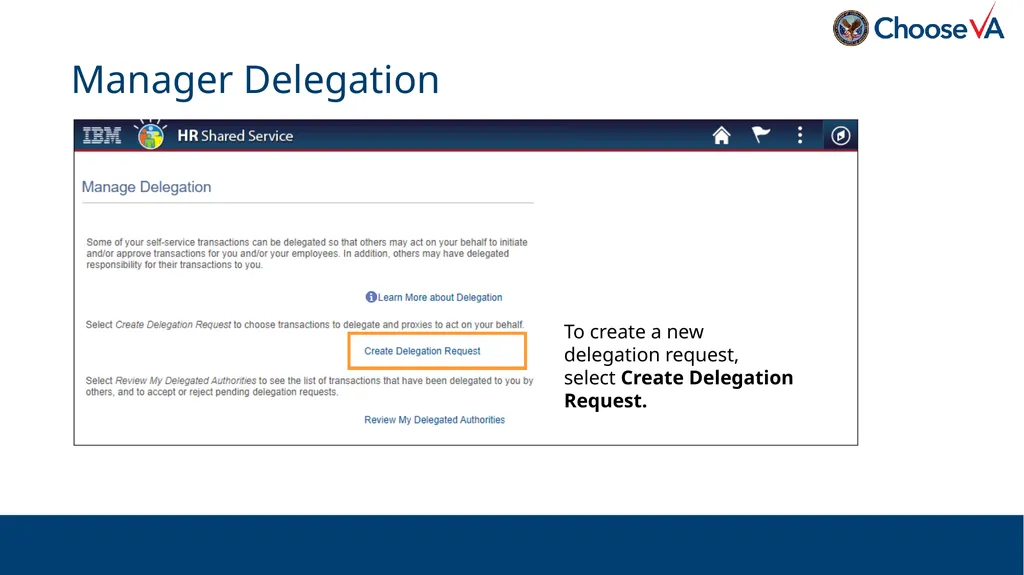
Manager Delegation To create a new delegation request, select Create Delegation Request.<br>
66
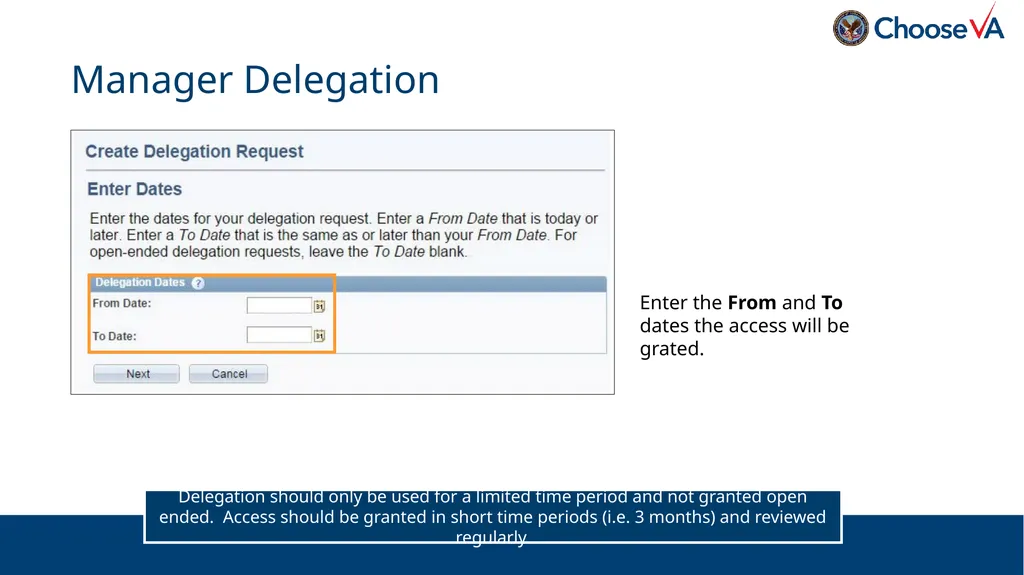
Manager Delegation Enter the From and To dates the access will be grated. Delegation should only be used for a limited time period and not granted open ended. Access should be granted in short time periods (i.e. 3 months) and reviewed regularly.<br>
67
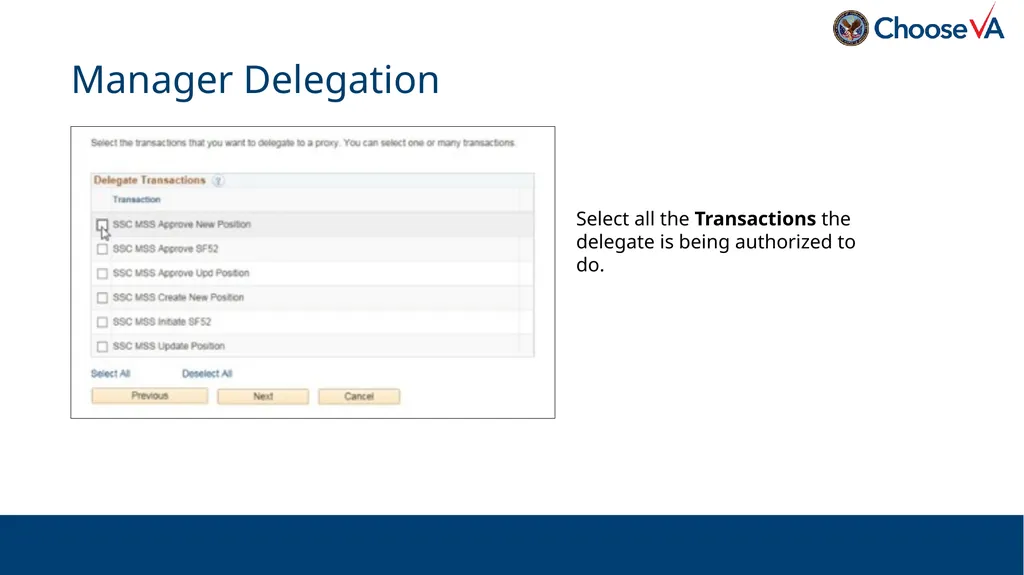
Manager Delegation Select all the Transactions the delegate is being authorized to do.<br>
68
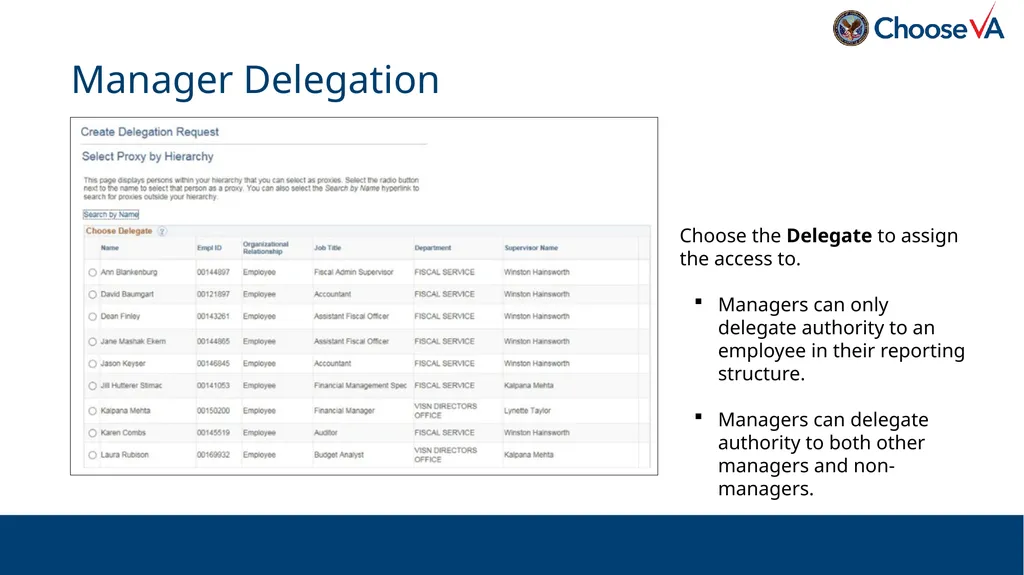
Manager Delegation Choose the Delegate to assign the access to.
Managers can only delegate authority to an employee in their reporting structure.
Managers can delegate authority to both other managers and non-managers.<br>
Managers can only delegate authority to an employee in their reporting structure.
Managers can delegate authority to both other managers and non-managers.<br>
69
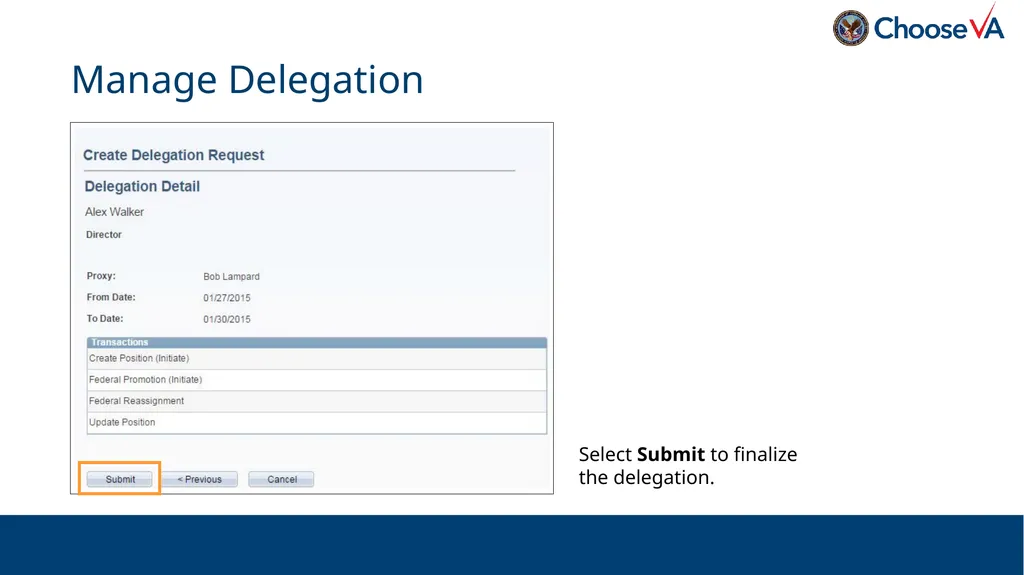
Manage Delegation Select Submit to finalize the delegation.<br>
70
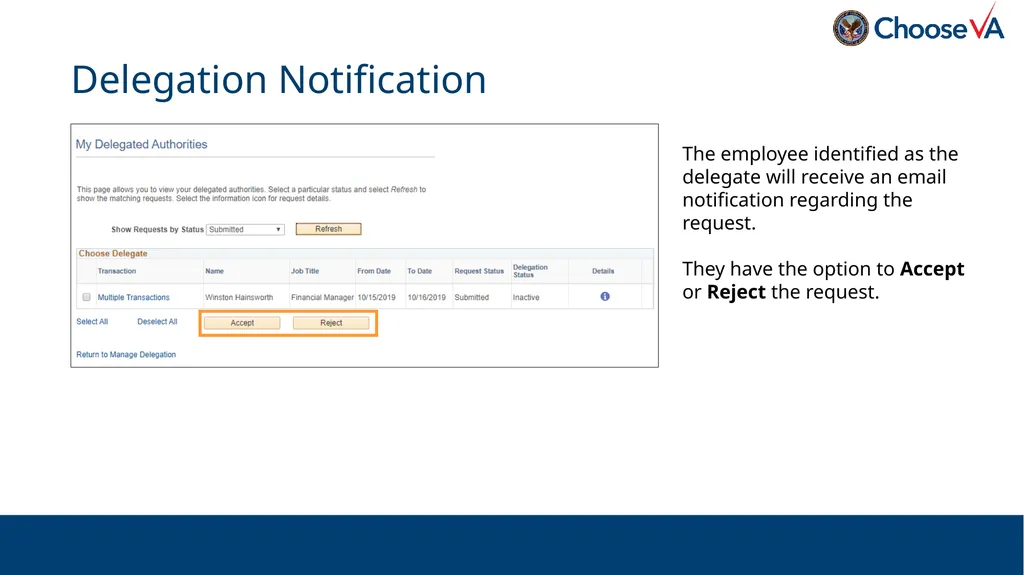
Delegation Notification The employee identified as the delegate will receive an email notification regarding the request.
They have the option to Accept or Reject the request.<br>
They have the option to Accept or Reject the request.<br>
71
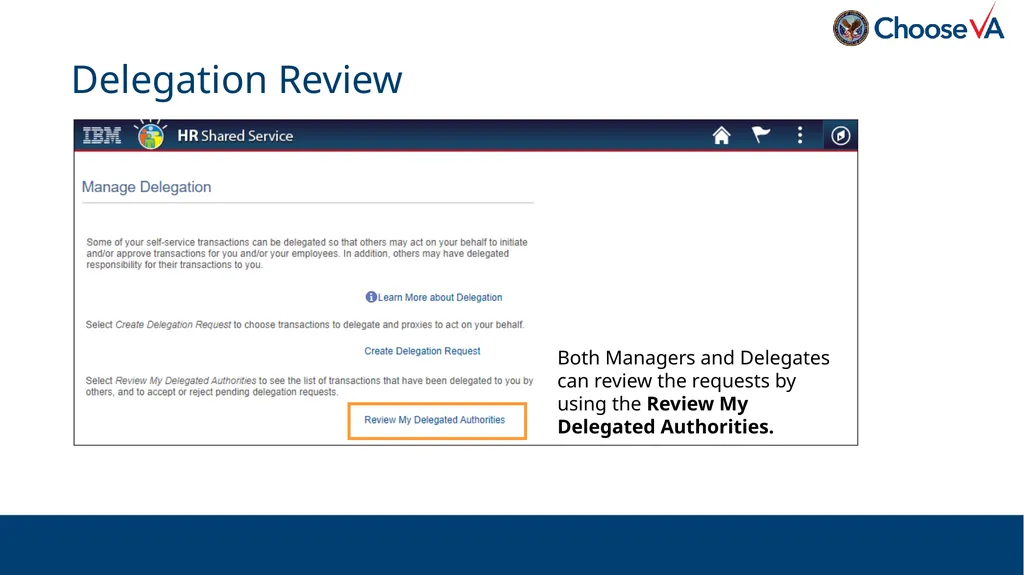
Delegation Review Both Managers and Delegates can review the requests by using the Review My Delegated Authorities.<br>
72
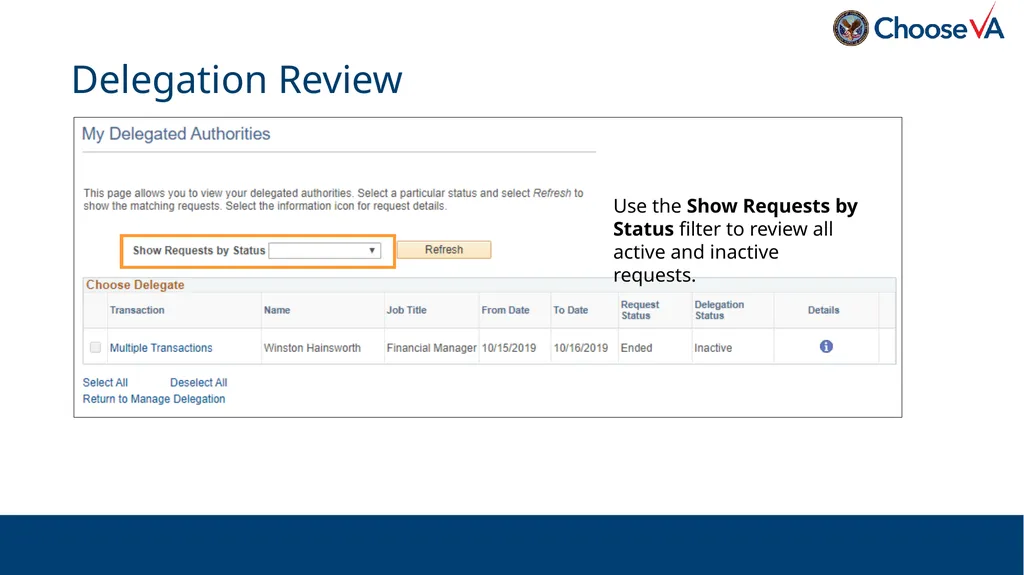
Delegation Review Use the Show Requests by Status filter to review all active and inactive requests.<br>
73
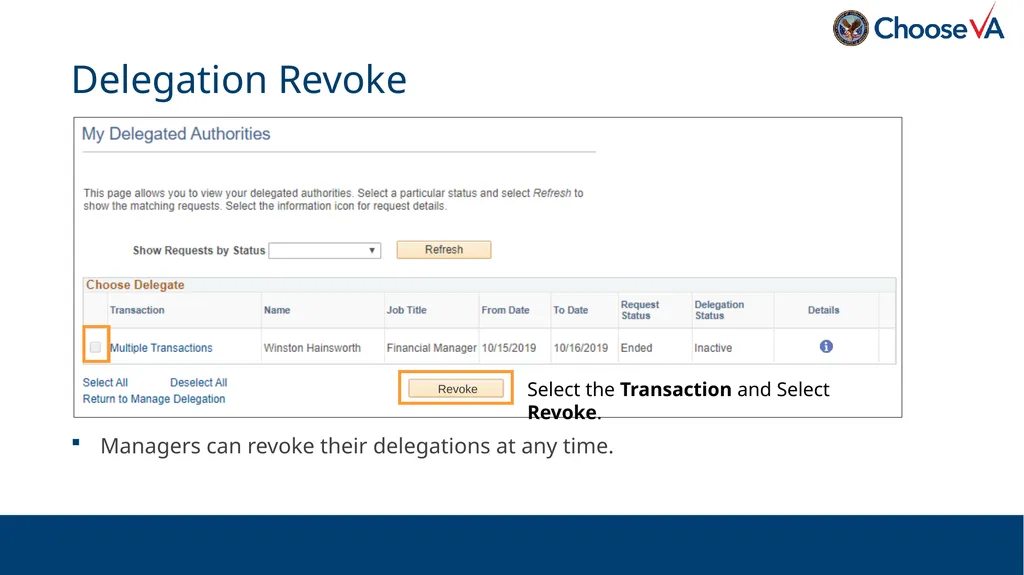
Managers can revoke their delegations at any time. Delegation Revoke Select the Transaction and Select Revoke. Revoke<br>
74
Topic 8: Manager Analytics & Reports<br>
75
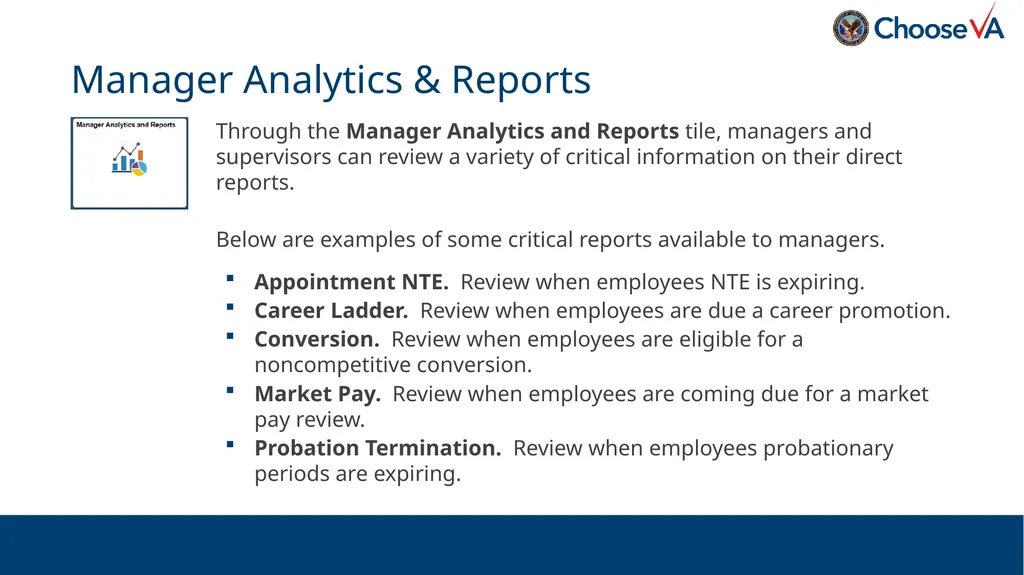
Manager Analytics & Reports Through the Manager Analytics and Reports tile, managers and supervisors can review a variety of critical information on their direct reports.
Below are examples of some critical reports available to managers.
Appointment NTE. Review when employees NTE is expiring.
Career Ladder. Review when employees are due a career promotion.
Conversion. Review when employees are eligible for a noncompetitive conversion.
Market Pay. Review when employees are coming due for a market pay review.
Probation Termination. Review when employees probationary periods are expiring.<br>
Below are examples of some critical reports available to managers.
Appointment NTE. Review when employees NTE is expiring.
Career Ladder. Review when employees are due a career promotion.
Conversion. Review when employees are eligible for a noncompetitive conversion.
Market Pay. Review when employees are coming due for a market pay review.
Probation Termination. Review when employees probationary periods are expiring.<br>
76
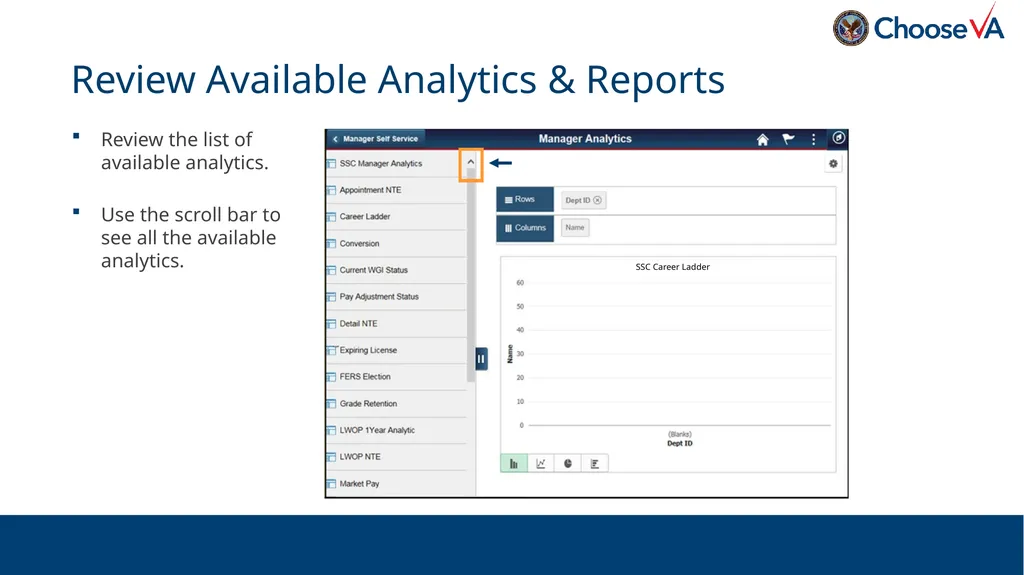
Review Available Analytics & Reports Review the list of available analytics.
Use the scroll bar to see all the available analytics. SSC Career Ladder<br>
Use the scroll bar to see all the available analytics. SSC Career Ladder<br>
77
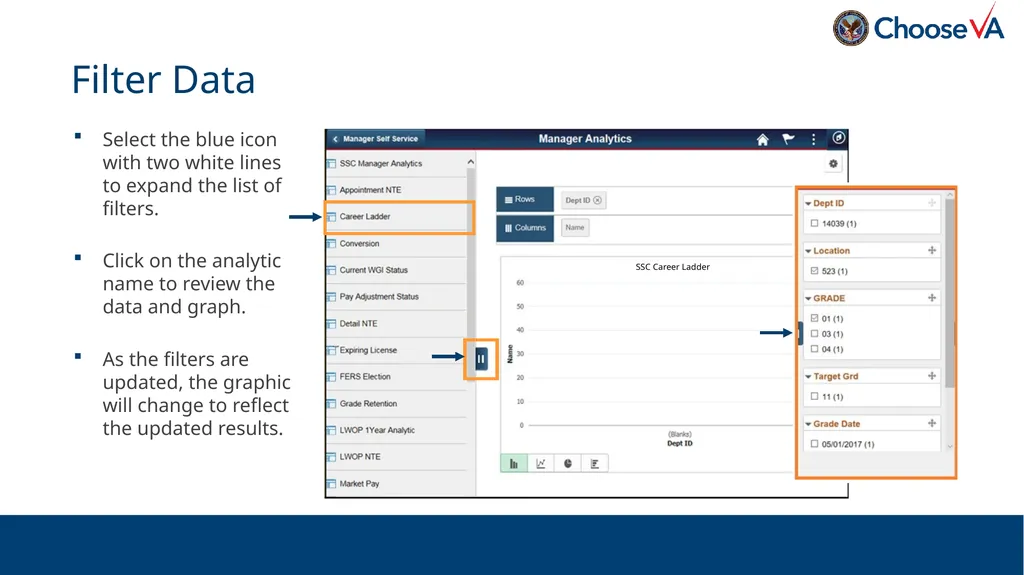
Filter Data Select the blue icon with two white lines to expand the list of filters.
Click on the analytic name to review the data and graph.
As the filters are updated, the graphic will change to reflect the updated results. SSC Career Ladder<br>
Click on the analytic name to review the data and graph.
As the filters are updated, the graphic will change to reflect the updated results. SSC Career Ladder<br>
78
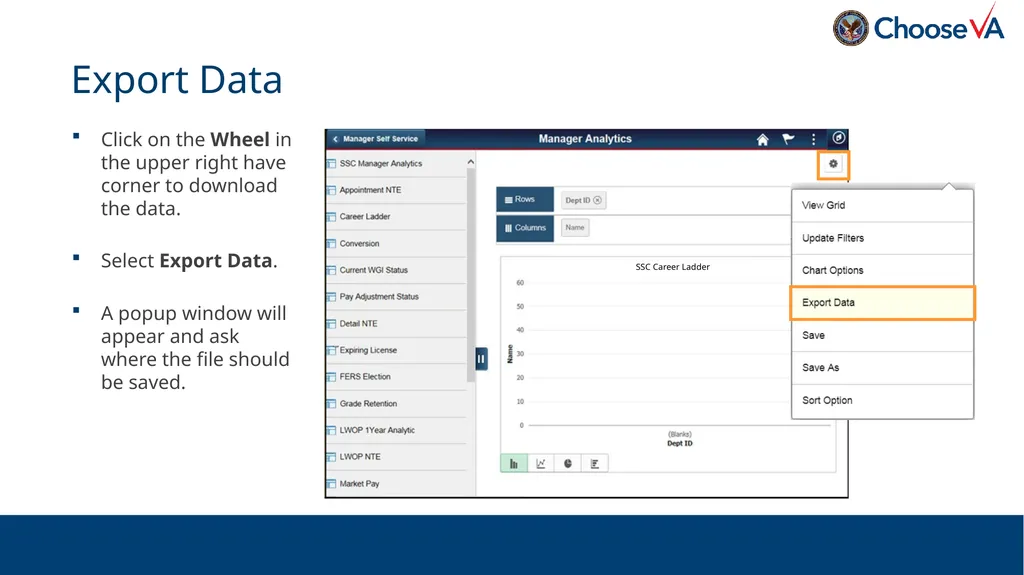
Export Data Click on the Wheel in the upper right have corner to download the data.
Select Export Data.
A popup window will appear and ask where the file should be saved. SSC Career Ladder<br>
Select Export Data.
A popup window will appear and ask where the file should be saved. SSC Career Ladder<br>
79
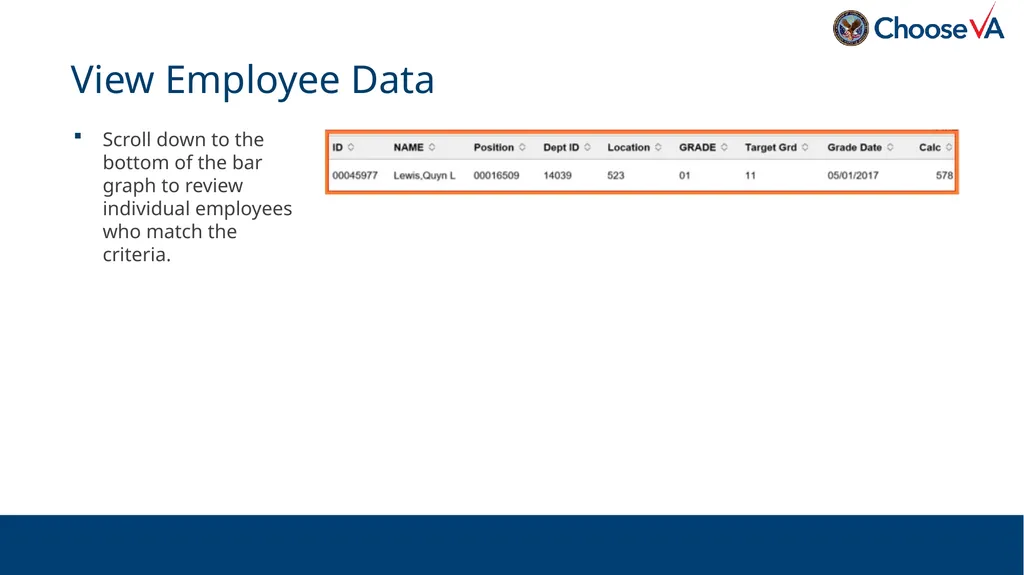
View Employee Data Scroll down to the bottom of the bar graph to review individual employees who match the criteria.<br>
80
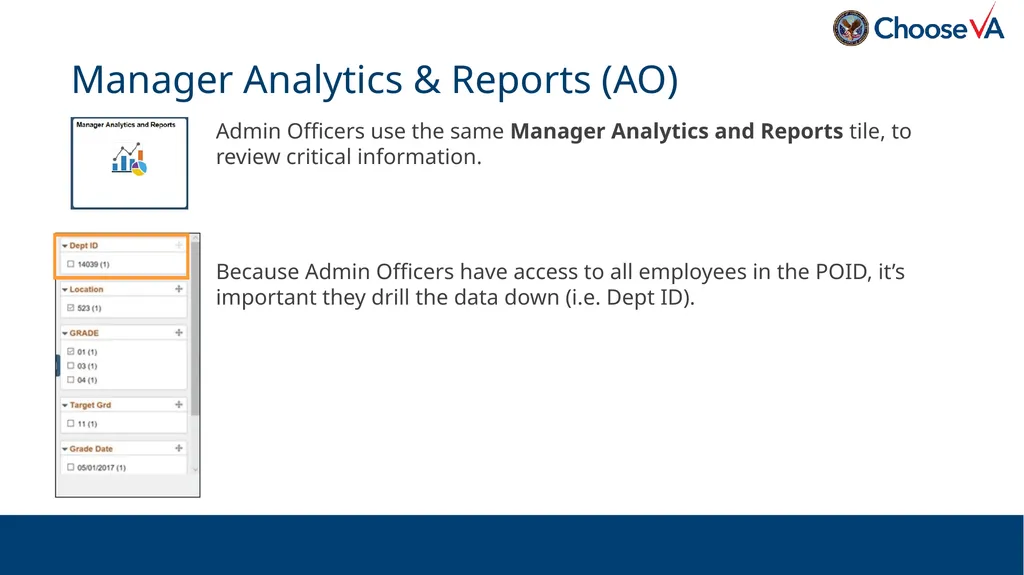
Manager Analytics & Reports (AO) Admin Officers use the same Manager Analytics and Reports tile, to review critical information.
Because Admin Officers have access to all employees in the POID, it’s important they drill the data down (i.e. Dept ID).<br>
Because Admin Officers have access to all employees in the POID, it’s important they drill the data down (i.e. Dept ID).<br>
81
Topic 9: Understanding the Data<br>
82
The data in HR∙Smart is real-time data. However, there may be situations where the data doesn’t look right. You, as the manager, know more about your employee information in some cases than HR does.
When you find situations where the data doesn’t look right, you should reach out to your HR office for assistance. Understanding the Data<br>
When you find situations where the data doesn’t look right, you should reach out to your HR office for assistance. Understanding the Data<br>
83
If you can’t see an employee under My Team, there could be several reasons why.
If the employee has always been assigned under you, the employee’s HR∙Smart position may be incorrectly reporting to another manager. In this situation, your Position Manager in HR will need to update the field.
If the employee has recently been assigned under you, HR may not have the action processed yet. HR usually does not have actions finalized during the first week of a pay period. If you don’t see the employee after the first week of the pay period in which it’s effective contact your HR office. Can’t See Employee<br>
If the employee has always been assigned under you, the employee’s HR∙Smart position may be incorrectly reporting to another manager. In this situation, your Position Manager in HR will need to update the field.
If the employee has recently been assigned under you, HR may not have the action processed yet. HR usually does not have actions finalized during the first week of a pay period. If you don’t see the employee after the first week of the pay period in which it’s effective contact your HR office. Can’t See Employee<br>
84
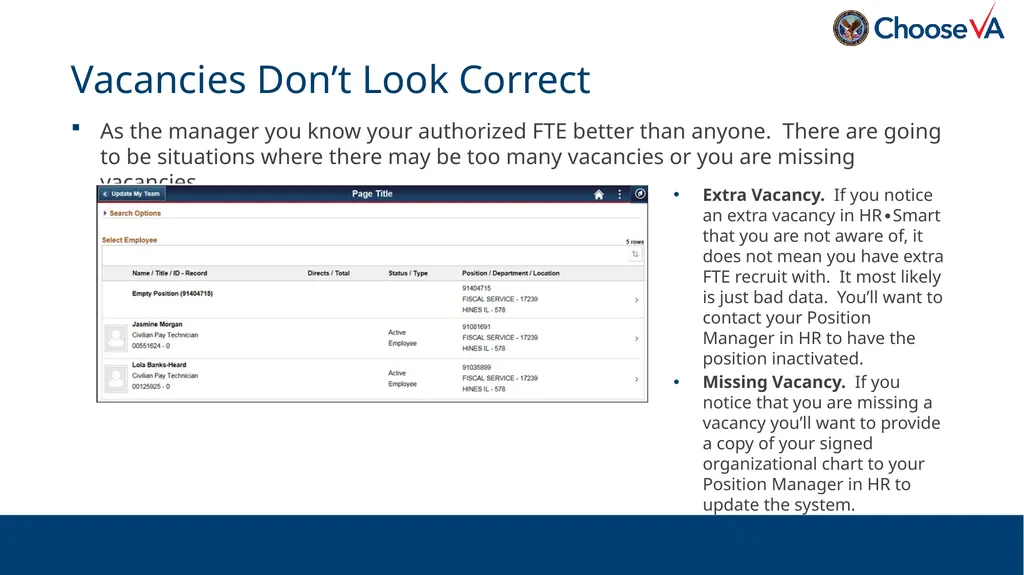
As the manager you know your authorized FTE better than anyone. There are going to be situations where there may be too many vacancies or you are missing vacancies. Vacancies Don’t Look Correct Extra Vacancy. If you notice an extra vacancy in HR∙Smart that you are not aware of, it does not mean you have extra FTE recruit with. It most likely is just bad data. You’ll want to contact your Position Manager in HR to have the position inactivated.
Missing Vacancy. If you notice that you are missing a vacancy you’ll want to provide a copy of your signed organizational chart to your Position Manager in HR to update the system.<br>
Missing Vacancy. If you notice that you are missing a vacancy you’ll want to provide a copy of your signed organizational chart to your Position Manager in HR to update the system.<br>
85
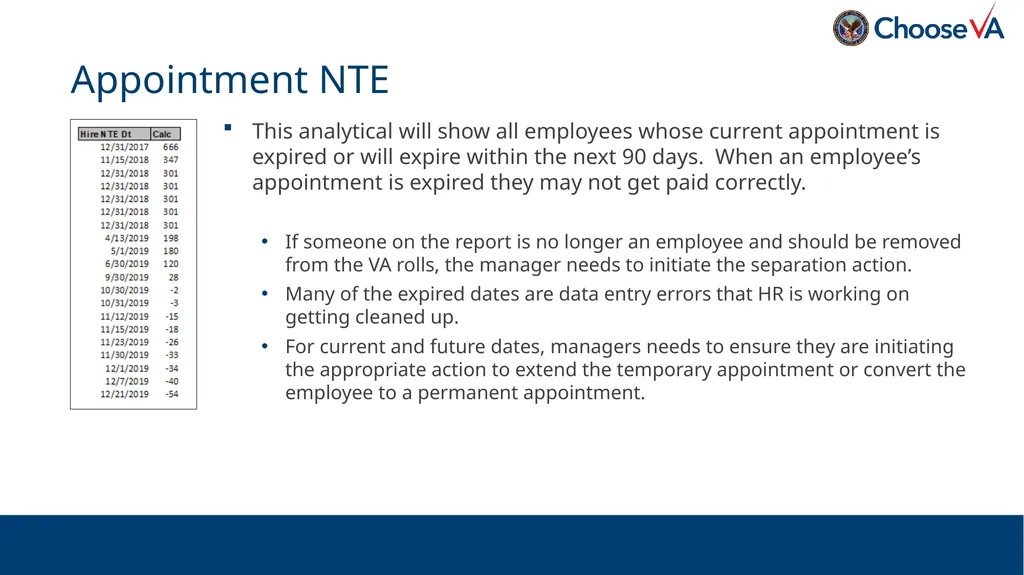
This analytical will show all employees whose current appointment is expired or will expire within the next 90 days. When an employee’s appointment is expired they may not get paid correctly.
If someone on the report is no longer an employee and should be removed from the VA rolls, the manager needs to initiate the separation action.
Many of the expired dates are data entry errors that HR is working on getting cleaned up.
For current and future dates, managers needs to ensure they are initiating the appropriate action to extend the temporary appointment or convert the employee to a permanent appointment. Appointment NTE<br>
If someone on the report is no longer an employee and should be removed from the VA rolls, the manager needs to initiate the separation action.
Many of the expired dates are data entry errors that HR is working on getting cleaned up.
For current and future dates, managers needs to ensure they are initiating the appropriate action to extend the temporary appointment or convert the employee to a permanent appointment. Appointment NTE<br>
86
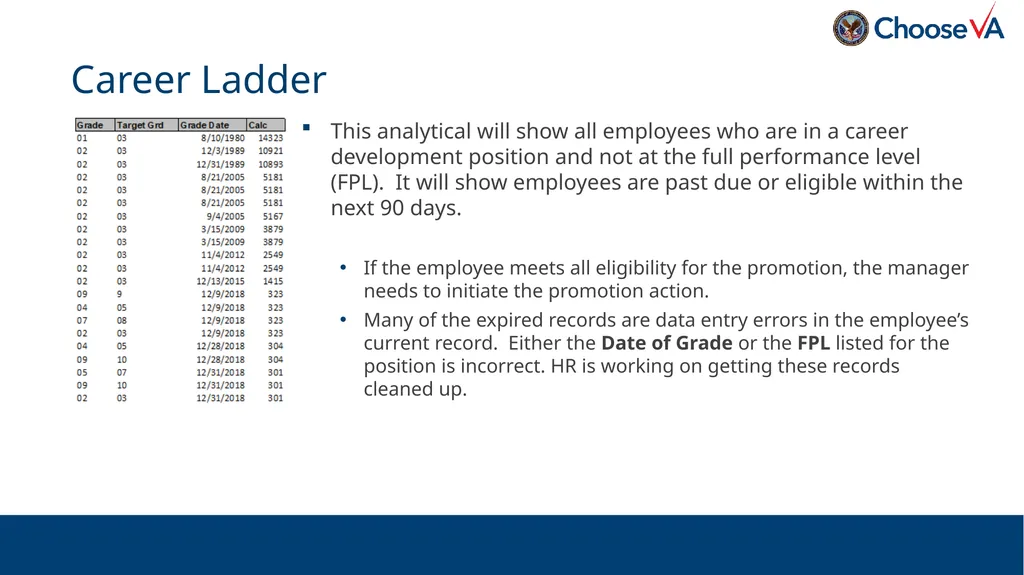
This analytical will show all employees who are in a career development position and not at the full performance level (FPL). It will show employees are past due or eligible within the next 90 days.
If the employee meets all eligibility for the promotion, the manager needs to initiate the promotion action.
Many of the expired records are data entry errors in the employee’s current record. Either the Date of Grade or the FPL listed for the position is incorrect. HR is working on getting these records cleaned up. Career Ladder<br>
If the employee meets all eligibility for the promotion, the manager needs to initiate the promotion action.
Many of the expired records are data entry errors in the employee’s current record. Either the Date of Grade or the FPL listed for the position is incorrect. HR is working on getting these records cleaned up. Career Ladder<br>
87
87 Questions?<br>