Hygiene Academy Digital Security for the Lay Person Anthony Dumas, USNH Cybersecurity Engineer What Is Cyber Hygiene? Cyber hygiene refers to a set of best practices that one can follow to minimize the risks to their personal data and
"Hygiene Academy Digital Security for the Lay" is the property of its rightful owner. Permission is granted to
download and print the materials on this website for personal, non-commercial use only, and to display it
on your personal computer provided you do not modify the materials and that you retain all copyright
notices contained in the materials. By downloading content from our website, you accept the terms of this
agreement.
Presentation Transcript
01
Hygiene Academy Digital Security for the Lay Person Anthony Dumas, USNH Cybersecurity Engineer<br>
02
What Is Cyber Hygiene? Cyber hygiene refers to a set of best practices that one can follow to minimize the risks to their personal data and identity in the digital world.<br>
03
Why Am I At Risk? Personal data is one of the most valuable commodities you own
Your data is collected routinely for all purposes, good & bad
Marketing companies aggregate this data and sell it as business practice
Processing power of computers is also commoditized
Computers can be ‘rooted’ and controlled remotely
Once taken over, your computer can be used for malicious purposes<br>
04
Why Isn’t the Government Protecting Me? Legislators can’t keep up with the evolving state of technology
Laws are generally weak and rely on self-compliance
No law or technical solution is 100% effective<br>
05
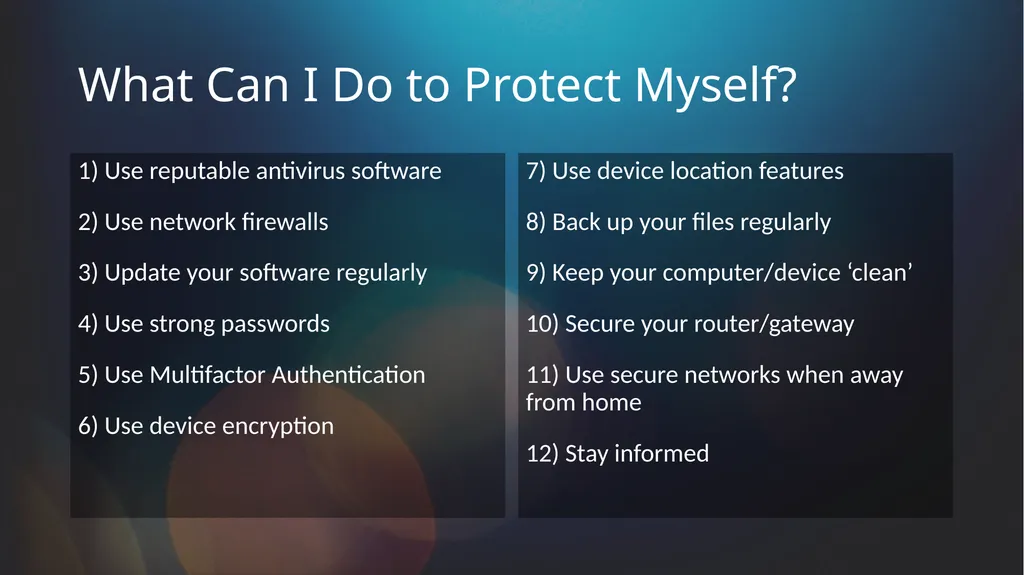
What Can I Do to Protect Myself? 1) Use reputable antivirus software
2) Use network firewalls
3) Update your software regularly
4) Use strong passwords
5) Use Multifactor Authentication
6) Use device encryption 7) Use device location features
8) Back up your files regularly
9) Keep your computer/device ‘clean’
10) Secure your router/gateway
11) Use secure networks when away from home
12) Stay informed<br>
06
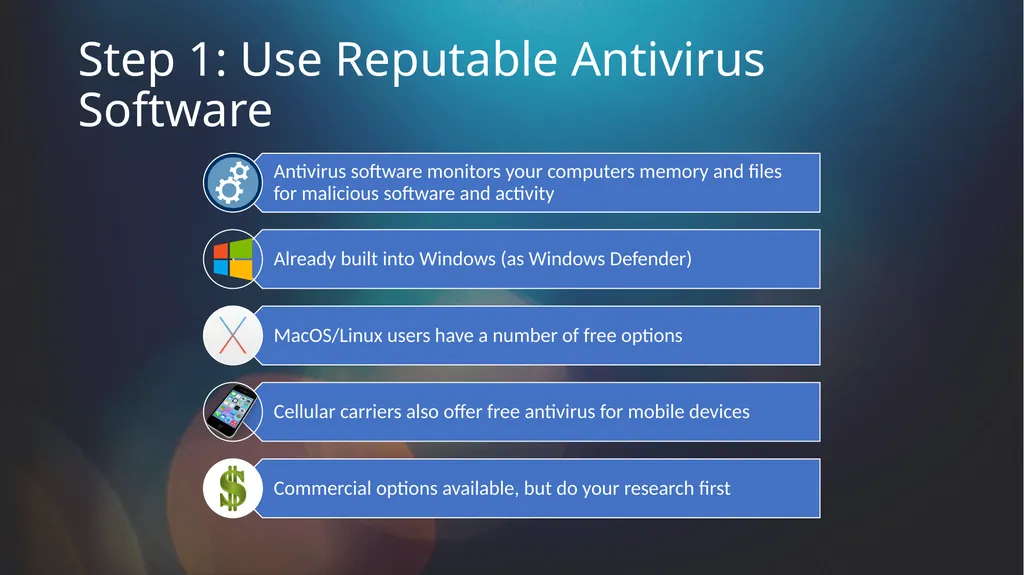
Step 1: Use Reputable Antivirus Software<br>
07
Step 2: Use Network Firewalls Front-line protection against unauthorized outside access
Performs traffic monitoring and control
Watches for expected vs. unexpected traffic Built into modern operating systems
Built into home networking equipment
Commercial options available<br>
08
Step 3: Update Your Software Regularly Update your operating system and applications
Updates include security fixes as well as bug fixes
Updater utilities included in operating system software
Third-party software needs to be updated separately
Computer vendors often have their own updater utilities for their branded content<br>
09
Step 4: Use Strong Passwords Strong passwords are a key element to personal protection
Your convenience level is also a hacker’s convenience level Strong passwords typically contain:
12 or more characters
Upper case and lowercase characters
Numbers
Symbols<br>
10
Step 4 Continued: Weak Passwords Are Risky Weak passwords pose high risks to the end user
Provide easy access to a perpetrator
Too many people use weak passwords despite the risk 123456
123456789
qwerty
password
12345
qwerty123
1q2w3e
12345678
111111
1234567890<br>
11
Step 4 Continued: Using Passphrases Passphrases have a meaningful context to the owner not easily discernible
I loved my vacation to Cancun in 2016!
Contains all recommended elements for a strong password
Has an inherent meaning only known to the owner
Makes larger, complex passwords easy to remember<br>
12
Step 4: Set Strong Passwords- Hardware BIOS / Firmware passwords prevent others from starting and using your computer
Also protects the computer if it is rebooted or reset
You can also set a separate password to prevent others from accessing the BIOS / Firmware settings themselves<br>
13
Step 4: Set Strong Passwords- Safety Change passwords regularly
Never reuse them on multiple accounts or revive old ones
Never share passwords
Use a password manager to help keep your accounts/passwords organized<br>
14
Step 5: Use Multi-Factor Authentication (MFA) Provides an additional layer of protection
Uses something you ‘have’ and something you ‘know’
Can be used with biometrics
Makes it much harder for unauthorized persons to access your accounts
Many financial institutions offer MFA as an optional protection, but you need to ask for it<br>
15
Step 6: Use Device Encryption Protects the data on your computers/devices/media from being read on another device
Already built into Windows and MacOS – BitLocker and FileVault 2
Use advanced encryption algorithms (AES-256)
iOS devices are natively encrypted at the hardware level, but Android devices need to have it intentionally activated
Back up your recovery keys!<br>
16
Step 7: Enable Device Location Features Allows for the possible recovery of your device if lost or stolen
Other measures-
Tape a business card to the back or bottom of your device, but only provide *one* means of contact (phone or email but not your home address)
Register your devices with your local police or University Police and also your insurance company
Take photos of your devices with serial numbers visible as proof of ownership<br>
17
Step 8: Back Up Your Files Regularly Helps protect against data loss if your device is compromised or encrypted against your will
Store them externally, such as on external media or in the cloud
Backup features built into modern operating systems
Commercial options are also available, but often at a premium<br>
18
Step 9: Keep Your Computer/Device ‘Clean’ Avoid games, duplicative utilities, screensavers, recipe programs, coupon finders and social media add-ons
Malicious software is often bundled with these programs in order to provide covert access to your device & data
Clean your old and broken devices before disposal
Perform a factory restore
Use an erasing utility
If the device is not functional, physically destroy it<br>
19
Step 10: Secure your Internet Router/Gateway This is critical to protecting your home network
Hackers take advantage of poorly configured home networks
Many ISPs provide good baseline security with leased routers
Personally owned equipment is riskier if not configured properly<br>
20
Step 10: Secure your Internet Router/Gateway Important steps:
Change the default name and password that came from the manufacturer
Turn off remote management unless absolutely needed
Log out of the admin account once the device is set up
Use WPA2 or WPA3 encryption options when configuring your wireless network
Use MAC address restrictions (if available) to prevent unwanted connections
Keep the device’s firmware updated, and use auto-update if available<br>
21
Step 11: Use Secure Networks when Traveling Protecting yourself is important when away from home
Public networks are convenient but risky
When away from home/campus, your cell carrier’s network is safest
Avoid public wireless hotspots if possible
If unavoidable, use a VPN to encrypt traffic in and out of your device
UNH VPN is available to all faculty/staff/students
Many free & commercial VPNs available for personal use<br>
22
Step 12: Stay Informed Knowledge is power-
Pay attention to news reports of emerging security issues
Be aware of what is going on with your accounts, especially financial
Attend more seminars like this one!<br>
23
Hygiene Academy Digital Security for the Lay Person Conclusion<br>