Instructor’s Guide to Blackboard Ally John Jones
Description: Instructors Guide to Blackboard Ally John Jones Director, Media Resources Center High Points Introduction: Why We Need This The Student Experience The Instructors Experience Admin Reports Ally Roadmap A Go-Forward Strategy Questions
Related Topics
Download Presentation
"Instructor’s Guide to Blackboard Ally John Jones" is the property of its rightful owner. Permission is granted to download and print the materials on this website for personal, non-commercial use only, and to display it on your personal computer provided you do not modify the materials and that you retain all copyright notices contained in the materials. By downloading content from our website, you accept the terms of this agreement.
Presentation Transcript
slide1. Instructor’s Guide to Blackboard Ally John Jones
Director, Media Resources Center<br>
slide2. High Points Introduction: Why We Need This
The Student Experience
The Instructor’s Experience
Admin Reports
Ally Roadmap
A Go-Forward Strategy
Questions<br>
slide3. Introduction Accessibility Elevator Pitch
Accessibility is everyone’s job
Why we have Ally
Simplified workflow for instructors
Accessible formats for students<br>
slide4. The Student Experience<br>
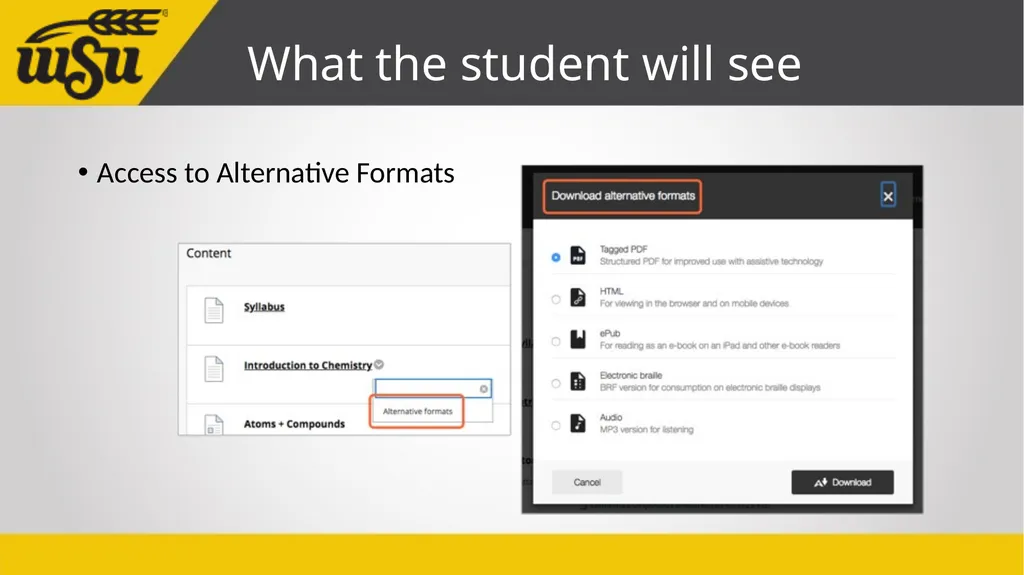
slide5. What the student will see Access to Alternative Formats<br>
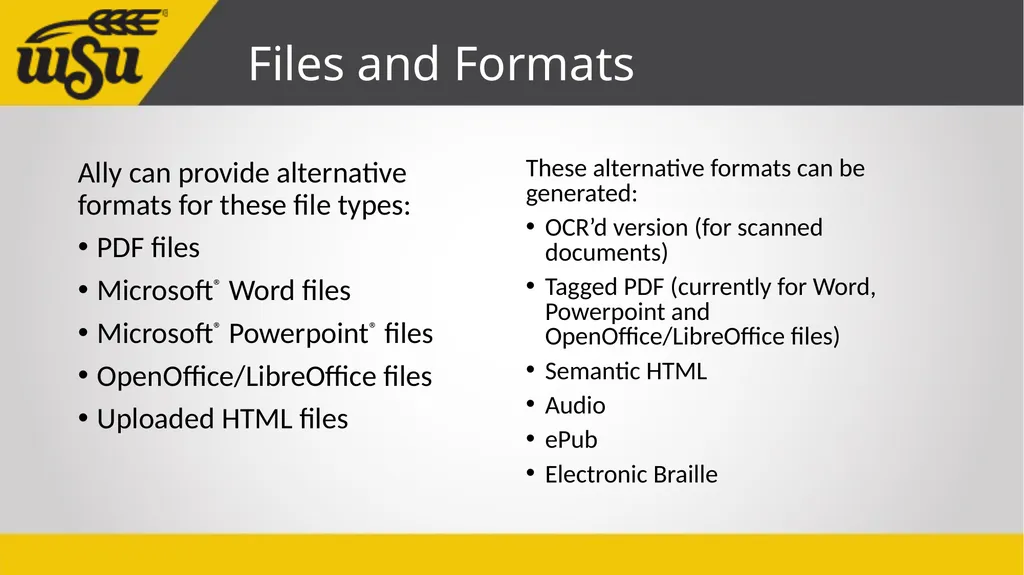
slide6. Files and Formats Ally can provide alternative formats for these file types:
PDF files
Microsoft® Word files
Microsoft® Powerpoint® files
OpenOffice/LibreOffice files
Uploaded HTML files These alternative formats can be generated:
OCR’d version (for scanned documents)
Tagged PDF (currently for Word, Powerpoint and OpenOffice/LibreOffice files)
Semantic HTML
Audio
ePub
Electronic Braille<br>
slide7. Who Needs These Formats? Alternative formats support a wide range of students
Students with different abilities
Students with different learning styles
Students with complicated lives
Students with preferences.<br>
slide8. Formats and Audiences: Tagged PDF You might want a Tagged PDF if:
You want to be able to copy, paste, and search text.
You want to use text-to-speech and adjust the speed of the speech.
You prefer to read.
You study on your commute and want to take your study materials with you.
You use a screen reader.<br>
slide9. HTML (Semantic HTML) You might want to use HTML
You want to be able to copy, paste, and search text.
You want to use text-to-speech and adjust the speed of the speech.
You prefer to read.
You study on a mobile device (on your commute, out and about, at the gym)
You use a screen reader.<br>
slide10. Audio (MP3) You might want to have an audio version of the content if:
You prefer to listen than read.
You’re an auditory learner.
You want to read and listen to the content at the same time.
You have a lot of material to study and find your eyes get tired.
You study on your commute and want to take your study materials with you.
You don’t want to, or can’t, carry print materials for any length of time.
You have a visual impairment.
You want to adjust the speed of the audio.<br>
slide11. Electronic Braille Electronic Braille is a format of the content which is ready to be read on a dynamic braille display device. You might want this if:
You have a visual impairment.
You are familiar with braille.
You prefer to read.
You want to read and listen to the content at the same time.<br>
slide12. The Instructor’s Experience<br>
slide13. This is pretty great, right? Ally is going to do all of this for your students
But what do instructors need to do to make it happen?<br>
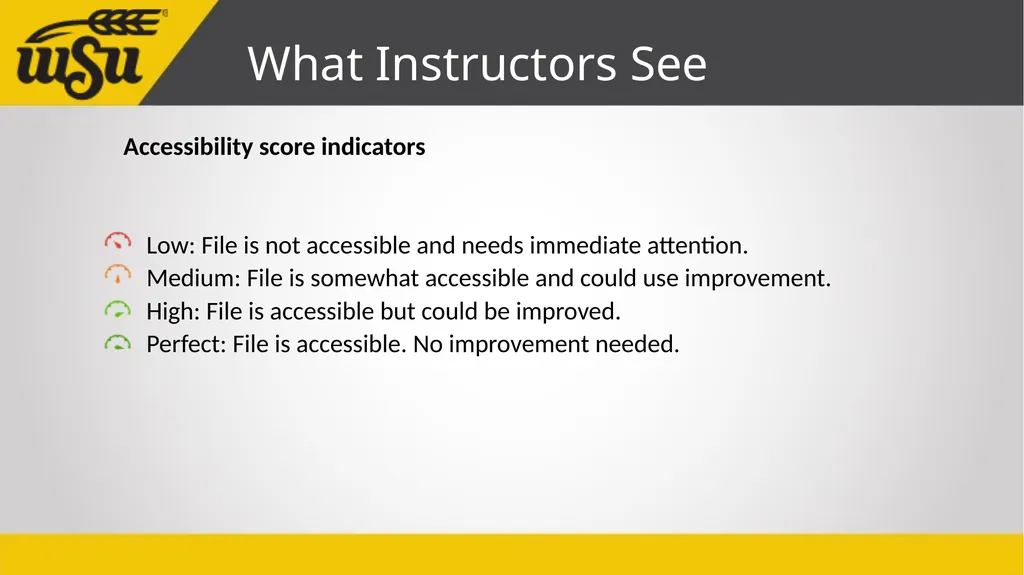
slide14. What Instructors See Accessibility score indicators
Low: File is not accessible and needs immediate attention.
Medium: File is somewhat accessible and could use improvement.
High: File is accessible but could be improved.
Perfect: File is accessible. No improvement needed.<br>
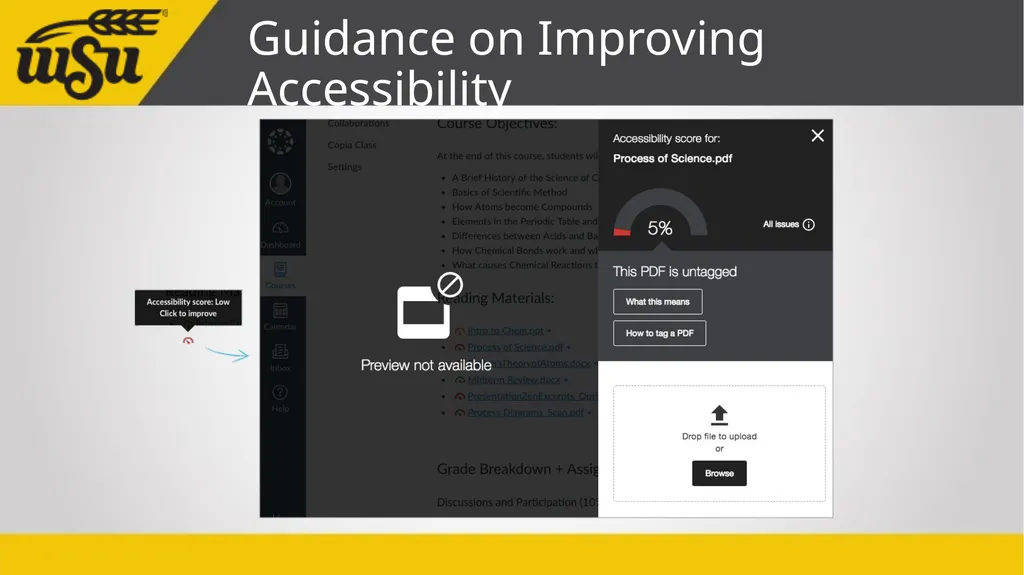
slide15. Guidance on Improving Accessibility<br>
slide16. Admin Reports and Tools<br>
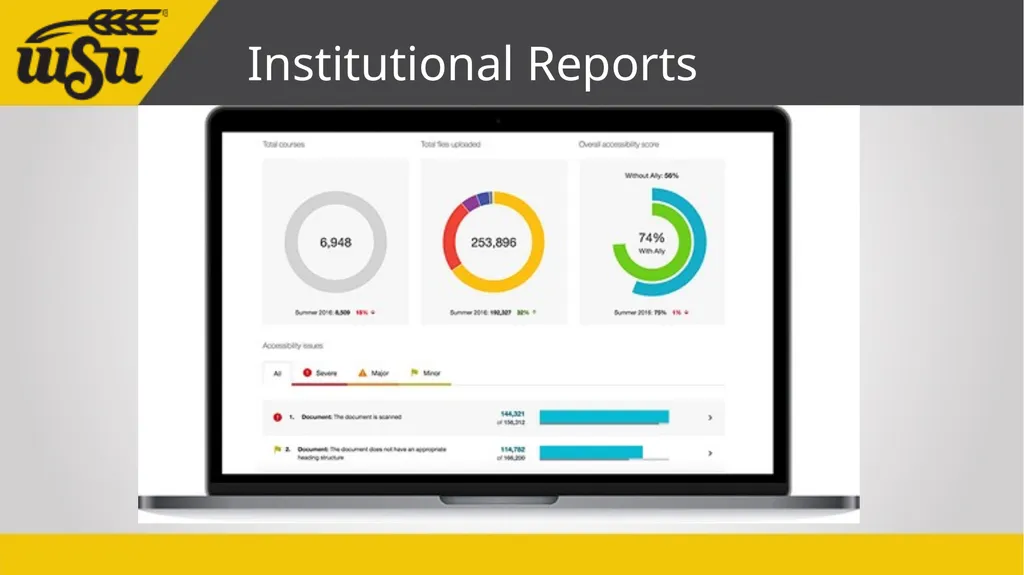
slide17. Institutional Reports<br>
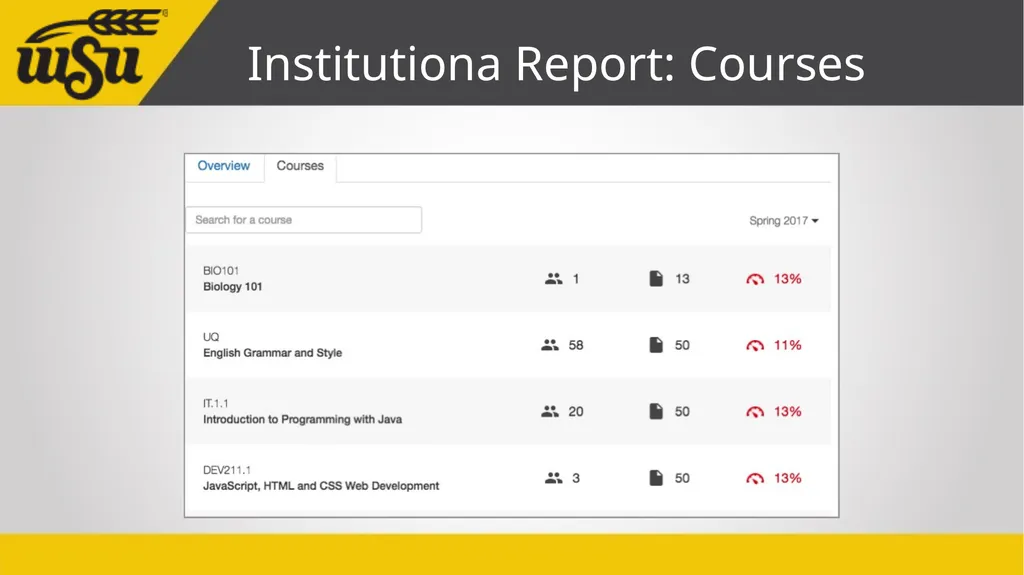
slide18. Institutiona Report: Courses<br>
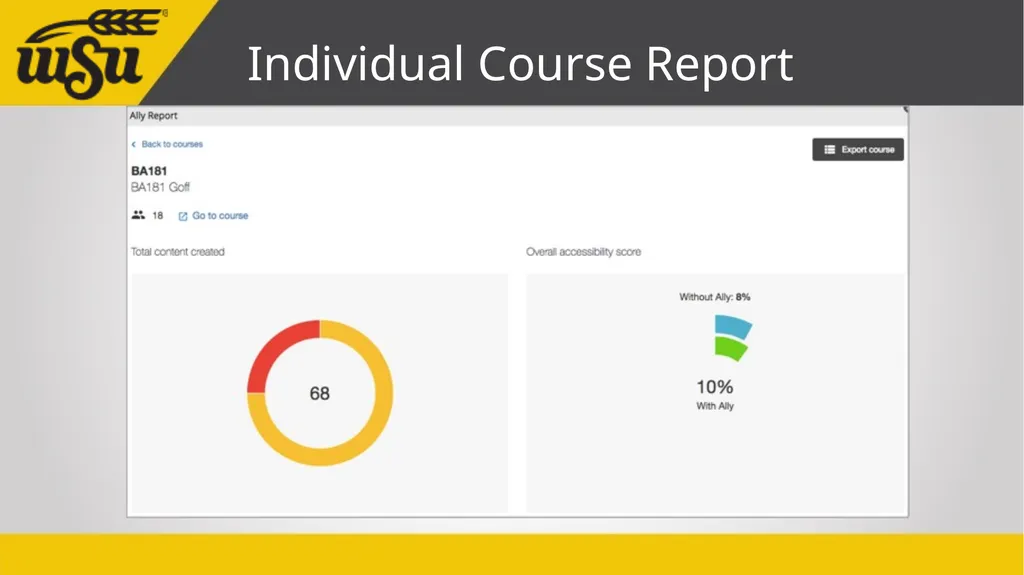
slide19. Individual Course Report<br>
slide20. How Will These Reports Be Used Identifying opportunities
Demonstrating our improvement
Review courses that have students requiring accommodations<br>
slide21. The Ally Roadmap<br>
slide22. What’s coming? Usage Reporting
Review of WYSIWYG Content (Blackboard Items)
In-browser Remediation
Audio/Video Content (Captions, Transcripts, etc)
Instructor course reports
Department Reports<br>
slide23. A Go-Forward Strategy<br>
slide24. How to Add Ally to your routine Let Ally guide your learning about accessibility
Target one specific type of improvement first
Accessibility isn’t content == it’s access to your content.<br>
slide25. Don’t try to do it all at once Make a plan
Make sure new content is accessible
Fix older content when you have free time<br>
slide26. Questions? Need Extra Help with Blackboard and Accessibility?
Come to the IDA Blackboard Labs
Tuesday and Wednesday (every week)
1-3pm
Ablah Library<br>

Director, Media Resources Center<br>
slide2. High Points Introduction: Why We Need This
The Student Experience
The Instructor’s Experience
Admin Reports
Ally Roadmap
A Go-Forward Strategy
Questions<br>
slide3. Introduction Accessibility Elevator Pitch
Accessibility is everyone’s job
Why we have Ally
Simplified workflow for instructors
Accessible formats for students<br>
slide4. The Student Experience<br>
slide5. What the student will see Access to Alternative Formats<br>
slide6. Files and Formats Ally can provide alternative formats for these file types:
PDF files
Microsoft® Word files
Microsoft® Powerpoint® files
OpenOffice/LibreOffice files
Uploaded HTML files These alternative formats can be generated:
OCR’d version (for scanned documents)
Tagged PDF (currently for Word, Powerpoint and OpenOffice/LibreOffice files)
Semantic HTML
Audio
ePub
Electronic Braille<br>
slide7. Who Needs These Formats? Alternative formats support a wide range of students
Students with different abilities
Students with different learning styles
Students with complicated lives
Students with preferences.<br>
slide8. Formats and Audiences: Tagged PDF You might want a Tagged PDF if:
You want to be able to copy, paste, and search text.
You want to use text-to-speech and adjust the speed of the speech.
You prefer to read.
You study on your commute and want to take your study materials with you.
You use a screen reader.<br>
slide9. HTML (Semantic HTML) You might want to use HTML
You want to be able to copy, paste, and search text.
You want to use text-to-speech and adjust the speed of the speech.
You prefer to read.
You study on a mobile device (on your commute, out and about, at the gym)
You use a screen reader.<br>
slide10. Audio (MP3) You might want to have an audio version of the content if:
You prefer to listen than read.
You’re an auditory learner.
You want to read and listen to the content at the same time.
You have a lot of material to study and find your eyes get tired.
You study on your commute and want to take your study materials with you.
You don’t want to, or can’t, carry print materials for any length of time.
You have a visual impairment.
You want to adjust the speed of the audio.<br>
slide11. Electronic Braille Electronic Braille is a format of the content which is ready to be read on a dynamic braille display device. You might want this if:
You have a visual impairment.
You are familiar with braille.
You prefer to read.
You want to read and listen to the content at the same time.<br>
slide12. The Instructor’s Experience<br>
slide13. This is pretty great, right? Ally is going to do all of this for your students
But what do instructors need to do to make it happen?<br>
slide14. What Instructors See Accessibility score indicators
Low: File is not accessible and needs immediate attention.
Medium: File is somewhat accessible and could use improvement.
High: File is accessible but could be improved.
Perfect: File is accessible. No improvement needed.<br>
slide15. Guidance on Improving Accessibility<br>
slide16. Admin Reports and Tools<br>
slide17. Institutional Reports<br>
slide18. Institutiona Report: Courses<br>
slide19. Individual Course Report<br>
slide20. How Will These Reports Be Used Identifying opportunities
Demonstrating our improvement
Review courses that have students requiring accommodations<br>
slide21. The Ally Roadmap<br>
slide22. What’s coming? Usage Reporting
Review of WYSIWYG Content (Blackboard Items)
In-browser Remediation
Audio/Video Content (Captions, Transcripts, etc)
Instructor course reports
Department Reports<br>
slide23. A Go-Forward Strategy<br>
slide24. How to Add Ally to your routine Let Ally guide your learning about accessibility
Target one specific type of improvement first
Accessibility isn’t content == it’s access to your content.<br>
slide25. Don’t try to do it all at once Make a plan
Make sure new content is accessible
Fix older content when you have free time<br>
slide26. Questions? Need Extra Help with Blackboard and Accessibility?
Come to the IDA Blackboard Labs
Tuesday and Wednesday (every week)
1-3pm
Ablah Library<br>