
Introduction to Linux Robert Putnam Research
TA
Published · 49 slides · 0 views
1 / 1


Description
Introduction to Linux Robert Putnam Research Computing, IST putnambu.edu What is Linux? The Bash shell IO redirection (pipes, etc.) Navigating the file system Processes and job control Editors Hello,world in C Introduction to Linux -
Related Topics
Share
Embed code
Download this presentation From Below
"Introduction to Linux Robert Putnam Research" is the property of its rightful owner. Permission is granted to download and print the materials on this website for personal, non-commercial use only, and to display it on your personal computer provided you do not modify the materials and that you retain all copyright notices contained in the materials. By downloading content from our website, you accept the terms of this agreement.
Presentation Transcript
01
Introduction to Linux Robert Putnam
Research Computing, IS&T
putnam@bu.edu<br>
Research Computing, IS&T
putnam@bu.edu<br>
02
What is Linux?
The Bash shell
I/O redirection (pipes, etc.)
Navigating the file system
Processes and job control
Editors
Hello,world in C Introduction to Linux - agenda<br>
The Bash shell
I/O redirection (pipes, etc.)
Navigating the file system
Processes and job control
Editors
Hello,world in C Introduction to Linux - agenda<br>
03
What is Linux? The Most Common O/S Used By BU Researchers When Working on a Server or Computer Cluster<br>
04
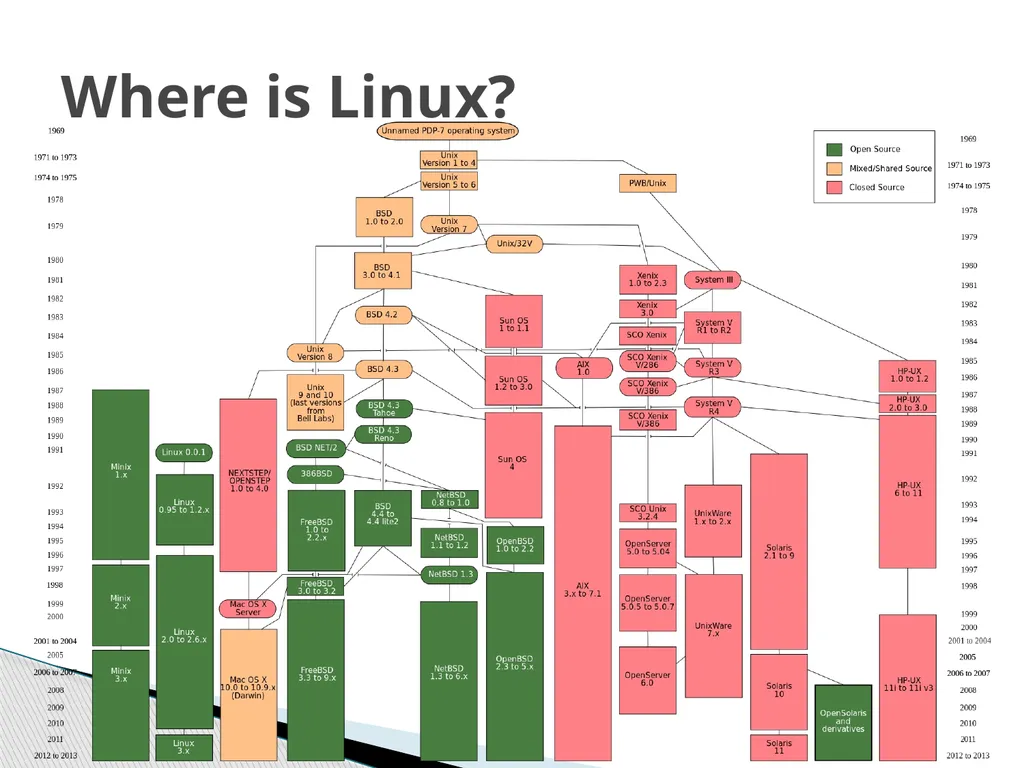
Where is Linux?<br>
05
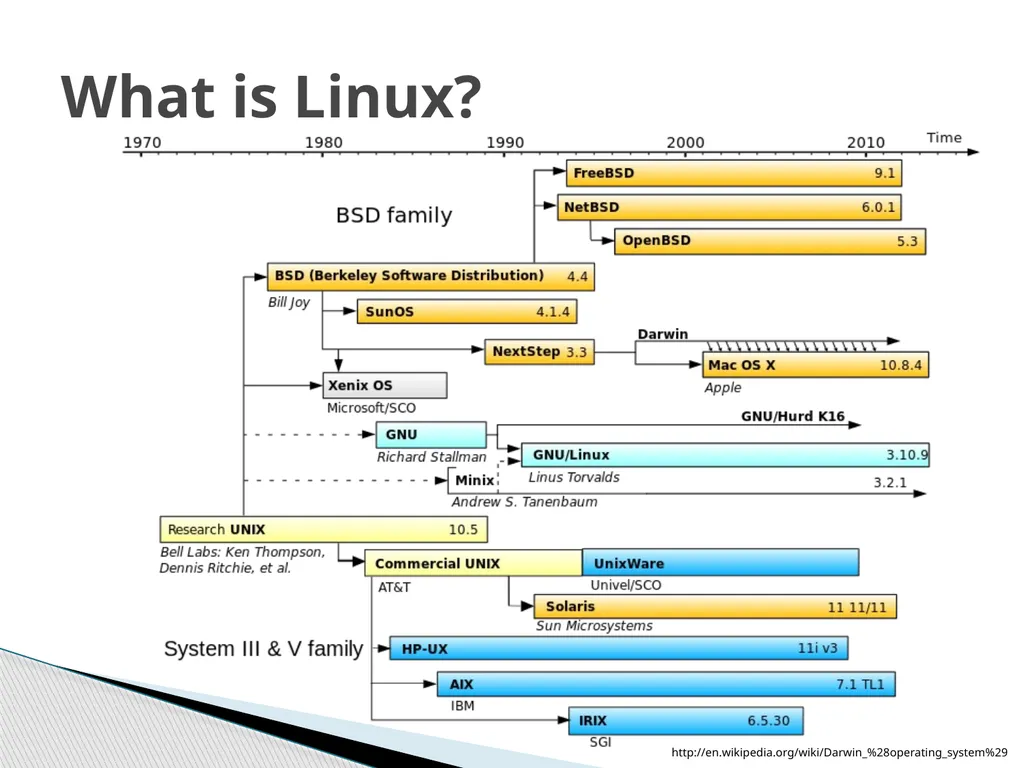
What is Linux? http://en.wikipedia.org/wiki/Darwin_%28operating_system%29<br>
06
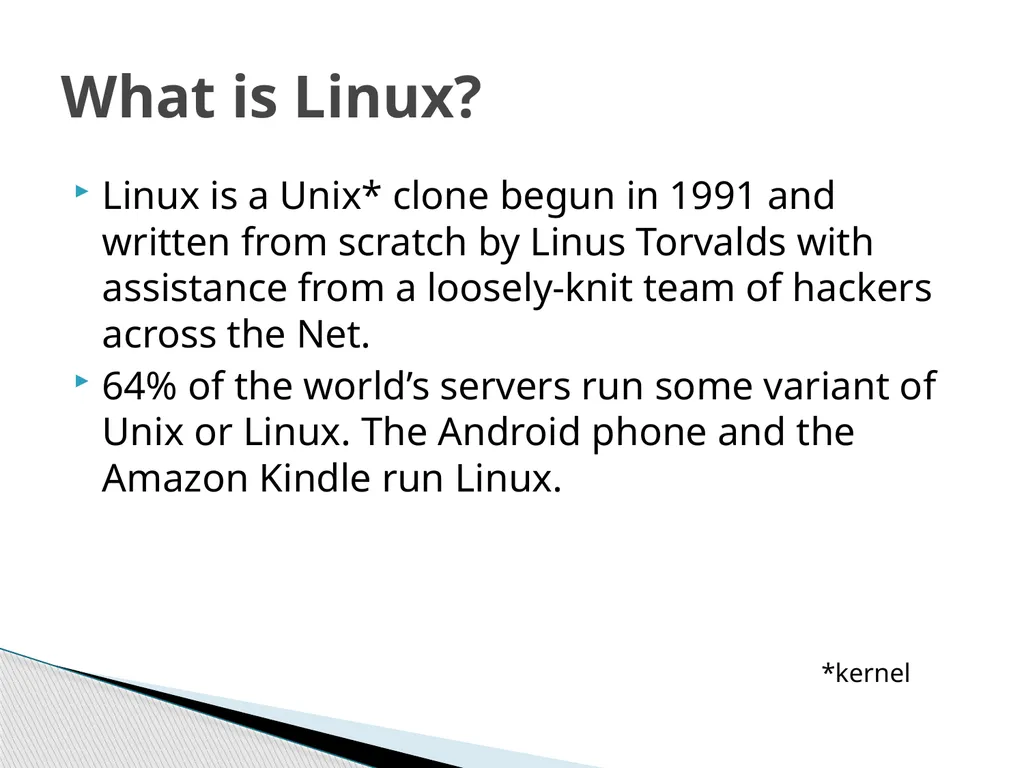
Linux is a Unix* clone begun in 1991 and written from scratch by Linus Torvalds with assistance from a loosely-knit team of hackers across the Net.
64% of the world’s servers run some variant of Unix or Linux. The Android phone and the Amazon Kindle run Linux. What is Linux? *kernel<br>
64% of the world’s servers run some variant of Unix or Linux. The Android phone and the Amazon Kindle run Linux. What is Linux? *kernel<br>
07
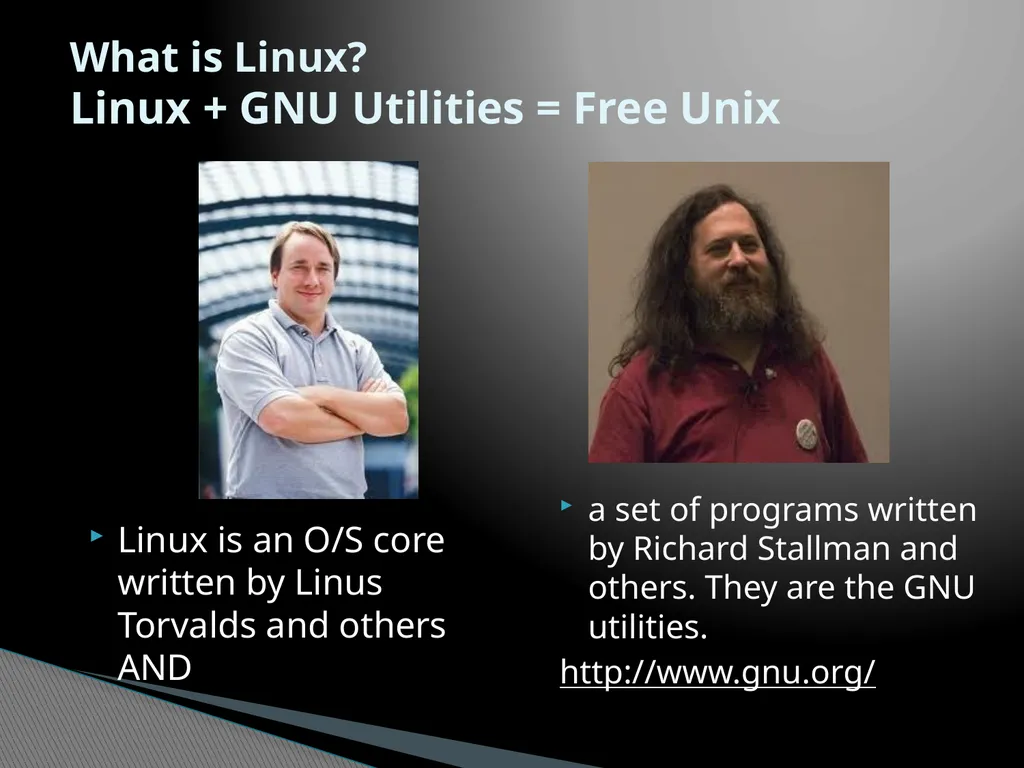
Linux is an O/S core written by Linus Torvalds and others AND a set of programs written by Richard Stallman and others. They are the GNU utilities.
http://www.gnu.org/ What is Linux? Linux + GNU Utilities = Free Unix<br>
http://www.gnu.org/ What is Linux? Linux + GNU Utilities = Free Unix<br>
08
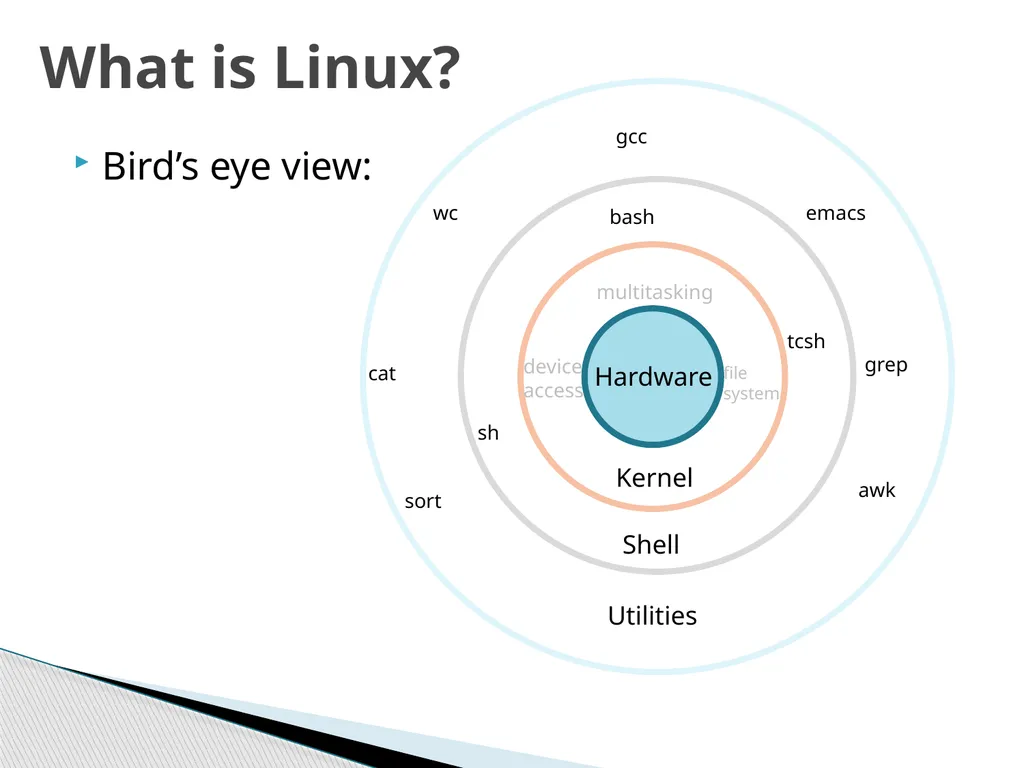
Bird’s eye view: What is Linux? Kernel Hardware Shell Utilities multitasking gcc emacs grep cat sort awk file
system bash sh tcsh device access wc<br>
system bash sh tcsh device access wc<br>
09
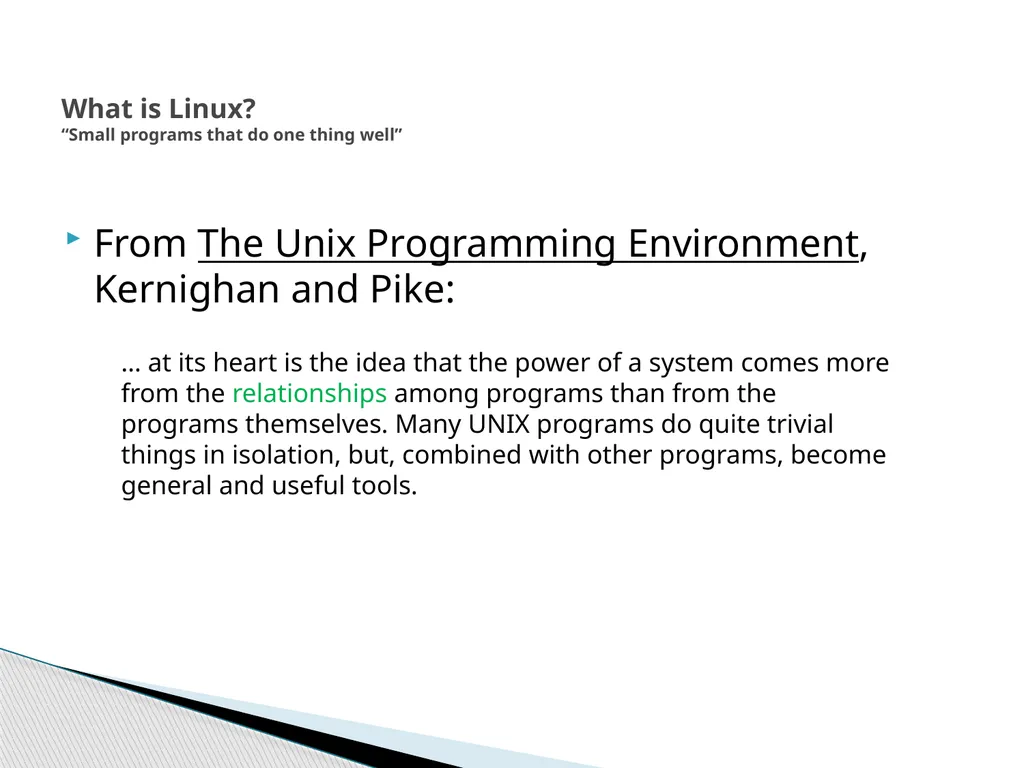
From The Unix Programming Environment, Kernighan and Pike: What is Linux?
“Small programs that do one thing well” … at its heart is the idea that the power of a system comes more from the relationships among programs than from the programs themselves. Many UNIX programs do quite trivial things in isolation, but, combined with other programs, become general and useful tools.<br>
10
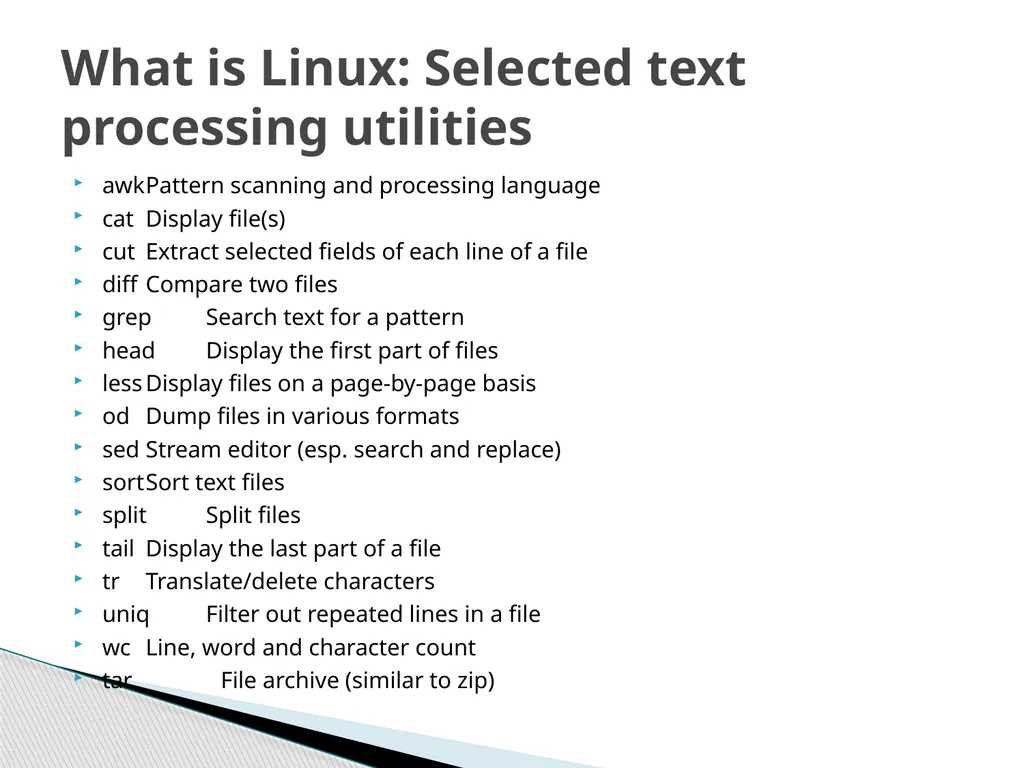
awk Pattern scanning and processing language
cat Display file(s)
cut Extract selected fields of each line of a file
diff Compare two files
grep Search text for a pattern
head Display the first part of files
less Display files on a page-by-page basis
od Dump files in various formats
sed Stream editor (esp. search and replace)
sort Sort text files
split Split files
tail Display the last part of a file
tr Translate/delete characters
uniq Filter out repeated lines in a file
wc Line, word and character count
tar File archive (similar to zip) What is Linux: Selected text processing utilities<br>
cat Display file(s)
cut Extract selected fields of each line of a file
diff Compare two files
grep Search text for a pattern
head Display the first part of files
less Display files on a page-by-page basis
od Dump files in various formats
sed Stream editor (esp. search and replace)
sort Sort text files
split Split files
tail Display the last part of a file
tr Translate/delete characters
uniq Filter out repeated lines in a file
wc Line, word and character count
tar File archive (similar to zip) What is Linux: Selected text processing utilities<br>
11
You need a “xterm” emulation – software that emulates an “X” terminal and that connects using the “SSH” Secure Shell protocol.
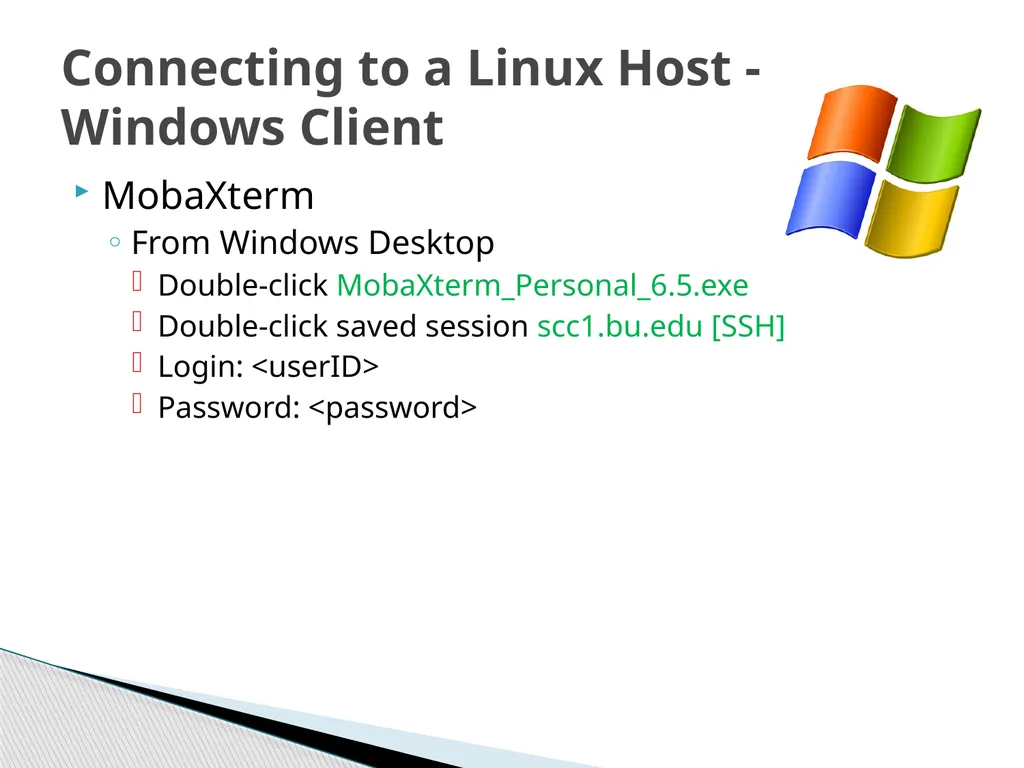
Windows
Recommended: MobaXterm (http://mobaxterm.mobatek.net/)
Also available at BU, Xwin32
(http://www.bu.edu/tech/services/support/desktop/distribution/xwindows/xwin32/) Connecting to a Linux Host – Windows Client Software<br>
Windows
Recommended: MobaXterm (http://mobaxterm.mobatek.net/)
Also available at BU, Xwin32
(http://www.bu.edu/tech/services/support/desktop/distribution/xwindows/xwin32/) Connecting to a Linux Host – Windows Client Software<br>
12
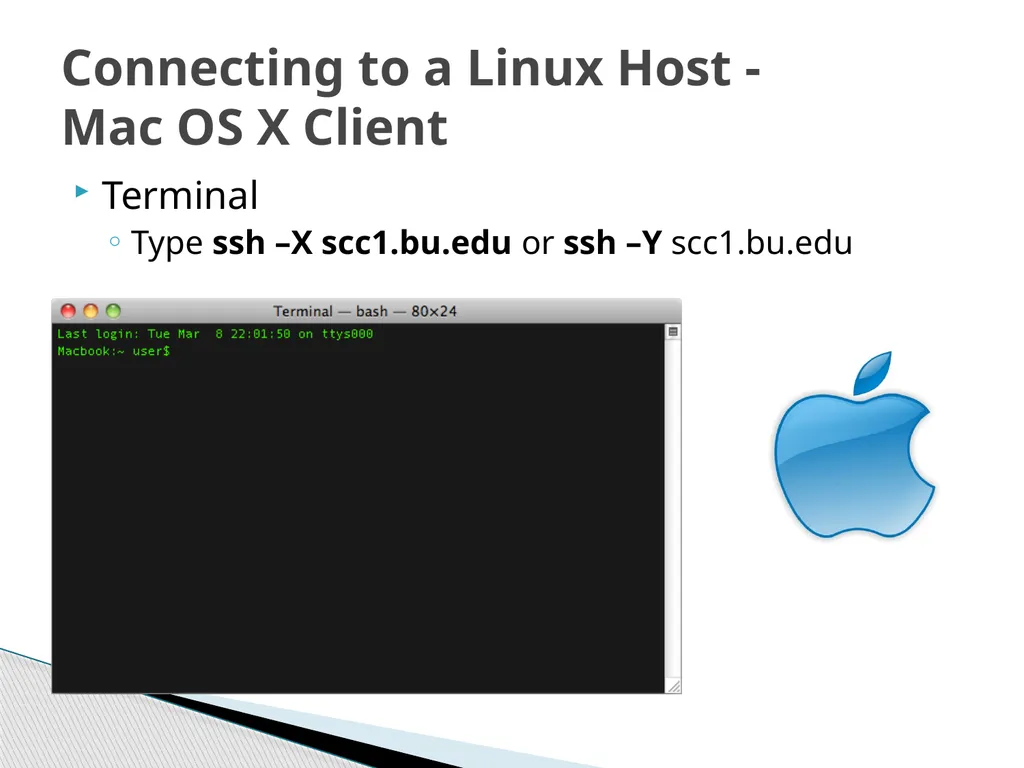
Mac OS X
“Terminal” is already installed
Why? Darwin, the system on which Apple's Mac OS X is built, is a derivative of 4.4BSD-Lite2 and FreeBSD. In other words, the Mac is a Unix system! Connecting to a Linux Host – Mac OS X Client Software For X11 (graphics), see XQuartz
(http://xquartz.macosforge.org/landing/)<br>
“Terminal” is already installed
Why? Darwin, the system on which Apple's Mac OS X is built, is a derivative of 4.4BSD-Lite2 and FreeBSD. In other words, the Mac is a Unix system! Connecting to a Linux Host – Mac OS X Client Software For X11 (graphics), see XQuartz
(http://xquartz.macosforge.org/landing/)<br>
13
MobaXterm
From Windows Desktop
Double-click MobaXterm_Personal_6.5.exe
Double-click saved session scc1.bu.edu [SSH]
Login: <userID>
Password: <password> Connecting to a Linux Host - Windows Client<br>
From Windows Desktop
Double-click MobaXterm_Personal_6.5.exe
Double-click saved session scc1.bu.edu [SSH]
Login: <userID>
Password: <password> Connecting to a Linux Host - Windows Client<br>
14
Terminal
Type ssh –X scc1.bu.edu or ssh –Y scc1.bu.edu Connecting to a Linux Host - Mac OS X Client<br>
Type ssh –X scc1.bu.edu or ssh –Y scc1.bu.edu Connecting to a Linux Host - Mac OS X Client<br>
15
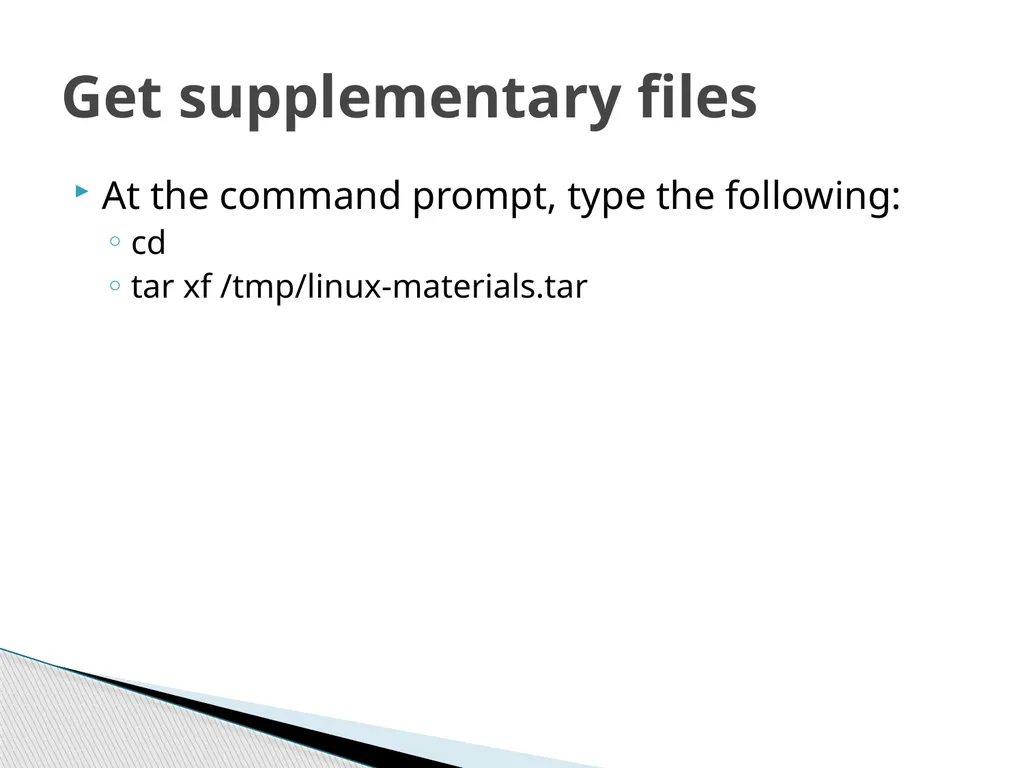
At the command prompt, type the following:
cd
tar xf /tmp/linux-materials.tar Get supplementary files<br>
cd
tar xf /tmp/linux-materials.tar Get supplementary files<br>
16
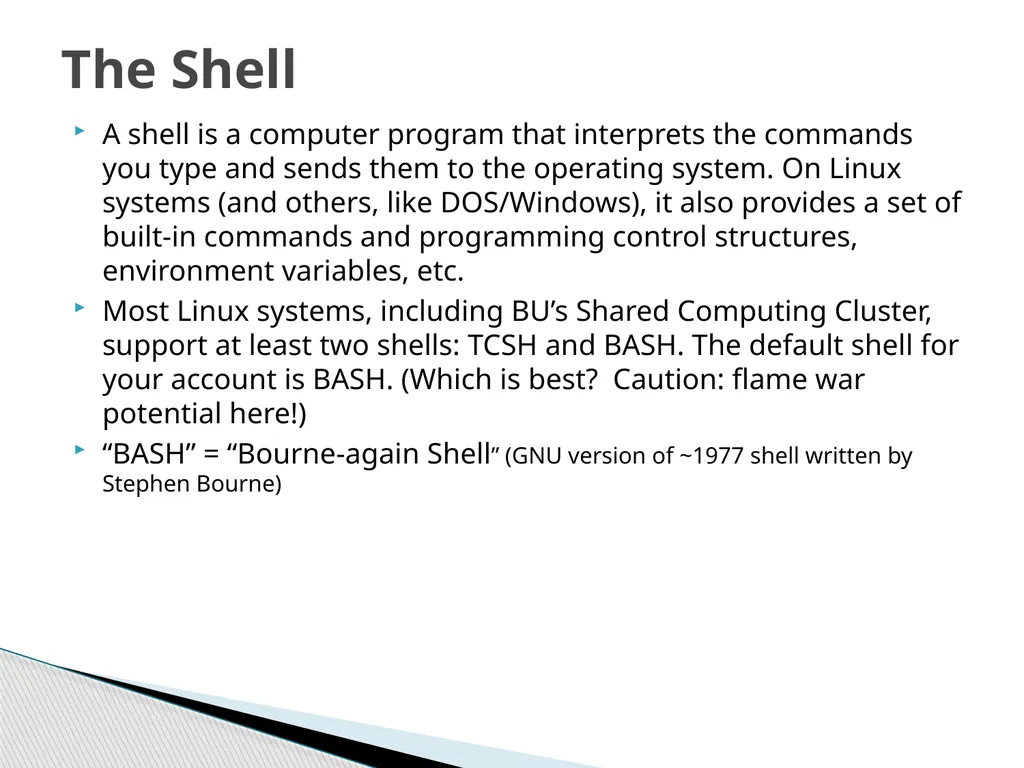
A shell is a computer program that interprets the commands you type and sends them to the operating system. On Linux systems (and others, like DOS/Windows), it also provides a set of built-in commands and programming control structures, environment variables, etc.
Most Linux systems, including BU’s Shared Computing Cluster, support at least two shells: TCSH and BASH. The default shell for your account is BASH. (Which is best? Caution: flame war potential here!)
“BASH” = “Bourne-again Shell” (GNU version of ~1977 shell written by Stephen Bourne) The Shell<br>
Most Linux systems, including BU’s Shared Computing Cluster, support at least two shells: TCSH and BASH. The default shell for your account is BASH. (Which is best? Caution: flame war potential here!)
“BASH” = “Bourne-again Shell” (GNU version of ~1977 shell written by Stephen Bourne) The Shell<br>
17
Variables are named storage locations. So-called “environment variables” are conventionally used by the shell to store information such as where it should look for commands (i.e., the PATH). Environment variables are shared with programs that the shell runs.
To see the current value of PATH, do:
echo $PATH
To see all currently defined environment variables do:
printenv Bash environment variables<br>
To see the current value of PATH, do:
echo $PATH
To see all currently defined environment variables do:
printenv Bash environment variables<br>
18
To create a new variable, use the assignment operator ‘=‘:
foo=“this is foo’s value”
The foo variable will now be shown if you run the ‘set’ command. To make foo visible to programs run by the shell (i.e., make it an “environment variable”), use export:
export foo
Variables are used extensively in shell scripts (about which, more later) Bash variables<br>
foo=“this is foo’s value”
The foo variable will now be shown if you run the ‘set’ command. To make foo visible to programs run by the shell (i.e., make it an “environment variable”), use export:
export foo
Variables are used extensively in shell scripts (about which, more later) Bash variables<br>
19
After you connect, type
shazam # bad command
whoami # my login
hostname # name of this computer
echo “Hello, world” # print characters to screen
echo $HOME # print environment variable
echo my login is $(whoami ) # replace $(xx) with program output
date # print current time/date
cal # print this month’s calendar
Commands have three parts; command, options and parameters. Example: cal –j 3 1999. “cal” is the command, “-j” is an option (or switch), “3” and “1999” are parameters.
Options have long and short forms. Example:
date –u
date --universal Using the Shell What is the nature of the prompt?
What was the system’s response to the command?<br>
shazam # bad command
whoami # my login
hostname # name of this computer
echo “Hello, world” # print characters to screen
echo $HOME # print environment variable
echo my login is $(whoami ) # replace $(xx) with program output
date # print current time/date
cal # print this month’s calendar
Commands have three parts; command, options and parameters. Example: cal –j 3 1999. “cal” is the command, “-j” is an option (or switch), “3” and “1999” are parameters.
Options have long and short forms. Example:
date –u
date --universal Using the Shell What is the nature of the prompt?
What was the system’s response to the command?<br>
20
Try the history command
Choose from the command history by using the up ↑ and down ↓ arrows
To redo your last command, try !!
To go further back in the command history try !, then the number as shown by history (e.g., !132). Or, !ls, for example, to match the most recent ‘ls’ command.
What do the left ← and right → arrow do on the command line?
Try the <Del> and <Backspace> keys Command History and Simple Command Line Editing<br>
Choose from the command history by using the up ↑ and down ↓ arrows
To redo your last command, try !!
To go further back in the command history try !, then the number as shown by history (e.g., !132). Or, !ls, for example, to match the most recent ‘ls’ command.
What do the left ← and right → arrow do on the command line?
Try the <Del> and <Backspace> keys Command History and Simple Command Line Editing<br>
21
Type
date –-help
man date
info date
[And yes, you can always Google it]
For a list of BASH built-in commands, just type the command ‘help’
(and see also ‘man bash’) Help with Commands<br>
date –-help
man date
info date
[And yes, you can always Google it]
For a list of BASH built-in commands, just type the command ‘help’
(and see also ‘man bash’) Help with Commands<br>
22
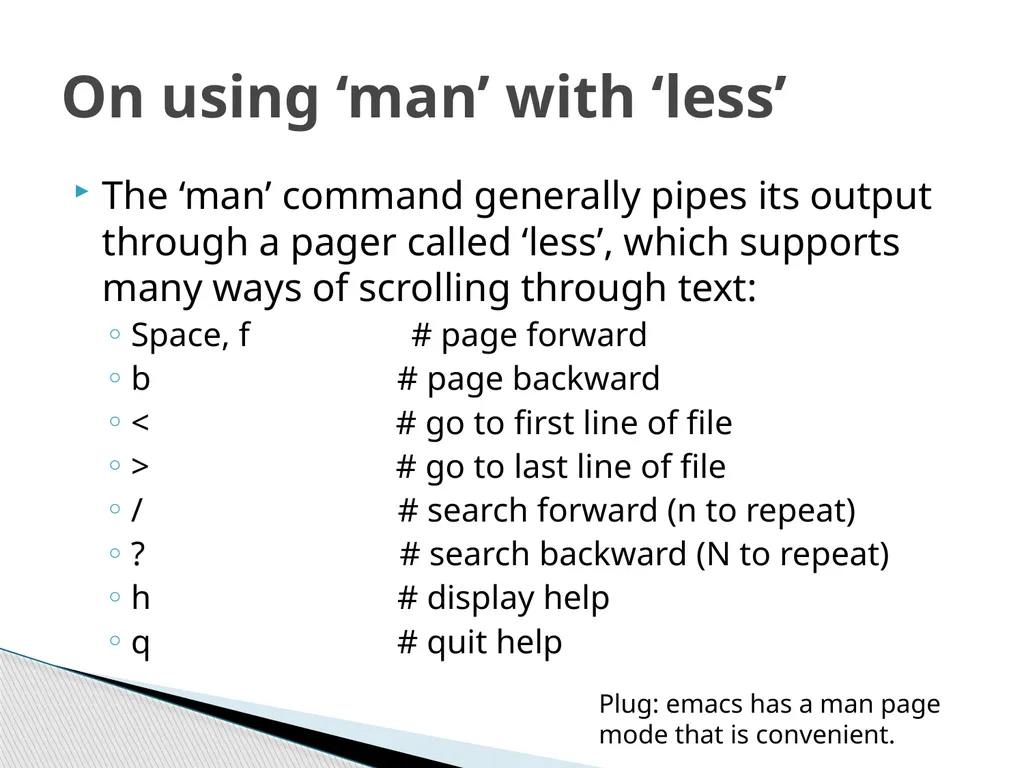
The ‘man’ command generally pipes its output through a pager called ‘less’, which supports many ways of scrolling through text:
Space, f # page forward
b # page backward
< # go to first line of file
> # go to last line of file
/ # search forward (n to repeat)
? # search backward (N to repeat)
h # display help
q # quit help On using ‘man’ with ‘less’ Plug: emacs has a man page mode that is convenient.<br>
Space, f # page forward
b # page backward
< # go to first line of file
> # go to last line of file
/ # search forward (n to repeat)
? # search backward (N to repeat)
h # display help
q # quit help On using ‘man’ with ‘less’ Plug: emacs has a man page mode that is convenient.<br>
23
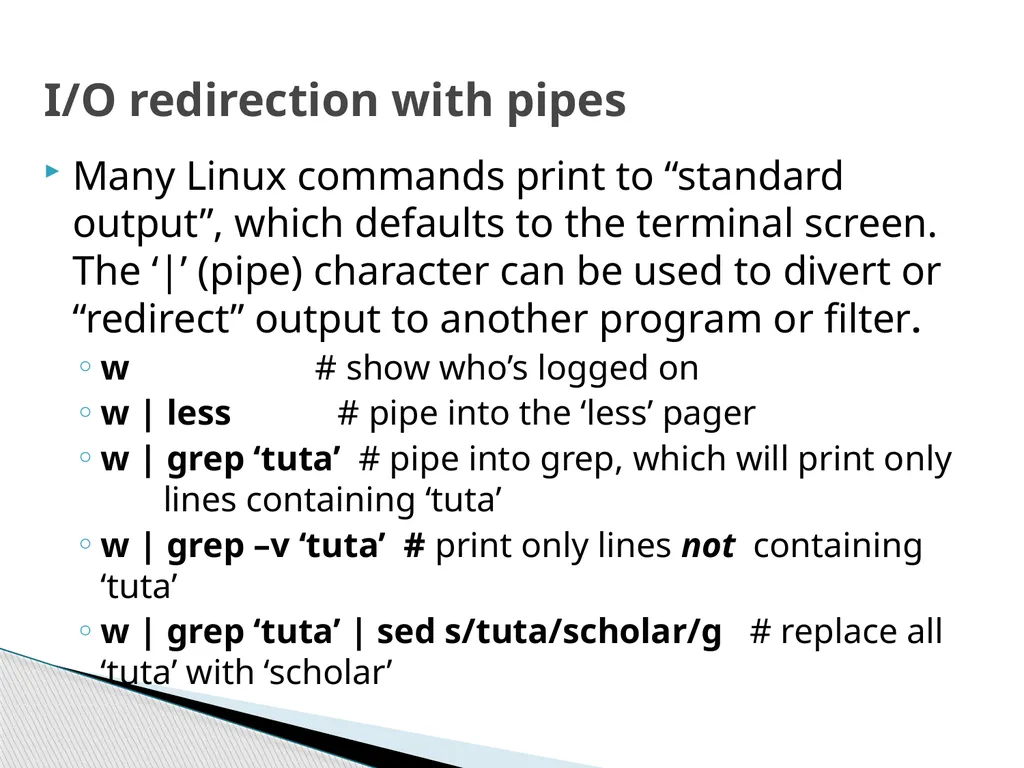
Many Linux commands print to “standard output”, which defaults to the terminal screen. The ‘|’ (pipe) character can be used to divert or “redirect” output to another program or filter.
w # show who’s logged on
w | less # pipe into the ‘less’ pager
w | grep ‘tuta’ # pipe into grep, which will print only lines containing ‘tuta’
w | grep –v ‘tuta’ # print only lines not containing ‘tuta’
w | grep ‘tuta’ | sed s/tuta/scholar/g # replace all ‘tuta’ with ‘scholar’ I/O redirection with pipes<br>
w # show who’s logged on
w | less # pipe into the ‘less’ pager
w | grep ‘tuta’ # pipe into grep, which will print only lines containing ‘tuta’
w | grep –v ‘tuta’ # print only lines not containing ‘tuta’
w | grep ‘tuta’ | sed s/tuta/scholar/g # replace all ‘tuta’ with ‘scholar’ I/O redirection with pipes<br>
24
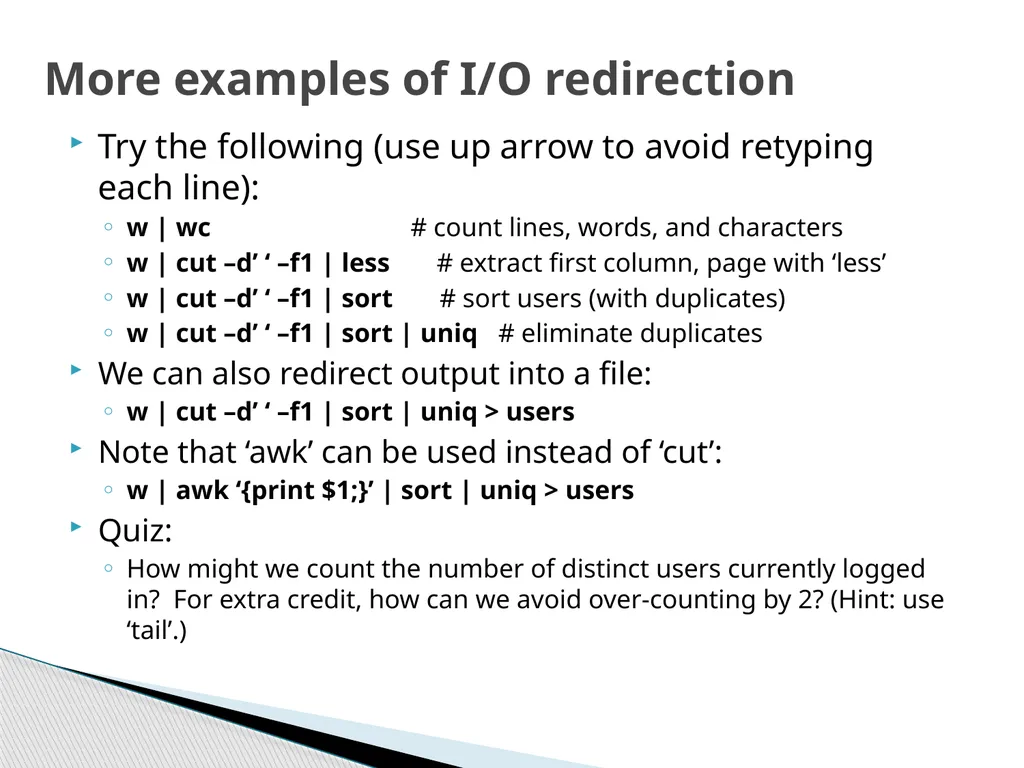
Try the following (use up arrow to avoid retyping each line):
w | wc # count lines, words, and characters
w | cut –d’ ‘ –f1 | less # extract first column, page with ‘less’
w | cut –d’ ‘ –f1 | sort # sort users (with duplicates)
w | cut –d’ ‘ –f1 | sort | uniq # eliminate duplicates
We can also redirect output into a file:
w | cut –d’ ‘ –f1 | sort | uniq > users
Note that ‘awk’ can be used instead of ‘cut’:
w | awk ‘{print $1;}’ | sort | uniq > users
Quiz:
How might we count the number of distinct users currently logged in? For extra credit, how can we avoid over-counting by 2? (Hint: use ‘tail’.) More examples of I/O redirection<br>
w | wc # count lines, words, and characters
w | cut –d’ ‘ –f1 | less # extract first column, page with ‘less’
w | cut –d’ ‘ –f1 | sort # sort users (with duplicates)
w | cut –d’ ‘ –f1 | sort | uniq # eliminate duplicates
We can also redirect output into a file:
w | cut –d’ ‘ –f1 | sort | uniq > users
Note that ‘awk’ can be used instead of ‘cut’:
w | awk ‘{print $1;}’ | sort | uniq > users
Quiz:
How might we count the number of distinct users currently logged in? For extra credit, how can we avoid over-counting by 2? (Hint: use ‘tail’.) More examples of I/O redirection<br>
25
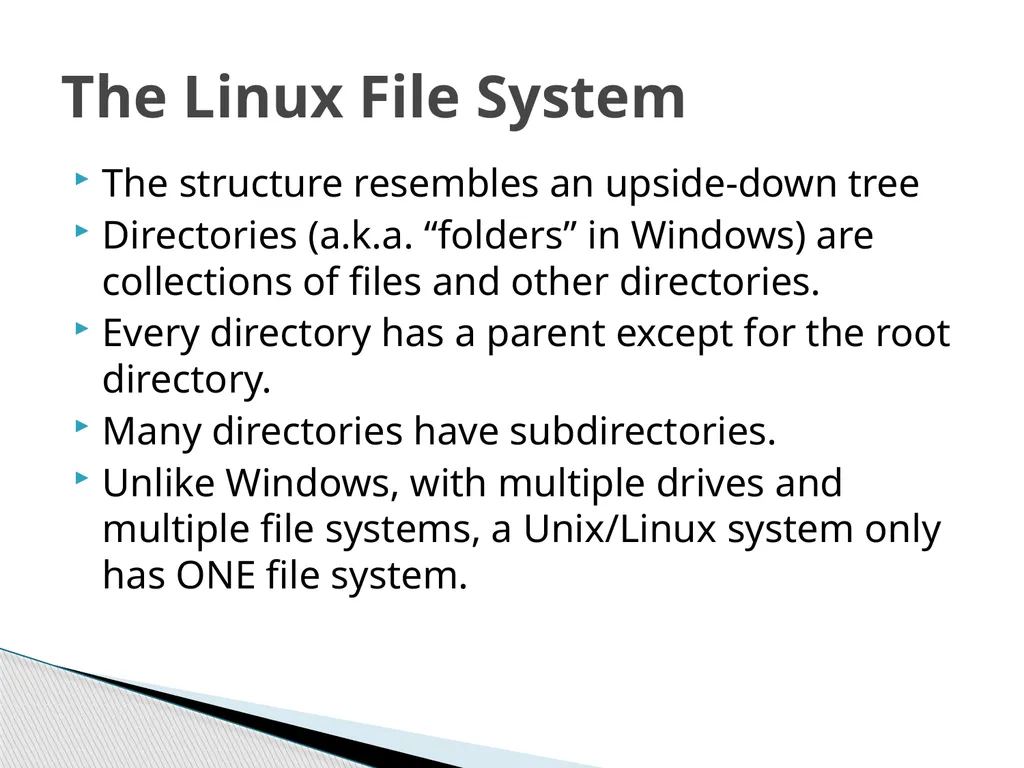
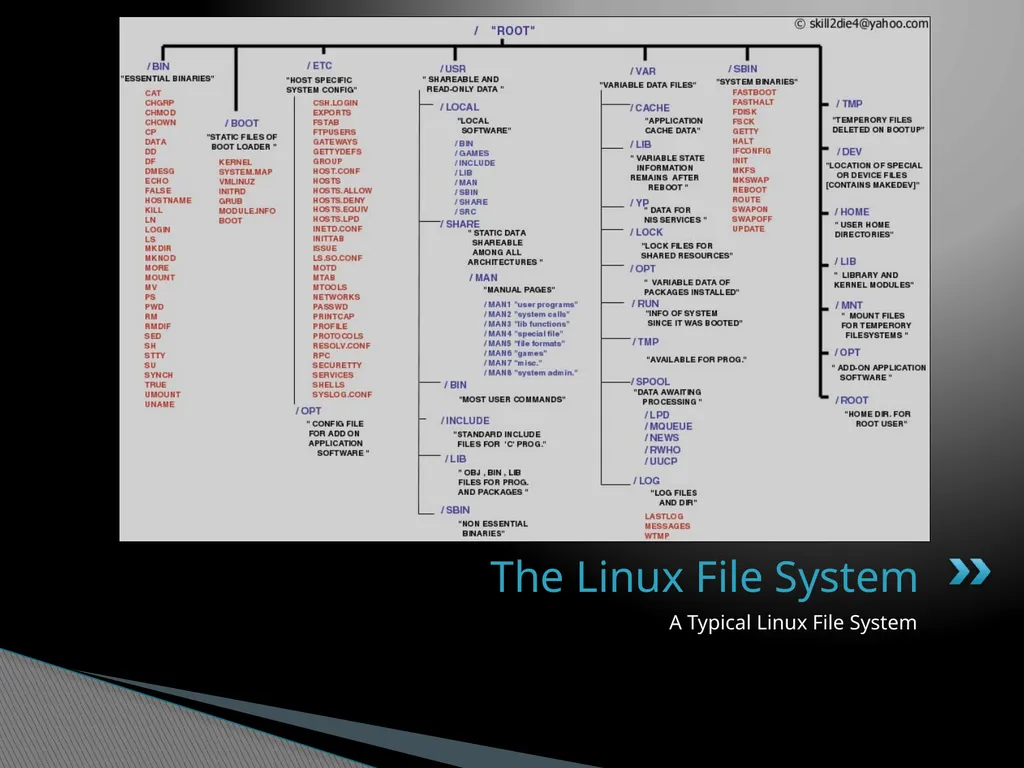
The structure resembles an upside-down tree
Directories (a.k.a. “folders” in Windows) are collections of files and other directories.
Every directory has a parent except for the root directory.
Many directories have subdirectories.
Unlike Windows, with multiple drives and multiple file systems, a Unix/Linux system only has ONE file system. The Linux File System<br>
Directories (a.k.a. “folders” in Windows) are collections of files and other directories.
Every directory has a parent except for the root directory.
Many directories have subdirectories.
Unlike Windows, with multiple drives and multiple file systems, a Unix/Linux system only has ONE file system. The Linux File System<br>
26
A Typical Linux File System The Linux File System<br>
27
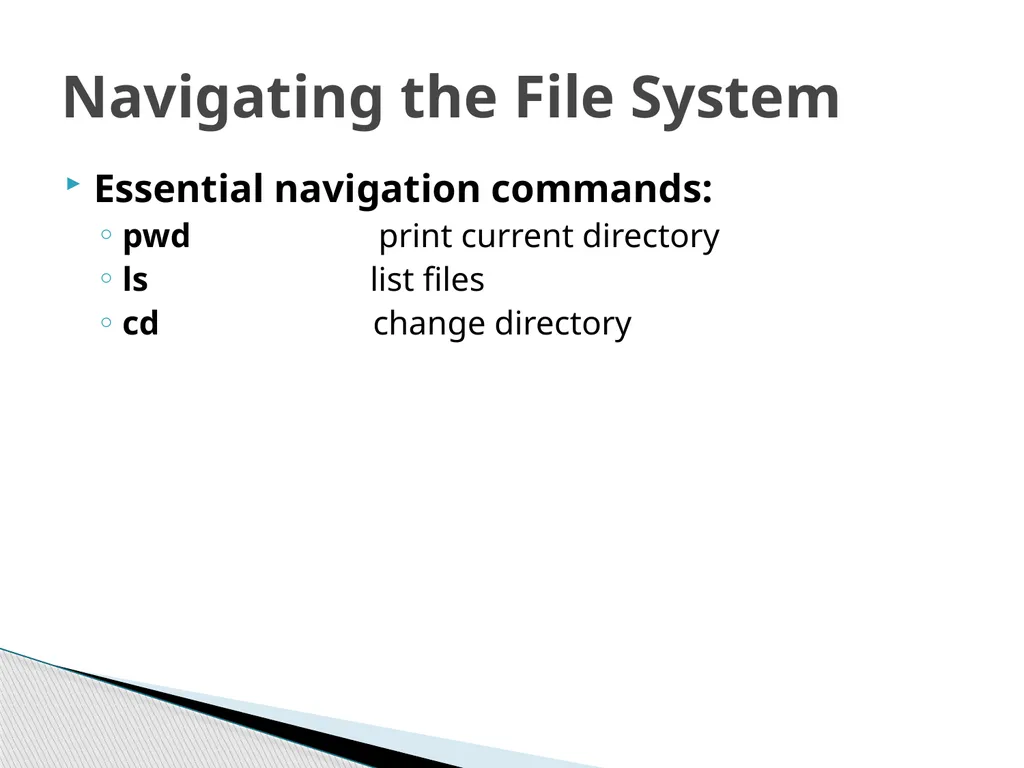
Essential navigation commands:
pwd print current directory
ls list files
cd change directory Navigating the File System<br>
pwd print current directory
ls list files
cd change directory Navigating the File System<br>
28
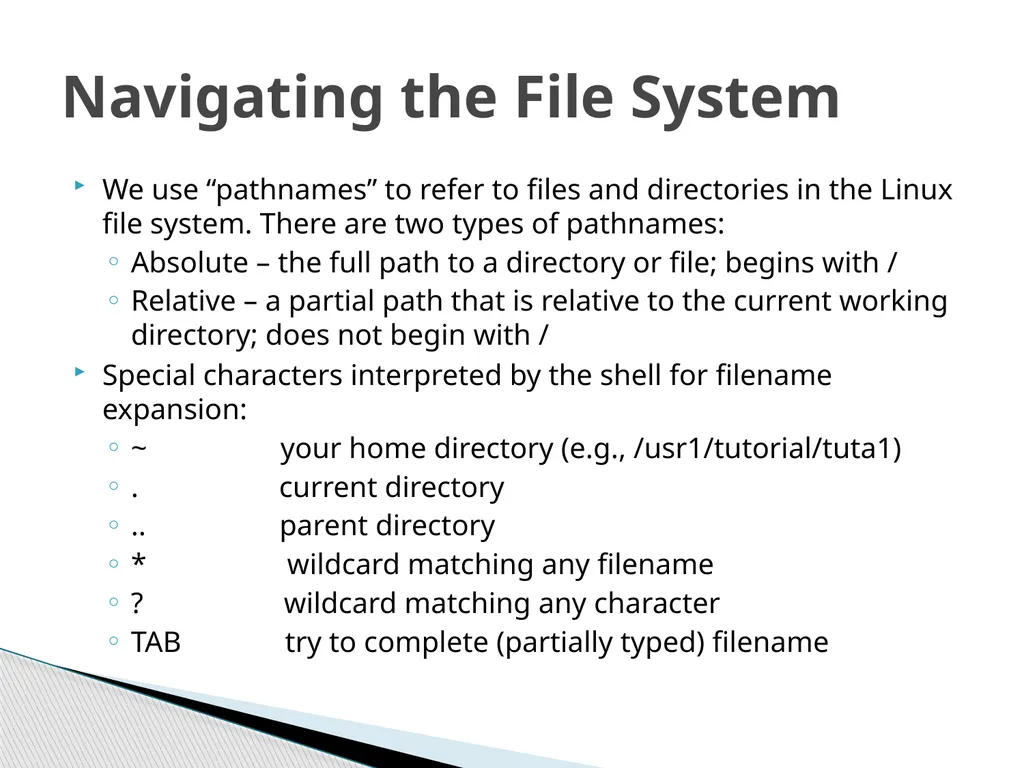
We use “pathnames” to refer to files and directories in the Linux file system. There are two types of pathnames:
Absolute – the full path to a directory or file; begins with /
Relative – a partial path that is relative to the current working directory; does not begin with /
Special characters interpreted by the shell for filename expansion:
~ your home directory (e.g., /usr1/tutorial/tuta1)
. current directory
.. parent directory
* wildcard matching any filename
? wildcard matching any character
TAB try to complete (partially typed) filename Navigating the File System<br>
Absolute – the full path to a directory or file; begins with /
Relative – a partial path that is relative to the current working directory; does not begin with /
Special characters interpreted by the shell for filename expansion:
~ your home directory (e.g., /usr1/tutorial/tuta1)
. current directory
.. parent directory
* wildcard matching any filename
? wildcard matching any character
TAB try to complete (partially typed) filename Navigating the File System<br>
29
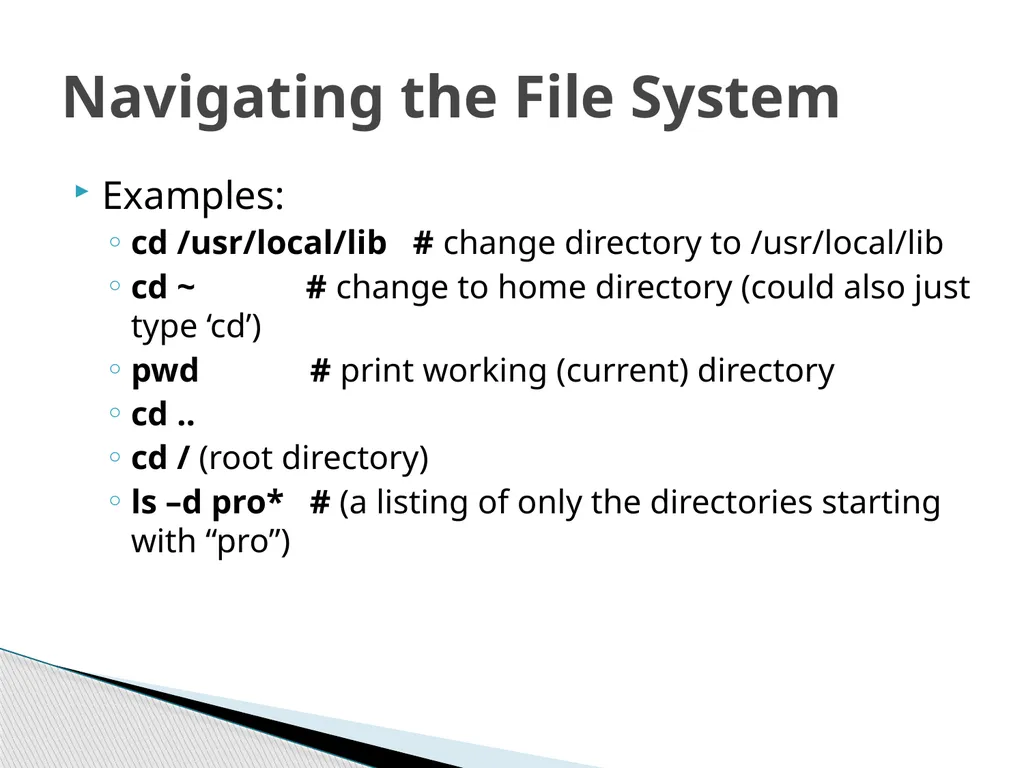
Examples:
cd /usr/local/lib # change directory to /usr/local/lib
cd ~ # change to home directory (could also just type ‘cd’)
pwd # print working (current) directory
cd ..
cd / (root directory)
ls –d pro* # (a listing of only the directories starting with “pro”) Navigating the File System<br>
cd /usr/local/lib # change directory to /usr/local/lib
cd ~ # change to home directory (could also just type ‘cd’)
pwd # print working (current) directory
cd ..
cd / (root directory)
ls –d pro* # (a listing of only the directories starting with “pro”) Navigating the File System<br>
30
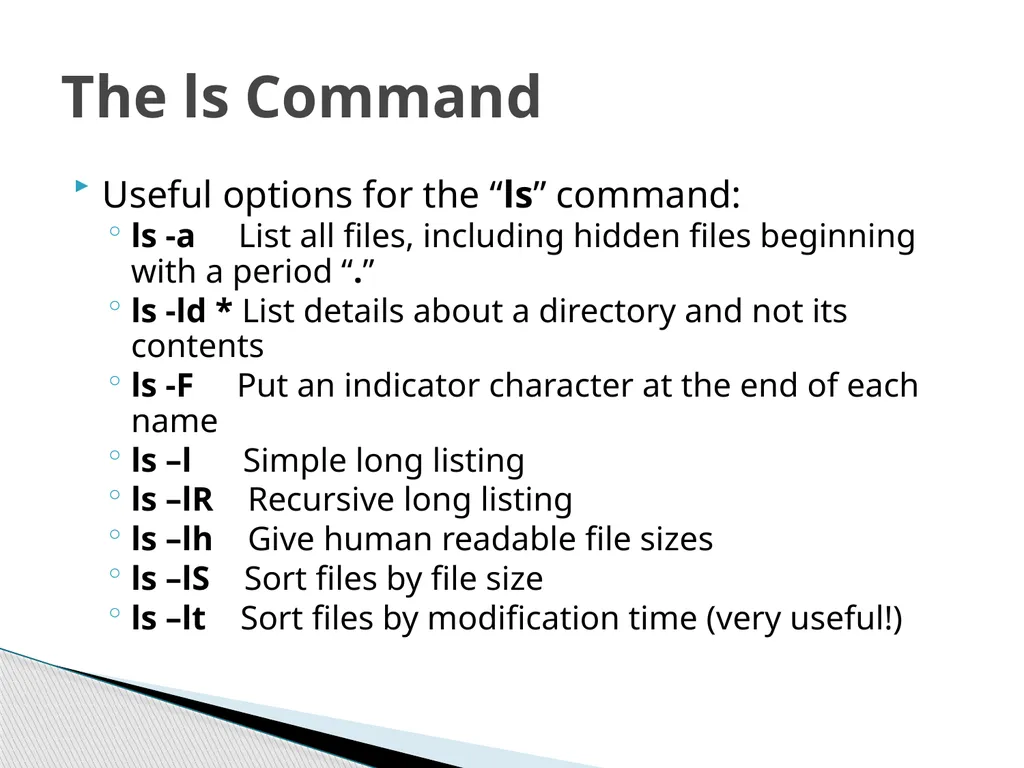
Useful options for the “ls” command:
ls -a List all files, including hidden files beginning with a period “.”
ls -ld * List details about a directory and not its contents
ls -F Put an indicator character at the end of each name
ls –l Simple long listing
ls –lR Recursive long listing
ls –lh Give human readable file sizes
ls –lS Sort files by file size
ls –lt Sort files by modification time (very useful!) The ls Command<br>
ls -a List all files, including hidden files beginning with a period “.”
ls -ld * List details about a directory and not its contents
ls -F Put an indicator character at the end of each name
ls –l Simple long listing
ls –lR Recursive long listing
ls –lh Give human readable file sizes
ls –lS Sort files by file size
ls –lt Sort files by modification time (very useful!) The ls Command<br>
31
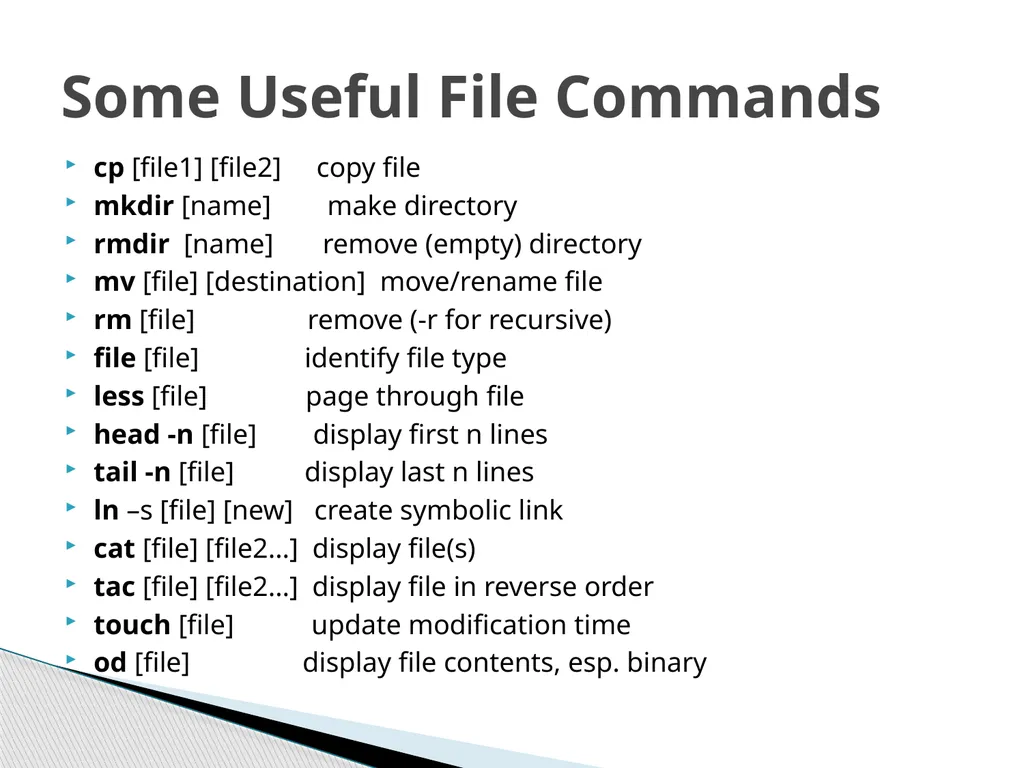
cp [file1] [file2] copy file
mkdir [name] make directory
rmdir [name] remove (empty) directory
mv [file] [destination] move/rename file
rm [file] remove (-r for recursive)
file [file] identify file type
less [file] page through file
head -n [file] display first n lines
tail -n [file] display last n lines
ln –s [file] [new] create symbolic link
cat [file] [file2…] display file(s)
tac [file] [file2…] display file in reverse order
touch [file] update modification time
od [file] display file contents, esp. binary Some Useful File Commands<br>
mkdir [name] make directory
rmdir [name] remove (empty) directory
mv [file] [destination] move/rename file
rm [file] remove (-r for recursive)
file [file] identify file type
less [file] page through file
head -n [file] display first n lines
tail -n [file] display last n lines
ln –s [file] [new] create symbolic link
cat [file] [file2…] display file(s)
tac [file] [file2…] display file in reverse order
touch [file] update modification time
od [file] display file contents, esp. binary Some Useful File Commands<br>
32
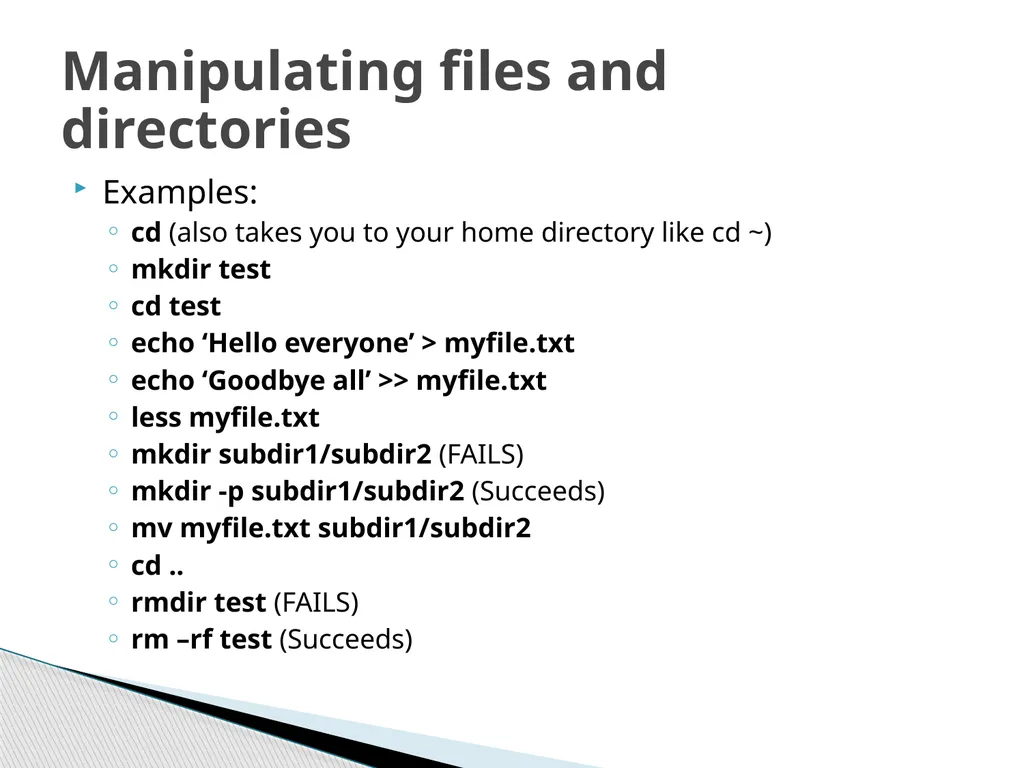
Examples:
cd (also takes you to your home directory like cd ~)
mkdir test
cd test
echo ‘Hello everyone’ > myfile.txt
echo ‘Goodbye all’ >> myfile.txt
less myfile.txt
mkdir subdir1/subdir2 (FAILS)
mkdir -p subdir1/subdir2 (Succeeds)
mv myfile.txt subdir1/subdir2
cd ..
rmdir test (FAILS)
rm –rf test (Succeeds) Manipulating files and directories<br>
cd (also takes you to your home directory like cd ~)
mkdir test
cd test
echo ‘Hello everyone’ > myfile.txt
echo ‘Goodbye all’ >> myfile.txt
less myfile.txt
mkdir subdir1/subdir2 (FAILS)
mkdir -p subdir1/subdir2 (Succeeds)
mv myfile.txt subdir1/subdir2
cd ..
rmdir test (FAILS)
rm –rf test (Succeeds) Manipulating files and directories<br>
33
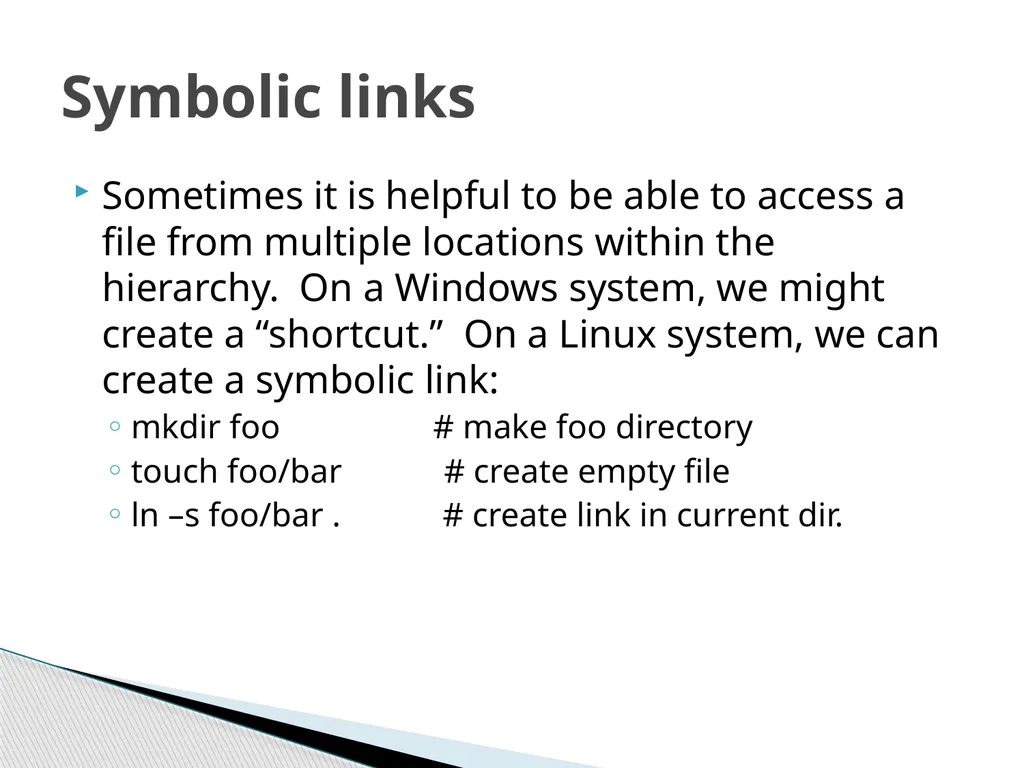
Sometimes it is helpful to be able to access a file from multiple locations within the hierarchy. On a Windows system, we might create a “shortcut.” On a Linux system, we can create a symbolic link:
mkdir foo # make foo directory
touch foo/bar # create empty file
ln –s foo/bar . # create link in current dir. Symbolic links<br>
mkdir foo # make foo directory
touch foo/bar # create empty file
ln –s foo/bar . # create link in current dir. Symbolic links<br>
34
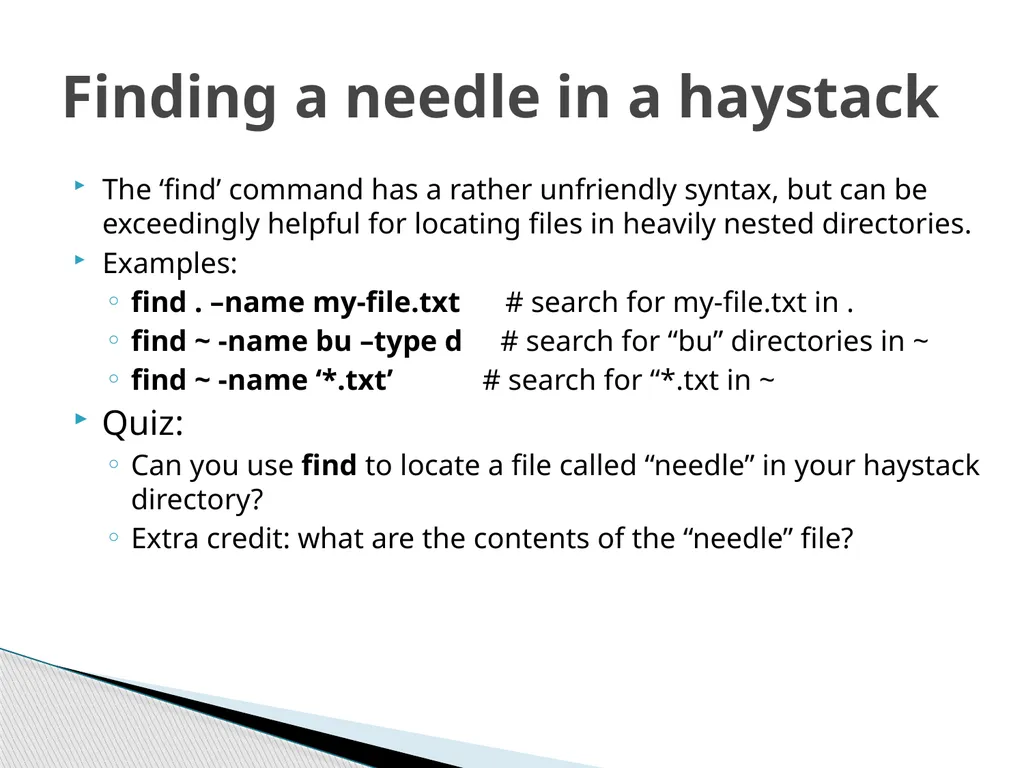
The ‘find’ command has a rather unfriendly syntax, but can be exceedingly helpful for locating files in heavily nested directories.
Examples:
find . –name my-file.txt # search for my-file.txt in .
find ~ -name bu –type d # search for “bu” directories in ~
find ~ -name ‘*.txt’ # search for “*.txt in ~
Quiz:
Can you use find to locate a file called “needle” in your haystack directory?
Extra credit: what are the contents of the “needle” file? Finding a needle in a haystack<br>
Examples:
find . –name my-file.txt # search for my-file.txt in .
find ~ -name bu –type d # search for “bu” directories in ~
find ~ -name ‘*.txt’ # search for “*.txt in ~
Quiz:
Can you use find to locate a file called “needle” in your haystack directory?
Extra credit: what are the contents of the “needle” file? Finding a needle in a haystack<br>
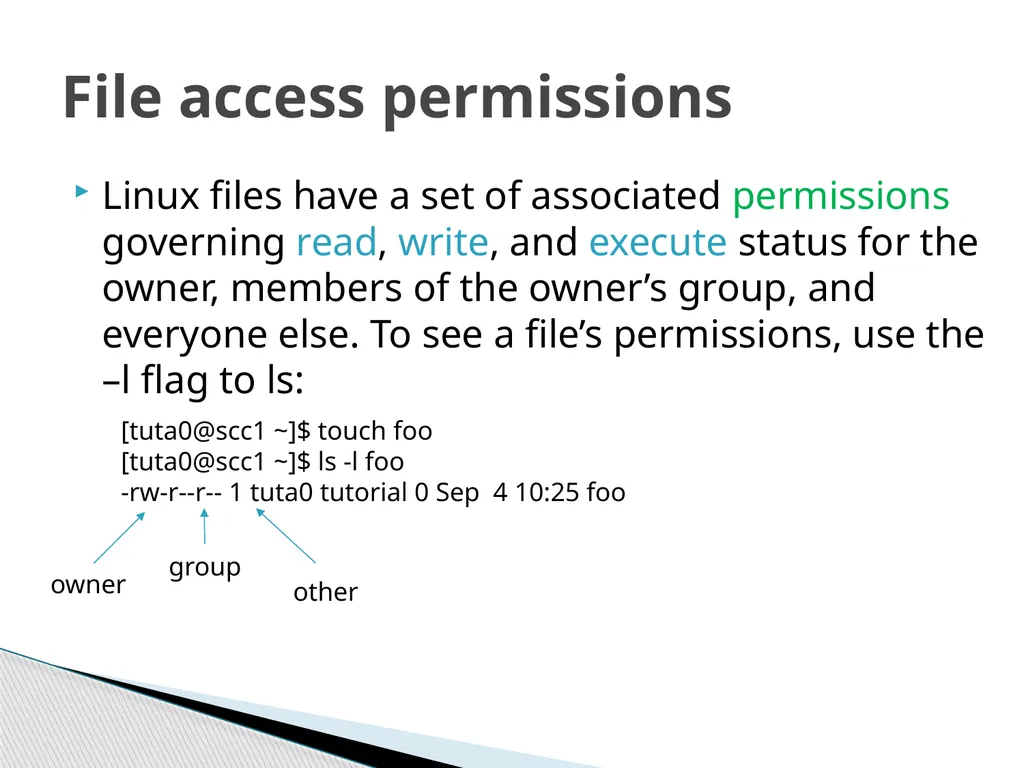
35
Linux files have a set of associated permissions governing read, write, and execute status for the owner, members of the owner’s group, and everyone else. To see a file’s permissions, use the –l flag to ls: File access permissions [tuta0@scc1 ~]$ touch foo
[tuta0@scc1 ~]$ ls -l foo
-rw-r--r-- 1 tuta0 tutorial 0 Sep 4 10:25 foo owner group other<br>
[tuta0@scc1 ~]$ ls -l foo
-rw-r--r-- 1 tuta0 tutorial 0 Sep 4 10:25 foo owner group other<br>
36
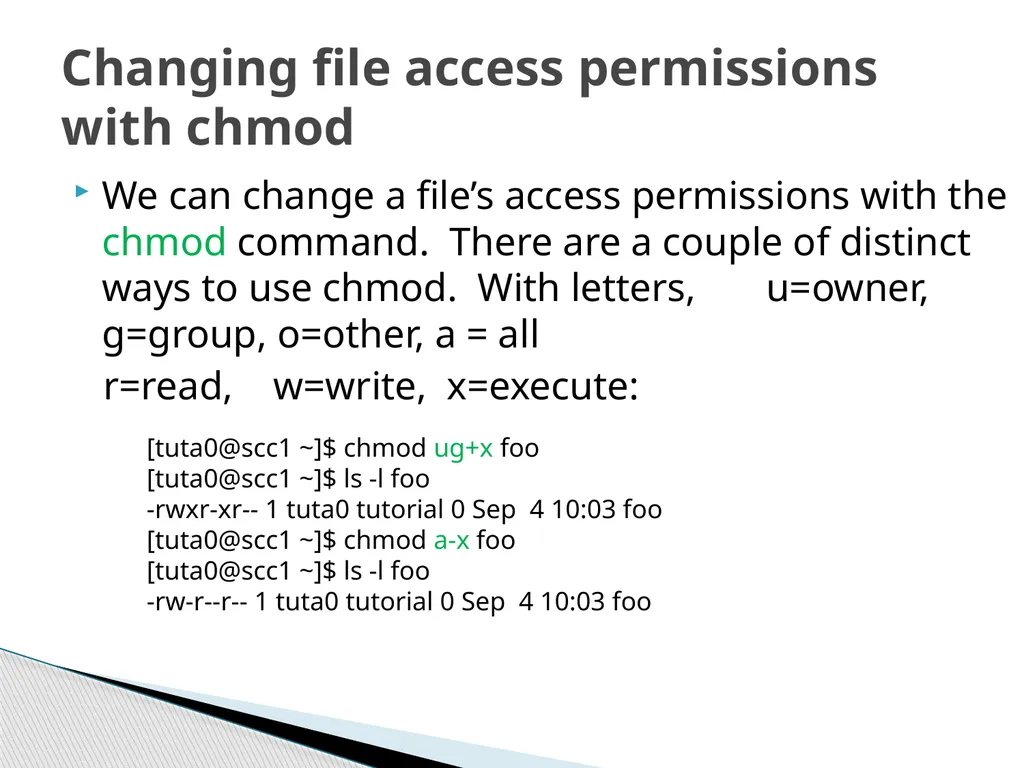
We can change a file’s access permissions with the chmod command. There are a couple of distinct ways to use chmod. With letters, u=owner, g=group, o=other, a = all
r=read, w=write, x=execute: Changing file access permissions with chmod [tuta0@scc1 ~]$ chmod ug+x foo
[tuta0@scc1 ~]$ ls -l foo
-rwxr-xr-- 1 tuta0 tutorial 0 Sep 4 10:03 foo
[tuta0@scc1 ~]$ chmod a-x foo
[tuta0@scc1 ~]$ ls -l foo
-rw-r--r-- 1 tuta0 tutorial 0 Sep 4 10:03 foo<br>
r=read, w=write, x=execute: Changing file access permissions with chmod [tuta0@scc1 ~]$ chmod ug+x foo
[tuta0@scc1 ~]$ ls -l foo
-rwxr-xr-- 1 tuta0 tutorial 0 Sep 4 10:03 foo
[tuta0@scc1 ~]$ chmod a-x foo
[tuta0@scc1 ~]$ ls -l foo
-rw-r--r-- 1 tuta0 tutorial 0 Sep 4 10:03 foo<br>
37
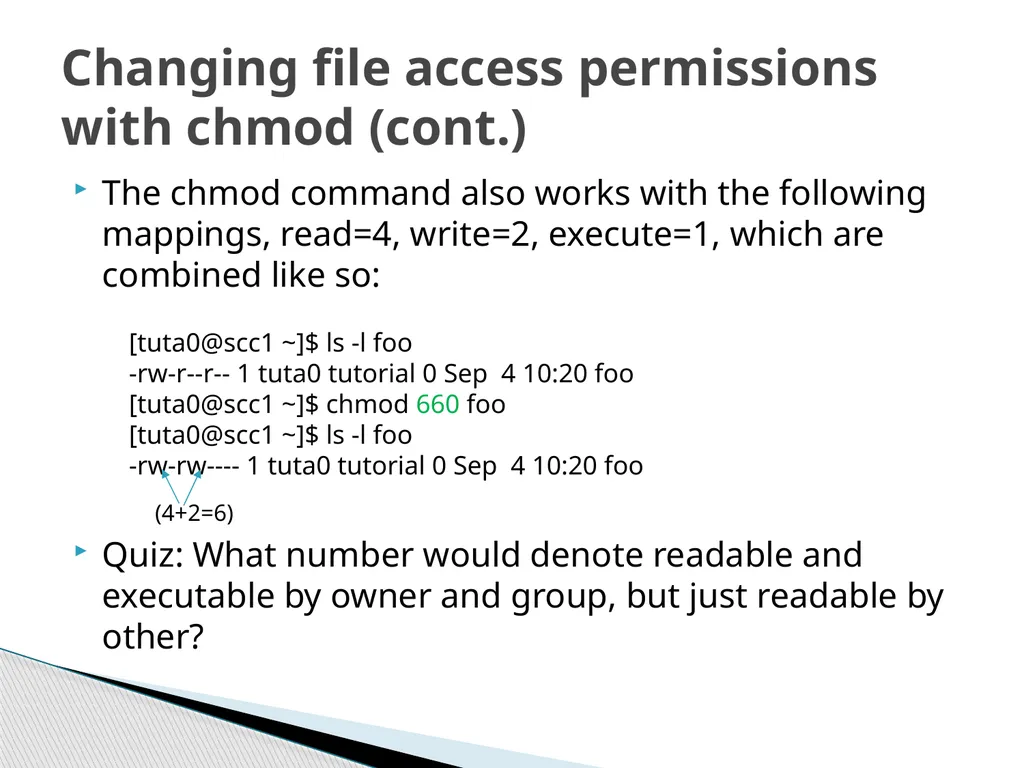
The chmod command also works with the following mappings, read=4, write=2, execute=1, which are combined like so:
Quiz: What number would denote readable and executable by owner and group, but just readable by other? Changing file access permissions with chmod (cont.) [tuta0@scc1 ~]$ ls -l foo
-rw-r--r-- 1 tuta0 tutorial 0 Sep 4 10:20 foo
[tuta0@scc1 ~]$ chmod 660 foo
[tuta0@scc1 ~]$ ls -l foo
-rw-rw---- 1 tuta0 tutorial 0 Sep 4 10:20 foo (4+2=6)<br>
Quiz: What number would denote readable and executable by owner and group, but just readable by other? Changing file access permissions with chmod (cont.) [tuta0@scc1 ~]$ ls -l foo
-rw-r--r-- 1 tuta0 tutorial 0 Sep 4 10:20 foo
[tuta0@scc1 ~]$ chmod 660 foo
[tuta0@scc1 ~]$ ls -l foo
-rw-rw---- 1 tuta0 tutorial 0 Sep 4 10:20 foo (4+2=6)<br>
38
When bash is started when you log in, a number of startup files are read. Some are system files (and are protected), but others are in your home directory and can be edited if you wish to customize your environment. These files generally start with ‘.’, and are hidden from view unless you use the –a switch to ls. Try typing ‘ls –al’ now. Bash startup files – dot files<br>
39
View .bash_profile (with less, or cat).
This file is executed when you log in.
Note that PATH is set here.
View .bashrc
This file is executed when a new shell is created.
Note this line: alias rm='rm –i’ (ask for confirmation when deleting files)
To remove the alias, edit .bashrc (e.g., with gedit or emacs or vim) and comment out the alias by placing ‘#’ at the beginning of the line. This will take effect the next time a bash shell is created. (For an immediate effect, type ‘unalias rm’.) Type ‘which rm’ or ‘type rm’ to see whether the alias is currently in effect. To see all current aliases, type ‘alias’. .bash_profile, .bashrc, alias<br>
This file is executed when you log in.
Note that PATH is set here.
View .bashrc
This file is executed when a new shell is created.
Note this line: alias rm='rm –i’ (ask for confirmation when deleting files)
To remove the alias, edit .bashrc (e.g., with gedit or emacs or vim) and comment out the alias by placing ‘#’ at the beginning of the line. This will take effect the next time a bash shell is created. (For an immediate effect, type ‘unalias rm’.) Type ‘which rm’ or ‘type rm’ to see whether the alias is currently in effect. To see all current aliases, type ‘alias’. .bash_profile, .bashrc, alias<br>
40
As we interact with Linux, we create numbered instances of running programs called “processes.” You can use the ‘ps’ command to see a listing of your processes (and others!). To see a long listing, for example, of all processes on the system try:
ps -ef
To see all the processes owned by you and other members of the class, try:
ps –ef | grep tuta
To see the biggest consumers of CPU, use the top command (which refreshes every few seconds):
top Processes and job control<br>
ps -ef
To see all the processes owned by you and other members of the class, try:
ps –ef | grep tuta
To see the biggest consumers of CPU, use the top command (which refreshes every few seconds):
top Processes and job control<br>
41
Thus far, we have run commands at the prompt and waited for them to complete. We call this running in the “foreground.” It is also possible, using the “&” operator, to run programs in the “background”, with the result that the shell prompts immediately without waiting for the command to complete:
$ mycommand &
[1] 54356 -------- process id
$ Foreground/background<br>
$ mycommand &
[1] 54356 -------- process id
$ Foreground/background<br>
42
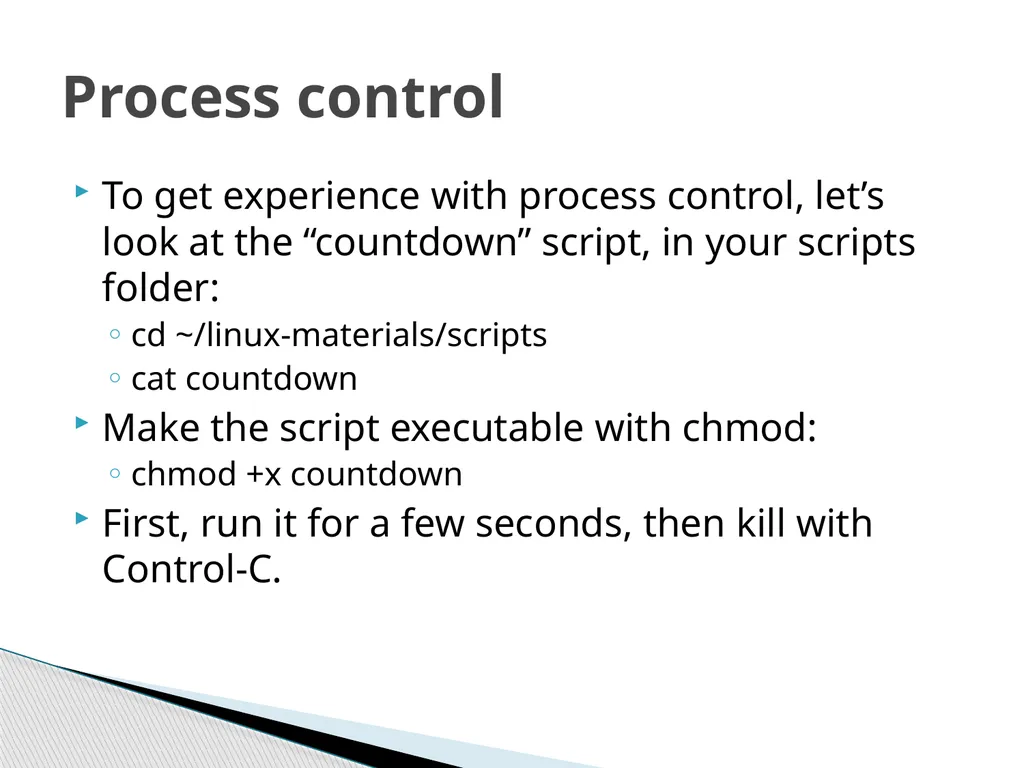
To get experience with process control, let’s look at the “countdown” script, in your scripts folder:
cd ~/linux-materials/scripts
cat countdown
Make the script executable with chmod:
chmod +x countdown
First, run it for a few seconds, then kill with Control-C. Process control<br>
cd ~/linux-materials/scripts
cat countdown
Make the script executable with chmod:
chmod +x countdown
First, run it for a few seconds, then kill with Control-C. Process control<br>
43
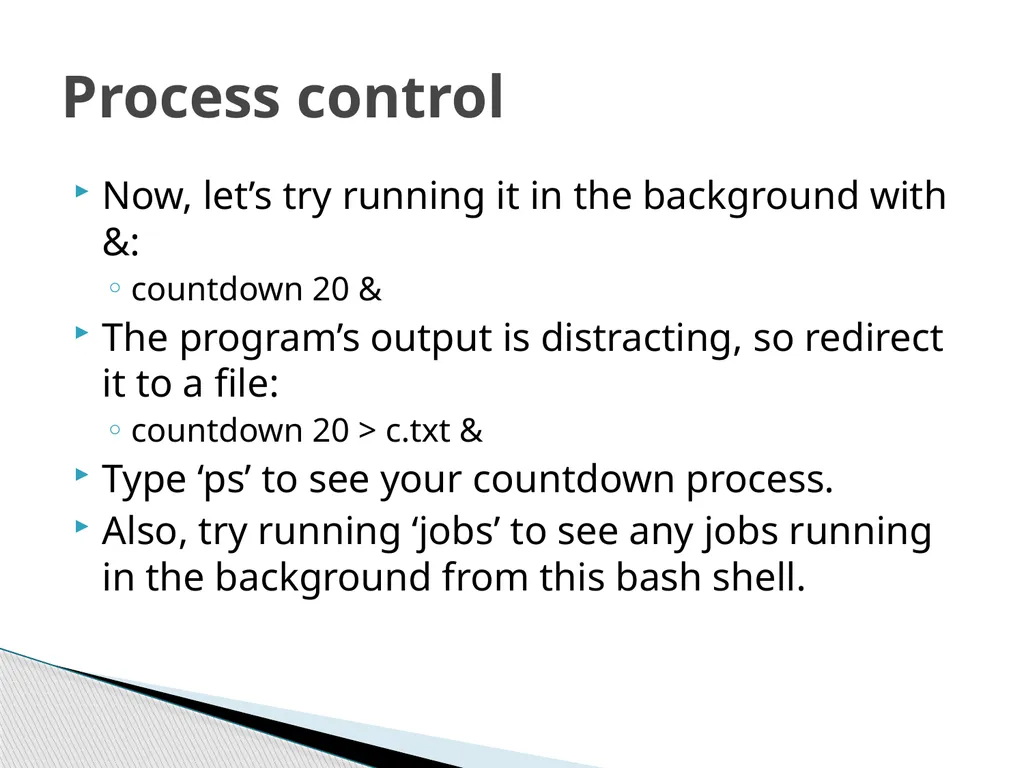
Now, let’s try running it in the background with &:
countdown 20 &
The program’s output is distracting, so redirect it to a file:
countdown 20 > c.txt &
Type ‘ps’ to see your countdown process.
Also, try running ‘jobs’ to see any jobs running in the background from this bash shell. Process control<br>
countdown 20 &
The program’s output is distracting, so redirect it to a file:
countdown 20 > c.txt &
Type ‘ps’ to see your countdown process.
Also, try running ‘jobs’ to see any jobs running in the background from this bash shell. Process control<br>
44
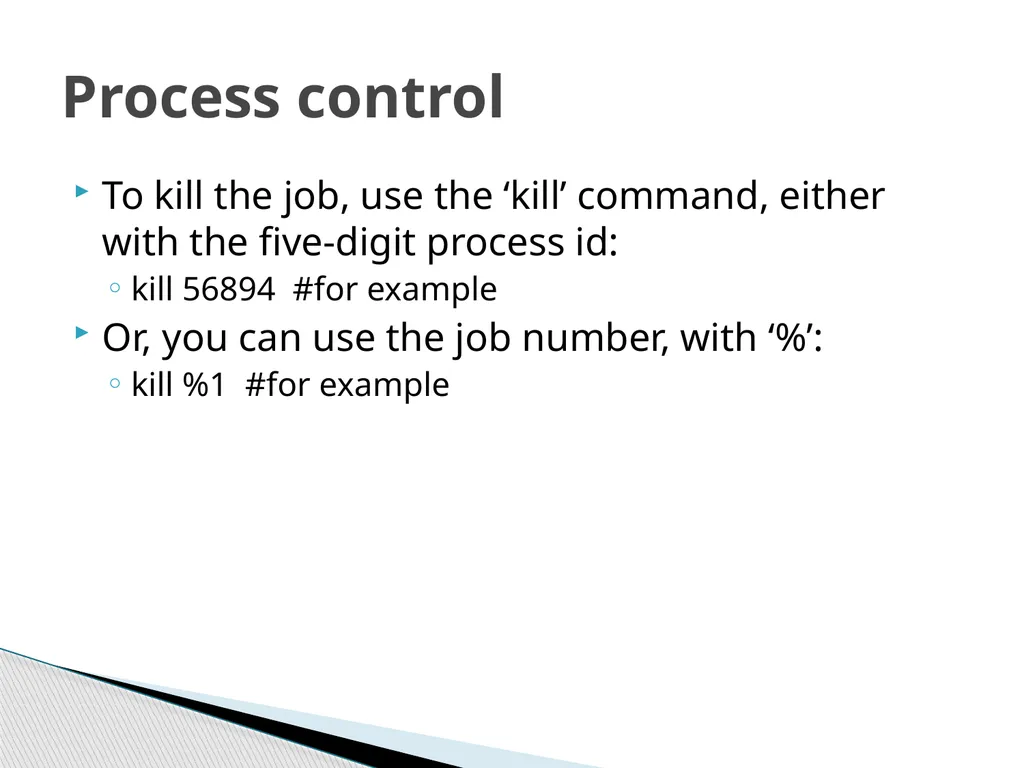
To kill the job, use the ‘kill’ command, either with the five-digit process id:
kill 56894 #for example
Or, you can use the job number, with ‘%’:
kill %1 #for example Process control<br>
kill 56894 #for example
Or, you can use the job number, with ‘%’:
kill %1 #for example Process control<br>
45
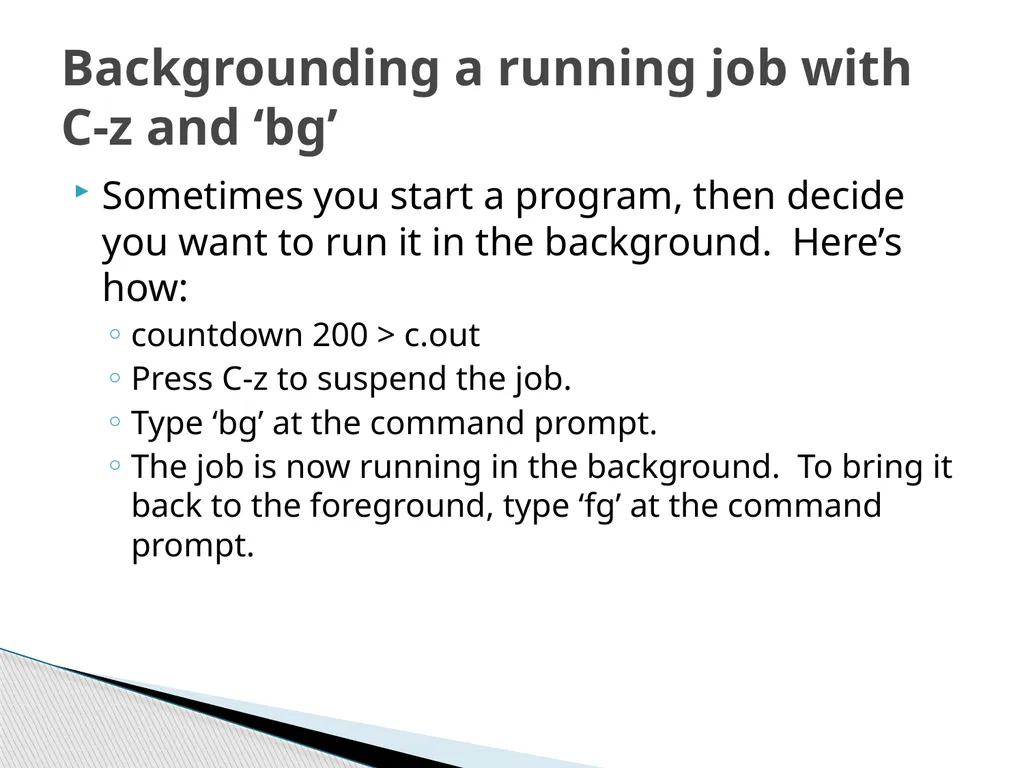
Sometimes you start a program, then decide you want to run it in the background. Here’s how:
countdown 200 > c.out
Press C-z to suspend the job.
Type ‘bg’ at the command prompt.
The job is now running in the background. To bring it back to the foreground, type ‘fg’ at the command prompt. Backgrounding a running job with C-z and ‘bg’<br>
countdown 200 > c.out
Press C-z to suspend the job.
Type ‘bg’ at the command prompt.
The job is now running in the background. To bring it back to the foreground, type ‘fg’ at the command prompt. Backgrounding a running job with C-z and ‘bg’<br>
46
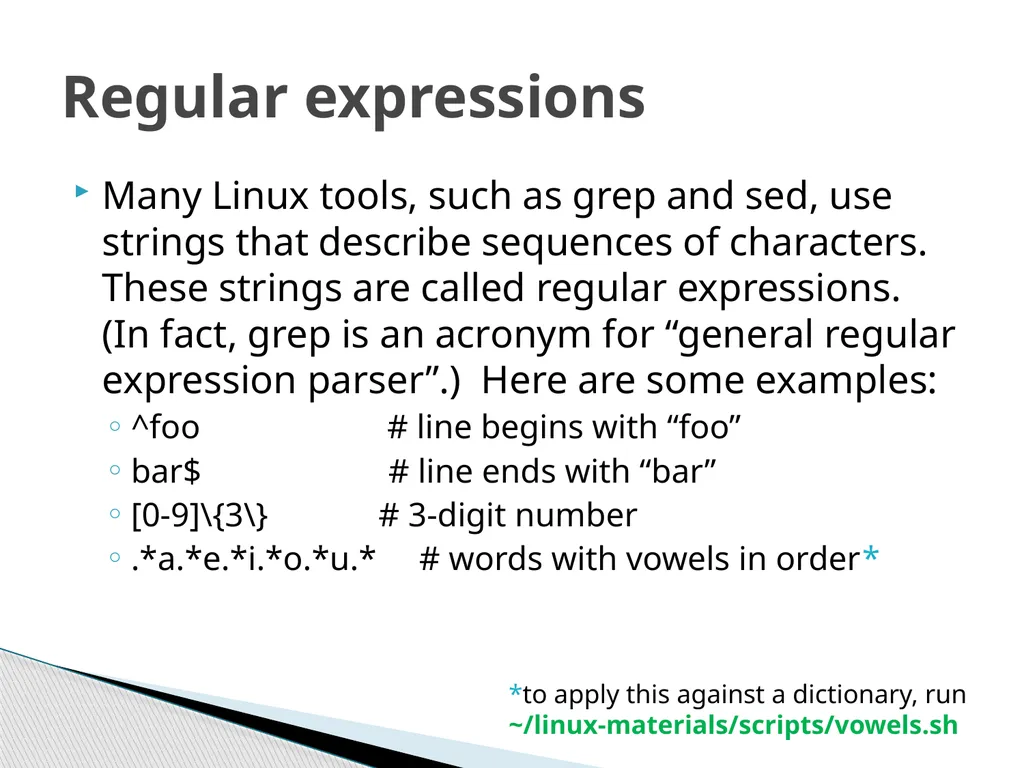
Many Linux tools, such as grep and sed, use strings that describe sequences of characters. These strings are called regular expressions. (In fact, grep is an acronym for “general regular expression parser”.) Here are some examples:
^foo # line begins with “foo”
bar$ # line ends with “bar”
[0-9]\{3\} # 3-digit number
.*a.*e.*i.*o.*u.* # words with vowels in order* Regular expressions *to apply this against a dictionary, run
~/linux-materials/scripts/vowels.sh<br>
^foo # line begins with “foo”
bar$ # line ends with “bar”
[0-9]\{3\} # 3-digit number
.*a.*e.*i.*o.*u.* # words with vowels in order* Regular expressions *to apply this against a dictionary, run
~/linux-materials/scripts/vowels.sh<br>
47
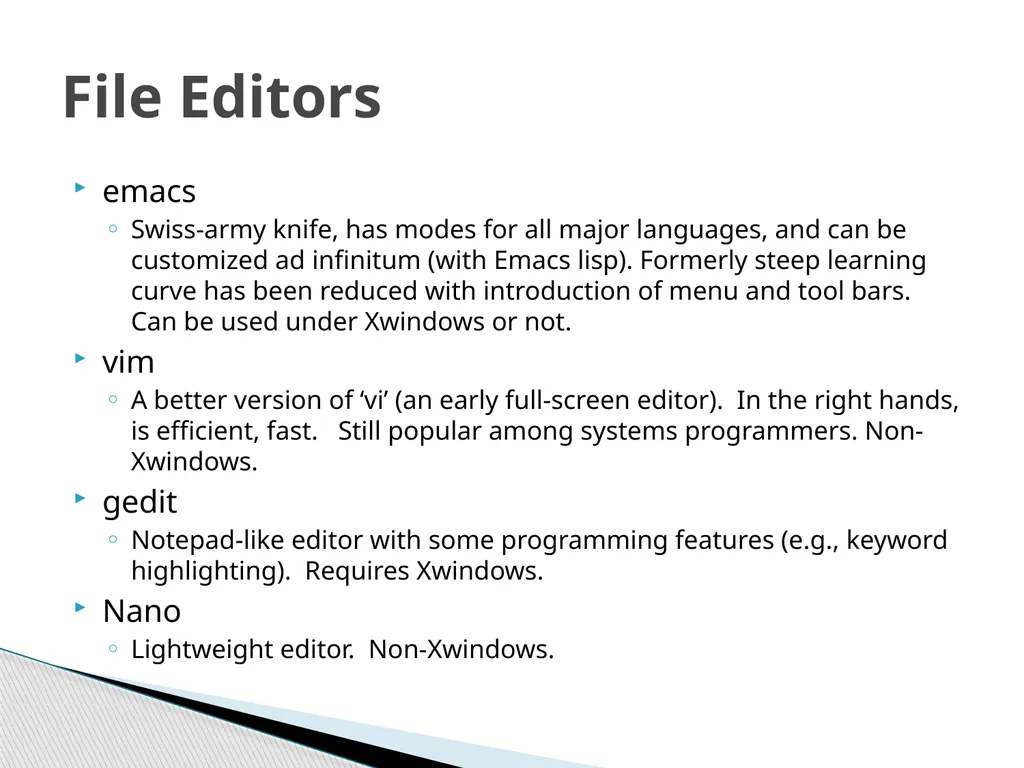
emacs
Swiss-army knife, has modes for all major languages, and can be customized ad infinitum (with Emacs lisp). Formerly steep learning curve has been reduced with introduction of menu and tool bars. Can be used under Xwindows or not.
vim
A better version of ‘vi’ (an early full-screen editor). In the right hands, is efficient, fast. Still popular among systems programmers. Non-Xwindows.
gedit
Notepad-like editor with some programming features (e.g., keyword highlighting). Requires Xwindows.
Nano
Lightweight editor. Non-Xwindows. File Editors<br>
Swiss-army knife, has modes for all major languages, and can be customized ad infinitum (with Emacs lisp). Formerly steep learning curve has been reduced with introduction of menu and tool bars. Can be used under Xwindows or not.
vim
A better version of ‘vi’ (an early full-screen editor). In the right hands, is efficient, fast. Still popular among systems programmers. Non-Xwindows.
gedit
Notepad-like editor with some programming features (e.g., keyword highlighting). Requires Xwindows.
Nano
Lightweight editor. Non-Xwindows. File Editors<br>
48
Normal – navigation, text manipulation
Arrow keys, j,k,l,m…
p to put yanked text
x to delete character under cursor
dd to delete current line
: to enter command mode
Insert – for adding new text
Enter by typing i when in normal mode
Exit by hitting ESC
Visual – for selecting text
Enter by typing v when in normal mode
Copy (yank) text by typing y Vim modes<br>
Arrow keys, j,k,l,m…
p to put yanked text
x to delete character under cursor
dd to delete current line
: to enter command mode
Insert – for adding new text
Enter by typing i when in normal mode
Exit by hitting ESC
Visual – for selecting text
Enter by typing v when in normal mode
Copy (yank) text by typing y Vim modes<br>
49
Command (entered via “:” from normal mode)
q Quit
q! Quit without saving
w filename Write filename
help Get help (extensive) Vim modes (cont.)<br>
q Quit
q! Quit without saving
w filename Write filename
help Get help (extensive) Vim modes (cont.)<br>
50
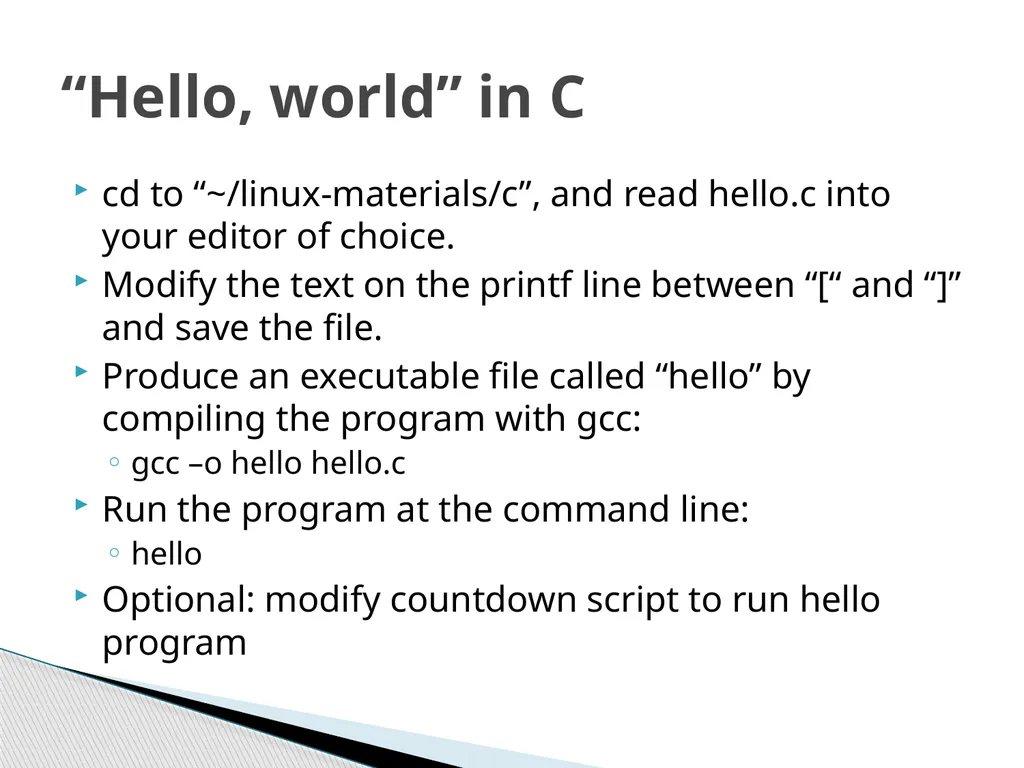
cd to “~/linux-materials/c”, and read hello.c into your editor of choice.
Modify the text on the printf line between “[“ and “]” and save the file.
Produce an executable file called “hello” by compiling the program with gcc:
gcc –o hello hello.c
Run the program at the command line:
hello
Optional: modify countdown script to run hello program “Hello, world” in C<br>
Modify the text on the printf line between “[“ and “]” and save the file.
Produce an executable file called “hello” by compiling the program with gcc:
gcc –o hello hello.c
Run the program at the command line:
hello
Optional: modify countdown script to run hello program “Hello, world” in C<br>
51
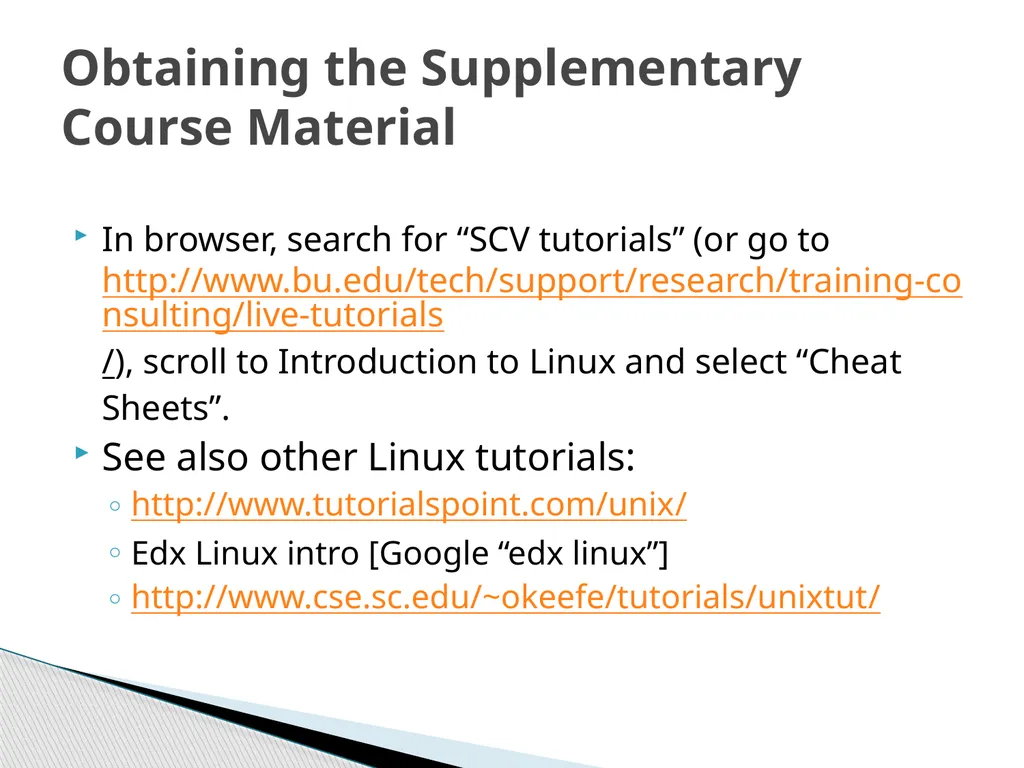
In browser, search for “SCV tutorials” (or go to http://www.bu.edu/tech/support/research/training-consulting/live-tutorials/), scroll to Introduction to Linux and select “Cheat Sheets”.
See also other Linux tutorials:
http://www.tutorialspoint.com/unix/
Edx Linux intro [Google “edx linux”]
http://www.cse.sc.edu/~okeefe/tutorials/unixtut/ Obtaining the Supplementary Course Material<br>
See also other Linux tutorials:
http://www.tutorialspoint.com/unix/
Edx Linux intro [Google “edx linux”]
http://www.cse.sc.edu/~okeefe/tutorials/unixtut/ Obtaining the Supplementary Course Material<br>
52
Questions?<br>