
Introduction to Unix: Basic Command Line Commands
LO
Published · 48 slides · 0 views
1 / 1

Description
Introduction to Unix: Basic Command Line Commands Ricky Patterson Research Librarian for Science Engineering University of Virginia Library rickyvirginia.edu Based on slides from Turgut Yilmaz Istanbul Teknik University 2 What We Will
Related Topics
Share
Embed code
Download this presentation From Below
"Introduction to Unix: Basic Command Line Commands" is the property of its rightful owner. Permission is granted to download and print the materials on this website for personal, non-commercial use only, and to display it on your personal computer provided you do not modify the materials and that you retain all copyright notices contained in the materials. By downloading content from our website, you accept the terms of this agreement.
Presentation Transcript
01
Introduction to Unix:
Basic Command Line Commands Ricky Patterson
Research Librarian for Science & Engineering
University of Virginia Library
ricky@virginia.edu Based on slides from Turgut Yilmaz – Istanbul Teknik University<br>
Research Librarian for Science & Engineering
University of Virginia Library
ricky@virginia.edu Based on slides from Turgut Yilmaz – Istanbul Teknik University<br>
02
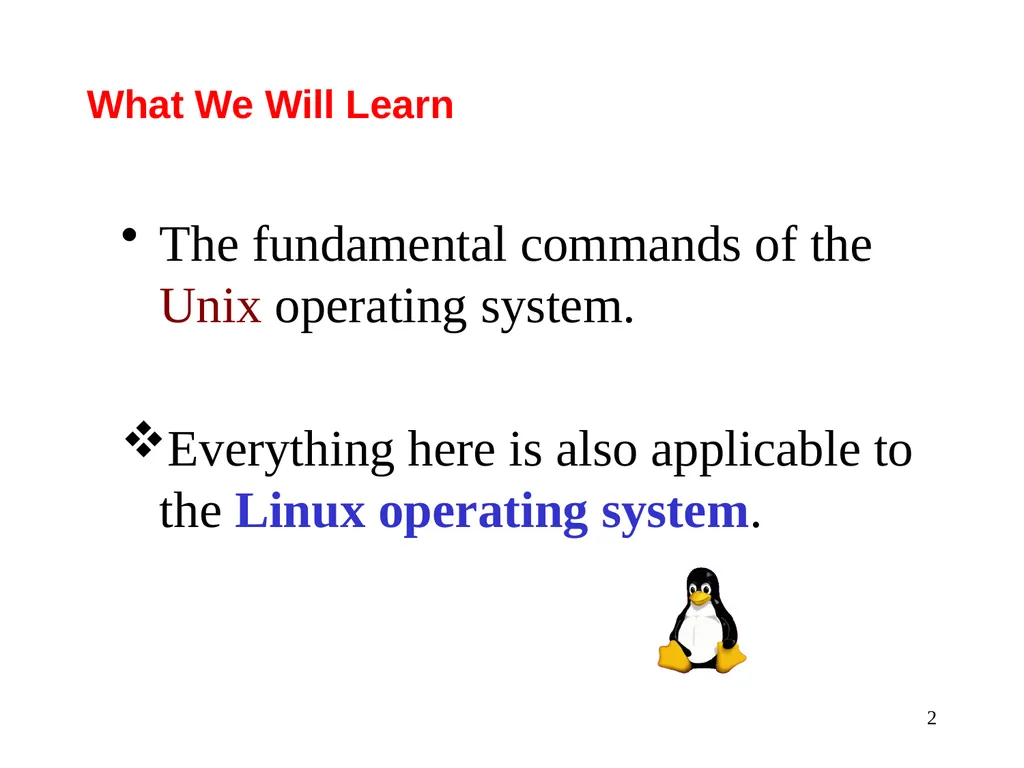
2 What We Will Learn The fundamental commands of the Unix operating system.
Everything here is also applicable to the Linux operating system.<br>
Everything here is also applicable to the Linux operating system.<br>
03
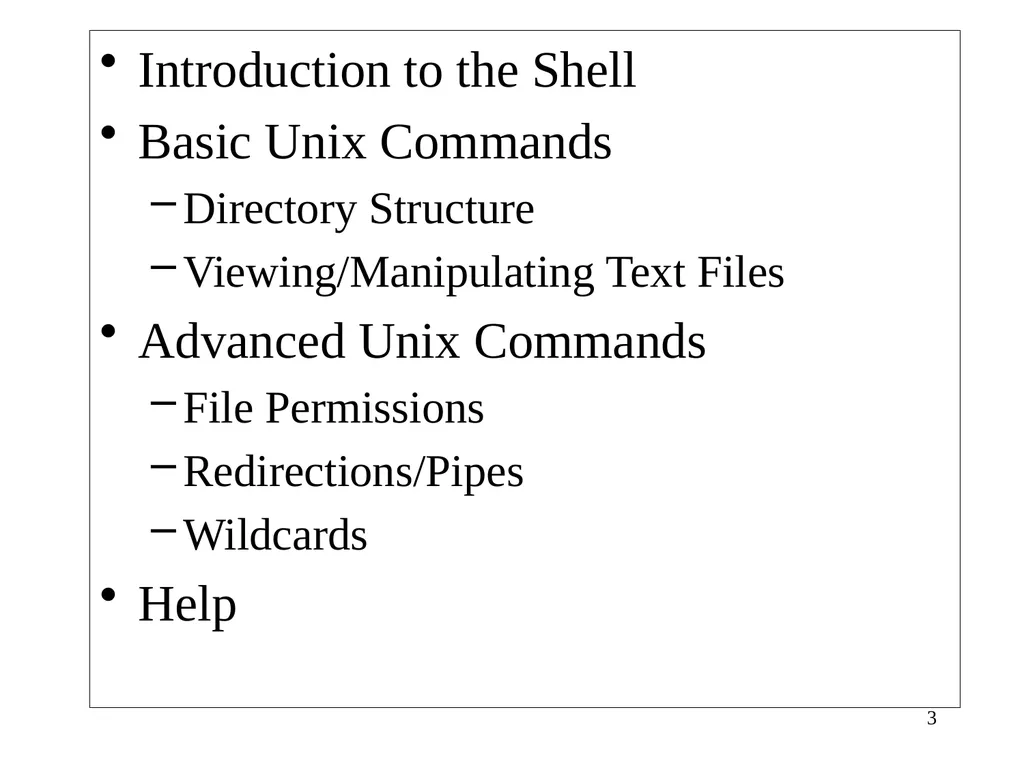
3 Introduction to the Shell
Basic Unix Commands
Directory Structure
Viewing/Manipulating Text Files
Advanced Unix Commands
File Permissions
Redirections/Pipes
Wildcards
Help<br>
Basic Unix Commands
Directory Structure
Viewing/Manipulating Text Files
Advanced Unix Commands
File Permissions
Redirections/Pipes
Wildcards
Help<br>
04
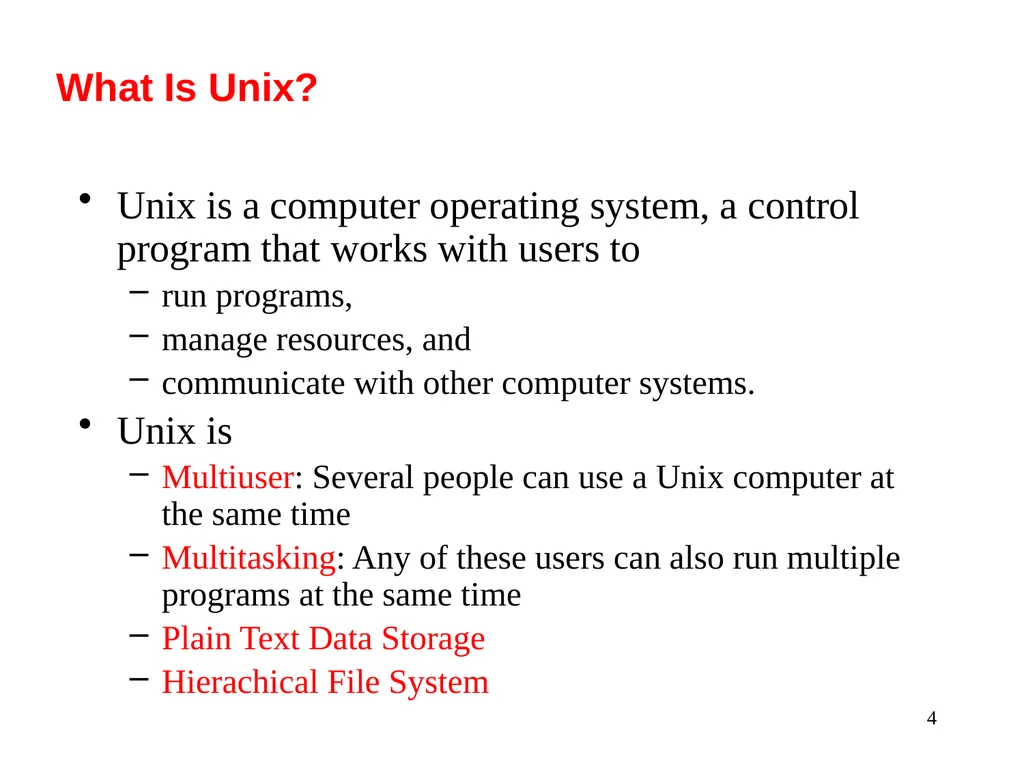
4 What Is Unix? Unix is a computer operating system, a control program that works with users to
run programs,
manage resources, and
communicate with other computer systems.
Unix is
Multiuser: Several people can use a Unix computer at the same time
Multitasking: Any of these users can also run multiple programs at the same time
Plain Text Data Storage
Hierachical File System<br>
run programs,
manage resources, and
communicate with other computer systems.
Unix is
Multiuser: Several people can use a Unix computer at the same time
Multitasking: Any of these users can also run multiple programs at the same time
Plain Text Data Storage
Hierachical File System<br>
05
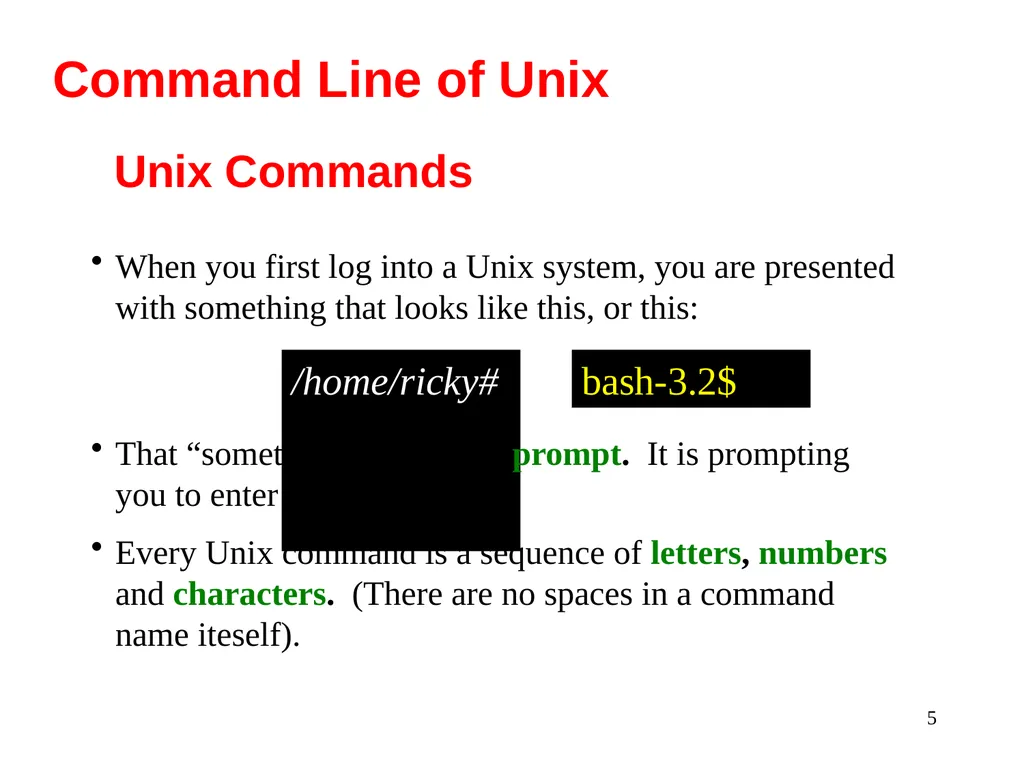
5 Unix Commands /home/ricky# That “something” is called a prompt. It is prompting you to enter a command.
Every Unix command is a sequence of letters, numbers and characters. (There are no spaces in a command name iteself). When you first log into a Unix system, you are presented with something that looks like this, or this: Command Line of Unix bash-3.2$<br>
Every Unix command is a sequence of letters, numbers and characters. (There are no spaces in a command name iteself). When you first log into a Unix system, you are presented with something that looks like this, or this: Command Line of Unix bash-3.2$<br>
06
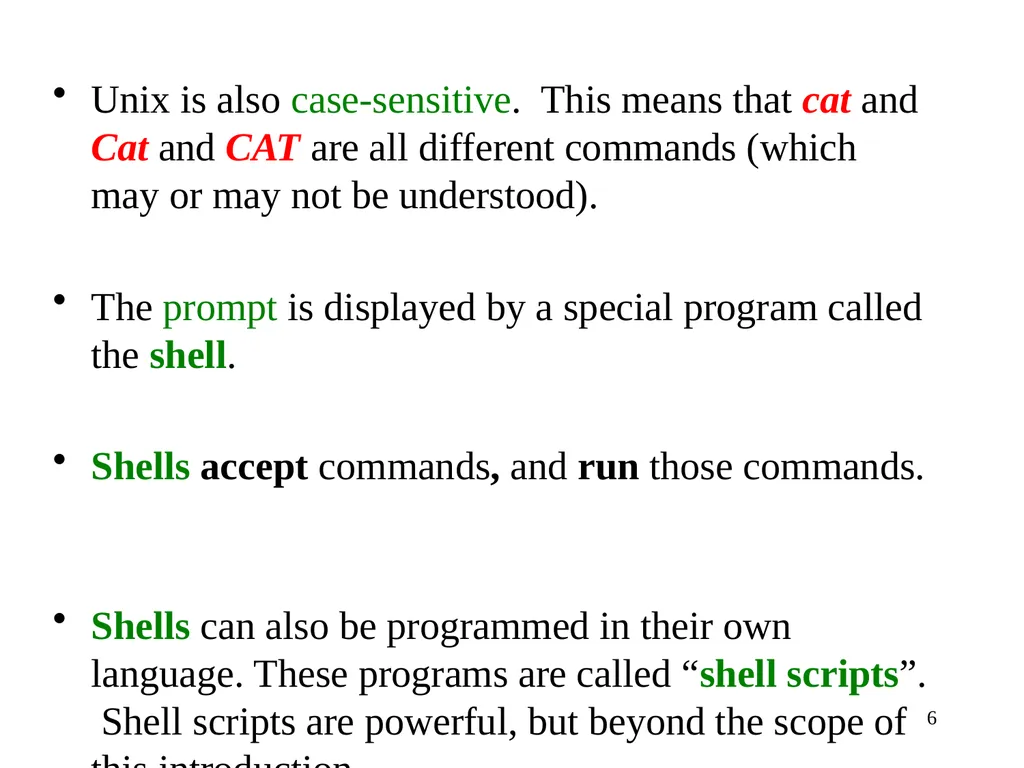
6 Unix is also case-sensitive. This means that cat and Cat and CAT are all different commands (which may or may not be understood).
The prompt is displayed by a special program called the shell.
Shells accept commands, and run those commands.
Shells can also be programmed in their own language. These programs are called “shell scripts”. Shell scripts are powerful, but beyond the scope of this introduction.<br>
The prompt is displayed by a special program called the shell.
Shells accept commands, and run those commands.
Shells can also be programmed in their own language. These programs are called “shell scripts”. Shell scripts are powerful, but beyond the scope of this introduction.<br>
07
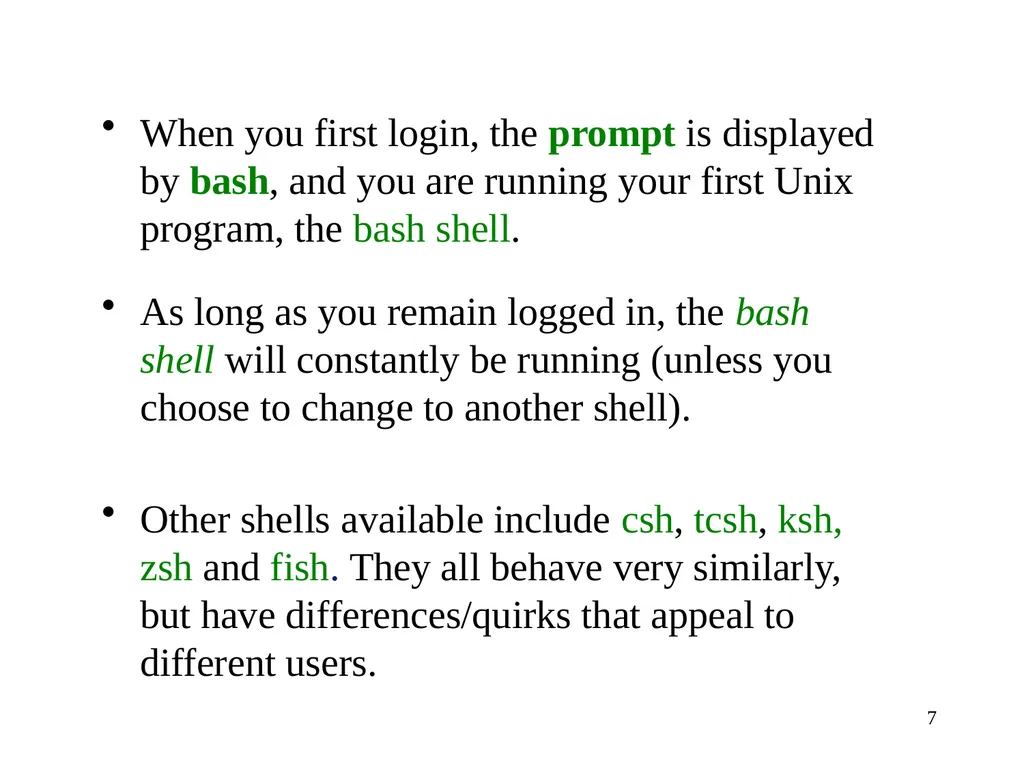
7 When you first login, the prompt is displayed by bash, and you are running your first Unix program, the bash shell.
As long as you remain logged in, the bash shell will constantly be running (unless you choose to change to another shell).
Other shells available include csh, tcsh, ksh, zsh and fish. They all behave very similarly, but have differences/quirks that appeal to different users.<br>
As long as you remain logged in, the bash shell will constantly be running (unless you choose to change to another shell).
Other shells available include csh, tcsh, ksh, zsh and fish. They all behave very similarly, but have differences/quirks that appeal to different users.<br>
08
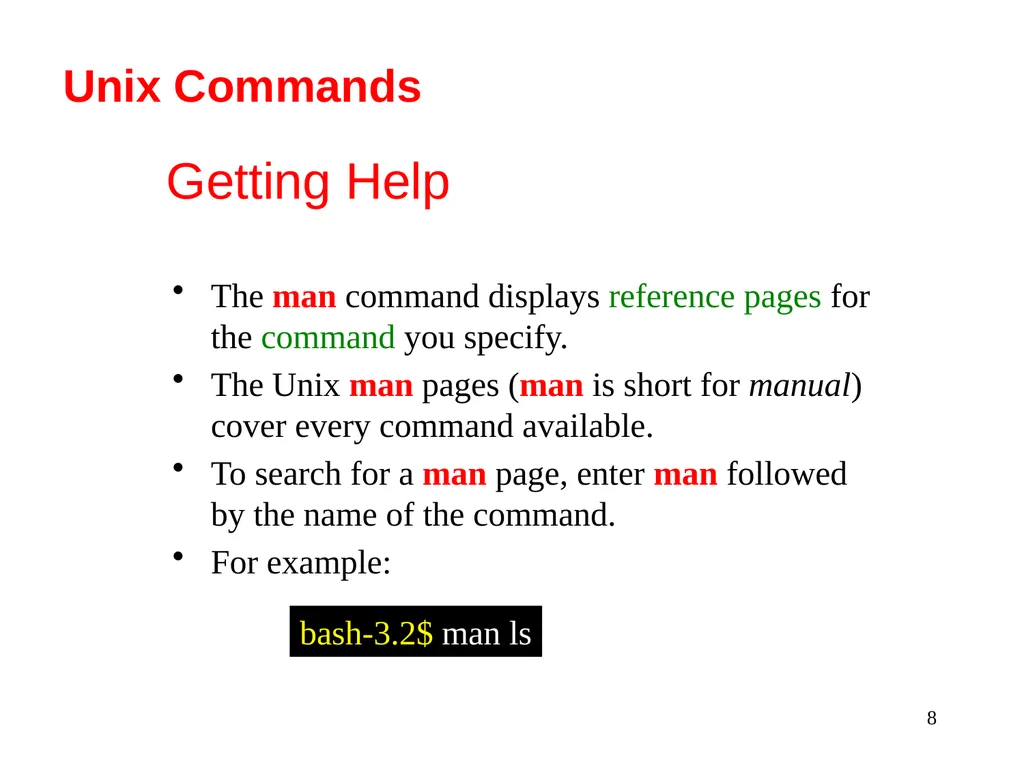
8 Getting Help The man command displays reference pages for the command you specify.
The Unix man pages (man is short for manual) cover every command available.
To search for a man page, enter man followed by the name of the command.
For example: bash-3.2$ man ls Unix Commands<br>
The Unix man pages (man is short for manual) cover every command available.
To search for a man page, enter man followed by the name of the command.
For example: bash-3.2$ man ls Unix Commands<br>
09
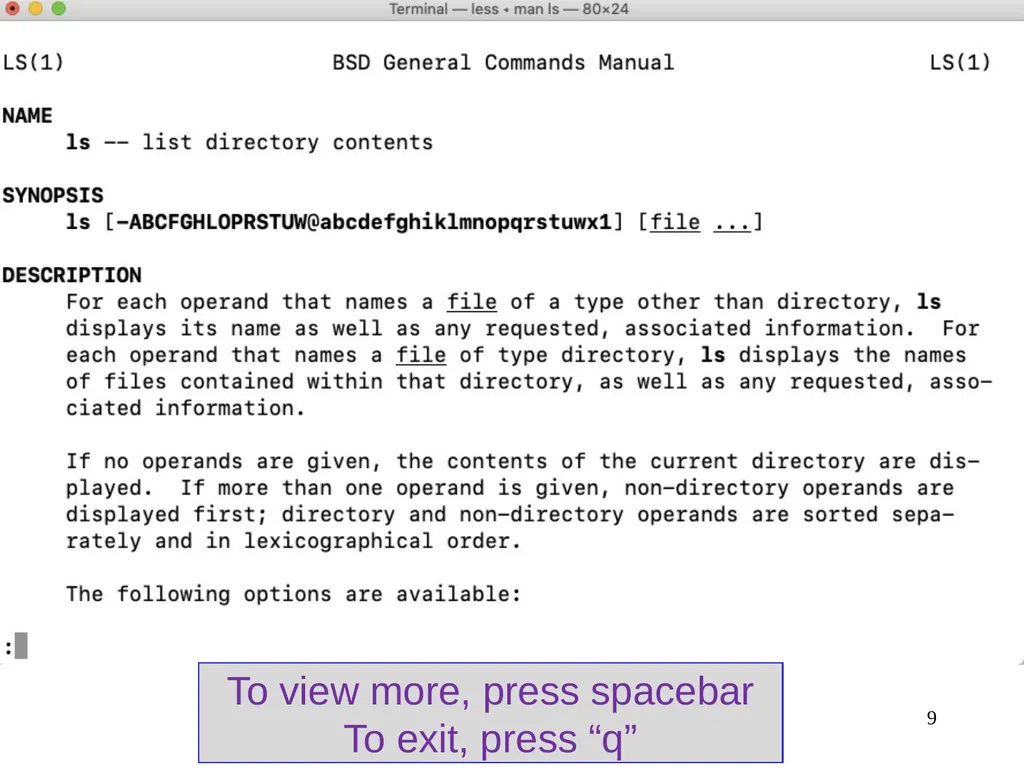
9 To view more, press spacebar
To exit, press “q”<br>
To exit, press “q”<br>
10
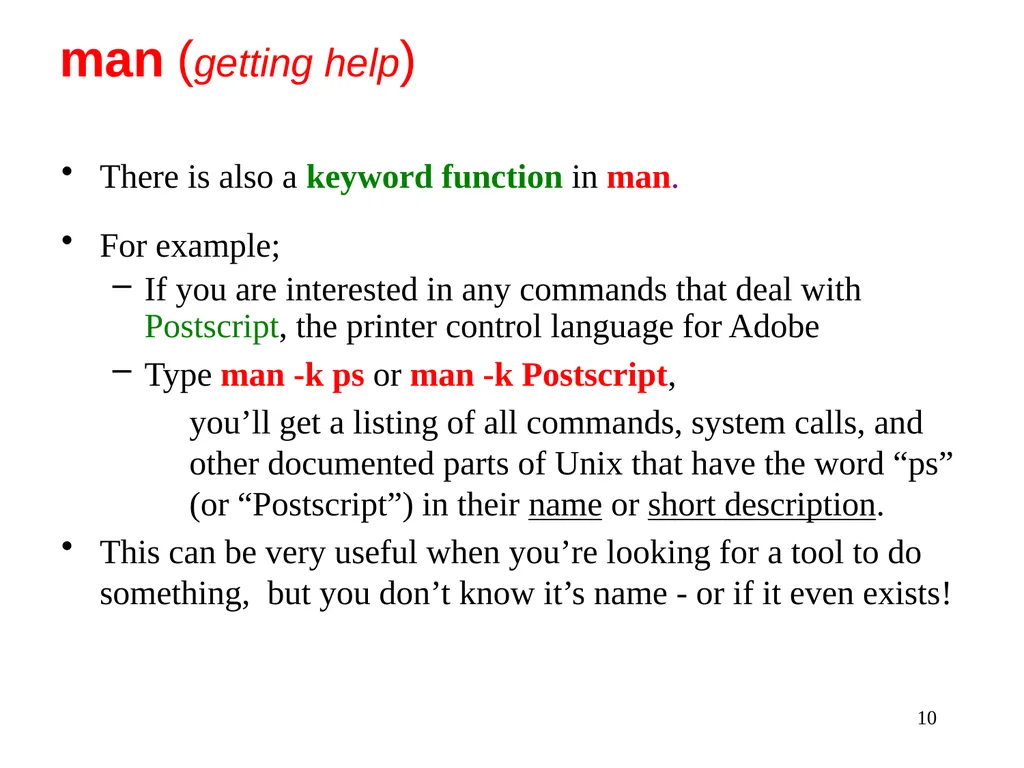
10 There is also a keyword function in man.
For example;
If you are interested in any commands that deal with Postscript, the printer control language for Adobe
Type man -k ps or man -k Postscript,
you’ll get a listing of all commands, system calls, and other documented parts of Unix that have the word “ps” (or “Postscript”) in their name or short description.
This can be very useful when you’re looking for a tool to do something, but you don’t know it’s name - or if it even exists! man (getting help)<br>
For example;
If you are interested in any commands that deal with Postscript, the printer control language for Adobe
Type man -k ps or man -k Postscript,
you’ll get a listing of all commands, system calls, and other documented parts of Unix that have the word “ps” (or “Postscript”) in their name or short description.
This can be very useful when you’re looking for a tool to do something, but you don’t know it’s name - or if it even exists! man (getting help)<br>
11
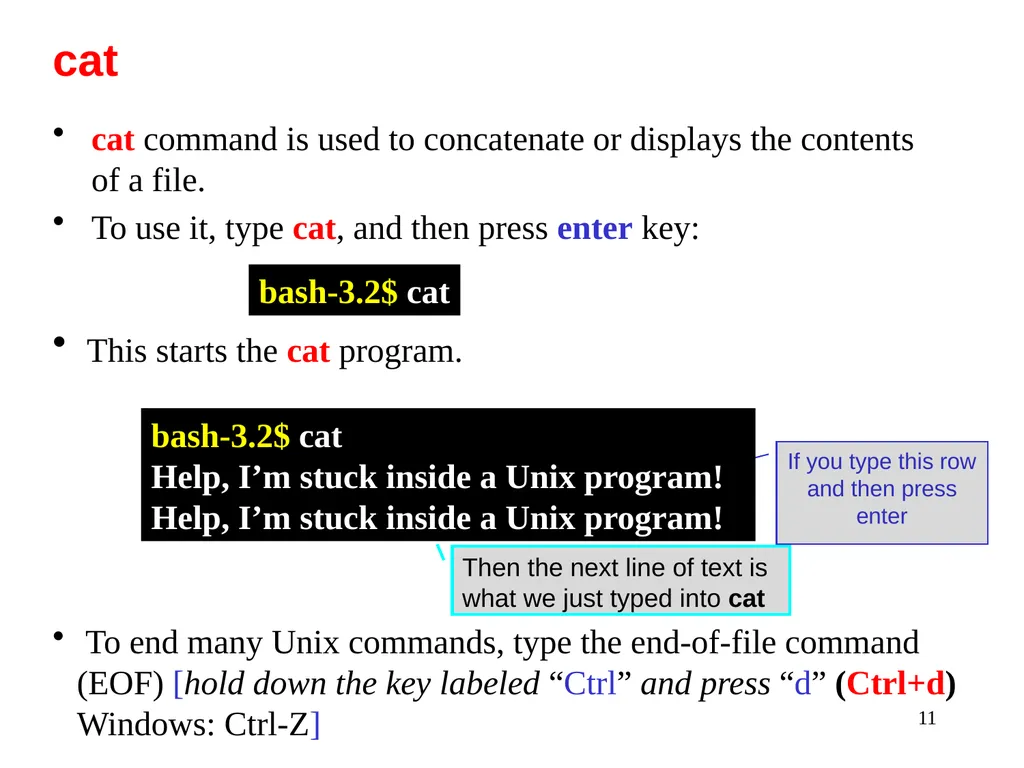
11 cat command is used to concatenate or displays the contents of a file.
To use it, type cat, and then press enter key: Then the next line of text is what we just typed into cat cat bash-3.2$ cat This starts the cat program. If you type this row and then press enter To end many Unix commands, type the end-of-file command (EOF) [hold down the key labeled “Ctrl” and press “d” (Ctrl+d) Windows: Ctrl-Z] bash-3.2$ cat
Help, I’m stuck inside a Unix program!
Help, I’m stuck inside a Unix program!<br>
To use it, type cat, and then press enter key: Then the next line of text is what we just typed into cat cat bash-3.2$ cat This starts the cat program. If you type this row and then press enter To end many Unix commands, type the end-of-file command (EOF) [hold down the key labeled “Ctrl” and press “d” (Ctrl+d) Windows: Ctrl-Z] bash-3.2$ cat
Help, I’m stuck inside a Unix program!
Help, I’m stuck inside a Unix program!<br>
12
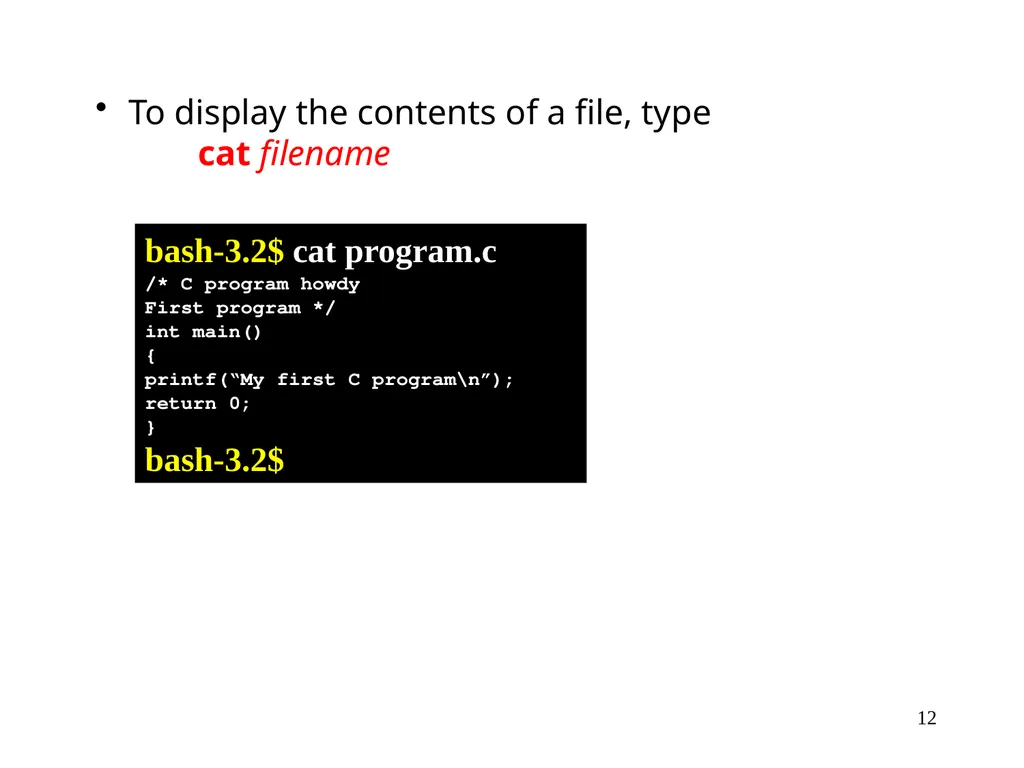
12 To display the contents of a file, type
cat filename bash-3.2$ cat program.c
/* C program howdy
First program */
int main()
{
printf(“My first C program\n”);
return 0;
}
bash-3.2$<br>
cat filename bash-3.2$ cat program.c
/* C program howdy
First program */
int main()
{
printf(“My first C program\n”);
return 0;
}
bash-3.2$<br>
13
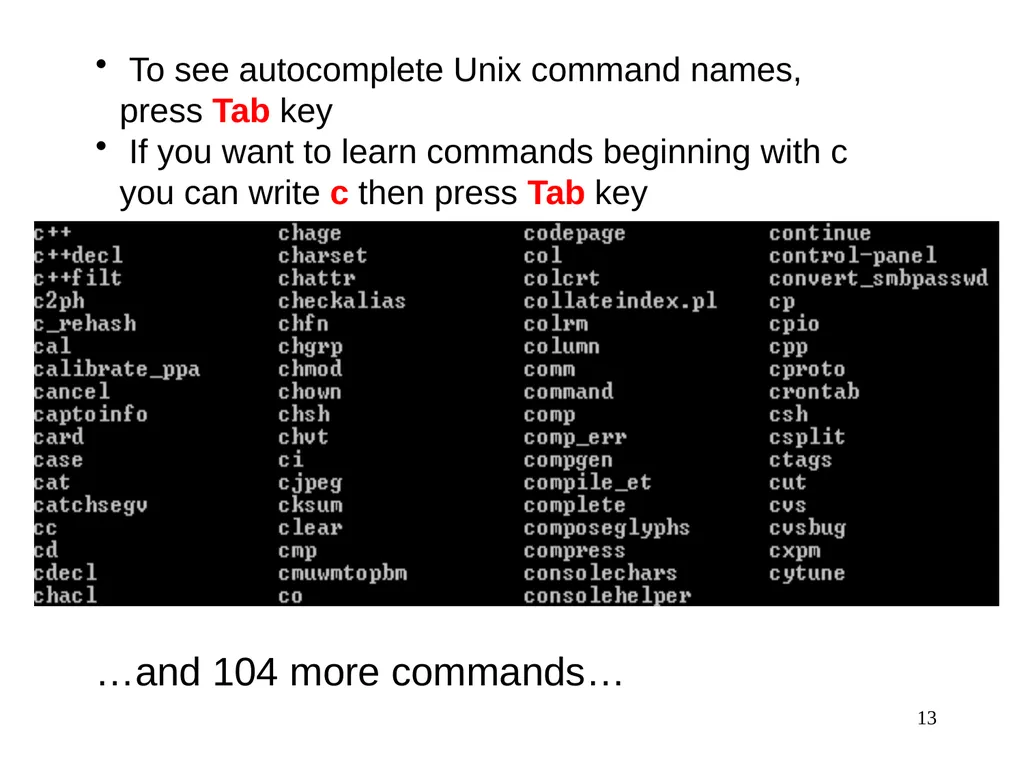
13 To see autocomplete Unix command names, press Tab key
If you want to learn commands beginning with c you can write c then press Tab key …and 104 more commands…<br>
If you want to learn commands beginning with c you can write c then press Tab key …and 104 more commands…<br>
14
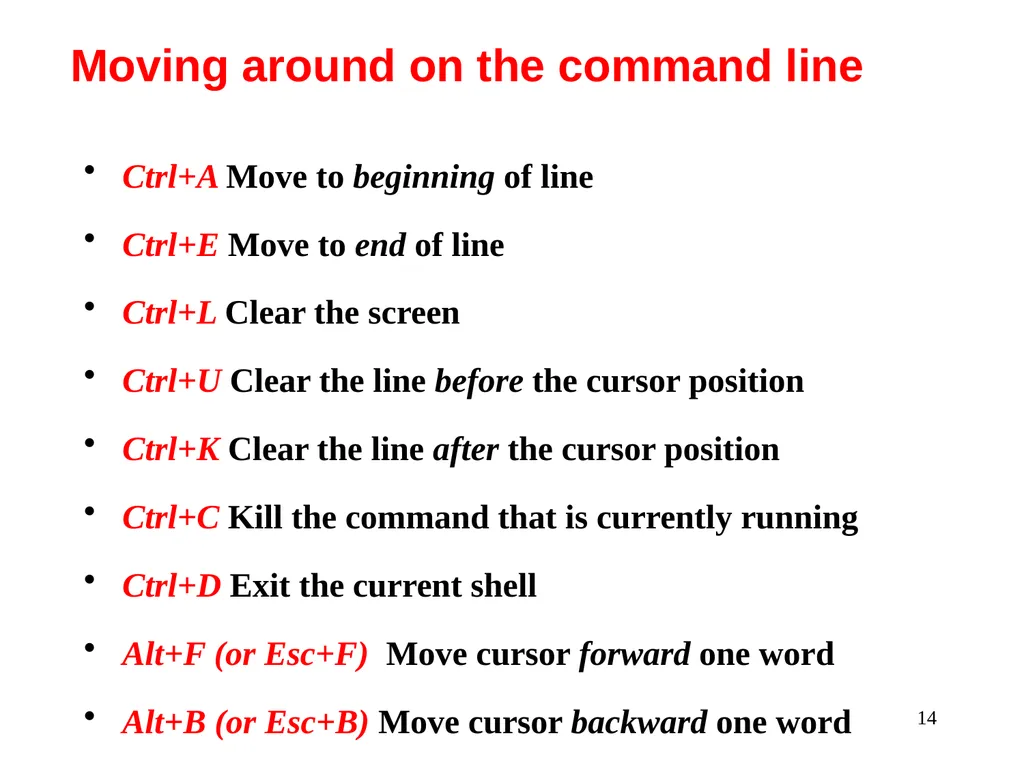
14 Ctrl+A Move to beginning of line
Ctrl+E Move to end of line
Ctrl+L Clear the screen
Ctrl+U Clear the line before the cursor position
Ctrl+K Clear the line after the cursor position
Ctrl+C Kill the command that is currently running
Ctrl+D Exit the current shell
Alt+F (or Esc+F) Move cursor forward one word
Alt+B (or Esc+B) Move cursor backward one word Moving around on the command line<br>
Ctrl+E Move to end of line
Ctrl+L Clear the screen
Ctrl+U Clear the line before the cursor position
Ctrl+K Clear the line after the cursor position
Ctrl+C Kill the command that is currently running
Ctrl+D Exit the current shell
Alt+F (or Esc+F) Move cursor forward one word
Alt+B (or Esc+B) Move cursor backward one word Moving around on the command line<br>
15
15 Unix provides files and directories.
A directory is like a folder: it contains pieces of paper, or files.
A large folder can even hold other folders-directories can be inside directories.
In Unix, the collection of directories and files is called the file system. Initially, the file system consists of one directory, called the “root” directory
Inside the “root” directory, there are more directories, and inside those directories are files and yet more directories. Storing Information - Directories<br>
A directory is like a folder: it contains pieces of paper, or files.
A large folder can even hold other folders-directories can be inside directories.
In Unix, the collection of directories and files is called the file system. Initially, the file system consists of one directory, called the “root” directory
Inside the “root” directory, there are more directories, and inside those directories are files and yet more directories. Storing Information - Directories<br>
16
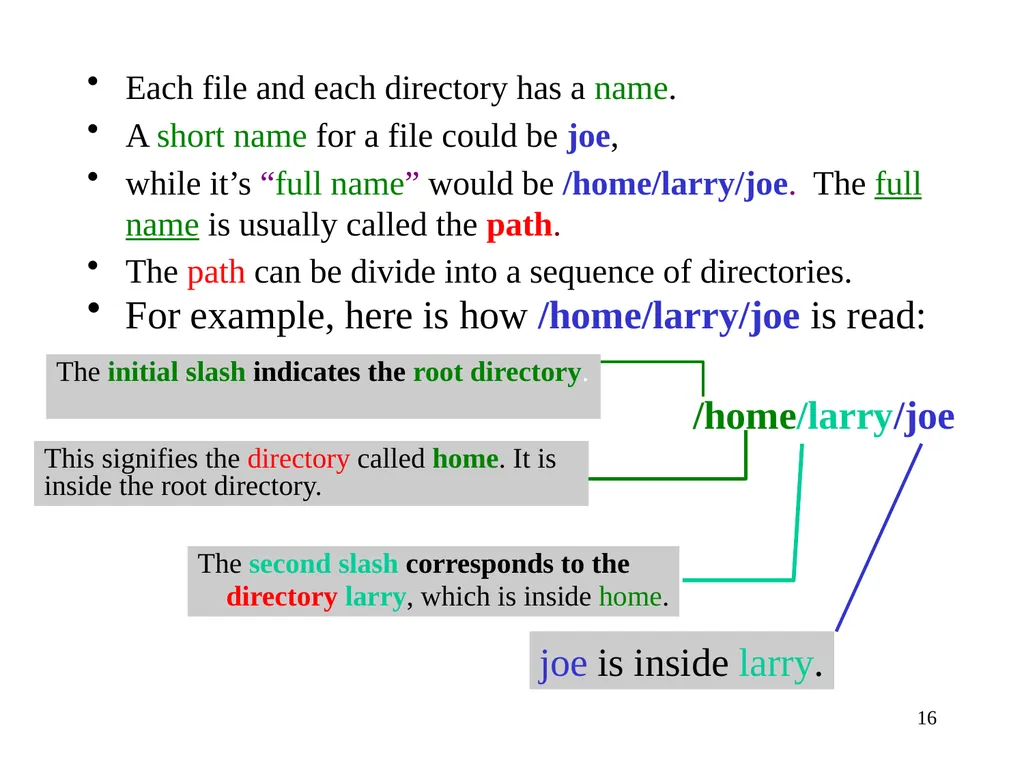
16 Each file and each directory has a name.
A short name for a file could be joe,
while it’s “full name” would be /home/larry/joe. The full name is usually called the path.
The path can be divide into a sequence of directories.
For example, here is how /home/larry/joe is read: /home/larry/joe This signifies the directory called home. It is inside the root directory. The second slash corresponds to the
directory larry, which is inside home. joe is inside larry. The initial slash indicates the root directory.<br>
A short name for a file could be joe,
while it’s “full name” would be /home/larry/joe. The full name is usually called the path.
The path can be divide into a sequence of directories.
For example, here is how /home/larry/joe is read: /home/larry/joe This signifies the directory called home. It is inside the root directory. The second slash corresponds to the
directory larry, which is inside home. joe is inside larry. The initial slash indicates the root directory.<br>
17
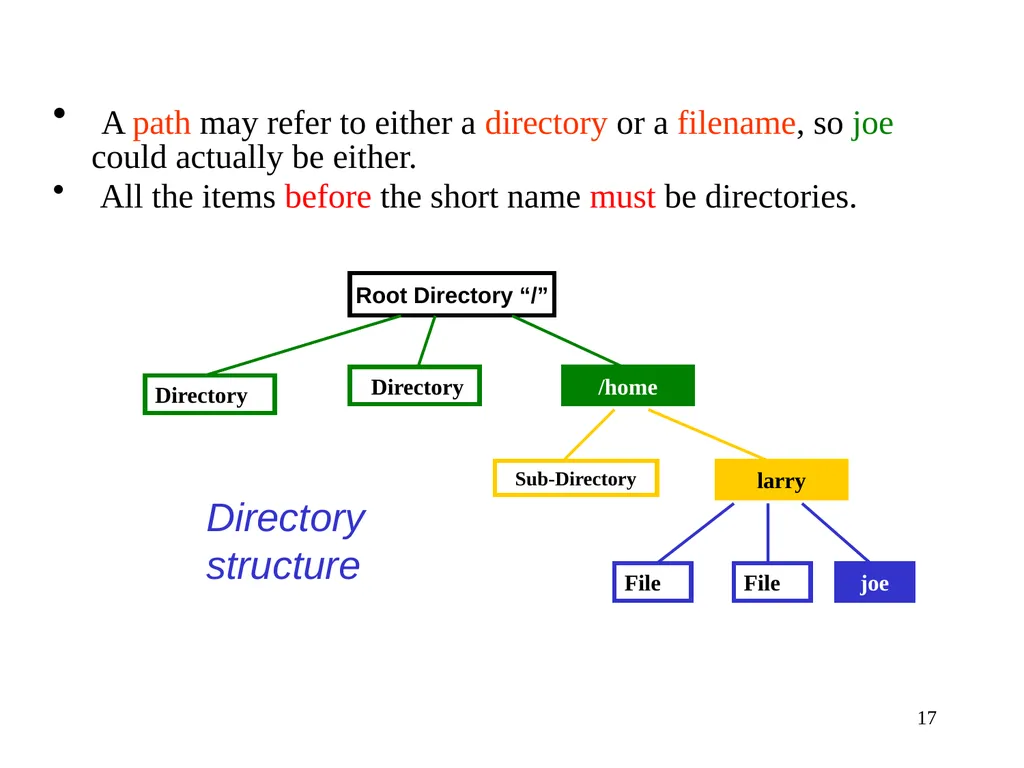
17 A path may refer to either a directory or a filename, so joe could actually be either.
All the items before the short name must be directories.<br>
All the items before the short name must be directories.<br>
18
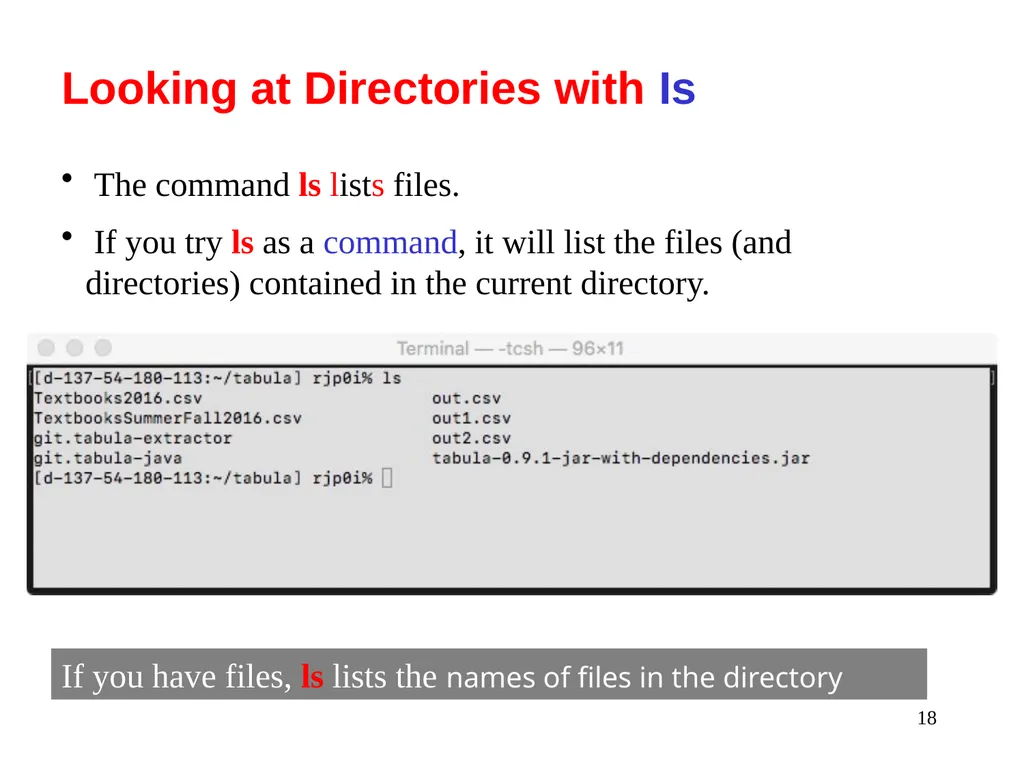
18 Looking at Directories with Is The command ls lists files.
If you try ls as a command, it will list the files (and directories) contained in the current directory. If you have files, ls lists the names of files in the directory<br>
If you try ls as a command, it will list the files (and directories) contained in the current directory. If you have files, ls lists the names of files in the directory<br>
19
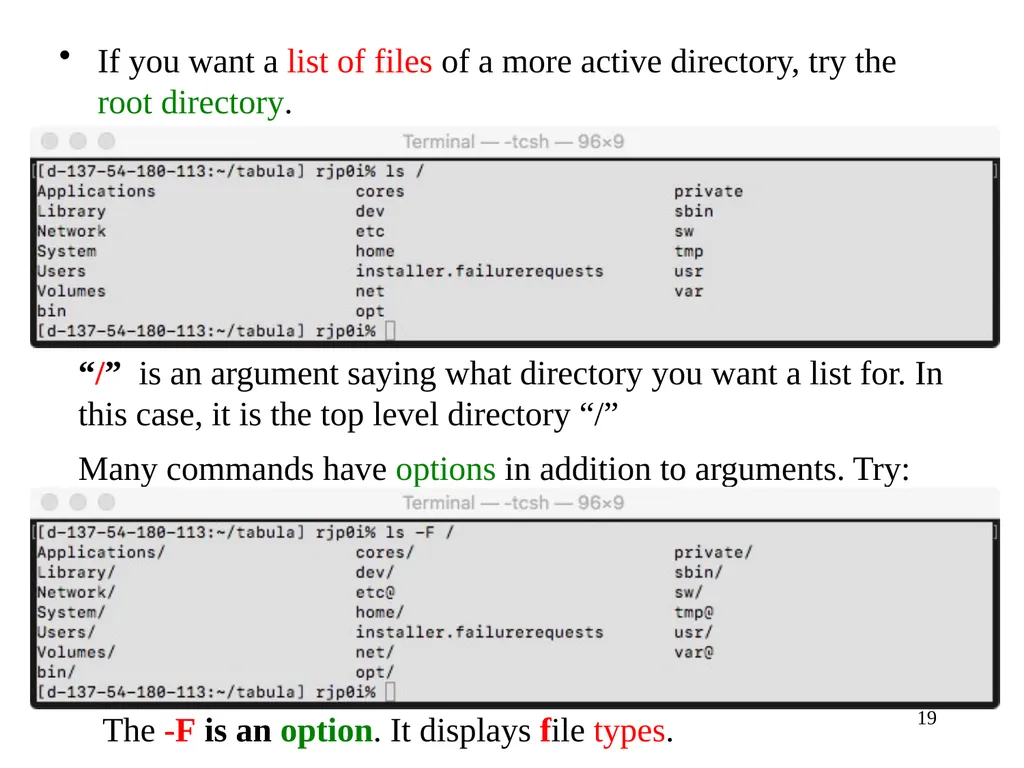
19 If you want a list of files of a more active directory, try the root directory. “/” is an argument saying what directory you want a list for. In
this case, it is the top level directory “/” Many commands have options in addition to arguments. Try: The -F is an option. It displays file types.<br>
this case, it is the top level directory “/” Many commands have options in addition to arguments. Try: The -F is an option. It displays file types.<br>
20
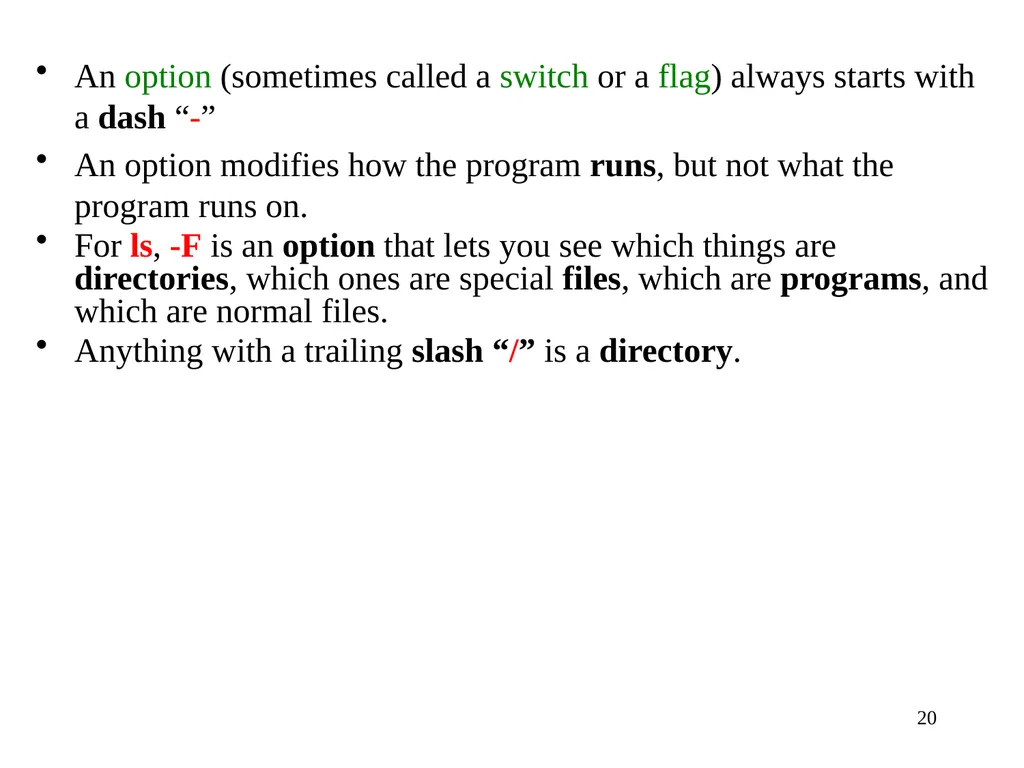
20 An option (sometimes called a switch or a flag) always starts with a dash “-”
An option modifies how the program runs, but not what the program runs on.
For ls, -F is an option that lets you see which things are directories, which ones are special files, which are programs, and which are normal files.
Anything with a trailing slash “/” is a directory.<br>
An option modifies how the program runs, but not what the program runs on.
For ls, -F is an option that lets you see which things are directories, which ones are special files, which are programs, and which are normal files.
Anything with a trailing slash “/” is a directory.<br>
21
21 Many Unix commands are like ls.
They have options, which are generally one character after a dash, and they have arguments.
Unlike ls, some commands require certain arguments and/or options.<br>
They have options, which are generally one character after a dash, and they have arguments.
Unlike ls, some commands require certain arguments and/or options.<br>
22
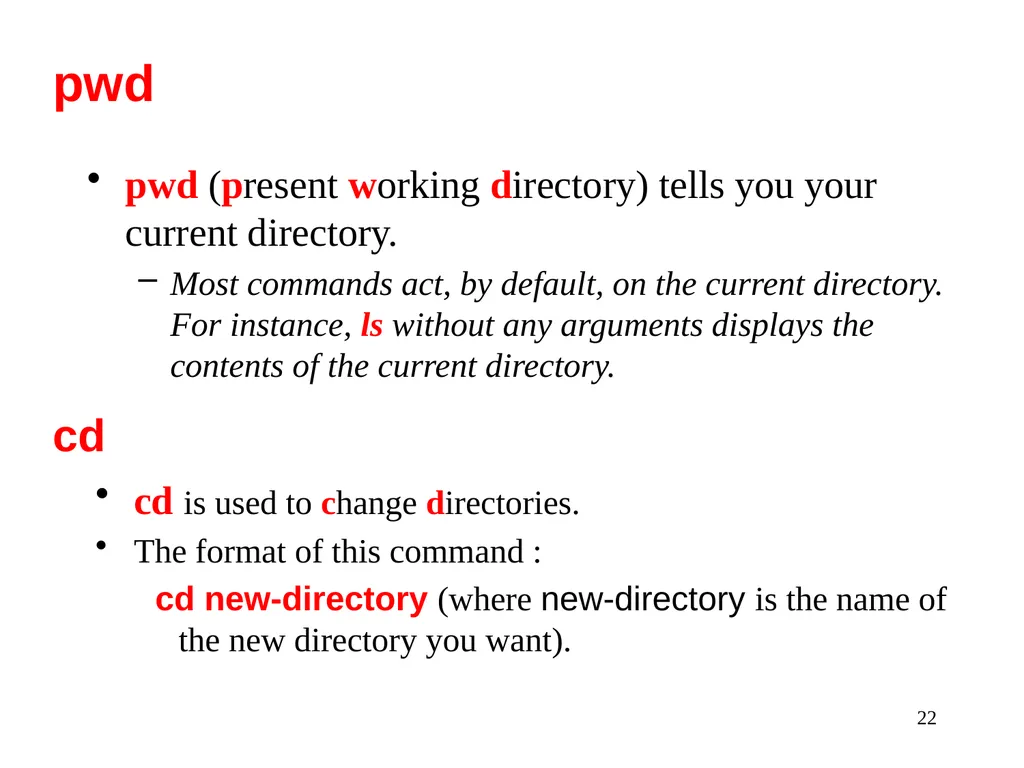
22 pwd (present working directory) tells you your current directory.
Most commands act, by default, on the current directory. For instance, ls without any arguments displays the contents of the current directory. pwd cd cd is used to change directories.
The format of this command :
cd new-directory (where new-directory is the name of the new directory you want).<br>
Most commands act, by default, on the current directory. For instance, ls without any arguments displays the contents of the current directory. pwd cd cd is used to change directories.
The format of this command :
cd new-directory (where new-directory is the name of the new directory you want).<br>
23
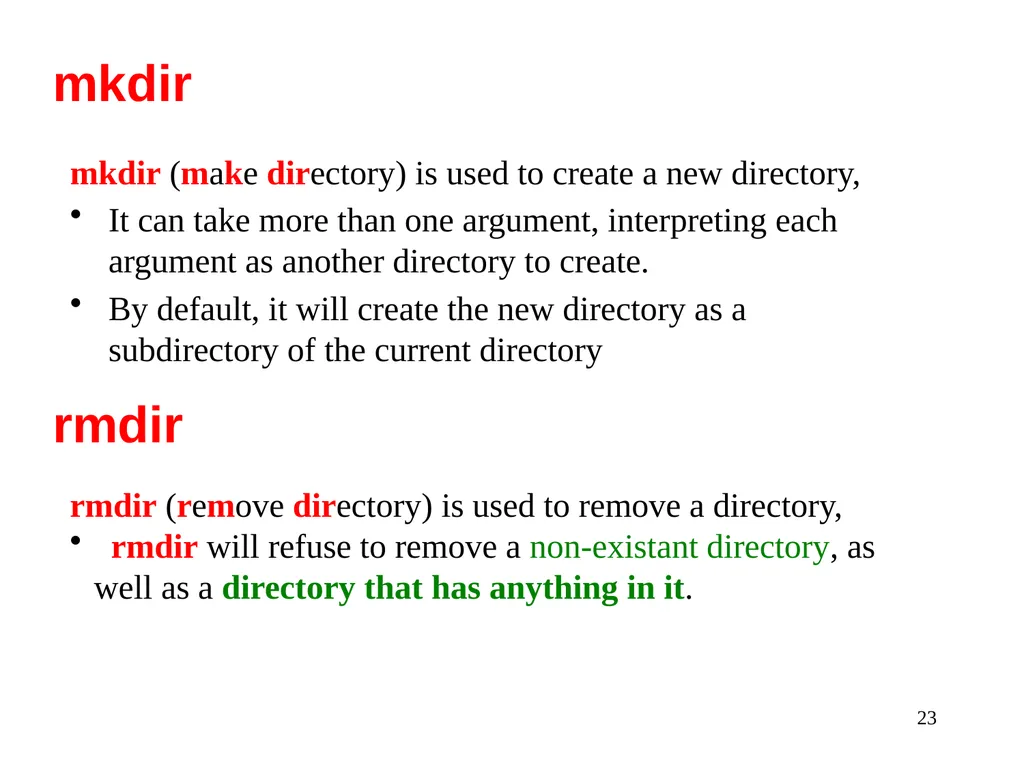
23 mkdir (make directory) is used to create a new directory,
It can take more than one argument, interpreting each argument as another directory to create.
By default, it will create the new directory as a subdirectory of the current directory mkdir rmdir rmdir (remove directory) is used to remove a directory,
rmdir will refuse to remove a non-existant directory, as well as a directory that has anything in it.<br>
It can take more than one argument, interpreting each argument as another directory to create.
By default, it will create the new directory as a subdirectory of the current directory mkdir rmdir rmdir (remove directory) is used to remove a directory,
rmdir will refuse to remove a non-existant directory, as well as a directory that has anything in it.<br>
24
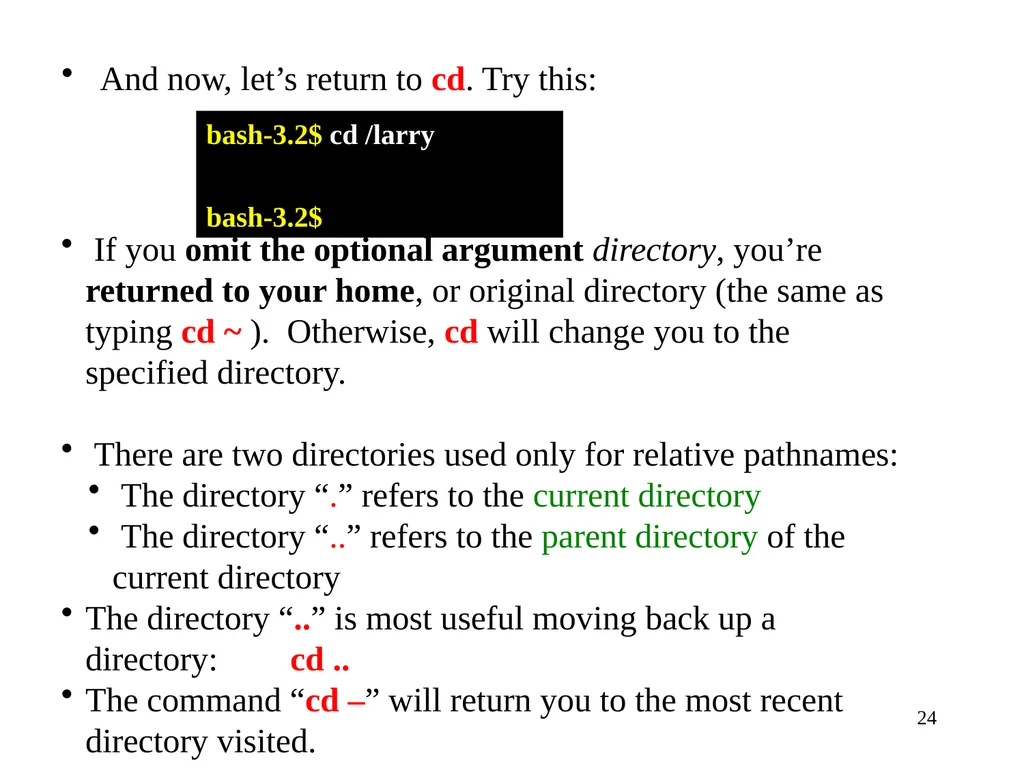
24 And now, let’s return to cd. Try this: bash-3.2$ cd /larry
bash-3.2$ If you omit the optional argument directory, you’re returned to your home, or original directory (the same as typing cd ~ ). Otherwise, cd will change you to the specified directory.
There are two directories used only for relative pathnames:
The directory “.” refers to the current directory
The directory “..” refers to the parent directory of the current directory
The directory “..” is most useful moving back up a directory: cd ..
The command “cd –” will return you to the most recent directory visited.<br>
bash-3.2$ If you omit the optional argument directory, you’re returned to your home, or original directory (the same as typing cd ~ ). Otherwise, cd will change you to the specified directory.
There are two directories used only for relative pathnames:
The directory “.” refers to the current directory
The directory “..” refers to the parent directory of the current directory
The directory “..” is most useful moving back up a directory: cd ..
The command “cd –” will return you to the most recent directory visited.<br>
25
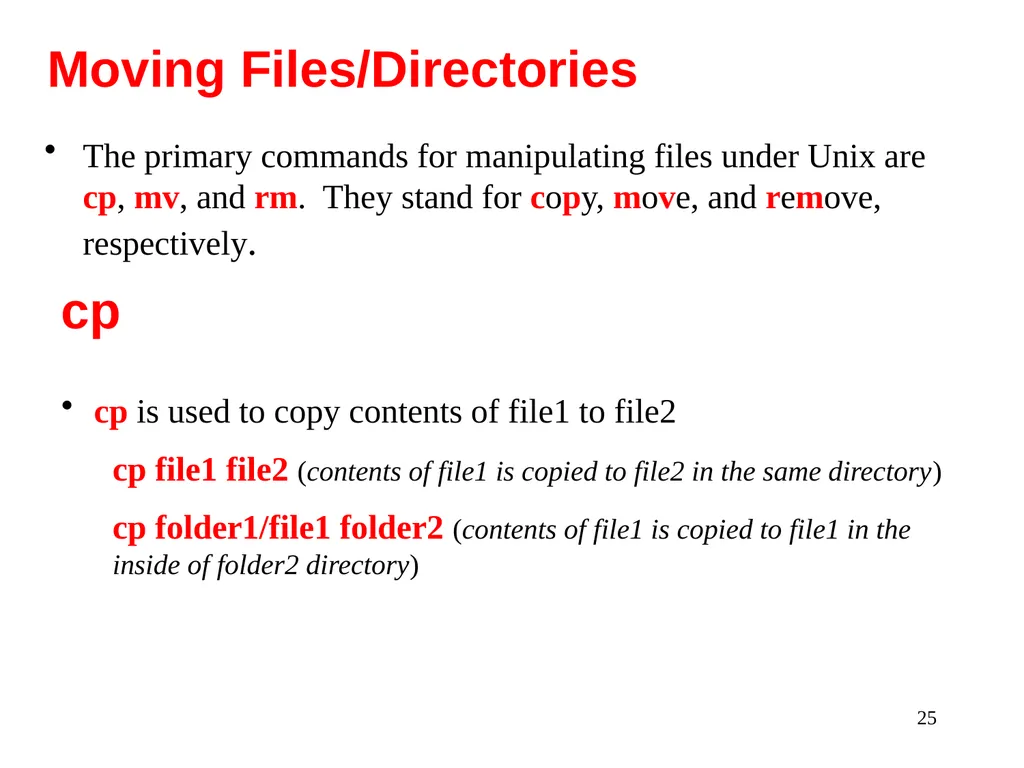
25 The primary commands for manipulating files under Unix are cp, mv, and rm. They stand for copy, move, and remove, respectively. Moving Files/Directories cp is used to copy contents of file1 to file2
cp file1 file2 (contents of file1 is copied to file2 in the same directory)
cp folder1/file1 folder2 (contents of file1 is copied to file1 in the inside of folder2 directory) cp<br>
cp file1 file2 (contents of file1 is copied to file2 in the same directory)
cp folder1/file1 folder2 (contents of file1 is copied to file1 in the inside of folder2 directory) cp<br>
26
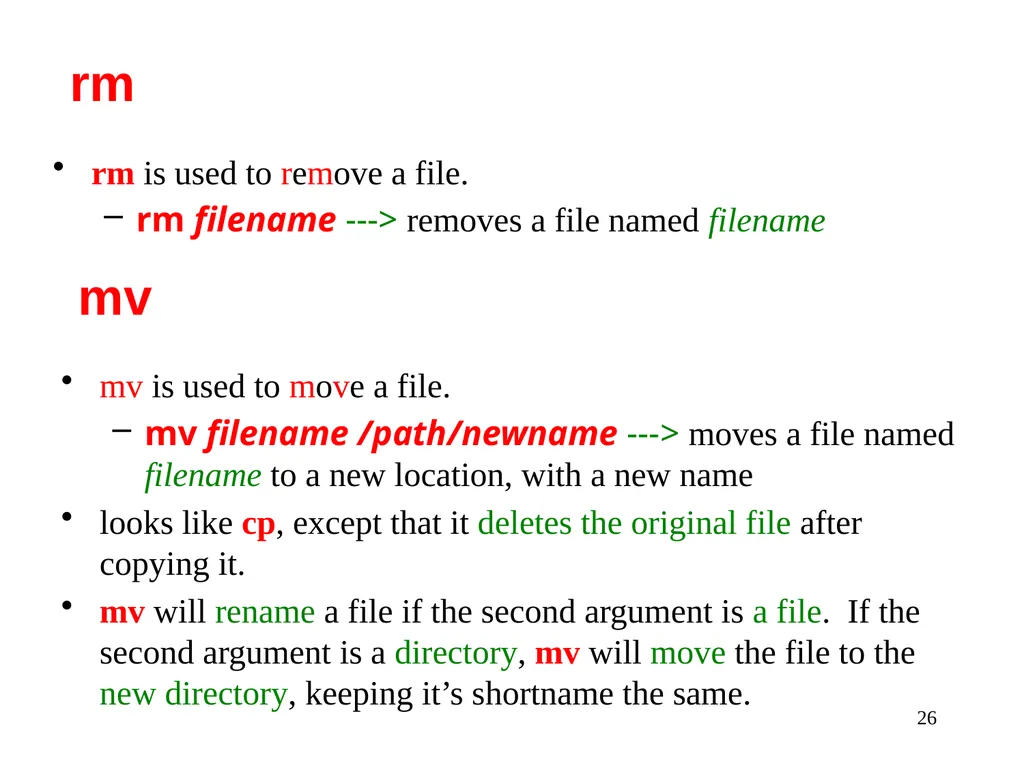
26 rm is used to remove a file.
rm filename ---> removes a file named filename rm mv is used to move a file.
mv filename /path/newname ---> moves a file named filename to a new location, with a new name
looks like cp, except that it deletes the original file after copying it.
mv will rename a file if the second argument is a file. If the second argument is a directory, mv will move the file to the new directory, keeping it’s shortname the same. mv<br>
rm filename ---> removes a file named filename rm mv is used to move a file.
mv filename /path/newname ---> moves a file named filename to a new location, with a new name
looks like cp, except that it deletes the original file after copying it.
mv will rename a file if the second argument is a file. If the second argument is a directory, mv will move the file to the new directory, keeping it’s shortname the same. mv<br>
27
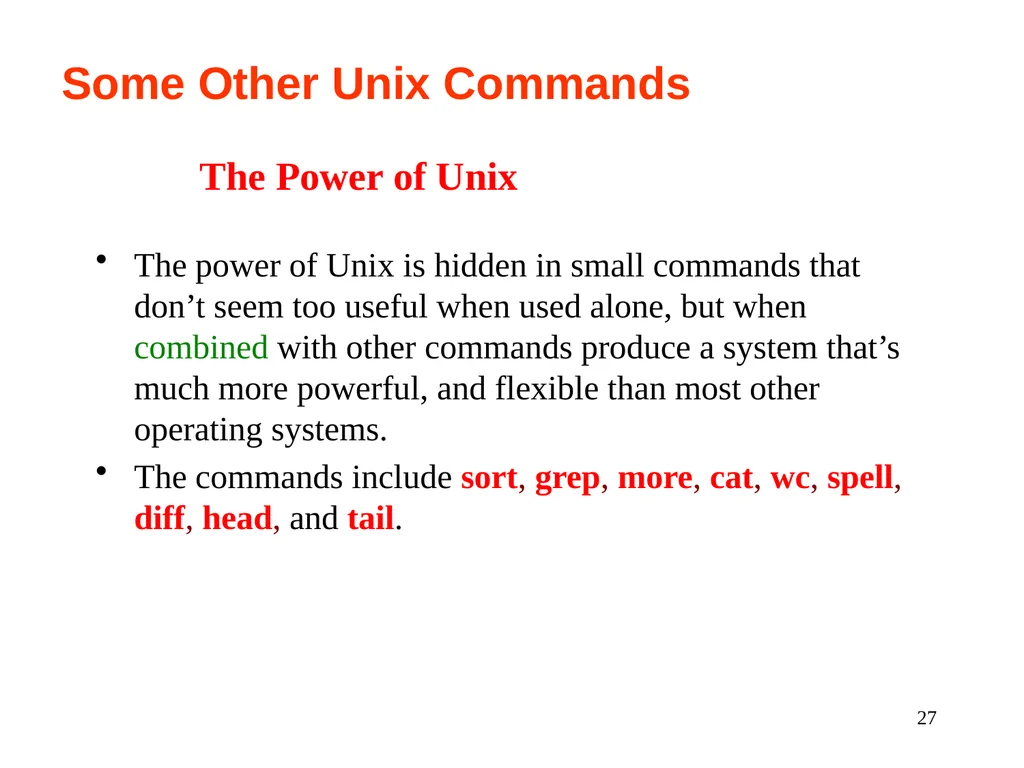
27 Some Other Unix Commands The power of Unix is hidden in small commands that don’t seem too useful when used alone, but when combined with other commands produce a system that’s much more powerful, and flexible than most other operating systems.
The commands include sort, grep, more, cat, wc, spell, diff, head, and tail. The Power of Unix<br>
The commands include sort, grep, more, cat, wc, spell, diff, head, and tail. The Power of Unix<br>
28
28 In addition to the commands like cd, mv, and rm, we learned in the shell section, there are other commands that just operate on files, but not the data in them.
These include touch, chmod, du, and df.
None of these commands care what is actually in the file.
What are some of the things these commands can manipulate? Operating on Files<br>
These include touch, chmod, du, and df.
None of these commands care what is actually in the file.
What are some of the things these commands can manipulate? Operating on Files<br>
29
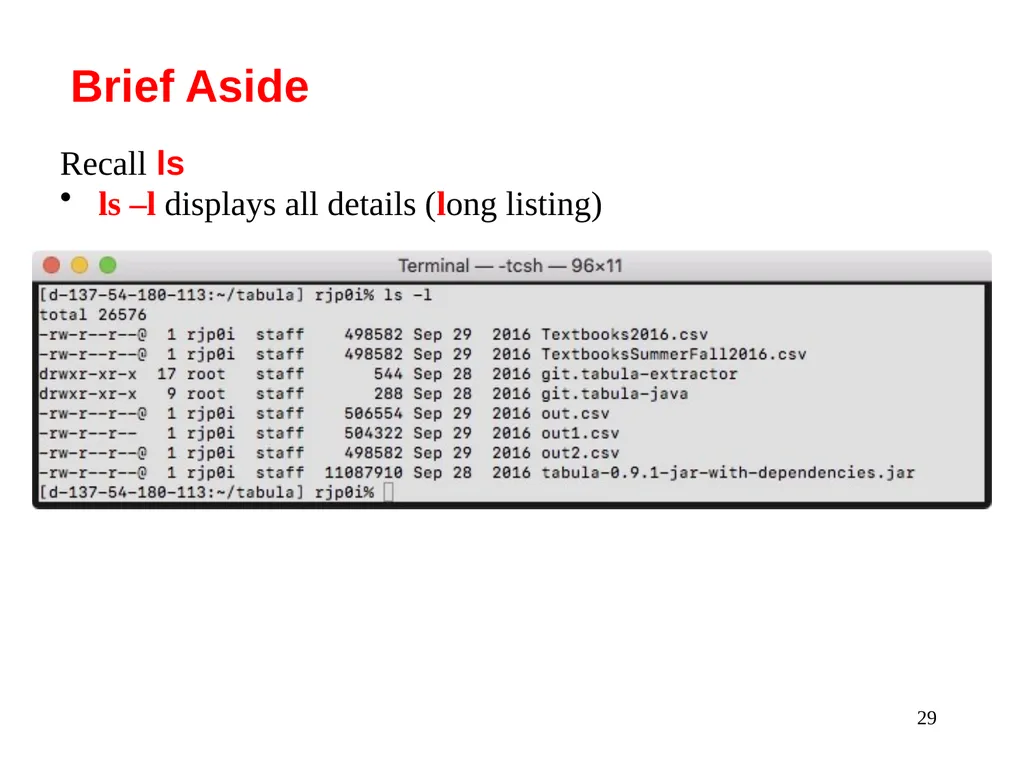
29 Recall ls
ls –l displays all details (long listing) Brief Aside<br>
ls –l displays all details (long listing) Brief Aside<br>
30
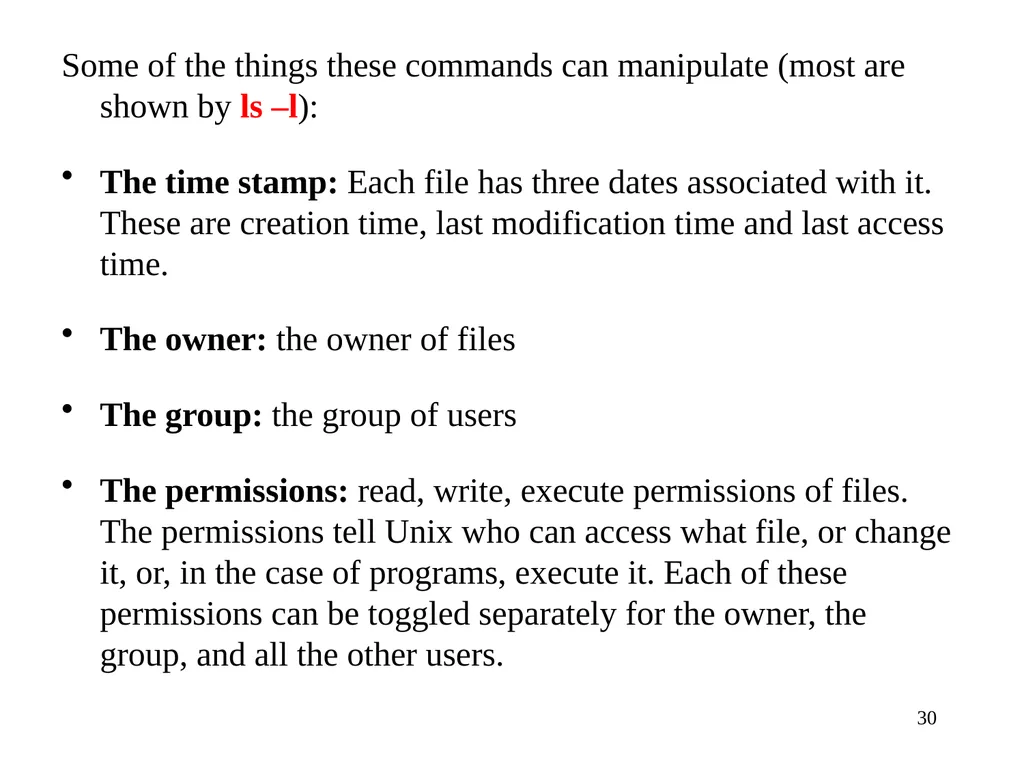
30 Some of the things these commands can manipulate (most are shown by ls –l):
The time stamp: Each file has three dates associated with it. These are creation time, last modification time and last access time.
The owner: the owner of files
The group: the group of users
The permissions: read, write, execute permissions of files. The permissions tell Unix who can access what file, or change it, or, in the case of programs, execute it. Each of these permissions can be toggled separately for the owner, the group, and all the other users.<br>
The time stamp: Each file has three dates associated with it. These are creation time, last modification time and last access time.
The owner: the owner of files
The group: the group of users
The permissions: read, write, execute permissions of files. The permissions tell Unix who can access what file, or change it, or, in the case of programs, execute it. Each of these permissions can be toggled separately for the owner, the group, and all the other users.<br>
31
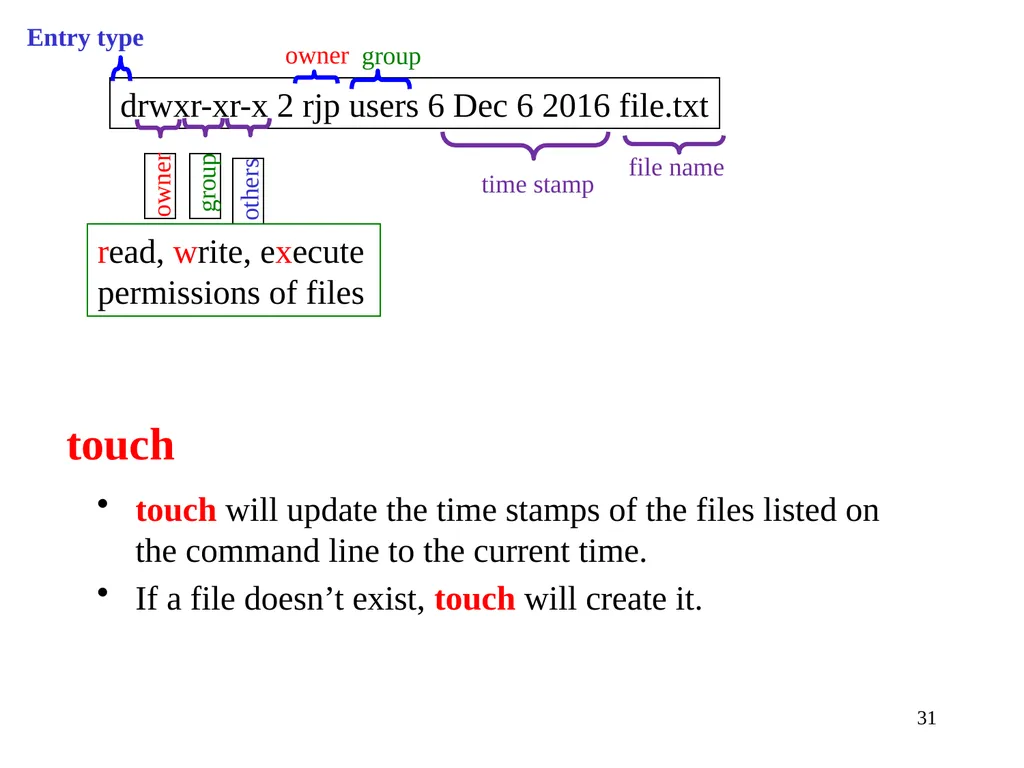
31 touch will update the time stamps of the files listed on the command line to the current time.
If a file doesn’t exist, touch will create it. touch read, write, execute permissions of files owner group time stamp Entry type<br>
If a file doesn’t exist, touch will create it. touch read, write, execute permissions of files owner group time stamp Entry type<br>
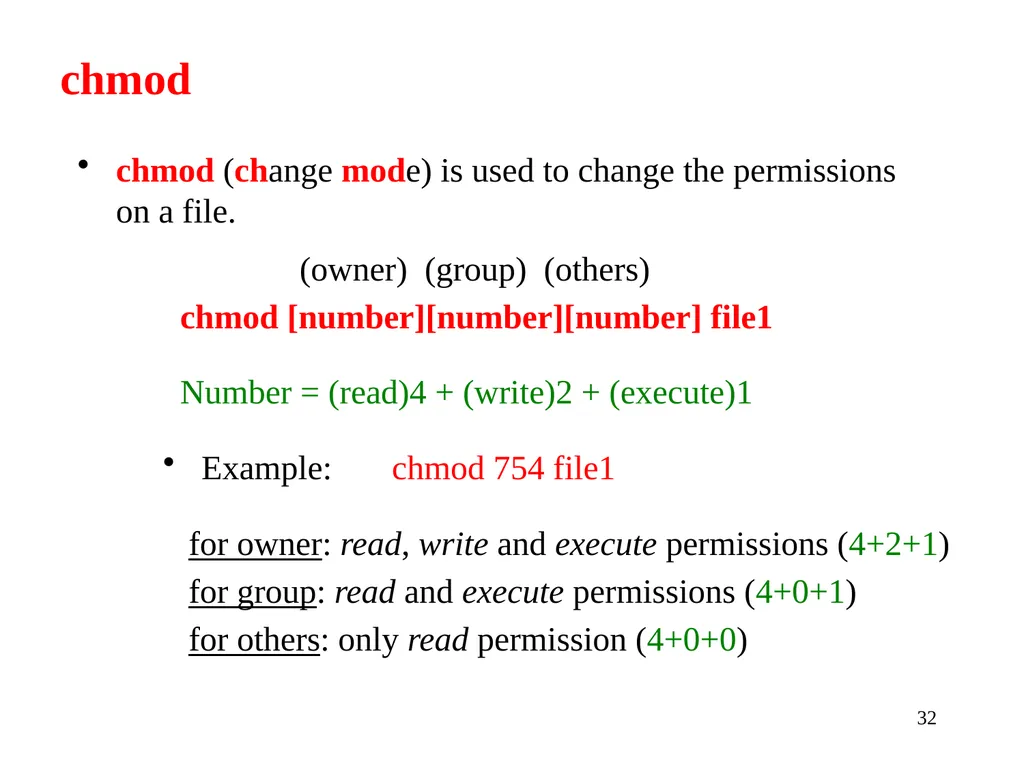
32
32 (owner) (group) (others)
chmod [number][number][number] file1
Number = (read)4 + (write)2 + (execute)1
Example: chmod 754 file1
for owner: read, write and execute permissions (4+2+1)
for group: read and execute permissions (4+0+1)
for others: only read permission (4+0+0) chmod chmod (change mode) is used to change the permissions on a file.<br>
chmod [number][number][number] file1
Number = (read)4 + (write)2 + (execute)1
Example: chmod 754 file1
for owner: read, write and execute permissions (4+2+1)
for group: read and execute permissions (4+0+1)
for others: only read permission (4+0+0) chmod chmod (change mode) is used to change the permissions on a file.<br>
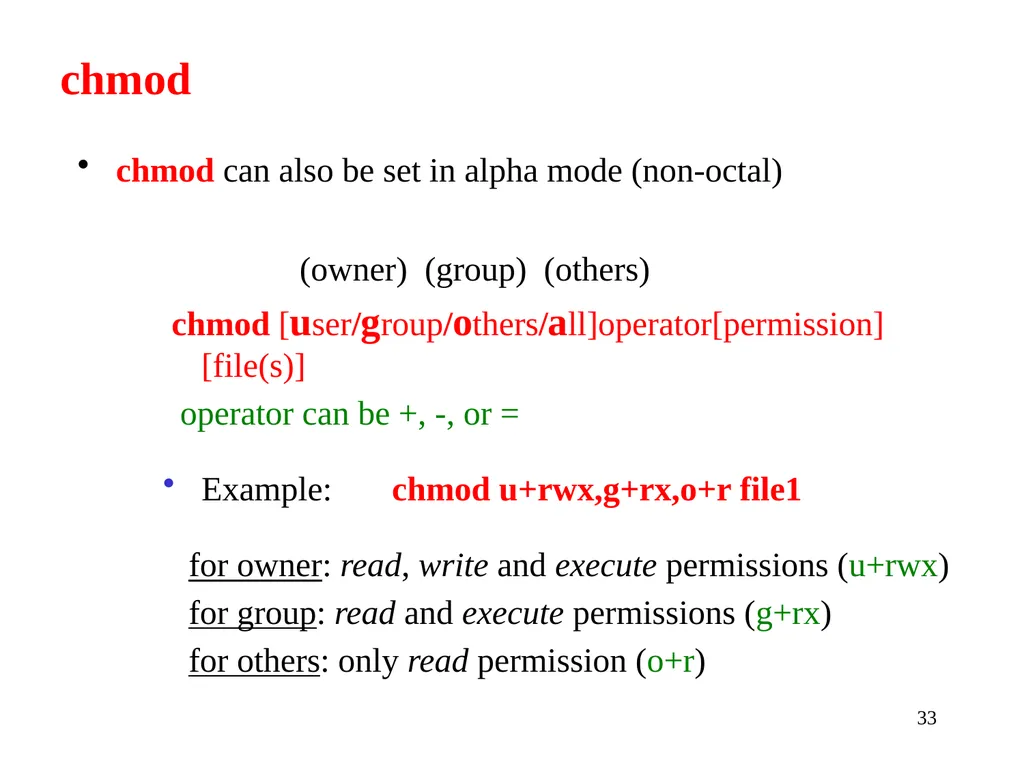
33
33 (owner) (group) (others)
chmod [user/group/others/all]operator[permission] [file(s)]
operator can be +, -, or =
Example: chmod u+rwx,g+rx,o+r file1
for owner: read, write and execute permissions (u+rwx)
for group: read and execute permissions (g+rx)
for others: only read permission (o+r) chmod chmod can also be set in alpha mode (non-octal)<br>
chmod [user/group/others/all]operator[permission] [file(s)]
operator can be +, -, or =
Example: chmod u+rwx,g+rx,o+r file1
for owner: read, write and execute permissions (u+rwx)
for group: read and execute permissions (g+rx)
for others: only read permission (o+r) chmod chmod can also be set in alpha mode (non-octal)<br>
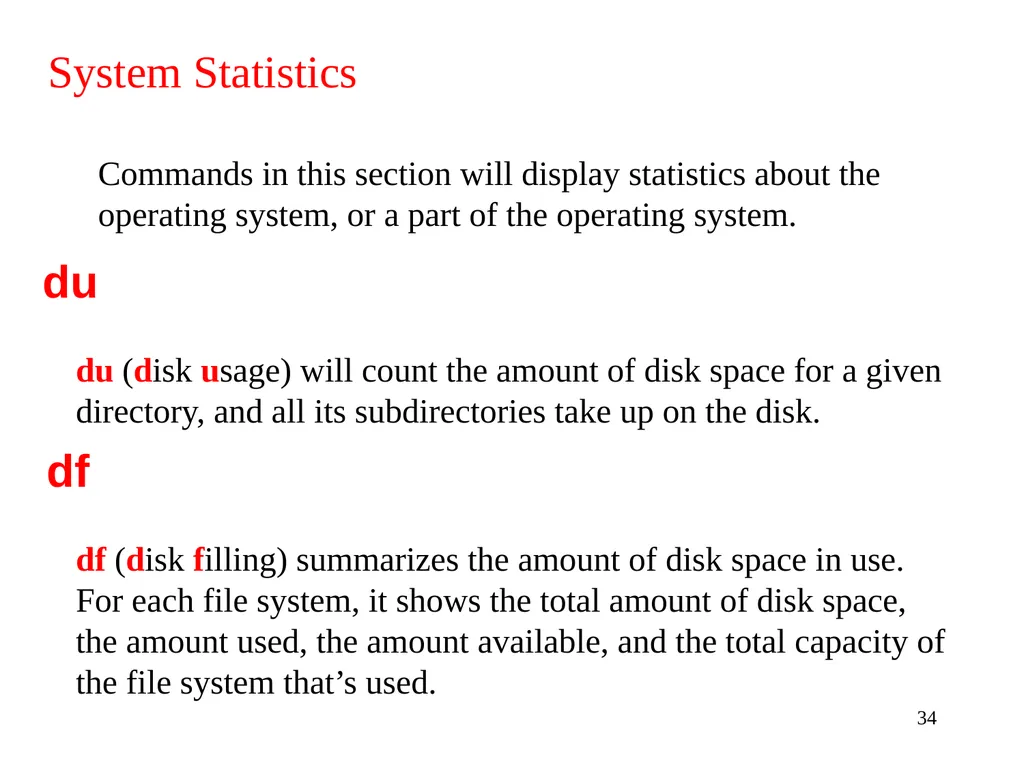
34
34 Commands in this section will display statistics about the operating system, or a part of the operating system. System Statistics du (disk usage) will count the amount of disk space for a given directory, and all its subdirectories take up on the disk. du df df (disk filling) summarizes the amount of disk space in use.
For each file system, it shows the total amount of disk space, the amount used, the amount available, and the total capacity of the file system that’s used.<br>
For each file system, it shows the total amount of disk space, the amount used, the amount available, and the total capacity of the file system that’s used.<br>
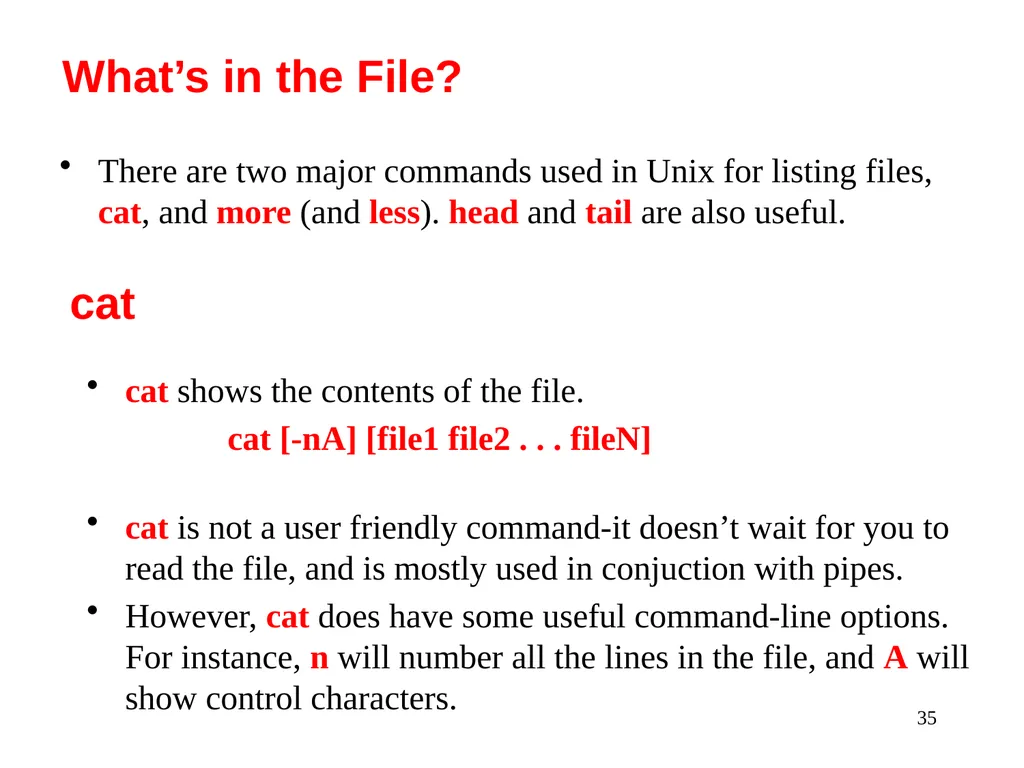
35
35 There are two major commands used in Unix for listing files, cat, and more (and less). head and tail are also useful. What’s in the File? cat cat shows the contents of the file.
cat [-nA] [file1 file2 . . . fileN]
cat is not a user friendly command-it doesn’t wait for you to read the file, and is mostly used in conjuction with pipes.
However, cat does have some useful command-line options. For instance, n will number all the lines in the file, and A will show control characters.<br>
cat [-nA] [file1 file2 . . . fileN]
cat is not a user friendly command-it doesn’t wait for you to read the file, and is mostly used in conjuction with pipes.
However, cat does have some useful command-line options. For instance, n will number all the lines in the file, and A will show control characters.<br>
36
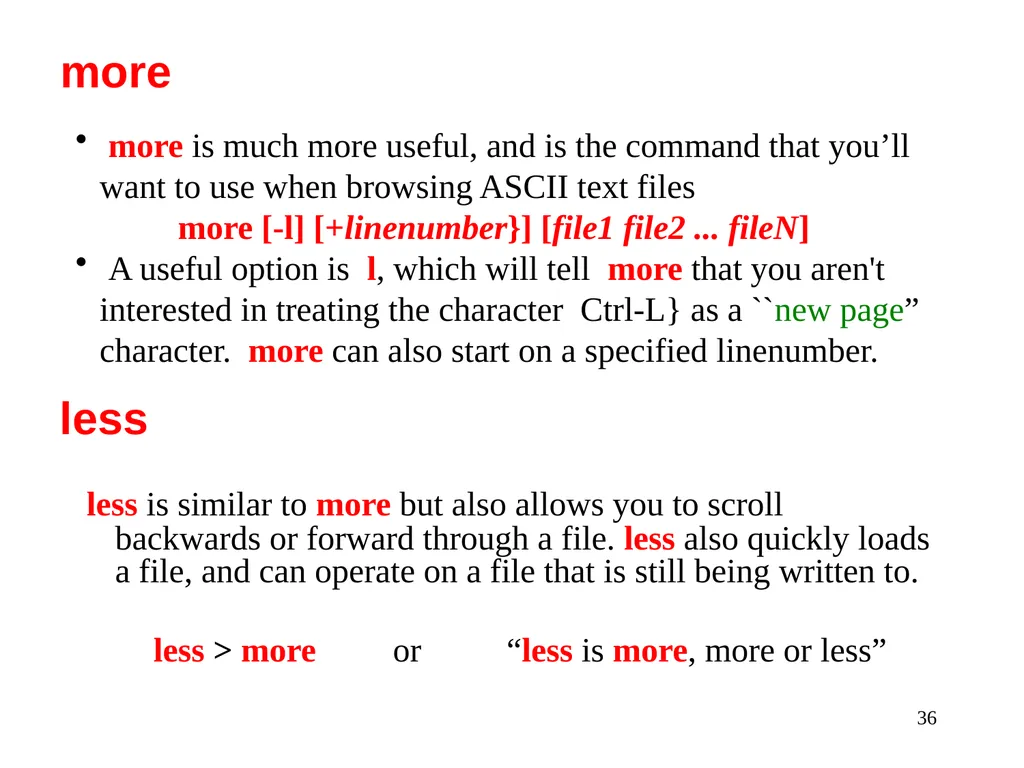
36 less is similar to more but also allows you to scroll backwards or forward through a file. less also quickly loads a file, and can operate on a file that is still being written to.
less > more or “less is more, more or less” more more is much more useful, and is the command that you’ll want to use when browsing ASCII text files
more [-l] [+linenumber}] [file1 file2 ... fileN]
A useful option is l, which will tell more that you aren't interested in treating the character Ctrl-L} as a ``new page” character. more can also start on a specified linenumber. less<br>
less > more or “less is more, more or less” more more is much more useful, and is the command that you’ll want to use when browsing ASCII text files
more [-l] [+linenumber}] [file1 file2 ... fileN]
A useful option is l, which will tell more that you aren't interested in treating the character Ctrl-L} as a ``new page” character. more can also start on a specified linenumber. less<br>
37
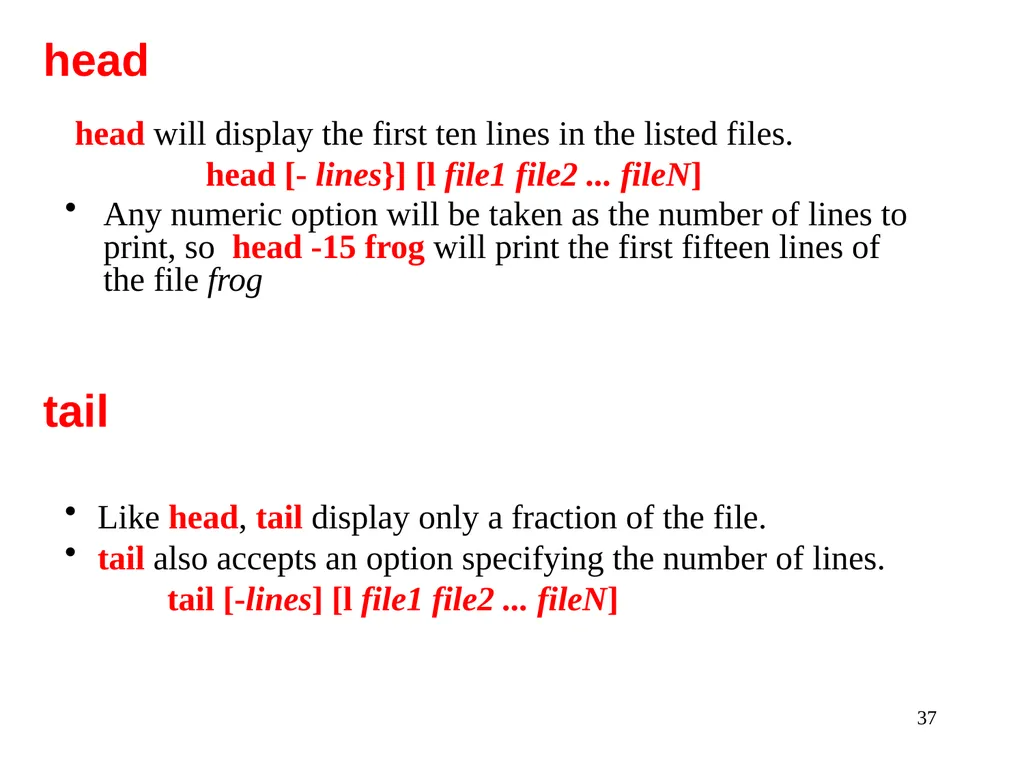
37 head will display the first ten lines in the listed files.
head [- lines}] [l file1 file2 ... fileN]
Any numeric option will be taken as the number of lines to print, so head -15 frog will print the first fifteen lines of the file frog head tail Like head, tail display only a fraction of the file.
tail also accepts an option specifying the number of lines.
tail [-lines] [l file1 file2 ... fileN]<br>
head [- lines}] [l file1 file2 ... fileN]
Any numeric option will be taken as the number of lines to print, so head -15 frog will print the first fifteen lines of the file frog head tail Like head, tail display only a fraction of the file.
tail also accepts an option specifying the number of lines.
tail [-lines] [l file1 file2 ... fileN]<br>
38
38 file command attempts to identify what format a particular file is written in.
file [file1 file2 ... fileN]
Since not all files have extentions or other easy to identify marks, the file command performs some rudimentary checks to try and figure out exactly what it contains. file<br>
file [file1 file2 ... fileN]
Since not all files have extentions or other easy to identify marks, the file command performs some rudimentary checks to try and figure out exactly what it contains. file<br>
39
39 These commands will search a file, perform certain operations on the file, or display statistics about the file. More info about the file grep is the generalized regular expression parser.
This is a fancy name for a utility which can only search a text file.
grep [-nvwx] [-number] { expression} [file1 file2 ... fileN] grep<br>
This is a fancy name for a utility which can only search a text file.
grep [-nvwx] [-number] { expression} [file1 file2 ... fileN] grep<br>
40
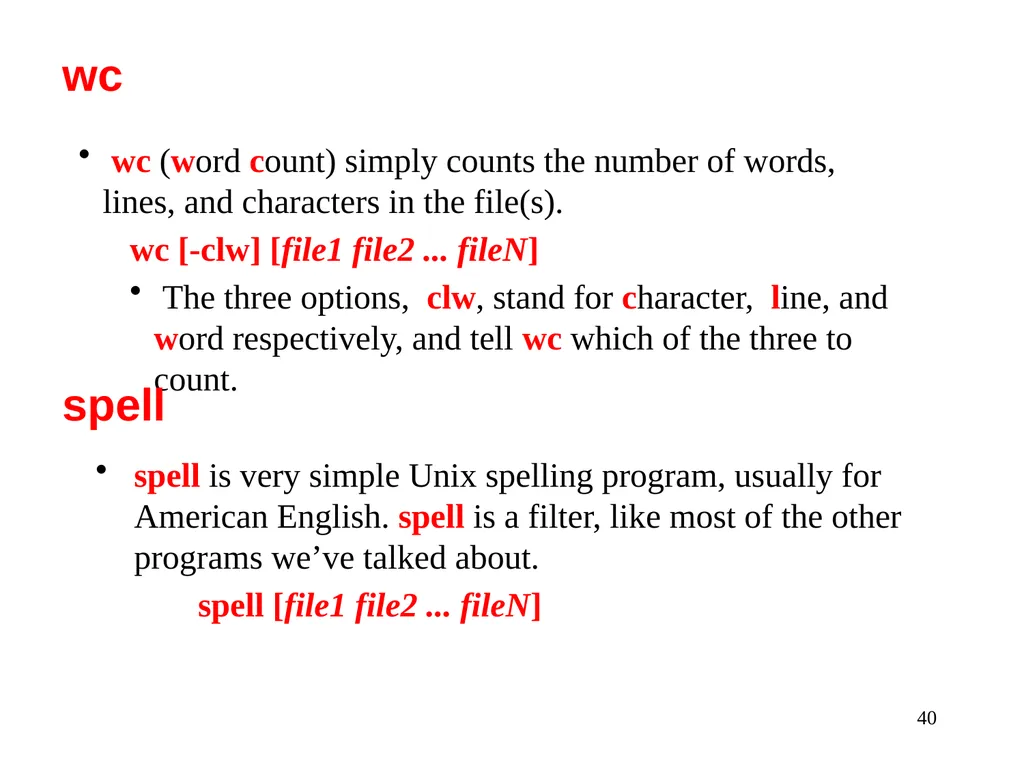
40 spell is very simple Unix spelling program, usually for American English. spell is a filter, like most of the other programs we’ve talked about.
spell [file1 file2 ... fileN] wc wc (word count) simply counts the number of words, lines, and characters in the file(s).
wc [-clw] [file1 file2 ... fileN]
The three options, clw, stand for character, line, and word respectively, and tell wc which of the three to count. spell<br>
spell [file1 file2 ... fileN] wc wc (word count) simply counts the number of words, lines, and characters in the file(s).
wc [-clw] [file1 file2 ... fileN]
The three options, clw, stand for character, line, and word respectively, and tell wc which of the three to count. spell<br>
41
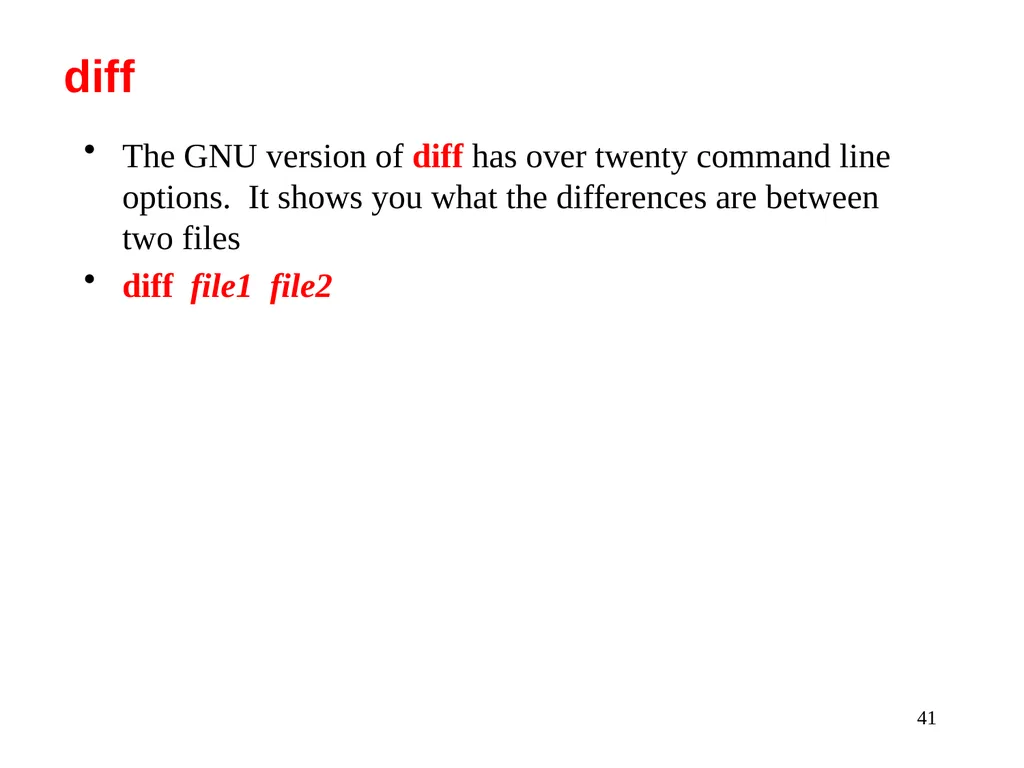
41 The GNU version of diff has over twenty command line options. It shows you what the differences are between two files
diff file1 file2 diff<br>
diff file1 file2 diff<br>
42
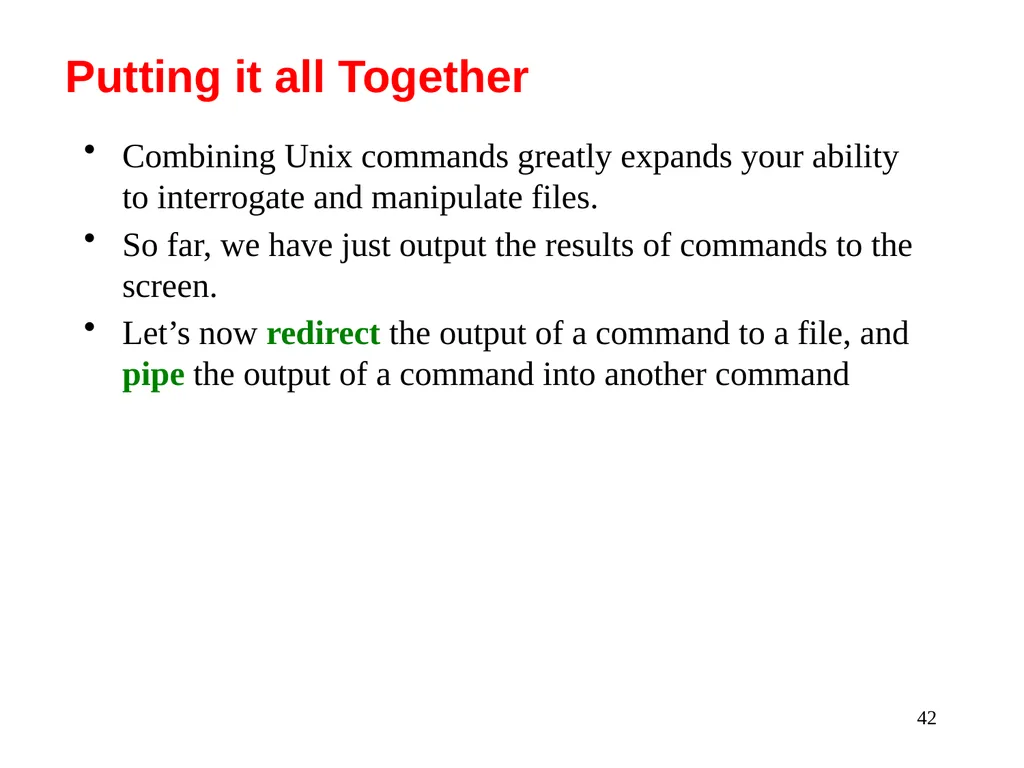
42 Combining Unix commands greatly expands your ability to interrogate and manipulate files.
So far, we have just output the results of commands to the screen.
Let’s now redirect the output of a command to a file, and pipe the output of a command into another command Putting it all Together<br>
So far, we have just output the results of commands to the screen.
Let’s now redirect the output of a command to a file, and pipe the output of a command into another command Putting it all Together<br>
43
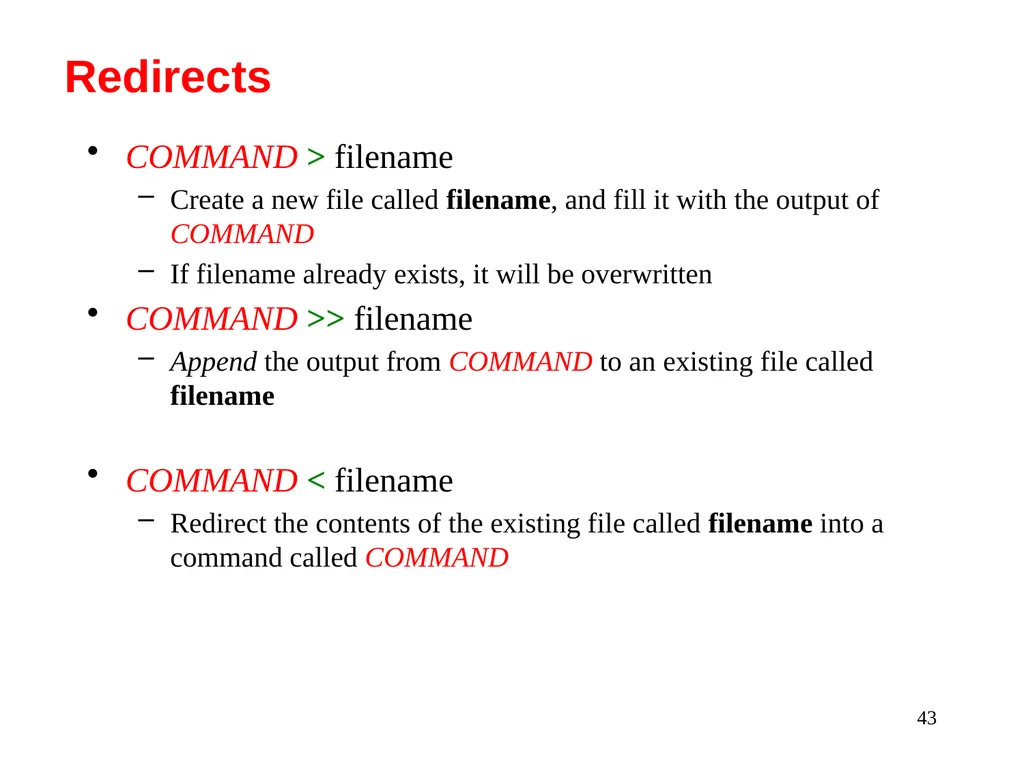
43 COMMAND > filename
Create a new file called filename, and fill it with the output of COMMAND
If filename already exists, it will be overwritten
COMMAND >> filename
Append the output from COMMAND to an existing file called filename
COMMAND < filename
Redirect the contents of the existing file called filename into a command called COMMAND Redirects<br>
Create a new file called filename, and fill it with the output of COMMAND
If filename already exists, it will be overwritten
COMMAND >> filename
Append the output from COMMAND to an existing file called filename
COMMAND < filename
Redirect the contents of the existing file called filename into a command called COMMAND Redirects<br>
44
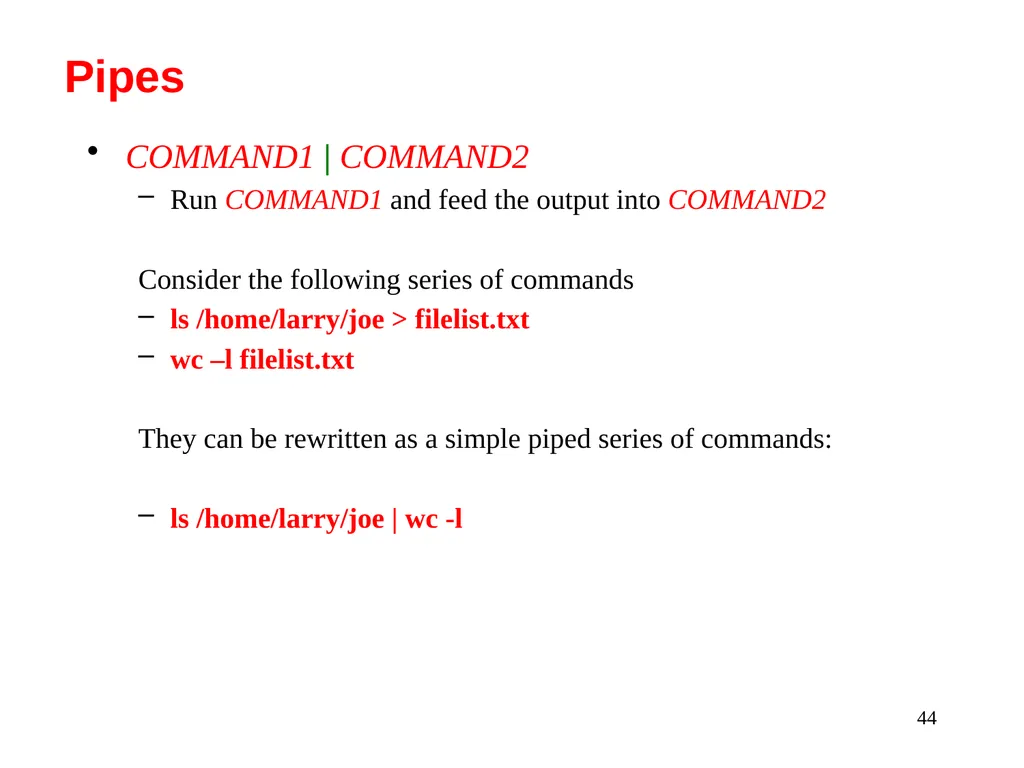
44 COMMAND1 | COMMAND2
Run COMMAND1 and feed the output into COMMAND2
Consider the following series of commands
ls /home/larry/joe > filelist.txt
wc –l filelist.txt
They can be rewritten as a simple piped series of commands:
ls /home/larry/joe | wc -l Pipes<br>
Run COMMAND1 and feed the output into COMMAND2
Consider the following series of commands
ls /home/larry/joe > filelist.txt
wc –l filelist.txt
They can be rewritten as a simple piped series of commands:
ls /home/larry/joe | wc -l Pipes<br>
45
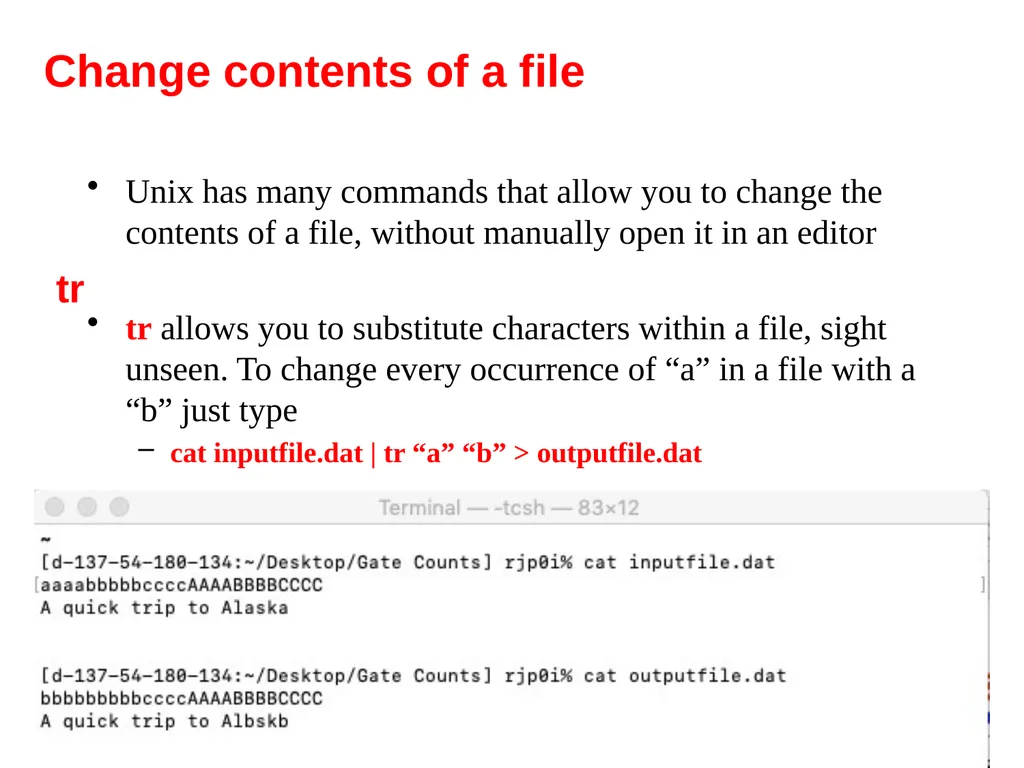
45 Unix has many commands that allow you to change the contents of a file, without manually open it in an editor
tr allows you to substitute characters within a file, sight unseen. To change every occurrence of “a” in a file with a “b” just type
cat inputfile.dat | tr “a” “b” > outputfile.dat Change contents of a file tr<br>
tr allows you to substitute characters within a file, sight unseen. To change every occurrence of “a” in a file with a “b” just type
cat inputfile.dat | tr “a” “b” > outputfile.dat Change contents of a file tr<br>
46
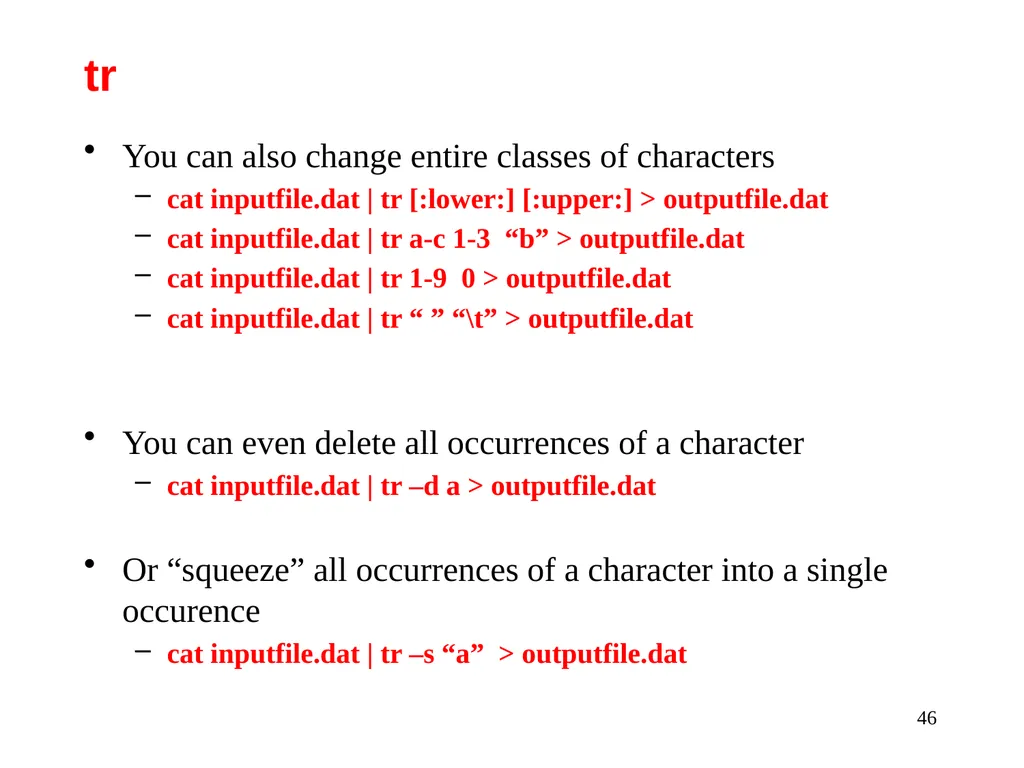
46 You can also change entire classes of characters
cat inputfile.dat | tr [:lower:] [:upper:] > outputfile.dat
cat inputfile.dat | tr a-c 1-3 “b” > outputfile.dat
cat inputfile.dat | tr 1-9 0 > outputfile.dat
cat inputfile.dat | tr “ ” “\t” > outputfile.dat
You can even delete all occurrences of a character
cat inputfile.dat | tr –d a > outputfile.dat
Or “squeeze” all occurrences of a character into a single occurence
cat inputfile.dat | tr –s “a” > outputfile.dat tr<br>
cat inputfile.dat | tr [:lower:] [:upper:] > outputfile.dat
cat inputfile.dat | tr a-c 1-3 “b” > outputfile.dat
cat inputfile.dat | tr 1-9 0 > outputfile.dat
cat inputfile.dat | tr “ ” “\t” > outputfile.dat
You can even delete all occurrences of a character
cat inputfile.dat | tr –d a > outputfile.dat
Or “squeeze” all occurrences of a character into a single occurence
cat inputfile.dat | tr –s “a” > outputfile.dat tr<br>
47
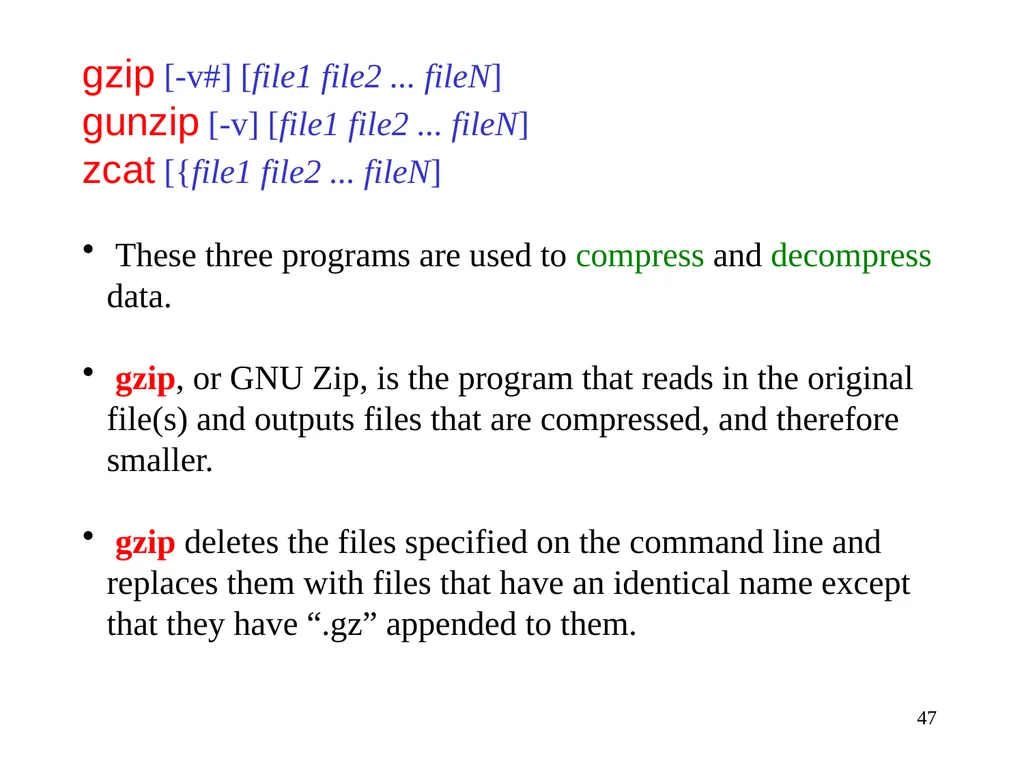
47 gzip [-v#] [file1 file2 ... fileN]
gunzip [-v] [file1 file2 ... fileN]
zcat [{file1 file2 ... fileN]
These three programs are used to compress and decompress data.
gzip, or GNU Zip, is the program that reads in the original file(s) and outputs files that are compressed, and therefore smaller.
gzip deletes the files specified on the command line and replaces them with files that have an identical name except that they have “.gz” appended to them.<br>
gunzip [-v] [file1 file2 ... fileN]
zcat [{file1 file2 ... fileN]
These three programs are used to compress and decompress data.
gzip, or GNU Zip, is the program that reads in the original file(s) and outputs files that are compressed, and therefore smaller.
gzip deletes the files specified on the command line and replaces them with files that have an identical name except that they have “.gz” appended to them.<br>
48
More help Chapter 1 of Computing Skills for Biologists (Allesina & Wilmes) (See Virgo for ebook)
LinkedIn Learning free courses, including:
“Learning Linux Command Line”
“Unix for Mac OS X Users”
Be sure to access it using via the Library’s Research Portal to take advantage of the UVa subscription: www.library.virginia.edu/research/
Lots of online resources (stackexchange…)
http://www.doc.ic.ac.uk/~wjk/UnixIntro/
Me – Please contact me (ricky@virginia.edu) 48<br>
LinkedIn Learning free courses, including:
“Learning Linux Command Line”
“Unix for Mac OS X Users”
Be sure to access it using via the Library’s Research Portal to take advantage of the UVa subscription: www.library.virginia.edu/research/
Lots of online resources (stackexchange…)
http://www.doc.ic.ac.uk/~wjk/UnixIntro/
Me – Please contact me (ricky@virginia.edu) 48<br>