
MEDITECH Expanse Orders Web Based HER MUST be
OM
Published · 67 slides · 0 views

1 / 1









Description
MEDITECH Expanse Orders Web Based HER MUST be viewed as a Slide Show Contents Headers Introduction Enter Order Screen A Basic Order A Medication Order Order Sets Transfer Routine Slide 3 Slide 5 Slide 8 Slide 14 Slide 22 Slide 35 Slide 51
Related Topics
Share
Embed code
Download this presentation From Below
"MEDITECH Expanse Orders Web Based HER MUST be" is the property of its rightful owner. Permission is granted to download and print the materials on this website for personal, non-commercial use only, and to display it on your personal computer provided you do not modify the materials and that you retain all copyright notices contained in the materials. By downloading content from our website, you accept the terms of this agreement.
Presentation Transcript
01
MEDITECH Expanse
Orders Web Based HER
MUST be viewed as a Slide Show<br>
MUST be viewed as a Slide Show<br>
02
Contents Headers
Introduction
Enter Order Screen
A Basic Order
A Medication Order
Order Sets
Transfer Routine Slide 3
Slide 5
Slide 8
Slide 14
Slide 22
Slide 35
Slide 51<br>
Introduction
Enter Order Screen
A Basic Order
A Medication Order
Order Sets
Transfer Routine Slide 3
Slide 5
Slide 8
Slide 14
Slide 22
Slide 35
Slide 51<br>
03
Headers<br>
04
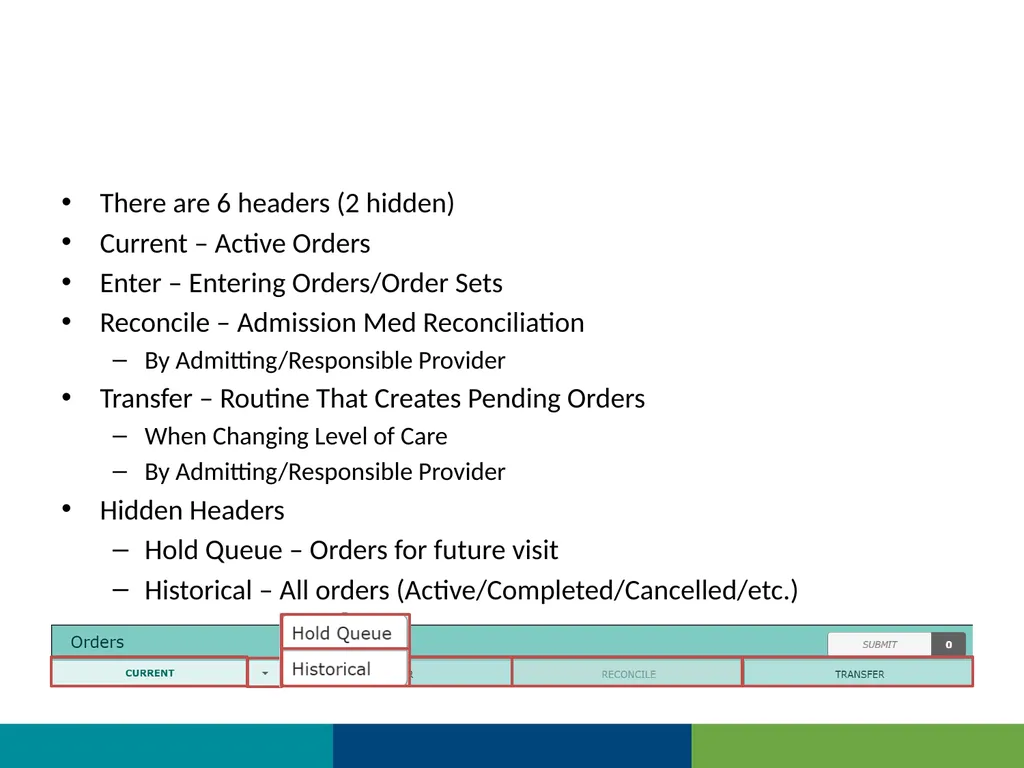
There are 6 headers (2 hidden)
Current – Active Orders
Enter – Entering Orders/Order Sets
Reconcile – Admission Med Reconciliation
By Admitting/Responsible Provider
Transfer – Routine That Creates Pending Orders
When Changing Level of Care
By Admitting/Responsible Provider
Hidden Headers
Hold Queue – Orders for future visit
Historical – All orders (Active/Completed/Cancelled/etc.)<br>
Current – Active Orders
Enter – Entering Orders/Order Sets
Reconcile – Admission Med Reconciliation
By Admitting/Responsible Provider
Transfer – Routine That Creates Pending Orders
When Changing Level of Care
By Admitting/Responsible Provider
Hidden Headers
Hold Queue – Orders for future visit
Historical – All orders (Active/Completed/Cancelled/etc.)<br>
05
Introduction To Entering Orders<br>
06
Orders This is a more detailed look at entering orders in Expanse
There is a preferred display (Favorites by Category)
Setting up favorites is key to time saving for orders<br>
There is a preferred display (Favorites by Category)
Setting up favorites is key to time saving for orders<br>
07
Recap
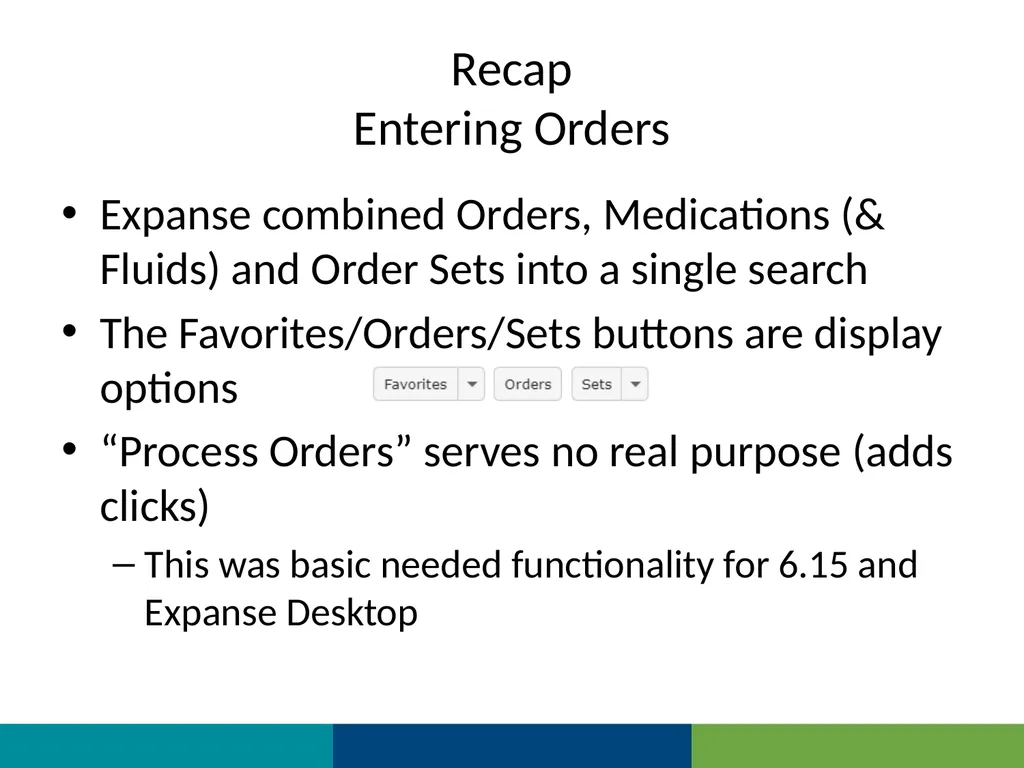
Entering Orders Expanse combined Orders, Medications (& Fluids) and Order Sets into a single search
The Favorites/Orders/Sets buttons are display options
“Process Orders” serves no real purpose (adds clicks)
This was basic needed functionality for 6.15 and Expanse Desktop<br>
The Favorites/Orders/Sets buttons are display options
“Process Orders” serves no real purpose (adds clicks)
This was basic needed functionality for 6.15 and Expanse Desktop<br>
08
Enter Order Screen Headers and Options on Enter Orders Screen<br>
09
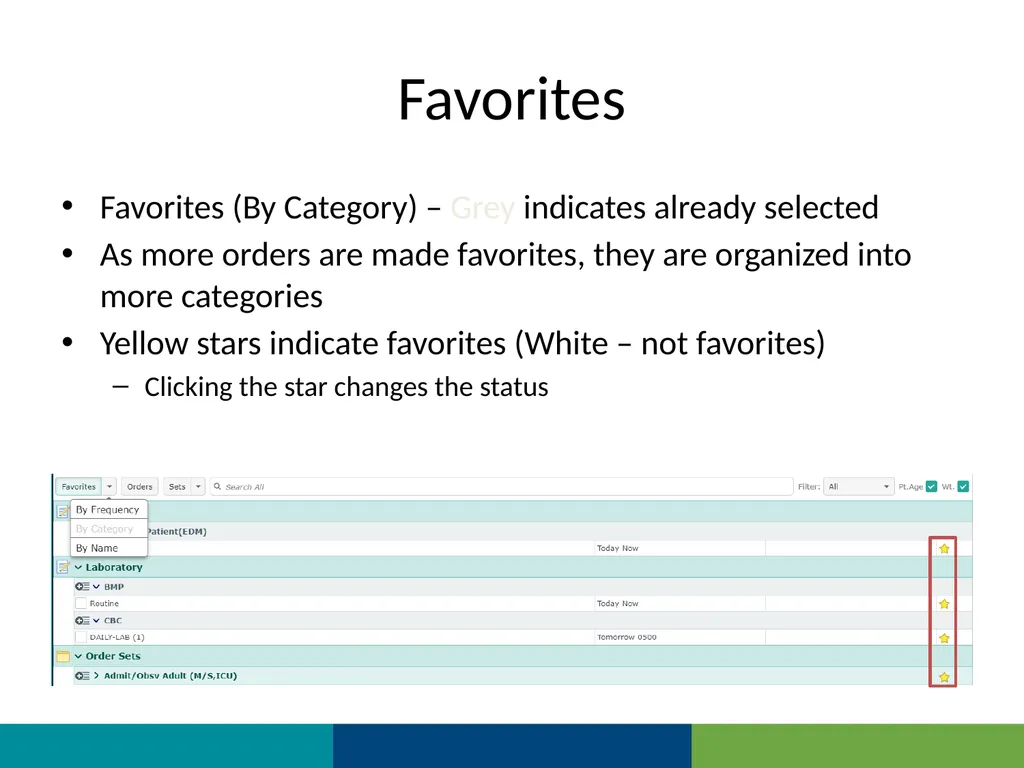
Favorites Favorites (By Category) – Grey indicates already selected
As more orders are made favorites, they are organized into more categories
Yellow stars indicate favorites (White – not favorites)
Clicking the star changes the status<br>
As more orders are made favorites, they are organized into more categories
Yellow stars indicate favorites (White – not favorites)
Clicking the star changes the status<br>
10
Orders View
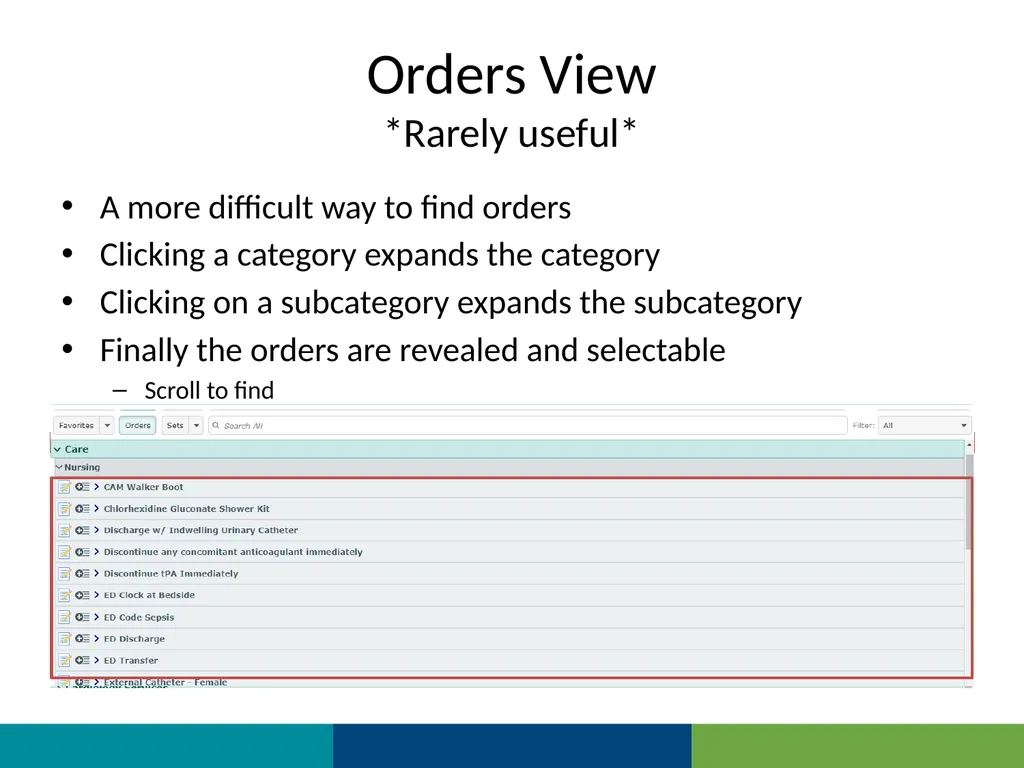
*Rarely useful* A more difficult way to find orders
Clicking a category expands the category
Clicking on a subcategory expands the subcategory
Finally the orders are revealed and selectable
Scroll to find<br>
Clicking a category expands the category
Clicking on a subcategory expands the subcategory
Finally the orders are revealed and selectable
Scroll to find<br>
11
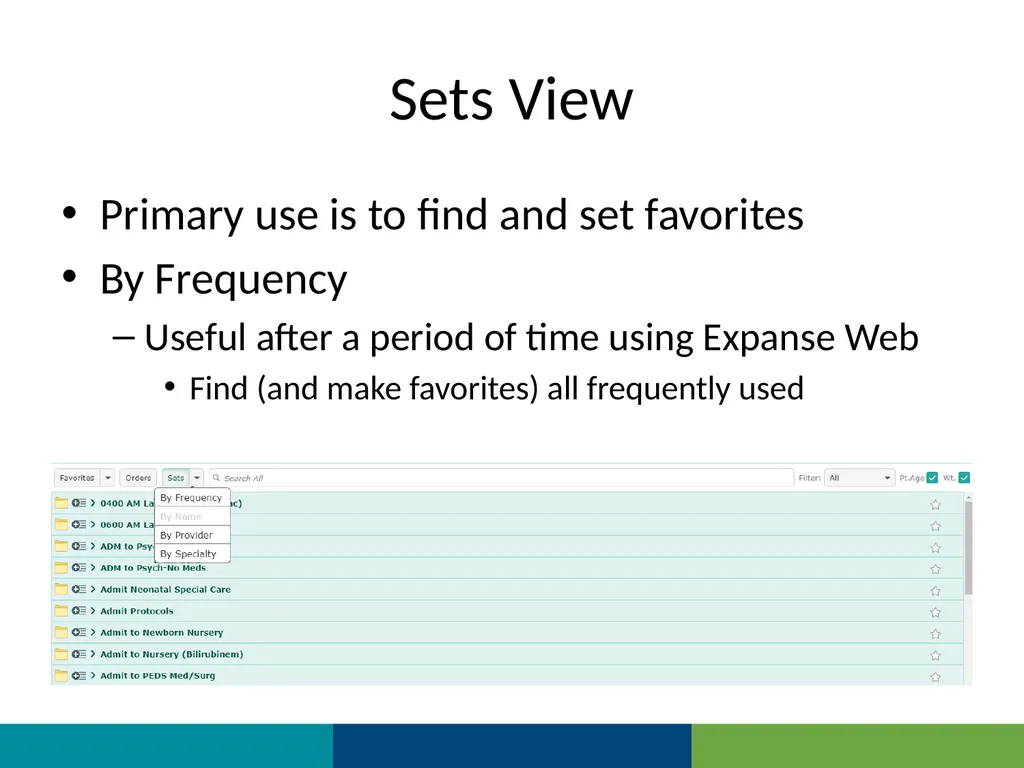
Sets View Primary use is to find and set favorites
By Frequency
Useful after a period of time using Expanse Web
Find (and make favorites) all frequently used<br>
By Frequency
Useful after a period of time using Expanse Web
Find (and make favorites) all frequently used<br>
12
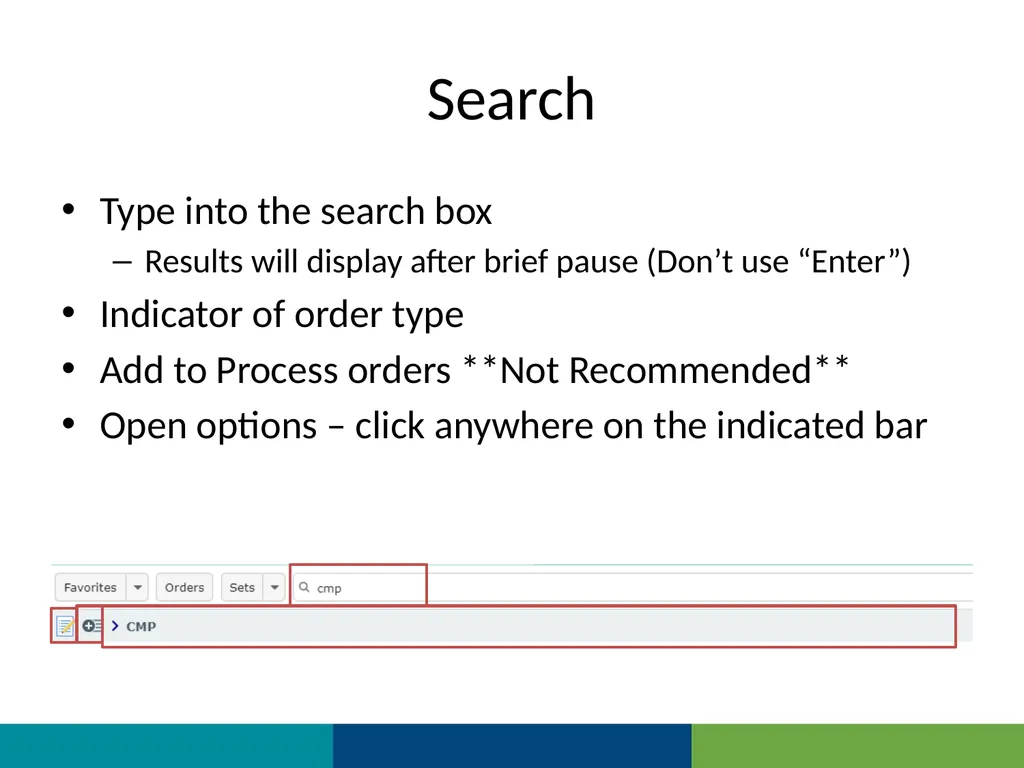
Search Type into the search box
Results will display after brief pause (Don’t use “Enter”)
Indicator of order type
Add to Process orders **Not Recommended**
Open options – click anywhere on the indicated bar<br>
Results will display after brief pause (Don’t use “Enter”)
Indicator of order type
Add to Process orders **Not Recommended**
Open options – click anywhere on the indicated bar<br>
13
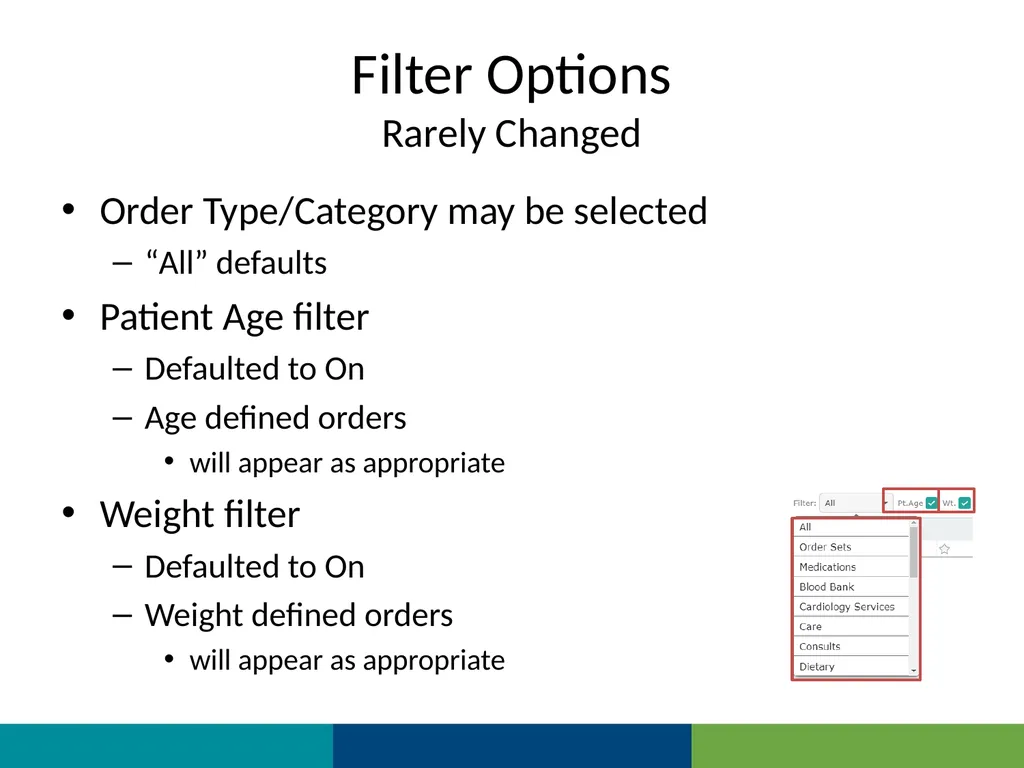
Filter Options
Rarely Changed Order Type/Category may be selected
“All” defaults
Patient Age filter
Defaulted to On
Age defined orders
will appear as appropriate
Weight filter
Defaulted to On
Weight defined orders
will appear as appropriate<br>
“All” defaults
Patient Age filter
Defaulted to On
Age defined orders
will appear as appropriate
Weight filter
Defaulted to On
Weight defined orders
will appear as appropriate<br>
14
A Basic order Options
Submit and Sign<br>
Submit and Sign<br>
15
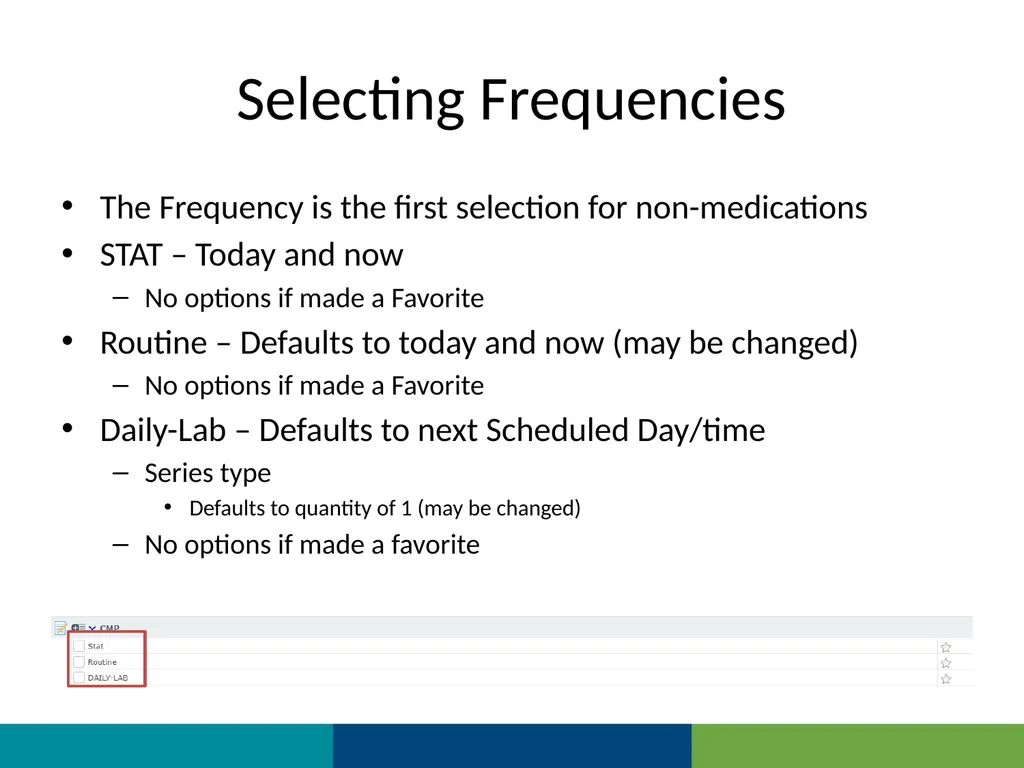
Selecting Frequencies The Frequency is the first selection for non-medications
STAT – Today and now
No options if made a Favorite
Routine – Defaults to today and now (may be changed)
No options if made a Favorite
Daily-Lab – Defaults to next Scheduled Day/time
Series type
Defaults to quantity of 1 (may be changed)
No options if made a favorite<br>
STAT – Today and now
No options if made a Favorite
Routine – Defaults to today and now (may be changed)
No options if made a Favorite
Daily-Lab – Defaults to next Scheduled Day/time
Series type
Defaults to quantity of 1 (may be changed)
No options if made a favorite<br>
16
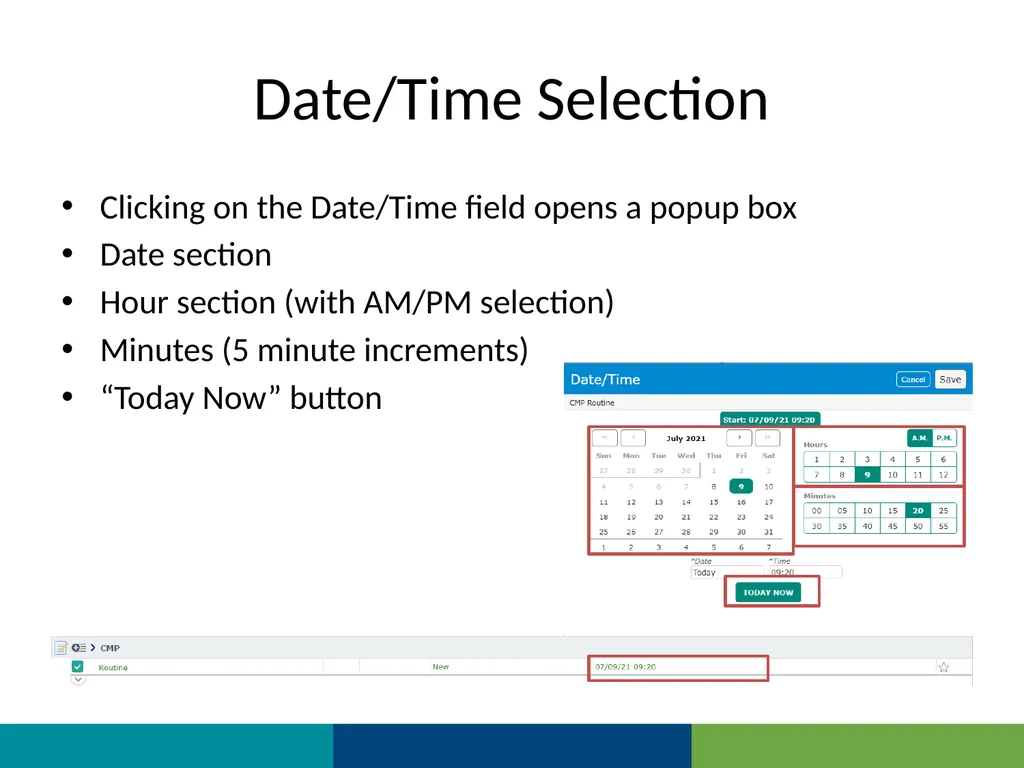
Date/Time Selection Clicking on the Date/Time field opens a popup box
Date section
Hour section (with AM/PM selection)
Minutes (5 minute increments)
“Today Now” button<br>
Date section
Hour section (with AM/PM selection)
Minutes (5 minute increments)
“Today Now” button<br>
17
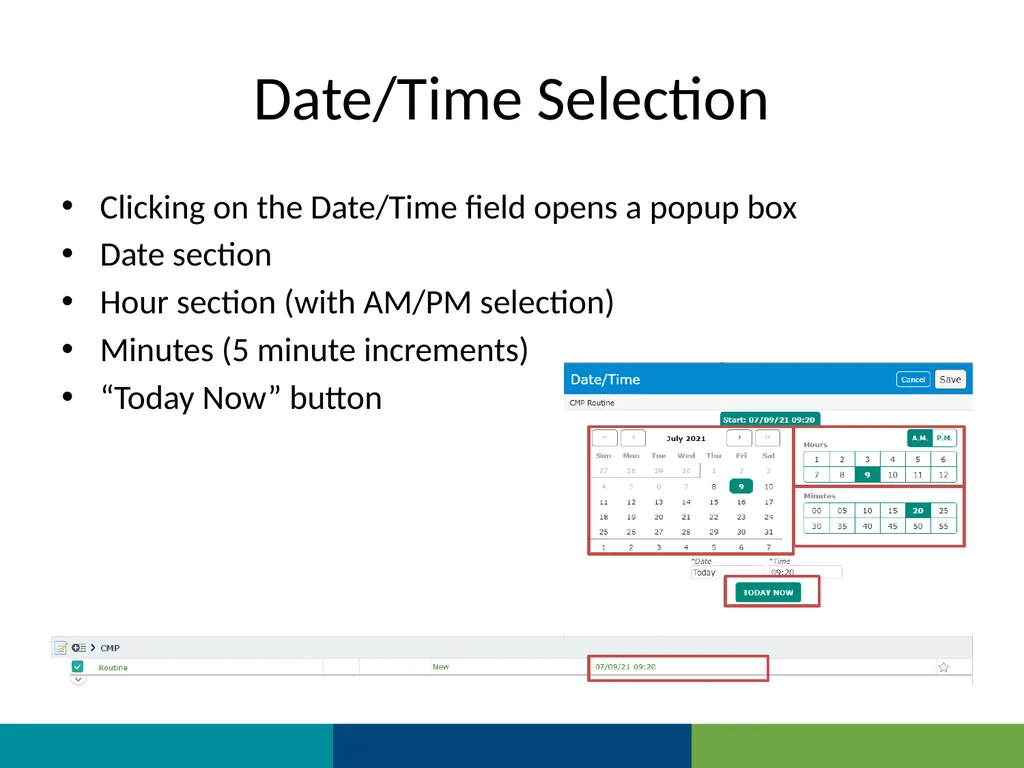
Date/Time Selection Clicking on the Date/Time field opens a popup box
Date section
Hour section (with AM/PM selection)
Minutes (5 minute increments)
“Today Now” button<br>
Date section
Hour section (with AM/PM selection)
Minutes (5 minute increments)
“Today Now” button<br>
18
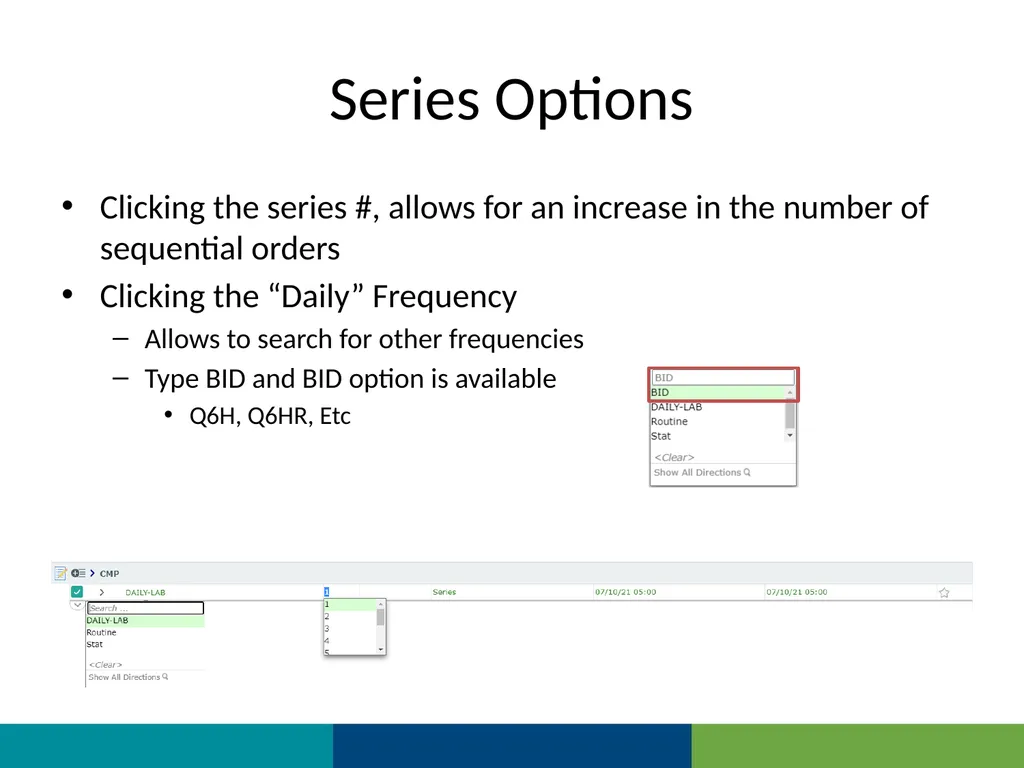
Series Options Clicking the series #, allows for an increase in the number of sequential orders
Clicking the “Daily” Frequency
Allows to search for other frequencies
Type BID and BID option is available
Q6H, Q6HR, Etc<br>
Clicking the “Daily” Frequency
Allows to search for other frequencies
Type BID and BID option is available
Q6H, Q6HR, Etc<br>
19
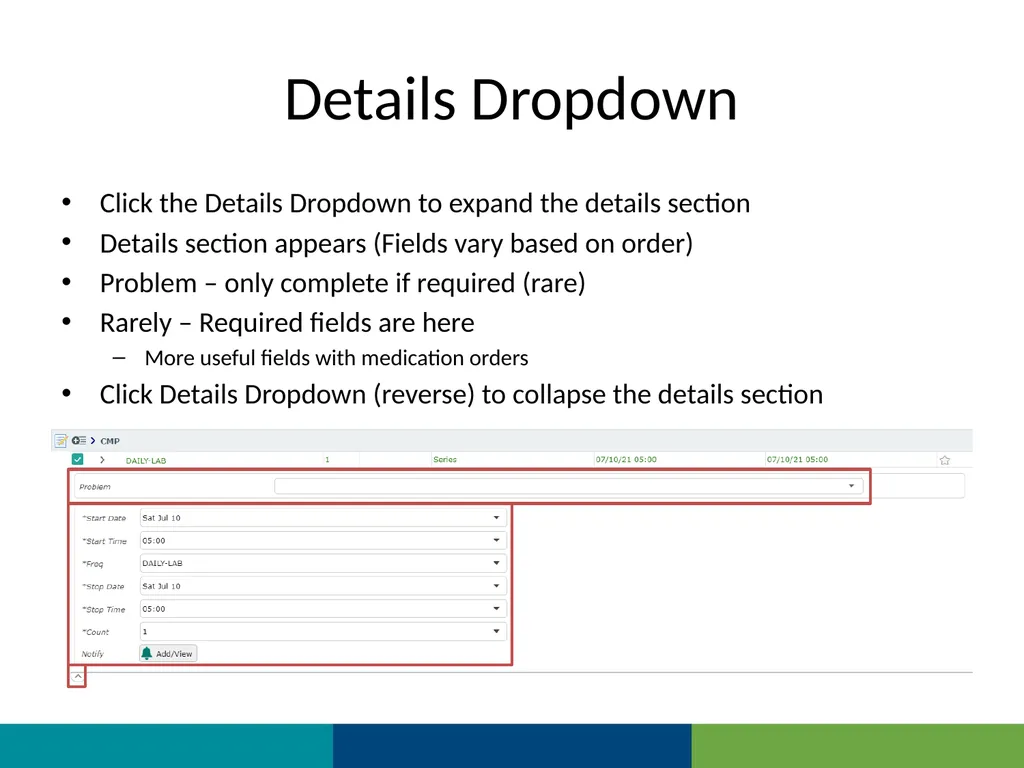
Details Dropdown Click the Details Dropdown to expand the details section
Details section appears (Fields vary based on order)
Problem – only complete if required (rare)
Rarely – Required fields are here
More useful fields with medication orders
Click Details Dropdown (reverse) to collapse the details section<br>
Details section appears (Fields vary based on order)
Problem – only complete if required (rare)
Rarely – Required fields are here
More useful fields with medication orders
Click Details Dropdown (reverse) to collapse the details section<br>
20
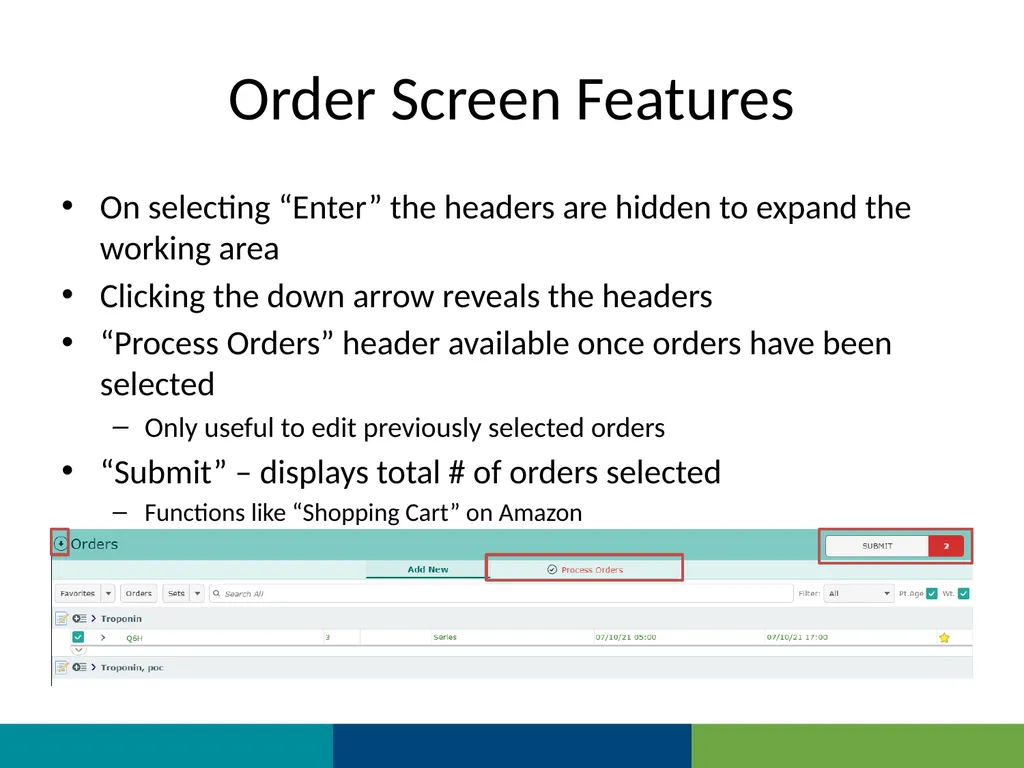
Order Screen Features On selecting “Enter” the headers are hidden to expand the working area
Clicking the down arrow reveals the headers
“Process Orders” header available once orders have been selected
Only useful to edit previously selected orders
“Submit” – displays total # of orders selected
Functions like “Shopping Cart” on Amazon<br>
Clicking the down arrow reveals the headers
“Process Orders” header available once orders have been selected
Only useful to edit previously selected orders
“Submit” – displays total # of orders selected
Functions like “Shopping Cart” on Amazon<br>
21
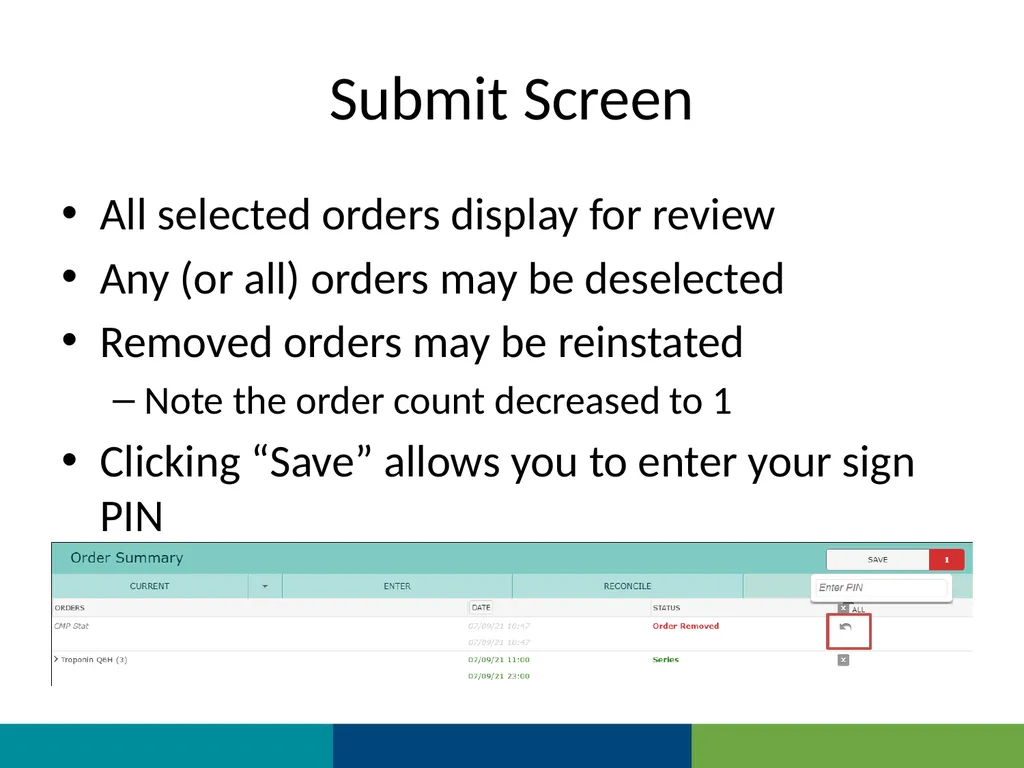
Submit Screen All selected orders display for review
Any (or all) orders may be deselected
Removed orders may be reinstated
Note the order count decreased to 1
Clicking “Save” allows you to enter your sign PIN<br>
Any (or all) orders may be deselected
Removed orders may be reinstated
Note the order count decreased to 1
Clicking “Save” allows you to enter your sign PIN<br>
22
A Medication Order Options
Features<br>
Features<br>
23
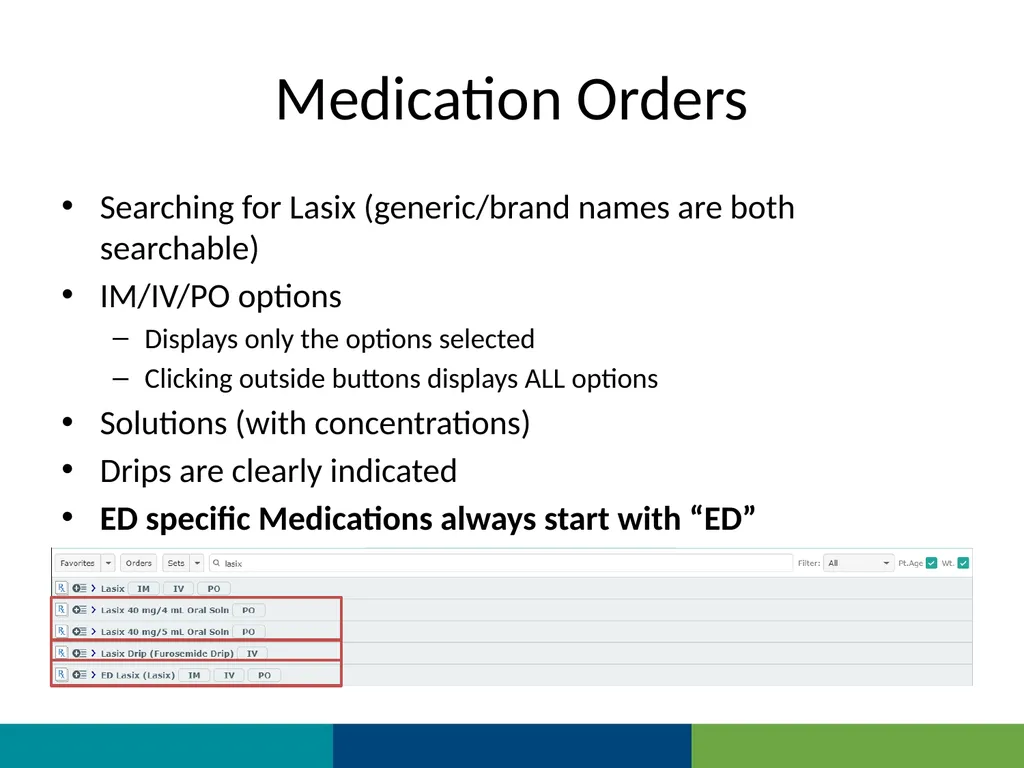
Medication Orders Searching for Lasix (generic/brand names are both searchable)
IM/IV/PO options
Displays only the options selected
Clicking outside buttons displays ALL options
Solutions (with concentrations)
Drips are clearly indicated
ED specific Medications always start with “ED”<br>
IM/IV/PO options
Displays only the options selected
Clicking outside buttons displays ALL options
Solutions (with concentrations)
Drips are clearly indicated
ED specific Medications always start with “ED”<br>
24
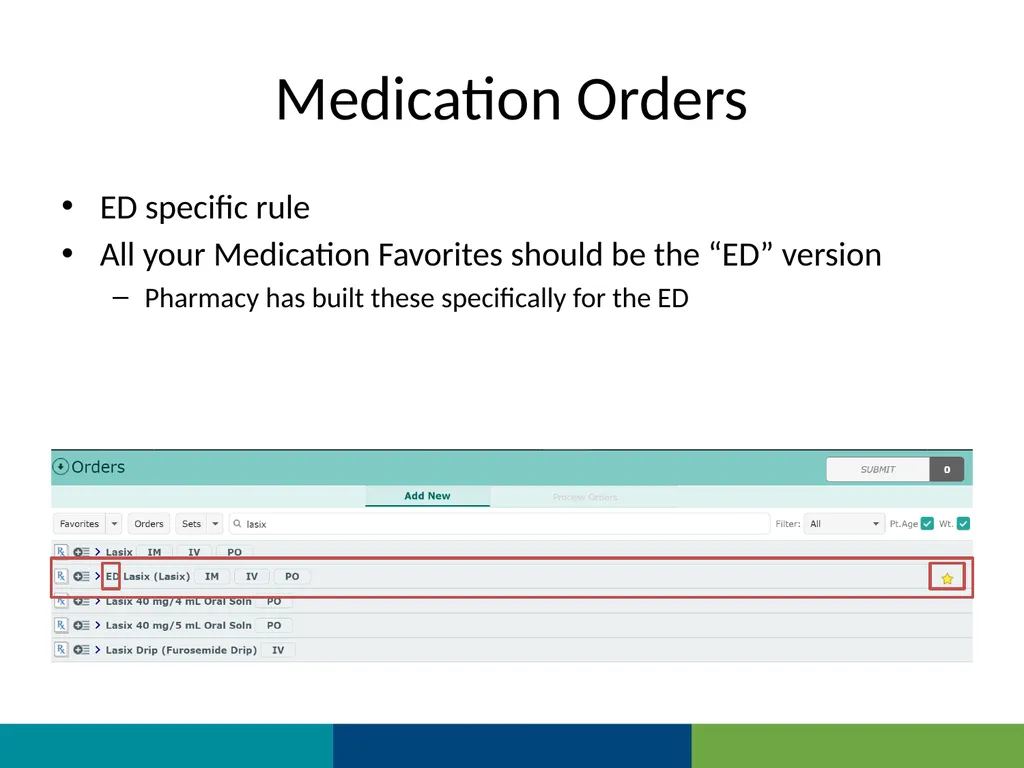
Medication Orders ED specific rule
All your Medication Favorites should be the “ED” version
Pharmacy has built these specifically for the ED<br>
All your Medication Favorites should be the “ED” version
Pharmacy has built these specifically for the ED<br>
25
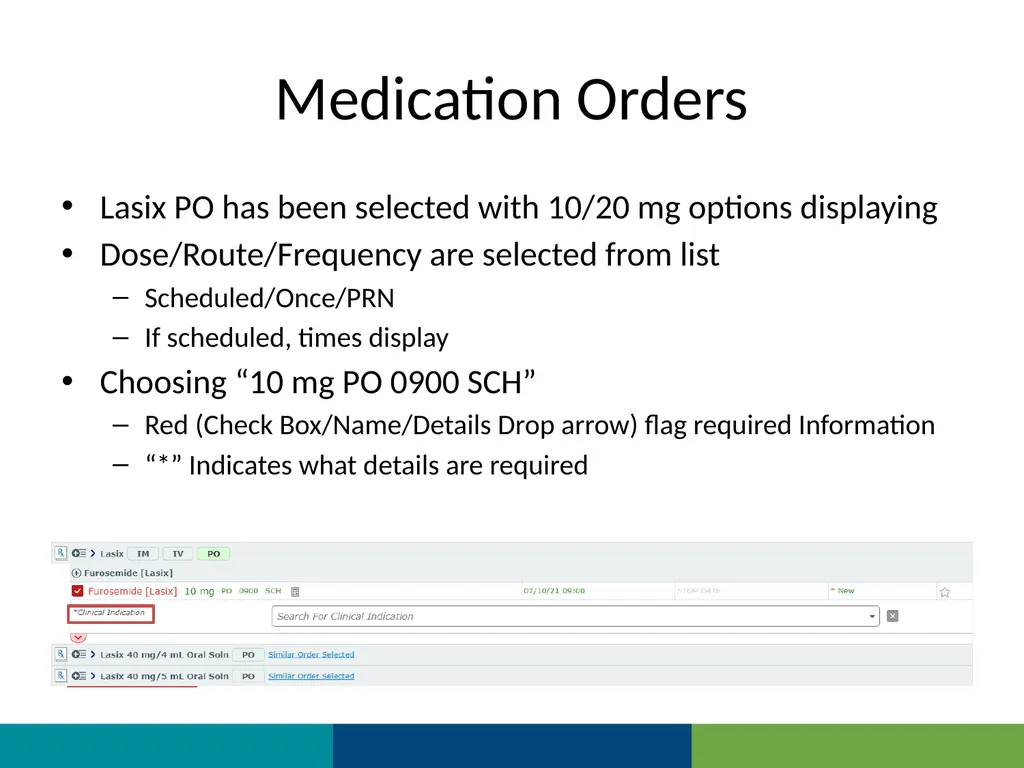
Medication Orders Lasix PO has been selected with 10/20 mg options displaying
Dose/Route/Frequency are selected from list
Scheduled/Once/PRN
If scheduled, times display
Choosing “10 mg PO 0900 SCH”
Red (Check Box/Name/Details Drop arrow) flag required Information
“*” Indicates what details are required<br>
Dose/Route/Frequency are selected from list
Scheduled/Once/PRN
If scheduled, times display
Choosing “10 mg PO 0900 SCH”
Red (Check Box/Name/Details Drop arrow) flag required Information
“*” Indicates what details are required<br>
26
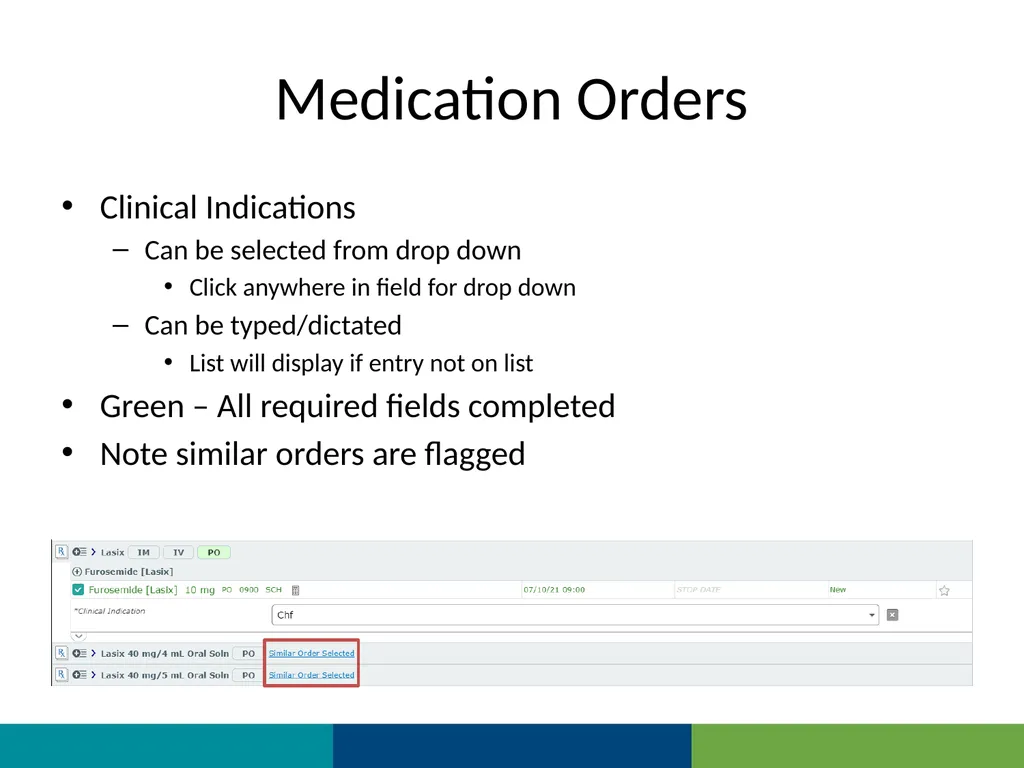
Medication Orders Clinical Indications
Can be selected from drop down
Click anywhere in field for drop down
Can be typed/dictated
List will display if entry not on list
Green – All required fields completed
Note similar orders are flagged<br>
Can be selected from drop down
Click anywhere in field for drop down
Can be typed/dictated
List will display if entry not on list
Green – All required fields completed
Note similar orders are flagged<br>
27
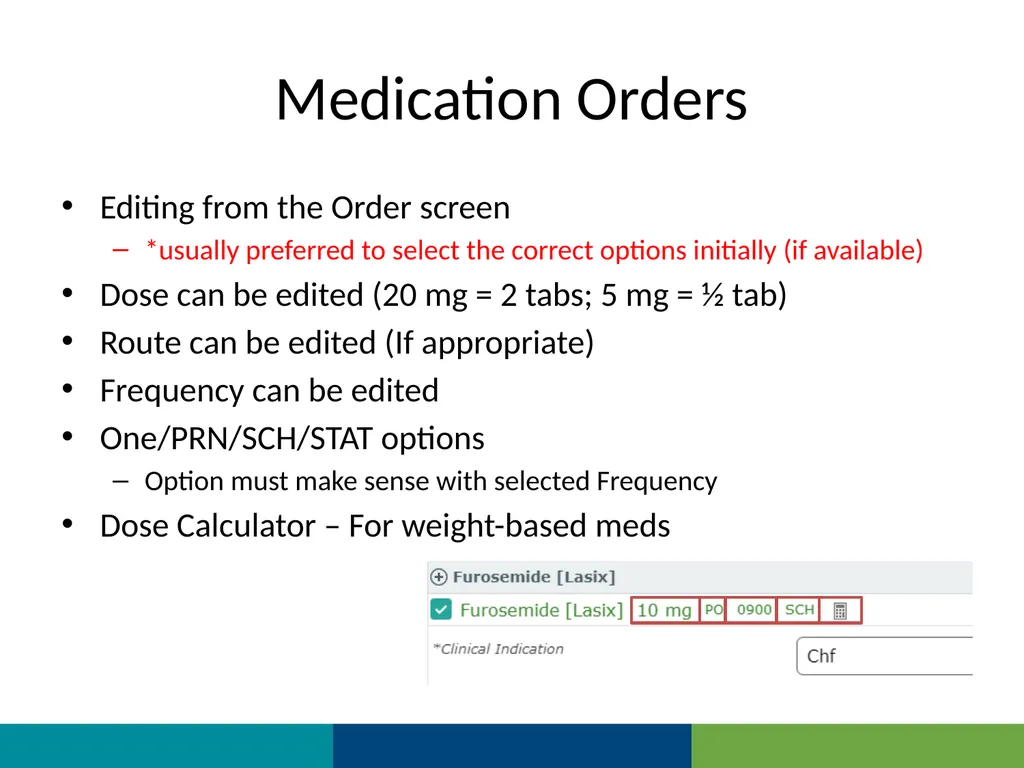
Medication Orders Editing from the Order screen
*usually preferred to select the correct options initially (if available)
Dose can be edited (20 mg = 2 tabs; 5 mg = ½ tab)
Route can be edited (If appropriate)
Frequency can be edited
One/PRN/SCH/STAT options
Option must make sense with selected Frequency
Dose Calculator – For weight-based meds<br>
*usually preferred to select the correct options initially (if available)
Dose can be edited (20 mg = 2 tabs; 5 mg = ½ tab)
Route can be edited (If appropriate)
Frequency can be edited
One/PRN/SCH/STAT options
Option must make sense with selected Frequency
Dose Calculator – For weight-based meds<br>
28
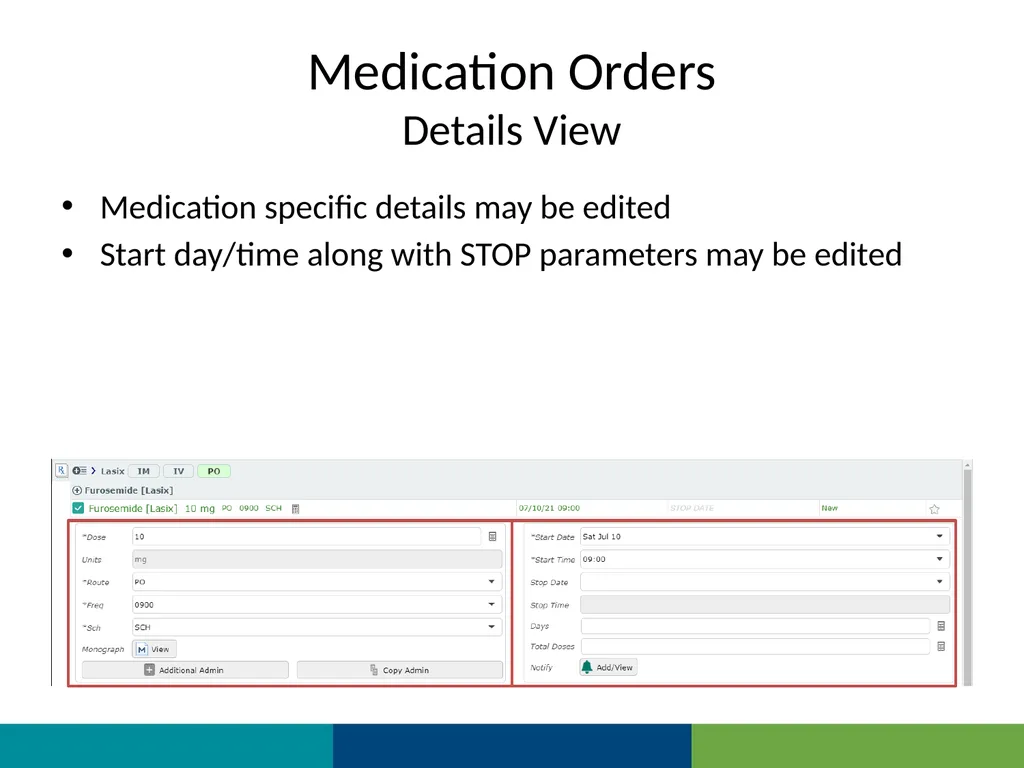
Medication Orders
Details View Medication specific details may be edited
Start day/time along with STOP parameters may be edited<br>
Start day/time along with STOP parameters may be edited<br>
29
Medication Orders
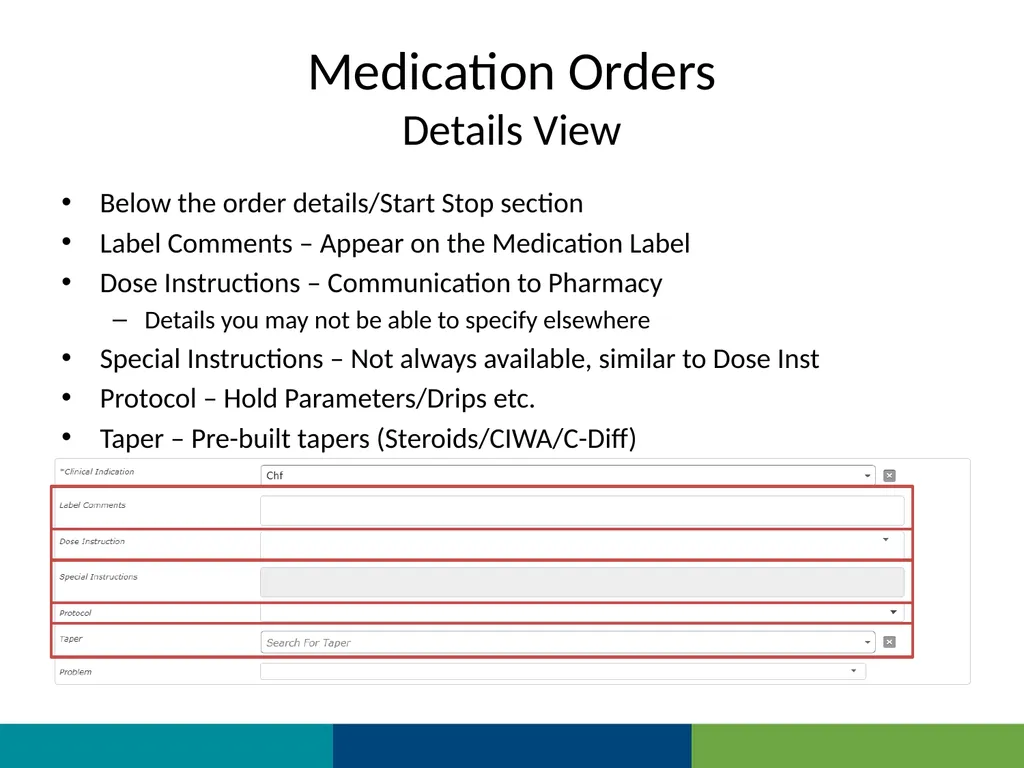
Details View Below the order details/Start Stop section
Label Comments – Appear on the Medication Label
Dose Instructions – Communication to Pharmacy
Details you may not be able to specify elsewhere
Special Instructions – Not always available, similar to Dose Inst
Protocol – Hold Parameters/Drips etc.
Taper – Pre-built tapers (Steroids/CIWA/C-Diff)<br>
Label Comments – Appear on the Medication Label
Dose Instructions – Communication to Pharmacy
Details you may not be able to specify elsewhere
Special Instructions – Not always available, similar to Dose Inst
Protocol – Hold Parameters/Drips etc.
Taper – Pre-built tapers (Steroids/CIWA/C-Diff)<br>
30
Medication Order
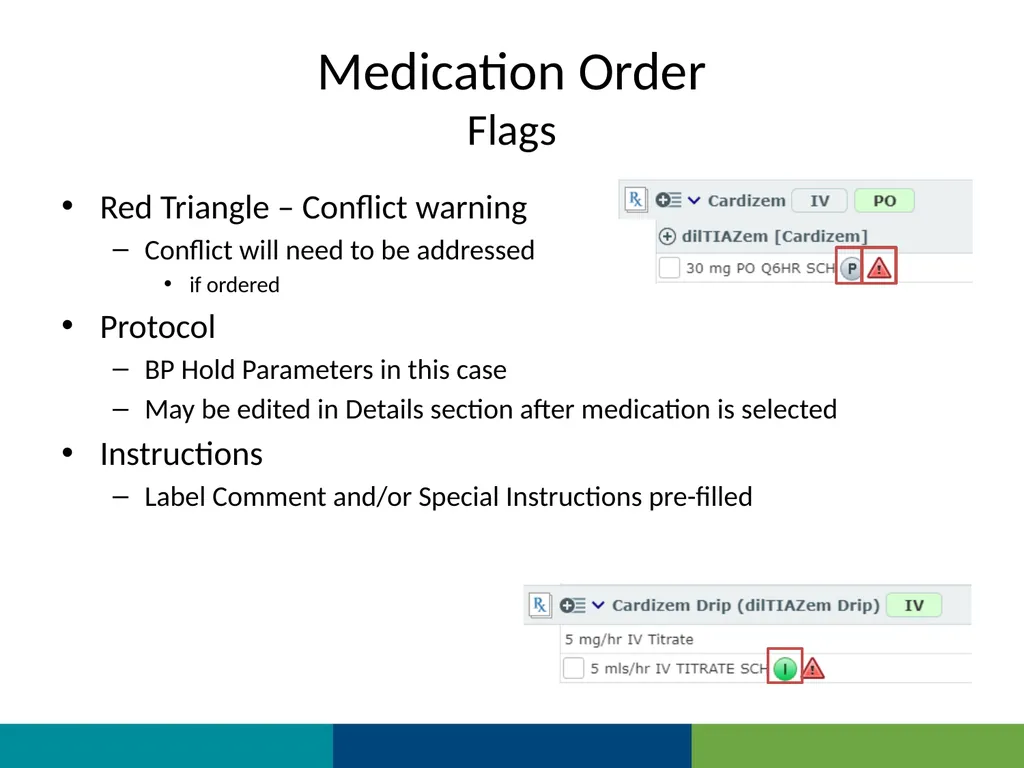
Flags Red Triangle – Conflict warning
Conflict will need to be addressed
if ordered
Protocol
BP Hold Parameters in this case
May be edited in Details section after medication is selected
Instructions
Label Comment and/or Special Instructions pre-filled<br>
Conflict will need to be addressed
if ordered
Protocol
BP Hold Parameters in this case
May be edited in Details section after medication is selected
Instructions
Label Comment and/or Special Instructions pre-filled<br>
31
Medication Orders
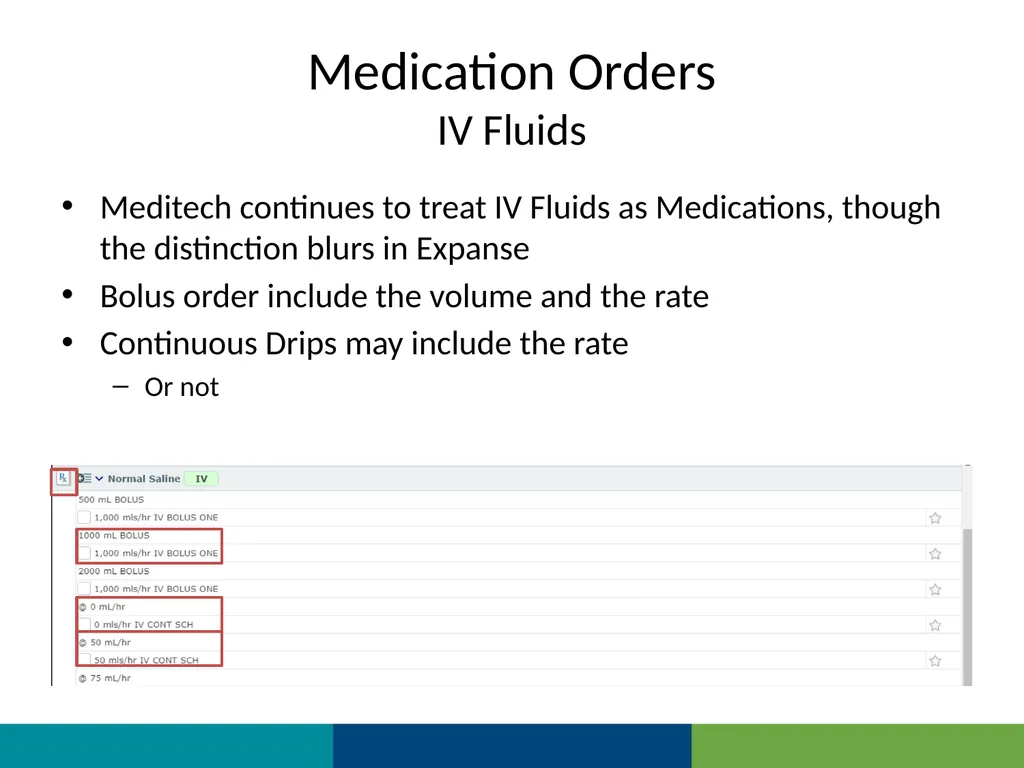
IV Fluids Meditech continues to treat IV Fluids as Medications, though the distinction blurs in Expanse
Bolus order include the volume and the rate
Continuous Drips may include the rate
Or not<br>
Bolus order include the volume and the rate
Continuous Drips may include the rate
Or not<br>
32
Medication Orders
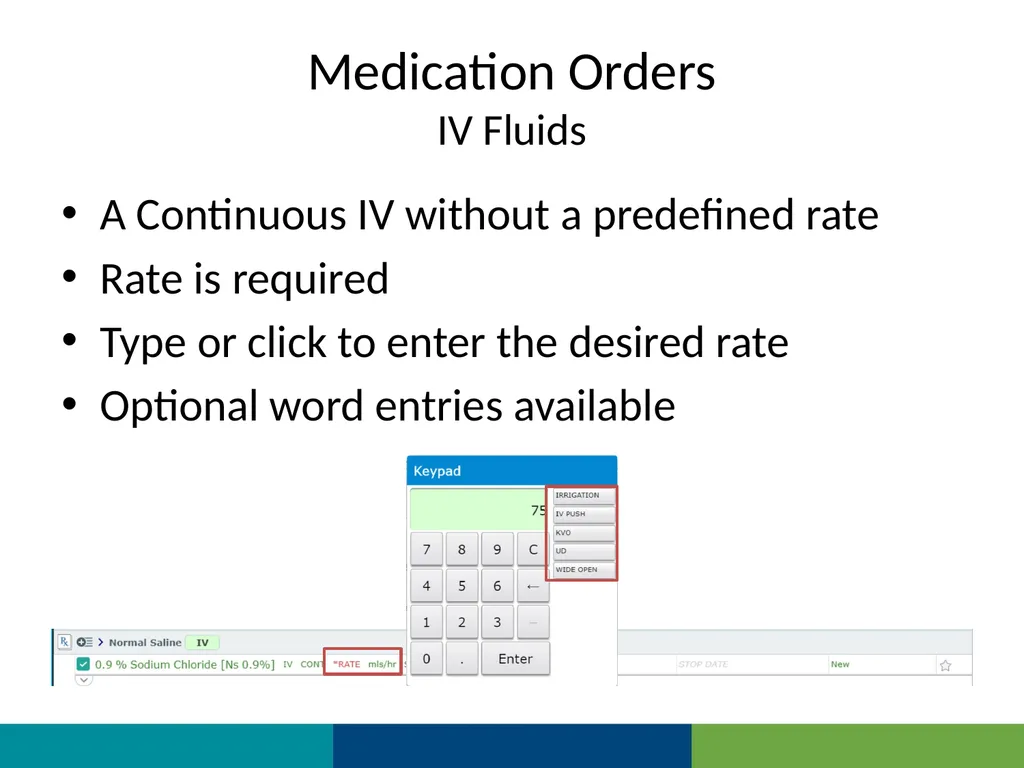
IV Fluids A Continuous IV without a predefined rate
Rate is required
Type or click to enter the desired rate
Optional word entries available<br>
Rate is required
Type or click to enter the desired rate
Optional word entries available<br>
33
Medication Orders
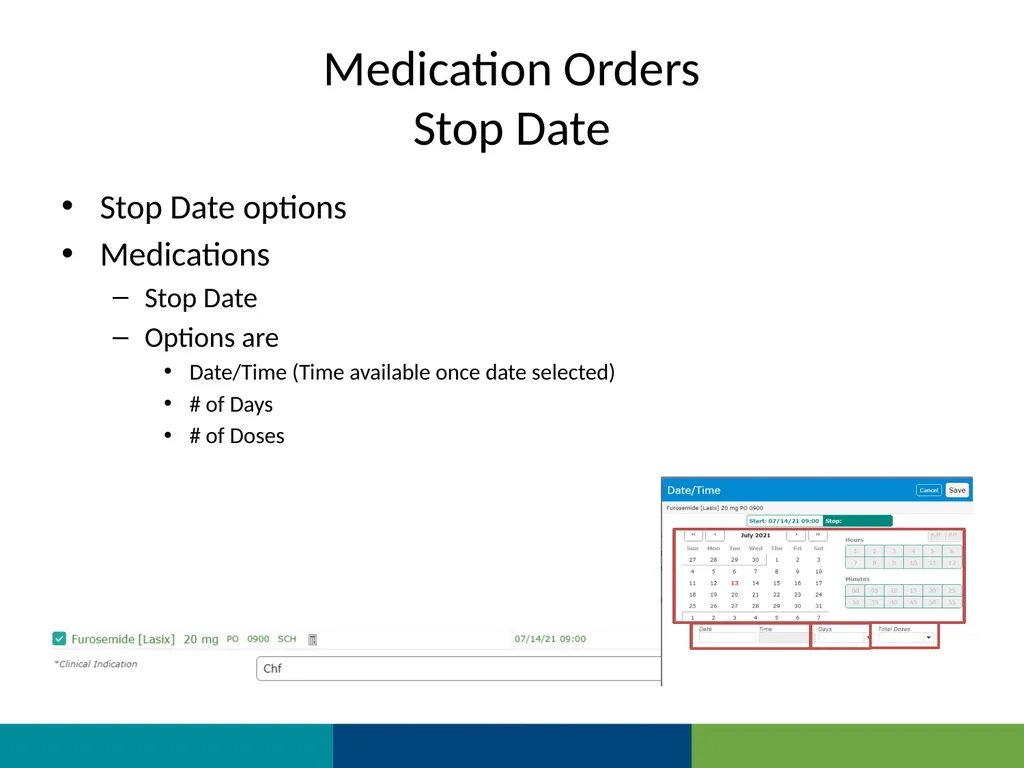
Stop Date Stop Date options
Medications
Stop Date
Options are
Date/Time (Time available once date selected)
# of Days
# of Doses<br>
Medications
Stop Date
Options are
Date/Time (Time available once date selected)
# of Days
# of Doses<br>
34
Medication Orders
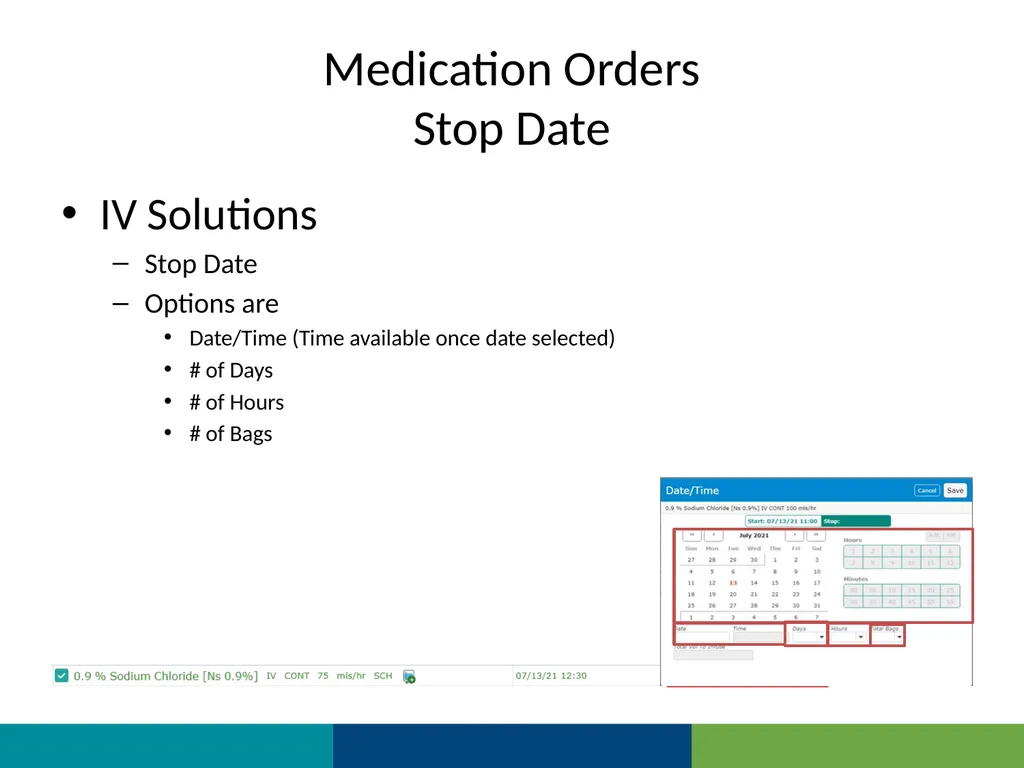
Stop Date IV Solutions
Stop Date
Options are
Date/Time (Time available once date selected)
# of Days
# of Hours
# of Bags<br>
Stop Date
Options are
Date/Time (Time available once date selected)
# of Days
# of Hours
# of Bags<br>
35
Order sets<br>
36
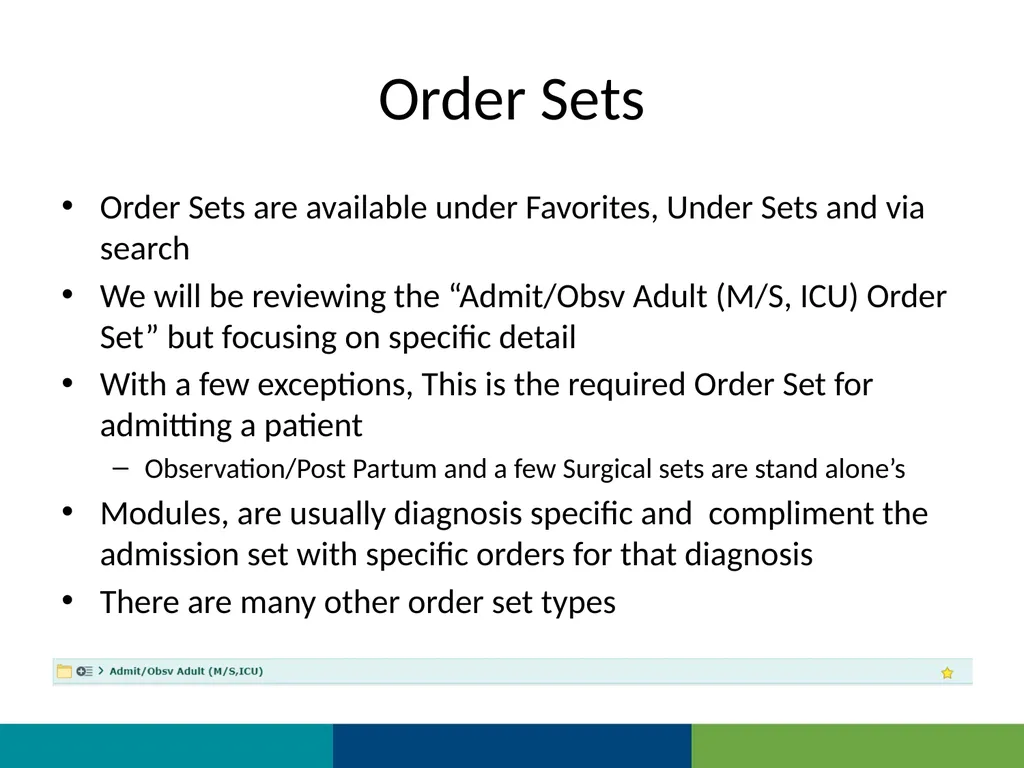
Order Sets Order Sets are available under Favorites, Under Sets and via search
We will be reviewing the “Admit/Obsv Adult (M/S, ICU) Order Set” but focusing on specific detail
With a few exceptions, This is the required Order Set for admitting a patient
Observation/Post Partum and a few Surgical sets are stand alone’s
Modules, are usually diagnosis specific and compliment the admission set with specific orders for that diagnosis
There are many other order set types<br>
We will be reviewing the “Admit/Obsv Adult (M/S, ICU) Order Set” but focusing on specific detail
With a few exceptions, This is the required Order Set for admitting a patient
Observation/Post Partum and a few Surgical sets are stand alone’s
Modules, are usually diagnosis specific and compliment the admission set with specific orders for that diagnosis
There are many other order set types<br>
37
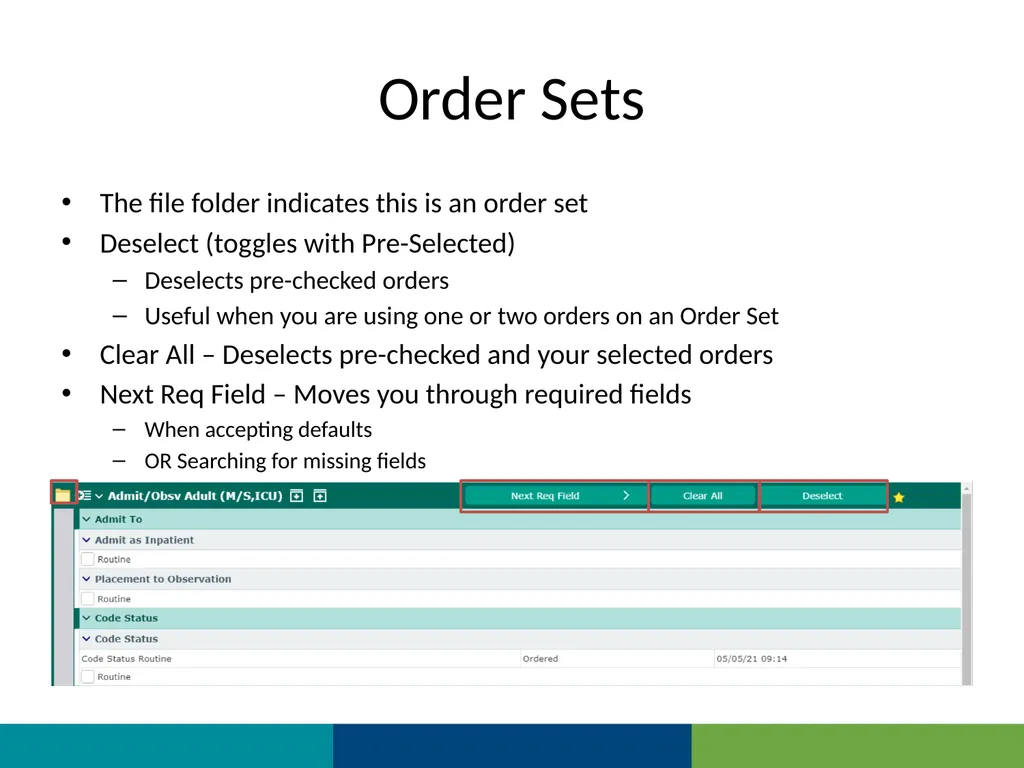
Order Sets The file folder indicates this is an order set
Deselect (toggles with Pre-Selected)
Deselects pre-checked orders
Useful when you are using one or two orders on an Order Set
Clear All – Deselects pre-checked and your selected orders
Next Req Field – Moves you through required fields
When accepting defaults
OR Searching for missing fields<br>
Deselect (toggles with Pre-Selected)
Deselects pre-checked orders
Useful when you are using one or two orders on an Order Set
Clear All – Deselects pre-checked and your selected orders
Next Req Field – Moves you through required fields
When accepting defaults
OR Searching for missing fields<br>
38
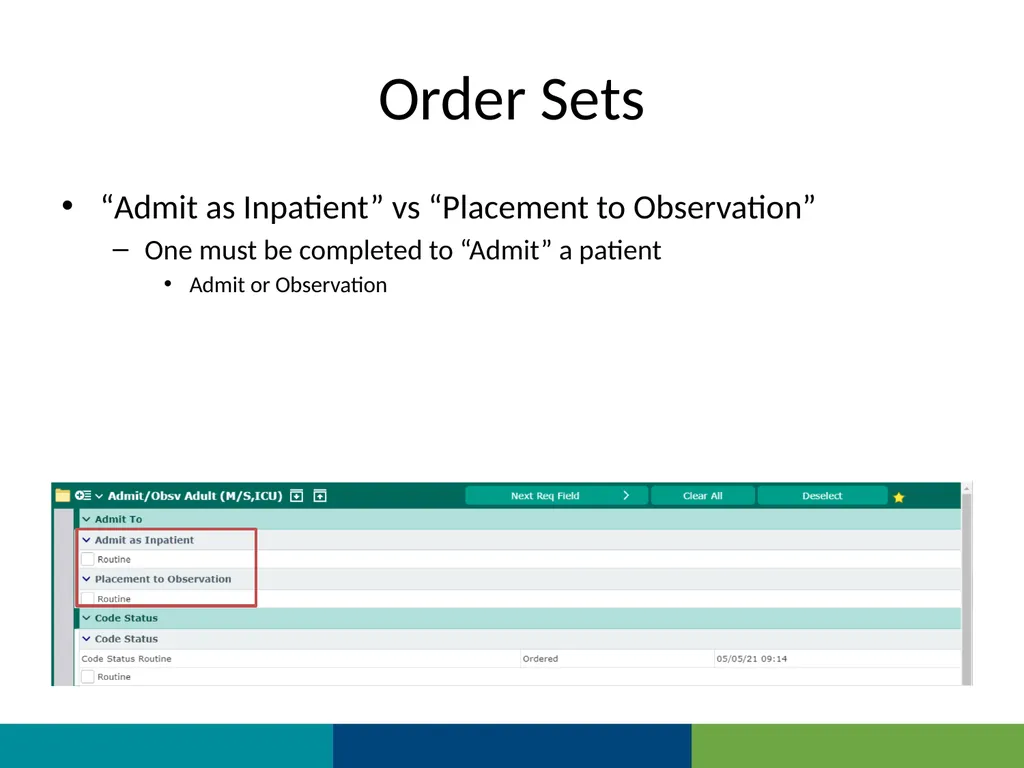
Order Sets “Admit as Inpatient” vs “Placement to Observation”
One must be completed to “Admit” a patient
Admit or Observation<br>
One must be completed to “Admit” a patient
Admit or Observation<br>
39
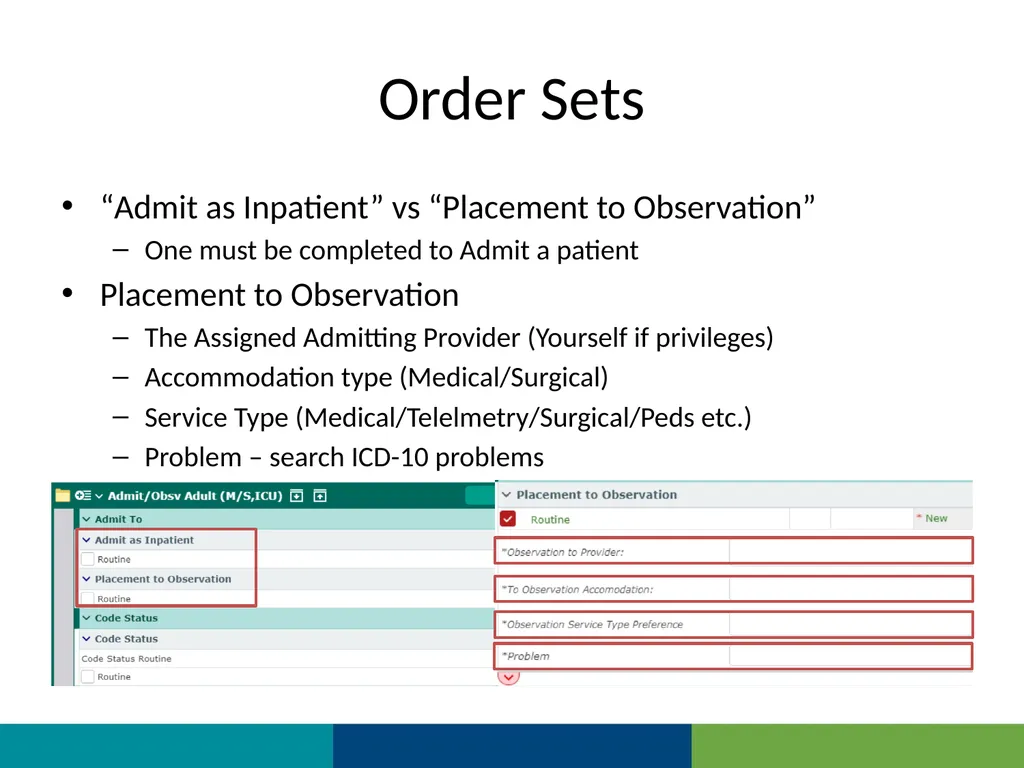
Order Sets “Admit as Inpatient” vs “Placement to Observation”
One must be completed to Admit a patient
Placement to Observation
The Assigned Admitting Provider (Yourself if privileges)
Accommodation type (Medical/Surgical)
Service Type (Medical/Telelmetry/Surgical/Peds etc.)
Problem – search ICD-10 problems<br>
One must be completed to Admit a patient
Placement to Observation
The Assigned Admitting Provider (Yourself if privileges)
Accommodation type (Medical/Surgical)
Service Type (Medical/Telelmetry/Surgical/Peds etc.)
Problem – search ICD-10 problems<br>
40
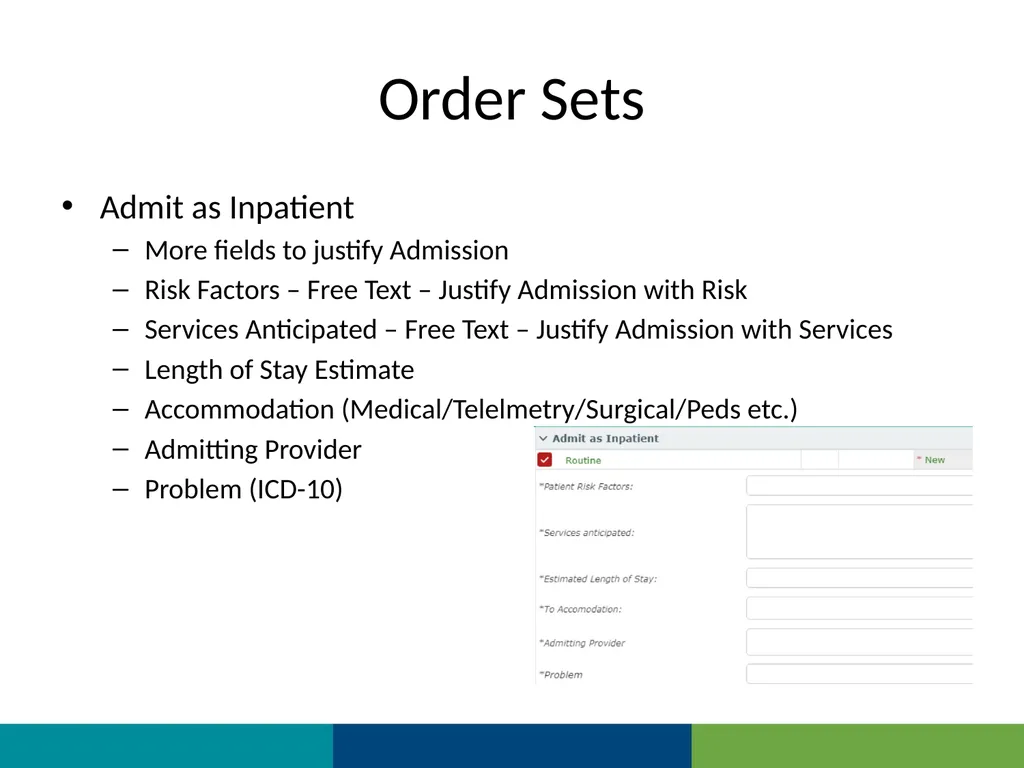
Order Sets Admit as Inpatient
More fields to justify Admission
Risk Factors – Free Text – Justify Admission with Risk
Services Anticipated – Free Text – Justify Admission with Services
Length of Stay Estimate
Accommodation (Medical/Telelmetry/Surgical/Peds etc.)
Admitting Provider
Problem (ICD-10)<br>
More fields to justify Admission
Risk Factors – Free Text – Justify Admission with Risk
Services Anticipated – Free Text – Justify Admission with Services
Length of Stay Estimate
Accommodation (Medical/Telelmetry/Surgical/Peds etc.)
Admitting Provider
Problem (ICD-10)<br>
41
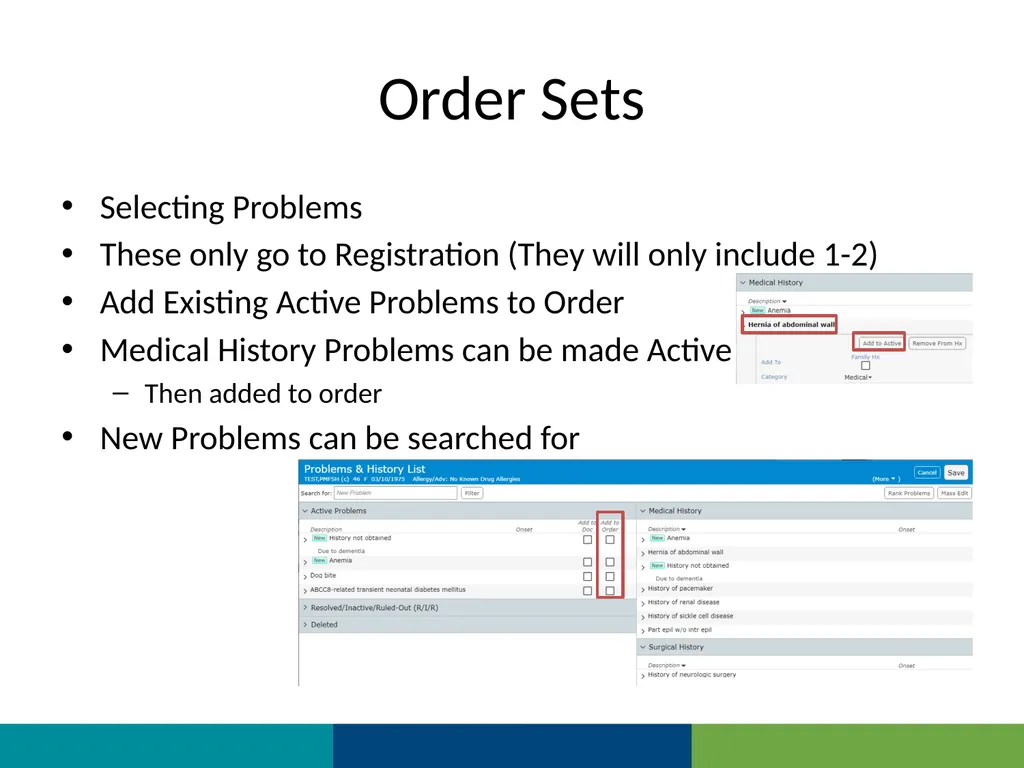
Order Sets Selecting Problems
These only go to Registration (They will only include 1-2)
Add Existing Active Problems to Order
Medical History Problems can be made Active
Then added to order
New Problems can be searched for<br>
These only go to Registration (They will only include 1-2)
Add Existing Active Problems to Order
Medical History Problems can be made Active
Then added to order
New Problems can be searched for<br>
42
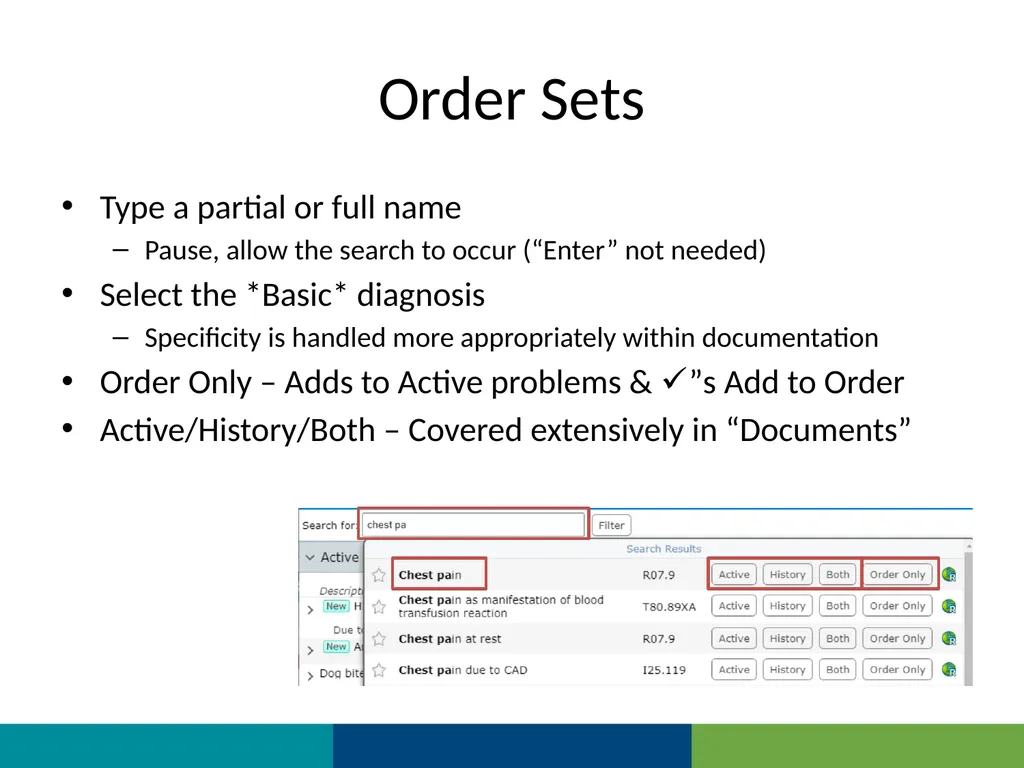
Order Sets Type a partial or full name
Pause, allow the search to occur (“Enter” not needed)
Select the *Basic* diagnosis
Specificity is handled more appropriately within documentation
Order Only – Adds to Active problems & ”s Add to Order
Active/History/Both – Covered extensively in “Documents”<br>
Pause, allow the search to occur (“Enter” not needed)
Select the *Basic* diagnosis
Specificity is handled more appropriately within documentation
Order Only – Adds to Active problems & ”s Add to Order
Active/History/Both – Covered extensively in “Documents”<br>
43
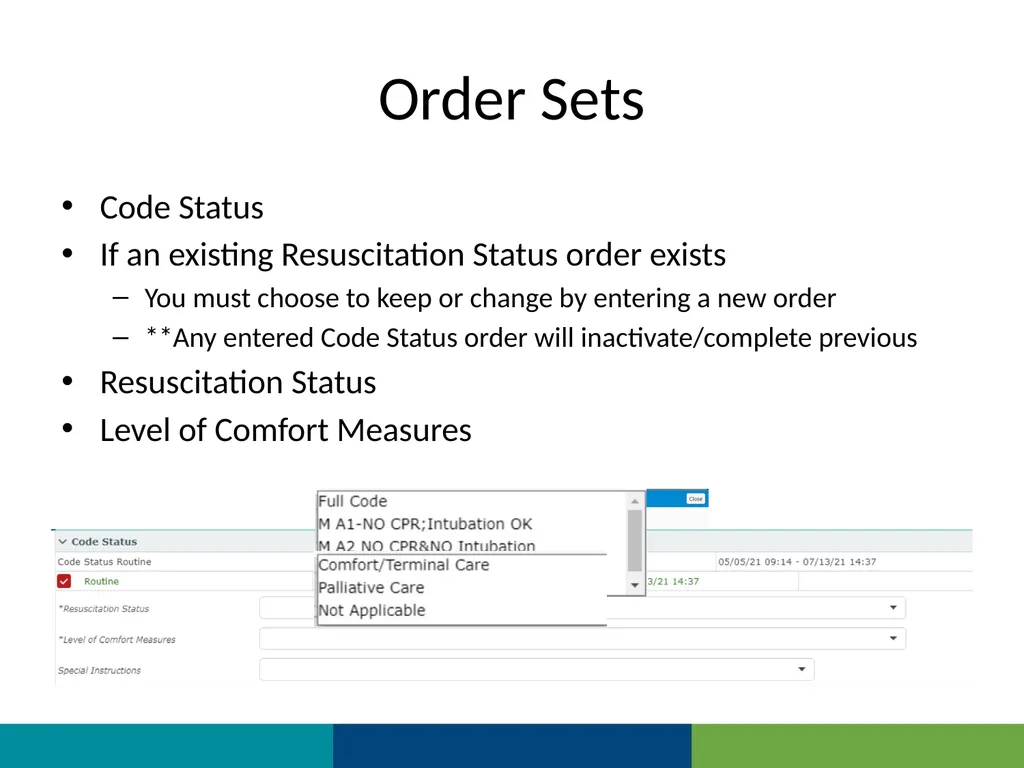
Order Sets Code Status
If an existing Resuscitation Status order exists
You must choose to keep or change by entering a new order
**Any entered Code Status order will inactivate/complete previous
Resuscitation Status
Level of Comfort Measures<br>
If an existing Resuscitation Status order exists
You must choose to keep or change by entering a new order
**Any entered Code Status order will inactivate/complete previous
Resuscitation Status
Level of Comfort Measures<br>
44
Order Sets
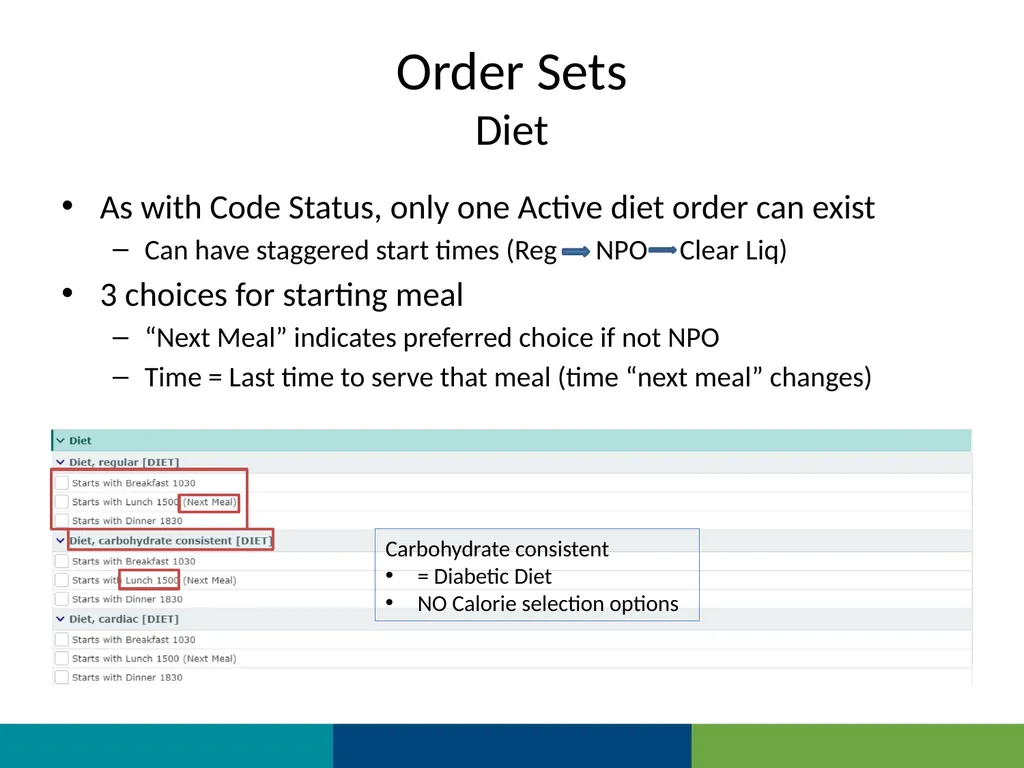
Diet As with Code Status, only one Active diet order can exist
Can have staggered start times (Reg NPO Clear Liq)
3 choices for starting meal
“Next Meal” indicates preferred choice if not NPO
Time = Last time to serve that meal (time “next meal” changes) Carbohydrate consistent
= Diabetic Diet
NO Calorie selection options<br>
Can have staggered start times (Reg NPO Clear Liq)
3 choices for starting meal
“Next Meal” indicates preferred choice if not NPO
Time = Last time to serve that meal (time “next meal” changes) Carbohydrate consistent
= Diabetic Diet
NO Calorie selection options<br>
45
Order Sets
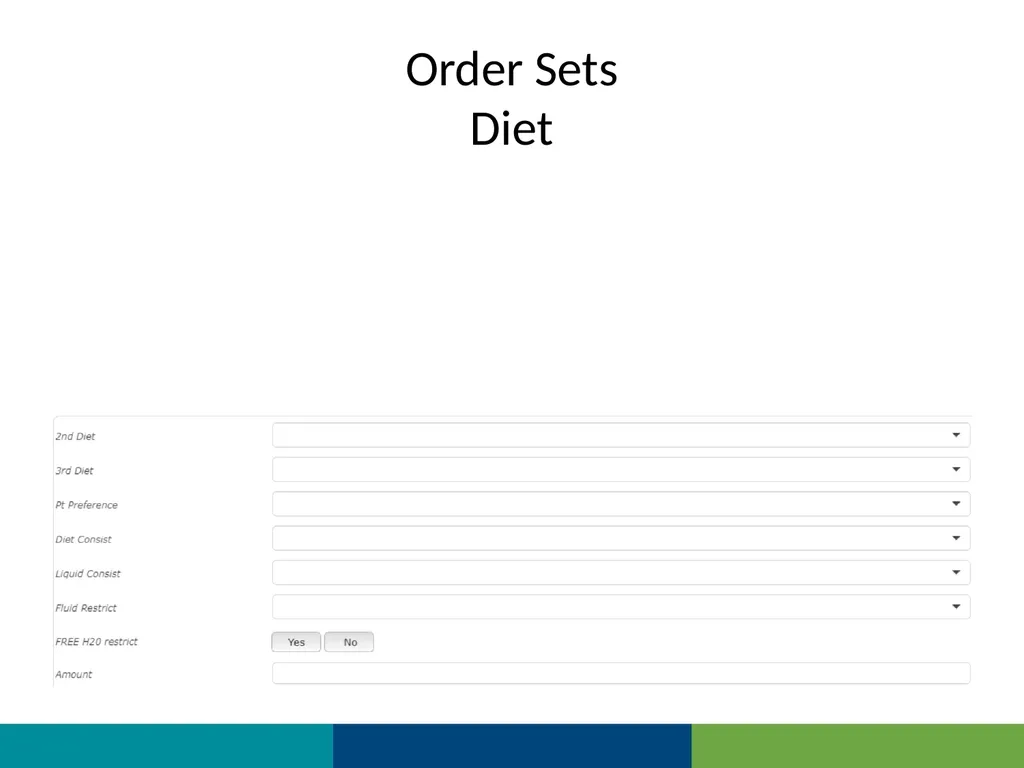
Diet<br>
46
Order Sets
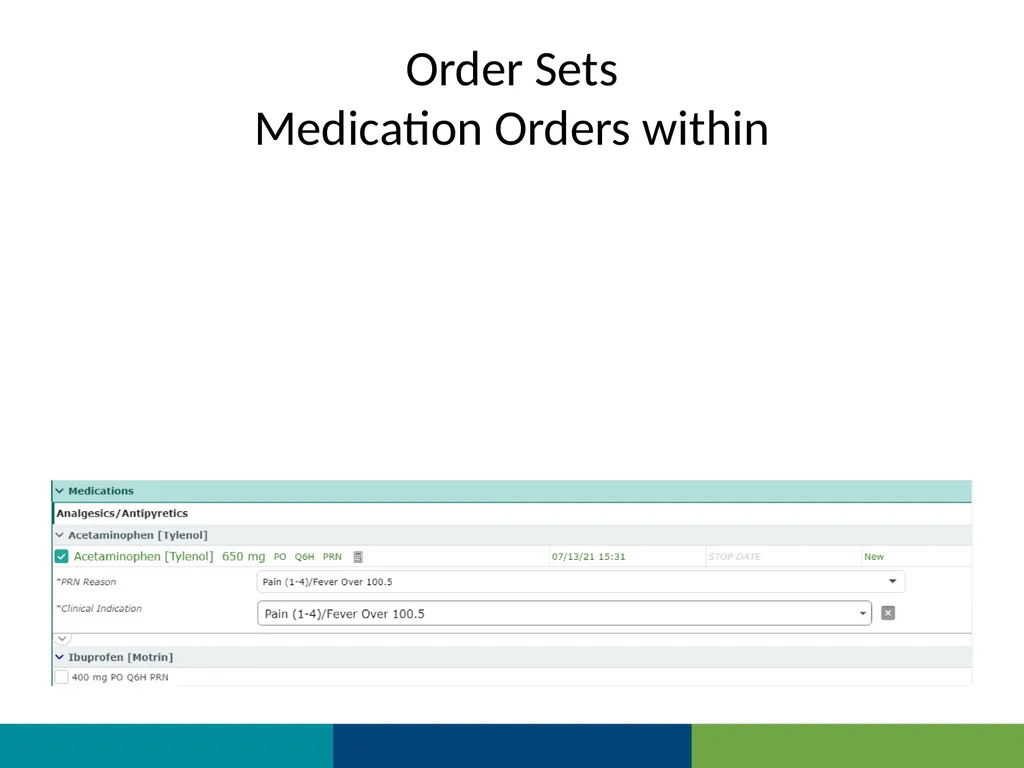
Medication Orders within<br>
47
Order Sets
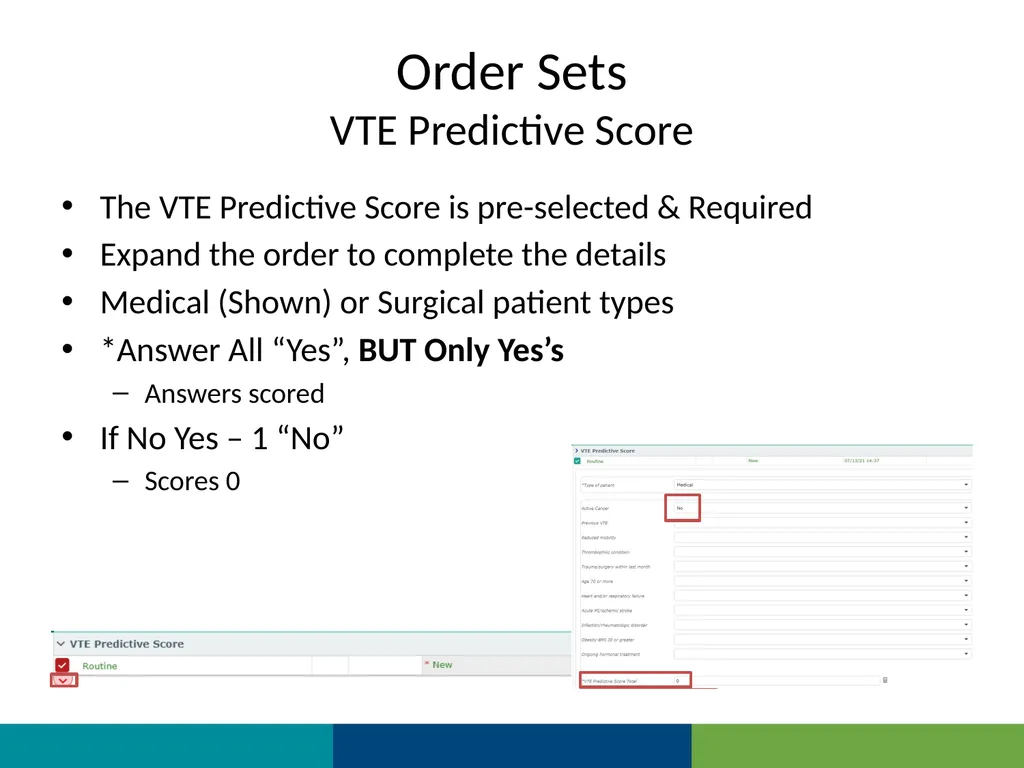
VTE Predictive Score The VTE Predictive Score is pre-selected & Required
Expand the order to complete the details
Medical (Shown) or Surgical patient types
*Answer All “Yes”, BUT Only Yes’s
Answers scored
If No Yes – 1 “No”
Scores 0<br>
Expand the order to complete the details
Medical (Shown) or Surgical patient types
*Answer All “Yes”, BUT Only Yes’s
Answers scored
If No Yes – 1 “No”
Scores 0<br>
48
Order Sets
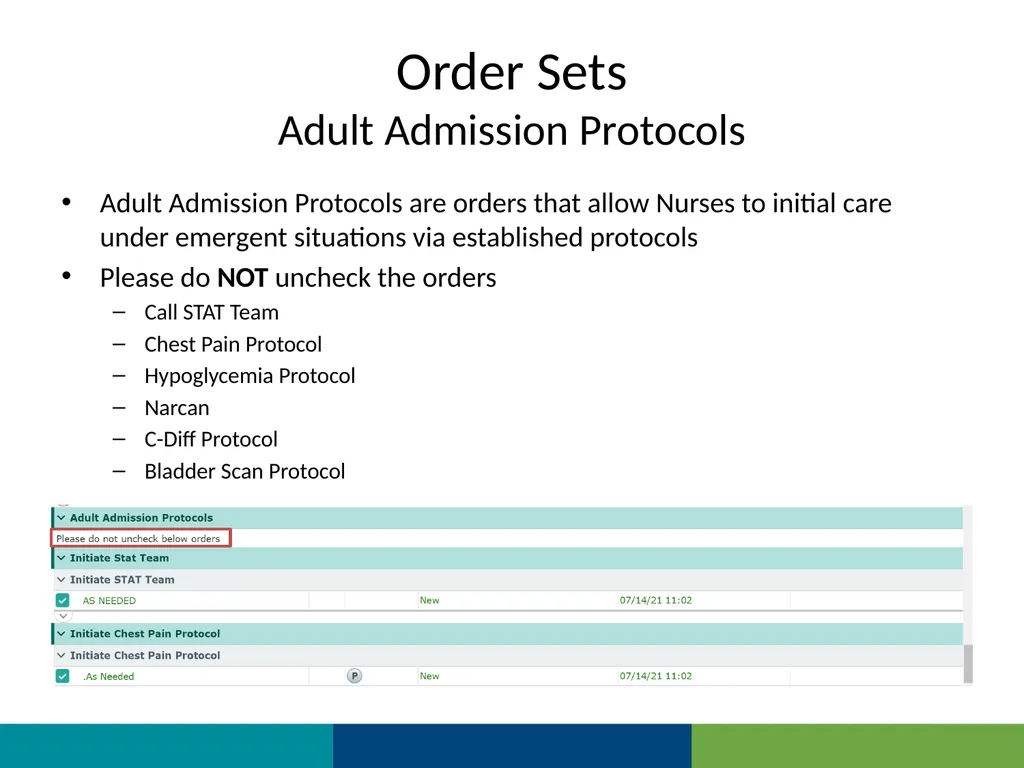
Adult Admission Protocols Adult Admission Protocols are orders that allow Nurses to initial care under emergent situations via established protocols
Please do NOT uncheck the orders
Call STAT Team
Chest Pain Protocol
Hypoglycemia Protocol
Narcan
C-Diff Protocol
Bladder Scan Protocol<br>
Please do NOT uncheck the orders
Call STAT Team
Chest Pain Protocol
Hypoglycemia Protocol
Narcan
C-Diff Protocol
Bladder Scan Protocol<br>
49
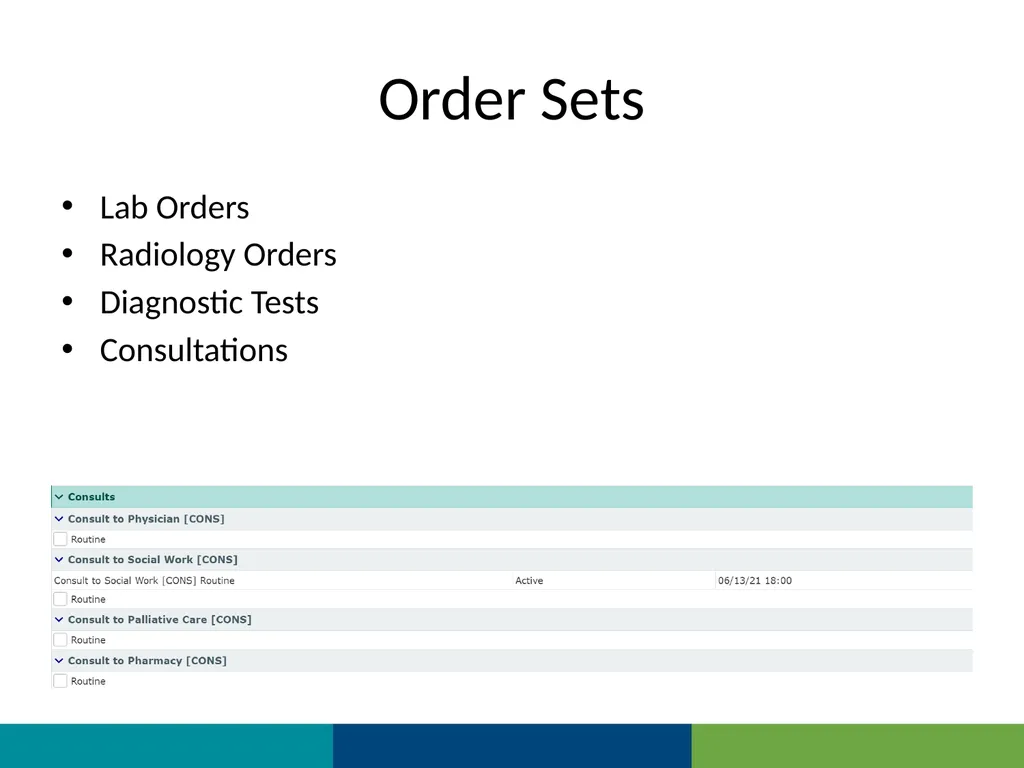
Order Sets Lab Orders
Radiology Orders
Diagnostic Tests
Consultations<br>
Radiology Orders
Diagnostic Tests
Consultations<br>
50
Order Sets This Order Set was an Admission Set
A more complex/complete Order Set
Other Order sets may be
Modules
Diagnosis specific
Medication Specific
i.e. Insulin drip/Heparin
Department Specific
i.e. ED order sets are specific to that department
Only to be used in the ED
OB/Surgical/Ped/Ortho
Various requested sets<br>
A more complex/complete Order Set
Other Order sets may be
Modules
Diagnosis specific
Medication Specific
i.e. Insulin drip/Heparin
Department Specific
i.e. ED order sets are specific to that department
Only to be used in the ED
OB/Surgical/Ped/Ortho
Various requested sets<br>
51
Transfer routine Creating Pending Orders When Changing Level of Care<br>
52
Transfer Routine Used when moving patients to different levels of care
ED Inpatient, PACU Inpatient, Medical ICU, etc.
Creates “Pending” orders that are activated by nurse on receiving unit
The Routine consists of 4 parts
The Transfer Order – Only goes to Registration
Existing Orders – Stop/continue
Admission Medication Reconciliation
New orders
“Now”
Cancelled Orders – Can be stopped “now” which cancels the order under Current Orders
New Orders – Moves to order to Current Orders (Will continue on transfer)
Recommended to verbally tell nurse that new order was entered, and you would like it done/initiated before transfer<br>
ED Inpatient, PACU Inpatient, Medical ICU, etc.
Creates “Pending” orders that are activated by nurse on receiving unit
The Routine consists of 4 parts
The Transfer Order – Only goes to Registration
Existing Orders – Stop/continue
Admission Medication Reconciliation
New orders
“Now”
Cancelled Orders – Can be stopped “now” which cancels the order under Current Orders
New Orders – Moves to order to Current Orders (Will continue on transfer)
Recommended to verbally tell nurse that new order was entered, and you would like it done/initiated before transfer<br>
53
Transfer Routine
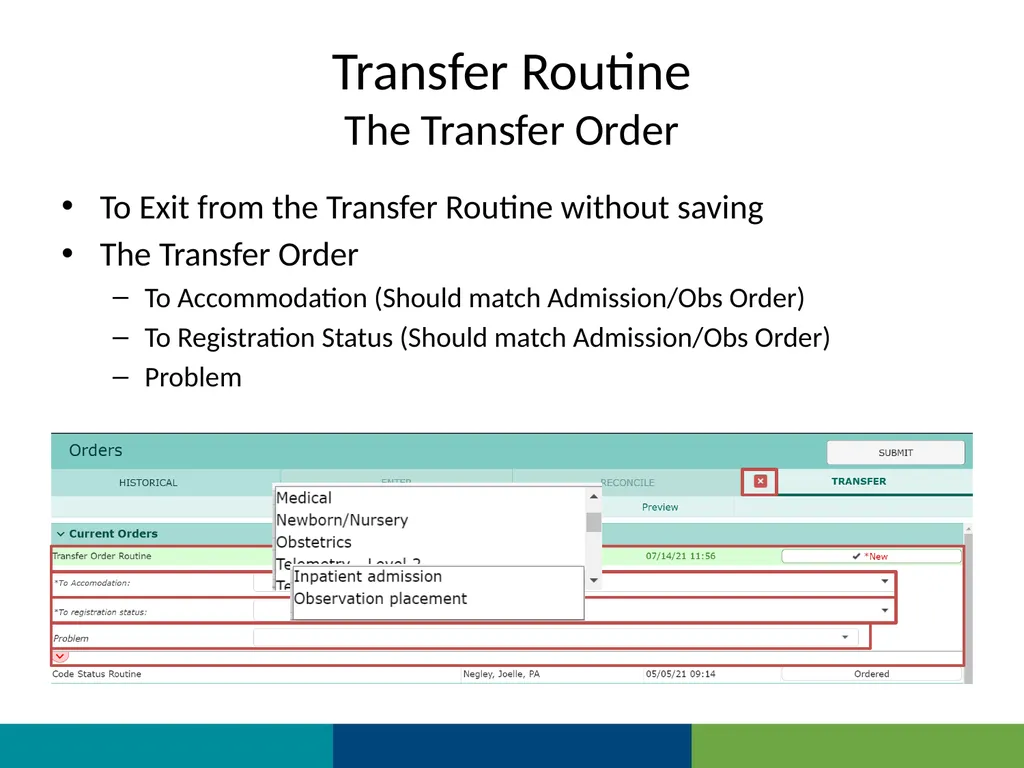
The Transfer Order To Exit from the Transfer Routine without saving
The Transfer Order
To Accommodation (Should match Admission/Obs Order)
To Registration Status (Should match Admission/Obs Order)
Problem<br>
The Transfer Order
To Accommodation (Should match Admission/Obs Order)
To Registration Status (Should match Admission/Obs Order)
Problem<br>
54
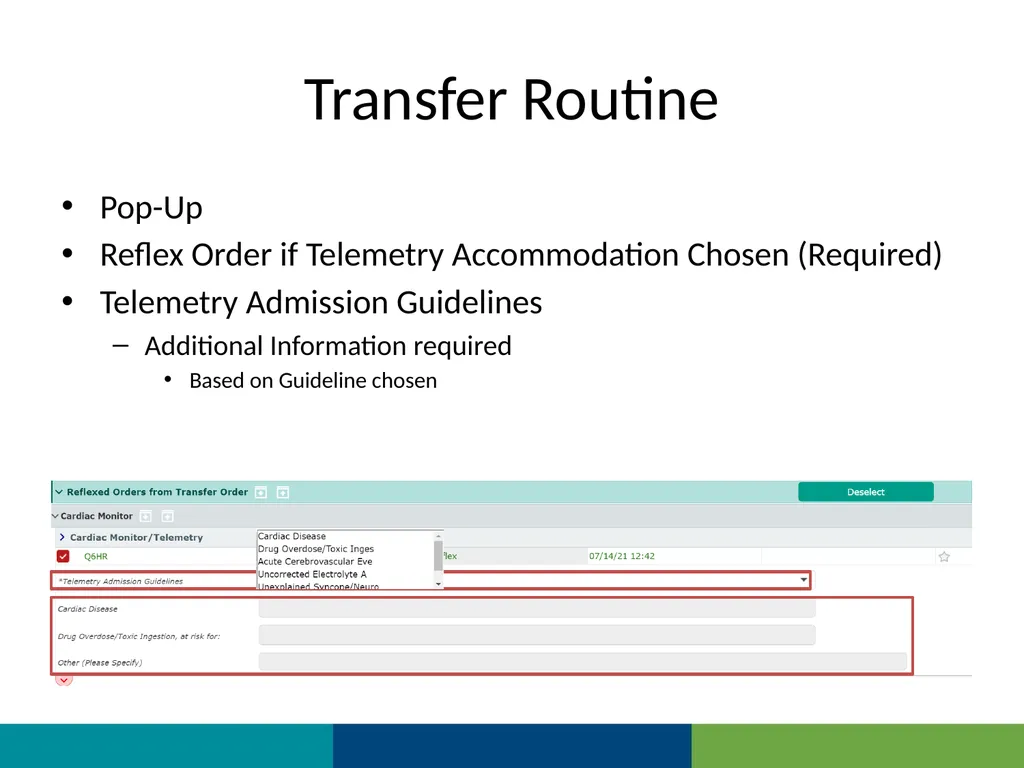
Transfer Routine Pop-Up
Reflex Order if Telemetry Accommodation Chosen (Required)
Telemetry Admission Guidelines
Additional Information required
Based on Guideline chosen<br>
Reflex Order if Telemetry Accommodation Chosen (Required)
Telemetry Admission Guidelines
Additional Information required
Based on Guideline chosen<br>
55
Transfer Routine
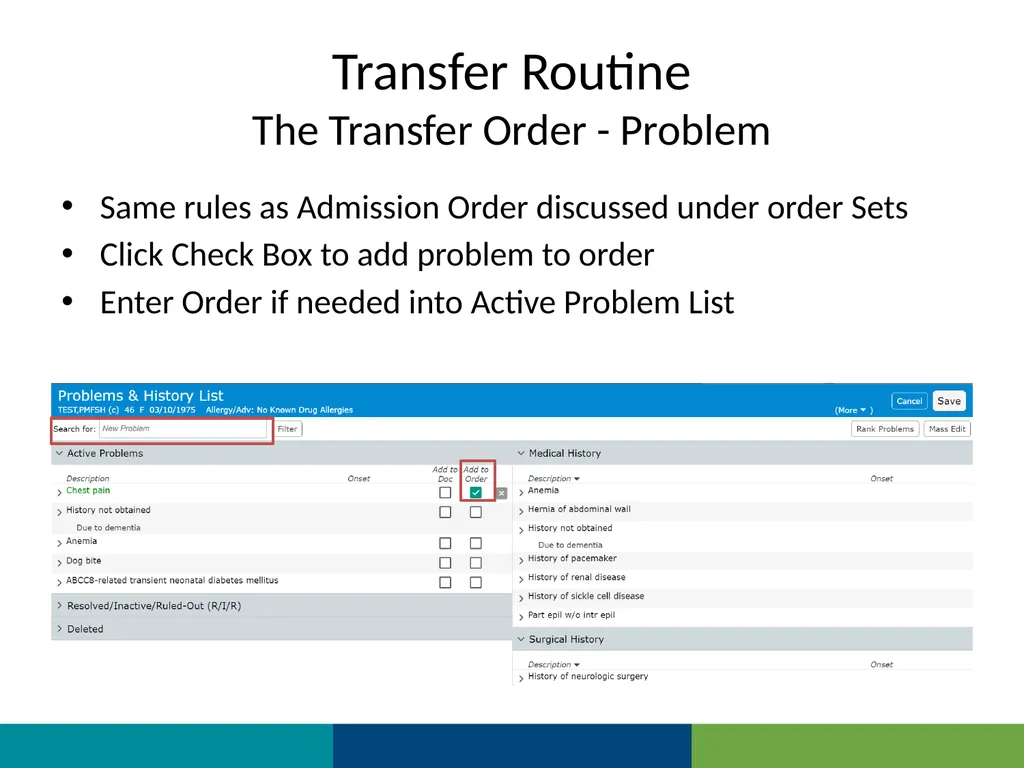
The Transfer Order - Problem Same rules as Admission Order discussed under order Sets
Click Check Box to add problem to order
Enter Order if needed into Active Problem List<br>
Click Check Box to add problem to order
Enter Order if needed into Active Problem List<br>
56
Transfer Routine
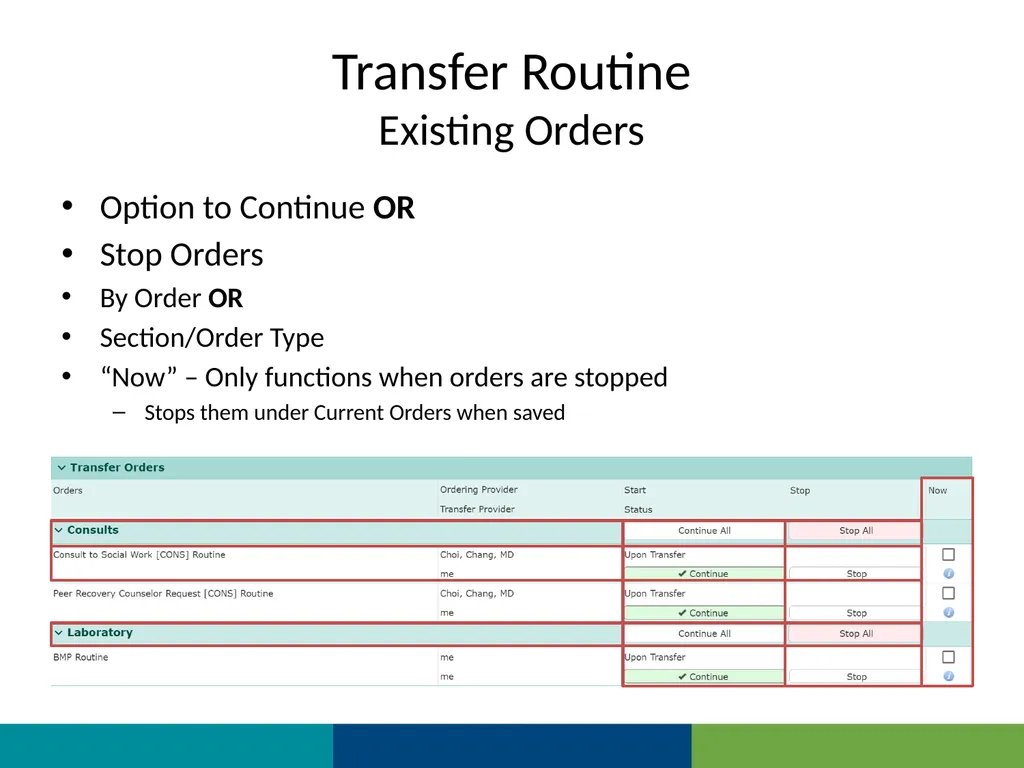
Existing Orders Option to Continue OR
Stop Orders
By Order OR
Section/Order Type
“Now” – Only functions when orders are stopped
Stops them under Current Orders when saved<br>
Stop Orders
By Order OR
Section/Order Type
“Now” – Only functions when orders are stopped
Stops them under Current Orders when saved<br>
57
Transfer Routine
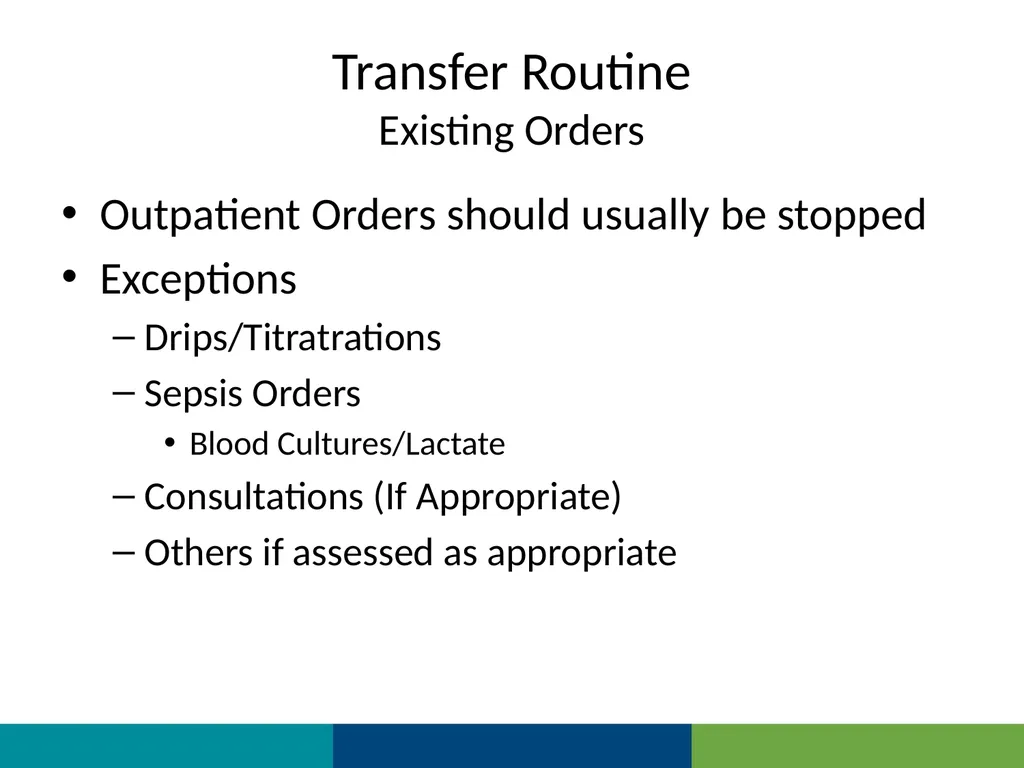
Existing Orders Outpatient Orders should usually be stopped
Exceptions
Drips/Titratrations
Sepsis Orders
Blood Cultures/Lactate
Consultations (If Appropriate)
Others if assessed as appropriate<br>
Exceptions
Drips/Titratrations
Sepsis Orders
Blood Cultures/Lactate
Consultations (If Appropriate)
Others if assessed as appropriate<br>
58
Transfer Routine
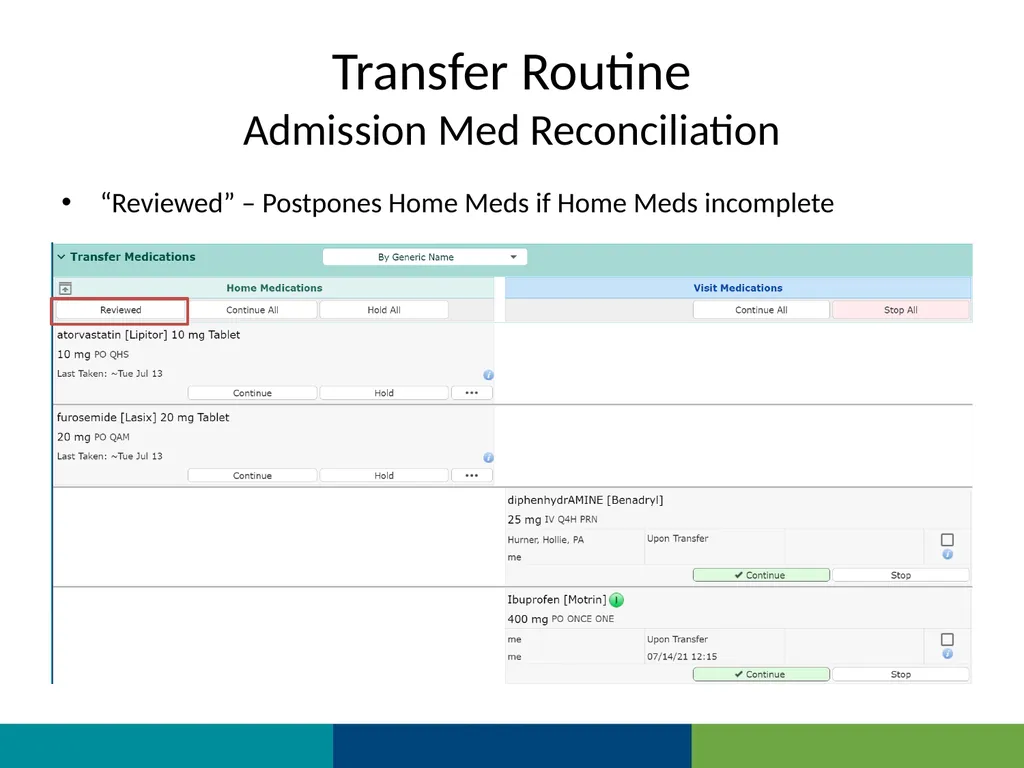
Admission Med Reconciliation “Reviewed” – Postpones Home Meds if Home Meds incomplete<br>
59
Transfer Routine
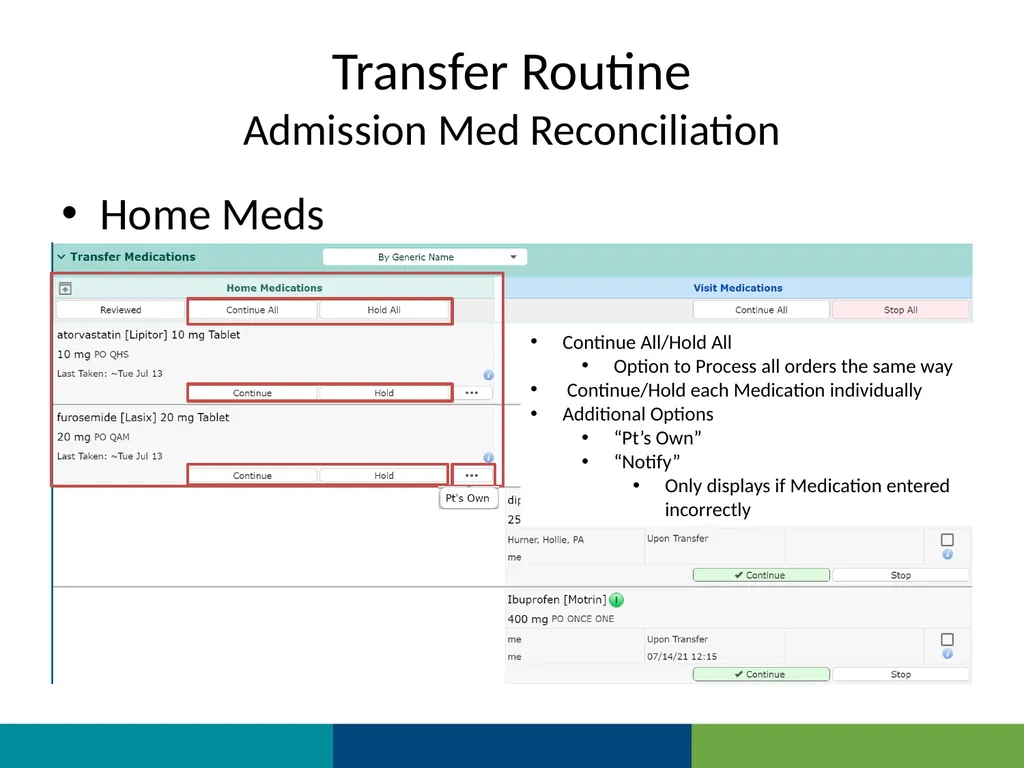
Admission Med Reconciliation Home Meds Continue All/Hold All
Option to Process all orders the same way
Continue/Hold each Medication individually
Additional Options
“Pt’s Own”
“Notify”
Only displays if Medication entered incorrectly<br>
Option to Process all orders the same way
Continue/Hold each Medication individually
Additional Options
“Pt’s Own”
“Notify”
Only displays if Medication entered incorrectly<br>
60
Transfer Routine
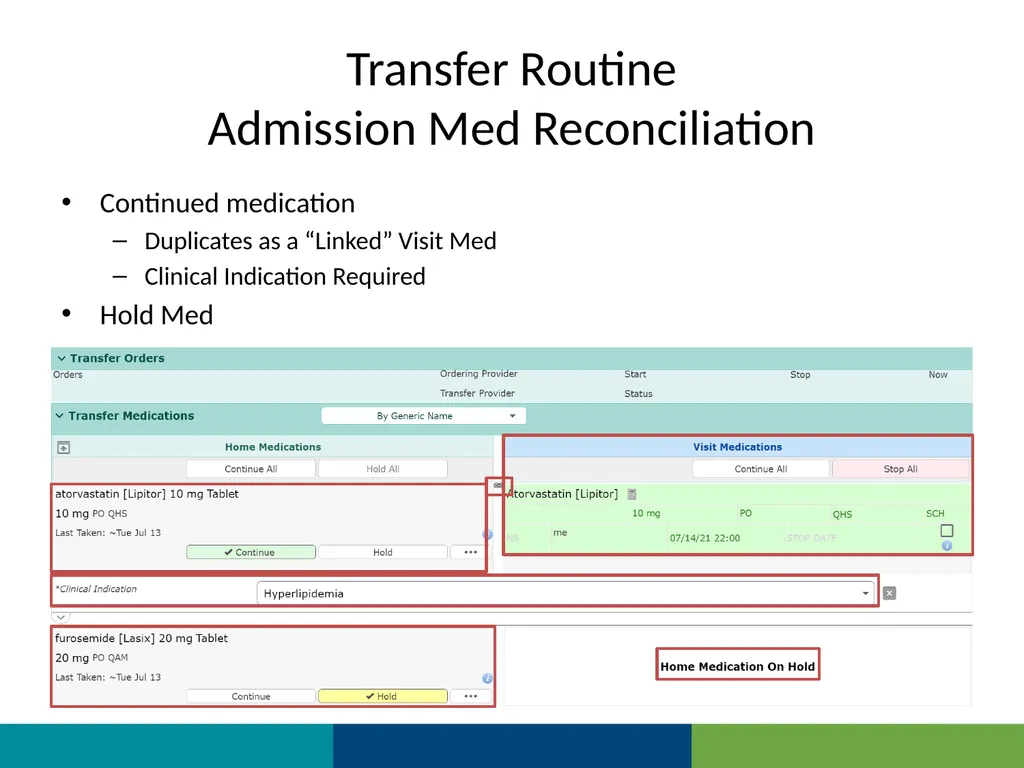
Admission Med Reconciliation Continued medication
Duplicates as a “Linked” Visit Med
Clinical Indication Required
Hold Med<br>
Duplicates as a “Linked” Visit Med
Clinical Indication Required
Hold Med<br>
61
Transfer Routine
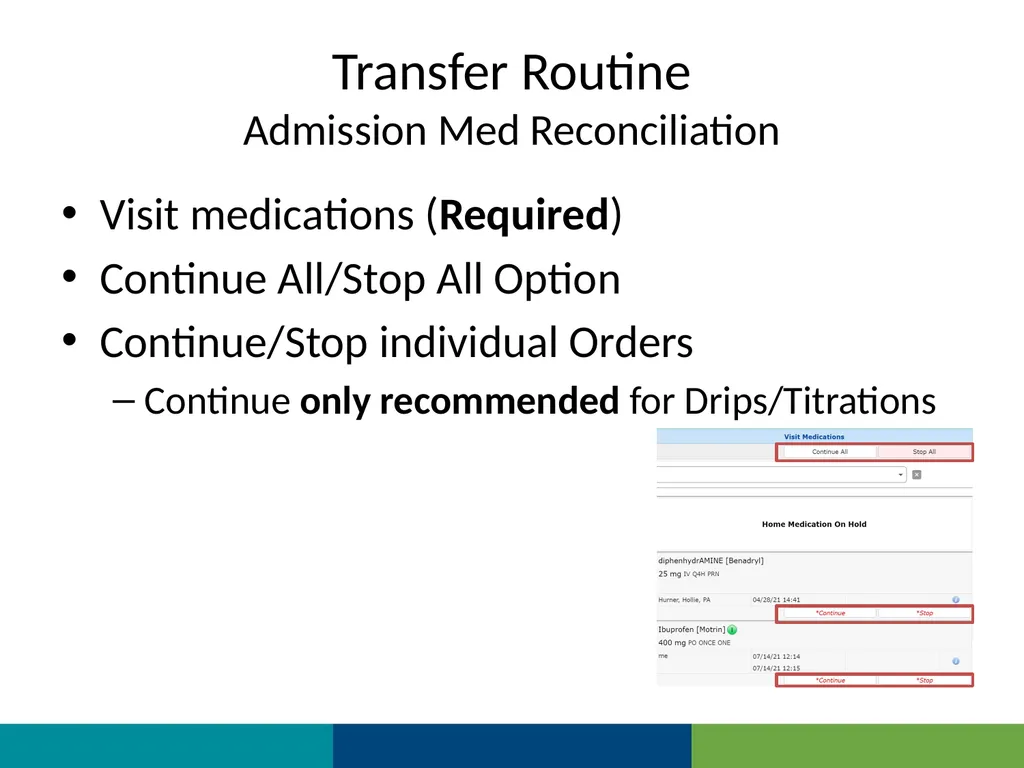
Admission Med Reconciliation Visit medications (Required)
Continue All/Stop All Option
Continue/Stop individual Orders
Continue only recommended for Drips/Titrations<br>
Continue All/Stop All Option
Continue/Stop individual Orders
Continue only recommended for Drips/Titrations<br>
62
Transfer Routine
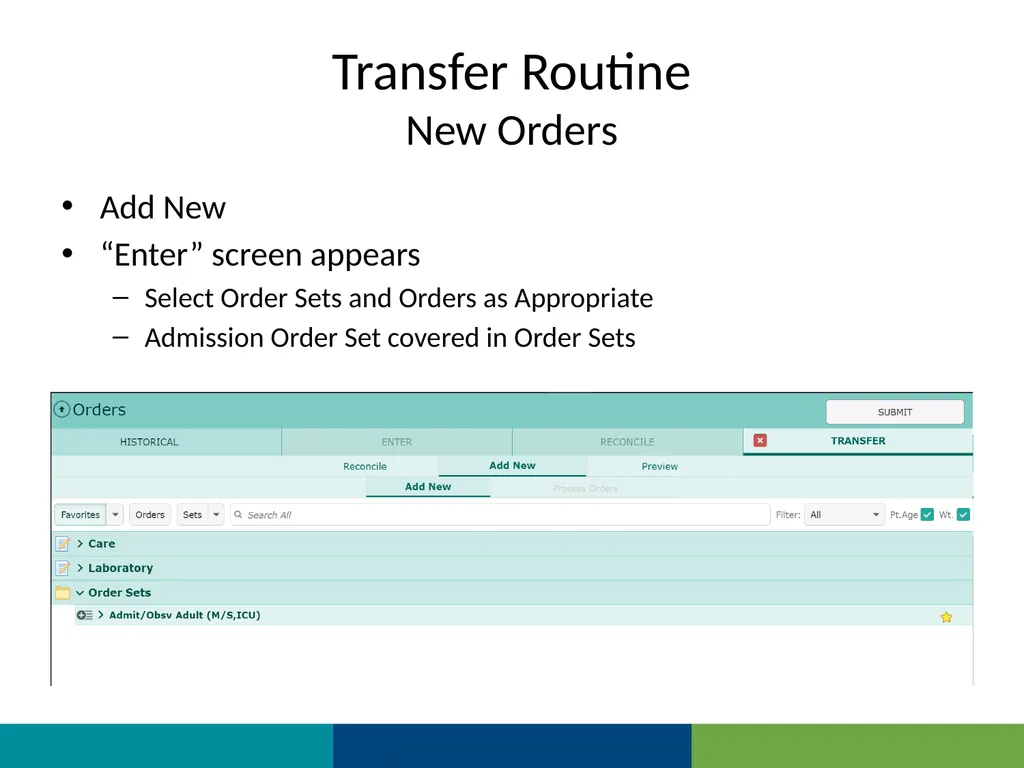
New Orders Add New
“Enter” screen appears
Select Order Sets and Orders as Appropriate
Admission Order Set covered in Order Sets<br>
“Enter” screen appears
Select Order Sets and Orders as Appropriate
Admission Order Set covered in Order Sets<br>
63
Transfer Routine
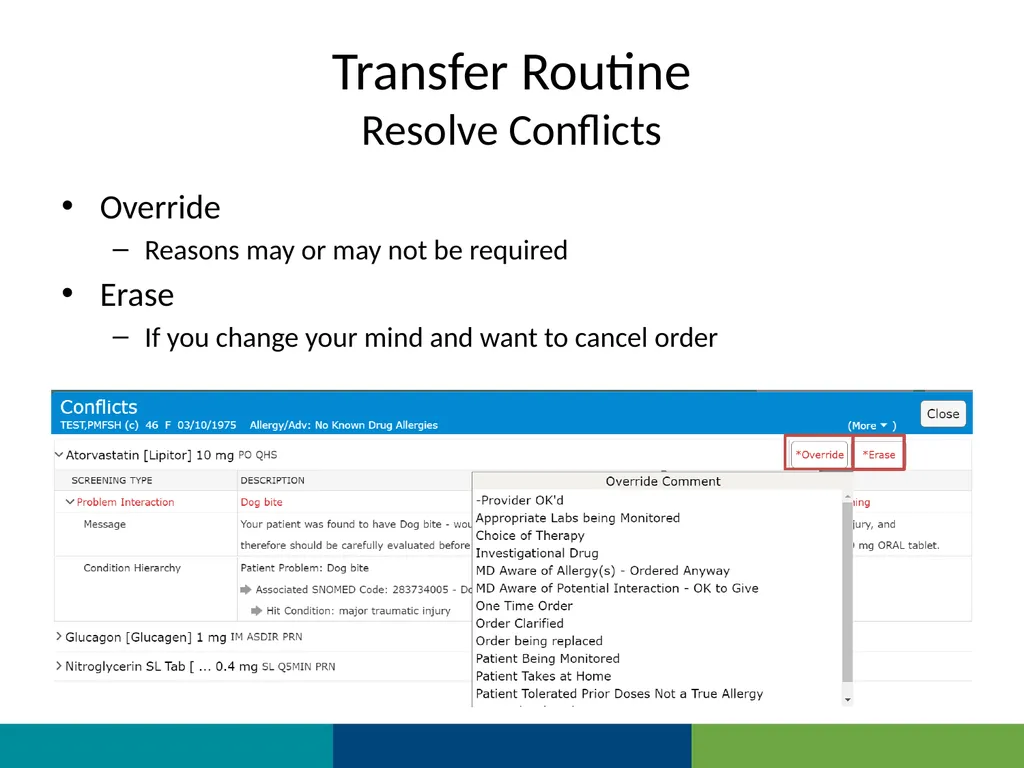
Resolve Conflicts Override
Reasons may or may not be required
Erase
If you change your mind and want to cancel order<br>
Reasons may or may not be required
Erase
If you change your mind and want to cancel order<br>
64
Transfer Routine
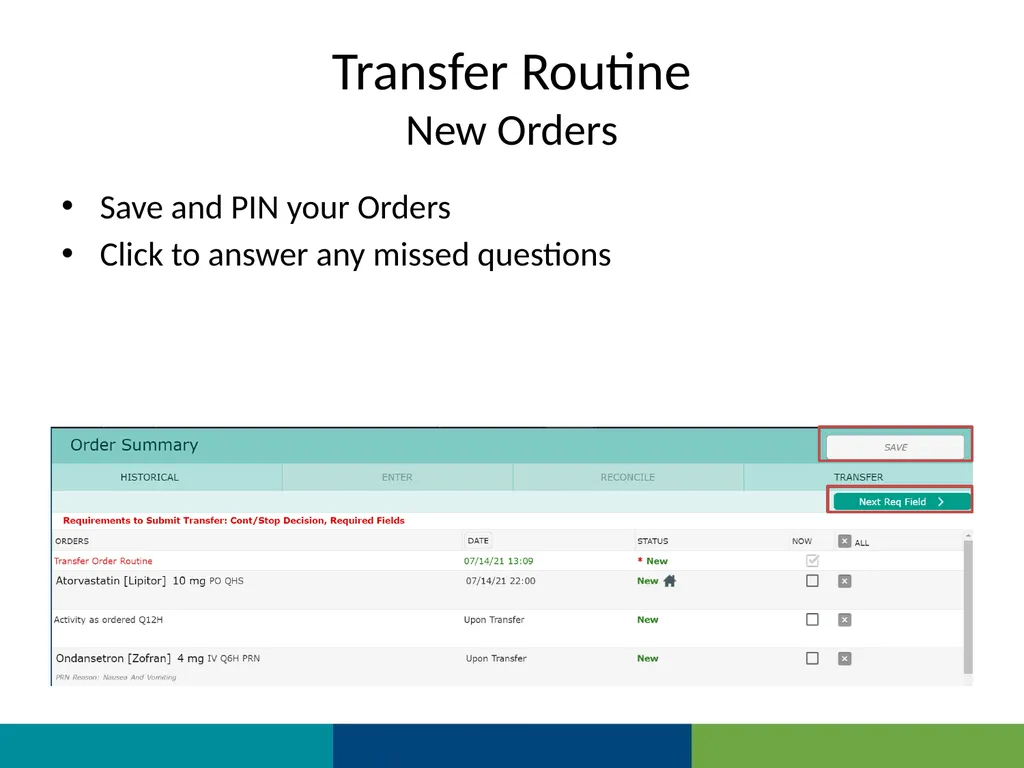
New Orders Save and PIN your Orders
Click to answer any missed questions<br>
Click to answer any missed questions<br>
65
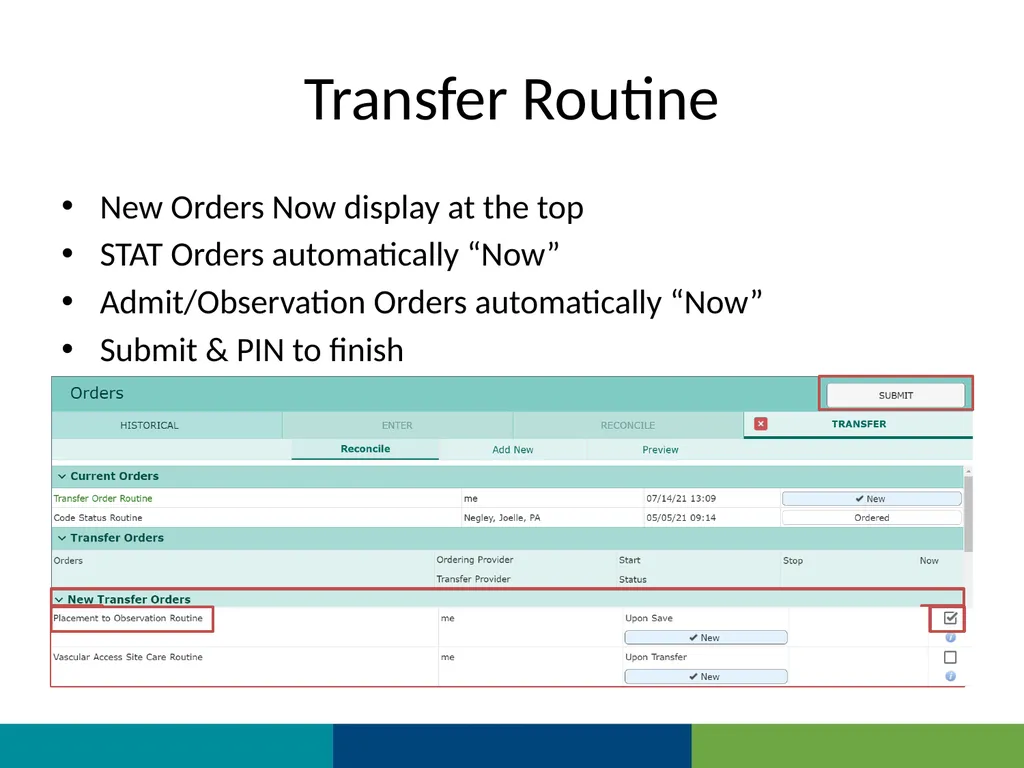
Transfer Routine New Orders Now display at the top
STAT Orders automatically “Now”
Admit/Observation Orders automatically “Now”
Submit & PIN to finish<br>
STAT Orders automatically “Now”
Admit/Observation Orders automatically “Now”
Submit & PIN to finish<br>
66
Transfer Routine If Telemetry location chosen
Cardiac Monitor order moves from “Transfer Reflex” to “Transfer Orders”
Transfer Orders must be Submitted/Saved a second time
To save the Cardiac Monitor order<br>
Cardiac Monitor order moves from “Transfer Reflex” to “Transfer Orders”
Transfer Orders must be Submitted/Saved a second time
To save the Cardiac Monitor order<br>
67
Thank You You should have been scheduled for 1 on 1 training
Please call (410)535-8260 or email glenn.heaney@calverthealthmed.org if you have questions<br>
Please call (410)535-8260 or email glenn.heaney@calverthealthmed.org if you have questions<br>