Microsoft Teams Training Module 2 NAVIGATING MICROSOFT TEAMS In this module you will learn: How to navigate the interface Left rail tabs Activity Chat Teams Calls Files Help Start a new chat Searchcommand Profile and settings Left Rail
"Microsoft Teams Training Module 2 NAVIGATING" is the property of its rightful owner. Permission is granted to
download and print the materials on this website for personal, non-commercial use only, and to display it
on your personal computer provided you do not modify the materials and that you retain all copyright
notices contained in the materials. By downloading content from our website, you accept the terms of this
agreement.
Presentation Transcript
01
Microsoft Teams Training Module 2 NAVIGATING MICROSOFT TEAMS<br>
02
In this module you will learn: How to navigate the interface
Left rail tabs
Activity
Chat
Teams
Calls
Files
Help
Start a new chat
Search/command
Profile and settings<br>
03
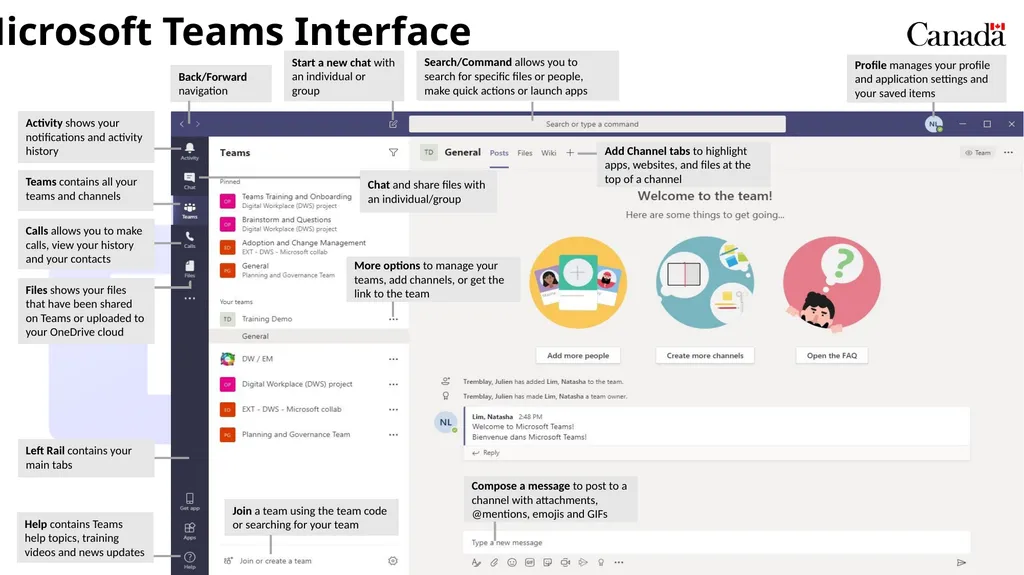
Left Rail contains your main tabs Files shows your files that have been shared on Teams or uploaded to your OneDrive cloud Calls allows you to make calls, view your history and your contacts Chat and share files with an individual/group Activity shows your notifications and activity history Back/Forward navigation Teams contains all your teams and channels Start a new chat with an individual or group Search/Command allows you to search for specific files or people, make quick actions or launch apps Help contains Teams help topics, training videos and news updates Profile manages your profile and application settings and your saved items Add Channel tabs to highlight apps, websites, and files at the top of a channel More options to manage your teams, add channels, or get the link to the team Join a team using the team code or searching for your team Compose a message to post to a channel with attachments, @mentions, emojis and GIFs Microsoft Teams Interface<br>
04
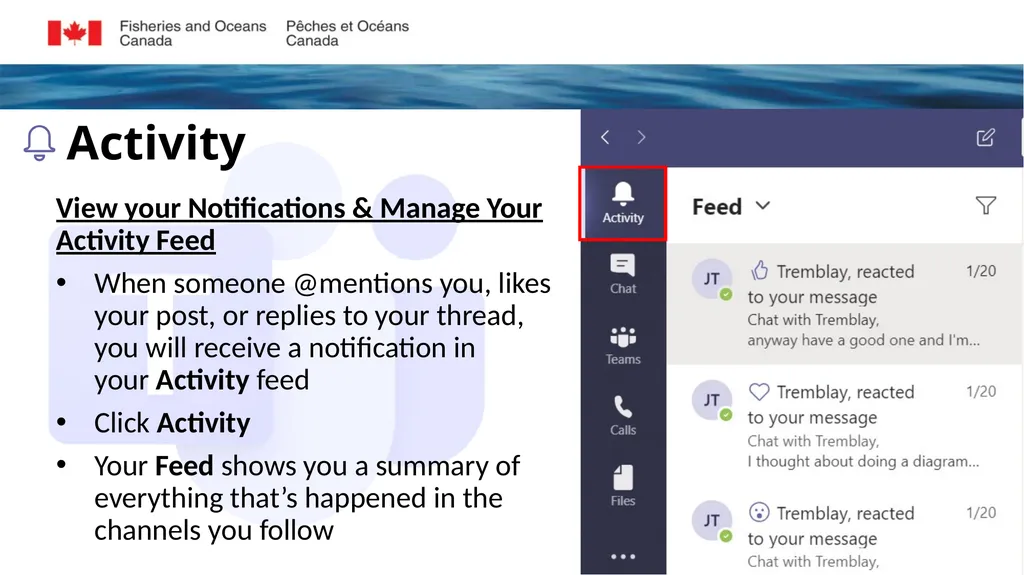
View your Notifications & Manage Your Activity Feed
When someone @mentions you, likes your post, or replies to your thread, you will receive a notification in your Activity feed
Click Activity
Your Feed shows you a summary of everything that’s happened in the channels you follow<br>
05
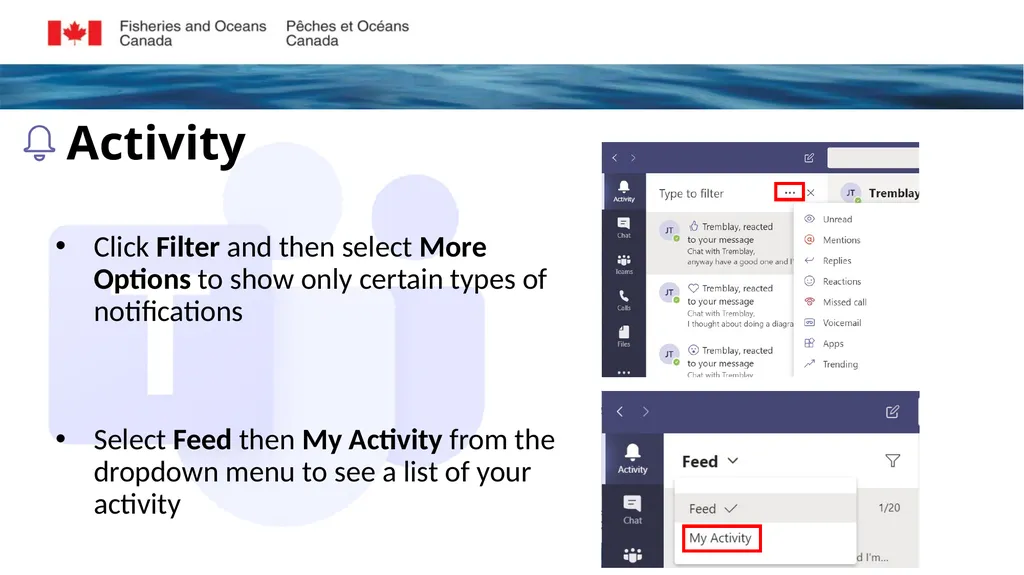
Click Filter and then select More Options to show only certain types of notifications
Select Feed then My Activity from the dropdown menu to see a list of your activity<br>
06
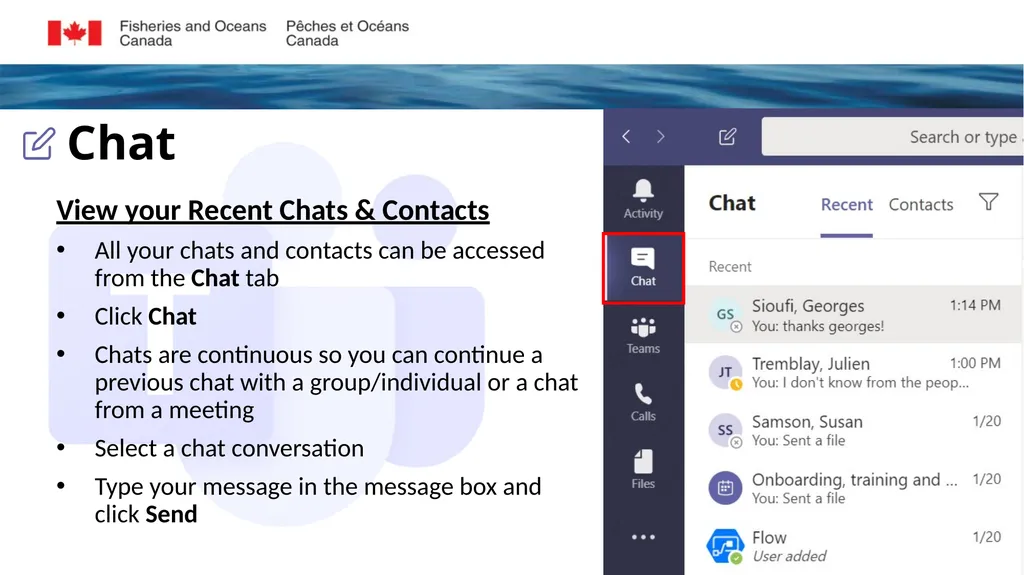
View your Recent Chats & Contacts
All your chats and contacts can be accessed from the Chat tab
Click Chat
Chats are continuous so you can continue a previous chat with a group/individual or a chat from a meeting
Select a chat conversation
Type your message in the message box and click Send<br>
07
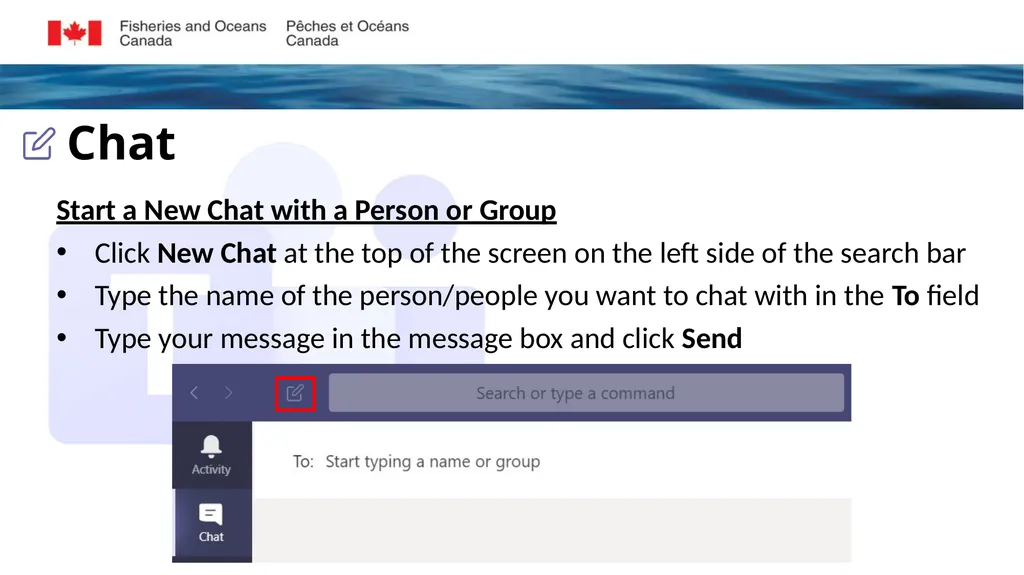
Start a New Chat with a Person or Group
Click New Chat at the top of the screen on the left side of the search bar
Type the name of the person/people you want to chat with in the To field
Type your message in the message box and click Send<br>
08
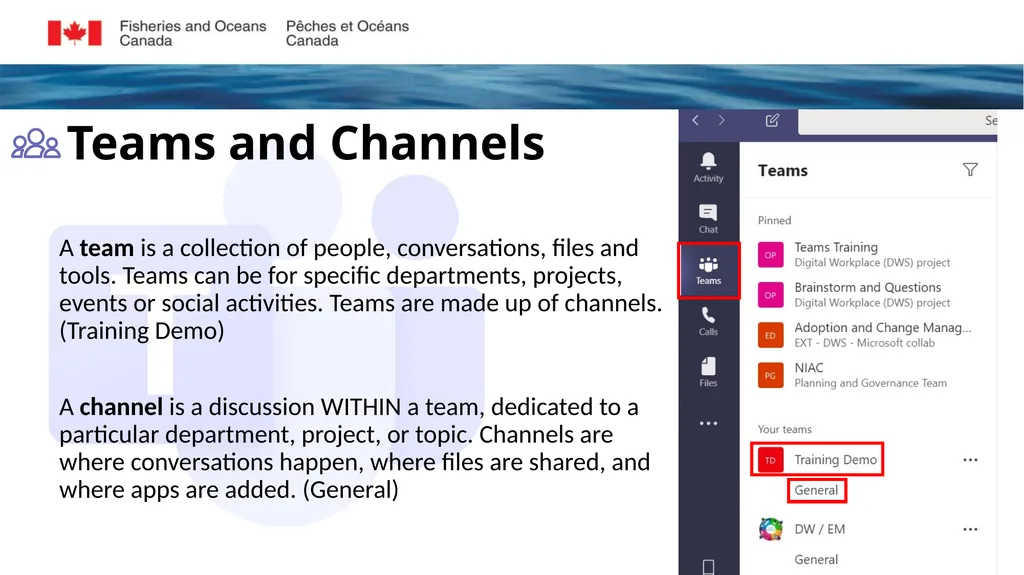
A team is a collection of people, conversations, files and tools. Teams can be for specific departments, projects, events or social activities. Teams are made up of channels. (Training Demo)
A channel is a discussion WITHIN a team, dedicated to a particular department, project, or topic. Channels are where conversations happen, where files are shared, and where apps are added. (General)<br>
09
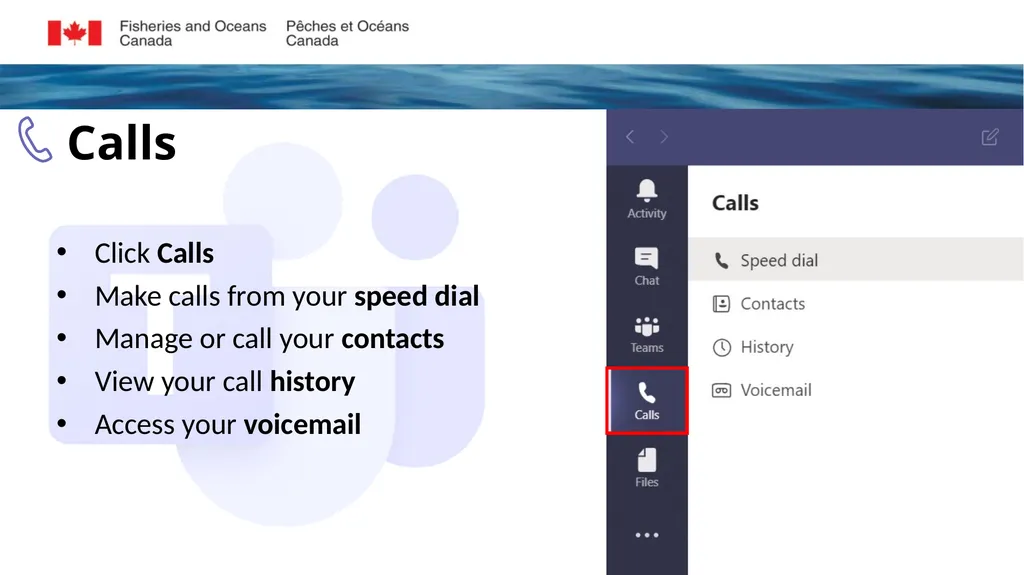
Click Calls
Make calls from your speed dial
Manage or call your contacts
View your call history
Access your voicemail Calls<br>
10
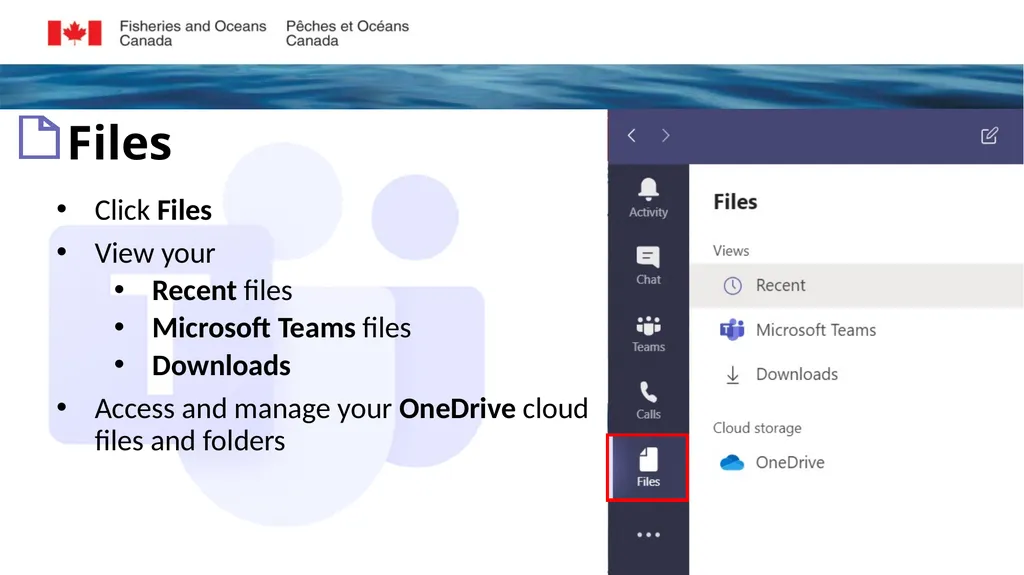
Click Files
View your
Recent files
Microsoft Teams files
Downloads
Access and manage your OneDrive cloud files and folders<br>
11
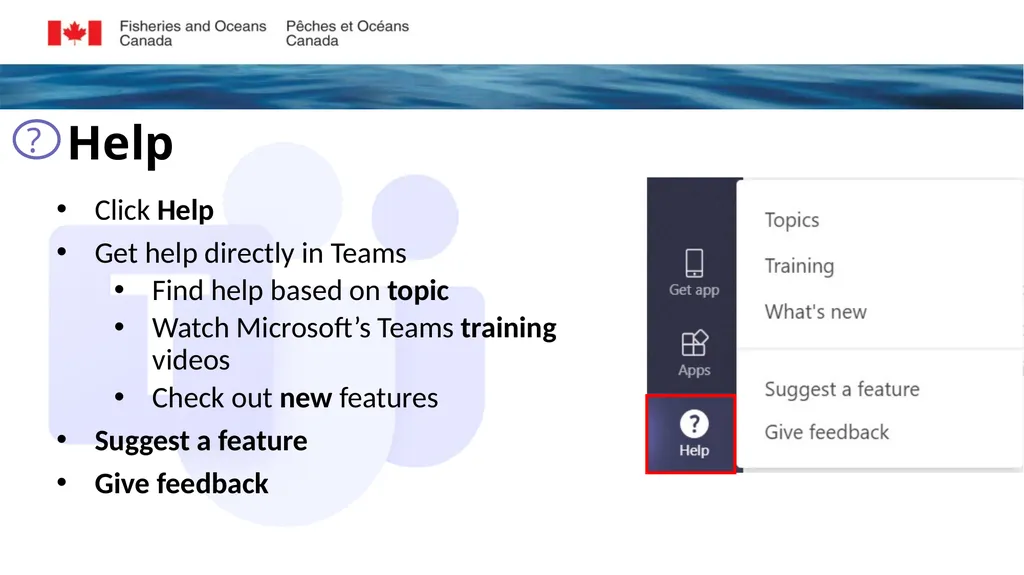
Click Help
Get help directly in Teams
Find help based on topic
Watch Microsoft’s Teams training videos
Check out new features
Suggest a feature
Give feedback Help<br>
12
Searches in Teams cover all of the teams and channels you are a part of within the organization
Type what/who you’re looking for in the search bar at the top of the page and press Enter
Select the Messages, People, or Files tab to narrow your results
You can also click Filter to further refine your results Search & Command<br>
13
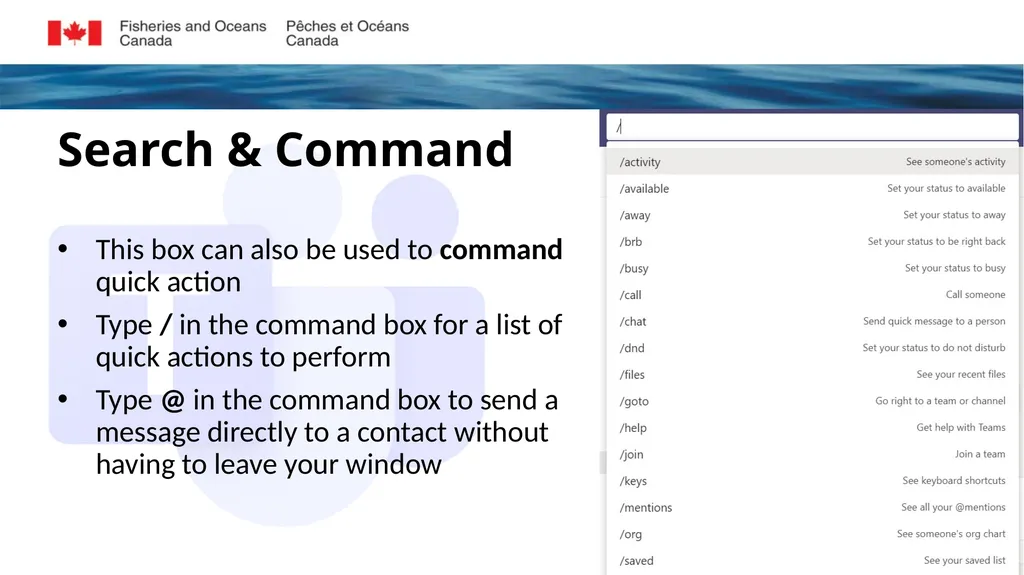
This box can also be used to command quick action
Type / in the command box for a list of quick actions to perform
Type @ in the command box to send a message directly to a contact without having to leave your window Search & Command<br>
14
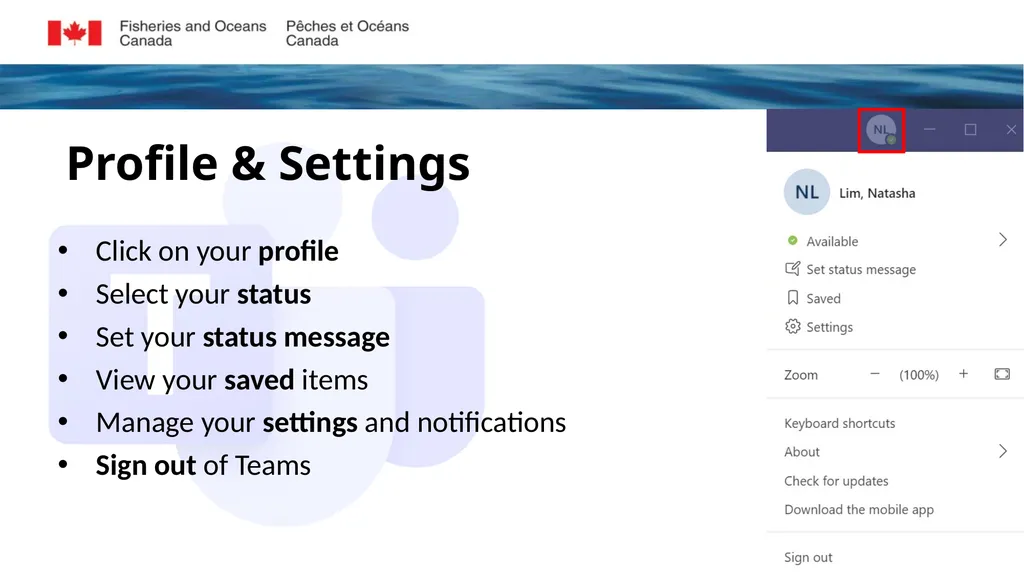
Click on your profile
Select your status
Set your status message
View your saved items
Manage your settings and notifications
Sign out of Teams Profile & Settings<br>
15
Congratulations! You should now have a basic understanding of the Microsoft Teams layout.
Start exploring! Join us in the next learning module Customizing Teams
For questions or feedback please contact DFO.IMTS.DWS-SEN.GIST.MPO@dfo-mpo.gc.ca<br>