
PowerPoint Motion Tools Which Tool to Use? The






Description: PowerPoint Motion Tools Which Tool to Use? The PowerPoint Motion Tools Version Slide Show Setup Concepts Go Back to Early Days of PowerPoint Windows and macOS Desktop Applications Some of the latest Features are more Advanced starting
Related Topics
Download Presentation
"PowerPoint Motion Tools Which Tool to Use? The" is the property of its rightful owner. Permission is granted to download and print the materials on this website for personal, non-commercial use only, and to display it on your personal computer provided you do not modify the materials and that you retain all copyright notices contained in the materials. By downloading content from our website, you accept the terms of this agreement.
Presentation Transcript
slide1. PowerPoint
Motion Tools Which Tool to Use?<br>
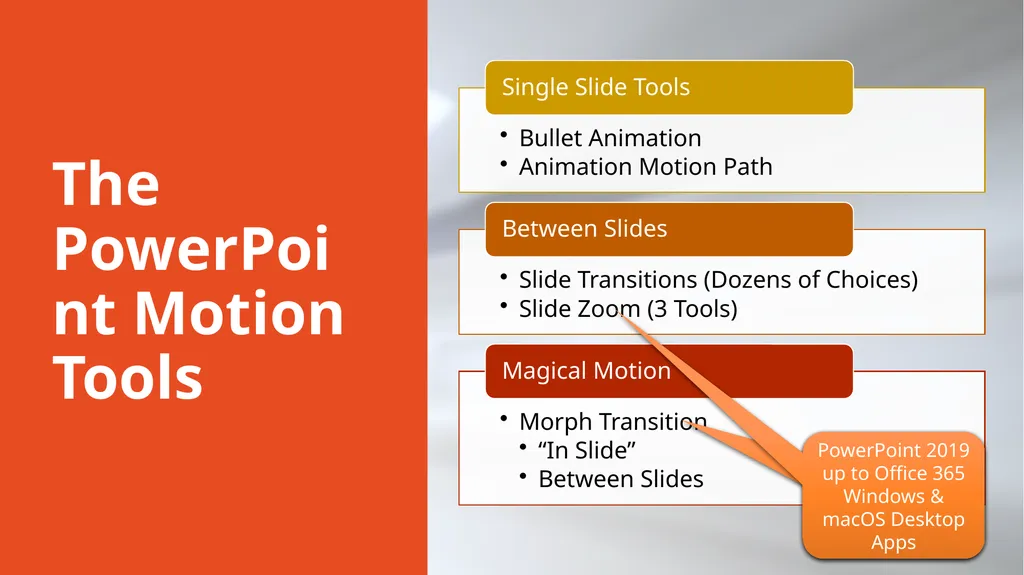
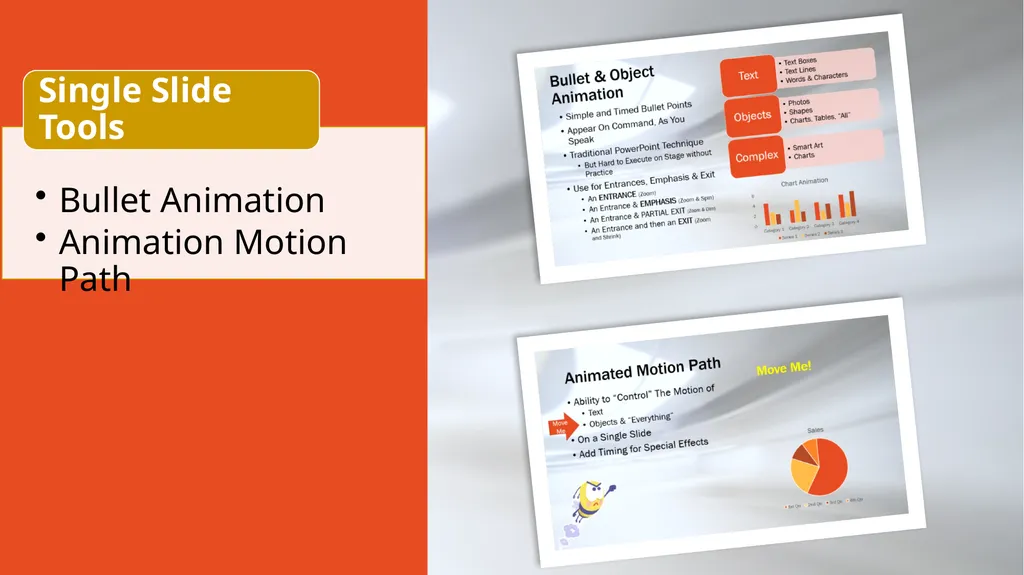
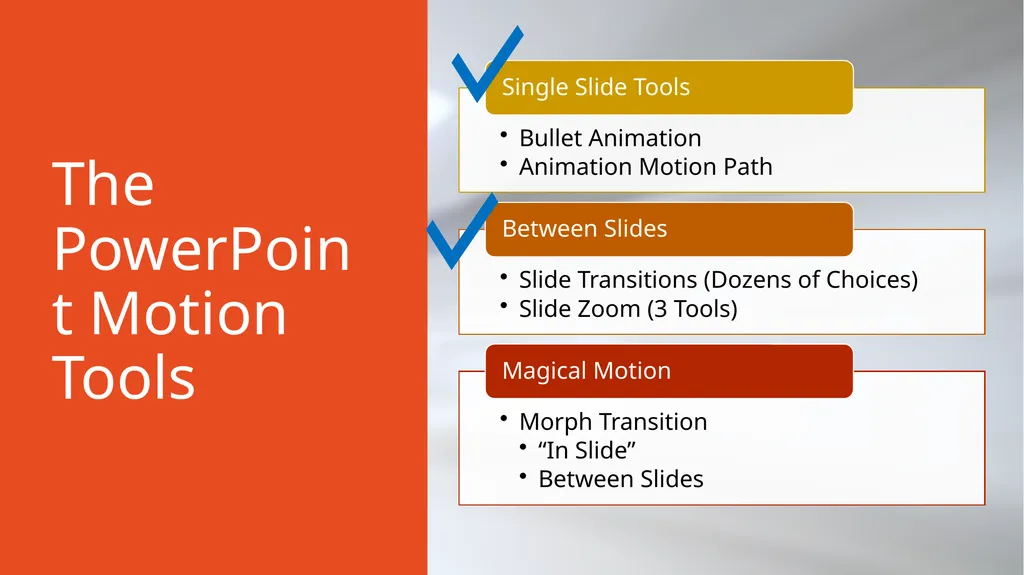
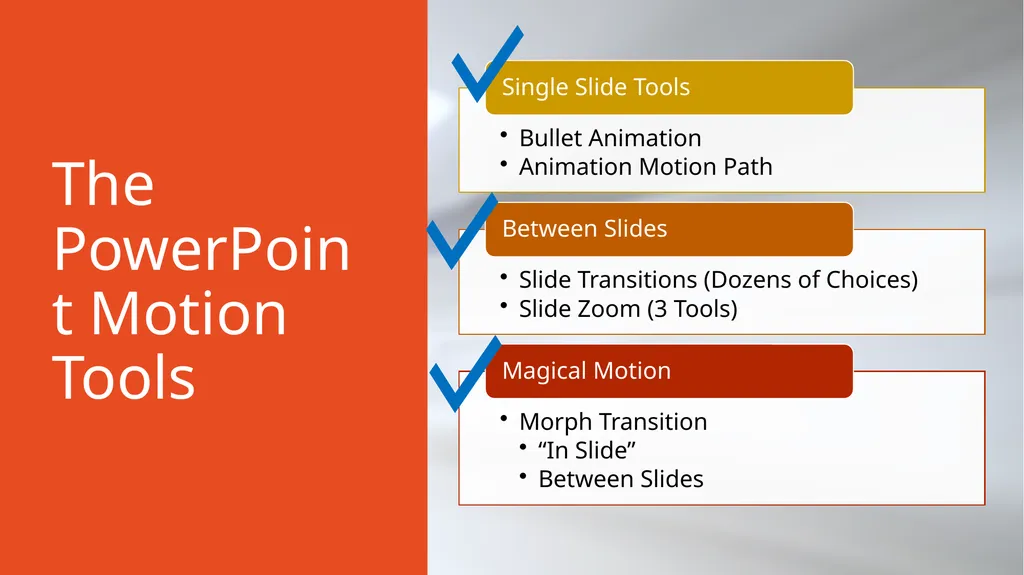
slide2. The PowerPoint Motion Tools<br>
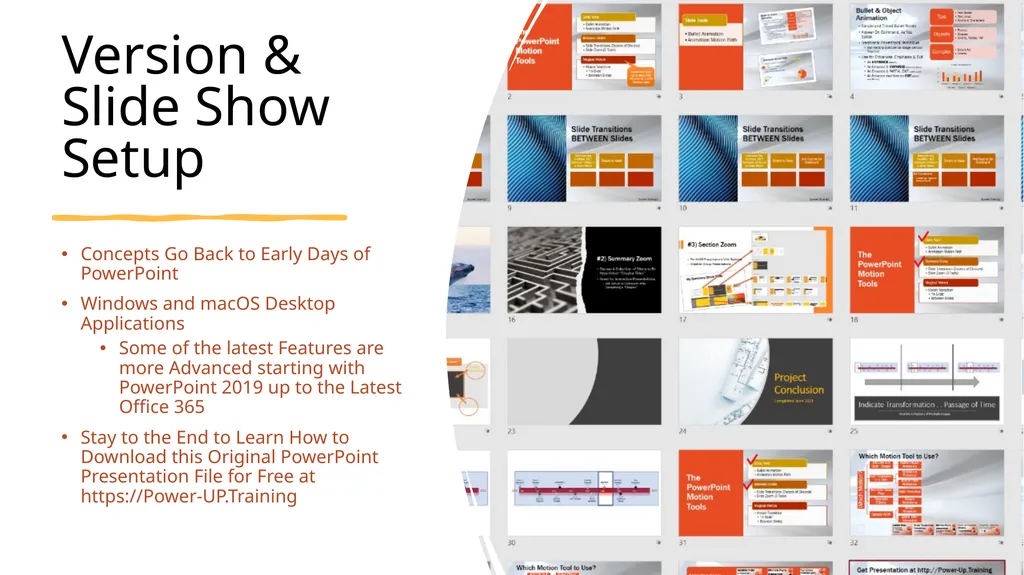
slide3. Version & Slide Show Setup Concepts Go Back to Early Days of PowerPoint
Windows and macOS Desktop Applications
Some of the latest Features are more Advanced starting with PowerPoint 2019 up to the Latest Office 365
Stay to the End to Learn How to Download this Original PowerPoint Presentation File for Free at https://Power-UP.Training<br>
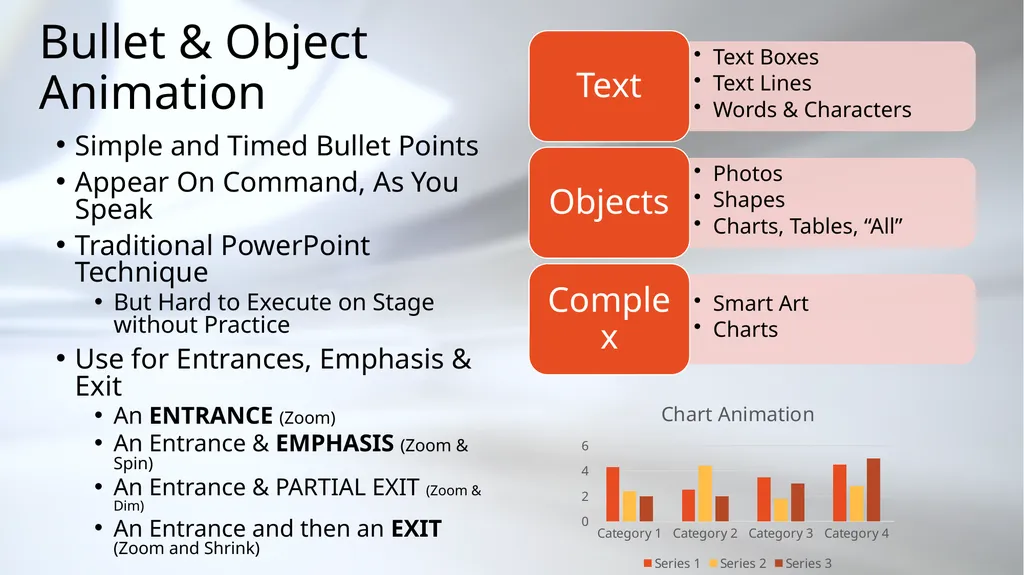
slide5. Bullet & Object Animation Simple and Timed Bullet Points
Appear On Command, As You Speak
Traditional PowerPoint Technique
But Hard to Execute on Stage without Practice
Use for Entrances, Emphasis & Exit
An ENTRANCE (Zoom)
An Entrance & EMPHASIS (Zoom & Spin)
An Entrance & PARTIAL EXIT (Zoom & Dim)
An Entrance and then an EXIT (Zoom and Shrink)<br>
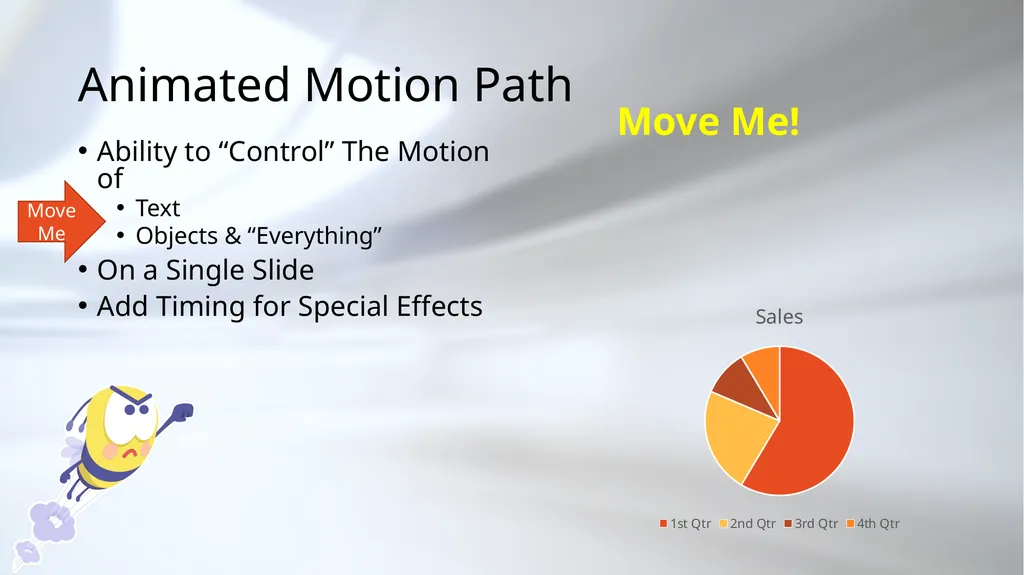
slide6. Animated Motion Path Ability to “Control” The Motion of
Text
Objects & “Everything”
On a Single Slide
Add Timing for Special Effects Move Me! Move Me<br>
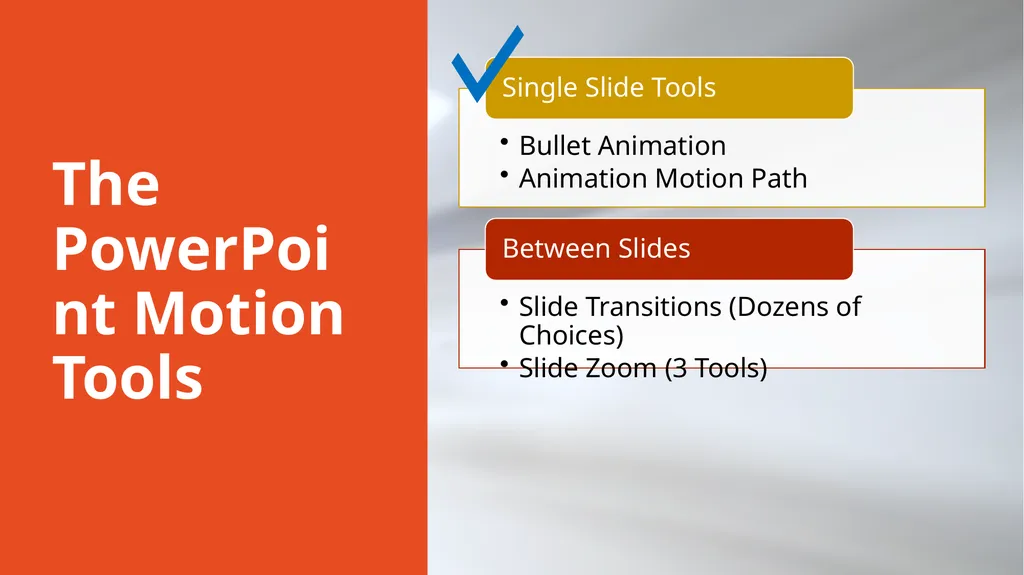
slide7. The PowerPoint Motion Tools<br>
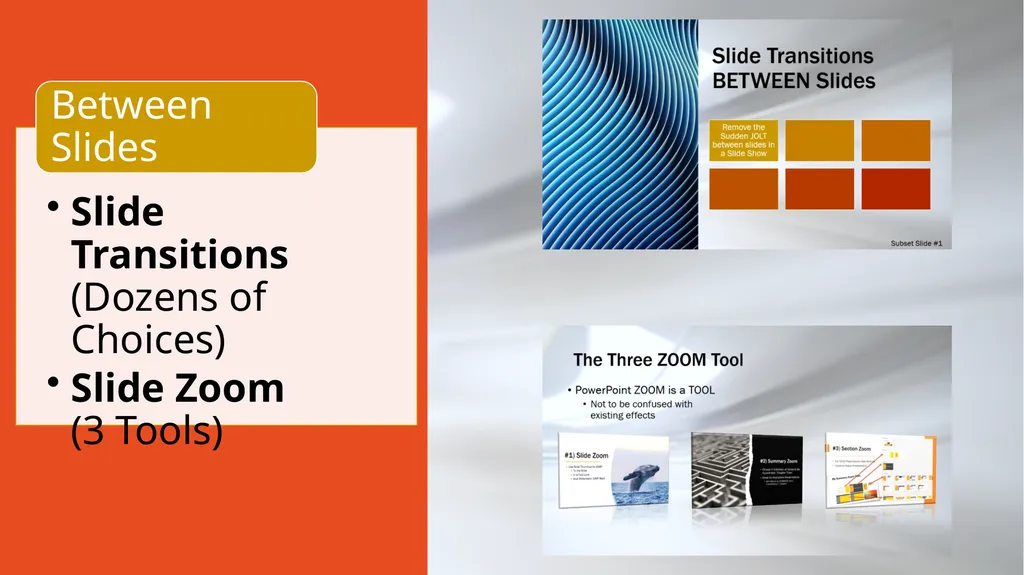
slide9. Slide Transitions BETWEEN Slides Subset Slide #1<br>
slide10. Slide Transitions BETWEEN Slides Subset Slide #2<br>
slide11. Slide Transitions BETWEEN Slides Subset Slide #3<br>
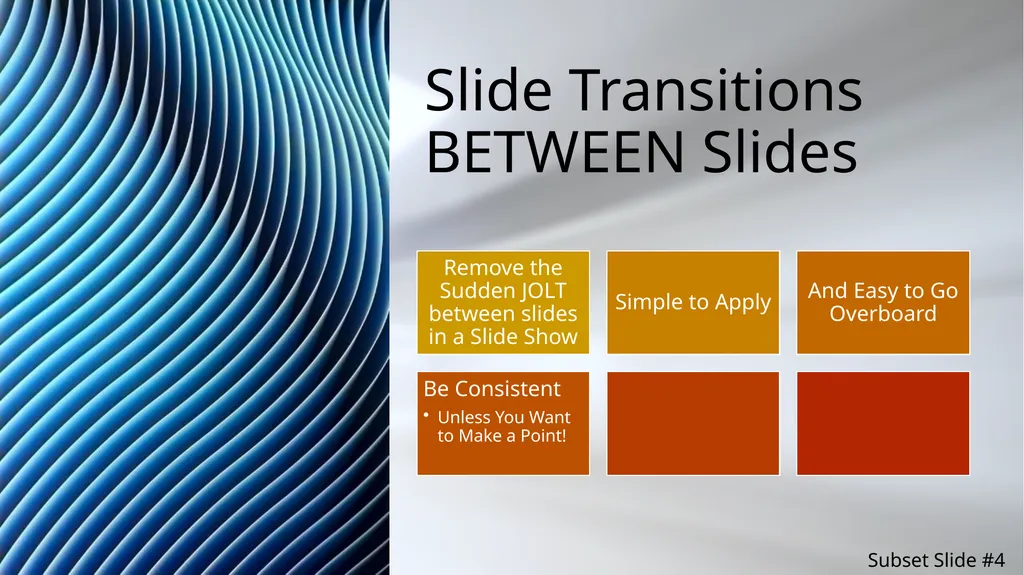
slide12. Slide Transitions BETWEEN Slides Subset Slide #4<br>
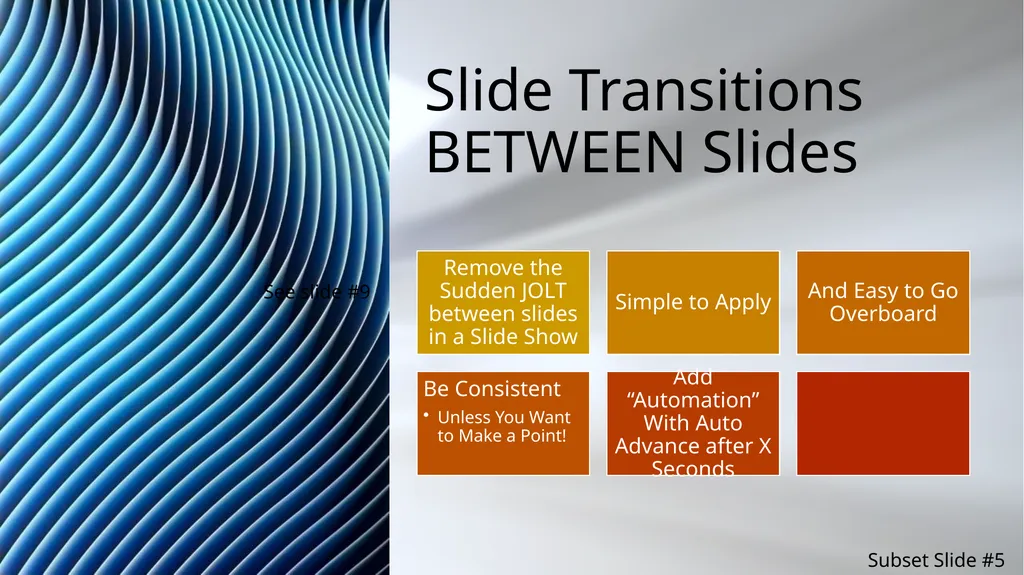
slide13. Slide Transitions BETWEEN Slides Subset Slide #5 See slide #9<br>
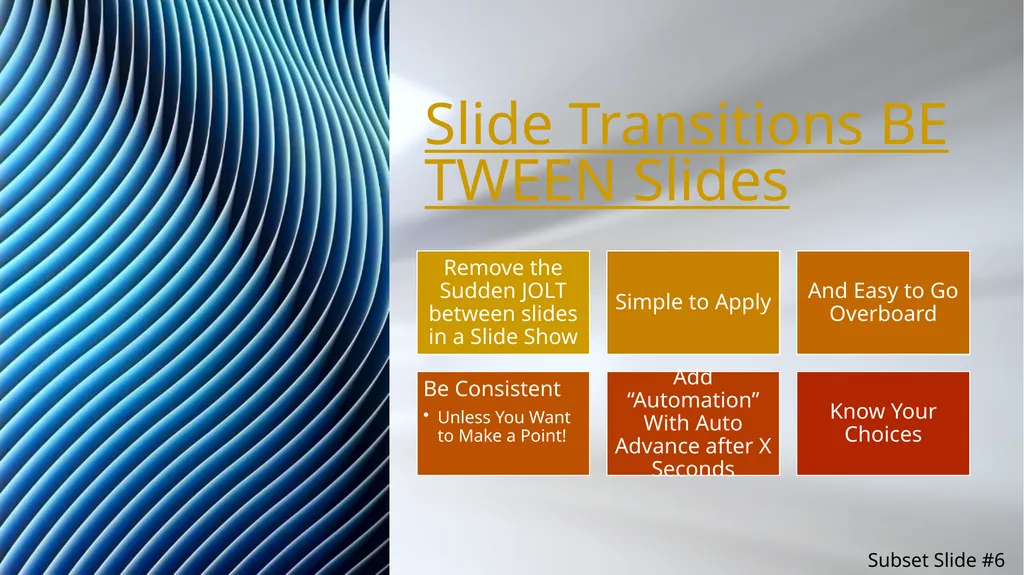
slide14. Slide Transitions BETWEEN Slides Subset Slide #6<br>
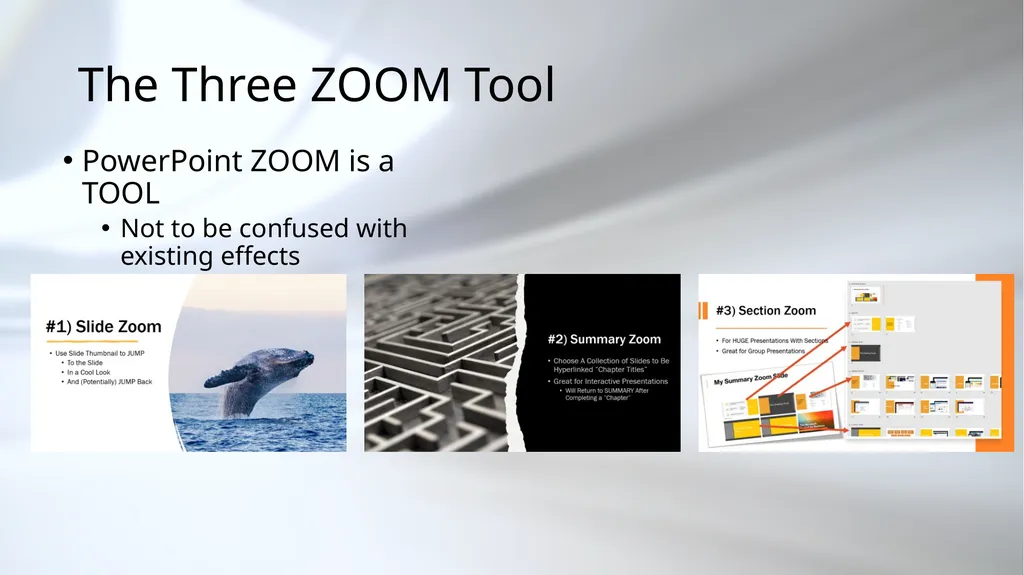
slide15. The Three ZOOM Tool PowerPoint ZOOM is a TOOL
Not to be confused with existing effects<br>
slide16. #1) Slide Zoom Use Slide Thumbnail to JUMP
To the Slide
In a Cool Look
And (Potentially) JUMP Back<br>
slide17. #2) Summary Zoom Choose A Collection of Slides to Be Hyperlinked “Chapter Titles”
Great for Interactive Presentations
Will Return to SUMMARY After Completing a “Chapter”<br>
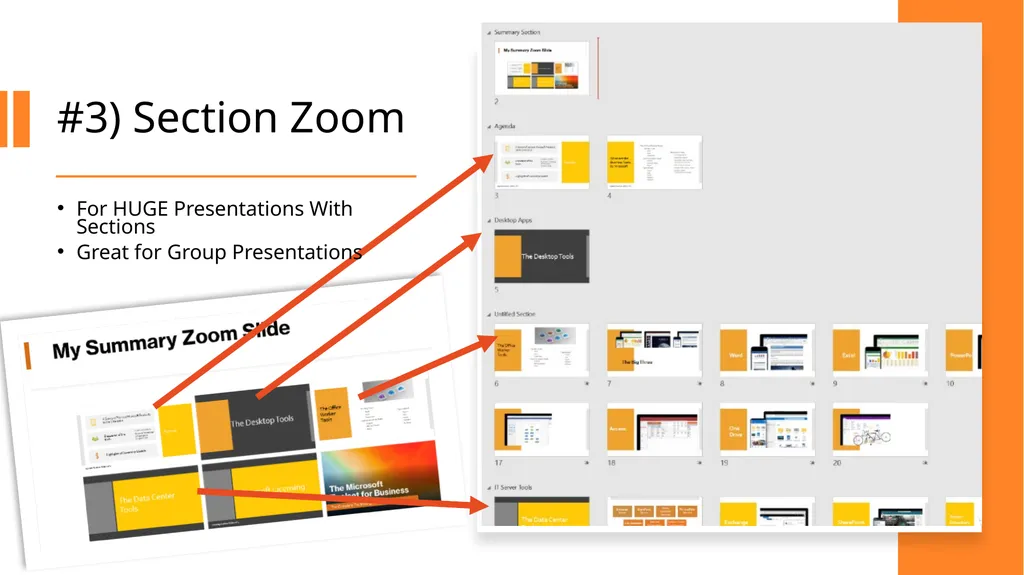
slide18. #3) Section Zoom For HUGE Presentations With Sections
Great for Group Presentations<br>
slide19. The PowerPoint Motion Tools<br>
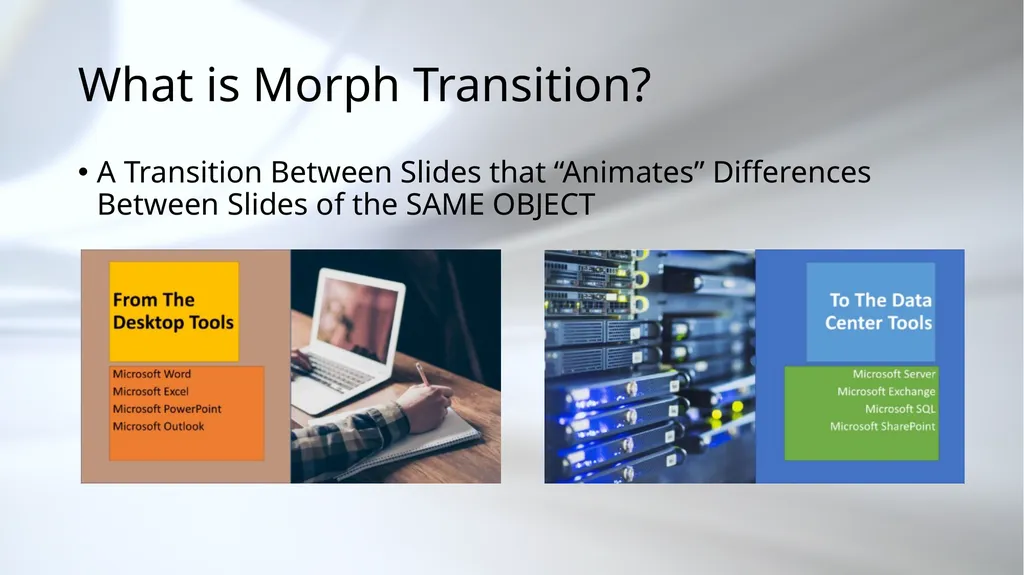
slide20. What is Morph Transition? A Transition Between Slides that “Animates” Differences Between Slides of the SAME OBJECT<br>
slide21. From The Desktop Tools Microsoft Word
Microsoft Excel
Microsoft PowerPoint
Microsoft Outlook<br>
slide22. To The Data Center Tools Microsoft Server
Microsoft Exchange
Microsoft SQL
Microsoft SharePoint<br>
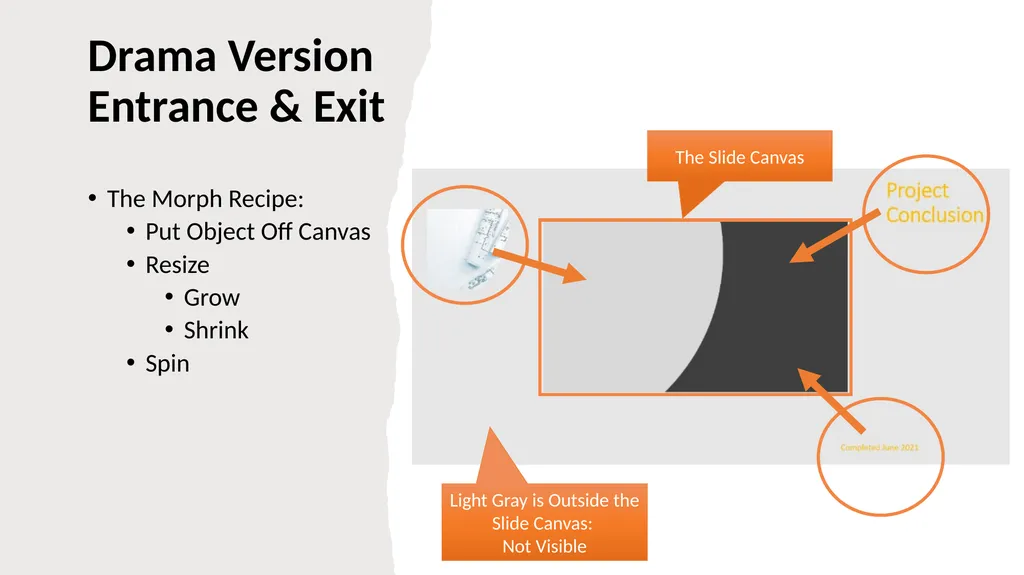
slide23. Drama Version Entrance & Exit The Morph Recipe:
Put Object Off Canvas
Resize
Grow
Shrink
Spin Light Gray is Outside the Slide Canvas: Not Visible<br>
slide24. Project Conclusion Completed June 2021<br>
slide25. Project Conclusion Completed June 2021<br>
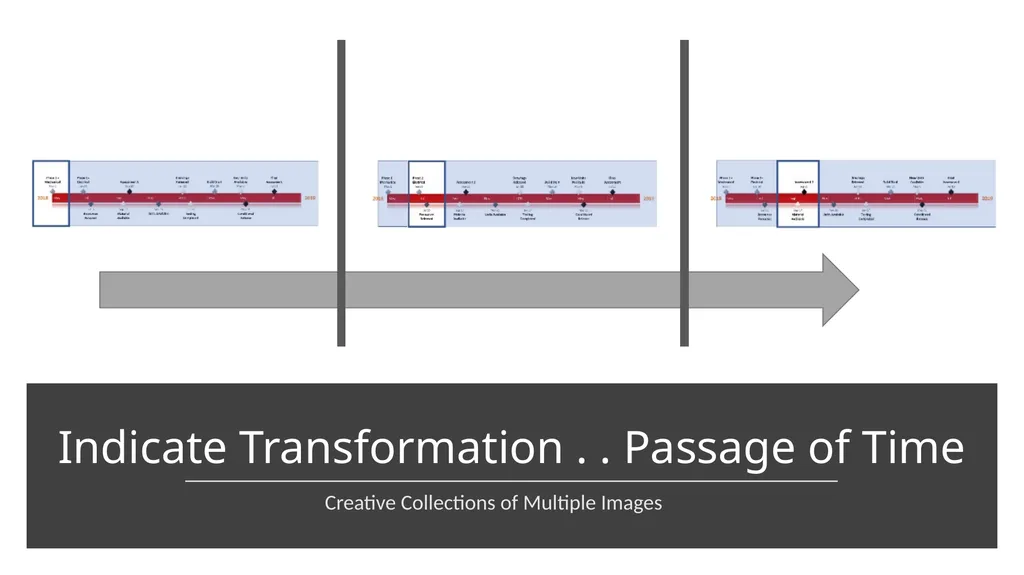
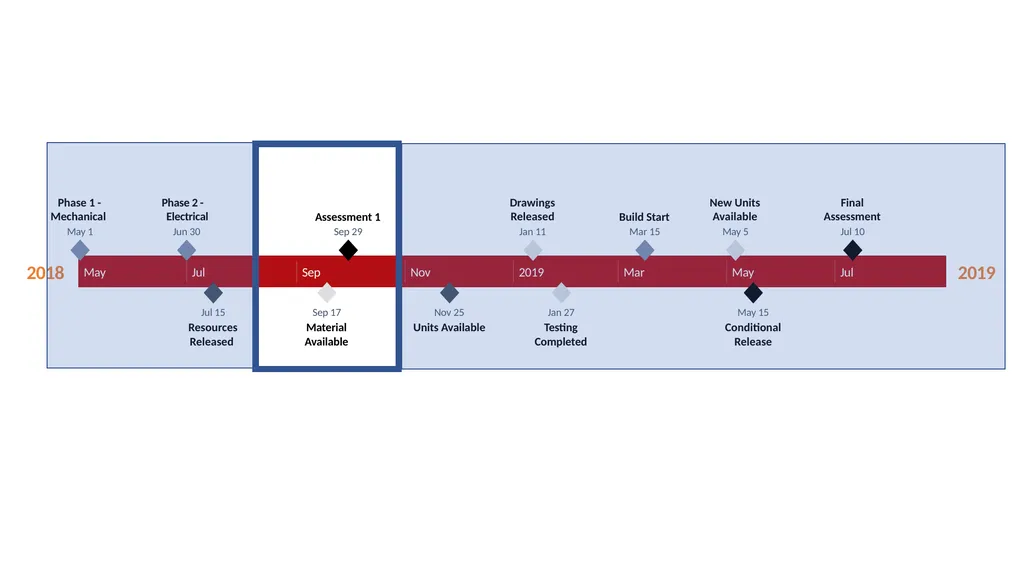
slide26. Indicate Transformation . . Passage of Time Creative Collections of Multiple Images<br>
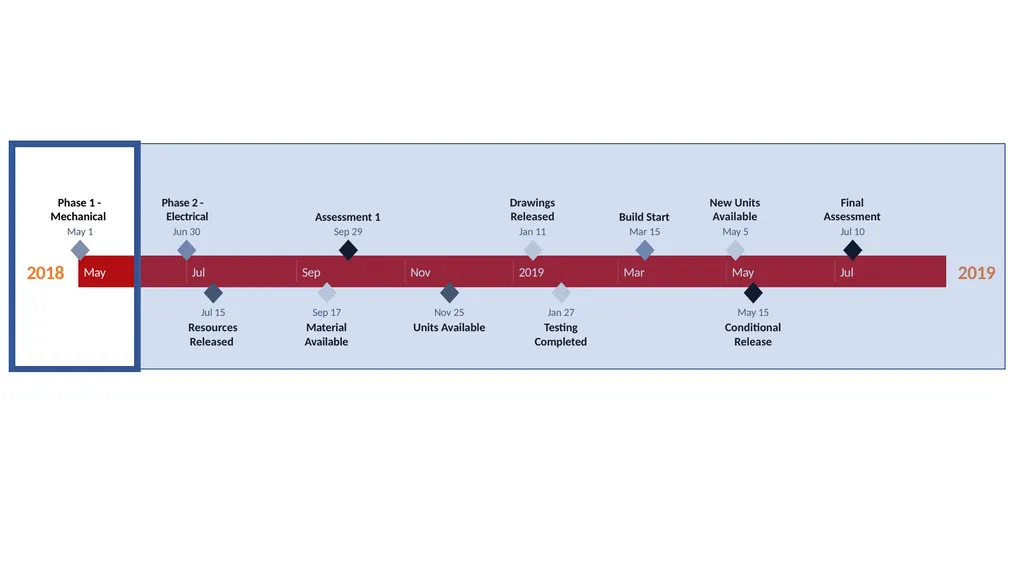
slide27. 2018 2019 Today May Jul Sep Nov 2019 Mar May Jul Phase 1 - Mechanical May 1 Phase 2 - Electrical Jun 30 Assessment 1 Sep 29 Drawings Released Jan 11 Build Start Mar 15 New Units Available May 5 Final Assessment Jul 10 Resources Released Jul 15 Material Available Sep 17 Units Available Nov 25 Testing Completed Jan 27 Conditional Release May 15<br>
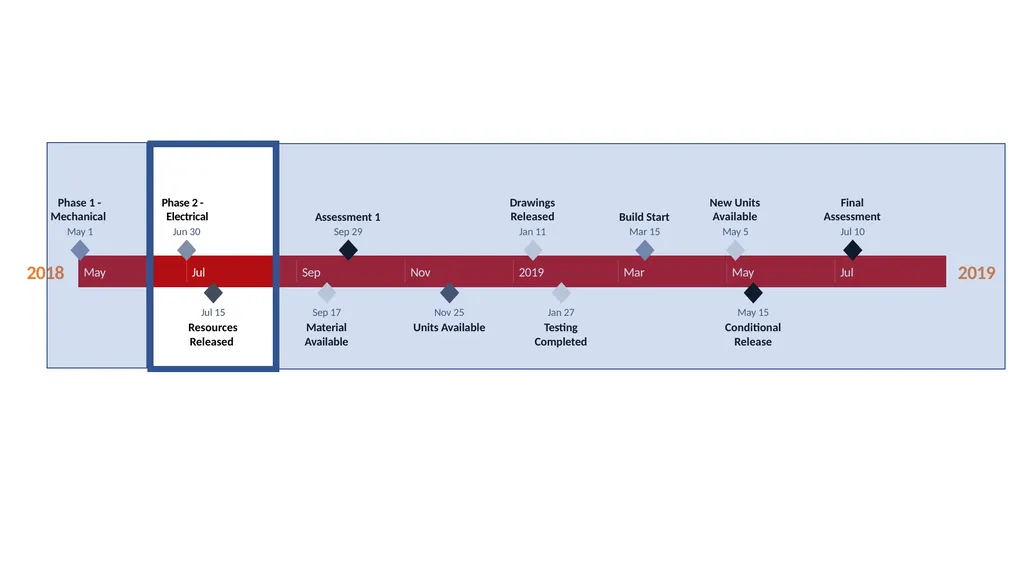
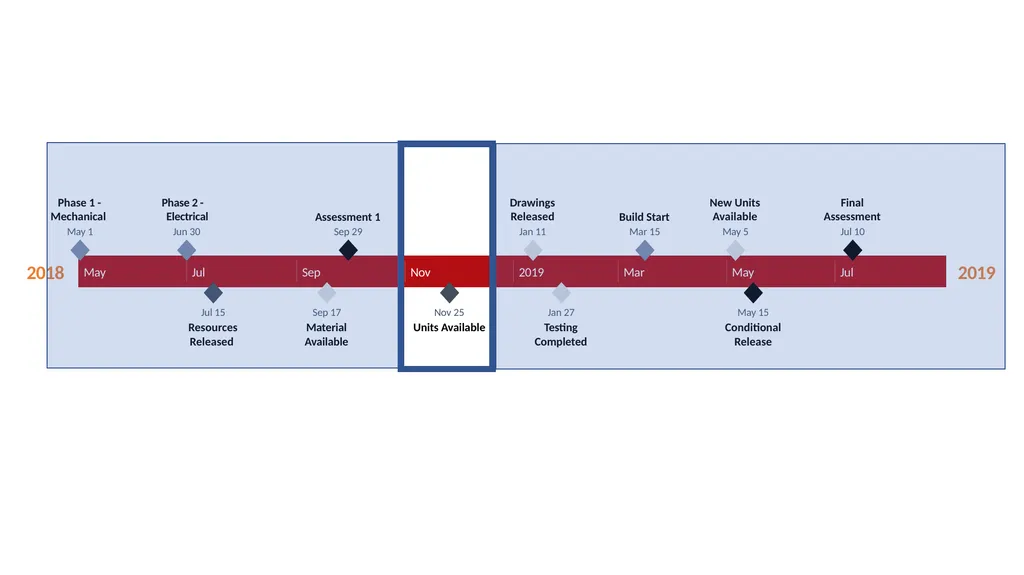
slide28. 2018 2019 Today May Jul Sep Nov 2019 Mar May Jul Phase 1 - Mechanical May 1 Phase 2 - Electrical Jun 30 Assessment 1 Sep 29 Drawings Released Jan 11 Build Start Mar 15 New Units Available May 5 Final Assessment Jul 10 Resources Released Jul 15 Material Available Sep 17 Units Available Nov 25 Testing Completed Jan 27 Conditional Release May 15<br>
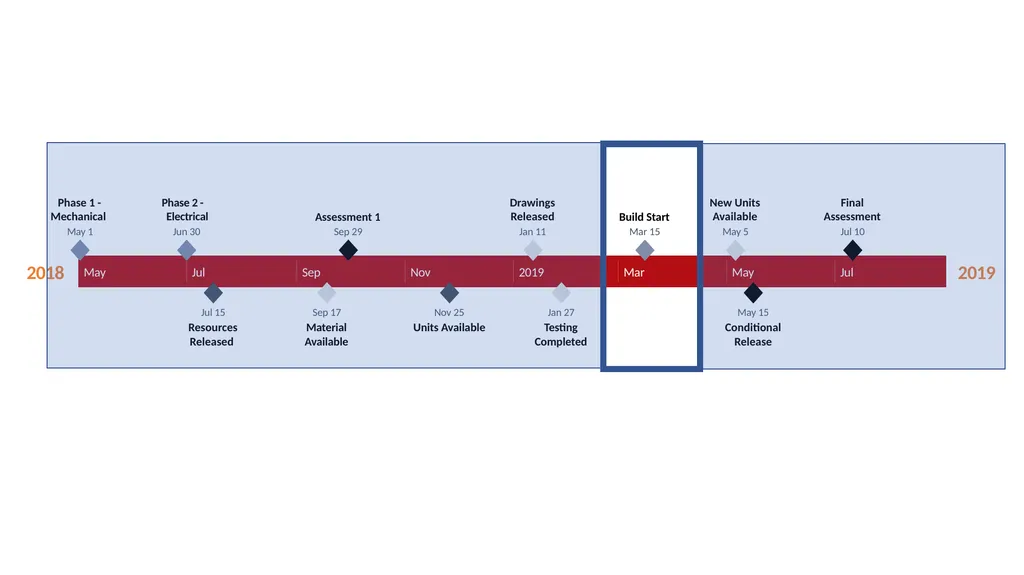
slide29. 2018 2019 Today May Jul Sep Nov 2019 Mar May Jul Phase 1 - Mechanical May 1 Phase 2 - Electrical Jun 30 Assessment 1 Sep 29 Drawings Released Jan 11 Build Start Mar 15 New Units Available May 5 Final Assessment Jul 10 Resources Released Jul 15 Material Available Sep 17 Units Available Nov 25 Testing Completed Jan 27 Conditional Release May 15<br>
slide30. 2018 2019 Today May Jul Sep Nov 2019 Mar May Jul Phase 1 - Mechanical May 1 Phase 2 - Electrical Jun 30 Assessment 1 Sep 29 Drawings Released Jan 11 Build Start Mar 15 New Units Available May 5 Final Assessment Jul 10 Resources Released Jul 15 Material Available Sep 17 Units Available Nov 25 Testing Completed Jan 27 Conditional Release May 15<br>
slide31. 2018 2019 Today May Jul Sep Nov 2019 Mar May Jul Phase 1 - Mechanical May 1 Phase 2 - Electrical Jun 30 Assessment 1 Sep 29 Drawings Released Jan 11 Build Start Mar 15 New Units Available May 5 Final Assessment Jul 10 Resources Released Jul 15 Material Available Sep 17 Units Available Nov 25 Testing Completed Jan 27 Conditional Release May 15<br>
slide32. The PowerPoint Motion Tools<br>
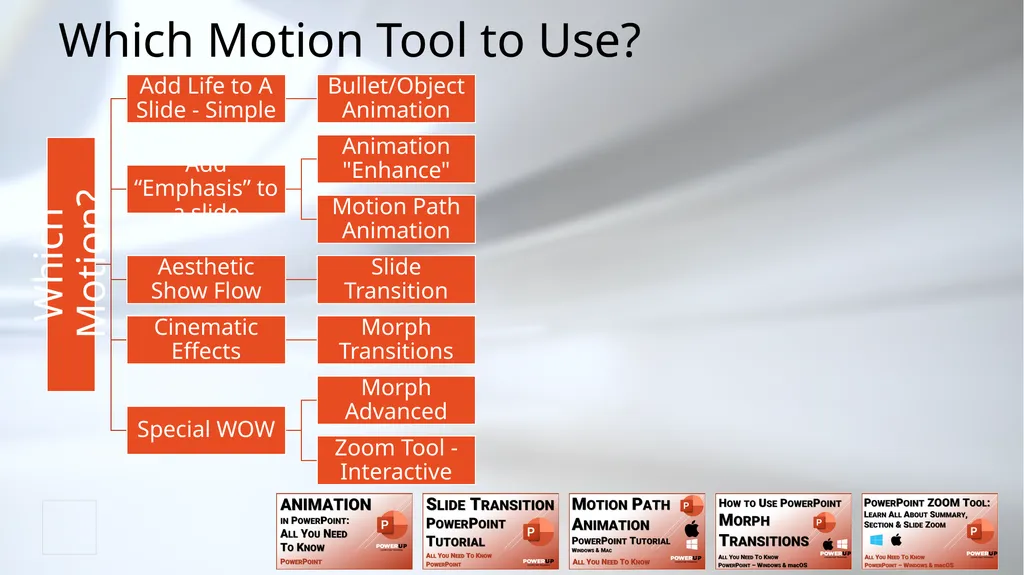
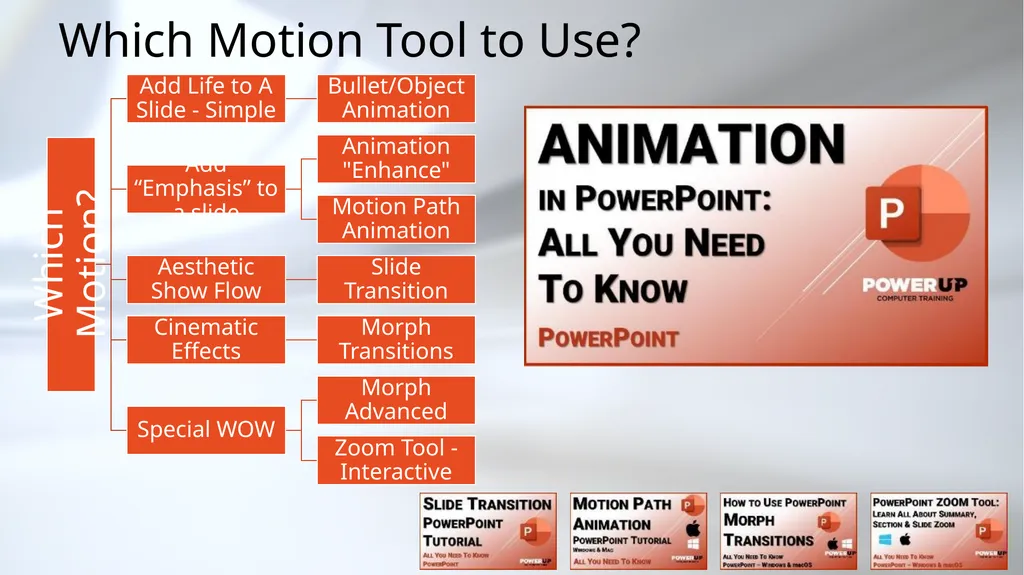
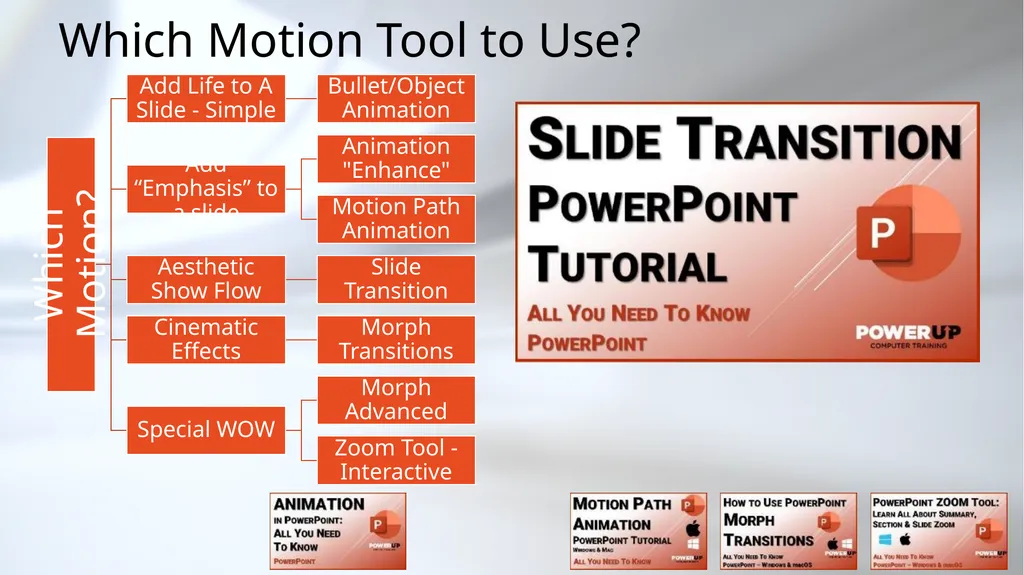
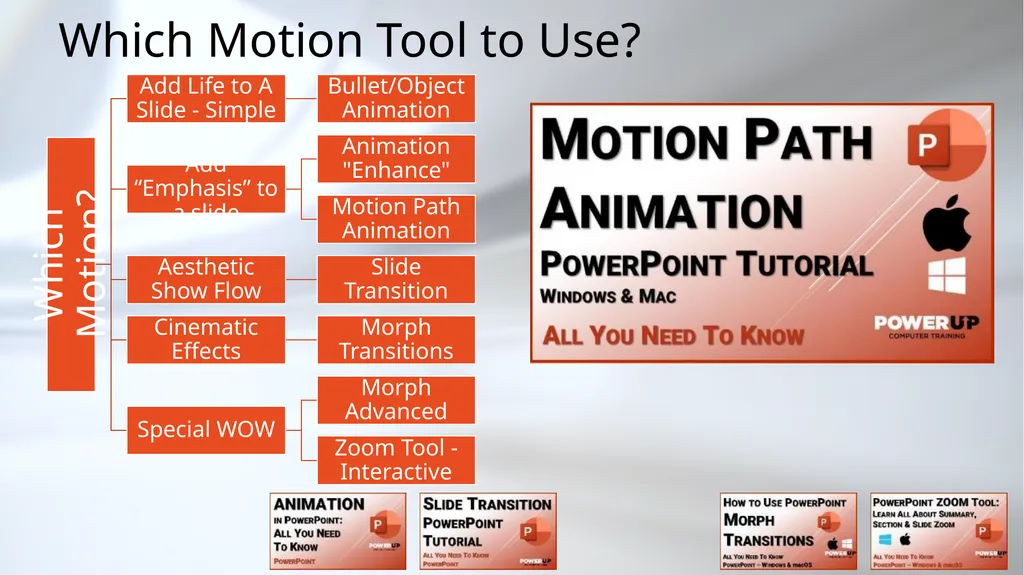
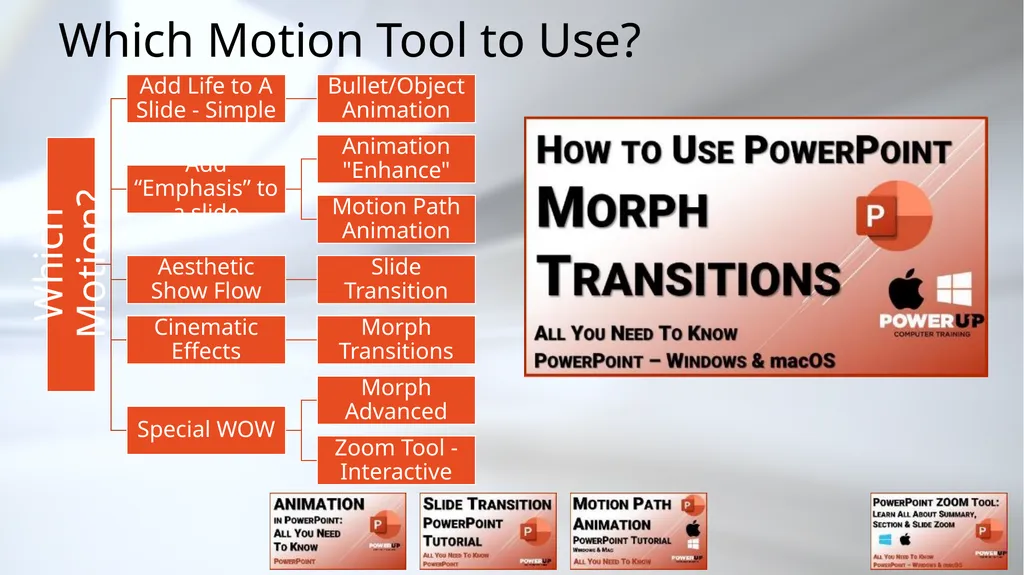
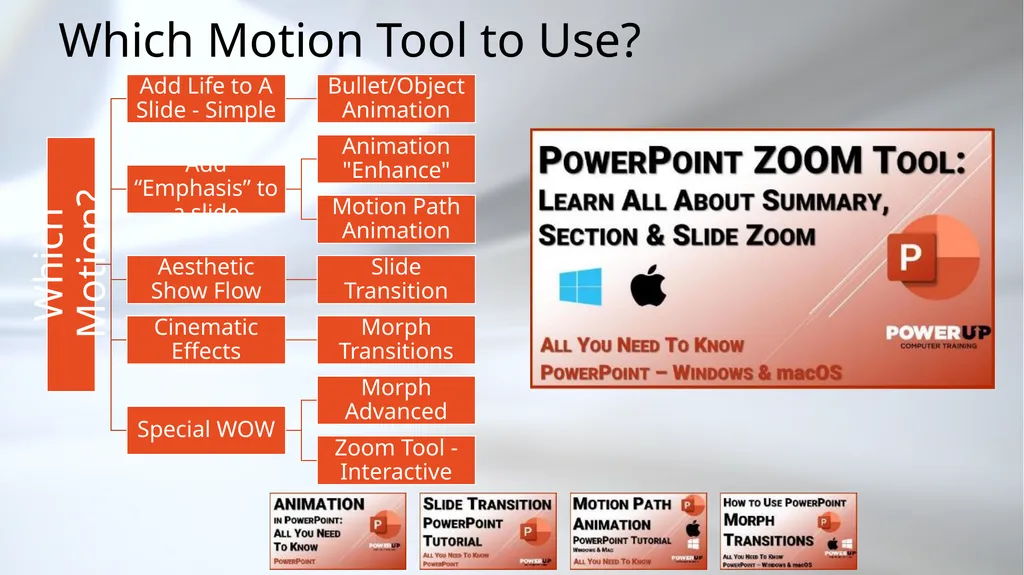
slide33. Which Motion Tool to Use?<br>
slide34. Which Motion Tool to Use?<br>
slide35. Which Motion Tool to Use?<br>
slide36. Which Motion Tool to Use?<br>
slide37. Which Motion Tool to Use?<br>
slide38. Which Motion Tool to Use?<br>
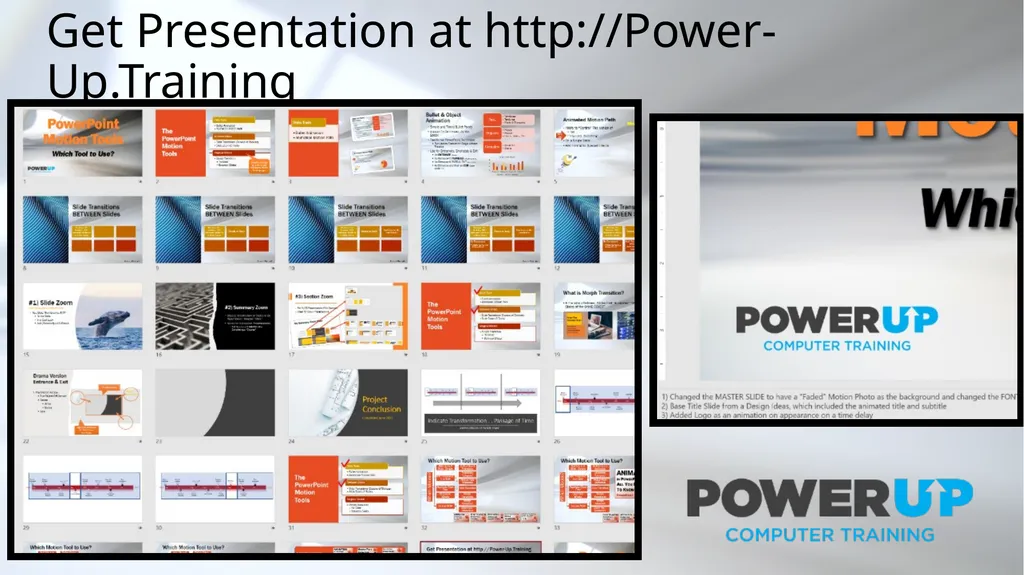
slide40. Get Presentation at http://Power-Up.Training<br>
slide41. PowerPoint Motion Tools Use the Right Tool!<br>
slide2. The PowerPoint Motion Tools<br>
slide3. Version & Slide Show Setup Concepts Go Back to Early Days of PowerPoint
Windows and macOS Desktop Applications
Some of the latest Features are more Advanced starting with PowerPoint 2019 up to the Latest Office 365
Stay to the End to Learn How to Download this Original PowerPoint Presentation File for Free at https://Power-UP.Training<br>
slide5. Bullet & Object Animation Simple and Timed Bullet Points
Appear On Command, As You Speak
Traditional PowerPoint Technique
But Hard to Execute on Stage without Practice
Use for Entrances, Emphasis & Exit
An ENTRANCE (Zoom)
An Entrance & EMPHASIS (Zoom & Spin)
An Entrance & PARTIAL EXIT (Zoom & Dim)
An Entrance and then an EXIT (Zoom and Shrink)<br>
slide6. Animated Motion Path Ability to “Control” The Motion of
Text
Objects & “Everything”
On a Single Slide
Add Timing for Special Effects Move Me! Move Me<br>
slide7. The PowerPoint Motion Tools<br>
slide9. Slide Transitions BETWEEN Slides Subset Slide #1<br>
slide10. Slide Transitions BETWEEN Slides Subset Slide #2<br>
slide11. Slide Transitions BETWEEN Slides Subset Slide #3<br>
slide12. Slide Transitions BETWEEN Slides Subset Slide #4<br>
slide13. Slide Transitions BETWEEN Slides Subset Slide #5 See slide #9<br>
slide14. Slide Transitions BETWEEN Slides Subset Slide #6<br>
slide15. The Three ZOOM Tool PowerPoint ZOOM is a TOOL
Not to be confused with existing effects<br>
slide16. #1) Slide Zoom Use Slide Thumbnail to JUMP
To the Slide
In a Cool Look
And (Potentially) JUMP Back<br>
slide17. #2) Summary Zoom Choose A Collection of Slides to Be Hyperlinked “Chapter Titles”
Great for Interactive Presentations
Will Return to SUMMARY After Completing a “Chapter”<br>
slide18. #3) Section Zoom For HUGE Presentations With Sections
Great for Group Presentations<br>
slide19. The PowerPoint Motion Tools<br>
slide20. What is Morph Transition? A Transition Between Slides that “Animates” Differences Between Slides of the SAME OBJECT<br>
slide21. From The Desktop Tools Microsoft Word
Microsoft Excel
Microsoft PowerPoint
Microsoft Outlook<br>
slide22. To The Data Center Tools Microsoft Server
Microsoft Exchange
Microsoft SQL
Microsoft SharePoint<br>
slide23. Drama Version Entrance & Exit The Morph Recipe:
Put Object Off Canvas
Resize
Grow
Shrink
Spin Light Gray is Outside the Slide Canvas: Not Visible<br>
slide24. Project Conclusion Completed June 2021<br>
slide25. Project Conclusion Completed June 2021<br>
slide26. Indicate Transformation . . Passage of Time Creative Collections of Multiple Images<br>
slide27. 2018 2019 Today May Jul Sep Nov 2019 Mar May Jul Phase 1 - Mechanical May 1 Phase 2 - Electrical Jun 30 Assessment 1 Sep 29 Drawings Released Jan 11 Build Start Mar 15 New Units Available May 5 Final Assessment Jul 10 Resources Released Jul 15 Material Available Sep 17 Units Available Nov 25 Testing Completed Jan 27 Conditional Release May 15<br>
slide28. 2018 2019 Today May Jul Sep Nov 2019 Mar May Jul Phase 1 - Mechanical May 1 Phase 2 - Electrical Jun 30 Assessment 1 Sep 29 Drawings Released Jan 11 Build Start Mar 15 New Units Available May 5 Final Assessment Jul 10 Resources Released Jul 15 Material Available Sep 17 Units Available Nov 25 Testing Completed Jan 27 Conditional Release May 15<br>
slide29. 2018 2019 Today May Jul Sep Nov 2019 Mar May Jul Phase 1 - Mechanical May 1 Phase 2 - Electrical Jun 30 Assessment 1 Sep 29 Drawings Released Jan 11 Build Start Mar 15 New Units Available May 5 Final Assessment Jul 10 Resources Released Jul 15 Material Available Sep 17 Units Available Nov 25 Testing Completed Jan 27 Conditional Release May 15<br>
slide30. 2018 2019 Today May Jul Sep Nov 2019 Mar May Jul Phase 1 - Mechanical May 1 Phase 2 - Electrical Jun 30 Assessment 1 Sep 29 Drawings Released Jan 11 Build Start Mar 15 New Units Available May 5 Final Assessment Jul 10 Resources Released Jul 15 Material Available Sep 17 Units Available Nov 25 Testing Completed Jan 27 Conditional Release May 15<br>
slide31. 2018 2019 Today May Jul Sep Nov 2019 Mar May Jul Phase 1 - Mechanical May 1 Phase 2 - Electrical Jun 30 Assessment 1 Sep 29 Drawings Released Jan 11 Build Start Mar 15 New Units Available May 5 Final Assessment Jul 10 Resources Released Jul 15 Material Available Sep 17 Units Available Nov 25 Testing Completed Jan 27 Conditional Release May 15<br>
slide32. The PowerPoint Motion Tools<br>
slide33. Which Motion Tool to Use?<br>
slide34. Which Motion Tool to Use?<br>
slide35. Which Motion Tool to Use?<br>
slide36. Which Motion Tool to Use?<br>
slide37. Which Motion Tool to Use?<br>
slide38. Which Motion Tool to Use?<br>
slide40. Get Presentation at http://Power-Up.Training<br>
slide41. PowerPoint Motion Tools Use the Right Tool!<br>