04
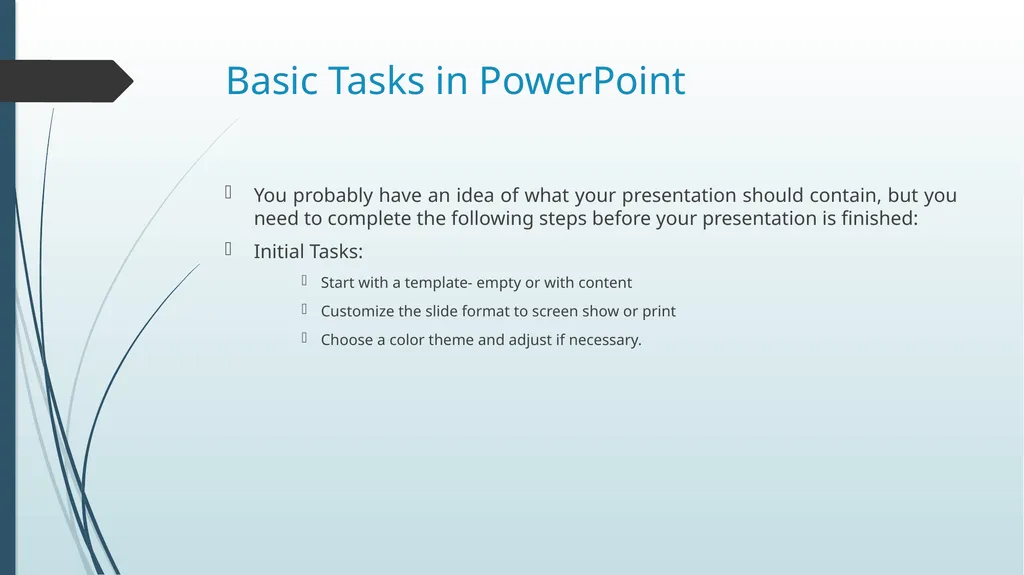
Basic Tasks in PowerPoint Pour the content into the Presentation:
Type a title on the front page
Add slides with text, pictures and charts
Polish the Presentation
Adjust the order of your slides
Add transitions between slides if you are doing an on-screen show
Add animations if you are doing an on-screen show.
Test and adjust if necessary.<br>
05
Features of a good presentation Keep your points short and straightforward. Points should be complimentary to your oral presentation.
It is best to keep all animations as simple as possible and only use sounds if absolutely necessary.
Stay away from unusal fonts. It is best to use common fonts like Arial, Times New Roman etc.
Think of contrast. If you use a dark background, use light-colored text and vice versa.<br>
06
The Screen Elements<br>
07
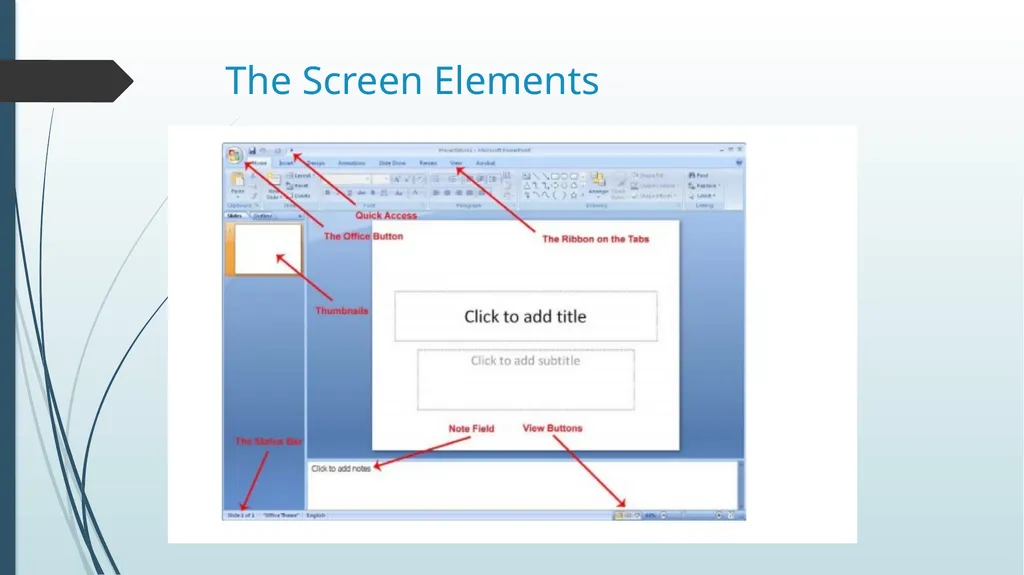
The Screen Elements MS OFFICE BUTTON contains the main File Functions i.e. New, Open, Save, Save as, Print, Print Preview, etc.
Quick Access: Just to the right of the Office button is the small toolbar “Quick Access”, where with a single click you can save, undo etc.<br>
08
The Screen Elements The Ribbon and the Tabs: The Ribbon contains buttons for all the different functions that you have access to in PowerPoint.
Thumbnails: To the left of the slide there is a bar that shows thumbnails of each slide in your presentation. By clicking on a thumbnail you can immediately skip to that slide.
You can also change the order of your slides by clicking and holding the left mouse button while dragging the thumbnail up or down relative to other slides.<br>
09
The Screen Elements At the top of the panel, there are two tabs.
Thumbnail
Outline view
Outline view displays a list of headlines from each slide.
Note Field: Below the slide, there is a note field where you can attach comments and explanations to each slide. The notes are not displayed when you show your presentation. Instead, you can print out pages with thumbnails of each slide where the notes also appear.<br>
10
The Screen Elements The Status Bar: The status bar at the bottom left shows current information about which slide you are working on, which color theme you have chosen and which languages the spell checker is set to.<br>
11
Placeholders/Content Placeholders In MS PowerPoint, placeholders are boxes with dotted borders that contain content and reside within a slide layout.
All built-in slide layouts that come with PowerPoint contain content placeholders.
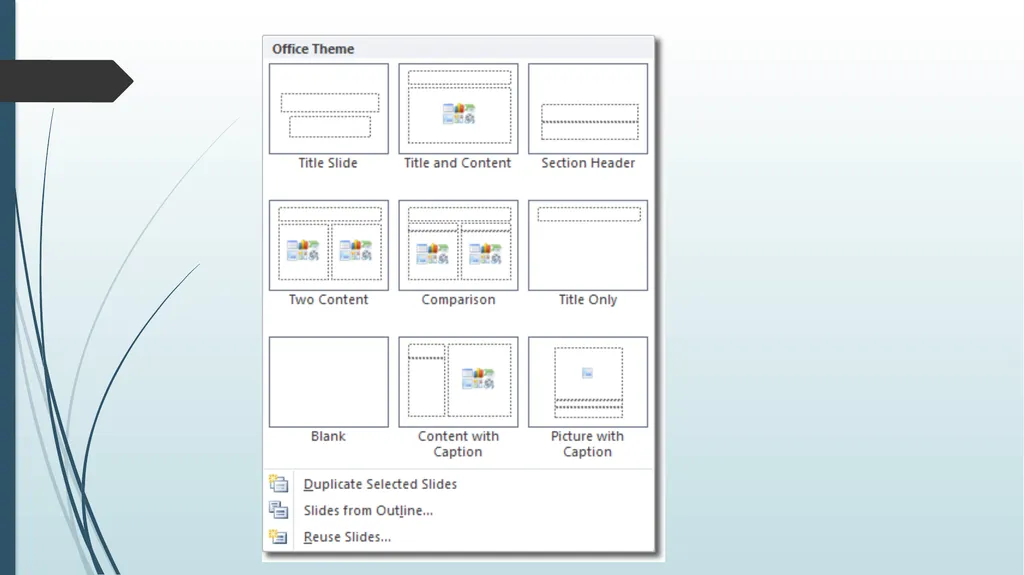
If you click on the bottom half of the New slide button, PowerPoint displays all the slide layouts you can insert, and on each you can see content placeholders.<br>
12
Placeholders/Content Placeholders If you insert a two content slide layout, for example, you will get three placeholders: one for the slide's title, and two for the content. To add you own text, click in a placeholder and start typing. You can style the text however you please, using the usual formatting options.<br>
13
How does PowerPoint know what placeholders should appear on each slide? This is determined by slide master.
If you click View > Master Views > Slide Master, you can see all the slide layouts available for use in your presentation.
Click on any slide layout to select it and you'll see the placeholders already present. You can add new placeholders by clicking Insert Placeholder in the Mater Layout group of the Slide Master tab.<br>
14
Views in MS PowerPoint PowerPoint’s various views enable you to see your presentation in a variety of ways. PowerPoint provides following views:
Normal View
Outline View
Slide Sorter View
Notes Page View
Slide Show View<br>
15
Views in MS PowerPoint Normal View:
It is the default view that lets you focus on an individual slide. The slide you are currently editing is called the current slide. The current slide appears in the Slide pane, which is the largest of the view’s three panes.
Below the Slide pane is the Notes pane, where you can add and edit notes you want to associate with the current slide.
In the left pane—called the Slides pane—you can click the thumbnail images of the slides to jump from one slide to another.<br>
16
Views in MS PowerPoint Outline view:
is the same as Normal view except instead of thumbnail images of the slides, a text outline of the presentation appears in the left pane. Only text from placeholders appears in the outline; any text from manually created text boxes does not. Text from graphical objects such as SmartArt also does not appear in the outline<br>
17
Views in MS PowerPoint Slide Sorter view displays all the slides in a presentation on a single screen. In Slide Sorter view, you can reorganize a slide show by dragging slides to different positions. You can also duplicate and delete slides in this view<br>
18
Views in MS PowerPoint Notes Page view shows one slide at a time, along with any notes that are associated with the slide. This view lets you create and edit notes. You may find it easier to work with notes in this view than in Normal view. You can also print notes pages for your presentation; they are printed as they appear in Notes Page view.<br>
19
Views in MS PowerPoint Slide Show view lets you preview your presentation on the screen, so you can see it the way your audience will see it.<br>
20
Viewing Multiple Presentations at Once You can have multiple presentations open at the same time in PowerPoint, and you can arrange their windows so that they are all visible at once. This makes it easy to drag-and-drop content between windows, and also to compare different versions of a presentation.<br>
21
Viewing Multiple Presentations at Once Click the office button.
Click Open. The Open tab of Backstage view appears.
Navigate to the location containing the data files you want to open.
The presentation appears on your screen.
Click the View tab.
Click Arrange All in the Window group. The presentations appear side-by-side<br>
22
Viewing in Color or Grayscale Grayscale is a viewing mode in which there are no colors, only shades of gray. When you distribute a presentation using some low-tech methods, such as printing slides on a black-and-white printer, your slides might look different than they do in full-color on your screen. Therefore, it is sometimes useful to look at your slides in Grayscale mode on the screen so you can identify any potential problems that might occur when slides are printed without color
On the View tab, click Grayscale. The presentation slides appear in grayscale mode, and a Grayscale tab appears on the Ribbon<br>