
PowerPoint Speed Training Exercise Slides Quick
LD
Published · 65 slides · 0 views
1 / 1













Description
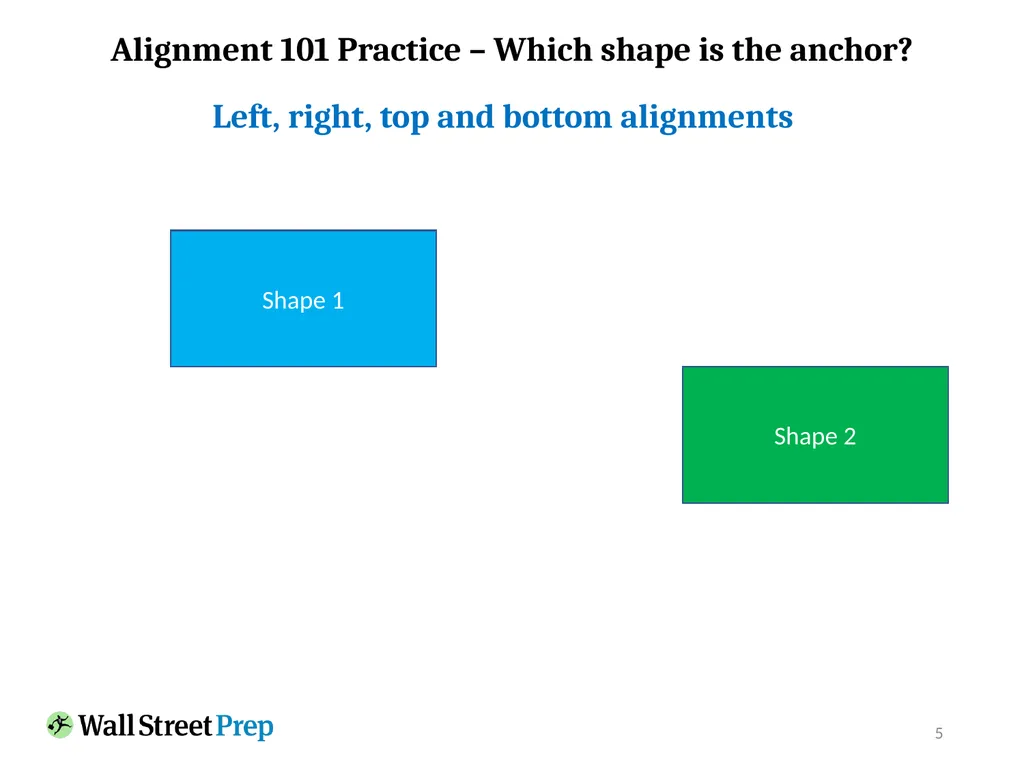
PowerPoint Speed Training Exercise Slides Quick Access Toolbar Shortcuts Quick Access Toolbar Shortcuts Alignment 101 Practice 5 Alignment 101 Practice Which shape is the anchor? Shape 1 Shape 2 Left, right, top and bottom alignments 6
Related Topics
Share
Embed code
Download this presentation From Below
"PowerPoint Speed Training Exercise Slides Quick" is the property of its rightful owner. Permission is granted to download and print the materials on this website for personal, non-commercial use only, and to display it on your personal computer provided you do not modify the materials and that you retain all copyright notices contained in the materials. By downloading content from our website, you accept the terms of this agreement.
Presentation Transcript
01
PowerPoint Speed Training
Exercise Slides<br>
Exercise Slides<br>
02
Quick Access Toolbar Shortcuts<br>
03
Quick Access Toolbar Shortcuts<br>
04
Alignment 101 Practice<br>
05
5 Alignment 101 Practice – Which shape is the anchor? Shape 1 Shape 2 Left, right, top and bottom alignments<br>
06
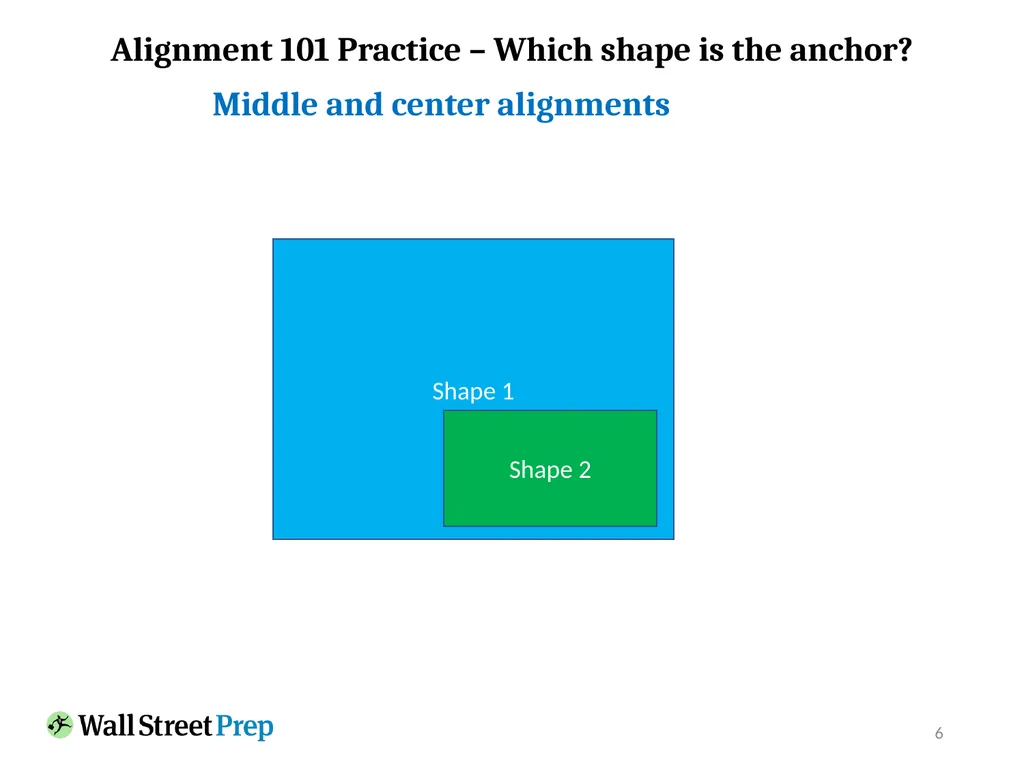
6 Alignment 101 Practice – Which shape is the anchor? Shape 1 Shape 2 Middle and center alignments<br>
07
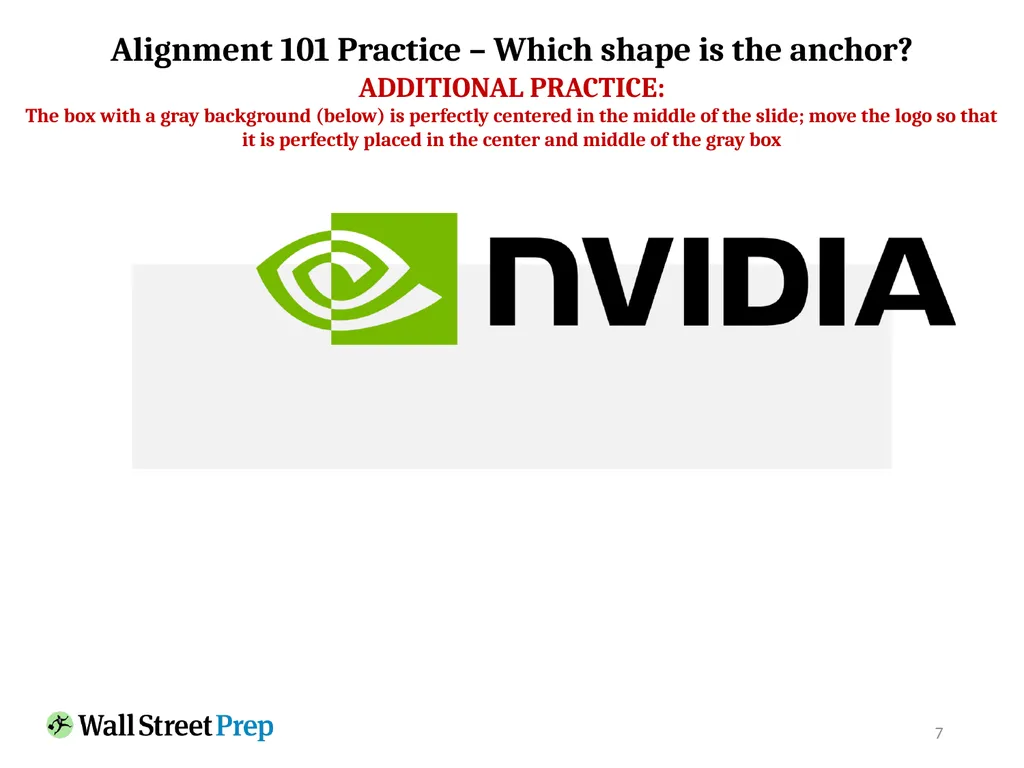
7 Alignment 101 Practice – Which shape is the anchor? ADDITIONAL PRACTICE:
The box with a gray background (below) is perfectly centered in the middle of the slide; move the logo so that it is perfectly placed in the center and middle of the gray box<br>
The box with a gray background (below) is perfectly centered in the middle of the slide; move the logo so that it is perfectly placed in the center and middle of the gray box<br>
08
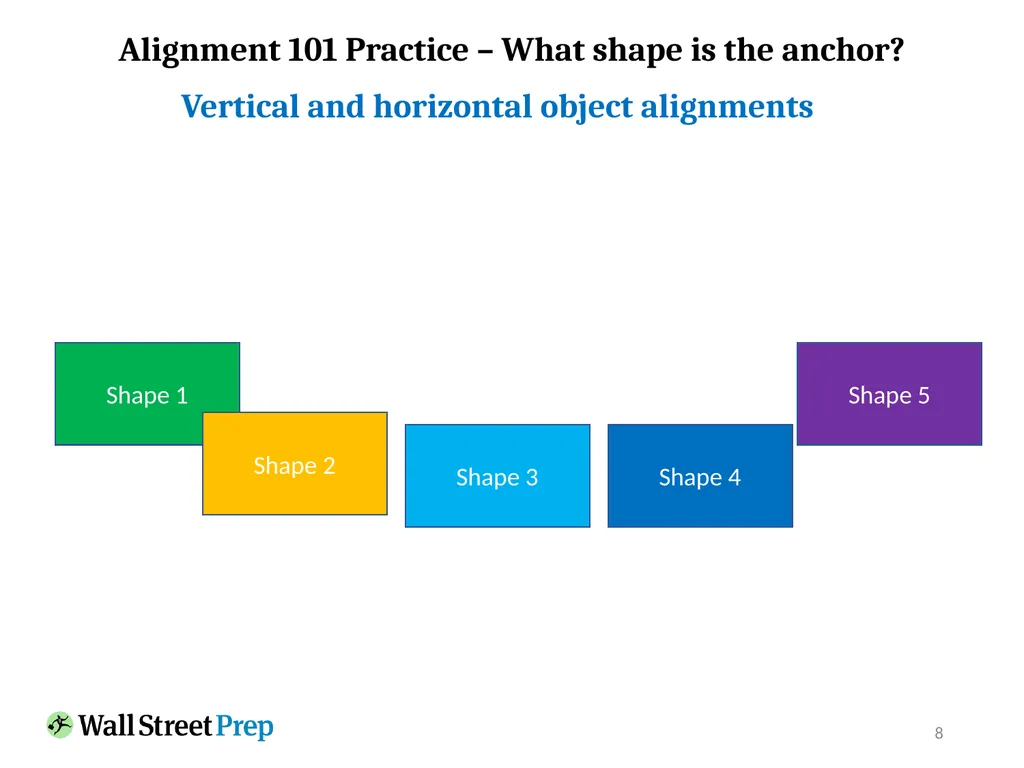
8 Alignment 101 Practice – What shape is the anchor? Shape 1 Shape 2 Shape 3 Shape 4 Shape 5 Vertical and horizontal object alignments<br>
09
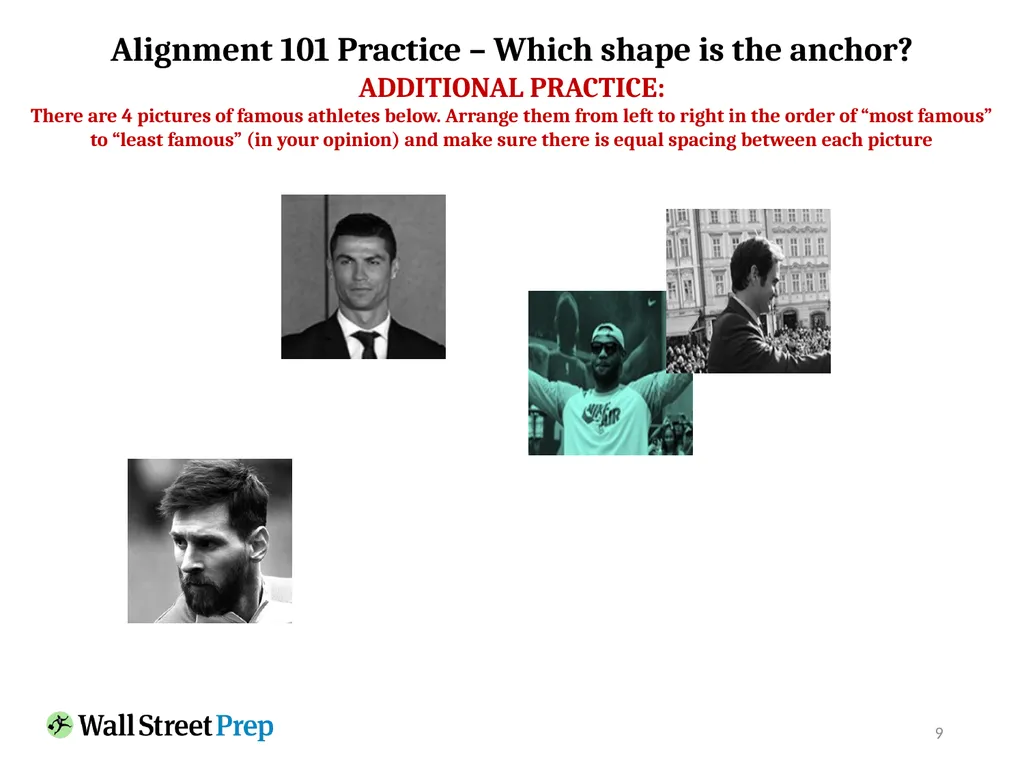
9 Alignment 101 Practice – Which shape is the anchor? ADDITIONAL PRACTICE:
There are 4 pictures of famous athletes below. Arrange them from left to right in the order of “most famous” to “least famous” (in your opinion) and make sure there is equal spacing between each picture<br>
There are 4 pictures of famous athletes below. Arrange them from left to right in the order of “most famous” to “least famous” (in your opinion) and make sure there is equal spacing between each picture<br>
10
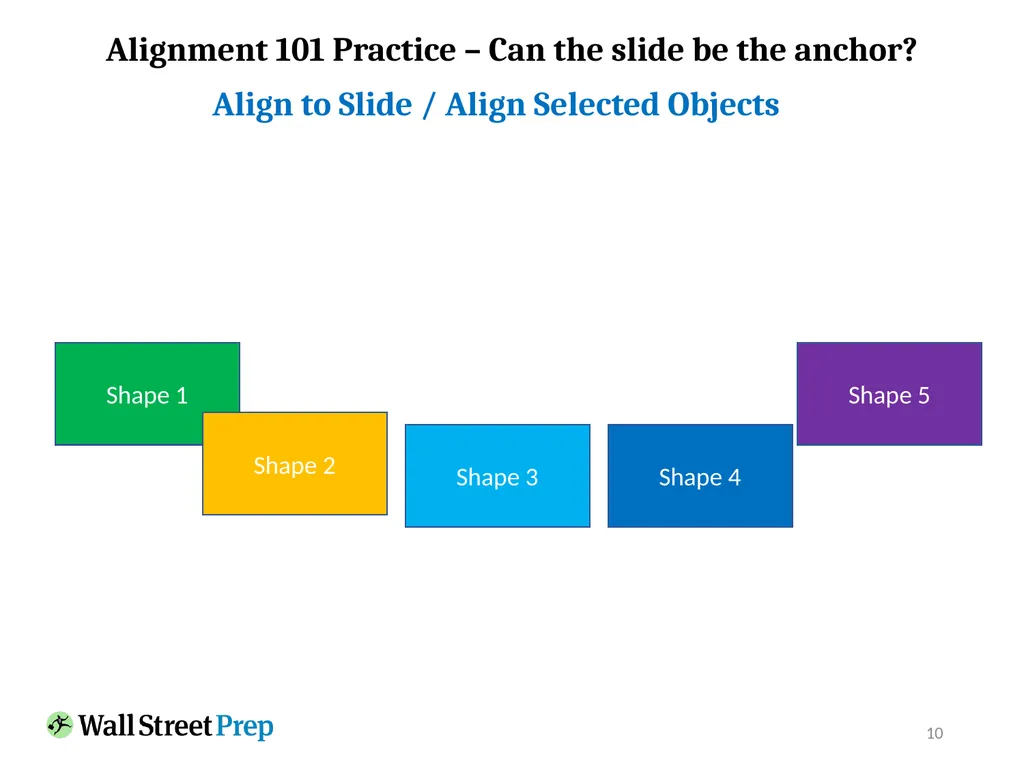
10 Alignment 101 Practice – Can the slide be the anchor? Shape 1 Shape 2 Shape 3 Shape 4 Shape 5 Align to Slide / Align Selected Objects<br>
11
11 Alignment 101 Practice – Which shape is the anchor? Highlights
The quick brown fox jumps over the lazy dog.
The quick brown fox jumps over the lazy dog.
The quick brown fox jumps over the lazy dog. Highlights
The quick brown fox jumps over the lazy dog.
The quick brown fox jumps over the lazy dog.
The quick brown fox jumps over the lazy dog. Highlights
The quick brown fox jumps over the lazy dog.
The quick brown fox jumps over the lazy dog.
The quick brown fox jumps over the lazy dog. Highlights
The quick brown fox jumps over the lazy dog.
The quick brown fox jumps over the lazy dog.
The quick brown fox jumps over the lazy dog. ADDITIONAL PRACTICE:
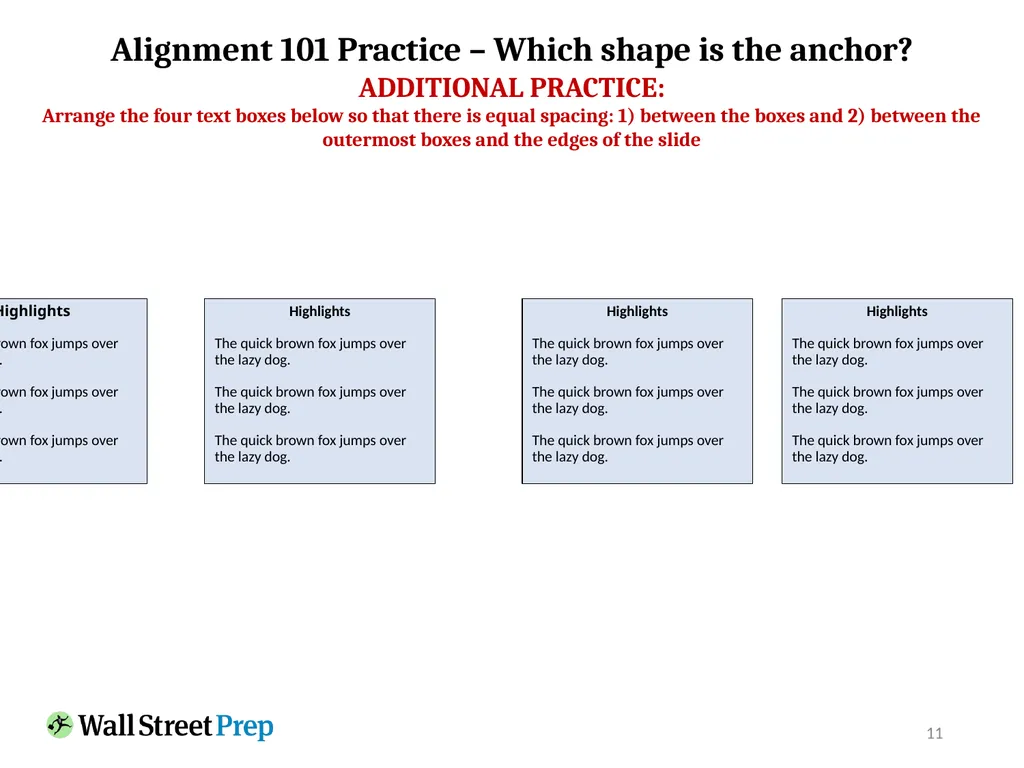
Arrange the four text boxes below so that there is equal spacing: 1) between the boxes and 2) between the outermost boxes and the edges of the slide<br>
The quick brown fox jumps over the lazy dog.
The quick brown fox jumps over the lazy dog.
The quick brown fox jumps over the lazy dog. Highlights
The quick brown fox jumps over the lazy dog.
The quick brown fox jumps over the lazy dog.
The quick brown fox jumps over the lazy dog. Highlights
The quick brown fox jumps over the lazy dog.
The quick brown fox jumps over the lazy dog.
The quick brown fox jumps over the lazy dog. Highlights
The quick brown fox jumps over the lazy dog.
The quick brown fox jumps over the lazy dog.
The quick brown fox jumps over the lazy dog. ADDITIONAL PRACTICE:
Arrange the four text boxes below so that there is equal spacing: 1) between the boxes and 2) between the outermost boxes and the edges of the slide<br>
12
Product Category #3
USD Millions Highlights
The quick brown fox jumps over the lazy dog.
The quick brown fox jumps over the lazy dog.
The quick brown fox jumps over the lazy dog. Product Category #2
USD Millions Highlights
The quick brown fox jumps over the lazy dog.
The quick brown fox jumps over the lazy dog.
The quick brown fox jumps over the lazy dog. Product Category #1
USD Millions Highlights
The quick brown fox jumps over the lazy dog.
The quick brown fox jumps over the lazy dog.
The quick brown fox jumps over the lazy dog. Product Category #4
USD Millions Highlights
The quick brown fox jumps over the lazy dog.
The quick brown fox jumps over the lazy dog.
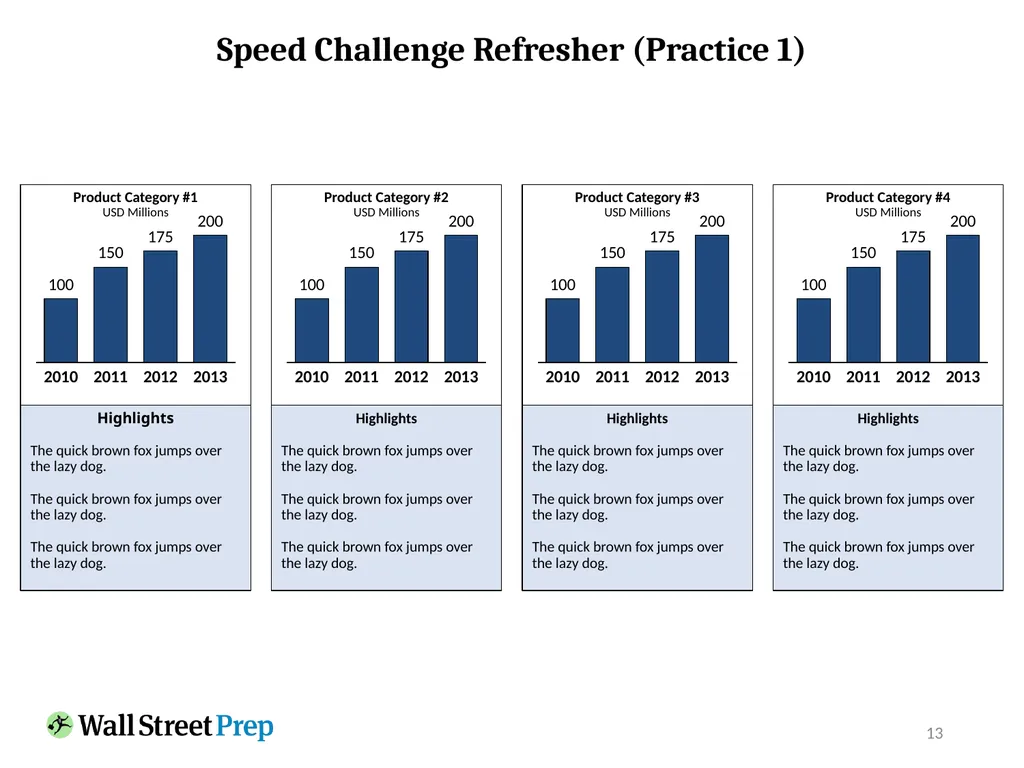
The quick brown fox jumps over the lazy dog. 12 Speed Challenge Refresher (Practice 1)<br>
USD Millions Highlights
The quick brown fox jumps over the lazy dog.
The quick brown fox jumps over the lazy dog.
The quick brown fox jumps over the lazy dog. Product Category #2
USD Millions Highlights
The quick brown fox jumps over the lazy dog.
The quick brown fox jumps over the lazy dog.
The quick brown fox jumps over the lazy dog. Product Category #1
USD Millions Highlights
The quick brown fox jumps over the lazy dog.
The quick brown fox jumps over the lazy dog.
The quick brown fox jumps over the lazy dog. Product Category #4
USD Millions Highlights
The quick brown fox jumps over the lazy dog.
The quick brown fox jumps over the lazy dog.
The quick brown fox jumps over the lazy dog. 12 Speed Challenge Refresher (Practice 1)<br>
13
Highlights
The quick brown fox jumps over the lazy dog.
The quick brown fox jumps over the lazy dog.
The quick brown fox jumps over the lazy dog. Highlights
The quick brown fox jumps over the lazy dog.
The quick brown fox jumps over the lazy dog.
The quick brown fox jumps over the lazy dog. Highlights
The quick brown fox jumps over the lazy dog.
The quick brown fox jumps over the lazy dog.
The quick brown fox jumps over the lazy dog. Highlights
The quick brown fox jumps over the lazy dog.
The quick brown fox jumps over the lazy dog.
The quick brown fox jumps over the lazy dog. 13 Speed Challenge Refresher (Practice 1)<br>
The quick brown fox jumps over the lazy dog.
The quick brown fox jumps over the lazy dog.
The quick brown fox jumps over the lazy dog. Highlights
The quick brown fox jumps over the lazy dog.
The quick brown fox jumps over the lazy dog.
The quick brown fox jumps over the lazy dog. Highlights
The quick brown fox jumps over the lazy dog.
The quick brown fox jumps over the lazy dog.
The quick brown fox jumps over the lazy dog. Highlights
The quick brown fox jumps over the lazy dog.
The quick brown fox jumps over the lazy dog.
The quick brown fox jumps over the lazy dog. 13 Speed Challenge Refresher (Practice 1)<br>
14
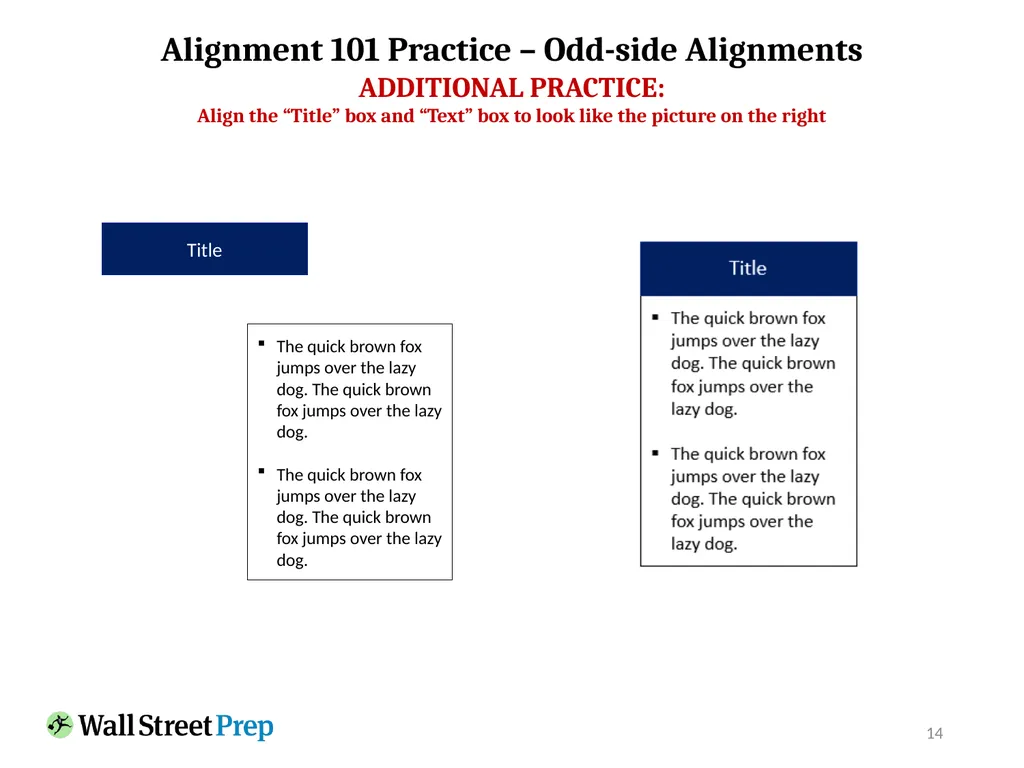
14 Alignment 101 Practice – Odd-side Alignments The quick brown fox jumps over the lazy dog. The quick brown fox jumps over the lazy dog.
The quick brown fox jumps over the lazy dog. The quick brown fox jumps over the lazy dog. Title ADDITIONAL PRACTICE:
Align the “Title” box and “Text” box to look like the picture on the right<br>
The quick brown fox jumps over the lazy dog. The quick brown fox jumps over the lazy dog. Title ADDITIONAL PRACTICE:
Align the “Title” box and “Text” box to look like the picture on the right<br>
15
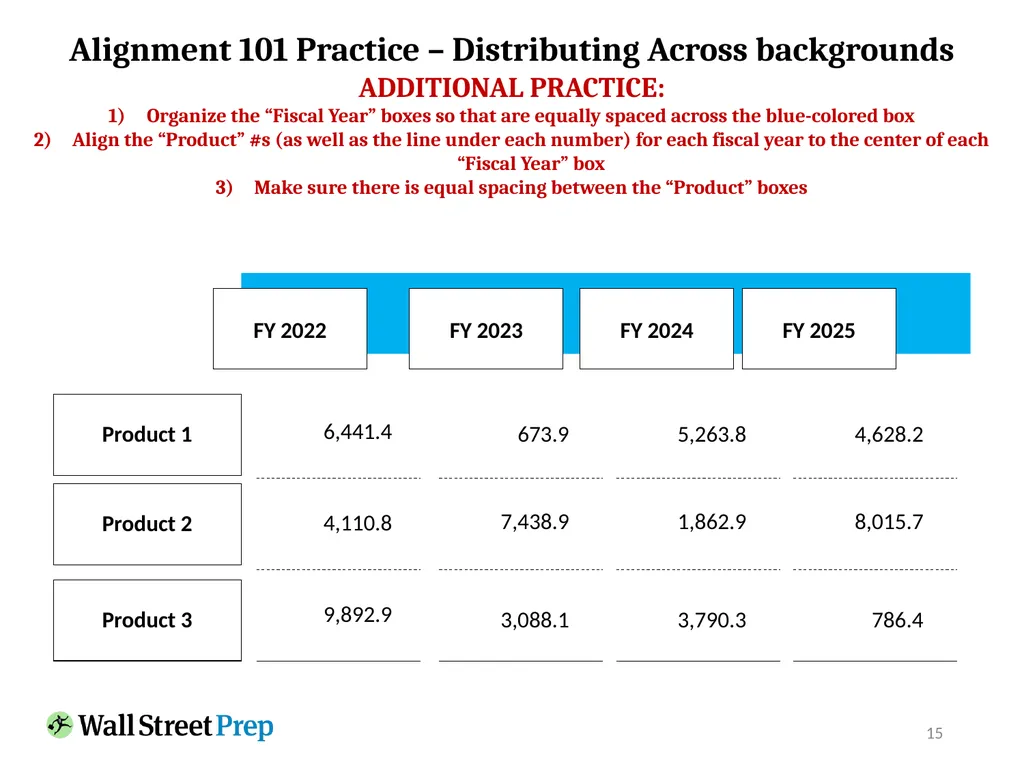
15 Alignment 101 Practice – Distributing Across backgrounds Product 1 Product 2 Product 3 FY 2022 6,441.4 4,110.8 9,892.9 FY 2023 673.9 7,438.9 3,088.1 FY 2024 5,263.8 1,862.9 3,790.3 FY 2025 4,628.2 8,015.7 786.4 ADDITIONAL PRACTICE:
Organize the “Fiscal Year” boxes so that are equally spaced across the blue-colored box
Align the “Product” #s (as well as the line under each number) for each fiscal year to the center of each “Fiscal Year” box
Make sure there is equal spacing between the “Product” boxes<br>
Organize the “Fiscal Year” boxes so that are equally spaced across the blue-colored box
Align the “Product” #s (as well as the line under each number) for each fiscal year to the center of each “Fiscal Year” box
Make sure there is equal spacing between the “Product” boxes<br>
16
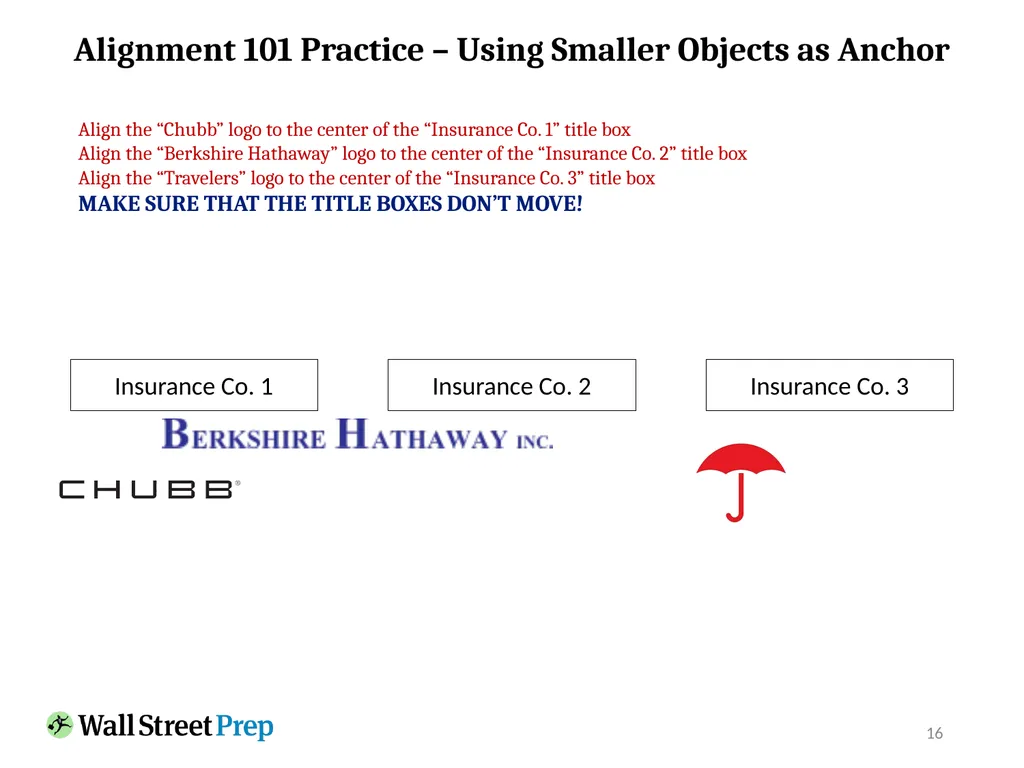
16 Alignment 101 Practice – Using Smaller Objects as Anchor Insurance Co. 1 Insurance Co. 2 Insurance Co. 3 Align the “Chubb” logo to the center of the “Insurance Co. 1” title box
Align the “Berkshire Hathaway” logo to the center of the “Insurance Co. 2” title box
Align the “Travelers” logo to the center of the “Insurance Co. 3” title box
MAKE SURE THAT THE TITLE BOXES DON’T MOVE!<br>
Align the “Berkshire Hathaway” logo to the center of the “Insurance Co. 2” title box
Align the “Travelers” logo to the center of the “Insurance Co. 3” title box
MAKE SURE THAT THE TITLE BOXES DON’T MOVE!<br>
17
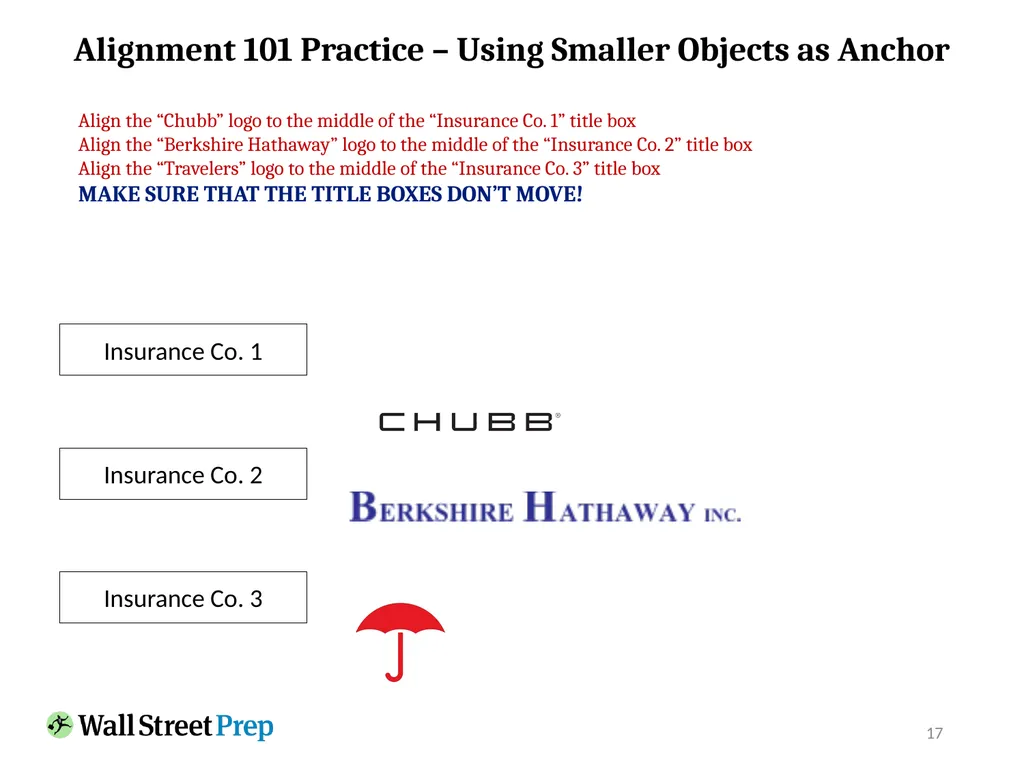
17 Alignment 101 Practice – Using Smaller Objects as Anchor Insurance Co. 1 Insurance Co. 2 Insurance Co. 3 Align the “Chubb” logo to the middle of the “Insurance Co. 1” title box
Align the “Berkshire Hathaway” logo to the middle of the “Insurance Co. 2” title box
Align the “Travelers” logo to the middle of the “Insurance Co. 3” title box
MAKE SURE THAT THE TITLE BOXES DON’T MOVE!<br>
Align the “Berkshire Hathaway” logo to the middle of the “Insurance Co. 2” title box
Align the “Travelers” logo to the middle of the “Insurance Co. 3” title box
MAKE SURE THAT THE TITLE BOXES DON’T MOVE!<br>
18
Product Category #3
USD Millions Highlights
The quick brown fox jumps over the lazy dog.
The quick brown fox jumps over the lazy dog.
The quick brown fox jumps over the lazy dog. Product Category #2
USD Millions Highlights
The quick brown fox jumps over the lazy dog.
The quick brown fox jumps over the lazy dog.
The quick brown fox jumps over the lazy dog. Product Category #1
USD Millions Highlights
The quick brown fox jumps over the lazy dog.
The quick brown fox jumps over the lazy dog.
The quick brown fox jumps over the lazy dog. Product Category #4
USD Millions Highlights
The quick brown fox jumps over the lazy dog.
The quick brown fox jumps over the lazy dog.
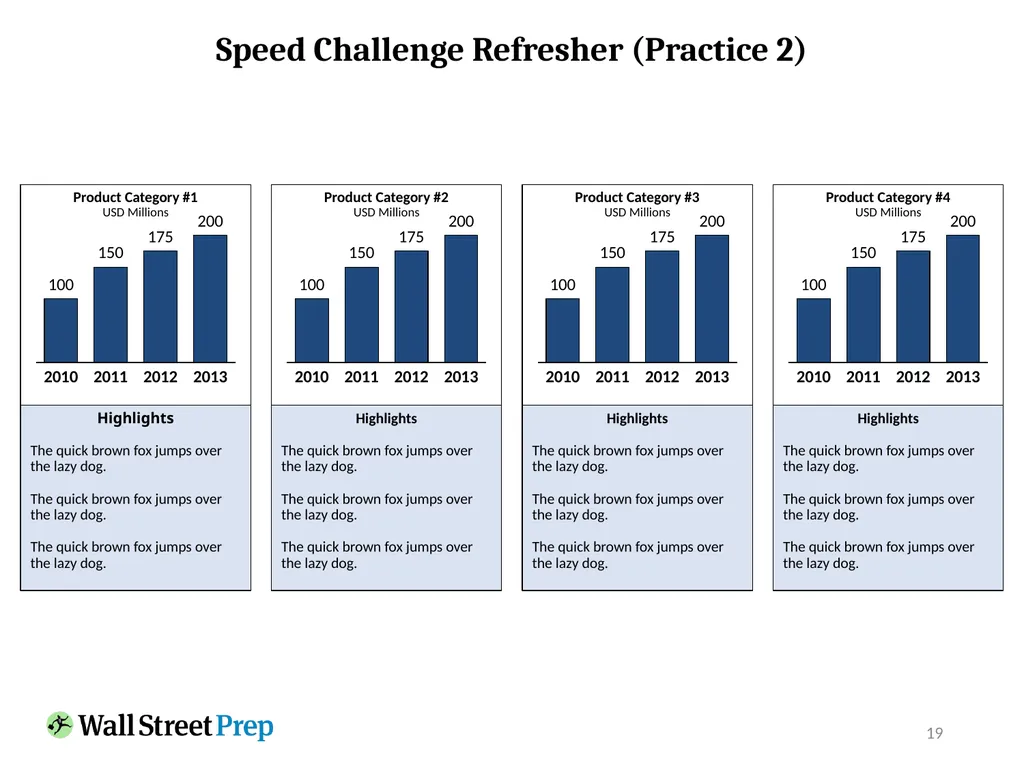
The quick brown fox jumps over the lazy dog. 18 Speed Challenge Refresher (Practice 2)<br>
USD Millions Highlights
The quick brown fox jumps over the lazy dog.
The quick brown fox jumps over the lazy dog.
The quick brown fox jumps over the lazy dog. Product Category #2
USD Millions Highlights
The quick brown fox jumps over the lazy dog.
The quick brown fox jumps over the lazy dog.
The quick brown fox jumps over the lazy dog. Product Category #1
USD Millions Highlights
The quick brown fox jumps over the lazy dog.
The quick brown fox jumps over the lazy dog.
The quick brown fox jumps over the lazy dog. Product Category #4
USD Millions Highlights
The quick brown fox jumps over the lazy dog.
The quick brown fox jumps over the lazy dog.
The quick brown fox jumps over the lazy dog. 18 Speed Challenge Refresher (Practice 2)<br>
19
Highlights
The quick brown fox jumps over the lazy dog.
The quick brown fox jumps over the lazy dog.
The quick brown fox jumps over the lazy dog. Highlights
The quick brown fox jumps over the lazy dog.
The quick brown fox jumps over the lazy dog.
The quick brown fox jumps over the lazy dog. Highlights
The quick brown fox jumps over the lazy dog.
The quick brown fox jumps over the lazy dog.
The quick brown fox jumps over the lazy dog. Highlights
The quick brown fox jumps over the lazy dog.
The quick brown fox jumps over the lazy dog.
The quick brown fox jumps over the lazy dog. 19 Speed Challenge Refresher (Practice 2)<br>
The quick brown fox jumps over the lazy dog.
The quick brown fox jumps over the lazy dog.
The quick brown fox jumps over the lazy dog. Highlights
The quick brown fox jumps over the lazy dog.
The quick brown fox jumps over the lazy dog.
The quick brown fox jumps over the lazy dog. Highlights
The quick brown fox jumps over the lazy dog.
The quick brown fox jumps over the lazy dog.
The quick brown fox jumps over the lazy dog. Highlights
The quick brown fox jumps over the lazy dog.
The quick brown fox jumps over the lazy dog.
The quick brown fox jumps over the lazy dog. 19 Speed Challenge Refresher (Practice 2)<br>
20
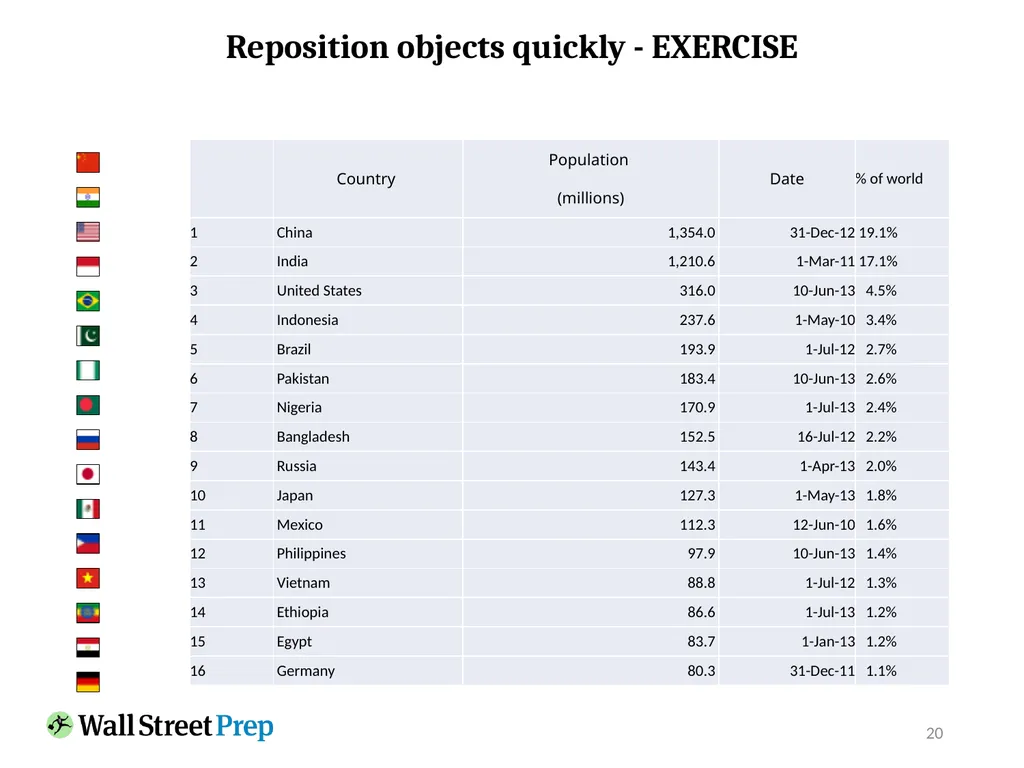
20 Reposition objects quickly - EXERCISE<br>
21
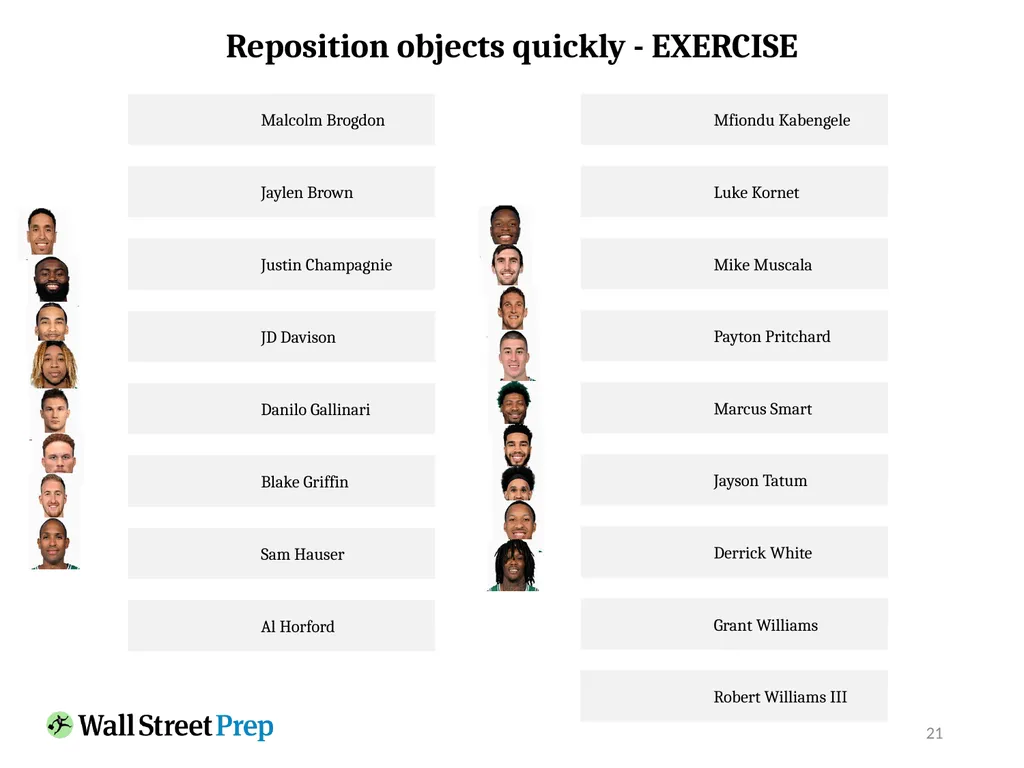
21 Reposition objects quickly - EXERCISE Malcolm Brogdon Jaylen Brown Justin Champagnie JD Davison Danilo Gallinari Blake Griffin Sam Hauser Al Horford Mfiondu Kabengele Luke Kornet Mike Muscala Payton Pritchard Marcus Smart Jayson Tatum Derrick White Grant Williams Robert Williams III<br>
22
Essential Shortcuts (Practice)<br>
23
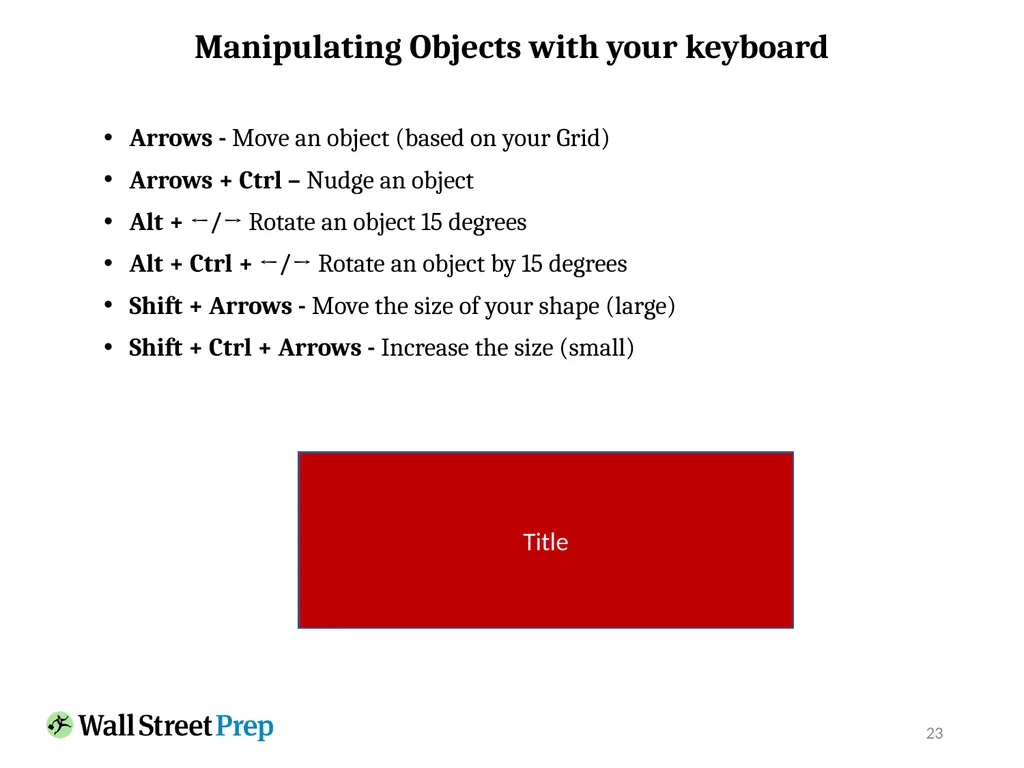
23 Manipulating Objects with your keyboard Arrows - Move an object (based on your Grid)
Arrows + Ctrl – Nudge an object
Alt + ←/→ Rotate an object 15 degrees
Alt + Ctrl + ←/→ Rotate an object by 15 degrees
Shift + Arrows - Move the size of your shape (large)
Shift + Ctrl + Arrows - Increase the size (small) Title<br>
Arrows + Ctrl – Nudge an object
Alt + ←/→ Rotate an object 15 degrees
Alt + Ctrl + ←/→ Rotate an object by 15 degrees
Shift + Arrows - Move the size of your shape (large)
Shift + Ctrl + Arrows - Increase the size (small) Title<br>
24
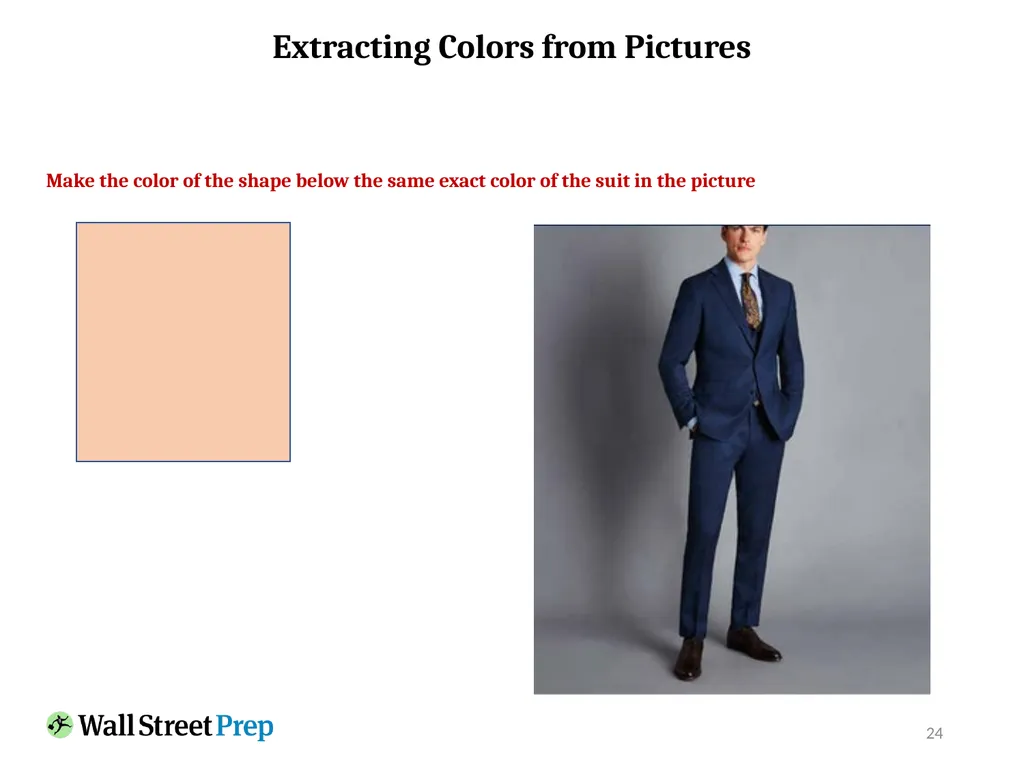
24 Extracting Colors from Pictures Make the color of the shape below the same exact color of the suit in the picture<br>
25
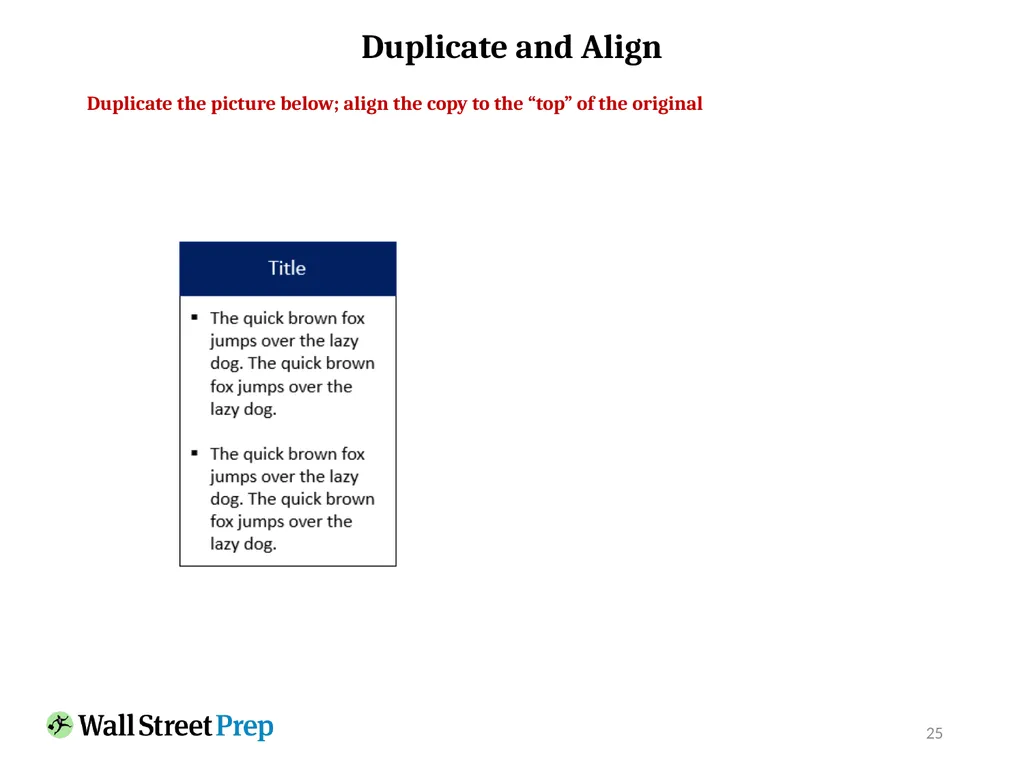
25 Duplicate and Align Duplicate the picture below; align the copy to the “top” of the original<br>
26
Highlights
The quick brown fox jumps over the lazy dog.
The quick brown fox jumps over the lazy dog.
The quick brown fox jumps over the lazy dog. Highlights
The quick brown fox jumps over the lazy dog.
The quick brown fox jumps over the lazy dog.
The quick brown fox jumps over the lazy dog. Highlights
The quick brown fox jumps over the lazy dog.
The quick brown fox jumps over the lazy dog.
The quick brown fox jumps over the lazy dog. Highlights
The quick brown fox jumps over the lazy dog.
The quick brown fox jumps over the lazy dog.
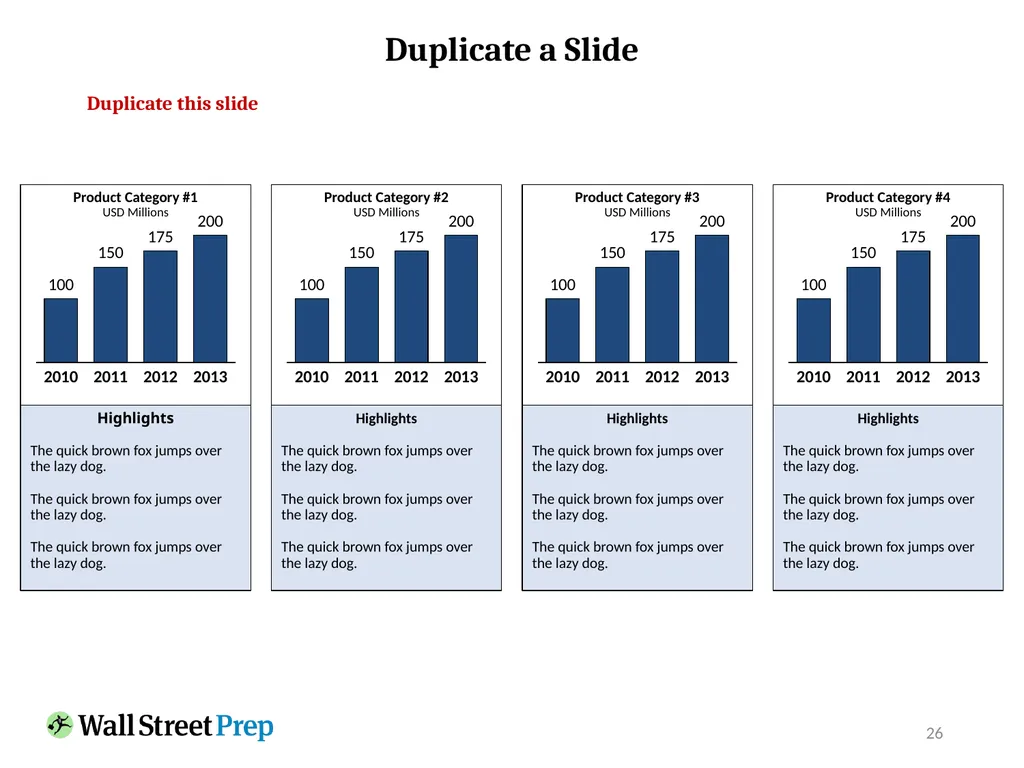
The quick brown fox jumps over the lazy dog. 26 Duplicate a Slide Duplicate this slide<br>
The quick brown fox jumps over the lazy dog.
The quick brown fox jumps over the lazy dog.
The quick brown fox jumps over the lazy dog. Highlights
The quick brown fox jumps over the lazy dog.
The quick brown fox jumps over the lazy dog.
The quick brown fox jumps over the lazy dog. Highlights
The quick brown fox jumps over the lazy dog.
The quick brown fox jumps over the lazy dog.
The quick brown fox jumps over the lazy dog. Highlights
The quick brown fox jumps over the lazy dog.
The quick brown fox jumps over the lazy dog.
The quick brown fox jumps over the lazy dog. 26 Duplicate a Slide Duplicate this slide<br>
27
27 Shrinking the Size of Logos Decrease their respective sizes so that they all fit on the slide<br>
28
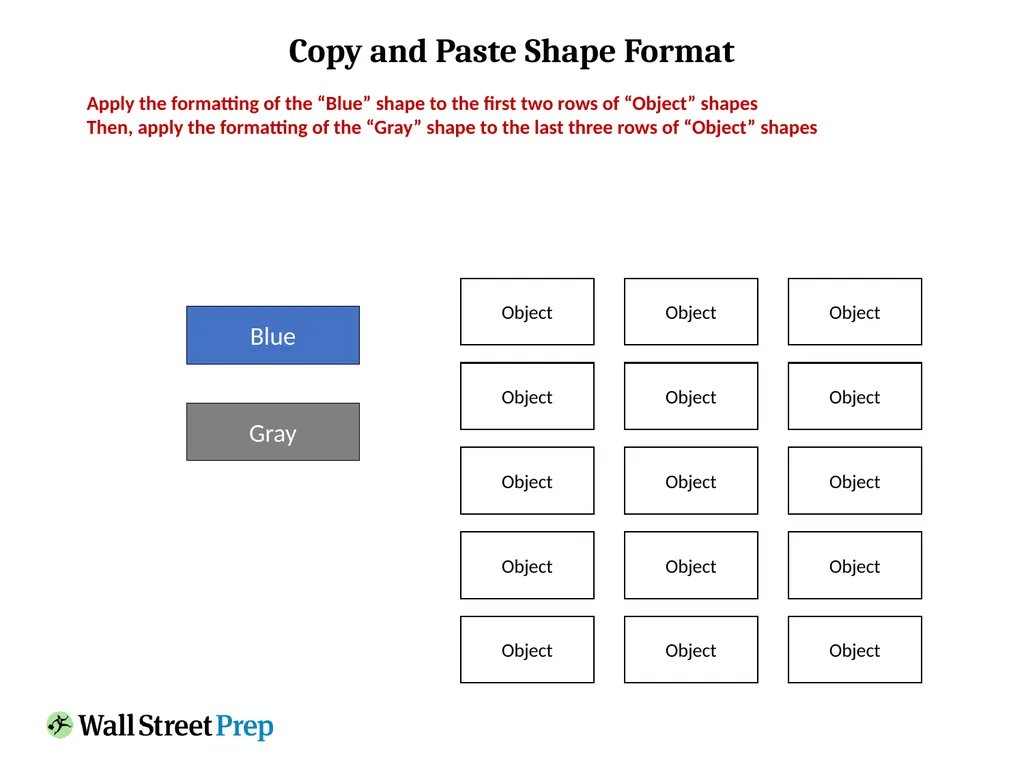
Copy and Paste Shape Format Apply the formatting of the “Blue” shape to the first two rows of “Object” shapes
Then, apply the formatting of the “Gray” shape to the last three rows of “Object” shapes Blue Object Object Object Object Object Object Object Object Object Object Object Object Object Object Object Gray<br>
Then, apply the formatting of the “Gray” shape to the last three rows of “Object” shapes Blue Object Object Object Object Object Object Object Object Object Object Object Object Object Object Object Gray<br>
29
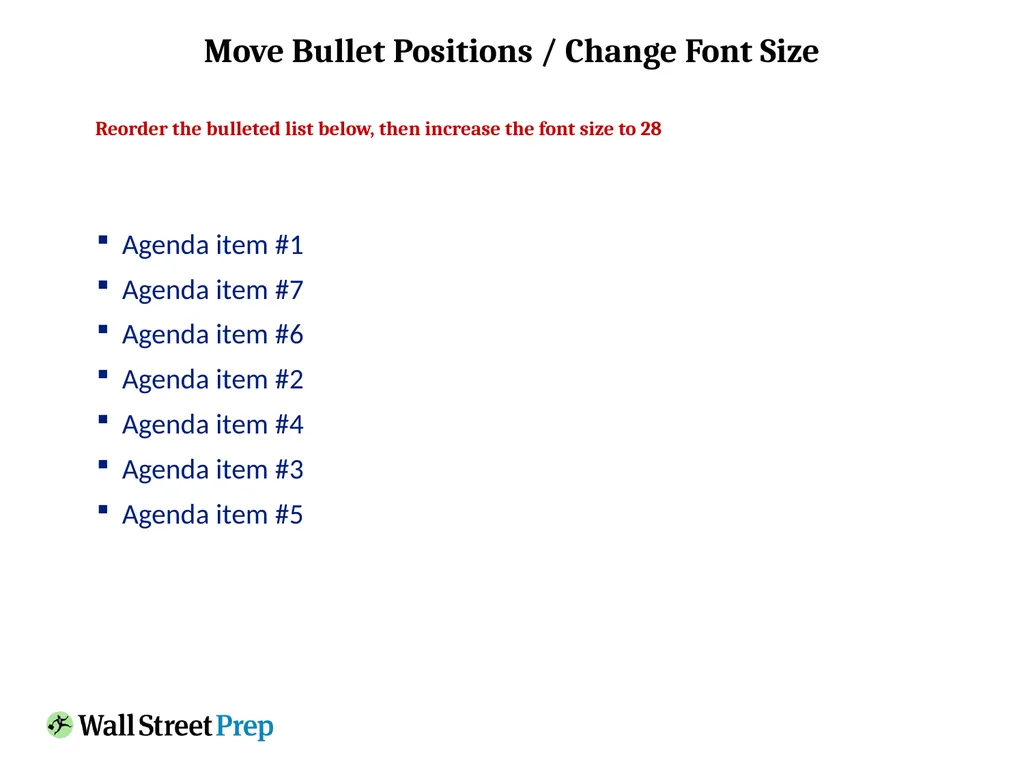
Move Bullet Positions / Change Font Size Reorder the bulleted list below, then increase the font size to 28 Agenda item #1
Agenda item #7
Agenda item #6
Agenda item #2
Agenda item #4
Agenda item #3
Agenda item #5<br>
Agenda item #7
Agenda item #6
Agenda item #2
Agenda item #4
Agenda item #3
Agenda item #5<br>
30
Hybrid Shortcuts Exercises<br>
31
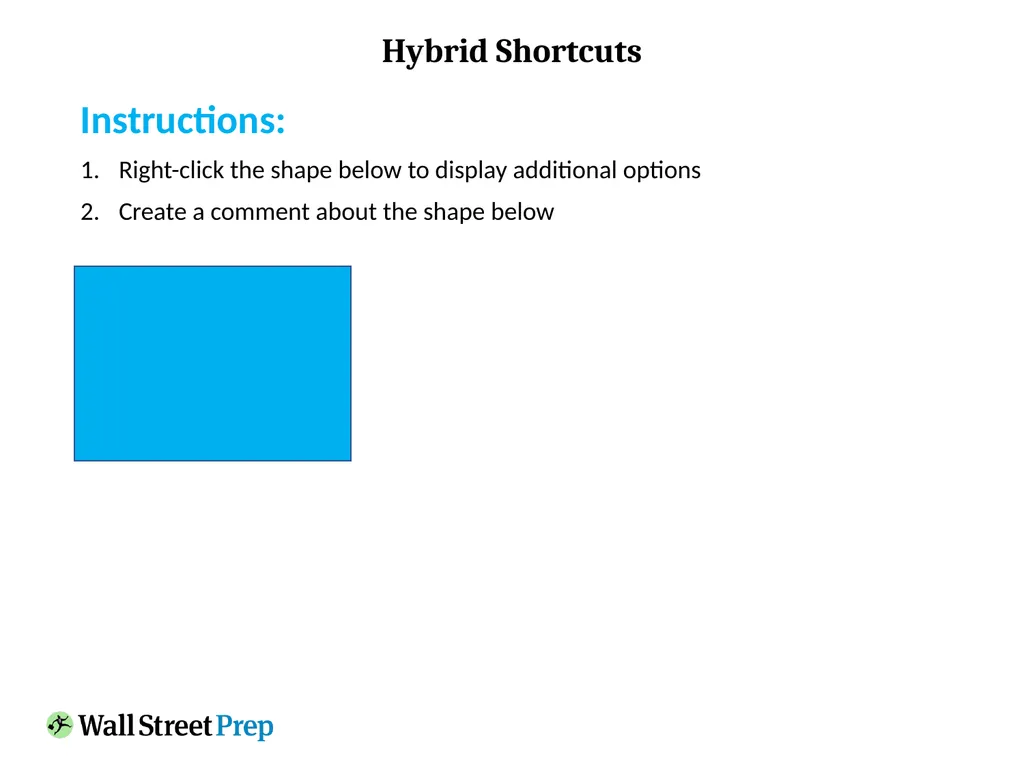
Hybrid Shortcuts Instructions:
Right-click the shape below to display additional options
Create a comment about the shape below<br>
Right-click the shape below to display additional options
Create a comment about the shape below<br>
32
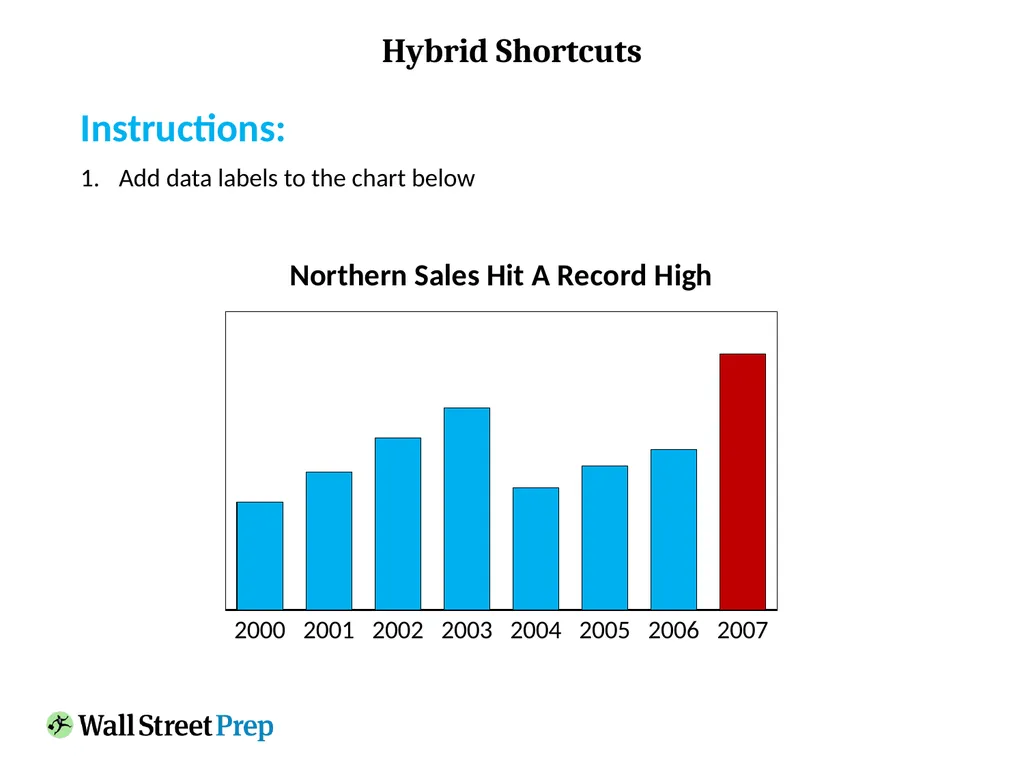
Hybrid Shortcuts Instructions:
Add data labels to the chart below<br>
Add data labels to the chart below<br>
33
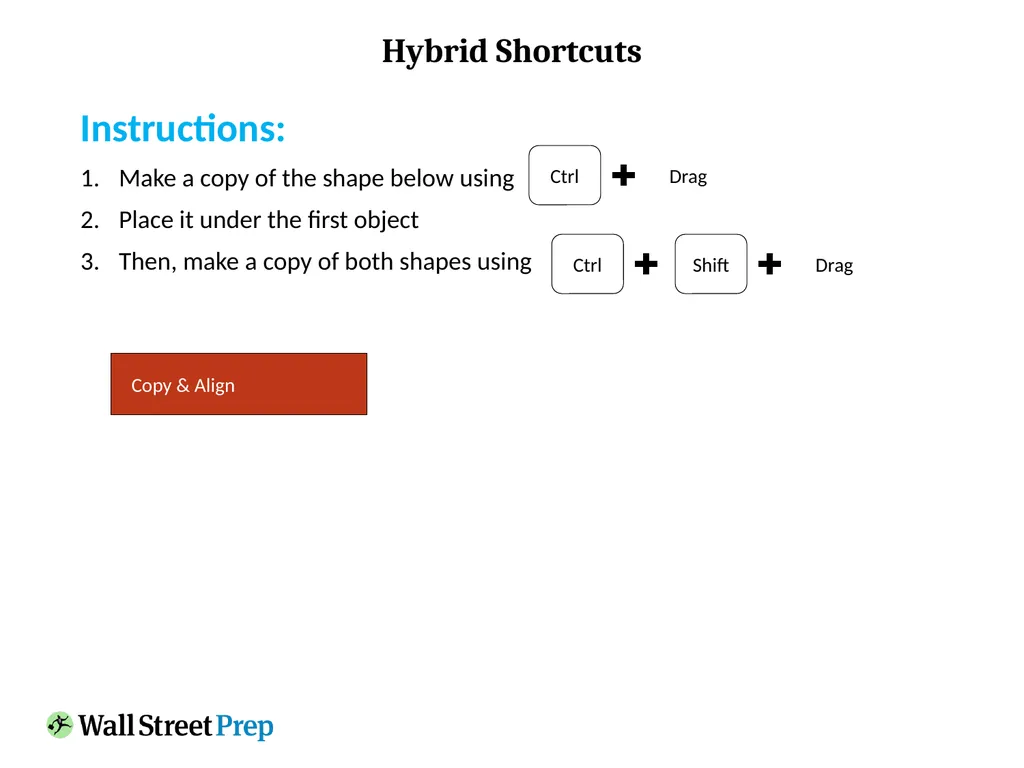
Hybrid Shortcuts Instructions:
Make a copy of the shape below using
Place it under the first object
Then, make a copy of both shapes using Copy & Align Drag Ctrl Shift Ctrl Drag<br>
Make a copy of the shape below using
Place it under the first object
Then, make a copy of both shapes using Copy & Align Drag Ctrl Shift Ctrl Drag<br>
34
Slide Master<br>
35
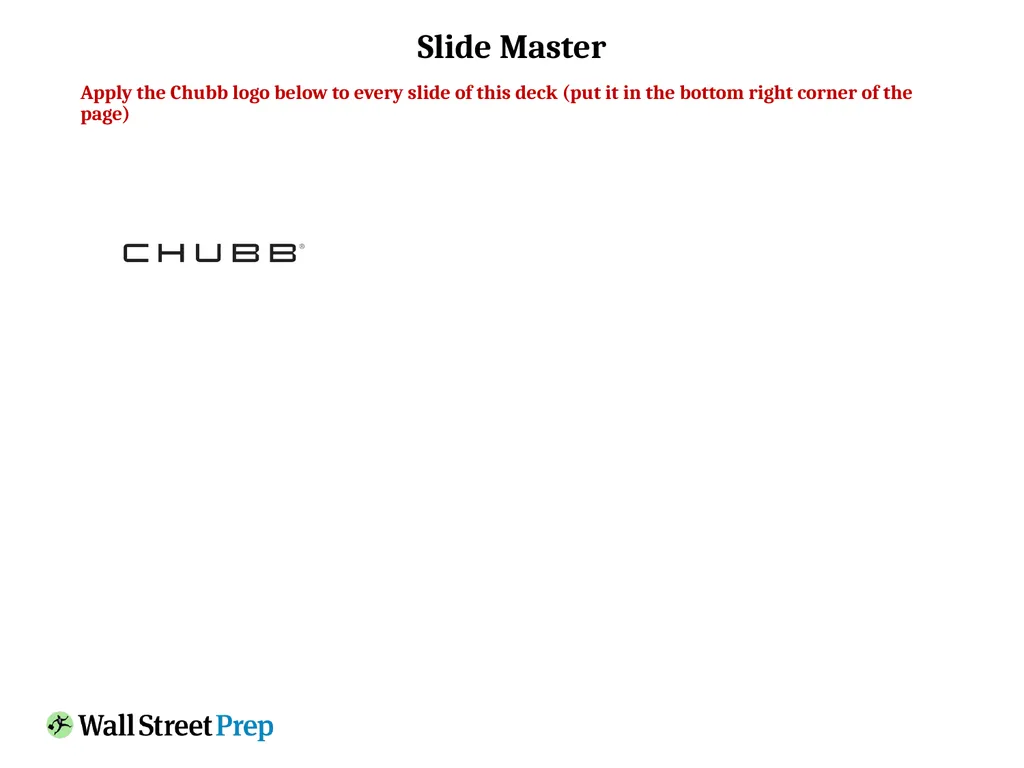
Slide Master Apply the Chubb logo below to every slide of this deck (put it in the bottom right corner of the page)<br>
36
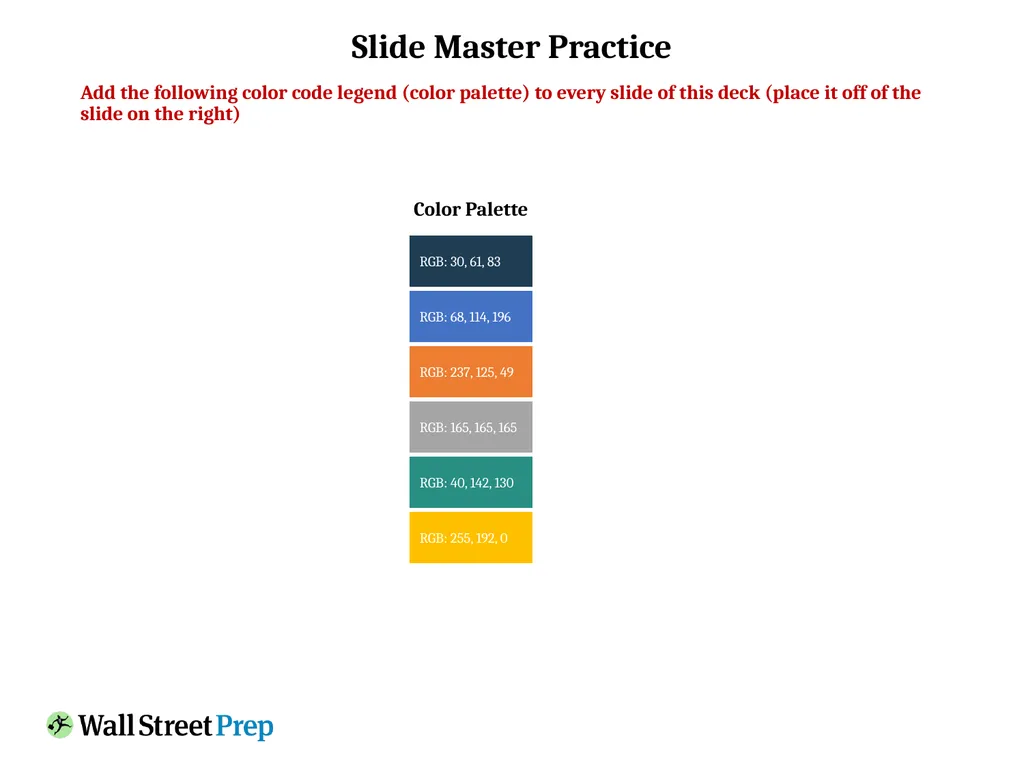
Slide Master Practice Add the following color code legend (color palette) to every slide of this deck (place it off of the slide on the right) RGB: 30, 61, 83 RGB: 68, 114, 196 RGB: 237, 125, 49 RGB: 165, 165, 165 RGB: 255, 192, 0 RGB: 40, 142, 130 Color Palette<br>
37
Using Connectors - Exercises<br>
38
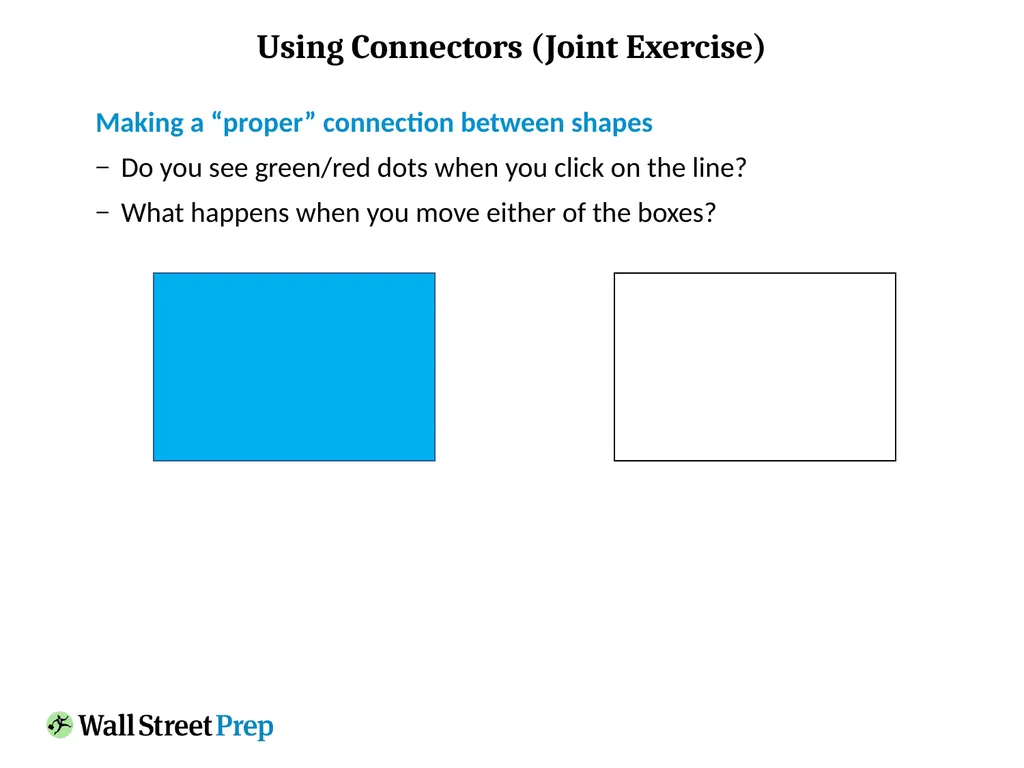
Using Connectors (Joint Exercise) Making a “proper” connection between shapes
Do you see green/red dots when you click on the line?
What happens when you move either of the boxes?<br>
Do you see green/red dots when you click on the line?
What happens when you move either of the boxes?<br>
39
Using Connectors (Joint Exercise) Why connect lines individually if they can all be connected at one time?
Do you see green/red dots when you click on any of the lines?
What happens when you move any of the boxes? CEO Marketing Finance Sales H.R.<br>
Do you see green/red dots when you click on any of the lines?
What happens when you move any of the boxes? CEO Marketing Finance Sales H.R.<br>
40
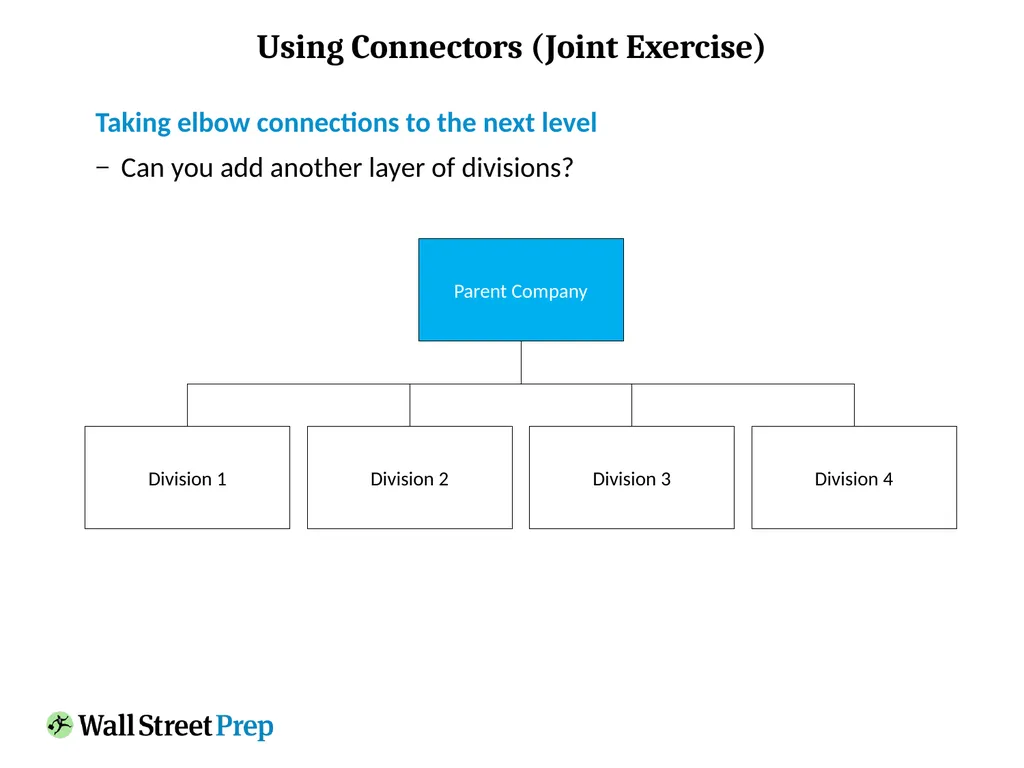
Using Connectors (Joint Exercise) Taking elbow connections to the next level
Can you add another layer of divisions? Parent Company Division 1 Division 2 Division 3 Division 4<br>
Can you add another layer of divisions? Parent Company Division 1 Division 2 Division 3 Division 4<br>
41
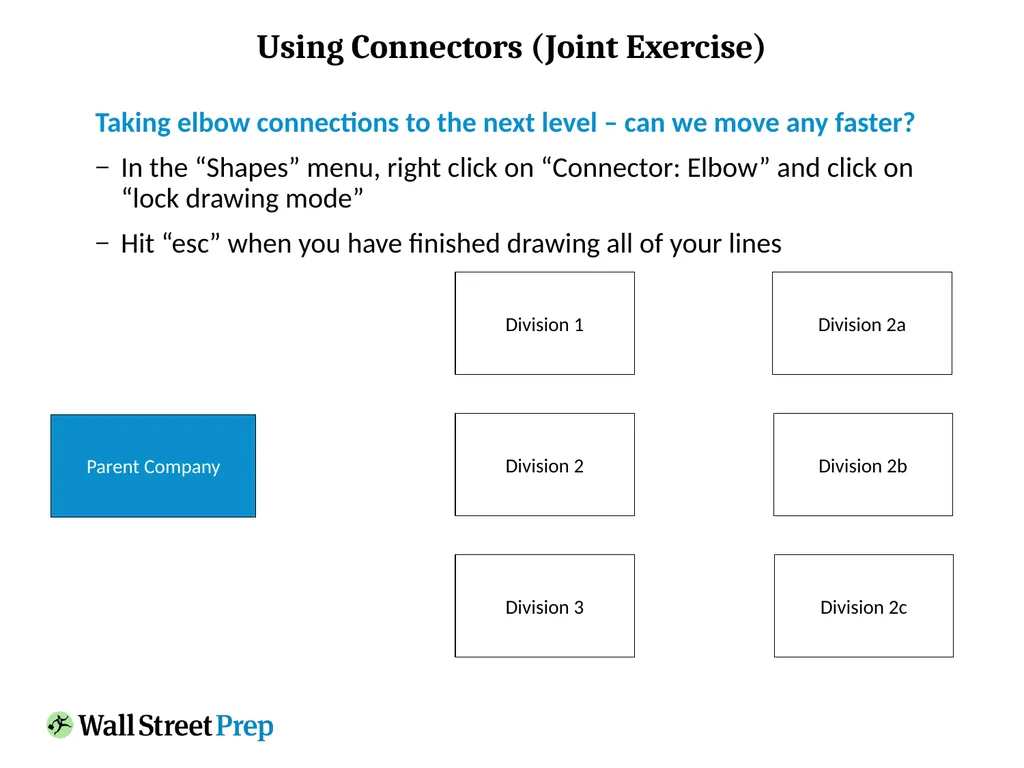
Using Connectors (Joint Exercise) Taking elbow connections to the next level – can we move any faster?
In the “Shapes” menu, right click on “Connector: Elbow” and click on “lock drawing mode”
Hit “esc” when you have finished drawing all of your lines Division 2a Division 3 Division 2 Division 1 Parent Company Division 2b Division 2c<br>
In the “Shapes” menu, right click on “Connector: Elbow” and click on “lock drawing mode”
Hit “esc” when you have finished drawing all of your lines Division 2a Division 3 Division 2 Division 1 Parent Company Division 2b Division 2c<br>
42
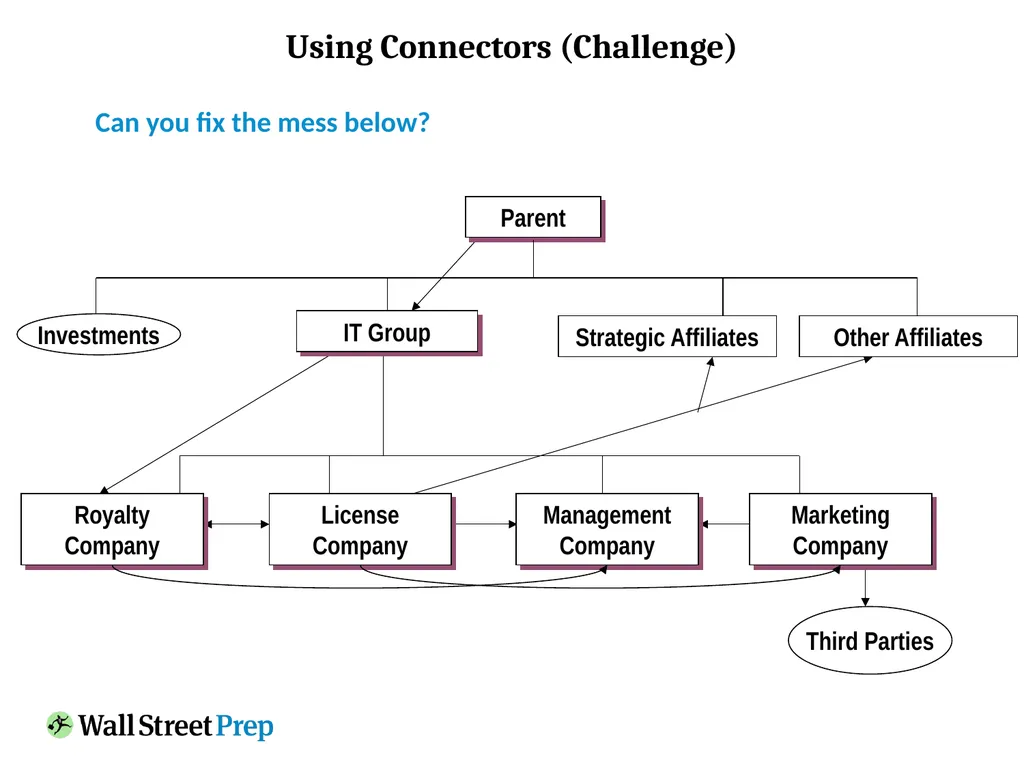
Using Connectors (Challenge) Can you fix the mess below? Investments Parent IT Group Strategic Affiliates Other Affiliates Royalty Company License Company Management Company Marketing Company Third Parties<br>
43
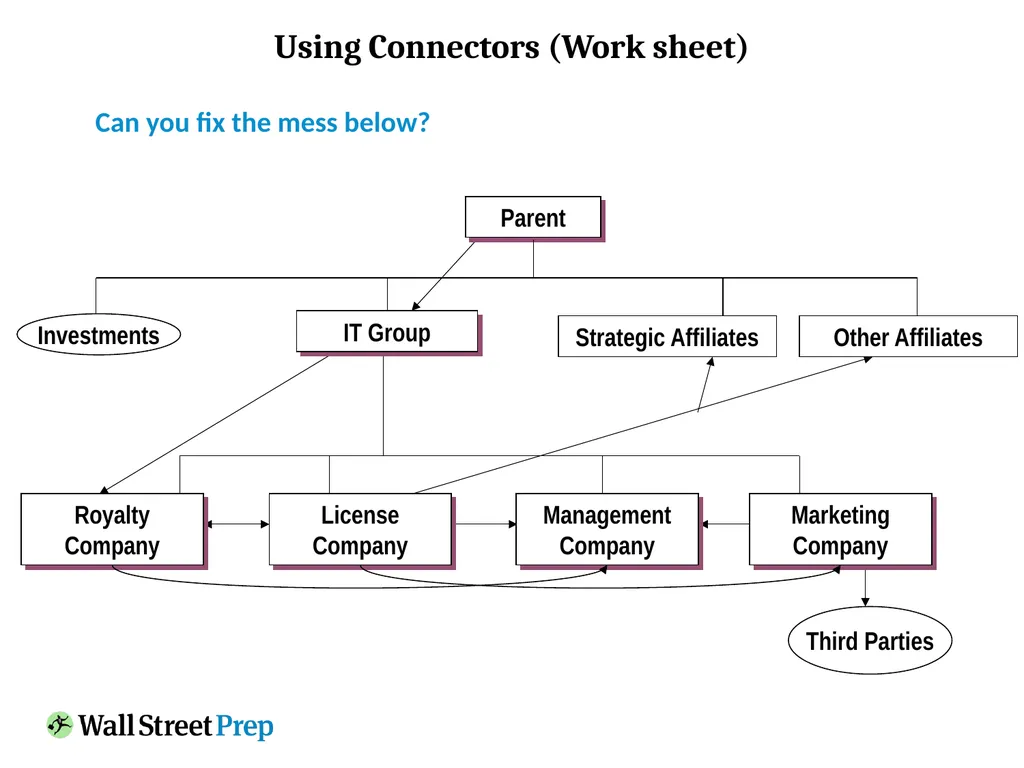
Using Connectors (Work sheet) Can you fix the mess below? Investments Parent IT Group Strategic Affiliates Other Affiliates Royalty Company License Company Management Company Marketing Company Third Parties<br>
44
Working with Tables - Exercises<br>
45
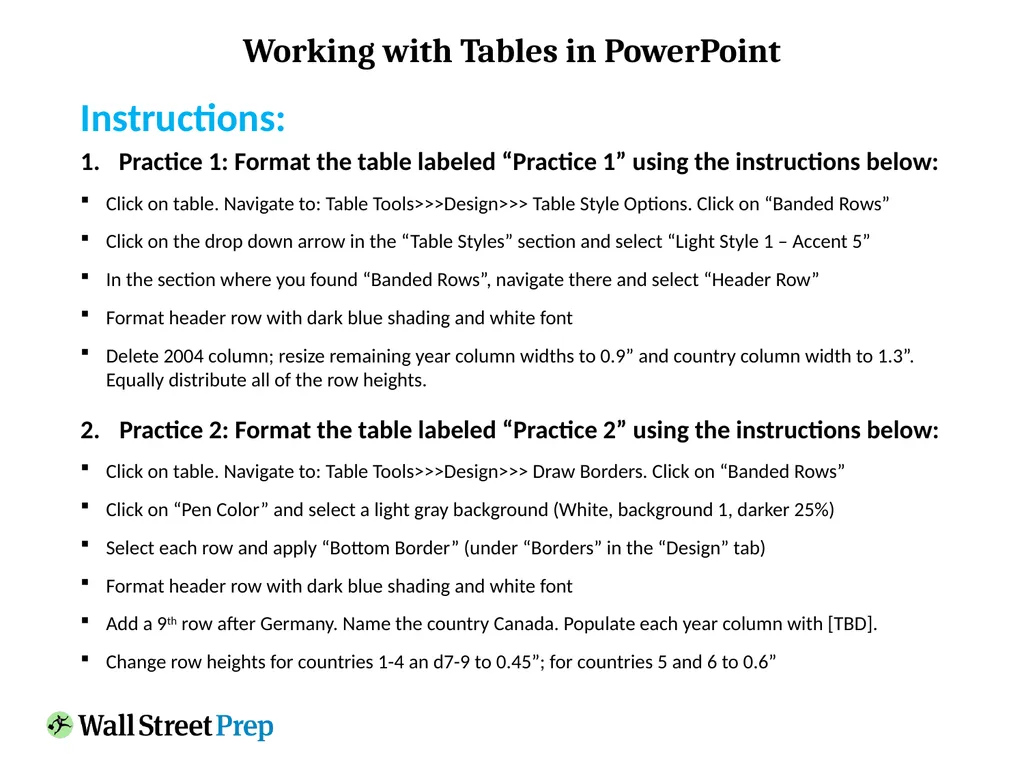
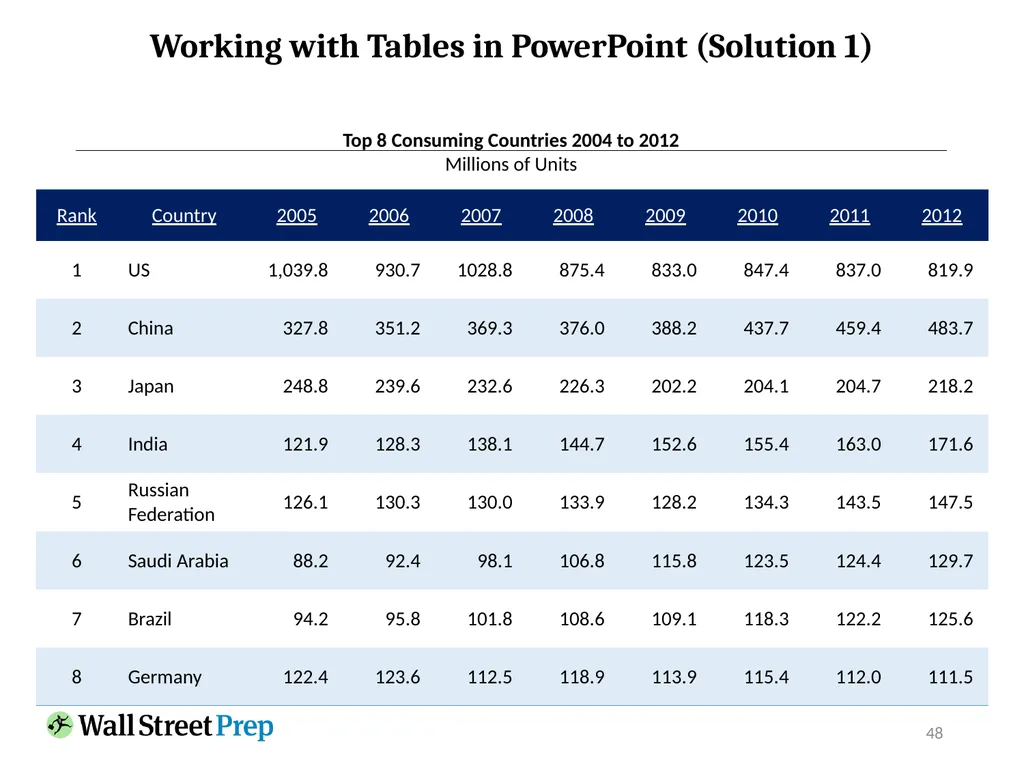
Working with Tables in PowerPoint Instructions:
Practice 1: Format the table labeled “Practice 1” using the instructions below:
Click on table. Navigate to: Table Tools>>>Design>>> Table Style Options. Click on “Banded Rows”
Click on the drop down arrow in the “Table Styles” section and select “Light Style 1 – Accent 5”
In the section where you found “Banded Rows”, navigate there and select “Header Row”
Format header row with dark blue shading and white font
Delete 2004 column; resize remaining year column widths to 0.9” and country column width to 1.3”. Equally distribute all of the row heights.
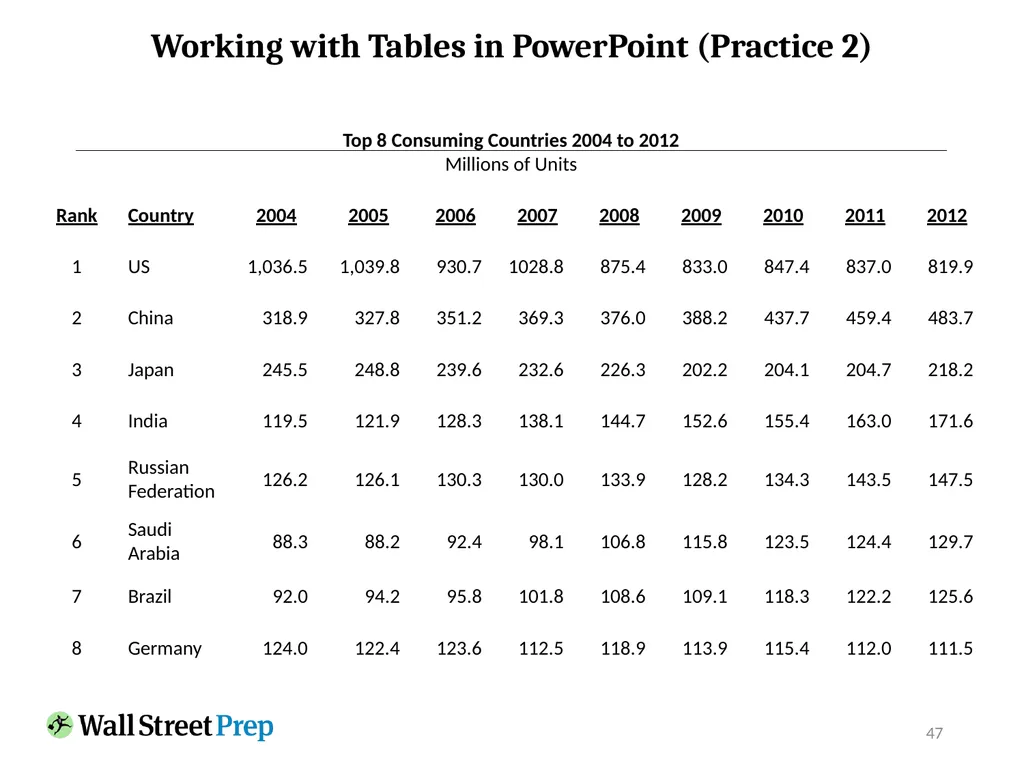
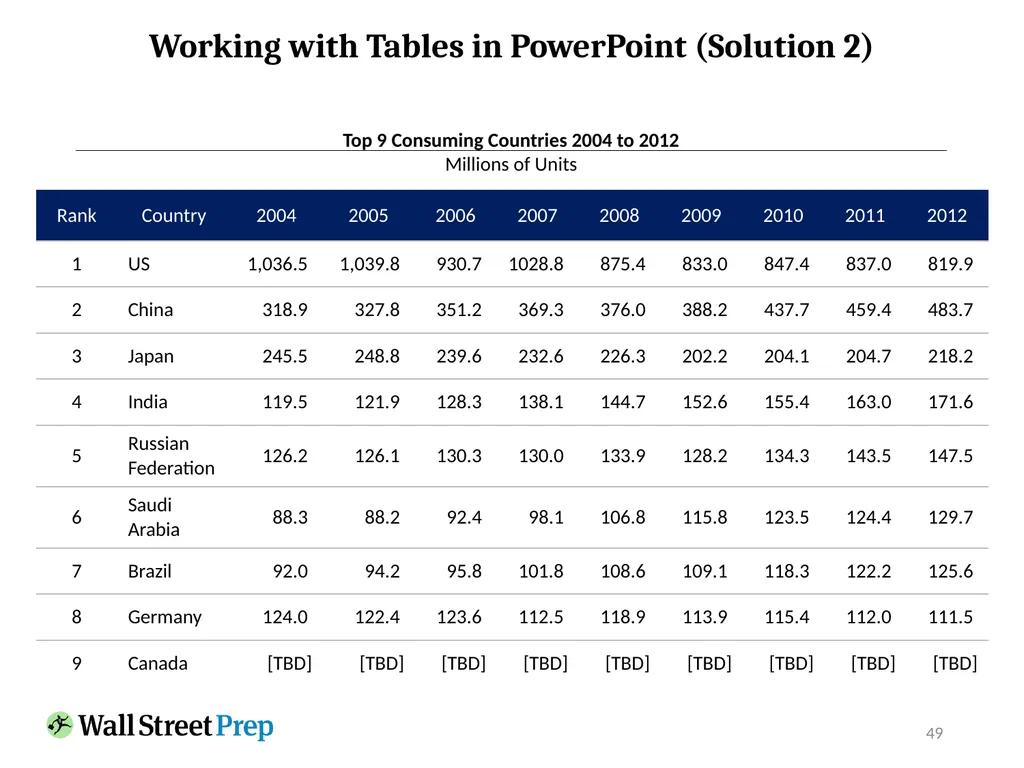
Practice 2: Format the table labeled “Practice 2” using the instructions below:
Click on table. Navigate to: Table Tools>>>Design>>> Draw Borders. Click on “Banded Rows”
Click on “Pen Color” and select a light gray background (White, background 1, darker 25%)
Select each row and apply “Bottom Border” (under “Borders” in the “Design” tab)
Format header row with dark blue shading and white font
Add a 9th row after Germany. Name the country Canada. Populate each year column with [TBD].
Change row heights for countries 1-4 an d7-9 to 0.45”; for countries 5 and 6 to 0.6”<br>
Practice 1: Format the table labeled “Practice 1” using the instructions below:
Click on table. Navigate to: Table Tools>>>Design>>> Table Style Options. Click on “Banded Rows”
Click on the drop down arrow in the “Table Styles” section and select “Light Style 1 – Accent 5”
In the section where you found “Banded Rows”, navigate there and select “Header Row”
Format header row with dark blue shading and white font
Delete 2004 column; resize remaining year column widths to 0.9” and country column width to 1.3”. Equally distribute all of the row heights.
Practice 2: Format the table labeled “Practice 2” using the instructions below:
Click on table. Navigate to: Table Tools>>>Design>>> Draw Borders. Click on “Banded Rows”
Click on “Pen Color” and select a light gray background (White, background 1, darker 25%)
Select each row and apply “Bottom Border” (under “Borders” in the “Design” tab)
Format header row with dark blue shading and white font
Add a 9th row after Germany. Name the country Canada. Populate each year column with [TBD].
Change row heights for countries 1-4 an d7-9 to 0.45”; for countries 5 and 6 to 0.6”<br>
46
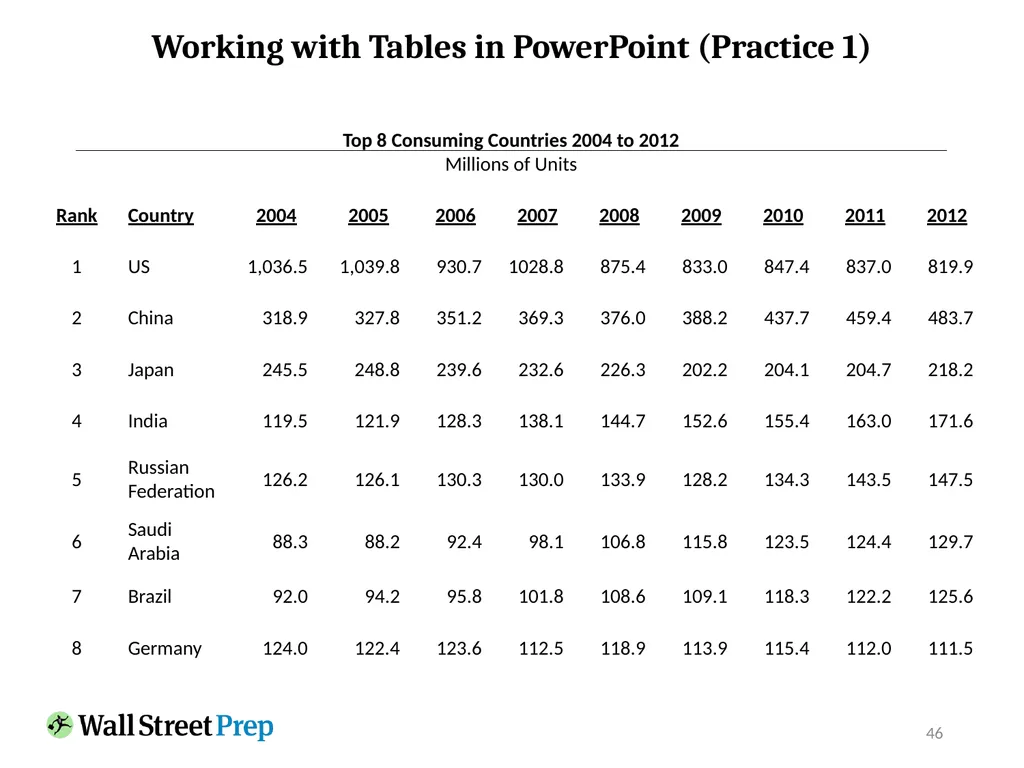
46 Working with Tables in PowerPoint (Practice 1) Top 8 Consuming Countries 2004 to 2012
Millions of Units<br>
Millions of Units<br>
47
47 Working with Tables in PowerPoint (Practice 2) Top 8 Consuming Countries 2004 to 2012
Millions of Units<br>
Millions of Units<br>
48
48 Working with Tables in PowerPoint (Solution 1) Top 8 Consuming Countries 2004 to 2012
Millions of Units<br>
Millions of Units<br>
49
49 Working with Tables in PowerPoint (Solution 2) Top 9 Consuming Countries 2004 to 2012
Millions of Units<br>
Millions of Units<br>
50
Challenge Slide #1<br>
51
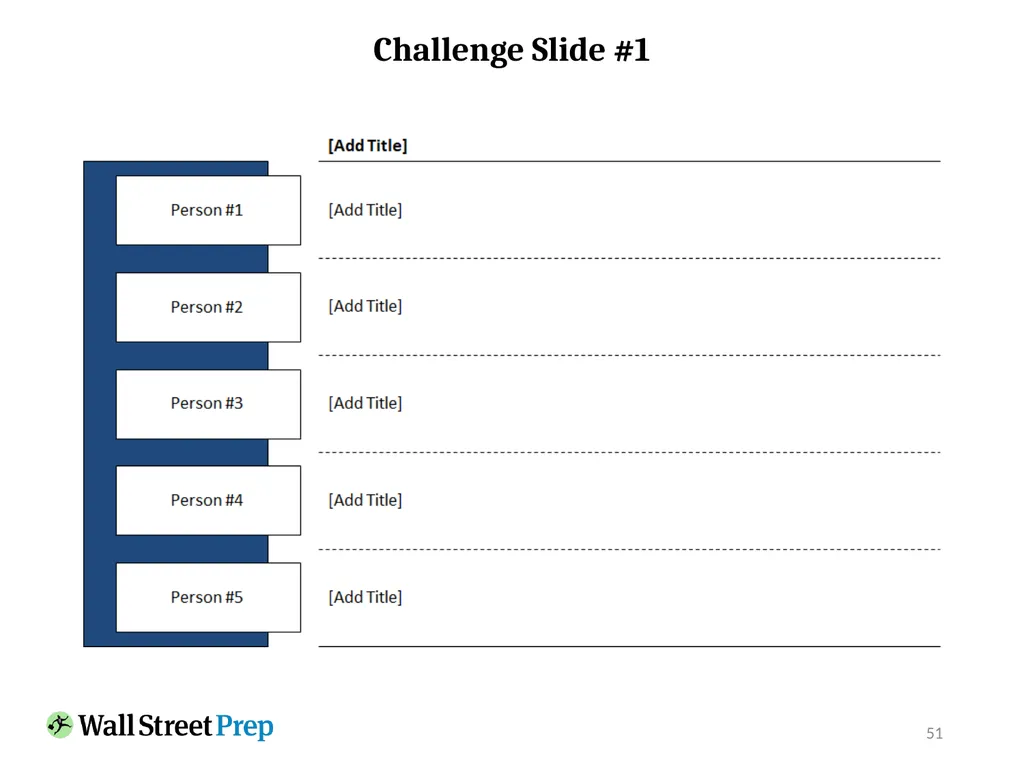
51 Challenge Slide #1<br>
52
52 Create Challenge Slide #1<br>
53
Challenge Slide #2<br>
54
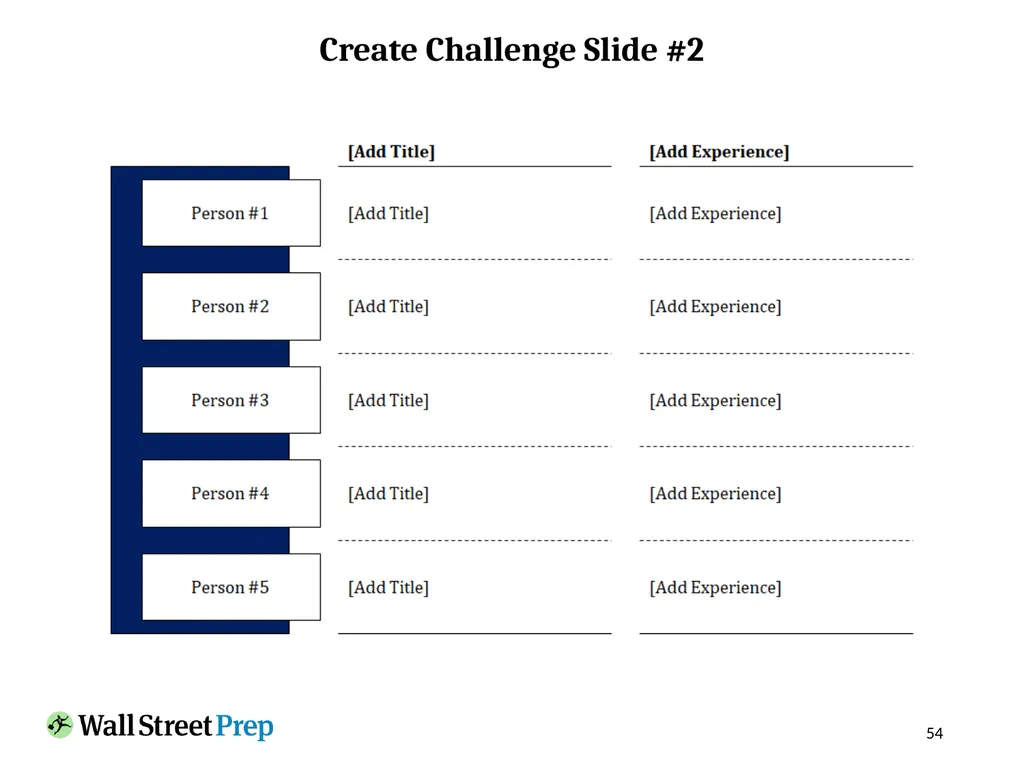
54 Create Challenge Slide #2<br>
55
55 Create Challenge Slide #2<br>
56
Putting a List of Names into Individual Boxes<br>
57
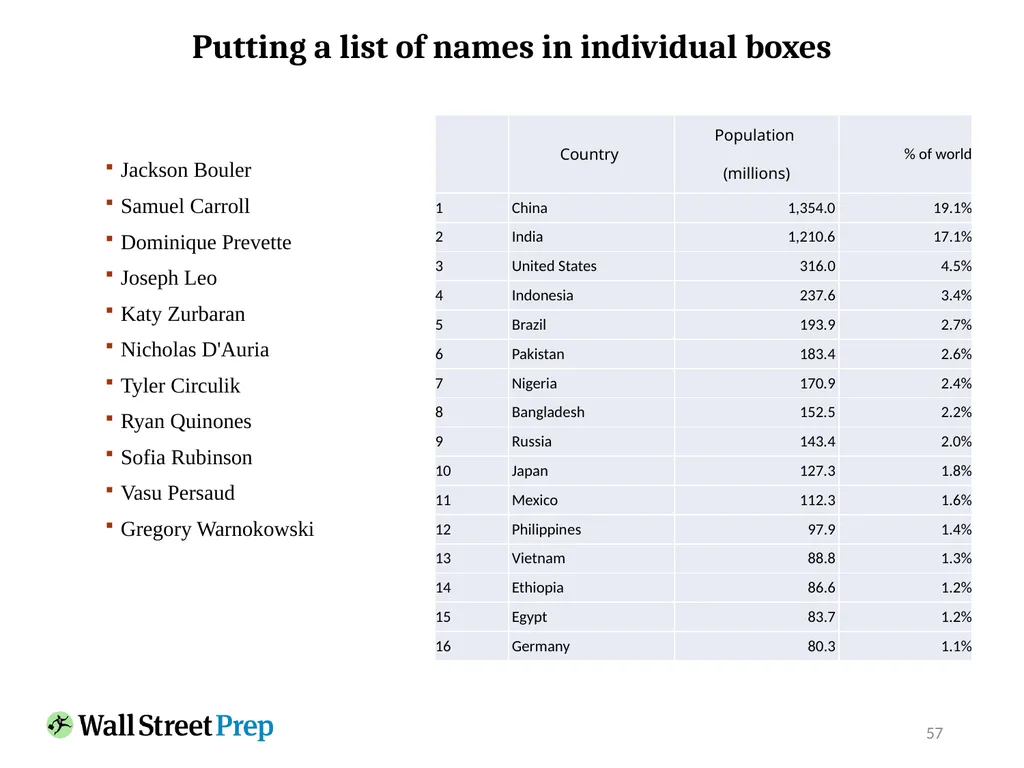
Jackson Bouler
Samuel Carroll
Dominique Prevette
Joseph Leo
Katy Zurbaran
Nicholas D'Auria
Tyler Circulik
Ryan Quinones
Sofia Rubinson
Vasu Persaud
Gregory Warnokowski 57 Putting a list of names in individual boxes<br>
Samuel Carroll
Dominique Prevette
Joseph Leo
Katy Zurbaran
Nicholas D'Auria
Tyler Circulik
Ryan Quinones
Sofia Rubinson
Vasu Persaud
Gregory Warnokowski 57 Putting a list of names in individual boxes<br>
58
Fast Picture Layout<br>
59
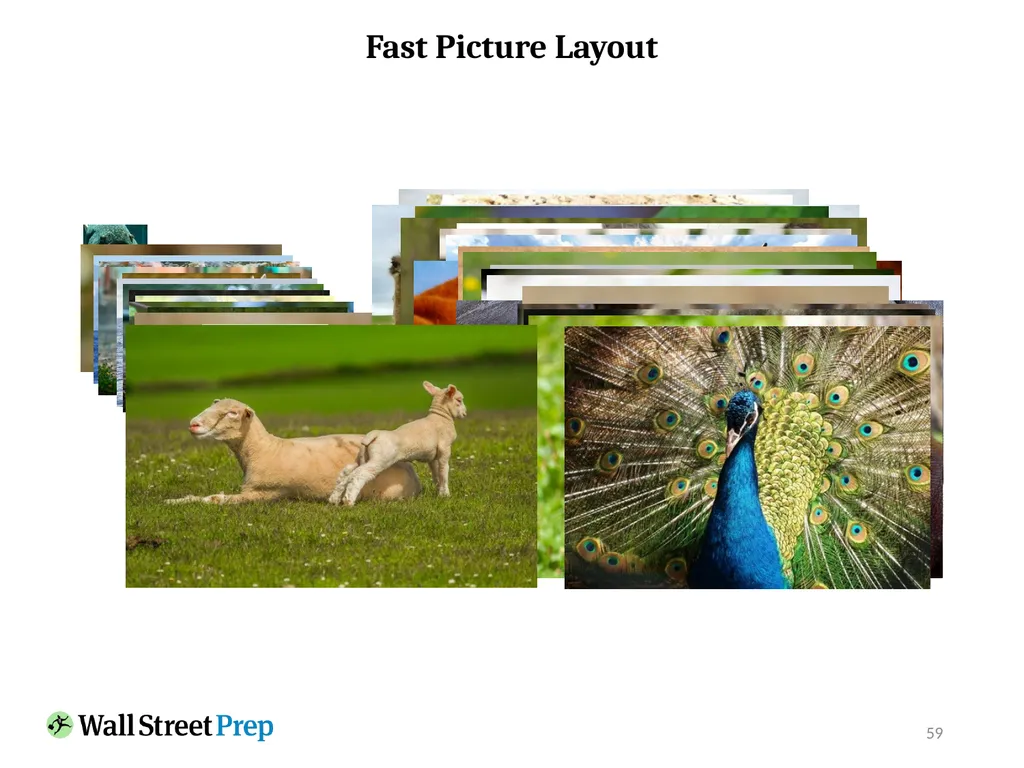
59 Fast Picture Layout<br>
60
Complex Slide Build Challenge<br>
61
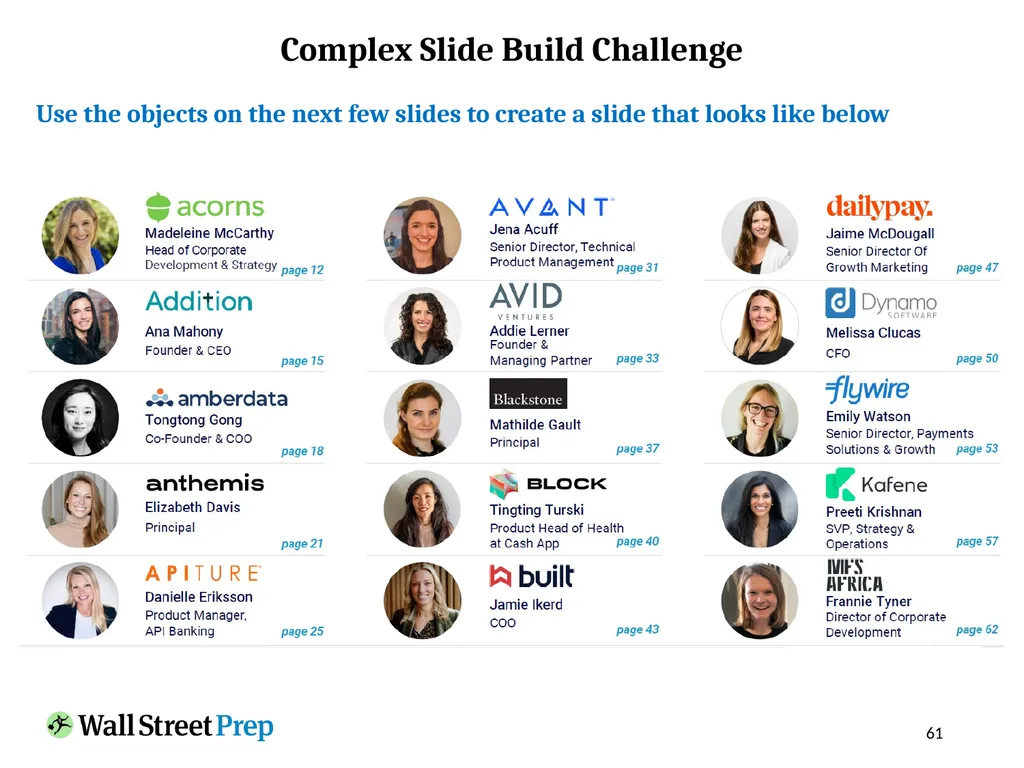
61 Complex Slide Build Challenge Use the objects on the next few slides to create a slide that looks like below<br>
62
62 Complex Slide Build Challenge Use these pictures<br>
63
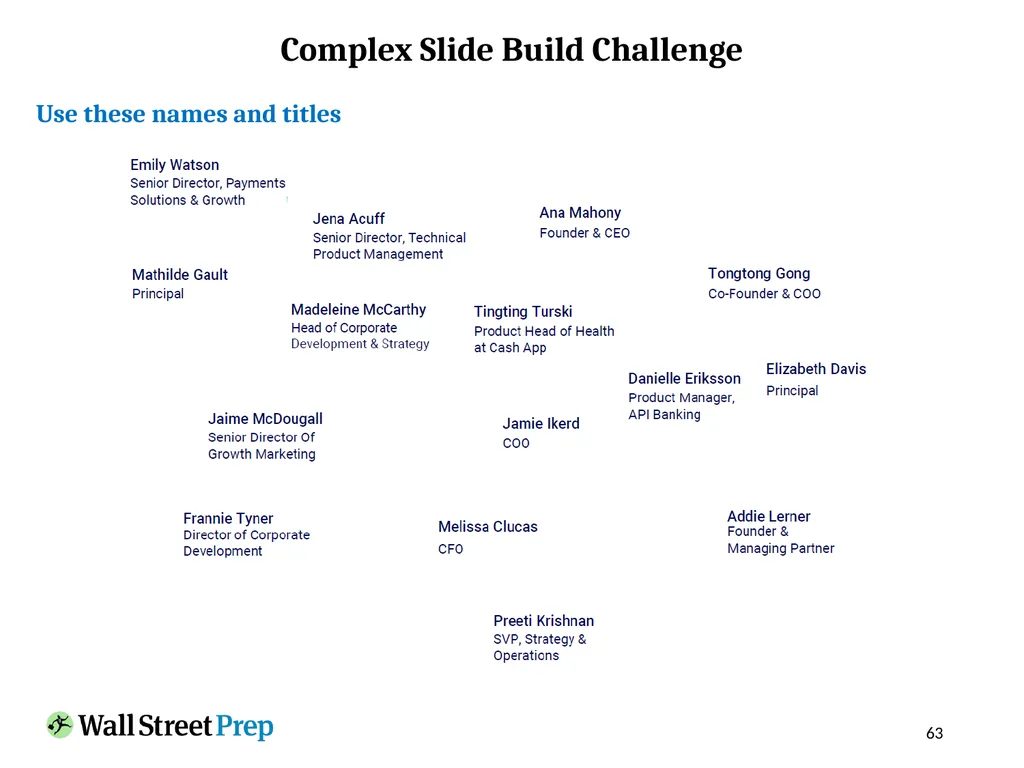
63 Complex Slide Build Challenge Use these names and titles<br>
64
64 Complex Slide Build Challenge Use these logos<br>
65
65 Complex Slide Build Challenge<br>