
ProConnect Training Presented by Accounts Payable
Description: ProConnect Training Presented by Accounts Payable and the Office of Contracting Procurement August 2025 Agenda Whats New Since Go Live Choosing the most suitable form to submit requisitions ProTips Frequently Asked Questions Invoicing
Related Topics
Download Presentation
"ProConnect Training Presented by Accounts Payable" is the property of its rightful owner. Permission is granted to download and print the materials on this website for personal, non-commercial use only, and to display it on your personal computer provided you do not modify the materials and that you retain all copyright notices contained in the materials. By downloading content from our website, you accept the terms of this agreement.
Presentation Transcript
slide1. ProConnect Training Presented by Accounts Payable and the Office of Contracting & Procurement
August 2025<br>
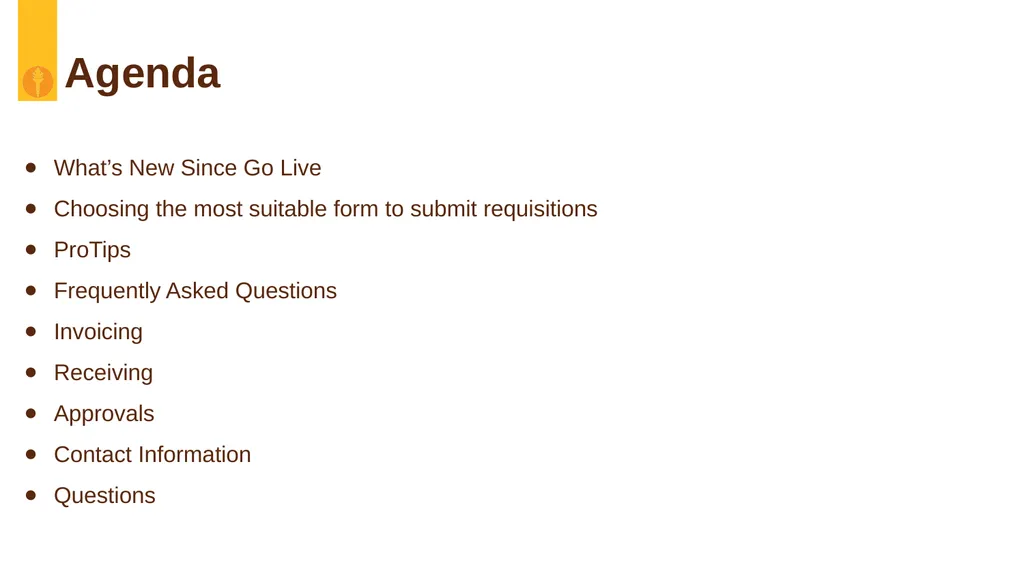
slide2. Agenda What’s New Since Go Live
Choosing the most suitable form to submit requisitions
ProTips
Frequently Asked Questions
Invoicing
Receiving
Approvals
Contact Information
Questions<br>
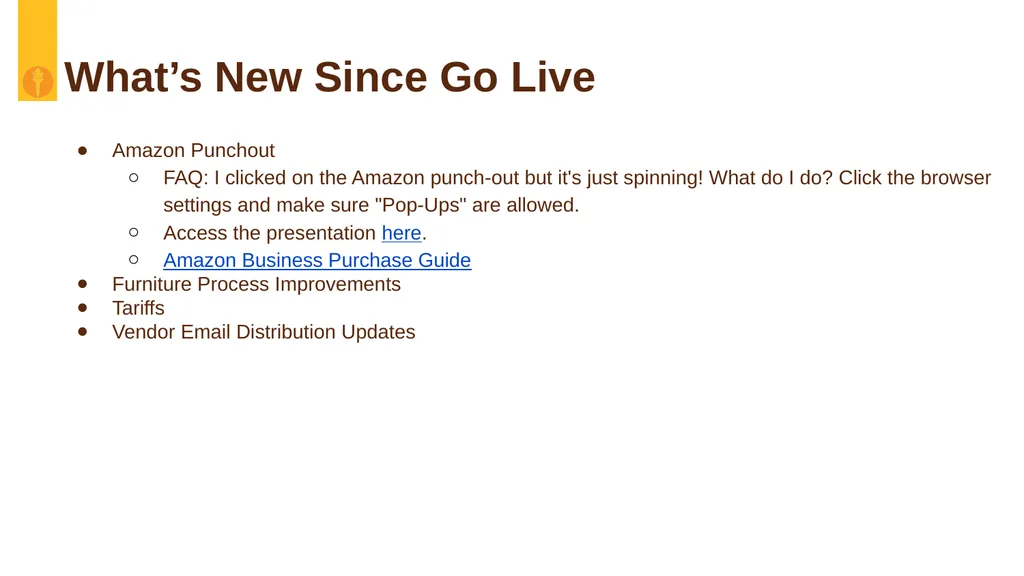
slide3. What’s New Since Go Live Amazon Punchout
FAQ: I clicked on the Amazon punch-out but it's just spinning! What do I do? Click the browser settings and make sure "Pop-Ups" are allowed.
Access the presentation here.
Amazon Business Purchase Guide
Furniture Process Improvements
Tariffs
Vendor Email Distribution Updates<br>
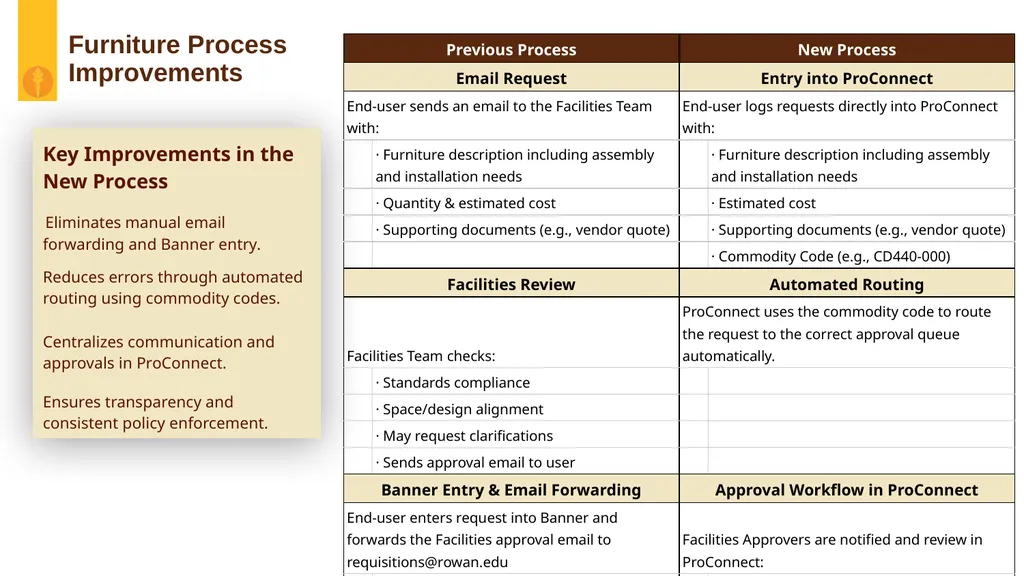
slide4. Furniture Process
Improvements Key Improvements in the New Process
Eliminates manual email forwarding and Banner entry.
Reduces errors through automated routing using commodity codes.
Centralizes communication and approvals in ProConnect.
Ensures transparency and consistent policy enforcement.<br>
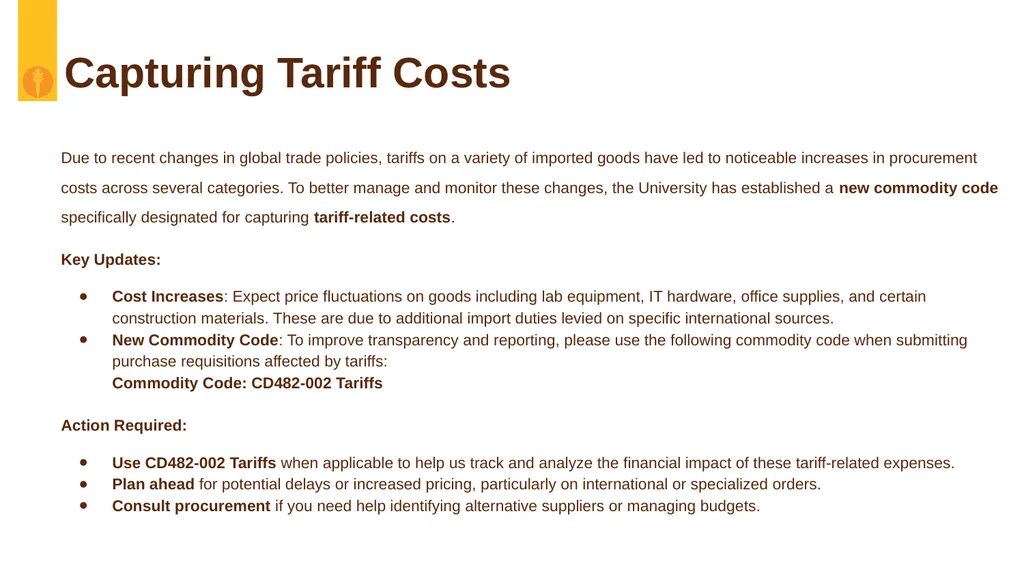
slide5. Capturing Tariff Costs Due to recent changes in global trade policies, tariffs on a variety of imported goods have led to noticeable increases in procurement costs across several categories. To better manage and monitor these changes, the University has established a new commodity code specifically designated for capturing tariff-related costs.
Key Updates:
Cost Increases: Expect price fluctuations on goods including lab equipment, IT hardware, office supplies, and certain construction materials. These are due to additional import duties levied on specific international sources.
New Commodity Code: To improve transparency and reporting, please use the following commodity code when submitting purchase requisitions affected by tariffs: Commodity Code: CD482-002 Tariffs
Action Required:
Use CD482-002 Tariffs when applicable to help us track and analyze the financial impact of these tariff-related expenses.
Plan ahead for potential delays or increased pricing, particularly on international or specialized orders.
Consult procurement if you need help identifying alternative suppliers or managing budgets.<br>
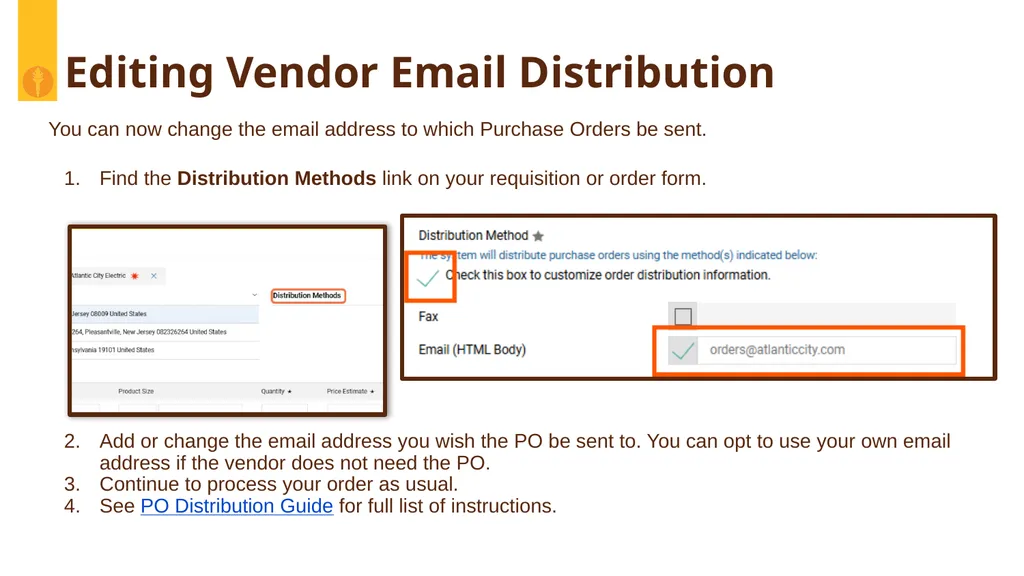
slide6. Editing Vendor Email Distribution You can now change the email address to which Purchase Orders be sent.
Find the Distribution Methods link on your requisition or order form.
Add or change the email address you wish the PO be sent to. You can opt to use your own email address if the vendor does not need the PO.
Continue to process your order as usual.
See PO Distribution Guide for full list of instructions.<br>
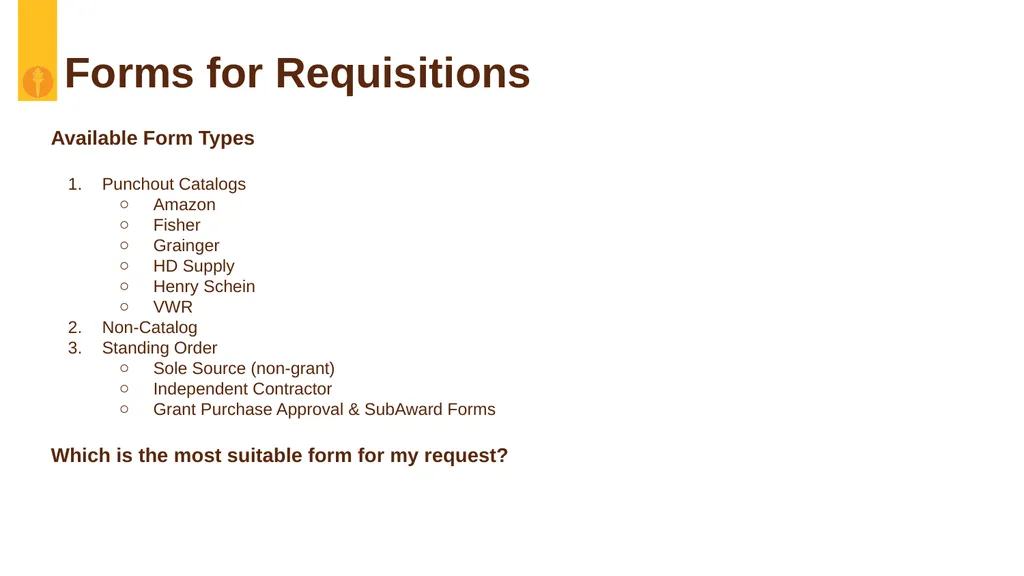
slide7. Forms for Requisitions Available Form Types
Punchout Catalogs
Amazon
Fisher
Grainger
HD Supply
Henry Schein
VWR
Non-Catalog
Standing Order
Sole Source (non-grant)
Independent Contractor
Grant Purchase Approval & SubAward Forms
Which is the most suitable form for my request?<br>
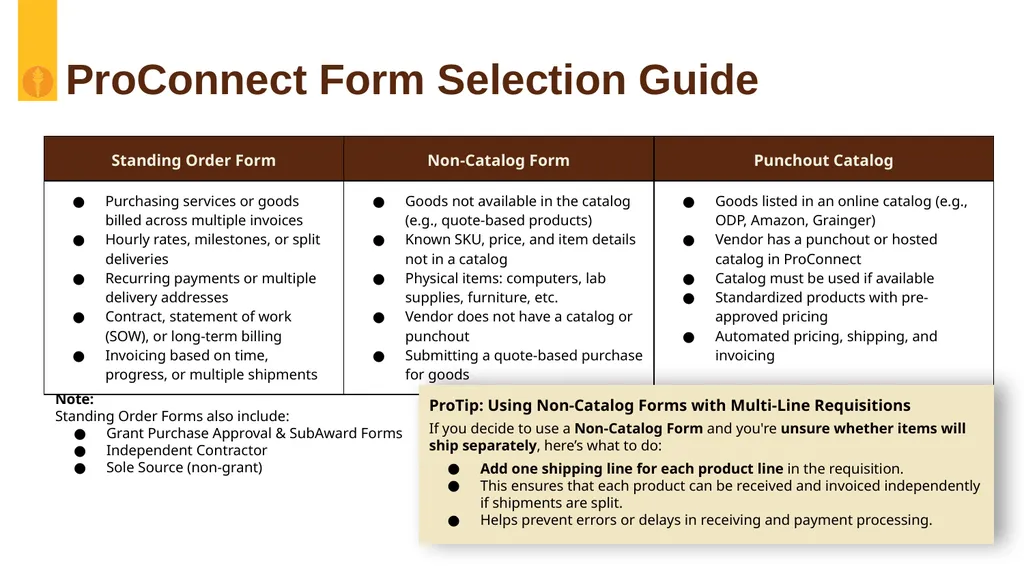
slide8. ProConnect Form Selection Guide Note:
Standing Order Forms also include:
Grant Purchase Approval & SubAward Forms
Independent Contractor
Sole Source (non-grant) ProTip: Using Non-Catalog Forms with Multi-Line Requisitions
If you decide to use a Non-Catalog Form and you're unsure whether items will ship separately, here’s what to do:
Add one shipping line for each product line in the requisition.
This ensures that each product can be received and invoiced independently if shipments are split.
Helps prevent errors or delays in receiving and payment processing.<br>
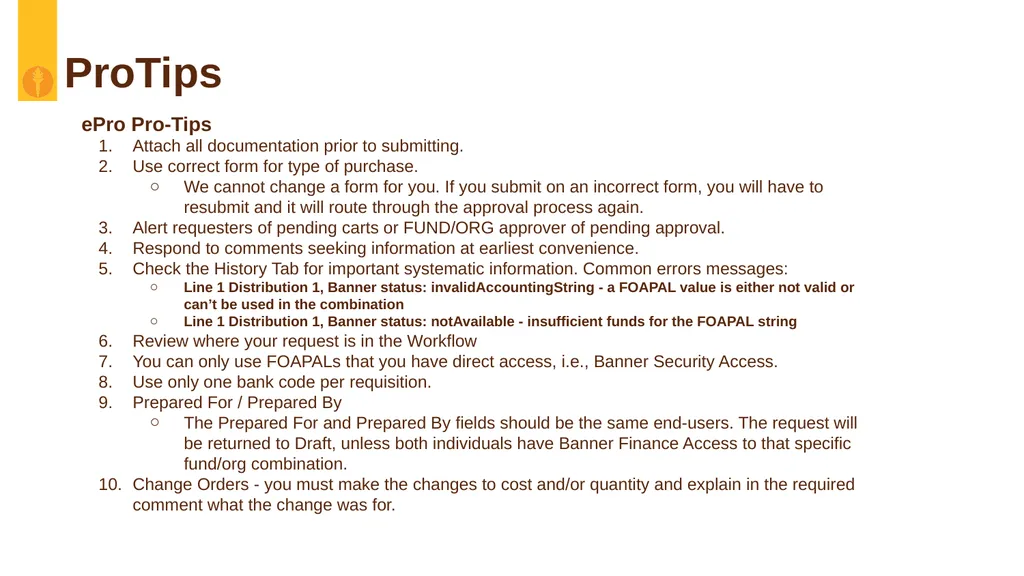
slide9. ProTips ePro Pro-Tips
Attach all documentation prior to submitting.
Use correct form for type of purchase.
We cannot change a form for you. If you submit on an incorrect form, you will have to resubmit and it will route through the approval process again.
Alert requesters of pending carts or FUND/ORG approver of pending approval.
Respond to comments seeking information at earliest convenience.
Check the History Tab for important systematic information. Common errors messages:
Line 1 Distribution 1, Banner status: invalidAccountingString - a FOAPAL value is either not valid or can’t be used in the combination
Line 1 Distribution 1, Banner status: notAvailable - insufficient funds for the FOAPAL string
Review where your request is in the Workflow
You can only use FOAPALs that you have direct access, i.e., Banner Security Access.
Use only one bank code per requisition.
Prepared For / Prepared By
The Prepared For and Prepared By fields should be the same end-users. The request will be returned to Draft, unless both individuals have Banner Finance Access to that specific fund/org combination.
Change Orders - you must make the changes to cost and/or quantity and explain in the required comment what the change was for.<br>
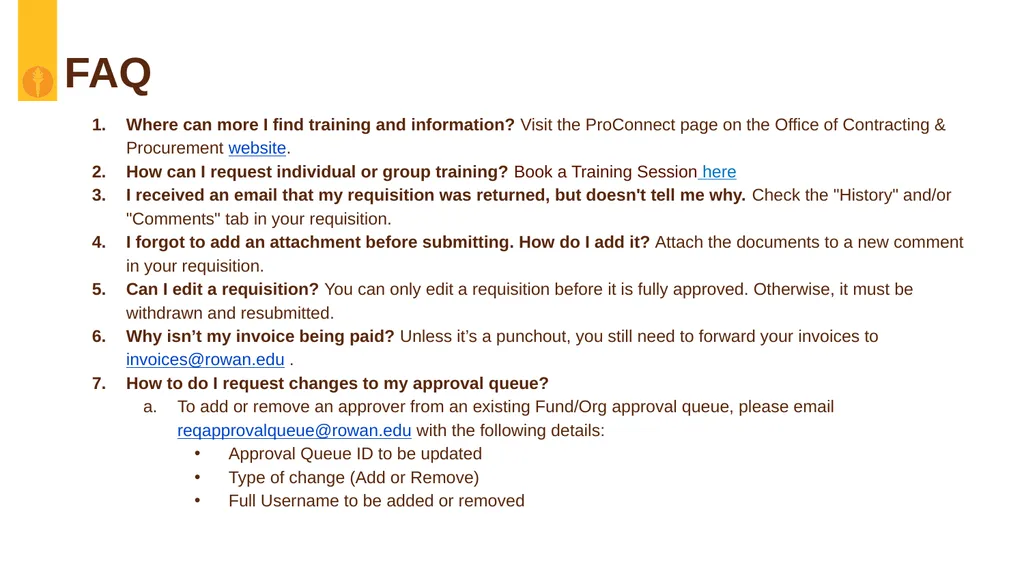
slide10. FAQ Where can more I find training and information? Visit the ProConnect page on the Office of Contracting & Procurement website.
How can I request individual or group training? Book a Training Session here
I received an email that my requisition was returned, but doesn't tell me why. Check the "History" and/or "Comments" tab in your requisition.
I forgot to add an attachment before submitting. How do I add it? Attach the documents to a new comment in your requisition.
Can I edit a requisition? You can only edit a requisition before it is fully approved. Otherwise, it must be withdrawn and resubmitted.
Why isn’t my invoice being paid? Unless it’s a punchout, you still need to forward your invoices to invoices@rowan.edu .
How to do I request changes to my approval queue?
To add or remove an approver from an existing Fund/Org approval queue, please email reqapprovalqueue@rowan.edu with the following details:
Approval Queue ID to be updated
Type of change (Add or Remove)
Full Username to be added or removed<br>
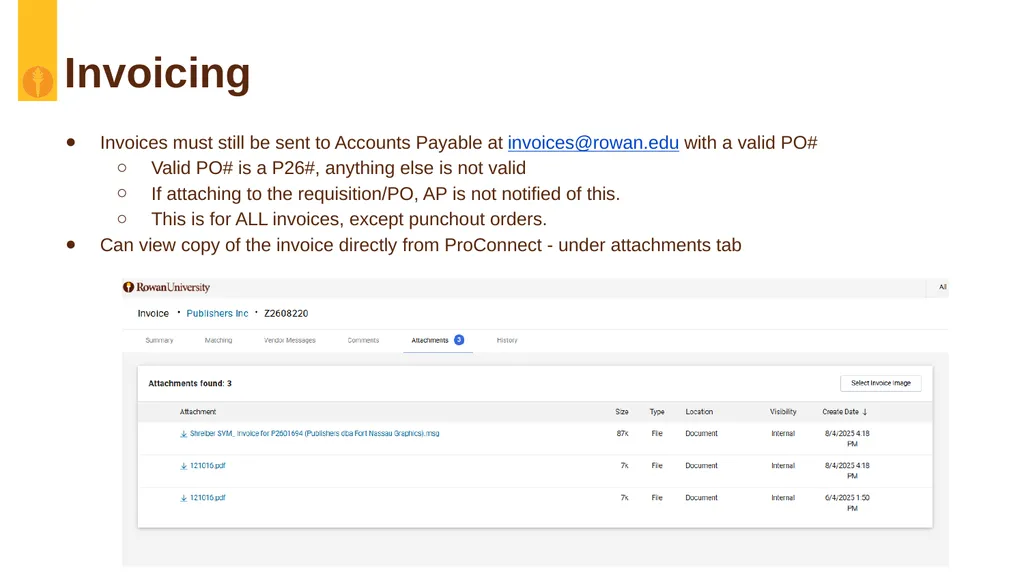
slide11. Invoicing Invoices must still be sent to Accounts Payable at invoices@rowan.edu with a valid PO#
Valid PO# is a P26#, anything else is not valid
If attaching to the requisition/PO, AP is not notified of this.
This is for ALL invoices, except punchout orders.
Can view copy of the invoice directly from ProConnect - under attachments tab<br>
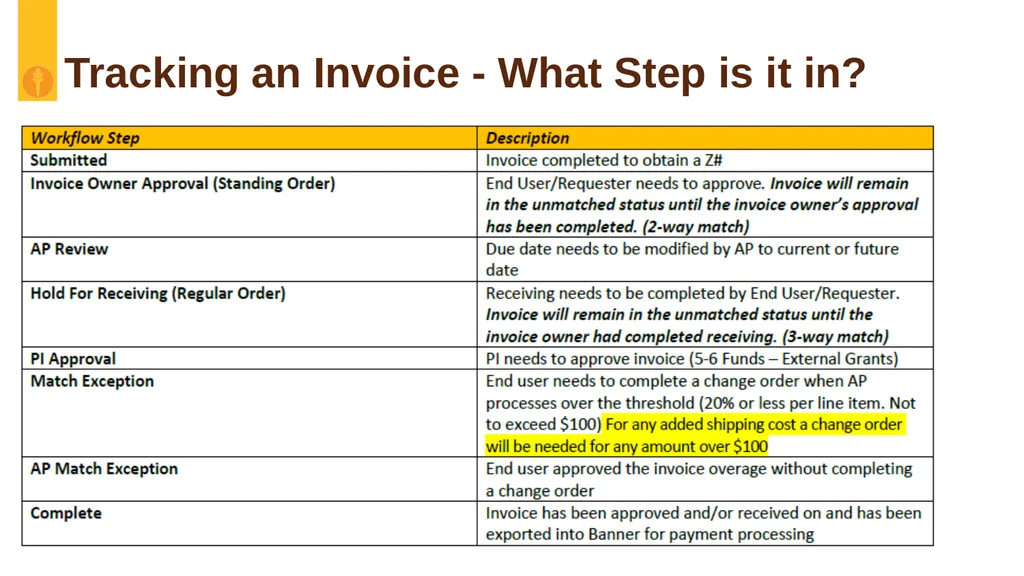
slide12. Tracking an Invoice - What Step is it in?<br>
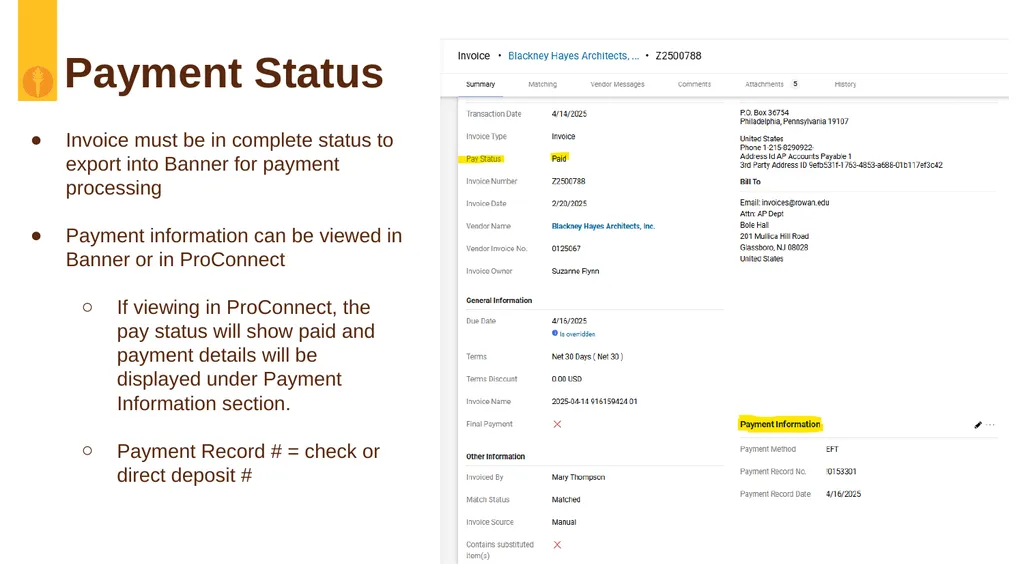
slide13. Payment Status Invoice must be in complete status to export into Banner for payment processing
Payment information can be viewed in Banner or in ProConnect
If viewing in ProConnect, the pay status will show paid and payment details will be displayed under Payment Information section.
Payment Record # = check or direct deposit #<br>
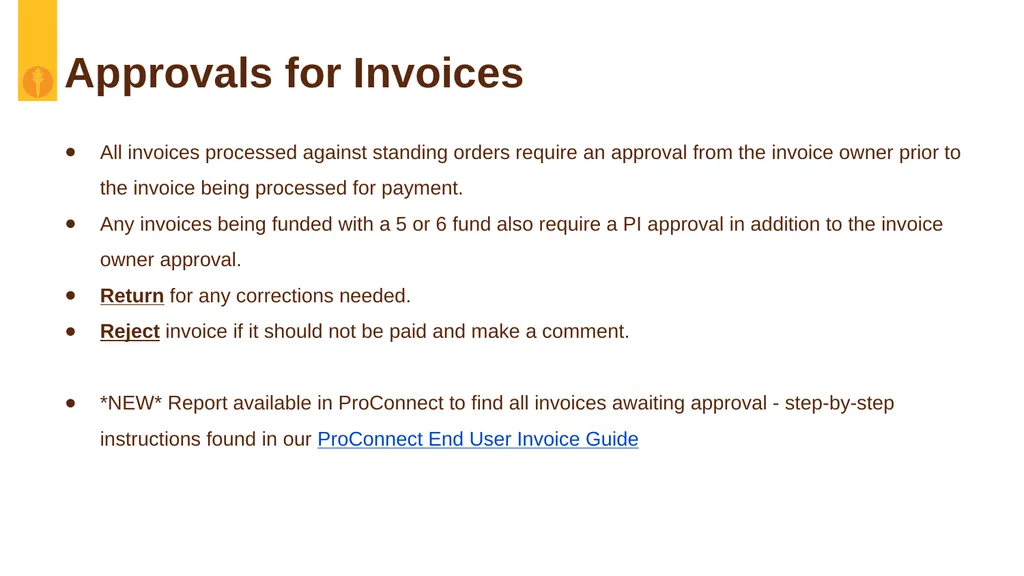
slide14. Approvals for Invoices All invoices processed against standing orders require an approval from the invoice owner prior to the invoice being processed for payment.
Any invoices being funded with a 5 or 6 fund also require a PI approval in addition to the invoice owner approval.
Return for any corrections needed.
Reject invoice if it should not be paid and make a comment.
*NEW* Report available in ProConnect to find all invoices awaiting approval - step-by-step instructions found in our ProConnect End User Invoice Guide<br>
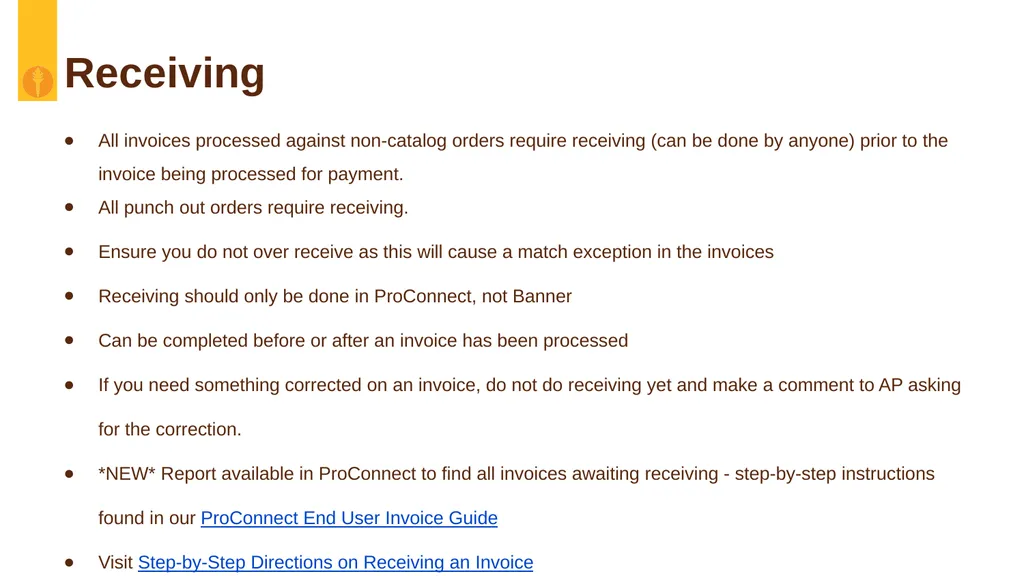
slide15. Receiving All invoices processed against non-catalog orders require receiving (can be done by anyone) prior to the invoice being processed for payment.
All punch out orders require receiving.
Ensure you do not over receive as this will cause a match exception in the invoices
Receiving should only be done in ProConnect, not Banner
Can be completed before or after an invoice has been processed
If you need something corrected on an invoice, do not do receiving yet and make a comment to AP asking for the correction.
*NEW* Report available in ProConnect to find all invoices awaiting receiving - step-by-step instructions found in our ProConnect End User Invoice Guide
Visit Step-by-Step Directions on Receiving an Invoice<br>
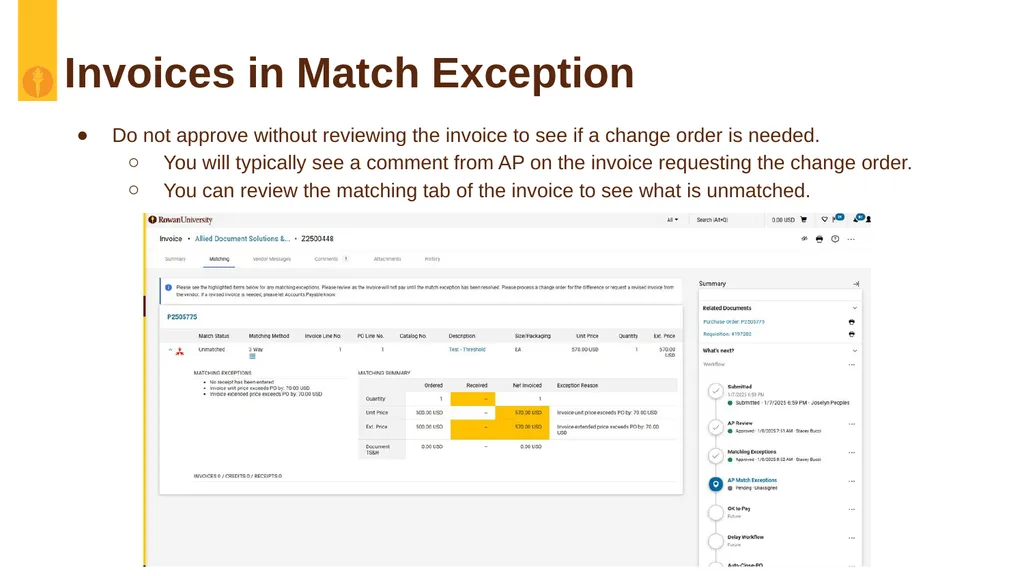
slide16. Invoices in Match Exception Do not approve without reviewing the invoice to see if a change order is needed.
You will typically see a comment from AP on the invoice requesting the change order.
You can review the matching tab of the invoice to see what is unmatched.<br>
slide17. Contact Information AP Director - Joselyn Peoples ext. 4335 or email peoplesj@rowan.edu
OCP Director - Alexis Jones ext. 5171 or email jonesal@rowan.edu
Full AP Team Contact List
Full OCP Contact List
proconnectsupport@rowan.edu<br>
slide18. Questions?<br>
August 2025<br>
slide2. Agenda What’s New Since Go Live
Choosing the most suitable form to submit requisitions
ProTips
Frequently Asked Questions
Invoicing
Receiving
Approvals
Contact Information
Questions<br>
slide3. What’s New Since Go Live Amazon Punchout
FAQ: I clicked on the Amazon punch-out but it's just spinning! What do I do? Click the browser settings and make sure "Pop-Ups" are allowed.
Access the presentation here.
Amazon Business Purchase Guide
Furniture Process Improvements
Tariffs
Vendor Email Distribution Updates<br>
slide4. Furniture Process
Improvements Key Improvements in the New Process
Eliminates manual email forwarding and Banner entry.
Reduces errors through automated routing using commodity codes.
Centralizes communication and approvals in ProConnect.
Ensures transparency and consistent policy enforcement.<br>
slide5. Capturing Tariff Costs Due to recent changes in global trade policies, tariffs on a variety of imported goods have led to noticeable increases in procurement costs across several categories. To better manage and monitor these changes, the University has established a new commodity code specifically designated for capturing tariff-related costs.
Key Updates:
Cost Increases: Expect price fluctuations on goods including lab equipment, IT hardware, office supplies, and certain construction materials. These are due to additional import duties levied on specific international sources.
New Commodity Code: To improve transparency and reporting, please use the following commodity code when submitting purchase requisitions affected by tariffs: Commodity Code: CD482-002 Tariffs
Action Required:
Use CD482-002 Tariffs when applicable to help us track and analyze the financial impact of these tariff-related expenses.
Plan ahead for potential delays or increased pricing, particularly on international or specialized orders.
Consult procurement if you need help identifying alternative suppliers or managing budgets.<br>
slide6. Editing Vendor Email Distribution You can now change the email address to which Purchase Orders be sent.
Find the Distribution Methods link on your requisition or order form.
Add or change the email address you wish the PO be sent to. You can opt to use your own email address if the vendor does not need the PO.
Continue to process your order as usual.
See PO Distribution Guide for full list of instructions.<br>
slide7. Forms for Requisitions Available Form Types
Punchout Catalogs
Amazon
Fisher
Grainger
HD Supply
Henry Schein
VWR
Non-Catalog
Standing Order
Sole Source (non-grant)
Independent Contractor
Grant Purchase Approval & SubAward Forms
Which is the most suitable form for my request?<br>
slide8. ProConnect Form Selection Guide Note:
Standing Order Forms also include:
Grant Purchase Approval & SubAward Forms
Independent Contractor
Sole Source (non-grant) ProTip: Using Non-Catalog Forms with Multi-Line Requisitions
If you decide to use a Non-Catalog Form and you're unsure whether items will ship separately, here’s what to do:
Add one shipping line for each product line in the requisition.
This ensures that each product can be received and invoiced independently if shipments are split.
Helps prevent errors or delays in receiving and payment processing.<br>
slide9. ProTips ePro Pro-Tips
Attach all documentation prior to submitting.
Use correct form for type of purchase.
We cannot change a form for you. If you submit on an incorrect form, you will have to resubmit and it will route through the approval process again.
Alert requesters of pending carts or FUND/ORG approver of pending approval.
Respond to comments seeking information at earliest convenience.
Check the History Tab for important systematic information. Common errors messages:
Line 1 Distribution 1, Banner status: invalidAccountingString - a FOAPAL value is either not valid or can’t be used in the combination
Line 1 Distribution 1, Banner status: notAvailable - insufficient funds for the FOAPAL string
Review where your request is in the Workflow
You can only use FOAPALs that you have direct access, i.e., Banner Security Access.
Use only one bank code per requisition.
Prepared For / Prepared By
The Prepared For and Prepared By fields should be the same end-users. The request will be returned to Draft, unless both individuals have Banner Finance Access to that specific fund/org combination.
Change Orders - you must make the changes to cost and/or quantity and explain in the required comment what the change was for.<br>
slide10. FAQ Where can more I find training and information? Visit the ProConnect page on the Office of Contracting & Procurement website.
How can I request individual or group training? Book a Training Session here
I received an email that my requisition was returned, but doesn't tell me why. Check the "History" and/or "Comments" tab in your requisition.
I forgot to add an attachment before submitting. How do I add it? Attach the documents to a new comment in your requisition.
Can I edit a requisition? You can only edit a requisition before it is fully approved. Otherwise, it must be withdrawn and resubmitted.
Why isn’t my invoice being paid? Unless it’s a punchout, you still need to forward your invoices to invoices@rowan.edu .
How to do I request changes to my approval queue?
To add or remove an approver from an existing Fund/Org approval queue, please email reqapprovalqueue@rowan.edu with the following details:
Approval Queue ID to be updated
Type of change (Add or Remove)
Full Username to be added or removed<br>
slide11. Invoicing Invoices must still be sent to Accounts Payable at invoices@rowan.edu with a valid PO#
Valid PO# is a P26#, anything else is not valid
If attaching to the requisition/PO, AP is not notified of this.
This is for ALL invoices, except punchout orders.
Can view copy of the invoice directly from ProConnect - under attachments tab<br>
slide12. Tracking an Invoice - What Step is it in?<br>
slide13. Payment Status Invoice must be in complete status to export into Banner for payment processing
Payment information can be viewed in Banner or in ProConnect
If viewing in ProConnect, the pay status will show paid and payment details will be displayed under Payment Information section.
Payment Record # = check or direct deposit #<br>
slide14. Approvals for Invoices All invoices processed against standing orders require an approval from the invoice owner prior to the invoice being processed for payment.
Any invoices being funded with a 5 or 6 fund also require a PI approval in addition to the invoice owner approval.
Return for any corrections needed.
Reject invoice if it should not be paid and make a comment.
*NEW* Report available in ProConnect to find all invoices awaiting approval - step-by-step instructions found in our ProConnect End User Invoice Guide<br>
slide15. Receiving All invoices processed against non-catalog orders require receiving (can be done by anyone) prior to the invoice being processed for payment.
All punch out orders require receiving.
Ensure you do not over receive as this will cause a match exception in the invoices
Receiving should only be done in ProConnect, not Banner
Can be completed before or after an invoice has been processed
If you need something corrected on an invoice, do not do receiving yet and make a comment to AP asking for the correction.
*NEW* Report available in ProConnect to find all invoices awaiting receiving - step-by-step instructions found in our ProConnect End User Invoice Guide
Visit Step-by-Step Directions on Receiving an Invoice<br>
slide16. Invoices in Match Exception Do not approve without reviewing the invoice to see if a change order is needed.
You will typically see a comment from AP on the invoice requesting the change order.
You can review the matching tab of the invoice to see what is unmatched.<br>
slide17. Contact Information AP Director - Joselyn Peoples ext. 4335 or email peoplesj@rowan.edu
OCP Director - Alexis Jones ext. 5171 or email jonesal@rowan.edu
Full AP Team Contact List
Full OCP Contact List
proconnectsupport@rowan.edu<br>
slide18. Questions?<br>