
Resource Management Training Session 8 Batch
KB
Published · 30 slides · 0 views
1 / 1
Description
Resource Management Training Session 8 Batch Processes and Record Maintenance Session Logistics This webinar is being recorded. Attendees will receive a link to the recording later for 30 days of access. An edited version of the recording
Related Topics
Share
Embed code
Download this presentation From Below
"Resource Management Training Session 8 Batch" is the property of its rightful owner. Permission is granted to download and print the materials on this website for personal, non-commercial use only, and to display it on your personal computer provided you do not modify the materials and that you retain all copyright notices contained in the materials. By downloading content from our website, you accept the terms of this agreement.
Presentation Transcript
01
Resource Management Training Session 8
Batch Processes and Record Maintenance<br>
Batch Processes and Record Maintenance<br>
02
Session Logistics This webinar is being recorded.
Attendees will receive a link to the recording later for 30 days of access.
An edited version of the recording will be posted for broader use later.
Captions and transcript are enabled for the webinar.
Use chat to share questions and comments as they come to you.
Work along in a sandbox or your own IZ as you prefer.<br>
Attendees will receive a link to the recording later for 30 days of access.
An edited version of the recording will be posted for broader use later.
Captions and transcript are enabled for the webinar.
Use chat to share questions and comments as they come to you.
Work along in a sandbox or your own IZ as you prefer.<br>
03
Learning Objectives Gain practice in creating and filtering record sets.
Learn basics for creating and running indication and normalization rules.
Become familiar with jobs that enable batch updates to records.
Identify some routine maintenance tasks that use jobs and sets.<br>
Learn basics for creating and running indication and normalization rules.
Become familiar with jobs that enable batch updates to records.
Identify some routine maintenance tasks that use jobs and sets.<br>
04
Deciding on a batch project What is the nature and scope of the issue?
Does the phenomenon appear consistently, e.g., in the same tag/subfield, or the same text? (300 $c 4 ¾ cm)
How many records are affected, and how can the records be identified?
What are the exceptions?
What is the “fix” for the issue?
Is there a prescribed fix, e.g., updating a location code, deleting or adding punctuation?
Can the fix be generalized?
Does a batch process exist for the “fix?”<br>
Does the phenomenon appear consistently, e.g., in the same tag/subfield, or the same text? (300 $c 4 ¾ cm)
How many records are affected, and how can the records be identified?
What are the exceptions?
What is the “fix” for the issue?
Is there a prescribed fix, e.g., updating a location code, deleting or adding punctuation?
Can the fix be generalized?
Does a batch process exist for the “fix?”<br>
05
Alma Jobs for Set Operations Titles (i.e., bibliographic records)
Delete bibliographic records, Set management tags, Link a set of records to the network zone, MARC21 Bib normalize on save, *user-defined normalization jobs
Holdings
Change holdings information*, Delete holdings records with no physical items
Items
Change physical items information, Rebuild physical item description, Withdraw physical items,
Electronic Collections and Portfolios
Move electronic portfolio information, Change electronic collection information, Change electronic portfolio information, Delete electronic portfolios<br>
Delete bibliographic records, Set management tags, Link a set of records to the network zone, MARC21 Bib normalize on save, *user-defined normalization jobs
Holdings
Change holdings information*, Delete holdings records with no physical items
Items
Change physical items information, Rebuild physical item description, Withdraw physical items,
Electronic Collections and Portfolios
Move electronic portfolio information, Change electronic collection information, Change electronic portfolio information, Delete electronic portfolios<br>
06
Record Sets Part 1 Roles
Any role that may perform a search may save a query to create a set.
Must have role that allows working with that type of record.
Repository Manager is the primary role for managing all sets.
Logical Sets
Created from search results and job reports based on searchable criteria.
Save and Filter Set button.
Contents are dynamic, whatever matches the indexing at the time.
Example: Titles with OCLC Control Number Is Empty AND Tag Suppressed equals No.<br>
Any role that may perform a search may save a query to create a set.
Must have role that allows working with that type of record.
Repository Manager is the primary role for managing all sets.
Logical Sets
Created from search results and job reports based on searchable criteria.
Save and Filter Set button.
Contents are dynamic, whatever matches the indexing at the time.
Example: Titles with OCLC Control Number Is Empty AND Tag Suppressed equals No.<br>
07
Indication Rules Apply a filter on a set of MARC records using MARC values
Use Cases
Import Profiles: Removes records from the import set.
E.g., filter out bib records that lack an 856 from an e-resource import file.
Record Sets: Select records matching the filter from another set.
E.g., select records lacking 007 tag for sound recordings from a set of all recording records.
Indication rules may be saved to institution or network.
Save to IZ if using as filter on IZ sets or IZ import profiles.
Save to NZ if using as filter on NZ import profiles.<br>
Use Cases
Import Profiles: Removes records from the import set.
E.g., filter out bib records that lack an 856 from an e-resource import file.
Record Sets: Select records matching the filter from another set.
E.g., select records lacking 007 tag for sound recordings from a set of all recording records.
Indication rules may be saved to institution or network.
Save to IZ if using as filter on IZ sets or IZ import profiles.
Save to NZ if using as filter on NZ import profiles.<br>
08
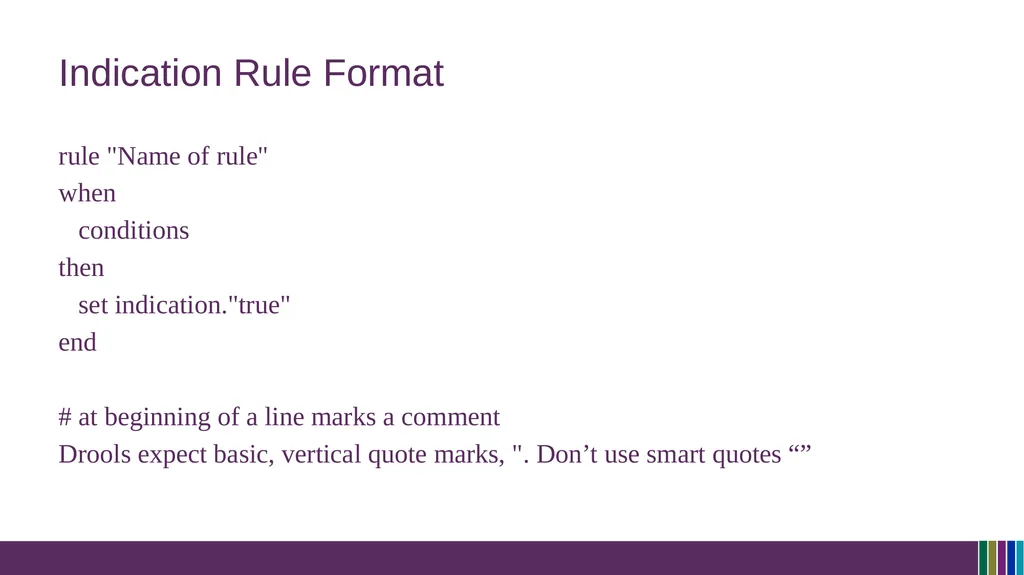
Indication Rule Format rule "Name of rule"
when
conditions
then
set indication."true"
end
# at beginning of a line marks a comment
Drools expect basic, vertical quote marks, ". Don’t use smart quotes “”<br>
when
conditions
then
set indication."true"
end
# at beginning of a line marks a comment
Drools expect basic, vertical quote marks, ". Don’t use smart quotes “”<br>
09
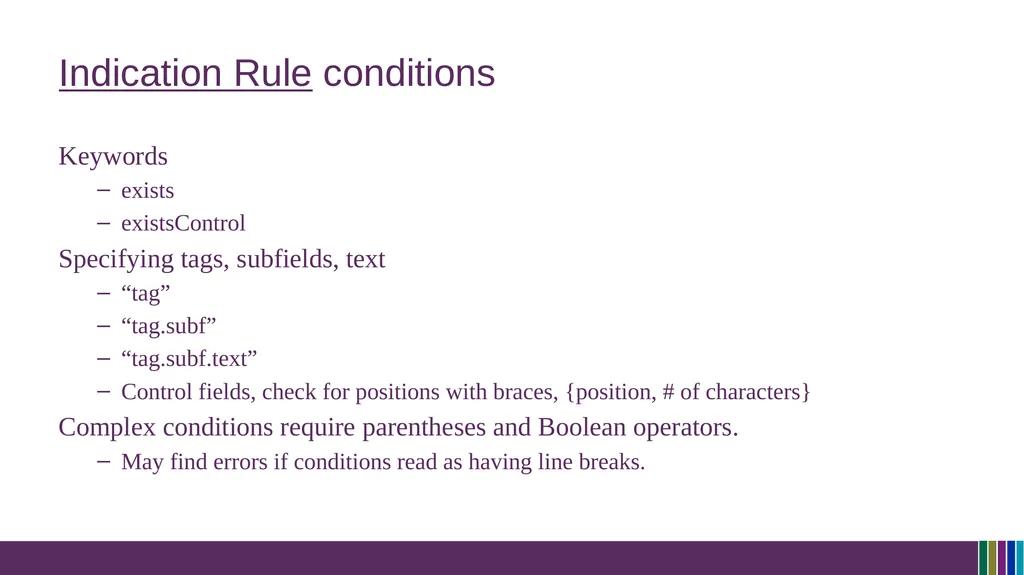
Indication Rule conditions Keywords
exists
existsControl
Specifying tags, subfields, text
“tag”
“tag.subf”
“tag.subf.text”
Control fields, check for positions with braces, {position, # of characters}
Complex conditions require parentheses and Boolean operators.
May find errors if conditions read as having line breaks.<br>
exists
existsControl
Specifying tags, subfields, text
“tag”
“tag.subf”
“tag.subf.text”
Control fields, check for positions with braces, {position, # of characters}
Complex conditions require parentheses and Boolean operators.
May find errors if conditions read as having line breaks.<br>
10
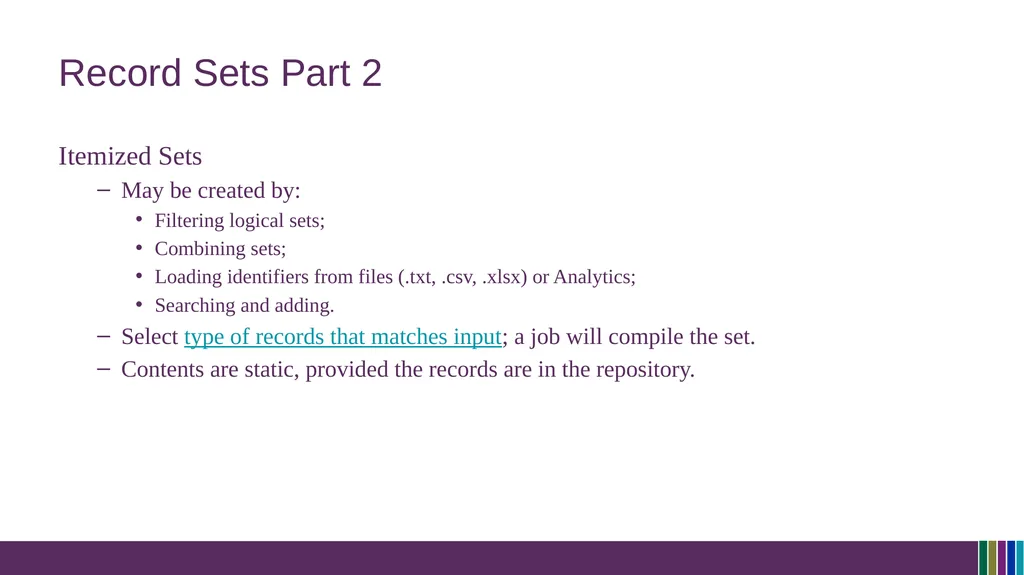
Record Sets Part 2 Itemized Sets
May be created by:
Filtering logical sets;
Combining sets;
Loading identifiers from files (.txt, .csv, .xlsx) or Analytics;
Searching and adding.
Select type of records that matches input; a job will compile the set.
Contents are static, provided the records are in the repository.<br>
May be created by:
Filtering logical sets;
Combining sets;
Loading identifiers from files (.txt, .csv, .xlsx) or Analytics;
Searching and adding.
Select type of records that matches input; a job will compile the set.
Contents are static, provided the records are in the repository.<br>
11
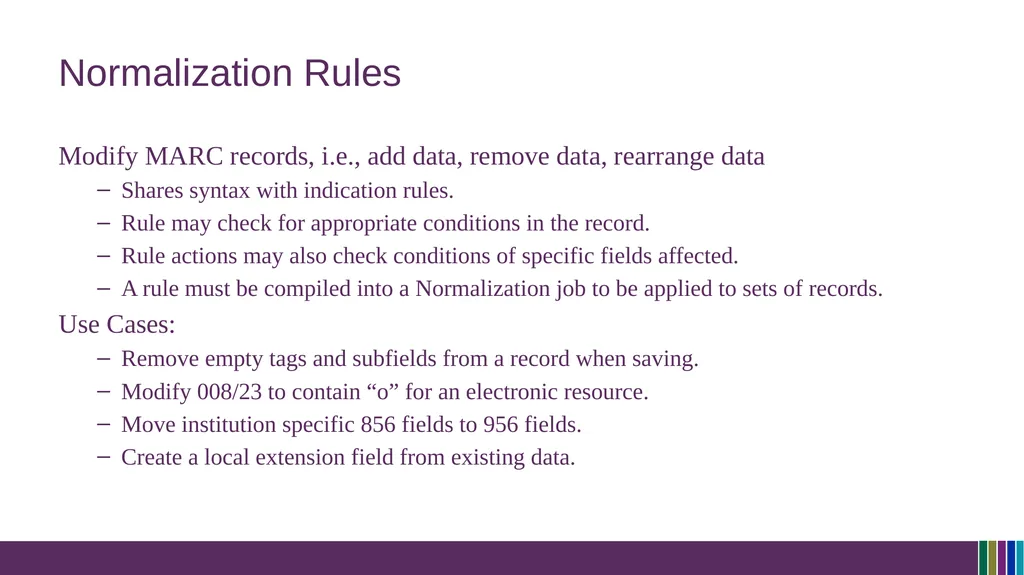
Normalization Rules Modify MARC records, i.e., add data, remove data, rearrange data
Shares syntax with indication rules.
Rule may check for appropriate conditions in the record.
Rule actions may also check conditions of specific fields affected.
A rule must be compiled into a Normalization job to be applied to sets of records.
Use Cases:
Remove empty tags and subfields from a record when saving.
Modify 008/23 to contain “o” for an electronic resource.
Move institution specific 856 fields to 956 fields.
Create a local extension field from existing data.<br>
Shares syntax with indication rules.
Rule may check for appropriate conditions in the record.
Rule actions may also check conditions of specific fields affected.
A rule must be compiled into a Normalization job to be applied to sets of records.
Use Cases:
Remove empty tags and subfields from a record when saving.
Modify 008/23 to contain “o” for an electronic resource.
Move institution specific 856 fields to 956 fields.
Create a local extension field from existing data.<br>
12
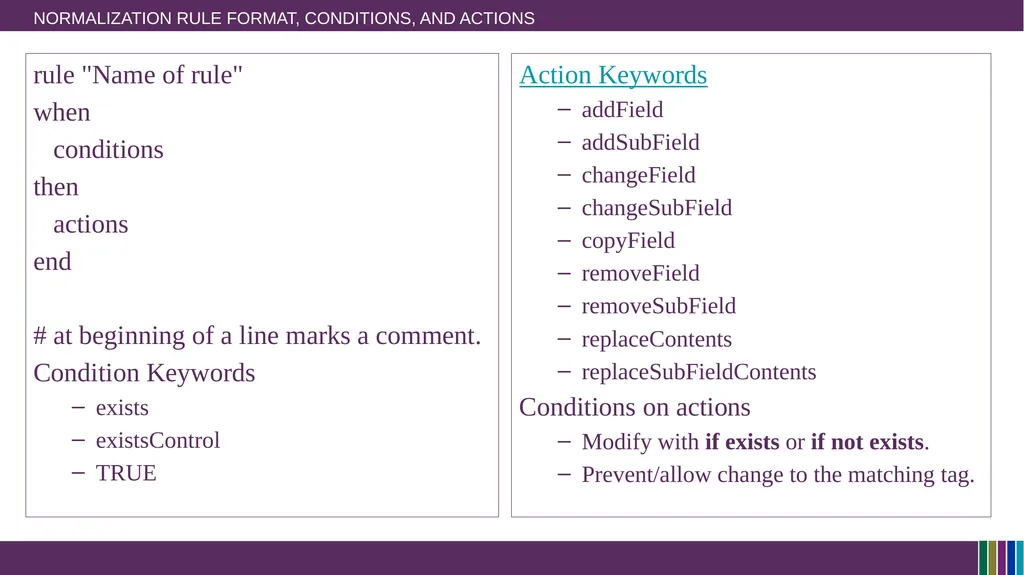
Normalization Rule Format, Conditions, and Actions rule "Name of rule"
when
conditions
then
actions
end
# at beginning of a line marks a comment.
Condition Keywords
exists
existsControl
TRUE Action Keywords
addField
addSubField
changeField
changeSubField
copyField
removeField
removeSubField
replaceContents
replaceSubFieldContents
Conditions on actions
Modify with if exists or if not exists.
Prevent/allow change to the matching tag.<br>
when
conditions
then
actions
end
# at beginning of a line marks a comment.
Condition Keywords
exists
existsControl
TRUE Action Keywords
addField
addSubField
changeField
changeSubField
copyField
removeField
removeSubField
replaceContents
replaceSubFieldContents
Conditions on actions
Modify with if exists or if not exists.
Prevent/allow change to the matching tag.<br>
13
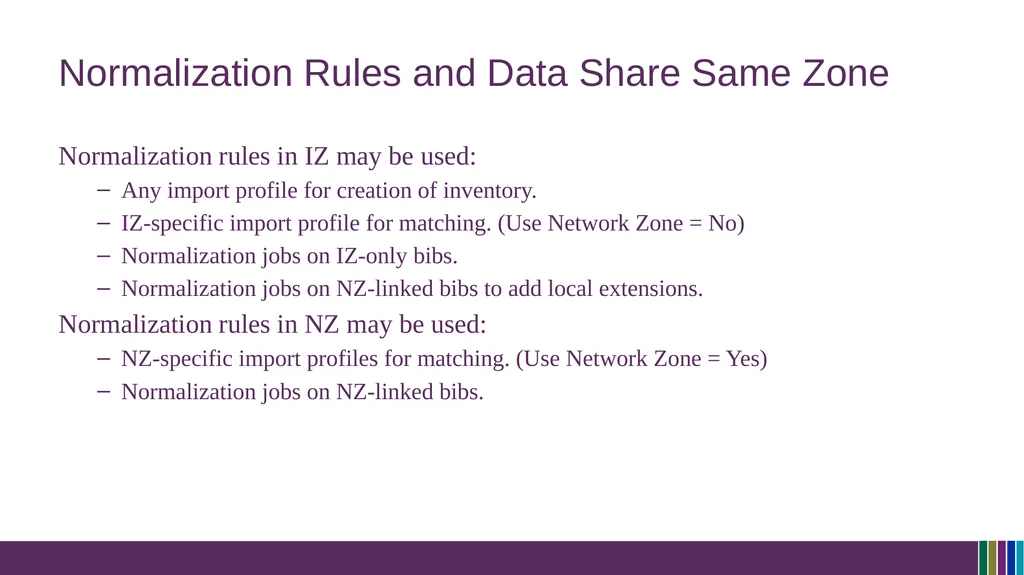
Normalization Rules and Data Share Same Zone Normalization rules in IZ may be used:
Any import profile for creation of inventory.
IZ-specific import profile for matching. (Use Network Zone = No)
Normalization jobs on IZ-only bibs.
Normalization jobs on NZ-linked bibs to add local extensions.
Normalization rules in NZ may be used:
NZ-specific import profiles for matching. (Use Network Zone = Yes)
Normalization jobs on NZ-linked bibs.<br>
Any import profile for creation of inventory.
IZ-specific import profile for matching. (Use Network Zone = No)
Normalization jobs on IZ-only bibs.
Normalization jobs on NZ-linked bibs to add local extensions.
Normalization rules in NZ may be used:
NZ-specific import profiles for matching. (Use Network Zone = Yes)
Normalization jobs on NZ-linked bibs.<br>
14
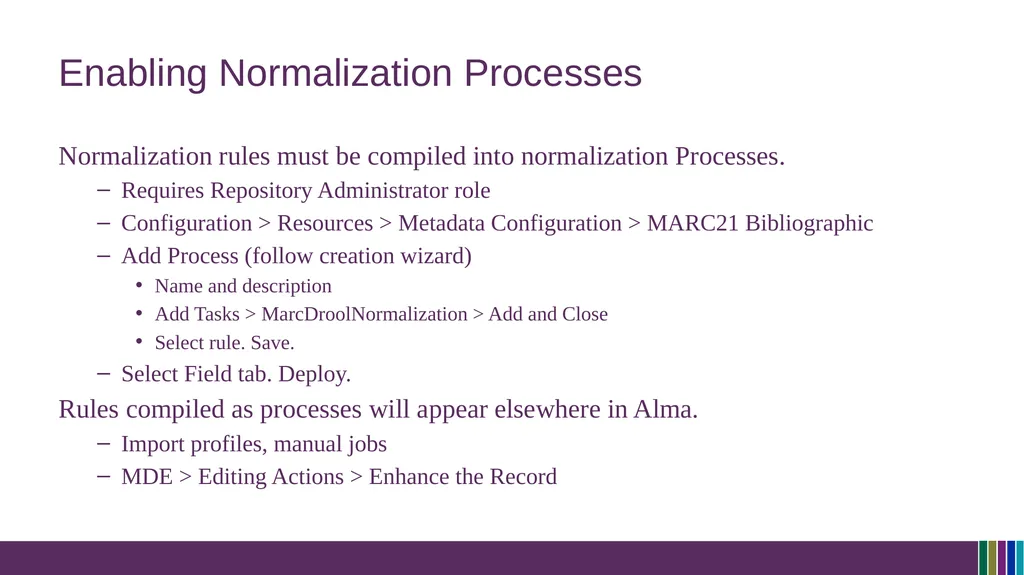
Enabling Normalization Processes Normalization rules must be compiled into normalization Processes.
Requires Repository Administrator role
Configuration > Resources > Metadata Configuration > MARC21 Bibliographic
Add Process (follow creation wizard)
Name and description
Add Tasks > MarcDroolNormalization > Add and Close
Select rule. Save.
Select Field tab. Deploy.
Rules compiled as processes will appear elsewhere in Alma.
Import profiles, manual jobs
MDE > Editing Actions > Enhance the Record<br>
Requires Repository Administrator role
Configuration > Resources > Metadata Configuration > MARC21 Bibliographic
Add Process (follow creation wizard)
Name and description
Add Tasks > MarcDroolNormalization > Add and Close
Select rule. Save.
Select Field tab. Deploy.
Rules compiled as processes will appear elsewhere in Alma.
Import profiles, manual jobs
MDE > Editing Actions > Enhance the Record<br>
15
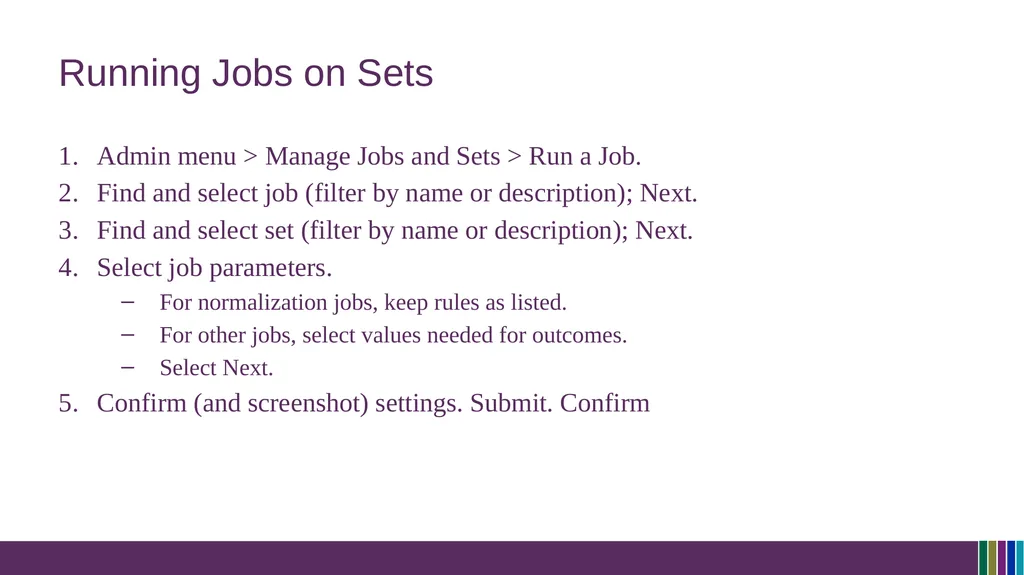
Running Jobs on Sets Admin menu > Manage Jobs and Sets > Run a Job.
Find and select job (filter by name or description); Next.
Find and select set (filter by name or description); Next.
Select job parameters.
For normalization jobs, keep rules as listed.
For other jobs, select values needed for outcomes.
Select Next.
Confirm (and screenshot) settings. Submit. Confirm<br>
Find and select job (filter by name or description); Next.
Find and select set (filter by name or description); Next.
Select job parameters.
For normalization jobs, keep rules as listed.
For other jobs, select values needed for outcomes.
Select Next.
Confirm (and screenshot) settings. Submit. Confirm<br>
16
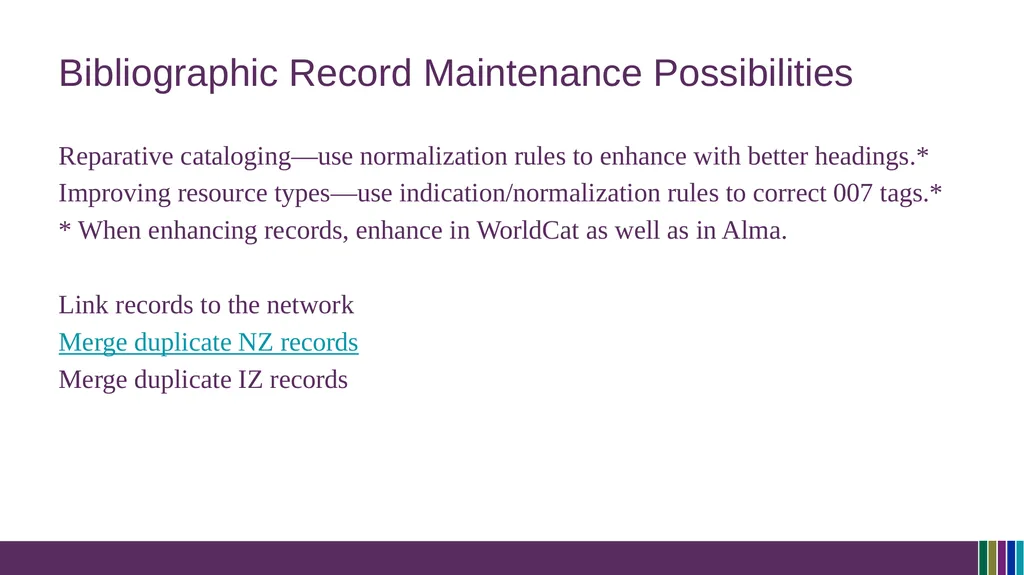
Bibliographic Record Maintenance Possibilities Reparative cataloging—use normalization rules to enhance with better headings.*
Improving resource types—use indication/normalization rules to correct 007 tags.*
* When enhancing records, enhance in WorldCat as well as in Alma.
Link records to the network
Merge duplicate NZ records
Merge duplicate IZ records<br>
Improving resource types—use indication/normalization rules to correct 007 tags.*
* When enhancing records, enhance in WorldCat as well as in Alma.
Link records to the network
Merge duplicate NZ records
Merge duplicate IZ records<br>
17
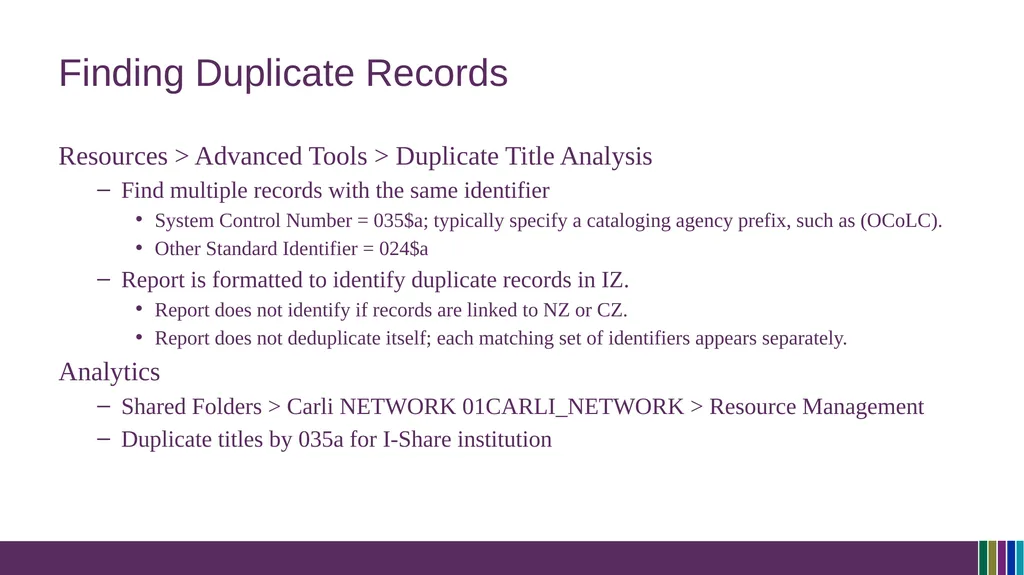
Finding Duplicate Records Resources > Advanced Tools > Duplicate Title Analysis
Find multiple records with the same identifier
System Control Number = 035$a; typically specify a cataloging agency prefix, such as (OCoLC).
Other Standard Identifier = 024$a
Report is formatted to identify duplicate records in IZ.
Report does not identify if records are linked to NZ or CZ.
Report does not deduplicate itself; each matching set of identifiers appears separately.
Analytics
Shared Folders > Carli NETWORK 01CARLI_NETWORK > Resource Management
Duplicate titles by 035a for I-Share institution<br>
Find multiple records with the same identifier
System Control Number = 035$a; typically specify a cataloging agency prefix, such as (OCoLC).
Other Standard Identifier = 024$a
Report is formatted to identify duplicate records in IZ.
Report does not identify if records are linked to NZ or CZ.
Report does not deduplicate itself; each matching set of identifiers appears separately.
Analytics
Shared Folders > Carli NETWORK 01CARLI_NETWORK > Resource Management
Duplicate titles by 035a for I-Share institution<br>
18
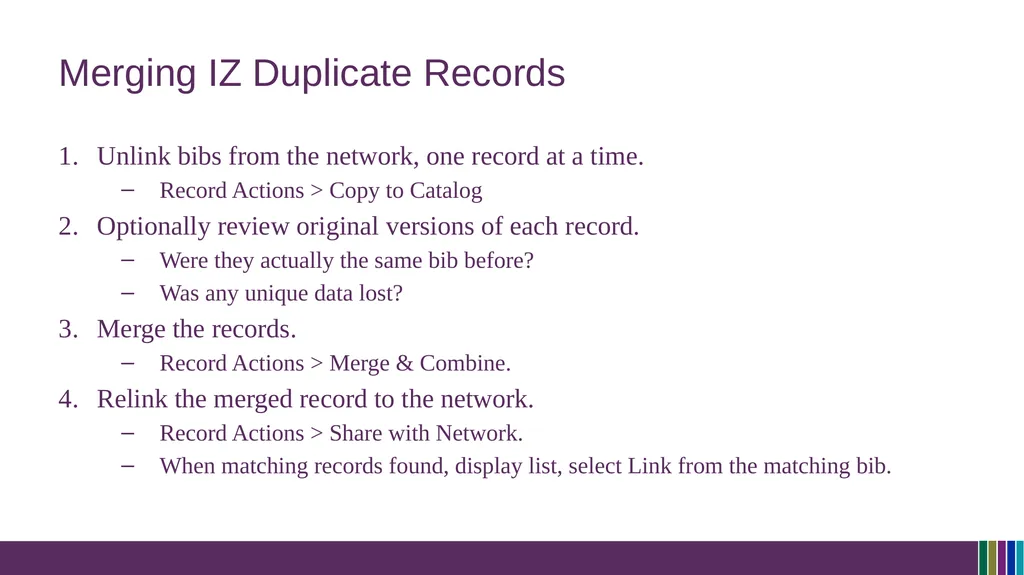
Merging IZ Duplicate Records Unlink bibs from the network, one record at a time.
Record Actions > Copy to Catalog
Optionally review original versions of each record.
Were they actually the same bib before?
Was any unique data lost?
Merge the records.
Record Actions > Merge & Combine.
Relink the merged record to the network.
Record Actions > Share with Network.
When matching records found, display list, select Link from the matching bib.<br>
Record Actions > Copy to Catalog
Optionally review original versions of each record.
Were they actually the same bib before?
Was any unique data lost?
Merge the records.
Record Actions > Merge & Combine.
Relink the merged record to the network.
Record Actions > Share with Network.
When matching records found, display list, select Link from the matching bib.<br>
19
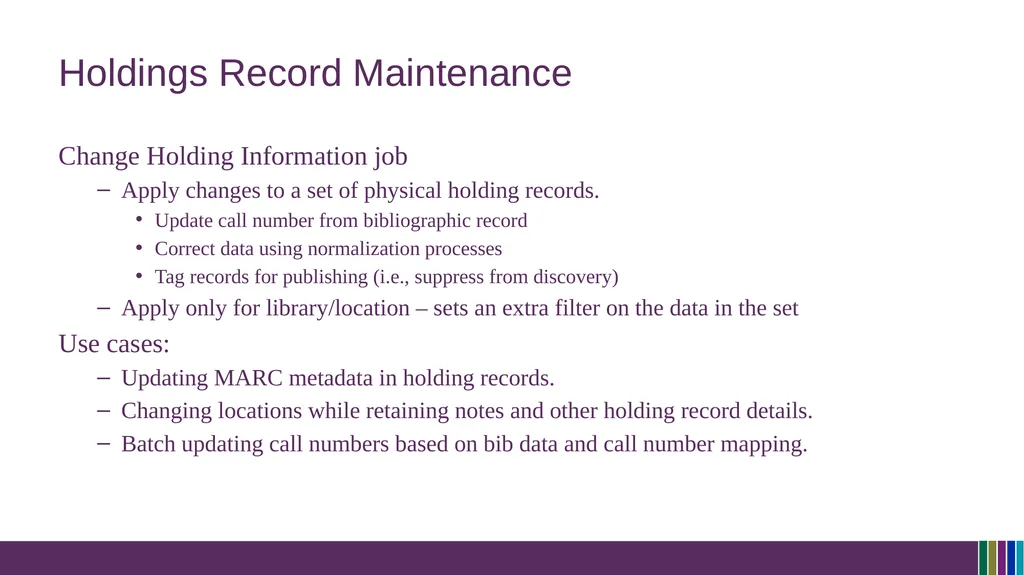
Holdings Record Maintenance Change Holding Information job
Apply changes to a set of physical holding records.
Update call number from bibliographic record
Correct data using normalization processes
Tag records for publishing (i.e., suppress from discovery)
Apply only for library/location – sets an extra filter on the data in the set
Use cases:
Updating MARC metadata in holding records.
Changing locations while retaining notes and other holding record details.
Batch updating call numbers based on bib data and call number mapping.<br>
Apply changes to a set of physical holding records.
Update call number from bibliographic record
Correct data using normalization processes
Tag records for publishing (i.e., suppress from discovery)
Apply only for library/location – sets an extra filter on the data in the set
Use cases:
Updating MARC metadata in holding records.
Changing locations while retaining notes and other holding record details.
Batch updating call numbers based on bib data and call number mapping.<br>
20
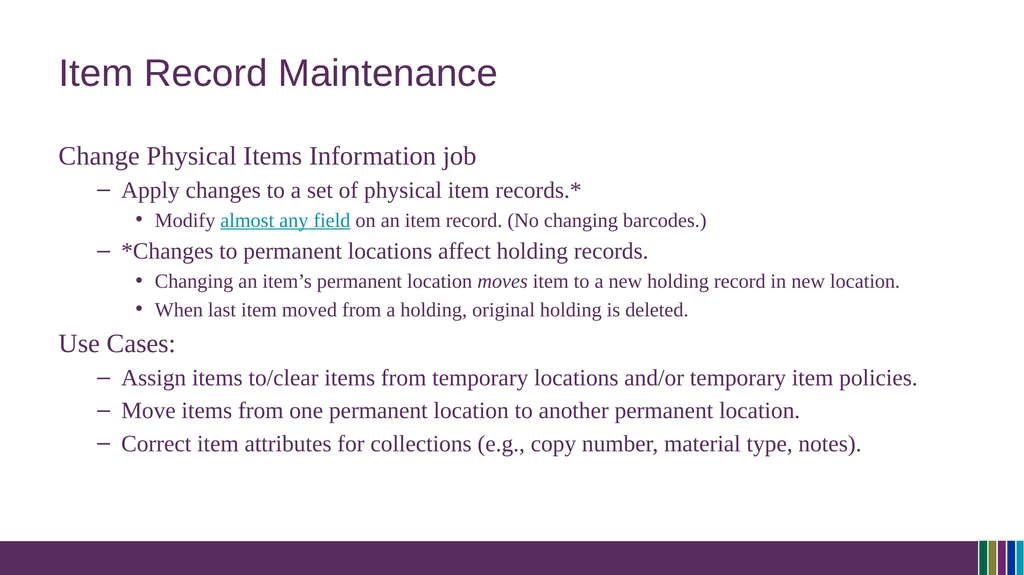
Item Record Maintenance Change Physical Items Information job
Apply changes to a set of physical item records.*
Modify almost any field on an item record. (No changing barcodes.)
*Changes to permanent locations affect holding records.
Changing an item’s permanent location moves item to a new holding record in new location.
When last item moved from a holding, original holding is deleted.
Use Cases:
Assign items to/clear items from temporary locations and/or temporary item policies.
Move items from one permanent location to another permanent location.
Correct item attributes for collections (e.g., copy number, material type, notes).<br>
Apply changes to a set of physical item records.*
Modify almost any field on an item record. (No changing barcodes.)
*Changes to permanent locations affect holding records.
Changing an item’s permanent location moves item to a new holding record in new location.
When last item moved from a holding, original holding is deleted.
Use Cases:
Assign items to/clear items from temporary locations and/or temporary item policies.
Move items from one permanent location to another permanent location.
Correct item attributes for collections (e.g., copy number, material type, notes).<br>
21
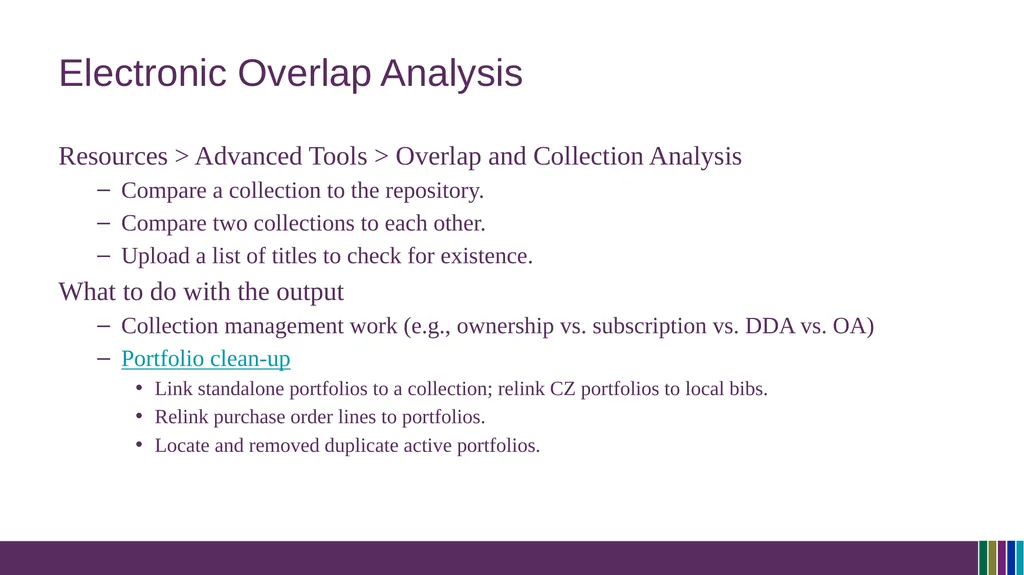
Electronic Overlap Analysis Resources > Advanced Tools > Overlap and Collection Analysis
Compare a collection to the repository.
Compare two collections to each other.
Upload a list of titles to check for existence.
What to do with the output
Collection management work (e.g., ownership vs. subscription vs. DDA vs. OA)
Portfolio clean-up
Link standalone portfolios to a collection; relink CZ portfolios to local bibs.
Relink purchase order lines to portfolios.
Locate and removed duplicate active portfolios.<br>
Compare a collection to the repository.
Compare two collections to each other.
Upload a list of titles to check for existence.
What to do with the output
Collection management work (e.g., ownership vs. subscription vs. DDA vs. OA)
Portfolio clean-up
Link standalone portfolios to a collection; relink CZ portfolios to local bibs.
Relink purchase order lines to portfolios.
Locate and removed duplicate active portfolios.<br>
22
Questions? Please respond to the training survey: https://go.uillinois.edu/cattrain2025
Registration remains open for other sessions.
Contact support@carli.illinois.edu with follow-up questions.<br>
Registration remains open for other sessions.
Contact support@carli.illinois.edu with follow-up questions.<br>
23
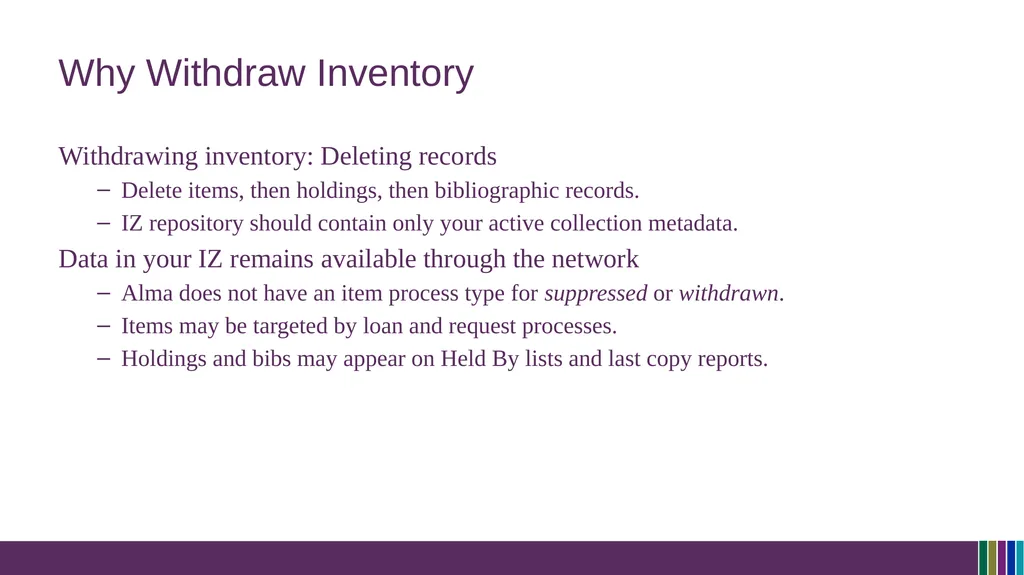
Why Withdraw Inventory Withdrawing inventory: Deleting records
Delete items, then holdings, then bibliographic records.
IZ repository should contain only your active collection metadata.
Data in your IZ remains available through the network
Alma does not have an item process type for suppressed or withdrawn.
Items may be targeted by loan and request processes.
Holdings and bibs may appear on Held By lists and last copy reports.<br>
Delete items, then holdings, then bibliographic records.
IZ repository should contain only your active collection metadata.
Data in your IZ remains available through the network
Alma does not have an item process type for suppressed or withdrawn.
Items may be targeted by loan and request processes.
Holdings and bibs may appear on Held By lists and last copy reports.<br>
24
Withdrawing Inventory Conditions and Effects Conditions that prevent deletion
Item linked to POL that is not closed.
Base status = Item not in place
Effects of deletion
Items, holdings, bibs, archived into Deleted Repository.
Deletion date is last recorded modification date on each record, stored in Analytics.
PO Lines are unlinked from inventory; POL description (a copy of bib data) left intact<br>
Item linked to POL that is not closed.
Base status = Item not in place
Effects of deletion
Items, holdings, bibs, archived into Deleted Repository.
Deletion date is last recorded modification date on each record, stored in Analytics.
PO Lines are unlinked from inventory; POL description (a copy of bib data) left intact<br>
25
Withdrawing Inventory Options Search for items > Withdraw from actions menu
Search for titles > Select title, scroll to Items, actions menu > Withdraw
Create items set from search or report > run Withdraw Items job
Job parameters may check if requests exist on items
Alma prompts for resolution of empty records when last item withdrawn:
Keep holdings and bibliographic records
Delete holdings, Delete bibliographic records that have no other holdings
Suppress holdings, Suppress bibliographic records that have no other holdings
Delete holdings, Suppress bibliographic records that have no other holdings<br>
Search for titles > Select title, scroll to Items, actions menu > Withdraw
Create items set from search or report > run Withdraw Items job
Job parameters may check if requests exist on items
Alma prompts for resolution of empty records when last item withdrawn:
Keep holdings and bibliographic records
Delete holdings, Delete bibliographic records that have no other holdings
Suppress holdings, Suppress bibliographic records that have no other holdings
Delete holdings, Suppress bibliographic records that have no other holdings<br>
26
Item Record Extras: Notes Functional Notes
Public Note – displays in Primo VE within the item level detail.
Fulfillment Note – displays as pop-up note during check-out and check-in screens.
Useful as a complement to the Pieces field, which also pops up during fulfillment activities.
Internal Notes
Only displayed on this screen
Internal note 3 may contain Voyager-era data
Statistics Notes
Useful for reporting different details not covered by bibs, holdings, or other item details
May use as free text fields or as controlled lists (each list is independent)<br>
Public Note – displays in Primo VE within the item level detail.
Fulfillment Note – displays as pop-up note during check-out and check-in screens.
Useful as a complement to the Pieces field, which also pops up during fulfillment activities.
Internal Notes
Only displayed on this screen
Internal note 3 may contain Voyager-era data
Statistics Notes
Useful for reporting different details not covered by bibs, holdings, or other item details
May use as free text fields or as controlled lists (each list is independent)<br>
27
Item Record Extras: Inventory and Retention Inventory Information section
Useful for libraries performing an inventory.
Capture the sequence and date an item was handled; optionally add a price for reference.
Capture Weeding number and date before withdrawing items for analytics
Retention Information section
Useful for capturing collection development decisions separately from weeding
Select Committed to Retain: No/Yes
Select a Retention Reason; e.g., Consortia last copy, faculty publication, rare item<br>
Useful for libraries performing an inventory.
Capture the sequence and date an item was handled; optionally add a price for reference.
Capture Weeding number and date before withdrawing items for analytics
Retention Information section
Useful for capturing collection development decisions separately from weeding
Select Committed to Retain: No/Yes
Select a Retention Reason; e.g., Consortia last copy, faculty publication, rare item<br>
28
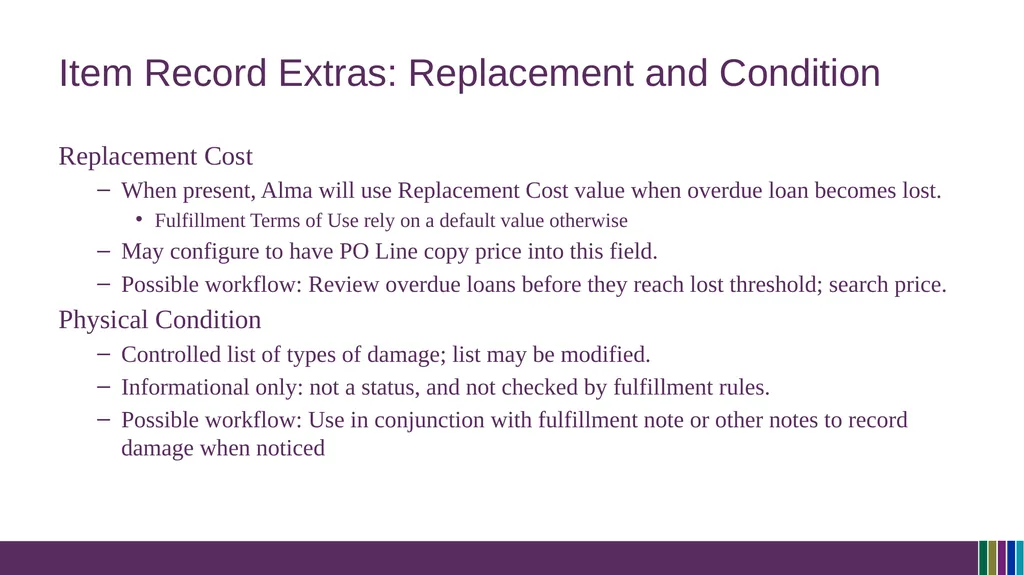
Item Record Extras: Replacement and Condition Replacement Cost
When present, Alma will use Replacement Cost value when overdue loan becomes lost.
Fulfillment Terms of Use rely on a default value otherwise
May configure to have PO Line copy price into this field.
Possible workflow: Review overdue loans before they reach lost threshold; search price.
Physical Condition
Controlled list of types of damage; list may be modified.
Informational only: not a status, and not checked by fulfillment rules.
Possible workflow: Use in conjunction with fulfillment note or other notes to record damage when noticed<br>
When present, Alma will use Replacement Cost value when overdue loan becomes lost.
Fulfillment Terms of Use rely on a default value otherwise
May configure to have PO Line copy price into this field.
Possible workflow: Review overdue loans before they reach lost threshold; search price.
Physical Condition
Controlled list of types of damage; list may be modified.
Informational only: not a status, and not checked by fulfillment rules.
Possible workflow: Use in conjunction with fulfillment note or other notes to record damage when noticed<br>
29
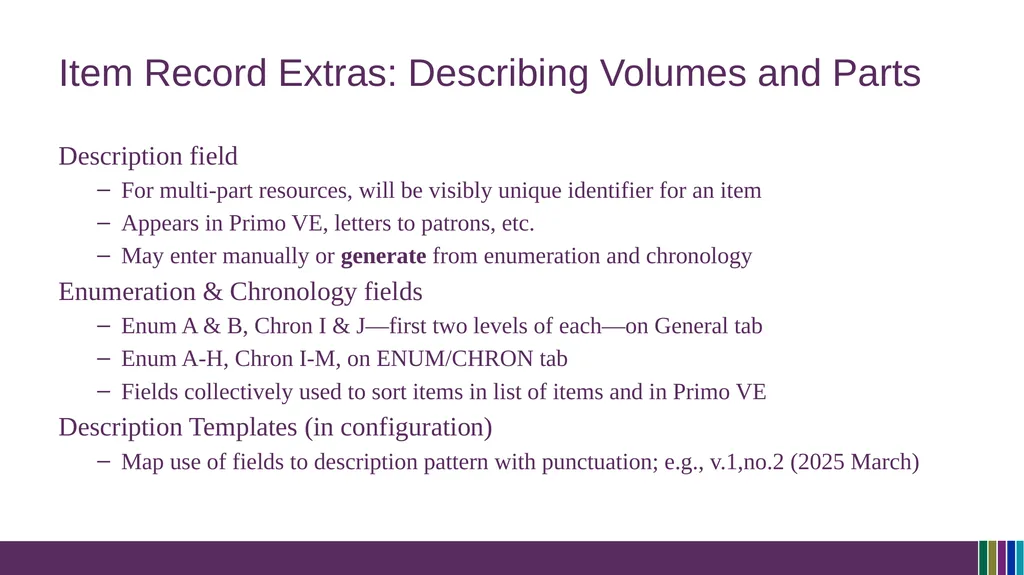
Item Record Extras: Describing Volumes and Parts Description field
For multi-part resources, will be visibly unique identifier for an item
Appears in Primo VE, letters to patrons, etc.
May enter manually or generate from enumeration and chronology
Enumeration & Chronology fields
Enum A & B, Chron I & J—first two levels of each—on General tab
Enum A-H, Chron I-M, on ENUM/CHRON tab
Fields collectively used to sort items in list of items and in Primo VE
Description Templates (in configuration)
Map use of fields to description pattern with punctuation; e.g., v.1,no.2 (2025 March)<br>
For multi-part resources, will be visibly unique identifier for an item
Appears in Primo VE, letters to patrons, etc.
May enter manually or generate from enumeration and chronology
Enumeration & Chronology fields
Enum A & B, Chron I & J—first two levels of each—on General tab
Enum A-H, Chron I-M, on ENUM/CHRON tab
Fields collectively used to sort items in list of items and in Primo VE
Description Templates (in configuration)
Map use of fields to description pattern with punctuation; e.g., v.1,no.2 (2025 March)<br>
30
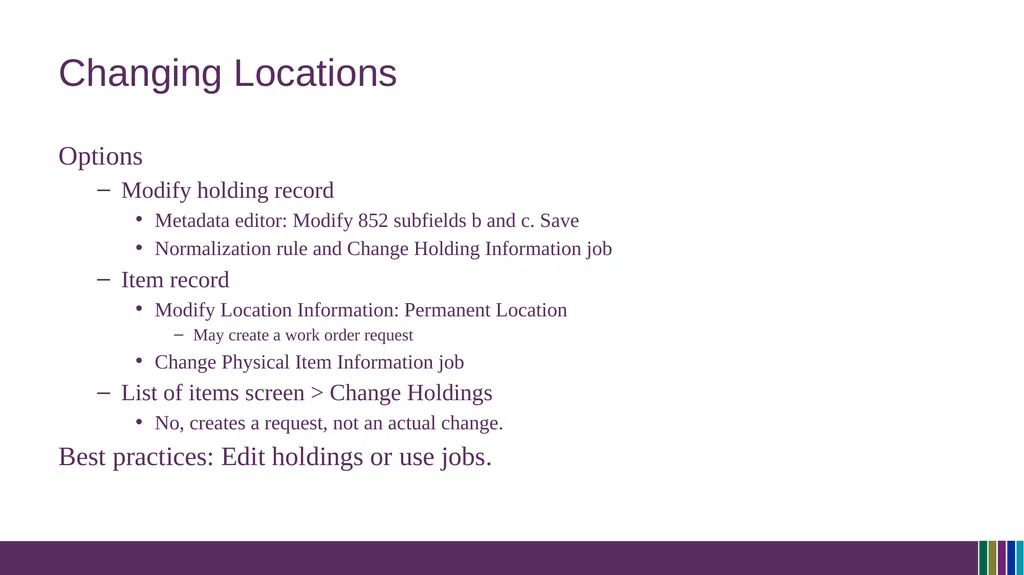
Changing Locations Options
Modify holding record
Metadata editor: Modify 852 subfields b and c. Save
Normalization rule and Change Holding Information job
Item record
Modify Location Information: Permanent Location
May create a work order request
Change Physical Item Information job
List of items screen > Change Holdings
No, creates a request, not an actual change.
Best practices: Edit holdings or use jobs.<br>
Modify holding record
Metadata editor: Modify 852 subfields b and c. Save
Normalization rule and Change Holding Information job
Item record
Modify Location Information: Permanent Location
May create a work order request
Change Physical Item Information job
List of items screen > Change Holdings
No, creates a request, not an actual change.
Best practices: Edit holdings or use jobs.<br>