
School Coordinator Training Smarter Balanced
TF
Published · 32 slides · 0 views
1 / 1
Description
School Coordinator Training Smarter Balanced Assessments Spring 2016 - Created by Everett Public Schools 1 Introductions 2 Smarter Balanced Assessments (SBA) Acronyms AVA: Assessment Viewing Application (Interim) ARMS: Assessment Reporting
Related Topics
Share
Embed code
Download this presentation From Below
"School Coordinator Training Smarter Balanced" is the property of its rightful owner. Permission is granted to download and print the materials on this website for personal, non-commercial use only, and to display it on your personal computer provided you do not modify the materials and that you retain all copyright notices contained in the materials. By downloading content from our website, you accept the terms of this agreement.
Presentation Transcript
01
School Coordinator Training Smarter Balanced Assessments
Spring 2016 - Created by Everett Public Schools 1<br>
Spring 2016 - Created by Everett Public Schools 1<br>
02
Introductions 2<br>
03
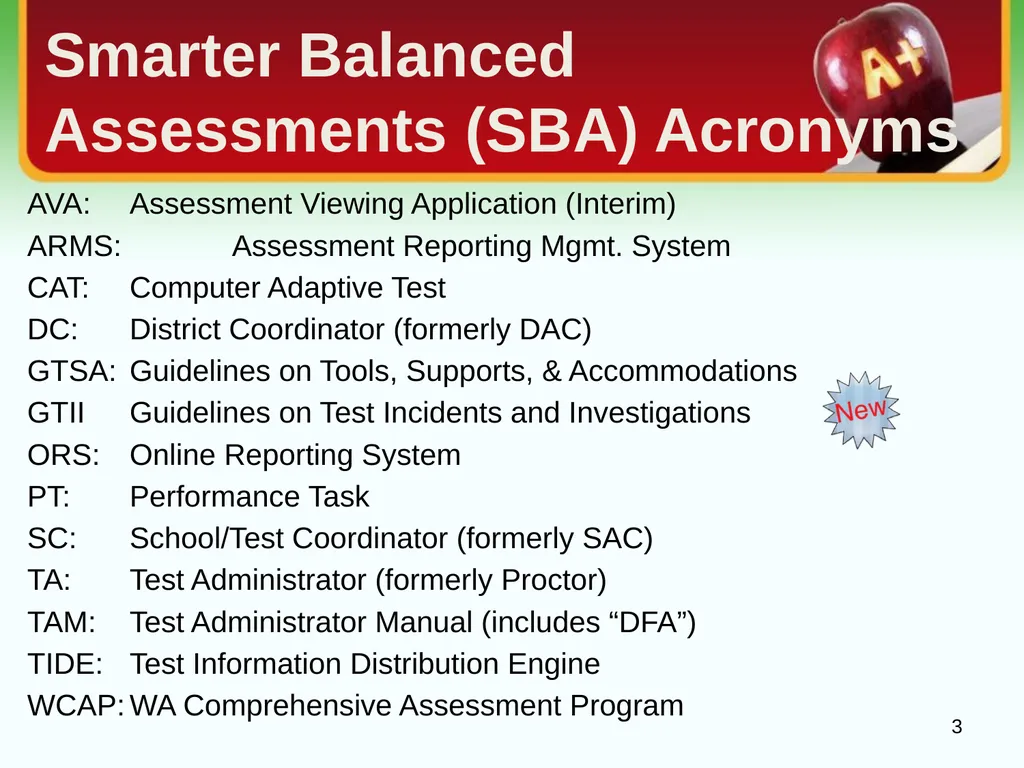
Smarter Balanced Assessments (SBA) Acronyms AVA: Assessment Viewing Application (Interim)
ARMS: Assessment Reporting Mgmt. System
CAT: Computer Adaptive Test
DC: District Coordinator (formerly DAC)
GTSA: Guidelines on Tools, Supports, & Accommodations
GTII Guidelines on Test Incidents and Investigations
ORS: Online Reporting System
PT: Performance Task
SC: School/Test Coordinator (formerly SAC)
TA: Test Administrator (formerly Proctor)
TAM: Test Administrator Manual (includes “DFA”)
TIDE: Test Information Distribution Engine
WCAP: WA Comprehensive Assessment Program 3<br>
ARMS: Assessment Reporting Mgmt. System
CAT: Computer Adaptive Test
DC: District Coordinator (formerly DAC)
GTSA: Guidelines on Tools, Supports, & Accommodations
GTII Guidelines on Test Incidents and Investigations
ORS: Online Reporting System
PT: Performance Task
SC: School/Test Coordinator (formerly SAC)
TA: Test Administrator (formerly Proctor)
TAM: Test Administrator Manual (includes “DFA”)
TIDE: Test Information Distribution Engine
WCAP: WA Comprehensive Assessment Program 3<br>
04
District Resources 4<br>
05
SBA Preparation:
February Timeline Identify students eligible for assistive technology requiring additional applications installed.
Magnification greater than 3.0
Speech to text
Identify the computers the students are using and notify IT to ensure compatibility.
HELP Desk at AIR if needed 844.560.7366
Confirm accommodations already entered in TIDE by special services and categorical for ELL students
Modify testing options when appropriate and add new students after the February 19 upload 5<br>
Magnification greater than 3.0
Speech to text
Identify the computers the students are using and notify IT to ensure compatibility.
HELP Desk at AIR if needed 844.560.7366
Confirm accommodations already entered in TIDE by special services and categorical for ELL students
Modify testing options when appropriate and add new students after the February 19 upload 5<br>
06
SBA Preparation:
March Timeline Read the TAM
Read TIDE User manual paying special attention to:
IV. Managing TIDE users
V. Working with student information
Read the Guidelines on Test Incidents and Investigations
Ensure that all students have had an opportunity to practice item structures and use of tools
SBA, MSP, ELPA21 6<br>
Read TIDE User manual paying special attention to:
IV. Managing TIDE users
V. Working with student information
Read the Guidelines on Test Incidents and Investigations
Ensure that all students have had an opportunity to practice item structures and use of tools
SBA, MSP, ELPA21 6<br>
07
SBA Preparation:
March/April Timeline Complete the Building Plan
Implement the communication plan according to your Building Plan
Remind parents and students that students are allowed to use personal headsets
Schedule TA testing locations and testing schedule
Confirm all applicable staff have TA or SC access
Print Classroom Activities and distribute distribute to TAs prior to testing.
Print test tickets using Cognos or TIDE 7<br>
Implement the communication plan according to your Building Plan
Remind parents and students that students are allowed to use personal headsets
Schedule TA testing locations and testing schedule
Confirm all applicable staff have TA or SC access
Print Classroom Activities and distribute distribute to TAs prior to testing.
Print test tickets using Cognos or TIDE 7<br>
08
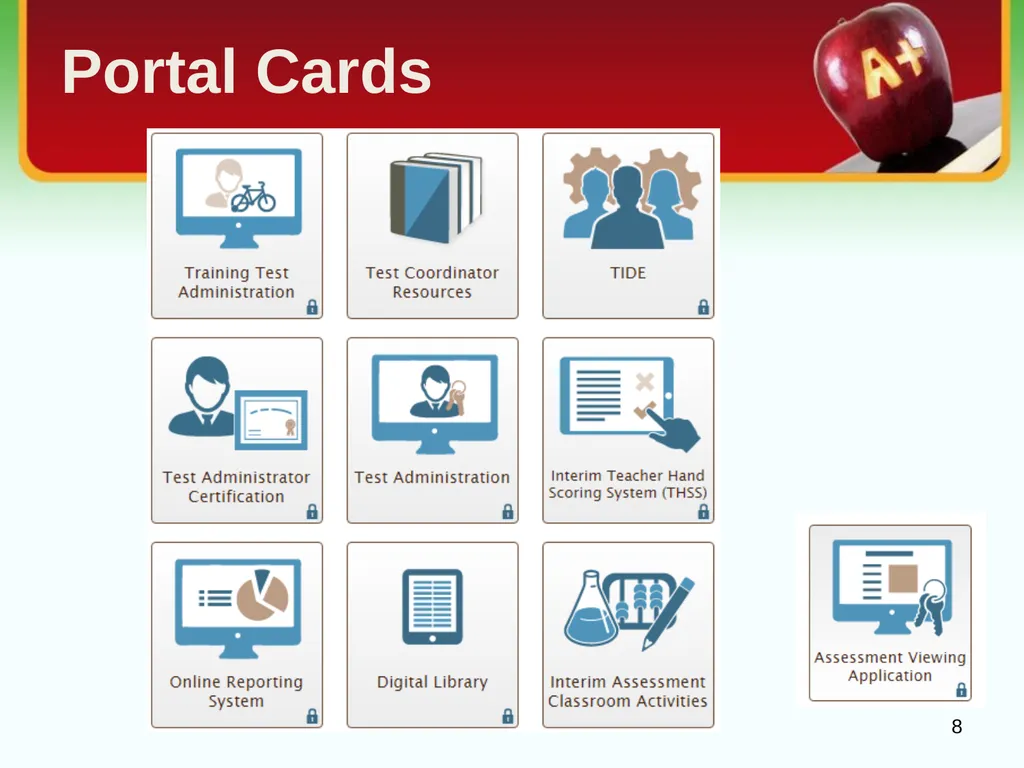
8 Portal Cards<br>
09
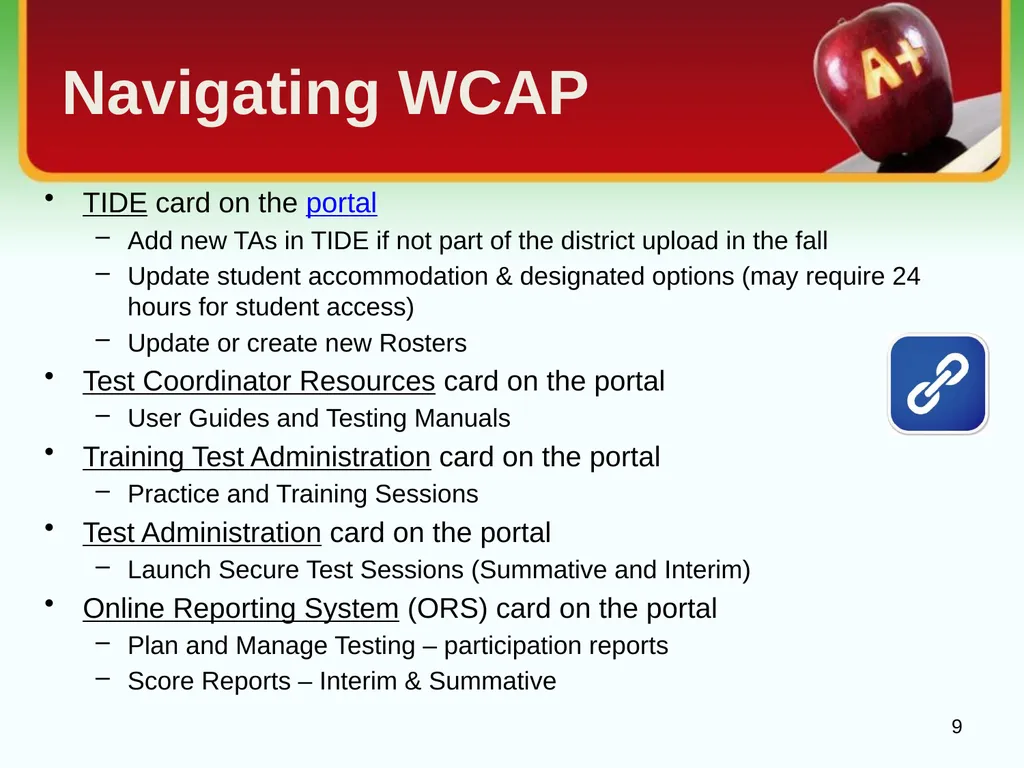
Navigating WCAP TIDE card on the portal
Add new TAs in TIDE if not part of the district upload in the fall
Update student accommodation & designated options (may require 24 hours for student access)
Update or create new Rosters
Test Coordinator Resources card on the portal
User Guides and Testing Manuals
Training Test Administration card on the portal
Practice and Training Sessions
Test Administration card on the portal
Launch Secure Test Sessions (Summative and Interim)
Online Reporting System (ORS) card on the portal
Plan and Manage Testing – participation reports
Score Reports – Interim & Summative 9<br>
Add new TAs in TIDE if not part of the district upload in the fall
Update student accommodation & designated options (may require 24 hours for student access)
Update or create new Rosters
Test Coordinator Resources card on the portal
User Guides and Testing Manuals
Training Test Administration card on the portal
Practice and Training Sessions
Test Administration card on the portal
Launch Secure Test Sessions (Summative and Interim)
Online Reporting System (ORS) card on the portal
Plan and Manage Testing – participation reports
Score Reports – Interim & Summative 9<br>
10
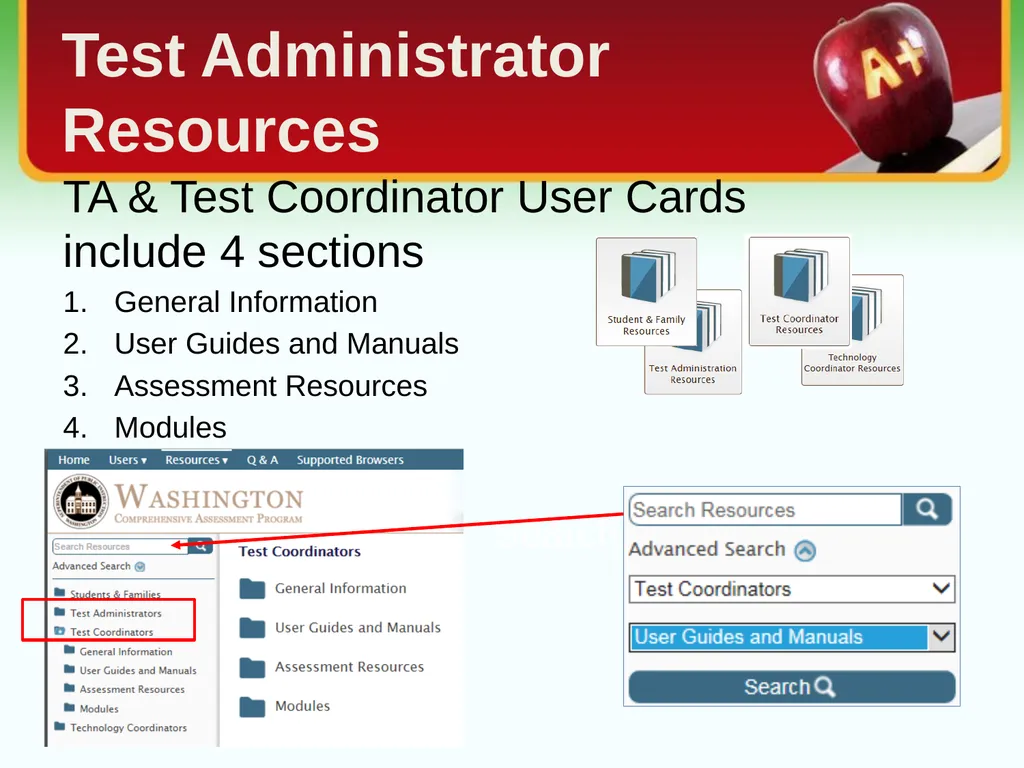
TA & Test Coordinator User Cards include 4 sections
General Information
User Guides and Manuals
Assessment Resources
Modules
Search Resources Test Administrator Resources<br>
General Information
User Guides and Manuals
Assessment Resources
Modules
Search Resources Test Administrator Resources<br>
11
EPS Assessment Schedule Elementary Schedule
Middle School Schedule
High School Schedule
Grade 10 ELA (Some students eligible for Math)
Grade 11 ELA and Math 11<br>
Middle School Schedule
High School Schedule
Grade 10 ELA (Some students eligible for Math)
Grade 11 ELA and Math 11<br>
12
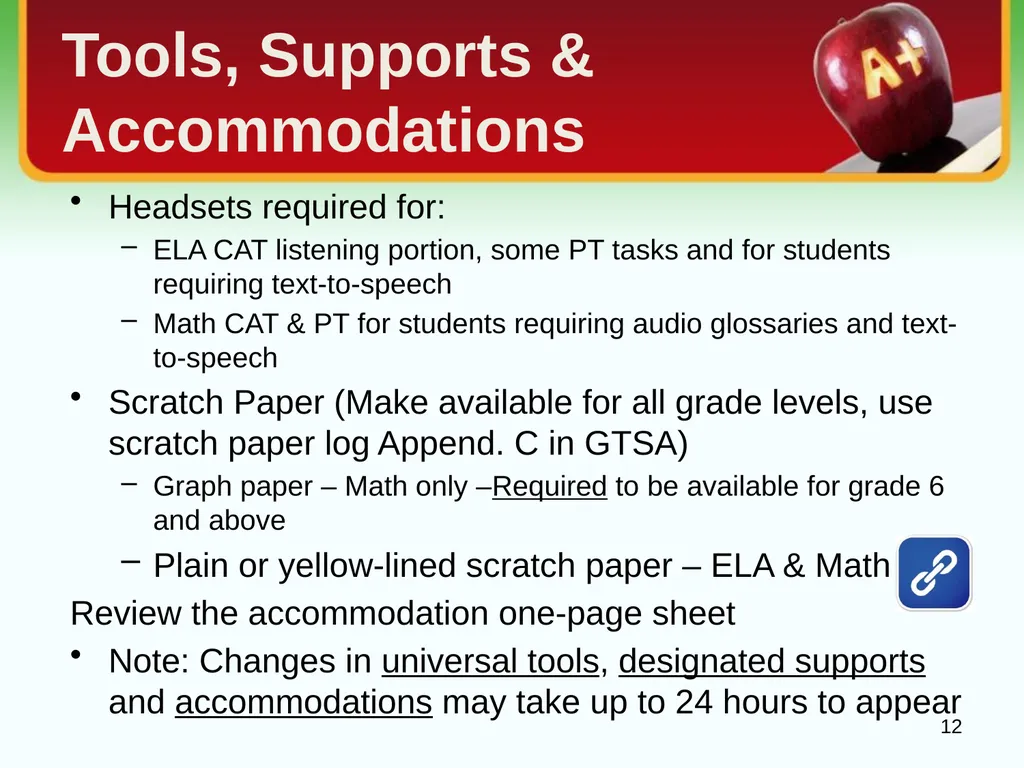
Tools, Supports & Accommodations Headsets required for:
ELA CAT listening portion, some PT tasks and for students requiring text-to-speech
Math CAT & PT for students requiring audio glossaries and text-to-speech
Scratch Paper (Make available for all grade levels, use scratch paper log Append. C in GTSA)
Graph paper – Math only –Required to be available for grade 6 and above
Plain or yellow-lined scratch paper – ELA & Math
Review the accommodation one-page sheet
Note: Changes in universal tools, designated supports and accommodations may take up to 24 hours to appear 12<br>
ELA CAT listening portion, some PT tasks and for students requiring text-to-speech
Math CAT & PT for students requiring audio glossaries and text-to-speech
Scratch Paper (Make available for all grade levels, use scratch paper log Append. C in GTSA)
Graph paper – Math only –Required to be available for grade 6 and above
Plain or yellow-lined scratch paper – ELA & Math
Review the accommodation one-page sheet
Note: Changes in universal tools, designated supports and accommodations may take up to 24 hours to appear 12<br>
13
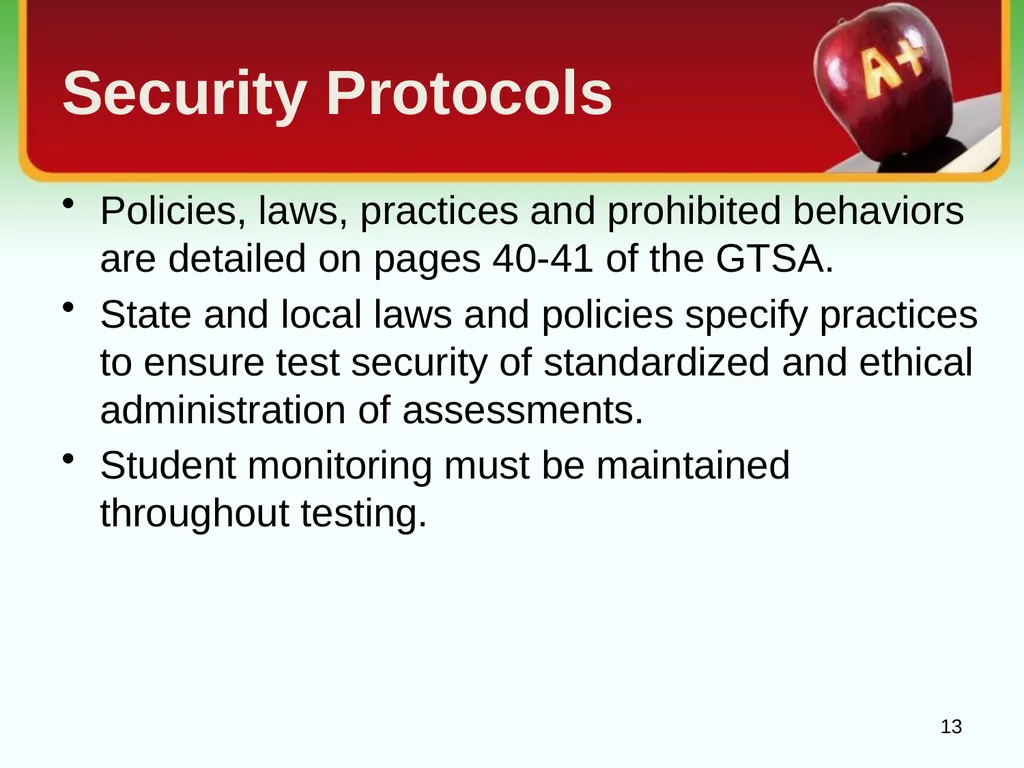
Security Protocols Policies, laws, practices and prohibited behaviors are detailed on pages 40-41 of the GTSA.
State and local laws and policies specify practices to ensure test security of standardized and ethical administration of assessments.
Student monitoring must be maintained throughout testing. 13<br>
State and local laws and policies specify practices to ensure test security of standardized and ethical administration of assessments.
Student monitoring must be maintained throughout testing. 13<br>
14
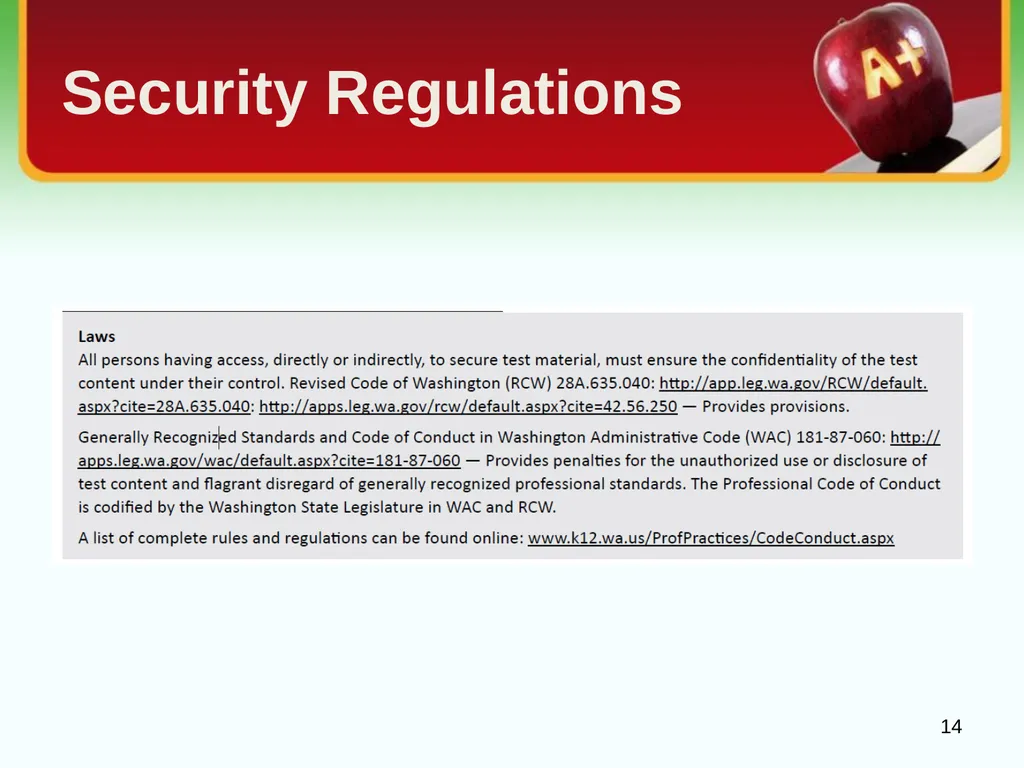
Security Regulations 14<br>
15
Test Security
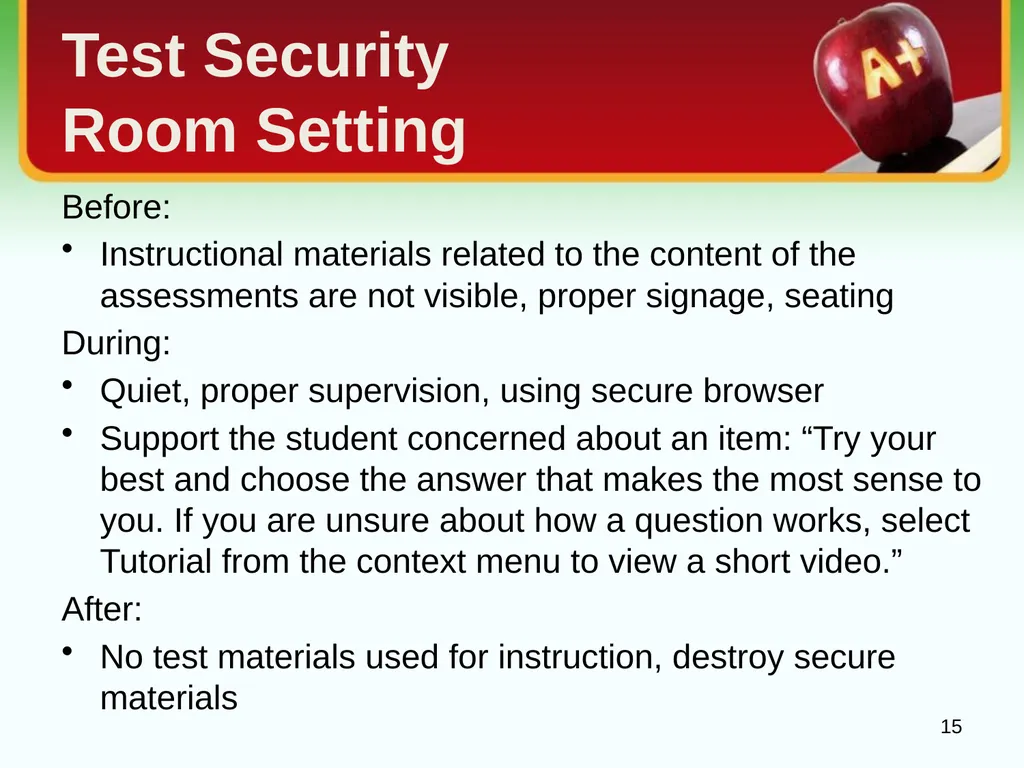
Room Setting Before:
Instructional materials related to the content of the assessments are not visible, proper signage, seating
During:
Quiet, proper supervision, using secure browser
Support the student concerned about an item: “Try your best and choose the answer that makes the most sense to you. If you are unsure about how a question works, select Tutorial from the context menu to view a short video.”
After:
No test materials used for instruction, destroy secure materials 15<br>
Instructional materials related to the content of the assessments are not visible, proper signage, seating
During:
Quiet, proper supervision, using secure browser
Support the student concerned about an item: “Try your best and choose the answer that makes the most sense to you. If you are unsure about how a question works, select Tutorial from the context menu to view a short video.”
After:
No test materials used for instruction, destroy secure materials 15<br>
16
Test Security
Materials Math CAT and PT scratch paper (graph or lined) must be collected after each session and shredded.
ELA CAT scratch paper (lined) must be collected after each session and shredded.
ELA PT1 scratch paper (lined) must be redistributed for PT2 and shredded at completion of PT2.
Test tickets must be locked up when not in use. Tickets may be reused but must be secured between uses.
Do not write the session ID on the ticket. 16<br>
ELA CAT scratch paper (lined) must be collected after each session and shredded.
ELA PT1 scratch paper (lined) must be redistributed for PT2 and shredded at completion of PT2.
Test tickets must be locked up when not in use. Tickets may be reused but must be secured between uses.
Do not write the session ID on the ticket. 16<br>
17
New Student Student will receive an SSID once enrolled in the student information system (eSP) and uploaded to CEDARS.
If the student was previously in a WA state school use EDS – CEDARS “Search Students” look-up for location information or “Students” tab to view: student information, schedule, assessment history & scores, programs, etc.
Remember that this is a testing window when considering administering the test to a new student.
If an SSID number is needed prior to the next CEDARS upload, contact your CEDARS manager. 17<br>
If the student was previously in a WA state school use EDS – CEDARS “Search Students” look-up for location information or “Students” tab to view: student information, schedule, assessment history & scores, programs, etc.
Remember that this is a testing window when considering administering the test to a new student.
If an SSID number is needed prior to the next CEDARS upload, contact your CEDARS manager. 17<br>
18
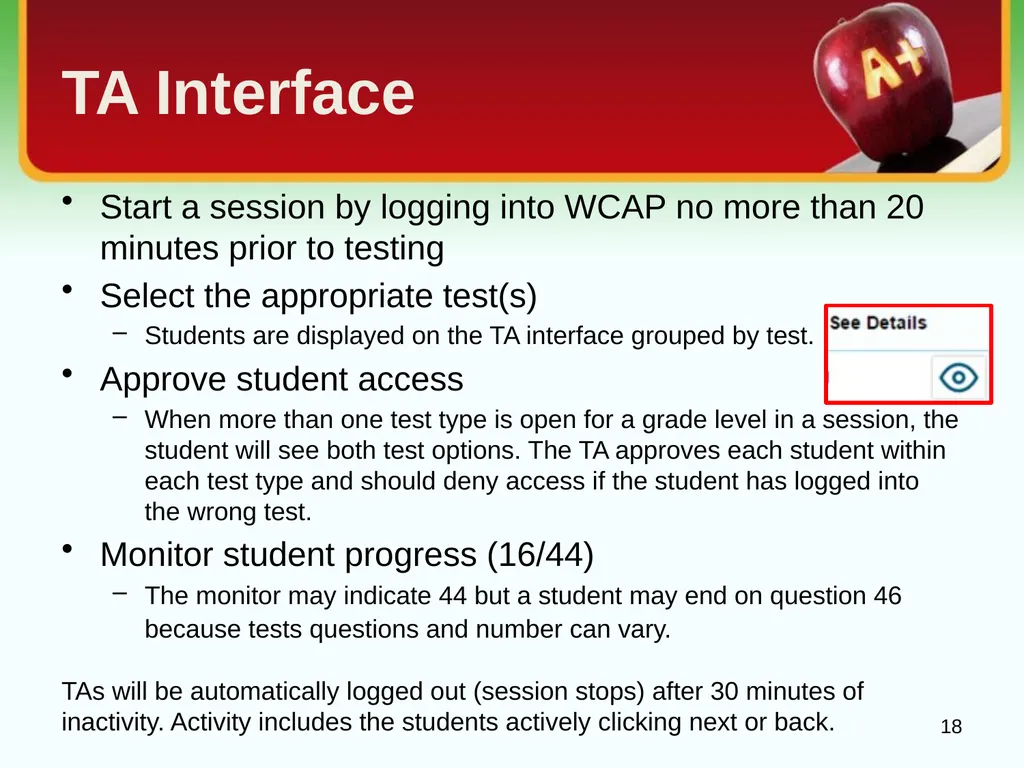
TA Interface Start a session by logging into WCAP no more than 20 minutes prior to testing
Select the appropriate test(s)
Students are displayed on the TA interface grouped by test.
Approve student access
When more than one test type is open for a grade level in a session, the student will see both test options. The TA approves each student within each test type and should deny access if the student has logged into the wrong test.
Monitor student progress (16/44)
The monitor may indicate 44 but a student may end on question 46 because tests questions and number can vary.
TAs will be automatically logged out (session stops) after 30 minutes of inactivity. Activity includes the students actively clicking next or back. 18<br>
Select the appropriate test(s)
Students are displayed on the TA interface grouped by test.
Approve student access
When more than one test type is open for a grade level in a session, the student will see both test options. The TA approves each student within each test type and should deny access if the student has logged into the wrong test.
Monitor student progress (16/44)
The monitor may indicate 44 but a student may end on question 46 because tests questions and number can vary.
TAs will be automatically logged out (session stops) after 30 minutes of inactivity. Activity includes the students actively clicking next or back. 18<br>
19
Student Interface Students log into the Session using their legal first name, as listed in eSchoolPlus, SSID number and session ID.
If students are unable to log in, verify that they are entering their login information correctly.
If a student arrives late:
the student can join the session in progress with TA approval
the TA can add another content area or grade level test to the session already in progress, if necessary
Students will only see their grade level exams. 19<br>
If students are unable to log in, verify that they are entering their login information correctly.
If a student arrives late:
the student can join the session in progress with TA approval
the TA can add another content area or grade level test to the session already in progress, if necessary
Students will only see their grade level exams. 19<br>
20
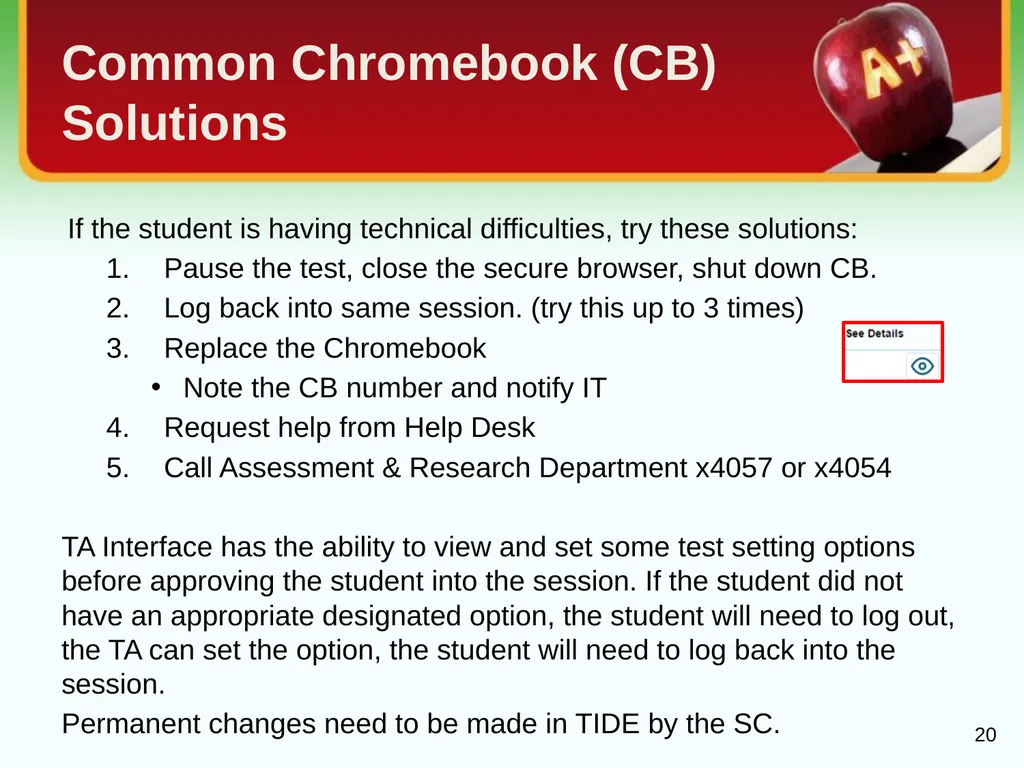
Common Chromebook (CB) Solutions If the student is having technical difficulties, try these solutions:
Pause the test, close the secure browser, shut down CB.
Log back into same session. (try this up to 3 times)
Replace the Chromebook
Note the CB number and notify IT
Request help from Help Desk
Call Assessment & Research Department x4057 or x4054
TA Interface has the ability to view and set some test setting options before approving the student into the session. If the student did not have an appropriate designated option, the student will need to log out, the TA can set the option, the student will need to log back into the session.
Permanent changes need to be made in TIDE by the SC. 20<br>
Pause the test, close the secure browser, shut down CB.
Log back into same session. (try this up to 3 times)
Replace the Chromebook
Note the CB number and notify IT
Request help from Help Desk
Call Assessment & Research Department x4057 or x4054
TA Interface has the ability to view and set some test setting options before approving the student into the session. If the student did not have an appropriate designated option, the student will need to log out, the TA can set the option, the student will need to log back into the session.
Permanent changes need to be made in TIDE by the SC. 20<br>
21
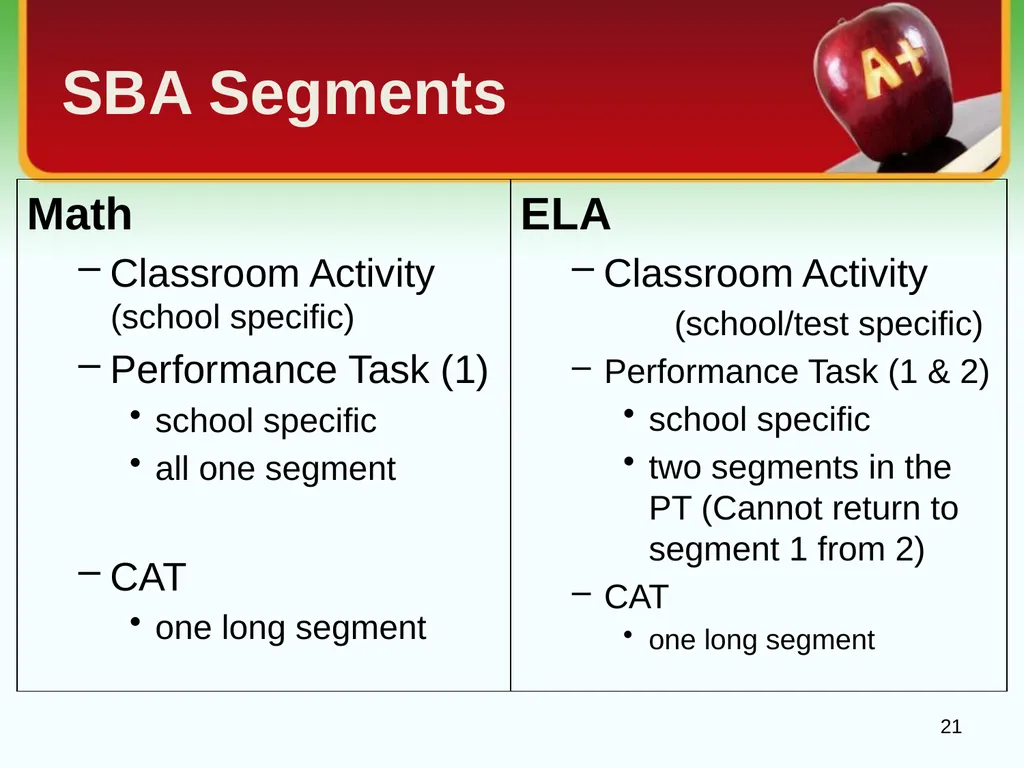
SBA Segments Math
Classroom Activity (school specific)
Performance Task (1)
school specific
all one segment
CAT
one long segment 21 ELA
Classroom Activity
(school/test specific)
Performance Task (1 & 2)
school specific
two segments in the PT (Cannot return to segment 1 from 2)
CAT
one long segment<br>
Classroom Activity (school specific)
Performance Task (1)
school specific
all one segment
CAT
one long segment 21 ELA
Classroom Activity
(school/test specific)
Performance Task (1 & 2)
school specific
two segments in the PT (Cannot return to segment 1 from 2)
CAT
one long segment<br>
22
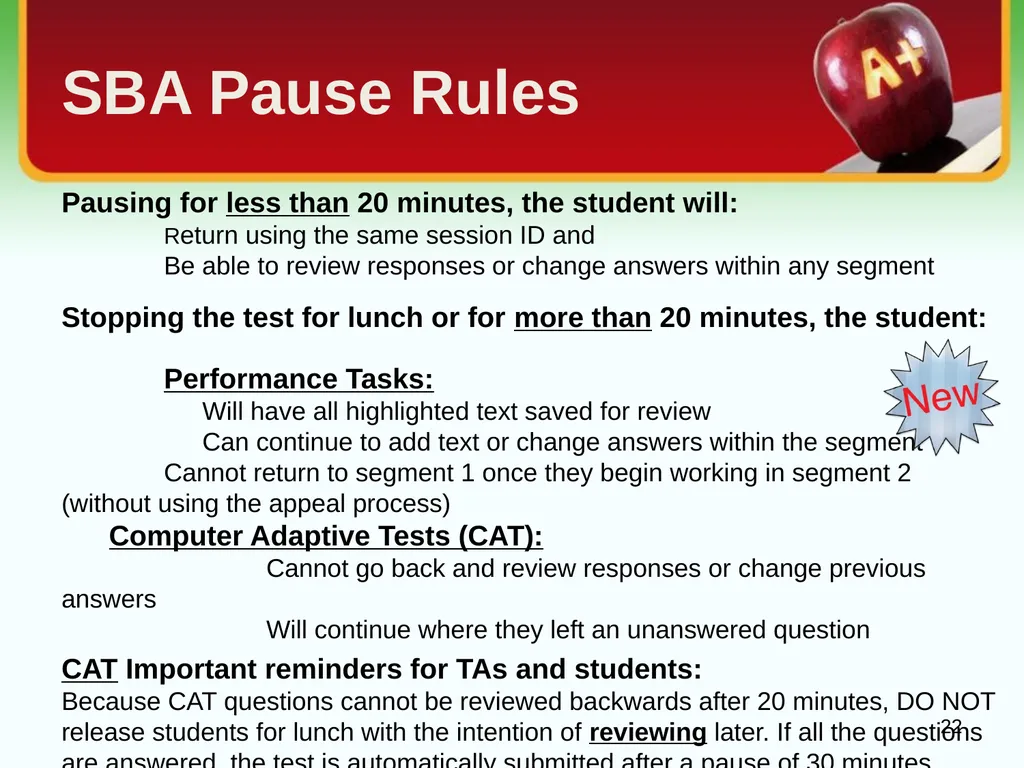
SBA Pause Rules Pausing for less than 20 minutes, the student will:
Return using the same session ID and
Be able to review responses or change answers within any segment
Stopping the test for lunch or for more than 20 minutes, the student:
Performance Tasks:
Will have all highlighted text saved for review
Can continue to add text or change answers within the segment
Cannot return to segment 1 once they begin working in segment 2 (without using the appeal process)
Computer Adaptive Tests (CAT):
Cannot go back and review responses or change previous answers
Will continue where they left an unanswered question
CAT Important reminders for TAs and students:
Because CAT questions cannot be reviewed backwards after 20 minutes, DO NOT release students for lunch with the intention of reviewing later. If all the questions are answered, the test is automatically submitted after a pause of 30 minutes. 22<br>
Return using the same session ID and
Be able to review responses or change answers within any segment
Stopping the test for lunch or for more than 20 minutes, the student:
Performance Tasks:
Will have all highlighted text saved for review
Can continue to add text or change answers within the segment
Cannot return to segment 1 once they begin working in segment 2 (without using the appeal process)
Computer Adaptive Tests (CAT):
Cannot go back and review responses or change previous answers
Will continue where they left an unanswered question
CAT Important reminders for TAs and students:
Because CAT questions cannot be reviewed backwards after 20 minutes, DO NOT release students for lunch with the intention of reviewing later. If all the questions are answered, the test is automatically submitted after a pause of 30 minutes. 22<br>
23
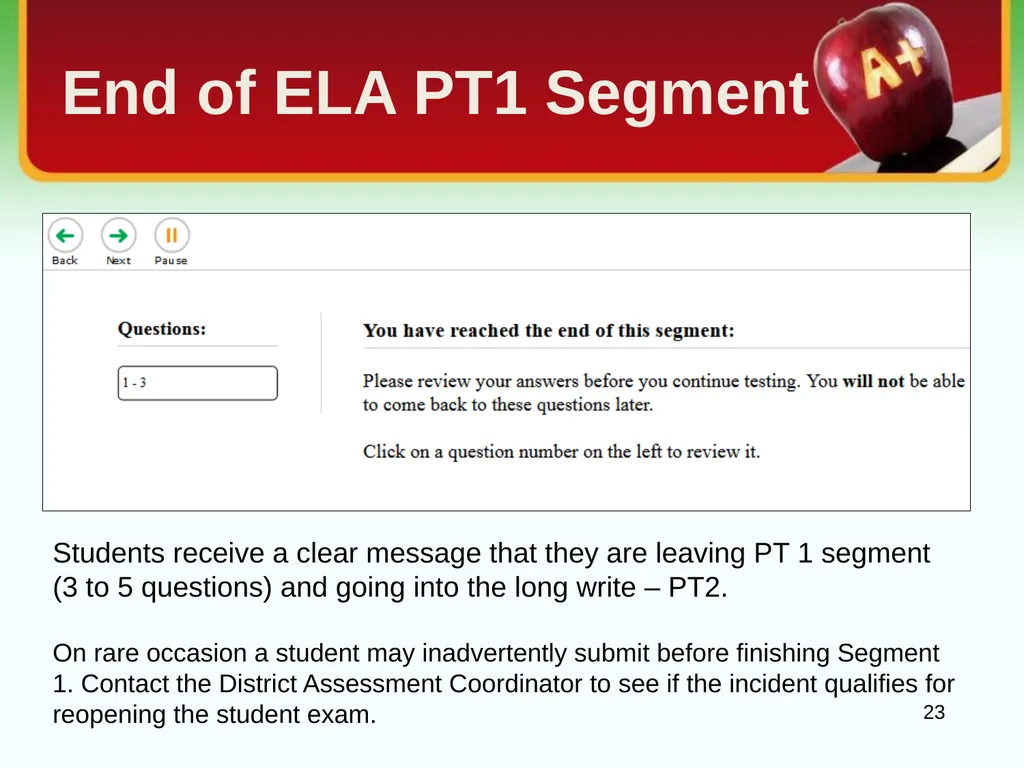
End of ELA PT1 Segment 23 Students receive a clear message that they are leaving PT 1 segment (3 to 5 questions) and going into the long write – PT2.
On rare occasion a student may inadvertently submit before finishing Segment 1. Contact the District Assessment Coordinator to see if the incident qualifies for reopening the student exam.<br>
On rare occasion a student may inadvertently submit before finishing Segment 1. Contact the District Assessment Coordinator to see if the incident qualifies for reopening the student exam.<br>
24
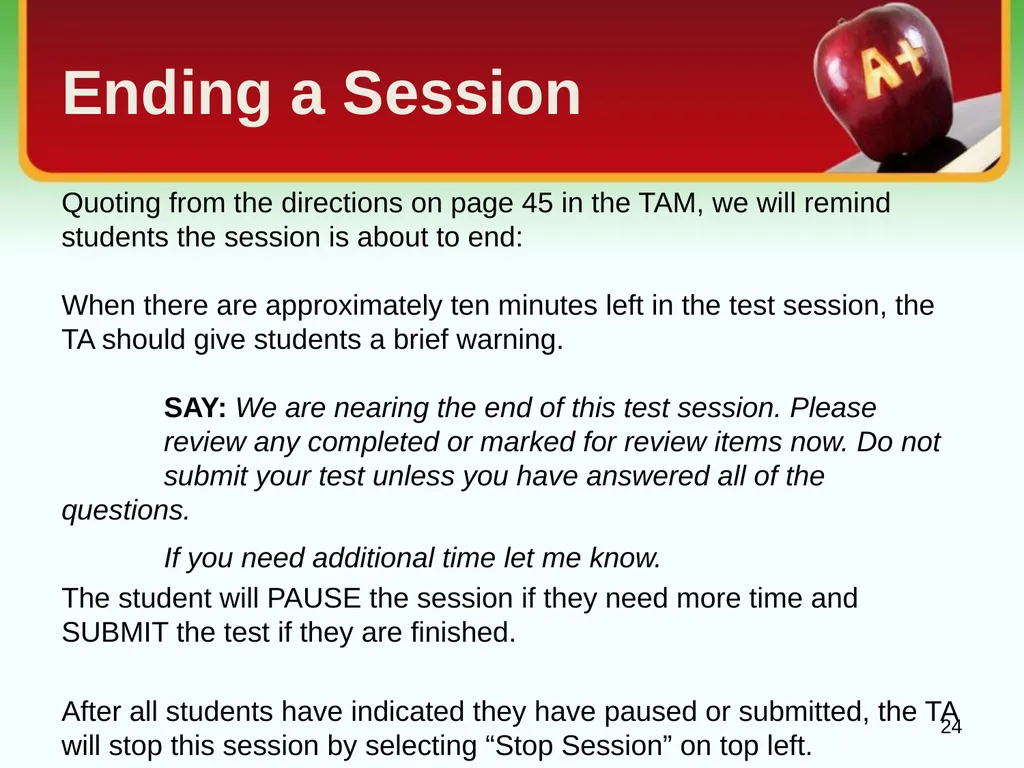
Ending a Session Quoting from the directions on page 45 in the TAM, we will remind students the session is about to end:
When there are approximately ten minutes left in the test session, the TA should give students a brief warning.
SAY: We are nearing the end of this test session. Please review any completed or marked for review items now. Do not submit your test unless you have answered all of the questions.
If you need additional time let me know.
The student will PAUSE the session if they need more time and SUBMIT the test if they are finished.
After all students have indicated they have paused or submitted, the TA will stop this session by selecting “Stop Session” on top left. 24<br>
When there are approximately ten minutes left in the test session, the TA should give students a brief warning.
SAY: We are nearing the end of this test session. Please review any completed or marked for review items now. Do not submit your test unless you have answered all of the questions.
If you need additional time let me know.
The student will PAUSE the session if they need more time and SUBMIT the test if they are finished.
After all students have indicated they have paused or submitted, the TA will stop this session by selecting “Stop Session” on top left. 24<br>
25
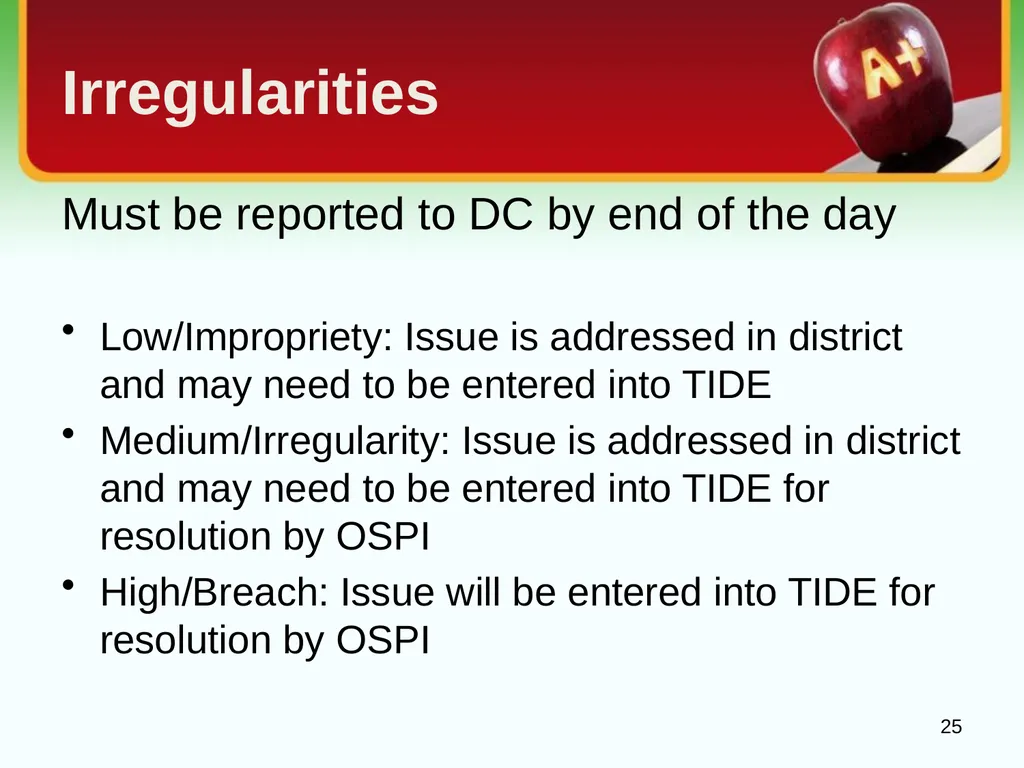
Irregularities Must be reported to DC by end of the day
Low/Impropriety: Issue is addressed in district and may need to be entered into TIDE
Medium/Irregularity: Issue is addressed in district and may need to be entered into TIDE for resolution by OSPI
High/Breach: Issue will be entered into TIDE for resolution by OSPI 25<br>
Low/Impropriety: Issue is addressed in district and may need to be entered into TIDE
Medium/Irregularity: Issue is addressed in district and may need to be entered into TIDE for resolution by OSPI
High/Breach: Issue will be entered into TIDE for resolution by OSPI 25<br>
26
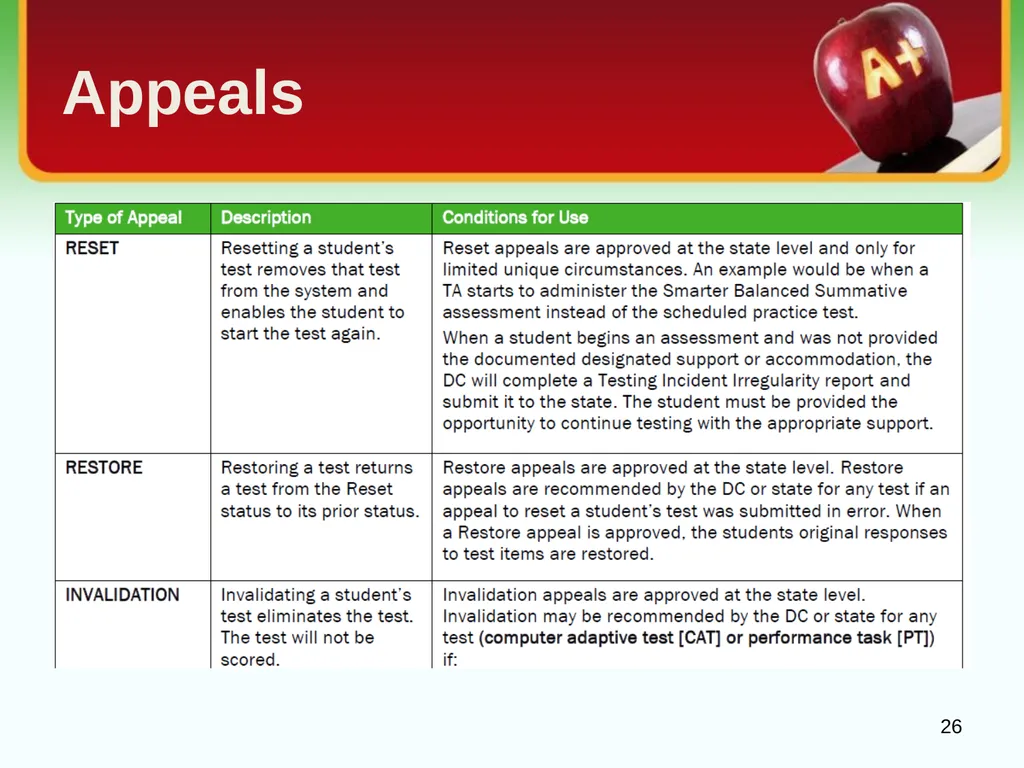
Appeals 26<br>
27
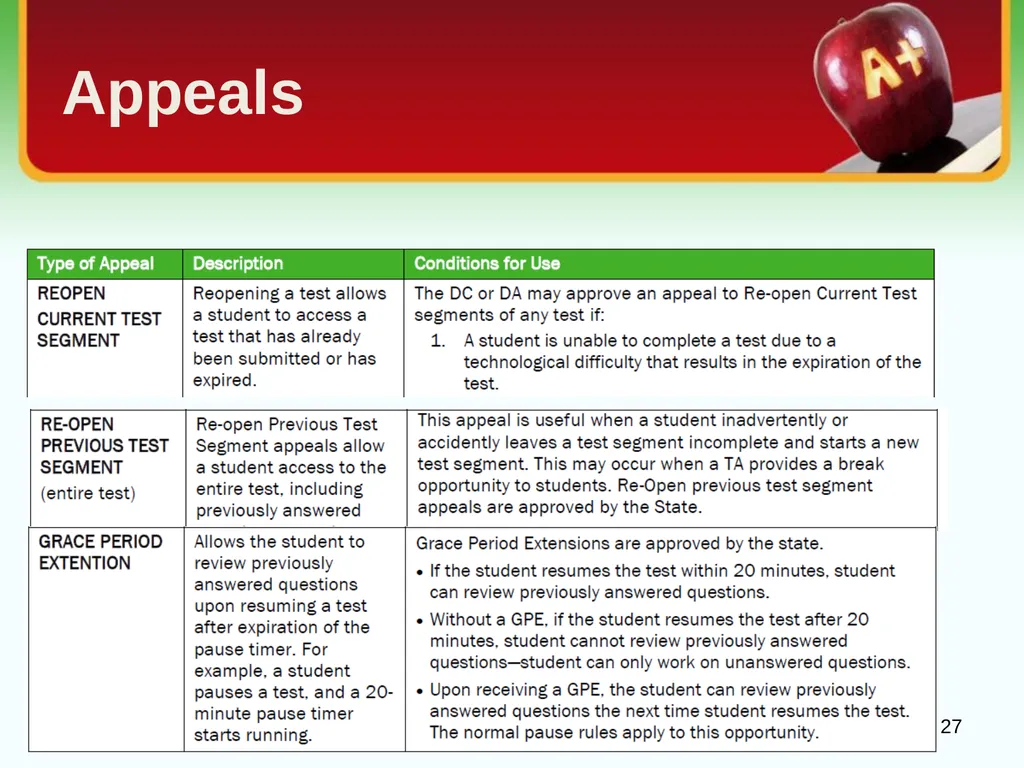
Appeals 27<br>
28
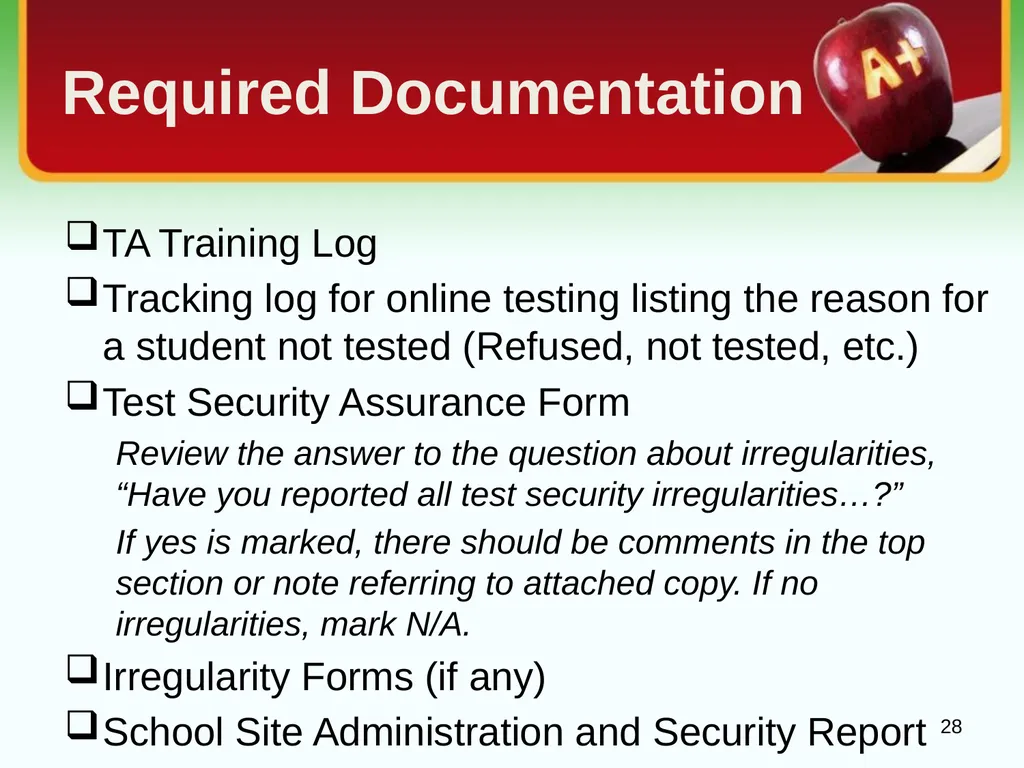
Required Documentation TA Training Log
Tracking log for online testing listing the reason for a student not tested (Refused, not tested, etc.)
Test Security Assurance Form
Review the answer to the question about irregularities, “Have you reported all test security irregularities…?”
If yes is marked, there should be comments in the top section or note referring to attached copy. If no irregularities, mark N/A.
Irregularity Forms (if any)
School Site Administration and Security Report 28<br>
Tracking log for online testing listing the reason for a student not tested (Refused, not tested, etc.)
Test Security Assurance Form
Review the answer to the question about irregularities, “Have you reported all test security irregularities…?”
If yes is marked, there should be comments in the top section or note referring to attached copy. If no irregularities, mark N/A.
Irregularity Forms (if any)
School Site Administration and Security Report 28<br>
29
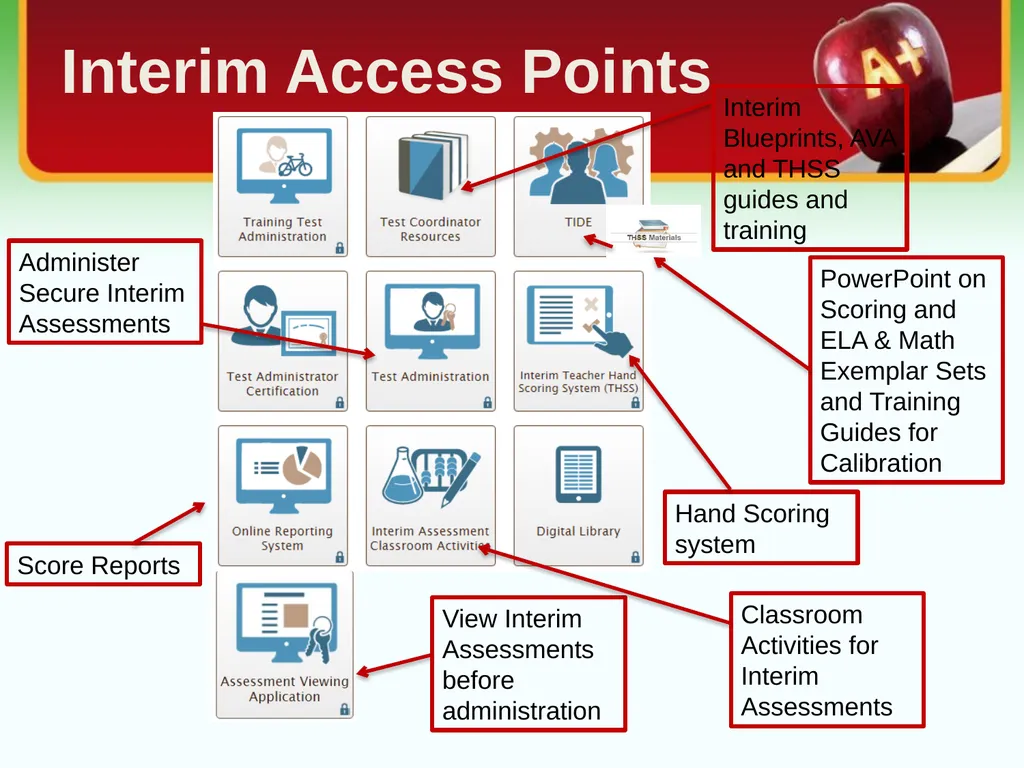
Score Reports View Interim Assessments before administration Interim Blueprints, AVA and THSS guides and training PowerPoint on Scoring and
ELA & Math Exemplar Sets and Training Guides for Calibration Classroom Activities for Interim Assessments Administer Secure Interim Assessments Hand Scoring system Interim Access Points<br>
ELA & Math Exemplar Sets and Training Guides for Calibration Classroom Activities for Interim Assessments Administer Secure Interim Assessments Hand Scoring system Interim Access Points<br>
30
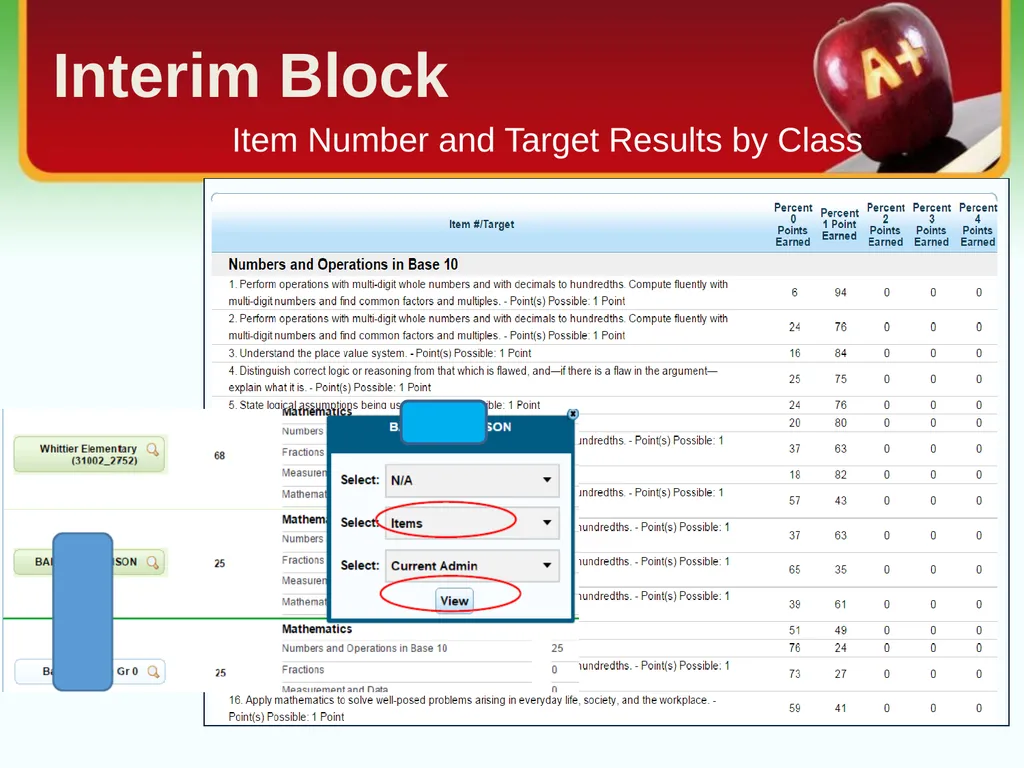
Item Number and Target Results by Class Interim Block<br>
31
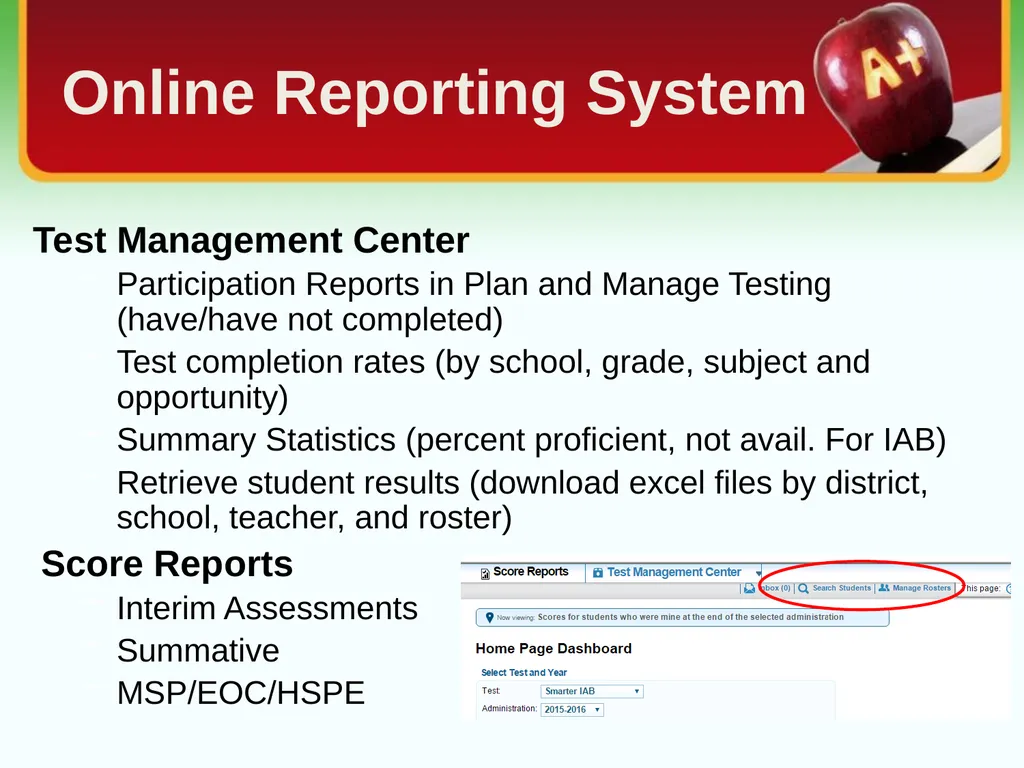
Test Management Center
Participation Reports in Plan and Manage Testing (have/have not completed)
Test completion rates (by school, grade, subject and opportunity)
Summary Statistics (percent proficient, not avail. For IAB)
Retrieve student results (download excel files by district, school, teacher, and roster)
Score Reports
Interim Assessments
Summative
MSP/EOC/HSPE Online Reporting System<br>
Participation Reports in Plan and Manage Testing (have/have not completed)
Test completion rates (by school, grade, subject and opportunity)
Summary Statistics (percent proficient, not avail. For IAB)
Retrieve student results (download excel files by district, school, teacher, and roster)
Score Reports
Interim Assessments
Summative
MSP/EOC/HSPE Online Reporting System<br>
32
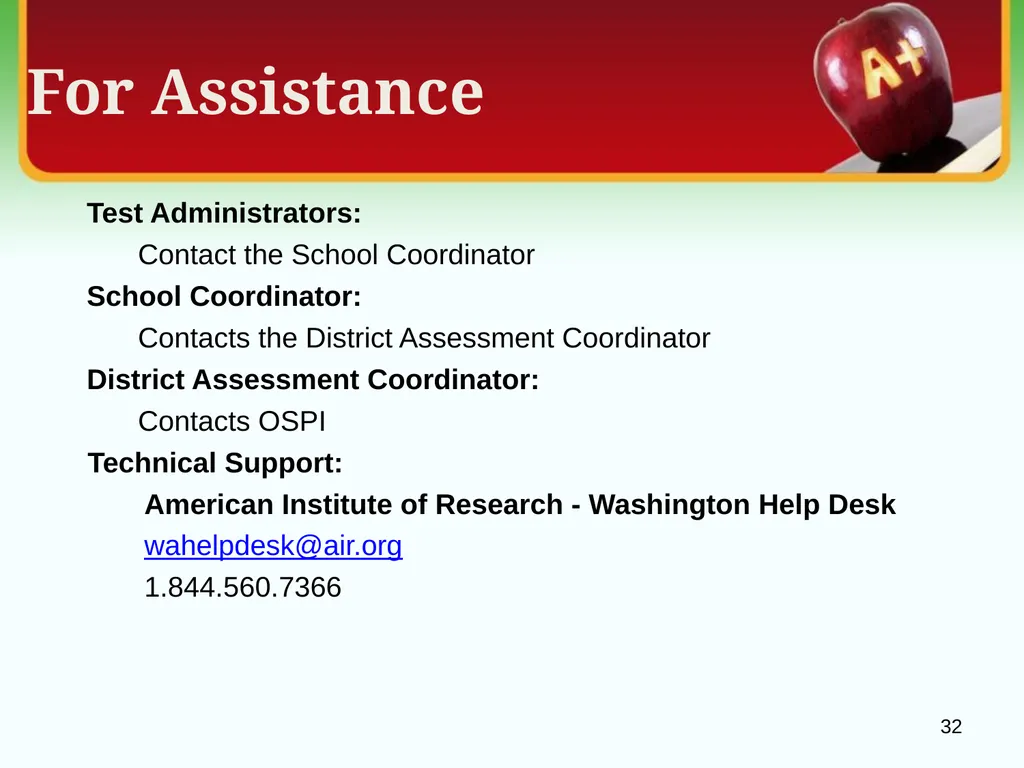
For Assistance Test Administrators:
Contact the School Coordinator
School Coordinator:
Contacts the District Assessment Coordinator
District Assessment Coordinator:
Contacts OSPI
Technical Support:
American Institute of Research - Washington Help Desk
wahelpdesk@air.org
1.844.560.7366 32<br>
Contact the School Coordinator
School Coordinator:
Contacts the District Assessment Coordinator
District Assessment Coordinator:
Contacts OSPI
Technical Support:
American Institute of Research - Washington Help Desk
wahelpdesk@air.org
1.844.560.7366 32<br>