STUDENTSPARENTS USER MANUAL Select the Instance: Step 1: Click on the Click here for the instance you would like to login. Parent Portal Login: Step 2: Enter Username as USN and Password as Date of Birth. (Please make sure to enter
"STUDENTS/PARENTS USER MANUAL Select the Instance:" is the property of its rightful owner. Permission is granted to
download and print the materials on this website for personal, non-commercial use only, and to display it
on your personal computer provided you do not modify the materials and that you retain all copyright
notices contained in the materials. By downloading content from our website, you accept the terms of this
agreement.
Presentation Transcript
01
STUDENTS/PARENTS
USER MANUAL<br>
02
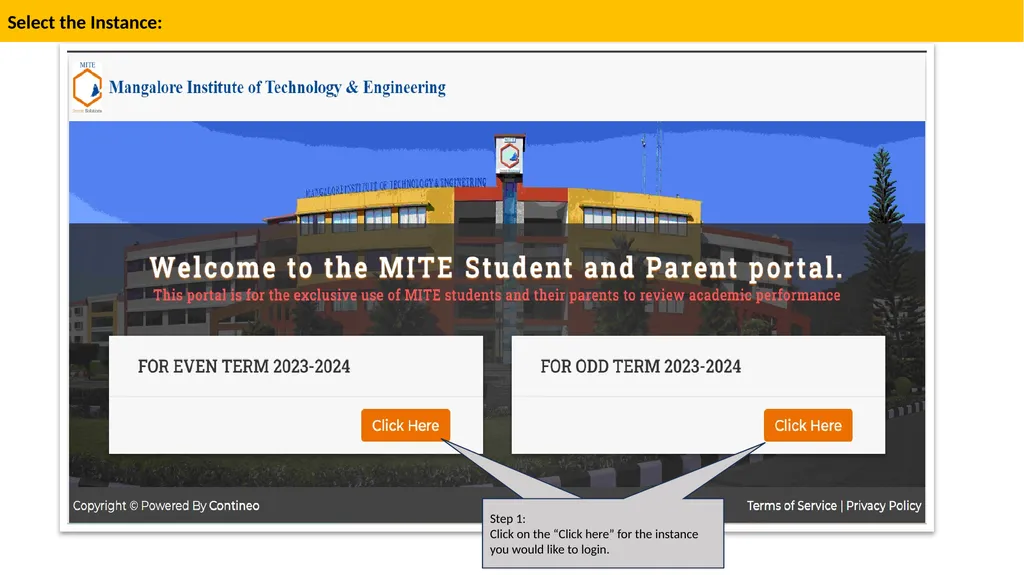
Select the Instance: Step 1:
Click on the “Click here” for the instance you would like to login.<br>
03
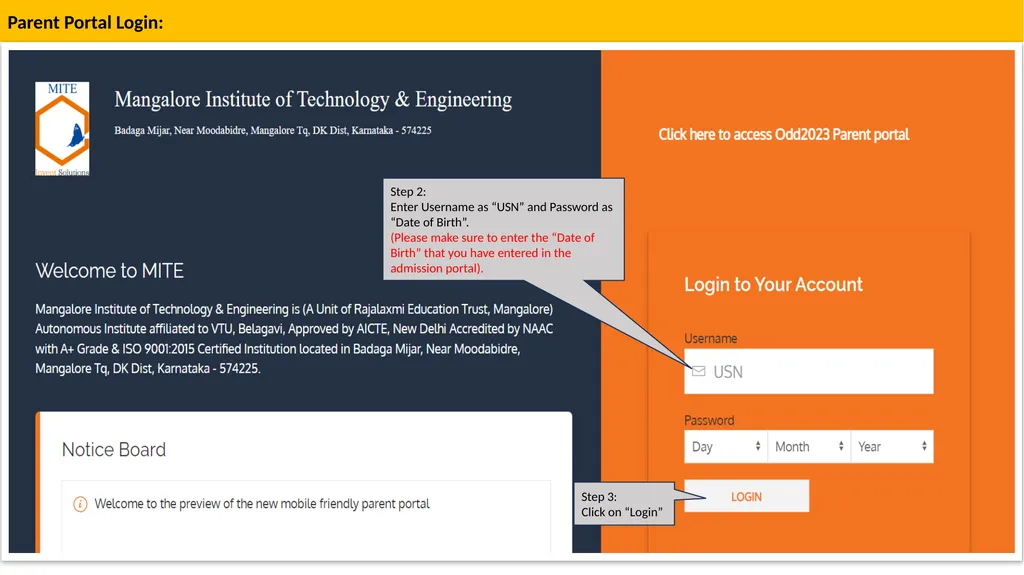
Parent Portal Login: Step 2:
Enter Username as “USN” and Password as “Date of Birth”.
(Please make sure to enter the “Date of Birth” that you have entered in the admission portal). Step 3:
Click on “Login”<br>
04
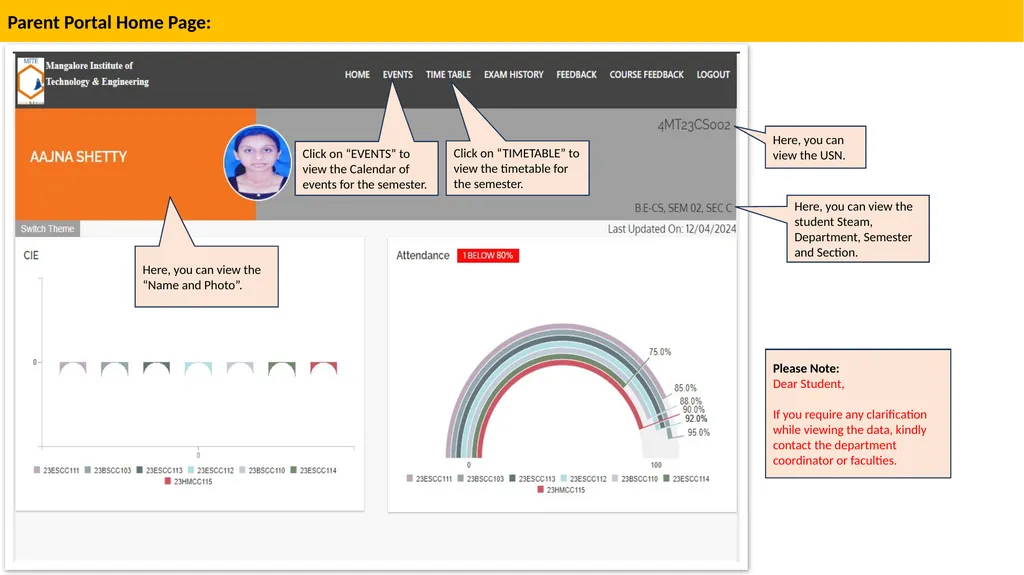
Parent Portal Home Page: Here, you can view the “Name and Photo”. Here, you can view the student Steam, Department, Semester and Section. Here, you can view the USN. Click on “TIMETABLE” to view the timetable for the semester. Click on “EVENTS” to view the Calendar of events for the semester. Please Note:
Dear Student,
If you require any clarification while viewing the data, kindly contact the department coordinator or faculties.<br>
05
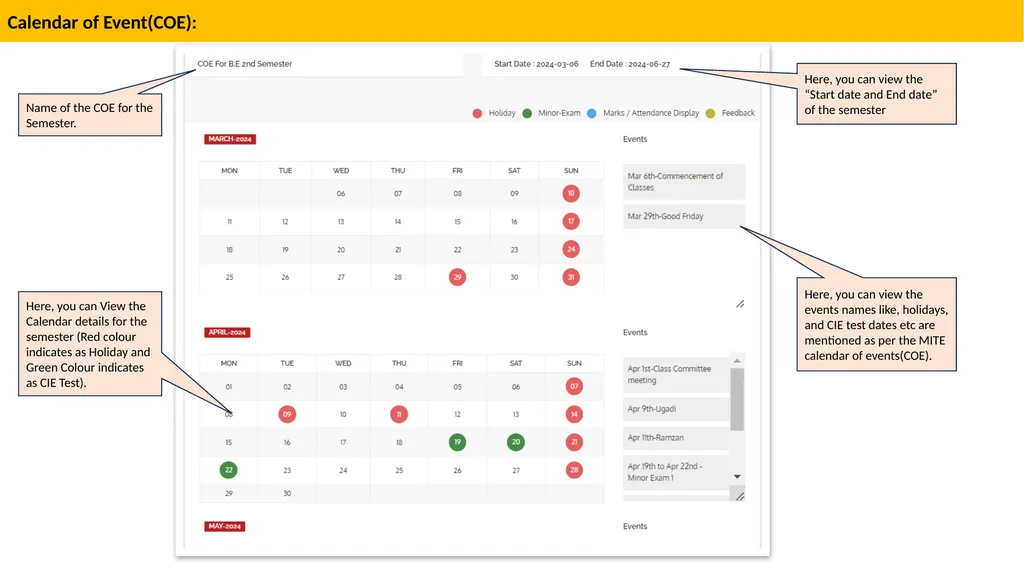
Calendar of Event(COE): Here, you can View the Calendar details for the semester (Red colour indicates as Holiday and Green Colour indicates as CIE Test). Name of the COE for the Semester. Here, you can view the events names like, holidays, and CIE test dates etc are mentioned as per the MITE calendar of events(COE). Here, you can view the “Start date and End date” of the semester<br>
06
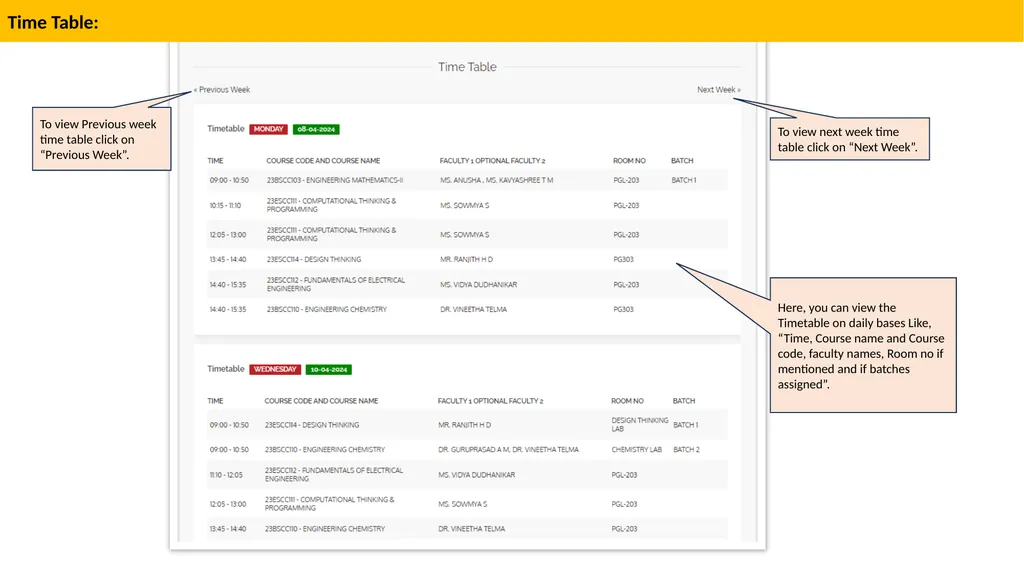
Time Table: Here, you can view the Timetable on daily bases Like, “Time, Course name and Course code, faculty names, Room no if mentioned and if batches assigned”. To view next week time table click on “Next Week”. To view Previous week time table click on “Previous Week”.<br>
07
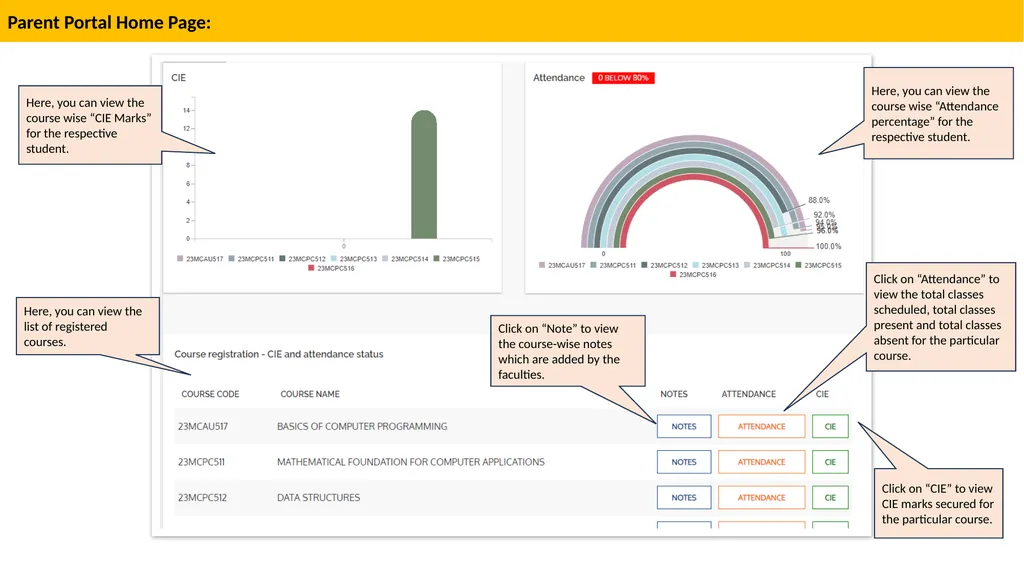
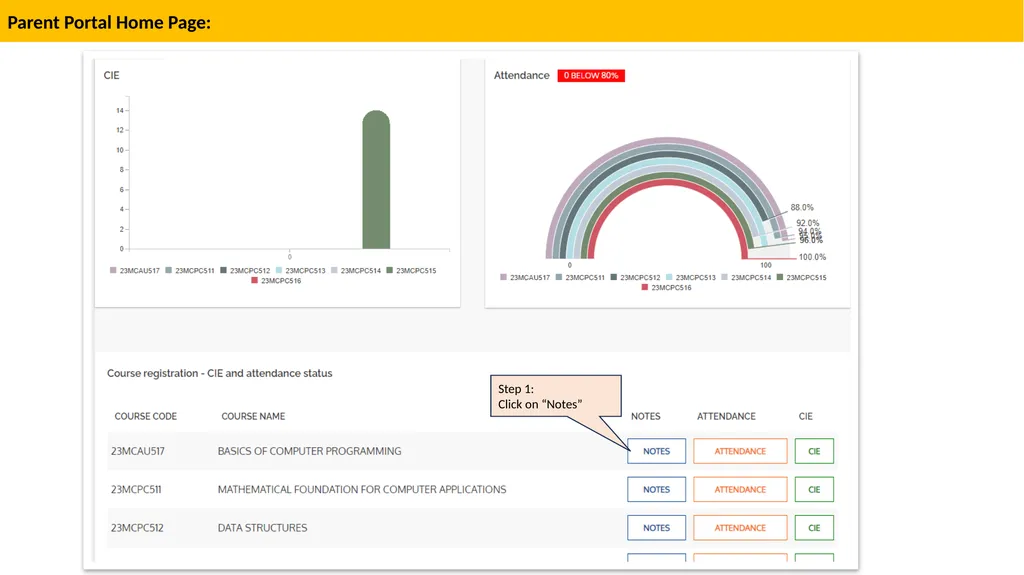
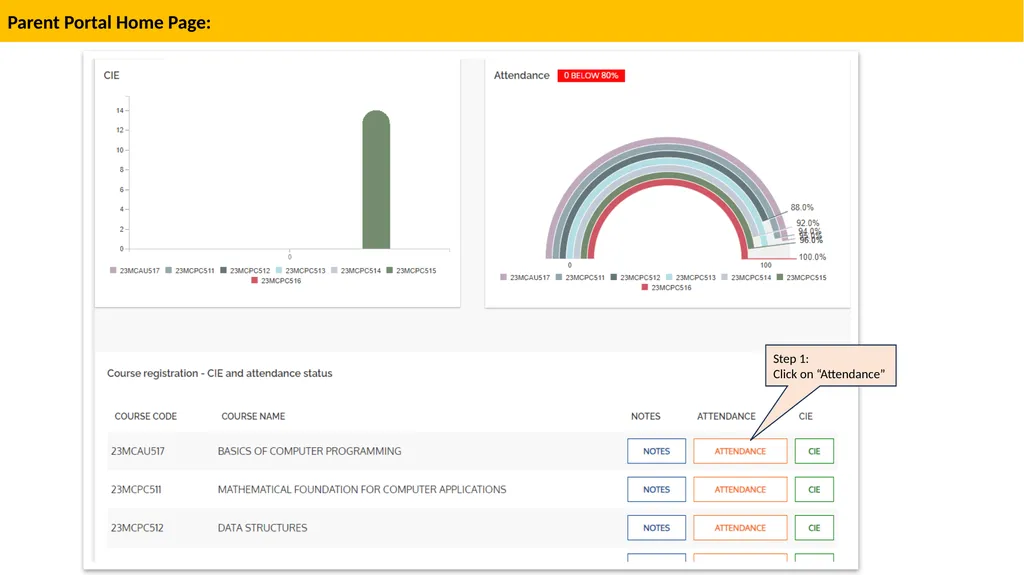
Parent Portal Home Page: Here, you can view the course wise “CIE Marks” for the respective student. Here, you can view the list of registered courses. Click on “Note” to view the course-wise notes which are added by the faculties. Here, you can view the course wise “Attendance percentage” for the respective student. Click on “Attendance” to view the total classes scheduled, total classes present and total classes absent for the particular course. Click on “CIE” to view CIE marks secured for the particular course.<br>
08
How to view the NOTES<br>
09
Step 1:
Click on “Notes” Parent Portal Home Page:<br>
10
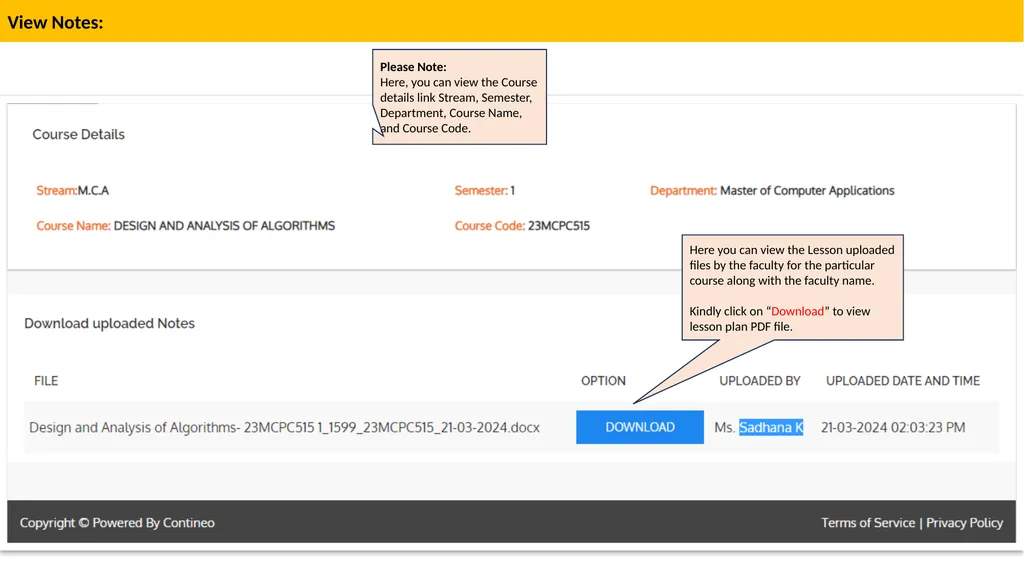
View Notes: Here you can view the Lesson uploaded files by the faculty for the particular course along with the faculty name.
Kindly click on “Download” to view lesson plan PDF file. Please Note:
Here, you can view the Course details link Stream, Semester, Department, Course Name, and Course Code.<br>
11
How to view the ATTENDANCE<br>
12
Parent Portal Home Page: Step 1:
Click on “Attendance”<br>
13
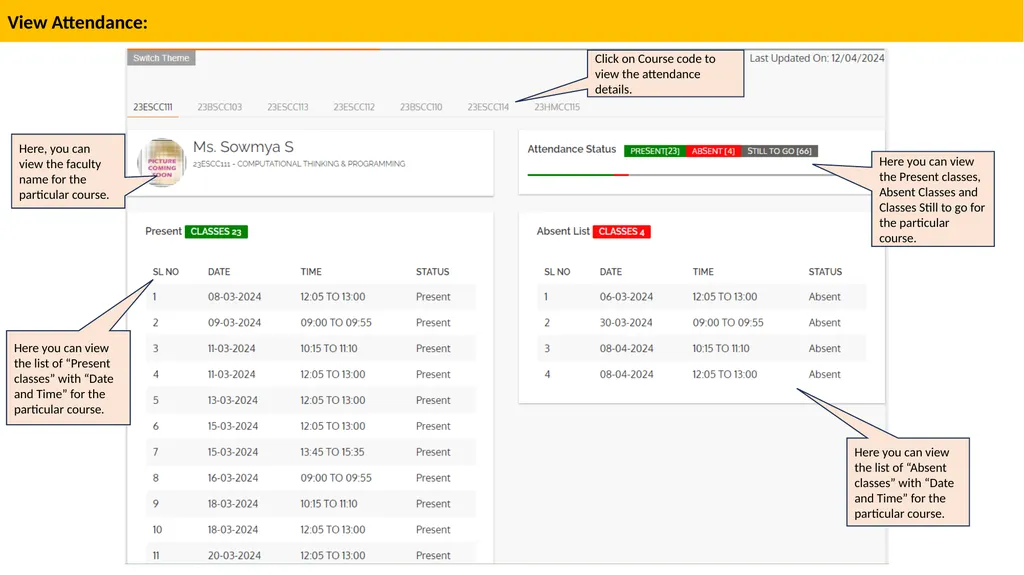
View Attendance: Here you can view the list of “Present classes” with “Date and Time” for the particular course. Here you can view the Present classes, Absent Classes and Classes Still to go for the particular course. Here you can view the list of “Absent classes” with “Date and Time” for the particular course. Here, you can view the faculty name for the particular course. Click on Course code to view the attendance details.<br>
14
How to view the CIE(Internal Assessment)<br>
15
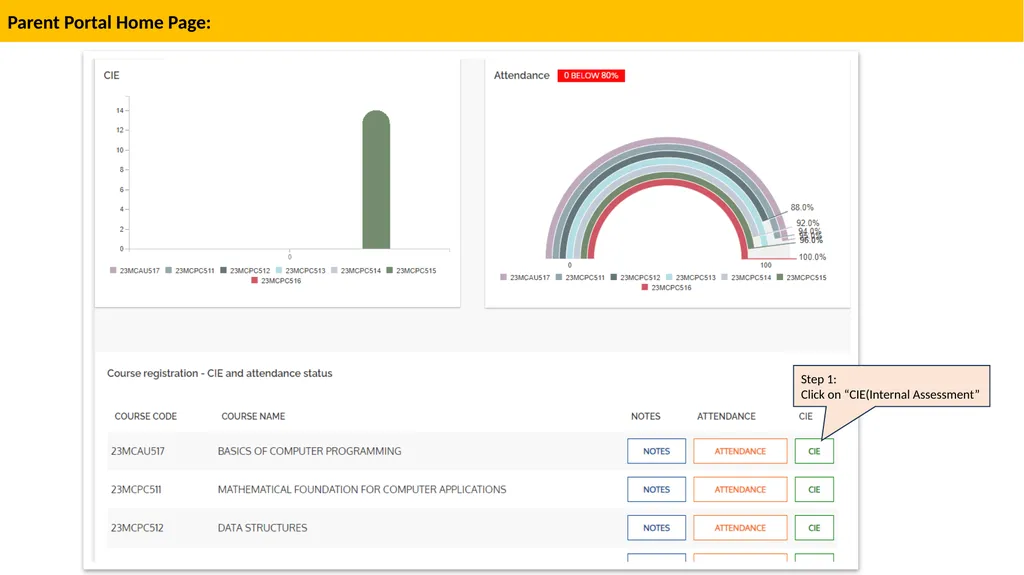
Parent Portal Home Page: Step 1:
Click on “CIE(Internal Assessment”<br>
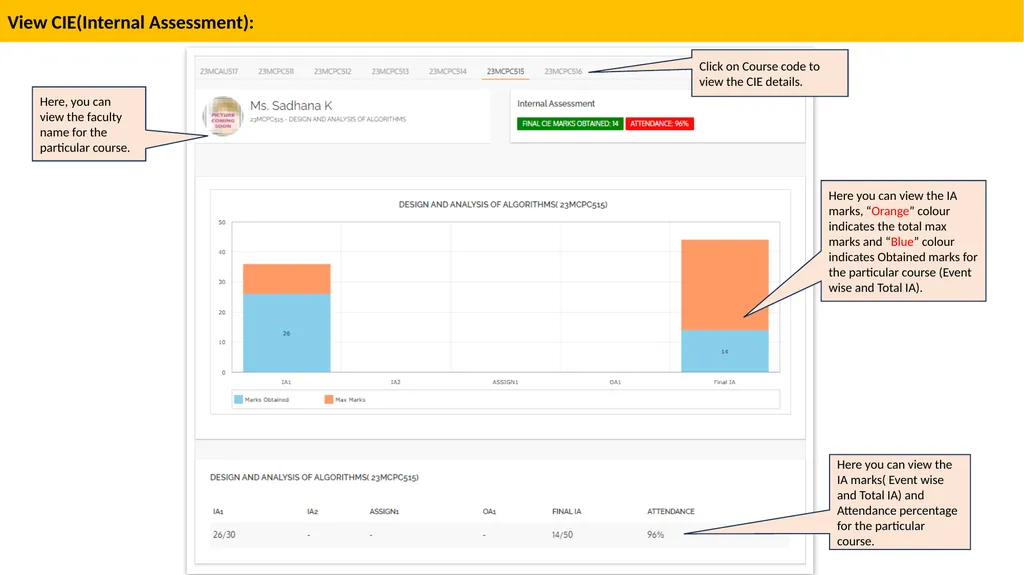
16
View CIE(Internal Assessment): Click on Course code to view the CIE details. Here, you can view the faculty name for the particular course. Here you can view the IA marks( Event wise and Total IA) and Attendance percentage for the particular course. Here you can view the IA marks, “Orange” colour indicates the total max marks and “Blue” colour indicates Obtained marks for the particular course (Event wise and Total IA).<br>