Unit 8 Audio-Visual Equipment Unit 8 Objectives
Description: Unit 8 Audio-Visual Equipment Unit 8 Objectives Upon completion of this unit, you will be able to do the following with two commonly used items of audio-visual equipment: Prepare for use and operate. List six essential auxiliary items.
Related Topics
Download Presentation
"Unit 8 Audio-Visual Equipment Unit 8 Objectives" is the property of its rightful owner. Permission is granted to download and print the materials on this website for personal, non-commercial use only, and to display it on your personal computer provided you do not modify the materials and that you retain all copyright notices contained in the materials. By downloading content from our website, you accept the terms of this agreement.
Presentation Transcript
slide1. Unit 8 Audio-Visual Equipment<br>
slide2. Unit 8 Objectives Upon completion of this unit, you will be able to do the following with two commonly used items of audio-visual equipment:
Prepare for use and operate.
List six essential auxiliary items.
Perform preventive maintenance and trouble shoot the four most common problems. PPT 8-1<br>
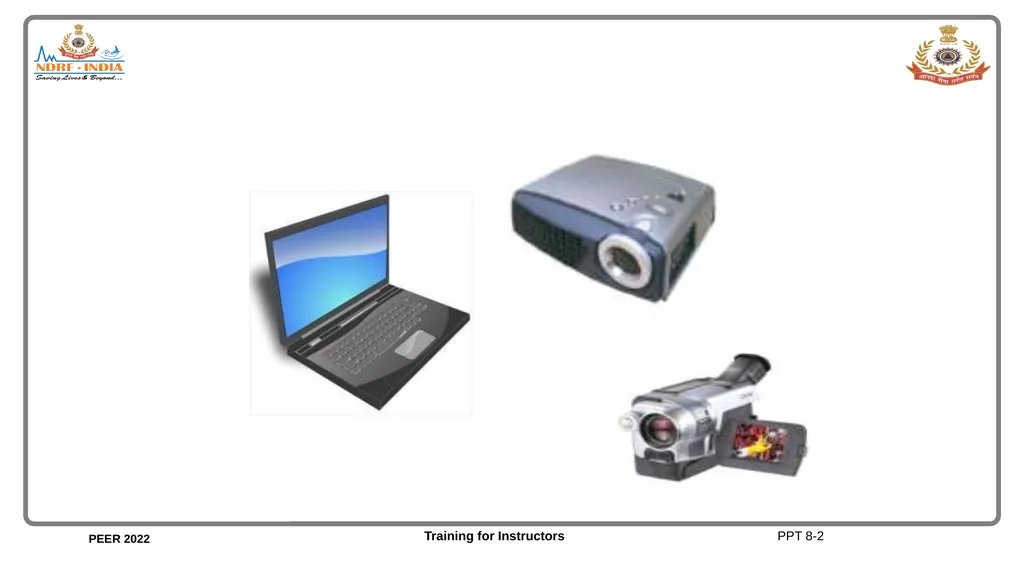
slide3. PPT 8-2<br>
slide4. Accessories PPT 8-3<br>
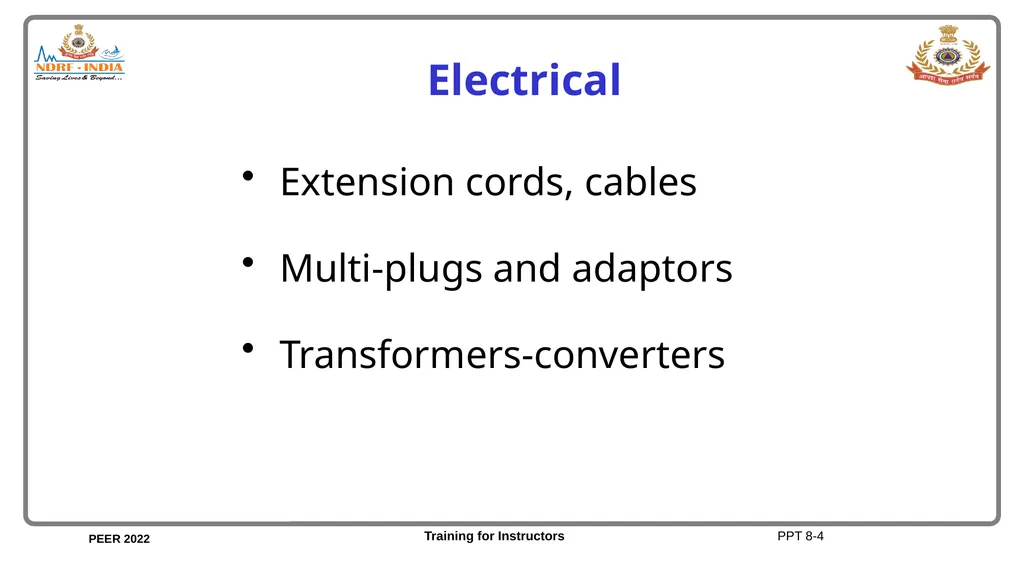
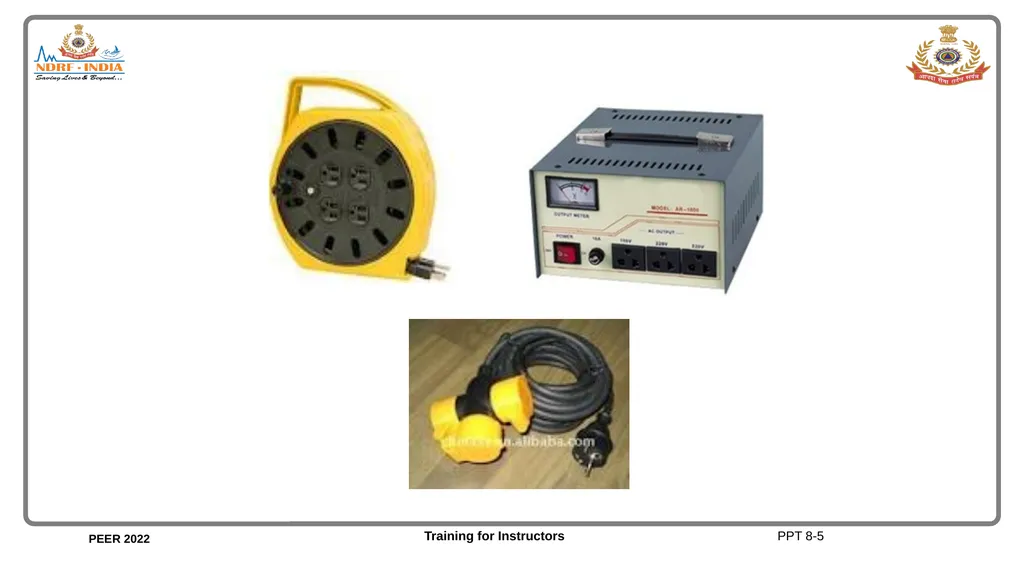
slide5. Electrical Extension cords, cables
Multi-plugs and adaptors
Transformers-converters PPT 8-4<br>
slide6. PPT 8-5<br>
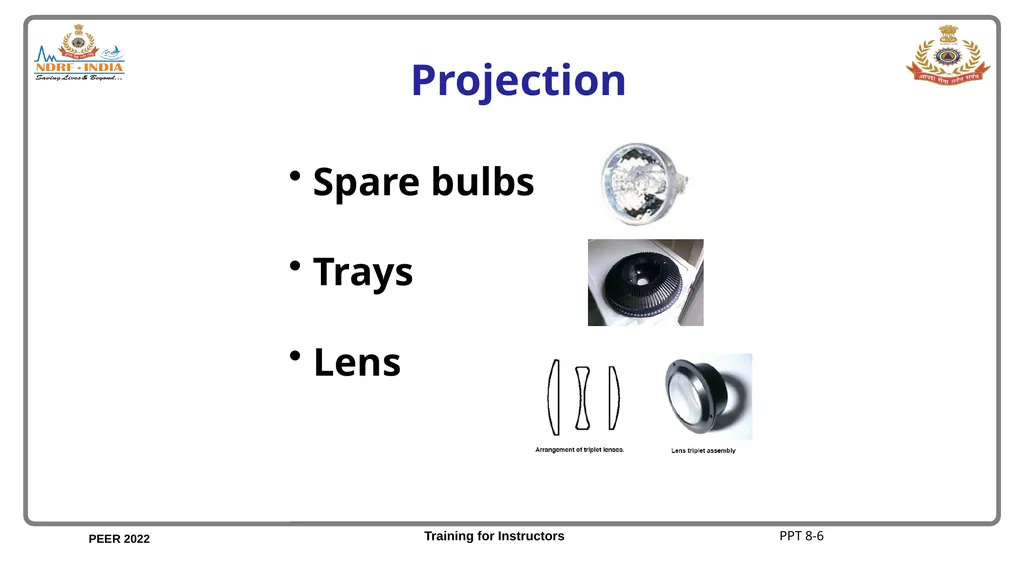
slide7. Spare bulbs
Trays
Lens Projection PPT 8-6<br>
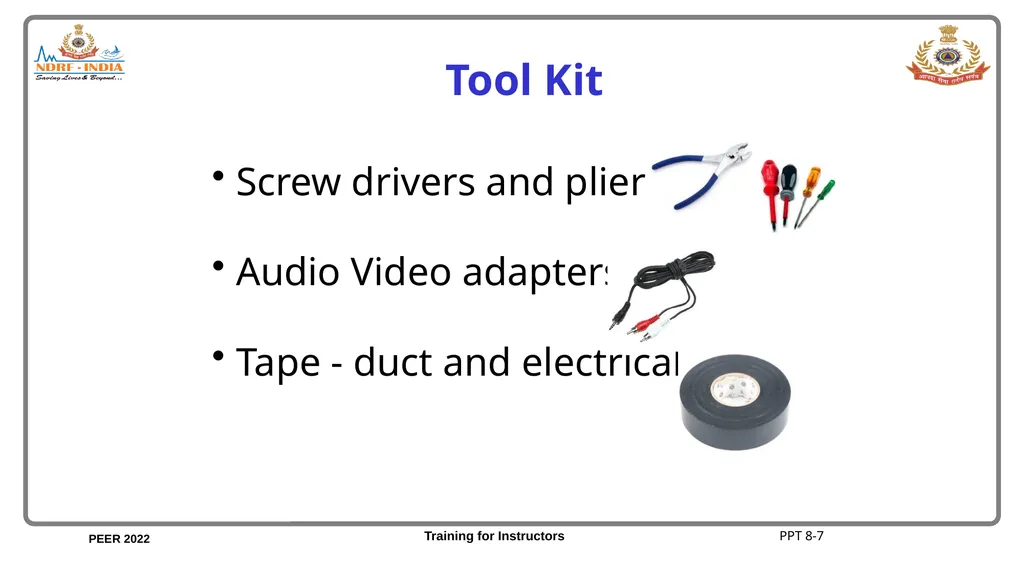
slide8. Tool Kit Screw drivers and pliers
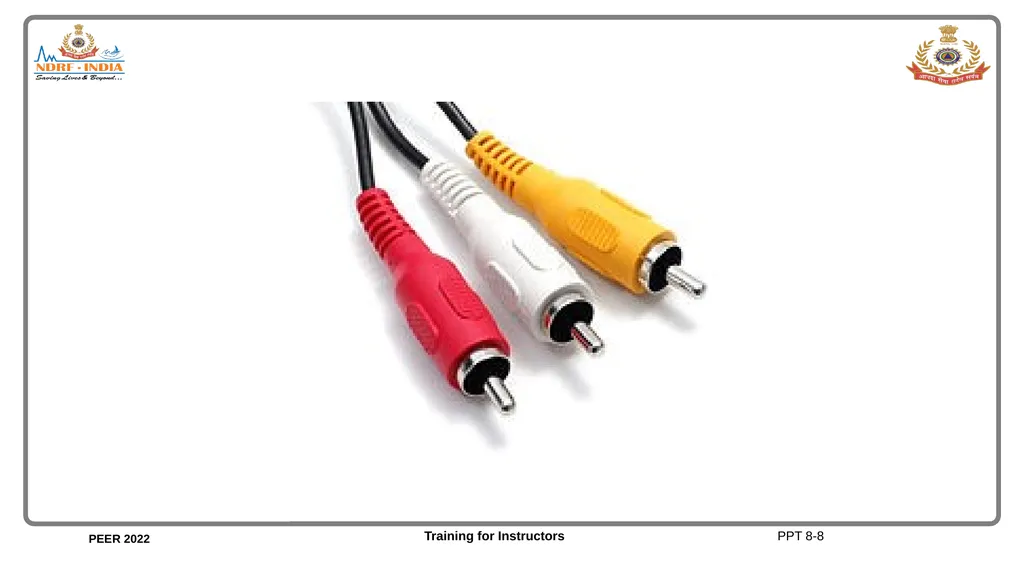
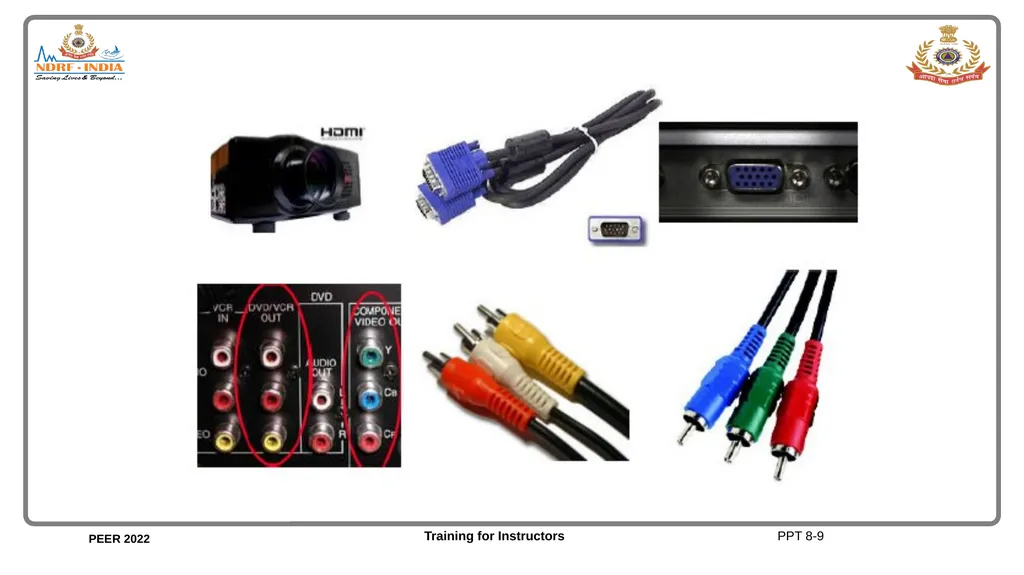
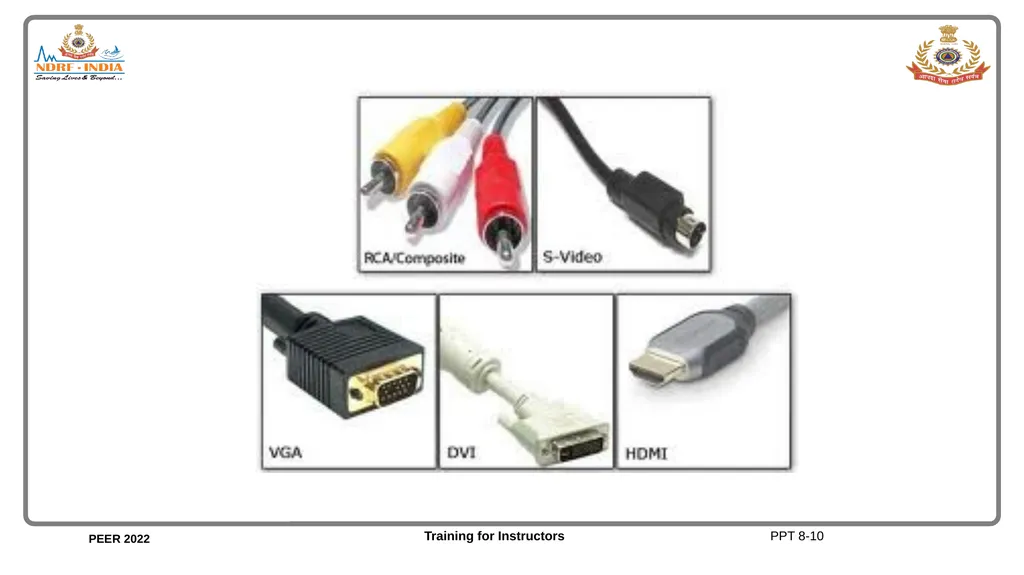
Audio Video adapters
Tape - duct and electrical PPT 8-7<br>
slide9. PPT 8-8<br>
slide10. PPT 8-9<br>
slide11. PPT 8-10<br>
slide12. Equipment PPT 8-11<br>
slide13. Multimedia Projector Set up
Operation
Preventive Maintenance
Problem PPT 8-12<br>
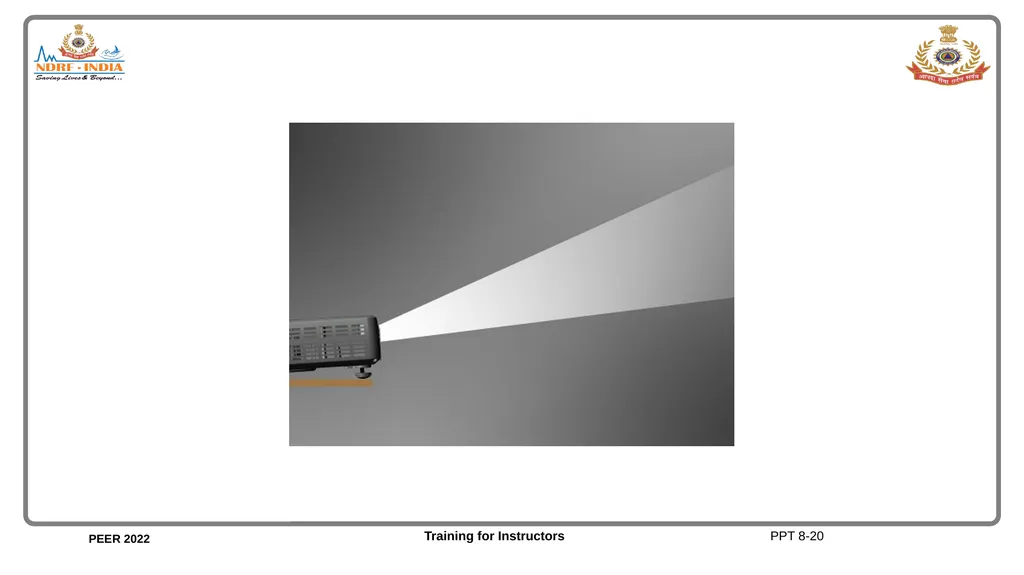
slide14. Multimedia Projector Set-up
Position projector so that it projects on screen and does not block anyone's view
Adjust the height of the projection.
Switch on to focus slide PPT 8-13<br>
slide15. Multimedia Projector Operation
Locate and test switches
Connect the jack to the computer to test compatibility PPT 8-14<br>
slide16. Multimedia Projector Preventive maintenance
Follow safety precautions indicated in the unit manual.
Clean the inside of the projector periodically. PPT 8-15<br>
slide17. Multimedia Projector Problems
Blurred projection: Adjust the focus and zoom
Check distance
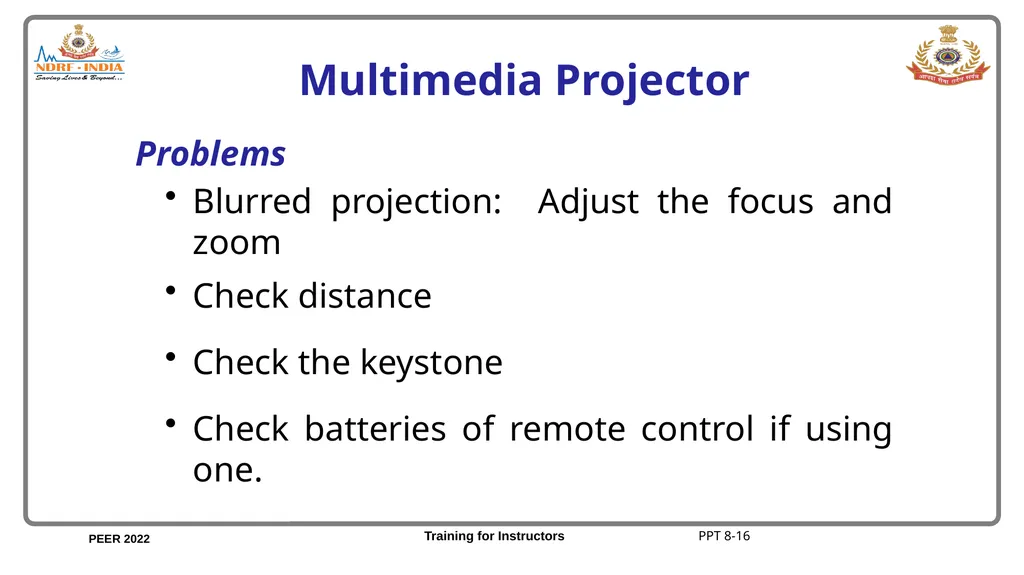
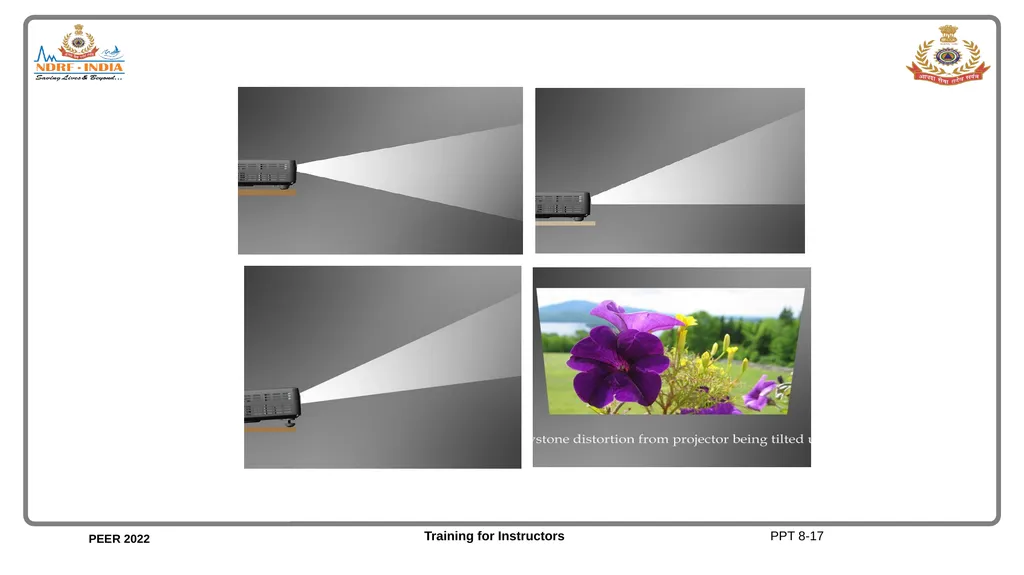
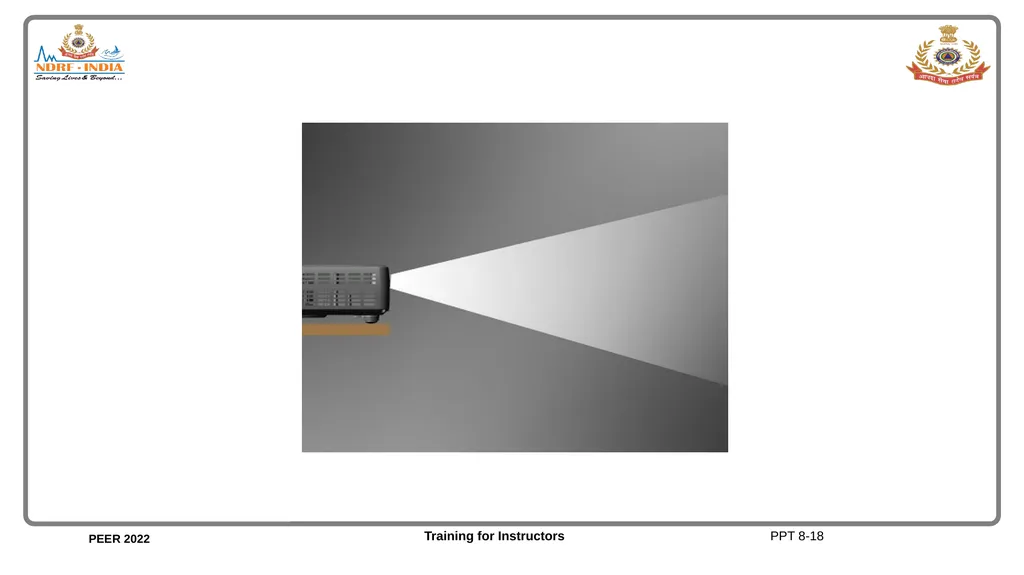
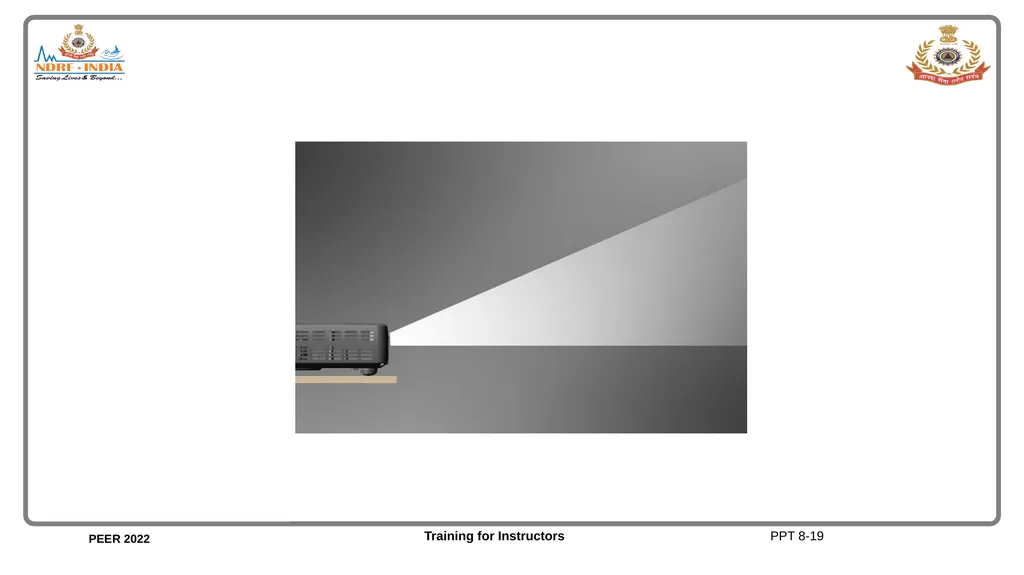
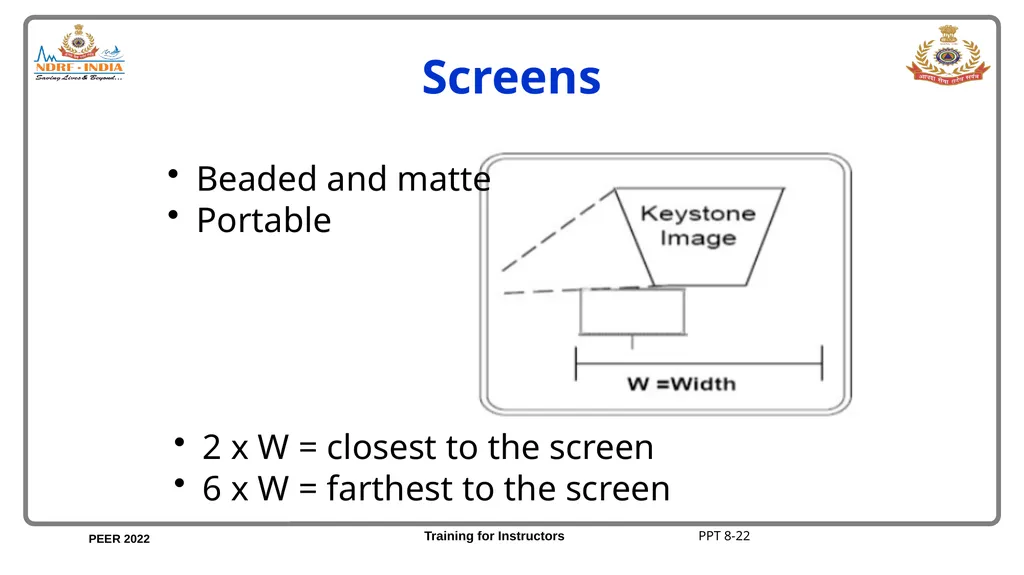
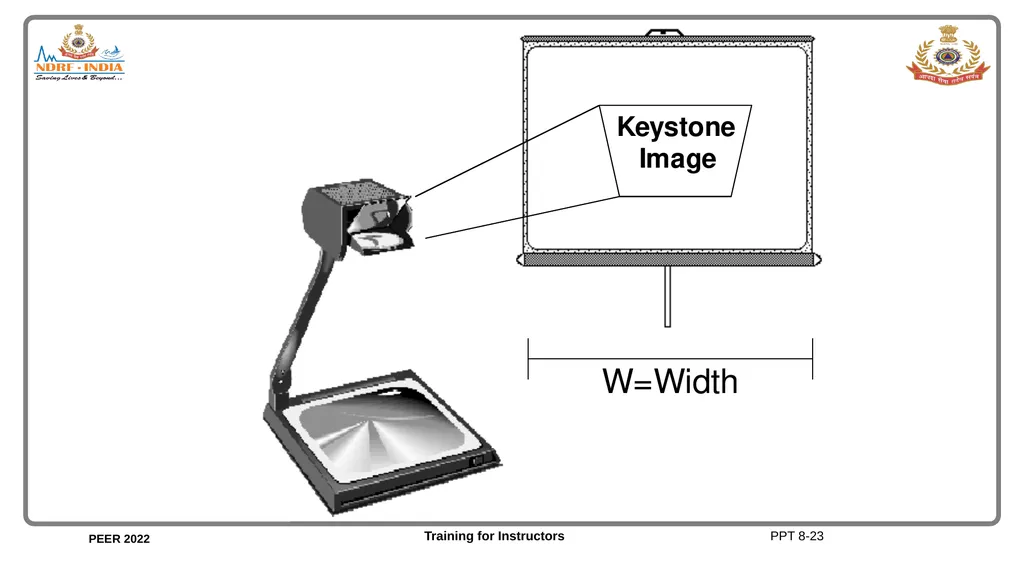
Check the keystone
Check batteries of remote control if using one. PPT 8-16<br>
slide18. PPT 8-17<br>
slide19. PPT 8-18<br>
slide20. PPT 8-19<br>
slide21. PPT 8-20<br>
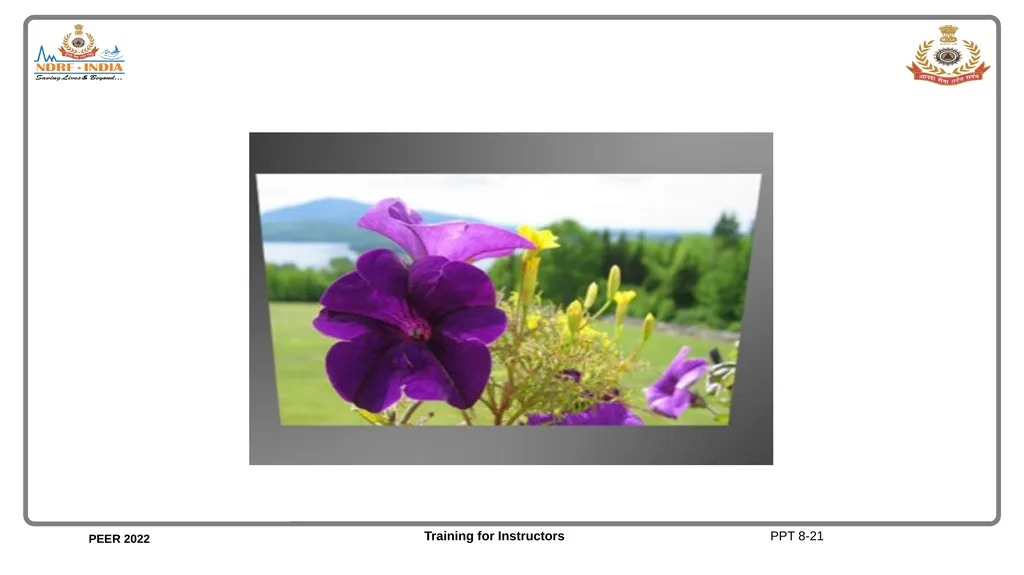
slide22. PPT 8-21<br>
slide23. Beaded and matte
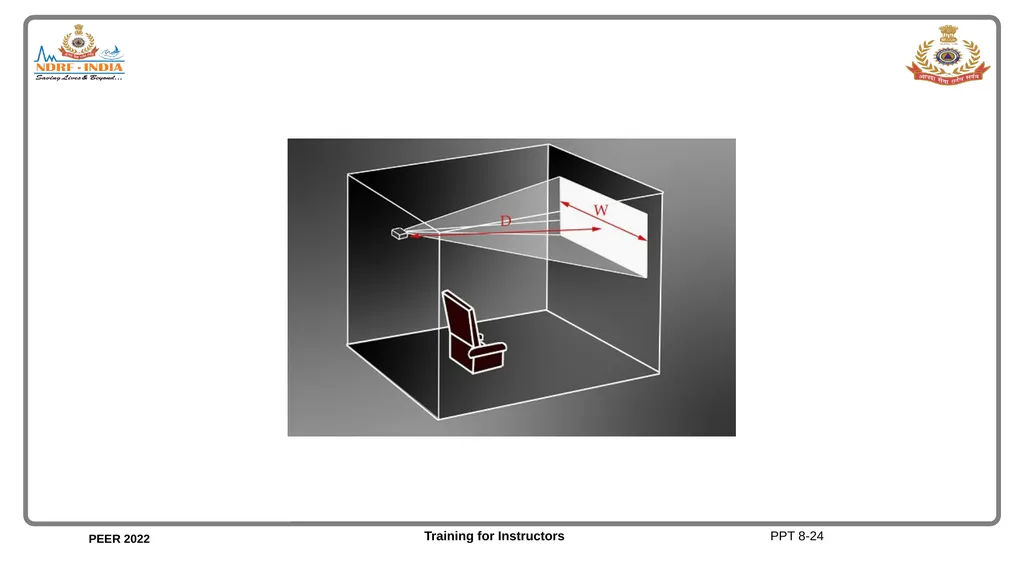
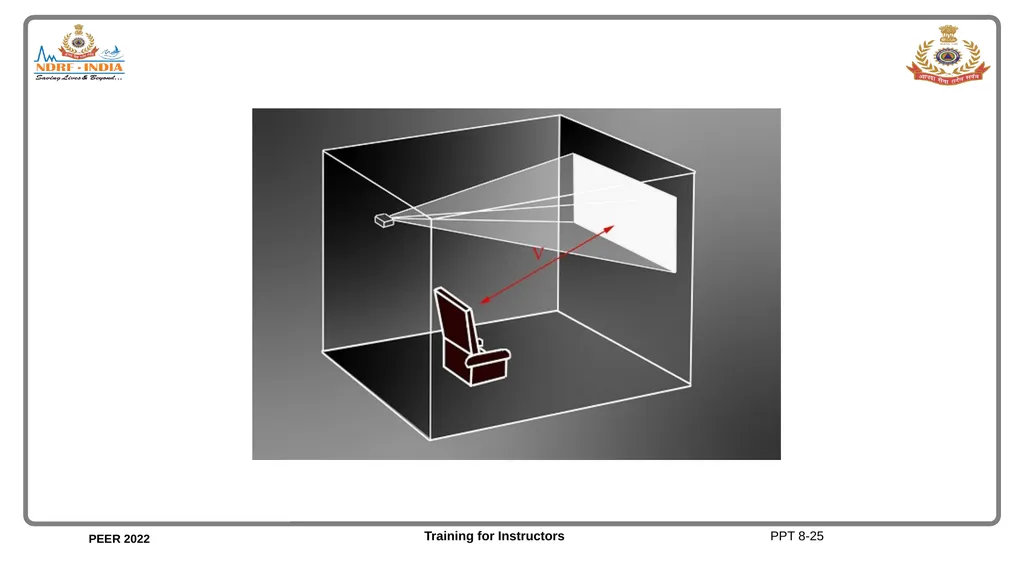
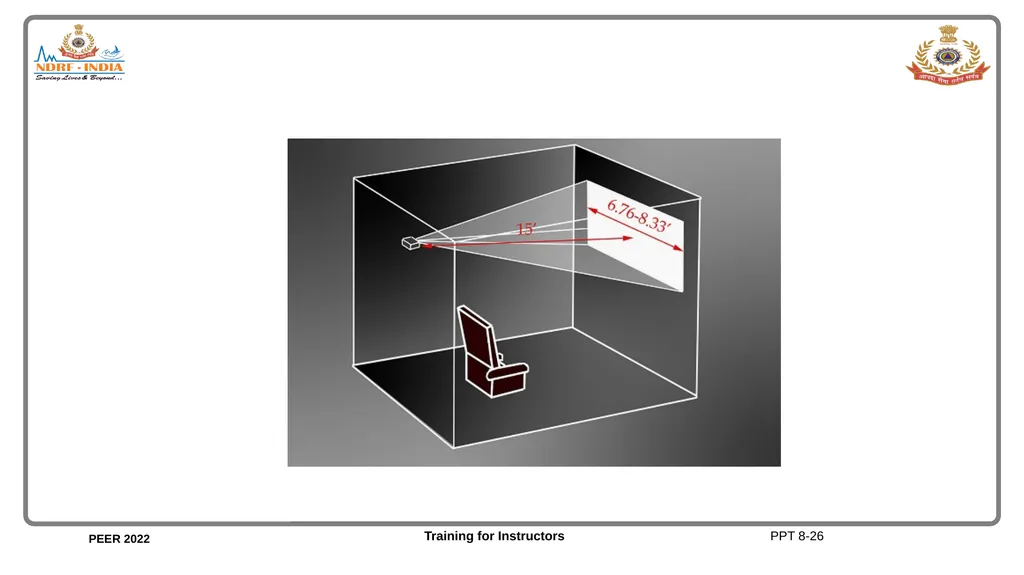
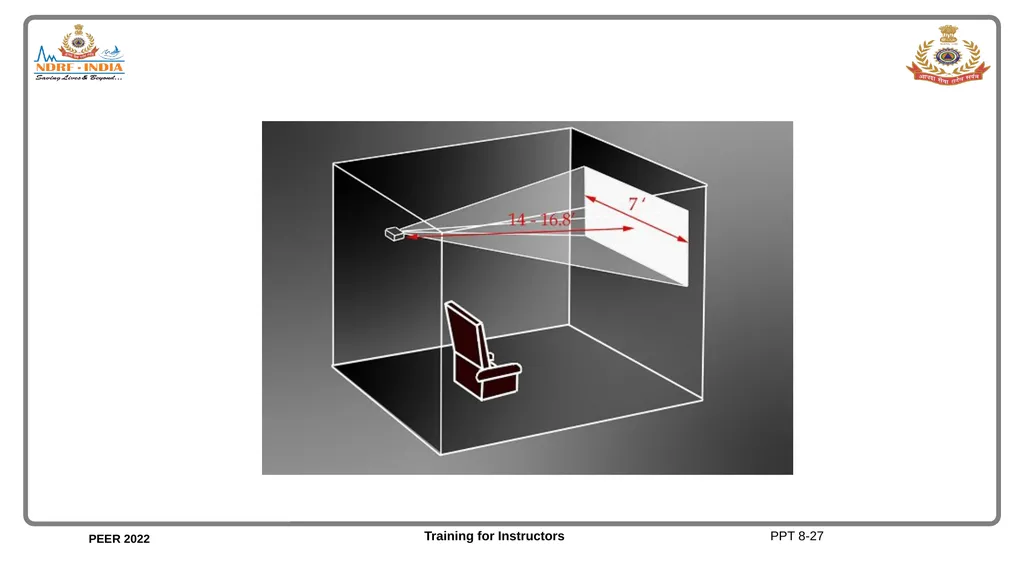
Portable 2 x W = closest to the screen
6 x W = farthest to the screen Screens PPT 8-22<br>
slide24. PPT 8-23<br>
slide25. PPT 8-24<br>
slide26. PPT 8-25<br>
slide27. PPT 8-26<br>
slide28. PPT 8-27<br>
slide29. Unit 8 Objectives Upon completion of this unit, you will be able to do the following with two commonly used items of audio- visual equipment:
Prepare for use and operate.
List six essential auxiliary items.
Perform preventive maintenance and trouble shoot the four most common problems. PPT 8-28<br>
slide30. PPT 8-22<br>
slide31. Overhead projector (OHP) Set up
Operation
Preventive Maintenance
Problem PPT 8-23<br>
slide32. OHP Setup Use low stand.
Place projector in front of center of screen.
Move projector to adjust image on screen. PPT 8-24<br>
slide33. OHP Setup Use adjustments on head to center on screen.
Place TR on stage and focus with adjustment on projector
Check on and off switch PPT 8-25<br>
slide34. OHP Operation Use switch to turn the projector on and off when projecting transparencies.
If you use a "flap" over the lens, be careful of the heat from the lens. PPT 8-26<br>
slide35. Check bulb and fan for operation.
Clean stage, fresnel lens, head lenses and any internal mirrors.
Make sure the head and support arm are on tight Preventive Maintenance PPT 8-27<br>
slide36. Problems Some projectors have several switches and levers that change bulbs and lamp intensity
May be confusing.
Dirt and moisture between the stage and fresnel can cause poor images on the screen PPT 8-28<br>
slide37. PPT 8-36<br>
slide38. 38 THANK YOU<br>
slide2. Unit 8 Objectives Upon completion of this unit, you will be able to do the following with two commonly used items of audio-visual equipment:
Prepare for use and operate.
List six essential auxiliary items.
Perform preventive maintenance and trouble shoot the four most common problems. PPT 8-1<br>
slide3. PPT 8-2<br>
slide4. Accessories PPT 8-3<br>
slide5. Electrical Extension cords, cables
Multi-plugs and adaptors
Transformers-converters PPT 8-4<br>
slide6. PPT 8-5<br>
slide7. Spare bulbs
Trays
Lens Projection PPT 8-6<br>
slide8. Tool Kit Screw drivers and pliers
Audio Video adapters
Tape - duct and electrical PPT 8-7<br>
slide9. PPT 8-8<br>
slide10. PPT 8-9<br>
slide11. PPT 8-10<br>
slide12. Equipment PPT 8-11<br>
slide13. Multimedia Projector Set up
Operation
Preventive Maintenance
Problem PPT 8-12<br>
slide14. Multimedia Projector Set-up
Position projector so that it projects on screen and does not block anyone's view
Adjust the height of the projection.
Switch on to focus slide PPT 8-13<br>
slide15. Multimedia Projector Operation
Locate and test switches
Connect the jack to the computer to test compatibility PPT 8-14<br>
slide16. Multimedia Projector Preventive maintenance
Follow safety precautions indicated in the unit manual.
Clean the inside of the projector periodically. PPT 8-15<br>
slide17. Multimedia Projector Problems
Blurred projection: Adjust the focus and zoom
Check distance
Check the keystone
Check batteries of remote control if using one. PPT 8-16<br>
slide18. PPT 8-17<br>
slide19. PPT 8-18<br>
slide20. PPT 8-19<br>
slide21. PPT 8-20<br>
slide22. PPT 8-21<br>
slide23. Beaded and matte
Portable 2 x W = closest to the screen
6 x W = farthest to the screen Screens PPT 8-22<br>
slide24. PPT 8-23<br>
slide25. PPT 8-24<br>
slide26. PPT 8-25<br>
slide27. PPT 8-26<br>
slide28. PPT 8-27<br>
slide29. Unit 8 Objectives Upon completion of this unit, you will be able to do the following with two commonly used items of audio- visual equipment:
Prepare for use and operate.
List six essential auxiliary items.
Perform preventive maintenance and trouble shoot the four most common problems. PPT 8-28<br>
slide30. PPT 8-22<br>
slide31. Overhead projector (OHP) Set up
Operation
Preventive Maintenance
Problem PPT 8-23<br>
slide32. OHP Setup Use low stand.
Place projector in front of center of screen.
Move projector to adjust image on screen. PPT 8-24<br>
slide33. OHP Setup Use adjustments on head to center on screen.
Place TR on stage and focus with adjustment on projector
Check on and off switch PPT 8-25<br>
slide34. OHP Operation Use switch to turn the projector on and off when projecting transparencies.
If you use a "flap" over the lens, be careful of the heat from the lens. PPT 8-26<br>
slide35. Check bulb and fan for operation.
Clean stage, fresnel lens, head lenses and any internal mirrors.
Make sure the head and support arm are on tight Preventive Maintenance PPT 8-27<br>
slide36. Problems Some projectors have several switches and levers that change bulbs and lamp intensity
May be confusing.
Dirt and moisture between the stage and fresnel can cause poor images on the screen PPT 8-28<br>
slide37. PPT 8-36<br>
slide38. 38 THANK YOU<br>