VARIABLES BY SANJAY AND ARVIND SESHAN Lesson
Description: VARIABLES BY SANJAY AND ARVIND SESHAN Lesson Objectives Learn about different types of variables Learn how to read and write to variables Copyright 2020 Prime Lessons (primelessons.org) CC-BY-NC-SA. (Last edit: 5302020) 2 Variables What
Related Topics
Download Presentation
"VARIABLES BY SANJAY AND ARVIND SESHAN Lesson" is the property of its rightful owner. Permission is granted to download and print the materials on this website for personal, non-commercial use only, and to display it on your personal computer provided you do not modify the materials and that you retain all copyright notices contained in the materials. By downloading content from our website, you accept the terms of this agreement.
Presentation Transcript
slide1. VARIABLES BY SANJAY AND ARVIND SESHAN<br>
slide2. Lesson Objectives Learn about different types of variables
Learn how to read and write to variables Copyright © 2020 Prime Lessons (primelessons.org) CC-BY-NC-SA. (Last edit: 5/30/2020) 2<br>
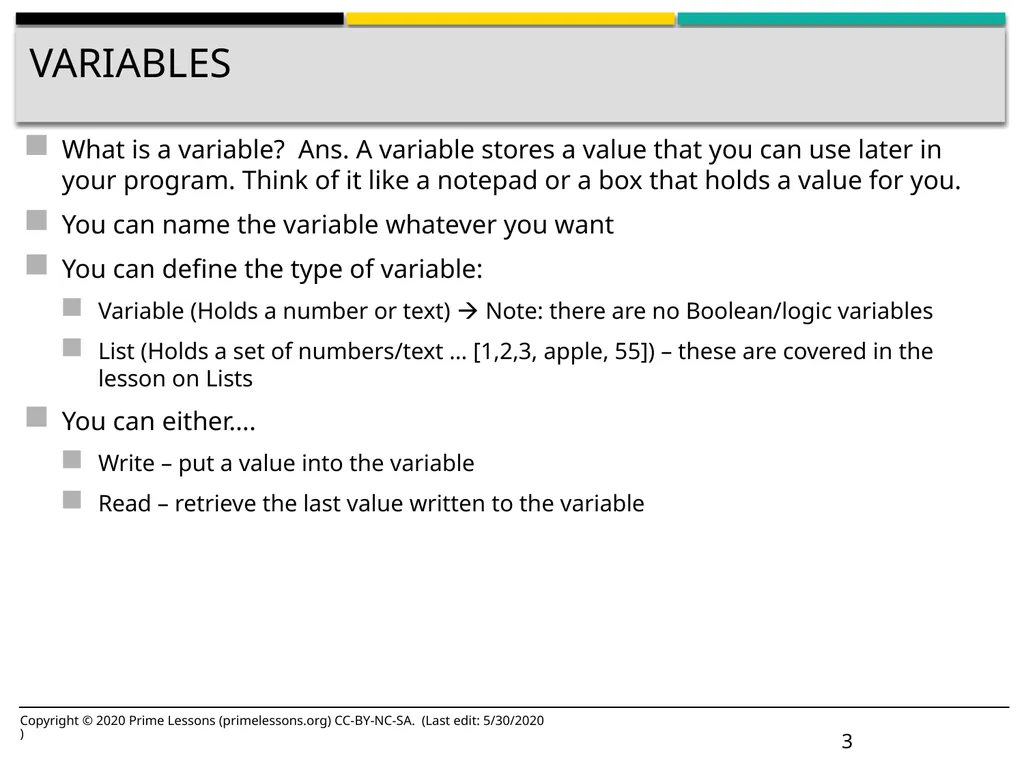
slide3. Variables What is a variable? Ans. A variable stores a value that you can use later in your program. Think of it like a notepad or a box that holds a value for you.
You can name the variable whatever you want
You can define the type of variable:
Variable (Holds a number or text) Note: there are no Boolean/logic variables
List (Holds a set of numbers/text … [1,2,3, apple, 55]) – these are covered in the lesson on Lists
You can either….
Write – put a value into the variable
Read – retrieve the last value written to the variable Copyright © 2020 Prime Lessons (primelessons.org) CC-BY-NC-SA. (Last edit: 5/30/2020) 3<br>
slide4. Why Variables? Variables are an easy way to transfer data across code
You can also use variables to transfer data into a My Block without an input (eg. A variable for wheel size in Move Inches – You probably do not want this to be an input since it rarely changes. You may also use the value in other locations and want to change it just in one spot.)
List variables can store multiple data items and make it easy to process all of them. We will cover list variables in a separate lesson in the advanced section. Copyright © 2020 Prime Lessons (primelessons.org) CC-BY-NC-SA. (Last edit: 5/30/2020) 4<br>
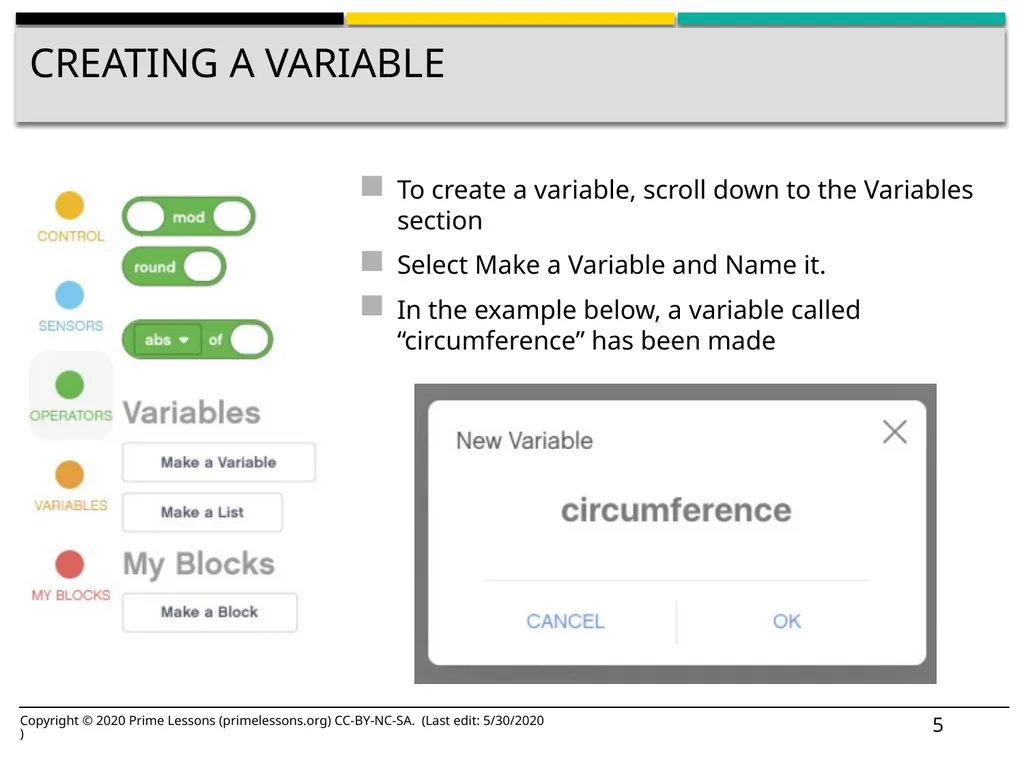
slide5. Creating a Variable To create a variable, scroll down to the Variables section
Select Make a Variable and Name it.
In the example below, a variable called “circumference” has been made Copyright © 2020 Prime Lessons (primelessons.org) CC-BY-NC-SA. (Last edit: 5/30/2020) 5<br>
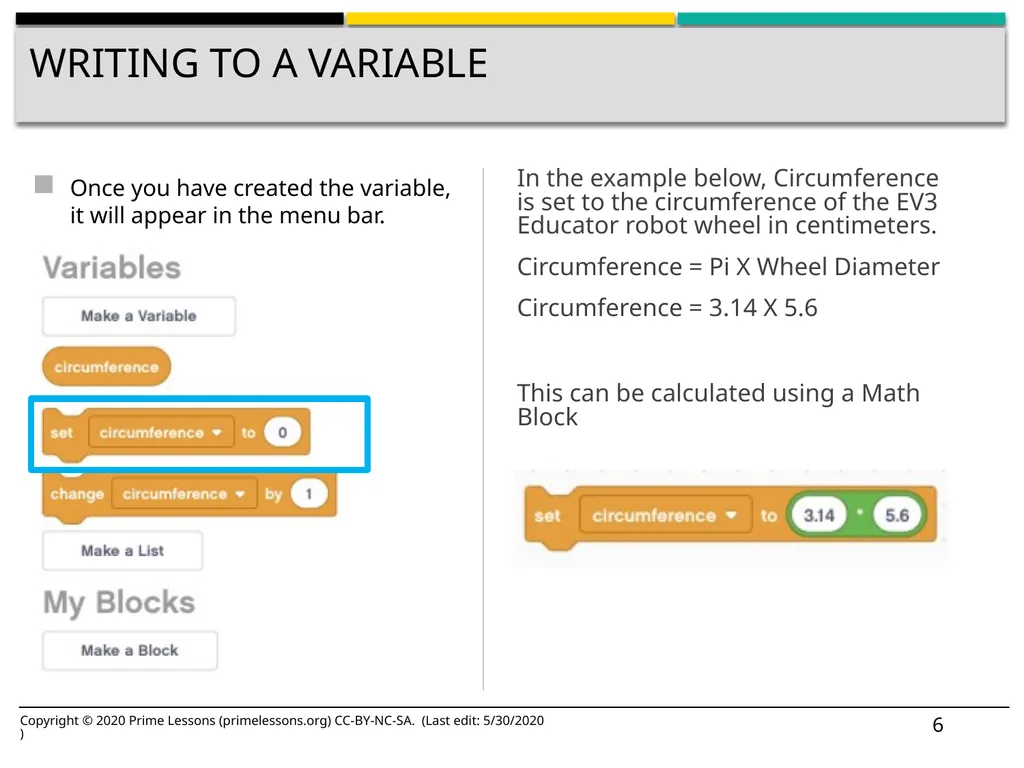
slide6. Writing to a Variable Once you have created the variable, it will appear in the menu bar. Copyright © 2020 Prime Lessons (primelessons.org) CC-BY-NC-SA. (Last edit: 5/30/2020) 6 In the example below, Circumference is set to the circumference of the EV3 Educator robot wheel in centimeters.
Circumference = Pi X Wheel Diameter
Circumference = 3.14 X 5.6
This can be calculated using a Math Block<br>
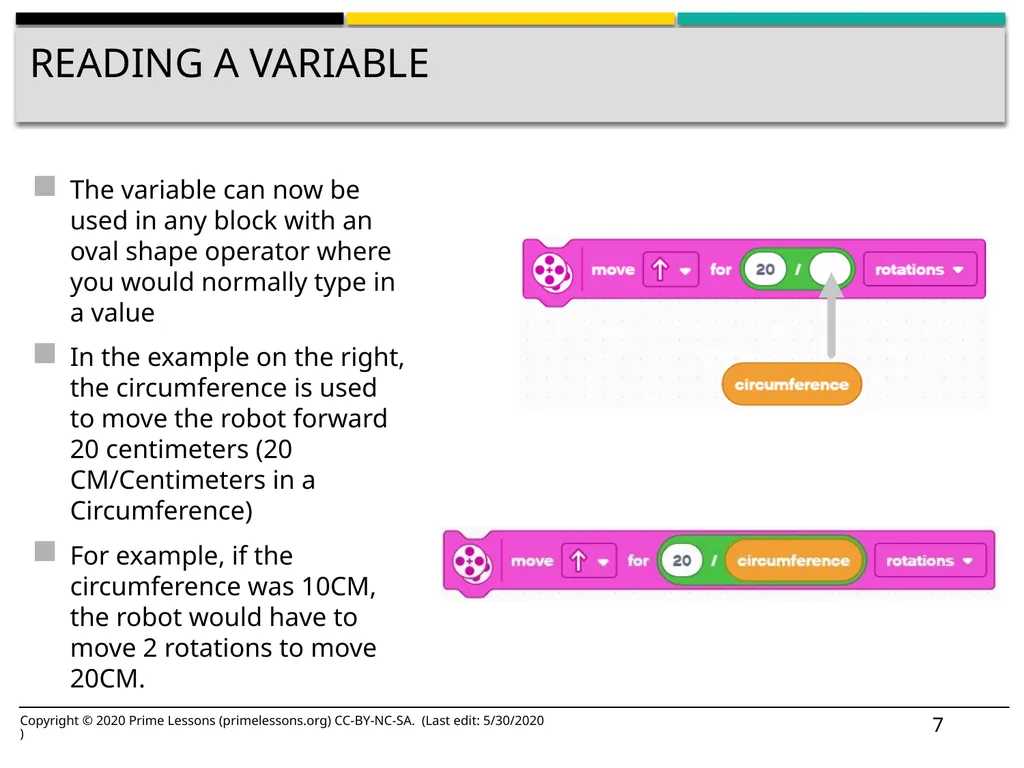
slide7. Reading a Variable The variable can now be used in any block with an oval shape operator where you would normally type in a value
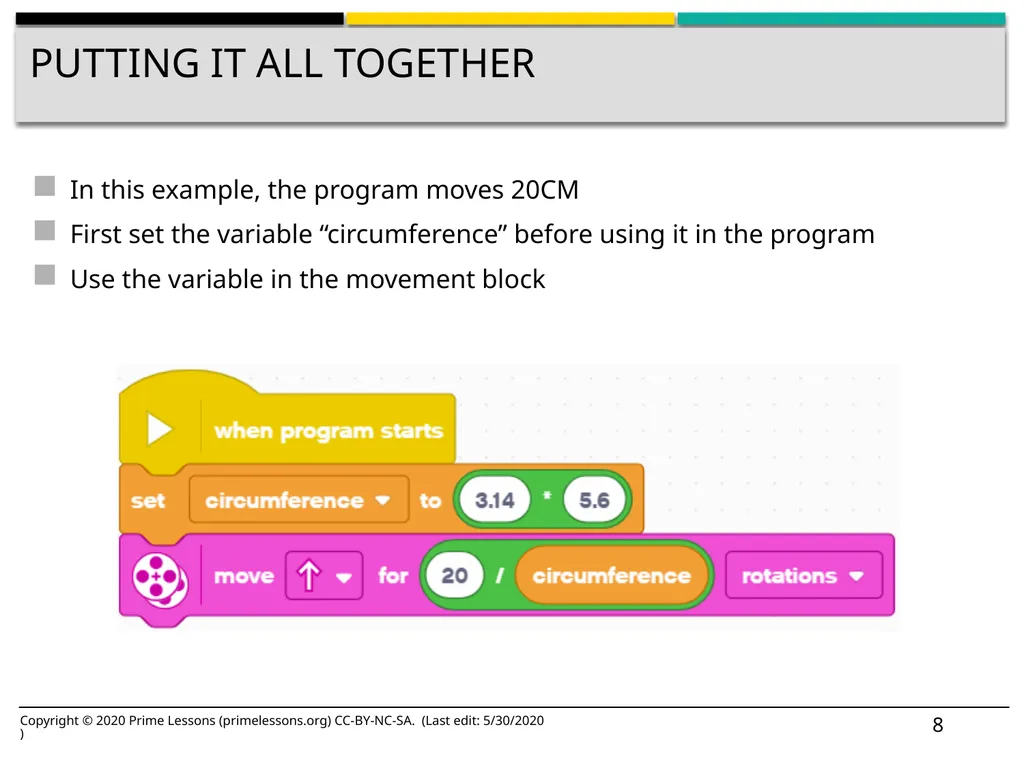
In the example on the right, the circumference is used to move the robot forward 20 centimeters (20 CM/Centimeters in a Circumference)
For example, if the circumference was 10CM, the robot would have to move 2 rotations to move 20CM. Copyright © 2020 Prime Lessons (primelessons.org) CC-BY-NC-SA. (Last edit: 5/30/2020) 7<br>
slide8. Putting it all together In this example, the program moves 20CM
First set the variable “circumference” before using it in the program
Use the variable in the movement block Copyright © 2020 Prime Lessons (primelessons.org) CC-BY-NC-SA. (Last edit: 5/30/2020) 8<br>
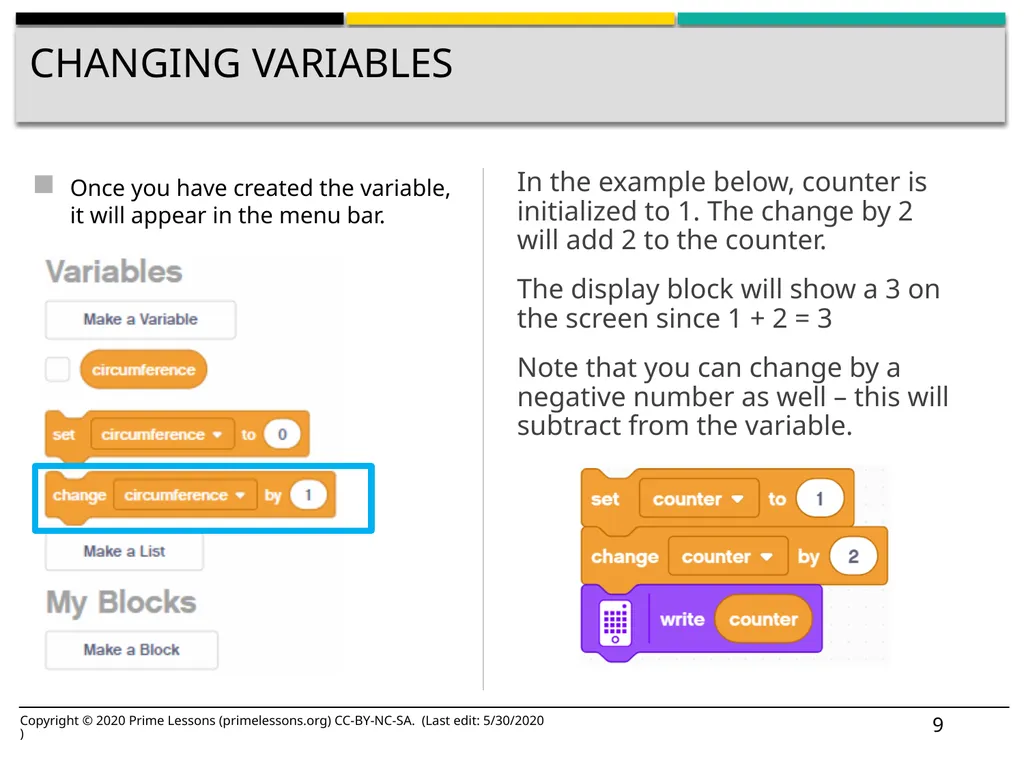
slide9. Changing Variables Once you have created the variable, it will appear in the menu bar. Copyright © 2020 Prime Lessons (primelessons.org) CC-BY-NC-SA. (Last edit: 5/30/2020) 9 In the example below, counter is initialized to 1. The change by 2 will add 2 to the counter.
The display block will show a 3 on the screen since 1 + 2 = 3
Note that you can change by a negative number as well – this will subtract from the variable.<br>
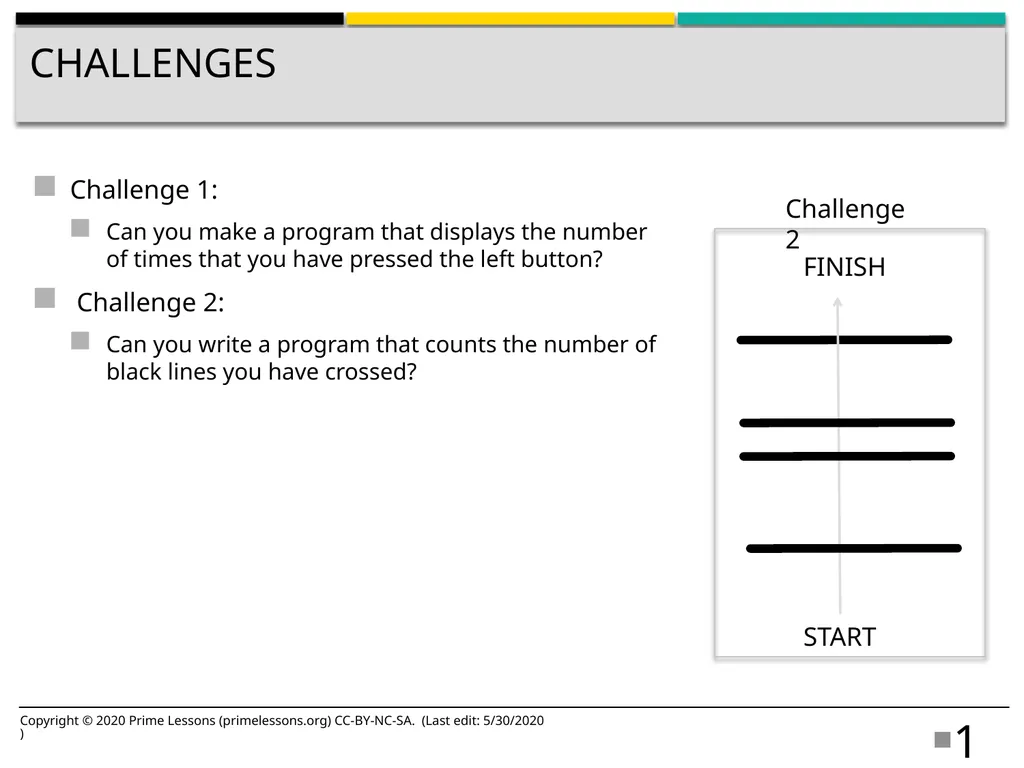
slide10. Challenges Challenge 1:
Can you make a program that displays the number of times that you have pressed the left button?
Challenge 2:
Can you write a program that counts the number of black lines you have crossed? Copyright © 2020 Prime Lessons (primelessons.org) CC-BY-NC-SA. (Last edit: 5/30/2020) 10 START FINISH Challenge 2<br>
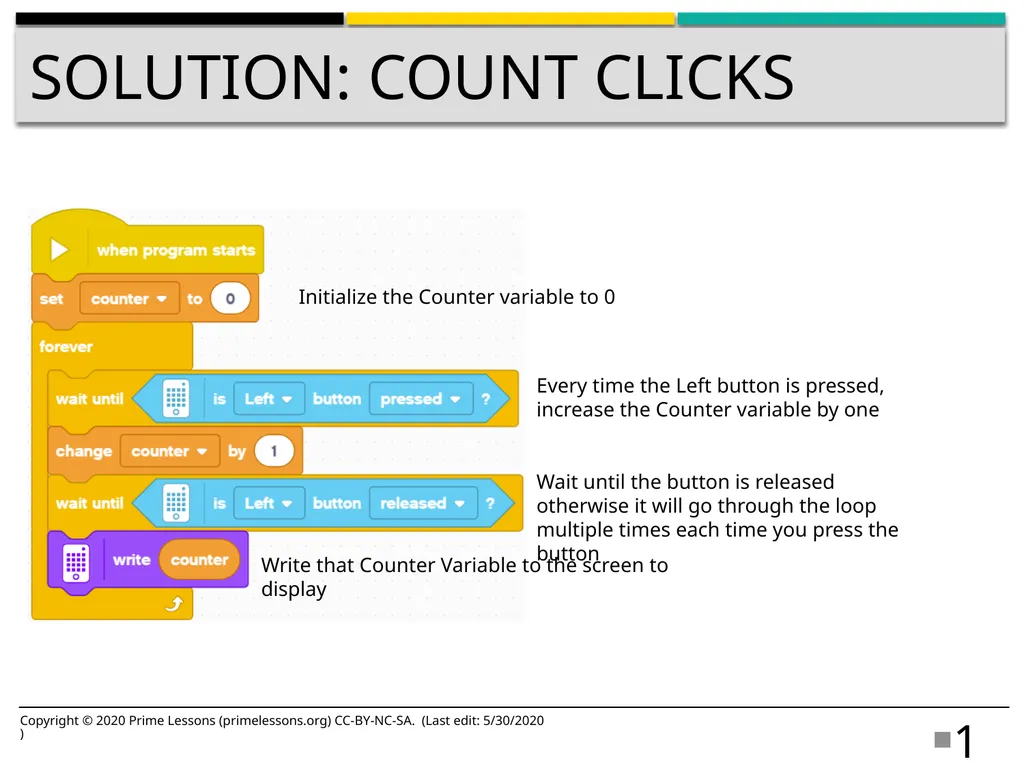
slide11. Solution: Count Clicks Copyright © 2020 Prime Lessons (primelessons.org) CC-BY-NC-SA. (Last edit: 5/30/2020) 11 Initialize the Counter variable to 0 Every time the Left button is pressed, increase the Counter variable by one Write that Counter Variable to the screen to display Wait until the button is released otherwise it will go through the loop multiple times each time you press the button<br>
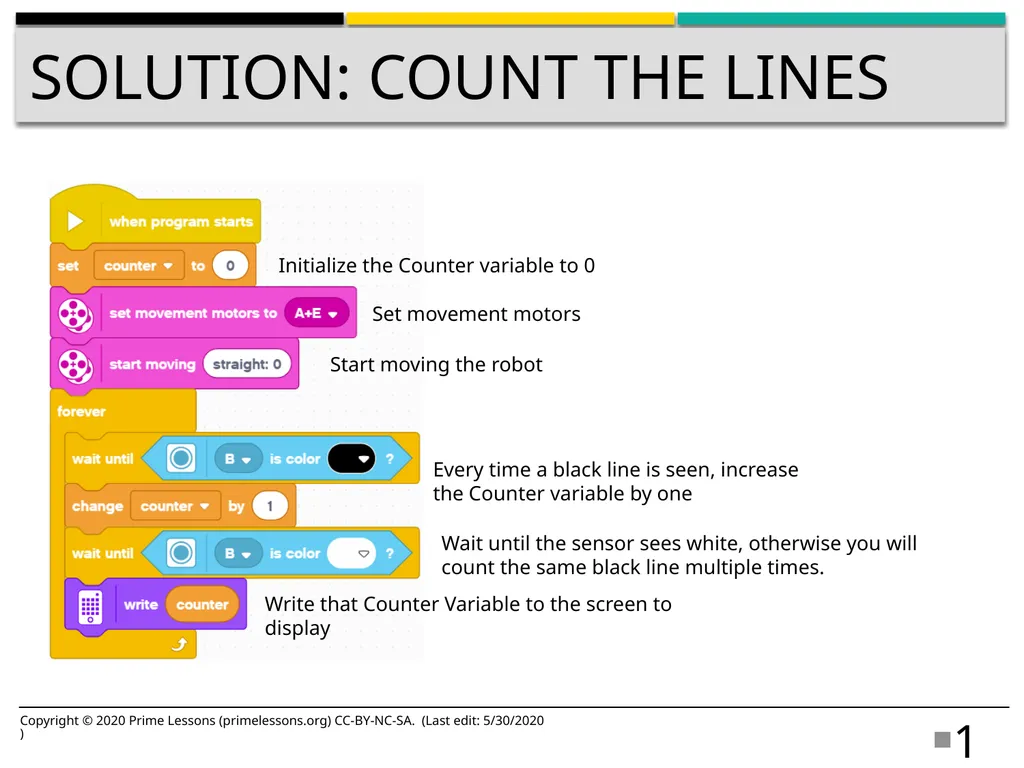
slide12. Solution: Count the Lines Copyright © 2020 Prime Lessons (primelessons.org) CC-BY-NC-SA. (Last edit: 5/30/2020) 12 Initialize the Counter variable to 0 Every time a black line is seen, increase the Counter variable by one Write that Counter Variable to the screen to display Wait until the sensor sees white, otherwise you will count the same black line multiple times. Start moving the robot Set movement motors<br>
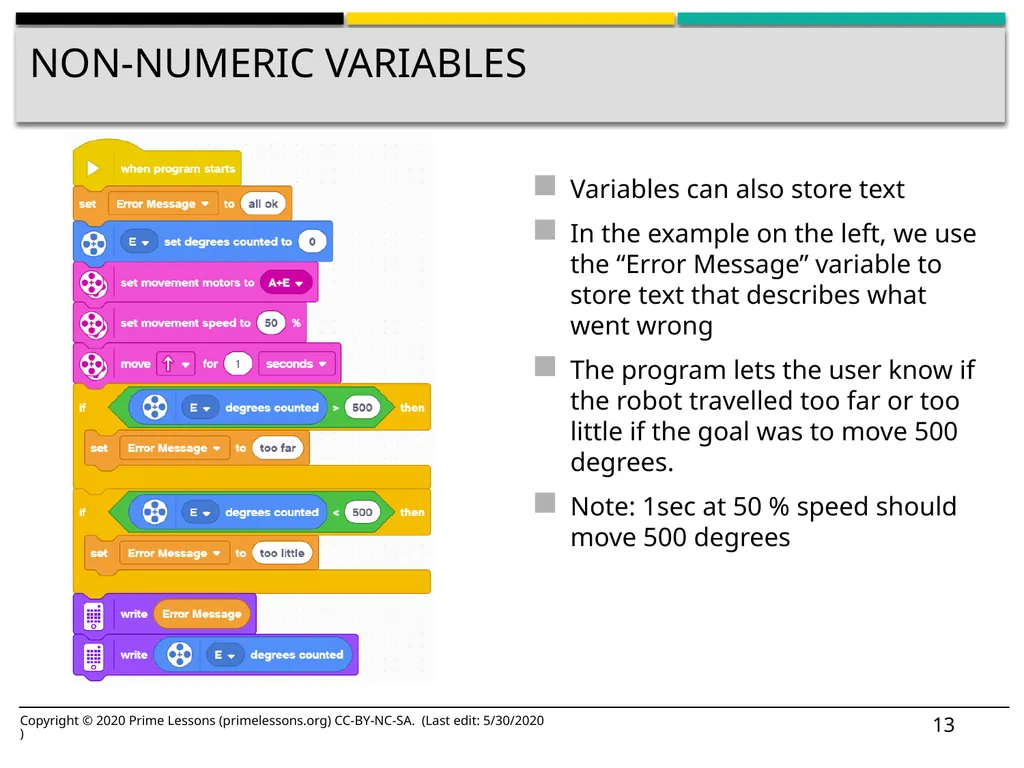
slide13. Non-numeric Variables Variables can also store text
In the example on the left, we use the “Error Message” variable to store text that describes what went wrong
The program lets the user know if the robot travelled too far or too little if the goal was to move 500 degrees.
Note: 1sec at 50 % speed should move 500 degrees Copyright © 2020 Prime Lessons (primelessons.org) CC-BY-NC-SA. (Last edit: 5/30/2020) 13<br>
slide14. CREDITS This lesson was created by Sanjay Seshan and Arvind Seshan for Prime Lessons
More lessons are available at www.primelessons.org Copyright © 2020 Prime Lessons (primelessons.org) CC-BY-NC-SA. (Last edit: 5/30/2020) 14 This work is licensed under a Creative Commons Attribution-NonCommercial-ShareAlike 4.0 International License.<br>
slide2. Lesson Objectives Learn about different types of variables
Learn how to read and write to variables Copyright © 2020 Prime Lessons (primelessons.org) CC-BY-NC-SA. (Last edit: 5/30/2020) 2<br>
slide3. Variables What is a variable? Ans. A variable stores a value that you can use later in your program. Think of it like a notepad or a box that holds a value for you.
You can name the variable whatever you want
You can define the type of variable:
Variable (Holds a number or text) Note: there are no Boolean/logic variables
List (Holds a set of numbers/text … [1,2,3, apple, 55]) – these are covered in the lesson on Lists
You can either….
Write – put a value into the variable
Read – retrieve the last value written to the variable Copyright © 2020 Prime Lessons (primelessons.org) CC-BY-NC-SA. (Last edit: 5/30/2020) 3<br>
slide4. Why Variables? Variables are an easy way to transfer data across code
You can also use variables to transfer data into a My Block without an input (eg. A variable for wheel size in Move Inches – You probably do not want this to be an input since it rarely changes. You may also use the value in other locations and want to change it just in one spot.)
List variables can store multiple data items and make it easy to process all of them. We will cover list variables in a separate lesson in the advanced section. Copyright © 2020 Prime Lessons (primelessons.org) CC-BY-NC-SA. (Last edit: 5/30/2020) 4<br>
slide5. Creating a Variable To create a variable, scroll down to the Variables section
Select Make a Variable and Name it.
In the example below, a variable called “circumference” has been made Copyright © 2020 Prime Lessons (primelessons.org) CC-BY-NC-SA. (Last edit: 5/30/2020) 5<br>
slide6. Writing to a Variable Once you have created the variable, it will appear in the menu bar. Copyright © 2020 Prime Lessons (primelessons.org) CC-BY-NC-SA. (Last edit: 5/30/2020) 6 In the example below, Circumference is set to the circumference of the EV3 Educator robot wheel in centimeters.
Circumference = Pi X Wheel Diameter
Circumference = 3.14 X 5.6
This can be calculated using a Math Block<br>
slide7. Reading a Variable The variable can now be used in any block with an oval shape operator where you would normally type in a value
In the example on the right, the circumference is used to move the robot forward 20 centimeters (20 CM/Centimeters in a Circumference)
For example, if the circumference was 10CM, the robot would have to move 2 rotations to move 20CM. Copyright © 2020 Prime Lessons (primelessons.org) CC-BY-NC-SA. (Last edit: 5/30/2020) 7<br>
slide8. Putting it all together In this example, the program moves 20CM
First set the variable “circumference” before using it in the program
Use the variable in the movement block Copyright © 2020 Prime Lessons (primelessons.org) CC-BY-NC-SA. (Last edit: 5/30/2020) 8<br>
slide9. Changing Variables Once you have created the variable, it will appear in the menu bar. Copyright © 2020 Prime Lessons (primelessons.org) CC-BY-NC-SA. (Last edit: 5/30/2020) 9 In the example below, counter is initialized to 1. The change by 2 will add 2 to the counter.
The display block will show a 3 on the screen since 1 + 2 = 3
Note that you can change by a negative number as well – this will subtract from the variable.<br>
slide10. Challenges Challenge 1:
Can you make a program that displays the number of times that you have pressed the left button?
Challenge 2:
Can you write a program that counts the number of black lines you have crossed? Copyright © 2020 Prime Lessons (primelessons.org) CC-BY-NC-SA. (Last edit: 5/30/2020) 10 START FINISH Challenge 2<br>
slide11. Solution: Count Clicks Copyright © 2020 Prime Lessons (primelessons.org) CC-BY-NC-SA. (Last edit: 5/30/2020) 11 Initialize the Counter variable to 0 Every time the Left button is pressed, increase the Counter variable by one Write that Counter Variable to the screen to display Wait until the button is released otherwise it will go through the loop multiple times each time you press the button<br>
slide12. Solution: Count the Lines Copyright © 2020 Prime Lessons (primelessons.org) CC-BY-NC-SA. (Last edit: 5/30/2020) 12 Initialize the Counter variable to 0 Every time a black line is seen, increase the Counter variable by one Write that Counter Variable to the screen to display Wait until the sensor sees white, otherwise you will count the same black line multiple times. Start moving the robot Set movement motors<br>
slide13. Non-numeric Variables Variables can also store text
In the example on the left, we use the “Error Message” variable to store text that describes what went wrong
The program lets the user know if the robot travelled too far or too little if the goal was to move 500 degrees.
Note: 1sec at 50 % speed should move 500 degrees Copyright © 2020 Prime Lessons (primelessons.org) CC-BY-NC-SA. (Last edit: 5/30/2020) 13<br>
slide14. CREDITS This lesson was created by Sanjay Seshan and Arvind Seshan for Prime Lessons
More lessons are available at www.primelessons.org Copyright © 2020 Prime Lessons (primelessons.org) CC-BY-NC-SA. (Last edit: 5/30/2020) 14 This work is licensed under a Creative Commons Attribution-NonCommercial-ShareAlike 4.0 International License.<br>