What is Assessment Admin? Districts, schools and teachers may create and administer assessments online using ISEE Teachers can use ISEE to: Create and administer their own items and assessments for formative purposes Quickly assess what
"What is Assessment Admin? Districts, schools and" is the property of its rightful owner. Permission is granted to
download and print the materials on this website for personal, non-commercial use only, and to display it
on your personal computer provided you do not modify the materials and that you retain all copyright
notices contained in the materials. By downloading content from our website, you accept the terms of this
agreement.
Presentation Transcript
01
What is Assessment Admin? Districts, schools and teachers may create and administer assessments online using ISEE
Teachers can use ISEE to:
Create and administer their own items and assessments for formative purposes
Quickly assess what students know about a particular topic 1<br>
02
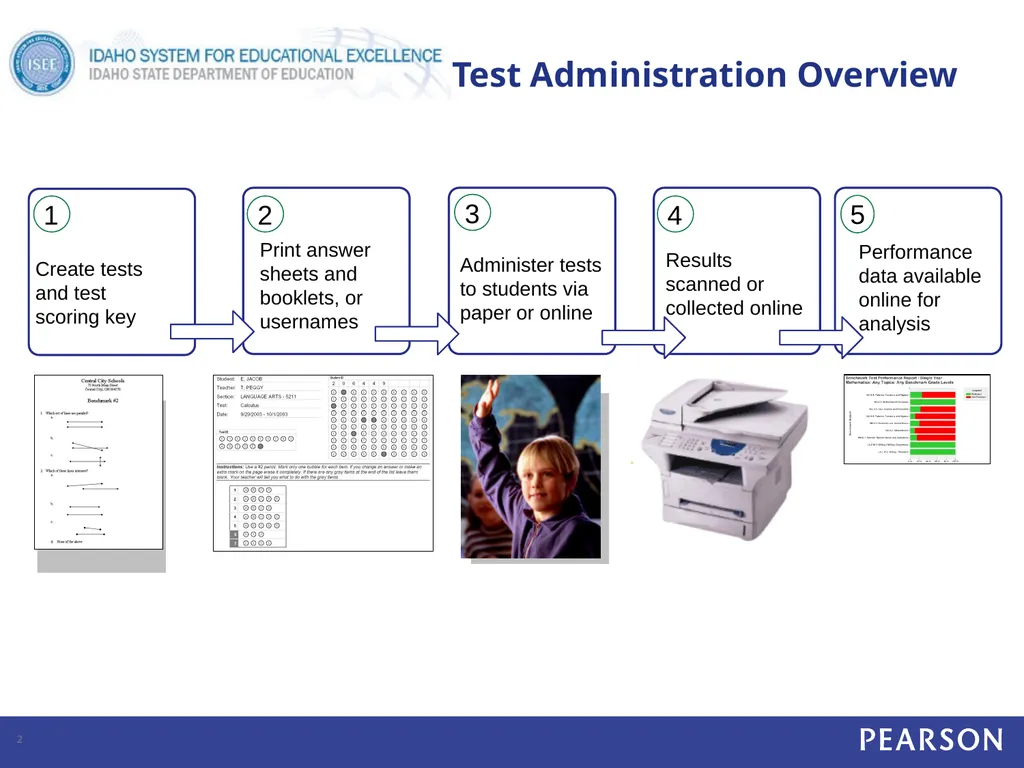
5 Test Administration Overview 2 Create tests and test scoring key Print answer
sheets and
booklets, or
usernames Administer tests to students via paper or online Results scanned or collected online 1 2 3 4 Performance data available online for analysis<br>
03
Available Items SDE Idaho has loaded an item bank
Items come from other state or national assessments
Subjected to a standard test development protocol
Aligned to the Common Core State Standards as the preferred document.
If a strong alignment to CCSS is not evident the item has been aligned to the Idaho Content Standards
Districts are also sharing items
Items have not been subjected to the same test development protocol Presentation Title runs here l 00/00/00 3<br>
04
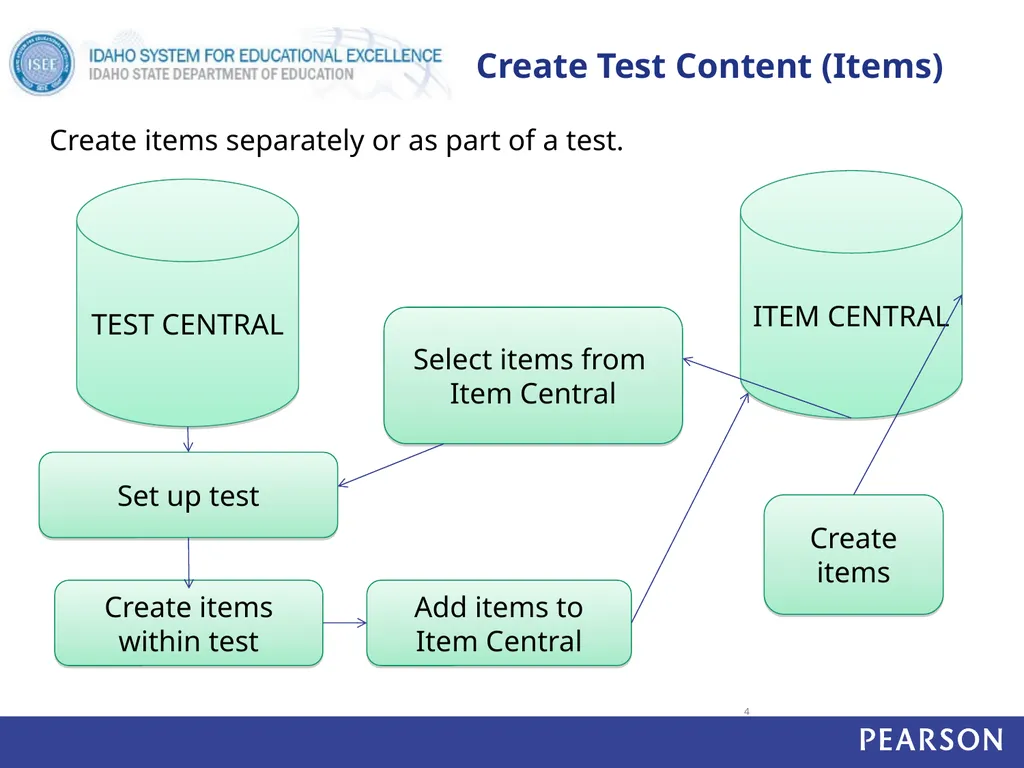
Create Test Content (Items) ITEM CENTRAL TEST CENTRAL Create items Set up test Create items within test Add items to Item Central Select items from
Item Central Create items separately or as part of a test. 4<br>
05
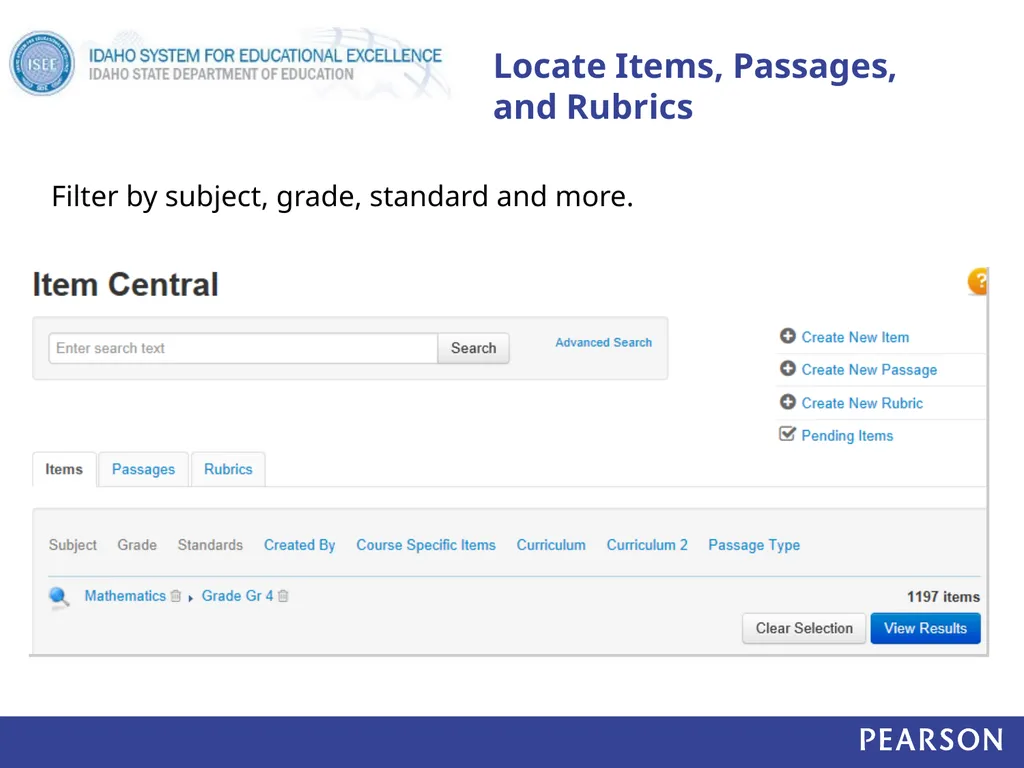
Locate Items, Passages, and Rubrics Filter by subject, grade, standard and more.<br>
06
Create Items – Multiple Types Available Multiple choice
True/false
Gridded
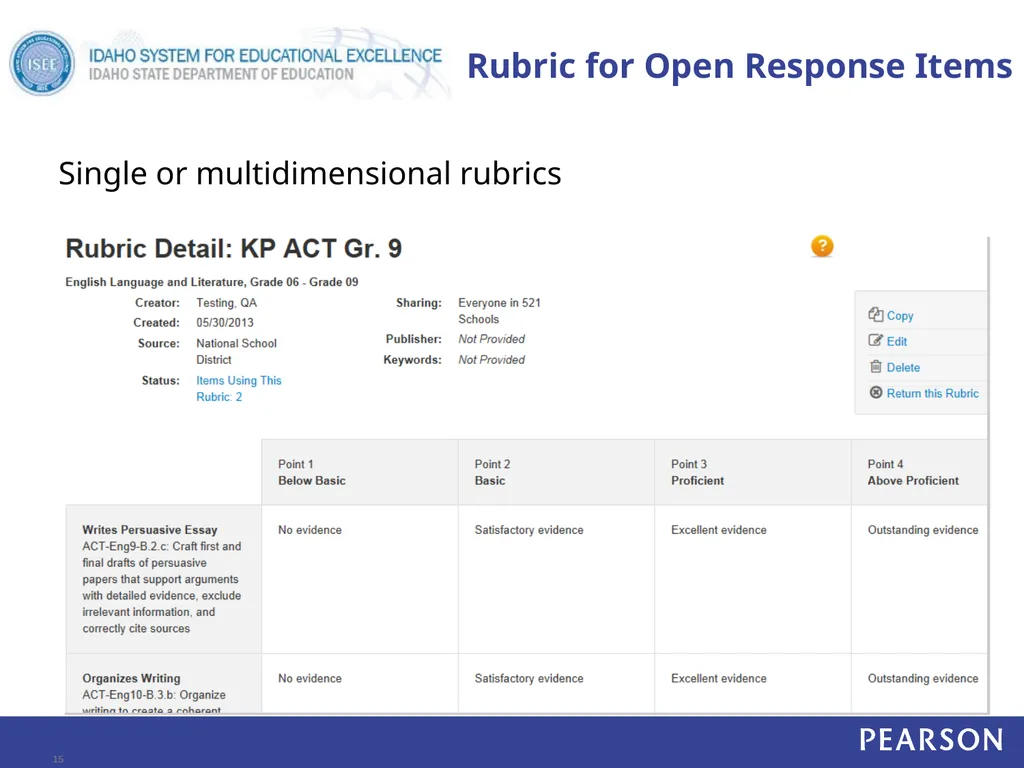
Open response (can attach a rubric)
Inline response
Matching
Hot spot
Tasks (a collection of items)
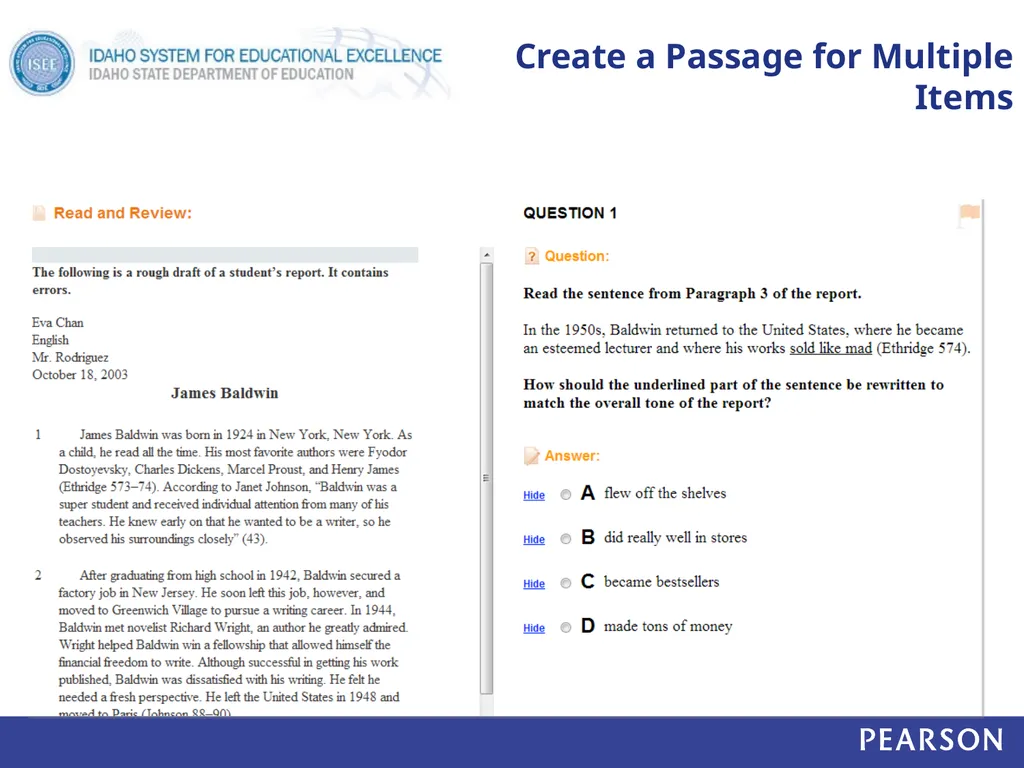
Attach any item type to a passage.<br>
07
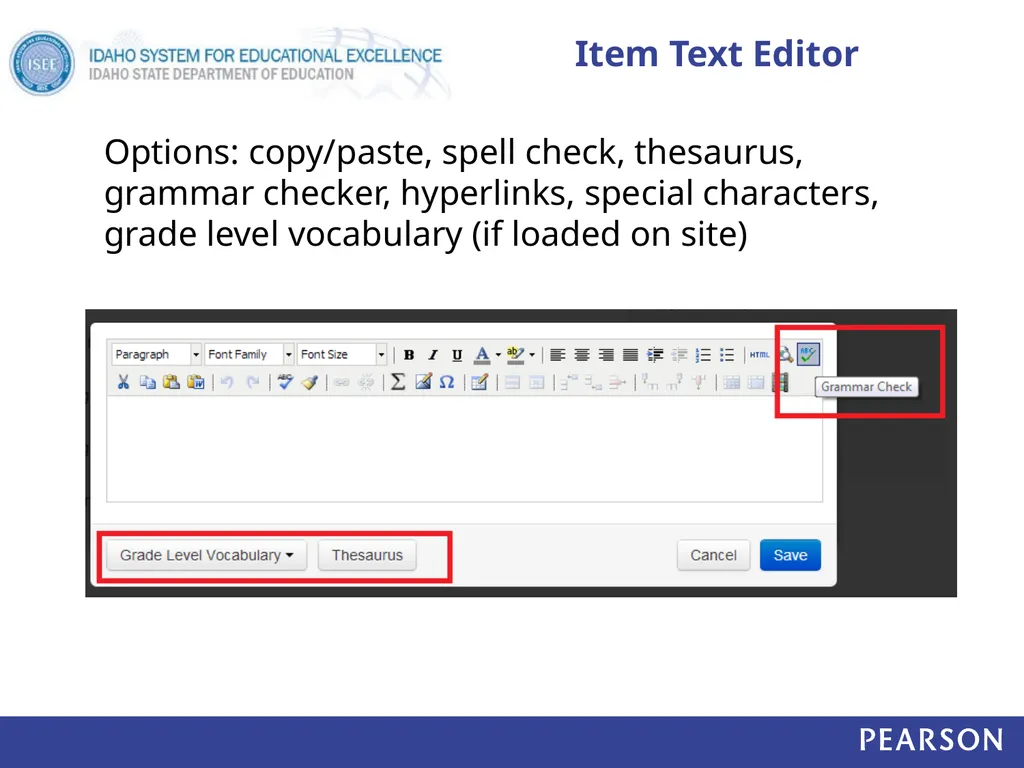
Item Text Editor Options: copy/paste, spell check, thesaurus, grammar checker, hyperlinks, special characters, grade level vocabulary (if loaded on site)<br>
08
Insert Images Do not copy and paste in an image; you must insert it as a file
For peak online test performance, use sizes below 250KB
Resize images before adding
Supported file formats: png, jpg, or gif
Not suggested for passages of text
Be sure to preview the item<br>
09
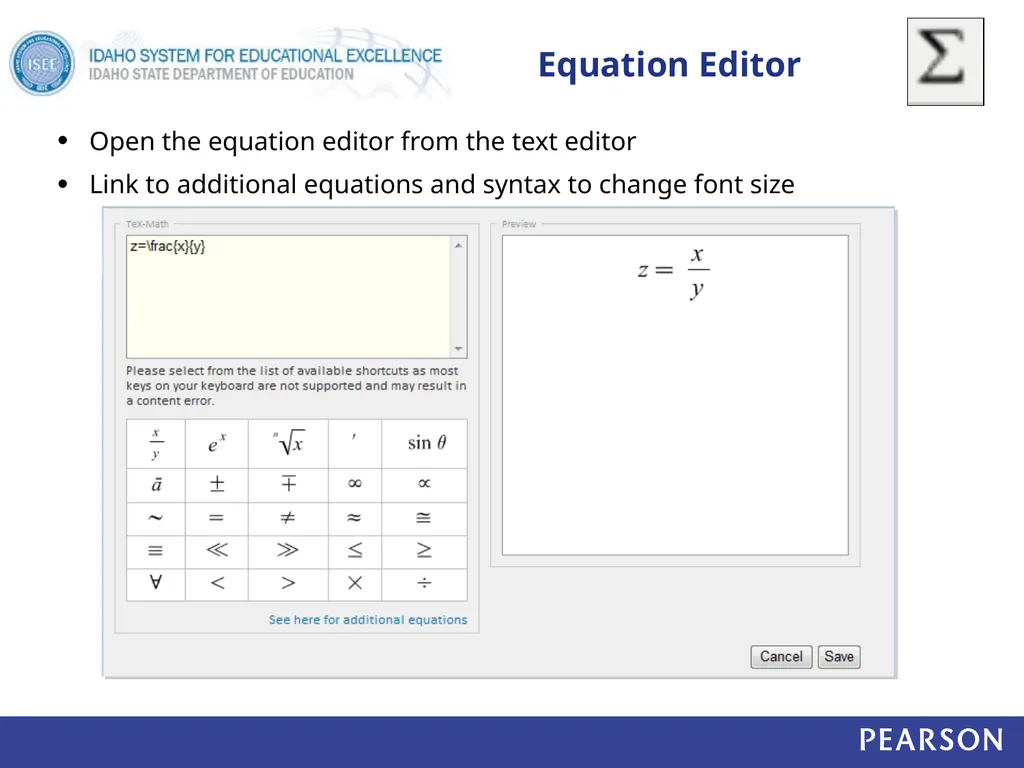
Equation Editor Open the equation editor from the text editor
Link to additional equations and syntax to change font size<br>
10
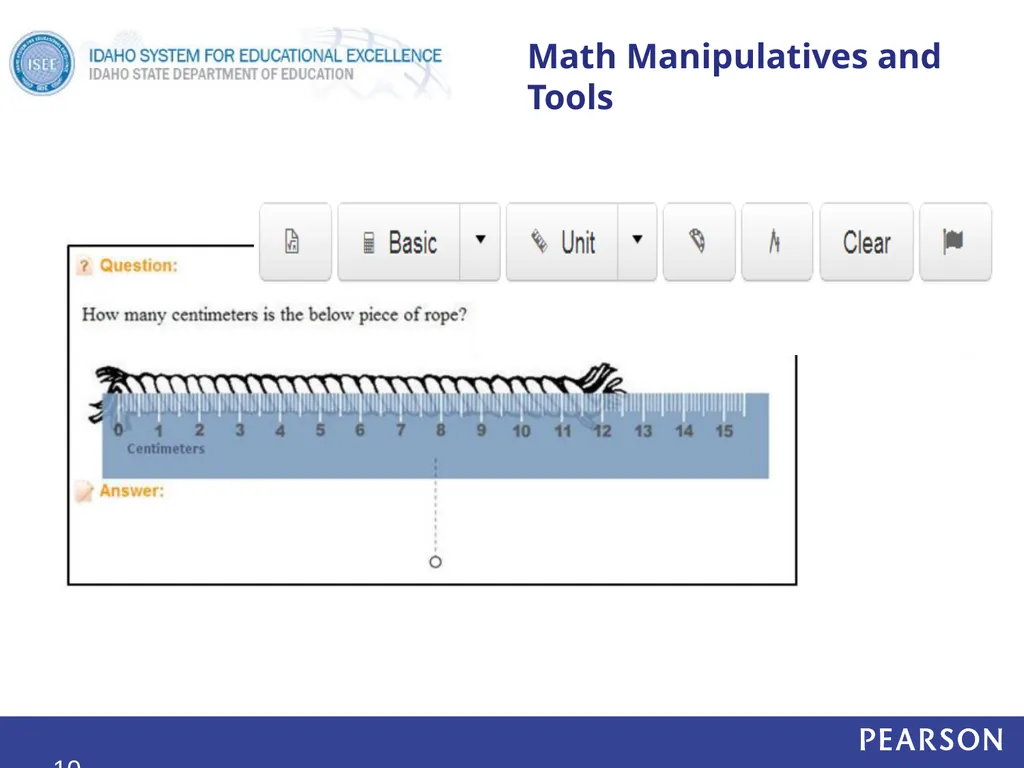
Math Manipulatives and Tools 10<br>
11
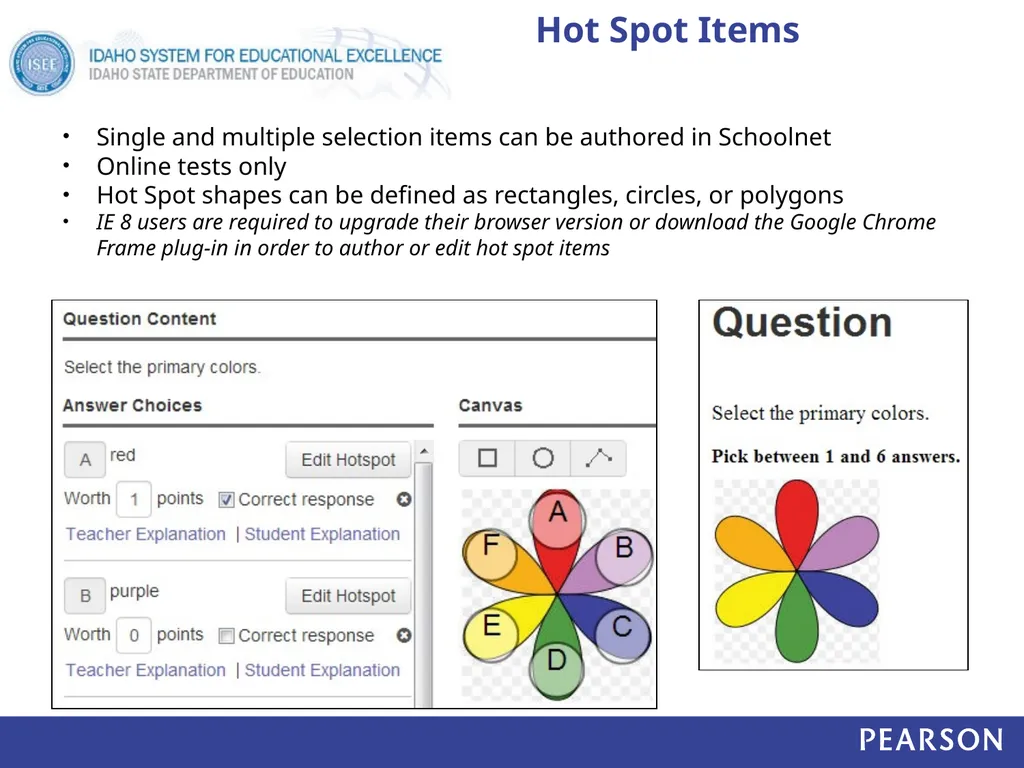
Hot Spot Items Single and multiple selection items can be authored in Schoolnet
Online tests only
Hot Spot shapes can be defined as rectangles, circles, or polygons
IE 8 users are required to upgrade their browser version or download the Google Chrome Frame plug-in in order to author or edit hot spot items<br>
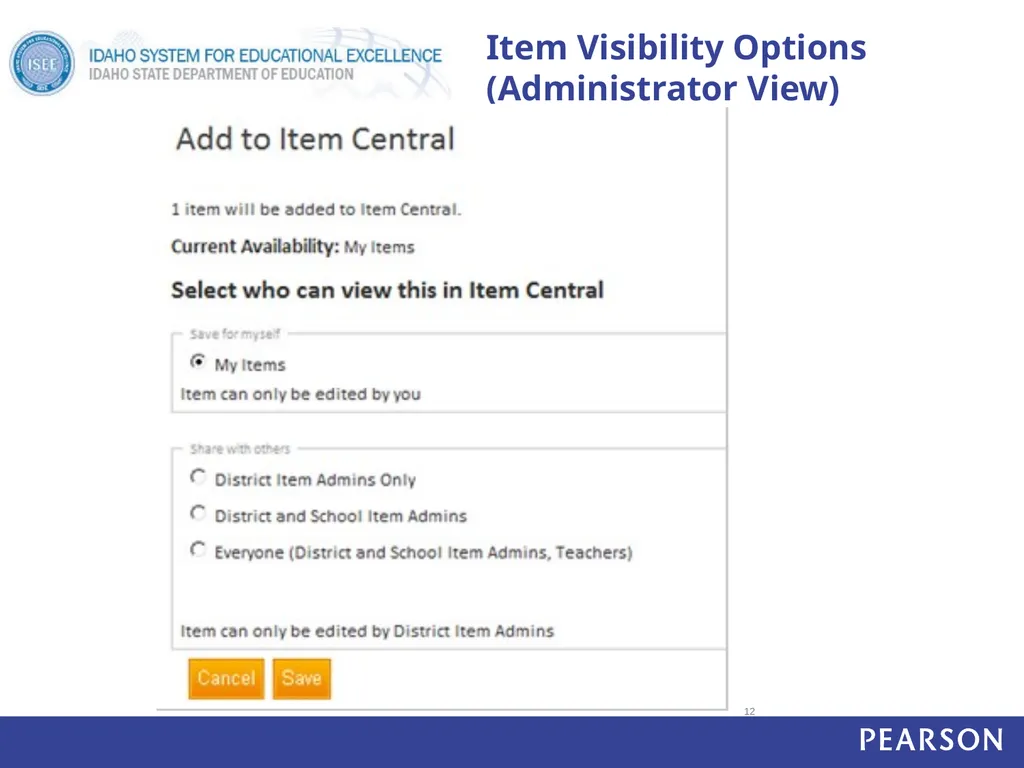
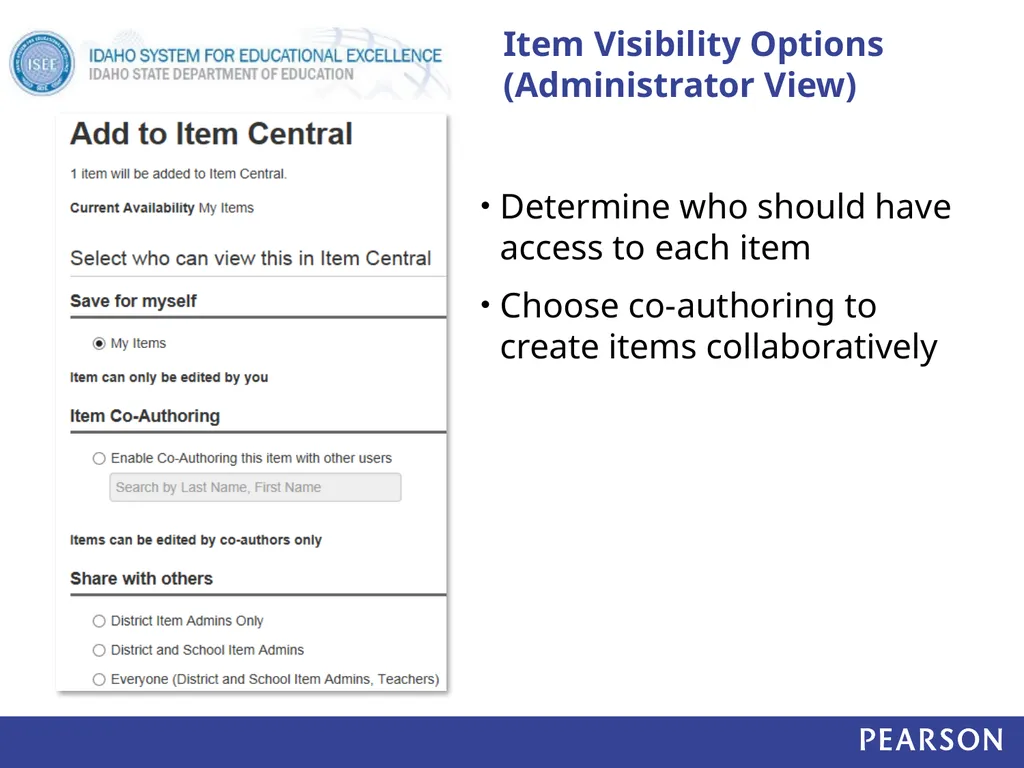
Determine who should have access to each item
Choose co-authoring to create items collaboratively Item Visibility Options (Administrator View)<br>
14
Create a Passage for Multiple Items<br>
15
Rubric for Open Response Items Single or multidimensional rubrics 15<br>
16
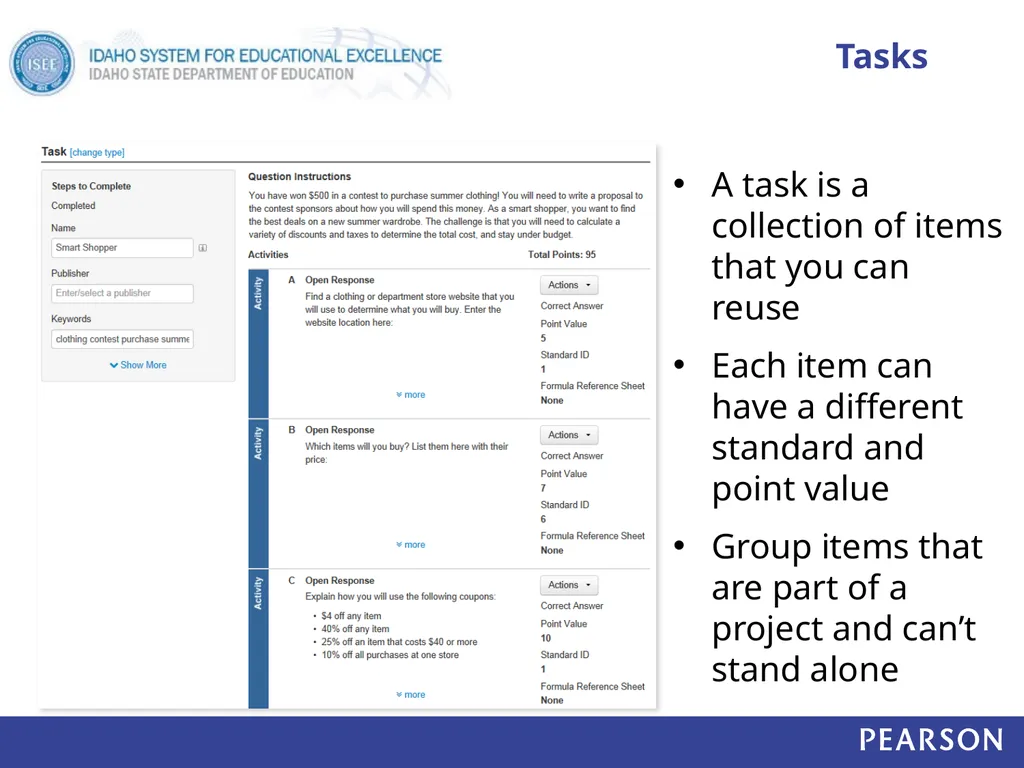
Tasks A task is a collection of items that you can reuse
Each item can have a different standard and point value
Group items that are part of a project and can’t stand alone<br>
17
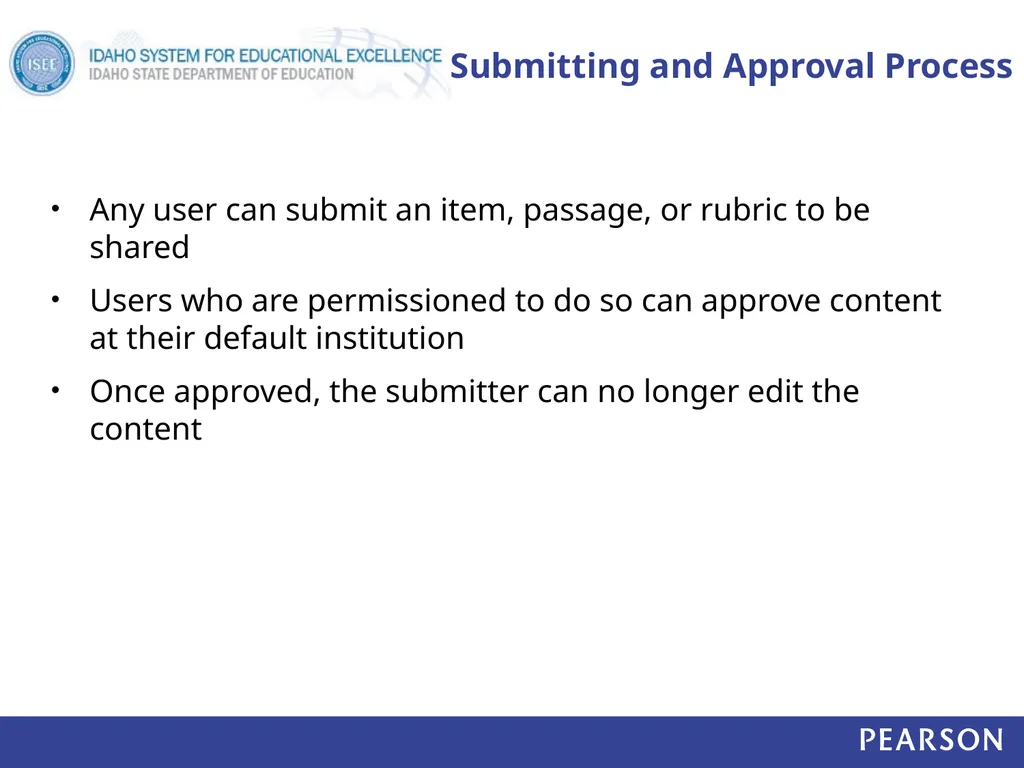
Submitting and Approval Process Any user can submit an item, passage, or rubric to be shared
Users who are permissioned to do so can approve content at their default institution
Once approved, the submitter can no longer edit the content<br>
18
Create and Schedule a test 18<br>
19
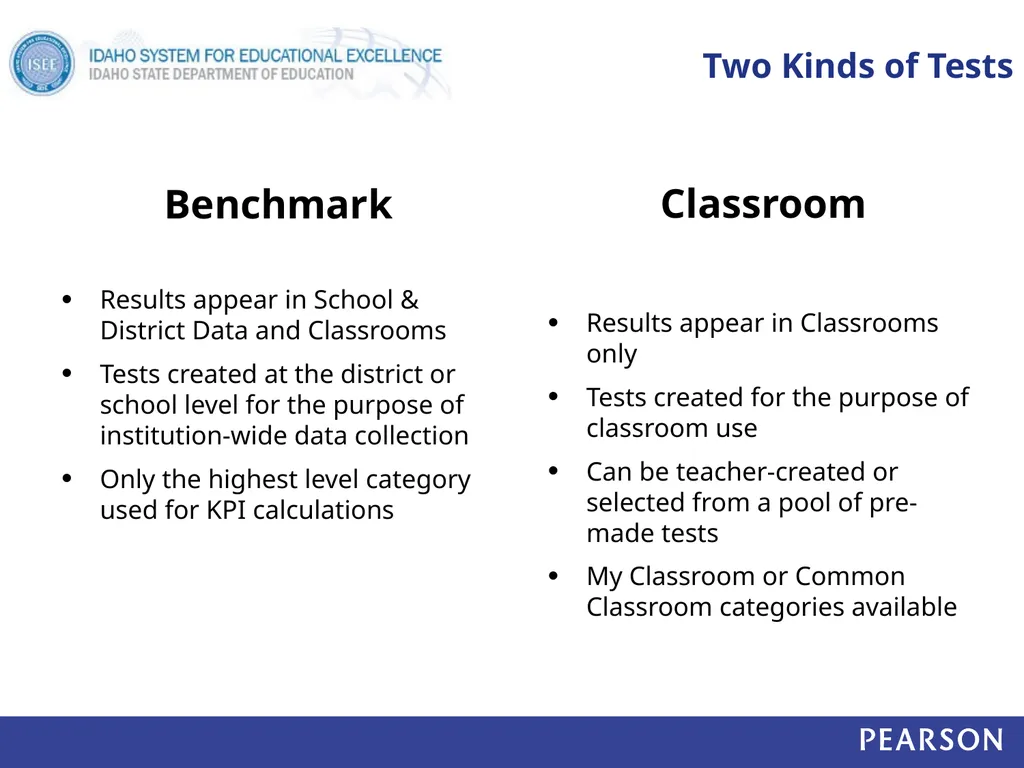
Two Kinds of Tests Benchmark
Results appear in School & District Data and Classrooms
Tests created at the district or school level for the purpose of institution-wide data collection
Only the highest level category used for KPI calculations Classroom
Results appear in Classrooms only
Tests created for the purpose of classroom use
Can be teacher-created or selected from a pool of pre-made tests
My Classroom or Common Classroom categories available<br>
20
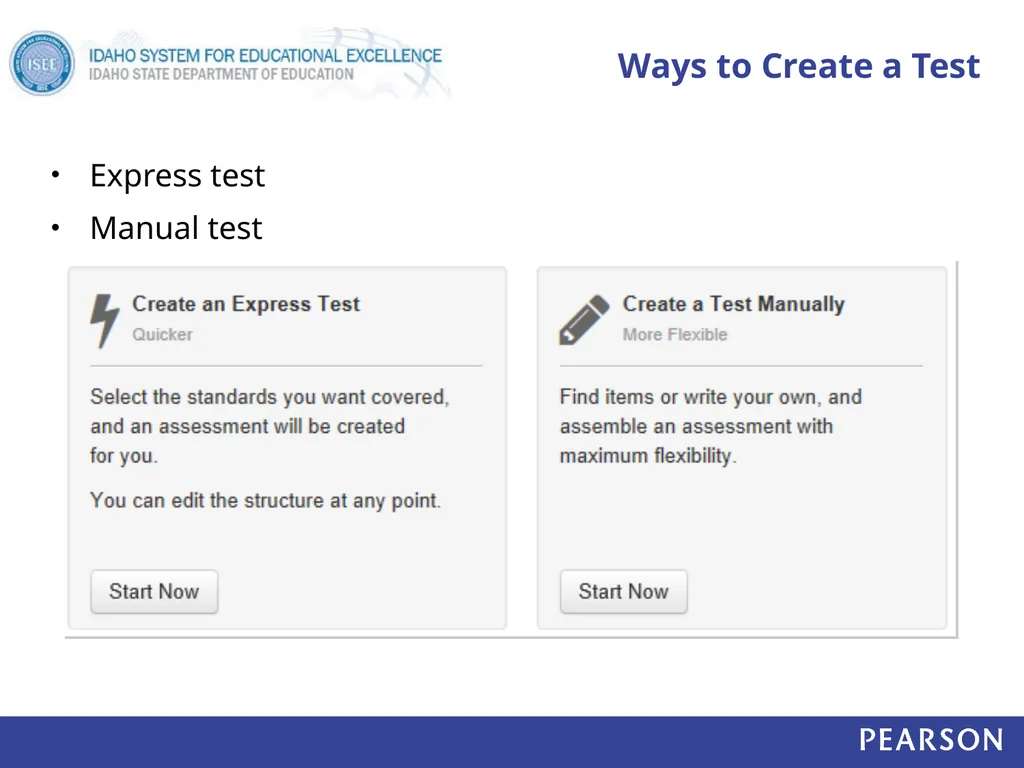
Ways to Create a Test Express test
Manual test<br>
21
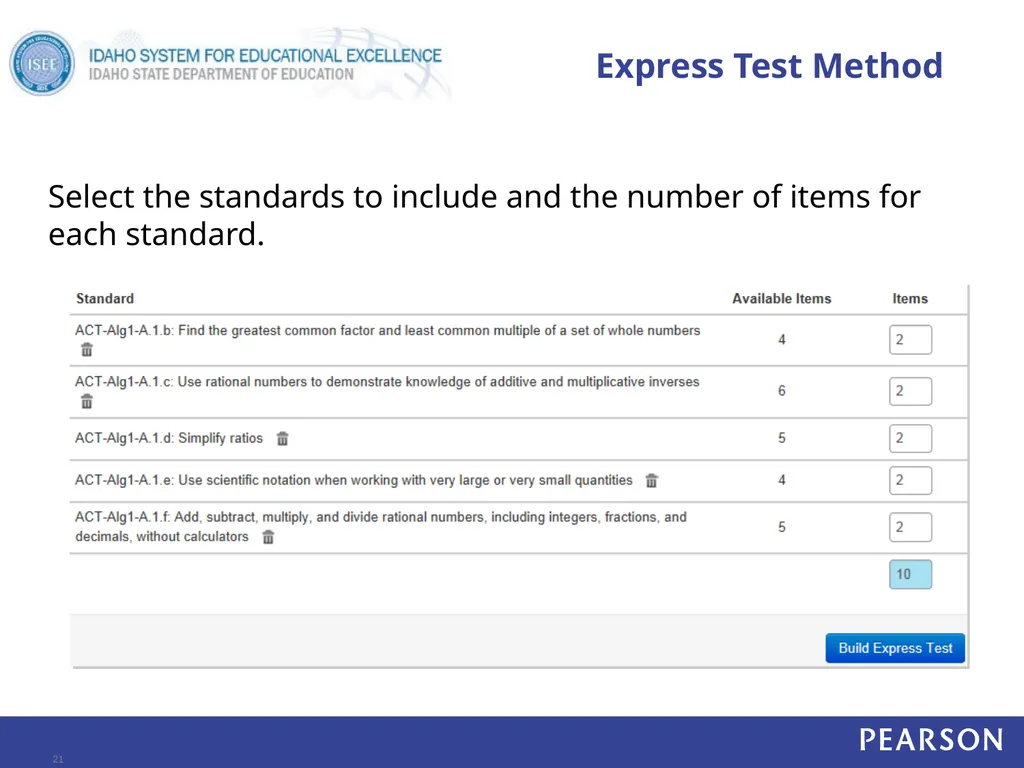
Express Test Method Select the standards to include and the number of items for each standard. 21<br>
22
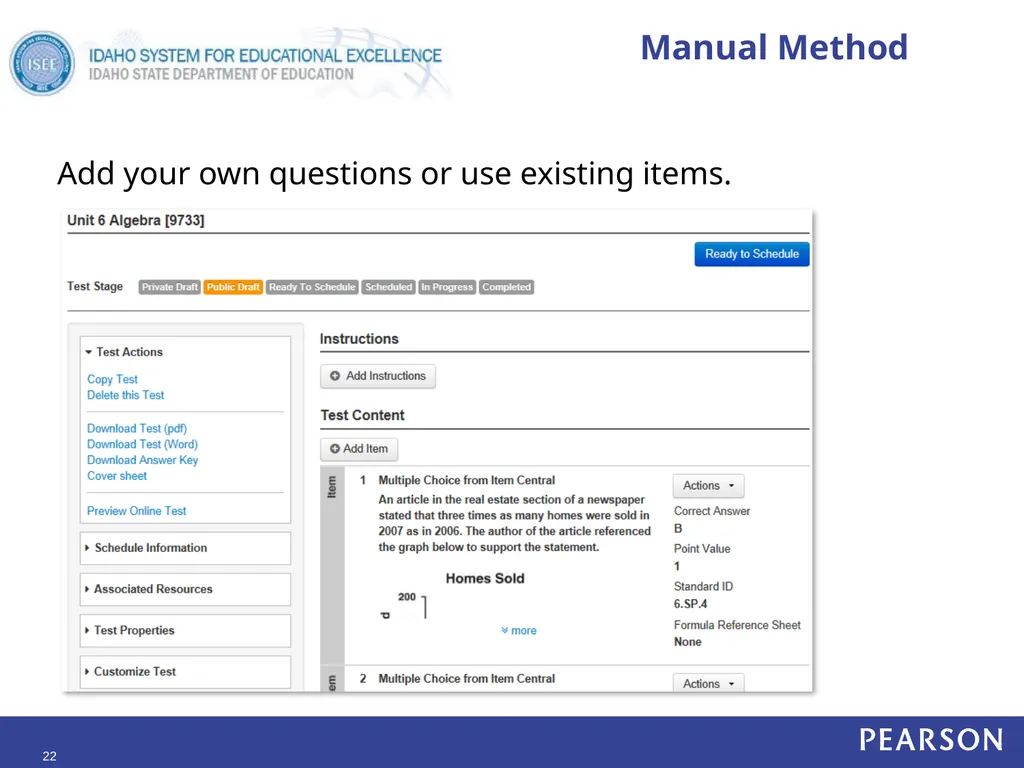
Manual Method Add your own questions or use existing items. 22<br>
23
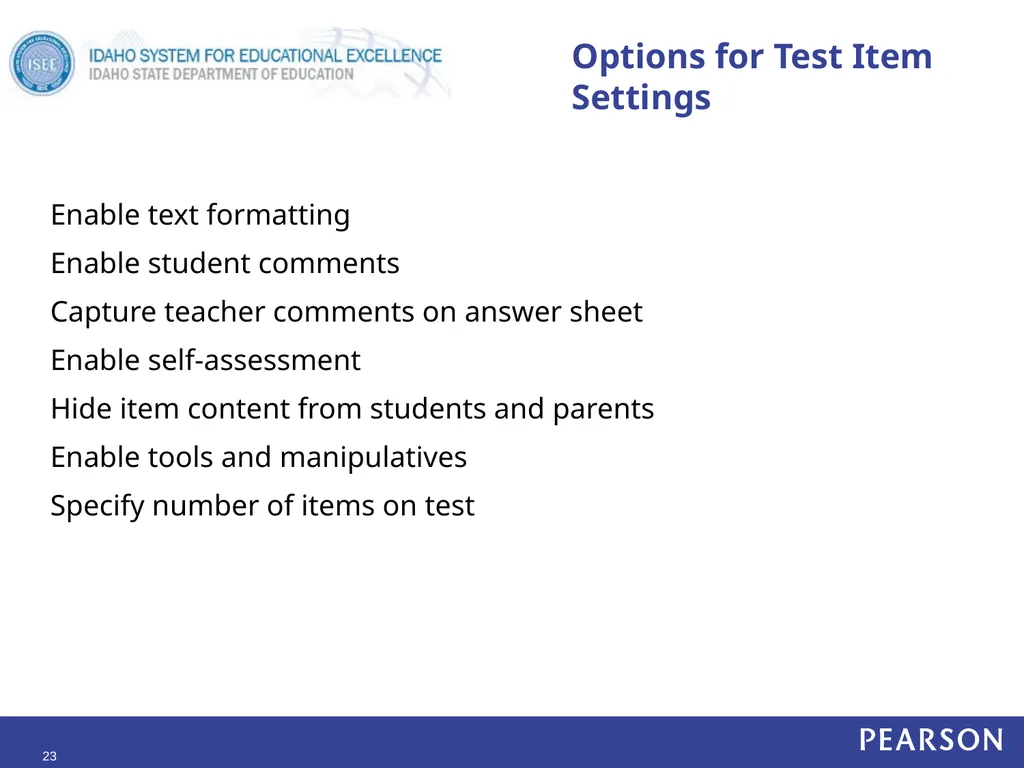
Options for Test Item Settings Enable text formatting
Enable student comments
Capture teacher comments on answer sheet
Enable self-assessment
Hide item content from students and parents
Enable tools and manipulatives
Specify number of items on test 23<br>