
1 1 1 Exploring Microsoft Office Access 2 Methods




Description: 1 1 1 Exploring Microsoft Office Access 2 Methods of Form Creation You can create a form using: Form Tool Split and Multiple Form Tools Datasheet Tool Form Wizard Blank Form Tool Form Design View 3 The Form Tool One click method Creates a
Related Topics
Download Presentation
"1 1 1 Exploring Microsoft Office Access 2 Methods" is the property of its rightful owner. Permission is granted to download and print the materials on this website for personal, non-commercial use only, and to display it on your personal computer provided you do not modify the materials and that you retain all copyright notices contained in the materials. By downloading content from our website, you accept the terms of this agreement.
Presentation Transcript
slide1. 1 1 1 Exploring Microsoft Office Access<br>
slide2. 2 Methods of Form Creation You can create a form using:
Form Tool
Split and Multiple Form Tools
Datasheet Tool
Form Wizard
Blank Form Tool
Form Design View<br>
slide3. 3 The Form Tool One click method
Creates a very simple and basic form
Can be altered and enhanced in Design view Drop data field Form created with Form tool<br>
slide4. 4 The Split Form Tool Creates a two part form including all fields
One section is in Form view
One section is in Datasheet view
Edits are synchronized Form View Datasheet view Split Form Tool<br>
slide5. 5 Multiple Items Tool Resembles a datasheet
Faster navigation/data entry than normal forms Multiple Items Tool<br>
slide6. 6 Datasheet Forms Identical copy of a table in terms of looks
Has different protection features applied than the original table
To create
Choose More Forms from the Forms group
Select Datasheet from the drop down list More Form command<br>
slide7. 7 Using Design View to Create a Form Allows for customization and personalization of forms
Click the Blank Form tool in the Forms group
Drag Fields onto the Design grid Field List Design Grid<br>
slide8. Get to know Design view If you want to add or change controls, you want to be in Design view. To get there, click the Design button .
Design view is also where you can format the colors and lettering styles of controls, and where you set control properties, such as borders and margins.
After you add controls, you can set their properties, such as how many characters someone can type in a text box, and change their formatting.<br>
slide9. Set control properties All controls have properties. Properties determine how a control looks and what it does.
A text box, for example, has properties that can specify its size, allow it to grow or shrink, and provide it with scrollbars.
To display a control’s properties, you would select the control and click the Properties button on the Form Design or Report Design toolbar. Related properties are grouped under tabs.
If you clicked a property name or the box next to it, you might see an arrow, and clicking on that would display a list of choices. Or you might see three dots. Those usually mean that Access can help you build a rule for the property, in a dialog box called a builder, which would open if you clicked the dots.<br>
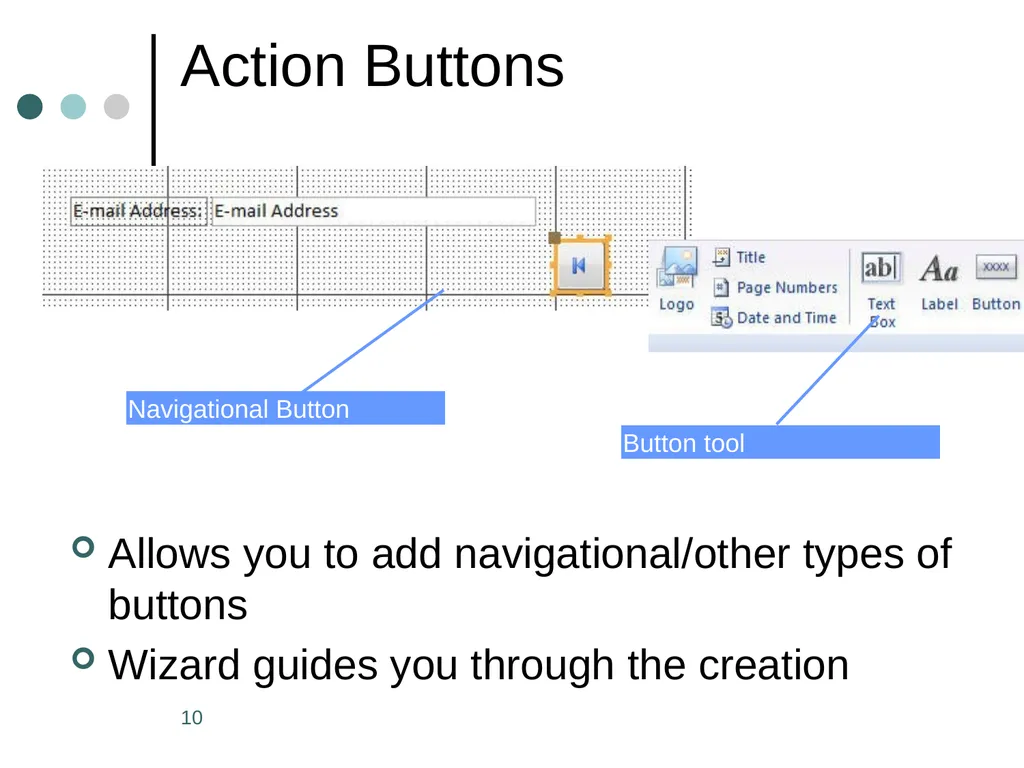
slide10. 10 Action Buttons Allows you to add navigational/other types of buttons
Wizard guides you through the creation Button tool Navigational Button<br>
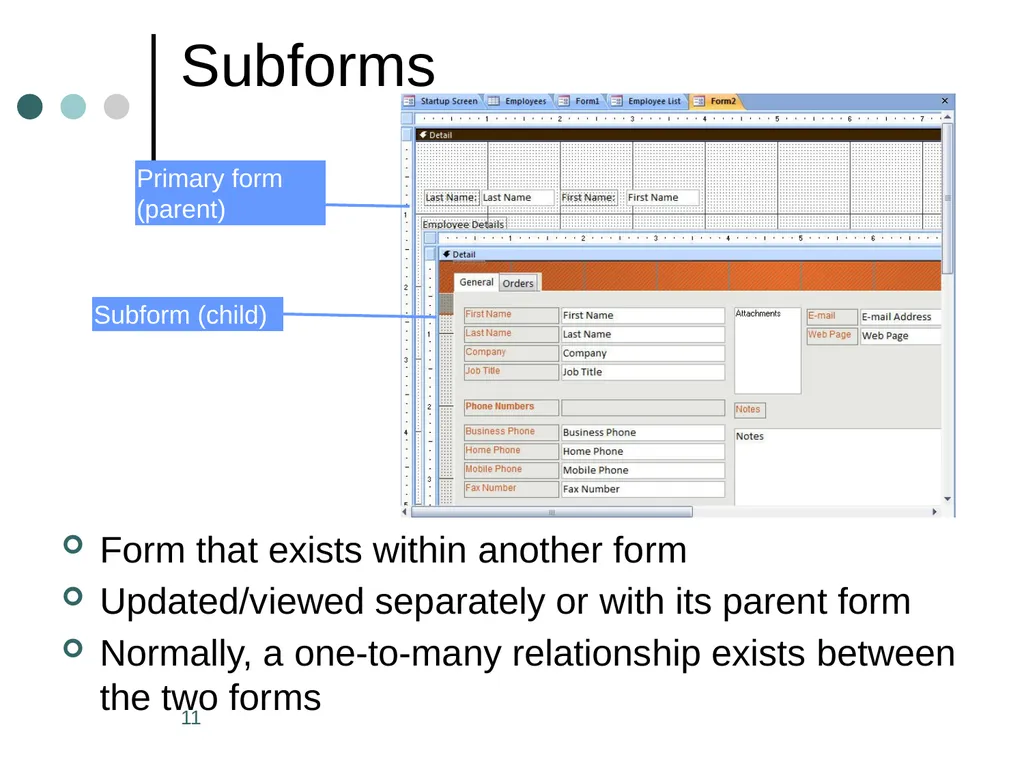
slide11. 11 Subforms Form that exists within another form
Updated/viewed separately or with its parent form
Normally, a one-to-many relationship exists between the two forms Subform (child) Primary form (parent)<br>
slide2. 2 Methods of Form Creation You can create a form using:
Form Tool
Split and Multiple Form Tools
Datasheet Tool
Form Wizard
Blank Form Tool
Form Design View<br>
slide3. 3 The Form Tool One click method
Creates a very simple and basic form
Can be altered and enhanced in Design view Drop data field Form created with Form tool<br>
slide4. 4 The Split Form Tool Creates a two part form including all fields
One section is in Form view
One section is in Datasheet view
Edits are synchronized Form View Datasheet view Split Form Tool<br>
slide5. 5 Multiple Items Tool Resembles a datasheet
Faster navigation/data entry than normal forms Multiple Items Tool<br>
slide6. 6 Datasheet Forms Identical copy of a table in terms of looks
Has different protection features applied than the original table
To create
Choose More Forms from the Forms group
Select Datasheet from the drop down list More Form command<br>
slide7. 7 Using Design View to Create a Form Allows for customization and personalization of forms
Click the Blank Form tool in the Forms group
Drag Fields onto the Design grid Field List Design Grid<br>
slide8. Get to know Design view If you want to add or change controls, you want to be in Design view. To get there, click the Design button .
Design view is also where you can format the colors and lettering styles of controls, and where you set control properties, such as borders and margins.
After you add controls, you can set their properties, such as how many characters someone can type in a text box, and change their formatting.<br>
slide9. Set control properties All controls have properties. Properties determine how a control looks and what it does.
A text box, for example, has properties that can specify its size, allow it to grow or shrink, and provide it with scrollbars.
To display a control’s properties, you would select the control and click the Properties button on the Form Design or Report Design toolbar. Related properties are grouped under tabs.
If you clicked a property name or the box next to it, you might see an arrow, and clicking on that would display a list of choices. Or you might see three dots. Those usually mean that Access can help you build a rule for the property, in a dialog box called a builder, which would open if you clicked the dots.<br>
slide10. 10 Action Buttons Allows you to add navigational/other types of buttons
Wizard guides you through the creation Button tool Navigational Button<br>
slide11. 11 Subforms Form that exists within another form
Updated/viewed separately or with its parent form
Normally, a one-to-many relationship exists between the two forms Subform (child) Primary form (parent)<br>