1 Excel Lesson 4 Entering Worksheet Formulas Microsoft Office 2010 Introductory Pasewark Pasewark 2 2 2 Objectives Enter and edit formulas. Distinguish between relative, absolute, and mixed cell references. Use the point-and-click method
"1 Excel Lesson 4 Entering Worksheet Formulas" is the property of its rightful owner. Permission is granted to
download and print the materials on this website for personal, non-commercial use only, and to display it
on your personal computer provided you do not modify the materials and that you retain all copyright
notices contained in the materials. By downloading content from our website, you accept the terms of this
agreement.
2 2 2 Objectives Enter and edit formulas.
Distinguish between relative, absolute, and mixed cell references.
Use the point-and-click method to enter formulas.
Use the Sum button to add values in a range.<br>
03
3 3 3 Objectives (continued) Preview a calculation.
Display formulas instead of results in a worksheet.
Manually calculate formulas.<br>
04
4 4 4 Vocabulary absolute cell reference
formula
manual calculation
mixed cell reference
operand operator
order of evaluation
point-and-click method
relative cell reference
Sum button<br>
05
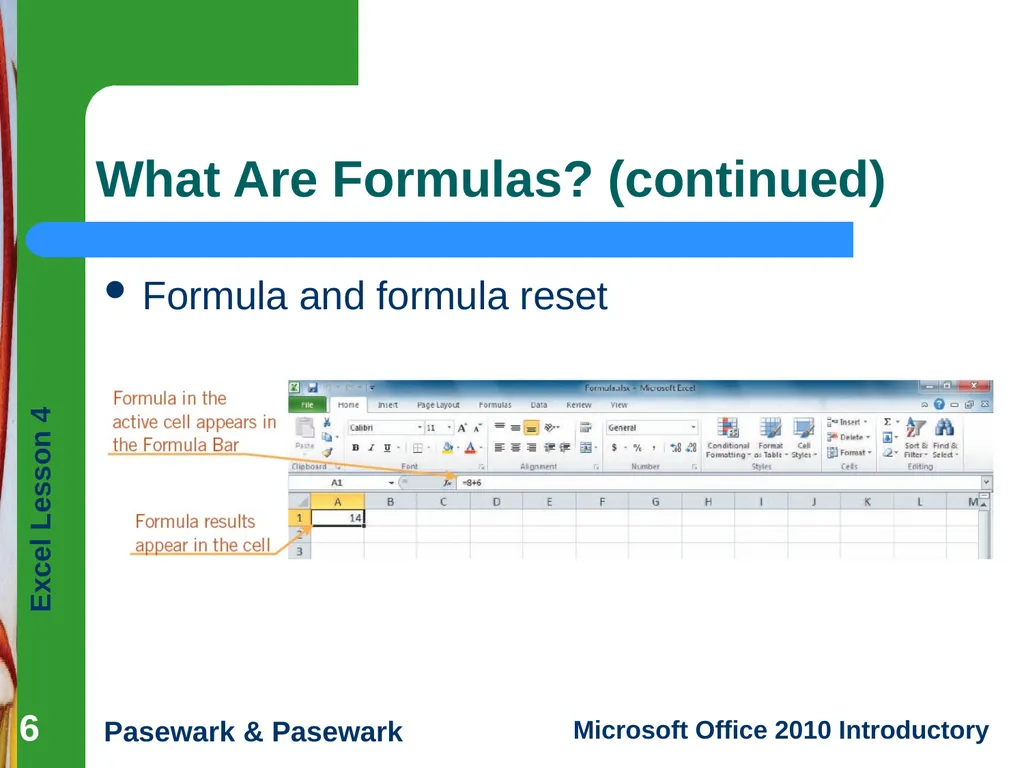
What Are Formulas? The equation used to calculate values based on numbers entered in cells is called a formula.
Each formula begins with an equal sign (=).
The results of the calculation appear in the cell in which the formula is entered. 5 5 5<br>
06
What Are Formulas? (continued) Formula and formula reset 6<br>
07
Entering a Formula Worksheet formulas consist of two components:
operands
operators
An operand is a constant (text or number) or cell reference used in a formula.
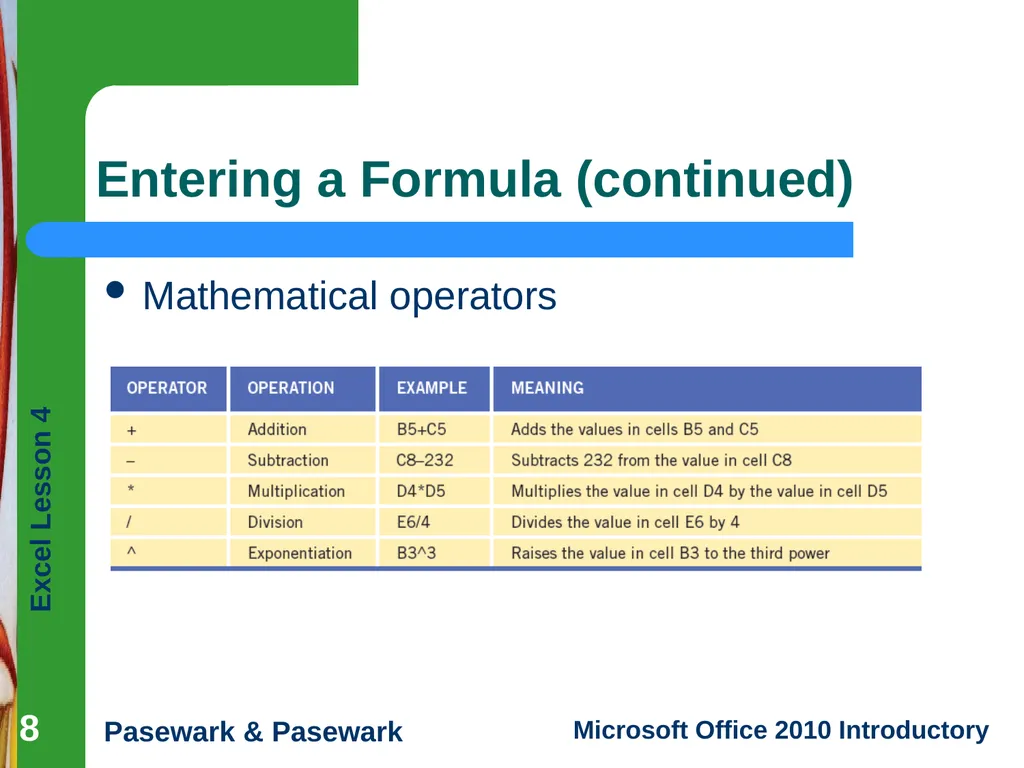
An operator is a symbol that indicates the type of calculation to perform on the operands, such as a plus sign (+) for addition. 7 7 7<br>
08
Entering a Formula (continued) Mathematical operators 8<br>
09
Entering a Formula (continued) A formula with multiple operators is calculated using the order of evaluation.
Contents within parentheses (beginning with innermost) are evaluated first.
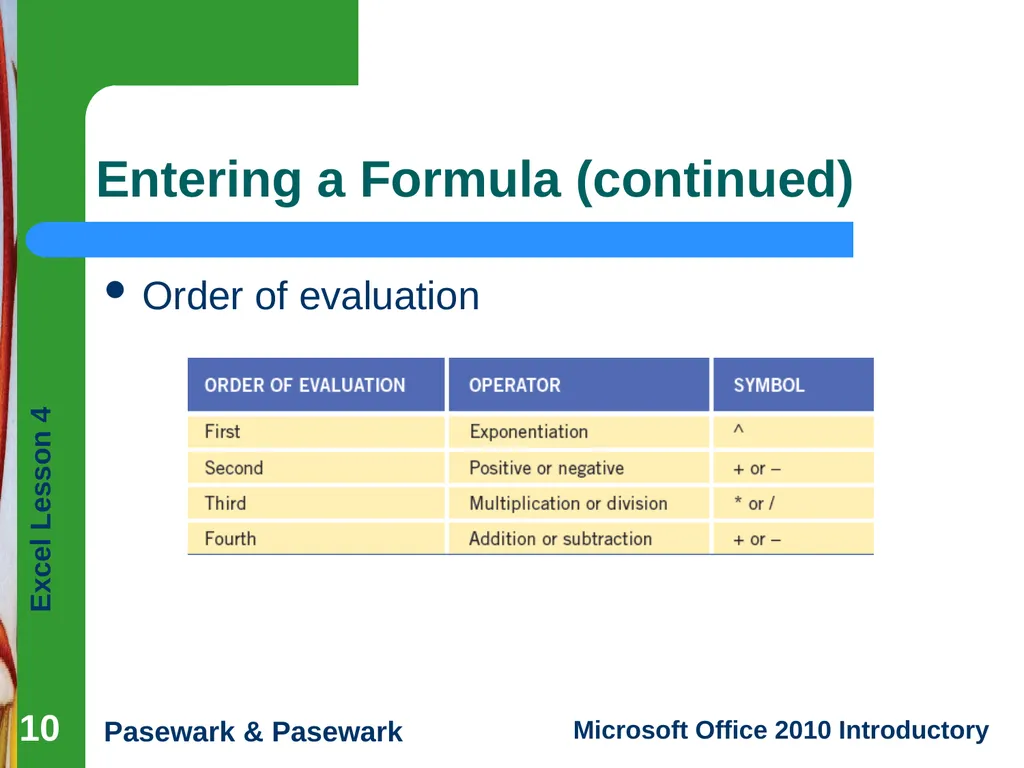
Mathematical operators are evaluated in a specific order. (Shown in table on next slide).
If operators have the same order of evaluation, the equation is evaluated from left to right. 9 9 9<br>
10
Entering a Formula (continued) Order of evaluation 10<br>
11
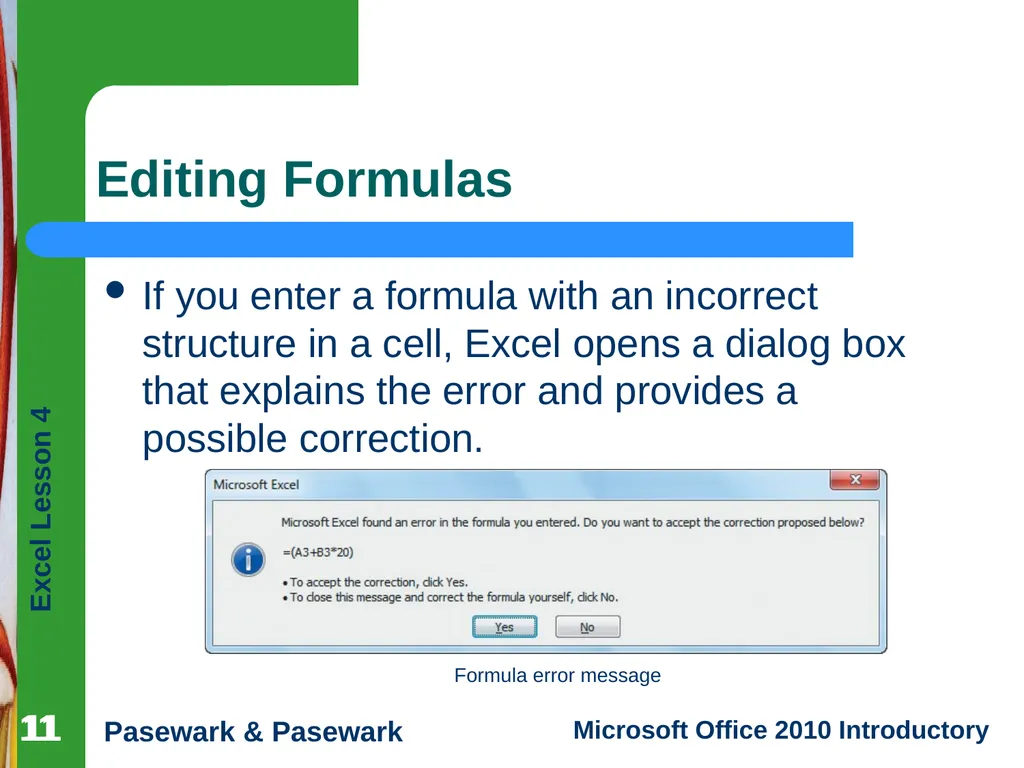
11 11 11 Editing Formulas If you enter a formula with an incorrect structure in a cell, Excel opens a dialog box that explains the error and provides a possible correction. Formula error message<br>
12
12 12 12 Editing Formulas (continued) If you discover that you need to make a correction, you can edit the formula.
Click the cell with the formula you want to edit. Press the F2 key or double-click the cell to enter editing mode or click in the Formula Bar.<br>
13
13 13 13 Comparing Relative, Absolute, and Mixed Cell References A relative cell reference adjusts to its new location when copied or moved to another cell.
Absolute cell references do not change when copied or moved to a new cell.
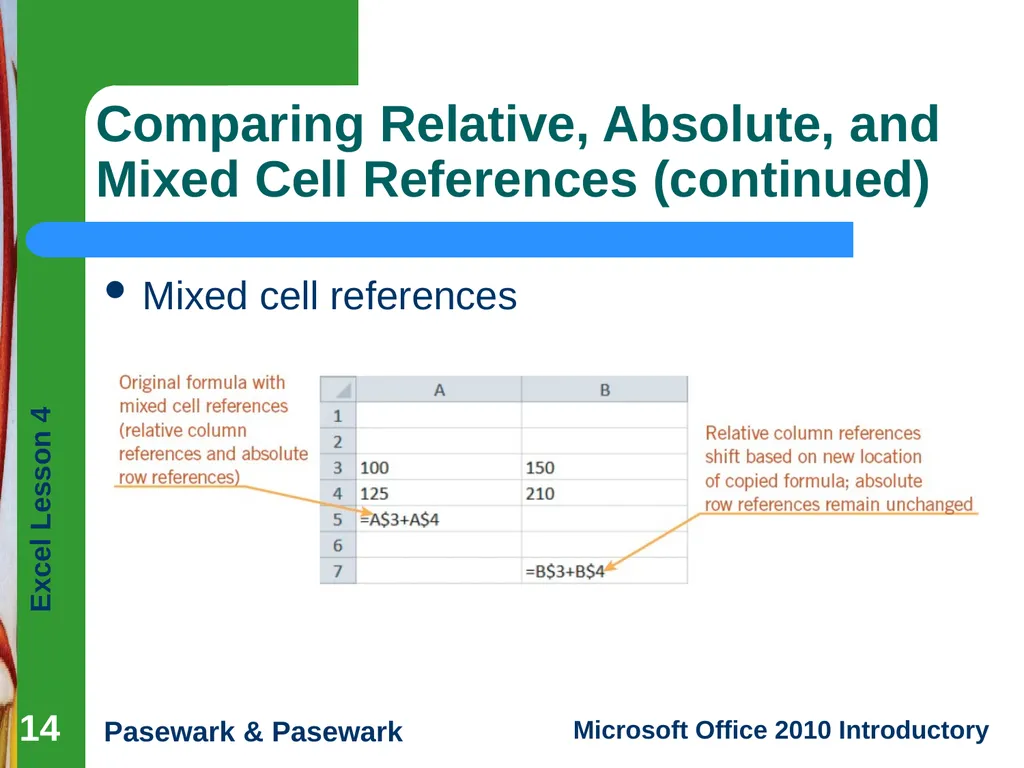
Cell references that contain both relative and absolute references are called mixed cell references.
References preceded by a dollar sign do not change.<br>
15 15 Creating Formulas Quickly You can include cell references in a formula by using the point-and-click method to click each cell rather than typing a cell reference.
Worksheet users frequently need to add long columns or rows of numbers. To use the Sum button, click the cell where you want the total to appear, and then click the Sum button. 15<br>
16
16 16 Previewing Calculations When you select a range that contains numbers, the status bar shows the results of common calculations for the range.
By default, these calculations display the average value in the selected range, a count of the number of values in the selected range, and a sum of the values in the selected range. 16<br>
17
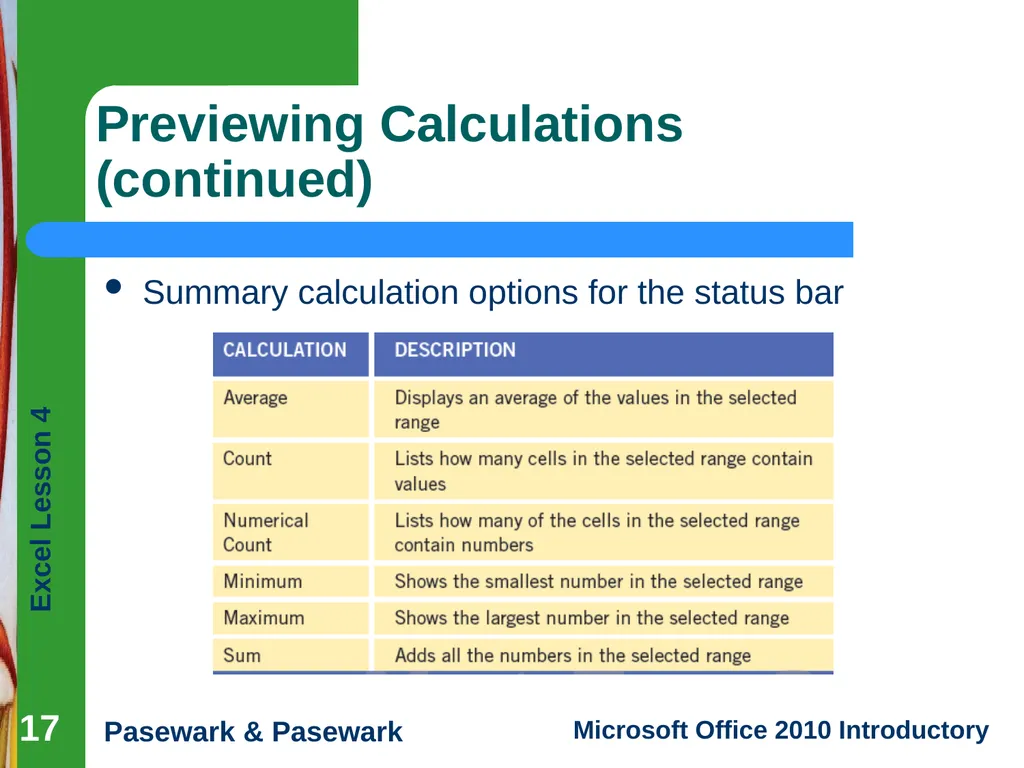
Previewing Calculations (continued) Summary calculation options for the status bar 17<br>
18
18 18 Showing Formulas in the Worksheet 18 At times you may find it simpler to organize formulas and detect errors when formulas are displayed in their cells.
To do this, click the Formulas tab on the Ribbon, and then, in the Formula Auditing group, click the Show Formulas button. The formulas replace the formula results in the worksheet.<br>
19
19 19 Calculating Formulas Manually 19 When you need to edit a worksheet with many formulas, you can specify manual calculation, which lets you determine when Excel calculates the formulas.
The Formulas tab on the Ribbon contains all the buttons you need when working with manual calculations.<br>
20
20 20 Summary Formulas are equations used to calculate values and display them in a cell. Formulas can include values referenced in other cells of the worksheet. Each formula begins with an equal sign and contains at least two operands and one operator.
Formulas can include more than one operator. The order of evaluation determines the sequence used to calculate the value of a formula. 20<br>
21
21 21 Summary (continued) When you enter a formula with an incorrect structure, Excel can correct the error for you, or you can choose to edit it yourself. To edit a formula, click the cell with the formula and then make changes in the Formula Bar. You can also double-click a formula and then edit the formula directly in the cell. 21<br>