Ellucian Advise Training Introduction Faculty Institute Fall 2022 Raising Faculty Alerts (All Faculty Use this to raise alerts) Go To MyBSU Go to the Card Alert Submission (remember you may have to go to Discover More at the bottom of
"Ellucian Advise Training Introduction Faculty" is the property of its rightful owner. Permission is granted to
download and print the materials on this website for personal, non-commercial use only, and to display it
on your personal computer provided you do not modify the materials and that you retain all copyright
notices contained in the materials. By downloading content from our website, you accept the terms of this
agreement.
Presentation Transcript
01
Ellucian Advise Training Introduction
Faculty Institute
Fall 2022<br>
02
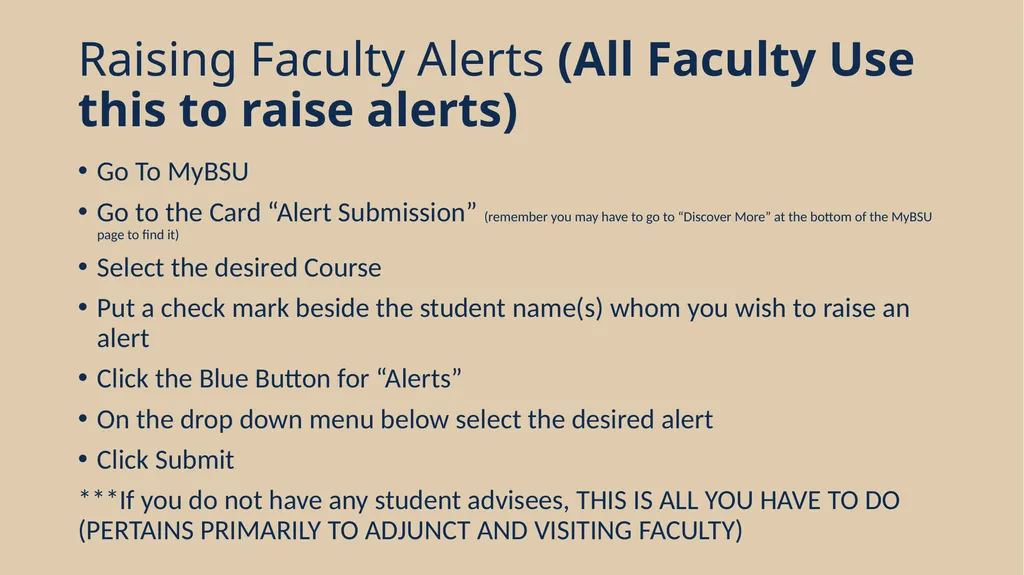
Raising Faculty Alerts (All Faculty Use this to raise alerts) Go To MyBSU
Go to the Card “Alert Submission” (remember you may have to go to “Discover More” at the bottom of the MyBSU page to find it)
Select the desired Course
Put a check mark beside the student name(s) whom you wish to raise an alert
Click the Blue Button for “Alerts”
On the drop down menu below select the desired alert
Click Submit
***If you do not have any student advisees, THIS IS ALL YOU HAVE TO DO (PERTAINS PRIMARILY TO ADJUNCT AND VISITING FACULTY)<br>
03
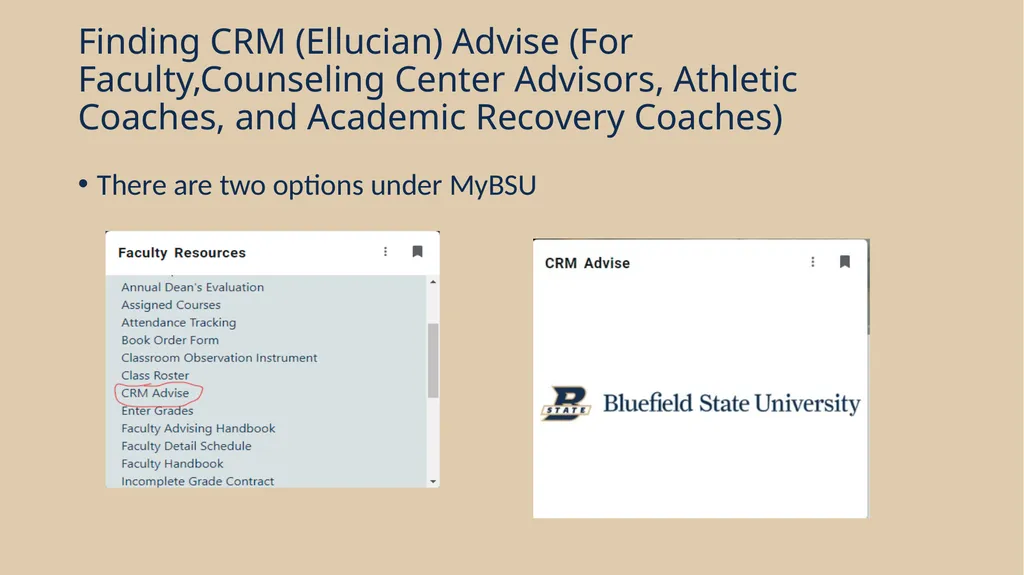
Finding CRM (Ellucian) Advise (For Faculty,Counseling Center Advisors, Athletic Coaches, and Academic Recovery Coaches) There are two options under MyBSU<br>
04
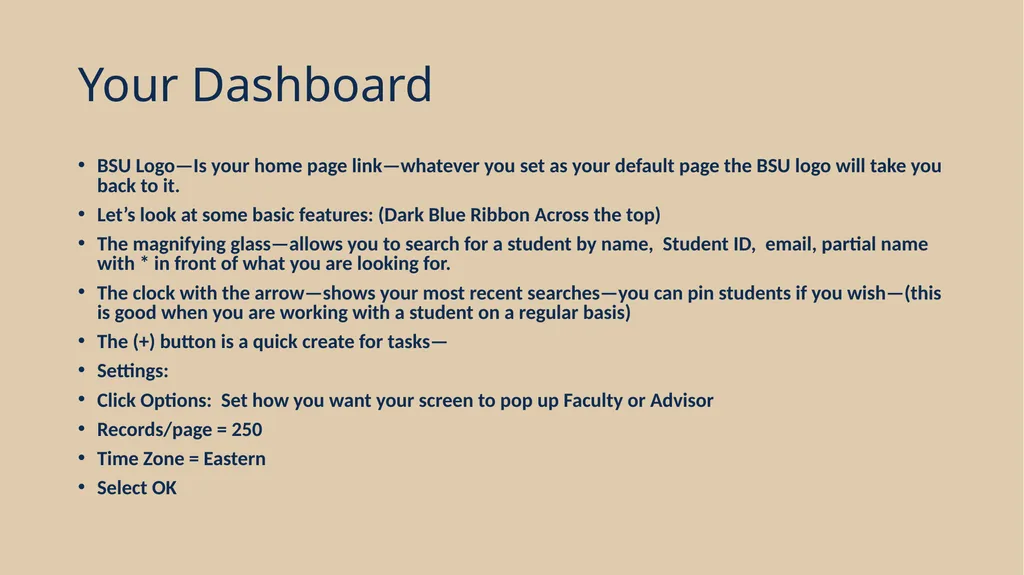
Your Dashboard BSU Logo—Is your home page link—whatever you set as your default page the BSU logo will take you back to it.
Let’s look at some basic features: (Dark Blue Ribbon Across the top)
The magnifying glass—allows you to search for a student by name, Student ID, email, partial name with * in front of what you are looking for.
The clock with the arrow—shows your most recent searches—you can pin students if you wish—(this is good when you are working with a student on a regular basis)
The (+) button is a quick create for tasks—
Settings:
Click Options: Set how you want your screen to pop up Faculty or Advisor
Records/page = 250
Time Zone = Eastern
Select OK<br>
05
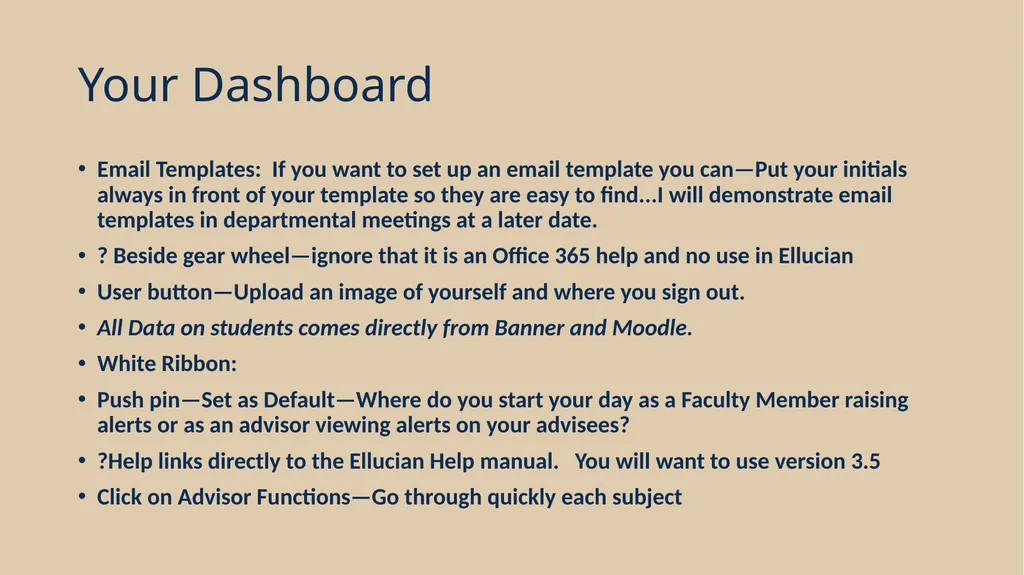
Your Dashboard Email Templates: If you want to set up an email template you can—Put your initials always in front of your template so they are easy to find...I will demonstrate email templates in departmental meetings at a later date.
? Beside gear wheel—ignore that it is an Office 365 help and no use in Ellucian
User button—Upload an image of yourself and where you sign out.
All Data on students comes directly from Banner and Moodle.
White Ribbon:
Push pin—Set as Default—Where do you start your day as a Faculty Member raising alerts or as an advisor viewing alerts on your advisees?
?Help links directly to the Ellucian Help manual. You will want to use version 3.5
Click on Advisor Functions—Go through quickly each subject<br>
06
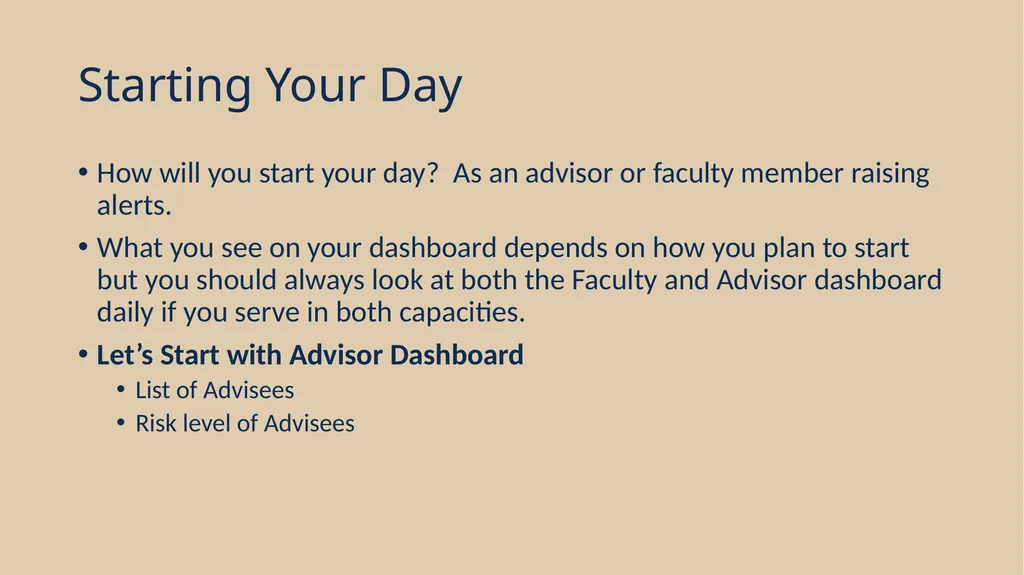
Starting Your Day How will you start your day? As an advisor or faculty member raising alerts.
What you see on your dashboard depends on how you plan to start but you should always look at both the Faculty and Advisor dashboard daily if you serve in both capacities.
Let’s Start with Advisor Dashboard
List of Advisees
Risk level of Advisees<br>
07
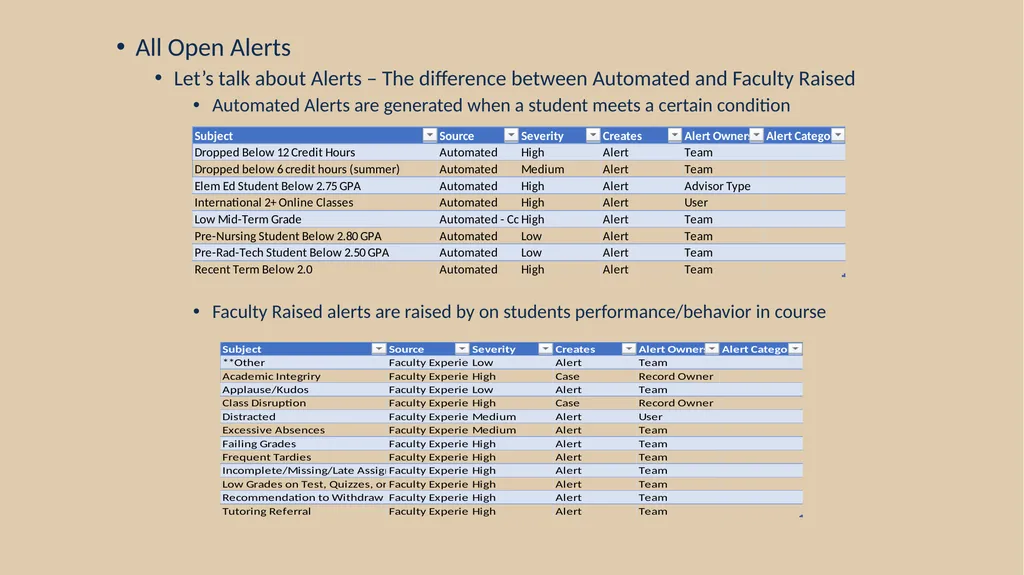
All Open Alerts
Let’s talk about Alerts – The difference between Automated and Faculty Raised
Automated Alerts are generated when a student meets a certain condition
Faculty Raised alerts are raised by on students performance/behavior in course<br>
08
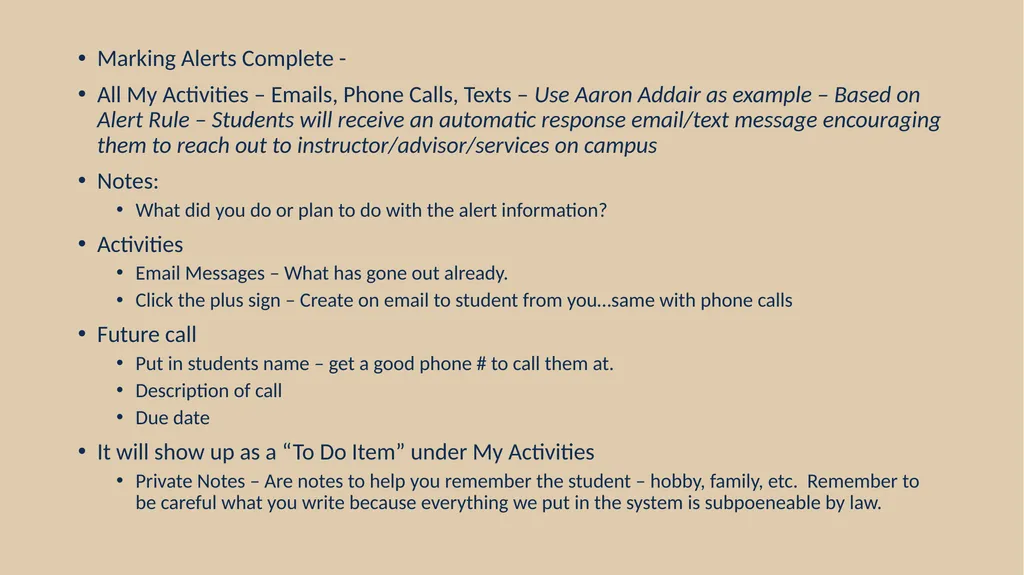
Marking Alerts Complete -
All My Activities – Emails, Phone Calls, Texts – Use Aaron Addair as example – Based on Alert Rule – Students will receive an automatic response email/text message encouraging them to reach out to instructor/advisor/services on campus
Notes:
What did you do or plan to do with the alert information?
Activities
Email Messages – What has gone out already.
Click the plus sign – Create on email to student from you…same with phone calls
Future call
Put in students name – get a good phone # to call them at.
Description of call
Due date
It will show up as a “To Do Item” under My Activities
Private Notes – Are notes to help you remember the student – hobby, family, etc. Remember to be careful what you write because everything we put in the system is subpoeneable by law.<br>
09
Anything in Blue will take you somewhere will take you somewhere for example student name will take you to their student’s record. You can see what<br>
10
Student Information Screen Data found on the student’s record.
Top gray section, student name, erp id, email, phone stay at top
Anything wrong must be fixed in Banner
Always stays on top when scrolling
If restriction on student record it will stay on top as well.
Three lines next to name to jump to a section
Restrictions - Yellow banner, when do they drop off
Scroll through student record and open up data sheet views
Indicators – Sticky note on student record – Bring info about student to forefront, Indicators only show if student meets the condition for the indicator. If indicators were in the past, they show up as inactive.
Success Score – Based on rules developed by team. Ran weekly.<br>
11
Additional Training: Carolyn Kirby, Director
Academic Success Center
Basic Science 110
(304) 327-4098
ckirby@bluefieldstate.edu<br>