General Computer Knowledge COE 201- Computer Proficiency Outline Hardware Vs. Software Binary Representation Computer Components CPU Data Storage InputOutput Devices BIOS Operating System Hardware The part of the computer that you can see
"General Computer Knowledge COE 201- Computer" is the property of its rightful owner. Permission is granted to
download and print the materials on this website for personal, non-commercial use only, and to display it
on your personal computer provided you do not modify the materials and that you retain all copyright
notices contained in the materials. By downloading content from our website, you accept the terms of this
agreement.
Presentation Transcript
01
General Computer Knowledge COE 201- Computer Proficiency<br>
02
Outline Hardware Vs. Software
Binary Representation
Computer Components
CPU
Data Storage
Input/Output Devices
BIOS
Operating System<br>
03
Hardware The part of the computer that you can see and touch.
Example: CD-ROM, monitor, printer, keyboard
Devices that are required to store and execute (or run) the software.
Serve as the delivery system for software solutions.<br>
04
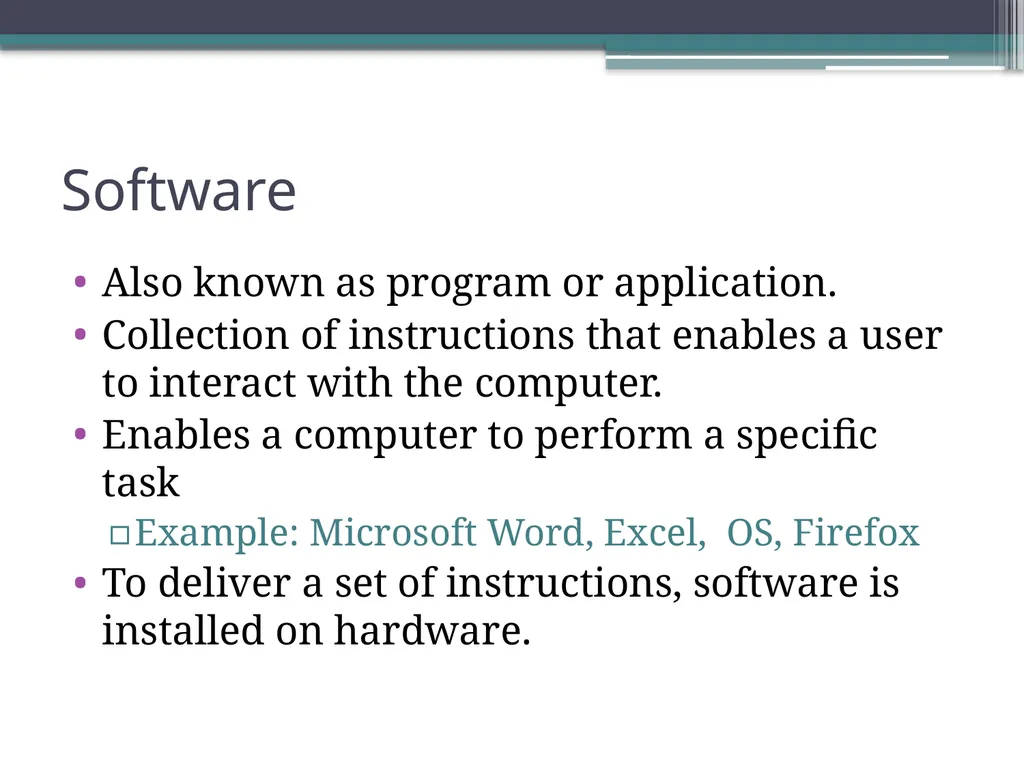
Software Also known as program or application.
Collection of instructions that enables a user to interact with the computer.
Enables a computer to perform a specific task
Example: Microsoft Word, Excel, OS, Firefox
To deliver a set of instructions, software is installed on hardware.<br>
05
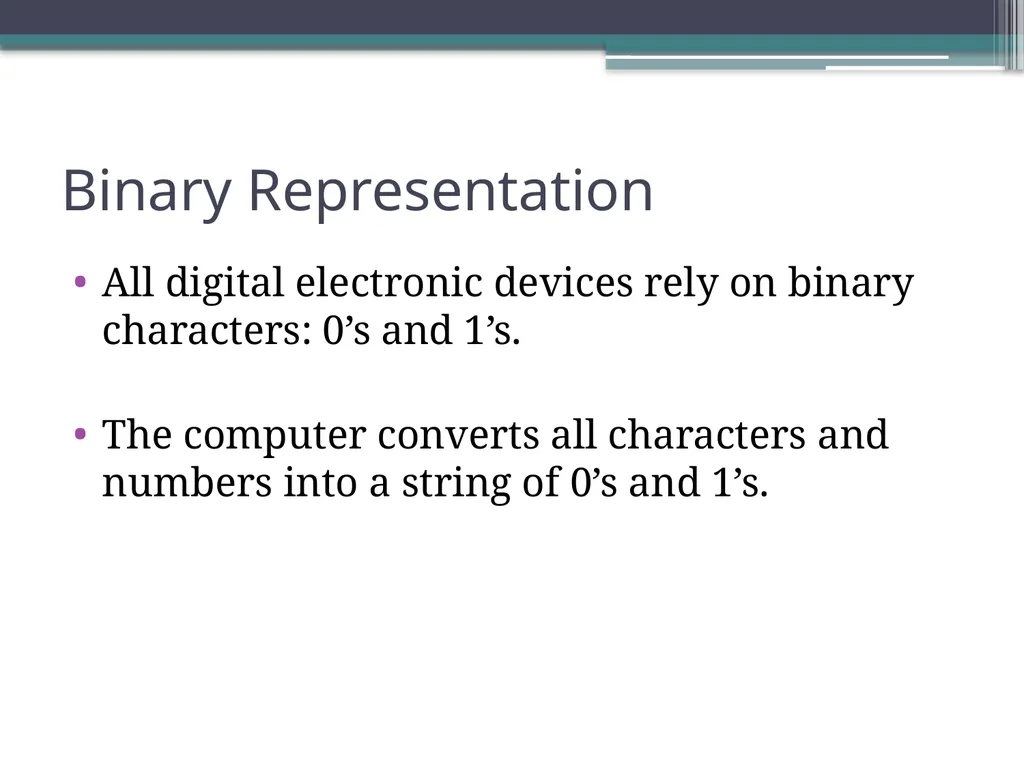
Binary Representation All digital electronic devices rely on binary characters: 0’s and 1’s.
The computer converts all characters and numbers into a string of 0’s and 1’s.<br>
06
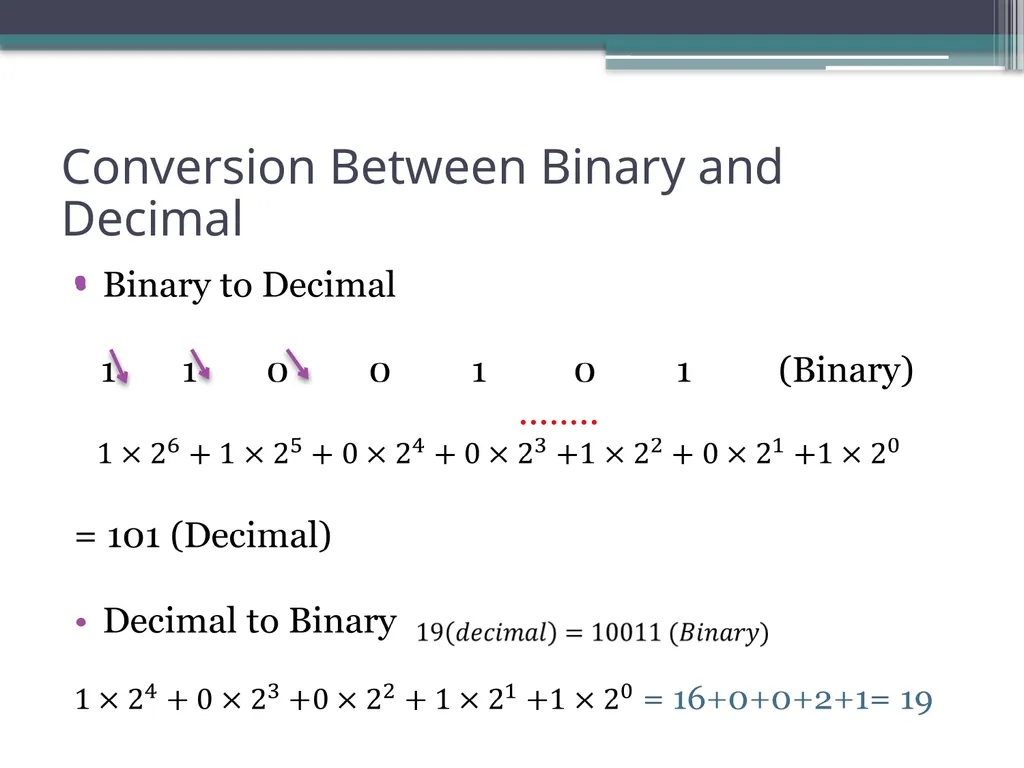
Conversion Between Binary and Decimal<br>
07
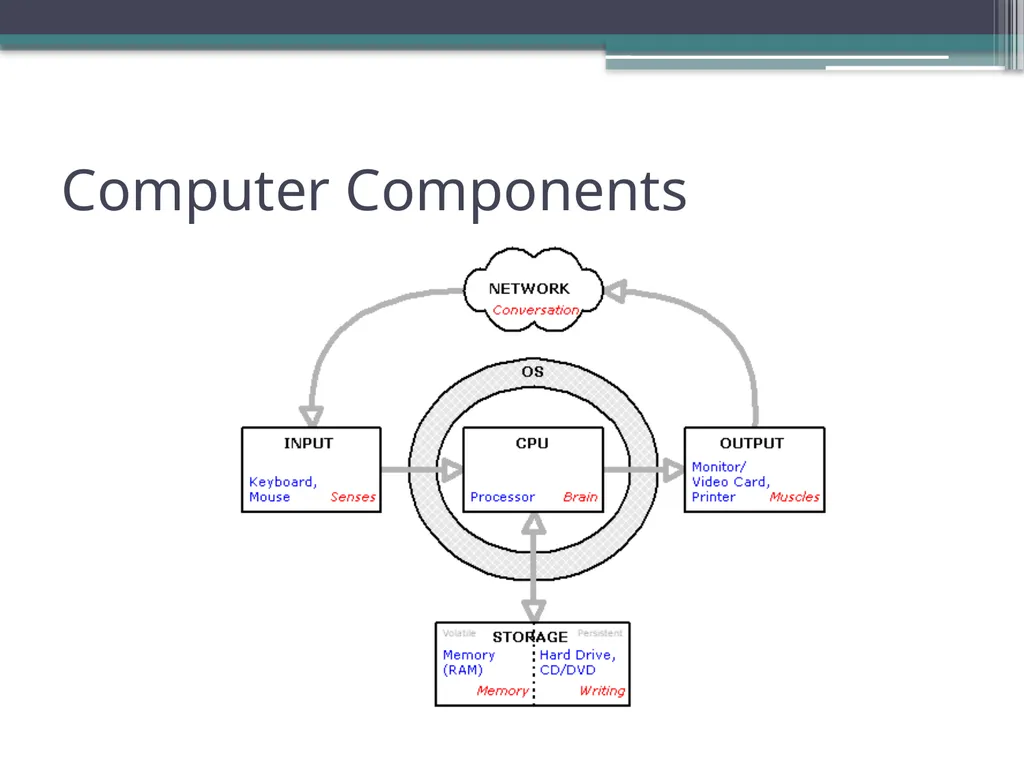
Computer Components<br>
08
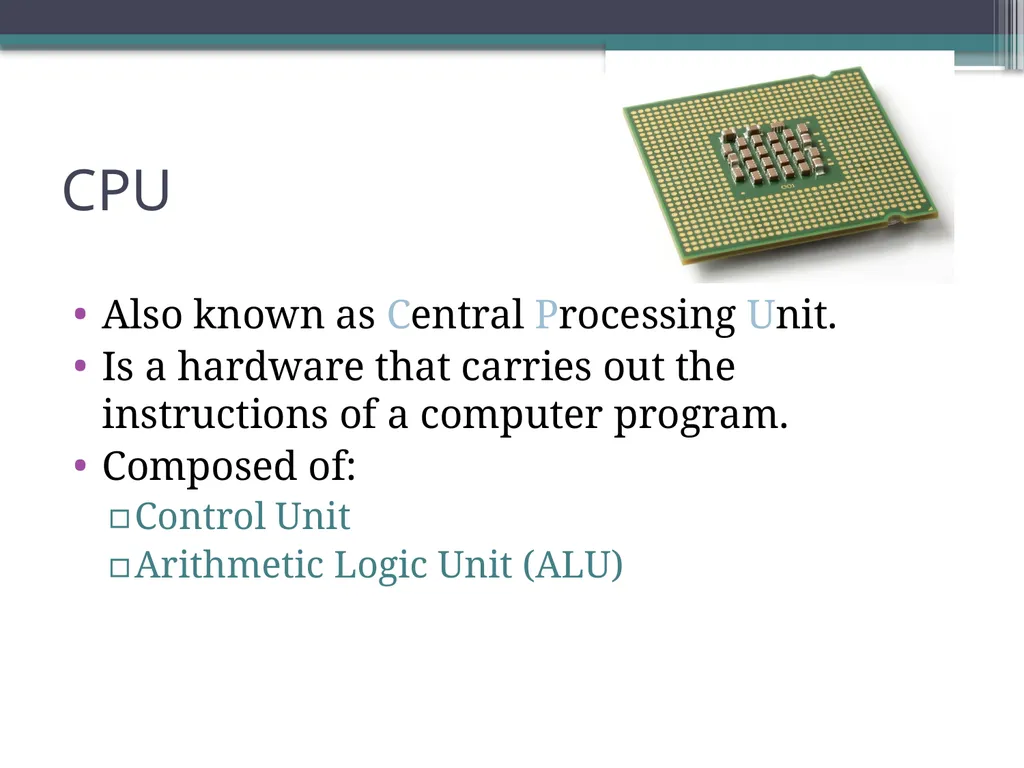
CPU Also known as Central Processing Unit.
Is a hardware that carries out the instructions of a computer program.
Composed of:
Control Unit
Arithmetic Logic Unit (ALU)<br>
09
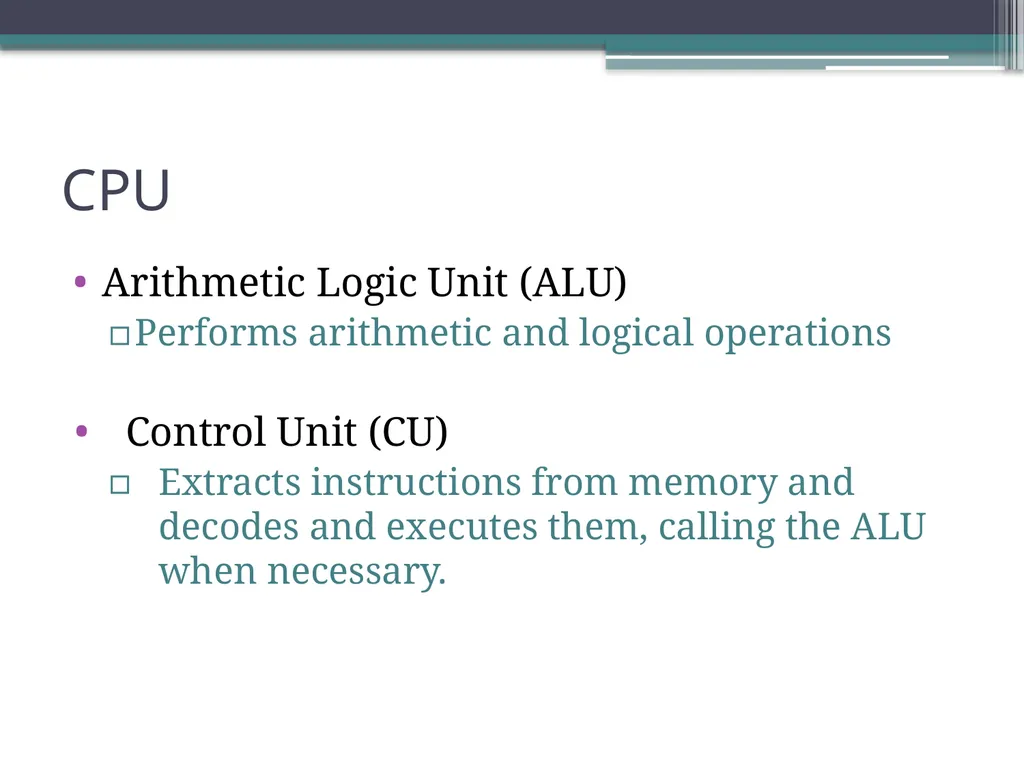
CPU Arithmetic Logic Unit (ALU)
Performs arithmetic and logical operations
Control Unit (CU)
Extracts instructions from memory and decodes and executes them, calling the ALU when necessary.<br>
10
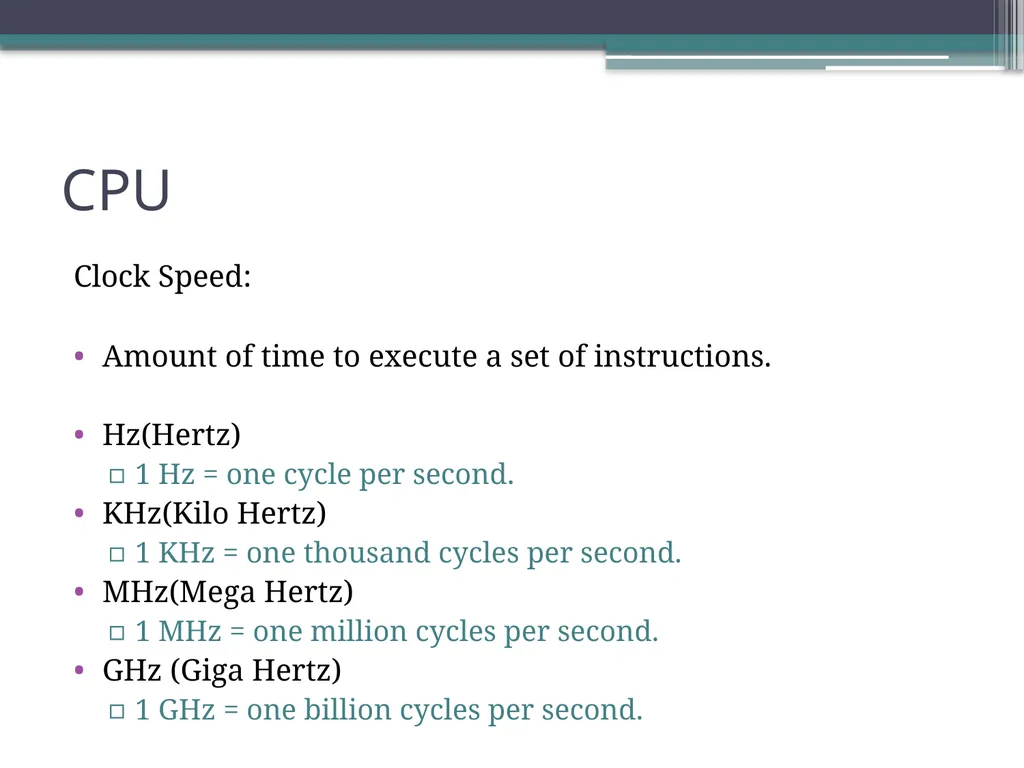
CPU Clock Speed:
Amount of time to execute a set of instructions.
Hz(Hertz)
1 Hz = one cycle per second.
KHz(Kilo Hertz)
1 KHz = one thousand cycles per second.
MHz(Mega Hertz)
1 MHz = one million cycles per second.
GHz (Giga Hertz)
1 GHz = one billion cycles per second.<br>
11
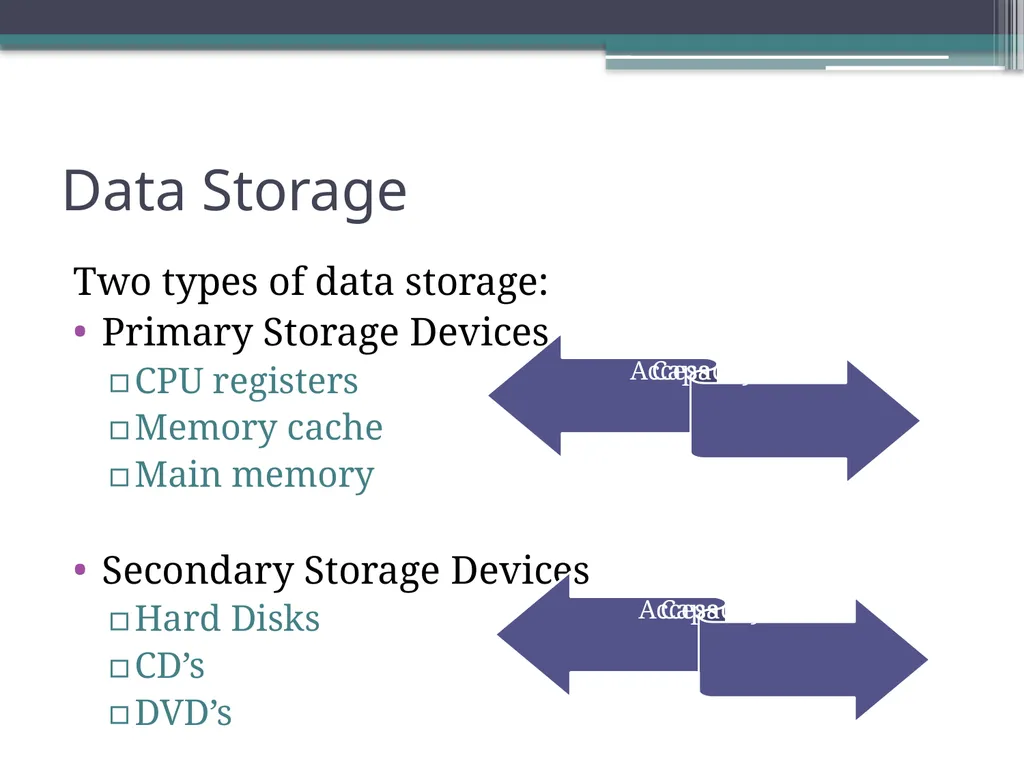
Data Storage Two types of data storage:
Primary Storage Devices
CPU registers
Memory cache
Main memory
Secondary Storage Devices
Hard Disks
CD’s
DVD’s<br>
12
RAM Random Access Memory.
Is a processing memory
Stores data or program while they are being used.
When the program or file is closed, the data is removed from RAM.
Has no moving part therefore it is fast to store and take data from.
Exists as a chip on the motherboard near the CPU.
Requires power.<br>
13
Secondary Storage Devices Auxiliary storage devices
used to store instructions and data when they are not being used in memory.
Common types are:
Hard Disks
Consists of one or more rigid metal platters coated with a metal oxide material that allows data to be recorded magnetically on the surface of the platters.
CDs
DVDs 13<br>
14
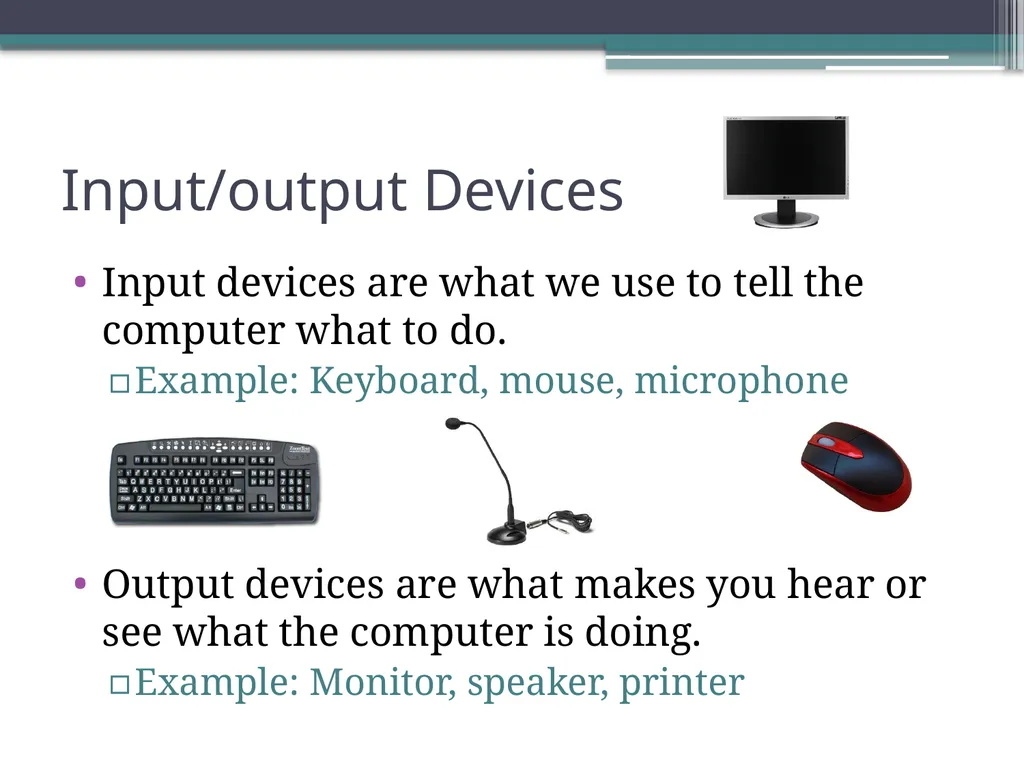
Input/output Devices Input devices are what we use to tell the computer what to do.
Example: Keyboard, mouse, microphone
Output devices are what makes you hear or see what the computer is doing.
Example: Monitor, speaker, printer<br>
15
BIOS Basic Input Output System.
First software run by a PC when powered on.
Fundamental purposes of the BIOS:
Initialize and test the system hardware components.
Load the operating system.
Stored on a non-volatile ROM chip on the motherboard<br>
16
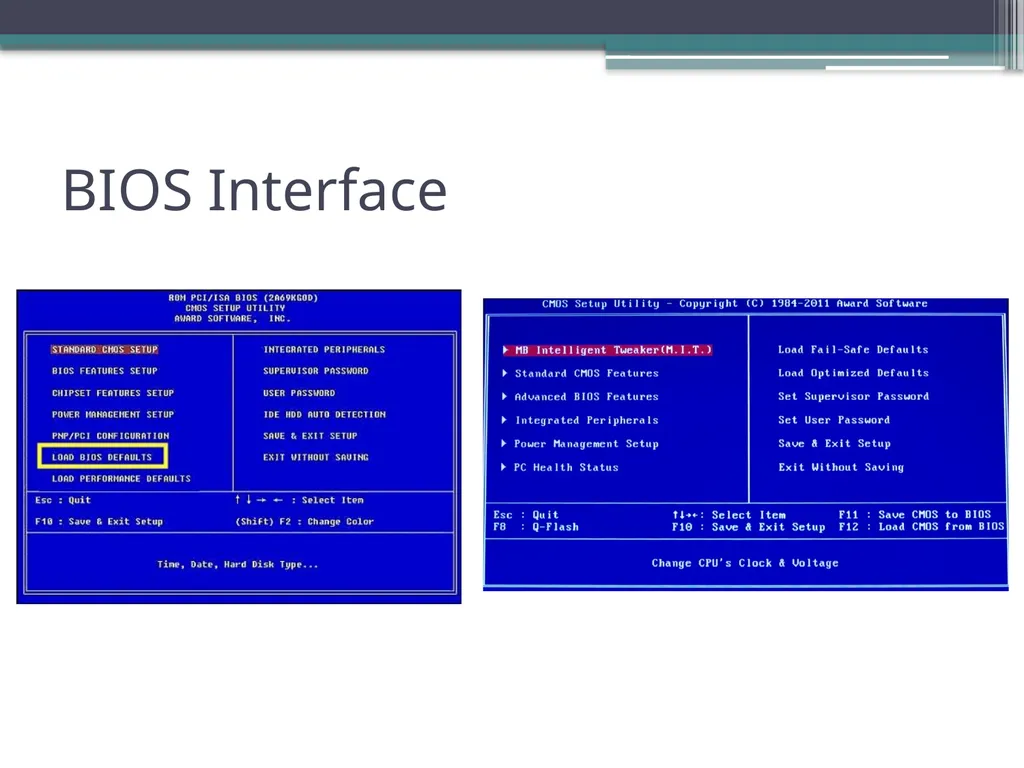
BIOS Has a menu based user interface (UI) accessed by pressing certain key when the PC starts.
In the BIOS UI, a user can:
Configure hardware.
Set the system clock.
Enable or disable system components.
Select which devices are potential boot devices.
Set various password prompts.
Some BIOS chip allows overclocking the CPU.<br>
17
BIOS Interface<br>
18
Operating System Collection of software that manages computer hardware.
Divides CPU core time along different programs
Manages access to RAM, I/O and disk
Enforces system and security policy to isolate applications from each other
First program that starts when the pc is on.
Provides the user with easy-to-use interface.
Example: Windows, Linux, iOS, Android<br>