Help for Visual Studio Code Jim Fawcett CSE686 Internet Programming Spring 2019 Visual Studio Code (VS Code) VS Code is a text editor build with the Electron.js JavaScript framework. It is easy to use for building static web pages. In
"Help for Visual Studio Code Jim Fawcett CSE686 –" is the property of its rightful owner. Permission is granted to
download and print the materials on this website for personal, non-commercial use only, and to display it
on your personal computer provided you do not modify the materials and that you retain all copyright
notices contained in the materials. By downloading content from our website, you accept the terms of this
agreement.
Presentation Transcript
01
Help for Visual Studio Code Jim Fawcett
CSE686 – Internet Programming
Spring 2019<br>
02
Visual Studio Code (VS Code) VS Code is a text editor build with the Electron.js JavaScript framework.
It is easy to use for building static web pages.
In conjunction with the dotnet command, and a default C# plugin, it is a capable Integrated Development Environment (IDE) for working with Asp.Net Core applications.
Visual Studio has more facilities, and, once you learn how it works, it is a very effective tool for building static pages and working with Asp.Net Core projects.
VS Code will do everything we need for the first half of the course.<br>
03
Using VS Code The first thing to do is download the latest version – it’s free. Just ask Dr. Google to take you to VS Code download.
That will download an installer in your Download directory. Run it – that takes just a minute or so - then start up VS Code.<br>
04
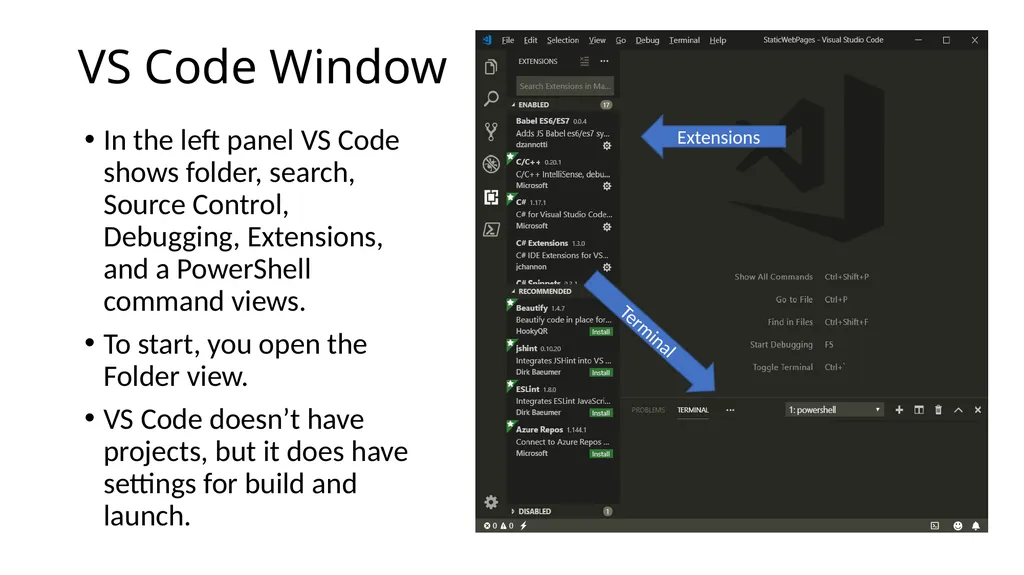
VS Code Window In the left panel VS Code shows folder, search, Source Control, Debugging, Extensions, and a PowerShell command views.
To start, you open the Folder view.
VS Code doesn’t have projects, but it does have settings for build and launch. Terminal Extensions<br>
05
Building Static Web Pages File > Open Folder > select work folder in dialog (or create)
File > New File > Enter opens editor on an un-named text file
Enter some small amount of text
File > Save As > Enter File name (ext html, css, js) > Save
Made sub folders css and js in work folder
File > Save As > right-click on dialog > new > folder > CSS
File > Save As > right-click on dialog > new > folder > JS
Now you fill in the html, css, and js details.<br>
06
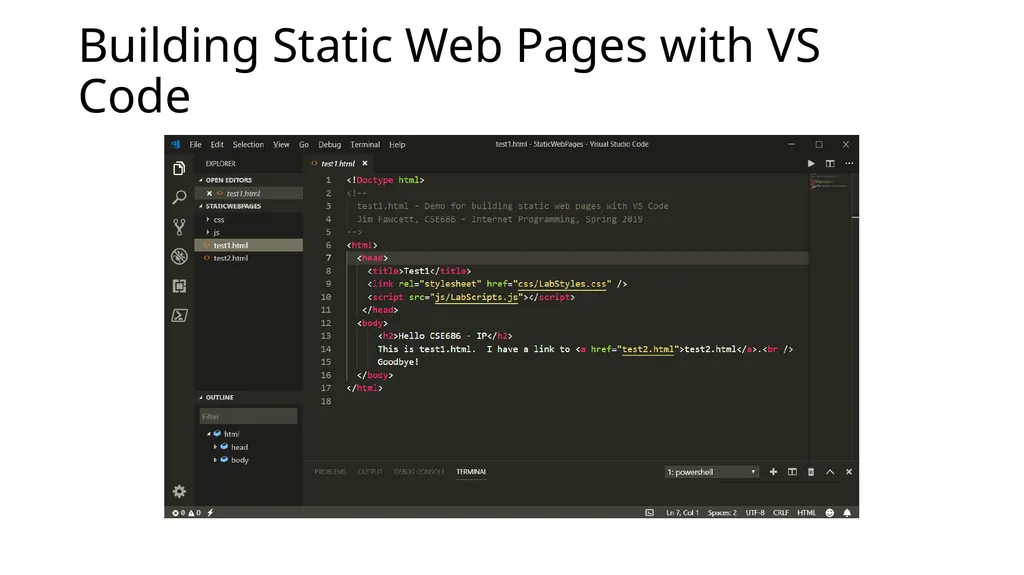
Building Static Web Pages with VS Code<br>
07
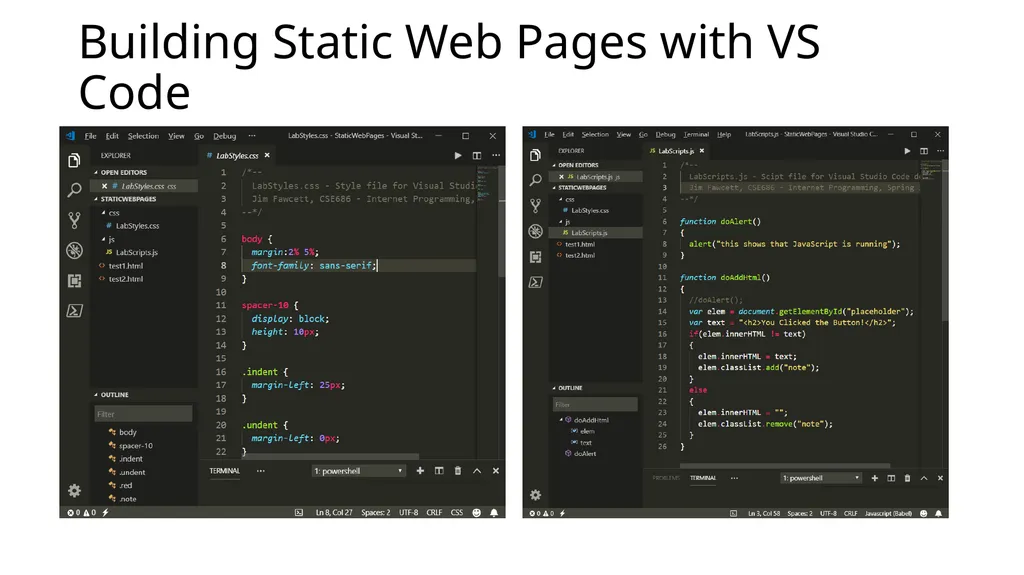
Building Static Web Pages with VS Code<br>
08
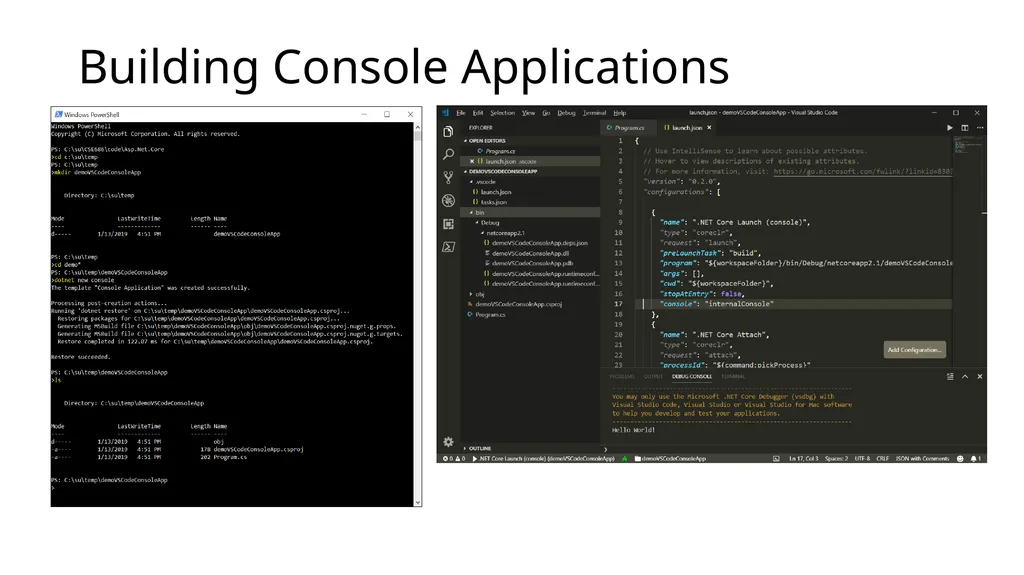
Building Console Applications<br>
09
So What? If we use Visual Studio Code:
VS Code can’t create .net core projects
So we create a project folder, call dotnet new console (or whatever)
Open Visual Studio Code
Open the newly created folder
When you do this VS Code will ask if you want to create resources to work with that folder.
Select yes – that builds a json settings file to manage builds and debugging
Start editing files and running
Note that it is dotnet runtime that does the launching and debugging, not VS Code.<br>