Neogov Perform Employee Training Perform is a cloud-based software module designed to automate the annual performance evaluation process. Please ensure you use Chrome or Edge browsers when using NeoGov. Steps of Your Performance Evaluations
"Neogov Perform Employee Training Perform is a" is the property of its rightful owner. Permission is granted to
download and print the materials on this website for personal, non-commercial use only, and to display it
on your personal computer provided you do not modify the materials and that you retain all copyright
notices contained in the materials. By downloading content from our website, you accept the terms of this
agreement.
Presentation Transcript
01
Neogov Perform Employee Training<br>
02
Perform is a cloud-based software module designed to automate the annual performance evaluation process. Please ensure you use Chrome or Edge browsers when using NeoGov.<br>
03
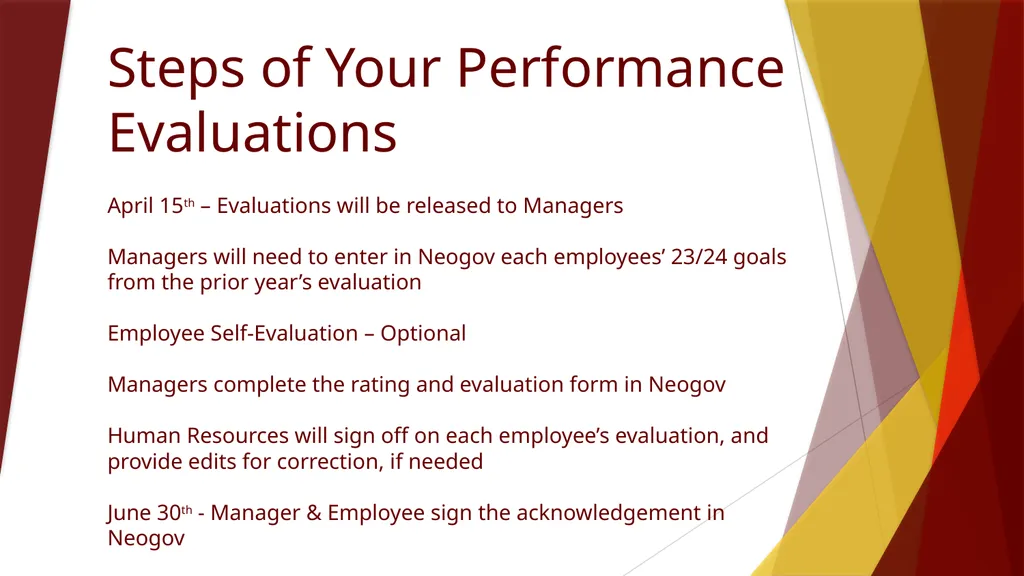
Steps of Your Performance Evaluations April 15th – Evaluations will be released to Managers Managers will need to enter in Neogov each employees’ 23/24 goals from the prior year’s evaluation Employee Self-Evaluation – Optional Managers complete the rating and evaluation form in Neogov Human Resources will sign off on each employee’s evaluation, and provide edits for correction, if needed June 30th - Manager & Employee sign the acknowledgement in Neogov<br>
04
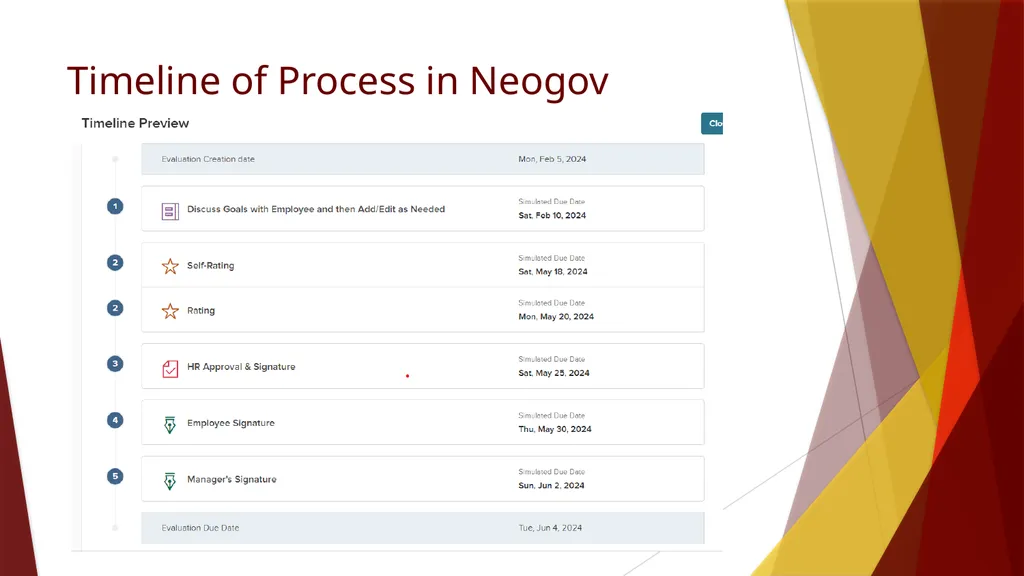
Timeline of Process in Neogov<br>
05
Employee Self-Evaluation The self-evaluation gives employees an opportunity to provide important feedback to their managers regarding the previous year. It is an opportunity to give both personal and professional feedback about how things are working in their position, in their department, and within the university.<br>
06
Manager Rating
The Manager’s Rating Step in the evaluation process is an opportunity for managers to evaluate their employees’ job performance during their current evaluation period. This includes the exact same information and ratings scales as the previous forms we have utilized during the previous annual evaluation process.<br>
07
How To Access Perform Log into Neogov through SSO.
This will take you to your Dashboard.
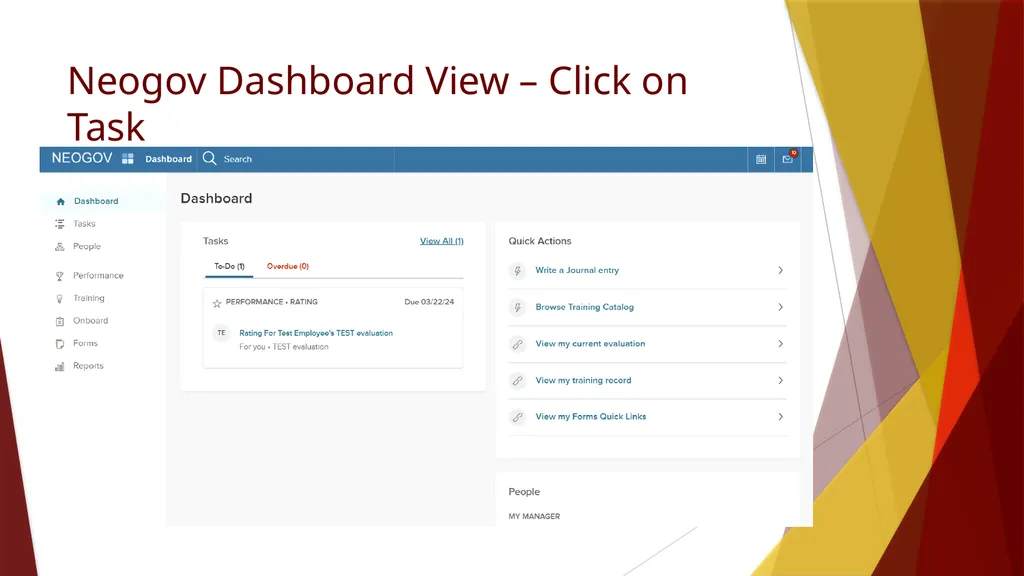
The Dashboard is where you will see all of your Performance Tasks (Neogov log in > Dashboard > My Tasks).
From the Dashboard you can access your Employees’ Evaluations.
To access your employees’ evaluations, you will select “Performance” and then select “My Evaluations”.<br>
08
Neogov Dashboard View – Click on Task<br>
09
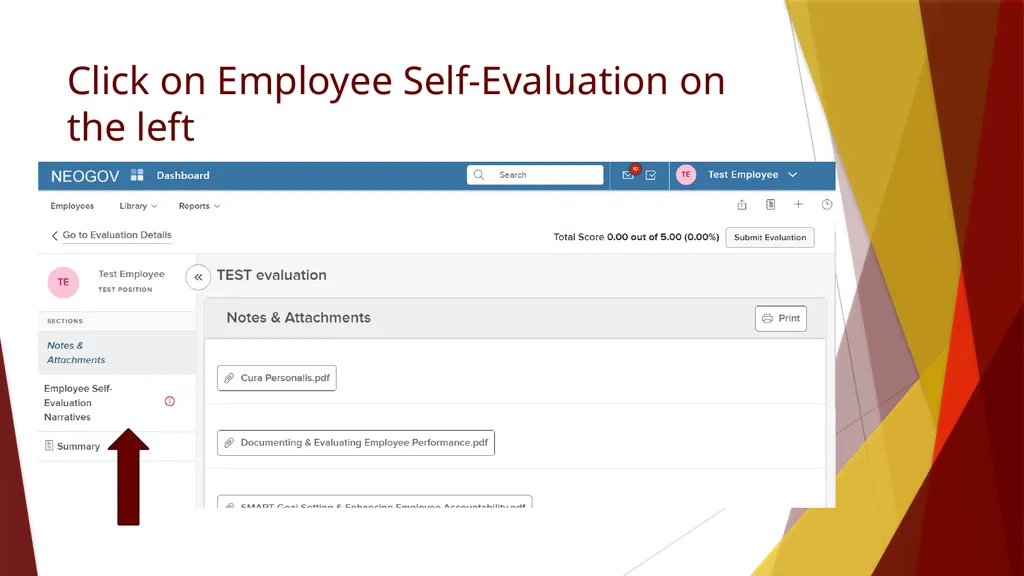
Click on Employee Self-Evaluation on the left<br>
10
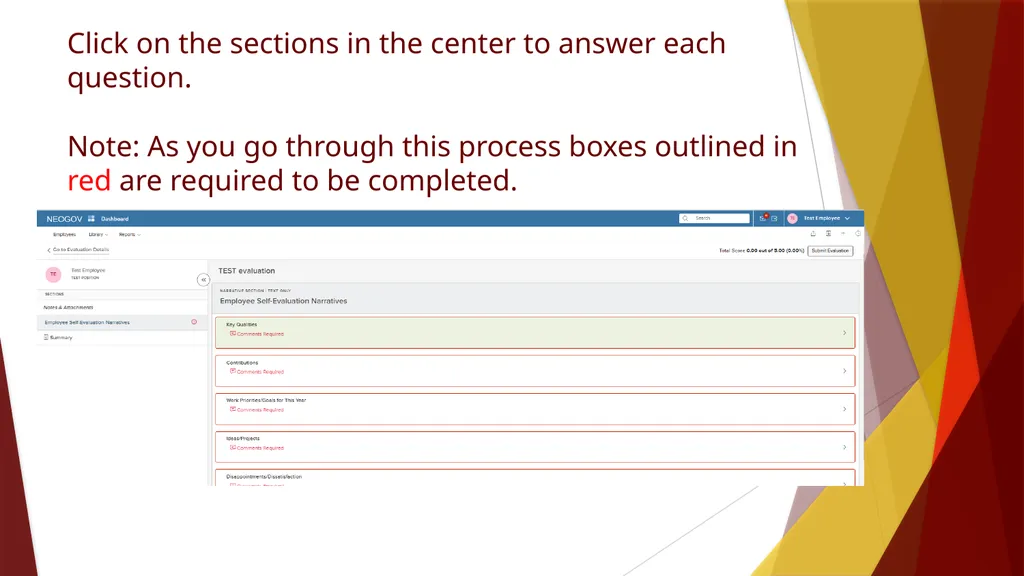
Click on the sections in the center to answer each question. Note: As you go through this process boxes outlined in red are required to be completed.<br>
11
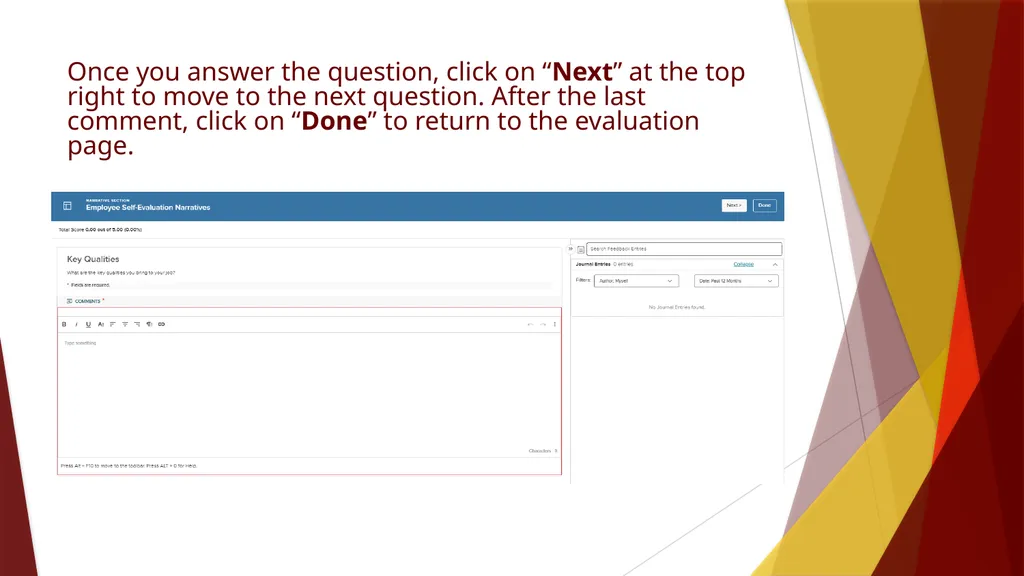
Once you answer the question, click on “Next” at the top right to move to the next question. After the last comment, click on “Done” to return to the evaluation page.<br>
12
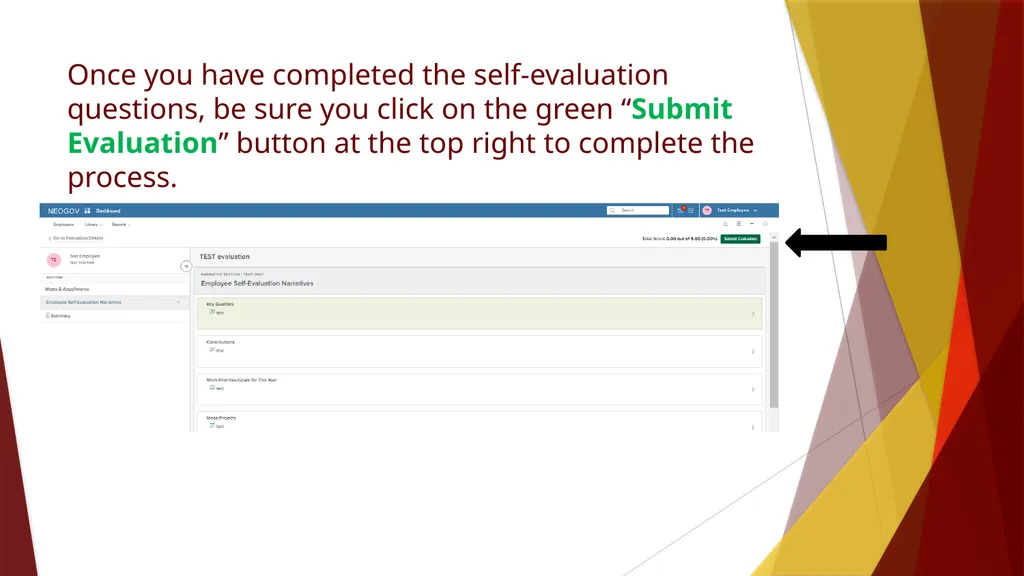
Once you have completed the self-evaluation questions, be sure you click on the green “Submit Evaluation” button at the top right to complete the process.<br>
13
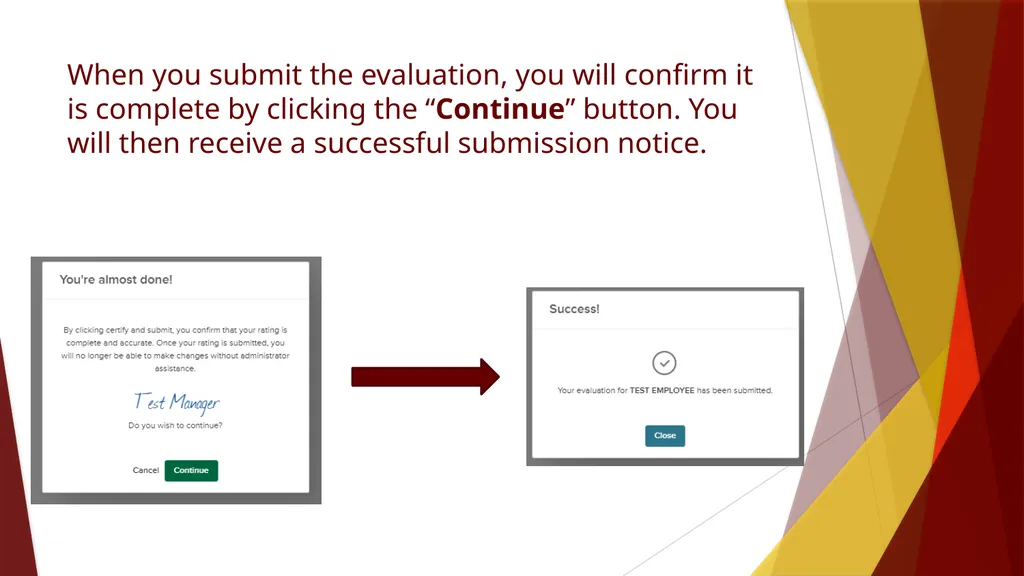
When you submit the evaluation, you will confirm it is complete by clicking the “Continue” button. You will then receive a successful submission notice.<br>
14
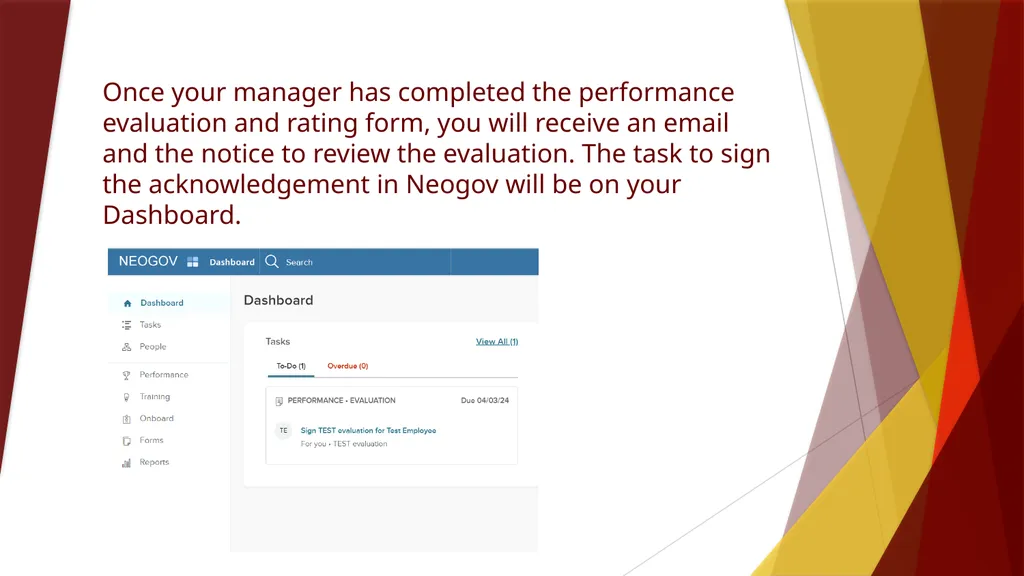
Once your manager has completed the performance evaluation and rating form, you will receive an email and the notice to review the evaluation. The task to sign the acknowledgement in Neogov will be on your Dashboard.<br>
15
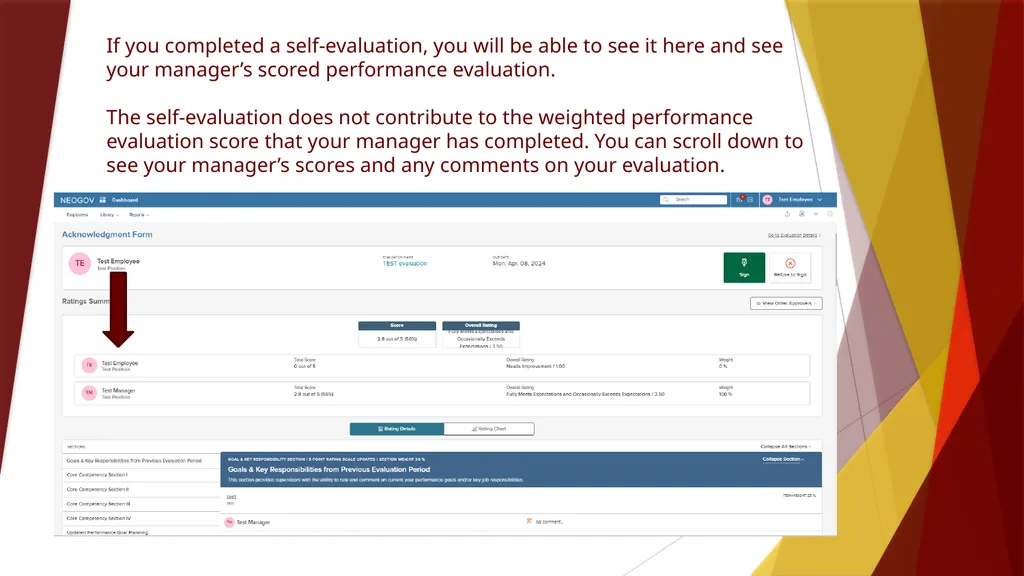
If you completed a self-evaluation, you will be able to see it here and see your manager’s scored performance evaluation. The self-evaluation does not contribute to the weighted performance evaluation score that your manager has completed. You can scroll down to see your manager’s scores and any comments on your evaluation.<br>
16
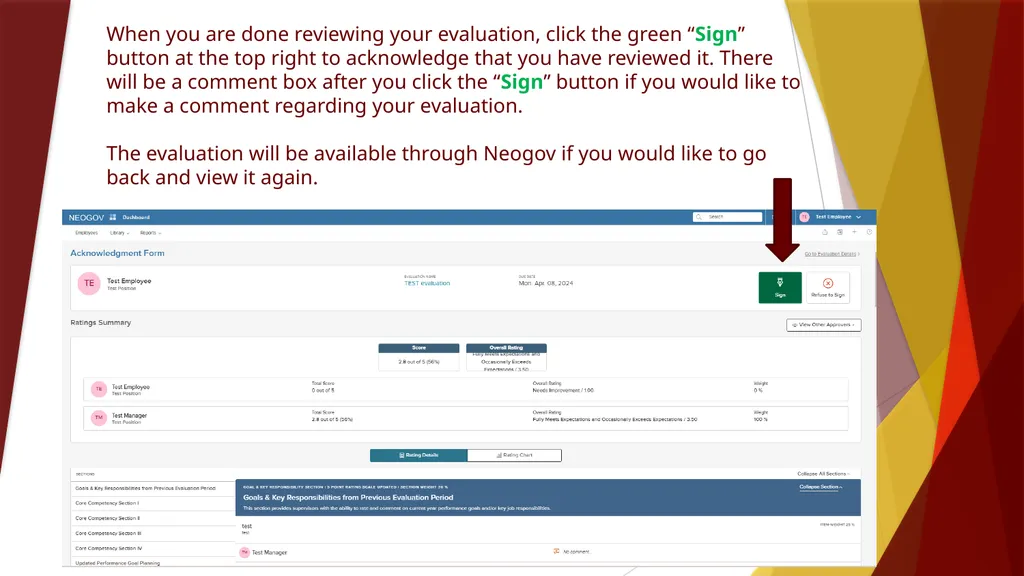
When you are done reviewing your evaluation, click the green “Sign” button at the top right to acknowledge that you have reviewed it. There will be a comment box after you click the “Sign” button if you would like to make a comment regarding your evaluation. The evaluation will be available through Neogov if you would like to go back and view it again.<br>
17
Employee Journal Entries
Notes and/or attachments that an employee can make about their accomplishments, tasks completed, or areas of development to note. From the Dashboard or the person’s profile, Neogov allows managers and employees to make notes throughout the year. The person making the note determines who it is shared with through Neogov, though notes are not required to be shared with anyone. If you choose to share it with your manager, notes are available during the review process as reminders for the managers.<br>
18
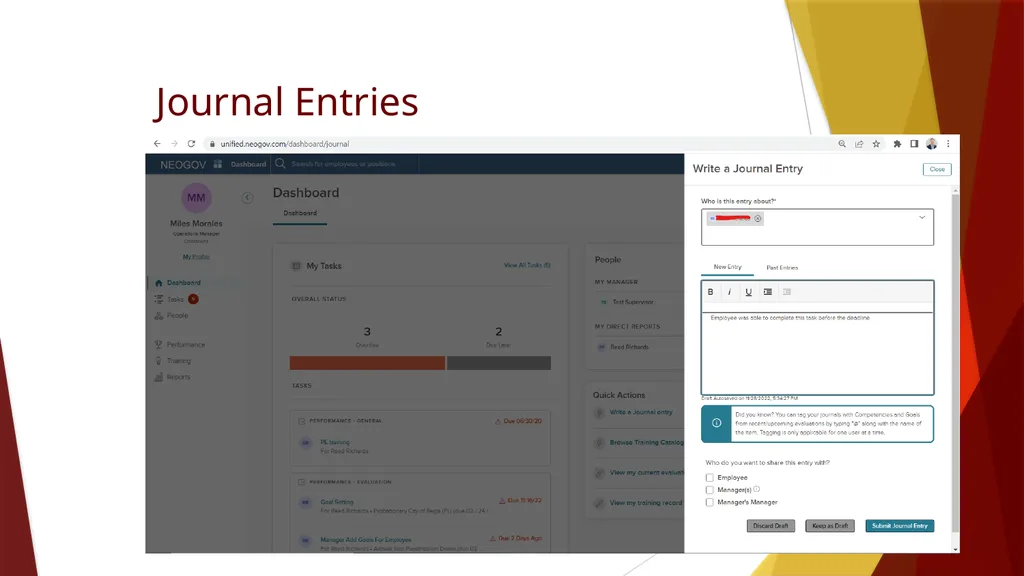
How To Create A Journal Entry To create a journal entry, first log into Neogov.
When you are logged in, you will be sent to the Dashboard.
Under Quick Actions on the right hand side you will select “Write A Journal Entry”.
A window will appear and you will be asked “Who is this entry about?” You will select the drop down and select the employee you wish to write about. Then a text box will appear.<br>