
PURCHASING Training and Helpful Tools for Jaggaer
BR
Published · 9 slides · 0 views

1 / 1

Description
PURCHASING Training and Helpful Tools for Jaggaer JAGGAER TRAINING MATERIAL Searching for a Supplier Jaggaer Creating a Punchout Requisition Creating a Non-Catalog Requisition Commodity Code Listing Splitting Accounting Codes JAGGAER
Related Topics
Share
Embed code
Download this presentation From Below
"PURCHASING Training and Helpful Tools for Jaggaer" is the property of its rightful owner. Permission is granted to download and print the materials on this website for personal, non-commercial use only, and to display it on your personal computer provided you do not modify the materials and that you retain all copyright notices contained in the materials. By downloading content from our website, you accept the terms of this agreement.
Presentation Transcript
01
PURCHASING Training and Helpful Tools for Jaggaer<br>
02
JAGGAER TRAINING MATERIAL Searching for a Supplier Jaggaer
Creating a Punchout Requisition
Creating a Non-Catalog Requisition
Commodity Code Listing
Splitting Accounting Codes<br>
Creating a Punchout Requisition
Creating a Non-Catalog Requisition
Commodity Code Listing
Splitting Accounting Codes<br>
03
JAGGAER GENERAL INFORMATION Roles of Procurement
Shopper – a user who may create purchase requisitions (shopping carts) and the ability to complete forms. Shoppers will assign their carts to the appropriate Requestor or Approver.
Requestor – a user who, in addition to creating shopping carts and completing forms, has the ability to enter account codes an submit requisitions into the workflow process for approval.
Approver – a user who, in addition to the above mentioned capabilities, approves requisitions and forms submitted to them.<br>
Shopper – a user who may create purchase requisitions (shopping carts) and the ability to complete forms. Shoppers will assign their carts to the appropriate Requestor or Approver.
Requestor – a user who, in addition to creating shopping carts and completing forms, has the ability to enter account codes an submit requisitions into the workflow process for approval.
Approver – a user who, in addition to the above mentioned capabilities, approves requisitions and forms submitted to them.<br>
04
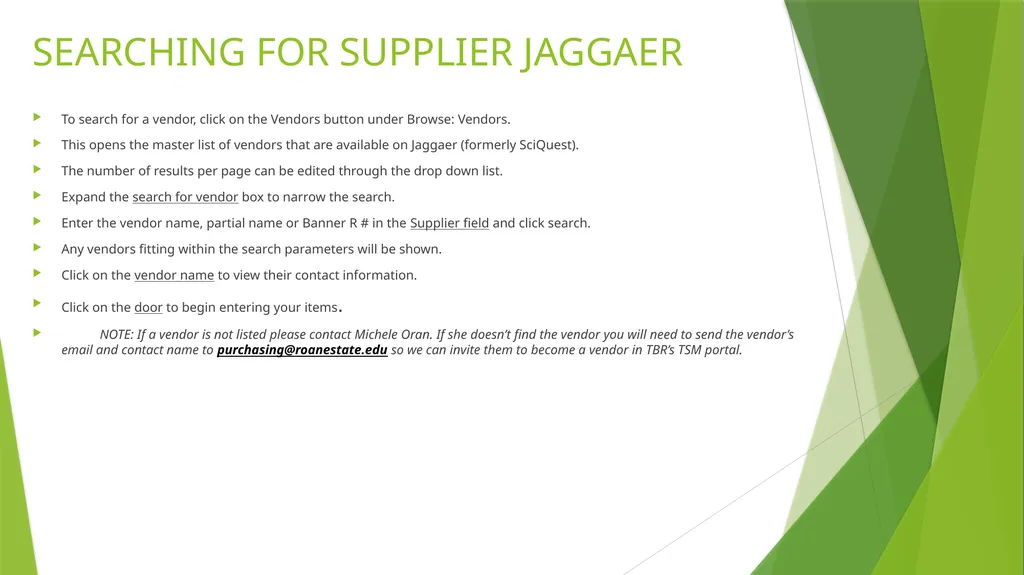
SEARCHING FOR SUPPLIER JAGGAER To search for a vendor, click on the Vendors button under Browse: Vendors.
This opens the master list of vendors that are available on Jaggaer (formerly SciQuest).
The number of results per page can be edited through the drop down list.
Expand the search for vendor box to narrow the search.
Enter the vendor name, partial name or Banner R # in the Supplier field and click search.
Any vendors fitting within the search parameters will be shown.
Click on the vendor name to view their contact information.
Click on the door to begin entering your items.
NOTE: If a vendor is not listed please contact Michele Oran. If she doesn’t find the vendor you will need to send the vendor’s email and contact name to purchasing@roanestate.edu so we can invite them to become a vendor in TBR’s TSM portal.<br>
This opens the master list of vendors that are available on Jaggaer (formerly SciQuest).
The number of results per page can be edited through the drop down list.
Expand the search for vendor box to narrow the search.
Enter the vendor name, partial name or Banner R # in the Supplier field and click search.
Any vendors fitting within the search parameters will be shown.
Click on the vendor name to view their contact information.
Click on the door to begin entering your items.
NOTE: If a vendor is not listed please contact Michele Oran. If she doesn’t find the vendor you will need to send the vendor’s email and contact name to purchasing@roanestate.edu so we can invite them to become a vendor in TBR’s TSM portal.<br>
05
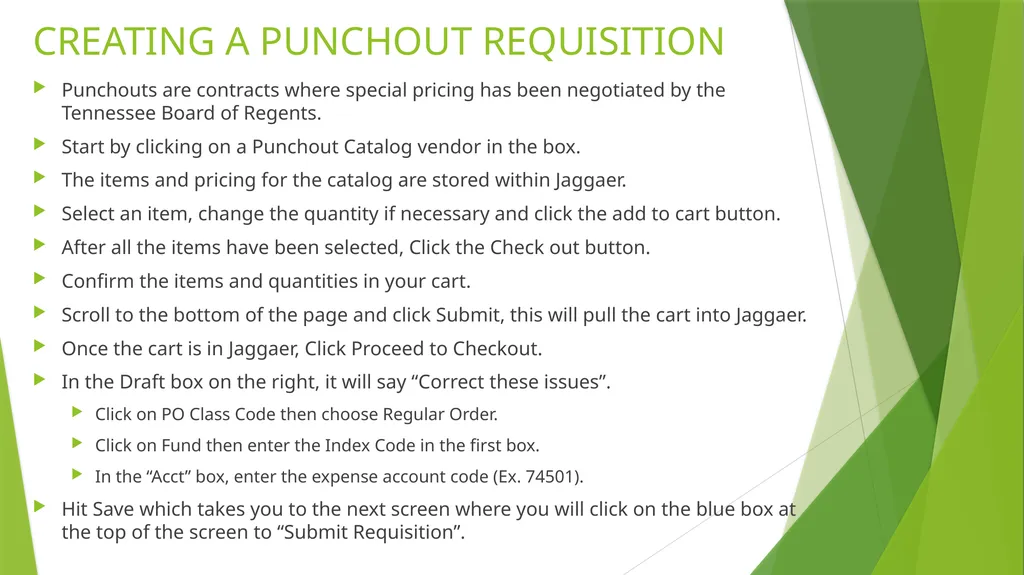
CREATING A PUNCHOUT REQUISITION Punchouts are contracts where special pricing has been negotiated by the Tennessee Board of Regents.
Start by clicking on a Punchout Catalog vendor in the box.
The items and pricing for the catalog are stored within Jaggaer.
Select an item, change the quantity if necessary and click the add to cart button.
After all the items have been selected, Click the Check out button.
Confirm the items and quantities in your cart.
Scroll to the bottom of the page and click Submit, this will pull the cart into Jaggaer.
Once the cart is in Jaggaer, Click Proceed to Checkout.
In the Draft box on the right, it will say “Correct these issues”.
Click on PO Class Code then choose Regular Order.
Click on Fund then enter the Index Code in the first box.
In the “Acct” box, enter the expense account code (Ex. 74501).
Hit Save which takes you to the next screen where you will click on the blue box at the top of the screen to “Submit Requisition”.<br>
Start by clicking on a Punchout Catalog vendor in the box.
The items and pricing for the catalog are stored within Jaggaer.
Select an item, change the quantity if necessary and click the add to cart button.
After all the items have been selected, Click the Check out button.
Confirm the items and quantities in your cart.
Scroll to the bottom of the page and click Submit, this will pull the cart into Jaggaer.
Once the cart is in Jaggaer, Click Proceed to Checkout.
In the Draft box on the right, it will say “Correct these issues”.
Click on PO Class Code then choose Regular Order.
Click on Fund then enter the Index Code in the first box.
In the “Acct” box, enter the expense account code (Ex. 74501).
Hit Save which takes you to the next screen where you will click on the blue box at the top of the screen to “Submit Requisition”.<br>
06
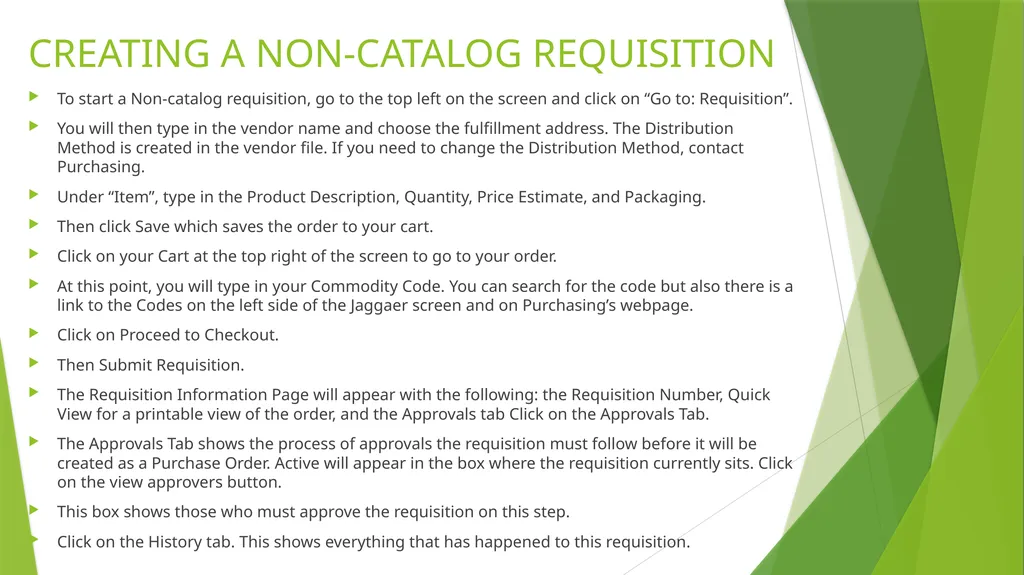
CREATING A NON-CATALOG REQUISITION To start a Non-catalog requisition, go to the top left on the screen and click on “Go to: Requisition”.
You will then type in the vendor name and choose the fulfillment address. The Distribution Method is created in the vendor file. If you need to change the Distribution Method, contact Purchasing.
Under “Item”, type in the Product Description, Quantity, Price Estimate, and Packaging.
Then click Save which saves the order to your cart.
Click on your Cart at the top right of the screen to go to your order.
At this point, you will type in your Commodity Code. You can search for the code but also there is a link to the Codes on the left side of the Jaggaer screen and on Purchasing’s webpage.
Click on Proceed to Checkout.
Then Submit Requisition.
The Requisition Information Page will appear with the following: the Requisition Number, Quick View for a printable view of the order, and the Approvals tab Click on the Approvals Tab.
The Approvals Tab shows the process of approvals the requisition must follow before it will be created as a Purchase Order. Active will appear in the box where the requisition currently sits. Click on the view approvers button.
This box shows those who must approve the requisition on this step.
Click on the History tab. This shows everything that has happened to this requisition.<br>
You will then type in the vendor name and choose the fulfillment address. The Distribution Method is created in the vendor file. If you need to change the Distribution Method, contact Purchasing.
Under “Item”, type in the Product Description, Quantity, Price Estimate, and Packaging.
Then click Save which saves the order to your cart.
Click on your Cart at the top right of the screen to go to your order.
At this point, you will type in your Commodity Code. You can search for the code but also there is a link to the Codes on the left side of the Jaggaer screen and on Purchasing’s webpage.
Click on Proceed to Checkout.
Then Submit Requisition.
The Requisition Information Page will appear with the following: the Requisition Number, Quick View for a printable view of the order, and the Approvals tab Click on the Approvals Tab.
The Approvals Tab shows the process of approvals the requisition must follow before it will be created as a Purchase Order. Active will appear in the box where the requisition currently sits. Click on the view approvers button.
This box shows those who must approve the requisition on this step.
Click on the History tab. This shows everything that has happened to this requisition.<br>
07
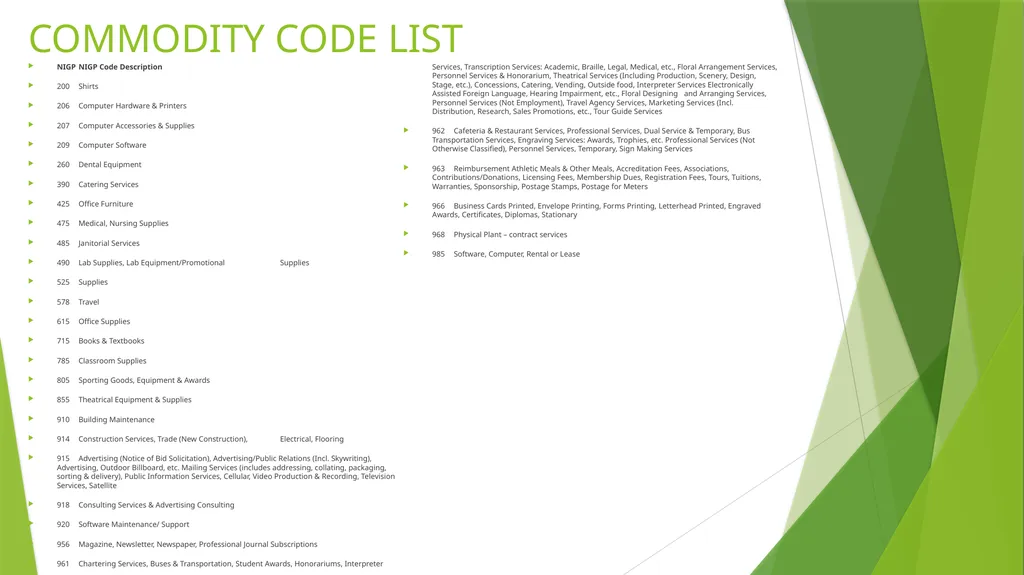
COMMODITY CODE LIST NIGP NIGP Code Description
200 Shirts
206 Computer Hardware & Printers
207 Computer Accessories & Supplies
209 Computer Software
260 Dental Equipment
390 Catering Services
425 Office Furniture
475 Medical, Nursing Supplies
485 Janitorial Services
490 Lab Supplies, Lab Equipment/Promotional Supplies
525 Supplies
578 Travel
615 Office Supplies
715 Books & Textbooks
785 Classroom Supplies
805 Sporting Goods, Equipment & Awards
855 Theatrical Equipment & Supplies
910 Building Maintenance
914 Construction Services, Trade (New Construction), Electrical, Flooring
915 Advertising (Notice of Bid Solicitation), Advertising/Public Relations (Incl. Skywriting), Advertising, Outdoor Billboard, etc. Mailing Services (includes addressing, collating, packaging, sorting & delivery), Public Information Services, Cellular, Video Production & Recording, Television Services, Satellite
918 Consulting Services & Advertising Consulting
920 Software Maintenance/ Support
956 Magazine, Newsletter, Newspaper, Professional Journal Subscriptions
961 Chartering Services, Buses & Transportation, Student Awards, Honorariums, Interpreter Services, Transcription Services: Academic, Braille, Legal, Medical, etc., Floral Arrangement Services, Personnel Services & Honorarium, Theatrical Services (Including Production, Scenery, Design, Stage, etc.), Concessions, Catering, Vending, Outside food, Interpreter Services Electronically Assisted Foreign Language, Hearing Impairment, etc., Floral Designing and Arranging Services, Personnel Services (Not Employment), Travel Agency Services, Marketing Services (Incl. Distribution, Research, Sales Promotions, etc., Tour Guide Services
962 Cafeteria & Restaurant Services, Professional Services, Dual Service & Temporary, Bus Transportation Services, Engraving Services: Awards, Trophies, etc. Professional Services (Not Otherwise Classified), Personnel Services, Temporary, Sign Making Services
963 Reimbursement Athletic Meals & Other Meals, Accreditation Fees, Associations, Contributions/Donations, Licensing Fees, Membership Dues, Registration Fees, Tours, Tuitions, Warranties, Sponsorship, Postage Stamps, Postage for Meters
966 Business Cards Printed, Envelope Printing, Forms Printing, Letterhead Printed, Engraved Awards, Certificates, Diplomas, Stationary
968 Physical Plant – contract services
985 Software, Computer, Rental or Lease<br>
200 Shirts
206 Computer Hardware & Printers
207 Computer Accessories & Supplies
209 Computer Software
260 Dental Equipment
390 Catering Services
425 Office Furniture
475 Medical, Nursing Supplies
485 Janitorial Services
490 Lab Supplies, Lab Equipment/Promotional Supplies
525 Supplies
578 Travel
615 Office Supplies
715 Books & Textbooks
785 Classroom Supplies
805 Sporting Goods, Equipment & Awards
855 Theatrical Equipment & Supplies
910 Building Maintenance
914 Construction Services, Trade (New Construction), Electrical, Flooring
915 Advertising (Notice of Bid Solicitation), Advertising/Public Relations (Incl. Skywriting), Advertising, Outdoor Billboard, etc. Mailing Services (includes addressing, collating, packaging, sorting & delivery), Public Information Services, Cellular, Video Production & Recording, Television Services, Satellite
918 Consulting Services & Advertising Consulting
920 Software Maintenance/ Support
956 Magazine, Newsletter, Newspaper, Professional Journal Subscriptions
961 Chartering Services, Buses & Transportation, Student Awards, Honorariums, Interpreter Services, Transcription Services: Academic, Braille, Legal, Medical, etc., Floral Arrangement Services, Personnel Services & Honorarium, Theatrical Services (Including Production, Scenery, Design, Stage, etc.), Concessions, Catering, Vending, Outside food, Interpreter Services Electronically Assisted Foreign Language, Hearing Impairment, etc., Floral Designing and Arranging Services, Personnel Services (Not Employment), Travel Agency Services, Marketing Services (Incl. Distribution, Research, Sales Promotions, etc., Tour Guide Services
962 Cafeteria & Restaurant Services, Professional Services, Dual Service & Temporary, Bus Transportation Services, Engraving Services: Awards, Trophies, etc. Professional Services (Not Otherwise Classified), Personnel Services, Temporary, Sign Making Services
963 Reimbursement Athletic Meals & Other Meals, Accreditation Fees, Associations, Contributions/Donations, Licensing Fees, Membership Dues, Registration Fees, Tours, Tuitions, Warranties, Sponsorship, Postage Stamps, Postage for Meters
966 Business Cards Printed, Envelope Printing, Forms Printing, Letterhead Printed, Engraved Awards, Certificates, Diplomas, Stationary
968 Physical Plant – contract services
985 Software, Computer, Rental or Lease<br>
08
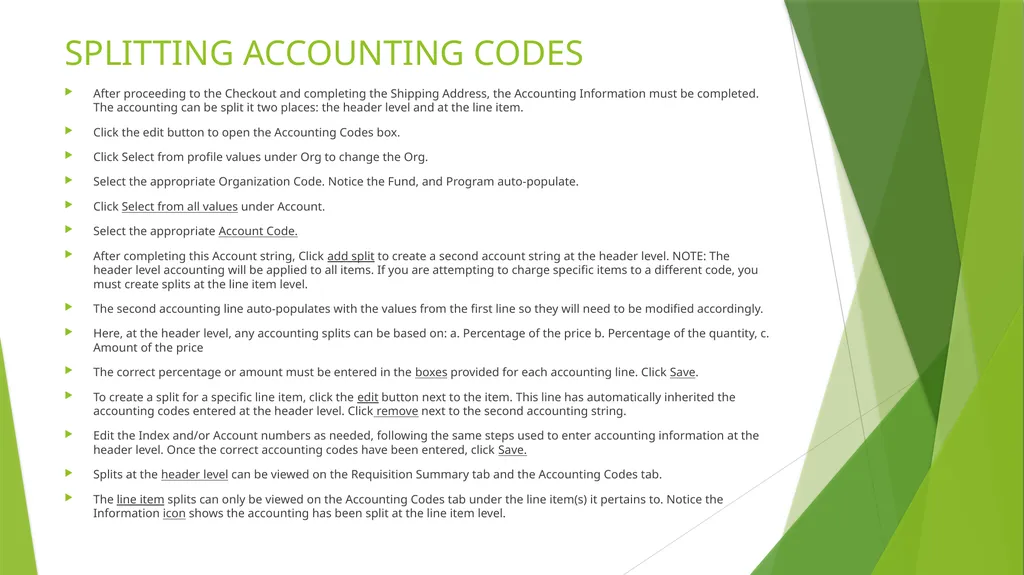
SPLITTING ACCOUNTING CODES After proceeding to the Checkout and completing the Shipping Address, the Accounting Information must be completed. The accounting can be split it two places: the header level and at the line item.
Click the edit button to open the Accounting Codes box.
Click Select from profile values under Org to change the Org.
Select the appropriate Organization Code. Notice the Fund, and Program auto-populate.
Click Select from all values under Account.
Select the appropriate Account Code.
After completing this Account string, Click add split to create a second account string at the header level. NOTE: The header level accounting will be applied to all items. If you are attempting to charge specific items to a different code, you must create splits at the line item level.
The second accounting line auto-populates with the values from the first line so they will need to be modified accordingly.
Here, at the header level, any accounting splits can be based on: a. Percentage of the price b. Percentage of the quantity, c. Amount of the price
The correct percentage or amount must be entered in the boxes provided for each accounting line. Click Save.
To create a split for a specific line item, click the edit button next to the item. This line has automatically inherited the accounting codes entered at the header level. Click remove next to the second accounting string.
Edit the Index and/or Account numbers as needed, following the same steps used to enter accounting information at the header level. Once the correct accounting codes have been entered, click Save.
Splits at the header level can be viewed on the Requisition Summary tab and the Accounting Codes tab.
The line item splits can only be viewed on the Accounting Codes tab under the line item(s) it pertains to. Notice the Information icon shows the accounting has been split at the line item level.<br>
Click the edit button to open the Accounting Codes box.
Click Select from profile values under Org to change the Org.
Select the appropriate Organization Code. Notice the Fund, and Program auto-populate.
Click Select from all values under Account.
Select the appropriate Account Code.
After completing this Account string, Click add split to create a second account string at the header level. NOTE: The header level accounting will be applied to all items. If you are attempting to charge specific items to a different code, you must create splits at the line item level.
The second accounting line auto-populates with the values from the first line so they will need to be modified accordingly.
Here, at the header level, any accounting splits can be based on: a. Percentage of the price b. Percentage of the quantity, c. Amount of the price
The correct percentage or amount must be entered in the boxes provided for each accounting line. Click Save.
To create a split for a specific line item, click the edit button next to the item. This line has automatically inherited the accounting codes entered at the header level. Click remove next to the second accounting string.
Edit the Index and/or Account numbers as needed, following the same steps used to enter accounting information at the header level. Once the correct accounting codes have been entered, click Save.
Splits at the header level can be viewed on the Requisition Summary tab and the Accounting Codes tab.
The line item splits can only be viewed on the Accounting Codes tab under the line item(s) it pertains to. Notice the Information icon shows the accounting has been split at the line item level.<br>
09
FOR ADDITIONAL HELP Contact Purchasing: purchasing@roanestate.edu
Michele Oran: oranym@roanestate.edu or 865-354-3000 EXT. 4712
Dana West: westdk2@roanestate.edu or 865-354-3000 EXT. 4657<br>
Michele Oran: oranym@roanestate.edu or 865-354-3000 EXT. 4712
Dana West: westdk2@roanestate.edu or 865-354-3000 EXT. 4657<br>